Intel App Audit: Rosetta Through macOS 27 and the macOS 28 Limit

Rosetta supports Intel apps through macOS 27. Check app architecture, update components, and plan for the limited game-only support starting in macOS 28.
Documentation review: October 15, 2026. The corrections below use Apple’s Rosetta guidance, published September 21, 2026. This is a targeted documentation review, not hands-on testing or a complete factual review of every legacy example in this article.
Rosetta remains available for general Intel-app translation on Apple silicon with macOS 27 or earlier. Starting with macOS 28, Apple limits Rosetta to certain older, unmaintained games that depend on Intel-based frameworks. This is neither the removal of all Rosetta functionality nor a guarantee that every old game will work.
Treat this as a partial inventory and cross-check it with Finder and vendor documentation. A list of installed apps does not show which are currently running, and neither this list nor a command scanning one folder proves that all plug-ins, command-line tools or custom installation paths are covered.
Key Takeaways
- Rosetta remains available for general Intel-app translation on Apple silicon with macOS 27 or earlier. Starting with macOS 28, Apple limits Rosetta to certain older, unmaintained games that depend on Intel-based frameworks. This is neither the removal of all Rosetta functionality nor a guarantee that every old game will work.
- Use the documented version boundary: general Rosetta support through macOS 27; limited support for certain older games from macOS 28. Check Apple’s release information and each vendor’s compatibility statement before scheduling an upgrade.
- On macOS 27 or later, open System Settings → General → About → macOS → Intel-based Apps → Details. Apple says this list covers recently used apps and apps in common locations; it is not a complete disk or plug-in inventory. On earlier versions, use Finder to inspect individual apps.
- Treat this as a partial inventory and cross-check it with Finder and vendor documentation. A list of installed apps does not show which are currently running, and neither this list nor a command scanning one folder proves that all plug-ins, command-line tools or custom installation paths are covered.
- Universal apps can still run entirely under Rosetta if they host an Intel-only plugin — the classic trap for DAWs loading old AU/VST plugins.
- Prioritize essential Intel-only apps, export data while they still run, and ask the developer for a Universal or Apple silicon version. Plan around the macOS version boundary rather than an unconfirmed release date or a countdown measured from the original publication date.
- A virtual machine is a possible fallback to evaluate, not a verified guarantee. Confirm the exact host macOS, guest macOS, Rosetta availability, application licence and device requirements with the virtualization vendor, then test the workflow before upgrading. This review did not test a macOS 28 host or any VM configuration.
What Apple Announced, Exactly
Rosetta remains available for general Intel-app translation on Apple silicon with macOS 27 or earlier. Starting with macOS 28, Apple limits Rosetta to certain older, unmaintained games that depend on Intel-based frameworks. This is neither the removal of all Rosetta functionality nor a guarantee that every old game will work.
Prioritize essential Intel-only apps, export data while they still run, and ask the developer for a Universal or Apple silicon version. Plan around the macOS version boundary rather than an unconfirmed release date or a countdown measured from the original publication date.
Apple says an Intel app or one of its components may display a notification about incompatibility with macOS 28. Its current documentation does not establish that every app warns on every launch, or provide the exact future error-dialog wording.
Rosetta vs. Intel-Mac Support: Don't Confuse These
| What it is | Who it affects | Status in macOS 27 | |
|---|---|---|---|
| Intel Mac support | Running macOS itself on Intel-based Mac hardware (2019 Mac Pro, 2020 iMac, etc.) | People who own old Intel Macs | Dropped — macOS 27 won't install on Intel hardware at all |
| Rosetta 2 | Translating Intel apps (x86_64) so they run on Apple Silicon Macs | People on M1/M2/M3/M4/M5 Macs who run old apps | Last full release — gutted to a gaming subset in macOS 28 |
If you own an Intel Mac, you're stuck on macOS Tahoe (26) regardless of Rosetta — that's a hardware cutoff, covered in our companion piece on the end of the Intel Mac era. This article is about the other group: you're on an Apple Silicon Mac, but some of your apps are still Intel-only, and Rosetta has been silently translating them. macOS 27 is the last OS that does that reliably for general apps.
The confusing bit is that the same word — "Intel" — describes both the dropped hardware and the dropped app architecture. They are unrelated mechanisms. A 2024 M4 MacBook Pro is unaffected by the hardware cutoff but is very affected by the Rosetta cutoff if you run Intel-only software. Keep that straight and the rest of this guide makes sense.
How Rosetta 2 Works (and Why Apple Has Done This Before)
Rosetta 2 arrived alongside the first M1 Macs at WWDC 2020. Its job: take software compiled for Intel's x86_64 instruction set and translate it to Apple Silicon's arm64 so it runs without the developer recompiling anything.
It does this two ways:
- Ahead-of-time (AOT) translation: When you first launch an Intel app, Rosetta translates the whole executable to arm64 up front and caches the result, so subsequent launches are faster.
- Just-in-time (JIT) translation: For code that's generated at runtime (some browsers, runtimes, and apps with dynamic code), Rosetta translates on the fly.
Performance depends on the app, workload and Mac. This article has no reproducible benchmark supporting a fixed translation penalty or percentage of native performance; those numerical claims have been removed. Current speed does not establish future compatibility.
So the task is simple to state: find every Intel-only app you rely on now, while Rosetta still works, and deal with each one before macOS 28. Let's audit.
System Settings and Finder: A Bounded App Inventory
Step by step:
On macOS 27 or later, open System Settings → General → About → macOS → Intel-based Apps → Details. Apple says this list covers recently used apps and apps in common locations; it is not a complete disk or plug-in inventory. On earlier versions, use Finder to inspect individual apps.
In Finder, select the app and press Command-I. Read Kind: Application (Intel) needs Rosetta on Apple silicon; Application (Universal) contains Intel and Apple silicon support; Application (Apple silicon) is native. A generic Application label alone does not establish architecture. Check plug-ins, extensions and updaters separately.
Audit Method 2: Activity Monitor (Running Apps Only)
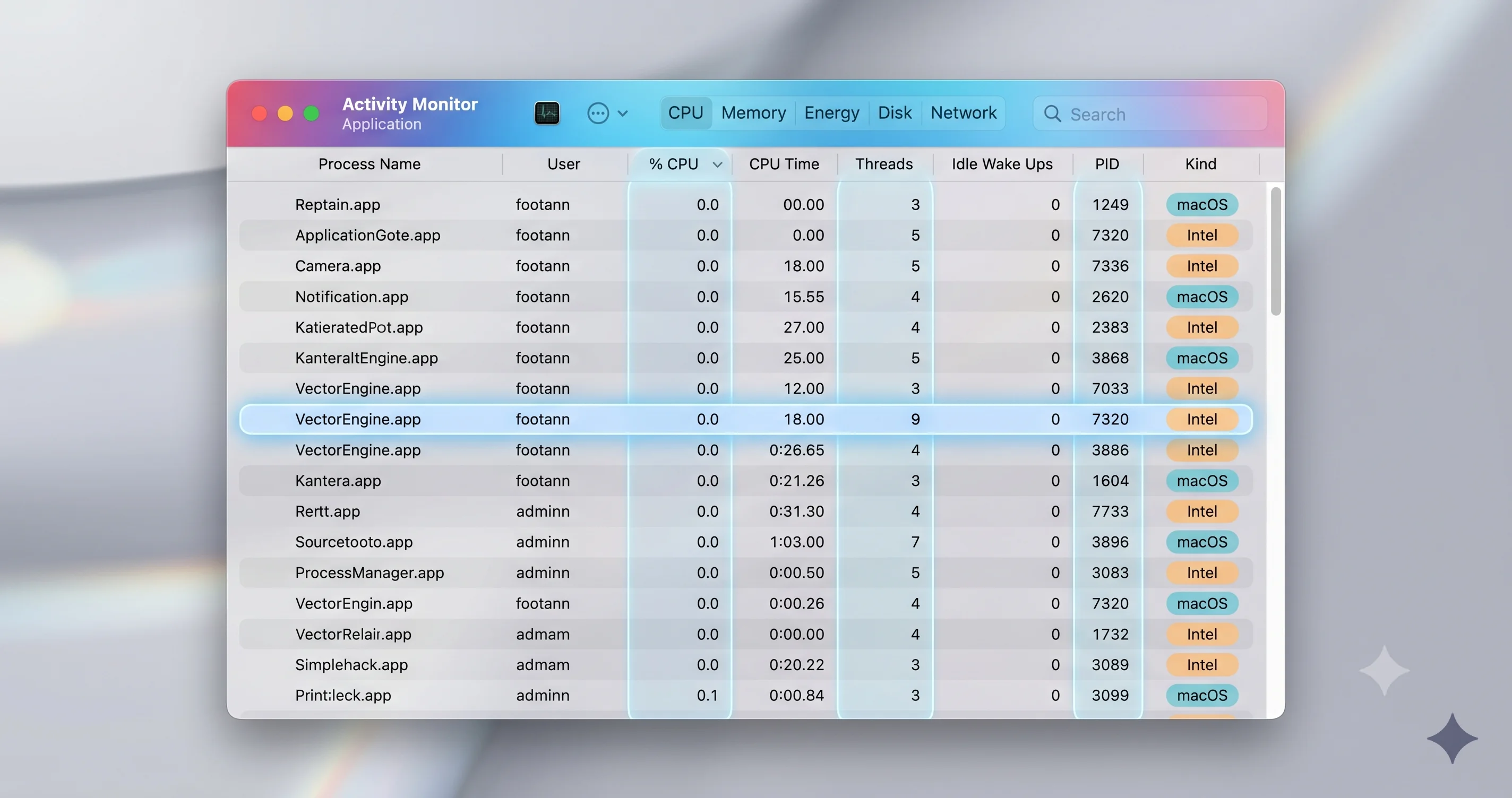
Activity Monitor is faster than System Information but has a critical limitation: it only shows apps that are currently running. Use it for a quick spot-check, not a complete audit.
- Open Activity Monitor (Applications → Utilities, or Spotlight search "Activity Monitor").
- Make sure you're on the CPU tab.
- In the menu bar, go to View → Columns and enable the Kind column (some macOS versions label it Architecture).
- Look at the Kind column for each process:
- Apple means the process is running natively on Apple Silicon.
- Intel means the process is running under Rosetta 2 — i.e., it's an Intel app being translated right now.
Audit Method 3: Get Info (Per-App, in Finder)
When you want to check one specific app quickly, the Finder's Get Info panel is the fastest path:
- Open Finder and go to your Applications folder.
- Click once to select the app you're curious about.
- Press Cmd + I (or right-click → Get Info).
- Look at the Kind line near the top:
- Application (Apple Silicon) — native arm64.
- Application (Universal) — both architectures; runs native.
- Application (Intel) — x86_64 only; runs under Rosetta. At risk.
This is perfect for verifying a single suspicious app, or for double-checking something you saw in the System Information list. It doesn't scale to a full audit — you'd be pressing Cmd+I hundreds of times — but it's the cleanest one-off check.
Audit Method 4: Terminal (Including a Whole-Folder Scan)
For the technically inclined, the Terminal gives you the most precise and scriptable view, because you're reading the architectures directly out of each app's Mach-O binary. No GUI lag, no guessing.
Checking a single app's binary
The file command reports the architectures baked into an executable:
file /Applications/SomeApp.app/Contents/MacOS/SomeAppA Universal binary reports something like Mach-O universal binary with 2 architectures: [x86_64] [arm64]. An Intel-only binary reports only x86_64. An Apple Silicon binary reports only arm64.
For a cleaner, architecture-only answer, use lipo:
lipo -archs /Applications/SomeApp.app/Contents/MacOS/SomeAppThis prints just the architecture list, e.g. x86_64 arm64 (Universal), arm64 (native), or x86_64 (Intel-only).
You can also check what architecture your current Terminal session is running as with the arch command — useful if you've duplicated Terminal and set one copy to run under Rosetta:
archIt prints arm64 for a native session or i386/x86_64 for a Rosetta session.
The whole-folder scan one-liner
Treat this as a partial inventory and cross-check it with Finder and vendor documentation. A list of installed apps does not show which are currently running, and neither this list nor a command scanning one folder proves that all plug-ins, command-line tools or custom installation paths are covered.
for app in /Applications/*.app; do
  bin="$app/Contents/MacOS/$(defaults read "$app/Contents/Info" CFBundleExecutable 2>/dev/null)"
  [ -f "$bin" ] && archs=$(lipo -archs "$bin" 2>/dev/null) && case "$archs" in
    *arm64*) ;;
    *) echo "Intel-only: $(basename "$app") [$archs]";;
  esac
done
What it does, step by step:
for app in /Applications/*.app— loops over every app bundle in your top-level Applications folder.defaults read "$app/Contents/Info" CFBundleExecutable— reads the app's real executable name from itsInfo.plist(apps don't always match their.appname).lipo -archs "$bin"— lists the architectures in that executable.case "$archs" in *arm64*) ;;— if the architecture list containsarm64, the app is native or Universal, so we skip it.*) echo "Intel-only: ..."— anything without arm64 is Intel-only, and we print it.
Paste it into Terminal and you'll get a tidy list like:
Intel-only: OldAudioTool.app [x86_64]
Intel-only: LegacyVPNClient.app [x86_64]
Intel-only: VintageScannerUtility.app [x86_64]
Process Check: Not an Installation Test
The command below checks only whether the oahd process is running. An absent process is not proof that Rosetta is uninstalled. For macOS 27 or earlier, Apple’s documented check is to open a trusted Intel app: it either opens using installed Rosetta or prompts for installation.
/usr/bin/pgrep -q oahd && echo "oahd running" || echo "oahd not running"The two outputs report process presence only. They do not establish installation state or provide an app inventory. No installation or command was run as part of this documentation review.
Reading the Results: Intel vs. Universal vs. Apple Silicon
Across all five methods, you'll see three architecture labels. Here's exactly what each means for your migration:
| Label | What it contains | Runs on Apple Silicon? | Compatibility with macOS 28 | Action needed |
|---|---|---|---|---|
| Apple Silicon (arm64) | Native arm64 only | Yes, natively | Depends on dependencies and OS requirements | Check components and the vendor’s OS requirements |
| Universal | Both arm64 + x86_64 | Yes, runs native arm64 slice | Depends on dependencies and OS requirements | Check components and the vendor’s OS requirements |
| Intel (x86_64) | x86_64 only | Yes, via Rosetta 2 | No (general use) | Migrate before macOS 28 |
Universal and Apple silicon builds avoid relying on Intel translation for their native executable. That does not guarantee indefinite compatibility: separately installed plug-ins, extensions, updaters and the vendor’s OS requirements still need checking.
The Universal-App Plugin Trap (the DAW Problem)
Here's the trap that catches musicians, video editors, and anyone who uses host apps with plugins. A Universal app can still end up running entirely under Rosetta — if it loads an Intel-only plugin.
A Universal app can offer Open using Rosetta in Finder’s Get Info panel if its developer enables that option. It can be selected for Intel-only add-ons. Loading a plug-in does not establish that macOS automatically relaunches every host under Rosetta; check the host and plug-in vendor’s instructions, and update both.
If you make music or do pro audio/video, your real audit isn't just "is my DAW Universal?" It's "is every plugin I load Universal or arm64?" Open your plugin folders and check each one (audio plugins live in /Library/Audio/Plug-Ins/ and ~/Library/Audio/Plug-Ins/). An Intel-only plugin is just as much a Rosetta dependency as an Intel-only app — and far easier to overlook.
Category-by-Category Risk Assessment
No dated, reproducible source is provided here for a total number of Intel-only apps. Assess your own apps and their dependencies rather than relying on a global estimate.
| Category | Why it's at risk | Examples / notes | Risk level |
|---|---|---|---|
| Audio plugins (AU/VST) | Older plugins were never recompiled; force the whole DAW under Rosetta | Legacy synths, effects, and instrument libraries; check every plugin, not just the host | High |
| Legacy pro apps | Abandoned or slow-to-update professional tools | Older versions of design, CAD, scientific, and broadcast software | High |
| Niche enterprise tools | Corporate software updates slowly; zero-trust VPN clients are common offenders | Sangfor aTrust and similar zero-trust/VPN clients have been cited in community threads | High |
| Older games | Many Intel games will never be recompiled | This is the one category macOS 28 explicitly tries to preserve (see below) | Medium (special-cased) |
| Printer/scanner driver utilities | Hardware vendors abandon driver software quickly | Epson and other printer/scanner utilities cited in community threads | Medium |
| Abandoned-but-loved utilities | Indie/freeware tools whose developers have moved on | The single-purpose utility you've used for a decade | High |
The pattern: the apps least likely to be updated are the ones you're least likely to be able to replace easily. A mainstream productivity app going Universal was inevitable. A discontinued utility that does one perfect thing, or an audio plugin from a developer who closed shop in 2018, has nobody left to recompile it. Those are the ones to plan around first.
The Action Plan: What to Do per Finding
For every app on your Intel list, work through this decision tree in order:
1. Check for a native (Universal or Apple Silicon) update first. Open the app and check for updates, or visit the developer's site. Many apps have shipped Universal versions that you simply haven't installed. Compatibility-tracker sites like Does It ARM and isapplesiliconready.com crowdsource which apps have native builds (availability and accuracy vary, so verify against the developer directly). If a native update exists, install it — done.
2. Contact the vendor. If there's no native build yet, ask. For paid and enterprise software especially, a direct "do you have an Apple Silicon roadmap before macOS 28?" email is worth sending. Vendors prioritize based on demand, and you now have a concrete deadline to cite.
3. Find a replacement. If the developer is gone or non-committal, start evaluating alternatives now — while you still have a working Intel version to migrate data out of. Export your files, projects, and presets while the old app still launches under Rosetta. Don't wait until macOS 28 strands the app with your data inside it.
4. Plan a fallback (next section). For irreplaceable apps with no native path — a discontinued tool you can't live without, a plugin tied to old projects — set up a fallback environment before the runway runs out.
Work top-down: handle the high-risk, hard-to-replace apps first (abandoned utilities, orphaned plugins), and leave the easy native-update swaps for last.
Fallback Strategies: VMs, Old Macs, and the Gaming Exception
Keep a macOS Tahoe or macOS 27 VM with Rosetta
A virtual machine is a possible fallback to evaluate, not a verified guarantee. Confirm the exact host macOS, guest macOS, Rosetta availability, application licence and device requirements with the virtualization vendor, then test the workflow before upgrading. This review did not test a macOS 28 host or any VM configuration.
Keep an old Mac on macOS Tahoe / 27
Keeping a compatible Mac on an older macOS may preserve a legacy workflow, but does not guarantee continued security updates, licensing, peripheral support or indefinite operation. Intel Macs run Intel apps directly; Rosetta concerns Apple silicon. Do not install an OS unsupported by that Mac.
Games: the macOS 28 exception + Game Porting Toolkit
Games get special treatment. macOS 28's surviving Rosetta subset is explicitly aimed at "older unmaintained gaming titles that rely on Intel-based frameworks" — so many old Intel games may continue to launch even after general Rosetta is gone. Apple hasn't published the exact compatibility boundaries, so don't assume every game survives, but the intent is to preserve the gaming back-catalog. Separately, Apple's Game Porting Toolkit (and tools like CrossOver built on it) targets running Windows games on Apple Silicon, which is a different mechanism but part of the same broader "keep games playable" strategy. For a current look at Mac gaming performance on Apple Silicon, see our MacBook Neo gaming benchmark.
A Developer Note: Ship a Universal Binary Before macOS 28
If you maintain an Intel-only app, the deadline is yours too. The fix is well-trodden: in Xcode, build a Universal binary that includes both x86_64 and arm64 slices (the "Standard Architectures" setting does this), test the arm64 build on Apple Silicon, and ship it before macOS 28 strands your users. Most frameworks went arm64-native years ago, so the migration is usually a matter of recompiling and fixing a handful of architecture-specific assumptions rather than a rewrite. If you're modernizing your toolchain at the same time, our roundup of AI coding tools for the Mac in 2026 covers what's worth adding to the workflow.
Migration Timeline Calendar
| When | What happens | What you should do |
|---|---|---|
| macOS 27 | Rosetta remains available for general Intel-app translation on Apple silicon with macOS 27 or earlier. | Prioritize essential Intel-only apps, export data while they still run, and ask the developer for a Universal or Apple silicon version. Plan around the macOS version boundary rather than an unconfirmed release date or a countdown measured from the original publication date. |
| macOS 28 | Starting with macOS 28, Apple limits Rosetta to certain older, unmaintained games that depend on Intel-based frameworks. | Prioritize essential Intel-only apps, export data while they still run, and ask the developer for a Universal or Apple silicon version. Plan around the macOS version boundary rather than an unconfirmed release date or a countdown measured from the original publication date. |
Troubleshooting Common Issues
lipo errors when scanning scripts or aliases
The Terminal scan one-liner reads each app's Mach-O executable. Some "apps" in /Applications aren't standard compiled bundles — they may be scripts, AppleScript apps, Electron wrappers, aliases, or have non-standard bundle layouts. For those, lipo -archs may error or return nothing, which is why the one-liner sends errors to /dev/null (2>/dev/null) and skips entries without a readable binary. These skipped items aren't necessarily Intel-only — they're just not analyzable this way. Cross-check anything ambiguous with the System Information list or Get Info, which handle these cases more gracefully.
An app is misreported (shows Universal but feels like it's running under Rosetta)
A Universal app can offer Open using Rosetta in Finder’s Get Info panel if its developer enables that option. It can be selected for Intel-only add-ons. Loading a plug-in does not establish that macOS automatically relaunches every host under Rosetta; check the host and plug-in vendor’s instructions, and update both.
The Terminal scan missed an app I know is Intel-only
Treat this as a partial inventory and cross-check it with Finder and vendor documentation. A list of installed apps does not show which are currently running, and neither this list nor a command scanning one folder proves that all plug-ins, command-line tools or custom installation paths are covered.
FAQ
Will my Intel apps stop working the moment macOS 27 ships?
Rosetta remains available for general Intel-app translation on Apple silicon with macOS 27 or earlier. Starting with macOS 28, Apple limits Rosetta to certain older, unmaintained games that depend on Intel-based frameworks. This is neither the removal of all Rosetta functionality nor a guarantee that every old game will work.
I'm on an Apple Silicon Mac — does the Intel Mac hardware cutoff affect me?
No. The hardware cutoff (macOS 27 not installing on Intel Macs) only affects people running macOS on physical Intel machines. On your Apple Silicon Mac, the relevant change is the Rosetta sunset, which affects your Intel-only apps, not your ability to run the OS. They're separate issues — see the comparison table earlier in this guide.
How do I know if an app is "Intel" without opening it?
In Finder, select the app and press Command-I. Read Kind: Application (Intel) needs Rosetta on Apple silicon; Application (Universal) contains Intel and Apple silicon support; Application (Apple silicon) is native. A generic Application label alone does not establish architecture. Check plug-ins, extensions and updaters separately.
Why does my Universal app sometimes run under Rosetta?
A Universal app can offer Open using Rosetta in Finder’s Get Info panel if its developer enables that option. It can be selected for Intel-only add-ons. Loading a plug-in does not establish that macOS automatically relaunches every host under Rosetta; check the host and plug-in vendor’s instructions, and update both.
What if an app I need never gets an Apple Silicon version?
A virtual machine is a possible fallback to evaluate, not a verified guarantee. Confirm the exact host macOS, guest macOS, Rosetta availability, application licence and device requirements with the virtualization vendor, then test the workflow before upgrading. This review did not test a macOS 28 host or any VM configuration.
Can I just reinstall Rosetta on macOS 28 to get it back?
Rosetta remains available for general Intel-app translation on Apple silicon with macOS 27 or earlier. Starting with macOS 28, Apple limits Rosetta to certain older, unmaintained games that depend on Intel-based frameworks. This is neither the removal of all Rosetta functionality nor a guarantee that every old game will work.
Conclusion: Audit Now, Migrate Calmly
Use the documented version boundary: general Rosetta support through macOS 27; limited support for certain older games from macOS 28. Check Apple’s release information and each vendor’s compatibility statement before scheduling an upgrade.
Prioritize essential Intel-only apps, export data while they still run, and ask the developer for a Universal or Apple silicon version. Plan around the macOS version boundary rather than an unconfirmed release date or a countdown measured from the original publication date.
For related reading as the platform shifts:
- macOS 27 and the end of the Intel Mac era — the hardware side of the Intel cutoff
- macOS 27 Golden Gate announced at WWDC 2026 — features, compatibility, and release date
- Should you install the macOS 27 Golden Gate developer beta? — known issues before you jump in
- How to downgrade macOS 27 beta back to Tahoe — if the beta doesn't work out
- "App is damaged and can't be opened" fix — for Gatekeeper/quarantine errors on older apps
- macOS Tahoe 26.5 update and security roundup — the release that started showing Intel-app warnings