Downgrade macOS 27 to Tahoe 26: Erase-and-Reinstall Guide
Upgraded to macOS 27 and want Tahoe 26 back? There is no undo button. Here is what a downgrade costs, the three paths, and what to back up first.
macOS Golden Gate 27 reached everyone on September 14, and 27.0.1 followed on September 28, according to Apple's security releases page. If you clicked Update and now a VPN, a menu bar app, an audio driver or an external display no longer behaves, the question is simple: can I go back to macOS Tahoe 26? You can, on most Macs, but it is not an undo. A downgrade means erasing the internal disk and installing Tahoe from scratch, and a verified pre-upgrade backup is preferable, alongside separate exports of newer files. No backup guarantees that every item will be recoverable on the older system. This guide covers the direct answer first, then the three working paths, the data checklist, and a short section for people who were on the developer or public beta. (This article was first written in June for beta users and was rewritten on October 4 for the released version.)
October 18 safety update: checked the recovery, backup, credential and erasure guidance against Apple documentation. This was a document check, not a hardware downgrade test; no native human proofreading was performed.
Key Takeaways
- Yes, you can usually downgrade, but it erases the Mac. The upgrade cannot be reversed in place. You install Tahoe onto a freshly erased disk and then bring your data back.
- Prefer a verified pre-upgrade backup. Full migration from a macOS 27 backup to Tahoe is not established by the Apple sources cited here. Keep a current backup too, separately export newer files, and verify that the older apps can read what you need before erasing.
- Check your exact Mac model, not its purchase date. A model whose minimum supported system is macOS 27 cannot run Tahoe. Confirm the model and supported Tahoe release before proceeding; a seller’s preinstalled version alone does not establish compatibility.
- Recovery does not guarantee Tahoe. On Apple silicon it normally reinstalls the most recently installed system, though after erasure it may offer the version used before an upgrade. Prepare a compatible Tahoe USB installer and verify that this Mac boots from it before erasing.
- Intel Macs are not part of this story. macOS 27 does not run on them, so none of them can be on 27 to begin with (compatibility list).
- Consider waiting. If the problem is one app, a point update (27.0.1 is already out) or a setting may fix it without a wipe.
The Direct Answer: What a Downgrade Costs
macOS does not offer an in-place downgrade. The system lives on a sealed, read-only system volume, and the installer will not write an older system over a newer one, so the standard route is: back up, erase, install Tahoe, restore. Apple publishes no duration for this; plan an afternoon, because copying files out and back usually takes longer than the install itself. Data already synced to iCloud may sync back after sign-in, but verify sync completion and separately preserve important files; unsynced changes and incompatible app data may be lost or unusable.
Before choosing a path, check two things that decide whether a downgrade is possible at all:
- Does your exact model support Tahoe? Check its model identifier and Apple's supported versions, using Apple's macOS download guidance and our Mac model lookup. A model introduced with macOS 27 as its minimum system cannot run Tahoe, but purchase date or a seller's preinstalled system is not enough to decide. Verify compatibility with the particular Tahoe installer before you wipe anything.
- Do you have a backup from before the upgrade? If not, establish and verify a recovery route for your files before deciding to erase; manual copying does not guarantee that older apps can open them.
Then pick the path:
| Your situation | Path | Needs | Data impact |
|---|---|---|---|
| Mac boots, you want the simplest route | A. Recovery erase, then a Tahoe installer | Internet, a Tahoe installer on a USB drive | Disk erased |
| Recovery only offers macOS 27, or you want a guaranteed version | B. Bootable USB installer (recommended) | Compatible Mac to build it, separate 32 GB or larger USB drive | Disk erased |
| Mac will not boot, Recovery is broken, firmware errors | C. DFU revive or restore from a second Mac | Second Mac, data-capable USB-C cable | Revive keeps data, restore erases |
In practice A and B merge: the erase happens in Recovery or from the installer, and the install step comes from the USB drive. Our downgrade assistant walks through the choice interactively, and the macOS versions tracker shows which Tahoe release is current.
Fix It or Downgrade? The Common macOS 27 Complaints
Most people who search for a downgrade are reacting to one specific breakage. Before you erase a Mac, check whether that breakage has a fix, a built-in replacement or a workaround. The summaries below come from the Key Takeaways of our own troubleshooting posts, which cite their sources.
| Complaint | What our post found | Fix or workaround? |
|---|---|---|
| Menu bar icons hidden behind the notch, Bartender or Ice broken | macOS 27 draws the whole menu bar as one window, which broke the add-ons that relied on per-icon windows. Hidden Bar 1.11.1, a Bartender build for 27 and Thaw test builds report working hiding; Ice has no macOS 27 release | Partly. Updated tools exist with limits, and System Settings, Menu Bar lets you show fewer icons. Full post |
| Charge limit apps such as AlDente charging to 100 percent | Developers report the charging keys these tools used were removed, emptied or locked, which is not an Apple statement | Yes. On Apple silicon Macs running Tahoe 26.4 or later, Apple's Charge Limit in Battery settings supports 80 to 100 percent. Full post |
| Mission Control and Spaces glitches, black screen when moving a desktop | Widely reported but not universal; a MacRumors thread documents jerky animations and lost desktop assignments | Workarounds: create and delete a desktop on the affected display, restart the Dock, adjust two Spaces settings. 27.2 beta 1 reportedly did not fix it. Full post |
| Operation not permitted when a tool reads another app's data | Apple's release notes: access to other developers' app data containers is denied by default and managed in Privacy and Security | A design change, not a bug. Grant access in settings or use Full Disk Access for command-line tools. Full post |
| Open using Rosetta ignored, Intel plug-ins missing | Apple says Rosetta is not restored after upgrading, the checkbox is ignored, and Intel-only plug-ins silently disappear | Rosetta can be reinstalled, but Intel-only plug-ins and helpers will not return. This is the one complaint where Tahoe may genuinely be the answer. Full post |
| Fans and battery drain overnight, dasd and appstoreagent at high CPU | Reported by several users, not acknowledged by Apple; an Apple Arcade date preference reportedly stays stuck in the past | A reversible community workaround exists; whether 27.0.1 fixes it is unconfirmed. Full post |
| 30 GB or more of storage used after upgrading | Howard Oakley measured a peak near 150 GB above the pre-upgrade level after 24 hours, settling at about 30 GB above, mostly AI models | Mostly temporary. The permanent part is the model download, and MacRumors reports the switch to turn Apple Intelligence off entirely was removed. Full post |
How to read the table: if your complaint sits in the first four rows, a downgrade usually costs more than the fix. Apple's own settings or an updated tool address it, or the behavior is intended and Tahoe would only postpone it, since Apple says Intel software will not run on macOS 28 at all. The strongest case for downgrading is a workflow that depends on an Intel-only plug-in or driver whose vendor has no macOS 27 build, or a core work application that its vendor says is unsupported on 27. In both cases check the vendor's compatibility page first, because a downgrade only buys time.
A practical rule: write down the single symptom that made you consider downgrading, search for it in the table and in the vendor's release notes, and give the fix one evening. If the symptom is still there after that, you have a concrete reason to wipe the Mac, and the rest of this guide is the procedure.
Which Tahoe Version You Should Install
Apple's security releases page lists macOS Tahoe 26.7.1 (September 28, 2026) as the newest Tahoe release, with 26.7 on September 14. Mr. Macintosh's Tahoe installer database lists 26.7.1 as build 25G241 and 26.7 as 25G229.
Install the newest Tahoe you can obtain. Two caveats:
- Which versions Apple still serves can change. Apple's page documents the command
softwareupdate --fetch-full-installer --full-installer-versionwith a version number, using 26.6.2 as its example. Runsoftwareupdate --list-full-installersfirst to see what is actually on offer today. - Tahoe stays supported alongside 27. Apple keeps shipping Tahoe security updates (26.7.1 came out the same day as 27.0.1), so staying on Tahoe is a legitimate choice, not a dead end.
Time Machine: Verify Your Recovery Route
Prefer a verified backup made before the upgrade. Apple's beta restore guidance recommends a pre-beta backup, but it is not a compatibility matrix for every released macOS version. Do not assume that a full migration from a macOS 27 backup to Tahoe will work: the Apple sources cited here do not establish that compatibility.
The practical consequences:
- Keep both the pre-upgrade backup and a current backup. A newer backup is not automatically useless.
- Separately export files created or changed after upgrading, and test that the software you will use on Tahoe can read important exports.
- Restoring individual files differs from migrating an entire account. Apple's Time Machine troubleshooting guidance also describes version-specific restore limits, rather than a universal forward-only rule.
- Without a pre-upgrade backup, manual recovery may be necessary. Unbacked-up files, incomplete cloud sync and newer libraries that older apps cannot open may leave data lost or unusable. Do not erase until the data you need has a verified recovery route.
If your backup does not show up in Migration Assistant, see the troubleshooting section below.
Alternatives to a Full Downgrade
If you need Tahoe for a specific app but are not sure you want to wipe your whole Mac, there are two documented alternatives. Both have real limits, so read them before choosing.
Run Tahoe on a separate APFS volume or an external SSD
Apple has a support article, Use more than one version of macOS on Mac, that describes keeping two systems on one Mac. According to it, if you install a compatible macOS on an additional internal or external storage volume, the Mac can start up from either. For the built-in disk the steps are:
- Open Disk Utility and select your existing APFS volume in the sidebar.
- From the Edit menu choose Add APFS Volume (or use the plus button), name it and click Add.
- Download the full macOS installer. When it asks where to install, click Show All Disks and select the new volume.
- Switch between systems by changing the startup disk in System Settings and restarting.
The same article lists the limits that matter here. It says this "is not a long-term way to continue using an earlier macOS after upgrading", because later macOS versions can install security changes that affect a significantly older system. It also notes that you have to check for software updates on each volume separately by starting up from it. Before removing a volume later, verify that the retained compatible Tahoe system boots, a separate compatible Tahoe USB installer boots, and independent backups of anything unique to the volume are readable with credentials available outside the Mac. If any check fails, stop. Deletion permanently removes that volume’s data: start from the retained volume and carefully identify the unwanted volume in Disk Utility before choosing Delete APFS Volume. Do not use the full-disk erase section when keeping other volumes.
Two Apple silicon details come from Howard Oakley's dual-boot write-up for Sequoia and Tahoe. First, the Mac must support both systems, and the setup is easier when you start from the older version because a newer macOS can block an older installer, which often means a bootable external installer. Second, Apple silicon Macs begin their boot from the internal SSD, which holds the policy files that allow starting from external disks, so an external volume is not independent of the internal disk. If your exact model requires macOS 27 as its minimum system, this route cannot provide a supported Tahoe installation either.
Whether the full Tahoe installer will run while you are booted into macOS 27 is not documented in the sources we opened. Build the bootable installer (Path B) and start from that to be safe. A separate volume costs disk space equal to a full Tahoe install plus your apps, so check free space first.
Run Tahoe in a virtual machine on Apple silicon
Apple silicon Macs can run macOS guests through the Virtualization framework. Howard Oakley's overview of Apple silicon virtualisation states that macOS VMs can run Monterey and later on any model, and that different virtualisation apps all rely on the same macOS API and share its limits. The limits he lists are the reason a VM is a test bench rather than a replacement:
- Most App Store apps will not run in a VM, with Pages, Numbers and Keynote as the exceptions he names.
- Audio support is incomplete and the network appears as Ethernet only.
- iCloud works only when both host and guest run macOS 15 or later.
- The macOS license allows two macOS VMs running on a Mac at the same time.
- VMware no longer supports macOS guests, according to the same article.
Whether a particular tool can create a Tahoe 26.7.1 guest on a macOS 27 host, and which Tahoe restore image it uses, needs checking in that tool's own release notes. The sources we opened name VirtualBuddy, UTM and Parallels as examples of apps built on the framework, but none of them says anything about a Tahoe guest on a macOS 27 host, so no claim is made here. A VM is useful for a legacy utility, a build test or a compatibility check. It is a poor fit for anything needing a GPU, App Store apps, or your signed-in Apple Account.
Or stay on 27 and add Tahoe only where needed
For many readers a VM or separate volume for one old app, plus Apple's own settings for the rest, beats wiping the primary disk. Use the downgrade path in this guide when the Mac as a whole must be on Tahoe.
App Data That Does Not Survive Going Backwards
The OS reinstall is the easy part. The harder question is which of your app data can be read by older software after the app has upgraded its files on macOS 27. Apple has no single page on this, so the facts below are split into what Apple says and what is only commonly reported.
Photos. Apple's Photos help page says to create a backup of your photo library before following troubleshooting steps and points to the Photos library repair tool, but it does not state what happens when an older Photos opens a library last used by a newer one. Apple Communities threads report the common behavior: a newer Photos can upgrade a library, and an older version then refuses to open it. The same threads give the way out, which is a copy of the library from before the upgrade or, if you use iCloud Photos, a new empty library that downloads your photos again from iCloud. Treat that as reported, not documented.
What to do about it:
- If your library is in iCloud Photos, leave it there and let it re-download after the downgrade. If you need local originals, switch Photos to keep originals on the Mac (the setting is in Photos settings, under iCloud) and wait for the download to complete before you rely on it.
- If your library is local only, export any photos imported since the upgrade and verify those copies before erasing or replacing the library. After reinstalling, restore the pre-upgrade library and import the separately saved originals.
- Export originals of recent imports to a folder as plain files, as insurance, using the export commands in the Photos File menu.
Mail, Notes, Calendar and Contacts. Data that finished syncing may sync back after sign-in; verify account access and older-app compatibility, and preserve important exports independently. Data stored only on the Mac (for example Notes and mail kept under On My Mac) lives in local files, and no Apple page we opened says whether an older version can read files rewritten on macOS 27. Export these before you erase: Check the File menus of Notes and Mail for export options, since the exact commands differ between versions. Keep the export on the external drive.
Everything else. Any app that converts its database or library on first launch can leave a file that older versions refuse to open. Music and TV libraries, password managers, photo and audio tools and developer databases are the usual suspects. The safe pattern is the same each time:
- Look in the pre-upgrade backup for the app's data.
- Before you erase, copy the current data to the external drive anyway.
- After the downgrade, restore from the old backup first. Only if the app refuses it do you try the newer copy, and if that fails, import from an export.
Our post on app data containers in macOS 27 explains why some apps' data is now harder for other tools to read, which matters if your usual copy script suddenly returns permission errors.
Pre-Downgrade Data Checklist
The full-downgrade paths erase the disk; DFU revive and booting a retained Tahoe volume are different cases. Work through this while the Mac still boots. Before any internal erasure, verify exact-model Tahoe compatibility and that the separate Tahoe USB installer actually boots this Mac. These stop checks are this guide’s conservative safety recommendations, based on Apple’s installer and erasure requirements.
- List what changed since the upgrade. Desktop, Documents, Downloads, project folders, code repositories, design files, recordings, anything imported into Photos or Music that is not synced.
- Copy those files to an external SSD or cloud storage as plain files, and open a few to confirm the copy works. Keep your current Time Machine backup too, but do not rely on unverified full migration from 27 to Tahoe.
- Force downloads of iCloud placeholders. If iCloud Drive keeps Desktop and Documents optimized, right-click the important folders and choose Download Now, and wait for it to finish. If iCloud has been misbehaving, read our iCloud Drive auto-download fix first.
- Check password recovery before erasing. Verify access to synced passwords from another trusted device. For a third-party vault, use only its vendor-supported encrypted backup process. Apple Passwords exports are unencrypted CSV files and omit some categories, so they are neither encrypted nor complete vault backups. If you need an export, protect the destination from unauthorized access and delete temporary plaintext copies after successful import.
- Save your developer setup:
brew leaves > ~/brew-packages.txt, dotfiles,~/.ssh(store it securely), local.envfiles and databases. - Write down device-locked licenses and deauthorize apps that limit activations.
- Check Intel-only apps. If you were relying on Rosetta behavior that changed in 27, our Rosetta checker and the Intel app audit guide tell you whether the app that made you downgrade will work on Tahoe unchanged.
- Plug in the power adapter. A laptop should not run on battery during an erase and install.
Check three separate credentials: your Mac login and available FileVault recovery method, the encrypted Time Machine backup password, and access to the Apple Account associated with Activation Lock. Actually unlock the backup and open sample files. Keep recovery credentials securely outside the disk being erased, not only in its keychain. For a managed Mac, consult your administrator. Do not disable FileVault or lower startup security for this guide.
Path B: Build a Bootable Tahoe Installer (Recommended)
This is the most reliable path because you choose the version. You need a second Mac (or your current Mac, before you erase it), a separate USB drive of 32 GB or more that you are willing to erase, and the full Tahoe installer.
Step 1: Get the full installer
Use one of these sources:
- Terminal:
softwareupdate --fetch-full-installer --full-installer-version 26.7.1. If that version is refused, usesoftwareupdate --list-full-installersand pick one from the list. - Mr. Macintosh's database, linked above, which publishes direct Apple download links for
InstallAssistant.pkg. Per that page, running the package puts the full installer in your Applications folder.
Step 2: Create the media
Before creating media, confirm the full installer is compatible with your exact Mac model. The USB will be erased: use a separate 32 GB or larger drive, never your sole backup, and verify that any files on it are safely readable elsewhere with the necessary passwords. Stop if you cannot identify the target or recover anything needed from it.
Apple's createinstallmedia page gives the Tahoe command. Rename this USB volume to MyVolume first, then use the command unchanged. The installer app is named "Install macOS Tahoe":
sudo /Applications/Install\ macOS\ Tahoe.app/Contents/Resources/createinstallmedia --volume /Volumes/MyVolumeThe command erases the USB volume named MyVolume, so verify its identity and independent backups again before typing Y to confirm. Our createinstallmedia command builder writes the exact line for any macOS version.
Step 3: Boot from it and erase
Stop before erasing. Confirm exact-model Tahoe compatibility, a downloaded full installer and readable independent backups, including working encrypted-backup credentials stored securely outside the Mac. Steps 1–3 verify that this Mac actually starts from the separate Tahoe USB; if it does not, do not continue to step 4. Keep an internet connection available for model-specific firmware and activation. This is a full-erase path: if keeping an existing Tahoe or data volume, do not enter this procedure.
- Shut the target Mac down completely, plug in the USB drive.
- Press and hold the power button until "Loading startup options" appears (Apple's startup options page).
- Choose the "Install macOS Tahoe" drive and click Continue.
- Open Disk Utility from the utilities window and follow the checked full-erase procedure below. Select the internal Macintosh HD volume, not the top-level device or APFS container; use Erase Volume Group if offered.
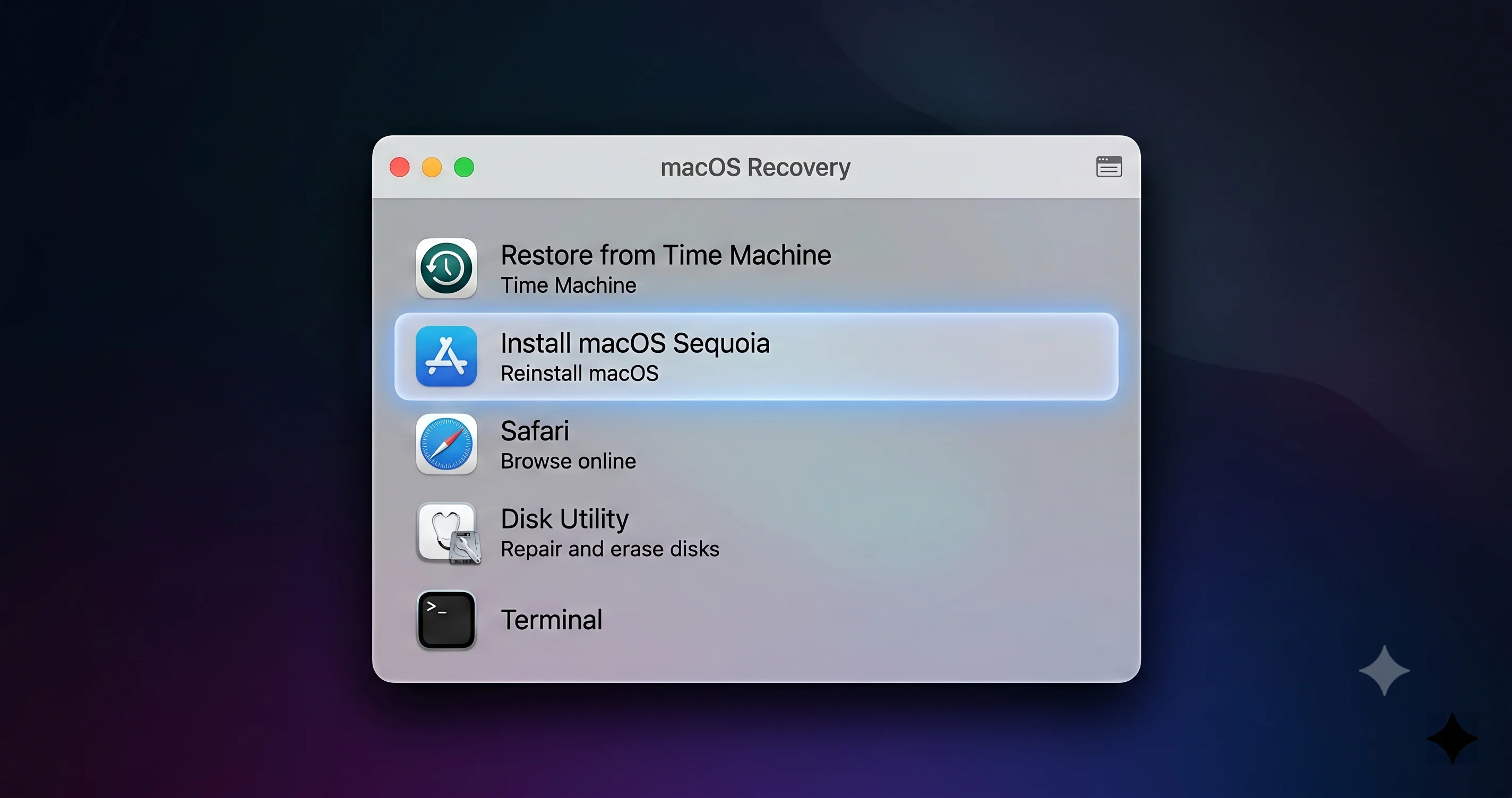
- Quit Disk Utility, choose Install macOS Tahoe, select Macintosh HD and continue. The Mac restarts a few times.
Internal erasure permanently deletes the selected volume group. Creating the USB has already erased that USB, so both destructive steps require their own backup and target checks. The next sections add the Apple-documented detail for the erase and reinstall.
Step by Step: Erase and Reinstall on Apple Silicon
This is the documented sequence for a Mac with Apple silicon. It uses the labels from Apple's pages on startup options and on using Disk Utility to erase a Mac with Apple silicon. This is the full-erase procedure: do not enter it if you want to keep an existing Tahoe or data volume. Before deleting or erasing anything, confirm your exact model supports the downloaded Tahoe installer, verify that this Mac boots from its separate USB, and open important files from independent backups. Verify encrypted-backup passwords and other recovery credentials outside the Mac. If any check fails, stop while the Mac still starts.
- Plug in power and the installer drive. Connect the bootable Tahoe drive and, if your Mac needs it for activation later, a network cable or a known Wi-Fi network.
- Open startup options. Shut the Mac down. Press and hold the power button until "Loading startup options" appears. Choose the installer drive, which Apple's createinstallmedia flow names "Install macOS Tahoe", and click Continue. Apple's page lists Options then Continue when you want the Mac's own Recovery instead.
- Start Disk Utility. From the utilities window choose Disk Utility, then click Continue.
- Delete extra internal volumes first. In the Disk Utility sidebar, find Macintosh HD under Internal. Apple says that if you created additional internal volumes other than Macintosh HD or Macintosh HD - Data, delete them first with the delete button. This applies only to this full-erase workflow. Deleting any extra volume permanently deletes its data; verify the volume identity and independent backup before each deletion. If any volume must be kept, stop and use the separate-volume alternative instead.
- Erase. Select Macintosh HD in the sidebar and click the Erase button in the toolbar. Set the name to Macintosh HD and the format to APFS, then click Erase, or Erase Volume Group if that button is offered. Disk Utility handles the paired data volume for you.
- Sign in if asked. Apple's page says you may be prompted to enter your Apple Account information, and that the Mac then needs an internet connection to activate, over Wi-Fi or a network cable. Click Exit to Recovery Utilities when it finishes.
- Reinstall. Choose Install macOS Tahoe from the installer drive (or Reinstall macOS if you are in Recovery and it offers Tahoe) and select Macintosh HD as the destination.
- Let it finish. The Mac restarts several times. Do not close the lid, and keep the Mac plugged in. It ends in Setup Assistant.
Apple's page also notes the process permanently deletes all files, which is why the checklist exists.
Why not Erase All Content and Settings?
macOS also has Erase All Content and Settings, which Apple describes in its page on resetting a Mac. Apple says it requires macOS Monterey 12 or later on a Mac with Apple silicon or a T2 chip, and the page describes it as erasing settings, data and apps "while maintaining the operating system currently installed". That is the wrong tool here: it leaves macOS 27 in place. Use Disk Utility from the installer, not Erase Assistant, when your goal is Tahoe.
Activation Lock and Find My before you erase
Apple's description of Erase Assistant says it signs you out of Apple services and turns off Find My and Activation Lock. That is the right behavior for a Mac you are selling, and Apple adds that after the erase the Mac is no longer associated with you. The Disk Utility route in the steps above is different: Apple's page says you may be asked for your Apple Account information and that the Mac needs to activate over the internet. In practice, if the Mac is yours, have your Apple Account password at hand before you start, and fix a forgotten password before you erase, not after. If you are unsure whether you can sign in, confirm that now, while the Mac still boots.
Path A: Recovery Erase and Reinstall
If you do not have a second Mac, make the Tahoe USB on your current compatible Mac before erasing it. Recovery is a way to erase and reinstall, not a guarantee that Tahoe will be available.
Stop before erasing. Confirm your exact model supports Tahoe, obtain its compatible full installer, and verify that this Mac starts from the separate Tahoe USB. Open important files from independent backups and check encrypted-backup credentials without relying on this Mac. If any check fails, do not erase. If keeping existing volumes, do not use this full-erase path.
- Shut down, then hold the power button until startup options appear. Click Options, then Continue (Apple).
- Check which macOS Recovery offers before any erasure. For the full erase, follow the checked procedure above only after the Tahoe USB and backups are ready.
- Install from the verified Tahoe USB, or choose Reinstall macOS only if Recovery offers the compatible Tahoe version.
Apple's reinstall page says Apple silicon Recovery normally reinstalls the current version of the most recently installed macOS. After erasing following an upgrade, it may instead offer the version used before that upgrade. Neither outcome guarantees Tahoe. Option-Command-R and Shift-Option-Command-R are Intel recovery shortcuts, not Apple-silicon instructions. Do not erase first and hope Recovery supplies the older installer.
Restoring Your Data
After Tahoe installs, finish Setup Assistant as a new Mac, then open Migration Assistant (Applications, Utilities) and choose From a Mac, Time Machine backup, or startup disk. Pick the backup dated before the upgrade and choose what to bring across. Migrating after setup gives you control over what returns, which matters if the reason you downgraded was a misbehaving app or login item. Then:
- Sign in to iCloud and let Photos, Drive and Passwords resync.
- Copy back the files you saved manually.
- Reinstall Homebrew from brew.sh and run
brew installagainst your saved list. - Reconnect displays and peripherals and check that the original problem is actually gone. If it is not, the cause may be the app or hardware, not the OS.
If you restored from a backup that included third-party system extensions or kernel-level helpers, reinstall them from the vendor instead of migrating them.
Path C: DFU Revive or Restore From a Second Mac
This is for a Mac that will not boot, a broken Recovery, or firmware errors. It uses DFU mode from a second Mac over USB-C.
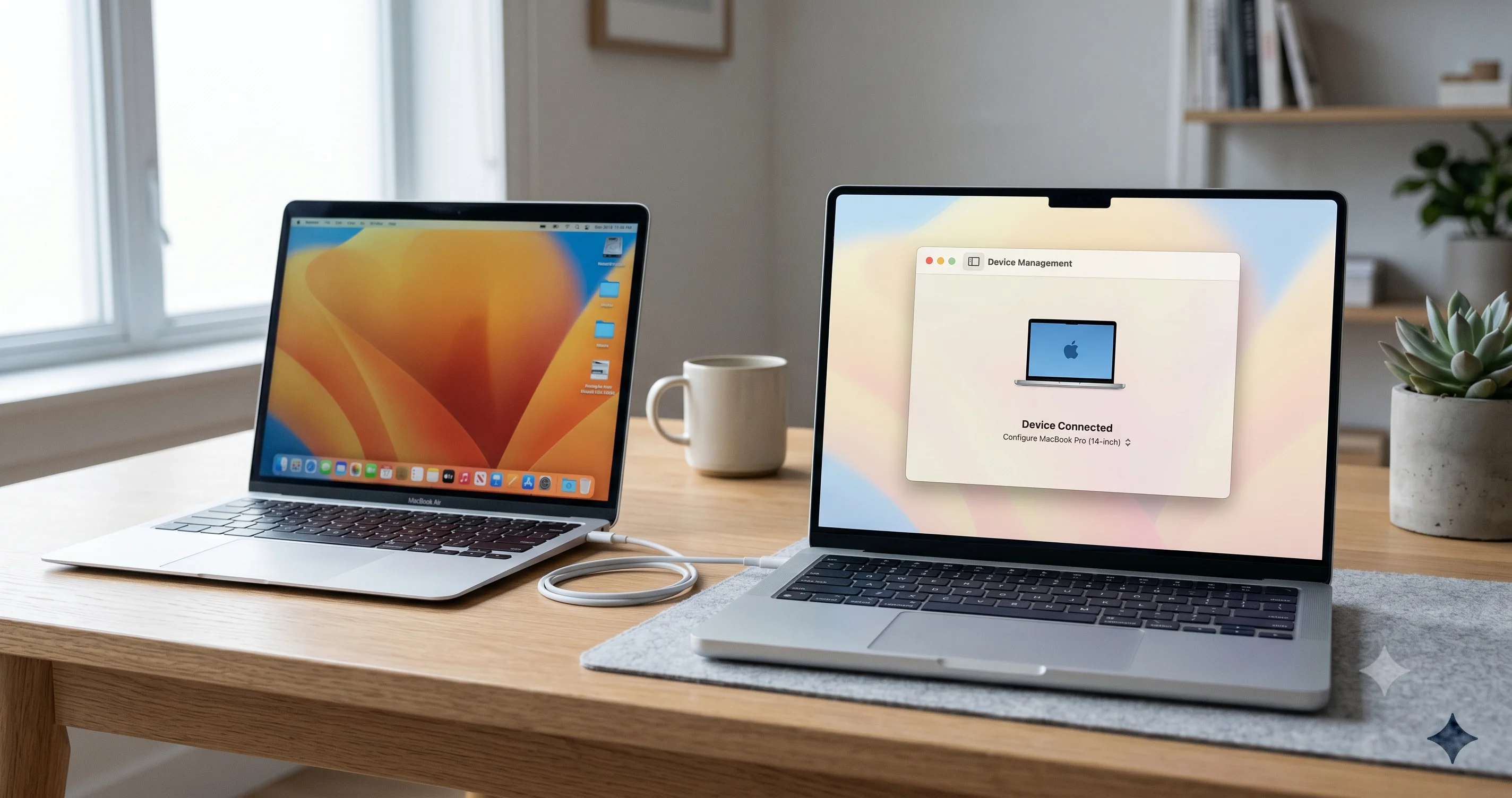
Apple's current documented procedure is on the revive or restore page. The page describes doing it in Finder on a host Mac running macOS 14 or later, with an internet connection, about 32 GB of free space and a USB-C to USB-C cable that supports data and charging (Apple says not to use Thunderbolt 3 cables). Apple Configurator is also still used for this work, but the Apple pages we opened do not say whether its steps differ from the Finder steps, so follow the Apple page for your model.
Use Apple's complete model-specific DFU instructions, including the designated DFU port, power and cable requirements, and the exact keyboard and timing sequence. Do not substitute a generic laptop or desktop key sequence.
Try Revive first: Apple describes it as preserving data. Restore permanently erases the Mac and is the next recovery option if revive fails. Before choosing Restore, verify readable independent backups and access to the backup password and Apple Account; if preserving data matters and you cannot verify recovery, stop and seek support instead of restoring. For a subsequent Tahoe downgrade, also confirm exact-model compatibility and have a separate compatible Tahoe USB verified to boot the target. If the fault prevents that check, do not treat a destructive restore as a verified downgrade plan.
Path C repairs firmware or Recovery; it is not a documented way to select Tahoe. Once the Mac works again, use the supported compatible-installer path and its pre-erasure checks. This guide makes no claim about a Tahoe IPSW's current availability or signing status. If your Mac still boots, use Path B.
If You Were on the Beta (Short Case)
This was the whole point of the article in June, and it still applies if you are on a developer or public beta build rather than the released 27.0.x.
- Beta installed on a separate APFS volume. Hold the power button at startup and pick your retained Tahoe volume. Before deleting the beta volume, confirm that Tahoe boots on this exact model, that a separate compatible Tahoe USB also boots, and that independent backups of beta-only files are readable with their passwords available outside the Mac. Stop if any check fails. Carefully identify the beta volume in Disk Utility: deleting it permanently removes its unique files, even though the retained Tahoe volume need not be erased. Do not enter the full-erase procedure if keeping Tahoe or other volumes.
- Beta installed over Tahoe. You are in the same situation as the released-27 reader: erase and reinstall Tahoe, with the same backup caveats. If your Mac is on a beta build, Software Update may keep offering beta builds; set the Beta Updates control to Off before you update, and if 27 is still offered after that, check whether the Apple Account is still enrolled in the beta program on beta.apple.com (the exact Settings path varies between releases, so look for Beta Updates under General, Software Update).
The released 27.0 and 27.0.1 are no longer betas, so there is nothing to un-enroll from if you simply updated on release day. For the beta background, see our beta risk article and how to install the public beta safely with a separate volume next time.
After You Are Back on Tahoe
- Do not click the macOS 27 upgrade. Our release-day guide says major upgrades appear as a separate Upgrade Now item, distinct from the Update Now button for point releases. Use Update Now for Tahoe point releases and leave Upgrade Now alone.
- Watch your remaining time on Tahoe. Apple shipped 26.7.1 alongside 27.0.1, which suggests Tahoe will keep getting security fixes for a while. Apple does not publish a fixed end date, so track the macOS versions tool and the release-day guide.
- Know what you can and cannot turn off. Apple's guide to Mac updates says the info button next to Automatic Updates in System Settings, General, Software Update shows three switches: Download new updates when available, Install macOS updates and Install Security Responses and system files. Turn off the first two so the Mac never installs the major upgrade on its own, but leave the security response switch on. These switches stop automatic installs. Apple's documentation does not describe a switch that hides the upgrade, so on an unmanaged Mac expect the Upgrade Now item to keep showing and notifications to return. On managed Macs, an MDM can defer major upgrades for up to 90 days, as our Software Update troubleshooting post explains.
- Be careful with third-party nag blockers. A tool called Stop Tahoe Update, described by The Register in March, installs a profile that tells macOS the Mac is controlled by an organizational policy forbidding version upgrades. It was written for Tahoe, and we found no evidence about whether it works for macOS 27. It is a workaround, not an Apple setting, so remove it with its own uninstall script when you decide to upgrade.
- Re-test the original problem. If the fault returns on Tahoe, it was never macOS 27.
Troubleshooting Common Issues
The USB installer does not appear in the startup picker
Do not erase the Mac while the installer will not boot. Check exact-model Tahoe compatibility, use a good USB drive and data-capable cable, and try another port. Before rebuilding or recreating media, repeat Path B’s USB target and independent-backup checks: creation erases that drive, so never use the sole backup. Re-download the compatible full installer if needed, then verify startup before considering internal erasure.
The installer says it cannot be installed on this Mac
First confirm that your exact model supports the specific Tahoe release, then check the full installer, USB media and internet connection. Purchase date or preinstalled version alone is not a compatibility test. Do not respond to this error by immediately erasing or using DFU. Before any full-erase retry, verify that a compatible Tahoe USB boots this Mac, independent backups open and encrypted-backup credentials are available outside it; stop if any check fails or any existing volume must be kept. Follow the full-erase section only after these checks. Reserve Path C for the firmware or Recovery failures Apple describes.
Migration Assistant does not show my backup
Prefer the verified pre-upgrade backup, but distinguish a full migration from individual-file recovery. Mount and unlock the backup disk, or connect the network share, and check readable files before opening Migration Assistant. A missing backup is not a reason to erase again. For NAS backups see our Time Machine SMB and NAS fix.
Recovery keeps offering macOS 27
That is one outcome Apple describes on Apple silicon; Tahoe is not guaranteed. Prepare and test a compatible Tahoe installer (Path B) before any erasure.
Random restarts or kernel panics after downgrading
A clean Tahoe install should be stable. Suspect a peripheral, a display refresh rate or a system extension. Our kernel panic guide and the external drive eject guide cover the common cases.
FAQ
Can I downgrade from macOS 27 to Tahoe without losing data?
A full downgrade erases the target volume group, and no backup method guarantees every item will be recoverable. Prefer a verified pre-upgrade backup, keep a current backup and separately test exports of newer files. Incomplete sync and older apps that cannot read newer data remain risks. You can boot an existing compatible Tahoe volume without erasing it, but deleting a beta volume still permanently deletes its unique files.
Can any Mac go back to Tahoe?
No. Check the exact model and the particular Tahoe release it supports. A model whose minimum system is macOS 27 cannot run Tahoe. Purchase date or a seller’s preinstalled version alone is not enough; verify compatibility and boot the compatible installer before erasing.
Why does my Time Machine backup from macOS 27 not restore onto Tahoe?
Full migration from a macOS 27 backup to Tahoe is not established by the Apple documentation cited here. That does not mean every newer backup or individual file is unusable. Prefer a verified pre-upgrade backup, retain the newer backup too, and separately export important changes. Individual-file recovery differs from whole-account migration, and older apps may not open newer libraries or databases.
How long does a downgrade take?
Apple publishes no figure. The time depends on how much data you copy out and back and on your drive and network speed. The install itself is a matter of the Mac restarting a few times, while copying a large library is usually the longest part. Plan an afternoon, and keep the Mac on power throughout.
Does Activation Lock or Find My matter before I erase?
Yes, in one way. After an erase through Disk Utility, Apple says you may be asked for your Apple Account information and the Mac must activate over the internet. Verify access to the associated Apple Account before erasing. This is separate from your Mac login/FileVault recovery method and an encrypted backup’s password; verify all three and keep the required recovery information securely outside the erased disk.
Will my Mac keep nagging me to upgrade to macOS 27 afterwards?
Probably, yes. Software Update lists macOS 27 as a separate Upgrade Now item. You can turn off automatic download and install of macOS updates in the Automatic Updates info panel. Apple documents no switch that hides the upgrade on a personal Mac, and organizations can defer it up to 90 days with a management profile.
Should I downgrade or wait for a macOS 27 fix?
Downgrade if a tool you depend on daily is broken and its vendor has no fix, for instance an Intel-only plug-in. If the problem is cosmetic, a single app or a known workaround, try 27.0.1 or later and the fixes in our table first. A wipe costs an afternoon plus the risk of lost data.
Is Tahoe still getting updates?
Yes. Apple released Tahoe 26.7.1 on September 28, 2026, the same day as macOS 27.0.1, according to its security releases page. Apple has not published an end date for Tahoe updates in the pages we opened, so check the page before you plan around one.
Conclusion
Going from macOS 27 to Tahoe 26 is a controlled erase and reinstall, not an undo. Check exact-model Tahoe compatibility, open important files from independent backups and verify their credentials, then test startup from a separate compatible Tahoe USB before any erasure, and keep DFU revive or restore for a Mac that will not boot. Restore from the backup made before the upgrade, copy back anything newer by hand, and decide whether you really need to leave 27: Tahoe 26.7.1 is a fully supported place to wait.
Related reading: macOS 27 Golden Gate release day update guide, macOS 27 final compatibility list, Rosetta 2 and Intel app audit, macOS downgrade complete guide.