How to Customize Folder Colors, Emoji, and App Icons on Mac
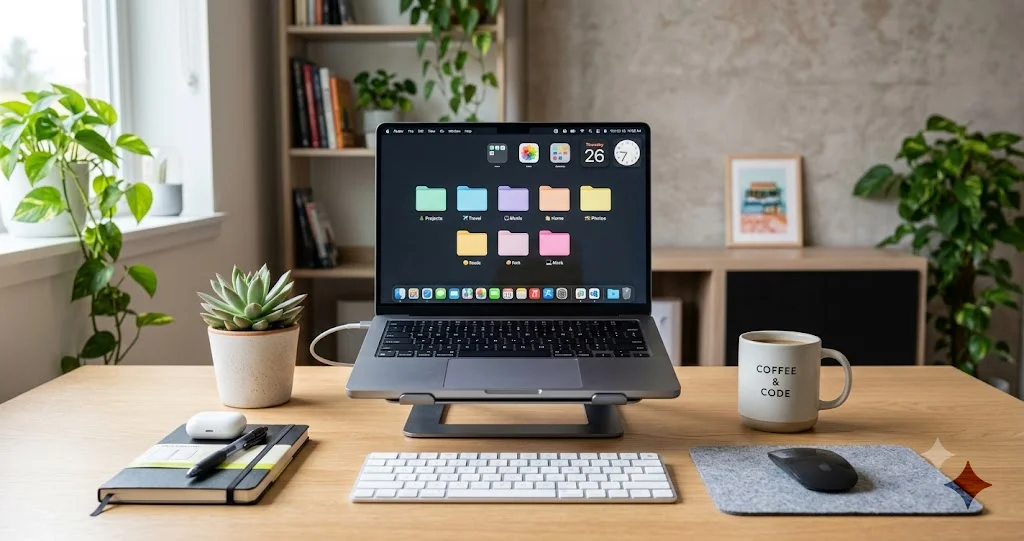
Learn how to customize folder colors, add emoji and SF Symbols to folders, and use tinted app icons and accent colors to personalize your Mac in minutes.
For years, making a Mac folder anything other than translucent blue meant fiddling with copied images, third-party utilities, or a clumsy paste-into-Get-Info trick that half the time refused to stick. That era is over. If you want to customize folder colors on your Mac, drop an emoji onto a project folder, or tint every app icon in your Dock to match a single accent color, all of it is now built right into macOS — no downloads, no hacks, no hunting for icon files. Apple folded a genuinely fun set of personalization tools into Finder and System Settings, and once you know where they live, you can transform a wall of identical blue folders into a color-coded, glanceable workspace in a couple of minutes.
This guide is a complete, friendly walkthrough of everything you can do to personalize your Mac's look. We will cover the built-in Customize Folder feature for folder colors, emoji, and SF Symbols; the system-wide Tinted icons option along with accent and highlight colors in Appearance settings; the classic Get Info method for pasting a fully custom icon when you want something the built-in tools cannot do; and the organizing strategies that turn all this visual flair into a faster, calmer way to actually find your files. It is an evergreen how-to, not a fix-it piece, so the tone here is upbeat and practical — this is the fun part of owning a Mac.
One quick note on versions before we dive in, because it matters for what you will see on screen. The Customize Folder feature (folder colors plus emoji and SF Symbols) and the system-wide Tinted icons option both debuted in macOS 26 "Tahoe" (2025) and continue in the macOS 27 "Golden Gate" beta. In other words, everything in this guide applies to macOS Tahoe and later. If you are on the current stable release (26.5.2 as of this writing) or on the macOS 27 beta, you have all of it. If you are on macOS Sequoia or earlier, the built-in folder personalization will not be there — but the classic Get Info method near the end of this guide has worked for many macOS generations and remains your fallback.
Key Takeaways
- Finder's Customize Folder panel lets you change a folder's color and stamp an emoji or an SF Symbol on top of it — right-click a folder (or use the File menu) and choose Customize Folder. No third-party tools required.
- System Settings > Appearance is home to the big system-wide levers: Light/Dark/Auto mode, the accent color, the highlight color, and the icon appearance styles that include the Tinted option for a unified, color-washed look across your Dock and app icons.
- The classic Get Info (Command-I) method still works as a fallback when you want a fully custom image as an icon — copy an image, select the icon thumbnail in the Get Info window, and paste with Command-V.
- Color-coding pays off most when it means something. Assign colors and emoji by project, status, or file type, pair them with Finder tags, and lean on Stacks to keep your desktop tidy — the goal is faster visual scanning, not just decoration.
- Everything is reversible. Folder customizations can be reset from the same Customize Folder panel, tinted icons revert with one click back to Default, and a pasted custom icon can be removed in Get Info, so you can experiment freely.
The Built-In Customize Folder Feature
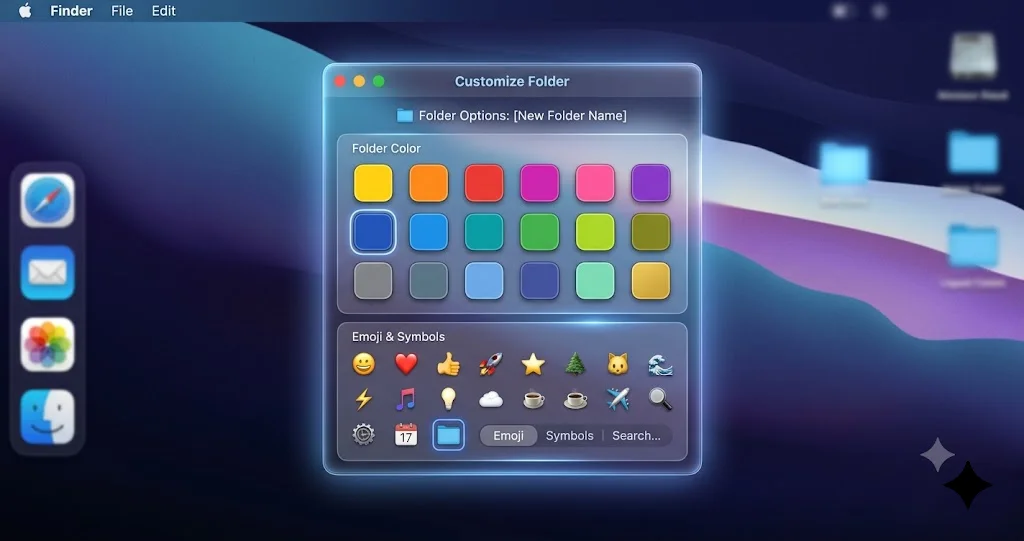
The headline addition for anyone who loves an organized Finder is Customize Folder, a small panel that gives an ordinary folder a color, an emoji, or an SF Symbol without any of the old workarounds. It is the single easiest way to make your folders distinct at a glance, and because it is a native macOS feature, the results look clean, sit correctly at every icon size, and survive being moved around. Let us go through each capability step by step.
How to open the Customize Folder panel
There are two equally valid ways to reach the panel, and both start the same way — by selecting the folder you want to change.
- Open a Finder window (or click the desktop) and locate the folder you want to personalize.
- Click the folder once to select it. You do not need to open it; just highlight it so macOS knows which folder you mean.
- Right-click (or Control-click) the folder to bring up the contextual menu, then choose Customize Folder. If you prefer the menu bar, you can instead open the File menu at the top of the screen while the folder is selected and choose Customize Folder there.
- The Customize Folder panel appears. From here you can pick a color, add an emoji or symbol, and preview the result live before committing.
That is the entire entry point. Everything below happens inside this one panel, and it updates the folder in real time so you can see exactly what you are getting.
Changing a folder's color
Color is the fastest, most powerful change you can make, because the human eye sorts by color almost instantly — far faster than it reads folder names. In the Customize Folder panel you will see a row of color swatches representing the palette macOS offers for folders. Here is how to use it.
- Open the Customize Folder panel for your selected folder using the steps above.
- Click a color swatch. The folder icon updates immediately so you can judge the result against your actual desktop and window background.
- Try a couple of options. Because the preview is live, it costs nothing to click through several colors and see which reads best. A warm color like orange or red pops against a neutral Finder background; cooler greens and purples feel calmer.
- Confirm the change by accepting it in the panel (typically a Done or equivalent confirmation). The new color sticks with the folder wherever it lives — in a window, on the desktop, or in a sidebar.
A good habit is to reserve a small, deliberate set of colors rather than using every swatch available. Three to five colors that each mean something ("red = urgent," "green = done," "blue = reference") will serve you far better than a rainbow where every folder is a different hue and none of them signal anything. We will come back to this idea in the organization section, because a disciplined palette is what turns pretty folders into a genuinely faster workflow.
Adding an emoji to a folder
Color tells you a category at a glance; an emoji tells you the specific thing. A little camera on your photography folder, a plane on your travel folder, or a dollar sign on your finances folder is instantly recognizable in a way that a text label never quite matches. The Customize Folder panel includes an emoji picker for exactly this.
- Open the Customize Folder panel for the folder you want to mark.
- Choose the option to add an emoji. The panel provides a picker; select the emoji entry point to browse the full emoji set. You can also use the system emoji picker shortcut, Control-Command-Space, when a symbol field is active, to search by keyword.
- Search or scroll to the emoji you want. Typing a keyword — "camera," "plane," "money" — narrows the list quickly, which is much faster than scrolling through hundreds of glyphs.
- Select the emoji. It appears layered on the folder in the live preview, sitting on top of whatever color you have chosen, so you can combine a color and an emoji for a two-dimensional signal (for example, a red folder with a fire emoji for "hot / urgent").
- Confirm to apply. The emoji-marked folder now stands out clearly in any Finder view.
Emoji and color work beautifully together. Think of color as the broad category and the emoji as the specific label: a set of blue "reference" folders, each with a different emoji for its subject, reads instantly without you having to parse a single word of text. That combination is the real magic of the feature.
Adding an SF Symbol to a folder
If emoji feel a touch too playful for your taste — say, for a work machine or a client-facing setup — the Customize Folder panel also lets you use SF Symbols instead. SF Symbols are Apple's built-in library of thousands of clean, consistent line icons: gears, folders, documents, arrows, hearts, tools, and far more. They share the visual language of the rest of macOS, so a symbol-marked folder looks native and understated rather than decorative.
- Open the Customize Folder panel for your selected folder.
- Switch to the symbols option. Alongside the emoji picker, the panel offers access to the SF Symbols library so you can choose a monochrome symbol instead of a colorful emoji.
- Browse or search the symbol library. As with emoji, typing a keyword is the quickest route — search "gear" for settings-related folders, "doc" for document collections, "arrow" for in-progress or archive folders.
- Select the symbol. It layers onto the folder in the preview, taking on a look that coordinates with the folder's color rather than clashing with it.
- Confirm to apply. You now have a folder that is marked and distinctive while staying visually calm and professional.
The practical rule of thumb: use emoji when you want warmth, personality, and instant recognition; use SF Symbols when you want a cleaner, more uniform, system-native look. Many people mix the two — emoji on personal folders, symbols on work folders — and that itself becomes a useful signal about which is which.
Combining color, emoji, and symbols
Because the panel previews everything live and layers a symbol or emoji on top of your chosen color, you are really designing a small two-part badge for each folder. A green folder with a checkmark symbol says "complete" more loudly than either element alone. A yellow folder with a warning emoji says "needs review." Spend a minute thinking about the two axes — color for the broad bucket, glyph for the specific meaning — and your folders start doing real cognitive work for you instead of just looking nicer.
System-Wide Personalization: Tinted Icons, Accent, and Highlight Colors
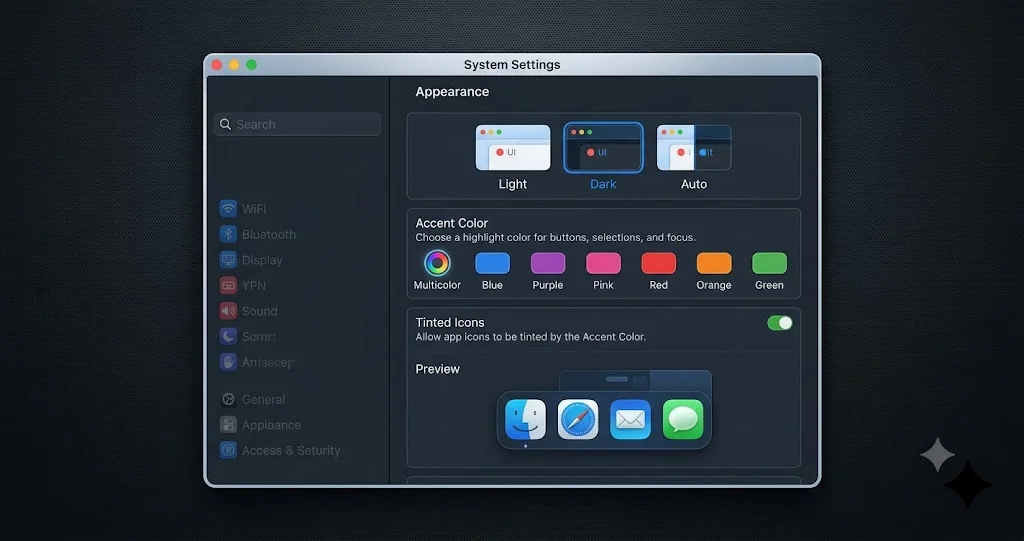
Folder customization is per-folder and hands-on; the next set of tools is system-wide and sweeping. In System Settings > Appearance, macOS gives you a handful of controls that change the entire feel of the interface at once — including the Tinted icon style that washes your app icons in a coordinated color, the accent color that recolors buttons and controls across every app, and the highlight color you see when selecting text. These are the levers that make a Mac feel like yours from the moment you log in.
To reach them, open System Settings from the Apple menu (top-left of the screen) or the Dock, then click Appearance in the sidebar. Everything in this section lives on that one pane.
Turning on Tinted app icons
The Tinted icon style is the most dramatic single change here. Instead of every app showing its own full-color icon, Tinted applies a unified color wash across your app icons and widgets, so the Dock and Launchpad look coordinated and deliberate rather than like a scattered box of crayons. It pairs especially well with a matching wallpaper for a genuinely designed, of-a-piece desktop.
Appearance offers a set of icon appearance styles to choose from. The exact lineup includes a Default (standard full-color) style, a Dark style, a clear or glassy style, and the Tinted style that is the star of this section. Here is how to switch to Tinted.
- Open System Settings > Appearance.
- Find the icon appearance styles — the row of icon-style choices that lets you change how app icons and widgets are rendered.
- Select the Tinted style. Your app icons update to a single coordinated color tone.
- Choose the tint color using the color control that appears with the Tinted style, so you can steer the wash toward the exact hue you want rather than accepting a default.
- Look at your Dock and desktop to judge the result. Tinted looks best with a wallpaper in a complementary color; a quick wallpaper swap can make the whole thing click.
If you decide it is not for you, switching back is a single click on the Default style — nothing is lost, and your original icons return exactly as they were.
Choosing an accent color
The accent color is a subtler but arguably more useful system-wide setting. It is the color macOS uses for the elements you interact with constantly: the fill of selected buttons, checkboxes, radio buttons, sliders, and other controls across nearly every app. Picking an accent color you like quietly personalizes the entire system.
- In System Settings > Appearance, find the Accent color row — a set of color swatches (blue is the default, with options including purple, pink, red, orange, yellow, green, and graphite, plus a multicolor choice that lets apps use their own preferred accents).
- Click the color you want. The change is immediate and system-wide; open a few apps and you will see buttons and controls adopt the new color.
- Consider graphite if you want a calm, monochrome, distraction-free interface where nothing shouts for attention — it is a favorite for people who find bright accents busy.
The accent color is a small change that you notice dozens of times a day, so it is worth taking a moment to pick one that genuinely pleases you rather than leaving it on the default out of habit.
Setting the highlight color
The highlight color is the color that appears behind selected text and around selected items. By default it follows your accent color, but it has its own control so you can set it independently if you want the selection color to differ from your button color — for instance, a graphite accent for calm controls but a brighter highlight so selected text is easy to spot.
- In the Appearance pane, locate the Highlight color control.
- Choose a color from the list, or leave it set to follow the accent color if you prefer them matched.
- Test it by selecting some text in any app; the highlight behind it shows your chosen color.
It is a tiny detail, but a highlight color with good contrast against your text genuinely improves readability when you are editing documents or selecting things all day.
Light, Dark, and Auto
Rounding out the Appearance pane are the three overall modes: Light, Dark, and Auto. Light and Dark are self-explanatory; Auto shifts between them automatically — light during the day and dark in the evening — which is easy on the eyes and pairs nicely with the rest of your personalization. Your accent color, highlight color, and folder customizations all carry across both modes, so you can set up your look once and let Auto handle the day-to-night transition for you.
If you want to go deeper on the whole look-and-feel side of macOS — the translucent "Liquid Glass" materials, blur, and how the interface renders behind all these color choices — our macOS Tahoe Liquid Glass customization and accessibility guide covers the broader appearance system that your accent and tint choices sit inside. And for tuning how see-through those materials are on newer builds, the macOS 27 Liquid Glass transparency slider guide walks through the opacity control that complements everything here.
The Classic Method: Custom Icons via Get Info
The built-in Customize Folder panel covers colors, emoji, and symbols, and it will handle the vast majority of what most people want. But there is one thing it does not do: replace a folder's or file's icon with a completely custom image — a company logo, a piece of artwork, a downloaded icon set, a screenshot. For that, the venerable Get Info method is still the tool, and it has worked across many macOS generations, which also makes it your fallback if you are on a version of macOS older than Tahoe that lacks the Customize Folder feature entirely.
The idea is simple: you copy an image to the clipboard, open the Get Info window for the folder or file, click its little icon thumbnail in the top-left corner, and paste. macOS uses whatever is on the clipboard as the new icon.
Step by step
- Prepare your image. A square image works best because icons are square; PNG with a transparent background looks cleanest. Open it in Preview (or any image app), then select all and copy it with Command-C. Alternatively, open the image's own Get Info window, click its icon thumbnail, and copy that.
- Select the folder or file you want to change in Finder.
- Open Get Info by pressing Command-I (or right-click the item and choose Get Info). A window appears showing details about the item, with a small icon thumbnail in the very top-left corner.
- Click that icon thumbnail once to select it. You should see a faint highlight around it indicating it is selected — this step is the one people miss, so make sure the thumbnail itself is highlighted, not the name field.
- Paste with Command-V. The thumbnail updates to your image, and the folder or file immediately adopts the new icon everywhere it appears.
- Close the Get Info window. You are done — the custom icon is applied.
That is the whole procedure. The two keyboard shortcuts to remember are Command-I to open Get Info and Command-C / Command-V to copy the image and paste it onto the selected icon thumbnail.
Removing or reverting a custom icon
Undoing a custom icon is just as easy. Open Get Info (Command-I) again, click the icon thumbnail to select it, and press Delete (or Cut with Command-X). The item reverts to its default system icon. This is worth knowing before you experiment, because it means nothing you do here is permanent — you can always get the original back.
Where to find or make icon images
If you want to use this method regularly, it helps to have a small stash of good square images. You can screenshot a logo, export artwork from a design app as a transparent PNG, or use one of the many free icon sets available online. Keep them organized in a dedicated folder so that when you want to rebrand a project folder, the right image is a couple of clicks away. For anything simple and system-native, though, remember that the built-in Customize Folder panel with an SF Symbol will usually get you there faster and with a more consistent result than a hand-made image — reserve the Get Info method for the cases where you truly need a specific picture.
Organizing With Color: Strategies That Actually Help
Making folders pretty is satisfying, but the real payoff comes when your customizations mean something and speed up how you work. A desktop where color and glyph carry information is a desktop you navigate by instinct. Here are the strategies that consistently deliver, drawn from how people actually use these tools day to day.
Color-code by project, status, or type
The first decision is what your colors stand for. Pick one system and stick to it — mixing systems is what turns a color-coded desktop back into visual noise. Three approaches work well:
- By project. Each active project gets its own color: the client A folder is blue, client B is green, the personal side project is purple. When you glance at your Documents window, you sort by project instantly without reading a single label.
- By status. Colors represent where something is in your workflow: red for "urgent / do now," yellow for "in progress," green for "done / archive-ready," blue for "reference / read-only." This turns your folder view into a lightweight kanban board.
- By type. Colors map to the kind of content: one color for design assets, another for documents, another for finances, another for media. Useful when your work spans many file types and you want to jump to a category fast.
Whichever you choose, keep the palette small — three to five colors — and write down what each one means for the first week until it becomes second nature. A tight, meaningful palette beats a rainbow every time.
Combine folder customization with Finder tags
Folder colors and emoji are great for the folders themselves, but Finder tags add a second, cross-cutting layer that works on individual files too, and the two complement each other beautifully. Tags are colored, named labels you attach to any file or folder (right-click an item and choose a tag, or add tags in the Get Info window), and crucially they are searchable and filterable — click a tag in the Finder sidebar and see every item carrying it, no matter where it lives on your drive.
The winning combination is to use folder customization for structure (the folders you navigate into) and tags for state or cross-project attributes (flagging individual files as "important," "to review," or "final" regardless of which folder they sit in). A file can live in your blue "Client A" folder and still carry a red "urgent" tag, and you can pull up every urgent file across every client with a single click on the tag. Folder color answers "where does this belong"; tags answer "what is its status right now." Together they give you two independent axes of organization.
Use Stacks to tame the desktop
If your desktop tends to fill up with loose files, Stacks automatically groups them into neat piles by kind, date, or tag, so instead of a hundred scattered icons you see a handful of tidy stacks you can click to expand. Turn it on by right-clicking the desktop and choosing Use Stacks (or via the View menu), then right-click again to choose how they group — Group Stacks By > Kind, Date, or Tags. Grouping by Tags is where it ties back to everything above: if you have been tagging files, your desktop stacks organize themselves along the exact color-coded system you designed. A clean desktop also lets your customized folders and their colors actually show, rather than being buried under clutter.
For a fuller tour of shaping the desktop itself — widgets, layout, and the broader Tahoe personalization toolkit that surrounds folders and icons — our macOS Tahoe widgets customization complete guide is a good companion read; folder color-coding and a well-arranged widget layout reinforce each other nicely.
A sample setup you can copy
To make this concrete, here is a simple, proven starting point you can adapt:
- Pick a status palette: red = urgent, yellow = in progress, green = done, blue = reference.
- Give each top-level project folder an emoji so you recognize the project instantly (a rocket for the launch project, a book for research, a camera for the photo library).
- Turn on Tinted icons with a tint that complements your wallpaper, so the Dock feels coordinated with your color-coded folders.
- Tag individual files as "final," "to review," or "important" so you can pull cross-project views on demand.
- Enable Stacks grouped by Tags on the desktop to keep loose files self-organizing.
Live with it for a week, adjust the colors that do not feel intuitive, and you will end up with a system that fits how you think.
Reverting and Removing Customizations
Part of what makes all this safe to play with is that every change reverses cleanly. Nothing here is destructive, so experiment freely — if you do not like something, one click puts it back.
- Reset a folder's color, emoji, or symbol: reopen the Customize Folder panel on that folder (right-click > Customize Folder) and clear or reset the customization from within the same panel. The folder returns to the standard look.
- Turn off Tinted icons: go to System Settings > Appearance and select the Default icon style. Your full-color app icons come straight back.
- Change or reset your accent and highlight colors: in the same Appearance pane, pick a different swatch, or set the accent back to blue and let the highlight follow it, to return to the macOS defaults.
- Remove a custom Get Info icon: open Get Info (Command-I) on the item, click the icon thumbnail to select it, and press Delete. The default system icon is restored.
Because reverting is this painless, the smart approach is to try things boldly. Turn on Tinted for a day and see if you like it. Color-code one project folder and see if it changes how you work. If it does not land, undo it in seconds and try something else.
Tips for Consistency and Faster Visual Scanning
A few habits separate a customization that genuinely helps from one that just adds clutter. Keep these in mind as you build out your look.
- Be consistent, not exhaustive. The value of color-coding comes entirely from consistency. A red folder should always mean the same thing. The moment red sometimes means "urgent" and sometimes means "client B," the system stops working and your brain has to read the labels again — which defeats the point.
- Limit your palette. Three to five meaningful colors scan faster than a dozen. Too many colors is just a different kind of visual noise. Restraint is what makes the important folder actually stand out.
- Match glyph to context. Emoji bring warmth and instant recognition and are perfect for personal folders; SF Symbols bring a clean, professional, system-native feel and suit work setups. Using one family for personal folders and the other for work folders makes the two categories self-evident.
- Coordinate with your wallpaper and tint. Your folder colors, your Tinted icon wash, and your wallpaper are all on screen together. Choosing a wallpaper that complements your accent and tint makes the whole desktop feel designed rather than assembled.
- Mind contrast and legibility. Personalization should make things easier to see, not harder. If a folder color or a heavy tint washes out against your wallpaper, or a highlight color makes selected text hard to read, adjust it. For anyone who needs to prioritize legibility and contrast, our macOS Tahoe accessibility complete guide covers the contrast and display settings that keep a personalized desktop comfortable to read.
- Revisit periodically. As projects end and new ones begin, recolor and re-emoji your folders to match. A color-coding system is a living thing; a five-minute tidy every few weeks keeps it accurate and useful.
The through-line in all of these is the same: personalization on the Mac is at its best when it is functional. A beautiful desktop that also helps you find the right folder in half a second is the goal — not decoration for its own sake, but a look that works as hard as it looks good.
Troubleshooting Common Issues
Even with built-in tools, a few small snags come up. Here are the common ones and how to resolve them.
Problem: There is no Customize Folder option in my right-click or File menu. Solution: The Customize Folder feature requires macOS Tahoe (macOS 26) or later, so first confirm your version in System Settings > General > About (or the Apple menu > About This Mac). If you are on macOS Sequoia or earlier, the feature simply is not present — use the classic Get Info (Command-I) method to apply a custom icon instead. Also make sure you have actually selected a folder (not a file or an application) and that you have permission to modify it; folders in read-only or system locations may not offer the option.
Problem: My custom icon from Get Info will not stick, or it disappears. Solution: The most common cause is not selecting the icon thumbnail before pasting. In the Get Info window, click directly on the small icon in the top-left corner so it shows a highlight, then press Command-V — pasting into the name field or with nothing selected will not work. Make sure you copied an actual image (open it in Preview and Command-C) rather than a file. If it still refuses, confirm you have write permission for the item; icons on locked files or protected locations cannot be changed.
Problem: The Tinted icon look washes everything out or clashes with my wallpaper. Solution: Tinted applies a single color wash across your icons, so it lives or dies by the tint color and the wallpaper behind it. In System Settings > Appearance, adjust the tint color that accompanies the Tinted style toward a hue that complements your wallpaper, or switch your wallpaper to something that works with the tint. If it never feels right, simply select the Default icon style to bring your full-color icons back instantly — no harm done.
Problem: My folder colors or accent look different or hard to see in Dark mode. Solution: Colors read differently against light and dark backgrounds, so a folder color or accent that pops in Light mode can feel muted in Dark mode (or vice versa). If you use Auto appearance, check your color choices in both modes and pick ones that stay legible in each. For a highlight or accent that is hard to read, choose a color with stronger contrast against your text, and consult the accessibility guide if you need to firm up contrast system-wide.
FAQ
Do I need to install anything to customize folder colors on my Mac? No. On macOS Tahoe and later, folder colors, emoji, and SF Symbols are built into Finder's Customize Folder panel, and Tinted icons plus accent colors live in System Settings. There are no downloads or third-party apps required — everything is native to the operating system.
How do I add an emoji to a folder? Select the folder, right-click it (or use the File menu) and choose Customize Folder, then pick the emoji option in the panel and search or scroll to the emoji you want. It layers on top of your chosen folder color, and you confirm to apply. You can change or remove it anytime from the same panel.
What is the difference between an emoji and an SF Symbol on a folder? Emoji are colorful, expressive, and instantly recognizable, which makes them great for personal folders. SF Symbols are Apple's clean, monochrome line icons that match the rest of macOS, giving a more understated, professional look. Both live in the Customize Folder panel, so choose whichever fits the folder's context.
Will Tinted icons or custom folder colors slow down my Mac? No. These are lightweight appearance settings, not performance-heavy features. Tinting icons and coloring folders simply changes how existing graphics are rendered; it does not add meaningful processing load. You can turn any of them on and off freely without worrying about speed or battery life.
Can I still use the old Get Info method to set a custom icon? Yes. Copy a square image, select the folder or file, press Command-I to open Get Info, click the icon thumbnail in the top-left corner, and paste with Command-V. It is the way to apply a fully custom picture that the built-in tools do not offer, and it also works on older macOS versions that lack Customize Folder.
How do I undo all my customizations and go back to default? Reset a folder from its Customize Folder panel, switch icons back to the Default style in System Settings > Appearance, return your accent color to blue, and remove any pasted icon by selecting the thumbnail in Get Info and pressing Delete. Every customization reverses cleanly, so nothing is permanent.
Conclusion
Personalizing your Mac used to be a scavenger hunt through third-party utilities and fiddly workarounds. Now it is a few clicks in tools Apple built right into the system. You can customize folder colors, drop an emoji or an SF Symbol onto any folder, wash your entire Dock in a coordinated Tinted color, and pick an accent and highlight color that make the whole interface feel like yours — all from Finder's Customize Folder panel and the Appearance pane in System Settings. When you need something the built-in tools cannot do, the classic Get Info method is right there as a dependable fallback for fully custom icons.
The real reward, though, is not just a prettier desktop — it is a faster, calmer one. When your colors and glyphs mean something, when your tags and Stacks reinforce the same system, and when your palette is small and consistent, you stop reading folder labels and start navigating by instinct. That is the difference between decoration and design: a Mac that looks great and helps you find the right thing in half a second.
So open a Finder window, right-click your busiest folder, choose Customize Folder, and give it a color and an emoji that tell you exactly what it is. Then head to System Settings > Appearance and set the tint and accent that make the whole machine feel like home. Start with one project, live with it for a week, and build out the system that fits how you work. Your Mac has never been this easy to make your own — go have fun with it.