Should You Install the macOS 27 Beta? Golden Gate Known Issues
The complete known-issues list for the macOS 27 Golden Gate Beta, plus a per-persona decision guide and how to install it safely on a separate volume.
Apple dropped the first developer beta of macOS 27 "Golden Gate" on stage at WWDC on Monday, 8 June 2026 — keynote day, build 26A5353q — and within hours the forums lit up with the same question that arrives every June: should I install it? The generic answer you'll find everywhere is "just wait." That advice isn't wrong, but it's useless. It doesn't tell you which bugs are real, which ones have workarounds, which ones are deal-breakers for your specific setup, and which ones are overblown. It doesn't tell a developer with apps shipping in September anything actionable, and it scares off a curious power user who could safely run Golden Gate on a second APFS volume tonight without touching their working system.
This guide is the opposite of "just wait." It's a field report. Every bug below is attributed to where it was reported — MacRumors forums, a widely-shared V2EX roundup, GitHub issue trackers, mrmacintosh.com — and labelled by whether it's Apple-confirmed or user-reported. We separate the network catastrophe (yes, some Macs lose internet entirely after install) from the cosmetic flicker, the install-blocking bugs from the annoyances, and we give you a real decision matrix by persona. Then, if you decide to proceed, there's a step-by-step walkthrough for installing onto a separate volume so your main system stays on stable Tahoe and bootable.
One thing to anchor on before we start: Golden Gate looks, from beta 1, like a refinement release — a Snow Leopard-style consolidation year rather than a feature-stuffed one. Several testers report it already runs better than the stable Tahoe build they came from. That's the counter-narrative the "just wait" crowd never mentions, and it changes the calculus for some of you. Let's get into it.
Key Takeaways
- macOS 27 "Golden Gate" developer beta 1 shipped on 8 June 2026, build 26A5353q. The full installer is 17.07 GB; the IPSW is 22.57 GB. It requires Apple silicon — M1 / A18 Pro or newer — and drops Intel entirely.
- The single biggest beta-1 problem is complete loss of internet after install on some Macs: the machine gets a DHCP address but reports "No route to host." Per the MacRumors beta-1 thread (7+ pages), the cause is incompatible third-party network extensions — Little Snitch and Bartender are confirmed culprits. The fix is to fully uninstall the app and remove its leftover network extension.
- App compatibility is rough: Homebrew throws "unknown or unsupported macOS version" (Homebrew/brew issue #22607), WeChat crashes on launch, VLC freezes on MKV playback, and remote-desktop and zero-trust security clients are widely reported broken. This is a strong reason not to install on a managed work Mac.
- There's a genuine upside: wccftech reports beta 1 runs smoother than stable Tahoe on an M1 Pro, and V2EX testers report dramatically better Mac-to-Mac Screen Sharing and better-than-expected stability.
- Installing the beta does not guarantee you get the headline Siri AI features. Those are waitlist-gated, English-only, rolling out gradually, and the on-device tier needs M3 or newer with 12 GB+ RAM.
- The safe path is a separate APFS volume (dual-boot) with a full Time Machine backup taken before you start. Backups made while running the beta cannot cleanly restore back to Tahoe.
- Bottom line by persona: developers with shipping apps yes (on test hardware/volume); curious power users separate volume only; main/only Mac no, wait for public beta; managed work Macs absolutely not; accessibility-dependent users wait — there's an unresolved VoiceOver bug.
What Golden Gate Beta 1 Actually Is
Let's establish the facts before the opinions.
macOS 27 carries the public name "Golden Gate." Apple released developer beta 1 on 8 June 2026, the day of the WWDC keynote, with build number 26A5353q. There are two ways to get it onto a Mac, and the size difference matters for planning:
- The full installer (downloaded via Software Update or
softwareupdate --fetch-full-installer) is approximately 17.07 GB. - The IPSW restore image (used with Apple Configurator or
Finderdevice restore) is approximately 22.57 GB.
If you're on a metered or slow connection, budget accordingly — and remember a beta gets a new build every two to three weeks, so you'll be pulling multi-gigabyte updates repeatedly through the summer.
Hardware requirements: Apple silicon only, and a higher floor
Golden Gate is Apple silicon only. There is no Intel build, which is the long-rumoured cutoff finally landing — if you want the full breakdown of what that means and how to audit your apps, see our companion piece on Rosetta 2 ending in macOS 27 and how to run an Intel app audit. The baseline for installing the beta is M1 / A18 Pro or newer. Practically, that means essentially every Apple silicon Mac from the M1 era forward can boot it.
What "can boot it" does not mean is "gets every feature." That distinction is the source of the most disappointment every cycle, and Golden Gate is no exception — the on-device Siri AI tier has a meaningfully higher floor than the OS itself, which we cover in detail below.
Release timeline
Apple's stated and historically-consistent cadence puts the rest of the cycle roughly like this:
- Developer beta 1 — 8 June 2026 (shipped)
- Public beta — expected July 2026
- Final release — expected September / fall 2026
For the full feature rundown, compatibility list, and announced release-date details from the keynote, see our macOS 27 Golden Gate WWDC 2026 announcement coverage. This article assumes you've already decided Golden Gate is interesting and are now weighing whether to run the beta.
The Case for Waiting: Network and Install Bugs
We'll organise the known issues into four buckets — network, install, apps, and UI/system — because that's how they actually hit you. Network and install bugs are the ones that can leave a Mac in a degraded or unbootable-feeling state, so they come first.
The big one: no internet after install
The most-reported, most-disruptive beta-1 issue is total loss of network connectivity after upgrading. The symptom pattern, documented across 7+ pages of the MacRumors beta-1 discussion thread, is distinctive: the Mac successfully obtains a DHCP IP address — so Wi-Fi or Ethernet looks connected — but any attempt to actually reach a host fails with "No route to host." Pings die, the browser spins, Software Update can't even fetch the next beta.
The root cause that the community converged on is incompatible third-party network extensions that haven't been updated for the Golden Gate network stack. Two apps are confirmed culprits by multiple forum users:
- Little Snitch — its filtering network extension breaks routing after the upgrade.
- Bartender — also reported to break (and Bartender hits a second, separate problem with menu-bar management we'll get to under apps).
The fix that works, per the same thread, is not just quitting the app — it's a full removal of both the app and its leftover network extension:
- Fully uninstall the offending app (use its official uninstaller if it has one; dragging to Trash often leaves the extension behind).
- Open System Settings → General → Login Items & Extensions.
- Scroll to Network Extensions and remove any leftover extension belonging to the uninstalled app.
- Reboot.
The leftover-extension step is the one people miss. The app can be gone while its network extension is still loaded and still poisoning routing. If you can't get online at all to research the fix, this is exactly the scenario where having installed on a separate volume pays off — you boot back into Tahoe, which is untouched, and fix things from there. We have a deeper diagnostic flow for connectivity-style failures in our guide on external displays and detection issues on macOS Tahoe, and the same "check the extension, not just the app" instinct applies here.
Install failures and the bizarre Rosetta-blocks-update bug
Several install-time failures are circulating:
- Update stuck / hangs during preparation or the post-restart phase.
- "Failed to personalize the software update" — an error that typically resolves on a clean retry, sometimes requiring a network change or a recovery-mode reinstall.
- A genuinely strange, user-confirmed bug: the macOS 27 update does not appear in System Settings → Software Update at all if Rosetta 2 is installed. Reported on MacRumors, the workaround circulating in the community is to temporarily move the Rosetta folders out, let the update appear and install, then restore them. Treat this as unsupported and risky — moving system framework folders is not something Apple sanctions, and it can leave Rosetta-dependent apps broken until restored. If you're affected, the cleaner route is to install via the full installer or IPSW rather than the Software Update mechanism, sidestepping the visibility bug entirely.
For anyone running OpenCore Legacy Patcher on unsupported hardware: per mrmacintosh.com guidance, you must disable automatic updates before this cycle, because an automatic Golden Gate update onto OCLP-patched hardware can break the boot path. (And to restate: Golden Gate is Apple silicon only, so OCLP scenarios here are about keeping older patched machines off the beta, not onto it.)
Why these two buckets justify caution
Network loss and install hangs are the bugs that turn "I'll just try it" into a lost evening. Neither is catastrophic if you installed on a separate volume — you reboot into Tahoe and you're fine. Both are genuinely painful if you upgraded your only system in place. That single difference — separate volume versus in-place upgrade — is the most important decision in this whole article, and it's why the safe-install walkthrough below isn't optional reading.
The Case for Waiting: App Compatibility Carnage
Beta 1 is, predictably, where third-party apps that haven't been updated for the new OS fall over. The community has been maintaining a running "working and non-working apps" thread on MacRumors, cross-referenced with GitHub issue trackers. Here's the state of play, with sources.
Developer tooling
- Homebrew throws "unknown or unsupported macOS version" on Golden Gate. This is tracked in Homebrew/brew issue #22607, and preliminary support is in progress — but until it lands,
brew install,brew upgrade, and many formula operations will refuse to run cleanly. For a developer, this alone can make beta 1 a poor primary environment, because so much of the macOS dev toolchain flows through Homebrew. - Xcode beta-1 reports include failing to recognise physical devices plugged in over USB — a real problem if your testing depends on on-device runs rather than the simulator.
Consumer and productivity apps
- WeChat — crashes on launch. Reported repeatedly; no clean workaround beyond waiting for an update.
- VLC — freezes on MKV playback specifically. Other formats are more stable, but MKV is a common one.
- Wacom tablets — function only with the Wacom Center app running in the foreground/background; without it, pressure and mapping break.
- Bartender — broken for menu-bar management (separate from its network-extension role in the no-internet bug above).
The work-Mac dealbreakers
This is the category that should stop a whole class of users cold. The following are user-reported broken in beta 1:
- Remote-desktop tools — ToDesk and Sunflower reported non-functional.
- Some zero-trust VPN / security clients reported broken.
If your Mac runs corporate security software, an MDM agent, or a zero-trust network client, the probability that something in that stack breaks on beta 1 is high, and the consequence isn't just inconvenience — it can be losing access to work resources, tripping a compliance alarm, or quarantining the device. Do not install Golden Gate beta 1 on a managed work Mac. We'll repeat this in the decision matrix because it's the one rule with no exceptions.
The Case for Waiting: UI and System Bugs
These are the bugs you'll hit during normal use even if your apps all happen to work. They're a mix of cosmetic and genuinely interrupting. All are user-reported from beta-1 testing unless noted.
- Lock screen on wake sometimes shows only the clock with no login UI, and at the same time the Magic Keyboard's Touch ID is unresponsive — leaving you briefly unable to log in until you force a refresh (close the lid / wake again, or hard-reboot in stubborn cases).
- AirPlay audio dropouts when streaming from Music — audio cuts out, and scrubbing the timeline temporarily restores it. Annoying for anyone who lives in AirPlay.
- Liquid Glass window-edge flickering on 4K external displays — the translucent material shimmers at window edges specifically on 4K externals.
- Intermittent external-display blackouts — the external screen drops to black and recovers. If you're already chasing display gremlins, our external display diagnostic and fix guide for macOS Tahoe covers the cable, port, and detection variables that interact with this.
- iPhone Mirroring "connection interrupted" failures — the session drops mid-use. This was already a sore spot on Tahoe; our iPhone Mirroring not working fix for macOS Tahoe documents the underlying handshake issues that beta 1 appears to reintroduce or worsen.
- iCloud login failures for some users — accounts that won't authenticate after the upgrade.
- VoiceOver "dialog empty" bug — a confirmed accessibility regression where VoiceOver reports certain dialogs as empty, blocking some dialogs entirely for users who rely on it. This is the single bug that makes beta 1 a hard no for accessibility-dependent users until it's fixed.
None of these is individually fatal, but together they're the texture of a beta-1 daily-driver experience: things mostly work, then something flickers, drops, or won't authenticate, and you lose ten minutes. For a test volume that's fine. For your only machine it's a tax you pay all day.
The Case for Installing: Performance and Deadlines
Here's the part the "just wait" advice always omits. There are real, attributed reasons some people should install Golden Gate beta 1 — and reasons it might be a more pleasant beta 1 than recent years.
It's reportedly faster than stable Tahoe
wccftech reports that beta 1 runs better than stable Tahoe on an M1 Pro — snappier UI, better responsiveness. Independently, V2EX testers report two things that matter day-to-day:
- Dramatically smoother Mac-to-Mac Screen Sharing — long a rough spot, reportedly much better in Golden Gate.
- General stability better than feared — the consensus tone in the V2EX roundup is "this is more solid than a typical beta 1."
This tracks with the broader read that Golden Gate is a refinement-focused release — a consolidation year in the Snow Leopard mould, where the engineering effort went into making the existing system faster and more reliable rather than piling on new surface area. If that read holds, beta 1 being unusually stable is exactly what you'd expect. (It also makes the network and app bugs above more frustrating, because the OS itself feels good — it's the third-party ecosystem that hasn't caught up.)
Developers have a real deadline
If you ship Mac software — apps, kernel-adjacent tooling, anything that touches the network stack, accessibility, or display — you do not have the luxury of waiting. macOS 27 ships to the public in September/fall, and your users will upgrade. You need to find out now whether Homebrew breaking, the network-extension changes, the Xcode device-recognition issue, or the VoiceOver regression affects your product, file Feedback, and ship a compatible build before the public gets the final.
The crucial qualifier: developers should test on dedicated test hardware or a separate volume, never on the machine they need to keep working on. The goal is to reproduce and report the issues above against your own software, not to live in the beta.
When the upside wins
The case for installing comes down to two profiles: you're a developer who must validate compatibility before September, or you're a curious power user who finds the performance reports compelling and is willing to run it in an isolated, throwaway environment. For everyone else, the bugs above outweigh the speed.
Decision Matrix: Should You Install?
Here's the whole article compressed into one table. Find your row.
| Persona | Install beta 1? | Where | Why |
|---|---|---|---|
| Developer with apps shipping by September | Yes | Test hardware or separate APFS volume | You must validate against Homebrew, network-extension, Xcode device, and accessibility changes before the public final. |
| Curious power user / enthusiast | Yes, cautiously | Separate APFS volume only (never in-place) | Performance reports are genuinely good; isolation means bugs cost you nothing on your real system. |
| Main / only Mac, no spare | No | — | Network-loss, app breakage, and login bugs are too disruptive on a daily driver. Wait for public beta 2-3 at minimum. |
| Work Mac with corporate security / MDM / zero-trust client | Absolutely not | — | Security agents and VPN clients are reported broken; risk includes losing work access and tripping compliance. No exceptions. |
| Accessibility-dependent user (VoiceOver, etc.) | No, wait | — | The confirmed VoiceOver "dialog empty" bug can block dialogs entirely. Wait until it's fixed in a later beta. |
If you landed on a "yes" row, the rest of this guide is your install playbook. If you landed on a "no," bookmark it and check back when public beta arrives in July — and consider our downgrade from macOS 27 beta back to Tahoe without losing data guide in case you (or someone you support) ends up needing to retreat.
How to Install Safely on a Separate APFS Volume
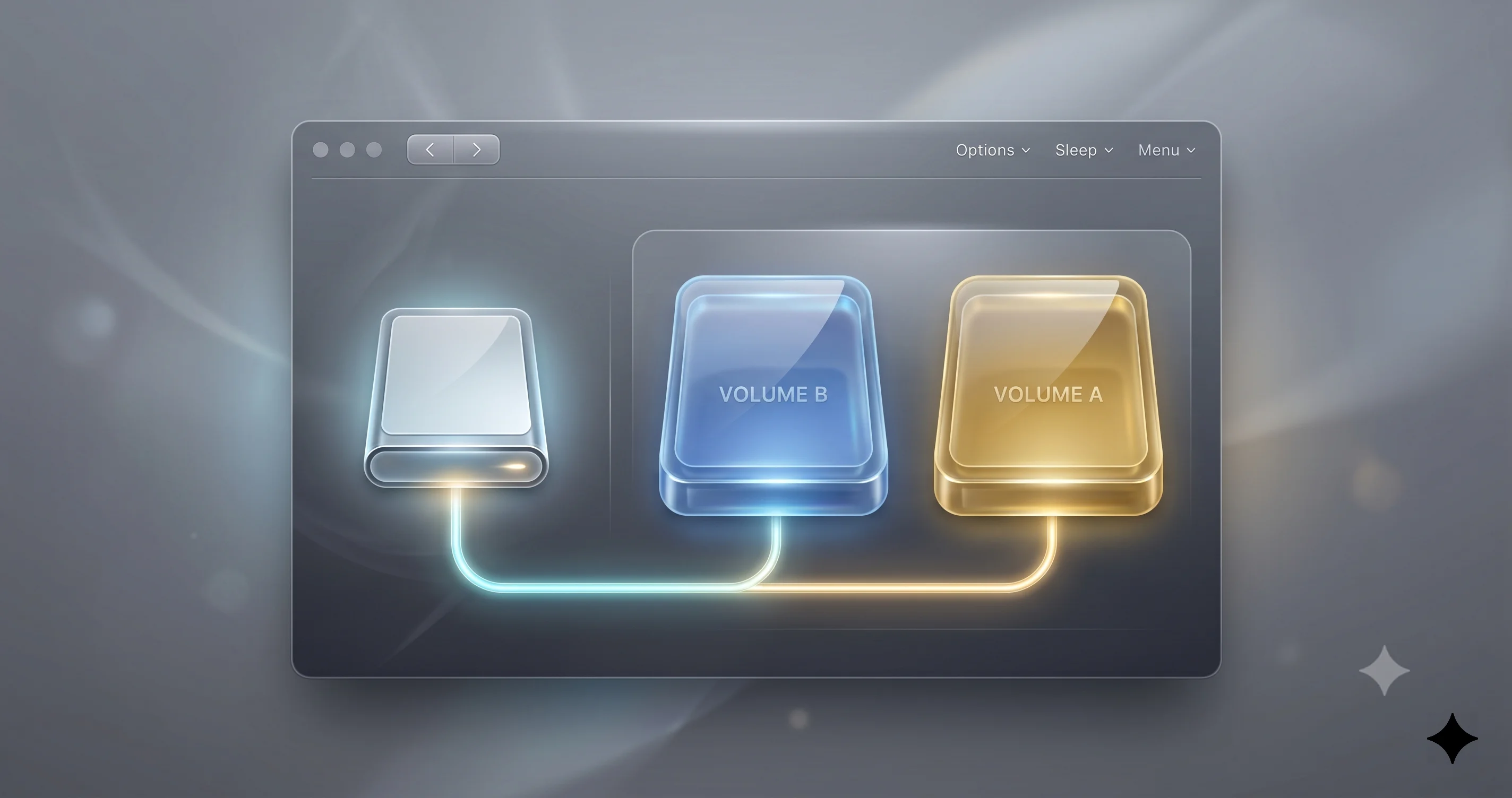
This is the single most important section for anyone proceeding. Installing Golden Gate onto a separate APFS volume lets you dual-boot: your main system stays on stable Tahoe, fully intact and bootable, while the beta lives on its own volume in the same disk's container. If the beta loses internet, hangs, or breaks an app, you hold Power at boot, pick your Tahoe volume, and you're back to normal. APFS volumes share free space dynamically, so you don't pre-carve a fixed partition — you just need enough free space overall (budget 40 GB+ for the OS plus headroom and beta updates).
Step 0: Back up first (non-negotiable)
Take a full Time Machine backup of your Tahoe system before you do anything else. Then read this warning carefully and remember it:
A Time Machine backup created while running the macOS 27 beta cannot cleanly restore back to Tahoe. Once you've booted the beta volume and let Time Machine back it up, that backup carries beta-era system state. Keep your pre-beta Tahoe backup safe and separate, and don't let Time Machine on the beta volume overwrite it. The cleanest practice is to back the beta volume up to a different destination, or not at all.
Step 1: Create the new APFS volume
- Open Disk Utility (Applications → Utilities).
- In the sidebar, select your existing APFS container (the item that holds your "Macintosh HD" volume — select the container, not the physical disk).
- Click the
+button (Add APFS Volume) in the toolbar. - Name it something obvious like
macOS 27 Beta. - Leave Format as APFS. You generally don't need to set a size reservation — APFS shares space — but if you want a guardrail you can set a Size Limit under Size Options.
- Click Add, then Done. The new volume appears alongside your existing one in the same container.
Step 2: Enrol and download the beta (see next section)
Enrolment is covered in detail in the next section. The key install-time choice is where it goes.
Step 3: Install onto the new volume
- When the macOS 27 installer launches, proceed until it asks which disk to install on.
- Choose your new
macOS 27 Betavolume — not "Macintosh HD." This is the step that protects your main system. Read it twice before clicking continue. - Let it install and reboot. The Mac will boot into the beta volume to finish setup.
Step 4: Switch between systems whenever you want
- Apple silicon: Shut down, then press and hold the Power button until "Loading startup options" appears. Pick the volume you want and click Continue.
- To set a default, use System Settings → General → Startup Disk from whichever system you're in.
That's the whole dual-boot setup. Your beta experiments are sandboxed onto their own volume; Tahoe is one reboot away the entire time.
Alternatives to a separate volume
If a separate volume doesn't fit your situation, the other safe paths are:
- A spare Mac — the gold standard. Nothing you care about is at risk.
- A virtual machine — UTM or Apple's Virtualization framework. Fast to spin up and tear down, but with important caveats: VMs on Apple silicon do not get Apple Intelligence, and have iCloud limitations — so you can test general behaviour and app compatibility, but you cannot evaluate the Siri AI features in a VM.
How to Enrol in the Developer Beta
Enrolment is straightforward and — importantly — free since Apple opened developer betas to free Apple Developer accounts in 2023. You do not need a paid $99/year membership just to run the OS beta.
- Sign in to (or create) a free Apple Developer account with your Apple ID at the Apple Developer site, and accept the developer agreement. This is what unlocks the beta in Software Update.
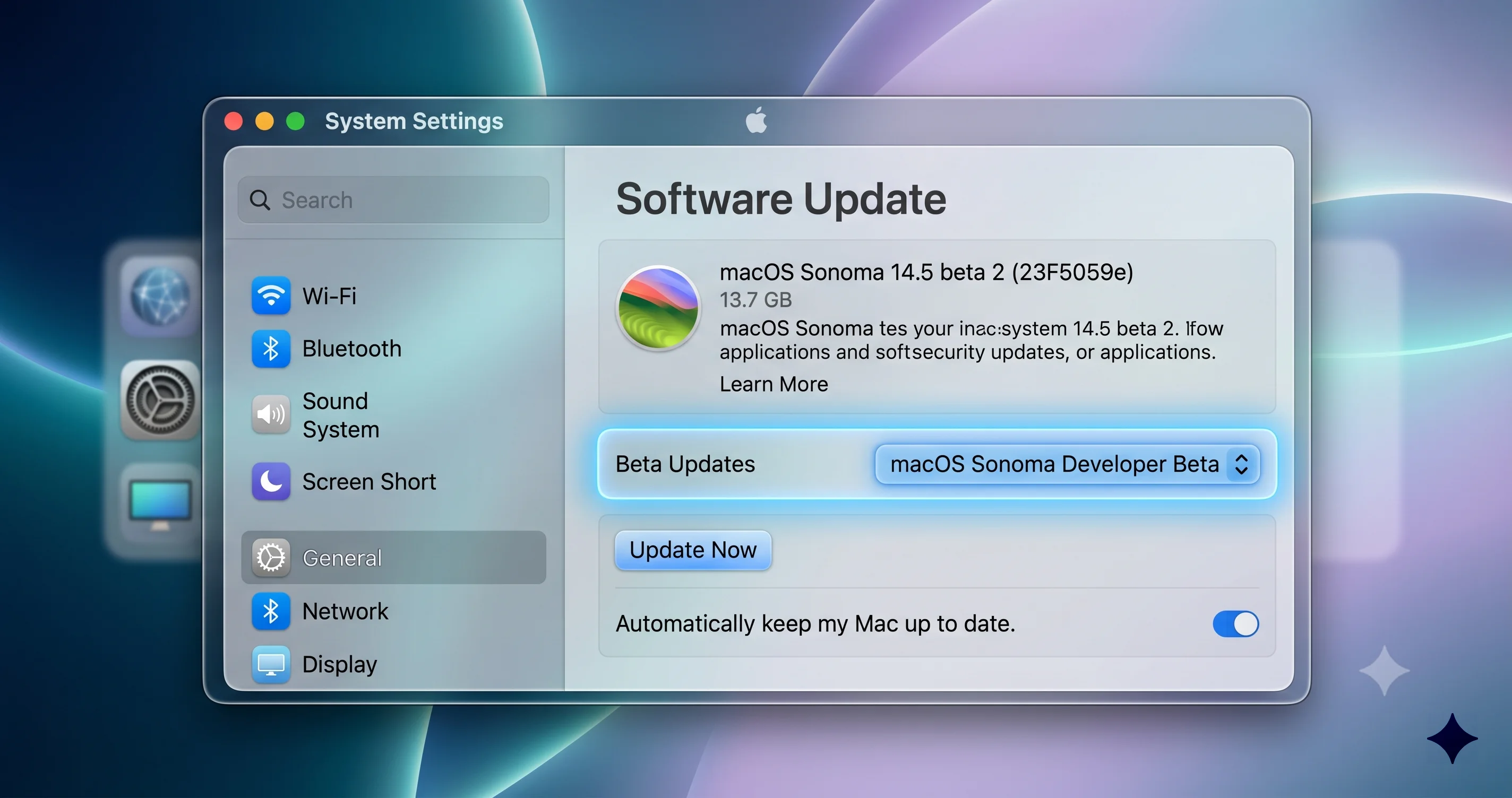
- On the Mac you're installing on (your test machine, or after creating the beta volume), open System Settings → General → Software Update.
- Click the ⓘ / "Beta Updates" control next to the version line.
- From the Beta Updates menu, choose the macOS 27 (Golden Gate) Developer Beta seed tied to your Apple ID.
- Back out, and Software Update will now offer macOS 27 beta 1. Download and — at the disk-selection step — install it onto your separate volume (Step 3 above).
If the beta refuses to appear and you have Rosetta 2 installed, recall the visibility bug from earlier: rather than the risky folder-moving workaround, prefer installing from the full installer or IPSW directly.
What You Won't Get on Day One: The Siri AI Reality Check
This is where managing expectations matters most, because the headline reason many people are tempted by Golden Gate is the new Siri AI experience — and installing beta 1 does not guarantee you get it.
Here's the reality, as Apple has framed the rollout:
- The flagship Siri AI features are waitlist-gated and roll out gradually to enrolled devices, not all at once on install day.
- They are English-only at launch.
- The on-device Siri AI tier has a hard hardware floor: M3 or newer with 12 GB or more of RAM. If your Mac is M1 or M2, or has less RAM, you simply don't qualify for the on-device experience regardless of being on the beta.
- VMs are excluded entirely (no Apple Intelligence in virtualised macOS).
So if your sole reason for installing beta 1 is to play with Siri AI today, temper that: you may install the entire OS, hit every bug in this article, and still be sitting on a waitlist for the feature you came for. That's not a reason never to install — it's a reason not to install for that reason alone.
Expected Beta Cadence: A Pattern-Based Estimate
The schedule below is an estimate based on Apple's historical beta cadence, not an Apple-published calendar. Apple does not pre-announce beta dates beyond the broad "public beta in July, final in fall." Use this to plan, not to set a calendar reminder.
| Phase | Estimated timing (pattern-based) | What typically changes |
|---|---|---|
| Developer beta 1 | 8 June 2026 (actual) | Initial seed; most bugs in this article |
| Developer beta 2 | ~late June 2026 | First round of fixes; some app-compat improvements |
| Public beta 1 | ~mid-July 2026 | Broader audience; usually aligns with a dev beta |
| Developer / public betas 3-5 | July–August 2026 | Stabilisation; network-extension and accessibility fixes expected here |
| Release Candidate | ~early September 2026 | Feature-frozen; near-final |
| Final release | September / fall 2026 | Public ship |
The practical takeaway: if you're a cautious user, public beta 2-3 (roughly late July to August) is the realistic "it's probably safe to try on a separate volume" window, by which point the network-extension and app-compat situation should have meaningfully improved.
Troubleshooting Common Issues
If you've installed and hit one of the headline problems, here are the step-by-step fixes the community has validated.
Fix: no internet after install ("No route to host")
This is the network-extension problem from earlier. Even though your Mac shows a valid IP, routing is broken by a leftover or incompatible network extension (Little Snitch and Bartender confirmed).
- Identify the likely culprit — any app you had installed that filters or manages network traffic (firewalls like Little Snitch, menu-bar tools like Bartender, VPN/zero-trust clients).
- Fully uninstall that app. Use its dedicated uninstaller if it has one; a plain drag-to-Trash leaves the extension loaded.
- Open System Settings → General → Login Items & Extensions.
- Scroll to Network Extensions and remove any leftover extension belonging to the uninstalled app.
- Reboot.
- If you still have no route, toggle Wi-Fi off/on or unplug/replug Ethernet to force a fresh DHCP lease after the extension is gone.
If you can't get online at all to do this research, this is the moment a separate-volume install saves you: reboot into your untouched Tahoe volume, read the fix, then go back and apply it.
Fix: update stuck or "Failed to personalize the software update"
- Retry first — these errors frequently clear on a clean second attempt. Restart and try again.
- Change networks — switch from a congested or filtered network (especially anything with a captive portal or content filter) to a clean one; "personalize" failures are often a server-handshake hiccup.
- Free up space — ensure 40 GB+ free; low space causes silent install hangs.
- Use the full installer or IPSW instead of Software Update if the in-place update keeps failing — this also sidesteps the Rosetta visibility bug.
- Recovery reinstall — if a volume is stuck mid-install, boot to recovery (hold Power on Apple silicon → Options) and reinstall onto the beta volume.
Fix: macOS 27 update doesn't appear (Rosetta 2 installed)
The cleanest fix is to bypass Software Update entirely and install from the full installer (softwareupdate --fetch-full-installer once enrolled, or the installer app) or the IPSW. The folder-moving workaround circulating in forums works for some but is unsupported and can break Rosetta-dependent apps — only attempt it if you understand the risk and have a backup.
Fix: lock screen shows only the clock / Touch ID dead
This is a user-reported wake bug. Try, in order: close the lid and reopen (or let it sleep and wake again) to force the login UI to redraw; if Touch ID stays unresponsive, type your password if the field appears; as a last resort, hard-reboot (hold Power). Report it via Feedback Assistant — Apple needs the reproduction data to fix it before final.
FAQ
Is the macOS 27 Golden Gate developer beta free to install? Yes. Since 2023, a free Apple Developer account can access developer betas — you don't need the paid $99/year membership just to run the OS. Sign in with your Apple ID at the Apple Developer site, accept the agreement, then enable Beta Updates in System Settings → General → Software Update.
Will installing the beta delete my files? Not if you install onto a separate APFS volume as described above — your main Tahoe system and its files stay untouched on their own volume. If you upgrade your only volume in place, your files generally remain, but you're then exposed to every beta-1 bug with no easy escape. Always take a full Time Machine backup first regardless.
Can I go back to macOS Tahoe after trying the beta? Yes, but it's not a one-click downgrade — it involves erasing the beta and restoring, and you must use a pre-beta backup (a Time Machine backup made while on the beta won't cleanly restore to Tahoe). See our dedicated walkthrough on downgrading from macOS 27 beta back to Tahoe without losing data.
Will the beta run my Intel apps? Golden Gate is Apple silicon only, and Rosetta 2 — which translates Intel apps — is on its way out in this release. If you depend on Intel-only Mac apps, read our macOS 27 Rosetta 2 sunset and Intel app audit guide before you commit, because some of those apps may not run at all going forward.
Should I install it on my MacBook that I use for work? If that Mac is managed by your employer or runs corporate security software, MDM, or a zero-trust VPN client: no. Those exact categories are reported broken in beta 1, and the consequences range from losing work access to tripping compliance systems. Use a personal spare or a separate volume on a personal machine instead.
Conclusion
The honest answer to "should you install the macOS 27 Golden Gate developer beta 1?" is: it depends entirely on who you are and where you install it. The generic "just wait" misses both halves of that. Beta 1 is, by community consensus, a better-than-feared, refinement-focused release that several testers say outruns stable Tahoe — and it also ships with a network-extension bug that can knock a Mac offline entirely, broad app breakage including Homebrew and WeChat, a confirmed VoiceOver regression, and the usual constellation of UI flickers and login hiccups.
If you're a developer with software shipping by September, you don't get to wait — install on test hardware or a separate volume, reproduce the issues against your own apps, and file Feedback now. If you're a curious power user, the performance reports make it genuinely tempting, but only on a separate APFS volume where a bad day costs you a reboot instead of your workflow. If this is your main or only Mac, wait for public beta 2-3. If it's a managed work Mac, the answer is no, full stop. And if you rely on VoiceOver or other accessibility features, wait until the dialog bug is fixed.
Whichever row you're in, the two rules that protect you are the same: take a full Time Machine backup before you start, and install onto a separate volume so stable Tahoe is always one reboot away. Do that, and "trying the beta" stops being a gamble and becomes what it should be — a controlled experiment you can walk away from at any time.