App Is Damaged and Can't Be Opened on macOS Tahoe? The Complete Gatekeeper & Quarantine Fix
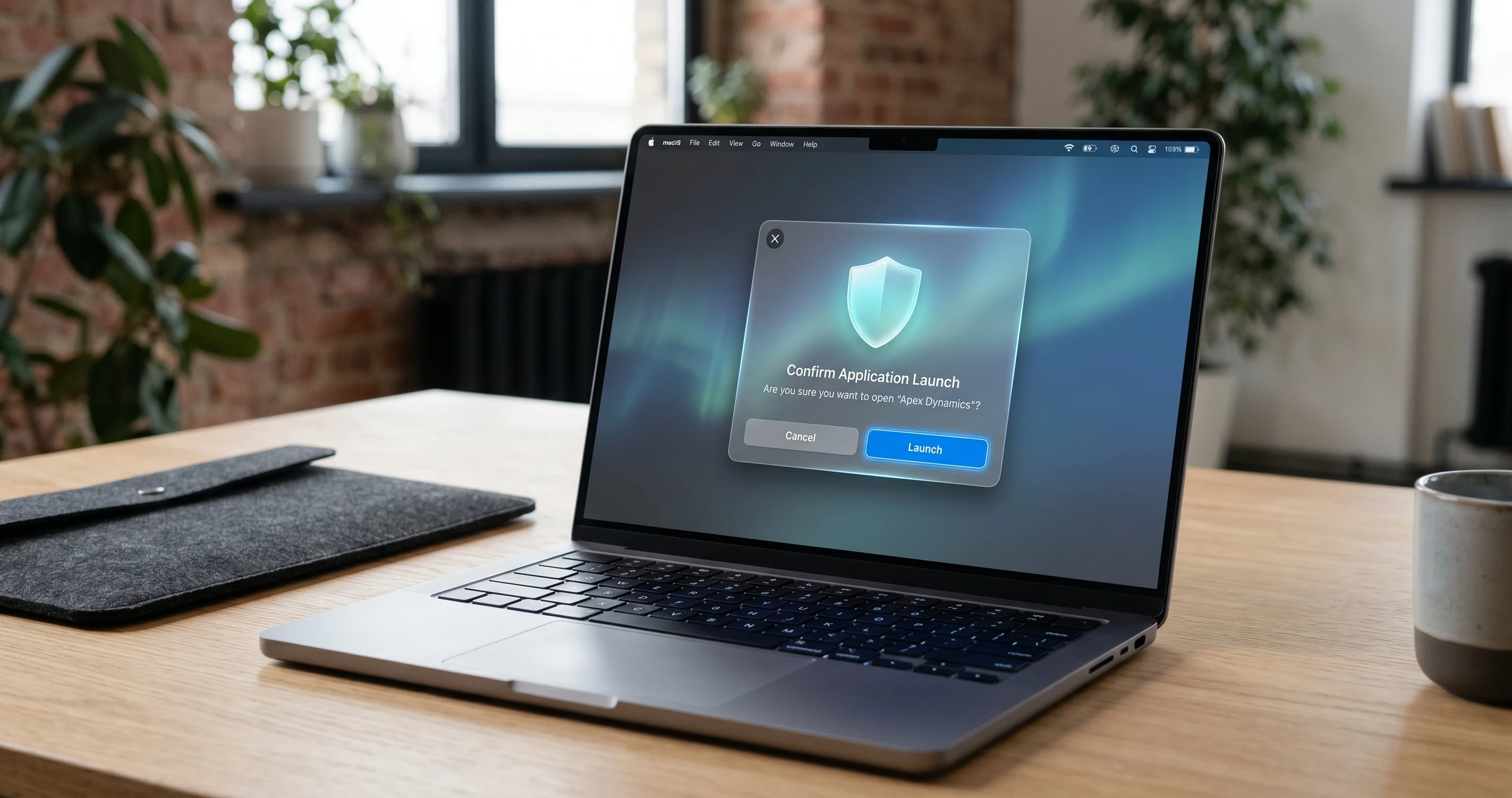
Fix the "app is damaged and can't be opened" error on macOS Tahoe 26.5. Gatekeeper, quarantine, notarization, and the new Open Anyway flow explained.
You double-click an app you just downloaded, and instead of launching, macOS slams the door in your face: "'App' is damaged and can't be opened. You should move it to the Trash." It is one of the most frustrating dialogs in all of macOS, precisely because it is almost always a lie. The app is rarely damaged. What you are actually seeing is Gatekeeper — Apple's app-vetting system — refusing to run something it could not verify, and Tahoe 26.5 (released May 11, 2026) has made this gatekeeping stricter than ever. If you have hit the "app is damaged and can't be opened" error on macOS Tahoe, this guide explains exactly why it happens and how to fix it safely, without nuking your Mac's security in the process.
This is not a one-line "just run this command" article. Removing a quarantine flag is a thirty-second fix, but doing it blindly is how people install malware on machines that were perfectly safe a moment earlier. So we are going to do this properly: understand the mechanism, decode the three different error dialogs you might see, figure out why a legitimate app is being flagged, and then apply the least-aggressive fix that actually works. By the end you will know not just what to type, but whether you should.
Key Takeaways
- "App is damaged" is usually a quarantine + signature problem, not real corruption. Tahoe applies the
com.apple.quarantineextended attribute to downloaded files and refuses to launch apps whose code signature or notarization ticket cannot be validated. - Three different dialogs mean three different things. "Is damaged" (broken/missing signature or App Translocation), "developer cannot be verified" (unsigned/un-notarized), and "could not verify is free of malware" (notarization check could not complete) each have distinct causes and fixes.
- Try the safe route first: System Settings > Privacy & Security > "Open Anyway". The old right-click → Open bypass was removed in the macOS 15/26 generation; Apple now routes you through this single, deliberate confirmation.
- Terminal fixes like
xattr -dr com.apple.quarantinework, but they lower security. Only strip quarantine from apps you genuinely trust and obtained from a source you trust. Never run blanket commands against/Applications. - Do not globally disable Gatekeeper as a first move.
spctl --master-disableno longer behaves the way old tutorials claim, the "Anywhere" option is hidden by default, and turning Gatekeeper off Mac-wide is a far bigger risk than approving one app.
What Gatekeeper, Quarantine, and Notarization Actually Are
Before you can fix the error intelligently, you need to understand the three overlapping systems that produce it. People throw these terms around interchangeably, but they are distinct mechanisms that happen to all fire at app-launch time.
Gatekeeper: the bouncer at the door
Gatekeeper is the macOS subsystem that decides whether an application is allowed to run the first time you open it. It is not an antivirus scanner and it does not watch your app continuously. Think of it as a bouncer who checks ID at the door exactly once. When you launch a newly downloaded app, Gatekeeper asks two questions: Is this app code-signed by a developer Apple recognizes? and Has this app been notarized by Apple? If the answer to both is yes, the app opens with no fuss. If either answer is no, Gatekeeper blocks the launch and shows you one of the dialogs we will decode below.
Gatekeeper's policy is enforced by a daemon and surfaced through the spctl (security policy control) command-line tool, which is why every troubleshooting guide eventually reaches for spctl. The key thing to internalize is that Gatekeeper only cares about the first launch. Once you successfully open an app, macOS remembers your approval and stops nagging you. That is why the fix is always about getting past that initial gate, not about permanently changing how the app behaves.
The com.apple.quarantine extended attribute
When you download a file through a "quarantine-aware" application — Safari, Chrome, Mail, Messages, AirDrop, most browsers and chat clients — that app tags the file with an extended attribute named com.apple.quarantine. Extended attributes (xattrs) are bits of metadata that hang off a file in the filesystem without being part of the file's actual contents. The quarantine xattr is a short string that records that the file came from somewhere outside your Mac, along with a flag, a timestamp, the agent that downloaded it, and a unique event ID.
That event ID ties back to the LSQuarantine database, a small SQLite file in your home folder (historically at ~/Library/Preferences/com.apple.LaunchServices.QuarantineEventsV2) that logs where each quarantined item came from. This is the data behind the "you downloaded this on [date] from [website]" line in Gatekeeper's prompts. The presence of the quarantine xattr is the trigger that tells Gatekeeper, "this file is from the outside world, scrutinize it before running it." Remove that attribute and Gatekeeper treats the app as if it had always lived on your Mac — which is exactly why removing it is both the fastest fix and the one that requires the most judgment.
Notarization: Apple's malware pre-screen
Notarization is the newest piece of the puzzle and the one most responsible for the modern wave of "is damaged" complaints. Since macOS Catalina, Apple requires that software distributed outside the App Store be notarized: the developer uploads their signed app to Apple, Apple's automated service scans it for known malware and checks that it is properly signed, and if it passes, Apple issues a notarization ticket. That ticket can be "stapled" to the app so the proof travels with the file, or it can be fetched online by Gatekeeper at launch time.
When you open a notarized app, Gatekeeper validates the ticket — either the stapled one or one it pulls from Apple's servers — to confirm Apple has seen and cleared this exact build. If the ticket is missing, if it cannot be fetched (you are offline), or if the app was modified after notarization (which invalidates the signature the ticket vouches for), the check fails and you get blocked. Notarization is not App Review; Apple is not curating quality or judging the app's purpose. It is a malware pre-screen plus a signature-integrity guarantee. Understanding that distinction matters, because a "could not verify is free of malware" message often means "I couldn't reach Apple to check the ticket," not "this is malware."
The Three Dialogs, Decoded
Here is the single most useful thing in this article: the exact words in the dialog tell you what is wrong. Read the dialog carefully before you do anything, because the fix differs by case.
Dialog 1: "'App' is damaged and can't be opened. You should move it to the Trash."
This is the scariest-sounding and the most misleading. In the overwhelming majority of cases the app is not damaged. This dialog typically appears when:
- The app has the
com.apple.quarantineattribute and its code signature fails to validate. A signature can fail because the app is unsigned, signed with a revoked certificate, or — most commonly for legit apps — because the app was modified after signing. The classic culprit is a third-party unzip tool or archive utility that does not preserve extended attributes and symlinks correctly, subtly corrupting the app bundle so the signature no longer matches. - App Translocation (also called Gatekeeper Path Randomization) has kicked in and something else has gone wrong on top of it.
- The app is an architecture mismatch — for example an Intel-only binary on an Apple Silicon Mac where Rosetta 2 is not (or no longer) available, or a corrupted universal binary.
The "damaged" wording is Apple's catch-all for "this app failed a security or integrity check and I'm not going to give you a soft 'open anyway' button for it." That is why this one often does not show the friendly Privacy & Security override and instead pushes you toward Terminal.
Dialog 2: "'App' cannot be opened because the developer cannot be verified."
This is the gentler, more honest sibling. It means the app is unsigned or not notarized — Apple has no record of who made it or whether it has been malware-screened. Crucially, this dialog usually comes with a "Move to Trash" and a "Cancel" button, and the real escape hatch is in System Settings rather than the dialog itself. This is the dialog you most often get from open-source tools, niche utilities, or software from small developers who have not paid for an Apple Developer account. It is the easiest case to handle safely through the official "Open Anyway" flow, which we cover next.
Dialog 3: "Apple could not verify 'App' is free of malware."
This wording appeared in the macOS 15/26 generation and is the most commonly misunderstood. It does not mean Apple found malware. It means Gatekeeper tried to verify the app's notarization status and could not complete the check. The usual reasons are:
- Your Mac is offline or behind a restrictive firewall/proxy, so Gatekeeper cannot reach Apple's notarization servers to validate the ticket.
- The app is notarized but the ticket is not stapled, and the online lookup timed out.
- Your system clock is wrong (more on this below), which breaks the certificate and ticket time-validity checks.
This dialog also typically routes you to "Open Anyway" in Privacy & Security. If you see it and you are online, the smart move is to investigate why the check is failing before overriding it — a notarized app should pass cleanly.
Why a Legitimate App Shows "Is Damaged"
Let's dig into the specific reasons a perfectly good app trips the alarm, because knowing the cause tells you which fix to use.
The quarantine flag itself
This is reason number one. You download a totally legitimate app, the browser tags it with com.apple.quarantine, and if the app's signature is even slightly off, Gatekeeper escalates from "developer cannot be verified" to "is damaged." You can see the flag directly:
xattr -l /Applications/ExampleApp.appExample output for a quarantined app:
com.apple.quarantine: 0083;6612a3b0;Safari;5F1B2C3D-7A8E-4F90-B1C2-D3E4F5061728
com.apple.macl: [binary data, 72 bytes]
The first field (0083) is the quarantine flag value, followed by a hex timestamp, the agent that applied it (Safari), and the event UUID that maps into the LSQuarantine database. If you run xattr -l and see no com.apple.quarantine line at all, quarantine is not your problem and you should look at signature or architecture issues instead.
App Translocation (Gatekeeper Path Randomization)
This is the subtle one. To prevent a class of attacks where a malicious app loads a poisoned file sitting next to it, macOS will translocate a quarantined app: when you run it from a download location (like your Downloads folder or a mounted disk image) without first dragging it into /Applications, macOS launches it from a randomized, read-only, temporary mount point instead of its real location. The app sees a different path than where it actually lives.
For most apps this is invisible. But apps that expect to find resources relative to their own location, or that try to auto-update themselves in place, break in confusing ways — sometimes manifesting as a "damaged" error or a crash on launch. The cure for App Translocation is almost embarrassingly simple: drag the app out of Downloads/the DMG and into the /Applications folder, then launch it from there. Moving the app bundle clears translocation for that copy. This single step resolves a surprising share of "damaged" reports from people running apps straight out of a disk image.
Broken signatures from unzip and transfer tools
A code signature is a cryptographic hash of the app bundle's contents, including its directory structure, symbolic links, and extended attributes. If anything in the bundle changes after signing, the signature no longer matches and validation fails. Several everyday operations can quietly corrupt a bundle:
- Third-party archive utilities that don't preserve symlinks or that flatten the bundle structure when unzipping.
- File transfers over tools or filesystems (some network shares, certain cloud-sync clients, FAT/exFAT USB drives) that strip extended attributes or mangle symlinks.
- Manually editing anything inside the
.appbundle, even renaming a file.
When this happens, you get "is damaged" even though the original download was fine. The fix here is not just removing quarantine — it is re-downloading the app from the official source using Safari (which handles bundles correctly) or, for a developer's own builds, re-signing locally (covered later, with caveats).
Apple Silicon vs Intel binaries
If you are on an Apple Silicon Mac (M1 through the latest M-series) and try to run an Intel-only app, macOS needs Rosetta 2 to translate it. On a fresh system Rosetta may not be installed, and Apple has signaled that Rosetta 2 is being wound down — by the macOS 27 timeframe its availability changes significantly. An Intel binary that can't be translated, or a damaged universal binary missing the arm64 slice, can surface as a launch failure that looks like corruption. You can inspect the architectures a binary contains:
lipo -archs /Applications/ExampleApp.app/Contents/MacOS/ExampleAppOutput for a universal app:
x86_64 arm64If you only see x86_64 on an Apple Silicon Mac, you need Rosetta 2 (or a native build). If you see only arm64 on an Intel Mac, that build simply will not run there. For the bigger picture on the Rosetta sunset, see our Rosetta 2 end-of-life guide.
A wrong clock breaks notarization
This one catches people off guard. Certificate validation and notarization ticket checks are time-sensitive — they confirm the signing certificate was valid at a given moment and that the ticket has not expired. If your Mac's date and time are badly wrong (a dead clock battery on old hardware, a manually set wrong date, or a botched time-zone setup), these checks can fail and produce "could not verify is free of malware" or even "is damaged." Always sanity-check the clock:
dateIf the date is off, fix it in System Settings > General > Date & Time and enable "Set time and date automatically," then try the app again. It sounds trivial, but it is a genuine, repeatable cause.
The Safe Fix Flow: Privacy & Security First
Here is the golden rule: try the official, least-aggressive method before touching Terminal. In Tahoe, that means the "Open Anyway" flow in System Settings. It approves exactly one app, leaves Gatekeeper fully on for everything else, and creates a deliberate moment for you to confirm you trust the software.
Step 1: Move the app to /Applications
If the app is sitting in Downloads or running from a mounted DMG, drag the .app into your /Applications folder first. This alone clears App Translocation and resolves many "damaged" cases before you do anything else. Eject the disk image afterward.
Step 2: Try to open it, then open Privacy & Security
Double-click the app. When the block dialog appears, click Cancel (do not click "Move to Trash"). Then go to:
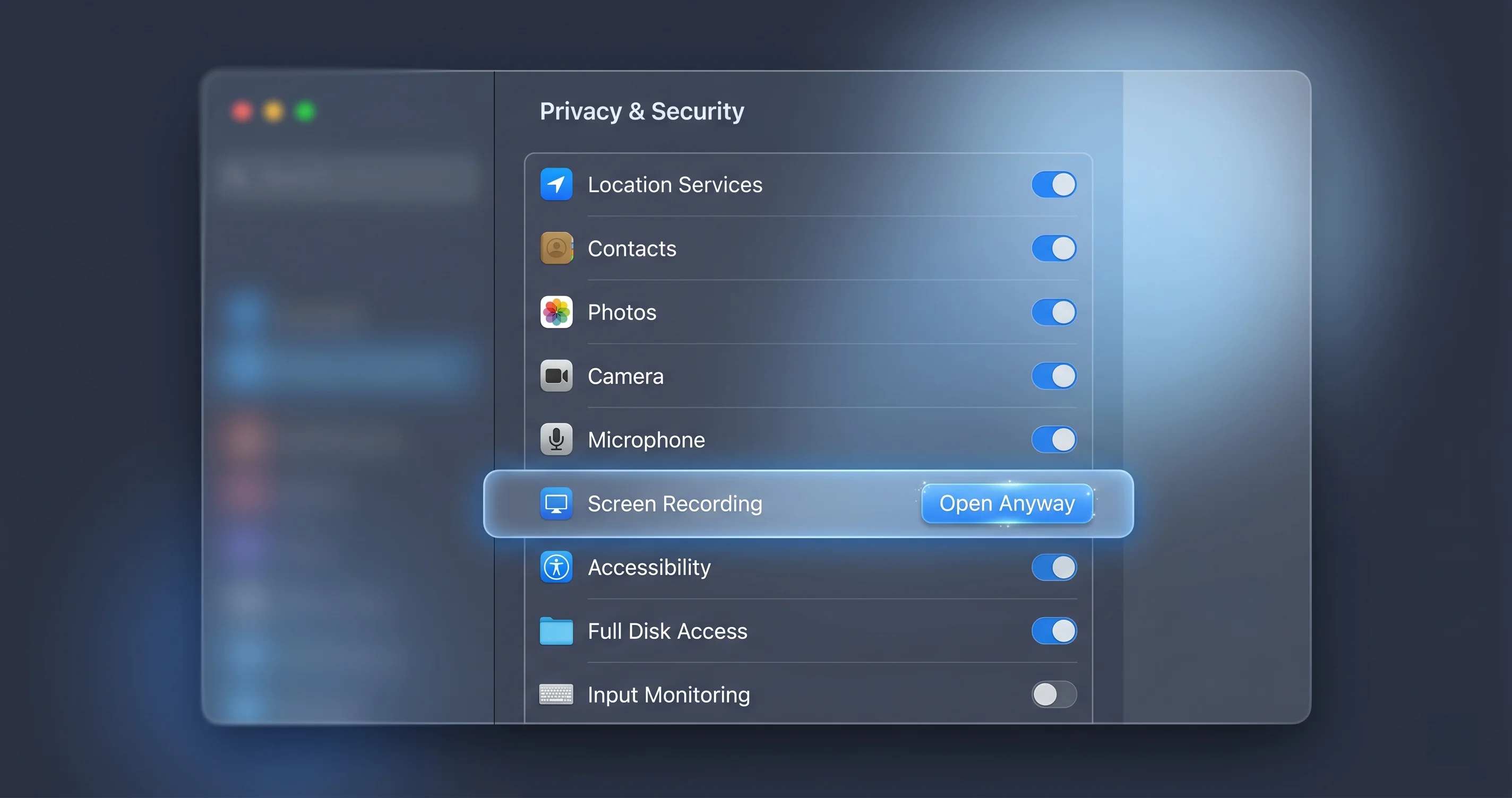
System Settings > Privacy & Security, and scroll down to the Security section. If macOS recently blocked the app, you will see a line like "'ExampleApp' was blocked to protect your Mac" with an "Open Anyway" button next to it.
Step 3: Click "Open Anyway" and authenticate
Click Open Anyway. macOS will ask you to authenticate with Touch ID or your password, then show one final confirmation. Confirm it, and the app launches. From then on, that app is on your approved list and opens normally.
This is the flow that replaced the old right-click → Open trick. In macOS 14 Sonoma and earlier, you could secondary-click an app, choose Open, and get a one-time bypass dialog. Apple removed that shortcut starting in the macOS 15/26 generation specifically to stop users from reflexively bypassing Gatekeeper without thinking. The Privacy & Security route is intentionally slower — that friction is a feature. For the broader changes to security settings in this release, our macOS Tahoe security and privacy complete guide walks through the redesigned panel in detail.
Important: If the app shows the harsh "is damaged" dialog and you do not see an "Open Anyway" button in Privacy & Security, that usually means the signature is genuinely broken (not merely un-notarized). In that case re-download from the official source first; if it still fails, the Terminal section below is your next stop.
The Terminal Fixes (and Their Real Costs)
When the GUI route doesn't produce an "Open Anyway" button, Terminal is the next tool. Everything below is safe only when applied to a specific app you trust from a source you trust. These commands lower security for the targets you point them at — that is the whole point, and the whole risk.
Inspect before you act
Always look before you leap. List the extended attributes:
xattr -l /Applications/ExampleApp.appIf com.apple.quarantine is present, quarantine is contributing to the block. If it is absent, removing it won't help and your problem lies in the signature or architecture.
Remove the quarantine attribute
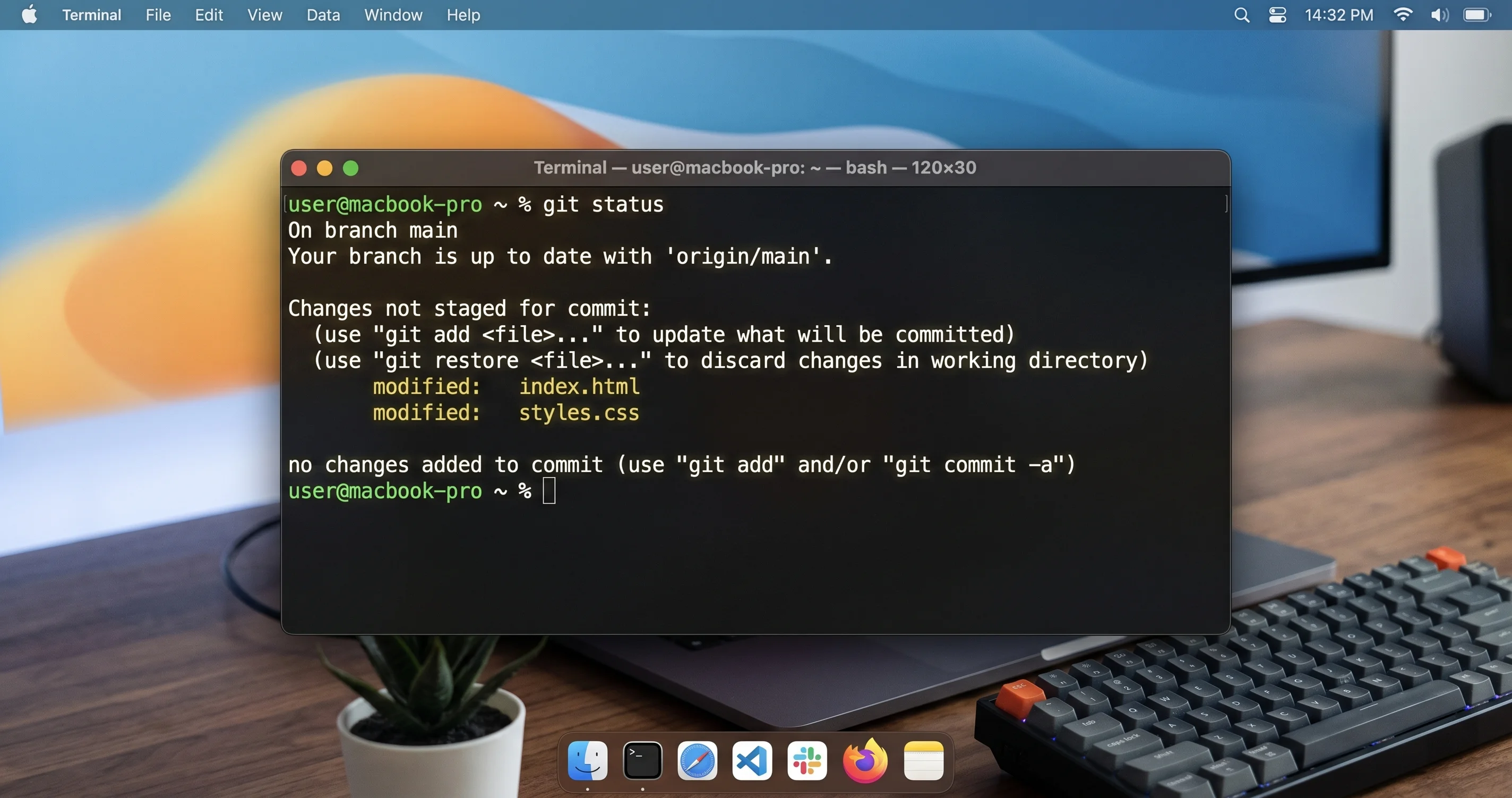
To strip quarantine from a single app, recursively (-r) deleting (-d) the attribute across the whole bundle:
xattr -dr com.apple.quarantine /Applications/ExampleApp.appThere is no output on success. Now re-launch the app; in many cases it opens immediately because Gatekeeper no longer treats it as foreign. You can confirm the attribute is gone:
xattr -l /Applications/ExampleApp.appThe com.apple.quarantine line should be gone.
What this actually does and why it is risky: removing the quarantine xattr tells Gatekeeper to stop scrutinizing this app as a download from the outside world. For a legitimate app you downloaded yourself, that is fine — you are simply confirming the trust decision you already made. But if you blindly run this on something you got from a sketchy site, a forum link, or a "cracked" app, you have just disarmed the one check that might have caught malware. Never run xattr -dr com.apple.quarantine against /Applications as a whole or against an app you cannot vouch for. The single most common way well-meaning Mac users get infected is copy-pasting a quarantine-removal command from a download page that wants you to disarm Gatekeeper.
Re-signing a broken bundle (advanced, with big caveats)
If the problem is a corrupted signature rather than quarantine, removing the attribute alone won't help — Gatekeeper still sees an invalid signature. Some guides suggest force-re-signing the app with an ad-hoc signature:
codesign --force --deep --sign - /Applications/ExampleApp.appThe --sign - means an ad-hoc signature (no real identity), --force overwrites the existing signature, and --deep recurses into nested code.
Be very careful here. This is genuinely advanced and frequently the wrong answer:
--deepis deprecated by Apple for signing and can produce subtly broken results on complex apps; it was designed for verification convenience, not as a proper signing strategy.- Ad-hoc re-signing throws away the developer's real signature and notarization entirely. You are vouching for the app with your own machine's trust, not Apple's.
- If the bundle is corrupted (the actual "damaged" scenario), re-signing the corruption does not repair it. The right fix is to re-download a clean copy from the official source.
In practice, re-signing is a tool for developers debugging their own builds, not a remedy for end users. If you find yourself reaching for codesign --force --deep --sign - on an app you didn't build, stop and re-download instead.
Check Gatekeeper's verdict with spctl
To understand why Gatekeeper is unhappy, ask it directly. Assess a specific app verbosely:
spctl -a -vvv /Applications/ExampleApp.appA healthy notarized app returns something like:
/Applications/ExampleApp.app: accepted
source=Notarized Developer ID
origin=Developer ID Application: Example Developer (AB12CD34EF)
A blocked app might return:
/Applications/ExampleApp.app: rejected
source=no usable signature
That source= line is gold — source=Notarized Developer ID means all is well, source=no usable signature means the signature is broken or missing, and a rejection with an "unnotarized" reason points at notarization rather than quarantine. Check overall Gatekeeper status with:
spctl --statusWhich normally prints:
assessments enabledHandling Apps from Outside the App Store
The vast majority of "is damaged" reports come from apps installed outside the Mac App Store, so it's worth a dedicated word. App Store apps go through review and are signed and notarized end-to-end, so they essentially never trigger these dialogs. Apps from the open web are where Gatekeeper earns its keep.
Your safest sources, in order of trust, are: the Mac App Store, the developer's official website with a notarized download, and reputable package managers like Homebrew Cask (which generally pull from official sources). Be far more cautious with random download mirrors, "free" versions of paid apps, and links shared in forums or chats. The fact that an app can be made to run by stripping quarantine says nothing about whether it is safe to run.
A sobering reminder that notarization is a screen and not a guarantee: notarized malware does occasionally slip through Apple's automated checks. Our breakdown of the MacSync stealer that was distributed with valid Apple notarization shows that even an app that passes Gatekeeper cleanly can be malicious. The lesson is not "distrust everything" but "the source matters more than the dialog." If you wouldn't trust the website, don't trust the download, no matter how cleanly it launches. For a broader hardening checklist, our Mac security and privacy guide covers the tools worth running alongside Gatekeeper.
How This Changed in Tahoe vs Older macOS
If you last fought this battle a few years ago, the playbook has changed. Knowing the differences saves you from following outdated tutorials.
Right-click → Open is gone. Through macOS 14 Sonoma, secondary-clicking an app and choosing Open gave you a one-time bypass dialog. Apple removed this in the macOS 15/26 generation, and Tahoe 26.5 continues that. The only sanctioned override for a blocked app is the "Open Anyway" button in System Settings > Privacy & Security. Tutorials telling you to right-click and Open are stale.
The "Anywhere" option is hidden. Older macOS let you set Gatekeeper to allow apps from "Anywhere" in the Security & Privacy pane. That radio button was removed from the UI years ago and remains hidden in Tahoe. You can sometimes surface a similar state via command line, but Apple has deliberately made the "trust everything" posture hard to reach because it is dangerous.
spctl --master-disable no longer behaves as advertised. Many ancient guides tell you to run sudo spctl --master-disable to turn Gatekeeper off entirely and make the "Anywhere" option reappear. On modern macOS this command's effect is curtailed: it may report success but Gatekeeper protections (especially the notarization and translocation behaviors) are not fully disabled the way they were on, say, macOS 10.14. System Integrity Protection and the redesigned security architecture mean a single command can no longer cleanly switch off the whole subsystem. Treat any guide built around spctl --master-disable as obsolete.
More deliberate friction overall. The throughline of Tahoe's approach is intentional friction. Apple wants approving an unverified app to be a conscious, authenticated decision made in System Settings, not a reflexive right-click. For the full security and CVE picture of this specific release, see our macOS Tahoe 26.5 released update guide.
Enterprise and MDM Notes
If you manage Macs in an organization, you have options end users don't, and you should not be teaching users to run xattr commands. Mobile Device Management (MDM) lets you ship trust at scale instead of per-machine. You can deploy a Privacy Preferences Policy Control (PPPC) profile and Gatekeeper-related configuration profiles to pre-approve specific developer identities, so internally distributed and approved third-party apps launch without Gatekeeper prompts. Properly signed and notarized internal builds — even for in-house tools — are the right long-term answer; pay for a Developer ID, sign, and notarize your internal apps so they pass Gatekeeper natively rather than asking employees to disarm it.
Avoid the temptation to push a fleet-wide Gatekeeper disable. It converts every Mac in your org into a soft target and is exactly the posture attackers hope to find. If you also manage what launches at login across the fleet, our Tahoe login items and background apps management guide pairs well with a Gatekeeper policy for controlling what runs and when.
Troubleshooting Common Issues
Problem: "Open Anyway" button never appears in Privacy & Security
Solution: This almost always means the dialog you got was the harsh "is damaged" variant (broken/missing signature) rather than the softer "developer cannot be verified" one — and Apple does not offer a GUI override for genuinely invalid signatures. First, move the app from Downloads/the DMG into /Applications to rule out App Translocation, then try launching again so macOS registers a fresh block. If the button still doesn't show, re-download the app from the official site using Safari. If it consistently downloads broken, the developer's build itself may be the problem. As a last resort for an app you trust, use xattr -dr com.apple.quarantine on it.
Problem: Terminal says "Operation not permitted" when running xattr
Solution: This is a permissions, not a syntax, issue. macOS protects certain locations, and your terminal app may lack Full Disk Access. Go to System Settings > Privacy & Security > Full Disk Access, enable your terminal (Terminal.app, iTerm, etc.), then fully quit and relaunch it. Also confirm you typed the real path — drag the app into the Terminal window to insert its exact path. If the app lives somewhere protected, copying it to /Applications first and operating there sidesteps the restriction.
Problem: App opens once, then breaks or "damages" again after an update
Solution: This points at a self-updating app fighting with App Translocation or with a broken signature in its updater. Make sure the app lives in /Applications (not Downloads), since in-place self-updaters misbehave when translocated. If the app re-quarantines itself after each update, the updater may be re-downloading via a quarantine-aware mechanism. The cleanest fix is to delete the app, download a fresh copy from the official source, drag it to /Applications, approve it once via "Open Anyway," and let future updates run from there.
Problem: "Could not verify is free of malware" even though I'm online
Solution: First check your system clock with date — a wrong date breaks ticket validation. Next, confirm you aren't behind a proxy, VPN, or firewall that blocks Apple's notarization servers; temporarily disabling a restrictive VPN and retrying often resolves it. Run spctl -a -vvv /path/to/App.app to see the precise verdict. If spctl reports the app as accepted/notarized once connectivity is restored, the original failure was purely a network/clock issue, not the app.
Frequently Asked Questions
Is it safe to use xattr to remove the quarantine attribute?
It is safe only when applied to a specific app you genuinely trust from a source you trust. The command itself does no harm to your system; the risk is entirely about what you point it at. Removing quarantine disarms Gatekeeper's check for that app, so running it on questionable software is how clean Macs get infected. Trusted app from the developer's site: fine. Random "cracked" download: never.
Will disabling Gatekeeper get me malware?
Disabling Gatekeeper system-wide dramatically raises your exposure, yes. Gatekeeper blocks the easiest path attackers use — getting you to run unsigned, un-notarized code. With it off, every download runs unchecked. There is almost never a good reason for an individual user to disable it globally; approving one app via "Open Anyway" achieves your goal without leaving the door open for everything else. Keep Gatekeeper on.
Why does Terminal say "operation not permitted" when I run xattr?
Your terminal app lacks Full Disk Access, or you're targeting a system-protected location. Grant access in System Settings > Privacy & Security > Full Disk Access, enable your terminal, then quit and relaunch it. Verify the path is correct by dragging the app into the Terminal window. This is a macOS privacy protection doing its job, not a bug in your command.
Does the right-click "Open" trick still work in Tahoe?
No. Apple removed the right-click → Open one-time bypass in the macOS 15/26 generation, and Tahoe 26.5 continues that. The only sanctioned way to open a blocked app is the "Open Anyway" button in System Settings > Privacy & Security, which requires authentication. Any guide still recommending right-click → Open is out of date.
My app worked yesterday and now says it's damaged. Why?
A few causes fit this pattern: the developer's signing certificate was revoked, an in-app update introduced a broken or un-notarized build, the app re-quarantined itself during an update, or your system clock drifted and broke ticket validation. Check date first, then re-download a fresh copy from the official source and approve it once. If it keeps recurring, report it to the developer.
Is "App Translocation" the same as quarantine?
No, though they're related. Quarantine is the attribute that flags a file as downloaded. App Translocation is a defensive behavior macOS triggers because an app is quarantined and being run from a download location — it launches the app from a randomized read-only path to thwart side-loaded-file attacks. Moving the app into /Applications stops translocation; removing the quarantine attribute stops the flagging. Different mechanisms, different fixes.
Conclusion
The "app is damaged and can't be opened" error on macOS Tahoe is overwhelmingly a trust problem, not a corruption problem. Gatekeeper, the com.apple.quarantine attribute, and notarization are working together to stop your Mac from running code it can't verify — and most of the time, a legitimate app trips them because of a quarantine flag, App Translocation, a broken signature from a careless unzip, an architecture mismatch, or a wrong clock. Read the dialog to know which of the three problems you have, try the official "Open Anyway" route in Privacy & Security first, and reach for xattr, spctl, and codesign only when you understand what they trade away. The one rule to remember above all: the safety of an app comes from its source, not from how cleanly you can force it to launch.
For more on locking down your Mac the right way, continue with our Mac security and privacy guide for 2026 and the macOS Tahoe security and privacy complete guide.