AI Coding Tools on Mac 2026: Claude Code vs Cursor vs Gemini CLI Complete Guide
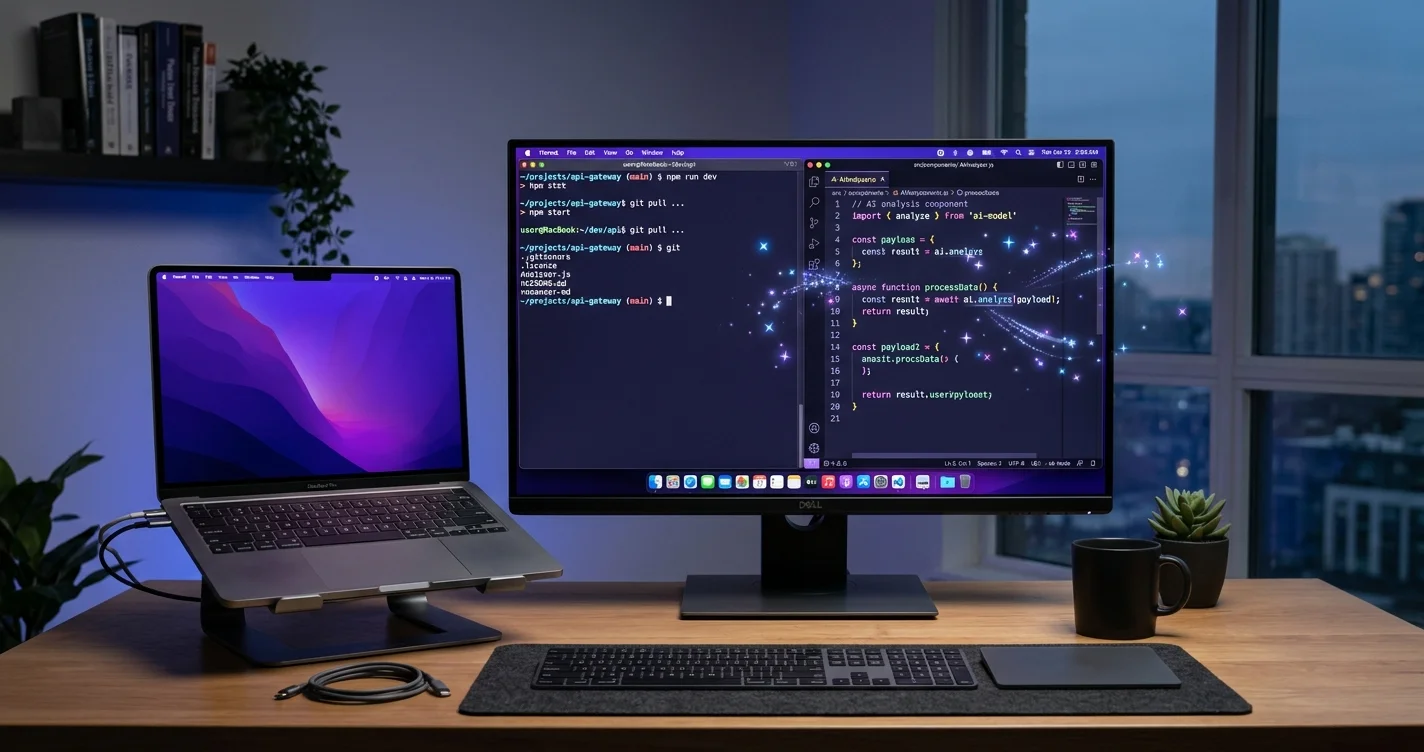
In-depth comparison of the best AI coding tools for Mac in 2026. Setup guides, benchmarks, pricing, and real-world workflow tests for Claude Code, Cursor, and Gemini CLI.
The AI coding tool market on Mac has gone from a novelty to an arms race. In early 2024, most developers were still debating whether GitHub Copilot was worth $10 a month. By March 2026, we have terminal-native agents that can scaffold entire projects, IDE forks that rewrite codebases with a single prompt, and free CLI tools from Google that turn your Mac terminal into a pair-programming session with Gemini. The landscape has fractured into distinct categories, each with real tradeoffs—and choosing the wrong tool for your workflow costs you hours every week.
I have spent the last four months running Claude Code, Cursor, Gemini CLI, GitHub Copilot, and several open-source alternatives through real Mac development workflows: building Swift packages, debugging Node.js servers, refactoring React codebases, and writing Python data pipelines. This is the guide I wish existed when I started evaluating these tools.
Key Takeaways
- Claude Code is the most capable terminal-native agent for complex, multi-file tasks—but its usage-based pricing means costs can spike during heavy sessions.
- Cursor remains the most polished AI-integrated IDE and is the easiest on-ramp for developers who want AI assistance without leaving VS Code conventions.
- Gemini CLI is the best free option for Mac developers who want terminal-based AI coding without any subscription commitment.
- No single tool wins every scenario. Terminal-native tools excel at large refactors and codebase-wide operations. IDE-integrated tools are better for inline completions and quick edits.
- Running multiple tools is the power move. Many professional Mac developers now use Claude Code for architecture-level work and Cursor or Copilot for day-to-day inline completions.
The AI Coding Tool Landscape in 2026
Before comparing individual tools, it helps to understand the three distinct categories that have emerged. Each category reflects a fundamentally different philosophy about how AI should interact with your code.
Terminal-Native Agents
These tools run entirely in your terminal. You describe what you want in natural language, and the agent reads files, writes code, runs commands, and iterates—all without a GUI. They treat your codebase as a workspace, not a single file.
Tools: Claude Code, Gemini CLI, Aider
Best for: Large refactors, multi-file changes, codebase exploration, automation scripts, developers who live in the terminal.
Tradeoff: No visual diff preview. You need to trust the agent (or review diffs in git) before accepting changes.
IDE-Integrated Assistants
These plug into your existing editor as extensions or plugins. They provide inline completions, chat panels, and contextual suggestions without changing your editor workflow.
Tools: GitHub Copilot (VS Code, JetBrains, Neovim), Continue.dev
Best for: Inline code completion, quick explanations, developers who want AI as a background assistant rather than a driving agent.
Tradeoff: Limited context window. Most IDE plugins only see the current file and a few neighbors, not your entire project.
AI-First IDE Forks
These are full code editors rebuilt around AI capabilities. They fork VS Code (or build from scratch) and integrate AI at every layer—completions, chat, multi-file editing, and agent workflows.
Tools: Cursor, Windsurf (Codeium)
Best for: Developers who want the deepest possible integration between AI and their editing experience, with visual diffs, inline suggestions, and multi-file Composer-style editing.
Tradeoff: Vendor lock-in to a specific editor. If you prefer JetBrains or Neovim, these tools do not help.
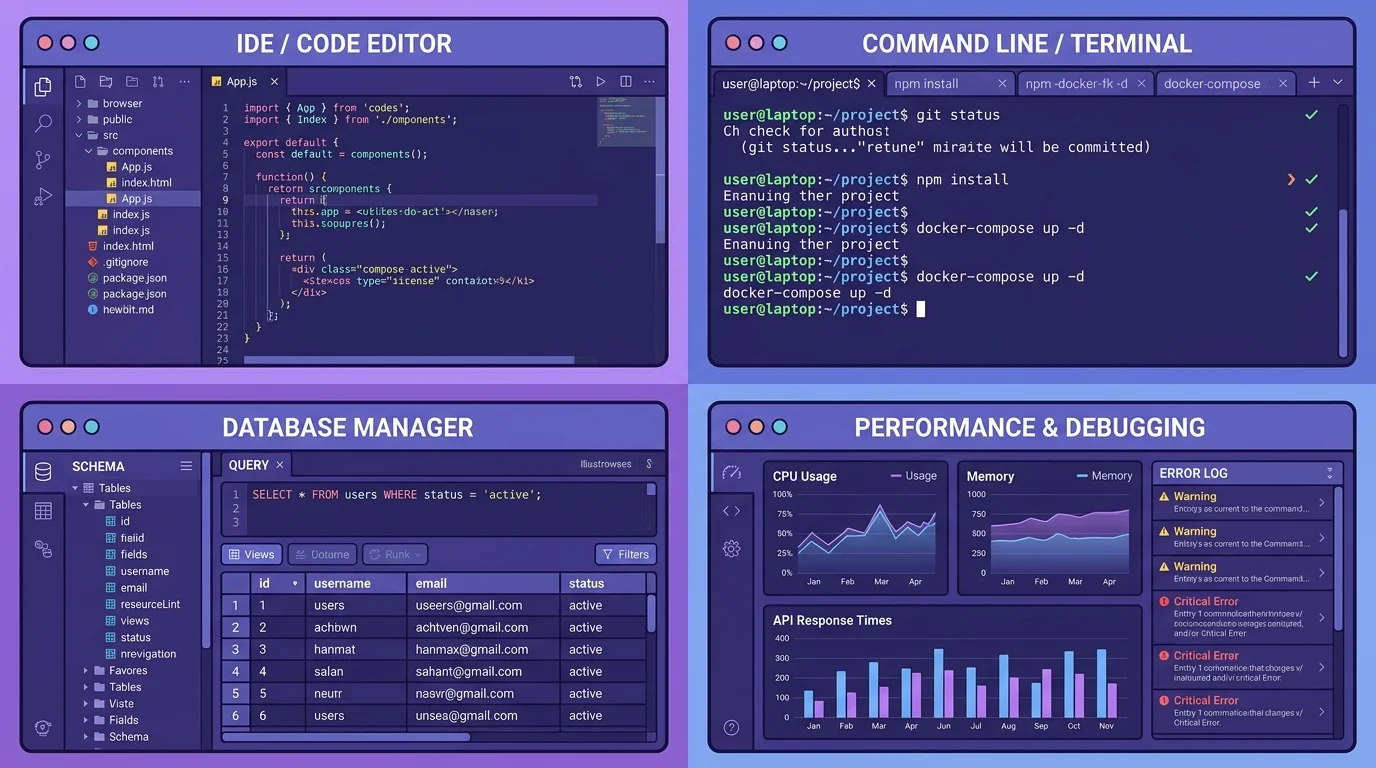
Related: For a broader look at essential Mac developer tools beyond AI, see our Best Mac Developer Tools in 2026 roundup.
Claude Code Deep Dive
Claude Code is Anthropic's terminal-native AI coding agent. Unlike Copilot or Cursor, it does not live inside an IDE. You launch it from any Mac terminal—Terminal.app, iTerm2, Warp, Ghostty—and it operates directly on your filesystem. It reads your project files, understands your codebase structure, writes and edits code across multiple files, runs shell commands, and iterates based on the results.
Installing Claude Code on Mac
Claude Code requires Node.js 18+ and an Anthropic API key (or a Claude Pro/Max subscription).
# Install via npm (globally)
npm install -g @anthropic-ai/claude-code

# Or if you prefer npx (no global install)
npx @anthropic-ai/claude-code

# Verify installation
claude --version
If you do not have Node.js set up yet, install it through Homebrew first:
brew install nodeSetup tip: For a complete Homebrew and Node.js configuration guide, see our macOS Developer Setup Guide.
Authentication
You can authenticate with an Anthropic API key or through a Claude Pro subscription:
# Option 1: API key (usage-based billing)
export ANTHROPIC_API_KEY="sk-ant-..."

# Option 2: Log in with Claude Pro subscription
claude login
The API key approach gives you direct usage-based billing through Anthropic's dashboard. The Claude Pro subscription ($20/month) bundles Claude Code access with rate limits.
Core Features
Codebase Understanding: Claude Code indexes your project on launch. It reads directory structures, config files, type definitions, and READMEs to build context. You do not need to manually point it at files—it finds what it needs.
Multi-File Editing: Ask Claude Code to "refactor the authentication module to use JWT tokens" and it will identify every relevant file, plan the changes, and edit them in sequence. It shows you a diff before applying changes by default.
Shell Command Execution: Claude Code can run your tests, build commands, linters, and scripts. This means it can write code, run tests, see failures, and fix them in a loop—without you copying error messages back and forth.
Agent Mode: This is where Claude Code separates itself. In agent mode, it operates autonomously: analyzing a problem, planning a solution, implementing changes across files, running verification commands, and iterating until the task is complete. For complex tasks like "add internationalization support to this React app," agent mode can save hours.
MCP Integration: Claude Code supports the Model Context Protocol, allowing it to connect to external tools—databases, APIs, design tools, and more. This extends its capabilities beyond just reading and writing files.
Deep Dive: To learn about MCP integration possibilities on macOS, see our macOS MCP Integration Guide.
CLAUDE.md Project Memory: You can create a CLAUDE.md file in your project root to give Claude Code persistent instructions—coding conventions, architecture notes, build commands, and context that persists across sessions.
Strengths
- Deepest codebase context: Claude Code can process your entire project, not just a few open files. With Opus-class models and 200K+ token context windows, it handles large codebases better than any IDE plugin.
- True agent capabilities: It does not just suggest code—it plans, executes, tests, and iterates. This makes it genuinely useful for tasks that span multiple files and require verification.
- Editor-agnostic: Works with any editor setup. If you use Neovim, Zed, Emacs, or Sublime Text, you get the same AI capabilities without switching editors.
- Privacy-conscious: Your code is sent to Anthropic's API but is not used for model training. The tool runs locally and only sends context when you explicitly interact with it.
When to Use Claude Code
Claude Code is the right choice when you need to make changes that span many files, when you are exploring an unfamiliar codebase, or when you want an AI that can execute and verify its own work. It is particularly strong for:
- Refactoring across a codebase (renaming patterns, extracting modules, changing data flow)
- Implementing features that touch multiple layers (API route + database migration + frontend component + tests)
- Debugging complex issues where the bug crosses file boundaries
- Codebase Q&A—"how does the authentication flow work in this project?"
Pricing
Claude Code uses usage-based pricing through the Anthropic API. Costs depend on which model you use and how much context you send:
| Access Method | Cost | Details |
|---|---|---|
| Anthropic API (Sonnet) | ~$3/$15 per 1M input/output tokens | Pay per use, most cost-effective for moderate use |
| Anthropic API (Opus) | ~$15/$75 per 1M input/output tokens | Higher capability, higher cost |
| Claude Pro subscription | $20/month | Bundled access with rate limits |
| Claude Max subscription | $100-200/month | Higher rate limits for heavy use |
For a typical day of active development, expect to spend $2-10 on API costs depending on session length and model choice.
Cursor Deep Dive
Cursor is a VS Code fork that rebuilds the editor around AI assistance. It launched in 2023 and has grown to over $500M in annual recurring revenue by 2026—making it the most commercially successful AI coding tool. If you are already comfortable with VS Code, Cursor feels immediately familiar but with AI capabilities woven into every interaction.
Installing Cursor on Mac
# Download from cursor.com or install via Homebrew
brew install --cask cursor
On first launch, Cursor imports your VS Code settings, extensions, and keybindings. The migration is seamless—you keep your existing workflow and gain AI features on top.
Core Features
Tab Completion: Cursor's autocomplete goes beyond single-line suggestions. It predicts multi-line code blocks, understands your current intent from surrounding context, and offers completions that account for your project's patterns. Press Tab to accept, Escape to dismiss.
Inline Chat (Cmd+K): Highlight any code and press Cmd+K to open an inline edit prompt. Describe what you want changed, and Cursor rewrites the selection with a visual diff. This is the fastest way to make targeted edits—"convert this to async/await," "add error handling," "optimize this query."
Composer (Cmd+Shift+I): Composer is Cursor's multi-file editing mode. Describe a feature or change, and Composer identifies the relevant files, plans edits, and presents a unified diff across your project. You review each change and accept or reject individual edits. This is the closest an IDE gets to Claude Code's agent capabilities.
Chat Panel (Cmd+L): A side panel for longer conversations about your code. It has access to your current file, open tabs, and can search your codebase when you reference files with @ mentions. Use @codebase to search across your entire project.
Agent Mode: Cursor's agent mode (available in Composer) can execute terminal commands, run tests, and iterate on failures—similar to Claude Code but within the IDE. It shows you each step and asks for confirmation before executing commands.
Strengths
- Visual diffs for everything: Every AI suggestion comes with a clear visual diff. You see exactly what will change before accepting. This builds trust faster than terminal-based tools where you review changes in git.
- Familiar VS Code foundation: Extensions, keybindings, themes, and settings all carry over. The learning curve is near zero for VS Code users.
- Fast inline completions: Tab completions are fast and contextually aware. For rapid coding, the latency is low enough that it feels like a natural extension of typing.
- Multi-model support: Cursor supports Claude, GPT-4o, Gemini, and its own custom models. You can switch between models depending on the task.
When to Use Cursor
Cursor is the right choice when you want AI deeply integrated into your visual editing workflow. It excels at:
- Rapid inline edits and completions during active coding
- Visual code review of AI-generated changes
- Teams that standardize on VS Code conventions
- Developers who want both inline completions and multi-file agent capabilities in one tool
- Projects where you need to see visual diffs before every change
Pricing
| Plan | Cost | Details |
|---|---|---|
| Free (Hobby) | $0 | 2,000 completions/month, 50 slow premium requests |
| Pro | $20/month | Unlimited completions, 500 fast premium requests/month |
| Business | $40/user/month | Admin controls, enforced privacy mode, SSO |
The Pro plan at $20/month is the sweet spot for individual developers. The free tier is generous enough to evaluate whether Cursor fits your workflow.
Gemini CLI Deep Dive
Gemini CLI is Google's terminal-native AI coding tool, and it has one massive advantage: it is free. Released in mid-2025 and steadily improved since, Gemini CLI v0.33.2 (released March 16, 2026) brings Google's Gemini models directly into your Mac terminal with zero subscription cost.
Installing Gemini CLI on Mac
# Install via npm
npm install -g @anthropic-ai/gemini-cli

# Or via Homebrew (recommended for Mac)
brew install gemini-cli

# Verify installation
gemini --version
Authentication
Gemini CLI uses your Google account or a Gemini API key:
# Option 1: Google account login
gemini auth login

# Option 2: API key
export GEMINI_API_KEY="your-key-here"
The free tier provides generous rate limits through the Gemini API. For most individual developers, you will not hit the ceiling during normal development.
Core Features
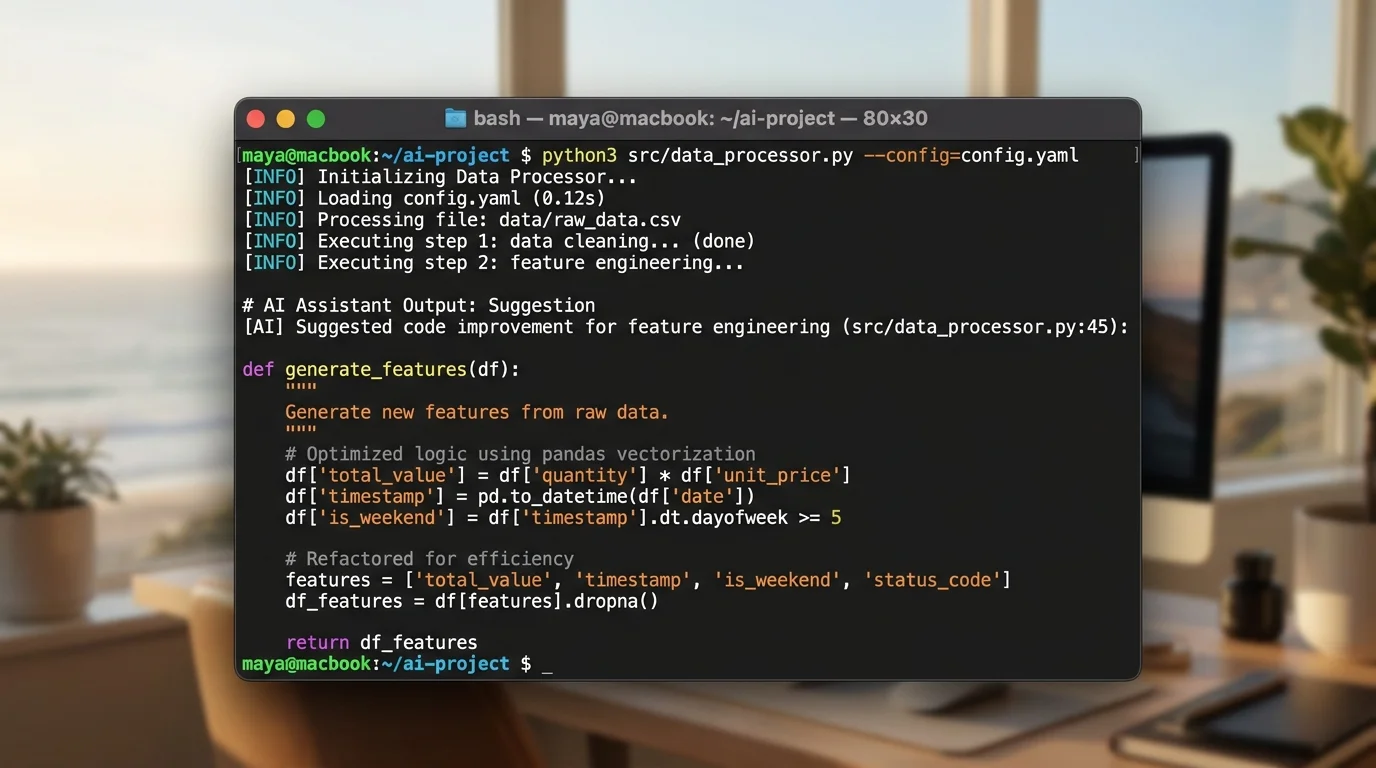
Codebase Context: Like Claude Code, Gemini CLI reads your project structure and files to build context. It understands directory layouts, package configurations, and code relationships.
Code Generation and Editing: Describe what you want, and Gemini CLI generates or modifies code. It can create new files, edit existing ones, and handle multi-file operations.
Command Execution: Gemini CLI can run shell commands—build scripts, tests, linters—and use the output to inform its next steps. This enables iterative development where the tool writes code, runs tests, and fixes failures.
Gemini 2.5 Pro Model Access: The CLI provides access to Google's latest Gemini models, including Gemini 2.5 Pro with its 1M token context window—the largest of any mainstream AI coding tool.
Extensions: Gemini CLI supports extensions for connecting to external services, similar to Claude Code's MCP support.
Strengths
- Free: The biggest differentiator. No subscription, no API costs for the free tier. For students, open-source contributors, and developers evaluating AI coding tools, this removes all friction.
- Massive context window: Gemini 2.5 Pro's 1M token context window means it can ingest very large codebases without truncation. This is a real advantage for monorepos and large projects.
- Google ecosystem integration: If you work with Google Cloud, Firebase, or Android development, Gemini CLI has native understanding of these platforms.
- Active development: With v0.33.2 released just days ago, Google is shipping updates rapidly. The tool improves noticeably with each release.
When to Use Gemini CLI
Gemini CLI is the right choice when you want terminal-native AI coding without any cost, when you work with very large codebases that benefit from the 1M token context, or when you are in the Google ecosystem. It excels at:
- Getting started with AI-assisted development at zero cost
- Working with large monorepos where context window size matters
- Google Cloud and Firebase projects
- Developers who want a terminal-native tool but do not want usage-based pricing
Pricing
| Tier | Cost | Details |
|---|---|---|
| Free (Gemini API) | $0 | Generous rate limits, access to Gemini 2.5 Pro |
| Paid (Gemini API) | Usage-based | Higher rate limits, priority access |
| Google One AI Premium | $19.99/month | Bundled with other Google AI features |
The free tier is sufficient for most individual development workflows. You only need to upgrade if you hit rate limits during intensive sessions.
GitHub Copilot
GitHub Copilot is the tool that started the AI coding revolution. Launched in 2021, it remains the most widely adopted AI coding assistant with tens of millions of users. In 2026, Copilot has evolved significantly—adding agent mode, multi-file editing, and workspace-level context—but it still functions primarily as an IDE plugin rather than a standalone tool.
Current State on Mac
Copilot is available as an extension for VS Code, JetBrains IDEs (IntelliJ, PyCharm, WebStorm), Neovim, and Xcode. The VS Code integration is the most mature.
# Install VS Code extension
code --install-extension GitHub.copilot
code --install-extension GitHub.copilot-chat

# Or install via Homebrew (for the CLI)
brew install gh
gh extension install github/gh-copilot
Core Features
Inline Completions: The original Copilot experience. As you type, Copilot suggests completions—sometimes a single line, sometimes an entire function. The suggestions are contextually aware, drawing from your current file and open tabs.
Copilot Chat: A chat panel in your IDE for asking questions, explaining code, generating tests, and getting suggestions. It understands your current file and workspace context.
Agent Mode: Copilot's agent mode (available in VS Code) can plan and execute multi-step tasks, run terminal commands, and iterate on results. It is newer than Claude Code's agent mode and still catching up in capability.
Copilot CLI: The gh copilot command brings AI assistance to the terminal for explaining commands, suggesting shell commands, and answering development questions—though it is not as full-featured as Claude Code or Gemini CLI for code generation.
Strengths
- Widest editor support: Works in VS Code, JetBrains, Neovim, Xcode, and more. No other AI tool covers this many editors.
- Seamless GitHub integration: Pull request summaries, code review suggestions, and issue context are built in if you use GitHub.
- Mature and stable: Years of production use means fewer rough edges and better reliability than newer tools.
- Affordable: $10/month for individuals is the lowest subscription price among premium AI coding tools.
When to Use Copilot
Copilot is the right choice when you want broad editor support, tight GitHub integration, or the lowest-cost subscription option. It is particularly good for:
- Developers who use JetBrains IDEs (where Cursor and Windsurf are not available)
- Teams heavily invested in the GitHub ecosystem
- Inline completions during rapid coding sessions
- Xcode development on Mac (the only mainstream AI tool with Xcode support)
Pricing
| Plan | Cost | Details |
|---|---|---|
| Free | $0 | Limited completions, VS Code and CLI only |
| Individual | $10/month | Unlimited completions, chat, all editors |
| Business | $19/user/month | Organization management, policy controls |
| Enterprise | $39/user/month | Fine-tuned models, advanced security |
Other Tools Worth Knowing
Windsurf (Codeium)
Windsurf is another VS Code fork with AI integration, built by the Codeium team. It offers a "Cascade" feature similar to Cursor's Composer for multi-file editing. The free tier is more generous than Cursor's, making it a good option for developers who want an AI IDE without the $20/month commitment. However, it has less market momentum than Cursor and the AI quality is a step behind when using its default models.
Aider
Aider is an open-source terminal-native AI coding tool. It supports multiple LLM backends (Claude, GPT-4, Gemini, local models) and integrates tightly with git—automatically creating commits for each AI-generated change. If you want terminal-native AI coding with full model flexibility and open-source transparency, Aider is excellent. Install it with:
brew install aider
# or
pip install aider-chat
Continue.dev
Continue is an open-source IDE extension that brings AI assistance to VS Code and JetBrains. It supports any LLM backend, including local models via Ollama. For developers who want AI coding assistance without sending code to external APIs, Continue with a local model is the most privacy-preserving option.
Pro Tip: For configuring your Mac terminal environment to get the most out of these terminal-native tools, solid Zsh and shell configuration makes a real difference in productivity.
Head-to-Head Comparison
| Feature | Claude Code | Cursor | Gemini CLI | GitHub Copilot |
|---|---|---|---|---|
| Type | Terminal agent | IDE fork | Terminal agent | IDE plugin |
| Mac Install | npm install -g | brew install --cask | brew install / npm install -g | IDE extension |
| Base Price | Usage-based / $20/mo | $20/mo Pro | Free | $10/mo |
| Best Model | Claude Opus / Sonnet | Multi-model (Claude, GPT, Gemini) | Gemini 2.5 Pro | GPT-4o / Claude |
| Context Window | 200K tokens | ~120K tokens | 1M tokens | ~128K tokens |
| Multi-File Editing | Excellent | Excellent (Composer) | Good | Good (Agent mode) |
| Agent Mode | Best-in-class | Strong | Good | Developing |
| Inline Completions | No | Excellent | No | Excellent |
| Editor Required | None (any terminal) | Cursor IDE | None (any terminal) | VS Code/JetBrains/etc. |
| Shell Command Execution | Yes | Yes (in agent mode) | Yes | Limited |
| Git Integration | Good | Good | Good | Excellent |
| Privacy Mode | Code not used for training | Privacy mode available | Google data policies apply | Business plan required |
| MCP Support | Yes | Yes | Extensions | Limited |
| Apple Silicon Optimized | Yes (Node.js) | Yes (Electron) | Yes (Node.js) | Yes (extension) |
| Offline Mode | No | No | No | No |
The Nuance Behind the Table
Numbers and checkmarks do not tell the full story. Here is what matters in practice:
Context Window vs. Context Quality: Gemini CLI has the largest context window at 1M tokens, but raw window size matters less than how well the model uses that context. In my testing, Claude Code with 200K tokens often produced better results on large codebases than Gemini CLI with 1M, because Claude's retrieval and reasoning within that context was more precise. That said, for truly massive monorepos where you need the model to see everything at once, Gemini's window size is a genuine advantage.
Agent Mode Quality: Claude Code's agent mode is the most mature. It plans multi-step tasks, executes them, handles errors gracefully, and iterates without losing track of the original goal. Cursor's agent mode is close behind but occasionally loses context during long sequences. Gemini CLI's agent capabilities are improving rapidly but still feel a generation behind for complex multi-step tasks.
Inline Completions: This is where Cursor and Copilot have no terminal-based competition. If fast, as-you-type completions are core to your workflow, you need an IDE-integrated tool. Claude Code and Gemini CLI do not provide inline completions—they are request-response tools.
Real-World Workflow Tests
I ran each tool through four common Mac development scenarios to see how they performed in practice. All tests were conducted on a MacBook Pro with M3 Pro, 36GB RAM, running macOS Tahoe.
Test 1: Debugging a Failing Test Suite
Scenario: A React project with 12 failing tests after a dependency upgrade. The failures span 6 test files with issues in mock configurations, API response shapes, and component rendering.
Claude Code: Fed it the test output and asked it to fix all failures. It identified the root cause (a breaking change in the HTTP client library's response structure), traced every affected test file, updated the mocks, and re-ran the tests—all in one agent loop. Fixed all 12 tests in about 3 minutes. Winner for this task.
Cursor: Used Composer mode with the test output pasted in. It identified the root cause correctly and fixed 10 of 12 tests. The remaining 2 required a second Composer iteration because they depended on a utility function that Cursor did not initially include in its context. Total time: about 5 minutes.
Gemini CLI: Identified the root cause and fixed 9 of 12 tests. The remaining 3 required manual intervention—Gemini suggested changes that were syntactically correct but did not match the project's testing patterns. Total time: about 7 minutes including manual fixes.
Copilot: Agent mode fixed 7 of 12 tests. The remaining 5 required manual chat-based iteration. Copilot struggled with the mock configuration patterns specific to this project. Total time: about 10 minutes.
Test 2: Refactoring a Module
Scenario: Extract a monolithic 800-line Express.js router file into separate route modules, middleware, and validation schemas. No behavior changes—pure structural refactoring.
Claude Code: Handled this excellently. It analyzed the file, proposed a directory structure, created the new files, moved code, updated imports, and ran the existing tests to verify nothing broke. The refactoring was clean and followed the project's existing patterns. Winner for this task.
Cursor: Composer mode handled this well but required me to specify the target directory structure. Once I provided that, it executed the refactoring correctly across all files. Slightly more manual guidance needed compared to Claude Code.
Gemini CLI: Produced a reasonable refactoring plan but made some import path errors that required correction. The large context window helped it see all the dependencies, but the execution was less precise than Claude Code.
Test 3: Implementing a New Feature
Scenario: Add a webhook notification system to a Node.js API. This requires a new database table, a model, API routes, queue processing, and retry logic.
Claude Code: Built the complete feature including the database migration, model, routes, queue worker, retry logic, and tests. The architecture was solid, but some of the queue processing logic needed tweaking for production edge cases. Overall time savings: significant.
Cursor: Composer built the feature iteratively. The visual diff review was helpful for catching issues early—I rejected a few changes and refined the prompt. The back-and-forth felt more collaborative than Claude Code's autonomous approach.
Gemini CLI: Generated the core structure but the implementation was less complete. It missed retry logic initially and the error handling was basic. Required more follow-up prompts to reach the same quality as Claude Code or Cursor.
Copilot: Agent mode scaffolded the basic structure. Chat-based iteration was needed for each component. The most manual work of the four tools.
Test 4: Code Review
Scenario: Review a 400-line pull request touching authentication logic, API routes, and frontend components.
Claude Code: Provided thorough review comments covering security concerns, edge cases, and code style. Identified a subtle authentication bypass bug that manual review missed. The review was structured and actionable.
Cursor: Used chat with @ references to the changed files. Good at explaining what the code does but less thorough at identifying security issues compared to Claude Code.
Gemini CLI: Produced a comprehensive review with good security awareness. The large context window meant it could consider more of the surrounding codebase. Competitive with Claude Code on this task.
Setting Up Your Mac for AI-Assisted Development
To get the most out of these tools, your Mac development environment needs a solid foundation. Here is the baseline setup.
Prerequisites
# Install Homebrew (if not already installed)
/bin/bash -c "$(curl -fsSL https://raw.githubusercontent.com/Homebrew/install/HEAD/install.sh)"

# Install Node.js (required for Claude Code and Gemini CLI)
brew install node

# Install Git (latest version)
brew install git

# Verify installations
node --version    # Should be 18+
git --version
brew --version
Complete Guide: For a thorough Apple Silicon development environment setup—including Homebrew, Xcode Command Line Tools, and language-specific toolchains—see our Apple Silicon Development Environment Setup Guide.
Installing All Major Tools
# Claude Code
npm install -g @anthropic-ai/claude-code

# Gemini CLI
brew install gemini-cli

# Cursor
brew install --cask cursor

# GitHub Copilot (via VS Code)
code --install-extension GitHub.copilot

# Aider (open-source terminal alternative)
brew install aider

# Continue.dev (open-source IDE extension)
code --install-extension Continue.continue
API Key Management
Do not hardcode API keys in your shell profile. Use a secure approach:
# Option 1: macOS Keychain (recommended)
security add-generic-password -s "anthropic-api-key" -a "$USER" -w "sk-ant-..."

# Retrieve in your shell config
export ANTHROPIC_API_KEY=$(security find-generic-password -s "anthropic-api-key" -a "$USER" -w)

# Option 2: Encrypted .env file per project
# Create .env in your project root (add to .gitignore!)
echo "ANTHROPIC_API_KEY=sk-ant-..." > .env
echo "GEMINI_API_KEY=your-key" >> .env
Terminal Configuration
For terminal-native tools like Claude Code and Gemini CLI, your shell configuration matters. A few recommendations:
# In ~/.zshrc

# Aliases for quick access
alias cc="claude"
alias gc="gemini"

# Increase terminal scrollback for long AI sessions
export HISTSIZE=50000
export SAVEHIST=50000

# Better pager for reviewing AI-generated diffs
export PAGER="less -R"
Terminal Deep Dive: For comprehensive Zsh configuration, prompt customization, and productivity shortcuts, see our Mac Terminal Mastery Guide.
Recommended Mac Hardware
AI coding tools themselves are lightweight—they run in Node.js or Electron and send requests to cloud APIs. Your Mac does not need to run the AI models locally. However, the development workflows they enable (running tests, building projects, running dev servers) benefit from more power:
| Mac | AI Tool Performance | Development Workflow |
|---|---|---|
| MacBook Air M2/M3 (16GB) | Excellent | Good for most projects |
| MacBook Pro M3 Pro (36GB) | Excellent | Great for large monorepos, Docker, multiple services |
| Mac Studio M3 Ultra | Excellent | Best for massive codebases, parallel CI, local model experiments |
If you plan to experiment with local AI models via Continue.dev + Ollama, 32GB+ RAM is recommended.
Which Tool Should You Choose?
After months of testing, here is my decision framework.
Choose Claude Code If:
- You work on complex, multi-file tasks regularly
- You want the most capable agent mode available
- You are comfortable in the terminal and do not need inline completions
- You value privacy (code not used for training)
- You are willing to pay usage-based pricing for the best results
- You use an editor other than VS Code (Neovim, Zed, Emacs, Sublime)
Choose Cursor If:
- You are a VS Code user who wants AI integrated into your editor
- You value visual diffs and inline completions
- You want multi-model flexibility (Claude, GPT, Gemini)
- You prefer a fixed monthly cost over usage-based pricing
- Your team wants to standardize on a single AI-powered editor
Choose Gemini CLI If:
- You want zero-cost terminal-native AI coding
- You work with very large codebases that benefit from the 1M token context
- You are in the Google ecosystem (GCP, Firebase, Android)
- You are evaluating AI coding tools and want to start without financial commitment
Choose GitHub Copilot If:
- You use JetBrains IDEs as your primary editor
- You want the lowest-cost premium subscription ($10/month)
- Your team is deeply integrated with GitHub
- You develop for Xcode and want the only AI tool with native Xcode support
- You want the most stable, battle-tested option
The Combination Play
The real power move in 2026 is using multiple tools. Here is the combination I have settled on:
- Claude Code for architecture-level work: major refactors, new feature implementation, codebase exploration, debugging complex issues
- Cursor (or Copilot) for daily coding: inline completions, quick edits, visual diffs during active development
- Gemini CLI as a free second opinion: when I want to cross-reference Claude Code's suggestions or when I hit API rate limits
This setup costs roughly $20-40/month and provides coverage for every development scenario.
Workflow Tip: Tools like Raycast can help you switch between these tools quickly with custom keyboard shortcuts and launcher commands.
Frequently Asked Questions
Can I use Claude Code and Cursor at the same time?
Yes, and many developers do. Claude Code runs in your terminal while Cursor is your editor. They do not conflict. A common workflow is to use Claude Code for large multi-file changes and Cursor for inline editing and completions. Just be aware that if both tools modify the same file simultaneously, you will need to handle merge conflicts.
Do these tools send my code to external servers?
Yes, all cloud-based AI coding tools send your code (or portions of it) to their respective APIs for processing. Claude Code sends context to Anthropic, Cursor can send to Anthropic/OpenAI/Google depending on the model, Gemini CLI sends to Google, and Copilot sends to GitHub/Microsoft. None of them use your code for model training by default (check each tool's current data policy), but the code is transmitted over the network. For fully private AI coding, use Continue.dev with a local model via Ollama.
Is Gemini CLI really free? What are the limits?
The Gemini API free tier is genuinely free with generous rate limits. As of March 2026, you get access to Gemini 2.5 Pro with rate limits that are sufficient for typical individual development workflows. You may hit limits during intensive multi-hour sessions with very large contexts. If you consistently hit limits, the paid API tier or Google One AI Premium subscription removes them.
Which tool is best for Swift and Xcode development on Mac?
For pure Xcode development, GitHub Copilot is currently the only option with native Xcode integration. For Swift development outside of Xcode (using VS Code or terminal-based editors), Claude Code and Gemini CLI both handle Swift well. Claude Code is particularly strong at understanding Swift project structures, Package.swift configurations, and SwiftUI patterns.
How do these tools compare to using ChatGPT or Claude.ai directly?
Dedicated coding tools outperform general-purpose chatbots for development work because they have direct file system access, can run commands, and maintain project context automatically. With a chatbot, you manually copy-paste code, describe file structures, and relay error messages. With Claude Code or Cursor, the tool reads your project directly and can verify its own changes by running your tests. The time savings are substantial—especially for multi-file tasks.
Will these tools work on Intel Macs?
Yes, all of these tools work on both Intel and Apple Silicon Macs. Claude Code and Gemini CLI run in Node.js, which is universal. Cursor and VS Code run on Electron, which supports both architectures. Performance is essentially identical for AI coding tools since the heavy computation happens on remote servers. Where you will see a difference is in your development workflow—builds, tests, and compilation are faster on Apple Silicon.
What about data privacy for enterprise use?
For enterprise deployments, each tool offers different privacy guarantees. Cursor Business ($40/user/month) includes enforced privacy mode where code is not stored on their servers. Copilot Enterprise ($39/user/month) offers similar guarantees within the GitHub ecosystem. Claude Code via the Anthropic API does not use code for training and offers a zero-retention API option for enterprise customers. Gemini CLI's privacy terms follow Google's Gemini API policies—check the current terms for enterprise applicability.
Conclusion
The AI coding tool landscape on Mac in 2026 is not about finding one perfect tool—it is about assembling the right toolkit for how you actually work. Terminal-native agents like Claude Code and Gemini CLI have proven that you do not need an IDE fork to get serious AI assistance. IDE-integrated tools like Cursor and Copilot have proven that inline completions and visual diffs still matter for daily coding velocity.
My recommendation: start with Gemini CLI (free, zero commitment) to experience terminal-native AI coding. If you find yourself wanting more capable agent mode and better reasoning, upgrade to Claude Code. If you miss inline completions and visual diffs, add Cursor to your workflow.
The tools will keep improving—Google, Anthropic, and the Cursor team are all shipping updates weekly. But the fundamental categories (terminal agent vs. IDE integration vs. IDE fork) are likely to persist. Understanding which category fits your workflow is more important than chasing the latest feature announcement.
What matters most is that you start using these tools today. The productivity gap between developers using AI coding assistants and those who are not is widening every month. Whether you choose Claude Code, Cursor, Gemini CLI, or Copilot, the best tool is the one you actually integrate into your daily workflow.
Next Steps: Check out our macOS Tahoe Developer Ultimate Guide for a comprehensive overview of the Mac development ecosystem these tools plug into.