macOS Tahoe Phone App Complete Guide 2025: Call Screening, Hold Assist, Live Translation & Everything You Need to Know
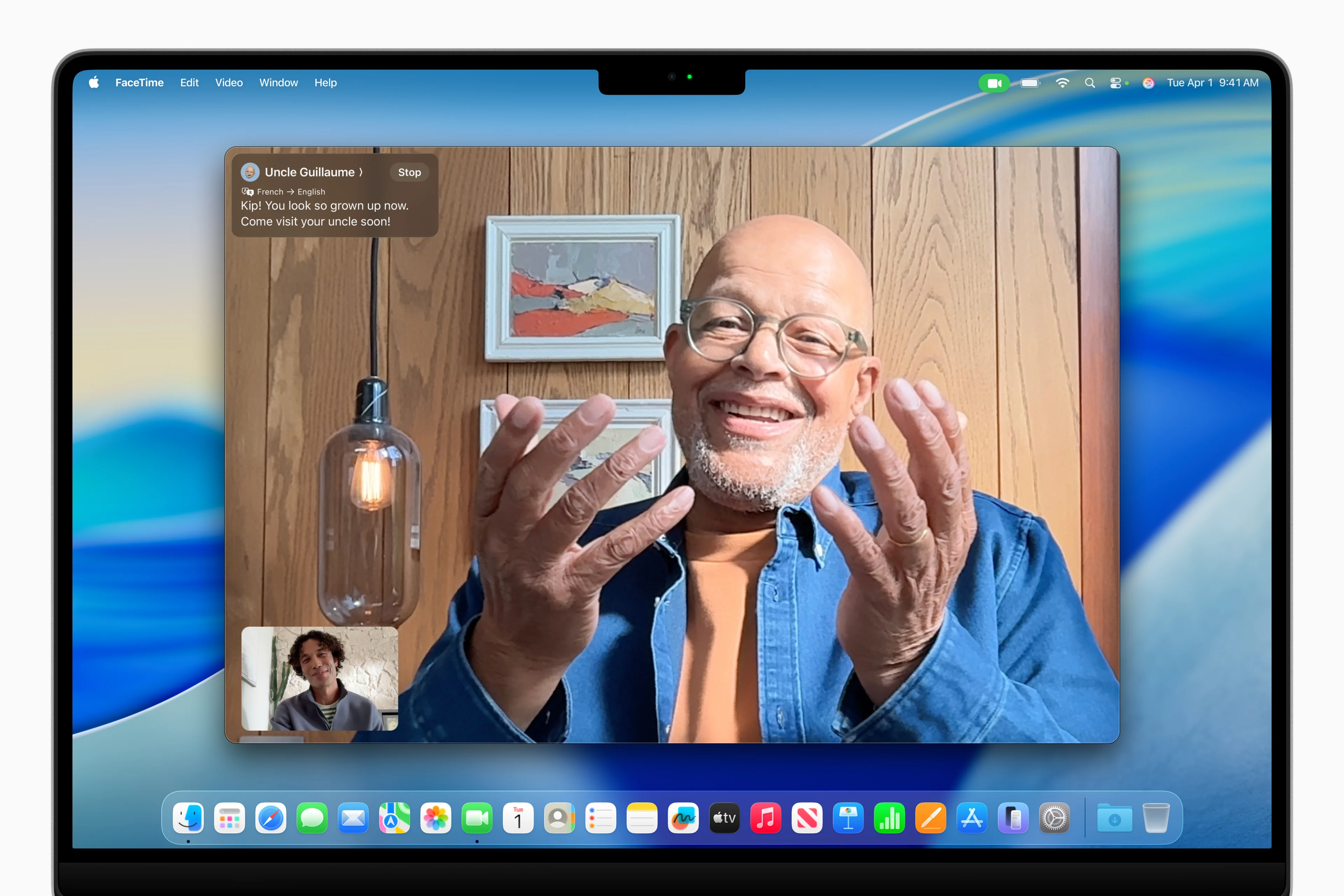
Master the all-new Phone app on macOS Tahoe 26. Complete guide covering setup, Call Screening, Hold Assist, Live Translation, voicemail management, troubleshooting, and pro tips for making calls directly from your Mac.
For the first time in Mac history, macOS Tahoe 26 introduces a native Phone app that brings full iPhone calling capabilities directly to your Mac. This comprehensive guide covers everything from initial setup to advanced Apple Intelligence features like Call Screening and Hold Assist, helping you transform your Mac into a powerful communication hub.
Executive Summary: The Phone App Revolution on Mac
Why This Matters
macOS Tahoe 26 represents a paradigm shift in how Mac users can communicate. The new Phone app isn't just a feature—it's a complete reimagining of what your Mac can do. For the first time, you can make and receive cellular calls directly from your Mac without needing your iPhone in the same room.
Key Highlights:
- Native Phone App: Full-featured calling app mirroring the iPhone experience
- Apple Intelligence Integration: Call Screening, Hold Assist, and Live Translation powered by on-device AI
- Seamless Continuity: Make calls using your iPhone's cellular plan from any Mac
- Voicemail Management: View, play, and manage voicemails with real-time transcription
- SharePlay in Phone Calls: Watch videos and share screens during regular phone calls
Who Benefits Most:
- Professionals who work primarily on Mac and want unified communications
- Users who frequently leave their iPhone in another room
- Anyone tired of reaching for their phone during work sessions
- Multilingual users who need Live Translation for international calls
- Customer service callers who want Hold Assist to reclaim their time
System Requirements
Minimum Requirements for Basic Phone App:
- macOS Tahoe 26 or later
- iPhone with iOS 17 or later (for cellular calls)
- Same Apple Account on both devices
- Wi-Fi connection on both devices
- Bluetooth enabled on both devices
Requirements for Apple Intelligence Features:
- Apple Silicon Mac (M1, M2, M3, or M4)
- iPhone 15 Pro or later OR any iPhone 16
- 7GB available storage for Apple Intelligence models
- macOS Tahoe 26 with Apple Intelligence enabled
Getting Started: Setting Up the Phone App
Initial Setup Process
Setting up the Phone app on your Mac is straightforward, but requires proper configuration on both your Mac and iPhone.
Step 1: Verify iPhone Settings
On your iPhone, ensure these settings are configured:
- Open Settings → Phone → Calls on Other Devices
- Toggle Allow Calls on Other Devices to ON
- Ensure your Mac appears in the list and is enabled
- Verify you're signed into the same Apple Account
Step 2: Configure Mac Settings
On your Mac:
- Open System Settings → General → AirDrop & Handoff
- Enable Handoff between this Mac and your iCloud devices
- Ensure Allow Calls from iPhone is enabled in FaceTime preferences
Step 3: Launch the Phone App
- Open Finder → Applications → Phone
- Alternatively, use Spotlight (Command + Space) and type "Phone"
- Grant necessary permissions when prompted (Contacts, Notifications)
Troubleshooting Setup Issues:
| Issue | Solution |
|---|---|
| Phone app not appearing | Ensure macOS Tahoe 26 is installed; restart Mac |
| Calls not routing to Mac | Verify same Apple Account; check Wi-Fi connection |
| iPhone not showing as source | Toggle Bluetooth off/on; restart both devices |
| "Calls on Other Devices" grayed out | Contact carrier to verify Wi-Fi calling support |
Understanding the Phone App Interface
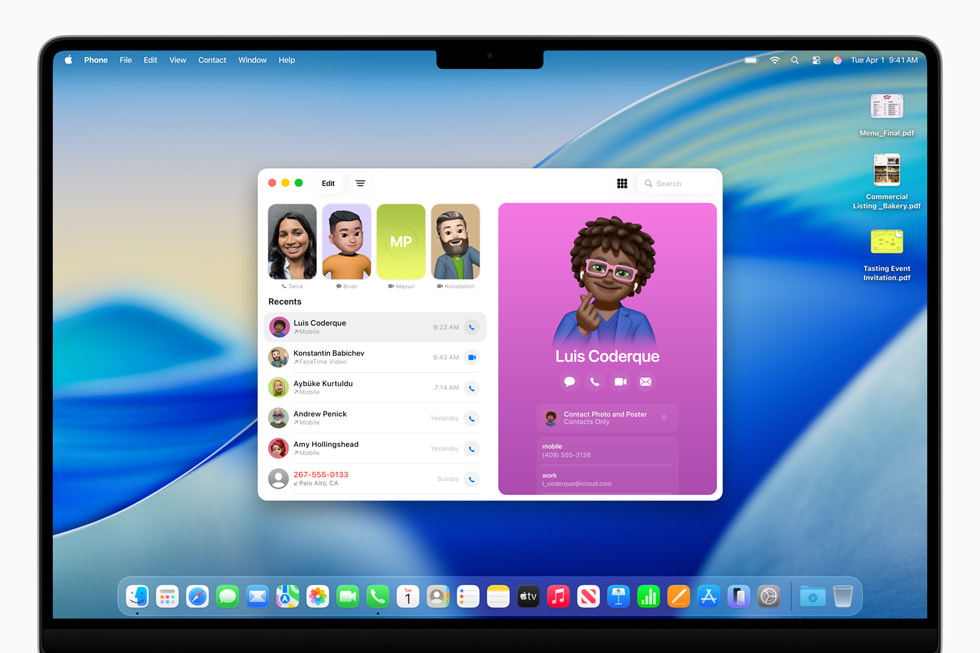
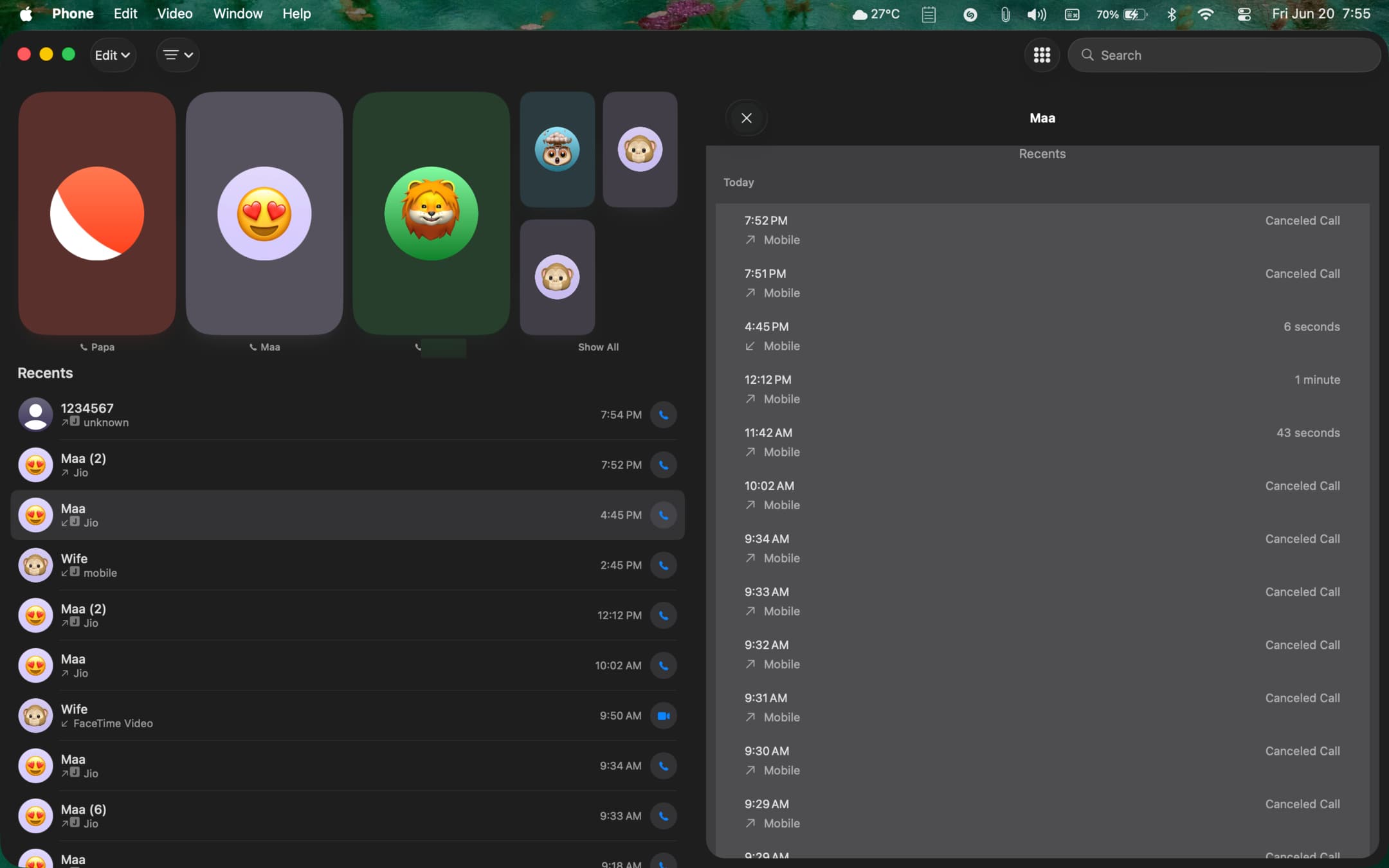
The Phone app on Mac mirrors the familiar iPhone interface with optimizations for the desktop experience.
Navigation Tabs:
| Tab | Function | Key Features |
|---|---|---|
| Favorites | Quick access to frequent contacts | Sync from iPhone; one-click calling |
| Recents | Call history with timestamps | View missed, incoming, outgoing calls |
| Contacts | Full contact list | Search, edit, add new contacts |
| Voicemail | Visual voicemail management | Transcriptions, playback, delete |
| Keypad | Manual number dialing | Emergency calls, special numbers |
Interface Design Features:
- Liquid Glass UI: Translucent panels with dynamic lighting effects
- Contact Posters: Full-screen contact images for incoming calls
- Floating Controls: Minimalist control panel during active calls
- Quick Actions: Right-click context menus for common operations
Making and Receiving Calls
Initiating Calls from Your Mac
There are multiple ways to make calls from your Mac:
Method 1: Phone App
- Open the Phone app
- Navigate to Contacts or Favorites
- Click the phone icon next to a contact
- Select call type (Phone, FaceTime Audio, FaceTime Video)
Method 2: Spotlight Integration
- Press Command + Space
- Type contact name
- Click the phone icon in the results
- Call initiates immediately
Method 3: Contacts App
- Open Contacts
- Select a contact
- Click the phone number
- Choose "Call using iPhone"
Method 4: Safari and Other Apps
- Click any phone number link in Safari
- Numbers in Mail, Messages, and Notes are clickable
- Choose "Call" from the popup menu
Receiving Calls on Mac
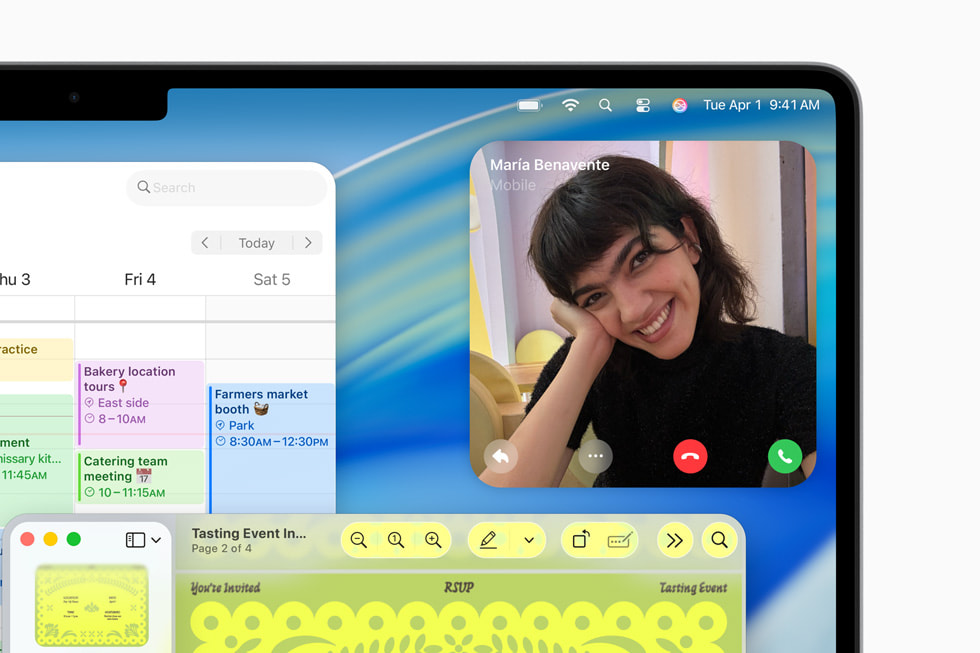
When someone calls your iPhone, you'll see a notification on your Mac:
Notification Features:
- Contact Poster: Shows caller's photo or Contact Poster
- Caller ID: Displays name and phone number
- Quick Actions: Accept, Decline, or Send to Voicemail
- Message Options: Send quick text responses
Call Controls During Active Calls:
| Control | Function | Keyboard Shortcut |
|---|---|---|
| Mute | Toggle microphone | M |
| Speaker | Switch audio output | S |
| Keypad | Enter DTMF tones | K |
| Hold | Place call on hold | H |
| End Call | Terminate call | Command + E |
| Add Call | Conference calling | A |
Audio Routing Options
macOS Tahoe 26 provides flexible audio routing for phone calls:
Available Audio Sources:
- Mac's built-in speakers and microphone
- External microphones (USB, Thunderbolt)
- Bluetooth headphones (AirPods, third-party)
- HomePod speakers
- External speakers
Switching Audio During a Call:
- Click the audio icon in the call control bar
- Select preferred input/output devices
- Changes apply immediately without dropping the call
Optimal Audio Setup:
- Use AirPods Pro for best noise cancellation
- External microphone recommended for professional calls
- Enable "Voice Isolation" in Control Center for clearer audio
Apple Intelligence Features
Call Screening: Never Talk to Spam Again
Call Screening is one of the most revolutionary features introduced with macOS Tahoe 26. Powered by Apple Intelligence, it automatically handles calls from unknown numbers.
How Call Screening Works:
- Unknown Call Detected: When someone not in your contacts calls
- AI Answers: Apple Intelligence answers with a professional greeting
- Caller Explains: The caller states their reason for calling
- Real-Time Transcription: You see what they're saying in real-time
- Your Decision: Accept, decline, or continue screening
Call Screening Interface:
Setting Up Call Screening:
- Open Settings → Phone → Call Screening
- Enable Screen Unknown Callers
- Choose greeting style (Professional, Casual, Custom)
- Configure response options
Call Screening Options:
| Option | Description | Best For |
|---|---|---|
| Accept | Picks up the call | Legitimate callers |
| Decline | Ends the call | Spam/unwanted calls |
| Send to Voicemail | Routes to voicemail | Uncertain callers |
| Message | Send text response | When you can't talk |
Privacy and Security:
- All processing happens on-device
- No audio sent to Apple's servers
- Transcriptions stored locally
- End-to-end encrypted communications
Hold Assist: Reclaim Your Time
Hold Assist is designed for one of modern life's biggest frustrations: waiting on hold. Apple Intelligence monitors the call and alerts you when a human returns.
How Hold Assist Works:
- Detect Hold Music: AI recognizes when you're placed on hold
- Background Monitoring: System continues listening
- Human Detection: AI detects when music stops and speaking begins
- Alert Notification: You receive immediate notification
- Seamless Pickup: Return to call without missing anything
Activating Hold Assist:
When you're placed on hold:
- A notification appears: "It sounds like you're on hold"
- Click "Enable Hold Assist"
- Continue working on your Mac
- Receive alert when someone returns
Hold Assist Statistics:
- Average time saved per call: 12-15 minutes
- Accuracy of human detection: 95%+
- Works with: Customer service, government agencies, healthcare providers
- Battery impact: Minimal (AI optimized for efficiency)
Pro Tips for Hold Assist:
- Works best with clear hold music
- Enable "Announce When Someone Returns" for audio alerts
- Combine with AirPods for seamless transition back to call
- Keep your Mac connected to power for extended holds
Live Translation: Break Language Barriers
Live Translation transforms your Mac into a real-time interpreter, enabling conversations across language barriers.
Supported Languages:
- English (US, UK)
- French (France)
- German (Germany)
- Portuguese (Brazil)
- Spanish (Spain)
- Japanese (Beta)
- Chinese Mandarin (Beta)
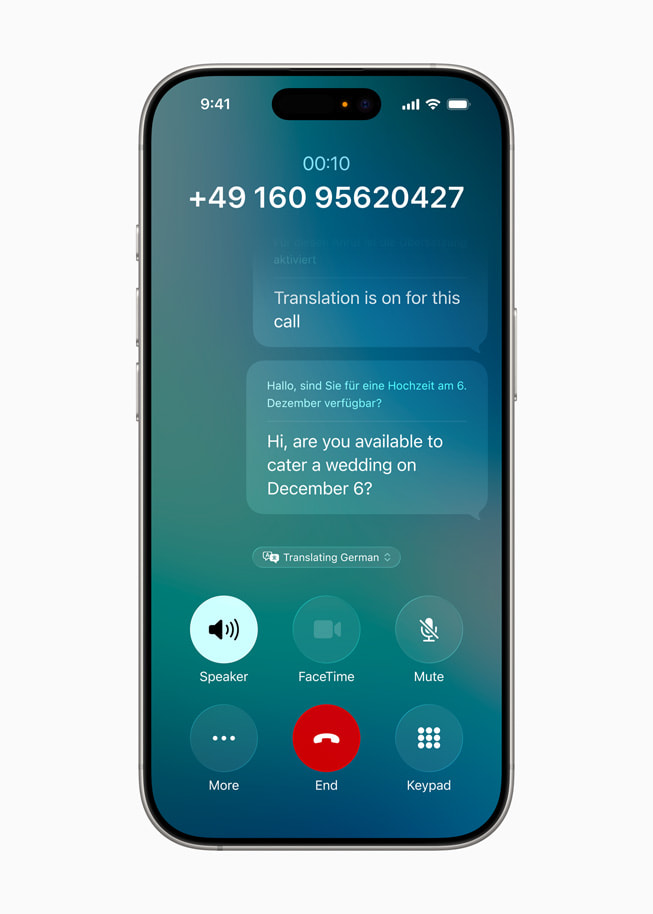
How Live Translation Works in Phone Calls:
- Enable Translation: Toggle on before or during call
- Speak Naturally: Talk in your native language
- AI Translation: Your words are translated and spoken to the caller
- Bidirectional: Their response is translated back to you
- On-Screen Text: Visual transcription appears for reference
Setting Up Live Translation:
- Open Settings → Apple Intelligence → Live Translation
- Select your primary language
- Enable "Auto-Detect Caller's Language" or manually select
- Choose voice style for translations
Translation Quality Considerations:
| Factor | Impact | Recommendation |
|---|---|---|
| Background noise | Reduces accuracy | Use quiet environment |
| Speaking speed | Fast speech may miss words | Speak at moderate pace |
| Technical jargon | May not translate accurately | Use simpler terms |
| Accents | Generally well-handled | Enunciate clearly |
| Connection quality | Affects real-time performance | Use stable Wi-Fi |
Privacy with Live Translation:
- All translation happens on-device
- No audio sent to external servers
- Private Cloud Compute used only when necessary
- Transcriptions not stored permanently
Voicemail Management
Visual Voicemail on Mac
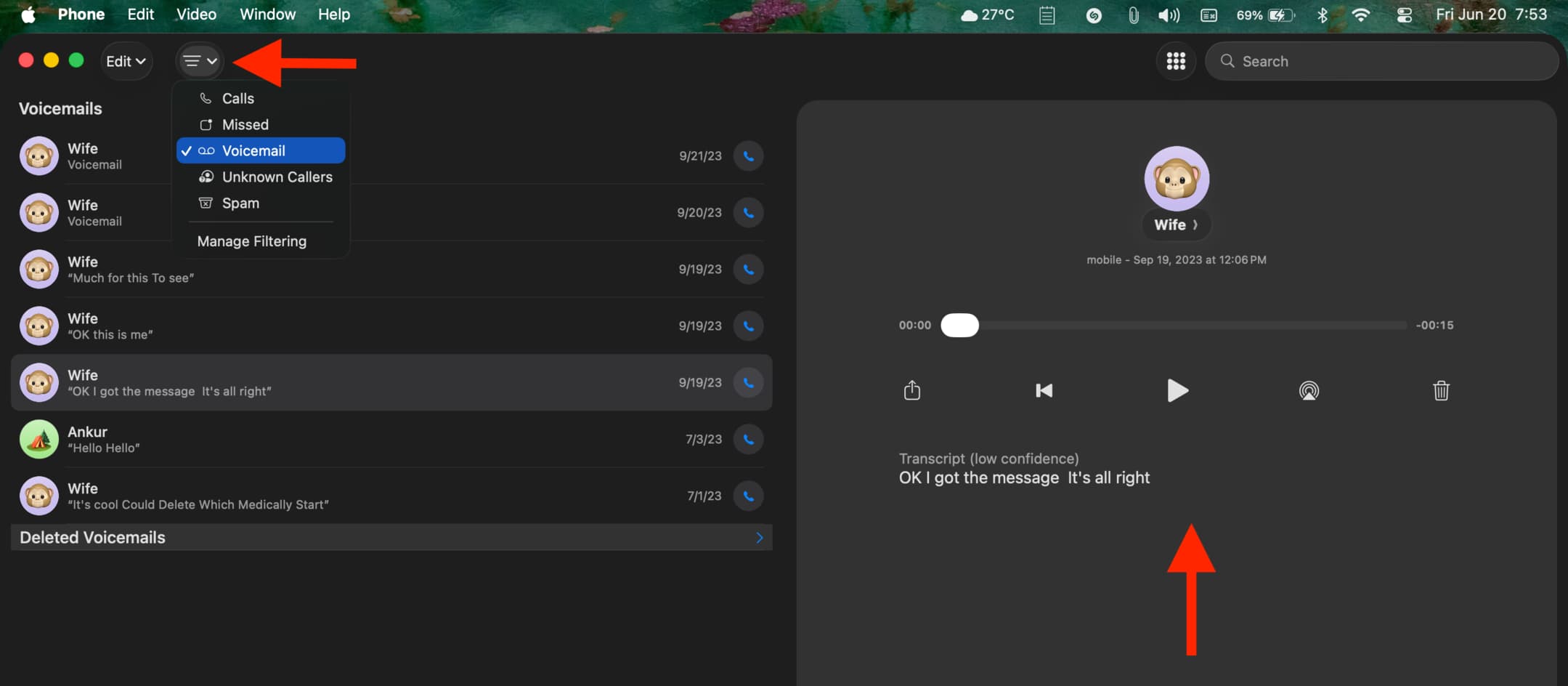
The Phone app brings the full Visual Voicemail experience to your Mac, complete with transcriptions powered by Apple Intelligence.
Voicemail Features:
| Feature | Description | Benefit |
|---|---|---|
| Transcription | AI-generated text of message | Read instead of listen |
| Playback Controls | Play, pause, skip, speed | Quick review |
| Caller Information | Contact details, call time | Context at a glance |
| Delete/Archive | Manage messages | Keep inbox clean |
| Return Call | One-click callback | Instant response |
| Share | Send voicemail via Messages | Easy forwarding |
Live Voicemail: A Game Changer
Live Voicemail shows real-time transcription as someone leaves a message:
- Incoming Call: See notification on Mac
- Send to Voicemail: Click "Voicemail" button
- Live Transcription: Watch words appear in real-time
- Decision Point: Pick up mid-message if important
- Complete Recording: Or let them finish
Setting Up Voicemail:
- Open Phone app → Voicemail tab
- Click "Set Up" if first time
- Record custom greeting (or use default)
- Enable Live Voicemail transcription
- Configure notification preferences
Voicemail Best Practices:
- Regularly delete old messages to save storage
- Use transcriptions for quick scanning
- Star important voicemails for later reference
- Export critical messages for backup
Continuity Features and Cross-Device Integration
How Continuity Calling Works
The Phone app leverages Apple's Continuity framework to create a seamless calling experience across all your devices.
Technical Requirements:
- Same Apple Account on all devices
- Wi-Fi enabled on all devices
- Bluetooth enabled on all devices
- Devices within Bluetooth range (approximately 30 feet)
- iPhone has cellular service
Understanding the Connection:
iPhone (Cellular) ←→ iCloud/Continuity ←→ Mac (Phone App)
        ↓                                        ↓
   Carrier Network                          Your Call
Your Mac doesn't make calls directly—it uses your iPhone's cellular connection through Continuity.
Handoff Between Devices:
You can seamlessly transfer calls between devices:
- Mac to iPhone: Click "Transfer to iPhone" during call
- iPhone to Mac: Tap Phone icon in Mac's Dock during call
- Automatic Detection: System suggests optimal device based on context
Multi-Device Scenarios
Scenario 1: iPhone in Another Room
- Your Mac can still receive/make calls
- iPhone must be on same Wi-Fi network
- Range extends throughout your home
Scenario 2: Working at Desk
- Use Mac's larger speakers for calls
- Type notes while talking
- Screen share documents discussed
Scenario 3: Multiple Macs
- All Macs can receive call notifications
- Answer on whichever is most convenient
- Other devices automatically silence
Scenario 4: iPad Integration
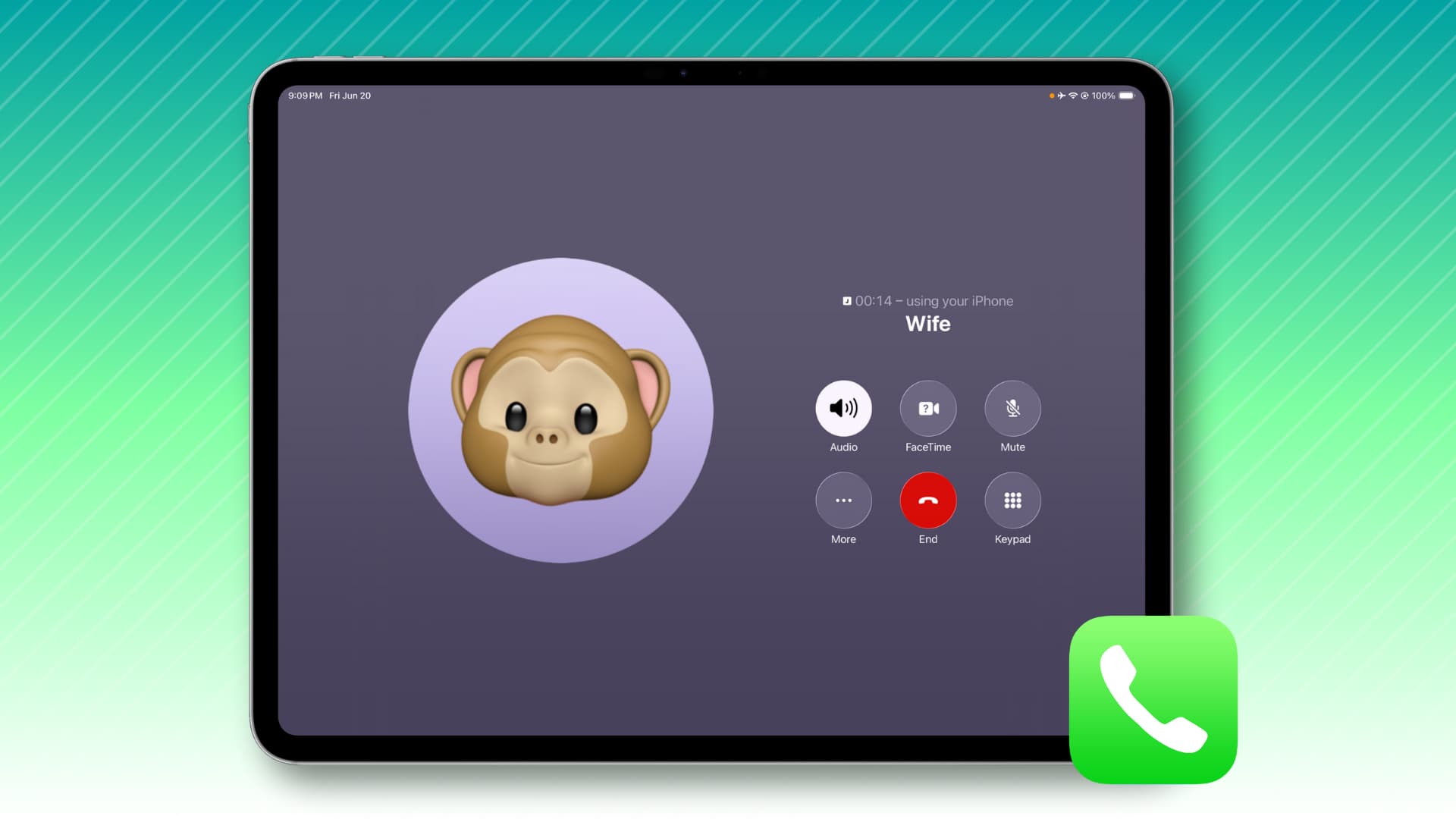
- iPadOS 26 also includes Phone app
- Same features available on iPad
- Great for users who prefer tablet
SharePlay in Phone Calls
macOS Tahoe 26 extends SharePlay beyond FaceTime to regular phone calls.
Available SharePlay Features:
- Watch Together: Stream Apple TV+, YouTube during calls
- Listen Together: Share Apple Music playback
- Screen Sharing: Show your screen to caller
- Collaborative Browsing: Browse websites together
Starting SharePlay in Phone Calls:
- During an active phone call
- Click the SharePlay icon in call controls
- Select content type to share
- Other person receives invite
- Synced playback begins
Requirements for SharePlay in Phone Calls:
- Both parties need iPhone/iPad/Mac with iOS 26 or later
- SharePlay-compatible apps
- Stable internet connection
- Apple Account signed in
Troubleshooting Common Issues
Issue 1: Phone App Not Receiving Calls
Symptoms:
- Calls only ring on iPhone
- Mac shows no notification
- Phone app remains silent
Solutions:
-
Verify Same Apple Account
- Check Settings → Apple Account on both devices
- Ensure logged into identical account
-
Check Network Connection
- Both devices must be on same Wi-Fi
- Verify internet connectivity on Mac
- Try toggling Wi-Fi off/on
-
Enable Calls on Other Devices
- iPhone Settings → Phone → Calls on Other Devices
- Ensure Mac is listed and enabled
-
Restart Continuity Services
# In Terminal killall sharingd killall identityservicesd -
Sign Out and Back In
- System Settings → Apple Account → Sign Out
- Wait 30 seconds, sign back in
- Re-enable all Continuity features
Issue 2: Call Audio Problems
Symptoms:
- No audio during calls
- Caller can't hear you
- Crackling or distorted sound
Solutions:
-
Check Audio Settings
- System Settings → Sound
- Verify correct input/output devices
- Test with system sounds
-
Grant Microphone Permission
- System Settings → Privacy & Security → Microphone
- Ensure Phone app has access
-
Reset Audio System
sudo killall coreaudiod -
Test with Different Audio Device
- Try built-in speakers/mic
- Test with wired headphones
- Use different Bluetooth device
Issue 3: Call Screening Not Working
Symptoms:
- Unknown calls not being screened
- Transcription not appearing
- AI greeting not playing
Solutions:
-
Verify Apple Intelligence Enabled
- System Settings → Apple Intelligence & Siri
- Ensure Apple Intelligence is on
-
Check Device Compatibility
- Requires Apple Silicon Mac
- Requires iPhone 15 Pro or later
-
Ensure Sufficient Storage
- Apple Intelligence needs 7GB free space
- Check Apple Intelligence storage in settings
-
Reset Call Screening
- Settings → Phone → Call Screening
- Toggle off, wait 10 seconds, toggle on
Issue 4: Live Translation Failures
Symptoms:
- Translation not working
- Incorrect translations
- Significant delay in translation
Solutions:
-
Download Language Models
- Settings → Apple Intelligence → Languages
- Download both conversation languages
-
Check Internet Connection
- Some translation may use Private Cloud Compute
- Requires stable internet
-
Speak Clearly
- Reduce background noise
- Speak at moderate pace
- Enunciate clearly
-
Try Different Language Pair
- Some pairs work better than others
- English-Spanish most optimized
Issue 5: Voicemail Transcription Not Appearing
Symptoms:
- Voicemails play but no text
- Partial transcriptions
- "Transcription unavailable" message
Solutions:
-
Enable Voicemail Transcription
- Phone app → Settings → Voicemail
- Toggle on "Transcribe Voicemails"
-
Check Apple Intelligence
- Transcription requires Apple Intelligence
- Verify it's enabled and working
-
Audio Quality Issues
- Poor quality voicemails may not transcribe
- Background noise affects accuracy
-
Wait for Processing
- Long voicemails take time to transcribe
- Check back after a few minutes
Advanced Features and Pro Tips
Keyboard Shortcuts for Power Users
Master these shortcuts for efficient calling:
| Shortcut | Action |
|---|---|
| Command + 1 | Switch to Favorites |
| Command + 2 | Switch to Recents |
| Command + 3 | Switch to Contacts |
| Command + 4 | Switch to Voicemail |
| Command + K | Show Keypad |
| Command + N | New Call |
| Command + F | Search Contacts |
| M (during call) | Mute/Unmute |
| H (during call) | Hold |
| Command + E | End Call |
| Space (during call) | Mute toggle |
Automating with Shortcuts App
Create powerful automations for the Phone app:
Automation 1: Quick Dial Favorites
- Create shortcuts for frequently called contacts
- Assign keyboard shortcuts
- One-key calling
Automation 2: Do Not Disturb Exception
- Allow certain callers through DND
- Based on caller, time of day, or location
- Automatic screening adjustments
Automation 3: Call Logging
- Automatically log calls to Notes
- Include caller, duration, key points
- Sync across devices
Automation 4: Business Hours Routing
- Route calls differently during work hours
- Send to voicemail after hours
- Custom greetings per time period
Focus Mode Integration
Configure Phone app behavior for each Focus mode:
Work Focus:
- Allow calls from work contacts
- Enable Call Screening for unknowns
- Full transcription enabled
Personal Focus:
- Allow calls from favorites only
- Disable work-related features
- Relaxed screening settings
Do Not Disturb:
- Allow repeated calls (emergency exception)
- Silent all others
- Voicemail transcription active
Sleep Focus:
- Allow calls from starred contacts only
- Enable "Announce Calls" with AirPods
- Maximum screening enabled
Emergency Calling Features
The Phone app maintains emergency calling capabilities:
Emergency SOS:
- Works even without iPhone nearby
- Dials local emergency services
- Sends location to emergency contacts
- Available from lock screen
Emergency Contacts:
- Configured through Health app
- Automatically notified during emergencies
- Location sharing enabled
Satellite Connectivity:
- iPhone 14+ can use satellite
- Mac routes through iPhone
- Works in areas without cellular
Performance and Battery Considerations
Resource Usage
The Phone app is optimized for efficiency:
| Metric | Idle | Active Call | AI Features |
|---|---|---|---|
| CPU | Less than 1% | 3-5% | 8-15% |
| RAM | 80MB | 150MB | 400MB |
| Network | Minimal | 100-300 Kbps | 500 Kbps |
| Battery | Negligible | Moderate | Higher |
Optimizing Battery Life
Tips for Extended Battery:
- Use wired audio when possible
- Disable video during voice calls
- Close unused tabs/apps during calls
- Enable Low Power Mode for long calls
Background Behavior:
- Phone app uses minimal resources when idle
- Notifications still work when app closed
- Call Screening runs efficiently in background
Network Bandwidth Requirements
| Call Type | Minimum | Recommended | Best |
|---|---|---|---|
| Voice Only | 100 Kbps | 300 Kbps | 500+ Kbps |
| Video | 500 Kbps | 1.5 Mbps | 3+ Mbps |
| SharePlay | 1 Mbps | 5 Mbps | 10+ Mbps |
| Live Translation | 300 Kbps | 500 Kbps | 1+ Mbps |
Privacy and Security
On-Device Processing
Apple's commitment to privacy extends to the Phone app:
What Stays on Device:
- Call audio (never uploaded)
- Voicemail transcriptions
- Call Screening conversations
- Translation processing (primarily)
- Contact information
What Uses Private Cloud Compute:
- Complex translations (when needed)
- Advanced AI features (encrypted)
- Always anonymized
- Never stored by Apple
Security Features
End-to-End Encryption:
- FaceTime calls fully encrypted
- iMessage conversations encrypted
- Voicemail protected by device encryption
Caller ID Protection:
- Hide your number option available
- Spam identification on-device
- Unknown caller screening
Data Protection:
- Call logs stored in encrypted container
- iCloud Keychain protects credentials
- Face ID/Touch ID for sensitive access
Comparison: Phone App vs. FaceTime
Understanding when to use each app:
| Feature | Phone App | FaceTime |
|---|---|---|
| Cellular Calls | Yes | No (Wi-Fi/data only) |
| Video Calls | No | Yes |
| Call Screening | Yes | No |
| Hold Assist | Yes | No |
| Live Translation | Yes | Yes |
| Group Calls | Limited | Up to 32 people |
| SharePlay | Yes | Yes |
| Non-Apple Users | Yes (any phone) | Limited (links) |
| International | Carrier rates | Free (Wi-Fi) |
When to Use Phone App:
- Calling landlines or non-Apple users
- Need Call Screening or Hold Assist
- Want to use cellular plan
- Business calls requiring professional features
When to Use FaceTime:
- Video calls preferred
- Calling other Apple users
- Want free international calls
- Group video meetings
Business and Professional Use Cases
Remote Work Communications
The Phone app transforms how remote workers manage their communications from a Mac:
Benefits for Remote Workers:
- Unified Workspace: No need to switch between devices during work hours
- Professional Presence: Use Mac's superior audio for client calls
- Documentation: Take notes during calls without juggling devices
- Focus Management: Integrate with Focus modes for structured workdays
Recommended Setup for Home Office:
| Component | Recommendation | Why |
|---|---|---|
| Audio Input | Blue Yeti or similar USB mic | Clear voice quality for calls |
| Audio Output | AirPods Pro | Noise cancellation + portability |
| Display | External monitor | See caller info while working |
| Network | Wired ethernet or 5GHz Wi-Fi | Stable connection |
Customer Service and Support Roles
Hold Assist is particularly valuable for support professionals:
Time Savings Analysis:
Based on typical customer service interactions:
- Average hold time per call: 15 minutes
- Calls requiring holds per day: 5-8
- Daily time recovered: 75-120 minutes
Productivity Workflow:
- Place call to vendor/partner
- Enable Hold Assist when placed on hold
- Continue working on Mac (respond to emails, update tickets)
- Receive notification when human returns
- Resume call without missing context
Sales and Business Development
The Phone app offers distinct advantages for sales professionals:
Call Screening Benefits:
- Screen cold calls during focused work time
- Review caller intent before accepting
- Prioritize high-value prospects
- Maintain professionalism with automated greetings
Live Translation for International Sales:
- Conduct calls with international prospects
- Break language barriers without interpreters
- Build rapport in customer's native language
- Expand addressable market globally
Integration with CRM Systems:
While the Phone app doesn't directly integrate with CRM systems, you can create workflows:
- Manual Logging: Use Split View to update CRM while on call
- Shortcuts Automation: Create shortcuts that log call details
- Calendar Integration: Schedule follow-ups during calls
- Notes Integration: Quick capture call summaries
Healthcare and Medical Professionals
Phone app features address unique healthcare communication needs:
HIPAA Considerations:
- On-device processing protects patient information
- Transcriptions stored locally, not in cloud
- End-to-end encryption for sensitive discussions
Practical Applications:
- Patient Callbacks: Return calls from Mac while reviewing charts
- Specialist Consultations: Hold Assist for insurance approvals
- Multilingual Patients: Live Translation for diverse patient populations
- Emergency Contacts: Quick access to on-call specialists
Legal and Financial Services
Professionals handling sensitive information benefit from:
Security Features:
- Device-level encryption of call logs
- No cloud storage of transcriptions
- Caller verification through screening
Productivity Features:
- Document review during extended calls
- Note-taking during client consultations
- Quick access to relevant files while discussing
Accessibility Features
VoiceOver Support
The Phone app is fully accessible with VoiceOver:
Navigation Features:
- Full screen reader support
- Keyboard shortcuts for all functions
- Audio descriptions of caller information
- Gesture-based navigation on trackpad
VoiceOver Commands for Phone App:
| Action | VoiceOver Command |
|---|---|
| Answer Call | VO + Space |
| End Call | VO + Shift + E |
| Navigate Tabs | VO + Left/Right Arrow |
| Read Caller Info | VO + A |
Switch Control
For users with motor disabilities:
- Full switch control compatibility
- Customizable scanning patterns
- Auto-scanning for hands-free operation
- External switch device support
Live Captions
For deaf and hard-of-hearing users:
Live Captions Integration:
- Real-time transcription of caller's voice
- Display on Mac screen during calls
- Works alongside Live Voicemail
- Supports multiple languages
Setup Process:
- System Settings → Accessibility → Live Captions
- Enable "Show Live Captions"
- Select preferred display location
- Customize text size and contrast
Voice Control
Make and manage calls hands-free:
Voice Commands:
- "Open Phone app"
- "Call [contact name]"
- "Answer the call"
- "End the call"
- "Enable Hold Assist"
Integration with Third-Party Services
Calendar Applications
Fantastical Integration:
- Click phone numbers in events
- One-click calling from calendar
- Conference call support
Google Calendar:
- Phone numbers in events are clickable
- Integrates with Safari number detection
Note-Taking Apps
Obsidian/Notion Workflows:
- Create call log templates
- Quick capture during calls
- Link related documents
Apple Notes:
- Quick Notes integration
- Capture key points during calls
- Sync across devices
Communication Platforms
Slack Integration:
- Click phone numbers in channels
- Status updates during calls
- Notification management
Microsoft Teams:
- Complementary to Teams calling
- Use for external calls
- Bridge communication methods
Comparison with Carrier Apps
Phone App vs. Carrier VOIP Apps
Many carriers offer their own calling apps. Here's how Apple's Phone app compares:
| Feature | Apple Phone App | Carrier VOIP Apps |
|---|---|---|
| Setup Complexity | Seamless (if using iPhone) | Account setup required |
| AI Features | Call Screening, Hold Assist | Usually none |
| Translation | Live Translation | Rarely available |
| Integration | Deep macOS integration | Limited |
| Cost | Free (uses iPhone plan) | Often included |
| Reliability | Proven Continuity tech | Variable |
| Privacy | On-device processing | Data may be collected |
When to Use Carrier Apps:
- Primary phone is Android
- Don't have iPhone
- Need business line separation
- Carrier-specific features required
When Apple Phone App is Better:
- Already have iPhone
- Want AI features
- Value privacy
- Prefer seamless integration
Future Updates and Roadmap
Coming in macOS Tahoe 26.2
Expected features in the December 2025 update:
- Enhanced Call Screening: More greeting customization options
- Improved Hold Assist: Better human detection algorithms
- Additional Translation Languages: Korean, Italian, Dutch expected
- Performance Optimizations: Reduced resource usage and faster transcription
- Edge Light Integration: Use screen as supplemental lighting during calls
Coming in 2026
Based on Apple's announced roadmap and industry analysis:
- AI-Powered Call Summaries: Automatic post-call summaries generated by Apple Intelligence
- Expanded Language Support: Additional translation language pairs
- Business Features: Call recording with consent notification
- Enhanced Accessibility: More assistive technology integrations
- Siri Improvements: Natural language call initiation and management
Long-Term Vision
Based on Apple's trajectory and patent filings:
- Deeper Siri Integration: Conversational calling ("Siri, call John and tell him I'm running late")
- Predictive Features: AI suggests when to return calls based on context
- Cross-Platform Expansion: Potential web-based calling interface
- Enterprise Features: Multi-line support, call queuing, advanced analytics
- Augmented Communication: Integration with Vision Pro for immersive calling
Conclusion: Mastering the Mac Phone App
The Phone app on macOS Tahoe 26 represents Apple's most significant communication update in years. By bringing full calling capabilities to your Mac, along with groundbreaking AI features like Call Screening and Hold Assist, Apple has transformed how we can communicate from our computers. This isn't just an incremental improvement—it's a fundamental shift in how Mac users can interact with the telephone network.
Key Takeaways:
- Setup is Simple: Same Apple Account, Wi-Fi, Bluetooth—you're ready to start making calls
- AI Features are Game-Changing: Call Screening and Hold Assist save real time every day
- Privacy First: All processing happens on-device by default, protecting your conversations
- Seamless Integration: Works perfectly with the Apple ecosystem across all your devices
- Professional Ready: Suitable for business and personal use with enterprise-grade features
- Accessibility Focused: VoiceOver, Switch Control, and Live Captions ensure everyone can use it
Recommended Next Steps:
- Update to macOS Tahoe 26: Ensure you have the latest version installed
- Configure Settings: Set up Call Screening, Hold Assist, and Live Translation
- Customize Favorites: Add frequently called contacts for one-click access
- Test Features: Make a few calls to get comfortable with the interface
- Explore Automation: Set up Shortcuts for common calling tasks and workflows
- Optimize Audio: Configure your preferred microphone and speaker setup
The Phone app transforms your Mac from a productivity tool into a complete communication hub. Whether you're screening spam calls, waiting on hold for customer service, conducting international business with Live Translation, or simply enjoying the convenience of answering calls at your desk, the Phone app has you covered. As Apple continues to refine and expand these features through future updates, the Phone app will only become more indispensable to Mac users worldwide.
Looking to maximize your macOS Tahoe experience? Check out our macOS Tahoe 26.1 Complete Update Guide, explore Apple Intelligence 10-Minute Mastery Guide, or troubleshoot connectivity issues with our Continuity & Sync Troubleshooting Guide.