Set Up Screen Time and Time Allowances on Mac in macOS 27
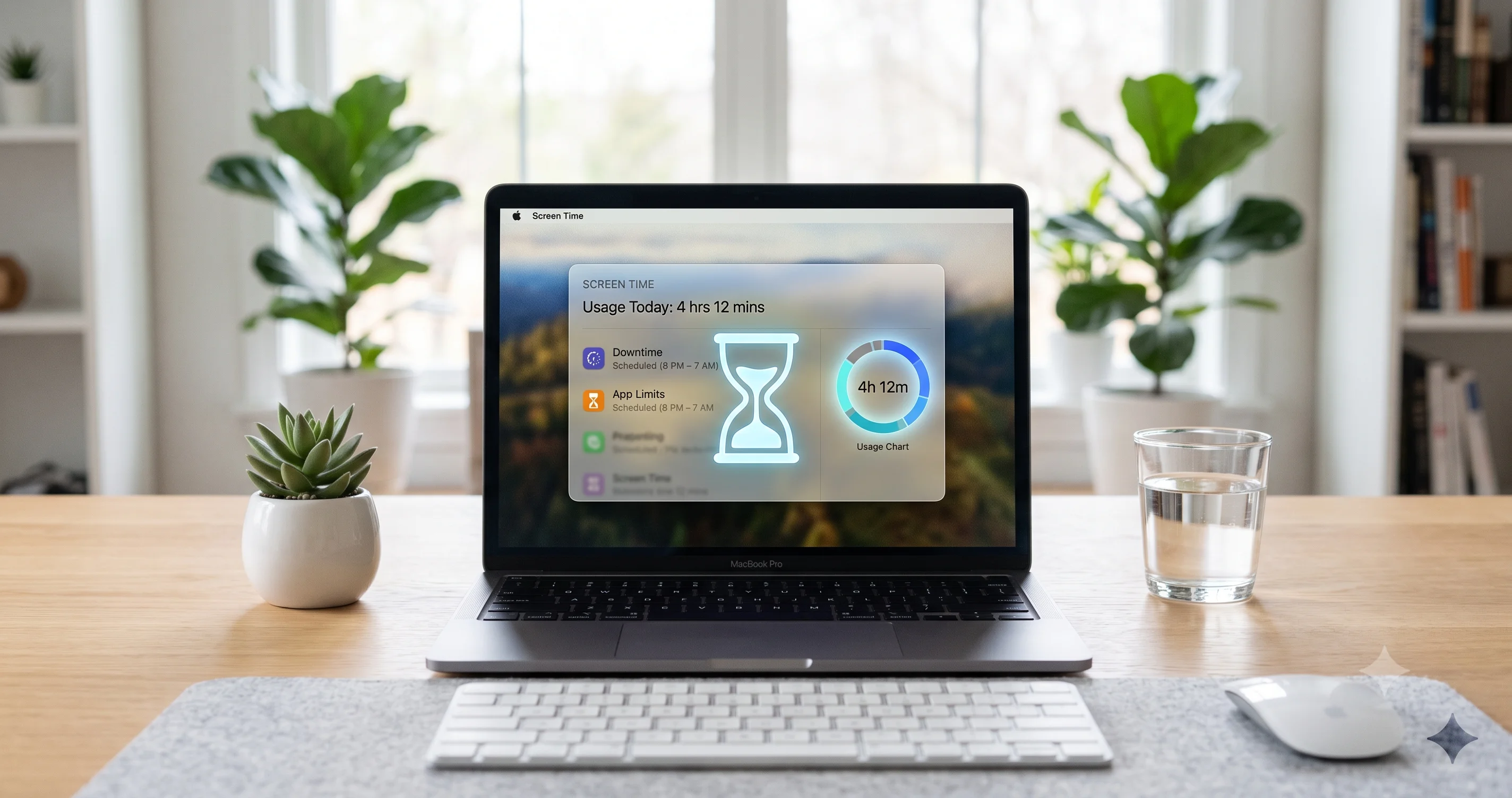
macOS 27 redesigns Screen Time with Time Allowances, Ask to Browse, and Ask to Buy. Learn how to set up parental controls and app limits on your Mac.
If you have ever tried to set a sensible daily limit on a single app and walked away frustrated, Screen Time in macOS 27 "Golden Gate" is aimed squarely at you. Apple has rebuilt Screen Time around a new idea called Time Allowances — per-category time budgets for apps, with age-based default guidance so parents are not staring at a blank slider wondering how much "Games" is too much. Alongside it come Ask to Browse (kids request access to specific websites instead of hitting a hard block), a refreshed Ask to Buy for approving purchases, smarter Schedules, contact approval so parents sign off on who their kids can message, and an expanded Communication Safety that now detects violent and gory imagery in addition to nudity, all processed on-device. Whether you are a parent locking down a family Mac or an adult trying to claw back an hour a day from your own doomscrolling, the redesigned Screen Time macOS 27 experience is the most consequential rework of parental controls Apple has shipped in years.
One caveat you should read before anything else: this is beta software. macOS 27 was announced at WWDC on June 8, 2026, and the first public beta arrived on July 13, 2026, with the general release expected in the fall. Everything in this guide is written against beta builds and Apple's own parental-controls announcements. Apple routinely renames toggles, moves settings between panes, and changes which sub-features are live from one beta to the next. Where I am not certain of an exact label or menu path, I describe the general location on purpose — telling you to tap a button that gets renamed next month helps nobody. Treat specific strings as provisional and trust the shape of the workflow over any single word on screen.
Key Takeaways
- Time Allowances is the headline change. Instead of setting one limit per individual app, you set a time budget for a whole category (Games, Social, Entertainment), and macOS 27 offers age-based default guidance so you are not guessing at reasonable numbers for a child.
- Ask to Browse replaces the all-or-nothing web block. When a child hits a restricted site, they can send a request to a parent, who approves or denies it from their own device — much friendlier than a dead-end error page.
- These parental-control features are shared across Apple's 2026 OSes. The same Screen Time framework, Ask to Buy, Schedules, contact approval, and Communication Safety appear on iPhone, iPad, and Mac, and settings sync through Family Sharing and iCloud.
- Communication Safety now covers more than nudity. Apple has expanded its on-device detection of sensitive imagery to include violent and gory content as well. The detection runs on the device — Apple does not receive the images — and it is off by default for adult accounts.
- Screen Time is not only for kids. The same tools — App Limits, Downtime, Time Allowances, and reports — work on your own account as a digital-wellbeing system, and setting a Screen Time passcode you do not share stops you from casually tapping "Ignore Limit."
- Everything here is beta behavior. Toggle names, menu locations, availability, and which sub-features are active in the July beta can and will change before the fall 2026 release. Verify against what your build actually shows.
What Changed in macOS 27 Screen Time
For years, Screen Time did the job but wore you down doing it. If you wanted to cap a child's gaming, you added App Limits app by app, and every new game your kid installed slipped through until you noticed and added it too. Downtime was blunt. Web restrictions were a wall with no door — a blocked site just failed to load, and your child either gave up or came asking you to disable the whole feature. The bones were good; the day-to-day was tedious.
macOS 27 keeps the bones and rebuilds the experience on top of them. The centerpiece is Time Allowances, a shift from "limit this app" to "budget this category." You decide how much time per day the account gets for, say, Social or Games as a whole, and the system enforces that budget across every app that falls in the category — including ones installed later. Crucially, Apple layers age-based default guidance on top, so when you set up a child's account the system can suggest starting points appropriate to their age rather than dumping a blank slider in front of you. For most parents, the hardest part of Screen Time was never the mechanics; it was deciding what a "reasonable" number even is. Time Allowances tries to answer that.
The other changes soften Screen Time's rough edges. Ask to Browse turns the web block from a wall into a request: a child who hits a restricted site can ask a parent for access, and the parent approves or denies it remotely. Ask to Buy — approving App Store and media purchases — returns in a cleaner form. Schedules let you shape when limits and Downtime apply rather than treating every day the same. Contact approval lets parents approve who their kids can message and call. And Communication Safety, the on-device feature that steps in when sensitive images appear in Messages and other apps, has been expanded to detect violent and gory content in addition to nudity, still processed entirely on the device.
Apple has framed all of this as a coordinated update across its 2026 operating systems, not a Mac-only change. The same parental-controls architecture shows up on iPhone and iPad, which is why the settings you configure sync across a child's devices through Family Sharing. If you want the broad picture of what else landed in this release, our overview of everything Apple announced for macOS 27 at WWDC 2026 sets the context, and Screen Time is one of the more practically useful pieces of it.
A grounding note on timeline, because it matters for what you will actually see: macOS 27 is Apple-silicon-only and ships this fall. The developer betas began after WWDC, and the first public beta went out on July 13, 2026. If you are reading this on a beta build, some of what Apple has described may not yet be switched on, or may behave differently than it will in September. That is normal for a beta and worth keeping front of mind through the rest of this guide.
Turning On Screen Time and Setting a Passcode
Before any limits, allowances, or approvals mean anything, Screen Time has to be on, and — if you want the limits to actually hold — protected by a passcode that the person being limited does not know. This is true whether you are setting up a child's Mac or reining in your own habits.
Where Screen Time lives
Screen Time is a top-level section of System Settings. Open System Settings from the Apple menu or the Dock, then find Screen Time in the sidebar. On a fresh account it may present a brief introduction; on an account that has used it before, you land on the summary with its categories, limits, and reports. The exact ordering of the sidebar and the wording of the intro can differ between beta builds, so if the label or position is not quite where this describes, scan the sidebar — it is there.
The steps
- Open System Settings and select Screen Time in the sidebar.
- If Screen Time is not already active, turn it on. You may be asked whether this Mac is for yourself or for a child; choose accordingly, because it affects which controls appear.
- Review the summary view, which is where usage reports and the entry points to App Limits, Downtime, and the new Time Allowances live.
- Set a Screen Time passcode (covered next) so limits cannot be casually switched off.
- Decide whether to share across devices so the same settings and reports follow the account to its iPhone and iPad through iCloud.
Why the passcode is the whole game
A Screen Time passcode is a separate four-digit code, distinct from your login password and your device passcode, that is required to change Screen Time settings or extend a limit once it is hit. For a child's account, this is the difference between a real boundary and a suggestion: without it, hitting a limit shows an "ask for more time" or "ignore" path that a determined kid will simply tap through. With it, extending time requires the passcode, which only the parent knows.
Set the passcode from within the Screen Time settings. During setup you are typically asked to enter it twice, and — importantly — to associate it with a recovery method (commonly an Apple Account / Apple ID) so you can reset it if you forget. Do not skip the recovery step. A forgotten Screen Time passcode with no recovery is one of the more painful self-inflicted problems in the Apple ecosystem, because the safeguards that make the passcode effective are the same ones that make it hard to bypass when you are the one locked out. Choose a code your child cannot guess (not their birthday, not 1234) and store it somewhere you control. If you are already using Apple's password manager for the rest of your credentials, our look at the macOS 27 Passwords app and its automatic password-change features is a good companion for keeping this kind of code safe rather than on a sticky note.
If you are setting Screen Time on your own account for focus rather than for a child, the passcode still matters — arguably more. The point of a limit you set for yourself is to add just enough friction that you pause before overriding it. A passcode you deliberately make slightly annoying to enter (and do not memorize as a reflex) is that friction.
Setting Up Family Sharing and a Child Account
Parental controls only reach a child's Mac if that child has their own account inside your Family Sharing group, managed by you as the organizer. Configuring Screen Time on a shared adult login, or on a generic local account nobody owns, gives you far less control and none of the remote-approval features. The correct foundation is: your Apple Account as the family organizer, a child Apple Account for your kid, both in the same family group.
Create or confirm the family group
If you do not already have a Family Sharing group, set one up from the Family section of System Settings (historically shown under your name/Apple Account at the top of System Settings). As the organizer you can invite adults and create child accounts for children under the age threshold Apple sets for your region. A child account is a real Apple Account that belongs to your kid but stays under your management, which is what makes Ask to Buy, Ask to Browse, contact approval, and remotely managed Time Allowances possible.
Steps to add a child and enable management
- Open System Settings and go to the Family settings under your Apple Account.
- Add a child — either create a new child Apple Account or add an existing one to your family group.
- On the child's Mac, sign in with the child's Apple Account, not yours. This is the step people most often get wrong; controls apply to the account that is signed in.
- Back in your Family settings, open the child's entry and turn on Screen Time / parental controls for them. From here you configure their Time Allowances, Ask to Browse, Ask to Buy, contact approval, and Communication Safety.
- Confirm the settings sync to the child's other devices through the family group, so a limit you set on the Mac also governs their iPhone and iPad.
Manage remotely, not just locally
The advantage of this setup is that you do not have to physically hold your child's Mac to adjust anything. Because the child is in your family group, you can review their reports and change their limits and approvals from your own device. Approval requests — a blocked website, a purchase, a new contact — arrive to you and can be handled on the spot. That remote loop is the practical heart of the 2026 parental-controls story, and it depends entirely on getting the Family Sharing foundation right first. If you are configuring a Mac that a child will use for schoolwork and you also care about accessibility, it is worth pairing this with our macOS accessibility complete guide, since the accessibility and Screen Time settings both live in System Settings and are commonly set up in the same sitting.
Time Allowances Explained: Per-Category Limits and Age-Based Guidance
Time Allowances is the feature most worth understanding well, because it changes the mental model of how you ration screen time. The old model was per-app: you found an app, you gave it a daily cap, you repeated for every app you cared about. The new model is per-category with a shared budget: you decide how much time a category of apps gets each day, and the system spends that budget across whatever apps in the category get used.
What "per-category" actually means
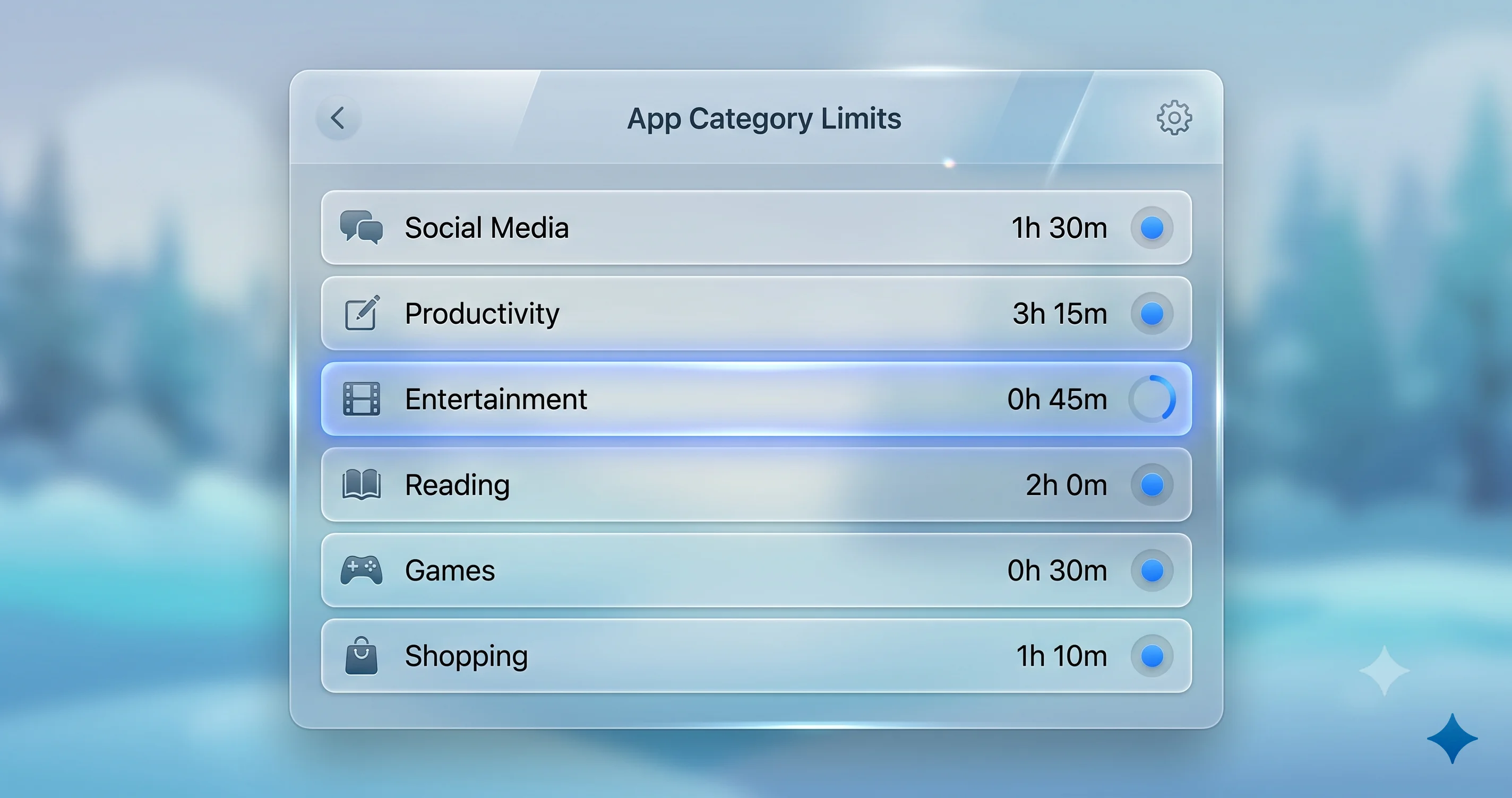
Apps on Apple's platforms are sorted into categories — Games, Social, Entertainment, Productivity, and so on. A Time Allowance sets a daily time budget for a category as a whole. If you give "Games" a 45-minute allowance, that 45 minutes is shared across every game on the account. Play one game for 45 minutes and the whole category is spent; split it across three games and the total still comes to 45. The win is coverage: because the budget attaches to the category rather than to named apps, a game your child installs tomorrow is governed by the same allowance automatically, with nothing for you to add. The old whack-a-mole of chasing each new app largely goes away.
Age-based default guidance
The part parents will appreciate most is that macOS 27 offers age-based default guidance for these allowances. When you set up a child's account, the system can suggest starting points calibrated to the child's age rather than leaving you to invent numbers. This is guidance, not a mandate — you can raise, lower, or ignore the suggestions entirely — but it removes the paralysis of the blank slider. A reasonable default for an eight-year-old and a fifteen-year-old are not the same, and the system trying to reflect that is genuinely helpful for anyone who has ever second-guessed whether their limits are too strict or too loose. I want to be careful here: the exact suggested minutes, and how granularly the guidance is presented, are the kind of specifics that can shift before the final release, so treat any particular number your beta shows as a starting suggestion rather than an official Apple recommendation carved in stone.
Step-by-step: set a Time Allowance
- Open System Settings > Screen Time (for your own account) or the child's entry in Family settings (to manage a child).
- Find the Time Allowances section. In the current beta it sits alongside App Limits and Downtime as one of the ways to cap usage; the grouping and wording may still be settling.
- Choose a category — Games, Social, Entertainment, or whichever you want to budget.
- Set the daily allowance. If you are managing a child, note the age-based suggested value and adjust from there to fit your family.
- Optionally vary it by day using Schedules, so weekends can differ from school nights.
- Confirm, and enter the Screen Time passcode if prompted so the allowance cannot be quietly removed.
When the allowance runs out
When a category's daily budget is spent, apps in that category become unavailable until the next day, or until a parent grants more time. On a child's account, requesting more time routes an approval to the parent, who can grant a top-up without disabling the allowance. On your own account, hitting the limit prompts you for the Screen Time passcode if you set one — the friction that is the entire point. Categories you have not budgeted keep working normally; a Games allowance running dry does not touch Productivity or Education apps, which is exactly the behavior you want when the same Mac is used for both homework and play.
App Limits vs. Downtime vs. Time Allowances
macOS 27 now gives you three overlapping tools for capping usage, and they are easy to confuse. They coexist rather than replace one another, so it helps to be clear on what each does best.
App Limits
App Limits is the long-standing per-app (or per-category) daily cap. You choose specific apps or a category and set a time limit; when it is reached, those apps are blocked for the rest of the day. App Limits is the right tool when you want to target something specific — a single app that is a problem — rather than budget a whole category. It remains available in macOS 27 and works fine alongside the newer options.
Downtime
Downtime is a schedule, not a budget. It defines windows during which the device is largely off-limits except for apps you explicitly always-allow (phone, messages to certain contacts, and so on). Downtime is about when, not how much — bedtime, school hours, dinner. It does not care how many minutes were used earlier; when the Downtime window arrives, most apps lock regardless.
Time Allowances
Time Allowances, as covered above, is a shared daily budget per category with age-based guidance. It is the tool when you want to say "some gaming is fine, up to this much total, across whatever games exist," and have that hold for future apps automatically.
How they combine
These three stack. A practical family setup might use Time Allowances to budget Games and Social, App Limits to hard-cap one specific app that needs its own tighter rule, and Downtime to shut most things down at bedtime. When more than one applies, the more restrictive wins — Downtime will lock an app during its window even if that app still had category budget left. The mental shortcut: Downtime controls when, App Limits and Time Allowances control how much, and Time Allowances is the one that thinks in categories and adapts to new apps. Because the interplay can get intricate, start simple, watch a week of reports, and tighten from there rather than configuring all three aggressively on day one.
Ask to Browse: Website Requests and Web Content Controls
Web restrictions used to be Screen Time's most frustrating feature because they failed silently. A blocked site simply would not load, giving a child no path forward except to come find you and ask you to turn the whole thing off. Ask to Browse fixes the dynamic by turning a block into a request.
How Ask to Browse works
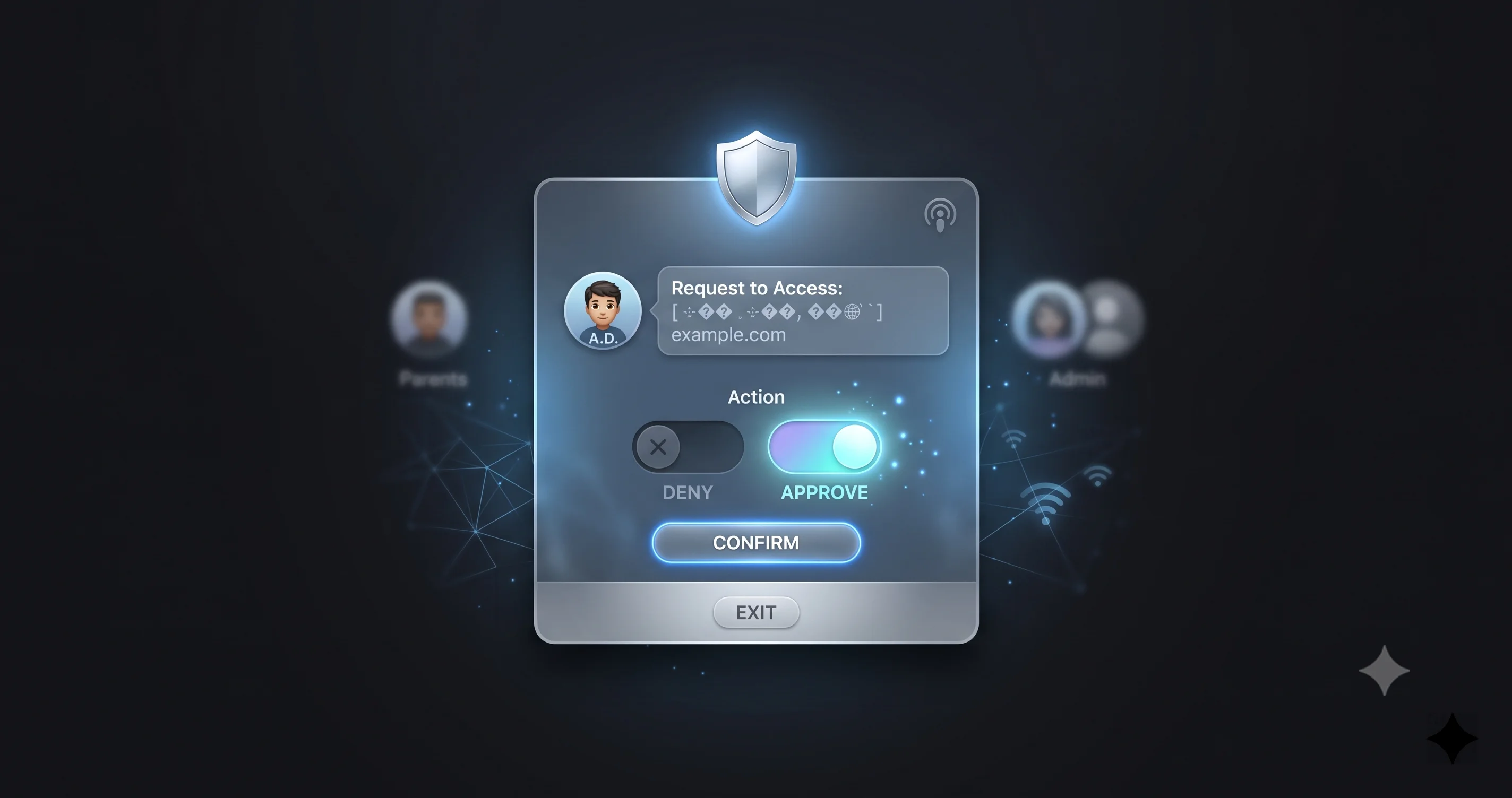
With web content restrictions active on a child's account, hitting a site that is not permitted no longer dead-ends. Instead, the child can send a request to access that specific site, which arrives to the parent for approval. You approve or deny from your own device, and an approval opens up that site without your having to loosen the broader web filter for everything else. It keeps the default protective and makes exceptions a lightweight, per-site conversation rather than an all-or-nothing switch.
This matters for a real-world reason: legitimate needs constantly bump into content filters. A school resource, a research site, a game's official wiki — these get caught by broad web restrictions all the time, and the old experience made every one of them a friction point that pushed families toward just disabling filtering. Ask to Browse lets you keep a tight filter and still say yes quickly to the reasonable stuff.
Setting it up
- In the child's Screen Time / parental-controls settings, open the Content & Privacy (web content) restrictions.
- Choose the web content level — typically options along the lines of unrestricted, limit adult sites, or an allow-listed set of sites only.
- Ensure the request/approval behavior (Ask to Browse) is enabled so blocked sites generate a request rather than failing silently. In the beta, the exact placement and wording of this control may differ, so look within the web content restriction area.
- On your own device, be ready to receive and act on requests. Approvals and denials can be handled remotely.
A note on realistic expectations
Web filtering is inherently imperfect. Category-based filters over-block harmless sites and under-block some they should catch, and no automated system is a substitute for conversation and trust as a child gets older. Ask to Browse improves the mechanics — it makes the filter livable — but it does not make filtering omniscient. Treat it as one layer, review the requests you get as a window into what your child is actually trying to reach, and adjust the strictness as they mature. As always in this release, whether every nuance of the request flow is fully wired up in the July beta is something to verify against your own build.
Ask to Buy: Approving Purchases and Downloads
Ask to Buy is the feature that stops a child from quietly racking up app purchases, in-app spending, and media downloads. When it is on for a child's account, any attempt to buy or download — even a free app, depending on your settings — sends an approval request to the parent, who approves or declines before anything happens.
Turning it on
Ask to Buy is configured per child in your Family settings. Open the child's entry and enable Ask to Buy. Once active, purchase and download requests from that child route to the family organizer (and, depending on configuration, other guardians) for approval. You will see what is being requested and can approve or decline from your device; declined requests simply do not go through, and approved ones proceed normally.
Why it is worth enabling early
The obvious benefit is financial: no surprise charges from in-app purchases or an impulse buy. The less obvious benefit is visibility. Every request is a small signal about what your child is interested in and installing, which is useful context that pairs well with the usage reports Screen Time produces. Enable it when you first set up the child account rather than after the first unexpected charge. Note that Ask to Buy governs acquisition — getting the app or content — while Time Allowances and App Limits govern usage once something is installed; they are complementary, and a complete setup uses both.
Schedules and Downtime
Screens are not the same problem at 3pm as they are at 10pm, and macOS 27 leans into that with Schedules and a refreshed Downtime. Rather than applying one flat rule to every hour of every day, you can shape when limits and lockdowns take effect.
Downtime windows
Downtime is the classic scheduled lockdown: pick a start and end time, and during that window the device restricts most apps except the ones you always allow. The obvious use is bedtime — a Downtime block from, say, evening to morning keeps a child (or you) off the device overnight. School hours are another common window. You can also allow specific apps and specific contacts to remain reachable during Downtime, so essential communication is not cut off.
Schedules across the week
The more flexible layer is scheduling limits so they differ by day. School nights can be stricter than weekends; a Games allowance might be smaller Monday through Thursday and looser on Saturday. This is where Time Allowances and Downtime become genuinely livable, because a single rigid rule for all seven days rarely fits a real family's rhythm. Set the framework once — tighter on school days, more relaxed on weekends — and let it run rather than manually adjusting every day.
Steps
- In Screen Time, open Downtime and set your window(s), choosing which apps and contacts stay available during it.
- Use the scheduling options on your limits and allowances to vary them by day of the week where the beta exposes that control.
- Test it for a week. Schedules almost always need one round of tuning once you see how they land against real routines — expect to loosen one thing and tighten another.
As with the rest of Screen Time, the exact scheduling granularity available in the July beta may not be final. If a scheduling control you expect is missing, it may simply not be switched on yet in your build.
Contact Approval and Communication Limits
macOS 27's parental controls extend beyond apps and websites to who a child can communicate with. Communication Limits govern which contacts a child can message and call during allowed time and during Downtime, and the 2026 update adds parent-managed contact approval.
Contact approval
With contact approval, a parent can approve the people a child is allowed to communicate with. In practice this means new contacts a child wants to add can require your sign-off, giving you a say in who is in your kid's messaging and calling circle — particularly valuable for younger children. Like the other request-based features, approvals can be handled from the parent's own device, so a child asking to add a classmate does not require you to be holding their Mac.
Communication Limits
Communication Limits let you set who is reachable during two states: normal allowed time and Downtime. A common configuration keeps communication broad during the day but narrows it to a short approved list (parents, a few close contacts) during Downtime, so a child can always reach you at bedtime without the device becoming a social channel overnight. These limits are managed alongside the other Screen Time settings for the child.
The honest caveat
Communication controls interact with how contacts, iCloud, and the child's account are configured, and this is an area where behavior can be finicky across a mixed set of devices and where beta builds may not have every piece wired up. Set it up, then verify by actually testing — try adding a contact on the child's device and confirm the approval request reaches you. Do not assume it is working because the toggle is on; confirm it end-to-end, because contact and communication features historically have the most edge cases.
Communication Safety: What It Detects and How Privacy Works
Communication Safety is a distinct feature from the limits and approvals above, and it is worth being precise about what it does and does not do, because it is easy to sensationalize. It is a safety feature that steps in when sensitive images appear in Messages and certain other apps, and in macOS 27 its scope has expanded.
What it detects
Communication Safety uses on-device analysis to detect sensitive imagery. Historically that meant nudity — if a child received or was about to send a photo containing nudity, the image would be blurred and the child shown a warning with age-appropriate guidance and resources, and options to get help. In the 2026 update, Apple has expanded this detection to include violent and gory content in addition to nudity. The behavior is similar in spirit: the concerning image is blurred, the child is warned, and they are given supportive off-ramps rather than being shown the content unfiltered.
I want to describe this at exactly the level Apple has stated and no further. It is on-device detection of sensitive imagery — nudity, and now violent or gory content — intended to give a child a moment of pause and access to help. It is not a surveillance system that reports images to parents or to Apple, and I am deliberately not embellishing what it can identify beyond the categories Apple has named.
How the privacy model works
The critical privacy point is that this analysis happens on the device. The image is evaluated locally by the Mac's own processing, and Apple does not receive the image and cannot see its content. This is the same on-device philosophy that runs through Apple Intelligence and the rest of the system's sensitive processing. For a feature whose entire job is to look at potentially very private images, doing that work locally rather than in the cloud is the design decision that makes it defensible at all.
A few practical facts worth knowing:
- For child accounts, Communication Safety is generally on by default as part of the protective setup, though you should confirm it in the child's settings rather than assume.
- For adult accounts, it is off by default and opt-in — an adult who wants the same warning-before-you-see-it behavior can turn it on for themselves.
- The feature is designed to be supportive rather than punitive: it gives the person a choice and resources, not an automatic report to a third party.
If privacy across the whole system is a priority for your household, it is worth reading our broader Mac security and privacy guide for 2026, which puts Communication Safety in the context of the other on-device and account protections you should have turned on.
Using Screen Time for Your Own Digital Wellbeing
It is a mistake to file Screen Time under "parental controls" and stop there. Every tool described above works on your own account, and macOS 27's redesign makes Screen Time a more credible personal digital-wellbeing system than it has been. The features are the same; the target is you.
Set your own Time Allowances and Downtime
Give yourself a Time Allowance on the categories that eat your day — Social and Entertainment are the usual suspects — and let the shared category budget do the accounting across whatever apps you reach for. Add a Downtime window in the evening so the machine nudges you to stop working or scrolling at a set hour. The category model is arguably even more useful for adults than for kids, because it captures the "I only meant to check one thing" drift across multiple apps under a single ceiling.
The passcode trick for self-control
Here is the one thing that makes self-imposed limits actually work: set a Screen Time passcode and do not memorize it as a reflex. When you hit your own limit, the friction of retrieving and entering a code you do not know by heart is often enough to make you stop and ask whether you really want the extra time. A limit you can dismiss with one thoughtless tap is not a limit; a limit that makes you pause is. Some people have a partner set the passcode; others store it somewhere deliberately inconvenient. Whatever the method, the friction is the feature.
Use reports to find the truth
Most people badly misjudge where their time goes. The usage reports (next section) are the reality check. Look at them without judgment for a week before you set any limits, decide which one or two categories are genuinely worth curbing, and set allowances there rather than trying to lock down everything at once. A tightly targeted limit you keep beats an ambitious lockdown you abandon.
Reviewing Reports and Syncing Across Devices
Limits are only half of Screen Time; the other half is the reports that tell you what is actually happening, and the syncing that makes the whole system coherent across a person's devices.
Reading the reports
The Screen Time summary shows usage broken down by app and category, with daily and weekly views, pickups, notifications, and how usage trends over time. For a child's account you review this from your own device through Family Sharing; for your own account you view it right in System Settings. Read reports for patterns, not single days — one heavy day is noise, but a category that dominates every week is signal. The reports are also how you sanity-check that your Time Allowances and limits are set at the right level: if a category is consistently blowing through its budget, either the budget is unrealistic or the behavior needs a different intervention than a time cap.
Syncing across devices
Because Screen Time settings and data sync through iCloud and Family Sharing, the picture is unified. A limit you set on the Mac governs the same account's iPhone and iPad, and usage from all of them rolls into one report rather than fragmenting per device. This is what makes the system meaningful for a child who uses several devices — the budget is theirs across everything, not a separate allowance per gadget that quietly multiplies their total. For sync to work correctly, the account must be signed in with the same Apple Account on each device and have Screen Time sharing enabled.
When sync misbehaves
Sync is also where beta-era rough edges show up. If a limit set on one device is slow to appear on another, or reports look incomplete, it usually traces back to iCloud sync lag, a device signed into the wrong account, or Screen Time sharing being off on one device. Give it time to propagate, confirm every device is on the correct Apple Account, and verify sharing is enabled everywhere before concluding a feature is broken. On beta builds specifically, sync inconsistencies are common and often resolve themselves with a later build.
Troubleshooting Common Issues
Problem: I set a Time Allowance or limit, but it is not being enforced. Solution: Confirm the limit is applied to the account that is actually signed in and in use, not a different account on the same Mac. Verify a Screen Time passcode is set — without one, limits can be dismissed. Check that the app or site falls in the category you budgeted; miscategorized apps slip through. If you manage a child, confirm the setting synced to their device, which can lag over iCloud. On a beta build, allow extra time for propagation before assuming it failed.
Problem: I forgot my Screen Time passcode. Solution: If you set up passcode recovery with your Apple Account during setup, use that recovery path to reset it — this is exactly why the recovery step is not optional. If you never configured recovery, resetting a forgotten Screen Time passcode is deliberately difficult, since the same protections that stop a child bypassing it also stop you. Look for the "forgot passcode" option in the Screen Time passcode settings, and going forward, always store the code and enable recovery.
Problem: Ask to Browse or Ask to Buy requests never reach me. Solution: Confirm both accounts are in the same Family Sharing group and that you are the organizer or an approved guardian. Make sure your own device is signed in, online, and set to receive notifications from the relevant Apple services, since requests arrive as notifications. Test by triggering a request from the child's device and watching for it. On beta builds, the request pipeline is an area that can be partially wired up, so verify end-to-end rather than assuming.
Problem: A parental-control feature I read about is missing from my Mac. Solution: You are likely on a beta where that sub-feature is not yet switched on. Apple enables parental-control features unevenly across beta builds, and some described capabilities arrive in a later beta or only at the fall release. Update to the newest available beta, confirm you are using a child account inside Family Sharing (many controls only appear for managed child accounts), and understand that a feature's absence today does not mean it is missing from the final version.
Problem: Communication Safety is not blurring images, or I cannot find the setting. Solution: For adult accounts it is off by default and must be turned on manually. For child accounts, confirm it is enabled in the child's Screen Time settings rather than assuming it is. Because detection is on-device, it needs the account and device to be properly signed in and updated. If it still does not behave as expected on a beta build, it may not be fully active yet in your build; re-check after updating.
FAQ
What is Time Allowances in macOS 27 Screen Time? Time Allowances is a new Screen Time feature that sets a daily time budget for a whole category of apps — like Games or Social — instead of limiting each app individually. The budget is shared across every app in that category, including ones installed later, and macOS 27 offers age-based default guidance to help parents pick reasonable starting values.
How is Ask to Browse different from just blocking websites? Old web blocks failed silently, leaving a child at a dead end. Ask to Browse turns a blocked site into a request: the child asks for access to that specific site, and a parent approves or denies it remotely. It keeps the filter tight while making reasonable exceptions quick, rather than forcing an all-or-nothing choice between full filtering and none.
Does Communication Safety send my child's images to Apple? No. Communication Safety analyzes images entirely on the device to detect sensitive content — nudity, and now violent or gory imagery in macOS 27. Apple does not receive the images and cannot see their content. When a concerning image is detected, it is blurred and the child is shown a warning and supportive resources, not reported automatically to Apple or a third party.
Can I use Screen Time on my own account, not just for kids? Yes. Every tool — App Limits, Downtime, Time Allowances, and reports — works on your own account as a digital-wellbeing system. Set a Screen Time passcode you do not memorize as a reflex so hitting a limit adds real friction, and use the usage reports to find which one or two categories are genuinely worth curbing before setting limits.
Do parental controls require Family Sharing? For managing a child, effectively yes. The remote-approval features — Ask to Browse, Ask to Buy, contact approval, and remotely managed Time Allowances — depend on the child having a child Apple Account inside your Family Sharing group with you as organizer. You can set limits on a standalone account, but you lose the remote management and approval loop that make the 2026 features genuinely useful.
Is everything in this guide final, or will it change? It will change. macOS 27 is beta software; the first public beta arrived on July 13, 2026, with general release expected in the fall. Exact toggle labels, menu locations, and which sub-features are active can differ between beta builds and the final version. Treat specific strings as provisional and verify against what your build actually shows.
Conclusion
The redesigned Screen Time in macOS 27 finally makes Apple's parental controls feel designed rather than assembled. Time Allowances replaces app-by-app whack-a-mole with a category budget that even covers apps installed tomorrow, and its age-based guidance answers the question parents always struggled with most: what number is reasonable. Ask to Browse turns web filtering from a wall into a conversation, Ask to Buy keeps purchases under control, Schedules and Downtime shape the day, contact approval gives you a say in who your kid talks to, and an expanded Communication Safety adds on-device detection of violent imagery to its existing nudity protection — all without sending images to Apple. Taken together, it is the most usable version of Screen Time yet, for families and for anyone trying to manage their own attention.
Keep your expectations calibrated to the calendar. This is beta software as of July 2026, so labels, paths, and which features are switched on will keep shifting until the fall release; verify everything against your actual build, and do not architect your family's routine around a button that might be renamed. Get the foundations right — Family Sharing configured, a child account signed in, a Screen Time passcode set with recovery enabled — and the rest becomes a matter of tuning.
If you have not installed macOS 27 yet and you are weighing it, read our guides on installing the macOS 27 public beta safely and on whether the developer beta and its known issues are worth it before you put it on a machine your family depends on. Back up first, set up Screen Time deliberately, and then spend a week reading the reports before you tighten a single limit — the data will tell you where the real boundaries belong.