Mac Security & Privacy Guide 2026: Essential Tools to Protect Your Data

Complete Mac security and privacy guide for 2026. Discover the best VPNs, password managers, firewalls, and antivirus tools to keep your Mac protected.
Mac malware is no longer rare. Malwarebytes reported a 73% increase in Mac infections in their 2025 ThreatDown State of Malware report. While macOS has solid built-in protections, the threat landscape has evolved—and so should your defenses.
This guide covers the essential security and privacy tools for Mac users in 2026. I've tested each recommendation to ensure they work well on Apple Silicon and don't kill system performance.
Quick Reference
| Category | Top Pick | Alternative | Price |
|---|---|---|---|
| Password Manager | 1Password | Bitwarden | $36/yr |
| VPN | ProtonVPN | Mullvad | $10/mo |
| Firewall | Little Snitch | LuLu | $30 |
| Antivirus | Bitdefender | Malwarebytes | $40/yr |
| Ad Blocker | AdGuard | NextDNS | $30/yr |
Password Managers
Using the same password everywhere is the biggest security mistake you can make. A password manager solves this completely.
1. 1Password — The Best Overall Choice
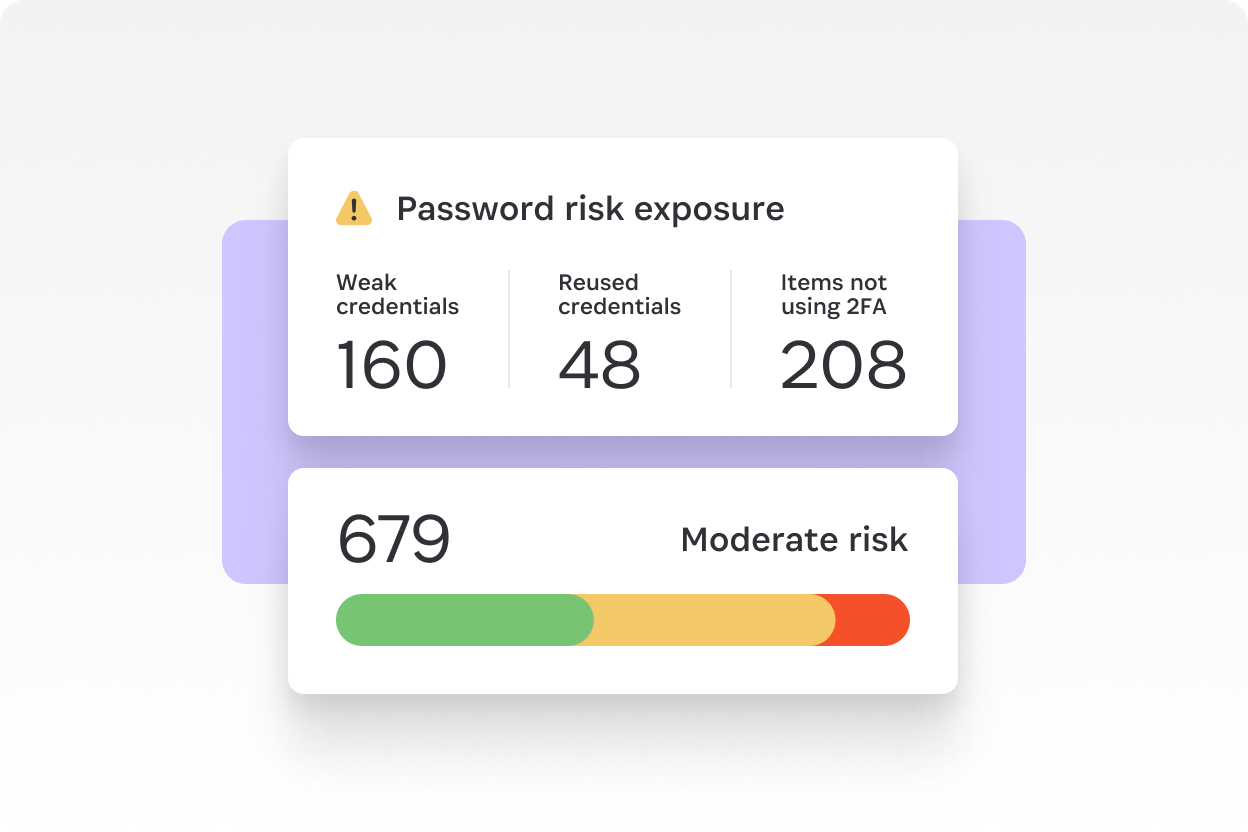
1Password has earned its reputation as the most polished password manager available. It blends top-tier security with everyday usability.
Why it stands out:
- Watchtower: Alerts you to weak, reused, or compromised passwords
- Travel Mode: Hide sensitive vaults when crossing borders
- Family/Team sharing: Securely share credentials with specific people
- Biometric unlock: Touch ID and Apple Watch support
My workflow: 1Password's Safari extension works seamlessly. Auto-fill is fast, and the Watchtower feature caught three accounts using passwords from data breaches I didn't know about.
Price: $35.88/year (individual) / $59.88/year (family)
Download: 1password.com
2. Bitwarden — The Open Source Choice
If you want transparency and value, Bitwarden is the answer. It's open source, audited, and has a genuinely useful free tier.
Key features:
- Open source and independently audited
- Self-hosting option for complete control
- Generous free tier (unlimited passwords)
- Cross-platform support
Best for: Privacy-conscious users who want full transparency into how their passwords are stored.
Price: Free / $10/year Premium
Download: bitwarden.com
3. Apple Keychain + Passwords App
Starting with macOS Tahoe, Apple's built-in Passwords app has become a legitimate option. It's free, integrated, and surprisingly capable.
Key features:
- iCloud sync across all Apple devices
- Passkey support
- Verification code generation
- Password sharing with iCloud sharing
Best for: Users fully in the Apple ecosystem who want simplicity.
Price: Free (built into macOS)

VPN Services
A VPN encrypts your internet traffic and hides your IP address. Essential for public Wi-Fi and privacy from your ISP.
Troubleshooting: Having VPN connection issues on macOS? See our Complete VPN Troubleshooting Guide for solutions to connection drops, speed issues, and configuration problems.
4. ProtonVPN — Privacy-First VPN
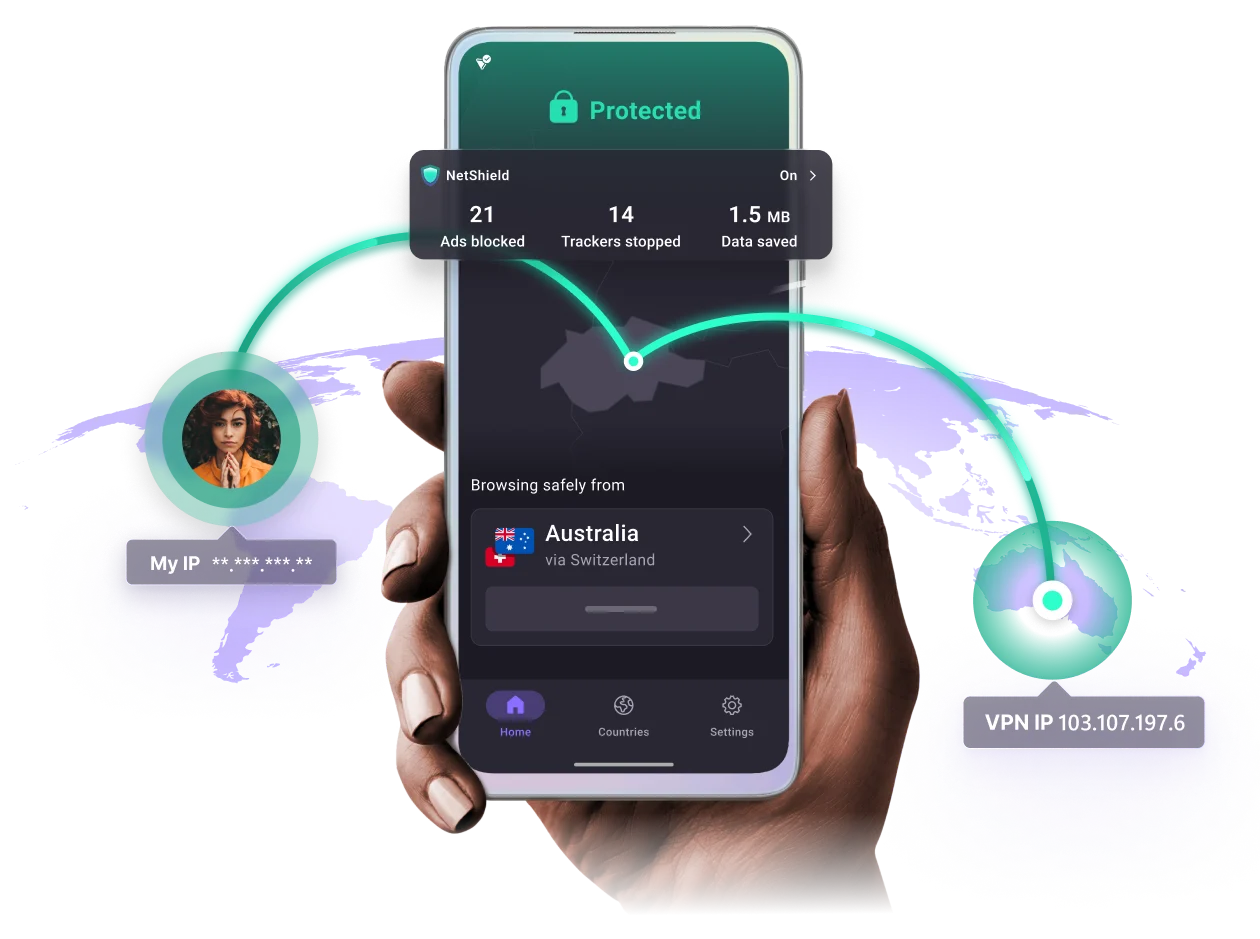
ProtonVPN comes from the team behind ProtonMail, based in Switzerland with strong privacy laws. They don't log your activity.
Why it stands out:
- Secure Core: Route traffic through multiple servers for extra protection
- No-logs policy: Independently audited
- WireGuard support: Fast, modern protocol
- Free tier available: Usable, not crippled
My workflow: I use ProtonVPN whenever on public Wi-Fi. The Mac app is native and doesn't drain battery like some VPNs.
Price: Free tier / $9.99/month Plus
Download: protonvpn.com
5. Mullvad VPN — Anonymous VPN
Mullvad takes privacy to the extreme. No email required to sign up—just a random account number. You can even pay with cash.
Key features:
- No email or personal info required
- Payment by cash, crypto, or card
- WireGuard native support
- Flat pricing, no upsells
Best for: Users who want maximum anonymity.
Price: €5/month (flat rate)
Download: mullvad.net
Firewall Applications
macOS's built-in firewall only blocks incoming connections. Third-party firewalls let you control outgoing connections too—essential for stopping apps from "phoning home."
6. Little Snitch — Complete Network Control
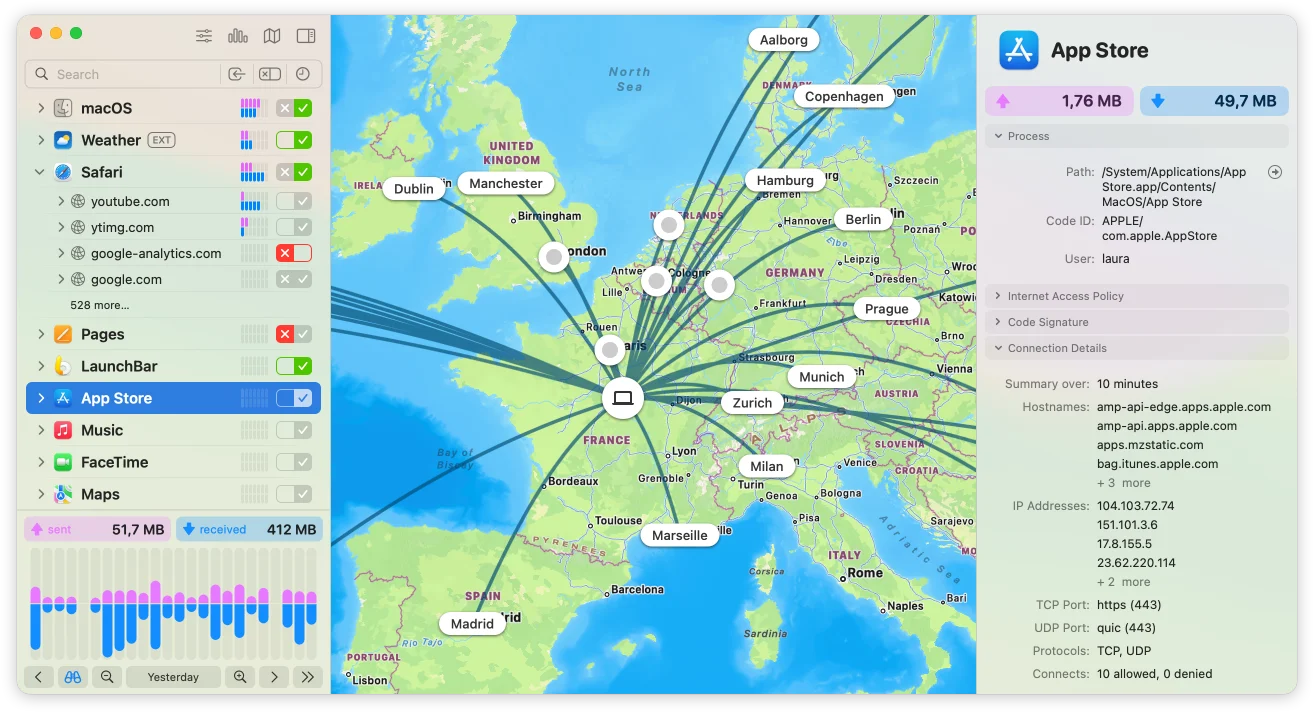
Little Snitch gives you granular control over every network connection your Mac makes. Nothing connects without your permission.
Why it stands out:
- Per-app, per-destination rules: Allow an app to reach its own server but block analytics
- Network Monitor: Real-time visualization of all connections
- Silent Mode: Automatically allow or deny connections based on your rules
- Detailed logs: See exactly what your apps are doing
My workflow: Little Snitch revealed several apps making connections I didn't expect. Some were harmless analytics; others were concerning enough that I uninstalled them.
Price: $39 (one-time)
Download: obdev.at/littlesnitch
7. LuLu — Free and Open Source
If you want outbound firewall protection without paying, LuLu is excellent. Created by Patrick Wardle, a respected Mac security researcher (former NSA).
Key features:
- Free and open source
- Minimal interface
- Created by a Mac security expert
- Rules-based blocking
Best for: Budget-conscious users who want basic outbound protection.
Price: Free
Download: objective-see.org/products/lulu.html
8. Radio Silence — Simple App Blocker
If you just want to block specific apps from connecting to the internet, Radio Silence is the simplest solution.
Key features:
- Add apps to block list, done
- Completely invisible after setup
- No popups or configuration
- Extremely lightweight
Best for: Users who know exactly which apps they want to block and want a set-it-and-forget-it solution.
Price: $9 (one-time)
Download: radiosilenceapp.com

Antivirus & Malware Protection
While macOS has XProtect built in, dedicated antivirus software catches more threats and provides additional features.
9. Bitdefender — Best Overall Protection
Bitdefender consistently scores 100% in independent testing (AV-TEST, AV-Comparatives). It's comprehensive without being bloated.
Why it stands out:
- Perfect detection rates: 100% in recent independent tests
- Time Machine Protection: Defends backups from ransomware
- Lightweight: Uses cloud scanning to minimize system impact
- Adware removal: Catches potentially unwanted programs
Performance: I was skeptical about antivirus slowing down my Mac, but Bitdefender's cloud-based scanning has minimal impact. Scans are fast.
Price: $39.99/year (3 devices)
Download: bitdefender.com
10. Malwarebytes — Simple and Effective
Malwarebytes is the tool I recommend for users who want protection without complexity. It's especially good at catching adware and PUPs.
Key features:
- Fast scans with minimal system impact
- App Block feature for unwanted apps
- Browser Guard extension
- Built-in VPN (Premium)
Best for: Users who want set-it-and-forget-it protection without configuring options.
Price: Free (manual scan) / $44.99/year Premium
Download: malwarebytes.com
11. CleanMyMac X — All-in-One Solution
CleanMyMac X combines malware protection with system optimization. If you want one app for cleaning, optimization, and security, this is it.
Key features:
- Real-time malware monitoring
- System junk cleaning
- App uninstaller with complete removal
- Performance optimization
Best for: Users who want security bundled with maintenance tools.
Price: $39.95/year or $89.95 one-time
Download: cleanmymac.com
Privacy Tools
Beyond security, privacy tools help you control what data you share.
12. AdGuard — Network-Wide Ad Blocking
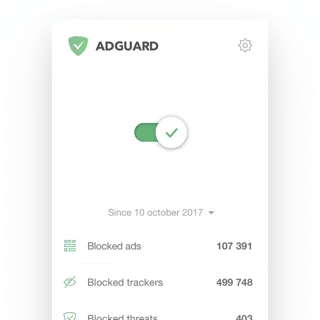
AdGuard blocks ads, trackers, and malicious websites at the system level—not just in browsers.
Related: For privacy-focused AI tools that work offline, check out our Local AI Apps Privacy Guide.
Key features:
- Works in all apps, not just browsers
- DNS filtering option
- Parental controls
- Safari extension included
Price: $29.99/year
Download: adguard.com
13. DuckDuckGo Browser — Private Browsing
DuckDuckGo's Mac browser makes private browsing the default, not an option to enable.
Key features:
- Automatic tracker blocking
- Cookie consent handling
- Email protection (hide your real email)
- Fire Button to clear all data instantly
Price: Free
Download: duckduckgo.com
Essential macOS Security Settings
Before installing any third-party tools, optimize these built-in settings.
Deep Dive: For comprehensive coverage of macOS Tahoe's built-in security features including FileVault evolution, quantum encryption, and Apple Intelligence privacy, see our macOS Tahoe Security & Privacy Complete Guide.
System Settings Checklist
-
Enable FileVault (Settings → Privacy & Security → FileVault)
- Encrypts your entire disk
- Essential if your Mac could be stolen
-
Enable Firewall (Settings → Network → Firewall)
- Turn on for basic incoming protection
- Enable stealth mode to avoid responding to probes
-
Review App Permissions (Settings → Privacy & Security)
- Audit camera, microphone, and location access
- Remove permissions from apps that don't need them
-
Enable Find My Mac (Settings → Apple Account → iCloud → Find My Mac)
- Locate, lock, or erase a lost Mac
- Activation Lock prevents thieves from using it
-
Require Password Immediately (Settings → Lock Screen)
- Set "Require password after screen saver begins" to Immediately
FAQ
Do I really need antivirus on a Mac?
Yes, but maybe not for the reasons you think. Modern Mac malware is often adware, unwanted programs, or credential-stealing tools rather than viruses. Bitdefender or Malwarebytes catch these effectively.
Is Apple Keychain secure enough?
For most users, yes. The Passwords app in macOS Tahoe is significantly improved. However, 1Password and Bitwarden offer better organization, sharing, and cross-platform support.
Should I use a free VPN?
Be cautious. Free VPNs often monetize by selling your data—the opposite of privacy. ProtonVPN's free tier is one of the few trustworthy free options.
Does Little Snitch slow down my Mac?
No. Little Snitch is well-optimized and runs efficiently. The initial setup requires attention as you approve/deny connections, but it becomes automatic once configured.
Conclusion
Mac security in 2026 requires a layered approach:
- Foundation: Strong passwords (1Password/Bitwarden) and encrypted disk (FileVault)
- Network: VPN for public Wi-Fi (ProtonVPN) and firewall for outbound control (Little Snitch/LuLu)
- Protection: Antivirus for malware (Bitdefender) and browser privacy (DuckDuckGo)
You don't need every tool listed here. Start with a password manager—that alone dramatically improves your security. Add layers based on your threat model and comfort level.
The best security is the security you actually use.