Best Mac Backup Strategy 2026: Complete Guide
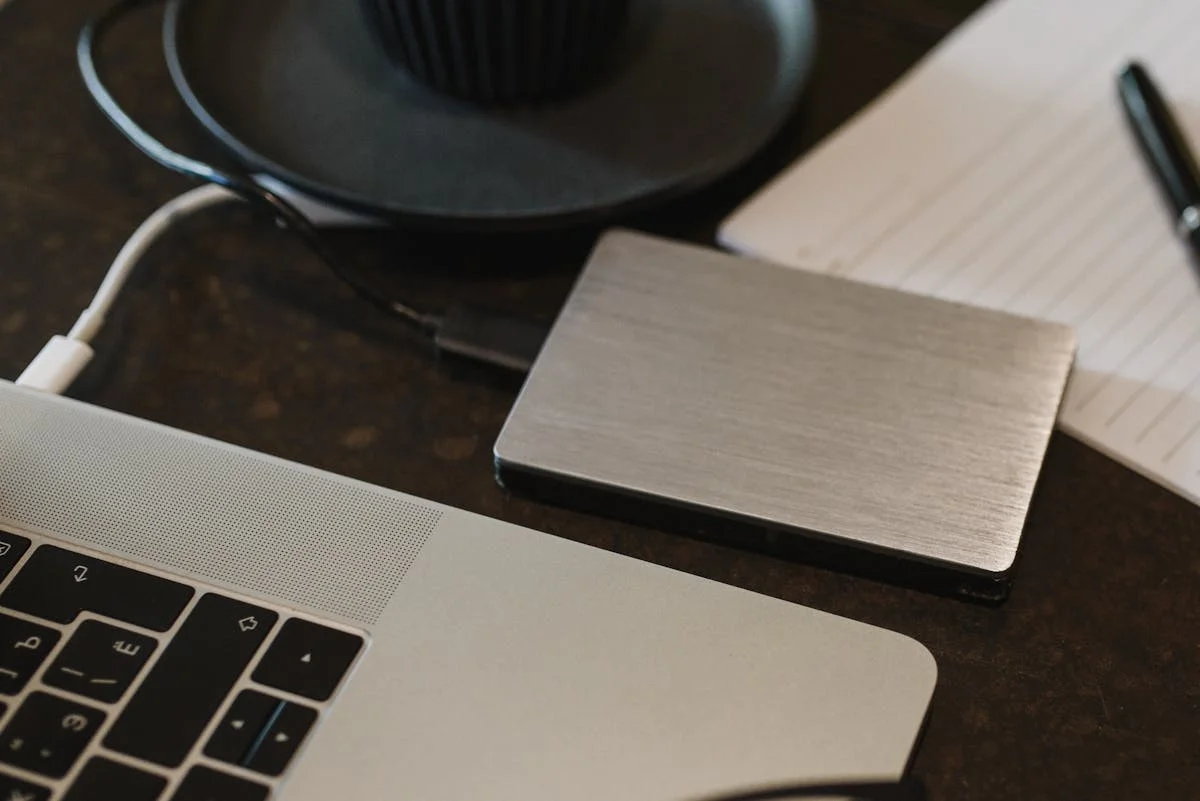
Build a bulletproof Mac backup strategy with Time Machine, iCloud Drive, and bootable clones. Learn the 3-2-1 rule and protect your data in 2026.
Every year, roughly one in ten computer users experiences significant data loss. Hard drives fail without warning. Coffee spills happen. Ransomware encrypts entire photo libraries in minutes. According to Backblaze's 2025 drive reliability report, the annualized failure rate across all drive models hovered around 1.7% -- and that only accounts for enterprise-grade hardware in climate-controlled data centers. Consumer drives in less controlled environments fail at even higher rates. If you are reading this on a Mac with no backup in place, you are gambling with irreplaceable photos, documents, creative projects, and years of digital life.
The good news: macOS provides one of the best built-in backup ecosystems of any operating system. Between Time Machine, iCloud Drive, and third-party cloning tools, you can build a layered backup strategy that protects you against hardware failure, accidental deletion, theft, fire, and even ransomware -- all for less than $200 per year. This guide walks you through exactly how to do it in 2026, with real costs, real tool recommendations, and real-world testing advice drawn from years of managing Mac backups across personal and professional machines.
Key Takeaways
- Follow the 3-2-1 rule: Keep at least 3 copies of your data, on 2 different media types, with 1 copy stored offsite. This is the gold standard for data protection.
- Time Machine is your first line of defense: Free, built into macOS, and provides hourly incremental backups with file versioning. Pair it with a reliable external drive and you have a solid baseline.
- iCloud Drive is sync, not backup: It protects against device loss but not accidental deletion or corruption. Understand the difference before relying on it.
- Clone backups give you instant recovery: A bootable clone created with Carbon Copy Cloner or SuperDuper lets you boot from an external drive and be working again in minutes after a catastrophic failure.
- Test your backups quarterly: An untested backup is not a backup. This guide includes a concrete testing protocol you can follow in under 30 minutes.
The 3-2-1 Backup Rule Explained
The 3-2-1 backup rule has been the standard recommendation from data recovery professionals, IT departments, and organizations like the United States Computer Emergency Readiness Team (US-CERT) for over a decade. Despite its simplicity, it remains the most effective framework for personal data protection.

Here is how it works:
3 copies of your data. Your original data counts as one copy. You need at least two additional copies. If any single copy fails or becomes corrupted, you still have two remaining sources of recovery.
2 different media types. Storing all your backups on the same type of device exposes you to correlated failures. If you back up your internal SSD to another SSD in the same machine, a power surge could destroy both simultaneously. By using different media -- your internal drive plus an external SSD plus cloud storage -- you diversify your risk.
1 offsite copy. This is the piece most people skip, and it is the piece that saves you from fire, flood, theft, and other physical disasters. If every copy of your data sits on your desk, a single house fire eliminates everything. Cloud backup solves this automatically, but you can also rotate an external drive to a friend's house or your office.
For a Mac user in 2026, the ideal 3-2-1 implementation looks like this:
| Copy | Media Type | Location | Tool |
|---|---|---|---|
| 1 (Original) | Internal SSD | Your Mac | -- |
| 2 (Local backup) | External SSD/HDD | Your desk | Time Machine |
| 3 (Offsite backup) | Cloud storage | Remote data center | Backblaze / Arq / iCloud |
| Bonus: Clone | External SSD | Your desk or offsite | Carbon Copy Cloner |
You can go further by keeping a rotated clone drive offsite, giving you four copies across three media types. That level of redundancy is overkill for most people, but I personally do it for my primary work machine because the cost of data loss far exceeds the cost of an extra $120 drive.
Before setting up your backup drives, it is worth running a storage management optimization pass on your Mac. Clearing unnecessary files means faster initial backups, less storage consumed, and a cleaner restore experience.
Time Machine -- Your First Line of Defense
Time Machine is Apple's built-in backup solution, part of macOS since Leopard in 2007. After nearly two decades of refinement, it remains one of the simplest and most reliable consumer backup tools available. In macOS Tahoe, Time Machine uses APFS snapshots on compatible drives, offering significantly faster backups and more efficient storage than the older HFS+ format.
Setting Up Time Machine
Setting up Time Machine takes less than five minutes:
-
Connect an external drive to your Mac. Time Machine supports USB-A, USB-C, Thunderbolt, and network-attached storage (NAS) drives. For the best experience with modern Macs, use a USB-C or Thunderbolt SSD. If you need help selecting and connecting a drive, our external storage and backup guide covers compatible formats, connection types, and initial setup in detail.
-
Open System Settings and navigate to General > Time Machine.
-
Click "Add Backup Disk" and select your external drive.
-
Enable encryption. I strongly recommend this. Without it, anyone who gains physical access to your backup drive can read every file -- emails, financial documents, everything. Encrypted Time Machine backups use XTS-AES-128 encryption with negligible performance overhead on Apple Silicon Macs.
-
Click "Set Up Disk." If the drive is not already APFS, macOS will offer to reformat it. Time Machine begins its initial backup automatically.

The initial backup takes 30 minutes to several hours depending on data volume and drive speed. A 500 GB backup to a USB 3.2 Gen 2 SSD typically completes in 40-60 minutes. Subsequent incremental backups usually complete in under a minute.
After setup, Time Machine automatically:
- Backs up every hour while the drive is connected
- Keeps hourly backups for 24 hours
- Keeps daily backups for the past month
- Keeps weekly backups for all previous months
- Deletes oldest backups only when the drive runs out of space
Pro tip: On macOS Tahoe, you can add multiple backup destinations. I recommend two Time Machine drives: one connected to your desk setup permanently, and one you rotate offsite weekly. This gives you both continuous protection and offsite coverage.
Best External Drives for Time Machine in 2026
Choosing the right drive matters. Here are my recommendations based on testing across multiple Mac configurations:
| Drive | Type | Capacity | Speed | Price | Best For |
|---|---|---|---|---|---|
| Samsung T9 | Portable SSD | 2 TB | 2,000 MB/s | $130 | Most users |
| SanDisk Extreme Pro | Portable SSD | 2 TB | 2,000 MB/s | $140 | Rugged/outdoor |
| WD My Passport (2026) | Portable HDD | 5 TB | 130 MB/s | $110 | Budget/max capacity |
| OWC Envoy Pro FX | Portable SSD | 4 TB | 2,800 MB/s | $300 | Power users |
| Seagate One Touch HDD | Portable HDD | 4 TB | 130 MB/s | $90 | Budget large backup |
My recommendation for most users: Get a 2 TB Samsung T9 or equivalent USB-C SSD. At around $130, it is fast enough to make backups invisible in your workflow, large enough for most Macs (Apple recommends a backup drive at least twice the size of your internal storage), and small enough to toss in a bag for offsite rotation.
If you are connecting drives through a Thunderbolt dock, make sure it supports the necessary bandwidth. Our roundup of the best Thunderbolt 5 docks covers which docks handle external storage without bottlenecking.
Drive formatting note: Time Machine on macOS Tahoe works best with APFS-formatted drives. If your external SSD is not being recognized or formatted correctly, our macOS external SSD troubleshooting guide walks through common detection and formatting issues.
Time Machine Limitations
Time Machine is excellent, but it is not a complete solution on its own:
- No bootable backup. If your Mac's internal drive fails, you cannot boot from Time Machine. Full restore via macOS Recovery takes several hours, during which you have no working computer.
- Requires drive connection. MacBook users who only dock occasionally may go days between backups. Local APFS snapshots help, but are limited by internal storage.
- Slow full restores. Restoring 1 TB via USB takes 2-4 hours; via NAS, 8-12 hours or more.
- Limited corruption protection. Silently corrupted files may have their last good version cycled out before you notice -- rare but possible with large media files you open infrequently.
- Encryption password is critical. Forget it and the backup is permanently inaccessible. Store the password in your password manager.
If you encounter issues with Time Machine -- stuck backups, drives not appearing, or error messages -- our comprehensive Time Machine troubleshooting guide covers every common problem and its solution.
iCloud Drive -- Sync, Not Backup (Know the Difference)
This is the single most misunderstood aspect of Apple's data protection ecosystem. iCloud Drive is a synchronization service, not a backup service. The distinction matters enormously.
Synchronization means your files exist on Apple's servers and are mirrored across your devices. Change a file on your Mac and the change propagates to iCloud and your other devices.
Backup means a point-in-time copy of your files is preserved independently, so you can recover a previous version even after damage, deletion, or corruption.
The critical difference: if you delete a file from iCloud on one device, it is deleted everywhere. If ransomware encrypts your Documents folder and that folder syncs to iCloud, the encrypted versions replace the good versions on all devices. Sync propagates destruction just as efficiently as creation.
What iCloud Protects
- Device loss or theft: Files remain safe on Apple's servers, accessible from any device or iCloud.com
- Hardware failure: Re-download files to a new Mac or replacement drive
- Recently Deleted recovery: 30-day window for accidental deletions
- iWork version history: Pages, Numbers, and Keynote documents have built-in versioning
- Photos Library sync: iCloud Photos syncs your entire photo library with version protection
For users who want to maximize iCloud's capabilities, our guide to iCloud Drive advanced workflows covers folder sharing, selective sync, optimized storage, and power-user configurations.
What iCloud Does NOT Protect
- Deletions after 30 days: Gone permanently from all devices and servers
- Application data outside iCloud: Database files, VMs, development environments, application support folders
- System settings: macOS preferences, network configs, printer setups, custom keyboard shortcuts
- Local-only files: Applications folder, /Library, anything outside iCloud Drive, Desktop, and Documents sync
- Ransomware and corruption: Malicious changes sync through iCloud like any other change
- Account compromise: Someone with Apple Account access can delete your iCloud data. Our Mac security and privacy guide covers how to lock down your account and enable advanced data protection
iCloud storage tiers in 2026:
| Plan | Storage | Monthly Cost | Annual Cost |
|---|---|---|---|
| Free | 5 GB | $0 | $0 |
| iCloud+ | 50 GB | $0.99 | $12 |
| iCloud+ | 200 GB | $2.99 | $36 |
| iCloud+ | 2 TB | $9.99 | $120 |
| iCloud+ | 6 TB | $29.99 | $360 |
| iCloud+ | 12 TB | $59.99 | $720 |
For a detailed walkthrough of setup, storage management, and troubleshooting sync issues, see our iCloud Drive complete guide.
My recommendation: Use iCloud as a convenience and access layer, not your primary backup. Pay for enough storage to sync Documents, Desktop, and Photos comfortably, then back everything up properly with Time Machine and a clone.
Clone Backups -- Carbon Copy Cloner and SuperDuper
A clone backup is an exact, bootable replica of your Mac's internal drive. If your Mac dies, connect the clone to another Mac and you have a working system immediately -- apps, settings, files, everything exactly as it was.
Why You Need a Bootable Clone
Scenario 1: SSD fails on deadline day. Time Machine restore takes 3-6 hours minimum (get replacement hardware, install macOS, restore). A clone gets you working in minutes by booting from the external drive.
Scenario 2: macOS update goes wrong. Boot your pre-update clone, verify the issue, and decide whether to wait for a fix or roll back. Far simpler than rolling back via Time Machine.
Scenario 3: Backup integrity verification. The most reliable way to test a backup is to boot from it. With a clone, this is trivial.
Apple Silicon note: Since M1, bootable clones require an extra authorization step through macOS Recovery to approve the external boot volume. Both Carbon Copy Cloner and SuperDuper handle this process, but it is not as seamless as it was on Intel Macs. The tools document it clearly and it works reliably.
How to Create a Clone Backup
Carbon Copy Cloner (CCC) -- $49.99 one-time purchase
CCC is the gold standard for Mac cloning, actively maintained since 2002 across every major macOS architecture change including APFS, Apple Silicon, and macOS Tahoe.
- Download and install from bombich.com (30-day free trial available)
- Connect your external drive -- at least as large as your Mac's used space
- Open CCC and click "New Task"
- Select source (Macintosh HD) and destination (external drive)
- Click "Start" -- initial clone takes 30-90 minutes depending on data and drive speed
- Schedule regular updates -- daily or weekly; incremental updates take 5-15 minutes
SuperDuper -- Free (basic) / $27.95 (full)
SuperDuper by Shirt Pocket is simpler and more affordable. The free version creates full clones; the paid version adds scheduling, smart incremental updates, and scripting. For budget-conscious users, SuperDuper at $27.95 is excellent value, though CCC's more active development and better Apple Silicon support make it the stronger choice overall.
Clone backup best practices:
- Update at least weekly; daily for critical work
- Test by actually booting from the clone each quarter
- Keep the clone disconnected when not updating (protects from ransomware and power surges)
- Label drives with the last update date and which Mac they belong to
Cloud Backup Services -- Backblaze, Arq, Acronis
Cloud backup is the easiest way to achieve offsite protection without physically transporting drives. Unlike iCloud (which syncs), these services create true backups -- versioned, independent copies recoverable even after local deletion or corruption.
Backblaze Personal Backup -- $99/year
Backblaze is the most popular cloud backup for Mac users:
- Unlimited storage for one computer ($99/year or $9/month)
- Continuous background backup -- monitors your filesystem and uploads changes automatically
- 30-day version history by default, extendable to 1 year for $24/year
- Restore options: free ZIP download, or USB drive shipped to you ($189, refundable within 30 days)
- Encryption: TLS in transit, AES-128 at rest, optional private encryption key for zero-knowledge protection
- External drives included at no extra cost (must reconnect every 30 days)
- Requires Full Disk Access in System Settings > Privacy & Security on macOS Tahoe
Arq Backup -- $49.99 one-time + storage costs
Arq is a backup application you own outright, paired with your choice of cloud storage:
- Supports Amazon S3, Google Cloud, Azure, Backblaze B2 ($6/TB/month), Wasabi ($6.99/TB/month), SFTP
- Block-level deduplication for efficient incremental backups
- Unlimited configurable retention policies
- No vendor lock-in -- your data, your storage, your encryption keys
Typical cost: Arq ($50) + B2 for 1 TB ($72/year) = $122 first year, $72/year after. Cheaper than Backblaze Personal for datasets under ~1.5 TB, with longer version history.
Acronis Cyber Protect Home Office -- $49.99-$89.99/year
Acronis offers an enterprise-flavored solution with full disk imaging, built-in anti-ransomware, and blockchain file verification. It is heavier on system resources and more complex than most home users need. The Advanced plan ($89.99/year) includes 500 GB of cloud storage.
My recommendation: Backblaze at $99/year for most users -- truly set-and-forget with unlimited storage. Arq + B2 for power users who want full control over retention and storage.
The Ideal Mac Backup Setup for 2026
Here are three tiers to match different needs and budgets:
Tier 1: Essential Protection (~$135/year)
| Component | Tool | Cost |
|---|---|---|
| Local backup | Time Machine + 2 TB SSD | $130 one-time |
| Cloud sync | iCloud+ 200 GB | $36/year |
| Cloud backup | Backblaze Personal | $99/year |
First year: ~$265. Subsequent years: ~$135. Covers the 3-2-1 rule: three copies, two media types, one offsite.
Tier 2: Recommended Protection (~$219/year)
| Component | Tool | Cost |
|---|---|---|
| Local backup | Time Machine + 2 TB SSD | $130 one-time |
| Clone backup | CCC + 1 TB SSD | $50 + $80 one-time |
| Cloud sync | iCloud+ 2 TB | $120/year |
| Cloud backup | Backblaze Personal | $99/year |
First year: ~$479. Subsequent years: ~$219. Adds instant boot recovery and full iCloud sync.
Tier 3: Maximum Protection (~$264/year)
| Component | Tool | Cost |
|---|---|---|
| Local backup | Time Machine + 4 TB SSD | $250 one-time |
| Clone (home) | CCC + 2 TB SSD | $50 + $130 one-time |
| Clone (offsite) | 2 TB SSD rotated weekly | $130 one-time |
| Cloud sync | iCloud+ 2 TB | $120/year |
| Cloud backup | Arq + B2 (2 TB) | $50 + $144/year |
First year: ~$874. Subsequent years: ~$264. Maximum redundancy: two local copies, two offsite copies, unlimited version history, instant boot recovery.
If your Mac is running low on internal storage -- which affects backup efficiency and speed -- use a storage analyzer tool to identify and clean up large or duplicate files before your next backup run.
How to Test Your Backups (Don't Skip This!)
An untested backup is not a backup. I have personally witnessed situations where someone ran Time Machine diligently for years, only to discover during an emergency that the backup was corrupted, the drive had bad sectors, or the encryption password was lost. Testing is not optional.
Quarterly Backup Testing Protocol
Set a calendar reminder each quarter and spend 30 minutes:
Time Machine Test (10 minutes):
- Verify the last backup date is within 24 hours
- Browse Time Machine Backups and navigate back several weeks
- Restore one non-critical file to a temporary location
- Verify the restored file opens correctly with expected content
- Check backup size growth in Disk Utility
Clone Test (15 minutes):
- Check the last successful clone date in CCC or SuperDuper
- Actually boot from the clone (Apple Silicon: hold power button at startup, select the clone drive)
- Open several apps, verify files exist, check network connectivity
- Restart to your internal drive
- Run a clone update to confirm the incremental process works
Cloud Backup Test (5 minutes):
- Check the last backup date in your client
- Log into the web interface and browse backed-up files
- Download one file and verify it opens correctly
What to Do If a Test Fails
- Corrupted Time Machine: Run Disk Utility First Aid on the backup drive. If corrupted beyond repair, delete and start a fresh backup -- a new complete backup beats a corrupted chain.
- Clone will not boot: Often an Apple Silicon security policy issue. Re-create the clone with the latest CCC, which manages boot policies automatically.
- Stalled cloud backup: Re-grant Full Disk Access after macOS updates. Check client logs (Backblaze: ~/Library/Logs/Backblaze/). Common causes include VPN throttling and paused clients.
Backup Costs Comparison Table
| Solution | Type | One-Time Cost | Annual Cost | Storage | Versioning | Offsite |
|---|---|---|---|---|---|---|
| Time Machine | Local backup | $0 (built-in) | $0 | Drive-dependent | Hourly/daily/weekly | No |
| iCloud+ 200 GB | Cloud sync | $0 | $36 | 200 GB | 30-day recovery | Yes |
| iCloud+ 2 TB | Cloud sync | $0 | $120 | 2 TB | 30-day recovery | Yes |
| Backblaze Personal | Cloud backup | $0 | $99 | Unlimited | 30 days (1 yr +$24) | Yes |
| Arq + B2 (1 TB) | Cloud backup | $50 | $72 | Pay-per-use | Unlimited | Yes |
| Carbon Copy Cloner | Clone | $50 | $0 | Drive-dependent | Snapshots | Rotatable |
| SuperDuper (paid) | Clone | $28 | $0 | Drive-dependent | Latest state | Rotatable |
| Acronis Advanced | Full backup | $0 | $90 | 500 GB cloud | Configurable | Yes |
Hardware costs (approximate 2026 prices):
| Drive | Capacity | Price |
|---|---|---|
| Portable SSD (USB-C) | 1 TB | $80 |
| Portable SSD (USB-C) | 2 TB | $130 |
| Portable SSD (USB-C) | 4 TB | $250 |
| Portable HDD (USB) | 4 TB | $90 |
| Portable HDD (USB) | 5 TB | $110 |
| NAS (Synology 2-bay, diskless) | -- | $200 |
Troubleshooting Common Backup Issues
Time Machine: "Backup Disk Not Available"
- Check the physical connection -- try a different USB-C cable or port
- Open Disk Utility; if the drive appears grayed out, click Mount
- Run First Aid on the backup drive
- Try connecting to a different Mac to rule out drive failure
- Remove and re-add the drive in Time Machine settings
Time Machine: Extremely Slow Backups
- Exclude the backup drive from Spotlight (System Settings > Siri & Spotlight > Spotlight Privacy)
- Switch from HDD to SSD -- the speed improvement is dramatic (10x or more)
- Temporarily disable throttling:
sudo sysctl debug.lowpri_throttle_enabled=0(resets on restart) - Avoid running other heavy I/O operations during backup
Clone: Permission Errors
- Grant Full Disk Access to CCC or SuperDuper in System Settings > Privacy & Security
- Verify the helper process (com.bombich.ccc.helper for CCC) is listed
- If problems persist: remove from Full Disk Access, quit the app, re-add, relaunch
Backblaze: Stuck or Slow Upload
- Increase thread count in Backblaze's Performance settings
- Verify Full Disk Access is granted
- Disconnect VPN temporarily (some throttle backup traffic)
- Use Ethernet instead of Wi-Fi for initial large backups
- Check status.backblaze.com for service issues
iCloud: Files Missing or Not Syncing
- Check iCloud storage is not full (System Settings > Apple Account > iCloud)
- If "Optimize Mac Storage" is removing local copies, disable it if you have sufficient local storage
- Sign out and back into iCloud to force a complete re-sync
- Check apple.com/support/systemstatus/ for iCloud outages
For deeper Time Machine diagnostics, including verification errors and backup corruption, see our detailed Time Machine troubleshooting guide.
Frequently Asked Questions
How often should I back up my Mac?
Time Machine: leave it running continuously -- it backs up every hour automatically with minimal performance impact. Clones: weekly at minimum, daily for critical work. Cloud backup: continuously (Backblaze handles this automatically). The cost of a backup is always less than losing the data created since the last one.
Is iCloud Drive a sufficient backup for my Mac?
No. iCloud Drive is a synchronization service. It does not protect against ransomware (which syncs encrypted files to all devices), does not preserve unlimited file history, does not back up applications or system settings, and permanently deletes files after 30 days. Always pair iCloud with Time Machine and a clone or cloud backup.
Can I use Time Machine with a NAS?
Yes. Time Machine supports SMB-compatible NAS devices from Synology, QNAP, and others. Network backups are slower than direct-attached drives (100-120 MB/s on Gigabit Ethernet vs. 500-2,000 MB/s on USB/Thunderbolt SSD), but they are always available without connecting a drive. A NAS also allows multiple Macs in a household to back up to the same device.
How much storage do I need for Time Machine?
Apple recommends at least twice your internal storage. A 512 GB Mac needs a 1 TB drive; a 1 TB Mac needs 2 TB. More space means more version history retained before old backups are automatically purged.
What happens to my backups when I get a new Mac?
Migration Assistant (available during new Mac setup) can restore from a Time Machine backup or clone, transferring files, apps, settings, and user accounts. After migration, start a fresh Time Machine backup on the new Mac for optimal performance. Cloud backups (Backblaze) treat a new Mac as a new computer but keep old backups accessible for 6 months after deauthorizing the old machine.
Conclusion
Building a reliable Mac backup strategy in 2026 is not complicated, and it does not have to be expensive. The 3-2-1 rule is your foundation: three copies of your data, on two media types, with one copy offsite. Time Machine provides hourly versioned backup. A clone gives instant recovery when time matters. Cloud backup ensures that even a house fire cannot destroy your data.
The most important step is the first one: connect an external drive and turn on Time Machine. That single action puts you ahead of most Mac users. Adding a clone and cloud backup are straightforward incremental improvements that dramatically increase your resilience.
Do not wait for a data loss event to motivate you. The drives are affordable, the tools are mature, and setup takes under an hour. Your future self -- the one who just spilled coffee on a MacBook or discovered a critical project folder was accidentally deleted three weeks ago -- will thank you.
Start today. Back up now. Test quarterly.
Sources
-
Apple Support -- Back up your Mac with Time Machine. support.apple.com/en-us/104984. Official Apple documentation on Time Machine setup and usage.
-
Apple Support -- System requirements for Time Machine. support.apple.com/en-us/102423. Supported drive formats and network backup requirements.
-
Apple Support -- iCloud storage plans and pricing. support.apple.com/en-us/108047. Current iCloud+ tiers and family sharing.
-
Backblaze -- Hard Drive Stats for 2025. backblaze.com/blog/hard-drive-stats-for-2025. Annualized failure rates for data center drives.
-
Bombich Software -- Carbon Copy Cloner Documentation. bombich.com/documentation. Apple Silicon boot volumes, APFS snapshots, scheduling.
-
Shirt Pocket -- SuperDuper! Documentation. shirt-pocket.com/SuperDuper/SuperDuperDescription.html. Features and macOS compatibility.
-
Backblaze -- Cloud Backup. backblaze.com/cloud-backup. Encryption, restore options, pricing.
-
Arq Backup -- Documentation. arqbackup.com/documentation/. Storage destinations, deduplication, retention.
-
US-CERT -- Data Backup Options. us-cert.cisa.gov. The original 3-2-1 rule recommendation.
-
Apple Platform Security -- Volume encryption with FileVault. support.apple.com/guide/security. APFS encryption used by Time Machine.