Passwords App in macOS 27 Can Now Auto-Fix Hacked Logins
In macOS 27, the Passwords app uses agentic Apple Intelligence to automatically change weak and compromised passwords for you. How it works and the risks.
Your Mac can now change your hacked passwords by itself -- and the only question that matters is whether you should let it. At WWDC on June 8, 2026, Apple announced that the Passwords app in macOS 27 Golden Gate gains an agentic capability: when it flags a credential as weak, reused, or caught in a data breach, you can tap a single button and Apple Intelligence will open the site in Safari, sign in with your stored credentials, navigate the account's change-password flow, generate a strong replacement, save it on the site, and update the entry in your vault -- all without you typing a thing. It is the most genuinely autonomous thing Apple has shipped under the "Apple Intelligence" banner, and it is also the kind of feature that should make any security-minded user pause. An assistant that can log into your accounts and rewrite your credentials is powerful precisely because it is dangerous. This guide explains exactly how the feature works, which sites it can and cannot handle, the real security tradeoffs on both sides, and how to control or disable it entirely.
Key Takeaways
- The Passwords app in macOS 27 can automatically change weak and compromised passwords for you. Apple announced this at WWDC on June 8, 2026, alongside iOS 27 and iPadOS 27. It builds on the Security Recommendations feature the Passwords app has had since 2024.
- It is "agentic" AI. Working through Apple Intelligence and Safari, the assistant opens the site, signs in with your existing stored credentials, finds the change-password page, generates a new password, replaces it on the site, and updates your vault -- a multi-step action taken on your behalf, not just a suggestion.
- Coverage depends on web standards, not Apple alone. Sites that implement the
.well-known/change-passwordURL standard and use well-structured login and change-password forms are the best candidates. Older portals, custom auth flows, and sites with mandatory CAPTCHA or 2FA steps may still need manual handling. - The security debate is real and unresolved. The upside is closing the window on a compromised password in seconds; the downside is a larger attack surface, the risk of phishing redirects, and uncertain behavior on partial failures. Apple cites on-device processing, Private Cloud Compute, and user-triggered actions as safeguards, but several operational details remain unpublished.
- You stay in control. The action only appears on flagged entries, you trigger it, and you can always decline and change a password manually. The Passwords app continues to work as an ordinary manager if you never touch the feature. As part of the broader Apple Intelligence rollout, availability may be gradual.
What the Feature Actually Is
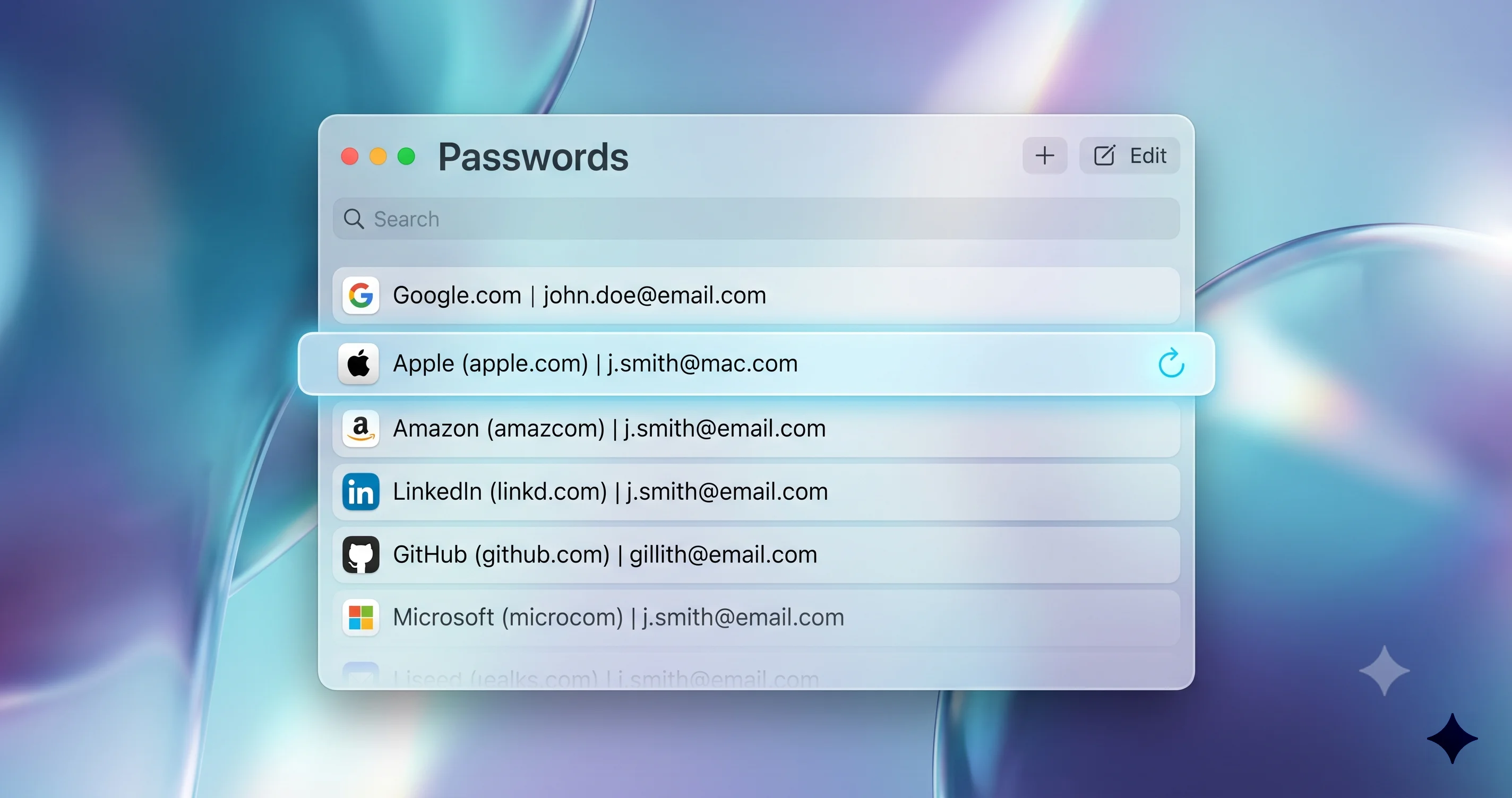
To understand what is new in macOS 27, you first need to understand what already existed. Apple shipped a standalone Passwords app in 2024 with iOS 18 and macOS Sequoia 15, graduating password management out of the Settings app's iCloud Keychain section into a dedicated, first-class application. That app already included a Security Recommendations section, which scans your saved credentials and flags three categories of problem: passwords that are weak (short, predictable, or low-entropy), passwords you have reused across multiple sites, and passwords that have appeared in known data breaches. Apple checks the last category by comparing your credentials against lists of leaked passwords using a privacy-preserving method that never sends your actual passwords to Apple in readable form.
What the 2024 Passwords app did not do was fix any of those problems for you. It told you that your bank password was reused on three other sites, or that your old forum login had turned up in a breach, and then it left the actual work to you: go to the site, log in, hunt for the account settings, find the change-password form, think up a new password (or let the app suggest one), and save it. For most people, most of the time, that friction meant the warnings sat there, ignored, indefinitely. A list of flagged passwords that nobody ever acts on does not improve anyone's security.
The macOS 27 escalation is the part that closes that gap. Apple describes it as the ability to automatically fix weak and compromised passwords. Instead of a warning that hands you a to-do list, the flagged entry now offers a button that does the entire job for you. Apple frames this as the natural evolution of Security Recommendations: the app already knew which passwords were bad, so the logical next step was to let it repair them. The mechanism behind that button is what makes it remarkable -- and what makes it controversial.
This is "agentic AI" in the precise sense the industry now uses that term. An agent is not a chatbot that answers a question; it is a system that takes a sequence of actions in the world to accomplish a goal. Booking a flight, filing an expense report, or -- in this case -- changing a password across a live website are all agentic tasks because they require navigating an interface, making decisions at each step, and recovering from things that do not go as expected. macOS 27's password feature is one of the first consumer-facing agentic capabilities Apple has shipped, and it lives in one of the most sensitive places imaginable: your credential vault.
How the Agentic Auto-Change Works, Step by Step
According to Apple, the auto-change feature operates by orchestrating Apple Intelligence and Safari together. Here is the sequence as Apple has described it, broken down into the discrete steps the agent performs on your behalf.
Step 1 -- Detection. This is the existing Security Recommendations engine. The Passwords app continuously evaluates your saved credentials against its weak, reused, and breached criteria, and surfaces problem entries in the Security section. Nothing here is new; it is the trigger that makes the rest possible.
Step 2 -- You initiate. Crucially, the agent does not act on its own. When you open a flagged entry, you see the option to fix it automatically. You tap that button. This human-in-the-loop trigger is a deliberate design choice and one of Apple's central stated safeguards: the system never decides on its own to start logging into your accounts.
Step 3 -- The site opens in Safari. The agent launches the website associated with the credential. Because Apple controls both the Passwords app and Safari, the assistant operates inside Apple's own browser sandbox rather than scripting a third-party app.
Step 4 -- Sign-in with existing credentials. The agent authenticates using the current credentials already stored in your vault -- the same username and (compromised) password the app autofills today. It does not need you to type anything, because it already holds what it needs.
Step 5 -- Navigate to the change-password page. This is the hard part, and it is where web standards matter enormously (covered in detail in the next section). The agent locates the account's password-change interface, ideally by following a standardized URL rather than guessing its way through menus.
Step 6 -- Generate a strong new password. The agent creates a high-entropy replacement using the same secure password generator the Passwords app already offers, conforming to the site's specific requirements (length, character classes, and so on) where it can detect them.
Step 7 -- Submit the change on the site. The agent fills in the change-password form -- typically the old password, the new password, and a confirmation field -- and submits it, completing the change on the live service.
Step 8 -- Update the vault. Finally, the agent writes the new password back into the Passwords app entry so that your stored credential matches what now lives on the site. Without this step you would be locked out, so it is integral to the flow.
The elegance of this design is that every individual step already existed in some form -- autofill, password generation, breach detection, Safari automation primitives -- and the agentic layer simply chains them into a single autonomous sequence. The fragility, as we will see, is that chaining means any broken link can leave the whole process in an uncertain state.
The .well-known/change-password Standard and Which Sites Work
The single biggest factor in whether the auto-change feature works on a given site is a small but genuinely real web standard called .well-known/change-password. It is worth explaining accurately, because it is the technical backbone of the entire feature and it is frequently misdescribed.
The .well-known/ directory is a reserved location at the root of a domain, defined by the broader IETF "well-known URIs" framework (originally RFC 5785 and its successors). It is the same mechanism that powers things like security.txt and the Apple App Site Association file. The idea is simple: certain standardized resources always live at a predictable path, so software does not have to guess where to find them. You have almost certainly used .well-known paths without knowing it.
The specific entry .well-known/change-password is a small specification (a W3C community effort, "A Well-Known URL for Changing Passwords") that says: if a site supports it, then requesting https://example.com/.well-known/change-password will redirect the browser to that site's actual change-password page. That is the whole standard -- it is a signpost, not a form. It does not change the password by itself; it just tells a password manager exactly where to send the user (or, now, an agent) to do so. Safari, Chrome, and several password managers have supported following this URL for years, which is why you may have seen your existing manager offer a "Change password" button that drops you directly on the right settings page.
For macOS 27's agent, this standard is the difference between a reliable, deterministic path and a brittle, screen-scraping guess. When a site implements .well-known/change-password, the agent knows precisely where the change-password form lives. When a site does not, the agent has to infer the location by interpreting menus and links -- far more error-prone. So the realistic coverage picture breaks down roughly along these lines:
| Site characteristics | Likely outcome |
|---|---|
Implements .well-known/change-password, standard login and change forms, no mandatory challenge mid-flow | Likely to work automatically. The ideal case the feature is designed for. |
| Major, well-maintained mainstream services with clean Safari autofill integration | Often works. These tend to use well-structured forms even without the well-known URL. |
| Sites that send a verification email or SMS code as part of changing a password | Likely to stall or need manual handling. The agent cannot read your email or texts to complete the step. |
| Sites with mandatory CAPTCHA on the change-password flow | Likely to fail. CAPTCHA exists specifically to block automated agents. |
| Accounts protected by two-factor authentication prompts during the change | Uncertain. Apple has not detailed how, or whether, the agent handles a 2FA challenge mid-change. |
| Older portals, small forums, intranet logins, and custom or non-standard auth flows | Likely to need manual handling. Unpredictable form structures defeat automation. |
| Single sign-on logins (e.g., "Sign in with Google/Apple") where there is no separate password to change | Not applicable. There is no per-site password for the agent to rotate. |
The honest framing here is that this is a categories problem, not a fixed list. Apple has not published, and we will not invent, a roster of officially supported sites. The standard is real and the major services that adopt it will likely work well; the long tail of the web will be hit-or-miss, exactly as it has been for every automated password-change attempt before this one.
Where the Feature Lives and How to Trigger It
The auto-change action is not a separate app or a new menu; it lives inside the Passwords app you already have, in the Security area. To find and use it on macOS 27:
- Open the Passwords app (it is in your Applications folder and in the menu bar's Spotlight search).
- Authenticate with Touch ID, your Apple Account password, or your Mac login password, as the app always requires.
- Select Security in the sidebar. This is the section formerly labeled around "Security Recommendations" -- it lists every credential the app has flagged as weak, reused, or found in a data leak.
- Click into a flagged entry. Alongside the existing explanation of why it was flagged, you will see the option to fix it automatically.
- Trigger the auto-change and let the agent run. Safari will come to the foreground as it performs the steps, so you can watch what it is doing.
- When it finishes, the entry's warning clears and the new password is already saved.
Because Apple gates this behind the existing Security section rather than surfacing it on every credential, you will only ever be offered the auto-change on passwords that genuinely need attention. There is no global "change everything" button that fires the agent across your whole vault at once, which is a sensible constraint given the stakes.
It is also worth noting the broader rollout context. The agentic password feature is part of the larger Apple Intelligence push in macOS 27, and Apple's Apple Intelligence features have historically rolled out gradually, with some -- such as the overhauled conversational Siri -- gated behind a waitlist and an English-first, region-limited launch. We would not assume the auto-change feature is instantly available to every eligible Mac on day one of the public release; treat availability as part of the staged Apple Intelligence ramp rather than a guaranteed launch-day capability.
What Happens on Unsupported Sites
Not every flagged password will be fixable automatically, and how the feature behaves when it cannot complete the job is one of the more important practical questions. Based on how the flow is constructed, an unsupported or incomplete attempt can land in a few different states, and you should know how to recognize each.
The cleanest failure is when the agent simply cannot find or drive the change-password form -- for example, on a site with a custom auth flow that does not match anything it recognizes. In that case the expected behavior is that the agent stops without changing anything, your original (compromised) password remains in place on both the site and your vault, and you are left to change it manually. This is the "safe failure" because nothing is inconsistent; you are just no better off than before.
The trickier scenario is a mid-flow interruption: the agent successfully starts the change, but the site then demands something it cannot provide -- an emailed verification code, an SMS one-time passcode, a CAPTCHA, or a 2FA prompt. Here, what matters is whether the site committed the change before or after the challenge. If the change-password form requires the challenge before accepting the new password, the change never goes through and you are back in the safe state. If the site is poorly designed and the new password is accepted but a follow-up confirmation is required, there is a theoretical window where the site and your vault could disagree.
This is precisely where Apple has not published enough detail, and we will say so plainly: the documented behavior on partial failure, the existence of a rollback or retry mechanism, and whether the app keeps an audit history of exactly what it changed are all open questions as of this writing. Until Apple clarifies, the practical defensive move on any unsupported or stalled site is to verify the change yourself -- sign out and back in with the new password, or use the site's own "forgot password" recovery as a sanity check -- before trusting that the entry in your vault is correct.
The Security Case For It
It would be a mistake to treat this feature as purely a risk. The security argument for automated password change is strong, and it addresses a real, measurable failure in how people manage credentials.
The core problem with compromised passwords is not detection -- breach-monitoring tools have been good at that for years -- it is time-to-remediation. When a password leaks, every hour it remains active is an hour an attacker can use it, especially via credential-stuffing attacks that try leaked username-password pairs against hundreds of other sites automatically. The dangerous gap is the window between "you were told your password is compromised" and "you actually changed it." For most users that window is not hours; it is weeks, months, or forever, because the manual change process is annoying enough that they never get around to it.
Automating the change collapses that window from "whenever you finally get around to it" to "the moment you tap a button." That is a genuine, defensible security win. A strong, unique, machine-generated password applied within seconds of detection is dramatically better than a warning that sits unactioned. The same logic applies to reused passwords, which are arguably an even bigger systemic risk than weak ones: a single reused password turns one breach into a master key for every account that shares it, and the auto-change feature makes de-duplicating those credentials nearly frictionless.
There is also a behavioral dividend. Friction is the enemy of good security hygiene. Every security professional knows that the most secure process people will not follow is worse than a slightly-less-secure process they actually use. By removing nearly all the friction from rotating a bad password, Apple is betting that more passwords will actually get fixed -- and at population scale, that bet is likely correct. The feature's existence does not make any individual change more secure than doing it by hand; it makes the change happen at all, which for most users is the entire battle.
The Security Concerns Against It
Now the other side, which is where a security-skeptic lens earns its keep. Several legitimate concerns have been raised across security commentary since the announcement, and none of them are paranoid.
The attack surface grows. You are introducing an autonomous agent that holds your credentials, can log into your accounts, and can rewrite your credentials -- and you are giving it permission to do so on your behalf. Any capability that powerful is, by definition, a high-value target. If an attacker could ever subvert the agent or trick it into acting, the blast radius is enormous: it is not one account, it is potentially the keys to your whole digital life. The feature does not create this risk from nothing (a password manager already holds your credentials), but an agent that acts on them is a meaningfully larger target than a vault that merely stores them.
Phishing and redirect risk. The agent's job is to navigate to a change-password page and enter your old and new passwords there. What happens if it is redirected -- by a compromised DNS entry, a malicious ad network, a hijacked link, or a cleverly poisoned .well-known response -- to a page that looks like the right change-password form but is controlled by an attacker? An automated agent entering your current password into a phishing form is, in some ways, more dangerous than a human, because a human might notice the wrong domain in the address bar and a fast-moving agent might not pause to. How robustly the agent validates that it is on the genuine, expected domain at every step is a critical security property, and it is one Apple has not fully detailed.
Partial-failure ambiguity. As discussed above, an agentic process that stops halfway can leave an account in an uncertain state -- changed on the site but not the vault, or vice versa. Without a clear, documented audit trail of what the agent did and a reliable recovery path, a botched auto-change could lock you out of an important account at the worst possible time. The convenience of automation cuts both ways: when a human changes a password and something goes wrong, they remember what they typed; when an agent does it silently, you may not even know what the new password was supposed to be.
The 2FA question. Two-factor authentication is the single most effective defense against the exact credential-stuffing attacks that compromised passwords enable. But 2FA challenges are also precisely the kind of step an automated agent struggles with. If the feature only works smoothly on accounts without a 2FA challenge in the change flow, there is an awkward irony: it is most capable on the accounts that need it least, and most likely to stall on the ones where strong protection matters most. Apple has not clarified how the agent interacts with 2FA, and that ambiguity should temper expectations.
None of these concerns is a reason to reject the feature outright. They are reasons to use it with eyes open, to verify its work, and to keep recovery options intact -- the best practices we cover below.
Apple's Stated Safeguards and the Honest Unknowns
Apple's general Apple Intelligence architecture provides several relevant protections, and it is worth being precise about which are confirmed design properties versus reasonable inferences.
What Apple states by design: Apple Intelligence runs as much as possible on-device, and when a request needs more compute than the Mac can handle locally, it goes to Private Cloud Compute -- Apple's server architecture that processes data without retaining it and whose software images are independently auditable, according to Apple. The password agent uses your existing on-device credentials, so it is operating on data already present on your Mac rather than transmitting your passwords somewhere new. The action is user-triggered, never autonomous, so the agent does not roam your accounts on its own. And it runs inside Safari's sandbox, Apple's hardened browser environment, rather than as an unconstrained automation script.
Those are real, meaningful safeguards, and they are more than most third-party automation has historically offered. But it is equally important to be honest about what Apple has not published, because the gaps are exactly where a skeptic should focus:
- Failure behavior. The documented response to a partial or failed change, and whether there is any rollback, is unclear.
- 2FA handling. Whether and how the agent completes a flow that includes a two-factor challenge is unspecified.
- Audit and history. Whether the app keeps a reviewable log of which accounts it changed, when, and to what, is not detailed.
- Domain validation. The exact mechanism by which the agent confirms it is on the genuine change-password page before entering credentials is not fully described.
- Recovery. What happens to your access if the new password is generated and saved in the vault but, due to a site-side error, never actually takes effect on the service.
We are flagging these as open questions rather than asserting answers. Apple's track record on privacy architecture is strong, and the on-device-plus-Private-Cloud-Compute foundation is genuinely better than the alternatives. But "the foundation is sound" is not the same as "every operational edge case is handled well," and on a feature that touches your credentials, the edge cases are where the real risk lives.
How It Compares to 1Password and Dashlane Auto-Change
Apple is not the first to attempt automated password change, and the history is instructive for setting realistic expectations. Both 1Password and Dashlane experimented with automatic password-changing features years ago, and the lesson from those efforts is sobering.
Dashlane shipped a "Password Changer" capability that could automatically rotate passwords on a set of supported sites, and 1Password worked on similar automated-change tooling that leaned on the .well-known/change-password standard to know where to send users. The common theme across both was that site coverage was the perennial bottleneck. Automating a password change requires the manager to understand each site's specific form structure, field names, validation rules, and multi-step quirks -- and the web is endlessly inconsistent. Sites redesign their account pages, add CAPTCHA, introduce new verification steps, and break the automation constantly. Maintaining reliable coverage across a meaningful slice of the web turned out to be a treadmill that was hard to justify, and the fully-automatic ambitions were scaled back in favor of the more reliable "take you to the right page" behavior.
Apple brings two structural advantages those efforts lacked. First, it controls both the password manager and the browser, so the agent operates inside Safari rather than fighting it from the outside. Second, it has a general-purpose AI agent rather than per-site scripts, which in principle can adapt to forms it has not seen before instead of relying on a hand-maintained recipe for each site. That is a real architectural edge, and it is the reason Apple's attempt has a better shot at broad coverage than the script-based approaches that came before.
But the fundamental constraint has not changed: the web is still inconsistent, CAPTCHA and 2FA still exist specifically to stop automation, and an AI agent interpreting an unfamiliar form will still sometimes get it wrong. The realistic expectation is that macOS 27's feature will work impressively well on well-structured mainstream sites and struggle on the long tail -- the same shape of outcome 1Password and Dashlane hit, just with a higher and more adaptable ceiling. Anyone expecting it to flawlessly rotate every password in their vault is setting themselves up for disappointment.

How to Control, Limit, or Avoid the Feature
If the security tradeoffs make you cautious -- a reasonable position -- you are not forced to use any of this. The feature is opt-in by action: it does nothing until you click the fix button on a flagged entry. Here is how to stay in control across the spectrum from "use it carefully" to "never touch it."
Use it selectively. The simplest control is restraint. Let the agent handle your low-stakes accounts -- old forum logins, throwaway services, sites with no payment information or sensitive data -- where a botched change costs you nothing, and change your high-stakes accounts (bank, email, primary cloud account, anything financial or identity-related) by hand. Your email account in particular deserves manual handling, because it is the recovery anchor for everything else; you do not want an automated process anywhere near it.
Decline and do it manually. On any flagged entry, you can ignore the auto-fix and use the entry's link to open the site yourself, then change the password the traditional way. The Passwords app will still generate a strong password for you and save it; you are just keeping a human in the loop for the navigation and submission.
Keep using it as an ordinary manager. Nothing about the agentic feature changes the Passwords app's core function. If you never click the auto-change button, the app behaves exactly as it has since 2024 -- storing, autofilling, and flagging credentials without ever acting on its own.
Watch the Apple Intelligence gating. Because the feature is part of the Apple Intelligence rollout, on Macs where you have not enabled Apple Intelligence, or in regions and languages where the relevant capabilities have not yet shipped, the auto-change action may simply not appear. If you want to avoid the feature entirely, leaving Apple Intelligence disabled is the most thorough way to ensure the agent never runs -- at the cost of the other Apple Intelligence features too.
The healthiest posture is not "all or nothing" but "match the automation to the stakes." Automation is a tool; use it where a mistake is cheap and keep your hands on the wheel where a mistake is expensive.
Best Practices If You Do Use It
If you decide to let the agent work, a handful of habits will let you capture the convenience while covering the downside risks.
Verify every change on important accounts. Do not assume success because the warning cleared. For any account that matters, sign out and sign back in with the new password, or check that the site shows a recent "password changed" notification. This catches the partial-failure scenario where the vault and the site disagree.
Keep your recovery options current. Before letting an agent rotate a password, make sure the account's recovery email, phone number, and -- critically -- any backup or recovery codes are up to date and saved somewhere safe. Recovery codes are your escape hatch if an automated change ever locks you out, and they are worthless if you do not have them when you need them.
Maintain a backup. A current Time Machine backup of your Mac protects the local Passwords/iCloud Keychain database. While iCloud syncs your vault across devices, a local backup is cheap insurance against any local corruption during the transition to macOS 27.
Do not disable 2FA to make the agent work. If the agent stalls on an account because of a two-factor challenge, the answer is to change that password manually -- never to weaken the account's protection so the automation can run. The 2FA is doing exactly its job.
Stagger high-value changes. If you have several critical accounts to update, do them one at a time and verify each before moving on, rather than firing off a batch. If something goes wrong, you want it contained to a single account you can immediately diagnose.
Re-check breach status afterward. A good sign that an auto-change truly succeeded is that the entry stops appearing in the Security section on the next scan. If a credential keeps getting re-flagged, treat that as a signal that the change did not fully take and intervene manually.
Troubleshooting Common Issues
The change failed or stalled partway through. First, do not panic and do not assume your password changed. Open the site manually and try to log in with your old password. If it still works, the change did not go through and your vault entry is unchanged -- you can retry or change it manually. If the old password is rejected, the change may have succeeded on the site; check whether the Passwords app saved a new password for that entry, and if you cannot recover the new value, use the site's "forgot password" recovery flow to reset it cleanly.
The site is not supported. If the agent reports that it cannot complete the change, the site likely uses a non-standard auth flow, a custom change-password page the agent cannot drive, or a challenge it cannot pass. Change the password manually: open the site, navigate to account security settings, use the Passwords app's strong-password generator to create the new one, and save it back to the vault yourself. This is the normal pre-2026 workflow and remains fully supported.
You are locked out after a change. This is the scenario recovery codes exist for. Use the account's recovery flow -- typically a "forgot password" link that sends a reset to your recovery email or phone, or a prompt for a saved backup code. Once you regain access, set a known-good password and manually update the Passwords app entry so the vault matches. If the locked-out account is your email itself, this is why keeping its recovery options separate and current matters so much.
The site requires 2FA during the change. If the agent stalls at a two-factor prompt, complete the change manually so you can supply the code from your authenticator app or text message yourself. Do not turn off 2FA to accommodate the agent. After changing the password by hand, confirm the new value is saved in the Passwords app so autofill continues to work.
The auto-change option does not appear at all. Confirm you are on macOS 27, that Apple Intelligence is enabled on your Mac, and that you are looking at an entry actually flagged in the Security section (the option only shows on flagged credentials). Because the feature is part of a staged Apple Intelligence rollout, it may not be available in every region or language at launch even on eligible hardware.
FAQ
Does the Passwords app change my passwords automatically without asking? No. The agent never acts on its own. It only runs when you open a flagged credential in the Security section and explicitly trigger the fix. There is no background process rotating your passwords, and there is no single button that changes everything at once across your entire vault.
Will it work on every website?
No. It works best on sites that implement the .well-known/change-password standard and use well-structured login and change-password forms. Older portals, custom auth flows, and sites with mandatory CAPTCHA or verification-code steps may need manual handling. Treat broad coverage as a goal, not a guarantee.
Is it safe to let Apple's AI handle my bank password? For high-stakes accounts like banking and primary email, the cautious approach is to change them manually and reserve the agent for low-stakes logins. Apple's on-device and Private Cloud Compute architecture is robust, but several failure-mode and recovery details remain unpublished, so verifying critical changes yourself is wise.
What happens if the change fails halfway? Apple has not fully documented partial-failure behavior. In the safe case the agent stops and changes nothing. To protect yourself, always verify important changes by logging in with the new password, and keep recovery codes and recovery contacts current so you can regain access if a change leaves an account in an uncertain state.
Can I turn the feature off entirely? Yes. Simply never trigger the auto-fix action -- the Passwords app works as a normal manager otherwise. To ensure the agent can never run, leave Apple Intelligence disabled on your Mac, which also turns off the broader set of Apple Intelligence features.
Conclusion
The agentic password-change feature in the macOS 27 Passwords app is a genuinely impressive piece of engineering and a sensible answer to a real, longstanding problem: people are told their passwords are compromised and then never fix them. Collapsing that remediation window from "eventually" to "instantly" is a meaningful security win at population scale, and Apple's structural advantages -- owning both the manager and the browser, and using a general-purpose agent rather than brittle per-site scripts -- give it a better shot at broad coverage than the 1Password and Dashlane attempts that came before.
But power and risk are two sides of the same capability. An agent that can log into your accounts and rewrite your credentials is, by its nature, a high-value target and a source of new failure modes, and several of the operational details that would let a security-minded user fully trust it -- failure behavior, 2FA handling, audit history, domain validation, recovery -- remain unpublished as of this writing. The right posture is neither reflexive rejection nor blind trust: use it where a mistake is cheap, keep your hands on the wheel for the accounts that anchor your digital life, verify its work, and keep your recovery options intact.
To put this feature in the context of the wider release, see our full breakdown of everything in macOS 27 Golden Gate and our WWDC 2026 preview of the macOS 27 Siri overhaul, which sits alongside this feature in the same Apple Intelligence push. If you are weighing whether to try any of this early, our guide on whether you should install the macOS 27 Golden Gate developer beta lays out the known issues. For more on Apple's broader security posture, read our explainer on Background Security Improvements (BSI) on macOS, and for the current shipping branch, our macOS Tahoe 26.5 complete update and security guide covers the CVEs and fixes you should know about today.