Apple Intelligence in Shortcuts: macOS 27 Use Model AI Guide

Build AI automations with Apple Intelligence in Shortcuts on macOS 27. Master the new Use Model action, on-device vs ChatGPT, and copy-ready recipes.
Apple Intelligence in Shortcuts is the single biggest change to Mac automation in years, and on macOS 27 "Golden Gate" it finally lets you drop a real language model into the middle of any workflow. The headline addition is the new Use Model action: you write a prompt, pick which model runs it, and the model's answer flows straight into the next step of your shortcut. No copy-pasting into a chat window, no switching apps, no manual cleanup. Your Mac reads, reasons, and writes on your behalf while the rest of your automation keeps running.
This guide is written specifically for the 2026 AI capabilities, not generic Shortcuts basics. If you want the broader, non-AI fundamentals of building automations, the macOS Tahoe Shortcuts automation guide still covers triggers, folders, and the gallery. Here we stay laser-focused on the new stuff: the Use Model action, intelligent actions like summarize and Image Playground, model selection between on-device processing, Private Cloud Compute, and ChatGPT, plus six copy-able recipes you can rebuild this afternoon. Everything below reflects the macOS 27 developer beta, so treat it as a moving target until the public release.
Key Takeaways
- The Use Model action runs a text prompt through an on-device Apple Intelligence model, Apple's Private Cloud Compute, or ChatGPT, then passes the result into later actions of the same shortcut.
- Intelligent actions (summarize, proofread, rewrite, create images with Image Playground, and more) work as standalone building blocks even without writing a custom prompt.
- You need an Apple Intelligence-capable Mac. Advanced model features want an M3 chip or newer with 12GB+ unified memory; the experience is English-first, and China-region Macs do not get Apple Intelligence at launch.
- Privacy is tiered: on-device where possible, Private Cloud Compute for heavier requests, and ChatGPT only when you opt in per request.
- macOS 27 is in developer beta (build 26A5368g, seeded June 22, 2026). Public beta arrives in July, final release around September. Expect bugs and changing behavior.
What's Actually New for AI in Shortcuts
For more than a decade, Shortcuts (and Automator before it) could move data between apps but never understand it. A shortcut could grab the text of a web page, but it had no idea what that text meant. macOS 27 closes that gap. Apple Intelligence is now a first-class participant in your automations, exposed through two complementary mechanisms.
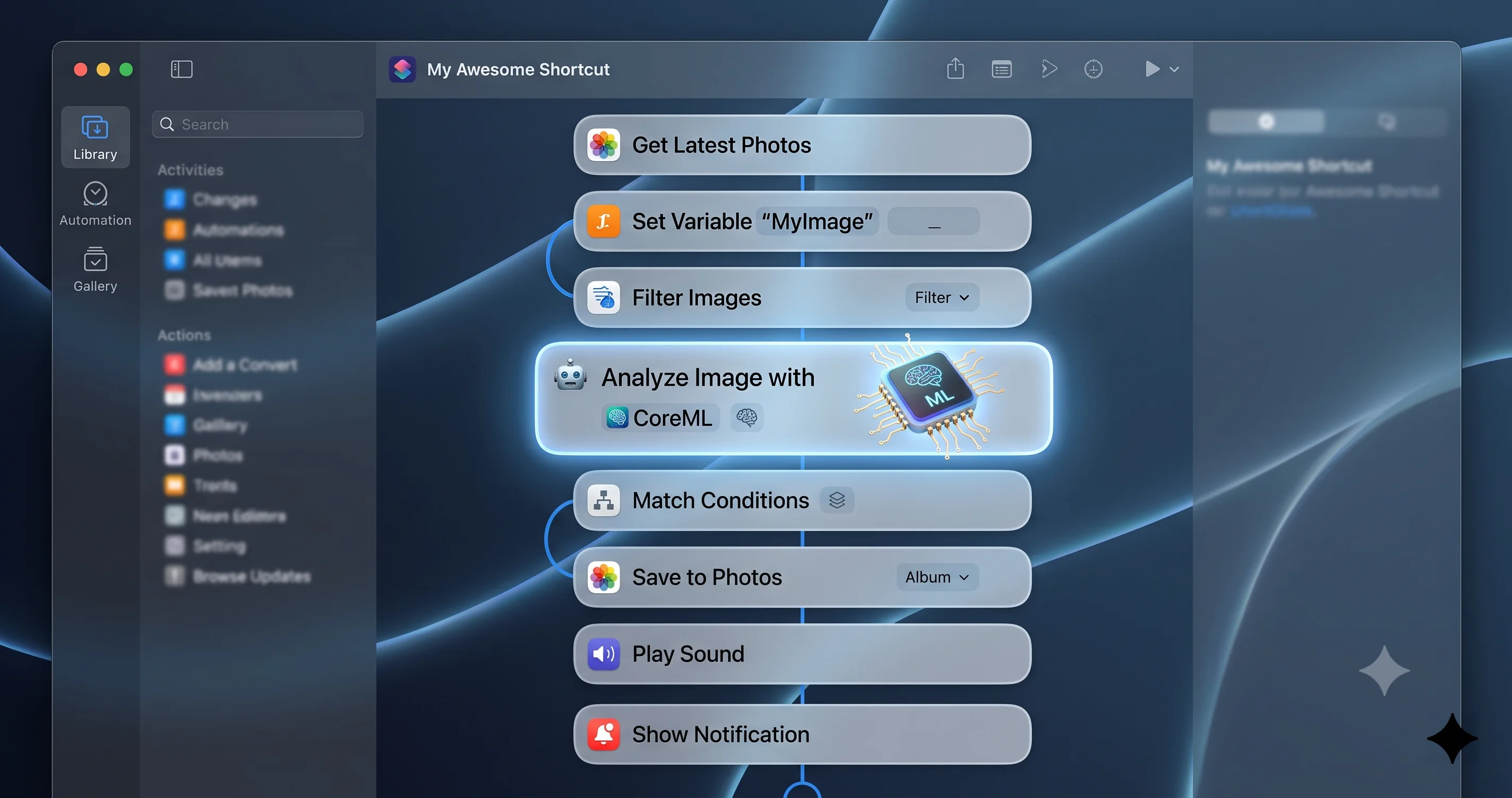
The first is the Use Model action, a general-purpose action where you supply a natural-language prompt and the model returns text. Think of it as a programmable brain you can wire into any pipeline. The output is a normal Shortcuts variable, so you can feed it into "Show Result," "Copy to Clipboard," "Append to Note," "Send Message," or any other action.
The second mechanism is a set of intelligent actions that wrap specific Apple Intelligence capabilities into dedicated, no-prompt-needed blocks. These include summarizing text, proofreading and rewriting, and generating images through Image Playground. You drop them in like any other action, point them at an input, and they do one focused job well.
There is also a third, more subtle change: Apple Intelligence can help you build shortcuts. When you are assembling an automation, you can describe what you want in plain language and get suggested actions and a rough scaffold, which you then refine. That lowers the barrier for people who have never touched the Shortcuts editor before.
If you want context on how these pieces fit into the wider Apple Intelligence rollout across the system, the complete Apple Intelligence feature guide for Mac maps out Writing Tools, Image Playground, Siri, and the rest. This article zooms into just the Shortcuts surface.
Why This Matters More Than It Sounds
A model inside a shortcut is fundamentally different from a model inside a chat app. In a chat app, you are the loop: you ask, you read, you act. Inside a shortcut, the model becomes a step in an unattended loop. You can schedule it, trigger it from a folder action, fire it from the menu bar, or bind it to a Focus mode. That means the model can summarize every PDF dropped into a folder, draft a reply to every flagged email, or build a daily digest at 7 a.m. without you ever opening it. The automation does the asking and the reading for you.
Requirements and Compatibility Reality Check
Before you get excited, confirm your Mac actually qualifies. Apple Intelligence in Shortcuts has stricter requirements than plain Shortcuts.
- Apple silicon required. You need an Apple Intelligence-capable Mac, which means an M-series chip. Intel Macs are out entirely.
- Advanced model features prefer M3 or newer with 12GB+ unified memory. Base-level Apple Intelligence runs on earlier M-series chips, but the heavier on-device model work behind Use Model behaves best on M3-class hardware with at least 12GB of RAM. Older or memory-constrained Macs may lean more heavily on Private Cloud Compute or expose fewer options.
- English first. At launch the model features are English-centric. Other languages are arriving on Apple's usual rolling schedule, but do not assume parity yet.
- Region matters. China-region Macs do not have Apple Intelligence at launch, so the Use Model action and intelligent actions will not appear there.
- Apple Intelligence must be enabled. Go to System Settings > Apple Intelligence & Siri and turn it on, then wait for the on-device models to finish downloading.
If you are unsure whether your specific machine clears the bar, the deep dive on which Macs get the full Siri AI experience and the M3 12GB requirement breaks the hardware tiers down model by model. The same silicon thresholds that gate Siri's smartest features also shape what the Use Model action can do locally.
A Word on Beta Status
macOS 27 is currently a developer beta (build 26A5368g, seeded June 22, 2026). The public beta is expected in July 2026, with the final release around September. Everything in this guide is accurate to the beta but subject to change: action names, the exact model picker UI, and which capabilities run on-device versus in the cloud can all shift between betas. Do not put a beta on your only Mac, and do not build mission-critical automations on top of an unreleased OS. If you are weighing whether to install it at all, read the honest should-you-install macOS 27 developer beta breakdown first. For background on the release itself, see the macOS 27 Golden Gate announcement coverage.
Where to Find the Use Model Action
Open the Shortcuts app, create a new shortcut (the + button in the toolbar), and look at the action library on the right. Use the search field at the top of the library and type "Use Model." You can also browse the Apple Intelligence category, where the Use Model action sits alongside the intelligent actions like Summarize and Create Image.
Drag Use Model into your shortcut. You will see a few fields:
- Prompt — the instruction you give the model. This is where you write what you want done. You can mix in variables from earlier actions, which is the whole point.
- Model / source — a selector for where the request runs: an on-device Apple Intelligence model, Apple's Private Cloud Compute, or ChatGPT. The exact label wording may vary by beta.
- Output — the model's response, exposed as a variable (often shown as "Model Response" or similar) that you reference in later actions.
The mental model is simple: prompt in, text out. Whatever you would type to a capable assistant, you put in the prompt field, and you wire earlier shortcut data into it as variables.
Choosing the Model: On-Device vs Private Cloud Compute vs ChatGPT
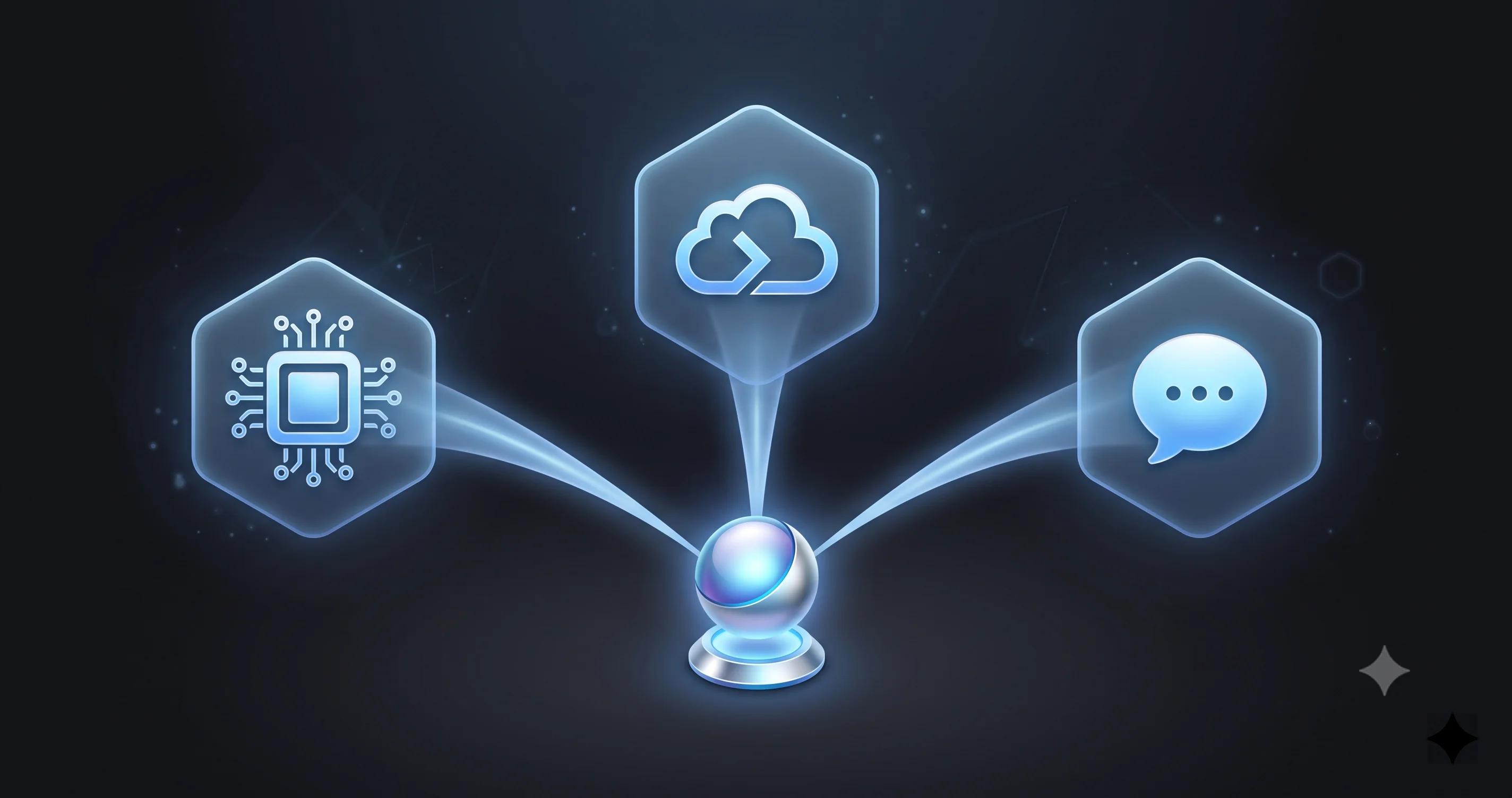
The model selector is the most important decision in any AI shortcut, because it determines speed, privacy, capability, and whether the shortcut works offline. Here is how to think about the three options.
On-Device Apple Intelligence Model
The on-device model runs entirely on your Mac's Apple silicon. Nothing leaves the machine.
- Best for: privacy-sensitive content (personal notes, medical info, confidential work), quick transformations, and anything you want to run offline.
- Strengths: zero network dependency, fastest round-trip for short tasks, no data ever transmitted.
- Limits: it is a compact model, so very long inputs, complex reasoning, or broad world knowledge can exceed what it handles gracefully. This is where the M3 and 12GB memory guidance matters most.
Choose on-device as your default. Only reach for something heavier when the on-device model visibly struggles.
Private Cloud Compute
Private Cloud Compute (PCC) is Apple's server-side extension of Apple Intelligence. When a request is too heavy for the on-device model, it can run on Apple silicon servers under Apple's privacy architecture, where your data is not stored and is not accessible to Apple.
- Best for: longer documents, more involved reasoning, and tasks the small on-device model can't finish well, while still keeping Apple's privacy guarantees.
- Strengths: much more capacity than on-device, while remaining inside Apple's privacy-preserving design.
- Limits: requires an internet connection, and there is network latency. It is not available offline.
PCC is the natural middle tier: more powerful than on-device, more private than a third-party service.
ChatGPT
ChatGPT is the opt-in third-party option. macOS 27 can route a Use Model request to ChatGPT when you choose it.
- Best for: broad world knowledge, creative drafting, and questions outside Apple's models' strengths.
- Strengths: the most general capability of the three.
- Limits: it is a third party. ChatGPT use is opt-in per request by design, and your prompt content leaves the Apple ecosystem when you use it. Don't route confidential data here.
The practical rule of thumb: default to on-device, escalate to Private Cloud Compute when the task is bigger, and only opt in to ChatGPT for general-knowledge or creative work that doesn't involve sensitive data. Because ChatGPT is opt-in per request, a shortcut that uses it may prompt you for confirmation, which matters when you want an unattended automation. For fully hands-off shortcuts, stick to on-device or PCC.
Six Copy-Able AI Shortcut Recipes
Below are six concrete recipes you can rebuild in the Shortcuts editor today. Each uses fenced blocks to describe the action sequence so you can follow it action-by-action. Adapt the prompts to your own wording; the structure is what matters.
Recipe 1: Summarize Selected Text
A quick-action shortcut that summarizes whatever text you have selected, anywhere on the Mac. Set it as a Services/Quick Action so it appears in the right-click menu.
Shortcut: Summarize Selection
1. Receive: Text input from Quick Actions
2. Use Model
   - Model: On-device
   - Prompt: "Summarize the following text in 3 concise bullet
     points. Keep it factual and under 60 words total:
     [Shortcut Input]"
3. Show Result (Model Response)
   - or: Copy to Clipboard (Model Response)
Because the input is short and the task is simple, on-device handles this instantly and privately. Select text in any app, right-click, run the shortcut, and read the summary.
Recipe 2: Extract Action Items From the Clipboard
Turn a wall of meeting notes or an email thread sitting on your clipboard into a clean task list.
Shortcut: Extract Action Items
1. Get Clipboard
2. Use Model
   - Model: On-device (use Private Cloud Compute if the text is long)
   - Prompt: "From the text below, extract every action item as a
     checklist. Each line should start with '- [ ] ', name the owner
     if one is mentioned, and include any due date. Ignore small talk.
     Text: [Clipboard]"
3. Append to Note (Model Response) -> a 'Tasks' note
   - or: Copy to Clipboard (Model Response)
The key here is a precise output format in the prompt. Telling the model exactly how to shape the list ("start with - [ ]") makes the result paste cleanly into Reminders, Notes, or any Markdown tool.
Recipe 3: Auto-Name and Sort Files With a Folder Action
This is where AI automations earn their keep. Use a Folder Action trigger so the shortcut runs automatically whenever a file lands in a watched folder, then let the model propose a clean filename.
Shortcut: Smart File Namer (Folder Action on ~/Downloads/Inbox)
1. Folder Action trigger: files added to "Inbox"
2. Repeat with Each (item in the added files)
   a. Get Text from Input (extract document text, if applicable)
   b. Use Model
      - Model: On-device
      - Prompt: "Suggest a clear, dated filename for a document with
        this content. Use the format YYYY-MM-DD-short-topic, lowercase,
        words separated by hyphens, no file extension. Content:
        [Text from step a]"
   c. Rename File (Repeat Item) to (Model Response)
   d. Move File to a destination folder based on type
3. End Repeat
Run this on a copy of your files first. File operations are destructive, and a beta model can produce odd names, so test before you point it at anything irreplaceable.
Recipe 4: Draft Replies to a Message or Email
Generate a first-draft reply you can review and send, rather than writing from scratch.
Shortcut: Draft a Reply
1. Receive: Text (the message you're replying to) via Share Sheet
2. Ask for Input: "What's the gist of your reply?" (Text)
3. Use Model
   - Model: On-device or Private Cloud Compute
   - Prompt: "Write a polite, concise reply to the message below.
     My intent: [Provided Input]. Match a friendly-professional tone,
     keep it under 120 words, and do not invent facts.
     Original message: [Shortcut Input]"
4. Show Result (Model Response) for review
5. Copy to Clipboard (Model Response)
Keeping a human review step ("Show Result") in the loop is the responsible default for anything that gets sent to another person. Never wire a draft straight into "Send" without reading it.
Recipe 5: Generate a Daily Digest
Chain several data sources into a single morning briefing, triggered by a time-of-day automation.
Shortcut: Morning Digest (Personal Automation, 7:00 AM daily)
1. Find Calendar Events (today)
2. Find Reminders (due today)
3. Get Contents of URL (a news or weather feed, optional)
4. Text (combine the above into one block with labels)
5. Use Model
   - Model: Private Cloud Compute (more context to digest)
   - Prompt: "Write a short morning briefing from the data below.
     Start with a one-line overview of the day, then list meetings
     with times, then top tasks, then one weather line. Be warm but
     brief, under 150 words. Data: [Text from step 4]"
6. Show Notification (Model Response)
   - or: Append to a 'Daily Digest' note with today's date
This recipe shows the real power of the Use Model action: it doesn't just transform one input, it synthesizes several structured inputs into readable prose. That synthesis step was impossible in pre-AI Shortcuts.
Recipe 6: Create an Image With Image Playground
Use the intelligent Create Image action (Image Playground) to generate artwork inside an automation, for example a header image for a daily journal entry.
Shortcut: Journal Header Image
1. Ask for Input: "Describe today in a few words" (Text)
2. Use Model (optional, to enrich the prompt)
   - Model: On-device
   - Prompt: "Turn this into a vivid one-sentence image description:
     [Provided Input]"
3. Create Image (Image Playground)
   - Prompt: (Model Response from step 2)
   - Style: choose Animation / Illustration / Sketch
4. Save to Photos album "Journal"
   - or: Add to a Note alongside today's entry
Notice the pattern: a Use Model action improves the prompt for the Create Image action. Chaining a text model into an image generator is a recurring trick that produces much better results than feeding raw user input directly.
Chaining Use Model With Other Actions
The recipes above hint at it, but chaining deserves its own section because it is the difference between a toy and a tool.
The Use Model output is a normal variable. That means you can:
- Feed it forward into Copy to Clipboard, Append to Note, Send Message, Create Reminder, Save File, Show Notification, or any action that accepts text.
- Feed one model into another. Run an on-device model to clean or structure messy input, then pass that clean text to a second Use Model action (on PCC) for the heavy reasoning. Smaller, cheaper, private work up front; expensive work only on the polished input.
- Branch on the result. Combine Use Model with "If" actions. For example, ask the model to classify an email as "urgent," "normal," or "spam," then use an If action to route each category differently.
- Loop over collections. Inside a "Repeat with Each," call Use Model once per item to process a whole folder, a list of clipboard entries, or every selected file.
A reliable design pattern looks like this:
Robust AI pipeline pattern
1. Gather + normalize input (Get Clipboard / Get File / Get URL)
2. Use Model (on-device): clean, extract, or structure the raw input
3. If (check the structured result is non-empty / valid)
   - Use Model (PCC): do the heavy reasoning or writing
   - Deliver result (Note / Message / Notification)
   Otherwise
   - Show an error or fall back to a safe default
4. End If
Two habits make chained AI shortcuts dramatically more dependable. First, be explicit about output format in every prompt, because downstream actions expect predictable shapes. Second, add a validation or review step between the model and any irreversible action, because beta models occasionally return surprises.
Building Shortcuts With AI Assistance
You don't have to assemble these flows by hand. macOS 27 lets Apple Intelligence help build the shortcut itself. When you start a new shortcut, you can describe what you want in plain language and get suggested actions and a rough scaffold to refine.
A practical workflow:
- Describe the goal in one or two sentences. For example, "When I add a PDF to my Inbox folder, summarize it and save the summary as a note." Be specific about the trigger and the outcome.
- Review the suggested actions. The assistant proposes a starting set of actions and how they connect. Treat this as a draft, not a finished product.
- Wire up the variables. AI scaffolding often gets the shape right but leaves the variable plumbing for you. Confirm each action references the correct earlier output.
- Set the model and privacy tier. The suggested Use Model action may default to a source you don't want. Switch it to on-device or PCC as appropriate.
- Test on safe data. Run it once with disposable input before trusting it with anything that matters.
AI-assisted building is genuinely helpful for discovering which actions exist and roughly how to sequence them, especially if you are new to Shortcuts. It is not a substitute for understanding your own automation. The more clearly you can describe the trigger, the inputs, and the desired output, the better the scaffold you get back. If you find yourself fighting the editor, the keyboard navigation tips in the ultimate Mac keyboard shortcuts guide make moving around the Shortcuts canvas faster.
Privacy: What Leaves Your Mac and What Doesn't
Privacy is the reason Apple's approach differs from simply bolting a chatbot onto the OS, so it is worth being precise about the three tiers.
- On-device: the prompt and the model run locally. Nothing is transmitted. This is the most private option and the right default for personal or confidential content.
- Private Cloud Compute: when a request is too heavy for on-device, it can run on Apple silicon servers under Apple's privacy architecture. Apple's stated design is that your data is not stored and is not made accessible to Apple. It still requires sending the request off-device, so it needs a network connection, but it stays within Apple's privacy-preserving system.
- ChatGPT: a third-party service. It is opt-in per request, and the content you send leaves Apple's ecosystem and is handled under the third party's terms. Use it deliberately, never for sensitive data, and expect a confirmation prompt that can interrupt unattended automations.
Practical privacy guidance:
- Default every Use Model action to on-device and only change it when a task genuinely needs more.
- For anything involving names, finances, health, credentials, or confidential work, stay on-device, or use PCC only if you accept Apple's cloud-privacy model.
- Audit your shortcuts before sharing them. A shortcut you send to a coworker carries its model choice with it; make sure you are not accidentally shipping one that routes their data to ChatGPT.
- Remember that triggers matter too. A scheduled shortcut that summarizes "today's emails" is reaching into your mail. Keep the model tier appropriate to the sensitivity of the data the trigger exposes.
Writing Prompts That Behave Inside Shortcuts
A prompt you type into a chat window and a prompt buried inside an automation are not the same animal. In a chat you can iterate, clarify, and nudge. Inside a shortcut the prompt fires once, unattended, and whatever comes back flows straight into the next action. That changes how you should write it.
- Be ruthlessly specific about the output. Don't ask the model to "summarize this." Ask it to "summarize this in exactly three bullet points, each under 15 words, no introduction." Downstream actions need a predictable shape, and a vague prompt produces unpredictable text.
- Pin the format with an example. If you want a particular structure, show it. "Return lines like
- [ ] Task (Owner, due date)and nothing else" beats a paragraph of description. On-device models in particular follow concrete templates far better than abstract instructions. - Tell the model what to leave out. Phrases like "no preamble," "do not add commentary," and "do not invent details not present in the text" remove the chatty filler that breaks parsing in later steps.
- Inject variables cleanly. Label the data you pass in. Writing
Content: [Clipboard]on its own line helps the model separate your instruction from the material it is working on. - Constrain length. A word or character cap keeps notifications readable, keeps Notes tidy, and stops a runaway response from overwhelming the next action.
Spend your tuning time here. The single biggest quality lever in any AI shortcut is the wording of the prompt, not the model you pick.
When Not to Reach for a Model
AI is a tool, not a default. Plenty of automations are faster, cheaper, and more reliable without a model in the loop, and dropping a Use Model action where you don't need one just adds latency and a point of failure.
- Deterministic text work like find-and-replace, date formatting, splitting on a delimiter, or extracting a number with a regex is a job for the built-in text actions. A model is overkill and less predictable.
- Exact data lookups belong to Get Contents of URL, Get Details of Calendar Events, or a dictionary action. Don't ask a model for facts your shortcut can fetch precisely.
- Anything irreversible and unattended deserves caution. A model that renames or deletes files on a schedule, with no human checkpoint, is one hallucination away from a mess. Keep a review step or skip the model entirely.
- High-frequency loops where the model runs hundreds of times can be slow and battery-hungry on-device. Consider whether a single batched prompt could replace many small ones.
The best AI shortcuts use the model for the one thing only a model can do, understanding and generating language, and let ordinary actions handle everything else. Reserve Use Model for genuine comprehension, synthesis, drafting, and classification, and your automations stay fast and trustworthy.
Troubleshooting
Beta software plus AI models means you will hit snags. Here are the common ones and how to clear them.
The Use Model action doesn't appear in the library. Confirm three things: you are on an Apple silicon Mac, Apple Intelligence is turned on in System Settings > Apple Intelligence & Siri, and the on-device models have finished downloading (this can take a while after enabling). Also confirm your Mac and Apple Account region supports Apple Intelligence; China-region Macs do not have it at launch.
The action is greyed out or says the model is unavailable. The on-device models may still be downloading, or your Mac may be low on resources. Free up memory by closing heavy apps, make sure you are not in Low Power Mode for an extended period, and give the download time to finish on a good network. On Macs below the M3/12GB guidance, some model-heavy options may be limited.
Responses are slow. On-device responses depend on your chip; older M-series chips are slower. Private Cloud Compute and ChatGPT add network latency, so a weak connection drags them down. For speed-sensitive shortcuts, keep prompts short and prefer on-device. For long inputs, expect PCC to take a few seconds.
The output format is inconsistent. This is almost always a prompt problem, not a bug. Be explicit: state the exact format ("a bulleted list," "JSON with keys title and body," "under 60 words"), give an example in the prompt, and tell the model what not to do ("no preamble, no closing remarks"). Smaller on-device models follow tight, concrete instructions better than vague ones.
The model invents facts. Language models can fabricate. Never let a Use Model output flow directly into an irreversible action (sending a message, deleting or renaming files, posting) without a review or validation step. Add a "Show Result" checkpoint, or an "If" check, between the model and the consequence.
ChatGPT keeps prompting for confirmation. That is by design, since ChatGPT is opt-in per request. For unattended automations (folder actions, scheduled runs), switch the model source to on-device or Private Cloud Compute so the shortcut can run without interruption.
A shortcut works manually but fails as an automation. Automations run in a more restricted context. Check that the shortcut has the permissions it needs (Notes, Calendar, Files access), that it doesn't rely on something only available when the app is open, and that no step is silently waiting on a confirmation dialog.
Everything broke after a beta update. Action names and behaviors change between betas. After updating macOS 27, reopen your AI shortcuts, confirm the Use Model action and its model selector survived, and re-test. Keep copies of important shortcuts exported so you can rebuild if a beta regresses.
FAQ
Is the Use Model action free to use? The on-device Apple Intelligence model and Private Cloud Compute are part of macOS 27 at no extra charge on supported Macs. ChatGPT integration is opt-in per request; basic access is available, while heavier usage may fall under OpenAI's own account tiers and limits outside of Apple's control.
Can AI shortcuts run completely offline? Only the on-device model works offline. Private Cloud Compute and ChatGPT both require an internet connection because the request runs off your Mac. If offline reliability matters, build the shortcut around the on-device model and keep prompts modest in size.
Will my prompts be used to train AI models? On-device processing never leaves your Mac. Private Cloud Compute is designed so your data is not stored or accessible to Apple. ChatGPT is governed by the third party's terms, which is one more reason to keep it opt-in and avoid sending sensitive content to it.
Do I really need an M3 Mac with 12GB of RAM? Base Apple Intelligence runs on earlier M-series chips, but the advanced model work behind Use Model behaves best on M3 or newer with 12GB+ unified memory. On lighter hardware you may see fewer options, slower local responses, or more reliance on Private Cloud Compute.
Can I share an AI shortcut with someone else? Yes, but the shortcut carries its model choice and permissions with it. The recipient still needs an Apple Intelligence-capable Mac, and if your shortcut routes to ChatGPT, theirs will too. Audit shared shortcuts so you are not exposing anyone's data unintentionally.
Should I build important automations on macOS 27 right now? Not on a primary machine. macOS 27 is in developer beta (build 26A5368g), with public beta in July and final release around September 2026. Action names and behaviors are still changing. Experiment on a spare Mac or volume, export backups of your shortcuts, and wait for the stable release before relying on AI automations for real work.
Conclusion
Apple Intelligence in Shortcuts turns the Mac's automation engine from a data mover into a data thinker. The Use Model action gives you a programmable brain you can wire into any workflow, the intelligent actions handle summarizing and image creation out of the box, and the tiered model picker lets you balance privacy, power, and offline reliability on a per-action basis. The six recipes here, from summarizing selected text to building a synthesized morning digest, are deliberately simple so you can copy the structure and make them your own.
Start small and on-device. Build one shortcut that solves one annoyance, keep a human review step in the loop, and only escalate to Private Cloud Compute or opt in to ChatGPT when a task truly needs it. Just remember this is beta software: test on disposable data, export backups, and keep mission-critical work off macOS 27 until the September release lands.
Ready to go deeper? Pair this with the complete Apple Intelligence feature guide for Mac to see how these actions connect to Writing Tools and Siri, and check the macOS 27 Golden Gate announcement for the full release picture. Then open Shortcuts, search for "Use Model," and build your first AI automation today.