Best Mac Productivity Apps 2026: 30+ Essential Tools for macOS Tahoe
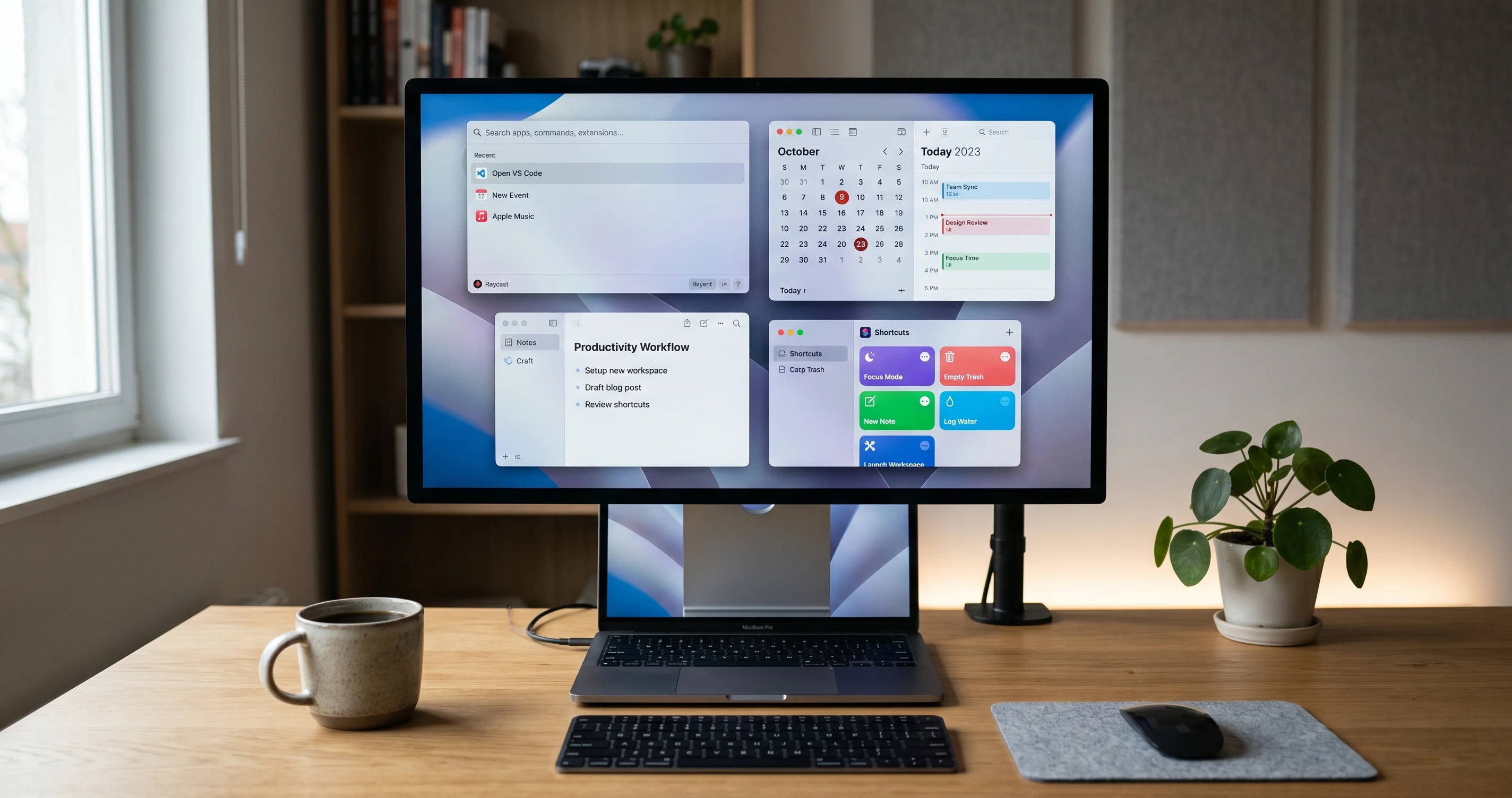
Discover the best Mac productivity apps for 2026 including AI-powered tools, automation apps, and Apple Silicon-optimized software for macOS Tahoe users.
The Mac productivity landscape in 2026 looks fundamentally different from just two years ago. AI-native applications have moved from novelty to necessity, Apple Silicon optimization separates the best apps from the mediocre, and macOS Tahoe itself has absorbed features that once required third-party tools. This guide covers the 30+ best Mac productivity apps across every category, with honest assessments of what deserves a place on your dock and what you can skip.
Key Takeaways
- AI integration is now table stakes. The best productivity apps in 2026 embed AI directly into workflows rather than bolting it on as a sidebar feature. Raycast, Spark Mail, and Notion lead the pack with AI that actually saves time.
- Apple Silicon native apps deliver measurably better performance. Apps built specifically for M-series chips use less battery, launch faster, and handle larger workloads. Cross-platform Electron apps have improved but still trail behind native alternatives.
- macOS Tahoe has eliminated the need for several third-party apps. Native window tiling, improved Spotlight with Quick Keys, and the Passwords app mean you can skip entire categories of paid software.
- Shortcuts integration separates good apps from great ones. The best productivity tools in 2026 expose their actions to Shortcuts, allowing you to chain them into automated workflows that run across multiple apps.
- A carefully chosen free stack can handle 80% of productivity needs. Between Apple's built-in apps, free tiers, and open-source tools, you can build a highly capable productivity setup without spending anything.
What Makes a Great Mac App in 2026
Before diving into specific recommendations, here are the five criteria used to evaluate every app in this guide. These reflect what matters most for Mac users in 2026, not just feature checklists.
Apple Silicon Native
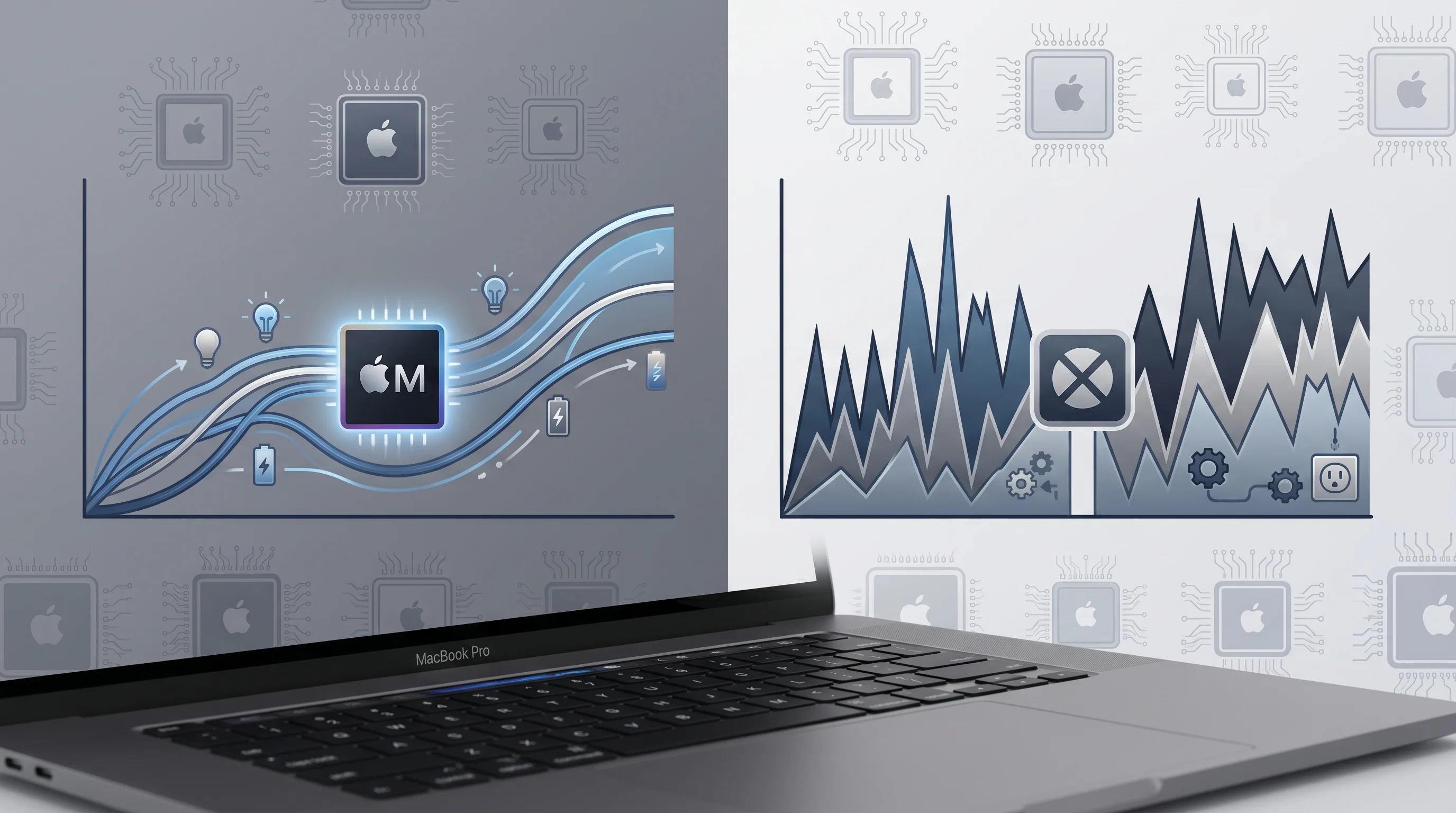
Apps compiled natively for Apple Silicon (M1 through M5 chips) launch instantly, consume less energy, and integrate more tightly with macOS features like memory compression and unified memory architecture. In testing, native apps consistently use 30-50% less battery than their Rosetta 2 or Electron counterparts performing the same tasks. Every app in this guide is evaluated on whether it runs natively on Apple Silicon.
Shortcuts and Automation Integration
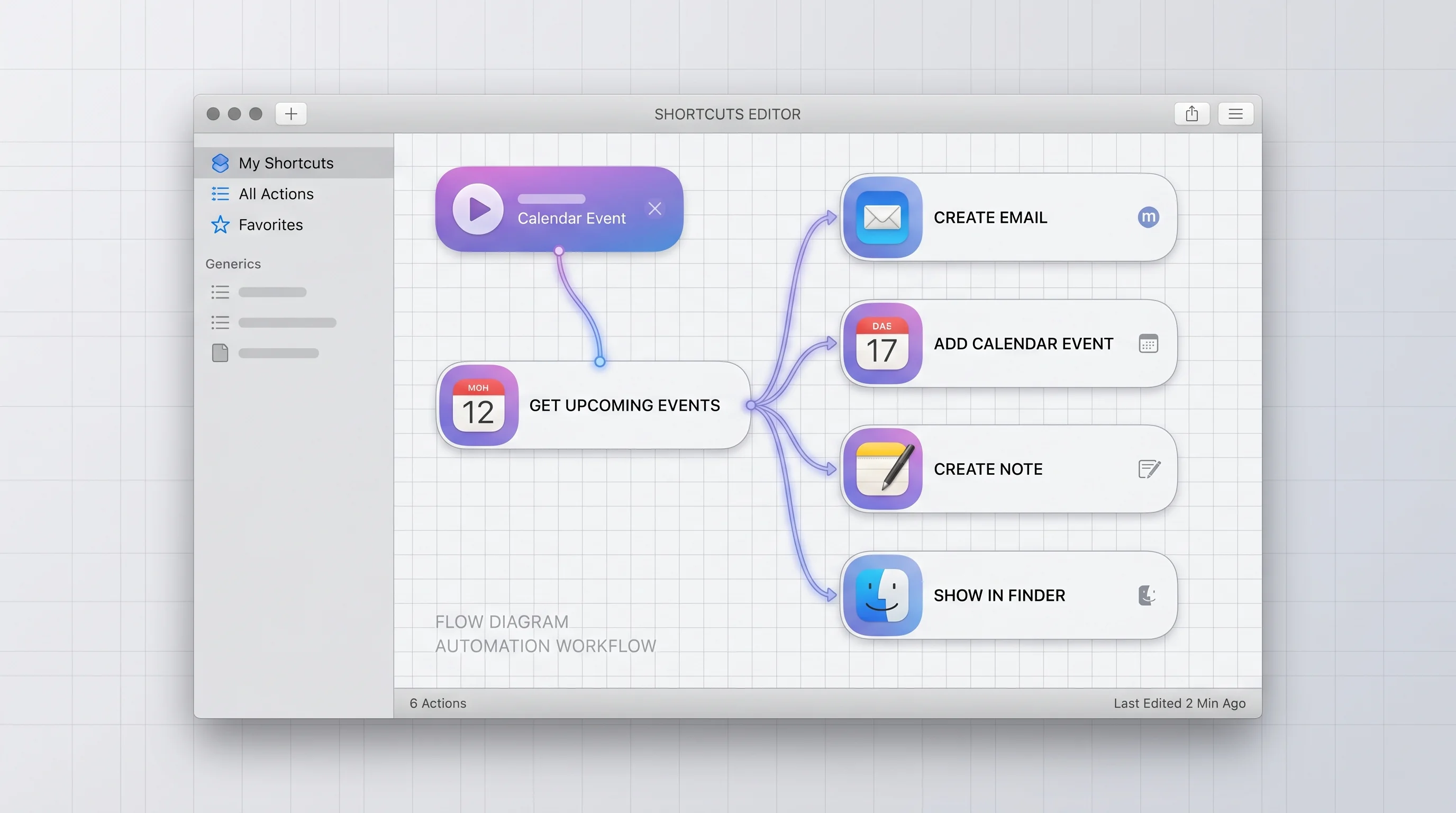
macOS Tahoe has made Shortcuts the central automation platform on the Mac. Apps that expose their actions to Shortcuts let you build workflows that span multiple tools, triggered by keyboard shortcuts, menu bar items, Focus modes, or even time-based schedules. If you want to learn more about building these workflows, check out the Shortcuts automation guide.
iCloud Sync and Handoff
The best Mac apps in 2026 sync seamlessly across iPhone, iPad, and Mac through iCloud or their own cloud sync. Handoff support means you can start a task on one device and pick it up on another without friction. This is especially important for note-taking, task management, and writing apps.
Privacy-Respecting Design
With growing awareness of data practices, the top Mac apps either process data locally on-device, offer end-to-end encryption, or provide transparent data policies. Local-first apps like Obsidian, which store everything as plain files on your disk, have gained significant traction among privacy-conscious users.
AI Features That Actually Help
AI in productivity apps ranges from genuinely useful to pure marketing. The apps recommended here use AI for practical purposes: drafting email replies, summarizing long documents, suggesting task priorities, or automating repetitive actions. If an app's AI features feel tacked-on or require a separate subscription on top of the base price, that factors into the evaluation.
Launchers and Quick Actions
A launcher is the single highest-leverage productivity app you can install on a Mac. It replaces repetitive mouse navigation with instant keyboard-driven access to apps, files, settings, calculations, and custom actions. The difference between a good launcher and the default Spotlight is measured in hours saved per week.
Raycast -- Top Pick
Price: Free (Pro plan $8/month for AI and cloud sync) | Apple Silicon Native: Yes | Shortcuts Integration: Full
Raycast has firmly established itself as the definitive Mac launcher in 2026. What started as a Spotlight replacement has evolved into a comprehensive productivity operating system. The free tier alone is remarkably capable, offering app launching, file search, clipboard history, window management, snippet expansion, and a calculator that handles unit conversions and timezone math.
What sets Raycast apart is its extensions ecosystem. With over 1,500 community-built extensions, you can control Spotify, manage GitHub pull requests, search Jira tickets, translate text, generate UUIDs, and interact with dozens of other services -- all from the same search bar. Extensions install in seconds and update automatically.
The Pro plan adds Raycast AI, which provides a conversational AI assistant accessible from the launcher bar. You can ask it to summarize clipboard contents, rewrite selected text, explain code snippets, or generate content -- all without leaving your current context. The AI chat supports multiple models including Claude and GPT-4, and it remembers conversation context within a session.
Daily driver features I rely on: Clipboard history with search (eliminates the need for a separate clipboard manager), quick links for frequently accessed URLs with parameter substitution, and the floating notes window for capturing fleeting thoughts. The window management commands alone (move window to left half, right half, maximize, next display) could replace Rectangle for many users.
For a detailed comparison with the other major launcher, see the Raycast vs Alfred comparison.
Alfred
Price: Free (Powerpack one-time $34-$59) | Apple Silicon Native: Yes | Shortcuts Integration: Partial
Alfred remains a strong choice, particularly for users who prefer a one-time purchase model over subscriptions. Its Powerpack unlocks workflows -- multi-step automated sequences that can be triggered by keywords, hotkeys, or file actions. The Alfred workflow community, while smaller than Raycast's extension library, includes deeply polished automation sequences that power users have refined over years.
Alfred's clipboard history, snippet manager, and 1Password integration are all excellent. Where it falls short compared to Raycast is in modern integrations -- many newer services have Raycast extensions but lack Alfred workflows. Alfred also does not include built-in AI features, though workflows can connect to AI APIs.
Alfred is the right choice if you value stability over cutting-edge features, prefer one-time pricing, or have existing workflows you have built over the years that you do not want to migrate.
macOS Spotlight with Quick Keys
Price: Free (built-in) | Apple Silicon Native: Yes | Shortcuts Integration: Full
Apple significantly upgraded Spotlight in macOS Tahoe with the Quick Keys feature, which adds customizable keyboard shortcuts for common Spotlight actions. Spotlight now handles natural language queries more intelligently, provides richer previews for files and web results, and integrates with on-device AI for contextual suggestions.
For users who prefer not to install third-party apps, the improved Spotlight is genuinely usable as a primary launcher. It searches apps, files, emails, messages, calendar events, and the web. Quick Keys let you assign specific shortcuts to trigger Spotlight in specific search modes. Read the full breakdown in the Spotlight Quick Keys guide.
That said, Spotlight still cannot match the extensibility of Raycast or Alfred. There is no clipboard history, no snippet expansion, no custom workflows, and limited ability to interact with third-party services. It is a solid default, not a power tool.
Launcher Comparison
| Feature | Raycast | Alfred | Spotlight |
|---|---|---|---|
| Price | Free / $8 mo | Free / $34-59 once | Free |
| Apple Silicon Native | Yes | Yes | Yes |
| Clipboard History | Yes (free) | Powerpack | No |
| AI Integration | Yes (Pro) | Via workflows | Basic |
| Extensions/Workflows | 1,500+ | 4,000+ | None |
| Window Management | Built-in | Via workflows | No |
| Shortcuts Support | Full | Partial | Full |
| Learning Curve | Low | Medium | Minimal |
Task Management and To-Do
A task manager is only as good as its capture friction -- how quickly you can get a thought out of your head and into a trusted system. The best task apps in 2026 combine instant capture with enough organizational structure to handle complex projects without becoming a project management tool you dread opening.
Things 3 -- Top Pick
Price: $49.99 one-time | Apple Silicon Native: Yes | Shortcuts Integration: Full
Things 3 by Cultured Code is the gold standard for personal task management on the Mac. Its design philosophy is opinionated in the best way: it provides exactly the right amount of structure (projects, areas, tags, deadlines, checklists) without the infinite customization that turns other task apps into procrastination tools.
The keyboard shortcut system is best-in-class. You can create a task, assign it to a project, set a deadline, add tags, and schedule it for a specific day -- all without touching the mouse. The Quick Entry window (accessible via global hotkey) drops down from the top of the screen, letting you capture tasks from any application.
Things 3 syncs via its own cloud service across Mac, iPhone, iPad, and Apple Watch. It supports Shortcuts extensively, meaning you can create tasks from other apps, build daily review automations, or generate tasks based on calendar events.
The one legitimate criticism is the lack of collaboration features. Things 3 is purely personal. If you need shared task lists or team projects, look at Todoist instead.
What makes it worth $49.99: The "Today" view combined with the "This Evening" time designation creates a natural daily workflow. You review your tasks in the morning, drag items to Today, and optionally mark some for evening. The Today view becomes your single source of truth for what to accomplish, and the clean interface removes all friction from checking things off.
Todoist
Price: Free / Pro $4/month / Business $6/month | Apple Silicon Native: Yes (rebuilt in 2025) | Shortcuts Integration: Full
Todoist occupies the sweet spot between simple to-do lists and full project management. It handles personal tasks, team collaboration, and complex projects with equal competence. The natural language parsing for task creation is exceptional -- typing "Review quarterly report every Monday at 9am #work p1" creates a recurring high-priority task in the Work project.
Todoist rebuilt its Mac app for Apple Silicon in 2025, and the performance improvement is noticeable. The app launches instantly, scrolls smoothly through long task lists, and integrates with macOS notifications properly. The AI assistant, available on Pro and Business plans, can suggest task priorities, break down large tasks into subtasks, and provide natural language filtering of your task database.
The free tier is generous, supporting up to 5 active projects and basic features. The Pro plan unlocks reminders, filters, labels, and the AI assistant.
Apple Reminders -- Free Alternative
Price: Free (built-in) | Apple Silicon Native: Yes | Shortcuts Integration: Full
Apple Reminders has quietly become a capable task manager. In macOS Tahoe, it supports smart lists, nested subtasks, tags, priorities, locations-based reminders, attachments, and collaborative lists shared via iCloud. The Kanban board view, added in a recent update, brings basic project management visualization.
For users embedded in the Apple ecosystem, Reminders offers the tightest integration with Siri, Shortcuts, Mail (flag-to-reminder), Messages, and Calendar. Grocery lists with automatic categorization by aisle are a small but surprisingly useful feature.
Reminders falls short in filtering flexibility, reporting, and the inability to create custom views or workflows. It is best suited for straightforward personal task management where deep Apple integration matters more than power features.
| Feature | Things 3 | Todoist | Apple Reminders |
|---|---|---|---|
| Price | $49.99 once | Free / $4 mo | Free |
| Collaboration | No | Yes | Basic (shared lists) |
| AI Features | No | Yes (Pro) | No |
| Natural Language | Yes | Excellent | Basic |
| Recurring Tasks | Yes | Advanced | Yes |
| Shortcuts Actions | 15+ | 10+ | 20+ |
| Cross-Platform | Apple only | All platforms | Apple only |
| Offline Support | Full | Full | Full |
Note-Taking and Knowledge Management
Note-taking apps in 2026 fall into two philosophical camps: tools for thinking (where notes are interconnected and build on each other) and tools for capturing (where notes are organized but relatively standalone). The best choice depends on whether you need a knowledge base or a notebook.
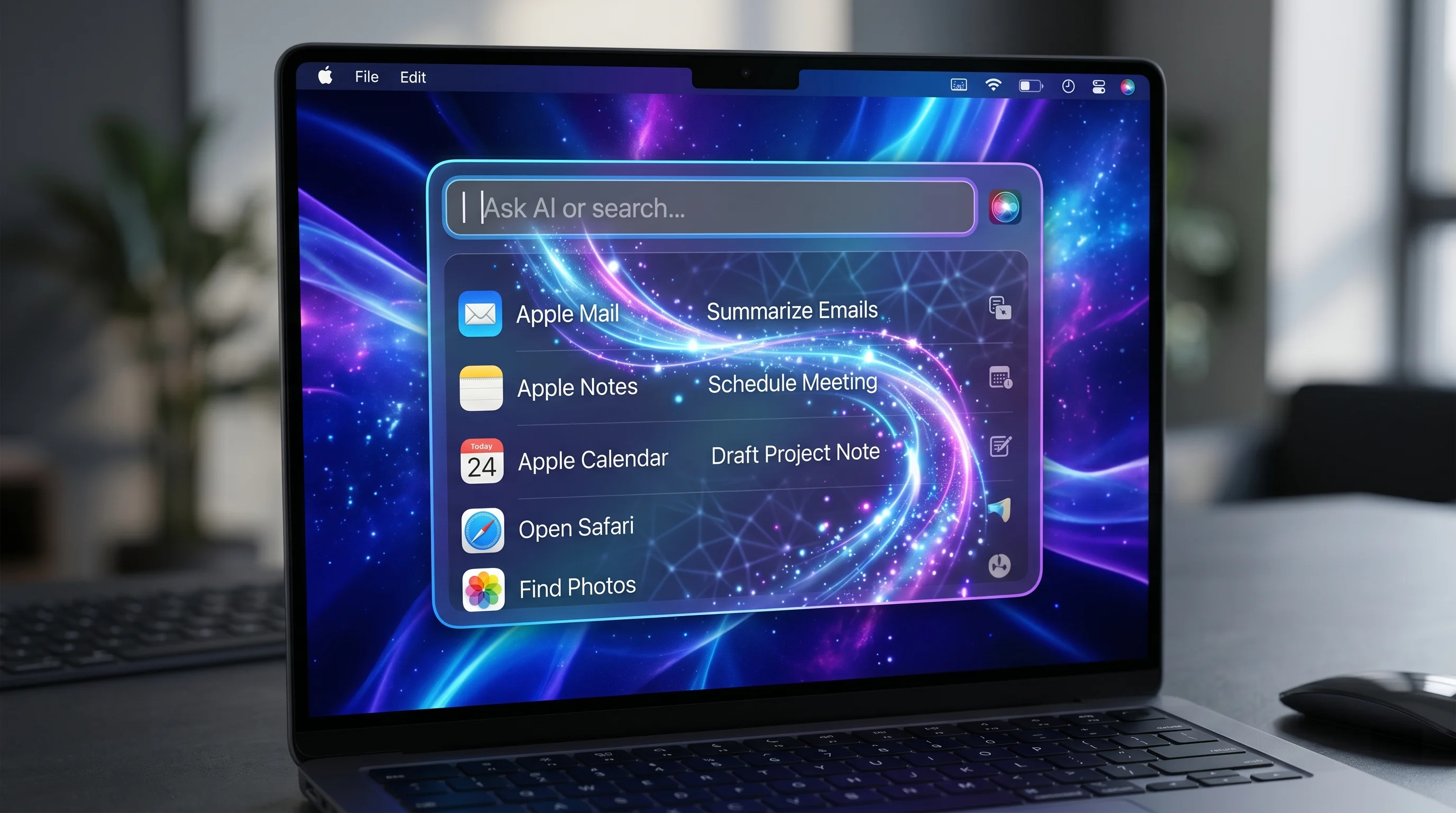
Obsidian -- Top Pick for Knowledge Management
Price: Free for personal use / $50/year sync / $50/month commercial | Apple Silicon Native: Yes (Electron but optimized) | Shortcuts Integration: Via plugin
Obsidian is the most powerful knowledge management tool available on the Mac, and it achieves this through a deceptively simple foundation: everything is a plain Markdown file stored locally on your disk. There is no proprietary database, no vendor lock-in, and no risk of losing access to your notes if the company disappears.
The power comes from Obsidian's linking and plugin ecosystem. Bidirectional links between notes create a knowledge graph that surfaces connections you might not have made yourself. The graph view provides a visual map of how your ideas relate to each other. Canvas mode lets you arrange notes, images, and embeds on an infinite spatial canvas for visual thinking.
The plugin ecosystem (1,600+ community plugins) extends Obsidian into a research tool, daily journaling app, Kanban board, Zotero bibliography manager, spaced repetition system, or whatever else you need. Popular plugins like Dataview turn your notes into a queryable database, and Templater automates note creation with dynamic templates.
Obsidian Sync ($50/year) provides end-to-end encrypted syncing across devices. However, since notes are just files, you can also sync via iCloud Drive, Dropbox, or any file sync service for free.
Why it excels for knowledge workers: The combination of local storage, Markdown format, and bidirectional links means your notes appreciate in value over time. A note written today might surface useful connections to notes from years ago. This compounding effect makes Obsidian increasingly valuable the longer you use it, which is the opposite of most productivity apps.
Notion
Price: Free / Plus $8/month / Business $15/month | Apple Silicon Native: No (Electron) | Shortcuts Integration: Limited
Notion is the Swiss Army knife of productivity apps -- it combines notes, wikis, databases, project management, and documentation into a single flexible workspace. If you need one tool for everything, Notion is the strongest candidate.
The AI features in Notion, powered by a built-in assistant, are among the most practically useful in any productivity app. You can ask it to summarize a page, translate content, extract action items from meeting notes, generate a table from unstructured text, or draft a document from a brief prompt. AI autofill in databases automatically categorizes and enriches entries based on their content.
Notion's databases are its killer feature. A single database can be viewed as a table, Kanban board, calendar, timeline, gallery, or list. Linked databases let you create filtered views of the same data in different pages. Relations and rollups connect databases to each other, enabling project tracking systems, CRM setups, and editorial calendars.
The trade-off is performance. Notion runs on Electron and, despite improvements, still consumes more memory and battery than native alternatives. The free tier is now generous (unlimited blocks for individuals), making it easy to try.
Bear
Price: Free / Bear Pro $2.99/month | Apple Silicon Native: Yes | Shortcuts Integration: Full
Bear occupies the space between Apple Notes and Obsidian -- more powerful than the former, simpler than the latter. It uses Markdown for formatting, supports nested tags for organization (e.g., #work/meetings, #work/projects), and renders everything in a beautiful, distraction-free editor.
Bear Pro adds sync across devices, additional export formats (PDF, DOCX, HTML), and advanced tag management. The search is excellent, supporting regular expressions and filtering by tag, attachment type, or date range.
Bear is the right choice if you want a markdown notes app that feels native on macOS, does not require plugins or configuration, and stays out of your way. It is not the right choice if you need databases, bidirectional links, or team collaboration.
Craft
Price: Free / Pro $4.99/month | Apple Silicon Native: Yes | Shortcuts Integration: Full
Craft is Apple-native document creation at its finest. Built specifically for Apple platforms, it feels like an app Apple might have made -- the gestures, animations, and visual design are impeccable. Documents are block-based (similar to Notion), supporting text, images, code blocks, tables, and embeds.
Where Craft shines is in document sharing and presentation. Documents can be shared as beautiful web pages with a single click, making it excellent for team documentation, client proposals, and internal wikis. The AI assistant helps with writing, summarization, and content generation within documents.
Craft processes and stores data on-device with optional iCloud sync, aligning with privacy-conscious users. The free tier includes unlimited personal documents, with Pro unlocking advanced sharing, version history, and team features.
Apple Notes -- Free Alternative
Price: Free (built-in) | Apple Silicon Native: Yes | Shortcuts Integration: Full
Apple Notes deserves serious consideration in 2026. It supports rich text formatting, inline tables, checklists, document scanning, handwriting recognition (with Apple Pencil on iPad), folder organization, smart folders, tags, and collaborative notes shared via iCloud.
The locked notes feature provides password-protected and biometric-secured notes for sensitive information. Quick Notes, accessible from the hot corner or Lock Screen, enables rapid capture without opening the full app. Links to other notes create basic cross-referencing.
Apple Notes is the best choice for users who want zero configuration, tight Apple ecosystem integration, and a reliable notes app that is always available across devices. It lacks Markdown support, plugins, and the knowledge management features of Obsidian, but for straightforward note-taking, it is hard to beat the built-in option.
Note-Taking Comparison
| Feature | Obsidian | Notion | Bear | Craft | Apple Notes |
|---|---|---|---|---|---|
| Price | Free / $50 yr sync | Free / $8 mo | Free / $3 mo | Free / $5 mo | Free |
| Apple Silicon Native | Optimized Electron | Electron | Yes | Yes | Yes |
| Offline Support | Full | Partial | Full | Full | Full |
| Markdown | Full | Partial | Full | Block-based | No |
| AI Features | Via plugins | Built-in | No | Built-in | No |
| Bidirectional Links | Yes | Yes | No | Basic | Basic |
| Plugin Ecosystem | 1,600+ | Integrations | No | Integrations | No |
| Data Storage | Local files | Cloud | Cloud/local | On-device/iCloud | iCloud |
| Collaboration | Via Publish | Excellent | No | Good | Basic |
Writing and Documents
Writing apps differ from note-taking apps in their focus on long-form output -- articles, books, academic papers, and professional documents. The best writing tools in 2026 provide a distraction-free environment, sophisticated document organization, and export flexibility.
iA Writer -- Top Pick
Price: $49.99 one-time | Apple Silicon Native: Yes | Shortcuts Integration: Full
iA Writer has maintained its position as the premier distraction-free writing app by resisting the urge to add features that do not serve the writing process. The interface is deliberately minimal: a clean editor, a file browser, and nothing else competing for your attention.
The typography is exceptional. iA Writer uses a custom monospaced font (iA Writer Mono) and a duospaced option (iA Writer Duo) that are specifically designed for comfortable long-form reading and writing. Focus mode dims all text except the current sentence or paragraph, helping maintain concentration during extended writing sessions.
Content Blocks allow you to embed files within documents -- insert a CSV file and it renders as a formatted table, include an image with a path reference, or nest another Markdown file to compose long documents from smaller pieces. This feature makes iA Writer surprisingly capable for structured technical writing.
Authorship attribution uses syntax highlighting colors to distinguish text you wrote from text that was pasted or AI-generated, promoting transparency in collaborative and AI-assisted writing.
Why it justifies the price: The one-time purchase model means you own the app outright with no ongoing costs. Files are standard Markdown stored wherever you choose. Combined with the focused writing experience, iA Writer pays for itself the first time it helps you finish a difficult piece of writing without distraction.
Ulysses
Price: $5.99/month or $49.99/year | Apple Silicon Native: Yes | Shortcuts Integration: Full
Ulysses is the power user's writing environment. Its library system organizes writing projects into groups and subgroups, with smart filters that dynamically collect sheets based on keywords, dates, or other criteria. The editor supports Markdown XL (Ulysses' extended Markdown with image handling, annotations, and footnotes), and the writing goals feature tracks progress toward word count targets.
Publishing integration sets Ulysses apart. You can publish directly to WordPress, Ghost, and Medium from within the app, with full control over formatting, featured images, categories, and tags. The export engine produces polished PDFs, DOCX files, EPUB ebooks, and HTML with customizable styles.
Ulysses is the right choice for professional writers who need a comprehensive environment for managing multiple writing projects, publishing workflows, and output formats. The subscription model is a drawback for casual users, but the breadth of features justifies the cost for daily writers.
Essayist -- For Academics
Price: $29.99 one-time | Apple Silicon Native: Yes | Shortcuts Integration: Partial
Essayist fills a specific niche: academic and professional writing with automatic formatting. It handles citations, bibliographies, footnotes, and academic formatting standards (APA, MLA, Chicago, IEEE) with minimal manual intervention.
The app integrates with reference managers and can import citation libraries. When you insert a citation, Essayist automatically formats it according to your selected style guide and generates the bibliography. For students and researchers who spend hours fighting with citation formatting in Word, Essayist eliminates that entire category of friction.
Email remains central to professional productivity despite predictions of its demise. The best email clients in 2026 use AI to triage inboxes, draft responses, and surface important messages -- transforming email from a time sink into a manageable communication channel.
Spark Mail -- Top Pick
Price: Free / Premium $4.99/month | Apple Silicon Native: Yes | Shortcuts Integration: Full
Spark Mail has become the email client to beat in 2026, largely because of its AI integration. The AI assistant drafts contextually appropriate replies based on the email thread, adjustable by tone (formal, friendly, brief). It summarizes long email threads into bullet points, extracts action items, and suggests follow-up reminders for emails that need responses.
The smart inbox automatically categorizes incoming mail into Personal, Notifications, and Newsletters, with the ability to customize categories. Priority inbox uses AI to surface emails that need your attention and suppresses the rest. The result is an inbox that feels manageable even with hundreds of daily messages.
Team features (shared drafts, email delegation, shared inboxes) are available on the Premium plan, making Spark suitable for small teams that want to collaborate on email without adopting a full helpdesk solution.
The feature that saves the most time: The AI-generated reply suggestions. For routine emails (meeting confirmations, information requests, acknowledgments), Spark generates three reply options ranked by appropriateness. Selecting one, optionally editing it, and sending takes about five seconds instead of the minute or more required to compose a reply from scratch.
Apple Mail
Price: Free (built-in) | Apple Silicon Native: Yes | Shortcuts Integration: Full
Apple Mail in macOS Tahoe is a competent email client that handles the basics well. Scheduled sending, undo send (10-second window), follow-up reminders, and rich link previews are all useful features. The search has improved significantly, with faster indexing and more relevant results.
Apple Mail's primary advantage is zero configuration for iCloud email accounts and tight integration with other Apple apps. Drag an email to Calendar to create an event, or to Reminders to create a task. Focus mode integration lets you filter notifications by sender during specific times.
Apple Mail lacks smart categorization, AI features, and the polished third-party integrations of Spark or Mimestream. For users with simple email needs and iCloud accounts, it is perfectly adequate. For power users managing multiple accounts with high email volume, a third-party client is worth the investment.
Mimestream
Price: $49.99/year | Apple Silicon Native: Yes | Shortcuts Integration: Partial
Mimestream is built exclusively for Gmail accounts on macOS and is entirely native to Apple Silicon. It uses Gmail's API directly rather than IMAP, which means labels, categories, and Gmail-specific features work correctly -- something other third-party clients struggle with.
The app is fast, lightweight (using around 100 MB of RAM), and visually clean. It supports Gmail keyboard shortcuts, multiple accounts, and respects Gmail's label-based organization model. If Gmail is your primary email provider and you want a native macOS experience instead of the web interface, Mimestream is the best option available.
The limitation is obvious: it only works with Gmail. If you use iCloud Mail, Outlook, or other providers, Mimestream is not an option.
Calendar and Scheduling
Calendar management in 2026 involves more than just viewing events. The best calendar apps integrate with task managers, provide intelligent scheduling suggestions, and handle natural language input for rapid event creation.
Fantastical -- Top Pick
Price: Free (limited) / Premium $4.75/month or $39.99/year | Apple Silicon Native: Yes | Shortcuts Integration: Full
Fantastical by Flexibits is the most feature-complete calendar app on the Mac. Its natural language parsing for event creation is unmatched -- typing "Lunch with Sarah tomorrow at noon at The Mill" creates an event with the correct time, title, and location. The parser understands relative dates, recurring patterns, time zones, and even conference room names.
The calendar sets feature lets you group calendars into named sets and toggle entire sets on and off. For example, a "Work" set might include your work calendar, team calendar, and meeting room calendar, while a "Personal" set includes your family calendar and social events. Switching between sets declutters the calendar view instantly.
Fantastical integrates with Zoom, Google Meet, Microsoft Teams, and other video conferencing platforms, automatically adding meeting links to events and providing one-click join buttons. The scheduling feature (Openings) lets you share your availability via a link, allowing others to book time with you.
Weather forecasts, world clocks, and a focused "Interesting Calendars" feature (holidays, sports schedules, TV show dates) round out a comprehensive calendar experience.
Apple Calendar
Price: Free (built-in) | Apple Silicon Native: Yes | Shortcuts Integration: Full
Apple Calendar has received steady improvements and handles standard calendar management capably. It supports multiple calendar accounts (iCloud, Google, Exchange, CalDAV), natural language event creation (though less sophisticated than Fantastical), travel time estimates, and Siri integration.
For users who do not need Fantastical's advanced features, Apple Calendar's tight integration with Reminders, Maps, Focus modes, and other system apps provides a cohesive experience. The month view with event previews, week view with time blocking, and day view are all well-designed.
Time Tracking and Focus
Understanding where your time goes is a prerequisite for improving how you spend it. The best time tracking apps in 2026 use AI to automatically categorize your activities, eliminating the manual start/stop timers that made earlier time tracking tools tedious to maintain.
Chronoid -- Top Pick
Price: $7.99/month or $59.99/year | Apple Silicon Native: Yes | Shortcuts Integration: Full
Chronoid represents the next generation of time tracking: fully automatic with AI-powered insights. It runs quietly in the background, monitoring which applications you use, which documents you work on, and which websites you visit. At the end of each day, it presents a detailed breakdown of how you spent your time, categorized by project, client, or activity type.
The AI insights engine goes beyond simple tracking. It identifies patterns in your productivity -- when you do your best deep work, which meetings consistently run over, how often context-switching occurs, and which days are most productive. Weekly and monthly reports surface trends that would be impossible to notice through manual observation.
Privacy is handled thoughtfully. All tracking data stays on your device by default, with optional encrypted cloud backup. You can exclude specific applications or websites from tracking, and the activity log can be paused with a keyboard shortcut or automatically during Focus modes.
The insight that changed my workflow: Chronoid revealed that my most productive deep work happens between 9:30 AM and 11:30 AM, and that checking email before this window consistently reduces the quality of the morning focus session. This single insight led to restructuring my morning routine, adding measurably more high-quality work output per week.
Rize
Price: $9.99/month or $79.99/year | Apple Silicon Native: Yes | Shortcuts Integration: Partial
Rize occupies similar territory to Chronoid with a stronger emphasis on productivity coaching. In addition to automatic time tracking, Rize provides daily focus scores, productivity benchmarks against your own historical data, and actionable suggestions for improvement.
The focus timer integrates directly with tracking, so you can start a focused work session and Rize will measure your actual focus quality during that period (detecting distractions, context switches, and off-task browsing). Break reminders based on configurable intervals help prevent burnout during long work sessions.
Rize's reports are more prescriptive than Chronoid's, offering specific recommendations like "You spent 47 minutes in Slack during your scheduled deep work block -- consider disabling notifications during focus periods." For users who want accountability alongside data, Rize provides a more opinionated coaching experience.
Focus Modes -- Built Into macOS
Price: Free (built-in) | Apple Silicon Native: Yes | Shortcuts Integration: Full
macOS Tahoe's Focus modes deserve mention as a productivity tool. You can create custom Focus modes that filter notifications, limit which apps appear on the dock, change the wallpaper, and even restrict which home screen pages display on your iPhone.
The Shortcuts integration is where Focus modes become powerful. You can create automations that trigger when a Focus mode activates -- for example, turning on "Writing" focus could automatically launch iA Writer, start a Chronoid timer, enable Do Not Disturb, and hide all dock applications except your writing tool.
Focus modes sync across devices via iCloud, so activating "Work" on your Mac also activates it on your iPhone and Apple Watch. Time-based and location-based scheduling automates the transitions throughout your day.
Screenshot and Screen Recording
Screenshots and screen recordings are essential tools for documentation, bug reporting, design feedback, and content creation. macOS includes capable built-in tools, but a dedicated screenshot app dramatically improves the workflow.
CleanShot X -- Top Pick
Price: $29 one-time (+ optional $8/month cloud) | Apple Silicon Native: Yes | Shortcuts Integration: Full
CleanShot X is the definitive screenshot and screen recording tool for macOS. It replaces the built-in screenshot shortcut with a more capable overlay that offers area selection, full screen, window, scrolling capture, delayed capture, and screen recording in a single unified interface.
After capturing, the screenshot appears as a floating thumbnail (Quick Access Overlay) that you can annotate, crop, pin to the desktop, copy, save, or upload to CleanShot Cloud. The annotation tools include arrows, text, blur, highlight, numbering, and a magnifier -- everything needed for documentation and bug reports.
Scrolling capture is a standout feature. It automatically scrolls a web page or document and stitches together a full-length screenshot. Screen recording supports video and GIF output with webcam overlay, system audio capture, and click highlighting.
Why it replaces multiple apps: Before CleanShot X, achieving the same capability required a screenshot tool, an annotation tool, a screen recorder, a GIF maker, and possibly a cloud hosting service for sharing. CleanShot X does all of this in one $29 app.
macOS Built-in Screenshot Tools
Price: Free (built-in) | Apple Silicon Native: Yes | Shortcuts Integration: Full
macOS Tahoe's built-in screenshot tools (Command+Shift+3 for full screen, Command+Shift+4 for selection, Command+Shift+5 for the toolbar) handle basic needs. The toolbar includes screen recording, timer delay, and options for save location. The floating thumbnail after capture allows quick markup with basic annotation tools.
For users who take occasional screenshots for personal reference, the built-in tools are sufficient. For anyone who takes screenshots regularly for work -- developers, designers, support staff, writers -- CleanShot X's additional features justify the one-time cost many times over.
Window Management
macOS has historically lagged behind Windows in built-in window management. macOS Tahoe finally addresses this with native window tiling, but third-party options still offer more flexibility for power users. For a comprehensive deep-dive, see the window management guide.
Native macOS Tahoe Window Tiling
Price: Free (built-in) | Apple Silicon Native: Yes | Shortcuts Integration: Full
macOS Tahoe introduces native window tiling that eliminates the most common reason for installing a third-party window manager. Dragging a window to the edge of the screen snaps it to that half. Dragging to a corner tiles it to a quarter. A new tiling menu appears when hovering over the green traffic light button, offering preset layouts for two, three, or four windows.
Keyboard shortcuts for tiling are available through System Settings, though they require manual configuration. The tiling works with both internal and external displays, and the system remembers window positions when you disconnect and reconnect external monitors.
For most users, native tiling eliminates the need for Rectangle or Magnet entirely. The implementation is clean, consistent with macOS design language, and requires no configuration.
Rectangle
Price: Free (open source) / Rectangle Pro $9.99 | Apple Silicon Native: Yes | Shortcuts Integration: Partial
Rectangle remains the standard recommendation for users who need more tiling options than macOS provides natively. The free open-source version supports half, quarter, third, two-thirds, and sixth screen areas, plus maximize, center, and multi-display moves -- all via customizable keyboard shortcuts.
Rectangle Pro adds snap areas (drag a window to a screen zone to tile it), app-specific default sizes, and more complex layout options. For users coming from Windows who expect a specific tiling behavior, Rectangle Pro's snap areas replicate the Windows 11 Snap Layouts experience.
Magnet
Price: $9.99 one-time (App Store) | Apple Silicon Native: Yes | Shortcuts Integration: Basic
Magnet offers similar functionality to Rectangle with a slightly different interaction model. It is available exclusively through the Mac App Store, which provides automatic updates and easy installation. Drag-to-snap and keyboard shortcuts cover the same set of tiling positions as Rectangle.
The choice between Rectangle and Magnet is largely personal preference. Rectangle is free and open source with a Pro upgrade path. Magnet is a clean App Store purchase with a polished interface. Both work well with macOS Tahoe's native tiling -- they add keyboard shortcuts for positions that macOS does not cover natively.
Menu Bar Management
As you install more productivity apps, your menu bar fills with icons competing for space. Menu bar management apps declutter this space while keeping everything accessible. For a comprehensive look at menu bar apps, see the best menu bar apps guide.
Bartender / Ice
Price: Bartender $16.99 / Ice is free (open source) | Apple Silicon Native: Both yes | Shortcuts Integration: Basic
Bartender has been the standard menu bar management tool for years, allowing you to hide, rearrange, and selectively show menu bar icons. The "show on update" feature keeps icons hidden until they have new information (like a notification badge), then temporarily reveals them.
Ice is a free, open-source alternative that has gained significant traction in 2026. It provides the core menu bar management functionality -- hide/show icon groups, auto-hide, and customizable dividers -- without the cost. The interface is simpler than Bartender's, but for most users, the core functionality is identical.
Recommendation: Start with Ice (free). If you need Bartender's advanced features like search within hidden icons, custom spacers, or multiple hidden sections, upgrade to Bartender. Most users will find Ice sufficient.
Browser
Your browser is likely the app where you spend the most time. The choice between a third-party browser and Safari involves trade-offs between features, privacy, extension ecosystems, and battery life.
Arc Browser -- Top Pick for Innovation
Price: Free | Apple Silicon Native: Yes (Chromium) | Shortcuts Integration: Partial
Arc by The Browser Company reimagines browser design with a sidebar-based interface that replaces the traditional tab bar. Tabs are organized into Spaces (workspaces) with persistent pinned tabs at the top, regular tabs in the middle, and auto-archiving of tabs after a configurable period. The effect is a browser that actively fights tab hoarding.
Boosts let you customize any website's CSS and JavaScript, changing colors, hiding elements, or adding functionality. The built-in split view displays two tabs side by side without extensions. Easels provide a canvas for capturing and arranging web content -- useful for mood boards, research, and comparison shopping.
Arc's AI features include instant page summaries, automatic tab naming, and natural language search across open tabs and browsing history.
The trade-off is battery life. Despite Apple Silicon optimization, Arc (being Chromium-based) consumes more energy than Safari. For desk-bound work, this is irrelevant. For laptop use on battery, Safari's efficiency advantage is meaningful.
Safari
Price: Free (built-in) | Apple Silicon Native: Yes | Shortcuts Integration: Full
Safari remains the most energy-efficient browser on macOS, consistently providing 1-3 hours more battery life than Chromium-based alternatives in real-world usage. Its tight integration with the Apple ecosystem -- Handoff, iCloud Keychain, Apple Pay, and shared tab groups -- creates a seamless cross-device browsing experience.
Tab Groups organize tabs into named collections that sync across devices. Reader mode strips web pages to clean, readable text. The Web Extensions API supports a growing catalog of extensions, though it remains smaller than Chrome's.
Safari's privacy features are industry-leading. Intelligent Tracking Prevention blocks cross-site trackers, the Privacy Report shows blocked trackers per site, and passkey support provides passwordless authentication. For users who prioritize battery life and privacy, Safari is the clear choice.
Password and Security
Password management is no longer optional -- it is a critical security practice. The question in 2026 is whether Apple's built-in solution is sufficient or whether a dedicated password manager justifies its cost.
1Password -- Top Pick
Price: $2.99/month or $35.88/year | Apple Silicon Native: Yes | Shortcuts Integration: Full
1Password remains the gold standard for password management. Beyond storing passwords, it manages software licenses, secure notes, credit cards, identity documents, SSH keys, API tokens, and one-time passwords (TOTP). Watchtower monitors your passwords against data breaches and flags weak, reused, or compromised credentials.
Passkey support is fully integrated in 2026, allowing you to store and use passkeys for websites and apps that support the standard. 1Password's browser extension auto-fills credentials seamlessly and offers to save new logins as you create them.
Family and team sharing allows selective sharing of passwords and secure notes. The Travel Mode feature (hide sensitive vaults when crossing borders) remains unique to 1Password. Developer features include SSH agent integration, CLI access, and secrets management for development environments.
Why pay for something Apple gives away free: 1Password's cross-platform support (Mac, Windows, Linux, iOS, Android, browsers) makes it the right choice for anyone who uses non-Apple devices. Its sharing features, Watchtower monitoring, and developer integrations go well beyond what Apple Passwords offers. For Apple-only users with simple needs, the free built-in option is genuinely competitive now.
Apple Passwords App
Price: Free (built-in) | Apple Silicon Native: Yes | Shortcuts Integration: Full
macOS Tahoe elevated the former "Passwords" section of System Settings into a standalone Passwords app. It stores passwords, passkeys, verification codes, and Wi-Fi passwords with iCloud Keychain sync. AutoFill works in Safari and, via the Passwords extension, in third-party browsers.
Security alerts notify you of compromised, reused, or weak passwords. Shared password groups allow family or team members to access specific credentials. The interface is clean and searchable, and the biometric unlock (Touch ID or Apple Watch) is fast.
Apple Passwords is a credible password manager for users entirely within the Apple ecosystem. Its limitations are cross-platform support (no native Windows or Android apps, though a Windows iCloud client exists), fewer item types (no software licenses, secure notes, or SSH keys), and simpler sharing features compared to 1Password.
Developer Productivity
For developers working on a Mac, the right tools reduce friction between writing code and shipping software. This section covers the terminal, package management, and code editors that complement whatever IDE or language-specific tooling you already use. For a deep dive into command-line productivity, see the terminal mastery guide.
Warp -- Top Pick Terminal
Price: Free (individual) / Team $20/month | Apple Silicon Native: Yes (Rust-based) | Shortcuts Integration: Partial
Warp is built from the ground up in Rust, making it the fastest terminal emulator available on macOS. Unlike traditional terminals that render character-by-character, Warp treats the terminal as a modern text editor. Command output is organized into blocks that can be individually selected, searched, copied, and shared. The input area supports multi-line editing with syntax highlighting.
Warp AI allows you to ask natural language questions about commands, debug errors by pasting error messages, and generate command sequences for complex tasks. Warp Drive lets you save and share frequently used commands, workflows, and environment configurations with your team.
Notebooks combine commands with explanations, creating executable documentation that serves as runbooks, onboarding guides, or troubleshooting playbooks.
What makes it better than iTerm2: The block-based output model fundamentally changes how you interact with terminal output. Instead of scrolling through a stream of text trying to find where a command's output starts and ends, each command and its output are visually grouped. This alone saves significant time during development and debugging sessions.
iTerm2
Price: Free (open source) | Apple Silicon Native: Yes | Shortcuts Integration: Via scripts
iTerm2 remains a powerful and fully free terminal option. Split panes, search with regex, autocomplete, paste history, instant replay (scroll back through terminal state), and triggers (automated actions on pattern matches) provide a feature-rich terminal experience.
For users who prefer an established, stable tool with deep customization through profiles and scripting, iTerm2 is an excellent choice. Its Python scripting API allows programmatic control of terminal sessions, window layouts, and automated workflows.
Homebrew
Price: Free (open source) | Apple Silicon Native: Yes | Shortcuts Integration: No
Homebrew is the essential package manager for macOS, and in 2026 it remains the standard way to install command-line tools, developer utilities, and even GUI applications (via Casks). If you develop on a Mac, you almost certainly use Homebrew.
The brew bundle command deserves special mention. It reads a Brewfile that lists all your Homebrew packages, casks, and Mac App Store apps, allowing you to replicate your entire development environment on a new machine with a single command. Maintaining a Brewfile in your dotfiles repository ensures you can set up a new Mac in minutes.
VS Code and Cursor
Price: VS Code free / Cursor $20/month | Apple Silicon Native: Both (Electron, optimized) | Shortcuts Integration: Via extensions
VS Code remains the most popular code editor, and Cursor has emerged as the AI-native alternative built on the same foundation. Both run on Electron but have been optimized for Apple Silicon with reasonable performance.
Cursor integrates AI directly into the editing experience. Tab completion uses AI to predict multi-line code completions. The chat panel provides contextual assistance with awareness of your entire codebase. Inline editing lets you select code and describe how to change it in natural language. For developers who want AI as a core part of their editing workflow rather than an add-on, Cursor represents the future of code editors.
VS Code's extension ecosystem (over 50,000 extensions) and GitHub Copilot integration provide AI features within the established VS Code environment. The choice between VS Code with Copilot and Cursor depends on how deeply you want AI integrated into your editing experience and whether you value Cursor's codebase awareness over VS Code's broader extension ecosystem.
The Free-Only Setup
Not everyone wants to pay for productivity apps, and in 2026, you genuinely do not have to. Here is a complete productivity stack that costs nothing, using only free apps and built-in macOS features. For even more free options, see the guide to the best free Mac apps 2025.
Launcher: macOS Spotlight with Quick Keys Configure Quick Keys for your most-used actions. Spotlight handles app launching, file search, calculations, and web search out of the box.
Task Management: Apple Reminders Smart lists, tags, nested subtasks, and Siri integration provide a capable task management system. The Kanban board view adds visual project tracking.
Notes: Apple Notes Rich formatting, tables, checklists, document scanning, tags, smart folders, and iCloud sync. Locked notes for sensitive information.
Writing: TextEdit or Pages TextEdit handles plain text and basic rich text. Pages is a full-featured word processor included free with macOS, capable of producing professional documents.
Email: Apple Mail Handles multiple accounts, scheduled sending, and follow-up reminders. Integrates tightly with Calendar and Reminders.
Calendar: Apple Calendar Supports all major calendar providers. Natural language event creation and travel time estimates.
Browser: Safari Best battery life, strong privacy features, and full Apple ecosystem integration.
Window Management: Native macOS Tahoe tiling Drag-to-snap, corner tiling, and the green button layout menu cover the most common window management needs.
Menu Bar: Ice (free, open source) Hides and organizes menu bar icons without cost.
Screenshots: Built-in screenshot tools (Command+Shift+5) Capture, basic annotation, and screen recording are all built in.
Password Manager: Apple Passwords Passwords, passkeys, verification codes, and sharing groups -- all synced via iCloud Keychain.
Terminal: Terminal.app or iTerm2 Terminal.app is built in. iTerm2 is free and open source with advanced features.
Package Manager: Homebrew Free and open source. Essential for any development workflow.
This setup handles the vast majority of productivity needs. The areas where paid apps provide the most noticeable upgrade are launching (Raycast), screenshots (CleanShot X), and email (Spark Mail) -- these three represent the highest-leverage paid upgrades if you decide to spend selectively.
Frequently Asked Questions
What is the single best productivity app to install first on a new Mac?
Raycast. A launcher is a force multiplier for everything else you do on your computer. Raycast's free tier includes app launching, clipboard history, window management, snippets, and a calculator. It replaces the default Spotlight and immediately makes every interaction with your Mac faster. Install it first, customize the keyboard shortcut to replace Spotlight (System Settings > Keyboard > Shortcuts > Spotlight), and build the muscle memory for keyboard-driven workflows. Everything else becomes more productive once you have a powerful launcher as your foundation.
Are Electron apps still a problem on macOS in 2026?
Less of a problem than before, but still measurably worse than native alternatives. Electron apps optimized for Apple Silicon (like VS Code, Cursor, and Obsidian) perform well enough for daily use. However, they consistently use more RAM (typically 200-500 MB more than native equivalents) and drain battery faster (15-30% more energy for similar tasks). For desk-bound work, this difference is irrelevant. For laptop users on battery, choosing native apps like Bear over Notion, or Safari over Arc, provides meaningful battery life improvement. The performance gap has narrowed, but it has not disappeared. Check the Electron apps performance guide for detailed benchmarks.
Should I use Apple's built-in apps or third-party alternatives?
It depends on your needs. Apple's built-in apps (Notes, Reminders, Calendar, Mail, Passwords) have improved dramatically and now cover the needs of most casual users. They offer the best battery efficiency, tightest system integration, and zero cost. Choose third-party alternatives when you need specific capabilities: Obsidian for bidirectional linking and knowledge management, Fantastical for natural language parsing and calendar sets, Spark for AI-powered email triage, or 1Password for cross-platform password management. The hybrid approach works well -- use Apple apps as defaults and add third-party tools only where they provide clear value.
How do I automate workflows across multiple productivity apps?
macOS Shortcuts is the central automation platform. Most of the apps recommended in this guide expose their actions to Shortcuts, allowing you to create multi-step workflows. For example, you can build a Shortcut that creates a new Things 3 project, adds a Fantastical event for the project deadline, creates an Obsidian note for project notes, and starts a Chronoid timer -- all triggered by a single keyboard shortcut or Raycast command. Start simple (one or two steps) and add complexity as you identify repetitive patterns in your daily workflow. The Shortcuts automation guide provides detailed instructions for building these workflows.
What about AI apps for productivity on Mac?
AI has moved from a separate category into a feature embedded across productivity apps. Rather than running standalone AI apps, the most productive approach in 2026 is choosing productivity apps with integrated AI: Raycast for AI chat from anywhere, Spark for email drafting, Notion for content generation, Cursor for code completion, and Chronoid for productivity insights. For dedicated AI applications, including local models that run entirely on Apple Silicon, see the complete guide to the best AI apps for Mac 2026.
Conclusion
The Mac productivity landscape in 2026 rewards intentional choice over app accumulation. macOS Tahoe has absorbed enough third-party functionality (window tiling, password management, improved Spotlight) that the bar for installing additional software is higher than ever. Every app you add should earn its place by solving a problem that built-in tools cannot.
The highest-impact upgrades for most users are, in order: a launcher (Raycast), a task manager that matches your thinking style (Things 3 for personal, Todoist for teams), and a note-taking app that grows with your knowledge (Obsidian for networked thinking, Bear for simplicity). These three categories have the largest gap between Apple's built-in options and the best third-party tools.
Beyond these core categories, let your actual workflow dictate what you add. If you write long-form content regularly, iA Writer or Ulysses will pay for themselves in focused writing sessions. If email volume is a genuine problem, Spark Mail's AI triage will reclaim hours per week. If you need to understand where your time goes, Chronoid's automatic tracking provides insights no manual method can match.
The free-only setup described in this guide is genuinely capable. Start there, notice where you encounter friction, and add paid tools specifically to address those friction points. This approach results in a lean, fast, and purposeful productivity system rather than a dock full of apps that overlap and compete for your attention.
Whatever tools you choose, remember that productivity is ultimately about completing meaningful work, not optimizing your tool stack. The best app is the one you actually use consistently. Pick your tools, learn them deeply, and then focus on the work itself.