Local AI Apps for Mac: 10 Privacy-First Tools That Work Offline
Run AI on your Mac without sending data to the cloud. These local AI apps offer privacy, speed, and no subscriptions—all optimized for Apple Silicon.
Every time you use ChatGPT, Claude, or Midjourney, your data travels to remote servers. Your prompts, your documents, your creative ideas—all processed somewhere else.
But it doesn't have to be this way.
A new generation of AI apps runs entirely on your Mac. No internet required. No data leaves your device. No monthly subscriptions. Just you, your Mac, and powerful AI models optimized for Apple Silicon.
Why Local AI Matters
Privacy: Your prompts stay on your machine. No one mines your data for training.
Speed: No network latency. Responses feel instant.
Reliability: Works on airplanes, in cafes with bad WiFi, anywhere.
Cost: Most local AI apps are free or one-time purchases. No subscription fatigue.
Control: You choose which models to run and how to use them.
Quick Comparison
| App | Function | Price | Apple Silicon |
|---|---|---|---|
| Ollama | Run LLMs | Free | ✅ Native |
| MacWhisper | Transcription | Free/Paid | ✅ Native |
| DiffusionBee | Image Generation | Free | ✅ Native |
| VoiceInk | Dictation | $19 | ✅ Native |
| Elephas | Writing Assistant | $8.99/mo | ✅ Native |
| Focu | AI Journaling | $19 | ✅ Native |
Language Models
1. Ollama — The Foundation for Local AI
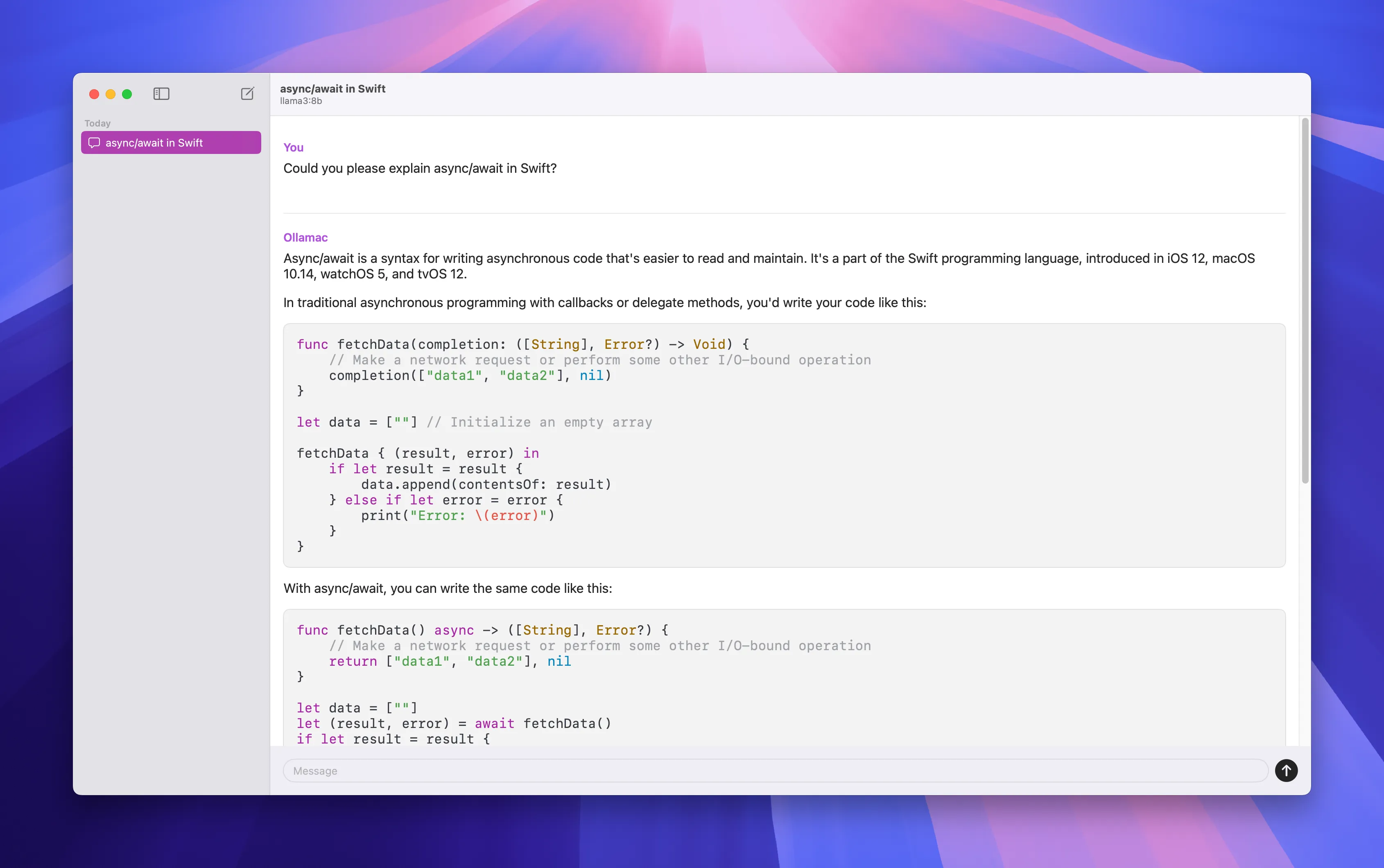
Ollama is the easiest way to run large language models on your Mac. It's the local AI equivalent of having ChatGPT on your machine—except your conversations never leave your computer.
Available models:
- Llama 3: Meta's latest, excellent for general tasks
- Mistral: Fast and efficient
- CodeLlama: Optimized for programming
- Phi-2: Microsoft's compact model
- Neural Chat: Intel's conversational model
Installation:
# Install via Homebrew
brew install ollama

# Or download from website
# https://ollama.ai
Basic usage:
# Start Ollama service
ollama serve

# Run a model (downloads automatically first time)
ollama run llama3

# Run coding-focused model
ollama run codellama

# List available models
ollama list
Integration with other apps: Ollama provides an API that many Mac apps can connect to, including:
- Raycast (via extension)
- Continue (VS Code extension)
- Open WebUI (web interface)
Hardware requirements:
- 8GB RAM: Can run smaller models (Phi-2, TinyLlama)
- 16GB RAM: Comfortable for 7B parameter models
- 32GB+ RAM: Run 13B+ models smoothly
Download: ollama.ai
2. LM Studio — Visual Interface for Local Models
If command-line isn't your thing, LM Studio provides a beautiful GUI for running local language models.
Features:
- Browse and download models from Hugging Face
- Chat interface similar to ChatGPT
- Model performance benchmarks
- API server for integration
Best for: Users who want Ollama's power with a graphical interface.
Download: lmstudio.ai
Transcription & Voice
3. MacWhisper — Offline Transcription Powerhouse
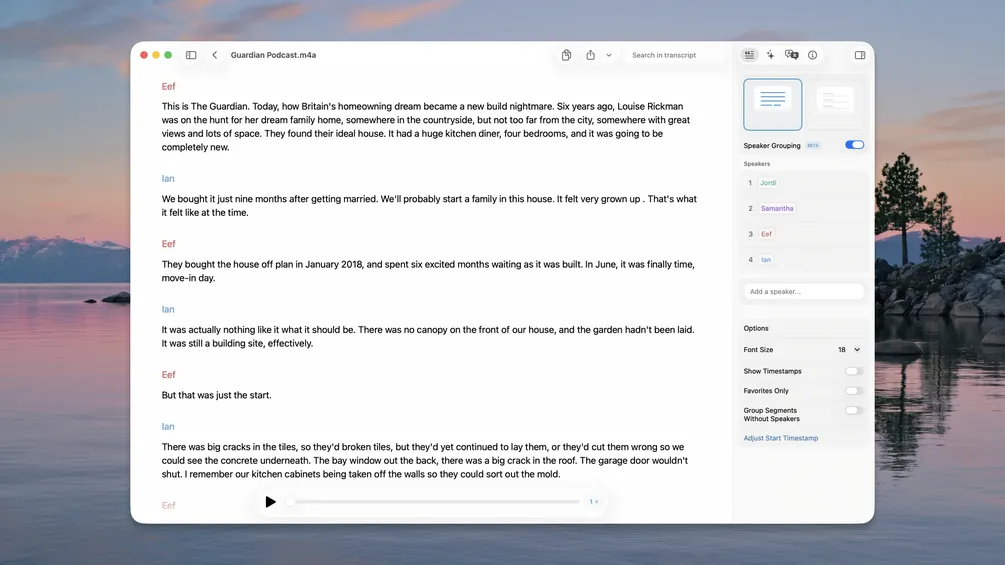
MacWhisper runs OpenAI's Whisper model locally. Transcribe hours of audio without uploading a single byte to the cloud.
Why local matters for transcription:
- Confidential meeting recordings stay private
- Client interviews remain secure
- Personal voice memos aren't analyzed by third parties
Model options:
| Model | Size | Speed | Accuracy |
|---|---|---|---|
| Tiny | 75MB | Fastest | Good |
| Base | 142MB | Fast | Better |
| Small | 466MB | Medium | Great |
| Medium | 1.5GB | Slower | Excellent |
| Large | 2.9GB | Slowest | Best |
My recommendation: Start with "Small" for the best balance. Upgrade to "Large" only for challenging audio (heavy accents, background noise).
Features:
- Drag and drop audio/video files
- Automatic language detection
- Speaker identification
- Export to TXT, SRT, VTT, CSV
- Batch processing
Price: Free version available, Pro ($29) unlocks larger models
Download: goodsnooze.gumroad.com/l/macwhisper
4. VoiceInk — Local Dictation That Understands Context
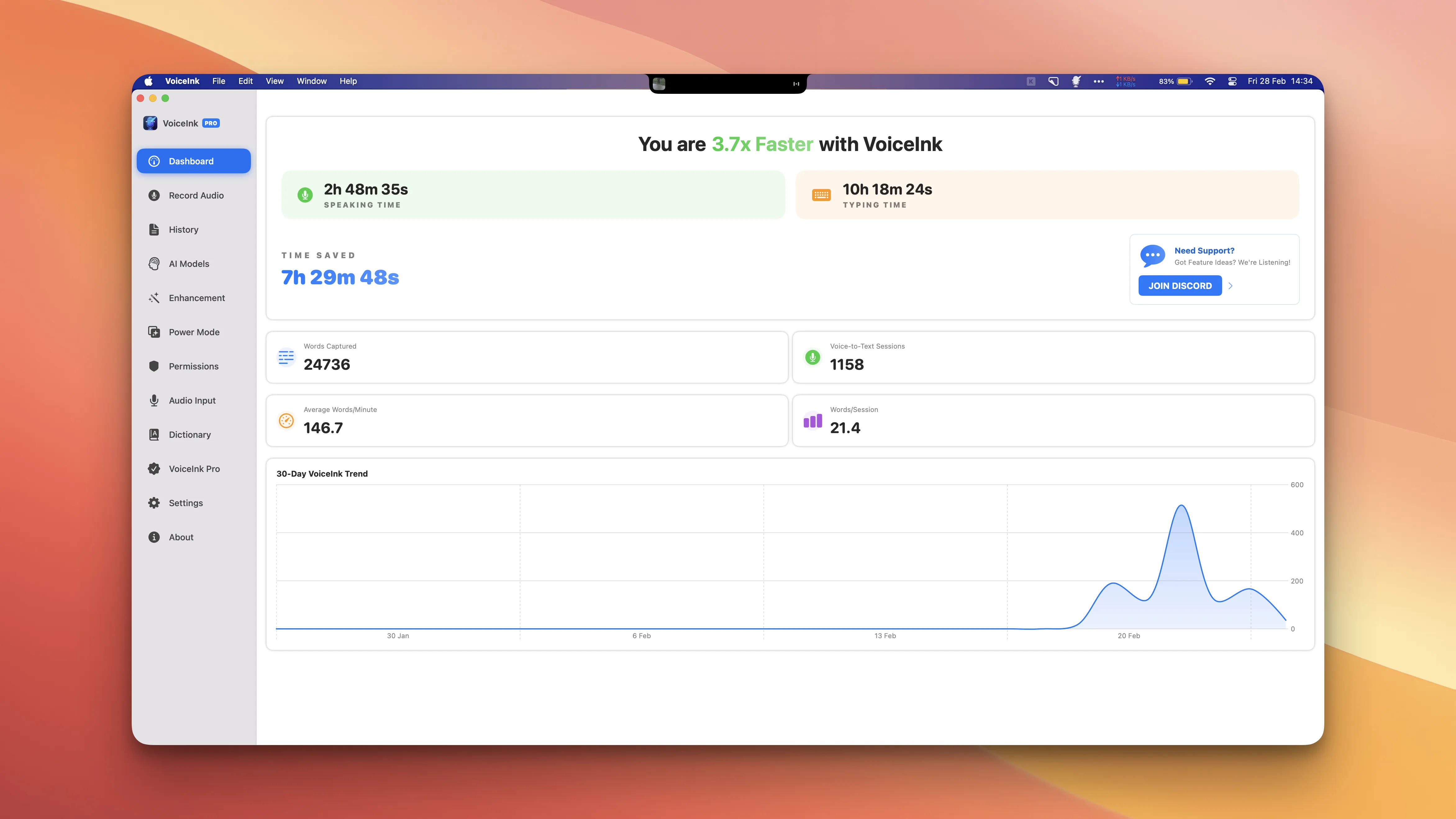
VoiceInk transforms voice into text locally, with context-aware formatting.
The context-aware difference:
- In email app → Formats as email
- In code editor → Maintains code syntax
- In chat app → Conversational tone
- In document → Proper paragraphs
Setup:
- Download and install
- Grant microphone permission
- Set your activation hotkey
- Start talking
Comparison with cloud alternatives:
| Feature | VoiceInk | Whisper API | Superwhisper |
|---|---|---|---|
| Privacy | ✅ Local | ❌ Cloud | ✅ Local |
| Price | $19 once | Pay per use | $10+/month |
| Speed | Instant | ~2s delay | Instant |
| Offline | ✅ | ❌ | ✅ |
Download: voiceink.app
5. superwhisper — Premium Local Transcription
Another excellent option for local voice-to-text with impressive accuracy.
Unique features:
- Continuous dictation mode
- Custom vocabulary training
- Shortcut integration
Available on: Setapp subscription or direct purchase
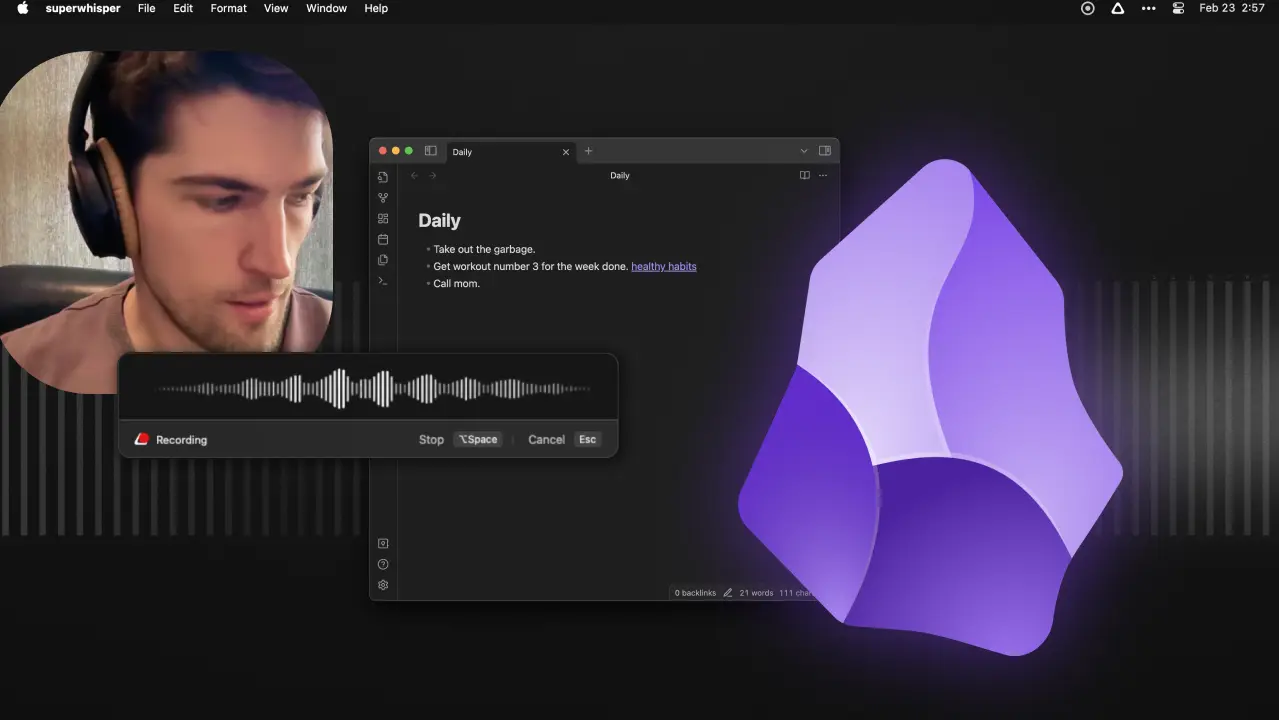
Image Generation
6. DiffusionBee — Stable Diffusion for Mac
Generate AI art without your prompts being stored on corporate servers. DiffusionBee makes Stable Diffusion accessible to everyone.
Core capabilities:
- Text-to-Image: Describe what you want, get an image
- Image-to-Image: Transform existing images
- Inpainting: Edit specific parts of images
- Outpainting: Extend images beyond their borders
Getting started:
- Download from website
- App downloads required models (~4GB first time)
- Enter a prompt
- Generate
Sample prompts:
A cozy coffee shop interior, warm lighting,
watercolor style, detailed

Professional product photography of a
minimalist watch, white background,
studio lighting

Abstract geometric patterns, blue and
gold color scheme, 4K, detailed
Tips for better results:
- Be specific: "oil painting" vs just "painting"
- Include style references: "in the style of Studio Ghibli"
- Specify quality: "detailed", "4K", "professional"
- Use negative prompts to exclude unwanted elements
Hardware requirements:
- Minimum: 8GB RAM (slow)
- Recommended: 16GB+ RAM
- Best: M1 Pro/Max/Ultra or M2/M3/M4
Price: Completely free
Download: diffusionbee.com
Writing & Productivity
7. Elephas — Offline-Capable AI Writing
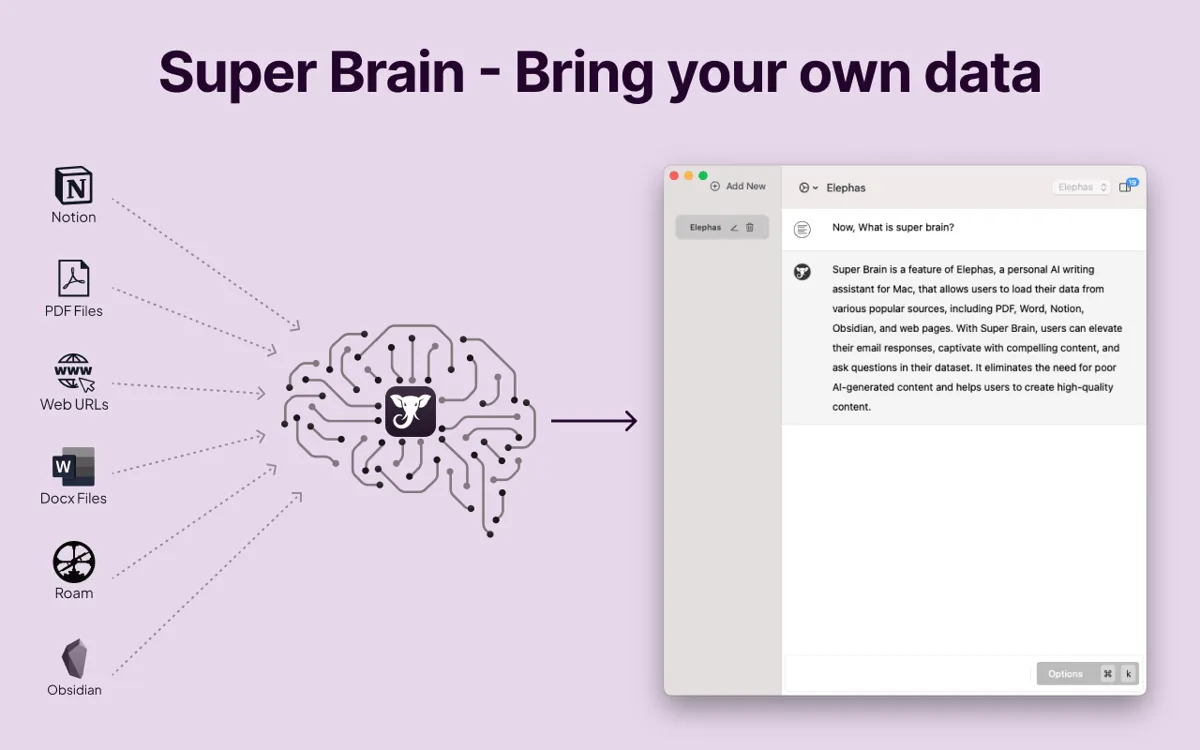
Elephas stands out among AI writing tools for its offline functionality. Your drafts, your style training, your knowledge base—all stored locally.
Offline features:
- Write with AI assistance without internet
- Super Brain knowledge base stored on device
- Style learning persists locally
- Sync optional, not required
How Super Brain works:
- Feed it your past writing
- Upload reference documents
- Add notes and snippets
- Elephas learns your patterns
- Suggestions match your voice
When offline mode shines:
- Writing on flights
- Working in areas with poor connectivity
- Handling sensitive documents
- Simply preferring privacy
Price: $8.99/month (offline features included in all plans)
Download: elephas.app
8. Focu — AI Journaling That Stays Private
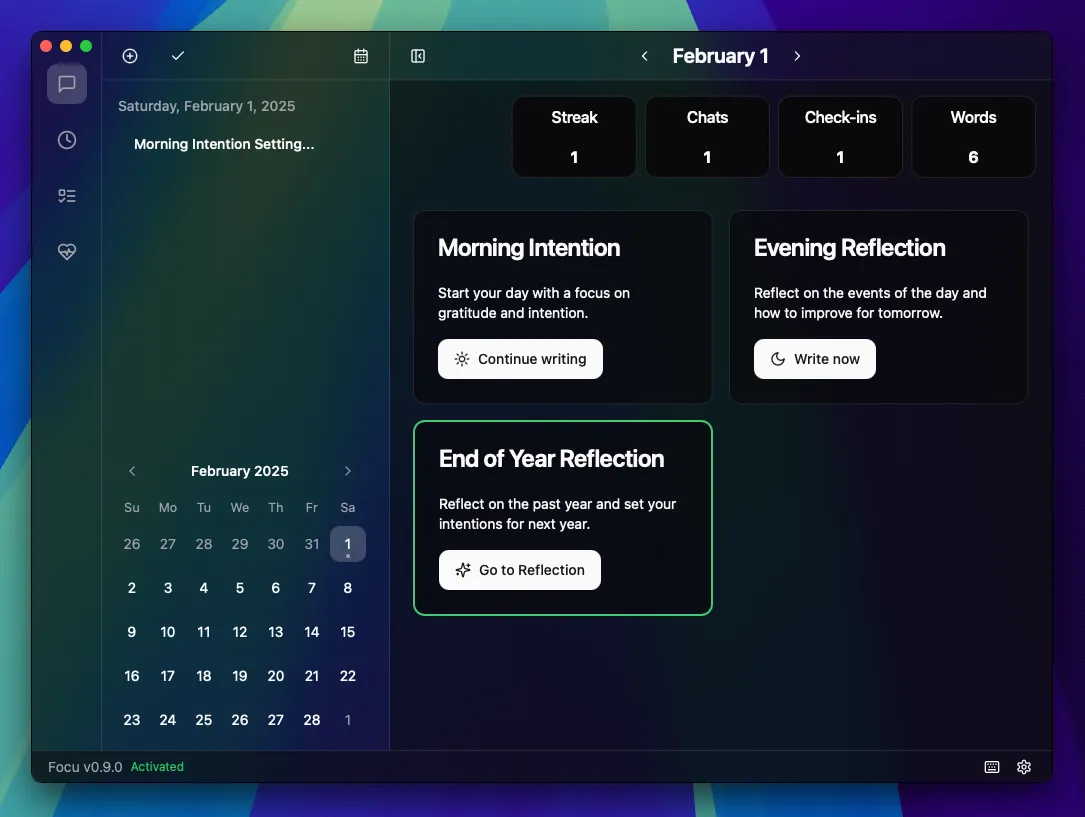
Focu combines journaling with AI-powered reflection, using local LLMs to analyze your entries without cloud processing.
How it works:
- Write your daily reflections
- AI identifies patterns and themes
- Smart prompts help you dig deeper
- Insights generated locally
Privacy commitment:
- All processing on-device
- No account required
- No sync unless you enable it
- Delete data anytime, completely
Best for:
- Personal reflection without surveillance anxiety
- Tracking emotional patterns privately
- Productivity journaling with AI assistance
Price: $19 one-time (3-day trial available)
System Tools
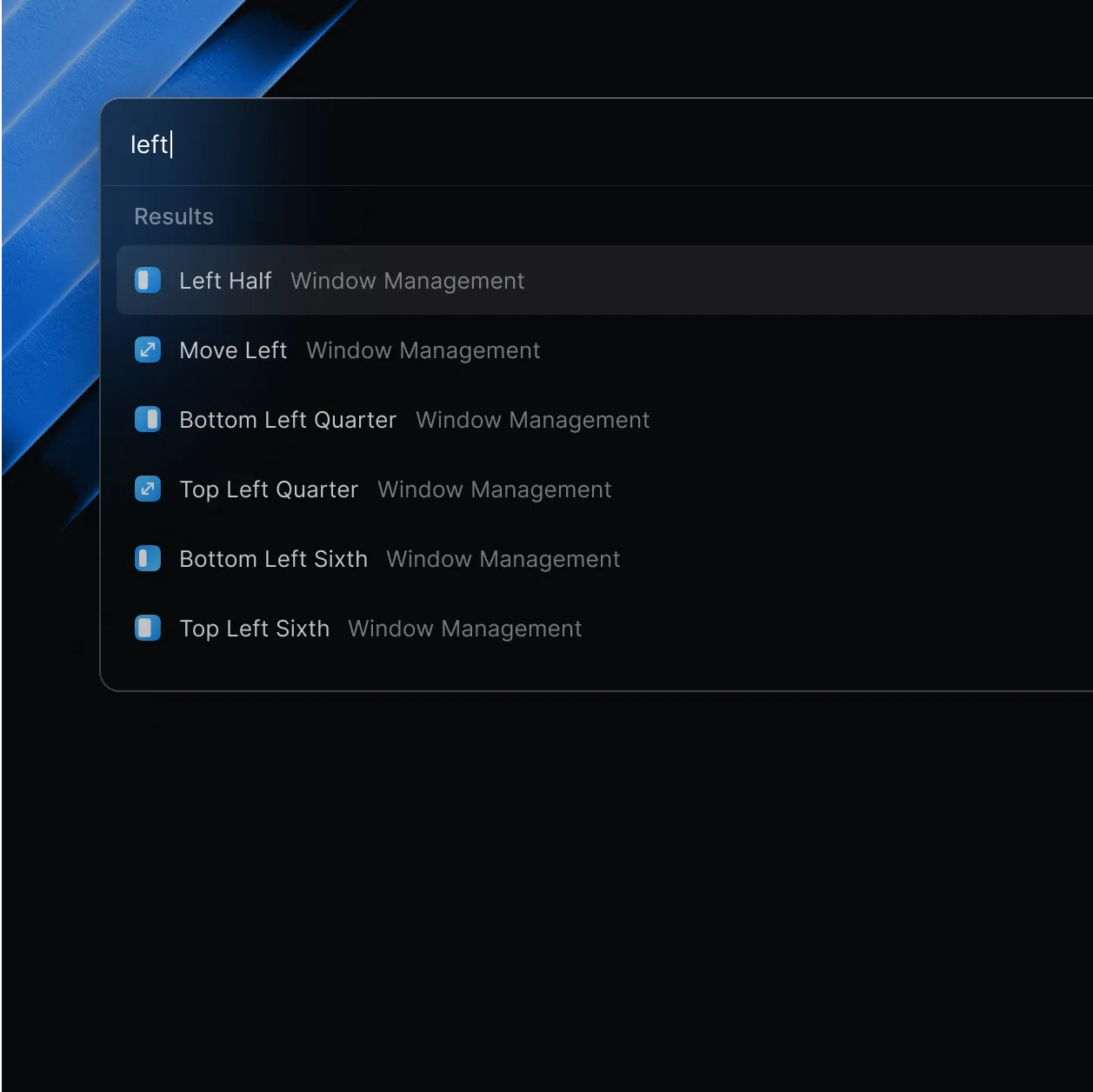
9. Raycast + Local AI Extensions
Raycast, the popular launcher, can connect to local AI models through community extensions.
Setup with Ollama:
- Install Ollama and run a model
- Install Raycast Ollama extension
- Access local AI from anywhere via hotkey
What you can do:
- Quick questions without leaving current app
- Summarize clipboard content
- Generate text snippets
- Code explanations
Why this matters: System-wide AI access that's completely private.
10. Open WebUI — ChatGPT Interface for Local Models
Want a ChatGPT-like experience with local models? Open WebUI provides exactly that.
Features:
- Familiar chat interface
- Conversation history
- Model switching
- Document upload and RAG
- Multi-user support
Installation:
# Requires Docker
docker run -d -p 3000:8080 \
  --add-host=host.docker.internal:host-gateway \
  -v open-webui:/app/backend/data \
  --name open-webui \
  ghcr.io/open-webui/open-webui:main
Then visit localhost:3000 in your browser.
Best for: Teams wanting a shared local AI interface.
Hardware Considerations
Minimum Requirements
- Apple Silicon Mac (M1 or later)
- 8GB RAM: Runs small models, basic tasks
- 256GB Storage: Room for models (~10-30GB)
Recommended Setup
- 16GB RAM: Comfortable for most use cases
- 512GB Storage: Multiple models, image generation
- M1 Pro or better: Faster generation, larger models
Power User Setup
- 32GB+ RAM: Run large models (13B+ parameters)
- 1TB Storage: Full model library
- M2/M3/M4 Pro/Max: Near-instant responses
Getting Started Guide
Week 1: Foundation
- Install Ollama
- Try
ollama run llama3 - Have a few conversations
- Notice: no lag, no login, no limits
Week 2: Productivity
- Install MacWhisper
- Transcribe a meeting recording
- Install VoiceInk
- Try dictating emails and notes
Week 3: Creative
- Install DiffusionBee
- Generate images from prompts
- Experiment with different styles
- Try image-to-image transformation
Week 4: Integration
- Connect Raycast to Ollama
- Set up hotkeys for quick AI access
- Build local AI into your daily workflow
Privacy Checklist
Before adopting any "local" AI app, verify:
- Processing location: Is AI actually running on-device?
- Data transmission: What gets sent to servers, if anything?
- Account requirements: Can you use it without signing up?
- Offline capability: Does it work without internet?
- Data deletion: Can you completely remove your data?
- Open source: Can you verify the code yourself?
Conclusion
Local AI on Mac has reached a tipping point. The tools are mature, the performance is excellent, and the privacy benefits are undeniable.
My essential local AI stack:
- Ollama for general AI tasks
- MacWhisper for transcription
- DiffusionBee for image generation
- VoiceInk for dictation
Total cost: $19 (VoiceInk) + $0 (everything else) = $19 one-time
Compare that to cloud AI subscriptions that easily reach $50-100/month.
The future of AI isn't just about capability—it's about control. With local AI apps, you get both.
Sources
This article synthesizes information from multiple sources with personal testing:
- Ayush Chaturvedi - "Top 10 Best AI Tools for Mac in 2025"
- Prakash Joshi Pax - "8 Crazy New Mac Apps Released in 2025"
- Olha Novitska - "Best AI Apps for Mac That Make Work Easy"
- Tested on: macOS Tahoe 26.x, MacBook Pro M4 with 36GB RAM