macOS Tahoe 26.4 Broke Time Machine SMB Backups: nsmb.conf Fix Until 26.5
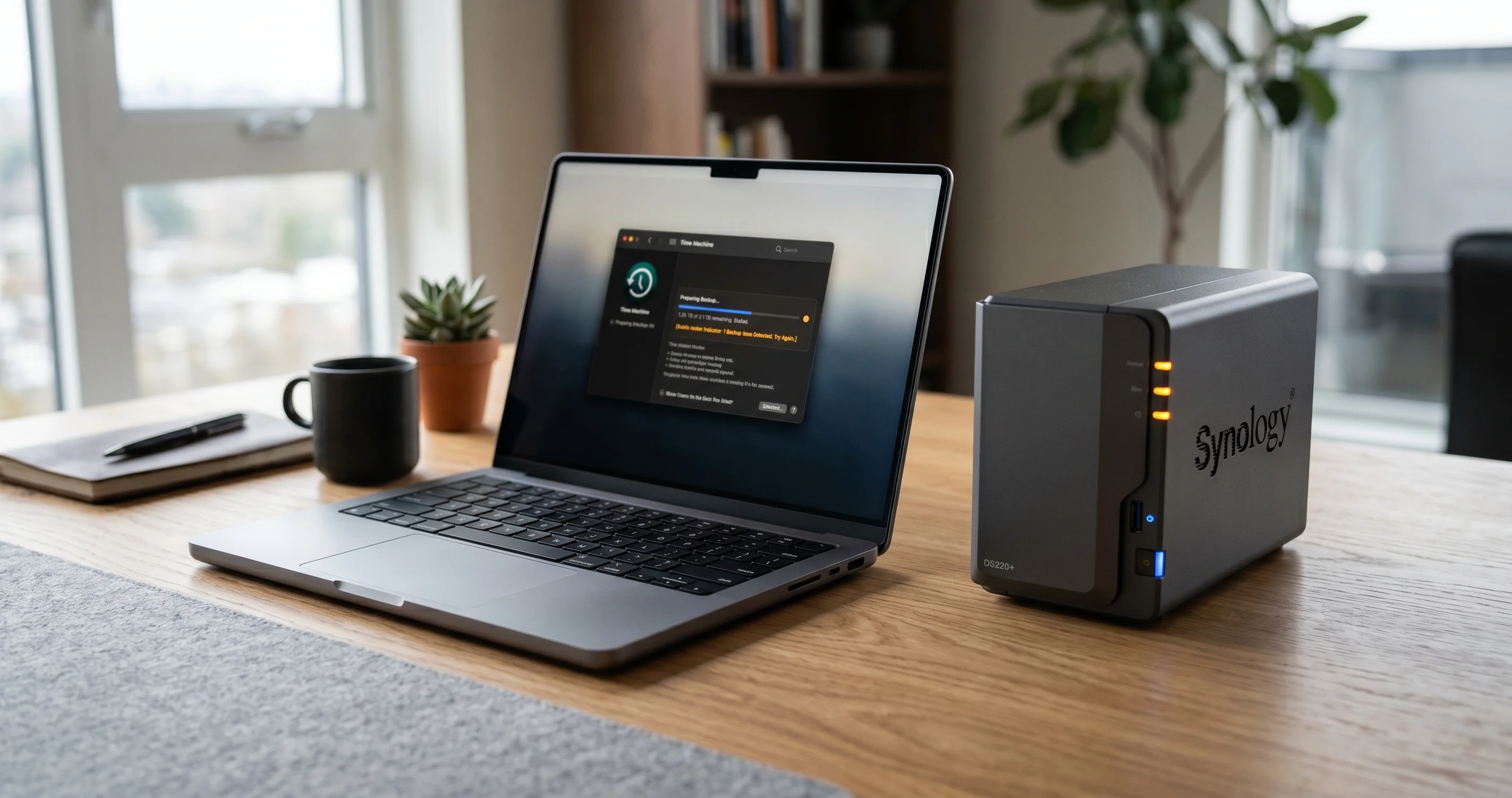
macOS 26.4 stricter SMB signing broke Time Machine on Synology, QNAP, UGREEN NAS. Step-by-step nsmb.conf workaround, vendor notes, and 26.5 fix timeline.
If you installed macOS Tahoe 26.4 in late March 2026 and your Time Machine backups to a Synology, QNAP, UGREEN, TrueNAS, or Asustor NAS suddenly stopped working, you are not alone. Apple's 26.4 release silently tightened the operating system's SMB signing defaults, and the change has broken Time Machine connections to virtually every third-party network attached storage device on the market. The 26.4.1 patch released on April 9 fixed several bugs, but it did not address the Time Machine SMB regression.
The good news is that there is a known workaround you can apply tonight, and Apple has already corrected the behavior in macOS 26.5 beta 4 (build 25F5068a, seeded April 27, 2026). The bad news is that the public 26.5 release is not expected until late May, just before WWDC 2026 on June 8. That leaves most NAS owners with several weeks of broken backups unless they intervene manually.
This guide explains exactly what changed under the hood, walks through the /etc/nsmb.conf workaround with the precise text to paste, summarizes the status of each major NAS vendor, evaluates the security trade-offs of relaxing SMB signing on a home or office LAN, and outlines safer interim backup strategies you can run while you wait. By the end you should have a working backup again, with a clear understanding of what you have given up and how to roll the change back the moment macOS 26.5 ships.
Key Takeaways
- What broke: macOS Tahoe 26.4 made SMB signing required by default for Time Machine connections. Most third-party NAS units do not advertise SMB signing in a way macOS 26.4 accepts, so the SMB session is rejected before Time Machine can mount the sparsebundle.
- Affected vendors: Synology DSM 7.2 and earlier, QNAP QTS 5.1.x, UGREEN UGOS 1.x, Asustor ADM 4.x, TrueNAS SCALE 24.x out of the box, and many other third-party SMB targets. macOS-to-macOS Time Machine over SMB still works.
- Symptoms: "Time Machine could not complete the backup," "operation not permitted," credential prompts that loop, sparsebundle that mounts but is reported as unreadable, and full re-backup attempts that abort within seconds.
- The fix: Create
/etc/nsmb.confwithsigning_required=noandprotocol_vers_map=7until your NAS firmware is updated or macOS 26.5 ships. - Risk: Disabling SMB signing exposes the SMB session to MITM tampering on the local network. Acceptable on a trusted home LAN, less acceptable on shared office Wi-Fi or coworking networks.
- Fix timeline: macOS 26.5 beta 4 reportedly resolves the regression. Public 26.5 is expected in late May 2026 ahead of WWDC.
What broke and when
Apple released macOS Tahoe 26.4 in late March 2026 as the second feature update in the Tahoe cycle. The release notes highlighted improvements to Apple Intelligence, a refresh of the Calendar app, and a long list of security fixes. Buried inside that security list was a change to the SMB client built into macOS, hardening the way the kernel negotiates SMB sessions. Apple did not call it out in the headline release notes, but the practical effect was immediate for anyone whose Time Machine destination was a third-party NAS.
Within 48 hours of the 26.4 rollout, the Apple Community thread tagged 256221835 began collecting reports from Synology and QNAP owners describing identical symptoms. A parallel discussion on Hacker News, item 46848699, accumulated hundreds of responses from users running every flavor of consumer and prosumer NAS. The pattern was unmistakable: backups that had been running nightly for years suddenly refused to initialize on the first attempt after the 26.4 update.
Apple shipped 26.4.1 on April 9, 2026 to address a few unrelated regressions including a Wi-Fi roaming issue and a Mail rendering bug. The Time Machine SMB problem was not in the 26.4.1 patch notes, and testing confirmed that the regression survived the point release. Users who had hoped that 26.4.1 would silently restore the old behavior were disappointed, and the tone of the Apple Community thread shifted from "is this just me" to "Apple needs to acknowledge this."
For a broader look at the 26.4 release cycle and other regressions worth knowing about, see our complete update guide for macOS Tahoe 26.4 and 26.4.1.
The symptoms gallery
The Time Machine SMB regression manifests in several distinct ways depending on the NAS vendor, the firmware version, and how Time Machine had been configured before the upgrade. The most common symptoms are listed below in roughly the order they appear on user reports.
Time Machine fails to initialize on the first scheduled backup after 26.4. The Time Machine menu bar icon spins for a few seconds, then displays "Time Machine could not complete the backup to [share name]." Opening Time Machine in System Settings shows the destination as still configured, but the next backup attempt fails identically.
Credential prompts that loop. macOS asks for the SMB share username and password, accepts the credentials, then immediately asks again. Saving the credentials to Keychain does not help because the SMB session itself is being rejected at a lower layer than authentication.
"Operation not permitted" or POSIX error 1. This is the most common error string in the underlying logs. It surfaces because the sparsebundle on the NAS is technically reachable, but macOS refuses to mount it because the SMB session was downgraded or negotiated without the signing properties macOS 26.4 now insists on.
Sparsebundle that mounts but is reported as unreadable. A small subset of users see the backup volume mount in Finder, but Time Machine reports the volume as unable to be used. This typically happens when the share negotiates an unsigned SMB1 or SMB2 session as a fallback and macOS refuses to write to it.
Full re-backup attempts that abort within seconds. Some users tried to "fix" the problem by removing the destination and re-adding it, hoping a fresh backup would work. Instead the re-backup negotiates the same broken SMB session and aborts almost immediately, sometimes leaving an empty placeholder sparsebundle on the NAS.
Console log entries referencing smbfs, signature mismatch, or STATUS_ACCESS_DENIED. Opening Console.app and filtering for smb while the failure happens reveals kernel messages about signature negotiation. This is the smoking gun for the signing change.
If you are seeing several of these at once, you are almost certainly hitting the 26.4 SMB signing regression rather than a NAS hardware fault, a network issue, or a corrupted sparsebundle. For broader Time Machine diagnostics that apply regardless of the SMB layer, the complete Time Machine troubleshooting guide covers the rest of the surface area.
Why it broke: Apple's SMB signing change explained
To understand why the workaround works, it helps to know what SMB signing actually is and why Apple decided to flip the default in 26.4.
SMB signing is a feature of the Server Message Block protocol, the file sharing protocol macOS uses when you connect to a Windows share, a Samba server, or a NAS. When SMB signing is enabled, every packet the client sends to the server includes a cryptographic signature derived from the session key. The server verifies the signature on each packet, and signs its responses the same way. The result is that an attacker on the same network cannot tamper with file content in flight without the signature failing and the connection being torn down.
SMB signing has existed since SMB1 and is mandatory in SMB3 by default for many Windows workloads. The protocol negotiation between client and server determines whether signing is "not used," "enabled but optional," or "required." Until macOS 26.4, the macOS SMB client was happy to negotiate an unsigned session if the server did not require signing, which is the path most consumer NAS devices took for performance reasons.
In 26.4, Apple changed the macOS default so that the client now requires signing on the session unless explicitly told otherwise. When the client connects to a NAS that advertises signing as available but not required, macOS now refuses to fall back to unsigned mode. The session negotiation completes with an error, the SMB mount fails, and Time Machine has no destination to write to.
Why did Apple do this? The change is consistent with a multi-year industry push to harden SMB. Microsoft made signing mandatory by default in Windows 11 24H2, the SMB community has been migrating to SMB 3.1.1 with mandatory signing, and Apple's enterprise customers have been asking for the same. The ransomware threat model includes attackers who pivot from a compromised endpoint to a file share and tamper with backup files in flight, and SMB signing is one of the cleanest mitigations.
The trouble is that NAS vendors had not been given a clear deprecation runway. Synology, QNAP, and UGREEN devices ship with signing available but not required so that older Windows clients and embedded devices can still connect. macOS 26.4 effectively requires those vendors to flip their own defaults, which is not a one-firmware-update fix on most platforms because it would break other clients on the same network.
For a broader look at the SMB stack on macOS Tahoe and the many other ways SMB connections can fail, the complete SMB and NAS troubleshooting guide covers connection issues outside of Time Machine.
The nsmb.conf fix, step by step
The cleanest workaround is to tell macOS that you are willing to accept SMB sessions without signing for the connections you trust. macOS reads a configuration file at /etc/nsmb.conf on every SMB session setup, and you can set a global flag there that restores the pre-26.4 behavior.
Before you start, two warnings. First, this change applies to every SMB connection your Mac makes, not just Time Machine, so be sure you are comfortable with the security trade-off described later in this article. Second, edits to /etc/nsmb.conf require administrator privileges and should be done carefully, because a malformed file will cause SMB connections to fail in different and less obvious ways.
Quick fix: a one-liner
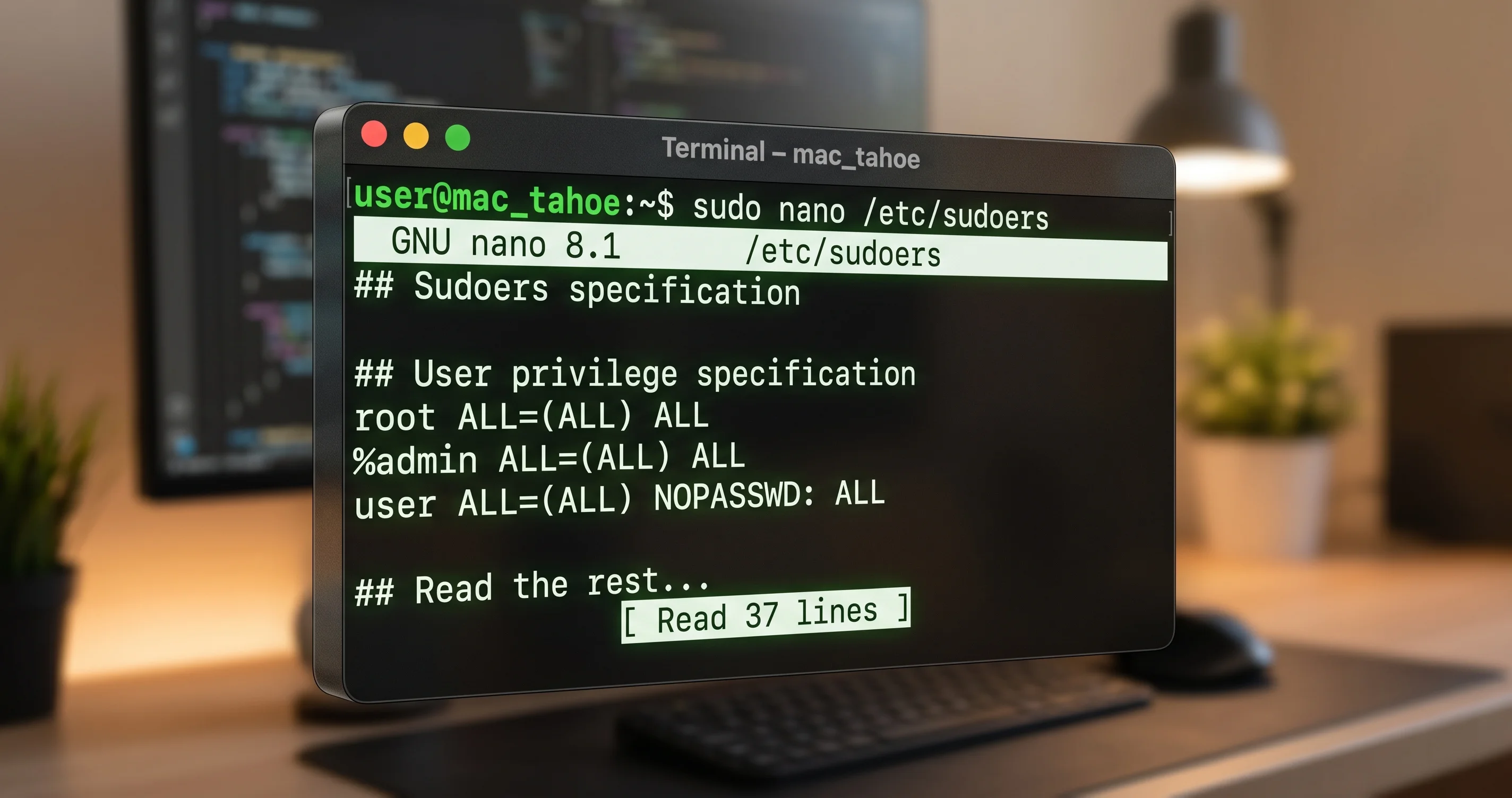
If you just want backups working before bedtime and you are comfortable in Terminal, the following command creates the file with the necessary settings in one shot. Open Terminal from Applications then Utilities, and paste the command exactly. You will be prompted for your administrator password.
sudo tee /etc/nsmb.conf >/dev/null <<'EOF'
[default]
signing_required=no
protocol_vers_map=7
EOF
The signing_required=no line tells the macOS SMB client that signing is optional rather than required. The protocol_vers_map=7 line is a bitmask that allows SMB 1, SMB 2, and SMB 3 negotiation, which is the legacy default. On most modern NAS devices only SMB 2 and SMB 3 will actually be used, but including SMB 1 in the map prevents an edge case where the negotiation falls through to no protocol at all.
After running the command, eject any currently mounted SMB shares from Finder, wait ten seconds, and reconnect to the share by name. The next Time Machine backup attempt should proceed.
Permanent fix: editing /etc/nsmb.conf by hand
If you would rather see the file before you commit to it, or you want to add per-server overrides later, create or edit the file in a text editor with sudo. Use whatever editor you prefer; nano is included with macOS and is the friendliest option for occasional Terminal users.
sudo nano /etc/nsmb.confPaste the following content, save with Control-O followed by Return, and exit with Control-X.
[default]
signing_required=no
protocol_vers_map=7

# Optional: target a specific NAS by hostname.
# Replace synology.local with your NAS hostname.
[synology.local]
signing_required=no
The [default] section applies to every SMB connection. The optional second section overrides the defaults for a single hostname, which is useful if you want signing relaxed only for the NAS and kept strict for connections to a corporate file server.
For users who need finer control, an alternative approach uses a property list at /Library/Preferences/com.apple.NetworkAuthorization.plist or the lesser-known serverMarkers.plist mechanism to mark specific servers as "legacy" and bypass the new signing logic. The plist approach is more invasive and has worse documentation than nsmb.conf, so we recommend it only if nsmb.conf does not solve the problem on your specific NAS firmware combination.
Verifying the fix worked
After saving the file, the next SMB session your Mac negotiates will respect the new defaults. To verify the file is being read correctly, run the following one-liner from Terminal.
cat /etc/nsmb.confYou should see exactly the contents you wrote. If the file is empty or shows a different [default] block, you may have a stale copy from a previous workaround attempt.
To watch the SMB negotiation happen in real time, open Console.app, type smb into the search field, then trigger a Time Machine backup or mount the share manually. You should see a successful session setup followed by a tree connect to the share name. Earlier failures will have logged signing or signature errors in the same stream, and the absence of those errors after applying the fix is a clean indicator that the workaround took effect.
If you want to confirm the SMB protocol version that was negotiated, open Activity Monitor, switch to the Network tab, and you will see the smbd connection. You can also run smbutil statshares -a from Terminal, which lists every active SMB share and the SMB dialect it negotiated. A line reading SMB_VERSION SMB_3_0_2 or higher with SIGNING_SUPPORTED TRUE means signing is still being used opportunistically even though it is no longer required, which is the best of both worlds.
Once Time Machine successfully completes its first backup, you can leave the configuration in place until macOS 26.5 ships. To roll back, either delete /etc/nsmb.conf or change signing_required=no to signing_required=yes and reconnect the share.
Per-NAS vendor status
The severity of the regression and the availability of a vendor-side fix varies by NAS platform. Here is the state of play as of early May 2026.
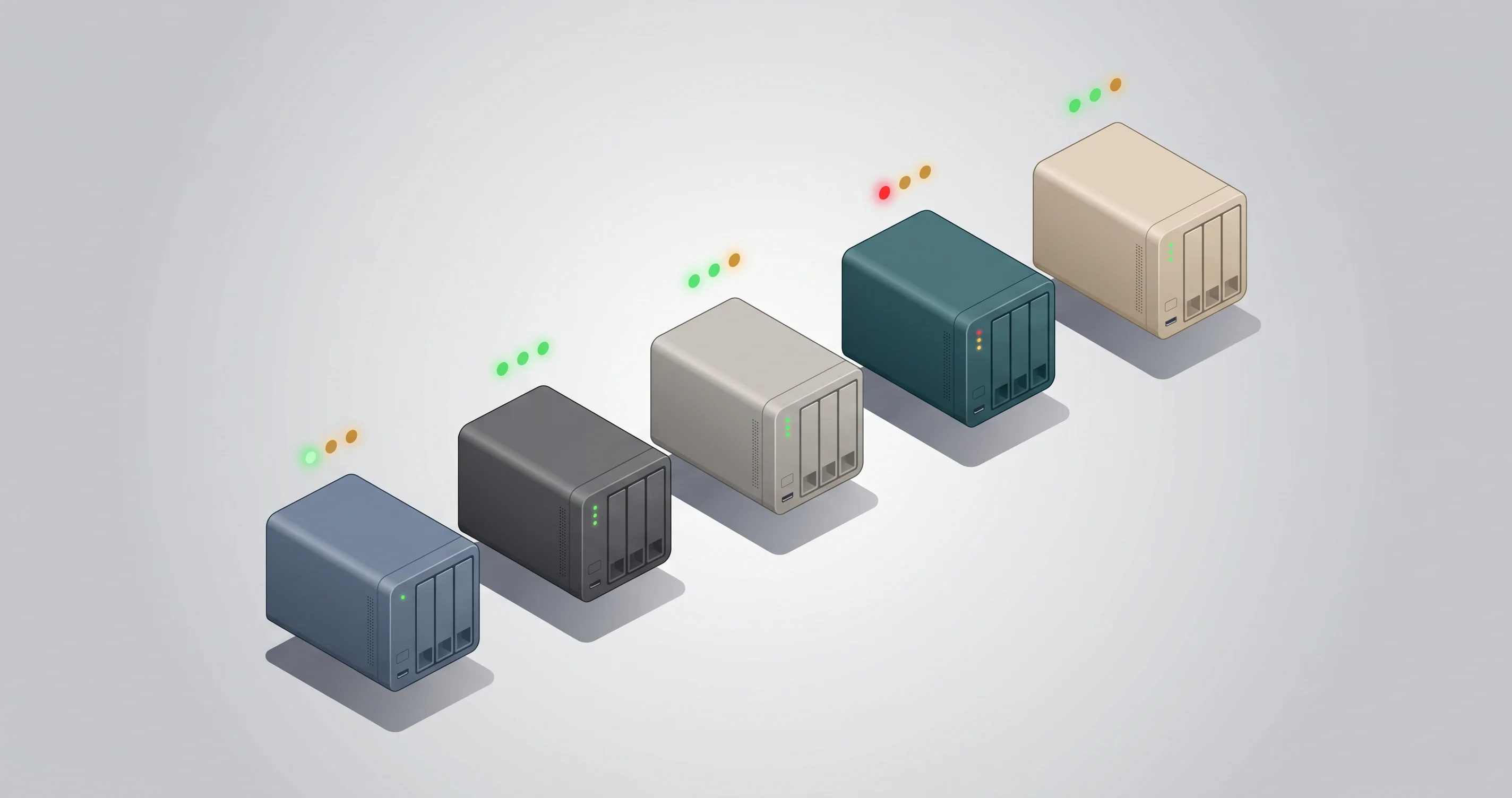
Synology DSM. Synology shipped DSM 7.2.2 update 4 in mid-April 2026 with a configuration toggle to require SMB signing on the server side. Enabling the toggle in Control Panel under File Services then SMB then Advanced Settings restores Time Machine functionality without the nsmb.conf workaround on the Mac. Older DSM 7.1 and DSM 6.2 systems do not have the toggle and require the client-side workaround. Synology has confirmed in community posts that DSM 7.2.3 will make signing-required the default for new installs.
QNAP QTS. QTS 5.1.7 added a similar setting under Control Panel, Network and File Services, Win/Mac/NFS/WebDAV, then SMB Advanced Options. The toggle is labeled "Enforce SMB signing." Enabling it works for most users, although a subset have reported that the QTS SMB stack negotiates correctly only after the share itself is recreated. QTS 5.2.0 beta is in testing and is expected to make signing-required the default.
UGREEN UGOS. UGREEN was slower to respond. As of late April 2026, UGOS 1.4 added a beta firmware that enables SMB 3.1.1 with signing required, but the firmware is not yet GA and is opt-in via the beta channel. UGREEN owners on stable UGOS firmware should plan on the nsmb.conf workaround for the next several weeks.
TrueNAS. TrueNAS SCALE 24.10 ships with Samba 4.20, which supports signing-required out of the box. The setting can be enabled by editing the SMB service auxiliary parameters and adding server signing = mandatory. Restart the SMB service after applying the change. TrueNAS CORE users with older Samba versions may need to update before the server-side fix is available.
Asustor ADM. ADM 4.3.1 added an "Enforce SMB signing" toggle in Services then Win/Mac/NFS, but enabling it on older Asustor units with low-end CPUs has been reported to drop SMB throughput by 20 to 30 percent due to per-packet signing overhead. The trade-off may push Asustor users toward the client-side workaround on the Mac instead.
Other vendors. Drobo, WD My Cloud Pro, and several smaller vendors have not yet shipped firmware updates. The nsmb.conf workaround applies in all cases. If your NAS runs a modern Samba (4.18 or newer), enabling server signing = mandatory in the smb.conf on the device should also work, but only attempt this if you are comfortable maintaining your own Samba configuration.
For users contemplating a longer-term backup strategy that does not depend on a single vulnerable point, the best Mac backup strategy for 2026 walks through how to combine Time Machine with iCloud and a local clone for resilience.
Security trade-offs of relaxing SMB signing
Disabling signing_required in nsmb.conf is a real change to your security posture, not a cosmetic toggle. It is worth being honest about what you are trading.
When SMB signing is required, an attacker who has positioned themselves on your local network as a man in the middle cannot tamper with the SMB traffic in flight. Without signing, a sufficiently motivated attacker on the same Layer 2 network could intercept SMB packets and modify file contents as they are written to the NAS. The attacker would need to be on your wired LAN, your Wi-Fi network, or a VPN that shares the same broadcast domain. They would also need the technical sophistication to run an SMB MITM tool, which is non-trivial but not exotic.
For a typical home environment with a single Wi-Fi network you control, a router you trust, and no untrusted devices on the LAN, the practical risk of an SMB MITM attack is very low. The most common attacker on a home LAN is malware running on another device you own, and that scenario is largely out of scope for SMB signing because the malware would have its own credentials and would not need to MITM your Mac.
For an office environment, a coworking space, or any setting where untrusted devices regularly join the network, the calculus is different. A coworker plugging in a Raspberry Pi, a guest device with malware, or a compromised IoT camera could all conceivably perform an attack against unsigned SMB traffic. In those environments, the right answer is not to relax signing on the Mac but to update the NAS firmware so that signing remains required end-to-end.
A reasonable middle path is to use the per-server section in nsmb.conf to relax signing only for the NAS hostname your Time Machine targets, and leave the global default at signing_required=yes. That way, your other SMB connections remain protected, and the relaxation only applies to the one host you are willing to trust on your LAN.
It is also worth noting that all SMB traffic on macOS is unencrypted by default unless the server explicitly enables SMB encryption (a separate feature from signing). If you are concerned about confidentiality of backup contents on the wire, enabling SMB encryption on the NAS side is more impactful than signing, and it does not interact with the 26.4 regression.
Alternatives while you wait
If editing system configuration files is not your idea of a relaxing weekend, or if you are uncomfortable with the security trade-off, there are several alternative backup strategies you can run in parallel or in lieu of the NAS-based Time Machine. Combining two of them gives you redundancy until the issue is resolved.

External SSD via Time Machine. A direct-attached USB-C SSD costs about as much as a single NAS drive bay and gives you native, signed Time Machine backups with no SMB layer in the way. A 2TB Samsung T7 or Crucial X9 Pro will hold months of incremental backups for most users. Plug it in nightly, let Time Machine complete, then unplug and store it offsite for ransomware resilience. The downside is the manual handling, which most people stop doing within two weeks.
Carbon Copy Cloner. Bombich Software's Carbon Copy Cloner (CCC) creates bootable or non-bootable clones of your Mac to any destination including SMB shares. CCC handles SMB session setup independently of Time Machine and includes its own retry logic that has been more resilient to the 26.4 regression than Time Machine itself. The license is one-time and the trial is generous. CCC is the most popular choice for users who want a real backup tool while waiting for Apple to fix Time Machine.
SuperDuper. Shirt Pocket Software's SuperDuper is the other long-running clone tool for macOS. It is simpler than CCC and has a smaller feature set, but it is also less expensive and more than sufficient for users whose only goal is "keep a recent copy of my disk somewhere safe." SuperDuper writes to local destinations more reliably than to SMB shares, so it pairs well with the external SSD approach.
Arq Backup to cloud storage. Arq is a versioned backup tool that targets cloud destinations including Backblaze B2, Wasabi, AWS S3, and your own SFTP server. It is designed for offsite backups, encrypts data client-side before upload, and has no dependency on the macOS SMB stack. Arq is a strong complement to a local backup rather than a complete replacement, because cloud restores of large datasets are slow.
A second Mac as Time Machine destination. If you have an old Mac lying around, you can enable file sharing on it and point Time Machine from your primary Mac to a folder on the secondary Mac. macOS to macOS SMB connections still work fine in 26.4 because both ends speak the same dialect. This is a niche option but a free one if the hardware is available.
The combination most users settle on while waiting for the fix is a Carbon Copy Cloner job to the NAS plus a weekly external SSD swap. CCC handles the daily incremental work and is reliable on 26.4, and the external SSD provides the air-gapped fallback that protects against everything from a NAS drive failure to ransomware encrypting the network share.
When does macOS 26.5 actually fix this?
Apple seeded macOS 26.5 beta 4 to developers on April 27, 2026 with build number 25F5068a. Beta release notes are still under NDA, but reports from beta testers confirm that the SMB signing default has been adjusted so that Time Machine connections to common NAS configurations succeed without manual intervention.
The exact mechanism of the fix has not been documented publicly. Best guess from the changes observed in the SMB negotiation logs is that Apple has reintroduced a fallback path for SMB sessions where the server advertises signing as supported but not required, with the fallback restricted to Time Machine sparsebundle access. This would preserve the security improvements for general SMB use while restoring backup functionality for the affected NAS population.
The public release timeline for 26.5 is unconfirmed but follows a predictable pattern. Apple typically targets late May for the final pre-WWDC point release of a major macOS version, and WWDC 2026 is scheduled to begin on Monday, June 8. Beta 4 in late April followed by beta 5 in early May and a release candidate in mid-May would put the public release in the May 19 to May 26 window, give or take a few days.
For a deeper look at what else is in the 26.5 cycle including new Apple Intelligence features, redesigned Reminders, and a long-awaited Mail rewrite, see our macOS Tahoe 26.5 beta 1 complete guide.
When 26.5 ships and you confirm Time Machine is working without the workaround, remember to remove or revert /etc/nsmb.conf so that SMB signing defaults are restored across all your network connections.
Troubleshooting checklist
If the nsmb.conf workaround does not fix Time Machine on the first try, work through this checklist before assuming the problem is more exotic.
Eject and remount the share. macOS caches the negotiated SMB session for a share until it is fully ejected. Use Finder to eject the NAS share, wait ten seconds, then reconnect from Finder by typing the share path manually. Only then trigger the Time Machine backup.
Restart the Mac. Some users have reported that the SMB client does not pick up the new nsmb.conf until the next boot. A restart is faster than chasing the issue further.
Update NAS firmware. Even if your NAS does not have a Tahoe-specific fix yet, a recent firmware update may have improved SMB negotiation in ways that interact with the macOS change. Synology DSM 7.2.2u4, QNAP QTS 5.1.7, and TrueNAS SCALE 24.10 are the minimum recommended versions.
Check share permissions. Verify that the user account Time Machine uses on the NAS has read and write permission to the Time Machine share. Some NAS firmware updates reset permissions during the update process.
Check sparsebundle integrity. If a previous backup attempt left a partial sparsebundle, mount it manually and run hdiutil verify against it. Corrupted sparsebundles will cause Time Machine to fail even after the SMB layer is fixed. In severe cases, deleting the sparsebundle and starting fresh is the cleanest path.
Confirm the Time Machine destination is recognized. Open System Settings then General then Time Machine, and verify the destination still appears in the list. If it has dropped off, re-add it after the SMB layer is working.
Check network connectivity. Confirm the Mac can reach the NAS at all by pinging it from Terminal. SMB requires both the IP-level connection and the SMB ports (445 typically) to be reachable.
Look at the kernel log. Run log show --last 5m --predicate 'process == "kernel"' | grep smb after a failed backup. Kernel-level SMB errors will reveal whether the failure is at signing negotiation, at authentication, at tree connect, or at the file operation layer.
If after all of these the backup still fails, your particular NAS firmware combination may be an outlier that requires the serverMarkers.plist approach or a NAS-side smb.conf change. Posting your NAS model, firmware version, and the exact kernel log lines to the relevant vendor forum is usually the fastest path to a working fix.
FAQ
Q: Does the nsmb.conf workaround affect SMB connections to my Windows PC?
A: Yes. Any change in the [default] section applies to every SMB connection your Mac makes. If you want to leave Windows connections strict, scope the change to a per-server section using your NAS hostname as the section name.
Q: Will I need to redo my full Time Machine backup after applying the fix? A: No. Once the SMB session is established correctly, Time Machine will pick up where it left off and write the next incremental backup. You only need a full re-backup if the sparsebundle itself was corrupted by a failed earlier attempt.
Q: I tried the fix and Time Machine still fails. What now? A: Work through the troubleshooting checklist above, paying particular attention to the kernel log lines. The most common follow-up cause is a corrupted sparsebundle from a previous failed attempt rather than a remaining SMB issue.
Q: Is the fix safe to apply on a Mac I bring to a coworking space?
A: It is safer than running unsigned SMB to your home NAS from the coworking network would be, but the cleanest answer is to either update your NAS firmware so server-side signing is required, or to scope the nsmb.conf exception to your home NAS hostname only.
Q: Do I need to repeat the fix after every macOS update?
A: The /etc/nsmb.conf file persists across updates. You should not need to reapply unless an update specifically resets system configuration files, which is rare.
Q: Will the fix break iCloud backups, AirDrop, or other Apple services?
A: No. Those services do not use SMB and are unaffected by nsmb.conf changes.
Q: Can I use the same fix on macOS Sequoia or Sonoma? A: The file format is the same and the same lines work, but you should not need it on Sequoia or Sonoma because the SMB signing change is specific to Tahoe 26.4. Applying the fix on older macOS versions is harmless but unnecessary.
Q: My NAS vendor says they have a firmware update that fixes this. Should I still keep nsmb.conf in place?
A: After the firmware update is applied and you have confirmed that Time Machine works without the workaround, remove nsmb.conf. Carrying the relaxation forward is unnecessary and reduces your security baseline.
Q: Is there a GUI tool for editing nsmb.conf?
A: Not officially from Apple. A few third-party tools exist on GitHub, but for a two-line file the Terminal approach is faster and lower risk than installing a new utility.
Q: When 26.5 ships, will Apple back-port the fix to 26.4? A: Apple has not committed to a 26.4.2 patch that addresses the SMB regression. Historically, Apple prefers to roll fixes into the next major point release rather than back-porting, especially for non-security regressions. Plan on 26.5 as the resolution.
Conclusion
The macOS Tahoe 26.4 SMB signing change was the right call from a security perspective, but the lack of vendor coordination has put NAS-based Time Machine backups in a difficult spot for several weeks. The /etc/nsmb.conf workaround is short, reversible, and addresses the immediate need. The more durable answer is to keep your NAS firmware up to date so that signing is required at the server end, restoring strict signing across the connection.
If you are reading this in late May 2026 or later, check whether macOS 26.5 has shipped before applying the workaround. If 26.5 is available, install it and your Time Machine backups should resume without any system file changes. If you applied the workaround and 26.5 is now installed, take five minutes to roll back nsmb.conf and confirm that backups still work with strict signing restored.
Backups are the kind of infrastructure you only think about when something breaks, and the 26.4 regression is a useful reminder that depending on a single backup destination is risky. Whatever fix path you take this week, consider adding a second, independent backup target before the next macOS update arrives.
Related reading
- The complete Time Machine troubleshooting guide for macOS Tahoe
- SMB and NAS troubleshooting on macOS Tahoe
- The best Mac backup strategy for 2026: Time Machine, iCloud, and clone tools
- macOS Tahoe 26.4 and 26.4.1 complete update guide
- macOS Tahoe 26.5 beta 1: what is new and what is fixed
- createinstallmedia complete guide: rolling back to a clean macOS install