macOS 27 Beta Won't Install in a Virtual Machine? Fix Guide
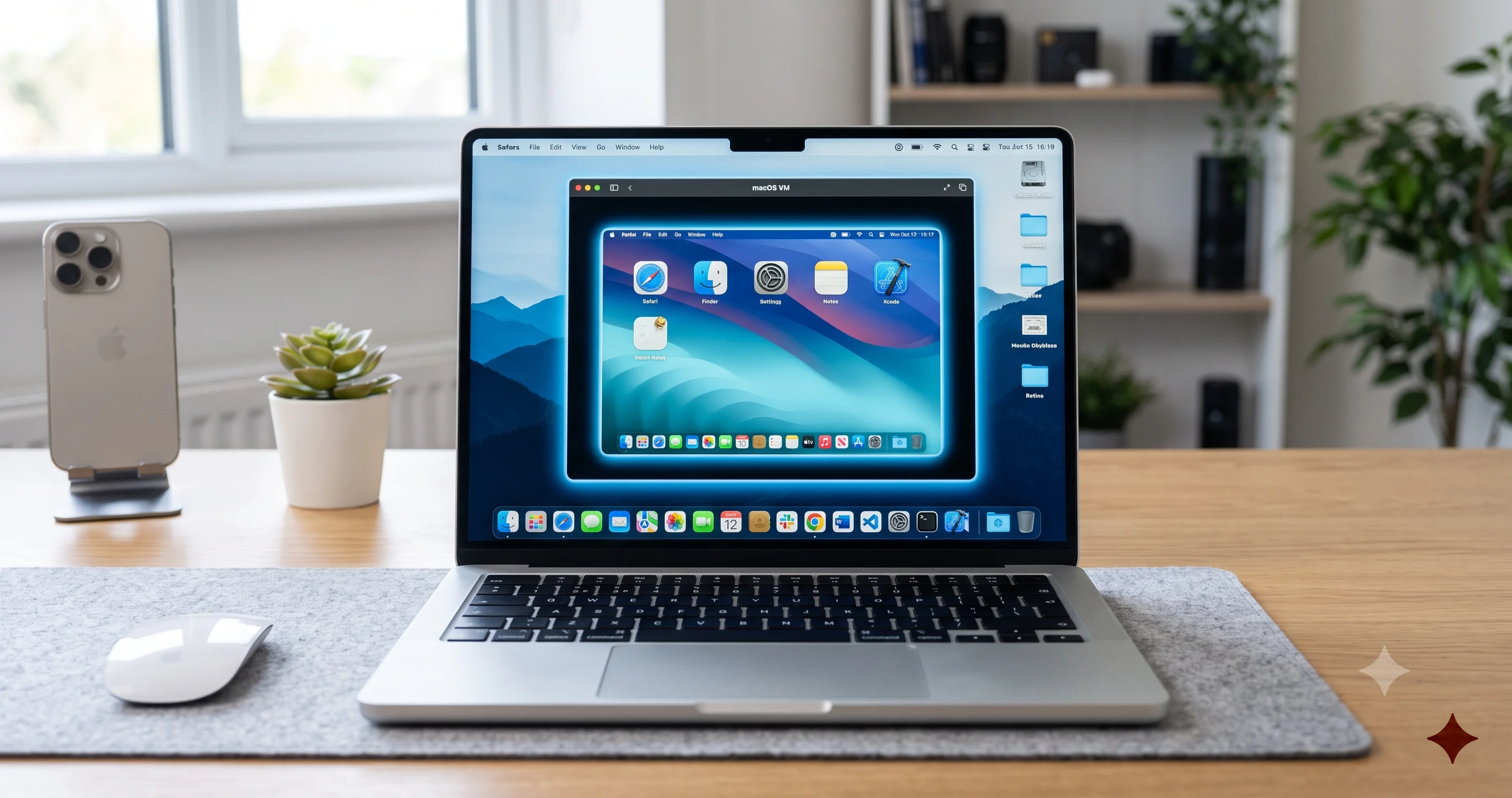
The macOS 27 Golden Gate beta fails to install in UTM, Parallels, and VMware with an installation failed error. Here is why it happens and how to fix it.
You do everything the careful way. Instead of dropping the brand-new macOS 27 "Golden Gate" beta onto your daily-driver Mac, you decide to test it inside a virtual machine first, exactly the way a responsible developer or power user is supposed to. You download the restore image, point UTM or Parallels or VMware Fusion at it, click to create the VM, watch the progress bar crawl forward for a few minutes, and then it stops dead with a curt little box: "An error occurred during installation. Installation failed." No log worth reading, no code to search, no hint about what went wrong. You try again. Same result. You switch apps, from UTM to VirtualBuddy to Tart, and every one of them fails in the same place with the same useless message. If the macOS 27 beta won't install in a virtual machine on your Mac, you are not misconfiguring anything, and your download is not corrupt. You have run into a known, Apple-acknowledged bug, and no amount of retrying will fix it until you change one specific thing about your setup.
This is one of the more frustrating problems to hit early adopters of a new macOS beta, precisely because it punishes the people doing things correctly. The whole reason to use a VM is to avoid risk, and here the safe path is the one that breaks. Worse, the generic "installation failed" error makes it look like a local mistake — a bad IPSW, not enough disk space, the wrong VM settings — sending people down hours of dead-end troubleshooting that could never have worked, because the root cause is not on their side of the screen at all. It sits in the interaction between the version of macOS your Mac is currently running and the version of macOS you are trying to install into the guest.
In this guide we will explain exactly what the error looks like, who hits it and who does not, and why testing a beta in a VM is worth the trouble in the first place. Then we will get to the heart of it: the real root cause, which is an incompatibility in Apple's Virtualization framework between a macOS 26.6 host and the macOS 27 installer, explained clearly enough that you understand precisely why every VM app fails the same way. From there we will walk through the three workarounds that actually work, per-app notes for UTM, VirtualBuddy, Tart, Parallels, and VMware Fusion, and the safer alternatives worth considering. This is a moving beta situation, so we will be honest throughout about what is solid and what may change with the next build.
Key Takeaways
- The "An error occurred during installation. Installation failed." message is a known, Apple-acknowledged bug, not a mistake on your end — it fails identically across UTM, VirtualBuddy, Tart, Parallels, and VMware Fusion because they all share the same underlying installer path.
- The root cause is an incompatibility in Apple's Virtualization framework — specifically the
VZMacOSInstallerAPI — when a Mac running macOS Tahoe 26.6 tries to install the macOS 27 Golden Gate restore image into a guest. The host OS is too old to drive the newer installer. - Workaround 1: build or install the macOS 27 VM on a Mac that is already running macOS 27, which removes the host-guest mismatch entirely.
- Workaround 2: create a macOS Tahoe VM first, then upgrade that VM to the macOS 27 beta from inside the guest via Software Update (Apple Beta enrollment), rather than installing 27 fresh from an IPSW.
- Workaround 3: simply wait for an updated beta build or an updated VM app that resolves the API mismatch — as a beta, which builds are affected can shift from one release to the next.
- On Apple silicon, all these apps wrap the same Apple framework, macOS guests are historically limited to two VMs per host under Apple's license, and guests cannot sign into some DRM and iCloud-tied services — good things to know before you invest time in a VM at all.
What the "Installation Failed" Error Looks Like and Who Hits It
The failure is almost identical no matter which app you use, which is the first big clue that the problem is not in the app. You start the normal flow for creating a new macOS virtual machine: choose to install a fresh macOS guest, hand the app a macOS 27 restore image (an IPSW file) or let it fetch one, allocate CPU cores, memory, and a disk, and begin. The early stages look completely healthy. The app unpacks the restore image, spins up a temporary installation environment, and shows a progress indicator that moves forward convincingly for anywhere from thirty seconds to a few minutes. Then, partway through, the whole thing halts and you get a terse dialog reading something along the lines of "An error occurred during installation. Installation failed." Some apps show it as a native macOS alert; others surface it in their own UI or dump a short line into a log. The wording is generic on purpose, because the app itself often does not receive a detailed reason from the framework doing the actual work.
Because the message is so bare, people naturally assume they did something wrong, and they burn time chasing causes that were never the problem. They re-download the IPSW in case it was corrupt. They verify checksums. They give the VM more disk space, more RAM, more cores. They delete and recreate the VM from scratch. They toggle every setting they can find. None of it changes the outcome, because none of those things is what is failing. The install gets far enough to prove your download is fine and your allocations are adequate — it is not choking on a missing byte or a cramped disk — and then it hits a wall built into the installation mechanism that no VM-side setting can move.
The Exact Behavior Across Apps
What makes this bug recognizable is its consistency. In UTM you see the create-VM wizard reach the install phase and then throw the failure. In VirtualBuddy, which is built specifically around Apple's virtualization stack for exactly this kind of testing, the guided installer fails at the same stage. Tart, the command-line-oriented tool favored by CI and automation setups, returns an install error rather than producing a usable image. Parallels Desktop and VMware Fusion, the two big commercial hypervisors, both fail when you feed them a macOS 27 restore image on an affected host. If you were seeing a local misconfiguration, you would expect the apps to fail differently — different stages, different messages, different quirks — because they wrap the framework in different ways. The fact that they all die at the same point with the same generic error is the signature of a shared upstream cause, not five separate coincidences.
Who Is Affected and Who Is Not
The dividing line is what your host Mac is running, not which VM app you chose. If your Mac is currently on macOS Tahoe 26.6 (including its betas) and you try to install a macOS 27 guest through the standard Virtualization-framework install path, you are in the affected group. If your Mac is already running macOS 27 itself and you build a 27 guest, you are generally not affected, because host and guest line up. This is why some people online swear the beta installs "fine" in a VM while others cannot get past the error no matter what they do — they are simply on different host operating systems. It is also why the problem is so tied to timing: it showed up precisely when people on the current Tahoe track started trying to spin up the freshly released 27 beta, and it will fade as hosts move onto 27 or as Apple ships a build that resolves the mismatch. Keep in mind that as a beta this is a moving target; the exact builds on either side of the line can change, so treat the version numbers here as the situation at the time of writing rather than a permanent rule.
Why Test macOS 27 in a Virtual Machine at All
Before we dig into the fix, it is worth being clear about why so many people go to this trouble, because it explains why the bug is such a nuisance rather than a shrug. Running a brand-new, first-year macOS beta on the Mac you depend on every day is genuinely risky. Early betas can break kernel extensions, corrupt data on downgrade, tank battery life, and render third-party apps unusable, and macOS 27 carries extra weight this cycle because it is the first Apple-silicon-only release, the last one with Rosetta 2, and the end of the Intel Mac era — a lot of moving parts landing at once. A virtual machine gives you a way to poke at all of it without betting your working environment on a beta that Apple itself labels as unfinished. If you want the wider picture of what is changing, our overview of what was announced at WWDC 2026, including features, compatibility, and release timing, sets the stage for why this release in particular draws so many testers.
Snapshots and Instant Rollback
The single biggest reason to test in a VM is the snapshot. Before you install a risky update, poke at a new API, or run software you do not trust, you take a snapshot — a frozen copy of the entire machine state — and if anything goes wrong you roll back to it in seconds. There is no reinstall, no restore from backup, no lost afternoon; you click a button and the VM is exactly as it was before you broke it. For beta testing this is transformative. You can install the beta, watch it fall over, revert, tweak something, and try again a dozen times in the span it would take to reinstall macOS once on real hardware. Bare metal simply cannot match that loop, which is why developers who need to reproduce bugs reliably reach for VMs first.
Isolation From Your Real Data and Setup
A VM is also a sealed box. Whatever the beta does — spawns weird background processes, mangles preferences, misbehaves with your accounts — it does it inside the guest, not on your actual disk. Your real photos, documents, keychains, and app licenses sit safely on the host, untouched. That isolation is exactly why the "installation failed" bug stings: the entire value proposition of the VM is that it lets cautious people test scary software safely, and this bug slams the door on the cautious path while leaving the reckless "just install it on your main Mac" path wide open. If you would rather not fight the VM at all and are considering the beta on real hardware, read our honest take on whether you should install the macOS 27 developer beta and its known issues before you commit, because a VM's safety net is not something you give up lightly.
The Root Cause: A Host-Guest Mismatch in the Virtualization Framework
Here is the part that actually explains everything. The reason the macOS 27 beta will not install in a virtual machine on a Tahoe host is an incompatibility inside Apple's own Virtualization framework — the low-level system component that every one of these apps relies on to create and install macOS guests on Apple silicon. Specifically, it is the installer piece of that framework, the API responsible for taking a macOS restore image and turning it into a bootable guest, that cannot correctly handle the macOS 27 restore image when it is running on a macOS 26.6 host. Apple has acknowledged this on the Developer Forums as a known issue. The short version: a Mac running Tahoe 26.6 cannot use the Apple virtualization install path to lay down the macOS 27 restore image, and until the host moves up or Apple patches the framework, that path is blocked.

How Apple Silicon Virtualization Actually Works
To see why this happens, you need to understand how virtual machines work on Apple silicon, because it is quite different from the Intel era. On Apple silicon Macs, third-party apps do not ship their own low-level hypervisor for running macOS guests. Instead, Apple provides the Virtualization framework (Virtualization.framework) as part of macOS, and that framework does the heavy lifting: it defines the virtual hardware, boots the guest, and — crucially here — installs macOS into a new guest from a restore image. Apps like UTM, VirtualBuddy, Tart, Parallels, and VMware Fusion are, for the macOS-guest case, essentially sophisticated front ends and management layers wrapped around that shared Apple framework. Apple even ships a bare-bones reference tool, macosvm, that demonstrates the same underlying calls. This design is elegant and it is why macOS-on-macOS virtualization works so cleanly on Apple silicon in normal times — but it also means every app inherits the framework's bugs, because they are all driving the same engine. Our broader macOS virtualization guide walks through this architecture in more depth if you want the full mental model.
Where the VZMacOSInstaller Path Breaks
Within that framework, the component that installs a fresh macOS guest is the one that takes your restore image and produces a working system. When you hand a VM app a macOS 27 IPSW and ask it to build a new guest, the app calls into this installer API, which reads the restore image, validates it, sets up the guest's virtual storage, and writes macOS 27 into it. The problem is that the installer code baked into the macOS 26.6 host is, in effect, older than the macOS 27 restore image it is being asked to process. The 27 image expects installer behavior that the 26.6 host's framework does not yet provide, and when the mismatch surfaces mid-installation, the framework aborts. The app on top receives a failure without a rich explanation and shows you the generic "installation failed" box. It is a version-skew problem: the thing doing the installing is a step behind the thing being installed, and the two cannot meet in the middle.
Why Every VM App Fails the Same Way
Once you understand that the installer lives in Apple's framework and not in the apps, the identical failures stop being mysterious. UTM, VirtualBuddy, Tart, Parallels, and VMware Fusion all ultimately route a fresh macOS-guest installation through the same Apple installer API. So when that API cannot handle the 27 image on a 26.6 host, it does not matter which polished interface you clicked through to get there — they all arrive at the same broken door. This is also why no amount of app-side troubleshooting helps and why updating just the VM app may or may not fix it: the fix has to come from either the host operating system (moving to a version whose framework understands the 27 image) or from Apple patching the framework in a host update, or from a later 27 beta whose image the current framework can handle. That reality is exactly what shapes the three workarounds below.
Per-App Notes: UTM, VirtualBuddy, Tart, Parallels, VMware Fusion
Although the underlying cause is shared, each app has its own quirks in how it presents the problem and which workarounds fit it best. Here is what to expect from each.
UTM
UTM is the popular free, open-source virtualizer and is many people's first stop because it costs nothing and handles both Apple-virtualization macOS guests and QEMU-based guests for other systems. For a macOS 27 guest on Apple silicon it uses the Apple Virtualization backend, which means it inherits the installer bug directly. In UTM the failure typically appears during the guided macOS install after you select the IPSW. Recreating the VM, switching the IPSW, or tweaking resource settings will not get you past it on an affected host. UTM is, however, a fine choice for Workaround 2: build a macOS Tahoe guest in UTM first (which installs without issue on a Tahoe host) and then upgrade that guest to the 27 beta from inside.
VirtualBuddy
VirtualBuddy is a free, focused tool built specifically around Apple's Virtualization framework for downloading, installing, and running macOS guests, and it is a favorite for exactly this kind of beta testing because it makes the framework's features easy to reach. That tight coupling means it is also directly exposed to the installer bug — its whole install flow is the framework's install flow. VirtualBuddy is excellent at conveniently fetching restore images and at managing snapshots, so it remains a strong choice once you route around the bug: use it to create and snapshot a Tahoe guest, then upgrade in place. Keep an eye on its releases, since a tool this close to the framework often adds handling for new beta quirks quickly.
Tart
Tart is a command-line virtualization tool aimed at automation and continuous integration, where macOS VMs are created, used, and thrown away programmatically. It, too, sits on Apple's Virtualization framework, so a tart create that pulls in a macOS 27 image on a 26.6 host will hit the same install failure rather than producing a usable image. For CI pipelines this bug is especially disruptive because the whole point is unattended, repeatable builds. The cleanest fix for Tart users is Workaround 1 — run the image-building step on a runner that is already on macOS 27 — or to pre-build the 27 guest elsewhere and distribute the ready-made image to your runners rather than installing fresh on each affected host.
Parallels Desktop
Parallels Desktop is the polished commercial hypervisor most associated with running Windows on Mac, but on Apple silicon it also creates macOS guests through Apple's framework, and those macOS guests hit the same installer wall on a Tahoe host. Parallels tends to ship updates promptly around new macOS releases, so it is worth checking for an app update — but remember that if the defect is in the host framework, a Parallels update alone may not resolve it until the host itself moves forward. Parallels is a comfortable environment for Workaround 2, since its snapshot and guest-management tooling is mature and makes the "install Tahoe, then upgrade" route straightforward.
VMware Fusion
VMware Fusion, now free for personal use, similarly relies on Apple's Virtualization framework for macOS guests on Apple silicon and fails in the same manner when handed a macOS 27 restore image on an affected host. As with Parallels, watch for a Fusion update, but do not expect an app update by itself to override a host-framework limitation. Fusion works well for the Tahoe-first upgrade path, and if your goal is simply to have a working macOS 27 sandbox rather than to test the fresh-install experience specifically, that path will get you there without waiting on anything.
The through-line across all five is the same: the app you pick changes the interface and the convenience features, not the fundamental cause. Choose the one whose snapshot and management tooling you like best, then apply one of the workarounds below.
Workaround 1: Build the VM on a Mac Already Running macOS 27
The most direct fix removes the mismatch entirely: install the macOS 27 guest on a Mac that is already running macOS 27 as its host. Because the bug is fundamentally about a host framework that is a step behind the guest image, putting the host on the same generation as the guest lets the installer API handle the 27 restore image correctly, and the VM builds normally. If you happen to have a second Mac — or a spare partition, or an external boot disk — already on the 27 beta, create your 27 guests there and the "installation failed" error simply does not occur.
The obvious catch is circular: many people want the VM precisely so they do not have to run 27 on any real Mac, and this workaround asks them to run 27 on a real Mac to build the VM. That is a fair objection, and if you have only one Mac and are unwilling to move it to the beta, this route is not for you — skip to Workaround 2. But there are situations where it fits neatly. If you own an older or secondary Apple silicon Mac you can afford to put on the beta, dedicating it as a "VM foundry" is clean: get that machine onto 27, build and snapshot as many 27 guests as your license allows, and then those guest images are portable and reusable. Teams running CI can apply the same idea by designating build runners that live on 27 and generating guest images there for everyone else to consume.
If you go this route, do it deliberately rather than by upgrading your main machine on a whim. Our guide to installing the macOS 27 public beta safely covers how to move a real Mac onto the beta with proper backups and an escape hatch, which matters even for a machine you are treating as disposable. And if you later want that host back on stable macOS, know the exit path in advance — our walkthrough on how to downgrade from the macOS 27 beta back to Tahoe without losing data exists for exactly that moment.
Workaround 2: Create a Tahoe VM First, Then Upgrade It via Software Update
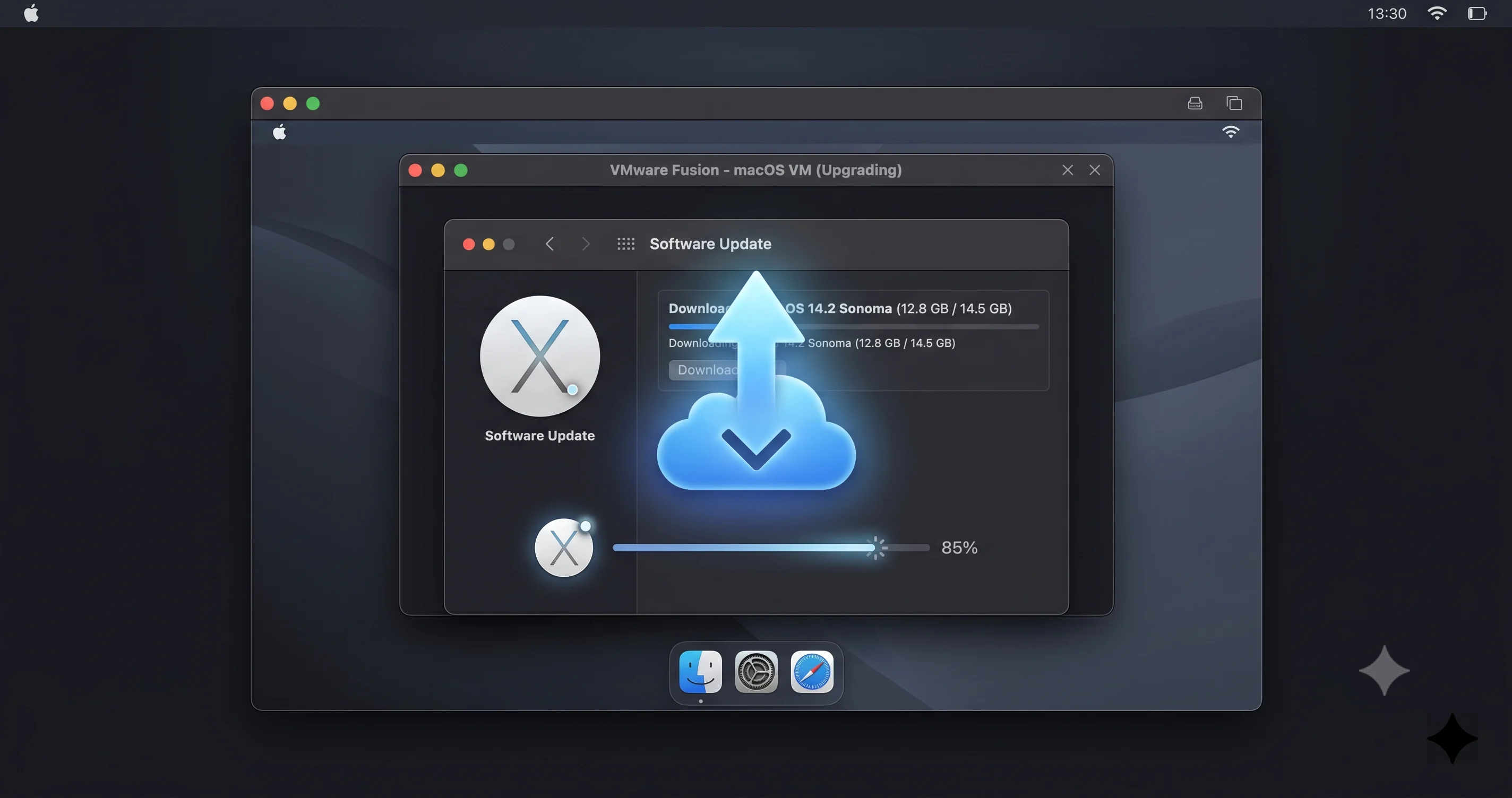
This is the workaround most single-Mac users will actually want, because it needs nothing but the Mac you already have on Tahoe. The insight is that the bug only affects installing macOS 27 fresh from a restore image through the framework's installer. It does not affect running an already-installed macOS guest, and it does not affect the ordinary in-place software update mechanism inside a running guest. So instead of trying to install 27 directly, you install a macOS Tahoe guest first — which works perfectly on a Tahoe host, since host and guest match — and then you upgrade that guest to the 27 beta from within, using Software Update, exactly as you would upgrade a real Mac.
Step by Step
Start by creating a normal macOS Tahoe virtual machine in your VM app of choice. Point it at a Tahoe restore image (or let the app fetch one) and let it install; because both host and guest are on the same generation, this completes without the error. Boot the new Tahoe guest, run through initial setup, and get to a working desktop. Before you do anything else, take a snapshot — this clean Tahoe state is worth keeping, and it is your instant rollback if the upgrade misbehaves.
Now enroll the guest in the beta the same way you would a physical Mac. Open System Settings, go to General and then Software Update, and use the beta-updates control to opt the guest into the Apple Beta program track that offers macOS 27. Once enrolled, Software Update will offer the macOS 27 beta as an available upgrade. Take one more snapshot right before you start the download, then let it download and install. Because this is an in-place update run by the guest's own software-update machinery rather than a fresh framework install, it sidesteps the broken installer path completely, and the guest comes up running macOS 27.
Why This Sidesteps the Bug
The distinction that makes this work is worth stating plainly: the framework's VZMacOSInstaller path is only invoked when the host builds a new guest from a restore image. Upgrading an existing, running guest to a new macOS version is handled by macOS's normal update system operating inside the guest, which is a different code path that does not depend on the host framework being able to process the 27 restore image. You are essentially letting the guest upgrade itself, the way any Mac does, rather than asking the host to install 27 into an empty box. It takes longer than a direct install and it consumes a bit more disk, but it reliably gets you a working macOS 27 VM on a Tahoe host today, without a second Mac and without waiting for a patch.
Workaround 3: Wait for an Updated Beta Build or VM App
Sometimes the right move is to do nothing yet. Because the defect lives in the interaction between the host framework and the guest restore image, it is exactly the kind of thing that gets resolved by the ordinary churn of beta season. There are three ways it can clear on its own. First, Apple can ship a host update — a later Tahoe 26.6 build or the general release — whose Virtualization framework understands the 27 restore image, at which point fresh installs start working on that host. Second, Apple can ship a revised macOS 27 beta whose restore image the current framework can handle. Third, the VM apps themselves can adapt around the quirk in an update, at least where the fix is something they can influence. Any one of these turns the direct-install path back on.
This is why keeping up with the beta cadence matters. Apple has been iterating quickly this cycle — the developer beta 3 build was followed within a week by a revised developer beta 3, alongside the first public beta — and revisions that close two-week-old gaps are common. If you are not in a hurry, checking again after the next beta drop is a perfectly rational strategy, and it costs you nothing. Waiting is also the honest recommendation when you would otherwise be tempted to do something drastic to your main Mac just to test a beta. The bug is a beta artifact, not a permanent state of affairs, and betas are supposed to have rough edges like this.
Be realistic about the trade-off, though. "Wait" is great if your goal is casual exploration and terrible if you have a real deadline — a bug to reproduce, an app to validate against the new release, a client who needs an answer this week. In that case, use Workaround 2 to get a working 27 guest now and treat any future framework fix as a bonus. And because this is a fluid situation, resist the urge to over-invest in any single build; what fails today may install cleanly next week, and what installs next week may behave differently again. Track the known-issues list rather than assuming the behavior you saw once is fixed. Our running rundown of macOS 27 developer beta known issues is a good place to check whether the VM-install problem has been marked resolved before you sink another evening into it.
How to Get the IPSW and Verify It
Even though the restore image is not the cause of the bug, you still need a correct one for Workaround 1 and for any direct install you attempt later, so it is worth doing this part right. On Apple silicon, macOS is distributed for virtualization and restore as an IPSW file — a signed, self-contained restore image — rather than as the "Install macOS" app used for normal upgrades. The safest sources are Apple's own developer channels for beta images and the restore images your VM app fetches for you. Several of the tools here, notably VirtualBuddy and the guided installers in the commercial apps, can download the appropriate restore image directly, which spares you from hunting down a file and reduces the chance of grabbing the wrong build.
Match the Build and Confirm Integrity
When you obtain an IPSW manually, make sure it is genuinely the macOS 27 beta build you intend to test and not a mislabeled or stale file. Note the build identifier where the source lists it and keep track of which build you are working with, since beta builds change frequently and behavior can differ between them. After downloading, confirm the file is intact: check that the size matches what the source states and, where a checksum is published, verify it before you use the image. A truncated or corrupted download will fail in its own way — often earlier and with different symptoms than the framework bug — so verifying integrity first lets you cleanly separate "bad file" problems from the host-framework problem this guide is about. If an install fails only after the progress bar has moved convincingly for a while and the message is the generic "installation failed," you are almost certainly looking at the framework bug, not a bad IPSW, especially if a checksum-verified image fails identically.
Keep the verified IPSW somewhere you can reuse it, because you will likely build the same guest more than once while testing, and re-downloading multi-gigabyte restore images every time is a waste. A single, verified, correctly labeled image reused across attempts also keeps your troubleshooting clean: if the same known-good file fails on a Tahoe host and succeeds on a 27 host, you have confirmed the diagnosis yourself.
Snapshots and Rollback: The Whole Point of a VM
Whichever workaround gets you a running macOS 27 guest, do not squander the one feature that makes VM testing worth the effort. Take snapshots liberally and deliberately. A snapshot captures the complete state of the guest at a moment in time — disk, memory, settings, everything — so that you can return to that exact moment later with a click. In beta testing this is your seatbelt. Snapshot the clean install before you configure anything. Snapshot again before enrolling in the beta, before any major update, and before you run anything experimental. If a test corrupts the guest or the beta upgrade goes wrong, you roll back in seconds instead of rebuilding from scratch, which on a fresh-install-blocked host would otherwise mean falling back to the Tahoe-then-upgrade dance all over again.
Build a small discipline around it. Name your snapshots so you know what each one represents — "clean Tahoe," "beta enrolled, pre-upgrade," "27 installed, pre-test" — rather than accumulating a pile of unlabeled restore points you cannot tell apart. Prune old snapshots you no longer need, since each one consumes disk space, but keep the key milestones. The combination of a matching Tahoe baseline snapshot and a working 27 snapshot means you can flip between a stable and a beta environment almost instantly, which is exactly the kind of flexibility that makes a VM superior to bare metal for this work. Treat the snapshot as the deliverable, not an afterthought: the running 27 guest is valuable precisely because you can always get back to a known-good version of it.
The Safer Alternative: A Separate APFS Volume or External Disk
A VM is not the only way to test a beta cautiously, and depending on your goal it may not even be the best one. Two hardware-adjacent approaches deserve consideration, especially given the current install bug. The first is a separate APFS volume on your Mac's internal drive. Because APFS lets multiple volumes share the same physical space, you can add a new volume to your existing container, install macOS 27 onto that volume, and boot into it when you want to test — leaving your main volume, with all your real data, completely separate. You choose which volume to start up from at boot, and the beta lives in its own space. This runs on real hardware at full speed, which matters for anything performance- or GPU-sensitive that a VM cannot represent faithfully, and it avoids the framework installer bug entirely because it is a normal on-hardware install, not a virtualization install.
The second option is an external disk. Installing the beta onto a fast external SSD and booting your Mac from it gives you a fully isolated test environment that touches your internal drive not at all. Unplug the external and your Mac boots straight back into your untouched stable system. Like the separate-volume approach, this runs on real silicon and skips the virtualization installer path, so the "installation failed" bug does not apply.
Weigh these against a VM honestly. The trade-off is that neither a separate volume nor an external disk gives you the instant snapshot-and-rollback loop that makes VMs so fast to iterate with — reverting a real install means reinstalling or restoring, not clicking a button — and both require rebooting to switch environments rather than running the beta in a window alongside your normal work. But they run at native speed, they represent real hardware behavior accurately, and right now they are immune to the exact bug that is blocking VM installs. If your reason for testing is to evaluate real-world performance, driver behavior, or hardware features rather than to iterate rapidly on software, a separate volume or external disk may actually be the smarter tool, and it is a genuinely safe way to keep your main system untouched.
Apple Silicon Virtualization Limits You Should Know
Even once you have a working macOS 27 guest, it helps to understand the boundaries Apple places on macOS virtualization, because they shape what you can realistically do inside the VM and they explain some behavior that would otherwise look like bugs.
The Two-VM Licensing Rule
Historically, Apple's software license terms limit how many macOS virtual machines you may run on a single host — commonly understood as up to two macOS guests per Mac, in addition to the host itself. This is a licensing constraint rather than a technical wall, but it is real, and it matters if you were planning to spin up a whole fleet of macOS 27 guests on one machine for parallel testing. If you need more, you need more hosts. For most individual developers and power users, two guests is plenty — a clean baseline and an active test environment — but teams building CI matrices should factor the per-host limit into their capacity planning rather than assuming a single beefy Mac can host an unlimited number of macOS guests.
No DRM and Some iCloud Services in the Guest
macOS guests running under Apple's Virtualization framework on Apple silicon do not have access to certain protected services. In practice this means some DRM-gated content and a number of iCloud and account-tied services either will not sign in or will not function fully inside the guest. The virtual machine does not present the same hardware identity and secure attestations a real Mac does, and Apple gates specific services on that. So if part of your test plan involves signing into services that depend on device-level DRM or particular iCloud entitlements, expect friction or outright refusal inside the VM. This is by design, not a fault in your setup, and it is one more reason that for certain kinds of testing a separate volume or external disk on real hardware is the better environment. Knowing this up front saves you from concluding the beta is broken when it is really the virtualization boundary doing its job.
These limits are not obstacles to routing around the install bug, but they set expectations. A VM is superb for exercising the OS, APIs, and most apps, and it is deliberately fenced off from a handful of hardware-bound, account-bound capabilities. Plan your testing accordingly, and lean on real-hardware installs for anything that runs into those fences.
Troubleshooting Common Issues
Problem: The macOS 27 install fails at the same spot no matter how many times I recreate the VM or which app I use.
Solution: This is the signature of the host-framework bug, not a local misconfiguration. Recreating the VM cannot help because the failure is in the shared Apple installer path, not in the app or your settings. Stop retrying and switch strategy: use Workaround 2 to build a Tahoe guest and upgrade it to 27 from inside, or build the guest on a Mac already running 27.
Problem: I updated my VM app to the latest version but the install still fails.
Solution: An app update alone may not fix a defect that lives in the host operating system's Virtualization framework. The apps wrap Apple's installer API, so if that API cannot process the 27 image on a 26.6 host, a newer app build still hits the same wall. Move the host to macOS 27, use the Tahoe-then-upgrade path, or wait for a host or beta update that resolves the mismatch.
Problem: I am not sure whether my failure is a corrupt IPSW or the known bug.
Solution: Verify the restore image first — confirm the file size matches the source and check any published checksum. A corrupt file usually fails earlier and differently. If a checksum-verified image still fails after the progress bar advances for a minute or two, ending in the generic "installation failed" message, and it fails identically across apps, you are looking at the framework bug, not a bad download.
Problem: The Tahoe VM installs fine but I do not see the macOS 27 beta offered in Software Update inside the guest.
Solution: The guest must be enrolled in the correct beta track first, just like a real Mac. In the guest, open System Settings, go to General then Software Update, and use the beta-updates control to opt into the Apple Beta program track that offers macOS 27. After enrolling, the 27 beta should appear as an available upgrade. Snapshot before you start the download so you can roll back.
Problem: Some iCloud or media services will not sign in or work inside the macOS 27 guest.
Solution: This is expected. macOS guests on Apple silicon do not get access to certain DRM-gated and account-tied services because the VM does not present the same hardware identity a real Mac does. It is a deliberate virtualization boundary, not a beta bug. If you must test those specific services, install the beta on a separate APFS volume or external disk on real hardware instead of in a VM.
FAQ
Is the "installation failed" error a bug in my VM app or in macOS?
It is a bug in macOS itself — specifically in the Virtualization framework's installer path on a macOS 26.6 host handling the macOS 27 restore image. Apple has acknowledged it as a known issue. UTM, VirtualBuddy, Tart, Parallels, and VMware Fusion all fail identically because they share that same underlying Apple installer, not because any one app is at fault.
Will reinstalling my VM app or re-downloading the IPSW fix it?
No. Because the defect lives in the host's Virtualization framework rather than in the app or the file, reinstalling the app or re-downloading a verified restore image changes nothing. Both efforts are common time-wasters here. The only real fixes are moving the host to macOS 27, upgrading a Tahoe guest from inside via Software Update, or waiting for a corrective update.
Can I install macOS 27 in a VM without a second Mac?
Yes. Use Workaround 2: create a macOS Tahoe virtual machine on your existing Tahoe host, boot it, enroll it in the Apple Beta program in Software Update, and upgrade that guest to macOS 27 in place. The in-guest update path avoids the broken framework installer, so a single Mac is enough to end up with a working macOS 27 guest.
Is testing on a separate APFS volume safer than a VM?
It is arguably safer for your data and it avoids this specific bug, since it is a real on-hardware install rather than a virtualization install. The trade-off is you lose instant snapshot rollback and must reboot to switch environments. For evaluating real performance or hardware behavior it is excellent; for rapid software iteration a VM's snapshots still win when you can get one running.
How many macOS 27 VMs can I run on one Mac?
Apple's license terms have historically limited macOS guests to two per host, in addition to the host itself. It is a licensing rule rather than a technical block, but it is real and matters for anyone planning parallel testing. If you need more simultaneous macOS guests, you need additional host machines rather than piling them onto one.
Should I just wait for Apple to fix it?
If you are exploring casually and have no deadline, waiting is reasonable — a later beta build, a host update, or an updated framework can restore direct installs, and betas iterate quickly. If you have real work that depends on a macOS 27 sandbox, do not wait; use the Tahoe-then-upgrade path to get a working guest today and treat any future fix as a bonus.
Conclusion
The macOS 27 beta refusing to install in a virtual machine is one of those problems that feels like a personal failing and is nothing of the kind. The generic "installation failed" message hides a specific, Apple-acknowledged cause: a macOS Tahoe 26.6 host cannot drive the Virtualization framework's installer to lay down the newer macOS 27 restore image, so every app built on that shared framework — UTM, VirtualBuddy, Tart, Parallels, VMware Fusion — fails at the same point. Once you understand that the installer lives in Apple's framework rather than in the apps, the identical failures make sense, the futile retries stop, and the path forward becomes clear. Nothing you can change in the VM's settings will move a wall that is built into the host.
The good news is that you have three real ways around it and one genuinely safe alternative. Build the guest on a Mac already running macOS 27 if you have one to spare; on a single Mac, install a Tahoe guest and upgrade it to the beta from inside via Software Update, which neatly sidesteps the broken installer; or simply wait for a beta build, host update, or app update that closes the gap, since this is a moving beta situation and the affected builds can shift. And if snapshot-speed iteration is not what you need, a separate APFS volume or an external boot disk gives you a full-speed, real-hardware test environment that is immune to this bug and keeps your main system untouched. Whichever route you take, snapshot early and often, mind the two-VM licensing limit and the DRM and iCloud boundaries inside guests, and keep a verified IPSW on hand.
If you are still deciding how far down the beta road to go, ground your plan in the wider context first: read what macOS 27 changes and when it ships, audit your apps against the end of Rosetta 2 and the Intel-app cutover, and check where your hardware lands on the final Intel-Mac compatibility list. Test smart, keep your escape hatch ready, and let the VM do what it does best — take the risk so your real Mac never has to.