Chrome and Brave Won't Load Websites on the macOS 27 Beta? Fix It
Chrome not loading websites on the macOS 27 beta while Safari works? Here is why Chromium browsers break, plus a step-by-step fix ladder to get them back.
You installed the macOS 27 "Golden Gate" public beta, opened Chrome, typed a URL, and… nothing. The tab spins. The status bar reads Connecting… and never moves on. After a while you get a bare error — ERR_CONNECTION_TIMED_OUT, ERR_NAME_NOT_RESOLVED, or Brave's cheerful This site can't be reached. So you try another site. Same thing. Every site. Then, half out of habit, you open Safari — and it loads instantly, first try, no hesitation. The internet is clearly fine. Your Wi-Fi is fine. Yet Chrome not loading websites on the macOS 27 beta has become your whole afternoon, and it's happening in Brave, Edge, Arc, and Vivaldi too.
If that's you, take a breath: your Mac isn't broken and neither is your network. This is one of the more widely reported rough edges of the current macOS 27 beta — a pattern where Chromium-based browsers can't reach anything while Safari sails through. It's showing up on the Brave Community forums, in Apple Discussions threads, and across the MacRumors beta boards, and the common thread is always the same: the WebKit browser works, the Chromium ones don't. That split is actually the biggest clue we have about what's going wrong, and it's the reason most of the fixes below are quick, reversible, and don't require you to nuke anything.
This guide does two things. First, it explains — honestly, and with the hedging a beta deserves — why non-Safari browsers are the ones that break. Second, it gives you a fix ladder you can climb in order, from the thirty-second toggle that solves it for a lot of people up to the honest fallback nobody likes to say out loud: it's a beta, and sometimes the right move is to lean on Safari or step back to stable Tahoe until Apple ships a new build. Let's get your browsers back.
Key Takeaways
- Safari working while Chrome, Brave, Edge, Arc, and Vivaldi all fail is the signature of this beta issue. It points at how the current macOS 27 beta routes network traffic for non-WebKit apps — DNS, network extensions, and the per-app network path — rather than at any one browser.
- This is beta-tester-reported, not an Apple-confirmed bug. Threads on Brave Community, Apple Discussions, and MacRumors describe it; Apple has not published a formal acknowledgement. Behavior can change from one beta build to the next, so re-test after every update.
- The highest-hit fixes are simple and reversible: turn off the browser's Secure DNS / DNS-over-HTTPS, disable any network-filter or VPN system extension (Little Snitch, LuLu, corporate filters, some antivirus), set IPv6 to Link-local only, and flush the DNS cache.
- Check Private Relay and VPN early. iCloud Private Relay and half-connected VPN tunnels behave differently for Safari than for Chromium apps under the beta and are a frequent culprit.
- The honest fallback is Safari or a revert. On a beta, some issues simply wait on Apple. If a working Chromium browser is non-negotiable for you, weigh rolling back to stable Tahoe rather than fighting the build.
First: Are You Actually on the macOS 27 Beta?
Before you change a single setting, confirm you're on the beta this article is about — because the fixes here are aimed squarely at beta behavior and can be a waste of time (or mildly counterproductive) on the stable release.
Check your exact version
Open the Apple menu > About This Mac and read the version line. Then click More Info > Software Update (or System Settings > General > Software Update) to see whether you're on a beta seed.
- If it reads macOS 27.0 beta (or shows the developer/public beta banner), you're in the right place. The public beta arrived in mid-July 2026 — Public Beta 1 on July 13, Public Beta 2 on July 22 — and the newest developer seed at the time of writing is beta 4, build 26A5388g (July 20). Apple hasn't published fixed build strings for the public seeds, so don't over-index on a specific number; "the macOS 27 public beta" is the honest way to describe it.
- If it reads macOS 26.5.2 (build 25F84) or similar, you're on stable Tahoe, not the beta. In that case a total Chromium blackout is not the known beta pattern, and you should treat it as an ordinary networking problem — start with our complete Wi-Fi dropping fix guide and VPN troubleshooting guide instead of the beta-specific steps below.
A note for Intel Mac owners
macOS 27 "Golden Gate" is Apple silicon only — M1 or later. Every Intel Mac was dropped this cycle. If you're on an Intel machine, you cannot be running the macOS 27 beta at all, so a browser problem there is something else entirely. This guide assumes an M-series Mac on the beta.
Remember what "beta" means here
Everything below is framed around what beta testers report, aggregated across community forums and press coverage. None of it is an Apple-acknowledged defect with an official fix. That matters for two reasons: the behavior can shift between builds (a fix that's needed on Public Beta 2 might be unnecessary after the next seed), and the ultimate remedy for some testers has simply been to wait for Apple. Keep your expectations calibrated to a pre-release OS.
Why Only Non-Safari Browsers Break on the macOS 27 Beta
The single most useful diagnostic fact you have is the Safari/Chromium split. Understanding why those two behave differently points you straight at the fixes — so let's walk through the mechanism, with the caveat that this is informed inference from community reports, not a reverse-engineered certainty.
Safari and Chromium take different network paths
Safari is built on WebKit and is woven tightly into macOS. It leans on the system's native networking stack (NSURLSession, the system resolver, the system trust store) in the way Apple's own frameworks expect, and it inherits system-level niceties — iCloud Private Relay, per-app network policy, the OS DNS resolver — as a first-class citizen.
Chromium browsers (Chrome, Brave, Edge, Arc, Vivaldi all share the Chromium engine) do a lot of that work themselves. Chromium ships its own network service, frequently its own DNS-over-HTTPS resolver, its own connection pooling, and its own opinions about how to open sockets. That independence is normally a strength. On a beta where Apple may be changing how per-app networking, DNS, or network-extension filtering behaves, it becomes a liability: Chromium's assumptions and the beta's new behavior can fall out of sync in a way Safari never even encounters, because Safari is doing it Apple's way by default.
The network-extension and DNS angle (the hedged version)
Modern macOS routes app traffic through a network extension framework. Content filters, VPN clients, DNS proxies, and firewalls all register as system network extensions and can inspect, redirect, or gate traffic per app. When beta testers report that Safari works and every Chromium browser hangs, the leading community theories both live in this area:
- DNS resolution is failing for the Chromium apps specifically. If Chrome and Brave are using their own Secure DNS (DNS-over-HTTPS) while the beta is doing something new with DNS handling, name lookups can hang forever — which is exactly what an endless Connecting… looks like. Safari, using the system resolver, sidesteps it. Errors like
ERR_NAME_NOT_RESOLVEDfit this theory neatly. - A network-extension filter is silently dropping non-Safari traffic. Tools that install as network extensions — Little Snitch, LuLu, corporate content filters, and some antivirus suites — arbitrate per-app connectivity. If the beta changed how extensions are evaluated or approved, a filter can end up passing Safari while black-holing Chromium apps. This is the same family of beta friction we've documented around network-extension content filters in the macOS Tahoe 26.5.1 network-extension shutdown fix — different symptom, same subsystem under strain.
Both are consistent with the reports, and honestly it's probably not one universal cause — different testers likely have different triggers stacked on the same "Chromium is on its own network path" foundation. That's good news for fixing it: you don't need to know which one is you. You just work down the ladder and one rung usually catches it.
Decoding the exact error message
The error Chrome shows you narrows the cause considerably, so read it before you start clicking. A few common ones and what they usually mean on this beta:
ERR_NAME_NOT_RESOLVED— a pure DNS failure. The browser couldn't turn the domain into an IP address at all. This points hard at Fix 1 (secure DNS off) and Fix 4 (flush the cache). It's the most common signature of the beta pattern.ERR_CONNECTION_TIMED_OUT— the name resolved but the connection itself never completed. This leans toward a network-extension filter (Fix 2), IPv6 racing (Fix 3), or a half-alive VPN (Fix 5) silently swallowing the traffic.ERR_CONNECTION_REFUSED/ERR_CONNECTION_RESET— something actively closed the connection. On a Mac with a content filter or firewall extension, that's your filter mid-verdict — go straight to Fix 2.ERR_PROXY_CONNECTION_FAILED— a proxy is configured (often by a leftover configuration profile or a VPN app) and is dead. See Fix 5's profile check.- A tab that spins forever with no error — usually a DNS lookup that's hanging rather than failing outright, which is again Fixes 1 and 4.
None of these are definitive on a beta, but they tell you which rung to try first instead of grinding through all of them.
What a "network extension" actually is, in plain English
If the phrase network extension means nothing to you, here's the short version — it matters because half the fixes below revolve around it. Years ago, apps that needed to inspect or filter your traffic (VPNs, firewalls, parental controls, antivirus web shields) did it with kernel extensions that ran with deep system privileges. Apple has spent several releases moving all of that out of the kernel and into a sandboxed, user-space framework called Network Extensions. When you install Little Snitch, a corporate filter, or a VPN today, it registers a system network extension that macOS routes your traffic through so the tool can allow, block, or redirect connections — often on a per-app basis.
That per-app capability is the crux. A network extension can, in principle, treat Safari and Chrome differently, and it depends on the OS to tell it how connections are structured. When a beta changes the plumbing underneath — how extensions are approved, how per-app traffic is tagged, how the extension is handed each connection — an extension that behaves perfectly for Safari can end up dropping or stalling Chromium traffic without anyone intending it to. That's why "disable the network extension and re-test" is such a load-bearing step here, and why re-approving extensions after each beta update matters.
Why this screams "beta," not "your browser is broken"
If Chrome itself were broken, reinstalling would fix it and Brave/Edge/Arc/Vivaldi wouldn't all fail in lockstep. If your network were broken, Safari would fail too. The only thing that cleanly explains "every Chromium browser dead, WebKit fine, same machine, same Wi-Fi" is something at the OS-and-network layer that treats those two classes of app differently — which is precisely the kind of thing a pre-release OS gets wrong. Reading the known-issues rundown for the Golden Gate beta is worth it for context on how many rough edges live in this build.
A 60-Second Triage Checklist
Before the full ladder, run these five quick checks. They cost almost nothing and frequently point you straight at the winning fix.
- Does Safari load a site? If yes, confirmed: this is the Chromium-specific pattern and the ladder below applies. If Safari also fails, this isn't the beta browser bug — it's general connectivity; go to the Wi-Fi dropping guide.
- Is a VPN or content filter running? Look in the menu bar and in System Settings > General > Login Items & Extensions > Network Extensions. If anything's there, it's suspect number one.
- Is iCloud Private Relay on? System Settings > [your name] > iCloud > Private Relay. Note whether it's enabled.
- Do IP addresses work when domain names don't? In Chrome, try loading
http://1.1.1.1. If a raw IP loads butcloudflare.comdoesn't, your problem is DNS, and Fixes 1 and 4 are your targets. - Does a brand-new browser profile behave the same? In Chrome, open a fresh guest window. If it also fails, the cause is system-wide, not your profile — skip ahead to the network fixes.
Whatever those five tell you, you can still just start at Fix 1 and go in order. Restart Chrome fully between fixes (Cmd+Q, not just closing the window) so each change actually takes effect.
Confirm Exactly Where It's Breaking (Optional but Powerful)
If you want certainty about which layer is failing before you start changing settings, five safe Terminal commands will tell you. None of them modify anything — they only read state — so you can run all of them without risk. The point is to separate three questions: Is the network reachable at all? Is DNS working? Does the system-level HTTP path work even though Chrome's doesn't?
1. Can you reach the internet by raw IP? This bypasses DNS entirely.
ping -c 4 1.1.1.1If you get replies, your Mac has working connectivity and the problem is higher up (DNS or per-app). If this fails too, Safari would also be failing and you're looking at general connectivity, not the beta browser pattern.
2. Does DNS resolution work?
ping -c 4 cloudflare.comIf step 1 worked but this one says cannot resolve or hangs, you've confirmed a DNS problem — the exact thing Fixes 1 and 4 target.
3. Ask the resolver directly. dig and nslookup both ship with macOS and show you what the system resolver returns:
dig cloudflare.com +short
nslookup cloudflare.com
An answer here means the system resolver is fine and Chromium's own DNS-over-HTTPS is the thing that's stuck — a strong signal that Fix 1 (turning the browser's secure DNS off, so it defers to this working system resolver) will help.
4. Does the system HTTP stack load a page even though Chrome won't? curl uses macOS's own networking, the same class of path Safari uses:
curl -I https://www.cloudflare.comIf curl returns headers (HTTP/2 200 and friends) while Chrome hangs, that's the whole diagnosis in one line: the OS path works, the Chromium path doesn't. That's the beta pattern, confirmed, and it means the system-level fixes below are your best bet.
5. What DNS is the system actually using?
scutil --dns | grep nameserver
networksetup -getdnsservers "Wi-Fi"
This shows whether a VPN, profile, or filter has quietly pointed you at DNS servers you didn't choose. If you see unexpected addresses, revisit Fix 5's profile and VPN checks.
Run these five, and you'll know before you touch a setting whether you're chasing DNS, a filter, or a per-app path issue. If Terminal isn't your thing, skip this section entirely — the fix ladder works fine without it.
The Fix Ladder
Work top to bottom. Re-test after each step; stop when your sites come back. Every step here is reversible.
Fix 1: Turn off Secure DNS / DNS-over-HTTPS in the browser
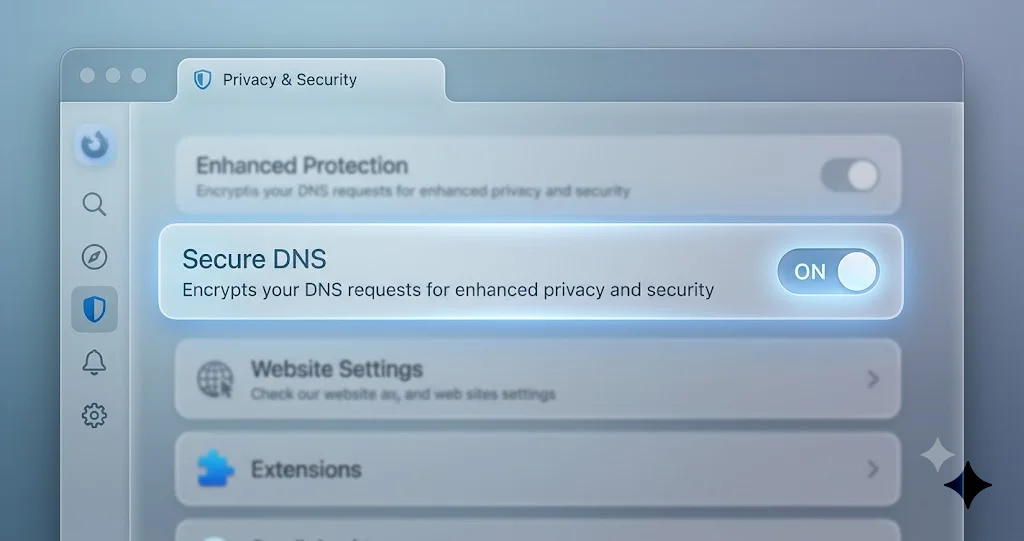
This is the single highest-yield fix for this beta pattern, because Chromium's built-in encrypted DNS is exactly the kind of self-managed networking that can desync from a beta OS. You're telling the browser to stop resolving names on its own and defer to the system.
In Chrome, Brave, Edge, and Vivaldi:
- Open Settings > Privacy and security > Security.
- Scroll to Use secure DNS and turn it off entirely. (Don't just switch providers — switch it off so the browser uses the OS resolver.)
- Quit the browser completely (Cmd+Q) and reopen it.
In Arc: open Arc > Settings, find the privacy/security section, and disable secure DNS the same way; Arc exposes Chromium's setting under its own menus.
If a raw IP loaded in your triage check but domains didn't, this step alone very often fixes it.
Fix 2: Disable or remove network-filter, VPN, and content-filter extensions
If you run Little Snitch, LuLu, a corporate content filter, a DNS-filtering app, or an antivirus suite with web protection, it has almost certainly installed itself as a system network extension — and that's the prime suspect for passing Safari while blocking Chromium under this beta.
- Go to System Settings > General > Login Items & Extensions, then click the (i) next to Network Extensions (older path: Network Extensions or Content & Privacy depending on build).
- Toggle off each third-party network filter / VPN / firewall extension one at a time.
- Fully quit and reopen Chrome after each toggle and re-test.
If disabling one brings Chrome back, you've found your culprit. From there you can leave it off until Apple ships a fixed build, update the tool to its newest version (vendors patch fast for betas), or check the vendor's beta-compatibility notes. If you're on a managed/work Mac you may not be able to disable a corporate filter yourself — that's a case for your IT team, and it's a legitimate reason to hold off on the beta. Our network-extension content-filter writeup goes deeper on how these extensions behave when the OS changes underneath them.
Fix 3: Set IPv6 to Link-local only for the active network service
Several testers report that Chromium's dual-stack (IPv4 + IPv6) connection racing hangs under the beta when IPv6 misbehaves, while Safari tolerates it. Forcing the network service off full IPv6 pushes traffic onto the IPv4 path that's working.
Via System Settings (recommended, gentle):
- System Settings > Network, select your active service (Wi-Fi or Ethernet), click Details….
- Go to the TCP/IP tab.
- Set Configure IPv6 to Link-local only.
- Click OK, then fully quit and reopen Chrome.
Via Terminal (equivalent, if you prefer the command line): first list your service names, then turn IPv6 off for the one you use. Note that -setv6off disables IPv6 more completely than the GUI's "Link-local only," but for isolating this issue either works.
# See the exact network service names
networksetup -listallnetworkservices

# Turn IPv6 off for Wi-Fi (use your exact service name)
sudo networksetup -setv6off "Wi-Fi"
To restore normal IPv6 later:
sudo networksetup -setv6automatic "Wi-Fi"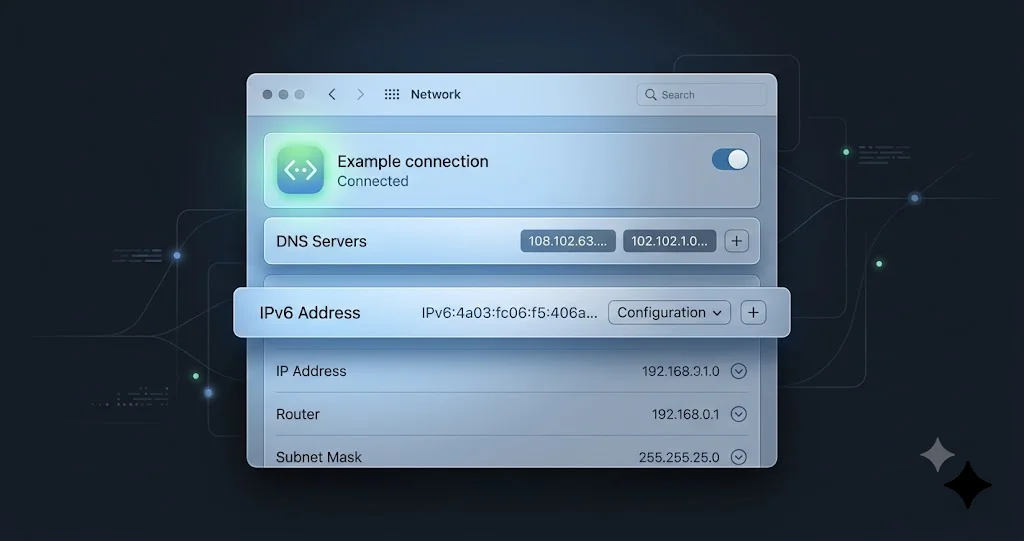
Fix 4: Flush the DNS cache
If DNS is the issue (and on this beta it often is), a stale or corrupted resolver cache can keep failing lookups pinned even after you've changed a setting. Clear it. This is a standard, safe macOS command pair — it flushes the cache and restarts the multicast DNS responder:
sudo dscacheutil -flushcache; sudo killall -HUP mDNSResponderYou'll be asked for your admin password. There's no visible output on success — that's normal. Quit and reopen Chrome afterward and try a site. Pair this with Fix 1 (secure DNS off) for the best odds; the two together address the most common DNS failure mode reported for this beta.
Fix 5: Check Private Relay, VPN, and configuration profiles
iCloud Private Relay and VPNs both reshape how traffic leaves your Mac, and both are handled differently for Safari than for Chromium apps — which makes them classic asymmetric-failure suspects.
- iCloud Private Relay: System Settings > [your name] > iCloud > Private Relay. Turn it off temporarily and re-test Chrome. Private Relay only routes Safari and some system traffic, but toggling it can reset network state that Chromium was getting caught behind.
- VPN: if a VPN is connected, disconnect it fully (don't just minimize the app) and re-test. Half-connected or beta-incompatible tunnels are a very common cause of "browser hangs forever." If VPN turns out to be your issue, work through our macOS VPN troubleshooting guide — most VPN clients need a beta-aware update.
- Configuration profiles: in System Settings > General > Device Management (or Privacy & Security > Profiles), remove any old DNS or proxy profile you don't recognize or need. Leftover profiles can pin bad DNS servers.
Fix 6: The FaceTime / "Allow Calls on Other Devices" toggle some testers swear by
This one is odd, unconfirmed, and worth thirty seconds because a cluster of forum posters report it flipped their Chromium browsers back to life. The theory is that toggling this Continuity feature nudges the network stack to re-initialize the per-app pathways that the beta left in a bad state.
- Open FaceTime > Settings (menu bar: FaceTime > Settings).
- Find Calls From iPhone / Allow Calls on Other Devices and toggle it off, then back on.
- Alternatively, on iPhone: Settings > Phone > Calls on Other Devices, toggle your Mac off and on.
- Re-test Chrome.
Treat this as folklore that happens to work for some people, not a guaranteed fix. It costs nothing and reverses instantly, so it earns its rung.
Fix 7: Reset the browser's network settings or start a fresh profile
If system-level fixes haven't done it, isolate whether your specific browser profile is holding corrupted network state.
- Chrome/Brave/Edge: open Settings > Reset settings > Restore settings to their original defaults. This clears custom DNS, proxy, and startup tweaks without touching your bookmarks or passwords.
- Fresh profile test: create a new profile (profile icon > Add) or open a Guest window and try a site. If the fresh profile works, the problem was profile-local — reset the old one or migrate to the new one.
- Clear the socket/host cache: in Chrome, visit
chrome://net-internals/#socketsand click Flush socket pools, thenchrome://net-internals/#dnsand Clear host cache. (Brave and Edge expose the same pages under their own scheme, e.g.brave://net-internals.)
Fix 8: Reinstall the browser cleanly
If one specific browser is the only holdout after the network fixes, reinstall it fresh. Because Chrome, Brave, Edge, Arc, and Vivaldi all share the engine, do this only if a single browser lags the others — a system cause won't be cured by reinstalling.
- Quit the browser (Cmd+Q).
- Drag it from Applications to the Trash.
- Download the newest build straight from the vendor — beta compatibility fixes land in browser updates constantly, so a current build may already handle the beta better.
- Reinstall and re-test. Your synced data (bookmarks, passwords) returns when you sign back in.
Fix 9 (the beta-reality fallback): use Safari, or revert to Tahoe
Here's the honest part. This is a beta, the browser blackout is beta-tester-reported and not Apple-acknowledged, and some testers have found that nothing in the ladder above fully sticks until Apple ships a new build. If you've worked all the way down and Chromium is still dead, you have two sane options:
- Lean on Safari for now. It works, it's fast, and it imports your bookmarks. Running your daily browsing in Safari for a few weeks while the beta matures is a perfectly reasonable stopgap, and you can keep re-testing Chrome after each new seed (behavior genuinely does change build to build).
- Revert to stable Tahoe. If a working Chromium browser is non-negotiable — for work, for extensions, for a workflow you can't move — the cleanest fix is to leave the beta. Follow our step-by-step guide to downgrade the macOS 27 beta back to Tahoe without losing data. And if you're only considering the beta, this whole issue is a strong argument for installing it safely on a separate volume next time, so your working system is never the thing that breaks.
There's no shame in any of these. A beta is a preview you volunteered to test, not a commitment to suffer through a broken browser.
Troubleshooting Common Issues
Problem: Chrome loads some sites but hangs on others under the beta
Solution: Partial loading almost always means DNS, not a total block. Some names resolve from cache while new lookups hang. Do Fix 1 (turn secure DNS off) and Fix 4 (flush the DNS cache) together, then quit Chrome fully and retry. If it persists, set your system DNS to a plain resolver — System Settings > Network > Details > DNS and add 1.1.1.1 and 8.8.8.8 — so the OS isn't relying on a resolver the beta is mishandling.
Problem: Everything worked, then broke again after a beta update
Solution: Expect this. Each new seed can reset network-extension approvals and toggle behaviors. After any macOS 27 beta update, re-approve your network extensions in System Settings > General > Login Items & Extensions > Network Extensions, then re-run Fix 1 and Fix 4. Because this is unacknowledged beta behavior, treat every build as a fresh diagnosis rather than assuming your previous fix still holds.
Problem: A work or school Mac blocks the fixes I need
Solution: Managed Macs enforce corporate content filters and configuration profiles you can't disable yourself, and those filters are a prime suspect for the Safari-works/Chromium-fails split. Don't fight the MDM. Contact your IT team, tell them the browser fails only for Chromium apps on the macOS 27 beta, and ask whether their filter vendor has a beta-compatible build. If not, this is a clear signal a production/managed Mac shouldn't be on the beta yet.
Problem: Disabling my network extension fixed Chrome but I need that tool running
Solution: You've confirmed the culprit — now restore protection the right way. Update the tool (Little Snitch, LuLu, your antivirus) to its latest version, since vendors ship beta-compatibility patches quickly. Check the vendor's release notes or forum for a macOS 27 note. If there's no compatible build yet, you're choosing between the tool and Chromium on this beta — a genuine reason to weigh reverting to Tahoe until the vendor catches up.
FAQ
Why does Safari work but Chrome and Brave don't on the macOS 27 beta?
Safari uses macOS's native networking and DNS, so it inherits whatever the beta changed. Chromium browsers manage their own DNS, sockets, and connection logic, which can desync from the beta's new per-app network handling. Same machine, same Wi-Fi, different network path — that's why one works and the others hang.
Is this an official Apple bug with a fix coming?
Not officially. The problem is reported by beta testers on Brave Community, Apple Discussions, and MacRumors, and aggregated by press, but Apple has not published a formal acknowledgement. Because it lives in a pre-release build, behavior can change with each new seed, so re-test after every macOS 27 beta update.
Will turning off secure DNS make my browsing less private?
Slightly, and only temporarily. Disabling the browser's DNS-over-HTTPS means name lookups use your system resolver instead of an encrypted one. For a workaround on a beta that's a fine trade, and you can re-enable secure DNS once Apple ships a build that plays nicely with Chromium. Your HTTPS page traffic stays encrypted either way.
I'm on macOS 26.5.2, not the beta. Do these fixes apply?
Probably not. A total Chromium blackout is the beta pattern. On stable Tahoe 26.5.2 (build 25F84), a browser failing to load sites is more likely ordinary connectivity, a VPN, or a filter. Start with the Wi-Fi and VPN guides linked above rather than the beta-specific steps here.
Could reinstalling Chrome fix it on its own?
Rarely, for this issue. If Brave, Edge, Arc, and Vivaldi all fail alongside Chrome, the cause is system-level and reinstalling one browser won't help. Reinstall only when a single Chromium browser lags the others — and always grab the newest build, since browser updates often add beta compatibility.
Should I just revert to Tahoe over this?
If a working Chromium browser is essential to your day and the fix ladder didn't stick, yes — it's a reasonable call. Follow the downgrade guide linked above to roll back without losing data. If you can live in Safari for a few weeks, staying on the beta and re-testing each new seed is the lower-effort path.
Conclusion
When Chrome won't load websites on the macOS 27 beta but Safari works perfectly, you're not looking at a broken Mac or a broken browser — you're looking at a pre-release OS handling Chromium's independent network path differently than it handles WebKit. That single insight is why the fixes are mostly quick toggles: turn off the browser's secure DNS, disable a network-filter extension, set IPv6 to Link-local only, flush the DNS cache, and check Private Relay and VPN. One of those rungs catches it for most testers, and every one of them reverses in seconds.
But keep the honest frame front and center: this is beta-tester-reported behavior, not an Apple-confirmed bug, and on a beta the ultimate fix is sometimes patience. Behavior shifts build to build, so re-test after each new seed — and if a working Chromium browser is something you can't do without, there's no shame in leaning on Safari or rolling back to stable Tahoe until Apple sorts it out. You volunteered to test a preview; treating a broken browser as a "wait for the next build" situation is exactly the right instinct.
One last practical habit: watch the beta cadence. Apple has been seeding roughly every week or two — Public Beta 1 landed July 13, Public Beta 2 on July 22, with developer beta 4 (build 26A5388g) on July 20 — and networking behavior has genuinely shifted between seeds. So the smart routine is to keep your working fix in place, note which rung solved it, and after each new build, briefly disable that workaround and re-test Chrome. If a seed quietly resolves the underlying issue, you'll want to turn secure DNS and IPv6 back to their normal settings rather than leaving them changed forever. Betas move; your workarounds shouldn't be permanent.
Work the ladder from the top, stop at the first rung that brings your sites back, and if you're weighing whether to stay on Golden Gate at all, the known-issues guide and the safe-install walkthrough will help you decide with clear eyes.