Disk Not Ejected Properly on macOS Tahoe 26.5? Stop External Drives Disconnecting
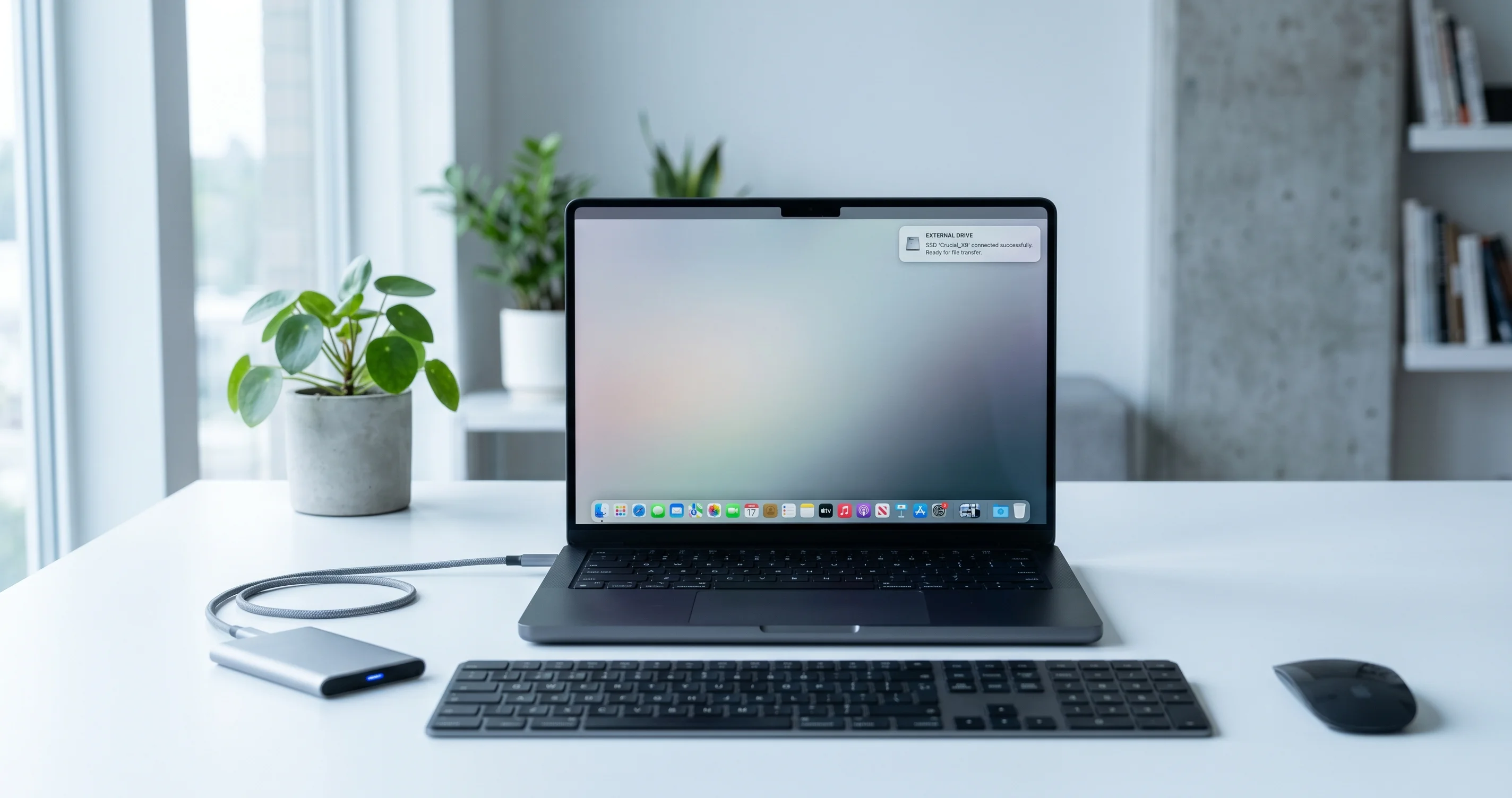
External drive keeps disconnecting on macOS Tahoe 26.5 with "Disk Not Ejected Properly"? Fix USB power management, hub power budget, cables, and sleep settings.
You are halfway through a Final Cut export, or copying a 200GB photo library to a backup, and then it happens: a notification slides down from the top-right corner of your screen reading "Disk Not Ejected Properly." Your external SSD vanished from the desktop. A few minutes later it reappears, only to drop off again. If this started after you updated to macOS Tahoe 26.5, you are not imagining things, and you are definitely not alone. Spontaneous external-drive disconnects, with the dreaded "Disk Not Ejected Properly" warning, are one of the most-reported storage regressions of the 26.5 cycle.
This is a different problem from the drive that mounts but won't open, and a different problem from a drive that never shows up at all. Here, the drive mounts perfectly, works for a while, and then drops the connection mid-use, often during writes, often after the Mac wakes from sleep. That distinction matters because the fix is almost never "reformat the disk." The fix is almost always about power and re-enumeration: how macOS manages USB power, how much current your hub or dock can actually deliver, and how Tahoe's reworked USB/Thunderbolt stack reacts to anything marginal in the chain.
This guide walks you through exactly what the message means, why 26.5 made it worse for so many people, a diagnostic decision tree to isolate the real cause, and six concrete fixes ordered from highest-impact to last-resort. We'll use real Terminal commands so you can confirm what's happening instead of guessing, and we'll cover how to check your data for corruption after an improper ejection. Released on 2026-05-11, Tahoe 26.5 is a security and refinement update, but its USB layer changes have downstream effects worth understanding before you start unplugging things at random.
Key Takeaways
- "Disk Not Ejected Properly" means the connection dropped without macOS unmounting first — the drive itself is usually fine; the link to it failed. The single most common cause on Tahoe 26.5 is aggressive USB power management combined with under-powered hubs and docks.
- Start with power, not formatting. Disable "Put hard disks to sleep when possible," prevent system/disk sleep with
pmset, and move bus-powered drives onto a self-powered hub or a powered dock before you do anything drastic. - Use the diagnostic decision tree to isolate whether it's power, the cable, the hub, one specific drive, or sleep/wake. Confirm with
system_profiler SPUSBDataType,ioreg,diskutil list, Console.app, andlog show. - Never pull a drive during an active write. Improper ejection during writes can corrupt in-progress files and, with exFAT especially, the filesystem itself. Run First Aid after every unexpected disconnect.
- Treat this as a known regression pattern, not a single confirmed Apple bug. There are reliable workarounds, but Apple has not published a single root-cause fix as of this writing.
What "Disk Not Ejected Properly" Really Means
The notification is macOS's way of telling you that a storage volume disappeared from the system without being unmounted first. When you eject a drive correctly — dragging it to the Trash, pressing the eject button, or running diskutil unmount — macOS flushes any cached writes to the device, marks the filesystem clean, and tells the kernel it's safe to remove. Only then does the icon disappear.
When you get "Disk Not Ejected Properly," none of that happened. The kernel was talking to the device one moment, and the next moment the device was simply gone. From the operating system's point of view there is no difference between "the user yanked the cable" and "the device stopped responding on the bus." Both look identical: a USB or Thunderbolt device that was enumerated and mounted is suddenly no longer present. macOS shows the warning because, if there were unflushed writes in the cache at that instant, your data could be incomplete or corrupted.
Why this is a connection problem, not a disk problem
It is tempting to blame the SSD or hard drive. In the overwhelming majority of these cases the storage media is healthy. What failed is the link — the chain of cable, connector, hub, dock, and host controller that carries both data and power to the drive. If any link in that chain briefly loses power, renegotiates its link speed, or gets reset by the kernel, the device drops off the bus and macOS fires the warning.
This is also why the symptom is so maddeningly intermittent. A marginal cable might work fine for an hour and then fail when the drive spins up a second platter or the SSD's controller draws a current spike during garbage collection. A hub that's right at the edge of its power budget might be fine until you plug in a second device. The failure is usually a threshold event, not a constant fault, which is exactly why it feels random.
Mount, unmount, and re-enumeration
To understand the fixes, you need three concepts:
- Enumeration is the handshake that happens when a USB device is plugged in. The host controller detects the device, assigns it an address, reads its descriptors, and negotiates link speed and power. This is what happens every single time a device "appears."
- Mounting is what the filesystem layer does after enumeration: it reads the partition map, identifies the APFS or exFAT volume, and makes it available in Finder.
- Re-enumeration is when an already-connected device gets re-detected — for example, after the bus is reset, after wake from sleep, or after a power glitch. If re-enumeration succeeds quickly, you might see the drive blink out and back. If it fails, you get "Disk Not Ejected Properly" and the volume stays gone until the device re-enumerates cleanly.
The whole game on Tahoe 26.5 is keeping the device enumerated and powered continuously, and making re-enumeration after sleep reliable.
Why macOS Tahoe 26.5 Made It Worse
Two things converged in this release. Neither is, on its own, a "bug" in the classic sense, but together they push marginal hardware over the edge far more often than older macOS versions did.
1. Aggressive USB power management
macOS has a long-standing energy-saving feature historically labeled "Put hard disks to sleep when possible." When enabled, the OS spins down idle disks and reduces power to idle USB devices to save battery. On a healthy, self-powered desktop drive this is harmless — the drive spins back up when accessed. But on bus-powered SSDs and 2.5-inch HDDs, the moment macOS cuts or reduces power and then tries to wake the device, the device must re-enumerate. If the re-enumeration is slow, or the power ramp is marginal, the device drops off entirely instead of waking. Result: "Disk Not Ejected Properly," often after exactly the idle interval that triggers the sleep timer.
Tahoe's power management is more eager about idling USB devices than several previous releases, and the default behavior on laptops leans hard toward battery savings. Combine that with a bus-powered drive on a marginal cable and you have the perfect storm.
2. The reworked USB/Thunderbolt stack
Tahoe continued Apple's multi-year overhaul of the low-level USB and Thunderbolt drivers. The reworked stack is, in general, faster and more standards-compliant — but it is also less forgiving of hardware that was previously "good enough." Older macOS USB code was famously tolerant of out-of-spec cables, slightly under-powered hubs, and quirky enclosure chipsets. The newer stack is stricter about link training and power negotiation, so a cable that "worked fine on Sonoma" can fail link negotiation on Tahoe and trigger repeated resets.
This is why so many people report the same drive, same cable, same dock working perfectly for years and then dropping constantly the day after a Tahoe update. The hardware didn't change; the host's tolerance did. Frame this honestly: Apple has not published a single confirmed root-cause bug fix for this pattern. What we have is a well-documented regression pattern across the 26.x cycle and a set of workarounds that reliably reduce or eliminate the disconnects. For the broader picture of what changed in this release, see the complete macOS Tahoe 26.5 update guide.
Why sleep/wake is such a frequent trigger
When your Mac sleeps, it can cut power to USB ports to save energy. On wake, every device on the bus must re-enumerate at once — and that's a power-hungry, timing-sensitive moment. Bus-powered drives, hubs feeding several devices, and docks running on marginal firmware are most likely to fail this mass re-enumeration. That's why a huge fraction of "Disk Not Ejected Properly" reports specifically say "it only happens after my Mac wakes up" or "it happens overnight." If your disconnects cluster around sleep/wake, you already know where to aim your fixes.
APFS vs exFAT and why improper ejection is risky
Filesystem choice changes how dangerous a disconnect actually is:
- APFS is copy-on-write and journaled. It is comparatively resilient to sudden disconnection: metadata is written atomically, so the volume usually remounts cleanly and First Aid can repair most damage. In-progress files may still be incomplete, but the filesystem structure itself rarely becomes unmountable.
- exFAT has no journaling. If the drive disconnects mid-write — especially during a directory update — the file allocation structures can be left inconsistent, occasionally rendering the whole volume unreadable until repaired. exFAT is convenient for Mac/Windows sharing, but it is the least forgiving filesystem for the disconnect problem.
This is a key reason the fixes below include "consider reformatting to APFS" for Mac-only drives — not because exFAT causes the disconnect, but because it makes each disconnect more likely to cost you data.
The Diagnostic Decision Tree
Before changing anything, spend ten minutes isolating the cause. Random fixing wastes time and can mask the real problem. Work through these branches in order.
Step 1: Is it power-related?
Ask: Is the drive bus-powered (no separate power brick)? Almost all portable SSDs and 2.5-inch HDDs are. If yes, power is your prime suspect. Note whether disconnects happen after a period of inactivity (sleep timer) or under load (current spike). Both point to power.
Confirm the device's power draw and what it's connected to:
system_profiler SPUSBDataTypeLook in the output for your drive and the lines reading Current Available (mA): and Current Required (mA):. If the required current is close to or above what's available on that port or hub, you've found a power problem:
USB 3.1 Bus:
  Host Controller Driver: AppleT8122USBXHCI
  PCI Device ID: 0x...
    USB3.0 Hub:
      Product ID: 0x...
      Current Available (mA): 900
      Current Required (mA): 896
        My SSD:
          Current Required (mA): 896
          Current Available (mA): 0
When Current Available (mA) downstream of a hub reads 0 or barely covers Current Required, the drive is starved the instant anything else draws power.
Step 2: Is it the cable?
Swap the cable for a known-good, certified one — ideally the one that shipped with the drive. If the disconnects stop, the cable was the problem. Cables are the single most underrated cause: a charge-only cable, a too-long passive cable, or a frayed connector can all pass enough current to enumerate the drive but fail under sustained load.
Step 3: Is it the hub or dock?
Plug the drive directly into the Mac, bypassing every hub, dock, and adapter. If the disconnects stop when connected directly but return through the hub, the hub/dock is the cause — usually power budget or firmware. This single test eliminates the largest category of false leads.
Step 4: Is it one specific drive, or all of them?
If you have multiple external drives, test each. If only one drive disconnects, suspect that drive's enclosure chipset or firmware. If every drive disconnects, the problem is upstream — the Mac's power settings, a shared hub, or the OS stack.
Step 5: Is it sleep-related?
Note the timing. Does it happen only after the Mac wakes, or overnight, or after a fixed idle period? If so, jump straight to FIX 1 (disable disk sleep / prevent system sleep). If it happens under active load with the screen on, focus on FIX 2 and FIX 3 (power and cables).
Capture the events as they happen so you have evidence:
log show --predicate 'eventMessage CONTAINS "Disk Not Ejected" OR eventMessage CONTAINS "IOUSBHostDevice"' --last 2hAnd watch USB/disk events live while you reproduce the problem:
log stream --predicate 'subsystem == "com.apple.iokit.IOUSBHostFamily" OR eventMessage CONTAINS "disk"'Now apply the fixes in order.
FIX 1: Disable Disk Sleep and Prevent System Sleep
This is the highest-impact fix for the largest group of sufferers — anyone whose disconnects cluster around idle periods or sleep/wake.
Turn off "Put hard disks to sleep when possible"
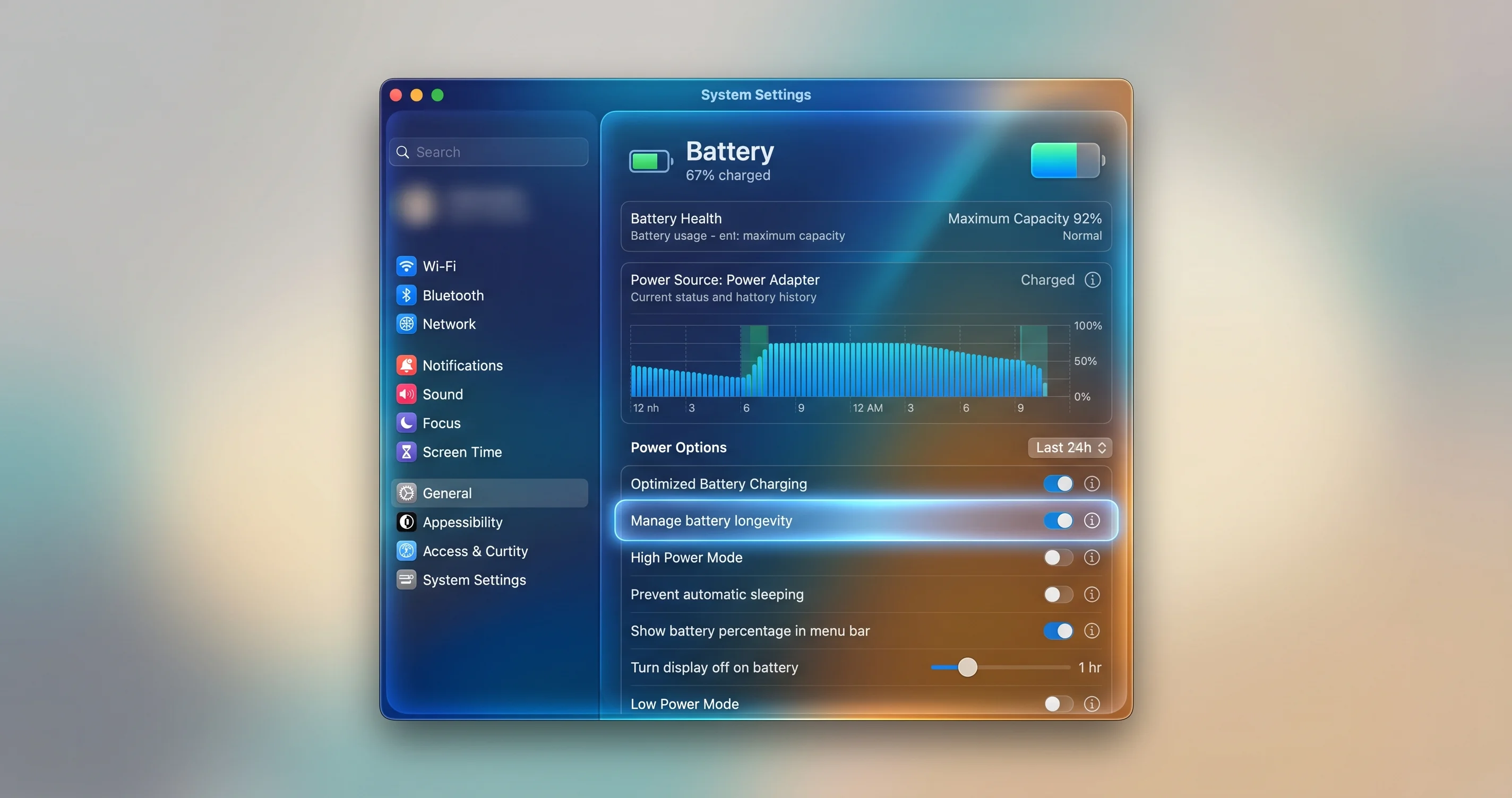
On Apple silicon and Intel laptops, open System Settings → Battery, click Options… at the bottom, and turn off "Put hard disks to sleep when possible." On Mac desktops the same toggle lives under System Settings → Energy Saver → Options. This stops macOS from spinning down and depowering idle disks, which is exactly the event that causes failed wake-ups on bus-powered drives.
Confirm and set it from Terminal
You can verify and force the setting with pmset. First, inspect the current power-management configuration:
pmset -gLook for the disksleep line. A value of 0 means disks never sleep; any non-zero value is the idle timeout in minutes. To disable disk sleep across all power sources:
sudo pmset -a disksleep 0If your disconnects happen specifically when the whole Mac sleeps overnight, you may also want to prevent system sleep while drives are attached. On a laptop you usually only want this on AC power:
sudo pmset -c sleep 0Here -c targets AC ("charger") power so your battery life isn't affected when unplugged. To check it took effect, run pmset -g again and confirm sleep and disksleep read 0.
Use caffeinate for temporary, scoped prevention
If you don't want to change system-wide settings permanently, caffeinate keeps the Mac (and its disks) awake only for the duration of a command or session. To prevent idle sleep while a long copy or backup runs:
caffeinate -i -m -s rsync -a ~/BigProject /Volumes/Backup/BigProjectThe flags mean: -i prevent idle system sleep, -m prevent disk idle sleep, -s prevent system sleep on AC. When rsync finishes, normal power management resumes automatically. To keep the machine awake for a fixed window — say, 4 hours during a large transfer — use a timeout in seconds:
caffeinate -i -m -t 14400For a deeper look at keeping external storage healthy during backups and long transfers, the complete macOS external storage and backup guide covers scheduling and verification in detail.
FIX 2: Solve the Power Problem (Hubs, Docks, and Budget)
If FIX 1 didn't fully resolve it — or your disconnects happen under load rather than at idle — power delivery is almost certainly the culprit. This is where most "Disk Not Ejected Properly" cases on Tahoe 26.5 actually live.
Understand the power budget
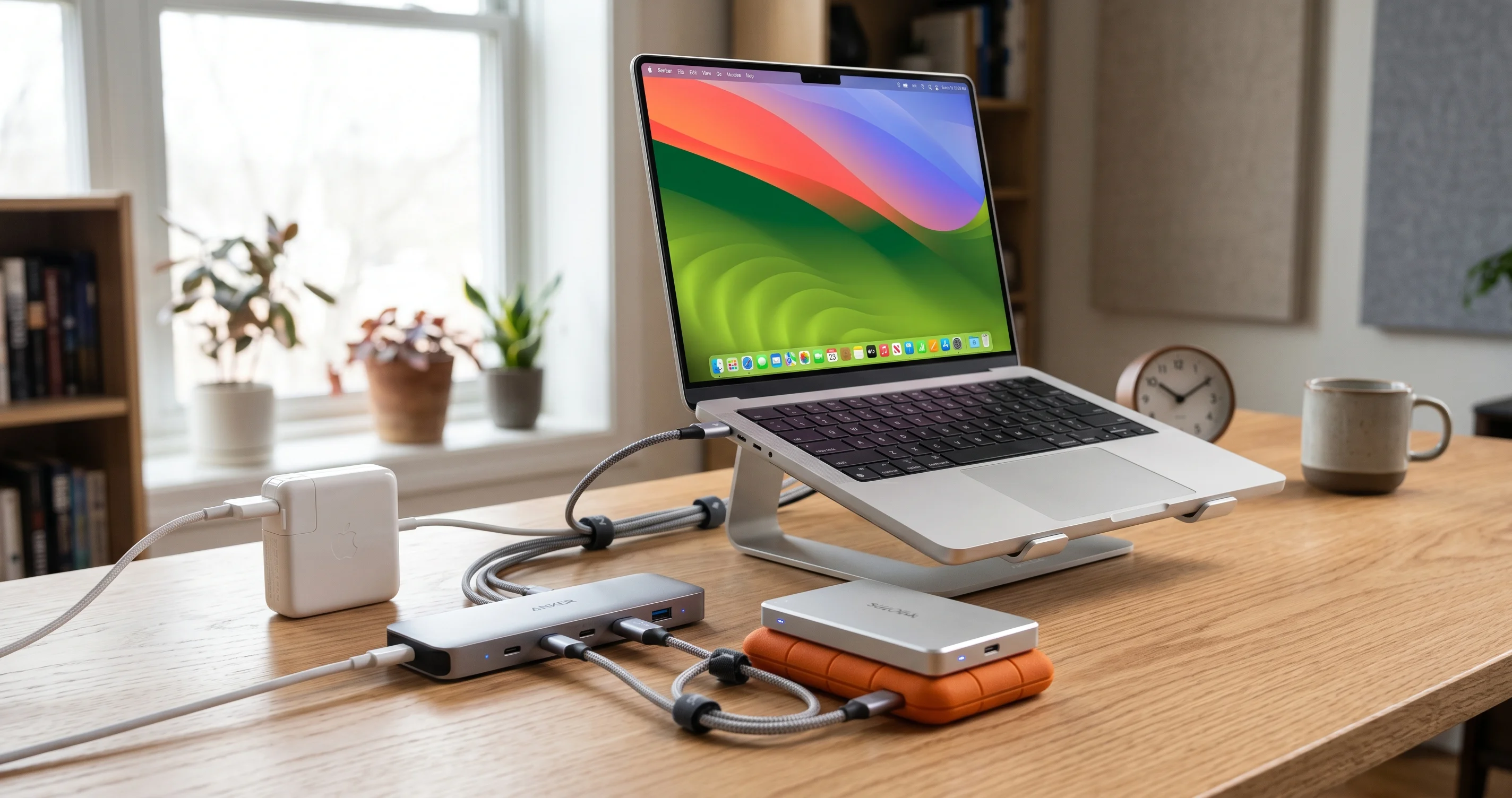
Every USB port and hub has a finite power budget. A standard USB-A port nominally delivers 5V at 0.9A (about 4.5W) for USB 3.x; USB-C ports can deliver far more, but only if the host, cable, and downstream device all negotiate it. A bus-powered hub takes that single port's budget and splits it across everything plugged into it — so four drives sharing one 4.5W port are each starved. A self-powered (powered) hub has its own AC adapter and supplies full current to each downstream port independently.
The math is simple and unforgiving:
- A portable SSD typically draws 2.5–4.5W under load, with brief current spikes higher during writes.
- A bus-powered 2.5-inch HDD can draw 4–5W, and spin-up spikes can momentarily exceed the port's continuous rating.
- A single laptop port can't reliably feed two hungry bus-powered drives at once through a passive hub.
What to actually do
- Move bus-powered drives onto a self-powered (powered) hub or a powered Thunderbolt/USB-C dock. This is the most effective hardware fix. A dock with its own power brick gives each drive clean, full current and removes the host's power constraints from the equation entirely.
- Don't daisy-chain power-hungry devices. Plugging a bus-powered hub into another bus-powered hub multiplies the starvation. Keep hungry drives one hop from a powered source.
- Check the dock's per-port output, not just its total. A dock rated for "100W" might dedicate most of that to charging your laptop and leave very little for downstream data ports. Read the spec sheet for downstream port wattage.
- Plug spinning HDDs into ports closest to the dock's power input if the manufacturer documents tiered ports.
If you're choosing or troubleshooting a dock — especially on Apple silicon — the Mac mini M4 USB-C hubs and docks guide breaks down which hubs deliver real per-port power versus marketing wattage.
Verify the fix worked
After switching to a powered source, re-run the profiler and confirm the drive now reports ample available current:
system_profiler SPUSBDataType | grep -A 12 "My SSD"You want Current Available (mA) comfortably above Current Required (mA), with headroom for spikes.
FIX 3: Rule Out the Cable
Cables fail silently and are the cheapest thing to replace, so never skip this step. A cable that enumerates the drive is not necessarily a cable that can sustain it under load.
What makes a cable reliable
- Certified, not generic. Use USB-IF certified USB-C cables, or for Thunderbolt drives, an Apple or certified Thunderbolt 4/USB4 cable. Certification means the cable was tested for the current and signal integrity it claims.
- Right type for the job. Many bundled USB-C cables are charge-only or USB 2.0 data — fine for a phone, useless for a fast SSD. A charge-only cable can power-cycle a drive enough to enumerate it and then fail to carry data, producing exactly this symptom.
- Short, where possible. Passive USB-C/USB4 cables degrade signal over distance. For 10Gbps+ data, keep passive cables short (well under a meter for the fastest links) or use a certified active cable for longer runs.
- Undamaged. A bent connector or frayed jacket near the plug causes intermittent contact — the classic "works until I nudge the desk" failure.
Test methodically
Swap in a known-good certified cable and reproduce your normal workload. If the disconnects stop, you've found it. If you have several cables, label the good ones — cable roulette wastes hours. When a drive started disconnecting right after a Tahoe update with no hardware change, remember the stricter stack: a cable that was marginal before may now fail link negotiation outright.
FIX 4: Investigate the Drive Itself
If only one specific drive disconnects while others on the same port and cable are stable, the drive's enclosure or firmware is the likely cause.
Enclosure chipset quirks
Most external drives use a bridge chip to translate between the internal SATA/NVMe drive and the USB/Thunderbolt port. The big three bridge vendors — JMicron, ASMedia, and Realtek — each have firmware revisions with known quirks around power management and USB Attached SCSI (UAS). On the stricter Tahoe stack, an older bridge that mishandles link power management (LPM) or UAS can drop off under conditions it tolerated on earlier macOS. Identify your bridge chipset in the profiler output (vendor and product IDs) so you can search for known firmware issues:
system_profiler SPUSBDataType | grep -E "Product ID|Vendor ID|Manufacturer|Speed"Update firmware
Check the drive manufacturer's support site for a firmware updater. Reputable SSD makers periodically release firmware that fixes power-management and compatibility regressions — sometimes specifically in response to new macOS releases. Run any updater from a directly connected port (never through a flaky hub) and don't let the Mac sleep during the update.
Reconsider the filesystem
If the drive is Mac-only and currently formatted exFAT, consider reformatting to APFS. As explained earlier, exFAT has no journaling and is far more likely to suffer filesystem-level corruption from an improper ejection. APFS won't stop the disconnect, but it dramatically reduces the odds that a disconnect costs you the volume. Back up first — reformatting erases everything:
diskutil listIdentify your external disk's identifier (for example, disk4) carefully, then erase to APFS (this destroys all data on that disk):
diskutil eraseDisk APFS "MyDrive" /dev/disk4Double-check the disk identifier before running this. Targeting the wrong disk erases the wrong data. If the drive is shared with Windows machines and you need cross-platform access, keep exFAT but be extra diligent about safe ejection and First Aid. For a broader treatment of external SSD setup and formatting choices, see the macOS external SSD troubleshooting guide.
FIX 5: Software, Drivers, and Resets
When the hardware checks out — direct connection, certified cable, powered hub, healthy drive — look at the software layer.
Remove conflicting third-party mounting tools
Third-party drivers and mounting utilities are a frequent cause of phantom unmounts. The most common culprits:
- NTFS-write drivers (for using NTFS-formatted Windows drives read/write on a Mac). These install kernel-level or filesystem extensions that can conflict with Tahoe's stack and cause unexpected unmounts.
- Disk-mounting and ejection managers that "helpfully" remount or sleep drives on a schedule.
- Old backup or RAID utilities that install kernel extensions.
Check what's loaded and audit third-party system extensions:
systemextensionsctl listFor legacy kernel extensions (mostly relevant on Intel Macs), list non-Apple kexts:
kextstat | grep -v com.appleIf you find a third-party storage extension you no longer need, uninstall it with the vendor's official uninstaller (not by deleting files), reboot, and test. Many people find their disconnects vanish the moment a stale NTFS or mounting tool is removed.
Reset NVRAM (Intel Macs)
NVRAM stores some hardware configuration. On Intel Macs, reset it by shutting down, then powering on and immediately holding Option + Command + P + R for about 20 seconds. Apple silicon Macs manage this automatically and have no manual NVRAM reset.
Reset the SMC (Intel Macs)
The System Management Controller governs power, including USB port power, on Intel Macs. A corrupted SMC state can cause erratic USB power behavior. The exact reset procedure depends on the model (T2 vs non-T2, laptop vs desktop) — follow Apple's model-specific steps. On Apple silicon Macs there is no SMC to reset; a full shutdown (not restart) for 30 seconds and a fresh boot accomplishes the equivalent power-state reset.
Make sure macOS itself is current
Apple ships USB and storage fixes in point releases. Check System Settings → General → Software Update and install any update newer than your current 26.5 build. If a later 26.5.x or 26.6 build is available, it may include stack refinements that address part of this pattern.
FIX 6: Recover a Drive That Won't Remount and Repair It
Sometimes a disconnect leaves the drive in limbo — it won't reappear, or it mounts read-only, or Finder shows errors. Here's how to get it back safely and check it for damage.
Get it to remount
First, try ejecting cleanly even if it looks stuck, then physically reconnect (directly to the Mac, certified cable):
diskutil list
diskutil eject /dev/disk4
If diskutil list still shows the disk but it isn't mounted, mount it explicitly:
diskutil mount /dev/disk4s2Replace disk4s2 with your actual data partition. If the disk doesn't appear in diskutil list at all, it isn't enumerating — go back to power and cable checks; the OS can't repair a device it can't see.
Run First Aid
Once the volume is visible, repair it before trusting it. From Terminal:
diskutil verifyVolume /dev/disk4s2
diskutil repairVolume /dev/disk4s2
Or use the graphical tool: open Disk Utility, select the external volume in the sidebar (click View → Show All Devices to see the physical disk and its container), and click First Aid → Run. First Aid replays the journal (APFS), checks the allocation structures, and fixes most inconsistencies left by an improper ejection.
If First Aid reports it cannot repair the volume, do not keep writing to it. Mount it read-only if possible, copy your data off immediately, and only then erase and reformat. For exFAT volumes that First Aid can't fix, recovery software may be needed before reformatting.
Check data integrity after improper ejections
A clean filesystem doesn't guarantee your files survived a mid-write disconnect. After any unexpected disconnect during a copy or backup:
-
Re-run the copy with verification. If you used
rsync, run it again — it will re-transfer only files that differ, catching partial writes:rsync -a --checksum ~/BigProject /Volumes/Backup/BigProjectThe
--checksumflag forces rsync to compare file contents, not just size and timestamp, so a truncated file gets re-copied. -
Verify checksums on critical files. Compare a source file against its copy:
shasum -a 256 ~/BigProject/master.mov /Volumes/Backup/BigProject/master.movMatching hashes mean the copy is intact; mismatched hashes mean re-copy that file.
-
Validate Time Machine and backup integrity through the backup app's own verification rather than assuming a completed-looking backup is good. If your backups target a NAS over SMB, disconnects can interact with network-share issues too — the Time Machine SMB NAS backup fix guide covers that combination.
The golden rule bears repeating: never unplug a drive while the disk-activity light is blinking or a write is in progress. Improper ejection during a write is the one way a connection problem turns into permanent data loss.
Troubleshooting Common Issues
Problem: It only happens after my Mac wakes from sleep
Solution: This is the classic sleep/wake re-enumeration failure. Apply FIX 1 in full: disable "Put hard disks to sleep when possible," set sudo pmset -a disksleep 0, and on AC power consider sudo pmset -c sleep 0 so the whole machine doesn't sleep with drives attached. If you only need protection during long jobs, wrap them in caffeinate -i -m. Bus-powered drives are the most prone to failed wake-ups, so moving them onto a powered hub or dock (FIX 2) makes the wake far more reliable because the drive never loses power in the first place.
Problem: It only happens with my specific dock
Solution: Bypass the dock and connect the drive directly to the Mac. If the disconnects stop, the dock is the cause — almost always power budget or firmware. Check the dock manufacturer's site for a firmware update (many docks ship updaters that specifically address macOS power-negotiation issues), confirm the dock's power brick is connected and adequate, and verify per-downstream-port wattage on the spec sheet. Avoid daisy-chaining hubs off the dock. If the dock is bus-powered, replace it with a self-powered model — bus-powered docks simply cannot feed multiple hungry drives reliably on Tahoe.
Problem: The drive now won't mount at all
Solution: Run diskutil list. If the disk appears, mount it with diskutil mount /dev/diskNsM and then run First Aid (diskutil repairVolume or Disk Utility's First Aid). If the disk does not appear in diskutil list, the device isn't enumerating — this is a connection/power problem, not a filesystem problem, so return to FIX 2 and FIX 3 (powered hub, certified cable, direct connection). A non-enumerating drive cannot be repaired by software until macOS can see it. If you suspect the drive appears but is inaccessible — a distinct issue — see the Tahoe 26.3 ghost-drive bug fix guide.
Problem: A file got corrupted after a disconnect
Solution: First repair the filesystem with First Aid so the volume is structurally clean. Then re-verify your data: re-run any interrupted copy with rsync -a --checksum to re-transfer partial files, and confirm critical files with shasum -a 256 against their source. If a file is genuinely corrupted and you have no backup source, recovery software may salvage it, but prevention is far better — never pull a drive mid-write, and apply FIX 1 and FIX 2 so writes are never interrupted by a power-driven disconnect again. exFAT volumes are the most prone to corruption here; converting Mac-only drives to APFS reduces future risk.
Frequently Asked Questions
Is "Disk Not Ejected Properly" on Tahoe 26.5 a confirmed Apple bug?
Not officially. Apple has not published a single confirmed root-cause bug or dedicated fix for this pattern. What exists is a widely reported regression pattern across the 26.x cycle, driven by aggressive USB power management and a stricter reworked USB/Thunderbolt stack. The good news is that the workarounds in this guide — power settings, powered hubs, and certified cables — reliably reduce or eliminate the disconnects.
Will reformatting my drive fix the disconnecting?
No. Reformatting addresses the filesystem, but the disconnect is a connection and power problem, not a filesystem problem. Reformatting from exFAT to APFS is worth doing for a Mac-only drive because APFS survives improper ejections far better, but it won't stop the drive from dropping off. Fix the power, cable, and hub first; only reformat to reduce corruption risk, not to cure disconnects.
Why did this start right after I updated to Tahoe 26.5?
The hardware didn't change — the host's tolerance did. Tahoe's reworked USB/Thunderbolt stack is stricter about link negotiation and power, and its power management is more eager to idle USB devices. Cables, hubs, and enclosures that were "good enough" on earlier macOS now fail link training or fail to re-power cleanly, producing disconnects that were never visible before the update.
Is it safe to keep using a drive that disconnects randomly?
Use it cautiously. Each improper ejection during a write risks corrupting in-progress files and, on exFAT, the volume itself. Run First Aid after every disconnect, never unplug while the activity light blinks, and apply the fixes here before trusting it with important data. If you must use it meanwhile, copy with rsync --checksum so partial writes are caught and re-transferred automatically.
How do I tell if it's a power problem or a cable problem?
Run system_profiler SPUSBDataType and compare Current Required (mA) to Current Available (mA) — if they're close or the available reads near zero downstream of a hub, it's power. Then swap to a certified cable: if disconnects stop, it was the cable. Connecting the drive directly to the Mac with the manufacturer's cable isolates both variables at once.
Does this affect Apple silicon and Intel Macs equally?
Both are affected because the issue lives in the shared USB/Thunderbolt stack and power management. The fixes mostly overlap, but Intel Macs add two extra options: SMC reset (for USB power behavior) and NVRAM reset. Apple silicon Macs have no manual SMC or NVRAM reset — a full shutdown for 30 seconds accomplishes the equivalent power-state reset.
Conclusion
The "Disk Not Ejected Properly" warning on macOS Tahoe 26.5 is alarming, but it is almost always a connection and power problem, not a dying drive. The combination of aggressive USB power management and a stricter, reworked USB/Thunderbolt stack pushes marginal cables, under-powered hubs, and quirky enclosures over the edge far more often than older macOS did. Work the decision tree to isolate the cause, then attack it in order: disable disk sleep and prevent system sleep, move bus-powered drives onto a powered hub or dock, swap in a certified cable, update the drive's firmware, clear out conflicting third-party mounting tools, and run First Aid plus checksum verification after any disconnect. Above all, never pull a drive during an active write — that's the one mistake that turns a recoverable annoyance into permanent data loss.
Apply these in sequence and the vast majority of spontaneous disconnects disappear. For related reading, see the macOS external SSD troubleshooting guide, the complete external storage and backup guide, and the full macOS Tahoe 26.5 update roundup to understand everything that changed in this release.