Magic Mouse Not Working on macOS 27? Connected, No Pointer

Magic Mouse shows Connected on macOS 27 but the pointer, clicks and scroll are dead? Triage table, safe fixes in order of risk, and the community theory.
You updated to macOS Golden Gate 27, reached for your Magic Mouse, and nothing happened. Open System Settings and Bluetooth says the mouse is paired and connected, and it may even show the right battery level. But the pointer does not move, clicks do nothing, and scrolling and gestures are gone. The built-in trackpad works. Another Bluetooth mouse works. Forgetting the mouse and pairing it again changes nothing. That exact pattern is the subject of a long Apple Support Communities thread that started on 15 September, the day after macOS 27 shipped, and it is why "Magic Mouse not working macOS 27" has become a real search.
This guide does three things. First, it helps you tell this specific macOS 27 problem apart from the ordinary reasons a Magic Mouse misbehaves: a flat battery, a stale pairing, interference, or a mouse still connected to another device. Second, it lists the safe fixes in order of risk, including the ones that sound dramatic but are not. Third, it explains the community theory about what is going wrong, what the open-source workarounds on GitHub actually do, and how to judge whether to trust one. Apple has not acknowledged this problem, so everything about the cause below is a user theory, and we say so each time.
Key Takeaways
- The symptom is specific. On macOS 27 the Magic Mouse shows as connected, often with a battery level, but produces no pointer movement, clicks, scroll or gestures. The thread we read had 98 "Me too" reactions and about 77 replies when we opened it on 14 October 2026. It is not universal: one regular helper in the same thread says two Magic Mouse 2 units work for them on macOS 27.
- Rule out the ordinary causes first. Switch the mouse off and on, charge it with a cable for a minute, forget and re-pair it, and check that it is not connected to an iPad or another Mac. Those steps are from Apple's own support article and cost nothing.
- The cause is a community theory, not an Apple statement. Users believe macOS 27 no longer switches the mouse from a basic mouse mode into its multi-touch mode. Apple has not confirmed this, and no Apple employee posted in the thread.
- Community workarounds exist but carry real risk. They are small programs that need Input Monitoring permission, and one variant installs a root LaunchDaemon. Read the source first.
- No fix is confirmed. The 27.0.1 notes say only "bug fixes", and the macOS 27.2 beta 4 release notes we read do not mention Bluetooth or the Magic Mouse. Whether a later build fixes it is unknown.
- You are not stuck. Use the trackpad or another mouse, report it, or downgrade to Tahoe as a last resort.
What People Are Actually Reporting on macOS 27
The primary source is the Apple Support Communities thread "Magic Mouse 2 is not working in the macOS 27?". Everything in this section is what we saw on the page on 14 October 2026. We quote counts and dates as shown and attribute claims to the people who made them. These are user reports, not Apple-confirmed findings.
The original post was written on 15 September 2026 by a user on a MacBook Air running macOS 27.0. The mouse "stopped working completely" after the update, shows as paired and connected, but there is no movement, no clicking and no gestures. The MacBook's trackpad and a different Bluetooth mouse work. Disconnecting and re-pairing did not help.
The thread's key moments, in date order:
| Date (2026) | Who | What they reported |
|---|---|---|
| 15 Sep | Original poster | Magic Mouse 2 connected but dead on macOS 27.0; re-pair does not help |
| 15-16 Sep | A top-level helper (Level 10) | Standard steps: charge, cable-pair, re-pair, restart. Notes a Magic Mouse 2 works on iPadOS 26 but not on macOS 27 or iPadOS 27, and that this does not by itself prove a confirmed Apple bug. Says their own two Magic Mouse 2 units work on macOS 27 |
| 16 Sep | Original poster | A log stream showed no click responses from the mouse on macOS 27, unlike on Tahoe. Firmware 1.9.2 |
| 18 Sep | A Mac mini M4 user | Proposes that macOS 27 never sends a four-byte message that macOS 26 sends, and publishes a small tool. Their own words: "a workaround, not a fix." Also says to file feedback with Apple |
| 24 Sep | One user | Plugging the mouse into the MacBook by cable made it appear in Bluetooth; the same step was needed after going back to macOS 15.8 |
| 26 Sep | A tool author | Says older workarounds fail on a newer 27.0 build because of a changing report ID |
| 2 Oct | A tool author | Publishes a no-root, on-demand launcher variant |
Three things stand out. It affects more than one model (a user reports the USB-C Magic Mouse, A3204, too). It is not universal, as the helper with two working Magic Mouse 2 units shows. And it did not stop after 27.0.1: Apple shipped 27.0.1 (build 26A434) on 28 September, described only as bug fixes on Apple's security releases page, yet tool authors and users kept posting on 2 and 10 October. We found no post saying 27.0.1 fixed it. That is absence of evidence, not proof.
A shorter iBoysoft community thread from 21 September describes the same symptom; two replies say forgetting the mouse, shutting the Mac down completely and re-pairing fixed it for them. Those are single anecdotes that do not name the macOS build.
Triage: Is This the macOS 27 Problem or Something Ordinary?
A Magic Mouse can stop working for reasons that have nothing to do with the operating system. Before you try anything that touches Bluetooth settings or third-party code, work out which situation you are in. The distinguishing feature of the macOS 27 problem is that the Mac believes everything is fine: Bluetooth lists the mouse as connected, and the mouse is not asleep or flat. The Mac simply gets no pointer input from it.
Use this table to match what you see to the most likely cause. "Likely cause" means an educated reading of the reports, not a diagnosis.
| What you see | Likely cause | What to do |
|---|---|---|
| Mouse is not listed in Bluetooth at all, or it says "Not Connected" | Mouse is off, flat, out of range, or paired to another device | Slide the power switch off and on, charge by cable for a minute, then connect again |
| Mouse listed as connected, battery level shown, no pointer, no clicks, no scroll; trackpad and another Bluetooth mouse work; started right after updating to macOS 27 | The reported macOS 27 problem | Work through the safe steps below, then see the community explanation and the options if nothing works |
| Pointer jumps, lags or stutters but does respond | Interference, low battery, or a dirty or unsuitable surface | Check battery, move other wireless devices away, try another surface. See Apple's interference guidance linked below |
| Mouse dies after a few minutes, or after the Mac wakes from sleep | Stale pairing, low battery, or a flaky connection; also reported after the community fix on some setups | Charge, re-pair, and restart the Mac. If you use a community tool, see the troubleshooting section |
| No Bluetooth devices connect at all, or Bluetooth is greyed out | Bluetooth module or system problem, not the mouse | Restart the Mac; if it persists, contact Apple Support, which is what Apple suggests for that case |
A five-minute test that separates the cases
Do these in order and write down what happens. Each takes a minute or less.
- Check the other pointing devices. Does the trackpad work? Does a different Bluetooth or USB mouse work? If both do, your Mac's Bluetooth and input stack are fine. The original poster and most others in the thread had exactly this result.
- Check the battery and the switch. Apple's own steps for Magic accessories start with powering the device off and on again, using the switch on the bottom of the mouse: slide it until no green is visible, then slide it back so green shows. If you have not done this since the update, do it now.
- Look at what Bluetooth thinks. Open System Settings, then Bluetooth. Is the mouse under "My Devices" with "Connected"? Is a battery percentage shown? If both are true and nothing moves, you match the reported symptom.
- Try the mouse somewhere else. If you have an iPad or another Mac, pair it there. Be careful here: a Magic Mouse 2 working on a Mac still on macOS 26 tells you the hardware is fine and the problem is specific to your macOS 27 Mac. In the thread, one helper noted that a Magic Mouse 2 works on iPadOS 26 but not on macOS 27 or iPadOS 27, which is a user observation, not an Apple statement.
- Read the hardware facts if you can. A read-only Terminal command shows what Bluetooth sees:
system_profiler SPBluetoothDataTypeThis prints your Bluetooth controller and, under "Connected", each device with its address, vendor ID, product ID, battery level, firmware version and services. Nothing is changed. For a Lightning Magic Mouse 2 the community tools report product ID 0x0269 and vendor ID 0x004C (Apple). If your mouse appears under "Connected" with a battery level and you still get no input, you are in the reported macOS 27 pattern. If it is not under "Connected", it is one of the ordinary causes above.
Reading the result. Connected, battery shown, trackpad fine, no input, began after updating: the odds favour the macOS 27 problem. Any ordinary cause showing up: fix that first.
For deeper Bluetooth troubleshooting on a keyboard or mouse that fails even at the login screen, our guide to Bluetooth keyboard and mouse not working at the login screen covers the pairing and preference-file angle in detail.
Which Magic Mouse Do You Have, and Who Is Reporting What
Apple has sold three generations of Magic Mouse. They look similar from above, so the underside is the quickest way to tell them apart.
| Model | How to recognise it | Apple source | Reported on macOS 27 |
|---|---|---|---|
| Original Magic Mouse (2009) | Removable batteries in a battery bay; no charging port | Apple's serial-number page refers to "earlier wireless mice" with the serial number inside the battery bay | No reports found. Unknown |
| Magic Mouse 2 (introduced 2015) | Lightning port on the underside; built-in rechargeable battery | Magic Mouse tech specs: introduced 2015, Lightning port, ships with a USB-C to Lightning cable | Yes, many reports; product ID 0x0269, firmware 1.9.2 in several |
| Magic Mouse (USB-C) | USB-C port on the underside | Magic Mouse (USB-C) tech specs: introduced 2024, needs macOS 15.1 or later | Yes, reported by a user as model A3204, firmware 3.1.4. Fewer reports |
A few honest notes on this table.
- Model numbers. A3204 comes from the user report and retail listings; Apple's tech-specs pages list no model number. Check the printing on your own mouse.
- The original Magic Mouse. Apple's serial-number page confirms that earlier wireless mice have a battery bay. The "AA batteries" detail comes from third-party descriptions, not Apple. We found no reports for this model on macOS 27 and no way to tell whether it is affected. If you own one and it works, that is useful information, but we cannot generalise from silence.
- Macs. Reports mention a MacBook Air, Mac mini M4 and MacBook Pro, all on macOS 27.0 or later. macOS 27 is Apple-silicon only.
If you are not sure which mouse you own, look underneath. The charging port tells you the generation in about ten seconds.
Safe Steps in Order of Risk
The sequence below starts with steps that cannot hurt anything and moves toward steps that change system state. Stop as soon as the mouse works. Most readers should never reach the last two.
Step 0: Keep a way to operate the Mac
You need a pointing device to follow most of this. Your trackpad is the obvious one. If you are on a desktop Mac with only the Magic Mouse and no trackpad or other mouse, borrow or plug in a USB mouse. Apple also documents a keyboard-only route to turn Bluetooth on: press Command-Space, type "Bluetooth File Exchange", press Return, then press Return again to turn Bluetooth on. That is for a case where Bluetooth is off, not for this problem, but it shows you can reach Bluetooth with the keyboard alone.
Step 1: Power-cycle and charge by cable (no risk)
This is straight from Apple's guidance for Magic Keyboard, Magic Mouse and Magic Trackpad that will not connect.
- Slide the switch on the bottom of the mouse until no green is visible, wait a few seconds, then slide it back.
- Connect the mouse to the Mac with its cable (Lightning to USB-C, or USB-C to USB-C for the newer model). Apple says to wait one minute, then disconnect. This pairs the mouse and charges it.
- Open System Settings, then Bluetooth, and check whether the mouse now works.
Charging matters more than people think. A half-flat battery produces confusing behaviour, and the cable connection is also how Apple pairs the mouse.
Step 2: Remove and re-pair (no risk, small effort)
Apple's guidance for connecting Bluetooth accessories on a Mac is to use the information icon next to the device in System Settings, then Bluetooth, choose Forget This Device, put the accessory back in pairing mode, select it in the list of nearby devices and click Connect.
For a Magic Mouse, the reliable way to pair again is to connect the cable as in step 1. Many people in the thread did this and report that it did not fix the macOS 27 problem, so do not be discouraged if it fails. It is still worth doing to rule out a stale pairing, because it costs one minute.
Step 3: Connect by cable and watch what happens (low risk, one user report)
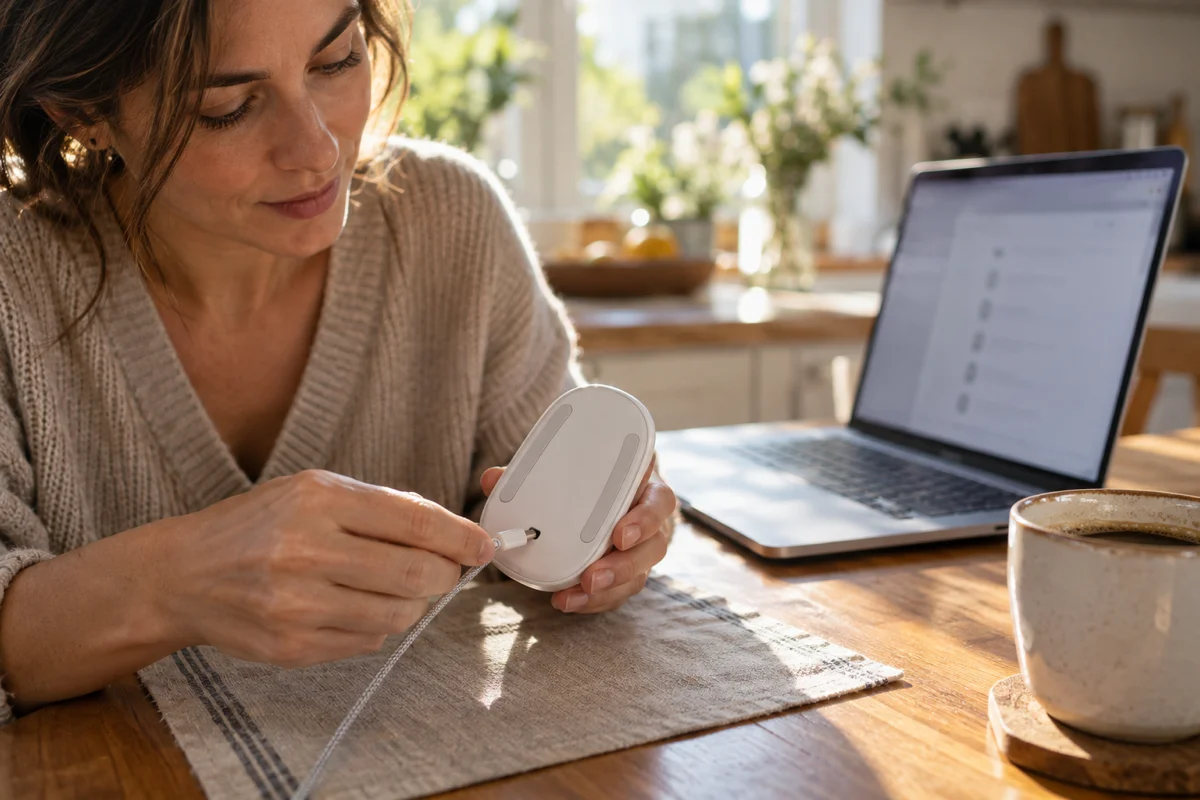
One user in the thread wrote on 24 September that plugging the mouse into the MacBook by cable made it appear in Bluetooth, and that the same step was needed after they went back to macOS 15.8. We read that post as saying the device showed up, not clearly that the pointer began working, so this is a weak lead rather than a fix. It is safe, so try it: with the mouse switched on, connect the cable, wait a minute, and see whether the pointer works while it is plugged in. If it does, that tells you the wired input path is fine and the wireless one is the problem, which is consistent with the community theory below.
Step 4: Full shutdown, not just restart (no risk)
The iBoysoft forum replies mention a complete shutdown rather than a restart. On a Mac, a shutdown and a restart are not identical: shutdown powers the Bluetooth hardware down, while a restart can keep some state. Remove the mouse from Bluetooth, shut the Mac down, wait about thirty seconds, power it on, charge the mouse, then pair it again. Two forum users say this worked. We cannot say whether it works for the case most people in the Apple thread describe, since many of them already tried restarts.
Step 5: Restart the Bluetooth daemon (low risk, documented command)
The Bluetooth service on your Mac is a background process called bluetoothd. On the macOS 27 Mac we inspected with launchctl print system/com.apple.bluetoothd, it is listed as a system LaunchDaemon loaded from /System/Library/LaunchDaemons/com.apple.bluetoothd.plist, running as /usr/sbin/bluetoothd. Because launchd manages it, stopping it makes the system start a fresh copy.
The command people use is:
sudo pkill bluetoothdWhat this does: pkill is documented in its manual page as finding processes by name and signalling them; with no signal specified it sends a normal termination signal (SIGTERM). sudo is needed because the daemon runs as root. The effect is that every Bluetooth device on the Mac disconnects for a few seconds while the service comes back and reconnects what it remembers. That includes a Bluetooth keyboard and trackpad, so keep a wired input handy or know your keyboard shortcuts.
What we cannot tell you: that this fixes the macOS 27 problem. We did not find Apple documentation of this command, nor any report in the thread that it helped. It is a community technique for clearing a wedged Bluetooth service, and it is cheap and reversible. If Bluetooth does not return after about half a minute, restart the Mac. There is nothing else to undo.
Step 6: The Bluetooth Debug menu (do not rely on it)
Older guides, such as MacRumors' 2018 how-to, describe holding Shift and Option while clicking the Bluetooth icon to reveal a Debug submenu with "Reset the Bluetooth module". That article names no recent macOS version, and we could not confirm the menu exists on macOS 27. It also offers "Remove all devices" and a factory reset of Apple accessories, which are heavy-handed, and nobody in the thread reports that a Bluetooth reset helped. Deleting Bluetooth preference files, as in our login-screen guide, is likewise a poor fit: here the pairing succeeds.
The Community Explanation: Boot-Mouse Mode Versus Multi-Touch Mode
Why would a mouse be connected but silent? The theory in the thread is technical, and it matters because it explains what the workaround tools do. To be clear before we start: this is what users believe, not what Apple has said. Apple has made no public statement and no Apple employee posted in the thread we read.
The theory in plain terms
A Magic Mouse is both a simple pointing device and a multi-touch surface. According to the user who published the first workaround, the mouse starts in a basic mode, sometimes called boot-mouse mode, in which it behaves like an ordinary mouse. For the full experience (scrolling anywhere on the top surface, gestures, secondary click by side) the Mac sends it a short HID feature report that switches it into multi-touch mode. The report is four bytes: F1 06 01 37.
The claim is that macOS 26 sends that report and macOS 27 does not. If that is right, the result would match what people see: the mouse is paired and reports its battery, but Apple's multi-touch driver never takes it over. That is why simply re-pairing does not help; the pairing is not the broken part.
The same four bytes appear in the README of two of the open-source tools we opened, which describe them as the message that tells the mouse to enter multi-touch mode. One README adds that the Linux hid-magicmouse driver uses the same message. These are claims by tool authors that we read, not something we verified against Apple's code.
What supports it, and what does not
Supporting the theory: the original poster's logs showed no click responses on macOS 27 but did on Tahoe; users report that tools sending the four bytes make the mouse work; a Magic Mouse 2 is said to work on iPadOS 26 but not on macOS 27 or iPadOS 27; and one README says that afterwards the mouse uses Apple's own driver.
Against, or at least complicating it:
- Not everyone is affected. A helper reports two Magic Mouse 2 units working on macOS 27. If a missing message were the whole story, you would expect it to hit everyone with that firmware. Something else, such as timing, build, firmware or the order of pairing, may decide who is hit. We do not know.
- Builds differ. One tool author says approaches that sent the report to every HID interface stopped working on build 26A5416b. That is a pre-release public beta build; retail 27.0 is 26A428 and 27.0.1 is 26A434, and we do not know whether the author retested. One thread reply also says earlier workarounds break on newer 27.0 builds.
- Cause versus trigger. Nobody outside Apple can see why the message would be missing.
Our conclusion is modest. The theory is plausible, it fits the evidence people have gathered, and it explains why the workarounds target a single message. It is not established. Treat any explanation of the root cause as provisional until Apple says something.
Community Tools on GitHub: What They Do and What to Check Before Trusting One
Several people have published small programs that send the four-byte report. We opened the README of each of the following. We name only these, and we did not download or run any of them.
| Repository | What the README says it is | Permissions and privileges | Signing | Scope it states |
|---|---|---|---|---|
| o0mohd0o/MagicMouseFix | A small, unofficial app. Sends one missing message to wake the stalled driver; afterwards the mouse uses Apple's own driver. MIT licence | Installs a login agent; needs Input Monitoring, which the README says is granted manually. It says it only writes one 4-byte message and does not read input or use the network. Accessibility is needed only for an older fallback | README says the release build is Developer ID signed and notarized by Apple. Source builds are ad hoc and need the permission re-granted after each rebuild | Tested only on Magic Mouse 2 (Lightning, product ID 0x0269, firmware 1.9.2). It says other models are not matched |
| oleksandr-antonian/macos27-magic-mouse-fix | One C file of about 180 lines, no binary shipped, MIT licence. Build it yourself, run it, optionally install a LaunchDaemon so the message is re-sent on reconnect | README recommends running with sudo; installing the daemon requires sudo and writes to system directories. Logs to /var/log | Not applicable: you compile it | Tested on a Mac mini M4 with Magic Mouse 2, firmware 1.9.2. Says firmware 3.1.4 is also affected without test detail |
| imamirezaei/magic-mouse-wake | A Swift command-line tool. Checks whether Apple's multi-touch device already exists and does nothing if so; otherwise sends the report to the one interface that accepts it. Retries after wake. MIT licence | No sudo. Needs Xcode Command Line Tools and Input Monitoring. A launch agent runs it at login | You build it; the permission is tied to the exact binary | Tested only on Magic Mouse 2 (Lightning), macOS 27.0 build 26A5416b. Other models deliberately not matched |
| khaledhawari/magic-mouse-2-fix-os27 | A launcher that compiles C source into a temporary folder, sends the report, checks that Apple's multi-touch driver loaded, then deletes the helper and exits. MIT licence | No sudo or administrator password. Terminal needs Input Monitoring. No daemon, login item or background process | README does not say | Product ID 0x0269 only |
Two inconsistencies are worth knowing about. The thread reports that one of these tools helped a USB-C Magic Mouse (A3204), while that tool's README, as we read it, says it only matches the Lightning model. Either the README was updated after those posts or the tool's behaviour is broader than documented; we cannot tell which. And the thread contains a post describing removing a quarantine attribute from a downloaded program before running it, which brings us to risk.
Honest risk framing
These programs may well work. People in the thread say they do. But using one means running code written by a stranger on a machine that holds your accounts and files. Here is what that involves.
- Unsigned or self-built code. Only one of the four READMEs claims a notarized release. The others ask you to build from source or run a script. That is safer than a blind binary only if you actually read the code.
- Input Monitoring permission. macOS files all keyboard and mouse access under this permission, so the grant is broad even if the tool only writes one message.
- Root privileges. The LaunchDaemon route installs something that runs as root at boot. That is the highest level of trust you can give a program. If you take that route, the source must be something you have read and understood.
- Removing quarantine. The thread describes a user running a command to strip the quarantine attribute from a downloaded tool so it would start. That removes the check macOS performs on downloaded software. Do not do this for anything you have not inspected, and prefer a notarized build or building from source you have read.
- Fragility. The READMEs call these workarounds, not fixes, and tell you to remove them once Apple fixes the driver. The thread reports a case where older versions stopped working on a newer 27.0 build. Expect that to happen again with 27.x updates, and remember to uninstall.
What to check before you trust one
We have not tested these tools and cannot vouch for them, so we are not giving a download-and-run recipe. If you decide to use one anyway, read the source (a four-byte HID write should be a few dozen lines, with no network calls or unrelated file access), confirm it matches only your mouse's vendor and product ID, prefer a one-shot tool that needs no sudo, build from code you have read, learn the uninstall path first, and re-check after every macOS update.
If any of this is beyond what you are comfortable reading, that is a perfectly good reason to skip the tools and use one of the options below.
What Not to Do
The thread and the wider Bluetooth folklore contain advice that wastes time or makes things worse. Here is what we would avoid.
- Do not reset NVRAM over and over. Resetting NVRAM or the SMC is a legitimate step for some hardware problems, but nothing in the thread links this symptom to either. Our PRAM and SMC reset guide explains when it is worth trying. Once is not harmful; repeating it endlessly is pointless.
- Do not run random scripts with
sudo. A pasted script with root privileges can do anything. The same goes for "Bluetooth fixer" apps with broad permission requests. - Do not strip quarantine from software you have not inspected. That check exists to protect you.
If Nothing Works: Wait, Report, Work Around, or Go Back
Will an update fix it?
We cannot tell you. Here is what we verified:
- macOS 27.0.1, build 26A434, shipped on 28 September 2026 and is described only as bug fixes on Apple's security releases page. The thread we read has no post saying it fixed the Magic Mouse problem.
- Apple skipped 27.1. macOS 27.2 is in developer beta; beta 4 appeared on 13 October. We read Apple's macOS 27.2 beta 4 release notes and found no mention of Bluetooth, the Magic Mouse or HID input in either the resolved or the known issues. Absence from release notes does not mean the bug is unfixed, because Apple does not list every change, but it means we have no confirmation either way.
- We found no user reports on 27.2 betas either way for this specific problem. Status on 27.2: unknown.
If you are on the beta channel and test it, tell people what you saw. That information is exactly what this issue is missing.
Report it to Apple
Users in the thread repeatedly say to file feedback, and several tool authors ask for it in their READMEs. There are two routes.
- Feedback Assistant. Apple's guide says Feedback Assistant is for beta testers and developers enrolled in a prerelease program. If you are in one, file a report and attach a sysdiagnose taken while the mouse is in the failed state. Include the mouse model, firmware version, the Mac model, the macOS build and the steps that did not help.
- Apple's public macOS feedback form. The macOS feedback page has a feedback type menu that includes Bug Report, and asks for your computer model and macOS version. Apple says it reads all feedback but cannot reply to each submission.
- Apple Support. A support chat or call creates a record on Apple's side. Apple's Magic accessory article offers a "Get suggestions" route for further help. It will not produce a fix today, but it means Apple has heard from a real customer.
Report the exact symptom: connected, battery level visible, no pointer, clicks or scroll, other mice and the trackpad working. The more precise the report, the more useful.
Work around it meanwhile

Use the trackpad or any other mouse; another Bluetooth mouse worked for the original poster, and a cheap wired USB mouse is the most reliable stopgap. If yours works while plugged in, as at least one user hints for the USB-C model, using it wired is better than nothing (unconfirmed). Apple's Mac User Guide also lists Full Keyboard Access, the Accessibility Keyboard, Voice Control and Switch Control as input alternatives. Once the mouse works, look at the Mouse pane in System Settings, since scroll direction or gesture settings can mimic a similar problem.
Downgrade to Tahoe
If the Mac is unusable without the mouse and no workaround suits you, going back to Tahoe is possible, but it is not an undo button. It means erasing the Mac and reinstalling, and your pre-upgrade backup is the one that restores cleanly. Read the Tahoe downgrade guide end to end before deciding. For many people a spare mouse costs far less than an erase-and-reinstall. If you are still deciding whether to be on macOS 27 at all, our update decision guide lays out the trade-offs by Mac. You can also check your Mac against the compatibility tool and see where this release sits on the timeline.
Troubleshooting Common Issues
The mouse is not listed in Bluetooth at all
This is not the reported macOS 27 pattern. Switch the mouse off and on with the bottom switch, connect it with its cable for a minute, and check again. If it still does not appear, test it on another Mac or iPad to see whether the hardware is alive. If Bluetooth itself is off or greyed out, restart the Mac; Apple says to contact it if Bluetooth cannot be turned on at all.
I installed a community tool and the mouse still does not move
Check the basics before assuming the tool is broken. Is Input Monitoring granted to the right program? The READMEs say the permission is tied to the exact binary and must be re-added after a rebuild. Did you use a tool that matches your model? Two READMEs say they only match the Lightning Magic Mouse 2. Is your macOS build newer than the one the author tested? One author says older approaches failed on a newer build. If none of that explains it, remove the tool using its documented uninstall steps and do not escalate to root-level installs.
The mouse works, then dies after the Mac sleeps
Several READMEs mention this. One says the fix lasts until the mouse disconnects or the Mac sleeps, and suggests a heartbeat option in its daemon; another re-checks after wake. That behaviour fits the theory that the mouse falls back to basic mode when it reconnects. A restart or a fresh pairing will not fix it for good. If you see this with no tool installed, check the battery and interference before blaming macOS 27.
FAQ
Why does my Magic Mouse show Connected but not move on macOS 27?
Bluetooth only reports that the link is up. Users in an Apple Support Communities thread believe macOS 27 stopped switching the mouse into multi-touch mode, so the pointer, clicks and scroll never arrive. That is a user theory; Apple has not confirmed a cause, and a stale pairing or low battery can look similar, so run the triage first.
Is this a macOS 27 bug or a faulty mouse?
If the mouse works on a Mac running Tahoe or on an iPad on version 26, and your trackpad and another Bluetooth mouse work on macOS 27, the hardware is probably fine. Reports describe it as an update-related problem, not a dying mouse. Apple has not published a known issue, so test the mouse on another device before you buy a replacement.
Does the USB-C Magic Mouse have the same problem?
A user in the thread reports it on a USB-C Magic Mouse, model A3204, firmware 3.1.4, on an Apple-silicon MacBook Pro, and another says a fix worked for theirs. There are fewer reports than for the Lightning Magic Mouse 2, so we cannot say how common it is. We found no reports for the original AA-battery mouse.
Is it safe to run the GitHub fixes?
They can work, but they are unreviewed code. Some need Input Monitoring permission, one installs a root daemon, and only one README claims a notarized build. Read the source first, prefer options that need no sudo, and remove the tool when Apple fixes the problem. If that is more risk than you want, use a trackpad or another mouse.
What does sudo pkill bluetoothd actually do?
It sends a normal termination signal to the Bluetooth service, which runs as a root system daemon. Every Bluetooth device disconnects for a few seconds while the service restarts and reconnects. It is low risk and reversible, but nobody in the thread reports that it fixed this problem. If Bluetooth does not come back, restart the Mac.
Has macOS 27.0.1 or 27.2 fixed the Magic Mouse problem?
We found no confirmation. The 27.0.1 notes say only bug fixes, and the 27.2 beta 4 release notes we read do not mention Bluetooth or the Magic Mouse. The Apple thread kept receiving workaround posts after 27.0.1. Whether 27.2 fixes it is unknown, so report your findings to Apple if you test it.
Should I downgrade to Tahoe because of a mouse?
Probably not. A downgrade erases the Mac and reinstalls, and only a backup made before the upgrade restores cleanly. A wired or spare Bluetooth mouse, or the trackpad, is cheaper. Downgrade only if macOS 27 has other problems that make it unworkable for you, and read our downgrade guide before starting.
Conclusion
A Magic Mouse that says Connected and does nothing is maddening, partly because every normal fix is something you have already tried. On macOS 27 there is a reported pattern that fits exactly: many Magic Mouse 2 users, some on the USB-C model, trackpad and other mice fine, re-pairing useless. The best explanation is a user theory that the mouse is never switched into multi-touch mode. Apple has said nothing, and we found no confirmation that 27.0.1 or the 27.2 beta fixes it.
Triage first, then the safe steps, and treat any community tool as a stopgap you read before you run. While you wait, use a trackpad or another mouse and file a precise report with Apple. We will update this article if Apple acknowledges the issue or a later build changes the picture.
Related reading: Mission Control broken in macOS 27, mouse or trackpad frozen after Tahoe 26.5.1, macOS 26.7.1 and 27.0.1 update guide, and Bluetooth keyboard and mouse not working at the login screen.