Continuity Camera Not Working on Mac? macOS Tahoe 26.5 Fix
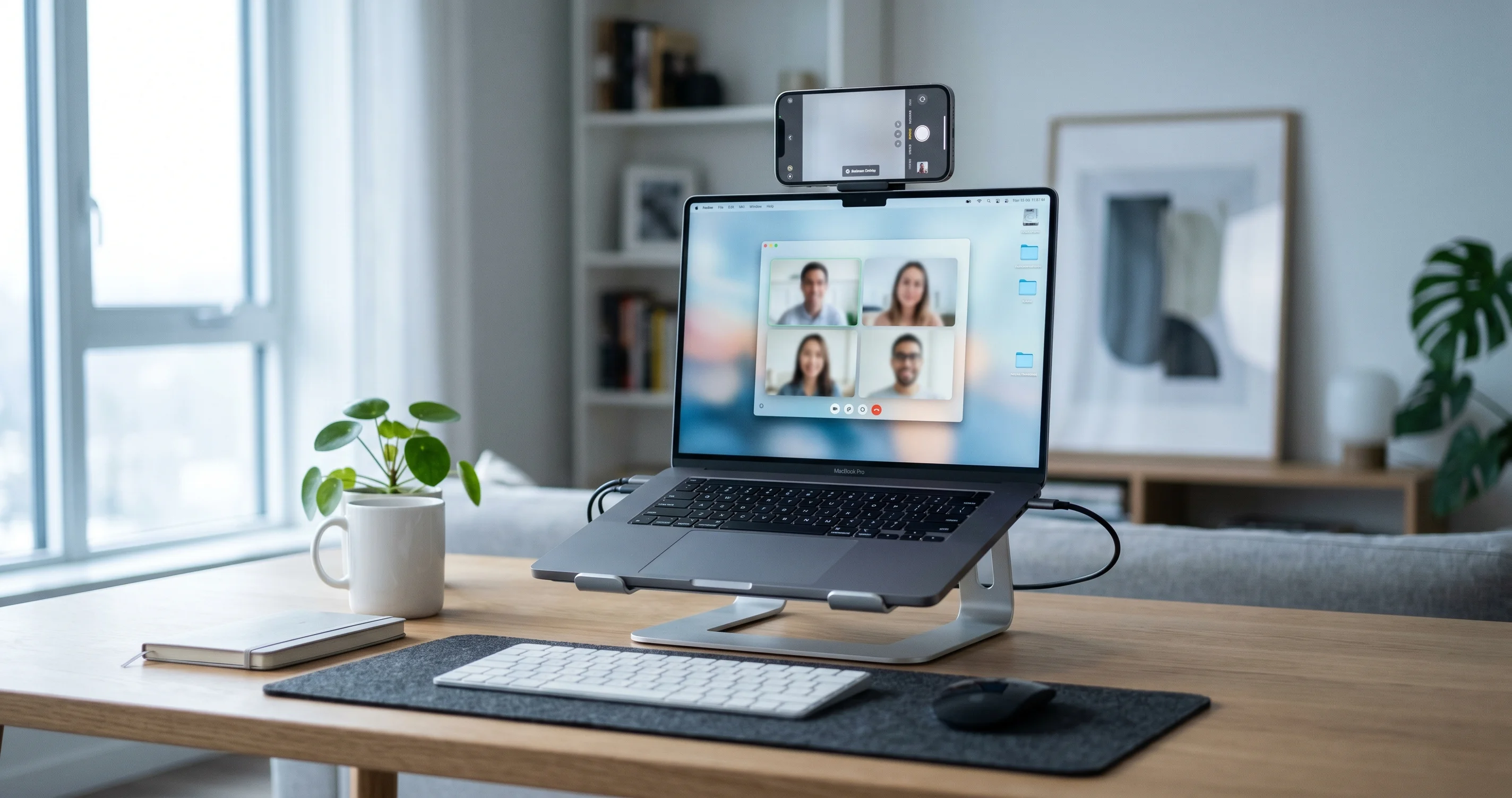
iPhone not showing up as a webcam on your Mac? Fix Continuity Camera wireless detection failures on macOS Tahoe 26.5 with this complete step-by-step guide.
When Continuity Camera not working turns your iPhone's best-in-class sensor into a no-show, it's one of the most frustrating moments in the Apple ecosystem — you join a call, open the camera menu, and your iPhone simply isn't there. The feature is supposed to be magic: lock your iPhone, set it near your Mac, and it instantly becomes a high-quality wireless webcam. But on macOS Tahoe 26.5, a wave of users — especially those on Macs without a built-in camera like the Mac mini, Mac Studio, and Mac Pro — are finding that wireless detection silently fails, even though plugging the iPhone in with a USB-C cable makes it appear immediately. This guide walks you through exactly why that happens and how to get your iPhone recognized again, covering both the headline 26.5 bug and the full evergreen troubleshooting checklist.
Continuity Camera is one of those features that "just works" — until it doesn't. And when it stops working, the cause is rarely obvious, because the same symptom (your iPhone not appearing as a camera) can come from a locked toggle buried in Settings, a Wi-Fi mismatch, a privacy permission, or an actual platform bug. The goal here is to make the invisible visible: to give you a clear diagnostic path so you stop guessing and start fixing. We'll start with the fastest test that tells you whether you're dealing with a hardware problem or a wireless problem, then work methodically through every layer.
Key Takeaways
- Try the USB-C cable first. If your iPhone shows up as a camera over a wired connection but not over Wi-Fi, your hardware and software are fine — you're facing a wireless detection problem, which is the dominant macOS Tahoe 26.5 complaint.
- The 26.5 wireless bug disproportionately hits camera-less Macs (Mac mini, Mac Studio, Mac Pro), where Continuity Camera is often the only webcam, making the failure especially painful.
- Both devices must share the exact same setup: same Apple Account with two-factor authentication, Wi-Fi and Bluetooth on, within ~30 feet, and the iPhone locked and held still in landscape.
- The single most-missed toggle is Continuity Camera inside iPhone Settings > General > AirPlay & Continuity. If it's off, no amount of Mac-side fixing will help.
- App behavior varies wildly. FaceTime and QuickTime expose the camera picker cleanly; Zoom, Teams, and Google Meet hide it inside their own video settings and sometimes need an app update to support the feature.
What Continuity Camera Actually Is
Continuity Camera lets your iPhone act as a wireless (or wired) webcam and microphone for your Mac. Because modern iPhone cameras dramatically outclass the FaceTime HD camera built into most Macs — and because Mac desktops like the Mac mini and Mac Studio ship with no camera at all — using your iPhone as the video source is often the single biggest quality upgrade you can make to your video calls, recordings, and streams.
Beyond raw image quality, Continuity Camera unlocks several signature effects:
- Center Stage, which uses the Ultra Wide camera to keep you framed as you move.
- Portrait mode, which blurs the background for a softer, more professional look.
- Studio Light, which dims the background and brightens your face.
- Desk View, a clever split that simultaneously shows your face and a top-down view of your desk — ideal for demos, unboxings, and tutorials.
The feature is deeply integrated into macOS, so once it's working, your iPhone appears automatically as a camera (and microphone) source in FaceTime, QuickTime, Photo Booth, and any third-party app that uses the standard macOS camera APIs. When it's not working, though, the cause almost always lives in one of a handful of prerequisites — so let's nail those down before touching anything advanced.
Wired vs. Wireless: Two Different Connection Paths
Although Continuity Camera presents a single, unified feature to the user, there are really two distinct connection mechanisms under the hood, and understanding the difference is the key to fast diagnosis.
The wireless path relies on a proximity-based handshake. Your Mac and iPhone discover each other over a combination of Bluetooth (for low-energy discovery and proximity sensing) and Wi-Fi (for the high-bandwidth video stream). This is why both radios must be on — Bluetooth alone can find the device, but it can't carry a 1080p video feed. The wireless path is also the one with strict conditioning: the iPhone must be locked, stationary, and in landscape, because macOS uses those signals to decide that the iPhone is intentionally being used as a camera rather than being carried around in someone's pocket.
The wired path is far simpler. When you connect the iPhone via USB-C, macOS sees it as a directly attached video device and skips most of the proximity logic entirely. The handshake still requires the same Apple Account and Continuity Camera toggle, but it does not depend on the Wi-Fi/Bluetooth proximity dance. That architectural difference is exactly why the 26.5 wireless detection bug doesn't touch wired connections — the failing code path simply isn't involved when a cable is present.
Keep this mental model in mind throughout the guide. Almost every fix below is really about coaxing the wireless handshake into completing, while the cable is the escape hatch that bypasses it.
The Exact Prerequisites (Don't Skip These)
The overwhelming majority of "my iPhone won't show up" reports trace back to a missed prerequisite. Apple's Continuity Camera has strict, non-negotiable requirements, and all of them must be true at the same time for wireless detection to work:
| Requirement | Detail |
|---|---|
| Same Apple Account | Your Mac and iPhone must be signed into the same Apple Account (formerly Apple ID). |
| Two-factor authentication | Must be enabled on that Apple Account. |
| Wi-Fi on | Both devices need Wi-Fi turned on. |
| Bluetooth on | Both devices need Bluetooth turned on. |
| Proximity | Devices should be within about 30 feet (10 meters) of each other. |
| Compatible iPhone | iPhone XR, iPhone XS, or later, running a compatible version of iOS. |
| iPhone locked & still | To be offered wirelessly, the iPhone must be locked and held stationary in landscape orientation — typically mounted. |
| Continuity Camera toggle on | Settings > General > AirPlay & Continuity > Continuity Camera must be enabled on the iPhone. |
A few of these trip people up constantly, so they deserve emphasis:
- The iPhone must be LOCKED. This is counterintuitive. If you're actively using your iPhone, holding it, or its screen is on and unlocked, macOS will not offer it as a wireless camera. Lock it, mount it, and leave it alone.
- It must be STATIONARY and in LANDSCAPE. Wireless Continuity Camera relies on the iPhone being held still — handheld jitter or portrait orientation can prevent the wireless offer from appearing. A dedicated mount or stand is strongly recommended.
- The Continuity Camera toggle has moved around between iOS versions and may be labeled inside AirPlay & Continuity or, on some versions, AirPlay & Handoff. If you can't find it under one name, look for the other.
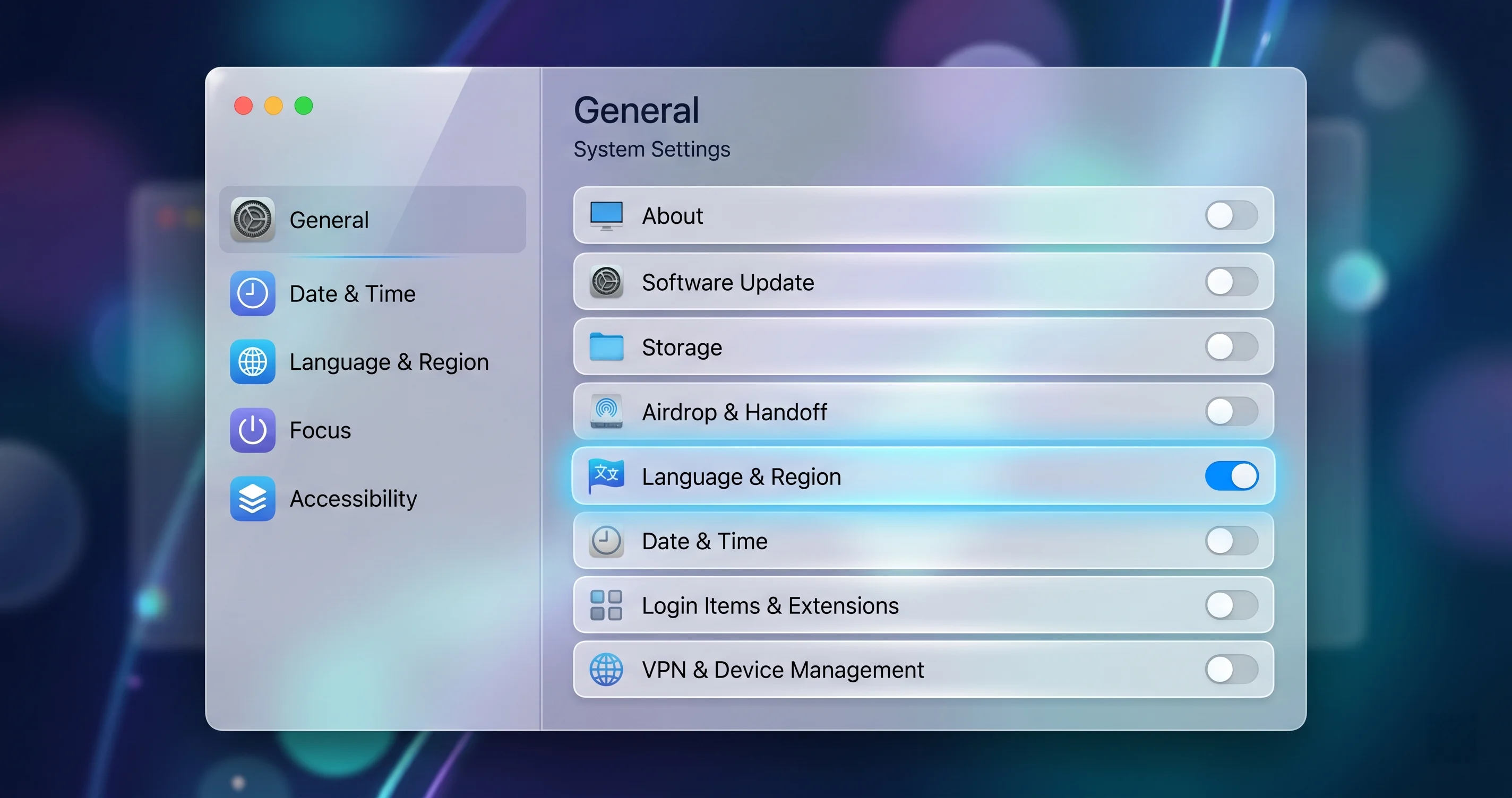
If even one of those rows is false, fix it first. It's astonishing how often the entire problem is a single toggle that got switched off during an iOS update or a settings reset.
The Headline macOS Tahoe 26.5 Bug: Wireless Fails, USB-C Works
Here's the issue that's been widely reported across community forums since macOS Tahoe 26.5 shipped on May 11, 2026: the iPhone is not detected as a wireless Continuity Camera, but works instantly the moment you connect it with a USB-C cable.
The symptom is consistent and maddening:
- You open FaceTime, Zoom, QuickTime, or Photo Booth.
- You check the camera source list.
- Your iPhone is not listed — even though it's locked, mounted, on the same Wi-Fi, and meets every prerequisite above.
- You grab a USB-C cable, plug the iPhone into the Mac, and within a second or two it appears as a camera and works flawlessly.
This pattern is the single clearest fingerprint of the 26.5 wireless detection problem. To be precise about what we can and can't claim: this is widely reported by the community as of macOS Tahoe 26.5, and the wired-works/wireless-fails split is highly reproducible across affected machines. We are not asserting that Apple has issued an official acknowledgement — treat it as a strongly corroborated, community-confirmed regression rather than an Apple-documented defect.
Why Camera-Less Macs Feel It Most
The reports skew heavily toward the Mac mini, Mac Studio, and Mac Pro — and there's a logical reason. These desktops have no built-in camera. On a MacBook, if Continuity Camera flakes out, you can fall back to the built-in FaceTime camera and limp through your meeting. On a Mac mini or Mac Studio, Continuity Camera is frequently the only webcam in the building. When wireless detection fails, you go from "perfect iPhone video" to "no video at all," which is why these users are the loudest in the forums.
There's also a subtler factor: desktop Macs are often wired into Ethernet, with Wi-Fi technically "on" but not actively associated with the same Wi-Fi network the iPhone is using. Continuity Camera's wireless handshake leans on Wi-Fi and Bluetooth proximity signaling, so an Ethernet-first desktop with a half-asleep Wi-Fi radio is more prone to the handshake never completing.
The Diagnostic Flow: Confirm Hardware, Then Fix Wireless
Before you burn an hour toggling settings, run this two-minute test. It splits the universe of possible causes cleanly in half.
Step 1 — Test wired first. Connect your iPhone to your Mac with a known-good USB-C cable. Unlock the iPhone if prompted and tap Trust if asked. Open QuickTime Player > File > New Movie Recording, then click the small arrow next to the record button and look for your iPhone in the camera list.
- If the iPhone appears over USB-C: Your iPhone, the Mac, the Continuity Camera toggle, your Apple Account, and macOS itself are all working. The problem is isolated to wireless detection — proceed to the wireless fixes below. This is the 26.5 bug profile.
- If the iPhone does NOT appear even over USB-C: You have a deeper problem — a missing prerequisite, a privacy restriction, an unsupported iPhone/iOS combination, or a hardware/cable fault. Skip the wireless-specific section and work through the prerequisites and privacy settings instead.
Step 2 — Use a clean test app. Always confirm with QuickTime Player or Photo Booth rather than Zoom or Teams. These first-party apps use the standard macOS camera picker and rule out app-specific quirks. If your iPhone shows up in Photo Booth but not in Zoom, your problem is the app, not Continuity Camera.
This single test is the most valuable thing in this guide. It tells you whether to chase a wireless gremlin or a configuration mistake — and it prevents you from "fixing" things that were never broken.
A Quick Note on Cables
If your wired test fails, don't immediately assume it's the 26.5 bug or a deeper software fault — rule out the cable first. Continuity Camera over USB-C needs a cable that carries data, not just power. Many cheap charging cables (especially older ones bundled with accessories) are power-only and will charge the iPhone while never establishing a data connection. Use the cable that came with the iPhone, or a known-good USB-C data cable, and plug it directly into the Mac rather than through an unpowered hub. A surprising number of "Continuity Camera not working over USB-C" reports vanish the moment a proper data cable is swapped in.
Also confirm you tapped Trust This Computer on the iPhone the first time you connected it to that particular Mac. If you previously tapped Don't Trust, the device pairing is blocked at the OS level. You can reset this on the iPhone via Settings > General > Transfer or Reset iPhone > Reset > Reset Location & Privacy, then reconnect and tap Trust.
Fixing Wireless Detection (The 26.5 Workarounds)
If your wired test passed but wireless still won't cooperate, work through these in order. They escalate from "thirty seconds" to "deeper reset," so stop as soon as your iPhone reappears.
1. Toggle Wi-Fi and Bluetooth Off and On (Both Devices)
The wireless handshake depends on healthy Wi-Fi and Bluetooth radios on both ends. A stale radio state is the most common cause of the 26.5 detection failure, and cycling it resolves a large share of cases.
- On the iPhone: open Settings > Wi-Fi, turn it off, wait ten seconds, turn it back on. Do the same in Settings > Bluetooth. Avoid using Control Center for this — Control Center only temporarily disconnects the radios rather than fully cycling them.
- On the Mac: click the Wi-Fi menu bar icon, turn Wi-Fi off and back on. Then toggle Bluetooth the same way (System Settings > Bluetooth, or the menu bar control).
After cycling both radios on both devices, re-lock and re-mount the iPhone, then recheck QuickTime.
2. Put Both Devices on the Same Wi-Fi Network
This is the fix that rescues most Mac mini and Mac Studio users. A desktop Mac on Ethernet with Wi-Fi merely "on" is not the same as both devices being on the same Wi-Fi network. Explicitly join your Mac's Wi-Fi to the identical network (same SSID, not a guest or 5GHz/2.4GHz variant with a different name) your iPhone is using.
If your Mac normally lives on Ethernet, temporarily connecting its Wi-Fi to the iPhone's network — while keeping Ethernet active — frequently restores wireless detection. Mismatched bands or separate guest networks are a silent killer here.
3. Disable Low Power Mode on the iPhone
Low Power Mode throttles background activity, including the radios and proximity features Continuity Camera relies on. Open Settings > Battery and turn Low Power Mode off. Then retry. This is a small thing that disproportionately breaks wireless features.
4. Sign Out and Back Into Your Apple Account
A stale Apple Account session can prevent the two devices from authenticating each other for Continuity. On the iPhone, you don't need to fully sign out of iCloud (which is disruptive); instead, the most effective targeted step is to verify both devices show the same account under Settings > [your name] (iPhone) and System Settings > [your name] (Mac). If they differ, that's your bug. If you've recently changed your Apple Account or password, signing out and back in on the affected device re-establishes the trust relationship Continuity needs.
5. Restart Both Devices
A full restart — not just a lock/wake — clears transient daemon states on both ends. Restart the iPhone and the Mac, then test again. It's old advice precisely because it works: many Continuity services run as background processes that can get wedged, and only a reboot reliably resets them.
6. Reset Network Settings (Deeper Step)
If nothing above works, reset the iPhone's network settings via Settings > General > Transfer or Reset iPhone > Reset > Reset Network Settings. Be aware this clears saved Wi-Fi passwords, so you'll need to rejoin networks afterward. This is a heavier step that clears corrupted network configuration that can block the wireless Continuity handshake — use it only after the lighter fixes fail.
For broader wireless instability that also affects pairing and other Continuity features, our macOS Tahoe Bluetooth troubleshooting guide goes deeper into radio-level diagnostics.
7. Check for VPNs, Firewalls, and "Limit IP Address Tracking"
Continuity Camera's wireless stream is local-network traffic, and anything that reshapes how your devices see each other on the LAN can interfere. Three settings are worth auditing:
- VPNs. A VPN active on either device can route traffic in a way that breaks local peer discovery. Temporarily disconnect any VPN on both the Mac and the iPhone and retest.
- macOS Firewall in stealth mode. Open System Settings > Network > Firewall. The firewall itself is usually fine, but stealth mode (which makes the Mac ignore probe requests) can occasionally interfere with discovery. If you're stuck, try toggling stealth mode off temporarily.
- Private Wi-Fi Address / Limit IP Address Tracking. On the iPhone, Settings > Wi-Fi > (your network) > Private Wi-Fi Address randomizes the device's address, and Limit IP Address Tracking adds a relay. Neither should break Continuity, but if you've exhausted other options, temporarily disabling them for your home network is a reasonable experiment.
8. Update Both Devices Fully
Because the 26.5 wireless issue is a software regression, the eventual fix will arrive through a software update. Keep both devices current: System Settings > General > Software Update on the Mac and Settings > General > Software Update on the iPhone. A point release that postdates this article (for example, a 26.5.x patch) may resolve the wireless handshake directly. Until then, the wired workaround remains your dependable fallback.
App-Level Gotchas: Why It Works in FaceTime But Not Zoom
A huge number of "Continuity Camera not working" complaints are actually app problems, not platform problems. macOS exposes your iPhone as a standard camera device, but each app decides how — and whether — to surface it.
First-Party Apps: FaceTime, QuickTime, Photo Booth
These use the native macOS camera picker. In FaceTime, click Video in the menu bar and select your iPhone. In QuickTime, choose File > New Movie Recording and pick the iPhone from the dropdown arrow. Photo Booth offers a Camera menu. Because these apps follow Apple's conventions, they're your gold-standard test harness — if your iPhone shows here, Continuity Camera is genuinely working.
Third-Party Apps: Zoom, Teams, Google Meet
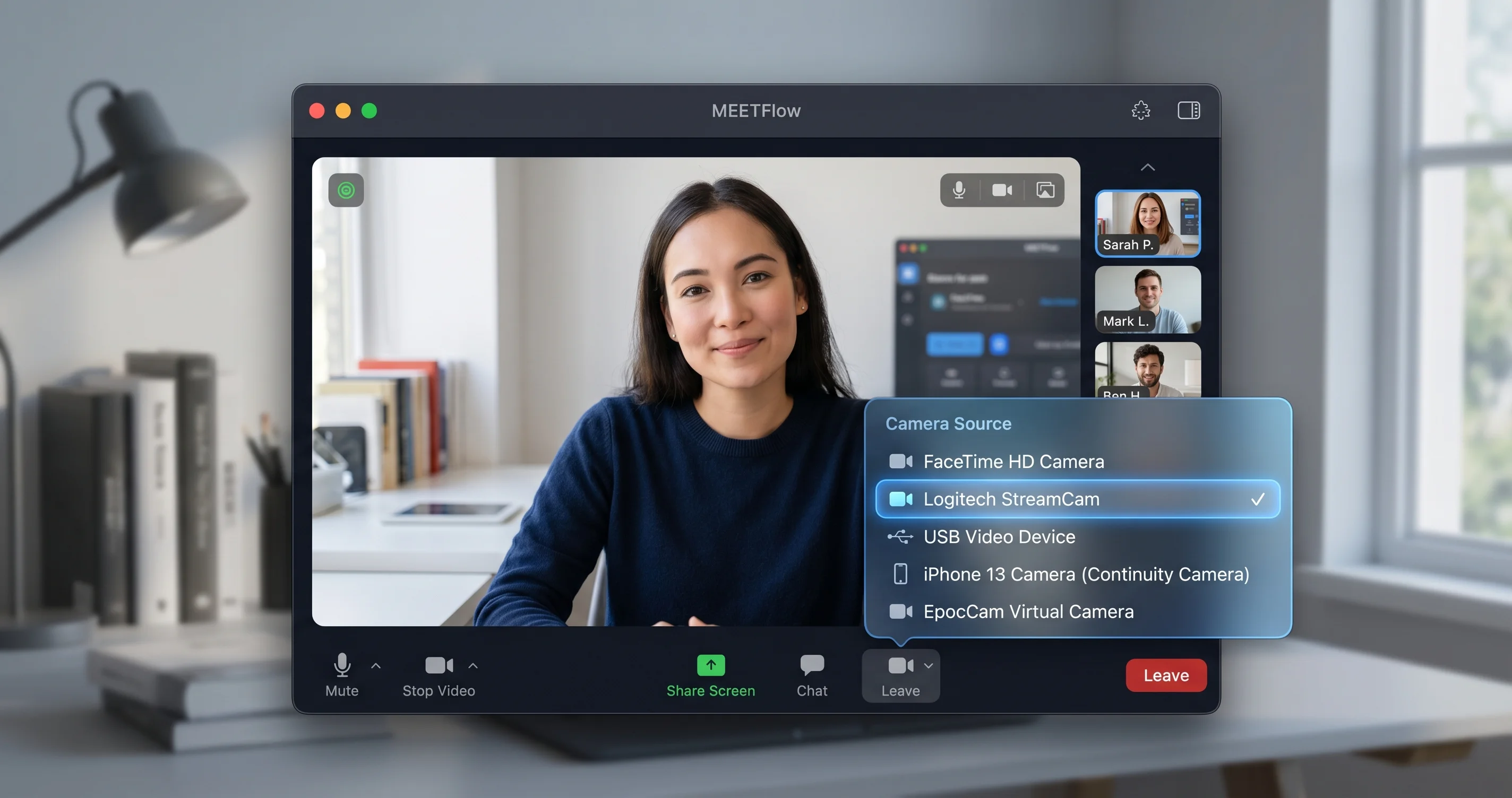
Here's where it gets messy. These apps maintain their own camera picker, separate from macOS:
- Zoom: Click the ^ arrow next to the Stop Video button, then choose your iPhone under Select a Camera. Or open Settings > Video and select it from the Camera dropdown.
- Microsoft Teams: Open Settings > Devices and choose the iPhone under Camera. Teams sometimes caches the previous camera and needs a manual reselect after the iPhone connects.
- Google Meet (in Safari/Chrome): This runs in the browser, so the camera is chosen in the meeting UI via the three-dot menu > Settings > Video, and the browser must also have camera permission in macOS Privacy settings (covered below).
Two app-level realities to keep in mind:
- Some third-party apps must be updated. Older builds predate Continuity Camera support or don't enumerate it correctly. If your iPhone appears in Photo Booth but never in a specific app, update that app to the latest version first.
- The picker order can matter. Connect and stabilize the iPhone before launching the app, or before opening the app's camera settings. Apps that scan for cameras at launch may not pick up an iPhone that connected afterward — quitting and relaunching the app forces a fresh scan.
If you're juggling multiple Continuity features across apps at once, the broader macOS Tahoe Continuity features troubleshooting guide maps out how Universal Control, Sidecar, and Handoff interact with the same underlying connectivity stack.
Privacy, Security, and Permissions
Even with perfect connectivity, a privacy or restriction setting can block the camera entirely — and these failures are easy to misread as detection bugs.
Per-App Camera Permission
macOS gates camera access app-by-app. Go to System Settings > Privacy & Security > Camera and confirm the app you're using (Zoom, Teams, your browser, etc.) has its camera toggle enabled. A browser-based app like Google Meet needs the browser (Safari or Chrome) toggled on here — not "Google Meet," which isn't a standalone app. If an app was denied camera access at first launch, it won't appear to "see" any camera, including your iPhone.
Screen Time Camera Restrictions
If the camera is missing system-wide — across every app, including Photo Booth — check Screen Time. Open System Settings > Screen Time > Content & Privacy > App Restrictions (or Allowed Apps, depending on layout) and ensure Camera is allowed. Screen Time camera restrictions silently hide the camera everywhere, and because the iPhone never appears, people wrongly conclude Continuity Camera is broken. This is worth checking on managed or family-shared Macs especially.
Confirm It on the iPhone Too
Continuity Camera respects restrictions on both devices. If the iPhone has its own Screen Time camera restriction, or if the Continuity Camera toggle under Settings > General > AirPlay & Continuity got disabled, the Mac won't be offered the camera regardless of permissions on the Mac side.
Managed Macs and Configuration Profiles
If your Mac is supplied by an employer, school, or any organization that uses Mobile Device Management (MDM), a configuration profile may restrict camera access or Continuity features at a level you can't override from the regular Settings panes. Check System Settings > General > Device Management (or Profiles) for any installed profiles. If a profile blocks the camera or AirPlay/Continuity, you'll need your IT administrator to adjust it — no amount of toggling will work around a managed restriction. This is a common, easily-missed cause on work laptops where Continuity Camera "used to work" and then stopped after a new profile was pushed.
Desk View and Center Stage Failures (Different From Detection)
It's important to separate "my iPhone isn't detected at all" from "my iPhone works, but a specific effect doesn't." These are different problems with different causes.
Desk View Requires an Ultra Wide Camera
Desk View uses the iPhone's Ultra Wide camera to synthesize the top-down desk angle. That means it requires an iPhone with an Ultra Wide lens — iPhone 11 or later. If you're on an iPhone XR or XS (which are supported for basic Continuity Camera but lack the Ultra Wide lens), Desk View simply won't be available even though the camera works perfectly. This isn't a bug — it's a hardware limitation.
If Desk View is grayed out on a supported iPhone, make sure the iPhone is mounted properly (Desk View expects a roughly known orientation), launch the Desk View app or enable it from the green Control Center video controls during a call, and confirm Continuity Camera itself is connected first.
Center Stage and Other Effects
Center Stage, Portrait, and Studio Light are toggled from the Video controls in the macOS menu bar (the green camera icon that appears while Continuity Camera is active). If these are missing, your iPhone may be connected but the effects panel hasn't loaded — disconnect and reconnect the camera. Note that not every effect is available on every iPhone model, and some effects can't be combined simultaneously.
"iPhone Appears Then Drops" — Reconnect and Standby Issues
A particularly annoying variant: your iPhone shows up, you start your call, and then it disconnects mid-meeting. This is usually a power management problem rather than a detection problem.
- Auto-Lock / standby interference. When the iPhone's display sleeps and it transitions into deeper standby states, the camera session can drop. Keep the iPhone on its charger while in use — Continuity Camera works while locked, but a battery-saving sleep state can interrupt the session. Connecting power keeps the iPhone awake enough to hold the connection.
- Mount stability. If the iPhone shifts or you bump the desk, the "stationary" condition for wireless mode can break momentarily and trigger a re-handshake. A solid mount eliminates this.
- Wi-Fi roaming. If your Mac or iPhone roams between mesh access points mid-call, the wireless session can hiccup. Staying near a single access point, or using the wired USB-C connection for important calls, sidesteps this entirely.
The practical rule: for any meeting that genuinely matters, use the USB-C cable. Wired Continuity Camera is rock-solid, immune to the 26.5 wireless detection bug, keeps the iPhone charged, and never drops from standby. Reserve wireless for casual use where convenience beats reliability.
Building a Reliable Continuity Camera Setup
If you're going to lean on your iPhone as a webcam regularly — particularly on a camera-less Mac mini or Mac Studio — it pays to engineer the setup for reliability rather than fighting it ad hoc before every call. A few practical recommendations:
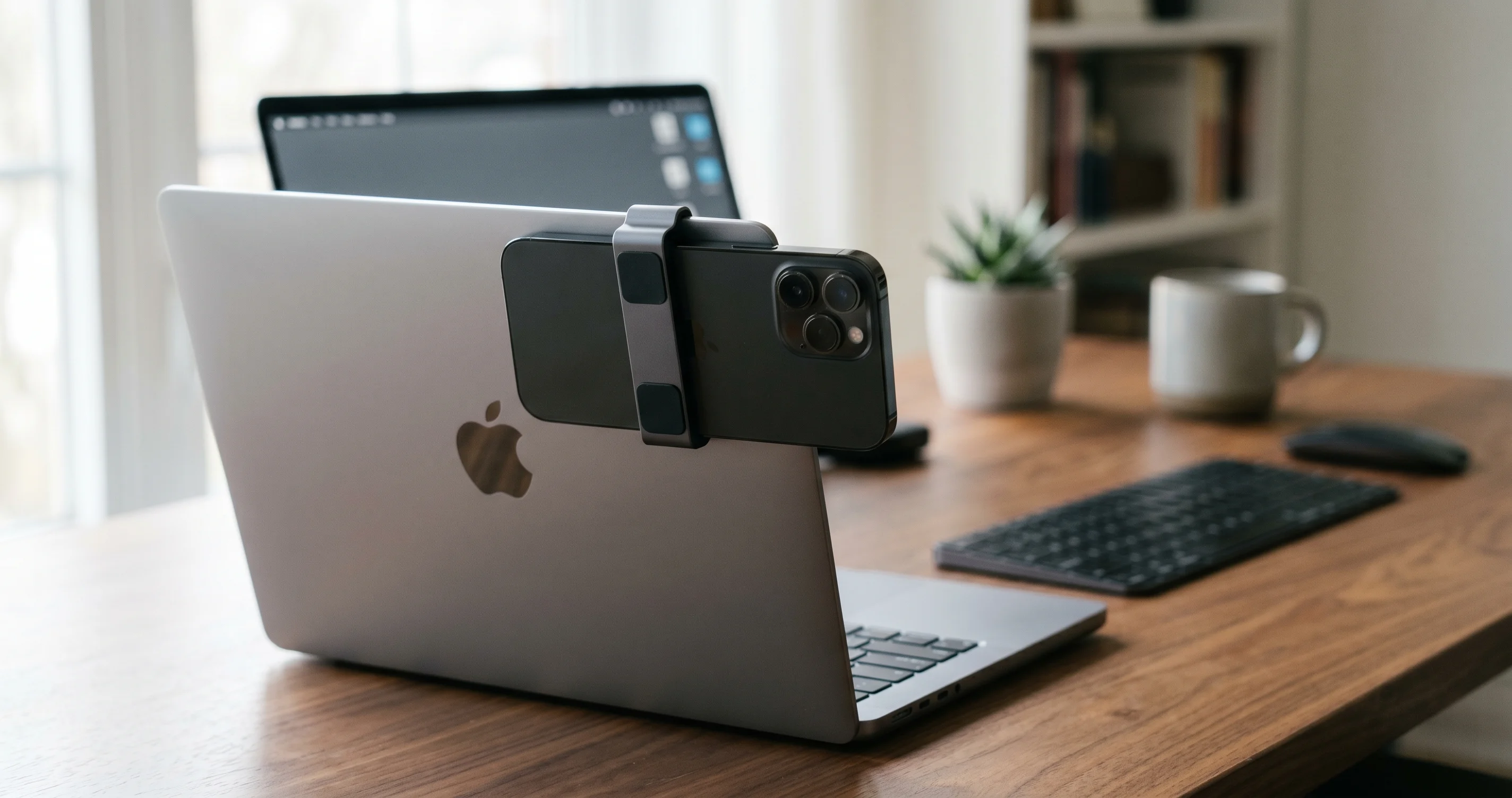
- Use a proper mount. Apple-style clip mounts that attach to the top of a display hold the iPhone in the correct landscape orientation and keep it perfectly still, satisfying the "stationary" condition for wireless mode and eliminating accidental movement-triggered re-handshakes.
- Run a short, dedicated USB-C data cable to the mount. With the iPhone already cabled in its mount, you sidestep the wireless bug entirely and keep the battery topped up — you get the best image quality with zero detection drama.
- Pick the iPhone's rear camera system, not the front. The rear cameras are dramatically better than the front, and Continuity Camera uses the rear system, which is why a clip mount points the back of the iPhone at you.
- Pre-flight before important calls. Open Photo Booth a minute before your meeting to confirm the iPhone is connected and framed. It's far less stressful than discovering a detection failure once the call has started.
This small amount of setup converts Continuity Camera from a sometimes-flaky convenience into a genuinely professional, dependable webcam — even while the 26.5 wireless bug lingers.
Troubleshooting Common Issues
Use this quick-reference table of Problem/Solution pairs to jump straight to your specific symptom.
Problem: iPhone doesn't appear wirelessly, but works over USB-C
Solution: This is the classic macOS Tahoe 26.5 profile. Cycle Wi-Fi and Bluetooth on both devices (via Settings, not Control Center), put both on the same Wi-Fi network, disable Low Power Mode, and restart both devices. For important calls, just use the cable — wired is unaffected by the bug.
Problem: iPhone doesn't appear at all, even over USB-C
Solution: Check prerequisites first. Confirm the Continuity Camera toggle is on in iPhone Settings > General > AirPlay & Continuity, both devices use the same Apple Account with two-factor auth, and the iPhone is supported (XR/XS or later). Then check Privacy & Security > Camera and Screen Time restrictions on the Mac.
Problem: Works in Photo Booth/FaceTime but not in Zoom or Teams
Solution: This is an app problem, not a Continuity problem. Open the app's own video settings and manually select your iPhone as the camera. Update the app to its latest version, then quit and relaunch it so it re-scans for cameras after the iPhone has connected.
Problem: Camera connects then drops mid-call
Solution: Keep the iPhone on power and on a stable mount. Standby/auto-lock and physical movement break the wireless "stationary" condition and force a re-handshake. Switch to USB-C for guaranteed stability during important meetings.
Problem: Desk View is grayed out or unavailable
Solution: Desk View requires an Ultra Wide camera, so it needs iPhone 11 or later. iPhone XR/XS support basic Continuity Camera but cannot do Desk View. Confirm the iPhone is properly mounted and that Continuity Camera is connected before enabling Desk View.
Problem: No camera anywhere, in every single app
Solution: This points to a system-wide block. Check System Settings > Screen Time > Content & Privacy and ensure Camera is allowed. Also verify the iPhone doesn't have its own Screen Time camera restriction. System-wide blocks masquerade as detection failures.
Problem: iPhone is unlocked and in your hand, and won't be offered
Solution: Wireless Continuity Camera only offers a locked, stationary iPhone held in landscape. Lock the screen, mount it, and leave it still. An actively-used or handheld iPhone is intentionally not offered wirelessly.
If your wider device-to-device picture is also misbehaving — Handoff, clipboard sharing, or iCloud sync acting up — the Continuity sync troubleshooting guide covers the account-level and iCloud-level causes that can ripple into Continuity Camera too. And if you suspect a broader 26.5 regression, the macOS Tahoe 26.5 release roundup tracks what changed in this update.
FAQ
Why does my iPhone work as a webcam over USB-C but not Wi-Fi on macOS 26.5?
This is the widely reported macOS Tahoe 26.5 wireless detection bug. Wired connections bypass the failing wireless handshake entirely. Cycle Wi-Fi and Bluetooth on both devices, put both on the same Wi-Fi network, disable Low Power Mode, and restart. For critical calls, the USB-C cable is the reliable workaround.
Why is Continuity Camera failing more on my Mac mini or Mac Studio?
Camera-less desktops rely on Continuity Camera as their only webcam, so any failure is far more visible. They're also often Ethernet-first with Wi-Fi merely "on," which weakens the wireless proximity handshake. Explicitly join the Mac's Wi-Fi to the same network as your iPhone to improve detection.
Where is the Continuity Camera toggle on my iPhone?
Open Settings > General > AirPlay & Continuity and enable Continuity Camera. On some iOS versions the menu is labeled AirPlay & Handoff instead. If the toggle is off, your iPhone will never be offered as a camera, no matter how perfect your network and account settings are.
Does my iPhone need to be unlocked to be a Continuity Camera?
No — the opposite. For wireless use, your iPhone must be locked, stationary, and ideally mounted in landscape. An actively-used or handheld iPhone is intentionally not offered as a wireless camera. Over USB-C, you may need to unlock once and tap Trust, but it then works while locked.
Why does my iPhone show up in FaceTime but not in Zoom or Teams?
FaceTime uses the native macOS camera picker, while Zoom and Teams maintain their own. Open the app's video settings and manually select your iPhone. Update the app to the latest version and relaunch it so it re-scans for cameras after your iPhone has already connected.
Why is Desk View grayed out even though my camera works?
Desk View needs the Ultra Wide camera, which requires iPhone 11 or later. An iPhone XR or XS supports standard Continuity Camera but lacks the Ultra Wide lens, so Desk View is unavailable. This is a hardware limitation, not a software bug — basic camera functionality is unaffected.
My iPhone disconnects in the middle of calls — how do I stop that?
This is usually power management. Keep the iPhone charging and on a stable mount, because standby, auto-lock, and physical movement break the wireless session. For any important meeting, use the USB-C cable — it keeps the iPhone awake, charged, and immune to the 26.5 wireless dropouts.
Is the macOS 26.5 Continuity Camera problem an official Apple bug?
It is widely reported across the community as of macOS Tahoe 26.5, with a highly reproducible pattern (wireless fails, USB-C works). We can't confirm an official Apple acknowledgement, so treat it as a strongly corroborated regression. Until any fix arrives, the wired workaround is dependable.
Conclusion
When Continuity Camera not working strands you before a call, the fastest path to relief is the two-minute diagnostic test: plug in the USB-C cable. If your iPhone appears wired but not wirelessly, you've confirmed the macOS Tahoe 26.5 detection bug — and you can either apply the wireless workarounds (cycle radios, share one Wi-Fi network, disable Low Power Mode, restart) or simply keep using the cable for guaranteed reliability. If it doesn't appear even wired, walk back through the prerequisites, privacy permissions, and Screen Time restrictions, because the culprit is almost always a single overlooked toggle. Methodical beats magical every time.
For related reading, see our guides on iPhone Mirroring not working on macOS Tahoe, the Mac microphone not working fix, and AirPods stuttering and cutting out on Mac — the same connectivity and permission principles apply across all of Apple's device-to-device features.