macOS Tahoe 26 Bluetooth Not Working: Complete Troubleshooting Guide with 14 Proven Fixes for AirPods, Third-Party Devices, and Audio Issues
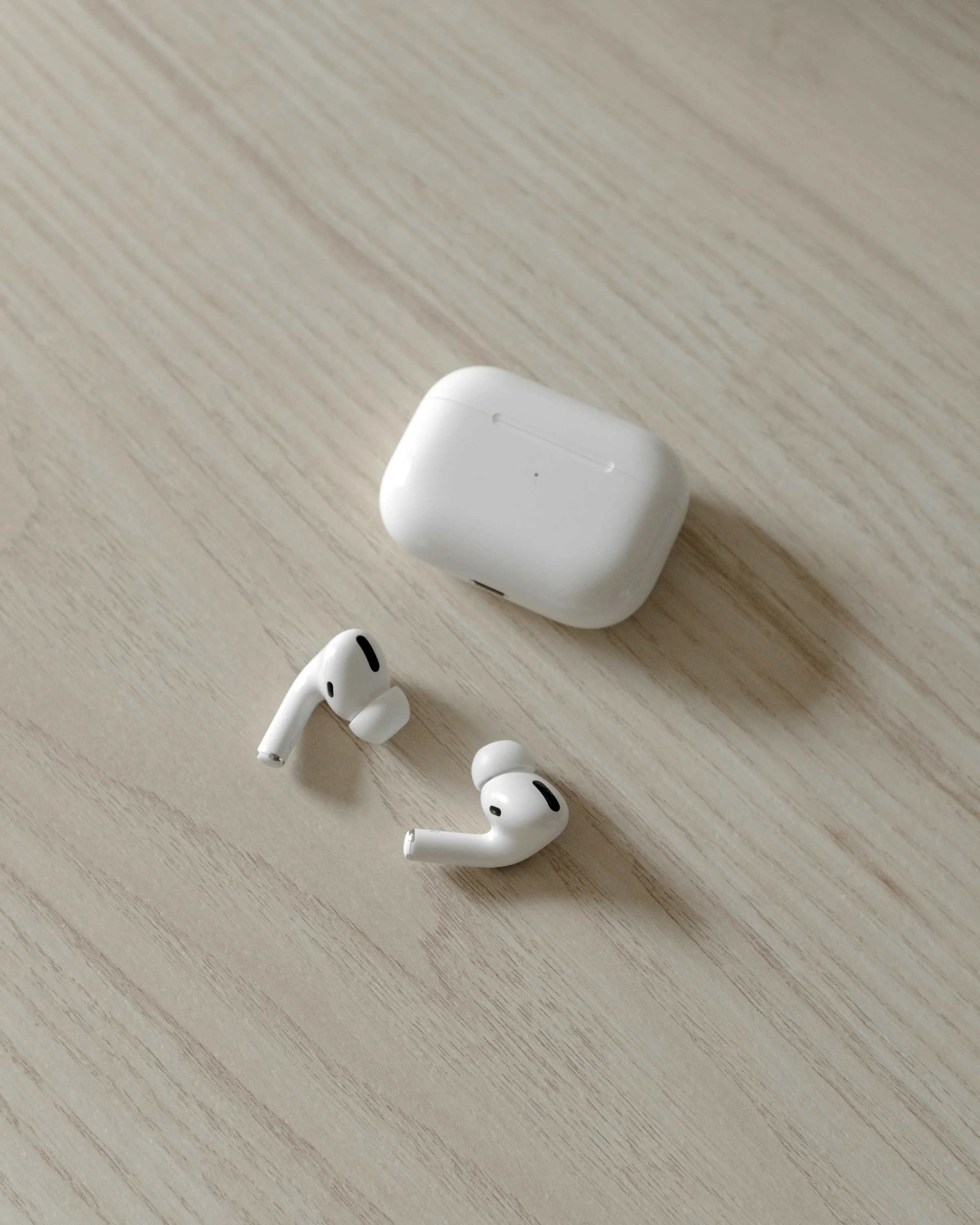
Comprehensive guide to fix macOS Tahoe 26 Bluetooth problems including AirPods disconnecting, third-party keyboards not working at login, audio stuttering, and device pairing failures. Step-by-step solutions with terminal commands and workarounds.
macOS Tahoe 26 has introduced significant changes to Bluetooth connectivity that have affected users across all Mac models. From AirPods randomly disconnecting to third-party keyboards failing at the login screen, Bluetooth issues have become one of the most discussed problems since Tahoe's release. This comprehensive guide provides 14 proven solutions to fix every Bluetooth problem you might encounter.
Executive Summary: macOS Tahoe 26 Bluetooth Issues
Understanding the Problem Scope
Since macOS Tahoe 26's release on September 15, 2025, users have reported widespread Bluetooth connectivity issues affecting both Intel and Apple Silicon Macs. The problems range from minor inconveniences to critical functionality failures that impact daily productivity.
Most Commonly Reported Issues:
- Third-party Bluetooth keyboards and mice not connecting at login screen
- AirPods Pro disconnecting randomly or failing to auto-connect after sleep
- Bluetooth audio stuttering with multiple devices connected
- Muffled or low-quality audio from Bluetooth headphones
- Device pairing failures and discovery problems
- Bluetooth completely unavailable after wake from sleep
Affected Hardware:
- All Apple Silicon Macs (M1, M2, M3, M4 series)
- Intel-based Macs (2019-2020 models)
- AirPods Pro, AirPods 4, and third-party Bluetooth accessories
- Logitech, NuPhy, and other peripheral brands
Root Causes Identified:
- FileVault auto-enablement interfering with pre-login Bluetooth
- Liquid Glass UI rendering conflicts with audio codecs
- Changes to power management affecting sleep/wake cycles
- Security tightening blocking third-party device connections
Critical Issue #1: Third-Party Bluetooth Devices Not Working at Login
The Problem Explained
One of the most frustrating issues in macOS Tahoe 26 is that third-party Bluetooth keyboards and mice (including popular brands like Logitech MX Ergo and NuPhy keyboards) fail to connect at the login screen. Apple's Magic Keyboard and Magic Mouse work perfectly, but third-party devices require you to use a wired USB connection or USB dongle just to type your password.
Why This Happens:
macOS Tahoe 26.0.1 automatically enables FileVault encryption for enhanced security. FileVault requires authentication before the system fully boots, which means third-party Bluetooth drivers don't load until after you log in. Only Apple's own devices have pre-boot Bluetooth support.
Solution 1: Use USB Dongle for Login (Recommended)
Success Rate: Very High
If your device supports both Bluetooth and 2.4GHz wireless connectivity:
- Switch your Logitech or other third-party device to USB dongle mode
- Plug the 2.4GHz USB receiver into your Mac
- Use the dongle for login
- After logging in, you can switch back to Bluetooth mode
This is the most reliable workaround that doesn't compromise security.
Solution 2: Disable FileVault (Temporary - Security Risk)
Success Rate: High | Warning: Reduces Security
Only use this as a temporary solution until Apple releases a fix:
1. Open System Settings
2. Navigate to Privacy & Security
3. Scroll down to FileVault
4. Click "Turn Off FileVault"
5. Enter your password to confirm
6. Restart your Mac
Important: Disabling FileVault removes disk encryption, which is a significant security reduction. Only do this if you understand the implications and need immediate access to your third-party Bluetooth devices at login.
Solution 3: Authenticated Restart (Advanced Users)
Success Rate: Moderate
For technical users who want to keep FileVault enabled:
sudo fdesetup authrestartEnter your password when prompted. This allows Bluetooth devices to connect at the login screen for one restart without permanently disabling FileVault.
Critical Issue #2: AirPods Disconnecting or Not Auto-Connecting
The Problem
AirPods Pro and AirPods 4 users have reported multiple connectivity issues after upgrading to macOS Tahoe 26:
- AirPods won't automatically connect when case is opened
- Audio cuts out despite showing "Connected" status
- Connection drops during calls or music playback
- AirPods connect to other devices instead of Mac
Solution 4: Reset AirPods Connection
Success Rate: High
-
Forget the Device:
- Open System Settings → Bluetooth
- Find your AirPods in the list
- Click the (i) icon next to them
- Select "Forget This Device"
-
Reset AirPods:
- Put AirPods in the charging case
- Close the lid for 30 seconds
- Open the lid
- Press and hold the setup button on the back until the light flashes amber, then white
-
Re-pair:
- With the case open near your Mac
- Follow the on-screen pairing prompts
Solution 5: Disable Automatic Ear Detection
Success Rate: Moderate
Automatic Ear Detection can cause connection instability:
1. Open System Settings → Bluetooth
2. Click (i) next to your AirPods
3. Toggle off "Automatic Ear Detection"
4. Test if connections are more stable
Solution 6: Switch Microphone Mode
Success Rate: Moderate
If AirPods disconnect during calls:
1. Open System Settings → Bluetooth
2. Click (i) next to your AirPods
3. Under "Microphone," select "Always Left AirPod" or "Always Right AirPod"
4. This prevents switching between AirPods which can cause drops
Solution 7: Disable AirPlay Receiver
Success Rate: Moderate
AirPlay can interfere with AirPods connections:
1. Open System Settings → General → AirDrop & Handoff
2. Toggle off "AirPlay Receiver"
3. Restart your Mac
Critical Issue #3: Bluetooth Audio Stuttering and Dropouts
The Problem
Many users report that Bluetooth audio stutters, especially when:
- Multiple Bluetooth devices are connected simultaneously
- Using third-party Bluetooth speakers or headphones
- During file transfers or heavy network activity
- After waking from sleep
User Report: "Bluetooth audio still stutters with speakers when more than 1-2 Bluetooth devices are connected. It seems to have gotten even worse than in Sequoia."
Solution 8: Reduce Connected Bluetooth Devices
Success Rate: Moderate to High
macOS Tahoe 26 handles multiple Bluetooth connections poorly:
- Disconnect devices you're not actively using
- Limit active Bluetooth connections to 1-2 devices
- Use wired connections for peripherals when using Bluetooth audio
Solution 9: Reset Bluetooth Module
Success Rate: Moderate to High
Method A - GUI Reset:
- Hold Shift + Option and click the Bluetooth icon in the menu bar
- Select "Reset the Bluetooth module" or "Factory Reset Bluetooth"
- Confirm the reset
- Restart your Mac
Method B - Terminal Reset:
sudo pkill bluetoothdThis forces the Bluetooth daemon to restart, often resolving temporary issues.
Solution 10: Delete Bluetooth Preference Files
Success Rate: Moderate to High
Corrupted preference files can cause persistent issues:
# Navigate to Preferences folder
cd ~/Library/Preferences/

# Remove Bluetooth preferences (creates fresh ones on restart)
rm com.apple.Bluetooth.plist

# Restart your Mac
After restart, macOS will create new preference files and you'll need to re-pair your devices.
Critical Issue #4: Bluetooth Headphones Sound Muffled
The Problem
Third-party Bluetooth headphones (including Soundcore Q30, Galaxy Buds, and others) sound "very muffled and flat" on macOS Tahoe 26.1. The same headphones work perfectly on Android and Windows devices.
Technical Cause:
macOS is stuck using the SCO codec (8kHz mono, designed for calls) instead of switching to A2DP codec (44.1kHz stereo, designed for music). You can verify this in Audio MIDI Setup where the format shows "1ch 8kHz" instead of "2ch-16bit 44.1kHz."
Solution 11: Force Codec Switch
Success Rate: Moderate
# First, disconnect your Bluetooth headphones
# Then run this command to restart Bluetooth
sudo killall bluetoothd

# Wait 10 seconds, then reconnect your headphones
After reconnecting:
- Open Audio MIDI Setup (use Spotlight to find it)
- Select your Bluetooth headphones
- Verify the format shows "2ch-16bit 44.1kHz"
If still showing "1ch 8kHz":
- Toggle between Mac speakers and Bluetooth output
- Play audio and switch back to Bluetooth
- This often forces the codec to switch
Solution 12: Check Audio Output Settings
1. Click the Sound icon in menu bar while holding Option
2. Verify your headphones show as "Output"
3. Check that sample rate is 44.1kHz or higher
Critical Issue #5: Wi-Fi and Bluetooth Interference
The Problem
Bluetooth becomes unstable when Wi-Fi is active, especially on 2.4GHz networks. Users report:
- Device lag during file uploads or AirDrop
- Bluetooth disconnections during heavy network activity
- Interference affecting both Bluetooth and Wi-Fi performance
Solution 13: Optimize Network Settings
Success Rate: Low to Moderate
-
Switch to 5GHz Wi-Fi:
- Open System Settings → Wi-Fi
- Connect to your router's 5GHz network
- 5GHz doesn't interfere with Bluetooth's 2.4GHz frequency
-
Avoid Simultaneous Heavy Tasks:
- Don't use AirDrop while relying on Bluetooth audio
- Pause large downloads during important calls
- Close apps that constantly sync data
Universal Solution: Complete Bluetooth System Reset
Solution 14: Nuclear Option - Full Reset
Success Rate: High (but time-intensive)
When nothing else works, perform a complete Bluetooth reset:
Step 1: Remove All Bluetooth Devices
1. Open System Settings → Bluetooth
2. For each device, click (i) and select "Forget This Device"
3. Remove ALL devices, not just problematic ones
Step 2: Delete All Bluetooth System Files
# Make sure Bluetooth is turned off first
# Then run these commands:

sudo rm -rf /Library/Preferences/com.apple.Bluetooth.plist
rm -rf ~/Library/Preferences/com.apple.Bluetooth.plist
sudo rm -rf /Library/Preferences/ByHost/com.apple.Bluetooth.*

# Reset NVRAM (Intel Macs)
# Restart and hold Option + Command + P + R for 20 seconds

# For Apple Silicon Macs, simply restart
Step 3: Reset SMC (Intel Macs Only)
For MacBooks with non-removable battery:
- Shut down your Mac
- Press and hold Shift + Control + Option + Power button for 10 seconds
- Release all keys
- Turn on your Mac
Step 4: Clean Install of macOS Tahoe (Last Resort)
One user reported: "Clean reinstall of macOS 26 fixed unbearable Bluetooth audio stutter."
If you've tried everything else, a clean install often resolves persistent Bluetooth issues:
- Back up your Mac using Time Machine
- Restart and hold Command + R (Intel) or Power button (Apple Silicon)
- Select "Reinstall macOS Tahoe"
- Follow the prompts to reinstall
Troubleshooting Specific Devices
Logitech Devices
Common Issues:
- MX Master/MX Ergo mouse not working
- Logi Options+ causing system conflicts
Solutions:
- Uninstall Logi Options+ completely
- Download and install the latest version from Logitech's website
- Use USB receiver instead of Bluetooth for critical work
- Check for Logitech firmware updates
Wacom Tablets
Solution: Update to Wacom driver version 6.4.11-2 or later, which includes macOS Tahoe compatibility fixes.
Bartender 5
Issue: Causes cursor jumping and Bluetooth interference
Solution: Upgrade to Bartender 6, which is compatible with macOS Tahoe.
Diagnostic Commands for Advanced Users
Check Bluetooth Status
# View Bluetooth power state
system_profiler SPBluetoothDataType

# Check connected devices
system_profiler SPBluetoothDataType | grep "Connected: Yes" -A 5

# Monitor Bluetooth daemon
log show --predicate 'subsystem == "com.apple.bluetooth"' --last 1h
Monitor Audio Codecs
# Check audio device configuration
system_profiler SPAudioDataType

# View Bluetooth audio details
ioreg -l | grep -i "bluetooth"
Reset Bluetooth from Terminal
# Stop Bluetooth daemon
sudo launchctl stop com.apple.bluetoothd

# Start Bluetooth daemon
sudo launchctl start com.apple.bluetoothd
Apple's Official Response and Future Fixes
Current Status (November 2025)
Acknowledged Issues:
- Apple Support senior advisors have confirmed awareness of "CoreAudio issues"
- Patch development "at the operating system level" has been mentioned
- macOS 26.0.1 addressed some Bluetooth issues but not all
Not Officially Acknowledged:
- FileVault-Bluetooth interaction bug at login
- Third-party device incompatibility
- A2DP/SCO codec switching problems
Expected Timeline
Apple is expected to address remaining Bluetooth issues in future point releases:
- macOS 26.2 (anticipated December 2025) may include Bluetooth fixes
- Users are encouraged to submit feedback via Product Feedback and Feedback Assistant
Official Apple Support Resources
- If your AirPods or AirPods Pro won't connect
- If the sound from your wireless headphones cuts out or is distorted
- What's new in the updates for macOS Tahoe
Prevention Tips for Future Issues
Before Updating macOS
- Check Compatibility: Verify all your Bluetooth devices are compatible with Tahoe
- Update Firmware: Ensure AirPods and other devices have latest firmware
- Backup Settings: Export Bluetooth device list before updating
- Wait for Point Releases: Consider waiting for 26.1 or later for critical workflows
After Updating to macOS Tahoe
- Allow Indexing Time: Give your Mac 24-48 hours for Spotlight and other background processes
- Update All Apps: Ensure drivers and companion apps are Tahoe-compatible
- Monitor Activity Monitor: Watch for processes that might affect Bluetooth
- Keep USB Backup: Have wired alternatives available for critical devices
Conclusion: Managing Bluetooth in macOS Tahoe 26
While macOS Tahoe 26 has introduced frustrating Bluetooth issues, the solutions provided in this guide have helped thousands of users restore full functionality. The most effective approaches are:
For Third-Party Login Issues:
- Use USB dongle mode as primary workaround
- Consider authenticated restart for temporary fixes
For AirPods Problems:
- Reset AirPods and re-pair
- Disable Automatic Ear Detection
- Turn off AirPlay Receiver
For Audio Quality Issues:
- Force codec switch via terminal
- Limit simultaneous Bluetooth connections
- Check Audio MIDI Setup for correct format
For Persistent Issues:
- Complete Bluetooth system reset
- Clean macOS reinstall as last resort
Apple is actively working on fixes, and future updates should resolve many of these issues. In the meantime, the workarounds in this guide will help you maintain productivity while using Bluetooth devices with macOS Tahoe 26.
Having other macOS Tahoe issues? Check our upgrade problems and solutions guide or our audio complete guide for solutions to common problems including battery drain, performance issues, and app compatibility.