Mac Hot and Draining Battery After macOS 26.6? Here Is Why

Mac running hot with loud fans and battery drain after updating to macOS 26.6? It is rebuilding the Spotlight index. Here is how to tell, and when to worry.
You installed macOS 26.6, restarted, and within an hour your Mac was hotter than it has been in months. The fans are audible while you are doing nothing but reading email. The battery percentage is falling at a rate you have not seen since the machine was new. Nothing you opened explains it, and nothing you quit fixes it.
Almost certainly, your Mac is rebuilding its Spotlight index. Apple's own release note for macOS 26.6 says the update "optimizes Spotlight for the release of macOS 27" — that is the company's wording, and it is the single most important sentence in this entire article. Optimizing Spotlight means touching the index. Touching the index means walking your file system, reopening documents to extract searchable text, re-analyzing your Photos library, and writing all of that back to disk. That work is CPU-bound and disk-bound, it runs in the background whether you asked for it or not, and it produces exactly the symptoms you are seeing: heat, fan noise, and battery drain that feels wildly out of proportion to what you are actually doing.
The frustrating part is that macOS gives you almost no visibility into this. There is no progress bar, no notification, no "indexing 43% complete" anywhere in System Settings. So a completely normal, self-resolving background job looks identical to a broken Mac. This guide closes that gap. We will explain what changed in 26.6 and what is Apple-confirmed versus press interpretation, break down exactly why indexing costs so much, walk you through confirming it on your Mac by process name, tell you how long it should take and what makes it take longer, and — importantly — give you a specific, honest list of signs that mean this is not normal indexing and you should stop waiting and start troubleshooting. We will also cover how to force a clean rebuild the right way, and why doing that too early makes your problem worse rather than better.
Key Takeaways
- Apple confirmed the cause, indirectly. The macOS 26.6 release note states the update optimizes Spotlight for the release of macOS 27. Re-optimizing Spotlight means re-indexing, and re-indexing is expensive. Heat and battery drain in the first days after installing 26.6 are the predictable side effect, not a defect.
- The processes to look for are
mds,mds_stores, andmdworker_shared. If those are at the top of Activity Monitor's CPU tab, you have your answer. On Apple Intelligence–capable Macs, community reports also point tophotoanalysisd,siriinferenced, andintelligenceplatformd— treat those specific names as reported rather than documented by Apple. - Give it 24 to 48 hours of realistic runtime before you intervene. Community reports put the heavy CPU phase in that range, settling within a few days. That clock only runs while the Mac is awake and powered, so a laptop that sleeps every evening stretches two days of work across a week.
- Do not rebuild the index yet.
sudo mdutil -E /and the Spotlight Privacy add-then-remove trick do the same thing: throw away all completed work and start from zero. Running either one early guarantees more heat, not less. - Know the difference between slow and stuck. Normal indexing tapers off and responds to idle time. A genuinely stuck index sits pinned at the same CPU level for days with no tapering, reports an error from
mdutil, or leaves Spotlight returning nothing at all after a week. That case is real, and it deserves a real fix.
What macOS 26.6 Actually Changed About Spotlight
The one sentence Apple wrote
macOS Tahoe 26.6 (build 25G72) shipped on July 27, 2026. Alongside the usual security content, Apple's update notes include a line stating that the update optimizes Spotlight for the release of macOS 27.
That is a short sentence carrying a lot of weight. Apple does not usually tell you when a point release is going to spend two days of your battery rewriting a database. But read literally, "optimizes Spotlight for the release of macOS 27" means the current version of macOS is doing preparatory work now so that the next version of macOS finds things ready when it arrives. The only meaningful preparatory work you can do for a search system is to the index itself — its format, its contents, or both.
This is a pattern Apple has used before. Rather than making everyone eat a multi-day reindex on upgrade day, when frustration is highest and the machine is already busy migrating settings and re-downloading iCloud content, a point release quietly does part of the work in advance. The cost gets moved from a moment when you are paying close attention to a moment when you are not. That is a reasonable engineering trade-off, and it is also exactly why so many people are confused right now: nobody expects a routine .6 update to warm the laptop for two days.
What the press has added on top
Coverage from outlets including 9to5Mac and TechTimes has gone a step further, reporting that this indexing work is building the on-device index that macOS 27's new Siri and Apple Intelligence features will draw on. The reasoning is plausible: macOS 27 "Golden Gate" makes Spotlight and Siri far more tightly connected, and a conversational assistant that can answer questions about your own files needs a rich, pre-built understanding of those files to answer instantly.
But be clear about the provenance. That connection is press interpretation, not an Apple statement. Apple said "optimizes Spotlight." Apple did not say "builds a semantic index for Siri." The Siri angle is a well-reasoned inference from public information about macOS 27, and it may well be right, but you should hold it more loosely than the release note itself. We will flag it every time it comes up in this article, and you should be skeptical of anyone who does not.
For context on macOS 27's own timeline: it is in public beta now (public beta 1 arrived July 13, public beta 2 on July 22, with developer beta 4 on July 20), and it is expected to ship in the fall. It is Apple silicon only — M1 or later. If you are on an Intel Mac, macOS 26.6 is still doing Spotlight work on your machine, but the "preparing for macOS 27's Siri" framing does not apply to you, because macOS 27 will not run on your Mac at all.
What did not change
It is worth stating plainly what macOS 26.6 did not do, so you can rule things out. It did not wipe your files, reset your settings, or change how your apps work. Your data is intact. Spotlight search results may be incomplete or oddly ordered while the index is being rewritten, and that is temporary. If your Mac is hot but everything else behaves normally, that is the profile of an indexing job, not a corrupted install.
If you want the complete picture of everything that changed in macOS 26.6 — including the security fixes and the smaller behavioral changes — that companion article covers the release in full. This one stays focused on the heat and battery question.
Why Indexing Costs So Much
If you have never thought about what a search index actually is, the CPU cost can feel absurd. You are not searching for anything. The Mac is idle. Why is it working so hard?
Because building an index is not a lightweight bookkeeping task. It is four separate expensive jobs stacked on top of each other, and macOS runs them more or less simultaneously.
Job one: walking the file system
The first thing an indexer has to do is find out what exists. That means enumerating every file on every indexed volume — not just your Documents folder, but application bundles, caches, framework resources, downloads, Xcode simulators if you are a developer, virtual machine disk images, node_modules directories, and everything else that has accumulated. A working Mac routinely has hundreds of thousands to several million files.
For each one, macOS has to stat the file: read its name, size, timestamps, type, and extended attributes. Individually each operation is trivial. Multiplied by a million files, it is a sustained storm of small random reads, which is one of the least efficient things you can ask a storage device to do. On a fast internal SSD this is tolerable. On an external spinning drive, it is brutal.
Job two: extracting metadata from inside files
Knowing a file exists is not enough for Spotlight to be useful. You want to search inside documents — find the PDF that mentions a client name, the Pages file with a specific phrase, the email with an attachment you half remember.
That means macOS has to open the file and parse it. This is what Spotlight importers do: format-specific plugins that crack open a PDF, a Word document, a Keynote deck, a source code file, or an image with embedded text, and pull out searchable content. Parsing is genuinely CPU-heavy work. A large PDF with scanned pages, a 200 MB Keynote presentation, or a decade of mail archives all cost real processor cycles to read and tokenize.
This is where mdworker and mdworker_shared come in. macOS spawns multiple worker processes in parallel to chew through the queue, which is why you may see several of them at once in Activity Monitor and why the total CPU load can be high even though no single process looks catastrophic.
Job three: Photos library analysis
Photos runs its own analysis pass, handled by photoanalysisd. This is separate from file-level indexing and considerably more expensive per item, because it is not reading text — it is running on-device machine learning over image content to support face recognition, scene and object detection, and the "search your photos by what is in them" behavior.
A Photos library with tens of thousands of images represents a very large amount of inference work. If you have a big library and a Mac with modest thermal headroom, photoanalysisd alone can account for the majority of the heat you are feeling. It is also the job most likely to stretch across several days, because Photos deliberately throttles it and prefers to run when the Mac is idle and plugged in.
Job four: the on-device semantic layer, on capable Macs
On Apple Intelligence–capable Macs, community reports and Activity Monitor observations point to two additional processes appearing during this period: siriinferenced and intelligenceplatformd. The reported role is building the on-device semantic understanding that lets the system answer natural-language questions about your own content rather than just matching keywords.
This is the least well-documented part of the picture, so hold it loosely. Apple has not published a breakdown of what these daemons do during a 26.6 post-update pass. What is observable is that people report seeing them consuming CPU in this window, and that their presence lines up with the press interpretation about macOS 27's Siri. If you see them, they are consistent with the story. If you do not see them, that does not mean anything is wrong — plenty of Macs will not be running that workload at all.
Put all four jobs together and you have a machine sustaining high CPU across multiple cores for extended periods. Sustained CPU means heat. Heat means fans. And on a laptop, all of it comes out of the battery. Nothing here is a malfunction. It is just an expensive job you did not schedule and cannot see.
How to Confirm This Is Actually What Is Happening on Your Mac
Everything above is the general case. Now let us establish whether it applies to your machine, because "it is probably indexing" is not a diagnosis — it is a guess until you check. Four checks, in order of effort.
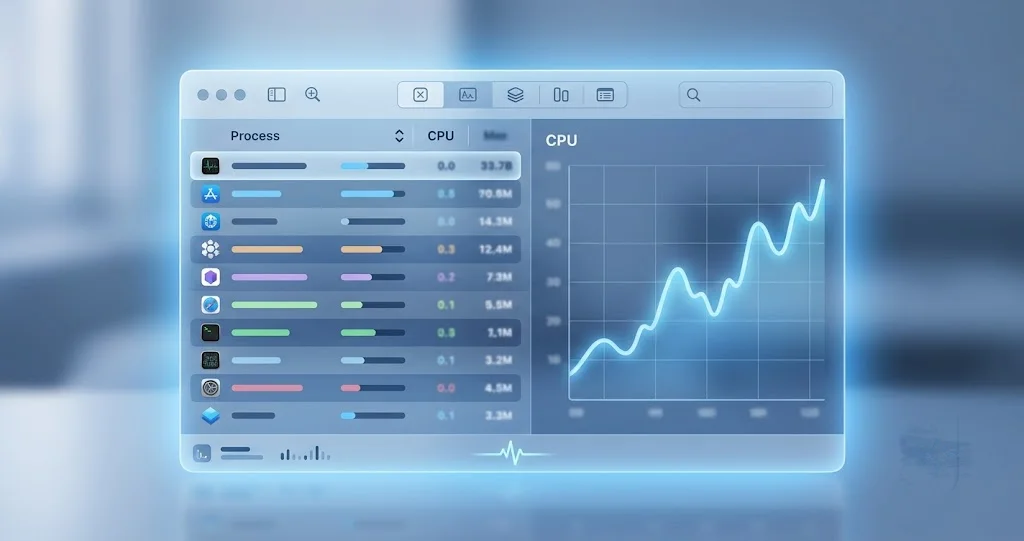
Check 1: Activity Monitor, CPU tab, by process name
Open Activity Monitor (Applications → Utilities, or press Command-Space and type its name — assuming Spotlight is cooperating). Click the CPU tab and click the % CPU column header to sort descending, so the busiest processes float to the top.
Now read the names. You are looking for:
mds— the metadata server. This is the coordinator. It typically does not use much CPU itself; it manages the work and dispatches it.mds_stores— the process that writes into the index store. This is usually the heaviest of the Spotlight processes and the clearest single indicator that indexing is actively running.mdworker/mdworker_shared— the importer workers doing the per-file parsing described above. Several at once is normal.photoanalysisd— Photos library analysis. Its presence means the Photos pass is running.siriinferenced/intelligenceplatformd— on Apple Intelligence–capable Macs, reported as part of this workload. Again: reported, not documented.
If two or more of those are sitting at the top of your CPU list, you have confirmed the diagnosis. That is what post-update indexing looks like from the inside.
If instead you see a browser, a chat app, a backup tool, or a specific application you recognize at the top, your heat is not coming from indexing and you should skip ahead to the section on other causes. This is the single most valuable thing Activity Monitor tells you, and it takes fifteen seconds.
One note on reading the numbers: on a multi-core Mac, % CPU can exceed 100% for a single process, because it is measured per core. A process showing 340% is using roughly three and a half cores' worth of capacity. That is normal for parallel indexing work and not, by itself, alarming.
Check 2: The Energy tab
Click over to the Energy tab. The column you want is Energy Impact, which is macOS's own composite estimate of how much a process is costing you in battery terms — it weighs CPU, but also wake-ups and other power-relevant behavior.
The Energy tab is more useful than the CPU tab for the specific question "what is killing my battery," because a process can be moderately busy but extremely power-hungry, or busy in short bursts that CPU% averages away. If the indexing daemons dominate Energy Impact, that is your drain, quantified.
While you are here, glance at the "Preventing Sleep" column. A process preventing sleep during indexing is expected — macOS deliberately keeps some indexing work alive rather than letting the machine doze mid-job.
Check 3: mdutil -s -a in Terminal
Activity Monitor tells you what is running. mdutil tells you what Spotlight itself thinks its state is. Open Terminal (Applications → Utilities) and run:
mdutil -s -aThe -s flag means "show status" and -a means "all volumes." You will get one block per volume, each with a path followed by a status line. What you want to see is:
/System/Volumes/Data:
	Indexing enabled.
Indexing enabled. is the healthy answer. It means Spotlight is configured to index that volume, which is a prerequisite for any of this working.
If you want just the boot volume rather than every mounted disk, use:
mdutil -s /Two failure modes to watch for. If a volume reports Indexing disabled. and you did not disable it deliberately, Spotlight will never finish, because it is not running. Re-enable it with:
sudo mdutil -a -i onYou will be prompted for your administrator password; the characters will not appear as you type, which is normal.
If instead mdutil returns an error rather than a clean enabled/disabled status, note the exact text. That is one of the genuine "not normal" signals we will come back to.
Depending on your macOS configuration, mdutil may report limited information for some volumes unless Terminal has Full Disk Access (System Settings → Privacy & Security → Full Disk Access). If the output looks unexpectedly sparse, that is worth checking before concluding anything is broken.
Check 4: Does the load track with idle time?
This is the check most people skip, and it is the most diagnostic of the four.
Indexing is designed to be a good citizen. It backs off when you are actively using the Mac and pushes harder when you are not. So the signature of healthy indexing is inverse to your activity: leave the Mac alone on power and the fans get louder after a few minutes; come back and start working and they ease off slightly as the system yields CPU to you.
If your heat behaves that way, it is background maintenance work and it is progressing. If instead the load is perfectly flat regardless of what you do — identical CPU at 3 a.m. with the lid closed and at 3 p.m. under heavy use — that is more consistent with something stuck in a loop than with a scheduler-aware background job.
You can watch this without Activity Monitor open, using Terminal:
top -o cpuThat sorts running processes by CPU usage and refreshes continuously. Press q to quit. It is a lighter-weight way to keep an eye on things than leaving Activity Monitor running, which itself consumes a bit of CPU.
A note on what you will not find
There is no progress percentage. There is no ETA. macOS does not expose one, and no combination of commands will conjure one. Some people watch the index size on disk grow over time as a rough proxy for progress, but interpreting that requires care — index size does not increase monotonically, because macOS compacts and reorganizes as it goes.
Accept the lack of a progress bar. It is the genuinely annoying part of this situation, and pretending otherwise does not help. What you can do is establish that the right processes are running, that Spotlight reports indexing is enabled, and that the load responds to idle — and then let time do the rest.
How Long This Should Actually Take
Community reports and press coverage converge on a rough shape: CPU spikes for roughly 24 to 48 hours after the update, and things settle within a few days without any intervention.
Frame that correctly. It is a typical range drawn from what people report, not a guarantee and not an Apple-published figure. Your Mac may finish in six hours or may still be working at day four. The number to hold onto is not the exact hours — it is the shape: heavy at first, tapering, done within days.
More importantly, that clock only runs while your Mac is awake and doing the work. This is the single most misunderstood part of the whole situation. If you have a MacBook that you use for three hours in the evening and then close, you are giving the indexer three hours per day. Two days of work then takes most of a week, and every morning you reopen the lid to a hot machine and conclude nothing is improving. Nothing is wrong — you are just feeding it in very small portions.
What makes it take longer
- Library size. The biggest single factor. Hundreds of thousands of files, a Photos library in the tens of thousands of images, or years of accumulated mail all scale the work up more or less linearly.
- Slow storage. Fusion Drives, older SATA SSDs, and especially external spinning drives are dramatically slower at the random small reads indexing depends on. An external drive full of archived work can dominate the entire job.
- A nearly full disk. Indexing needs working space to write and compact the index. A drive with only a few percent free will thrash, slow down, and in bad cases fail to complete. If your storage is tight, freeing space is a legitimate intervention — and if your Mac is one of the many where the culprit is a bloated System Data category, our guide to why System Data storage balloons and will not shrink walks through reclaiming it.
- Sleep. As above. Every sleep cycle pauses progress, and some work gets re-done on wake.
- Competing load. If you are also running a first post-update Time Machine backup, an iCloud re-download, and a Xcode build, everything takes proportionally longer.
- Thermal throttling. On fanless or thin machines, sustained load leads to reduced clock speeds, which extends the job, which extends the heat. Improving airflow genuinely shortens the total duration.
- External drives. Every mounted, indexed external volume is additional work. Unmounting drives you do not currently need is one of the few things that meaningfully speeds this up.
What to Do While It Runs
The honest answer to "what should I do" is mostly "let it finish." But there are a handful of choices that genuinely help, and a few that genuinely hurt.
Plug in. This is the highest-value action. On AC power, macOS is far more willing to run background maintenance aggressively, and you stop watching the battery percentage fall, which removes most of the anxiety. Indexing on battery is slower and more visible — the worst combination.
Keep the Mac awake, with the lid open. Closing a MacBook's lid pauses much of the work and traps heat against the display. Leaving it open on a hard, flat surface — not a bed, not a couch cushion, not your lap — lets the chassis shed heat and lets the job run. If you want to leave it working overnight, System Settings → Lock Screen lets you extend the display-sleep and screen-lock delays, and Energy Saver (or Battery → Options on portables) has the setting to prevent sleep when the display is off while on power.
Stay on Wi-Fi. Some of what runs in this window is not purely local — Photos and iCloud content may need to sync or re-download before it can be analyzed. Staying connected lets that finish rather than stalling and retrying.
Unmount external drives you do not need right now. Every attached indexed volume adds work. Ejecting the archive drive you only touch monthly removes it from the queue entirely.
Do not force-quit the daemons. Killing mds, mds_stores, or mdworker_shared from Activity Monitor accomplishes nothing useful. macOS relaunches them within seconds, and you may have discarded in-progress work, meaning the same CPU cycles get spent again. It feels like taking control. It is the opposite.
Do not rebuild the index yet. We will cover how, and there is a real case for it, but it is not now. Details in the next section but one.
Do not install a third-party cleaner or "optimizer." Nothing about this situation is solved by additional software, and adding a tool that scans your entire file system while your Mac is already scanning your entire file system makes the heat worse, not better.
Do lower your expectations of Spotlight temporarily. While the index is being rewritten, searches may return incomplete or oddly ranked results. That resolves on its own. If Spotlight search behavior is what is bothering you most, our complete guide to Spotlight on macOS Tahoe covers how the search system is structured and what each part is responsible for.

When It Is Not Normal
Here is where we have to be careful, because the reassuring version of this article — "relax, it is just indexing" — is only helpful if it is true for you. Some people reading this have a genuinely stuck index or an unrelated problem, and telling them to wait is telling them to waste a week.
Treat the following as real signals, not paranoia:
The load never tapers. A healthy index winds down. If CPU usage from mds_stores is identical on day one, day four, and day seven, with no downward trend at all, that is a plateau rather than a sprint. Plateaus do not resolve themselves.
mdutil reports an error, not a status. If mdutil -s -a returns an error message instead of a clean Indexing enabled. or Indexing disabled., Spotlight is in a state it cannot describe, and that is a legitimate fault.
Indexing reports as disabled and will not stay enabled. If you run sudo mdutil -a -i on, confirm it took, and then find it disabled again later, something is actively turning it off. That is not a waiting problem.
Spotlight returns literally nothing after a full week of powered, awake runtime. Partial results during indexing are expected. Zero results for common files, a week in, on a machine that has been plugged in and awake, is not.
The Mac is hot but the indexing daemons are not the top CPU consumers. This is the big one. If Activity Monitor shows a browser, a sync client, or an app you recognize dominating CPU, indexing is not your problem no matter what the calendar says about the update. Believe Activity Monitor over the narrative.
Kernel panics, spontaneous restarts, or shutdowns under load. Indexing does not do this. Heat plus instability suggests a hardware or firmware issue and warrants Apple Support, not patience.
The fans run at maximum constantly and the chassis is too hot to touch comfortably. Warm is expected. Genuinely alarming heat, especially combined with fans that never modulate, can point to a fan or thermal sensor fault — or simply to blocked vents that are worth checking first.
Nothing improved after a genuine, correctly executed rebuild. If you eventually do the rebuild described below, give it its full time, and land in the exact same state, the index is not the problem.
If you are in one of those situations, the next section is for you. If you are not, the next section is a trap — please keep waiting.
How to Force a Clean Rebuild, and What It Costs
Understand the cost first
There are two ways to force Spotlight to rebuild an index. They are not two different fixes — they are the same operation with different interfaces, and you should not try one after the other hoping for a different outcome.
What both of them do is erase the existing index and start over from nothing.
Read that again in the context of your current problem. You are here because your Mac is hot from building an index. A rebuild throws away every bit of progress made so far and makes it build the whole thing again. In the short term, the heat gets worse, not better — you are resetting a job that was, say, 70% complete back to 0%, and you will pay for that 70% a second time.
That is why every credible piece of advice on this is "wait first, rebuild only if genuinely stuck." Rebuilding on day one because your Mac is warm is the single most counterproductive thing you can do. It converts a two-day problem into a four-day problem and leaves you convinced the fix did not work.
Rebuild when you have a real reason — a plateau, an mdutil error, or a week of empty search results. Not because you are impatient.
Prepare before you run it
- Plug in. A rebuild on battery is a bad idea for obvious reasons.
- Start it when you do not need the Mac. Before bed, or before a day away from the desk. Give it uninterrupted awake time on power.
- Make sure you have free disk space. The index needs somewhere to go.
- Accept that search will be useless until it finishes. You are deleting the database you search against. There is no partial-credit mode.
Method A: Terminal
Open Terminal and run:
sudo mdutil -E /-E means erase and rebuild the index for the specified volume. The trailing / targets your boot volume. You will be prompted for your administrator password.
To check which volumes exist and their current status before you commit, run mdutil -s -a first. On modern APFS installations you will typically see your data volume listed as /System/Volumes/Data, and you can target it directly if / does not behave as expected:
sudo mdutil -E /System/Volumes/DataAfter the command returns, verify that indexing is enabled and running:
mdutil -s -aYou want Indexing enabled. If it says disabled, turn it back on with sudo mdutil -a -i on.
Then leave it alone. Expect the fans to spin up hard within minutes, and expect that state to persist for hours. That is the rebuild you asked for, working exactly as intended.
Method B: Search Privacy in System Settings
If you would rather not use Terminal, the graphical equivalent lives in System Settings → Siri & Spotlight (labelled simply Spotlight on some configurations) → Search Privacy.
Click the + button and add your startup disk (or the volume you want rebuilt) to the privacy exclusion list. Wait a moment. Then select it in the list and click – to remove it again.
Adding the volume tells Spotlight to forget it and stop indexing it. Removing it tells Spotlight to start indexing it from scratch. The net effect is a full rebuild — the same thing sudo mdutil -E / does.
Use whichever interface you are comfortable with. Do not use both. And if the first one appeared not to work, running the second one will not help, because it is the identical operation; the more likely explanation is that the rebuild is simply still running.
For a deeper walkthrough of the rebuild process — including the cases where search is broken independently of any OS update — see our dedicated guide to rebuilding the Spotlight index when search stops working.
Other Things That Could Actually Be to Blame
Timing is not causation. Your Mac got hot after you updated, and updating did kick off indexing — but several other things also happen in the days after an update, and one of them may be the real culprit. Rule these out before you conclude indexing is your whole story, especially if Activity Monitor did not show the indexing daemons at the top.
Photos and iCloud initial sync. An update can trigger Photos to re-verify its library or re-download originals, and iCloud Drive to reconcile file state. Both are network- and disk-heavy and can run for a long time. In Photos, scroll to the bottom of the Library view — sync status is reported there. In System Settings → your Apple Account → iCloud, you can see whether iCloud Drive is actively syncing. This work often overlaps with indexing, which is why the first days after an update feel disproportionately busy.
A login item or background agent that came back. Updates sometimes re-enable things you had disabled, and reinstalled apps re-register their helpers. Check System Settings → General → Login Items & Extensions for anything you do not recognize or did not intend to allow. A misbehaving background agent can burn CPU indefinitely with no connection to Spotlight at all.
A runaway app. Browsers with hundreds of tabs, Electron apps that have been open for weeks, video calls, and sync clients all produce sustained heat. If Activity Monitor's top entry is an application rather than a system daemon, that is your answer. Quit it, watch the temperature, and confirm.
Time Machine's first post-update backup. After a major update, a large volume of system files has changed, so the next backup is far bigger than a routine incremental one. It reads broadly across the disk and competes directly with the indexer. Check the Time Machine menu bar item — if it is mid-backup, some of your heat belongs to it. Let it finish rather than cancelling; a cancelled backup just means a large backup later.
Memory pressure causing swap. If your Mac is short on RAM, heavy background work pushes it into swapping to disk, which adds its own load and heat on top of the original job. Activity Monitor's Memory tab shows a Memory Pressure graph — sustained yellow or red means this is contributing, and quitting a few memory-hungry apps will take load off the disk as well as the RAM.
An aging battery. This one is easy to miss because it is not new — the update just made it visible. Sustained CPU load pulls hard on a battery, and a cell that has lost capacity over years shows its age most dramatically under exactly this kind of load. Check System Settings → Battery → Battery Health. If it reports Service Recommended or a notably reduced maximum capacity, some of what you are experiencing as "26.6 destroyed my battery life" is a battery that was already marginal meeting a workload that exposed it.
Blocked vents or accumulated dust. Unglamorous, but real. A machine that has been fine for years can run hot under sustained load simply because its intakes are obstructed. Before assuming a software cause, confirm the vents are clear and the machine is on a hard surface.
Preparing for macOS 27
If the press interpretation is correct — and remember, it is interpretation — then the work happening on your Mac right now is an investment rather than a tax. The index being built is the foundation macOS 27's Siri and Apple Intelligence features would query when you ask a natural-language question about your own content.
That framing matters for one practical decision: let it finish before you upgrade. If you install macOS 27 on top of a Mac that is halfway through this work, you stack a major OS upgrade's own indexing and migration on top of an unfinished job. Waiting until your Mac is cool and quiet again before taking the macOS 27 update — whether that is the beta now or the final release in the fall — is the simplest way to avoid compounding the problem.
A few things worth knowing as you plan:
- macOS 27 is Apple silicon only, M1 or later. Intel Macs stay on Tahoe. If you are on an Intel machine, none of the macOS 27 preparation framing applies to you, though the Spotlight optimization in 26.6 still ran.
- macOS 27 is currently in public beta and expected to ship in the fall. Beta software on your primary machine is a real commitment, not a preview.
- If you are already running the macOS 27 beta and seeing similar heat and drain, that is a different situation with a different set of considerations — the beta does its own, more extensive reindexing on upgrade. We cover that case separately in Spotlight reindexing on the macOS 27 beta, which is specifically about the beta rather than about 26.6. Do not mix the two sets of advice; the timelines and the expected behavior are not the same.
- If you want to understand what the new Siri and Spotlight integration is supposed to deliver once it arrives, our walkthrough of the new Siri and Spotlight conversations in macOS 27 covers the feature set as it stands in the beta.
Troubleshooting Common Issues
Problem: Activity Monitor shows mds_stores at 300%+ CPU and I want to kill it.
Solution: Do not. Force-quitting it does not stop the work — launchd restarts the daemon within seconds, and any in-flight indexing progress is discarded, meaning that CPU time gets spent again. High mds_stores usage is the clearest available evidence that indexing is progressing normally. Plug in, keep the Mac awake, and let it run. The only legitimate intervention is a deliberate rebuild, and only when the criteria in the "not normal" section are met.
Problem: I already ran sudo mdutil -E / on day one and now my Mac is hotter than before.
Solution: That is the expected outcome, unfortunately. The rebuild discarded whatever progress the post-update indexing pass had made and restarted from zero, so you are paying for that work a second time. There is no way to undo it and no shortcut back. Plug in, keep the lid open, avoid sleeping the machine, and give it a clear 24 to 48 hours of awake runtime. Do not run the rebuild again — doing so a second time resets it a second time.
Problem: mdutil -s -a says Indexing disabled. on my boot volume.
Solution: Spotlight is not running, so it will never finish and search will stay broken indefinitely. Re-enable it with sudo mdutil -a -i on, entering your administrator password when prompted. Then run mdutil -s -a again and confirm it now reports Indexing enabled. If it reverts to disabled on its own, something is actively turning it off — check Search Privacy in System Settings for the volume being listed there, and remove it if so.
Problem: My MacBook is hot every morning and it has been a week with no improvement. Solution: Count actual awake, powered hours rather than calendar days. If you use the Mac for a few hours each evening and close it after, you have given the indexer a fraction of the runtime the 24-to-48-hour estimate assumes. Leave it plugged in, lid open, on a hard surface, with sleep prevented while on power, for one full uninterrupted overnight period. If CPU has not visibly tapered after that, you have crossed into legitimate rebuild territory.
Problem: Spotlight returns no results at all and I cannot even launch apps by searching.
Solution: During an active rebuild this is expected, because the database you are searching is being repopulated. Launch apps from the Applications folder or the Dock in the meantime. If it persists beyond a week of genuine powered runtime, check mdutil -s -a for an error or a disabled state, then perform one deliberate rebuild and let it run overnight. If search is still empty afterwards, the problem is not the index and you should escalate to Apple Support.
Problem: The heat is real but the indexing daemons are nowhere near the top of Activity Monitor. Solution: Then indexing is not your cause, regardless of the timing. Sort the CPU tab by % CPU and identify the actual top consumer, then check the Energy tab for the top Energy Impact entry. Common culprits are browsers with many tabs, sync clients, Time Machine's first large post-update backup, and re-enabled login items. Quit the top offender and watch whether the temperature drops within a few minutes.
FAQ
Is macOS 26.6 causing a battery problem, or is my battery failing?
Both are possible, and they are easy to confuse. Post-update indexing genuinely drains faster, but it is temporary and it tapers. A failing battery does not recover. Check System Settings → Battery → Battery Health: if it reads Service Recommended or shows notably reduced maximum capacity, the update revealed an existing problem rather than creating one.
How long does the post-update indexing really take?
Community reports point to heavy CPU for roughly 24 to 48 hours, settling within a few days. That is a typical range, not a guarantee from Apple. Critically, the clock only advances while the Mac is awake and running. A laptop used a few hours each evening stretches two days of work across most of a week.
Should I run sudo mdutil -E / to speed things up?
No. That command erases the index and rebuilds from scratch, discarding all completed work. It makes the heat worse in the short term, not better. Reserve it for a genuinely stuck index — one showing no CPU tapering after days of powered runtime, an mdutil error, or empty search results after a full week.
Is the Spotlight Privacy trick different from the Terminal rebuild?
No. Adding a volume to System Settings → Siri & Spotlight → Search Privacy and then removing it forces exactly the same full reindex that sudo mdutil -E / performs. They are two interfaces to one operation. Pick whichever you prefer, run it once, and do not try the other one hoping for a different result.
Is Apple really preparing my Mac for macOS 27 Siri?
Apple's release note says the update optimizes Spotlight for the release of macOS 27 — that part is confirmed. The specific claim that this builds the index behind macOS 27's Siri and Apple Intelligence features comes from press coverage, not from Apple. It is a reasonable inference given what is known about macOS 27, but treat it as interpretation.
Can I stop the indexing entirely if I never use Spotlight?
You can disable indexing with sudo mdutil -a -i off, but it is a poor trade. Spotlight backs app launching, Mail and Photos search, Siri suggestions, and file lookups across many apps — disabling it degrades all of them permanently to avoid a few days of heat. Waiting it out is almost always the better choice.
Conclusion
If your Mac got hot and started burning through battery right after you installed macOS 26.6, the overwhelmingly likely explanation is that it is rebuilding its Spotlight index — and Apple told us why, in one line: the update optimizes Spotlight for the release of macOS 27. The Siri angle that has circulated in press coverage is a plausible reading of that line, but it is interpretation, not an Apple statement, and it is worth keeping those two things separate in your head.
Confirm it rather than assuming it. Open Activity Monitor, sort by % CPU, and look for mds, mds_stores, and mdworker_shared, plus photoanalysisd if you have a substantial Photos library. Check the Energy tab for what is actually costing you battery. Run mdutil -s -a and confirm indexing is enabled. Notice whether the load rises when you step away and eases when you work — that inverse relationship is the signature of a healthy background job.
Then do the boring, effective thing: plug in, leave the lid open on a hard surface, prevent sleep while on power, unmount external drives you do not need, and let it finish. Give it a real 24 to 48 hours of awake runtime, not calendar days. Resist the urge to force-quit the daemons or rebuild the index, because both throw away progress and extend the very problem you are trying to end.
And if you cross into the territory that is genuinely not normal — no tapering after days on power, an mdutil error, indexing that will not stay enabled, or a week of completely empty search results — then rebuild deliberately, once, overnight, on power, and give it the time it needs. If that changes nothing, the index was never the problem, and it is time to look at the other causes above or contact Apple Support.
Most people reading this need to do nothing at all except plug in and wait. That is not a satisfying answer, but it is the correct one. Your Mac is not broken. It is busy.