Password Autofill Not Working in Chrome on macOS Tahoe 26.5? Fix It
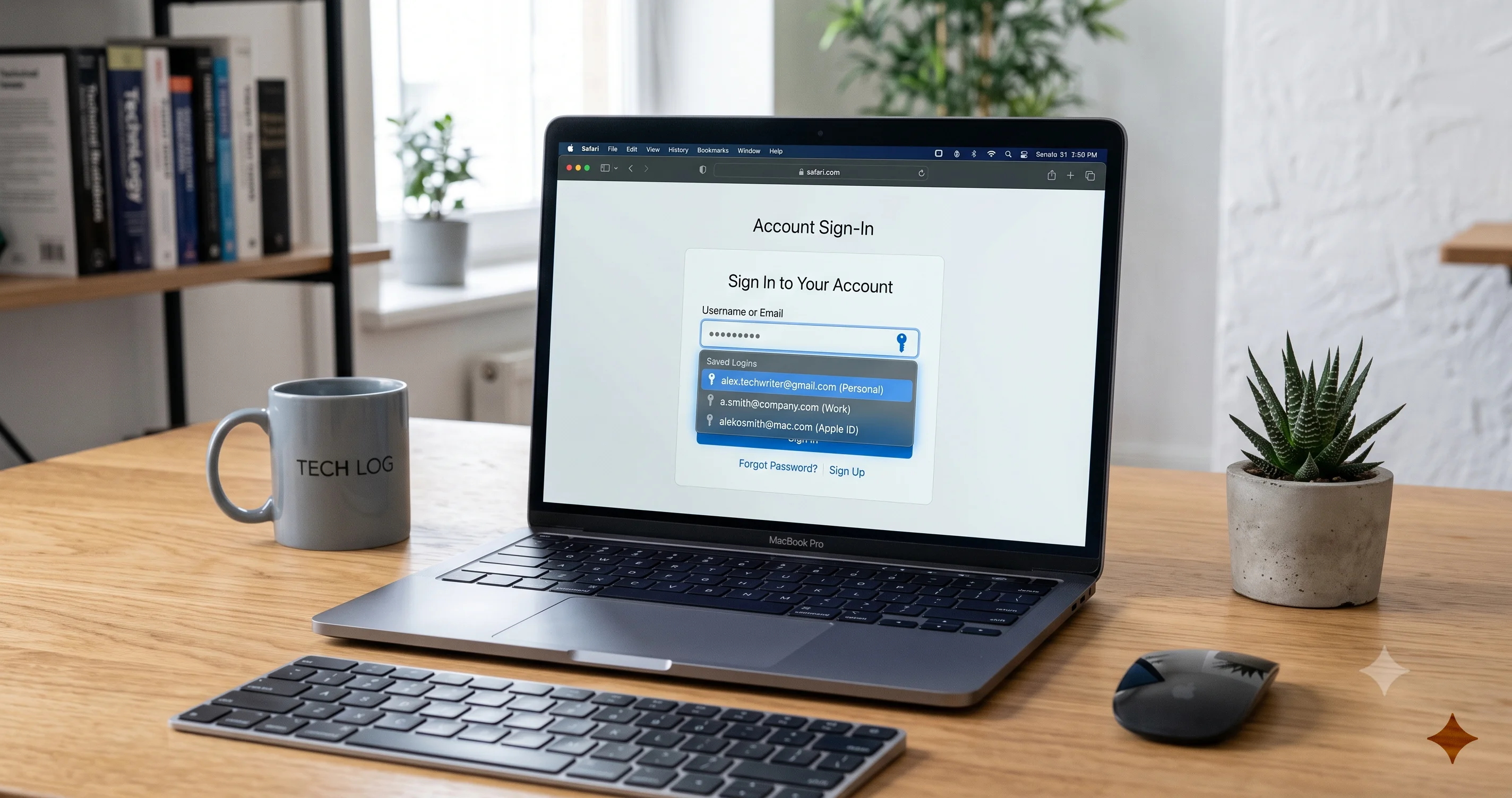
Password autofill not working in Chrome, Brave, Edge, or Arc after macOS Tahoe 26.5? Learn what changed and every fix to restore third-party browser autofill.
You update to macOS Tahoe 26.5, restart, and everything looks normal — until you open Chrome, land on a login page, and the little autofill suggestion never shows up. No saved passwords. No credit card. No contact info. You click the field, you press the down arrow, you re-select the field, and nothing. Meanwhile, Safari fills the exact same login instantly. If password autofill is not working in Chrome, Brave, Edge, Arc, or another third-party browser after macOS Tahoe 26.5, you are not imagining it, and you are not alone.
This is one of the more confusing regressions to hit Mac users this year, because it is selective. Safari and the built-in Passwords app keep autofilling as if nothing changed, which makes it look like your password manager broke. But 1Password still fills fine on your iPhone, Bitwarden fills fine on Windows, and the desktop app on your Mac unlocks and shows all your logins. The problem is specifically that non-Safari apps on macOS stopped getting autofill mediated the way they used to — and it started, for a lot of people, right after the 26.5 update.
This guide walks through what actually changed at the operating-system level, how to prove it is the OS and not your password manager, and then a full fix ladder from the thirty-second toggles to one advanced, community-reported workaround that you should treat with caution. Along the way we will keep three things carefully separate: what Safari plus iCloud Keychain does, what a third-party browser does on its own, and what a dedicated password manager like 1Password or Bitwarden does. Conflating those three is the single biggest reason people chase the wrong fix.
Key Takeaways
- The reported culprit is an OS-level change, not your browser or password manager. After macOS Tahoe 26.5, community threads on the 1Password and Bitwarden forums and Apple Discussions describe autofill breaking in Chrome, Brave, Edge, Arc, and various Electron apps while Safari keeps working normally. The current stable build as of July 23, 2026 is 26.5.2 (25F84); 26.6 is still only a Release Candidate.
- Most people fix it without any Terminal commands. Re-enabling autofill inside the browser, re-granting the password manager extension its site permissions, and updating both the browser and the password manager to their latest versions resolve the majority of cases.
- Use the password manager's own browser extension, not the OS, as your primary autofill path. A dedicated extension (1Password, Bitwarden, Dashlane, Proton Pass) fills independently of the macOS AutoFill mediation layer, which sidesteps the regression entirely for most sites.
- There is one advanced, community-reported
defaultsworkaround. It is unofficial, not sanctioned by Apple, and may change behavior in ways your password manager does not expect. Verify it against your password manager's own support docs first, and know the exact command to revert it before you run it. - Keep Safari, third-party browsers, and third-party password managers mentally separate. Safari uses iCloud Keychain and Apple's built-in AutoFill; a third-party browser has its own built-in manager; a dedicated password manager is a third thing again. A fix for one is often irrelevant to the others.
What Changed in macOS Tahoe 26.5
The autofill mediation layer, in plain terms
To understand why Safari kept working and Chrome did not, you have to know that macOS does not have one single "autofill" system. It has several, layered on top of each other.
When you fill a password in Safari, the request is handled inside Apple's own WebKit and Password AutoFill stack, wired directly to iCloud Keychain and the built-in Passwords app. Safari is a first-party app with deep, privileged access to that machinery. Nothing has to be brokered across an app boundary.
When you fill a password in Chrome, Brave, Edge, or Arc, the story is completely different. Those are third-party apps, and they get credentials through one of two channels:
- Their own built-in password manager. Chrome has Google Password Manager; Edge has its own; Brave and Arc inherit the Chromium manager. This is entirely internal to the browser and, in principle, does not need macOS to hand it anything.
- A system-mediated AutoFill provider through Apple's AuthenticationServices framework. This is the mechanism that lets a third-party password manager register a credential provider extension so that its logins appear in the autofill prompt inside other apps — including third-party browsers and Electron apps. macOS is the broker in the middle here. It decides which app is asking, which credential providers are allowed, whether the field looks like a username or a one-time code, and whether to surface a suggestion.
The community-reported regression in 26.5 centers on that second channel — the OS-level mediation that surfaces autofill inside non-Safari apps. When that layer misbehaves, the browser's own internal manager may still work, but anything that relied on macOS to broker the fill (a system credential provider, the AutoFill contact/credit-card prompt, or a password manager that leans on the OS integration) stops appearing. That is why the failure looks so selective: Safari never used the broker, so Safari never noticed.
Apple has not published a root-cause note for this, so treat the exact mechanism as informed inference rather than confirmed fact. What is consistent across the community reports is the shape of the failure: first-party Safari fine, third-party apps not getting mediated autofill.
Where 26.5 sits in the release timeline
Getting the version facts right matters here, because a lot of bad advice online references the wrong build. As of July 23, 2026:
- macOS Tahoe 26.5 (build 25F71) shipped in mid-May 2026. This is the parent release where the autofill reports begin.
- macOS Tahoe 26.5.1 (build 25F80) shipped June 1, 2026, and fixed an unrelated problem — M5 Macs could shut down unexpectedly when using certain content-filtering Network Extensions. It did not target autofill. If you want the detail on that one, see our writeup on the 26.5.1 M5 shutdown and Network Extension fix.
- macOS Tahoe 26.5.2 (build 25F84) shipped June 29, 2026, and is the current stable release. If you are troubleshooting autofill, get onto 26.5.2 first, because point releases fold in fixes that never get their own release-note line.
- macOS Tahoe 26.6 is, as of this writing, only a Release Candidate (build 25G70), seeded to developers and public testers on July 20, 2026. It is not the current public release, so do not let anyone tell you "just update to 26.6" as if it is generally available. If you are not on the beta program, you cannot install it yet.
The practical takeaway: confirm you are on 26.5.2, not lingering on 26.5 or 26.5.1, before you assume the OS itself has no fix for you. A surprising number of "still broken" reports turn out to be from people who never took the 26.5.2 point update.
Why Safari still works but Chrome does not
This is the question everyone asks, and the answer is the cleanest evidence that the problem is architectural. Safari's autofill is first-party and does not go through the AuthenticationServices credential-provider broker that third-party apps depend on. iCloud Keychain talks to Safari directly. So when the mediation layer for non-Safari apps regresses, Safari is structurally immune — it was never using that layer in the first place.
That also explains a confusing secondary symptom: your iPhone keeps autofilling in third-party apps just fine. iOS and macOS share the framework name but not the exact build, and the reported regression is specific to the Mac. So the same 1Password vault that fails to autofill in Chrome on your Mac fills perfectly in Chrome on your iPhone. This is not a corrupted vault; it is a platform-specific OS behavior.
If you want a deeper tour of what Safari and iCloud Keychain do natively, our Safari power-user guide for Tahoe covers the built-in AutoFill settings in detail. Just keep in mind that none of those Safari settings control what happens inside Chrome.
How to Confirm It Is the OS, Not Your Password Manager
Before you start changing settings, spend five minutes proving where the failure actually is. Otherwise you will "fix" something that was never broken and get confused when nothing improves.
The three-app triangulation test
Run the same login through three different paths and note where autofill appears:
- Safari. Open a site you have saved and see if the AutoFill prompt shows. If Safari fills, iCloud Keychain and Apple's first-party autofill are healthy.
- The password manager desktop app itself. Open 1Password or Bitwarden's standalone app, unlock it, and confirm the login is there and the app is not locked, not signed out, and fully synced. If the app has the credential, the vault is fine.
- The third-party browser. Try to autofill the same login in Chrome. If Safari fills and the desktop app has the credential but Chrome does not fill, you have isolated the failure to the browser-plus-OS mediation path — exactly the shape of the 26.5 regression.
If instead autofill fails everywhere, including Safari and the desktop app, that is a different problem — likely a signed-out or locked password manager, an iCloud account issue, or a corrupted profile — and the OS-level story does not apply.
Extension versus system-provider isolation
Third-party password managers can fill a Chromium browser two ways, and you need to know which one you are relying on:
- Through the browser extension (the 1Password or Bitwarden icon in Chrome's toolbar). This path is mostly independent of the macOS mediation layer, because the extension injects into the page itself.
- Through the macOS system credential provider (the OS-brokered autofill prompt). This path is the one that regressed.
The fastest way to tell them apart: if the extension icon is present and clicking it shows your logins and lets you fill manually, but the automatic inline suggestion never appears, you are looking at a mix — the extension works, the OS-mediated inline prompt does not. That is good news, because it means the extension path is your reliable escape route, which we will lean on heavily in the fix ladder.
Check the build and the app versions
Two quick confirmations before you go further. Click the Apple menu, choose About This Mac, and verify you are on 26.5.2 (25F84) — click the version number to reveal the build. Then check your password manager's version against its current release notes. Stale combinations of "old OS point release plus old extension" produce most of the leftover failures, and both are free to fix.
The Fix Ladder: Easiest to Advanced
Work top to bottom. Stop as soon as autofill returns — you do not need to do all of these. Each rung explains not just the click path but why it can matter.
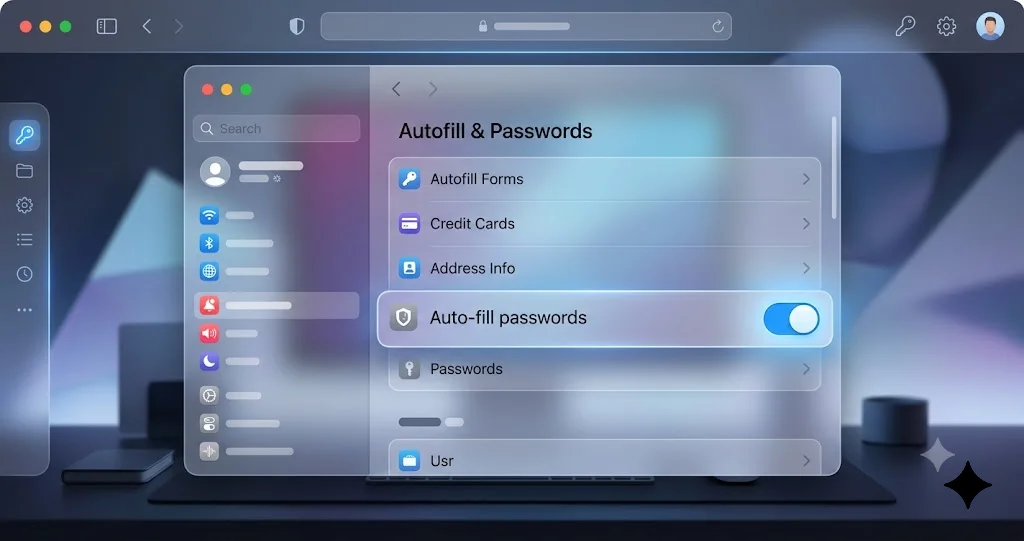
Fix 1: Re-enable autofill inside the browser's own settings
macOS updates sometimes leave a browser's autofill toggles flipped off, or a browser update ships with a changed default. This is the single most common "it just came back" fix, so start here.
Chrome: open chrome://settings/autofill. Confirm that under Google Password Manager > Settings, "Offer to save passwords" and "Auto Sign-in" are on. Then check chrome://settings/payments for saved payment methods and chrome://settings/addresses for contact info. If you rely on Chrome's own manager rather than a third-party one, all three sections must be enabled.
Brave: go to brave://settings/autofill and check the Passwords, Payment methods, and Addresses sections. Brave adds its own privacy toggles that can suppress autofill, so scan those too.
Edge: open edge://settings/passwords and edge://wallet/settings. Edge splits passwords and wallet (cards/addresses) into separate panes.
Arc: Arc is Chromium-based but hides settings in its own app menu. Open Arc's settings, find the autofill or passwords section, and confirm it is enabled. Arc also respects the underlying Chromium flags, so the chrome://settings/autofill equivalent behavior applies.
After toggling, fully quit the browser (Command-Q, not just closing the window) and reopen it. A background process that survives a window close will not pick up the changed setting.
Fix 2: Re-grant the password manager extension its permissions
macOS point updates and browser updates can quietly reset an extension's site-access permission, which silently kills autofill even though the extension still appears installed. This is the highest-yield fix for people using 1Password or Bitwarden.
In Chrome (and Chromium browsers): open chrome://extensions, find your password manager, and click Details. Under Site access, set it to On all sites (not "On click" or "On specific sites"). Also confirm the extension toggle itself is on and, for good measure, that it is allowed in Incognito if you use that mode. Then pin the extension to the toolbar so you can see its state.
For 1Password specifically: the browser extension talks to the 1Password desktop app. In the 1Password app, open Settings > Browser and confirm "Use the 1Password app to unlock the browser extension" is enabled, and that the extension is connected. If the extension shows a "reconnect" or "trust" prompt, complete it. The 1Password extension fills through page injection, which is why it can keep working even when the OS-mediated prompt does not.
For Bitwarden specifically: open the extension, go to Settings > Autofill, and enable "Auto-fill on page load" if you want inline filling. Also check that "Show autofill suggestions on form fields" is on. Bitwarden's autofill is extension-driven, so its behavior is controlled here, not in macOS settings.
Because these extensions run in the background and hook into the browser at launch, quit and relaunch the browser after changing permissions. If you want to understand how macOS tracks background helpers and extension processes more generally, our Tahoe login items and background apps guide explains where the system surfaces them.
Fix 3: Update both the browser and the password manager
Regressions like this are frequently met halfway: Apple ships a behavior change, and the browser or password-manager vendor ships a compatibility update a week or two later. If you are running an old build of either, you may be missing a fix that already exists.
- Update the browser. In Chrome, open
chrome://settings/helpto force an update check; the same pattern works in Brave (brave://settings/help) and Edge (edge://settings/help). Arc updates through its own menu. Relaunch when prompted. - Update the password manager app and extension. Update the desktop app from its own menu or the App Store, then confirm the browser extension updated to match. Mismatched app-and-extension versions are a classic cause of autofill silently failing after an OS change.
Do these two together, not one at a time — an updated extension talking to an old desktop app (or vice versa) can be its own source of breakage.
Fix 4: Check macOS AutoFill and Passwords settings
If you rely on the system credential provider — either Apple's built-in Passwords app or a third-party manager registered as a system provider — the master switches live in macOS settings, and a 26.5 update can leave them in an unexpected state.
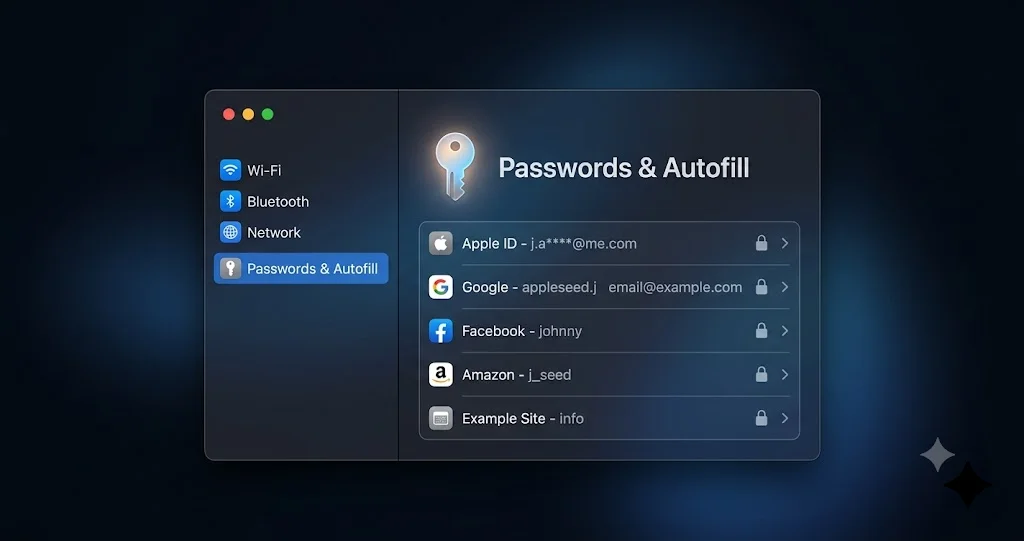
Open System Settings > General > AutoFill & Passwords. Confirm:
- AutoFill Passwords and Passkeys is turned on.
- Under the list of providers, your intended source is checked. This is where the built-in Passwords app and any third-party credential providers (1Password, Bitwarden, etc.) appear. If your password manager is unchecked here, macOS will not offer its credentials through the system-mediated prompt in third-party apps.
- If a third-party provider is present but greyed out or missing, its credential-provider extension may need re-enabling — quit and reopen the password manager app to re-register it, then return to this pane.
A useful diagnostic: toggle AutoFill Passwords and Passkeys off, wait a few seconds, and toggle it back on. This forces macOS to re-enumerate registered providers, which sometimes shakes loose a provider that got stuck during the update. Note the honest caveat here: this pane controls the system-mediated path, which is the exact path that regressed, so it may not restore inline autofill in every third-party browser even when configured perfectly. That is why the extension-based path (Fix 2) is the more dependable workaround.
The built-in Passwords app is also getting notably more capable in the next major release; if you are curious where Apple is taking system-level password management, our look at the Passwords app automatic password change and agentic security in macOS 27 covers what is coming. For today's problem, though, the relevant lever is simply making sure the right provider is enabled in this pane.
Fix 5: Toggle iCloud Passwords and Keychain
If your autofill source is Apple's own Passwords app and iCloud Keychain (rather than a third-party manager), a sync hiccup after the update can leave credentials unavailable to the system provider. Toggling iCloud Passwords off and on re-establishes the sync channel.
Go to System Settings > [your name] > iCloud > Passwords & Keychain, turn it off, confirm, wait a minute, then turn it back on and authenticate. This forces a fresh sync. Do this only if the Passwords app is your source — if you use 1Password or Bitwarden exclusively, iCloud Keychain is not in your autofill path and toggling it changes nothing relevant.
One important adjacent symptom worth naming: if macOS starts repeatedly prompting you for your login keychain password around the same time autofill breaks, that is a related but distinct keychain-state issue, and we cover it in detail in Mac keeps asking for the login keychain password on Tahoe. Do not confuse a keychain-unlock loop with the third-party autofill regression; they have different fixes.
Fix 6: Disable conflicting autofill sources
A very common self-inflicted cause of "autofill not working" is two managers fighting over the same field. If Chrome's built-in Google Password Manager and a third-party extension both try to claim a login field, they can cancel each other out, and you get no prompt at all.
Pick one source per browser and disable the other:
- If you use 1Password or Bitwarden, turn off Chrome's built-in offer to save and autofill passwords in
chrome://settings/autofillso the extension has a clear field. - If you use Chrome's built-in manager, disable inline autofill in the third-party extension (or remove it) so it is not injecting competing suggestions.
The same logic applies to credit cards and addresses: having both macOS AutoFill and a browser-native wallet trying to fill the same payment form is a frequent cause of a blank prompt. Consolidate to one source and the conflict disappears.
Fix 7: Create a fresh browser profile
If autofill fails in one browser but works in another, and the settings above all look correct, the browser profile may be corrupted — extension state, autofill databases, and preferences all live in the profile, and a botched update can leave them inconsistent.
Create a new profile (Chrome: profile avatar > Add; Edge and Brave have the equivalent), install your password manager extension fresh in that profile, sign in, grant it "On all sites" access, and test autofill there. If it works in the clean profile, the original profile was the problem — you can migrate bookmarks and settings over, or make the new profile your default. This is a bigger step than the earlier ones, so try it only after the quick toggles fail.
A note for managed and work Macs
If your Mac is enrolled in an MDM (a work or school device), autofill can be disabled by policy rather than by any bug, and no amount of local toggling will override a configuration profile. Managed Macs can carry an com.apple.applicationaccess restriction that turns off password autofill fleet-wide, and MDM can also control which credential providers are allowed in the AutoFill & Passwords pane. If the settings in Fix 4 appear greyed out or refuse to change, that is the tell: a profile is enforcing them.
To check, open System Settings > General > Device Management (or Profiles) and look for an installed configuration profile. If autofill is being suppressed by policy, the fix is not on your end — contact your IT administrator, who can adjust the restriction payload or add your password manager as an allowed provider. Do not try to work around a managed restriction with the defaults command below; on a supervised device it may be reverted at the next policy sync, and it can put you out of compliance. This is worth ruling out early on any device you did not personally set up.
Fix 8 (advanced, community workaround): the AutoFill heuristic defaults flag
This is the rung to approach with real caution. Community threads discussing the 26.5 autofill regression have circulated an advanced workaround that sets a macOS defaults flag reported as NSAutoFillHeuristicControllerEnabled, which is said to influence how the OS-level autofill heuristics behave for non-Safari apps.
Treat this as an unofficial, community-reported workaround — not an Apple-sanctioned fix. Several important caveats before you even consider it:
- Apple has not documented this flag, and its exact scope and side effects are not officially described. It may change autofill behavior in ways your password manager does not expect.
- The precise invocation — in particular which preference domain it belongs to — can vary between the community reports, and getting the domain wrong means the command does nothing (or affects the wrong scope). Before running anything, check your password manager's own support pages and forum threads to confirm the exact command they recommend for your specific tool and version. If they document a different command, use theirs, not this one.
- If your password manager's documentation does not mention any
defaultscommand at all, that is a signal to skip this rung entirely and rely on the extension-based path from Fix 2.
If, after that verification, you still want to try it, the community-reported form writes the flag into the global domain and can be reverted cleanly. To set it:
defaults write -g NSAutoFillHeuristicControllerEnabled -bool trueTo revert it — this is the toggle to restore default behavior, and you should note it down before running the command above:
defaults delete -g NSAutoFillHeuristicControllerEnabledAfter either command, log out and back in (or restart) so the change takes effect, and relaunch the affected browser. If it does not help, run the defaults delete revert immediately to return the system to its default state rather than leaving an undocumented flag set. Do not layer on additional defaults commands you find without a trustworthy source — inventing extra flags or domains is exactly how people make a fixable problem worse. When in doubt, the safe, supported path is: use the password manager's browser extension, keep everything updated, and wait for the vendor or Apple to ship a proper fix.
A note on SMS one-time-code autofill
One symptom that gets lumped in with this problem is SMS one-time-code (OTP) autofill behaving differently after the update, so it is worth separating clearly.
On macOS, security-code autofill from Messages works most seamlessly in Safari and in native system text fields, where the OS parses the incoming code and offers it directly. In third-party browsers, OTP autofill is more conditional: it depends on the browser surfacing the suggestion and on the web form correctly marking the field (ideally with autocomplete="one-time-code"). If a site does not tag its OTP field properly, no browser will reliably autofill it — that is a site-side limitation, not a macOS bug.
So if your passwords fill fine but the texted 6-digit code no longer auto-suggests in Chrome, that is a different and much narrower issue. The reliable fallback is unchanged: open Messages, read the code, and paste it manually. Do not spend time trying to "fix" OTP autofill in a third-party browser with password-autofill settings — they are separate mechanisms.
Troubleshooting Common Issues
Autofill works in Safari but never in Chrome
Problem: Safari fills logins instantly, but Chrome (or Brave, Edge, Arc) shows no suggestion at all, which makes it feel like only third-party browsers are broken.
Solution: This is the signature of the 26.5 mediation regression, and it is expected — Safari uses a first-party path that never regressed. Do not try to fix it through Safari or iCloud Keychain settings. Instead, rely on your password manager's browser extension: open chrome://extensions, set the extension to "On all sites," update both the app and extension, and fill via the extension. That path is independent of the OS layer that broke.
The password manager extension icon is there but nothing autofills
Problem: The 1Password or Bitwarden icon sits in the toolbar, clicking it shows your logins, but the inline autofill suggestion never appears on the page.
Solution: The extension is installed but likely lost its site-access permission after the update. In chrome://extensions, open the extension's Details and set Site access to "On all sites," confirm it is enabled in Incognito if you use it, then quit and relaunch the browser. For Bitwarden, also enable "Auto-fill on page load" in the extension's Autofill settings. If the icon shows your logins, the vault is fine — this is purely a permission and inline-fill configuration issue.
Credit card and contact autofill stopped but passwords still work
Problem: Logins autofill, but payment cards and addresses no longer populate in checkout forms.
Solution: Cards and contact info often come from a different source than passwords — either macOS AutoFill, the browser's built-in wallet, or the password manager. Check all three: in chrome://settings/payments and chrome://settings/addresses confirm the data exists and autofill is on; in System Settings > General > AutoFill & Passwords confirm the provider is enabled; and make sure two wallets are not conflicting on the same form. Consolidate to a single source to clear the conflict.
Autofill fails only in Electron apps, not in the browser
Problem: Chrome fills fine, but a desktop Electron app (Slack, a chat client, an internal tool) will not autofill your credentials.
Solution: Electron apps rely on the same macOS system-mediated credential provider that regressed, and unlike a browser they usually cannot install a password-manager extension. Fill these apps by opening your password manager's desktop app, copying the credential, and pasting it, or use the app's own quick-access hotkey to fill the focused field. Confirm the provider is enabled in System Settings > General > AutoFill & Passwords, but understand that Electron apps have fewer escape routes than browsers, so manual copy-paste is often the pragmatic answer until a fix ships.
FAQ
Is this autofill problem a bug in Chrome or in my password manager?
Neither, based on the community reports — it tracks with an OS-level change in how macOS Tahoe 26.5 mediates autofill for non-Safari apps. The evidence is that Safari and the password manager's own desktop app keep working while only third-party browsers fail. Update to 26.5.2, then rely on the password manager's browser extension rather than the system-mediated prompt.
Did macOS Tahoe 26.5.1 or 26.5.2 fix the autofill issue?
26.5.1 (build 25F80, June 1) addressed an unrelated M5 shutdown bug, not autofill. 26.5.2 (build 25F84, June 29) is the current stable release and is the build you should be on, since point releases fold in fixes without always listing them. If autofill still fails on 26.5.2, work through the extension-based fixes rather than waiting for a specific release note.
Should I just install macOS 26.6 to fix this?
You cannot, unless you are on the beta program. As of July 23, 2026, macOS Tahoe 26.6 is only a Release Candidate (build 25G70, seeded July 20) and is not a public release. Anyone telling you to "update to 26.6" is pointing at software you likely cannot install yet. Stay on 26.5.2 and use the workarounds until 26.6 ships publicly.
Why does Safari still autofill fine when Chrome does not?
Safari uses Apple's first-party AutoFill wired directly to iCloud Keychain, which never went through the credential-provider broker that third-party apps depend on. When that broker regresses, Safari is structurally unaffected because it never used it. This is why the failure is selective and why Safari-side settings changes will not fix Chrome.
Is the NSAutoFillHeuristicControllerEnabled command safe to run?
It is an unofficial, community-reported workaround, not an Apple-documented fix, so treat it cautiously. Verify the exact command against your password manager's own support docs first, know that reverting is defaults delete -g NSAutoFillHeuristicControllerEnabled, and run the revert immediately if it does not help. For most people the safer path is simply using the browser extension and keeping everything updated.
My other browser has been crashing since 26.5 too — related?
Not to autofill directly, but 26.5 did surface other browser-side regressions. If you are seeing tab crashes in Safari specifically, that is a separate WebKit issue with its own fix; see our writeup on Safari tab crashes on macOS Tahoe 26.5 and the WebKit feature-flag fix. Treat crashes and autofill as independent problems with independent solutions.
Conclusion
The good news buried in this regression is that it is almost always fixable today, without waiting on Apple. The failure is selective and architectural — Safari and iCloud Keychain never used the OS-mediated autofill broker that broke, so they keep working, while Chrome, Brave, Edge, Arc, and Electron apps lose the mediated prompt. Once you understand that, the fix strategy is obvious: stop depending on the system-mediated path and lean on your password manager's own browser extension, which fills through page injection and sidesteps the regression entirely.
So do the boring, reliable things first. Confirm you are on 26.5.2 (25F84). Re-enable autofill inside the browser. Re-grant the extension "On all sites" access. Update both the browser and the password manager. Check System Settings > General > AutoFill & Passwords. Resolve any conflicting-source fights. Only if all of that fails should you consider the advanced defaults workaround — and only after verifying it against your password manager's own documentation, with the revert command in hand.
If autofill is still broken after working through the ladder, file a report with both Apple's Feedback Assistant and your password manager's support team, referencing macOS Tahoe 26.5.2 specifically. The more precise field reports Apple and the vendors get, the faster a proper fix lands in a public release. In the meantime, your credentials are safe, your vault is intact, and the extension path will keep you logging in.