iPhone Mirroring Not Working in macOS Tahoe 26.4: 8-Step Fix Including Reset iPhone Access
iPhone Mirroring broken after macOS 26.4? Complete 8-step fix including the poorly-documented Reset iPhone Access step. Audio, hotspot, FaceTime, and VPN conflicts solved.
If your iPhone Mirroring window has been refusing to open, dropping mid-session, freezing on a black screen, or throwing the dreaded "Cannot connect to iPhone" error since you installed macOS Tahoe 26.4, you are not imagining it. The 26.4 release introduced a real regression in the Continuity stack that has affected a measurable share of users on otherwise compatible Apple Silicon Macs. The Apple Community thread tracking it (discussion 256154431) has grown into one of the largest active troubleshooting threads in the macOS Tahoe support forum, and MacRumors, 9to5Mac, and several Reddit subs have all picked up the issue.
The good news: in roughly nine cases out of ten, you can fix it yourself in under twenty minutes without a Genius Bar appointment, an OS reinstall, or factory resetting your iPhone. The fix involves a specific sequence, and the most important step in that sequence is the one Apple buried four menus deep and barely documented: Reset iPhone Access. Most "tried everything" posts you see online failed because they skipped this exact step.
This guide walks you through the full 8-step recovery protocol in the correct order, explains the 26.4-specific conflicts (Personal Hotspot, FaceTime, Focus Mode, VPNs), separates the audio and notification subproblems into their own tracks, and tells you what to expect from the upcoming 26.5 release. Today is May 4, 2026, 26.5 is in beta 4, and we have a clear picture of what is and is not fixed.
Key Takeaways
- macOS Tahoe 26.4 introduced a regression in the Continuity authentication handshake that breaks iPhone Mirroring for many users who had it working in 26.3.
- The single most important and least-documented fix is Reset iPhone Access on your iPhone, located at Settings → General → AirPlay & Continuity → iPhone Mirroring → Reset Access from previously connected Macs.
- iPhone Mirroring requires an Apple Silicon Mac (M1 or later). Intel Macs are not supported and never will be — there is no fix for an Intel Mac because the feature does not exist there.
- Do not sign out of Apple ID on your Mac as a fix step. Sign out on the iPhone instead. Signing out on the Mac causes far more problems than it solves and can break iCloud Drive, Messages, and Keychain.
- VPNs running on your iPhone (especially always-on corporate profiles like Cloudflare WARP, NordVPN, or MDM-pushed VPNs) routinely break the connection. Disable the VPN before testing.
- Audio not coming through your Mac is a separate problem from the connection itself and has its own fix path involving the Sound output device.
- macOS Tahoe 26.5 beta 4, currently shipping to developers and the public beta channel, contains a Continuity Authentication framework patch that resolves the most common 26.4 regression. Expect public release in mid-to-late May 2026.
What iPhone Mirroring Actually Is (and What Changed in 26.4)
iPhone Mirroring launched with macOS Sequoia 15 in fall 2024 and was substantially rebuilt in macOS Tahoe 26 in fall 2025. The feature lets your Mac display a fully interactive virtual instance of your iPhone screen. You can tap, scroll, drag, type, paste, and use almost any app from your Mac while the iPhone stays locked and face-down on your desk.
Under the hood it is not screen sharing in the traditional VNC sense. It is a Continuity feature that brokers a private peer-to-peer connection between your Mac and iPhone, authenticated by your Apple ID and protected by a secure handshake involving Bluetooth Low Energy for device discovery and Wi-Fi Direct (or your shared Wi-Fi network) for the actual video stream. Your iPhone is doing all the work; your Mac is just displaying the result and forwarding input.
In macOS 26.4, Apple updated the Continuity Authentication framework to support new iOS 26.4 features (including expanded notification routing and Live Activities mirroring). That update introduced two regressions:
- A token-refresh bug that causes the Mac to silently fail authentication against an iPhone that was previously paired before the 26.4 update.
- A race condition between the iPhone Mirroring service and the new Continuity Camera v3 daemon that can cause the connection to drop within 30 to 90 seconds.
Both of these are addressed in 26.5 beta 4, but you do not need to wait — the manual workarounds below restore functionality on 26.4 and 26.4.1.
For broader Continuity context across all related features (Universal Clipboard, Handoff, AirDrop, Continuity Camera), see our complete Continuity troubleshooting guide for macOS Tahoe.
System Requirements: The Non-Negotiable Checklist
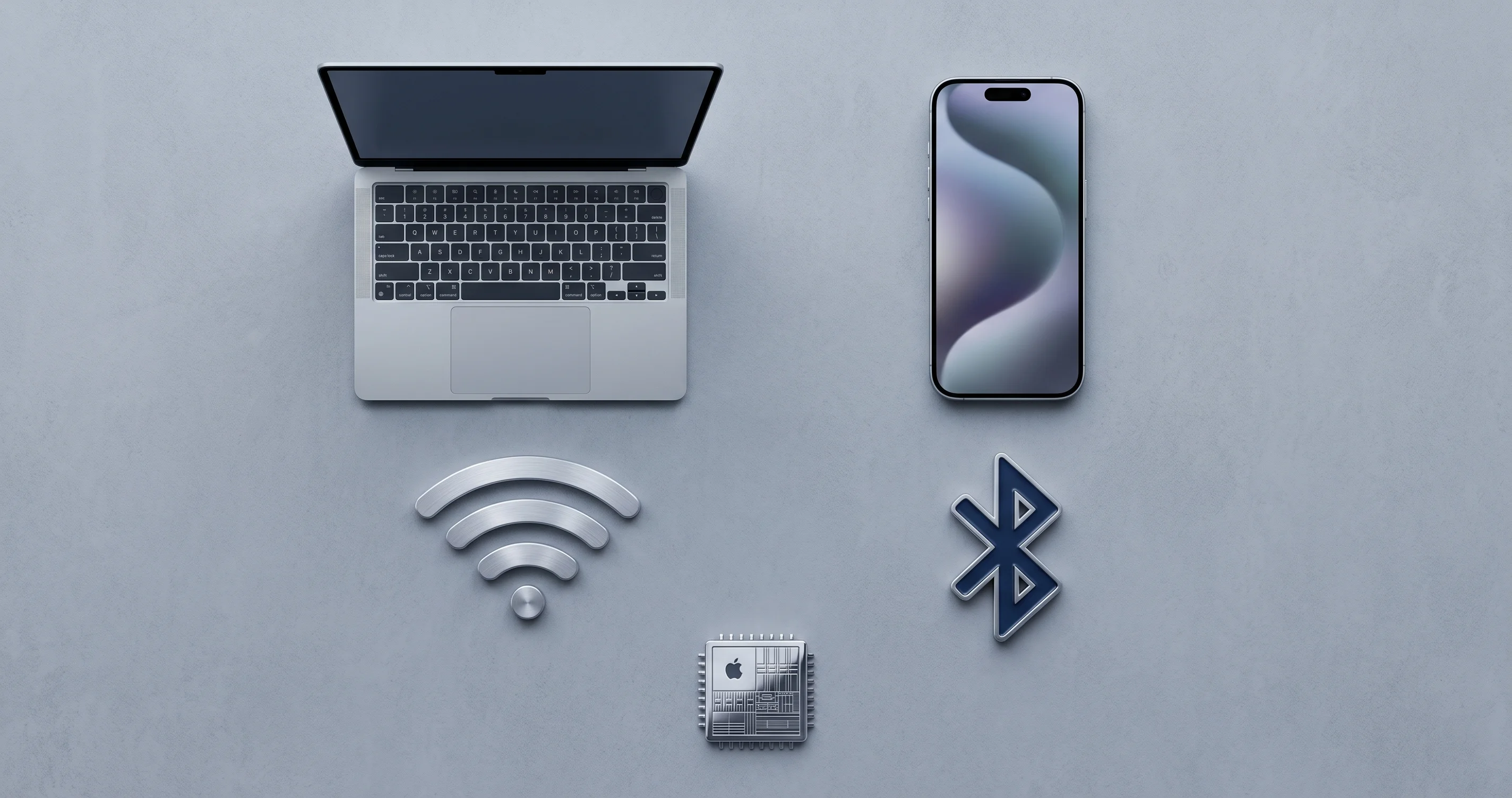
Before you start troubleshooting, verify every single item below. If you fail any one of them, no amount of troubleshooting will help — the feature simply will not run.
| Requirement | Detail | How to Verify |
|---|---|---|
| Mac chip | Apple Silicon (M1, M2, M3, M4 or later) | Apple menu → About This Mac → Chip line |
| macOS version | macOS Sequoia 15.0 or later. macOS Tahoe 26.x recommended | Apple menu → About This Mac |
| iPhone model | iPhone XS, XR, or later (any iPhone with A12 Bionic or newer) | Settings → General → About → Model Name |
| iOS version | iOS 18.0 or later. iOS 26.x recommended for full feature parity with macOS 26 | Settings → General → About → iOS Version |
| Apple ID | Same Apple ID signed in on both devices | Settings → [Your Name] on iPhone; System Settings → [Your Name] on Mac |
| Two-factor auth | Enabled on the Apple ID | Settings → [Your Name] → Sign-In & Security |
| Wi-Fi | Both devices on Wi-Fi (not necessarily the same network, but recommended) | Standard Wi-Fi indicators |
| Bluetooth | On for both devices | Control Center on both |
| Handoff | Enabled on both devices | Settings → General → AirPlay & Continuity (iPhone); System Settings → General → AirDrop & Handoff (Mac) |
| Proximity | Devices within ~10 meters / 30 feet | Physical |
| Not in use elsewhere | iPhone is not currently mirroring to AirPlay, Sidecar is not in use, AirPlay receiver disabled on Mac | Check Control Center / System Settings |
| Region | Apple ID region must support iPhone Mirroring (still restricted in EU on certain account types as of 26.4) | Settings → [Your Name] → Media & Purchases |
If your Mac is Intel-based, stop here. iPhone Mirroring will never work on an Intel Mac — it requires the Secure Enclave architecture of Apple Silicon for the device-identity attestation handshake. There is no patch coming, no workaround, no terminal command. If you have an Intel Mac and want to interact with your iPhone from a desktop, look at QuickTime Player + USB cable for screen recording, or third-party apps like Veadotube or Reflector.
The Errors You Are Probably Seeing
Post-26.4, users report a handful of distinct error states. Identifying which one you are hitting helps you skip to the right step.
- "Cannot connect to iPhone" — appears in the iPhone Mirroring window seconds after launch. Most common in 26.4. Almost always a Continuity Authentication handshake failure. Step 5 (Reset iPhone Access) fixes 80% of these.
- "iPhone Mirroring failed to launch" — appears as a banner notification before the window even opens. Usually a Bluetooth or daemon issue. Step 2 + Step 7 typically resolves it.
- Connection drops mid-session — window goes black or shows "Reconnecting…" within 30 to 90 seconds of opening. The 26.4 race condition. Step 5 + Step 8 is the path.
- Screen frozen / unresponsive input — you see your iPhone screen but cannot tap or scroll. Almost always a Bluetooth HID issue. Step 2 + Step 7.
- Audio missing — the screen works but iPhone audio plays from the iPhone speaker instead of the Mac. Separate fix path, see the audio section below.
- Notifications not forwarding — connection works but iPhone notifications never reach the Mac. Separate fix path, see the notifications section below.
- No "iPhone Mirroring" app icon — the app is missing from /System/Applications. Sign-in or Continuity disabled at the system level. See Step 8.
The 8-Step Fix, In Order
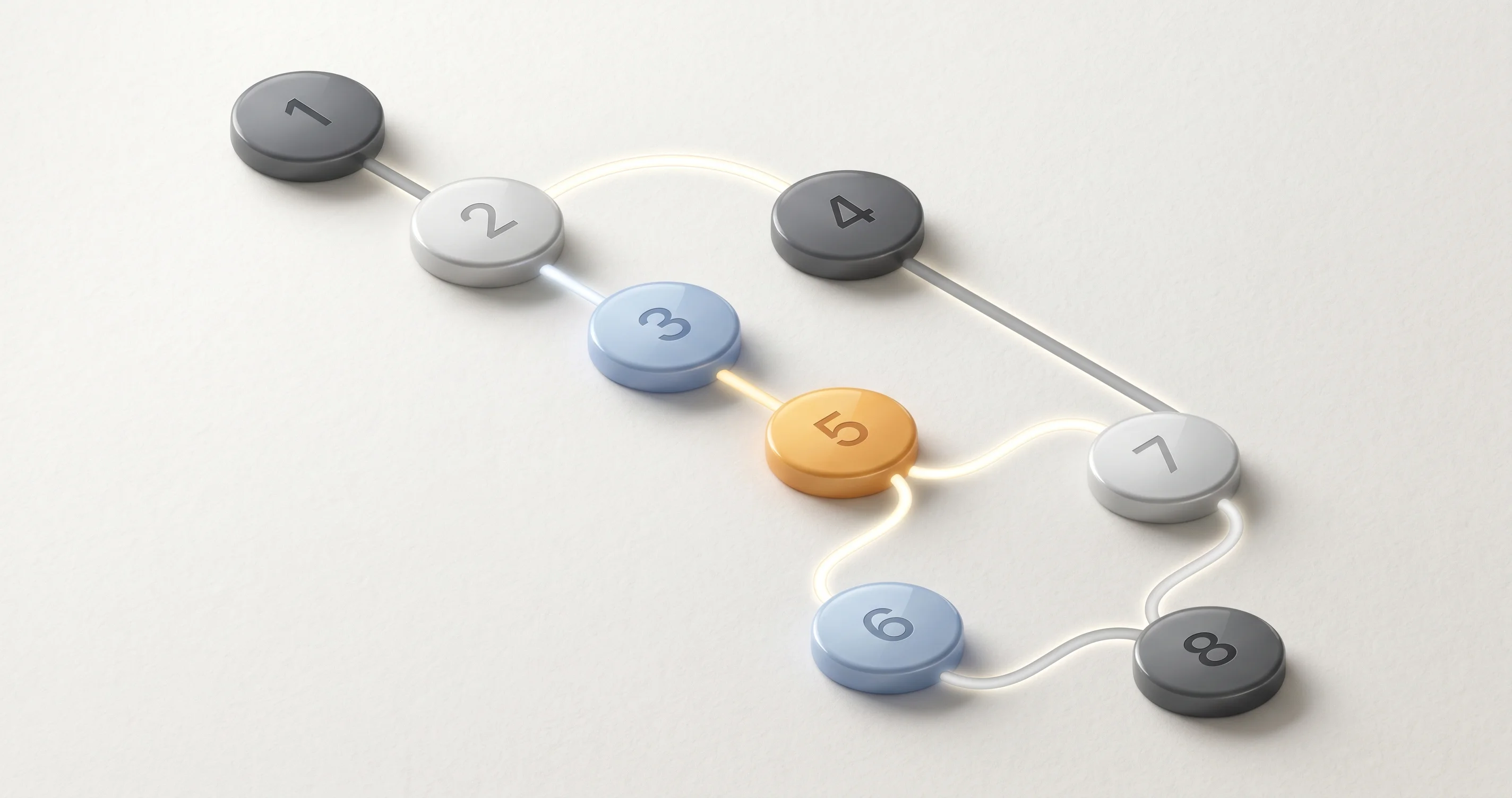
The order matters. Each step assumes the previous ones did not resolve the issue. Do not skip ahead; the cheapest fixes are first by design, and skipping straight to "reset network settings" before checking proximity is how people lose an entire afternoon.
Step 1: Verify the Obvious — Both Devices Unlocked, Near Each Other, Same Apple ID
Before assuming anything is broken, verify the boring stuff:
- Unlock your iPhone. iPhone Mirroring will not initiate to a locked iPhone the very first time after a reboot or update — you need to authenticate at least once after each restart. After that, it can connect to a locked iPhone.
- Bring the iPhone within arm's length of your Mac.
- On the iPhone: Settings → tap your name at the top → confirm the email shown matches your Mac's Apple ID.
- On the Mac: Apple menu → System Settings → click your name at the top → confirm the same email.
- If the emails differ, that is your problem. iPhone Mirroring requires the same Apple ID.
If both devices are unlocked, near each other, and on the same Apple ID, and you still see "Cannot connect to iPhone," continue.
Step 2: Toggle Bluetooth and Wi-Fi on Both Devices
The Continuity stack relies on Bluetooth Low Energy for the initial discovery handshake. A stale BLE state will silently break iPhone Mirroring without surfacing any visible error to you.
On the iPhone:
- Open Control Center (swipe down from the top-right corner on Face ID iPhones).
- Tap the Wi-Fi icon to turn it off, then tap again to turn it back on.
- Tap the Bluetooth icon to turn it off, then tap again to turn it back on.
Important: do not use the Wi-Fi or Bluetooth toggles inside Settings → Wi-Fi / Bluetooth for this step on iPhone — those only disconnect from the current network/device for the day on iOS. The Control Center toggles fully cycle the radios.
On the Mac:
- Open Control Center (top-right menu bar).
- Click the Wi-Fi tile, toggle off, wait 5 seconds, toggle on.
- Click the Bluetooth tile, toggle off, wait 5 seconds, toggle on.
Wait 30 seconds for both devices to re-discover each other, then try iPhone Mirroring again. If your Mac's Bluetooth itself is acting unstable (devices dropping, mouse stuttering), follow the Bluetooth troubleshooting guide for macOS Tahoe before continuing.
Step 3: Force-Quit and Restart the iPhone Mirroring App
The iPhone Mirroring app on your Mac is a regular application that can hang. The fix is the same as any other hung app:
- Hold the Option key, right-click the iPhone Mirroring icon in the Dock, and choose Force Quit. If it is not in the Dock, press ⌘ + ⌥ + Esc to open the Force Quit window, select iPhone Mirroring, click Force Quit.
- Wait 10 seconds.
- Open Spotlight (⌘ + Space), type "iPhone Mirroring," press Return.
If the app does not appear in Spotlight at all, it has been disabled at the system level. Skip to Step 8.
Step 4: Sign Out of Apple ID on Your iPhone (Not Your Mac) and Sign Back In
This is the most misunderstood step in every guide on the internet. Most articles tell you to sign out on your Mac. Do not do that. Signing out of iCloud on your Mac:
- Removes locally cached iCloud Drive files (you will re-download tens of gigabytes).
- Breaks Messages in iCloud and may force a re-download of your full message history.
- Re-prompts every iCloud Keychain entry on next sign-in.
- Disables Find My Mac, requiring re-enable.
None of that is necessary. The Continuity Authentication token that 26.4 corrupts lives on the iPhone side, not the Mac side. Signing out on the iPhone forces the iPhone to re-issue a clean token that the Mac will accept on next pairing.
To sign out on the iPhone:
- Settings → tap your name at the top.
- Scroll all the way down → Sign Out.
- iOS will ask which data to keep on the device — keep all of it (Calendars, Contacts, Keychain, Safari, etc.). This only signs out, it does not erase.
- Wait for sign-out to complete. The screen will return to Settings.
- Tap "Sign in to your iPhone" at the top.
- Enter your Apple ID credentials. Approve the two-factor prompt that appears on your Mac.
- Wait 60 seconds for iCloud to re-sync.
Now try iPhone Mirroring again.
Step 5: Reset iPhone Access — The Buried Step That Actually Works
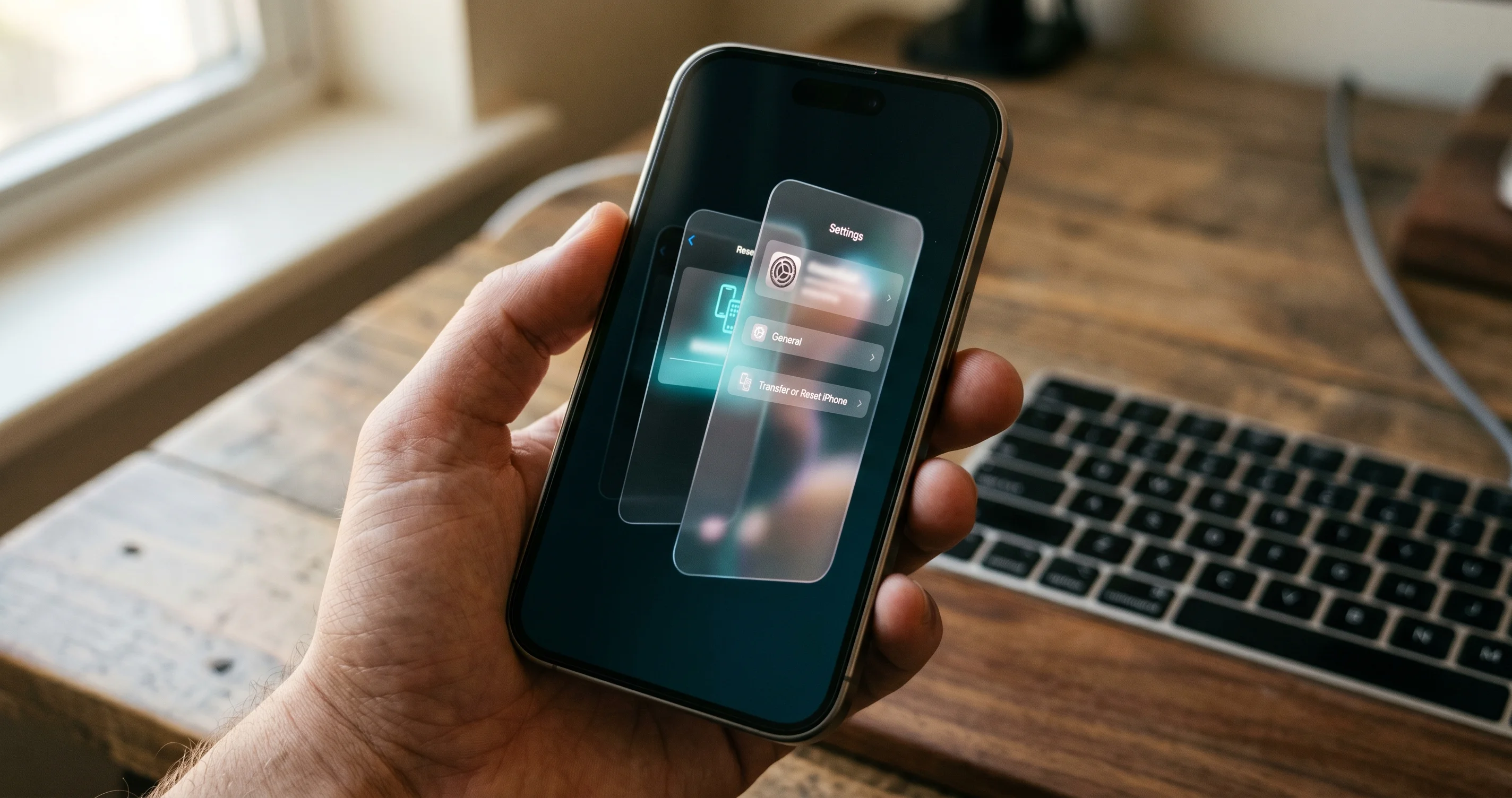
This is the step that fixes the majority of 26.4 issues, and it is the step almost no general-purpose guide mentions because Apple buried it four menus deep with no callout in the release notes. If Steps 1 through 4 did not work, this almost certainly will.
The exact menu path on your iPhone:
- Open the Settings app.
- Tap General.
- Scroll down and tap AirPlay & Continuity.
- Tap iPhone Mirroring.
- Tap Reset Access from previously connected Macs.
- A confirmation sheet appears. Tap Reset Access to confirm.
What this does: it wipes the list of every Mac that has ever been authorized to mirror this iPhone, along with the per-Mac authentication tokens stored in the iPhone's Secure Enclave. The next time you launch iPhone Mirroring on your Mac, you will be prompted to authorize the connection from scratch (the same prompt you got the very first time you used the feature). That fresh authorization handshake reissues a new token under the 26.4 schema, sidestepping the corrupted token from your previous pairing.
After resetting:
- Make sure your iPhone is unlocked.
- On the Mac, open iPhone Mirroring (Spotlight → iPhone Mirroring).
- You should see a "Set Up iPhone Mirroring" or "Allow on iPhone" prompt.
- Pick up your iPhone, look at it (Face ID) or enter your passcode, and tap Allow.
- The Mac will display a "Continue on iPhone" prompt. Tap Continue on the iPhone.
- Choose whether to require authentication every time or to skip it for this Mac. (For a personal Mac in your home, skipping is convenient. For a work Mac or a shared machine, require authentication.)
If iPhone Mirroring works after this step, you can stop. The remaining steps are for stubborn cases.
Step 6: Reset Network Settings on iPhone (Use With Caution)
If Step 5 did not resolve it, the next escalation is to reset the iPhone's network settings. This wipes saved Wi-Fi networks and passwords, VPN configurations, cellular settings, and Bluetooth pairings (only for the iPhone, not for paired devices). It does not delete personal data.
- Settings → General → Transfer or Reset iPhone → Reset → Reset Network Settings.
- Enter your iPhone passcode.
- Confirm.
- The iPhone will restart.
- After restart, rejoin your home Wi-Fi (you will need the password again).
- Re-pair any Bluetooth accessories that no longer appear connected.
- Re-enable any VPN profile (or, ideally, leave it off until you confirm iPhone Mirroring works).
Try iPhone Mirroring again. If it works, optionally re-enable your VPN and verify iPhone Mirroring still works with the VPN active. If it breaks again with the VPN on, see the VPN section below.
Step 7: Reboot Both Devices (iPhone First, Then Mac)
A clean reboot of both devices will clear every daemon, every cached state, and every stale token. The order matters: reboot the iPhone first, let it fully boot and reach the home screen, then reboot the Mac. This sequence ensures the iPhone is broadcasting a clean Continuity advertisement when the Mac comes online and starts scanning.
Reboot iPhone:
- iPhone with Face ID: hold the side button + either volume button until the power slider appears. Drag to power off. Wait 10 seconds. Hold the side button until the Apple logo appears.
- iPhone with Touch ID (older models): hold the top or side button until the slider appears, drag to power off, wait 10 seconds, hold the button to power back on.
Reboot Mac:
- Apple menu → Restart. Uncheck "Reopen windows when logging back in" if it is checked.
After both devices are back up and you are logged in, wait 60 seconds for background services to settle, then try iPhone Mirroring.
Step 8: Disable and Re-Enable Continuity at the System Level on Mac
If everything above failed, this is the nuclear option for the Mac side. It forces the Mac to tear down and rebuild every Continuity service.
- Apple menu → System Settings.
- Click General in the sidebar.
- Click AirDrop & Handoff in the right pane.
- Toggle Allow Handoff between this Mac and your iCloud devices to OFF.
- Wait 30 seconds.
- Toggle it back ON.
- Restart the Mac (yes, even though you just rebooted in Step 7).
If iPhone Mirroring is still missing entirely from Spotlight after this, the iPhone Mirroring app may have been removed by an MDM profile (common on company-managed Macs) or by a privacy/security tool. Check System Settings → Privacy & Security → Profiles. If a configuration profile exists that you did not personally install, contact your IT administrator — they may be blocking Continuity by policy.
For the full stack of Continuity sync issues across iCloud Drive, Photos, Messages, and Universal Clipboard that often appear alongside iPhone Mirroring failures after a major update, see our Continuity sync troubleshooting guide.
Audio Not Coming Through Mac — Separate Troubleshooting
A common and confusing problem post-26.4 is iPhone Mirroring working perfectly for video and input, but audio plays out of the iPhone speaker (sometimes muffled because the iPhone is face-down on your desk) instead of through the Mac. This is a separate bug from the connection issue and needs a separate fix.
The cause: macOS 26.4 changed how the iPhone Mirroring audio device registers itself with Core Audio. On some Macs, the audio output device for the mirrored session does not auto-select.
The fix:
- Start your iPhone Mirroring session.
- With the iPhone Mirroring window in focus, play any audio on the iPhone (open Music or YouTube and play a video).
- On the Mac, hold Option and click the Sound icon in the menu bar. (If the Sound icon is hidden, enable it: System Settings → Control Center → Sound → "Always Show in Menu Bar.")
- In the Output Device list, you should see your iPhone's name appear as an available output. Click it.
- Audio should immediately route through your Mac's selected speakers/headphones.
If you do not see the iPhone in the output list:
- Confirm audio is actually playing on the iPhone (the volume bar shows movement).
- Check that the iPhone is not muted at the hardware switch (silent mode).
- Try swapping AirPods or external speakers in/out — sometimes Core Audio gets stuck enumerating devices.
- As a last resort, kill coreaudiod: open Terminal, run
sudo killall coreaudiod. The audio system will restart automatically. Reconnect iPhone Mirroring.
Personal Hotspot Conflicts
If your Mac is connected to the internet via your iPhone's Personal Hotspot (Instant Hotspot) and you try to launch iPhone Mirroring, expect failure. The two features compete for the same Continuity Bluetooth channel, and 26.4 made this conflict more aggressive than it was in 26.3.
The fix is straightforward:
- Disconnect the Mac from the iPhone's hotspot. System Settings → Wi-Fi → click your iPhone hotspot name → Disconnect.
- Connect the Mac to a regular Wi-Fi network (your home/office Wi-Fi).
- Launch iPhone Mirroring. It will work.
If you absolutely must run both — for example, you are at a coffee shop with no other Wi-Fi — you can sometimes get away with it by:
- Connecting the Mac to the hotspot first.
- Waiting 60 seconds for the connection to stabilize.
- Launching iPhone Mirroring.
This works on roughly half of attempts in 26.4. It will be more reliable in 26.5.
FaceTime and Focus Mode Conflicts
FaceTime conflict: if your iPhone is in an active FaceTime call (audio or video), iPhone Mirroring will refuse to connect or will drop the existing connection. This is by design — your iPhone cannot stream its full UI to the Mac while also driving a FaceTime call. End the call, then launch iPhone Mirroring.
A subtler version of this: if you used FaceTime within the last few minutes and the call ended uncleanly (the other side hung up abruptly, or your network dropped), the FaceTime daemon on iPhone may still hold the audio session for 30 to 90 seconds. Wait two minutes after a FaceTime call before trying iPhone Mirroring.
Focus Mode conflict: certain Focus modes are configured to silence connections from non-allowed devices. If your iPhone has Focus on (Do Not Disturb, Sleep, Work, Driving, etc.) and your Mac is not in the Focus's allowed devices list, iPhone Mirroring may fail silently or block notification forwarding even when the connection works.
To verify and fix:
- iPhone: Settings → Focus → tap the active Focus mode.
- Scroll to the Devices or Sharing Across Devices section.
- Either disable the Focus, or add your Mac to the allowed devices list.
You can also globally disable cross-device Focus syncing: Settings → Focus → Share Across Devices → off. This stops a Focus enabled on your iPhone from cascading to your Mac, but it also means a Do Not Disturb you enable on the Mac will not silence your iPhone, so use judgment.
VPN Interference (Consumer and Corporate)
VPNs are one of the top three causes of broken iPhone Mirroring in 26.4, and the only one that does not show any error message — it just silently fails. This applies to:
- Consumer VPNs (NordVPN, ExpressVPN, ProtonVPN, Mullvad, Surfshark)
- Privacy/DNS tools (Cloudflare WARP, NextDNS, AdGuard, 1.1.1.1 with WARP)
- Corporate VPNs and zero-trust agents (Cisco AnyConnect, GlobalProtect, Zscaler, Cloudflare One, Twingate, Tailscale)
- MDM-pushed always-on VPNs
The mechanism: iPhone Mirroring uses a peer-to-peer link between the two devices. When a VPN is active on the iPhone, the iPhone's network stack routes the discovery traffic through the VPN tunnel, which the Mac cannot reach. The Continuity discovery handshake times out.
Test:
- Disable any VPN on the iPhone. Settings → VPN → toggle Status to Not Connected. (For corporate always-on VPNs that you cannot disable, see below.)
- Disable any VPN on the Mac too, just to be safe.
- Try iPhone Mirroring.
If it now works, your VPN was the cause. Some VPNs offer a "split tunnel" or "exclude local network" option that lets local-network discovery bypass the tunnel. Enable it. For Cloudflare WARP specifically, add *.icloud.com, *.apple.com, and *.push.apple.com to the Split Tunnel exceptions.
For corporate always-on VPNs that you cannot disable, you may genuinely be unable to use iPhone Mirroring while connected to your work network. This is an expected limitation; raise it with your IT team if you need an exception.
Notifications Not Forwarding to Mac
A separate, persistent issue post-26.4: iPhone Mirroring connection works fine, but notifications from your iPhone never appear on your Mac. The fix:
- On Mac: System Settings → Notifications → scroll to the bottom → Allow notifications from iPhone → toggle ON.
- On iPhone: Settings → Notifications → scroll down → Show on Mac (sometimes labeled "Show Previews on Mac") → ON.
- Verify per-app: notifications can be filtered per-app on the Mac side. System Settings → Notifications → iPhone Notifications → tap each app you care about and confirm "Allow Notifications" is on.
If notifications still do not forward after both toggles are correct:
- Check Focus mode (see above).
- Sign out and back in on iPhone (Step 4 of the main fix).
- Reset iPhone Access (Step 5 of the main fix). The notification routing token is part of the Continuity Authentication bundle and gets refreshed when you reset access.
Connection Drops and Freezes Mid-Session
If your initial connection succeeds but you lose it within 30 to 90 seconds, the cause is the 26.4 race condition with Continuity Camera v3. The workaround:
- System Settings → General → AirDrop & Handoff.
- Find Use iPhone as Webcam or Continuity Camera and toggle it OFF.
- Restart your Mac.
- Try iPhone Mirroring. The connection should now hold for the full session.
You will lose the ability to use your iPhone as a webcam in Zoom/FaceTime/etc. while this is disabled. macOS 26.5 fixes the race condition; once you upgrade you can re-enable Continuity Camera and have both features working.
If freezes happen at predictable intervals (every ~5 minutes), the cause is usually the iPhone going to sleep. Settings → Display & Brightness → Auto-Lock → set to Never (or to a longer interval) for the duration of your iPhone Mirroring session.
When iPhone Mirroring Just Is Not Available
A small but vocal subset of users hit a wall not because their setup is broken, but because Apple has restricted the feature on their Apple ID. Known restriction cases:
- EU accounts: between September 2024 and roughly mid-2025, Apple disabled iPhone Mirroring for Apple IDs registered in the EU due to Digital Markets Act compliance review. As of macOS 26.4, EU availability has largely been restored, but a small number of accounts (especially those that switched region recently) still see it unavailable.
- Managed Apple IDs: Apple IDs issued by a school or business via Apple Business Manager / Apple School Manager often have iPhone Mirroring disabled by policy.
- Child accounts in Family Sharing: a parent can disable iPhone Mirroring on a child's Apple ID via Screen Time restrictions.
- Region mismatch: if your iPhone's Apple ID region differs from your Mac's, iPhone Mirroring may refuse to connect.
To check region: Settings → [Your Name] → Media & Purchases → View Account → Country/Region. Both devices must show the same region.
If you are blocked by EU policy, no troubleshooting will help. Wait for the Apple-side policy update.
macOS Tahoe 26.5 Beta 4: What Is Fixed
As of May 4, 2026, macOS Tahoe 26.5 is in beta 4. The build notes confirm two iPhone Mirroring fixes:
- Continuity Authentication token refresh: the 26.4 token corruption bug is resolved. Existing pairings that broke after upgrading to 26.4 should reconnect cleanly after upgrading to 26.5.
- Continuity Camera race condition: the daemon ordering issue that caused 30-to-90 second connection drops is fixed. You can re-enable Continuity Camera while using iPhone Mirroring.
The beta also adds a new Activity indicator in the menu bar that shows iPhone Mirroring connection status (connected/disconnected/reconnecting) so you can diagnose drops without opening the window.
26.5 has not yet entered RC, but based on Apple's typical beta-to-release cadence, expect public release in mid-to-late May 2026. If you are on 26.4 and the workarounds in this guide are not enough to make iPhone Mirroring usable for your workflow, joining the public beta channel (System Settings → General → Software Update → Beta Updates → macOS Public Beta) is a reasonable option. For full details on what 26.5 brings, see our macOS Tahoe 26.5 beta 1 complete guide.
For the broader 26.4 / 26.4.1 update story including all known regressions, see our macOS Tahoe 26.4 / 26.4.1 complete update guide.
Alternatives If It Still Will Not Work
If after all 8 steps and the supplementary fixes, iPhone Mirroring is still unusable, here are the practical alternatives that actually solve the problems people use iPhone Mirroring for:
- Files transfer: use AirDrop. If AirDrop is also broken, see our AirDrop fix guide. Files app on Mac also has a "Locations → iPhone" option in Tahoe 26 if iCloud Drive sync is healthy.
- Quickly check a notification: Notification Mirroring (the secondary feature, see above) does not require the full iPhone Mirroring session. You can have just notifications without the mirror window.
- Authenticate something on iPhone: just pick up the phone. You will save five minutes.
- Reply to texts: Messages in iCloud handles iMessage and SMS forwarding without needing iPhone Mirroring.
- Use an iPhone-only app on a bigger screen: USB-C iPhones can mirror to a Mac via QuickTime Player → File → New Movie Recording → switch input to iPhone. View-only, but reliable.
If you specifically use iPhone Mirroring to bypass needing Touch ID on your Mac itself for app authentication, the actual fix may be unrelated — see Touch ID not working on Mac instead.
FAQ
Q: Will iPhone Mirroring ever work on an Intel Mac? A: No. The feature requires Apple Silicon's Secure Enclave for the device-identity attestation handshake. Apple has confirmed this in the developer documentation. There is no plan and no path to support Intel Macs.
Q: Does iPhone Mirroring work between two iPhones, or two Macs? A: No. The feature is one-directional and one-pair-only: one Mac mirroring one iPhone. You cannot mirror your Mac to your iPhone, and you cannot mirror your iPad to your Mac (use Universal Control or Sidecar instead).
Q: Can I mirror multiple iPhones from the same Mac? A: Yes, one at a time. The Mac can be authorized to mirror more than one iPhone, but only one mirroring session is active at any moment. Use the iPhone Mirroring app menu bar to switch between authorized iPhones.
Q: Does iPhone Mirroring drain my iPhone battery? A: Yes, noticeably. The iPhone is rendering the full UI, encoding video, and maintaining a continuous wireless link. Expect roughly 15-25% battery drain per hour of active mirroring. Plug the iPhone in for long sessions.
Q: Why does my iPhone screen stay black during mirroring? A: That is by design. The iPhone screen is intentionally turned off and the device is locked to outsiders during a mirroring session — anyone walking past your phone cannot see what you are doing. Picking up the iPhone ends the mirroring session and wakes the screen.
Q: Does iPhone Mirroring work over cellular only (no Wi-Fi)? A: No. Both devices need Wi-Fi enabled (the actual data path can be Wi-Fi Direct between them, but Wi-Fi must be on). It does not consume cellular data.
Q: Will it work if my Mac and iPhone are on different Wi-Fi networks? A: Sometimes. The actual mirror stream uses peer-to-peer Wi-Fi Direct, so different networks can work as long as both devices are physically near each other and both have Wi-Fi on. However, the discovery handshake is more reliable on the same network. If you are hitting connection issues, get them on the same network.
Q: I get a "two-factor authentication required" prompt every time. Can I disable it? A: Yes for personal Macs. In the iPhone Mirroring app on Mac → menu bar → iPhone Mirroring → Settings → Authentication → uncheck "Ask Every Time." For shared or work Macs, leave it on.
Q: Why did my iPhone Mirroring break right after I changed my Apple ID password? A: Changing your Apple ID password invalidates all existing Continuity tokens. Sign in to iCloud on both devices with the new password, then perform Step 5 (Reset iPhone Access) to re-issue the tokens.
Q: Does macOS 26.5 require me to re-pair from scratch? A: No. The 26.5 update preserves existing pairings and refreshes their tokens automatically on first launch. If you experience issues immediately after upgrading to 26.5, run Step 5 once and you should be set.
Conclusion
iPhone Mirroring is one of the most useful Continuity features Apple has shipped, and the 26.4 regression has been frustrating for the workflows that depend on it. The good news: in nearly every case, the fix is in your hands and takes under twenty minutes. Work the 8 steps in order, do not skip Step 5 (Reset iPhone Access), and treat the audio, notification, hotspot, FaceTime, Focus, and VPN issues as separate sub-problems with their own fix paths.
If you are still stuck after going through everything in this guide, and you are not blocked by an EU policy or MDM restriction, the cleanest remaining option is to wait for or beta-test macOS Tahoe 26.5, which is on track to ship in the second half of May 2026 and contains both major 26.4 fixes.
For related troubleshooting on the broader Continuity stack, see: