macOS Tahoe Continuity Features Complete Troubleshooting Guide 2025: Fix Universal Control, Sidecar, and AirDrop Issues

Comprehensive troubleshooting guide for Apple Continuity features on macOS Tahoe 26. Fix Universal Control not working, Sidecar connection failures, AirDrop visibility issues, and more with step-by-step solutions.
Apple's Continuity features represent the seamless integration that makes the Apple ecosystem special. However, when Universal Control stops detecting your iPad, Sidecar refuses to connect, or AirDrop can't find nearby devices, productivity grinds to a halt. This comprehensive guide provides expert-level troubleshooting for all three major Continuity features on macOS Tahoe 26, with solutions tested across various Mac and iPad configurations.
Understanding Apple's Continuity Ecosystem
What Are Continuity Features?
Apple's Continuity is a collection of technologies that enable seamless interaction between Mac, iPad, iPhone, and Apple Watch. The three primary desktop-focused Continuity features are:
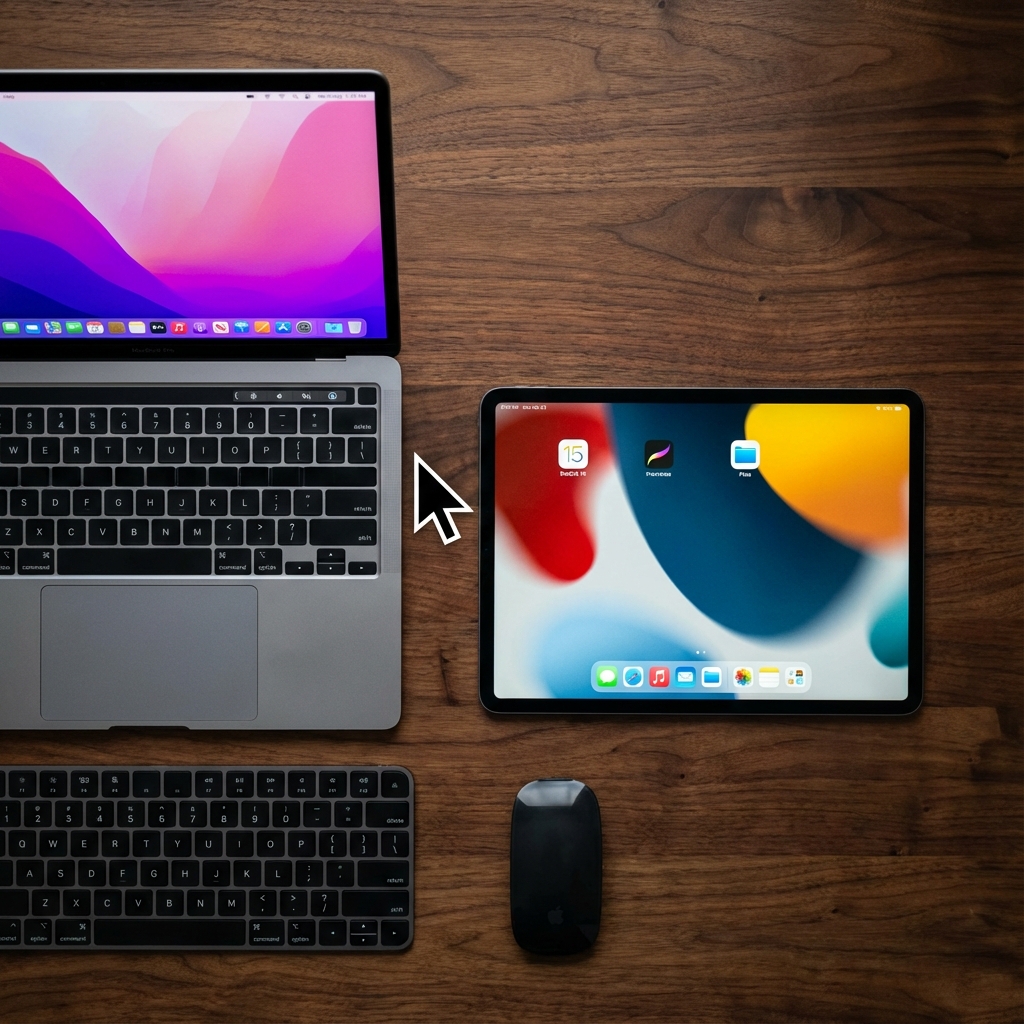
Universal Control: Use a single keyboard and mouse/trackpad across multiple Mac and iPad devices. Move your cursor seamlessly between screens and drag files between devices.
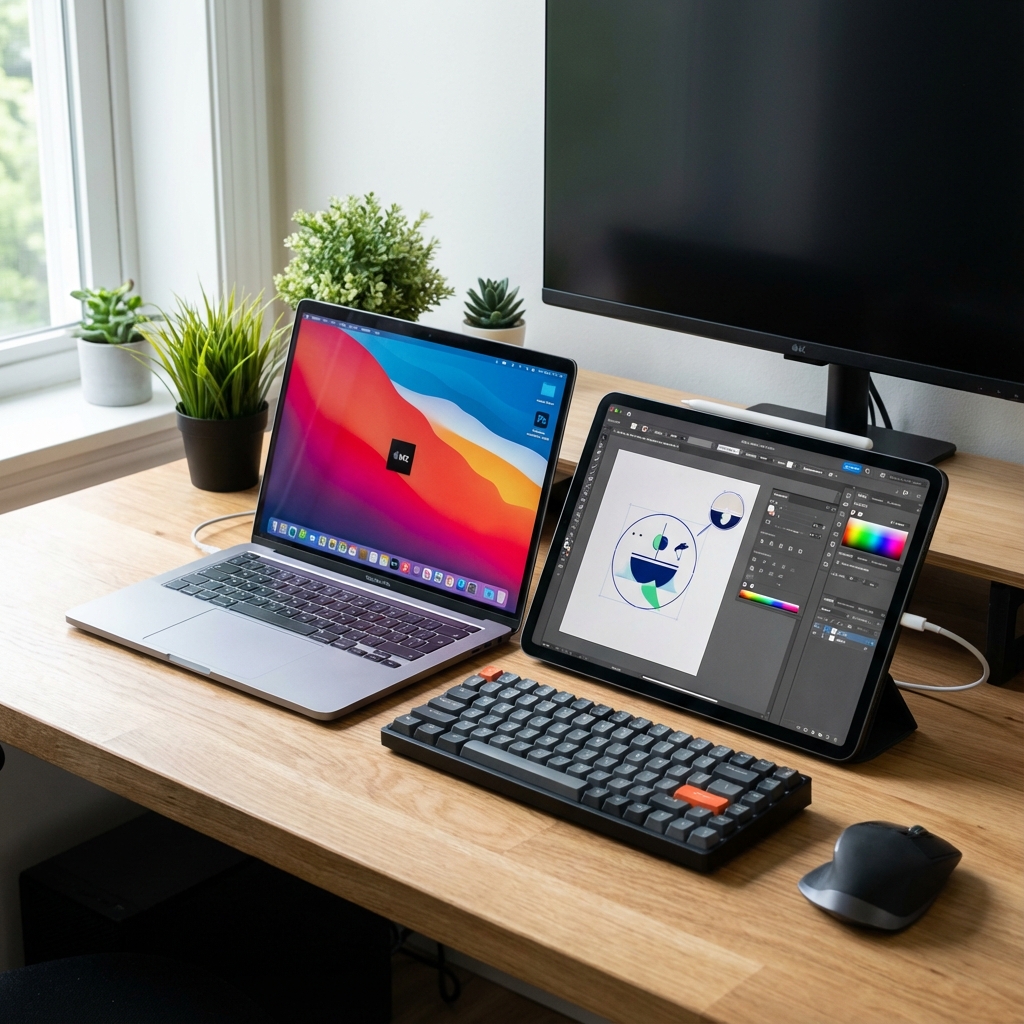
Sidecar: Transform your iPad into a secondary display for your Mac, with support for Apple Pencil input and touch gestures.
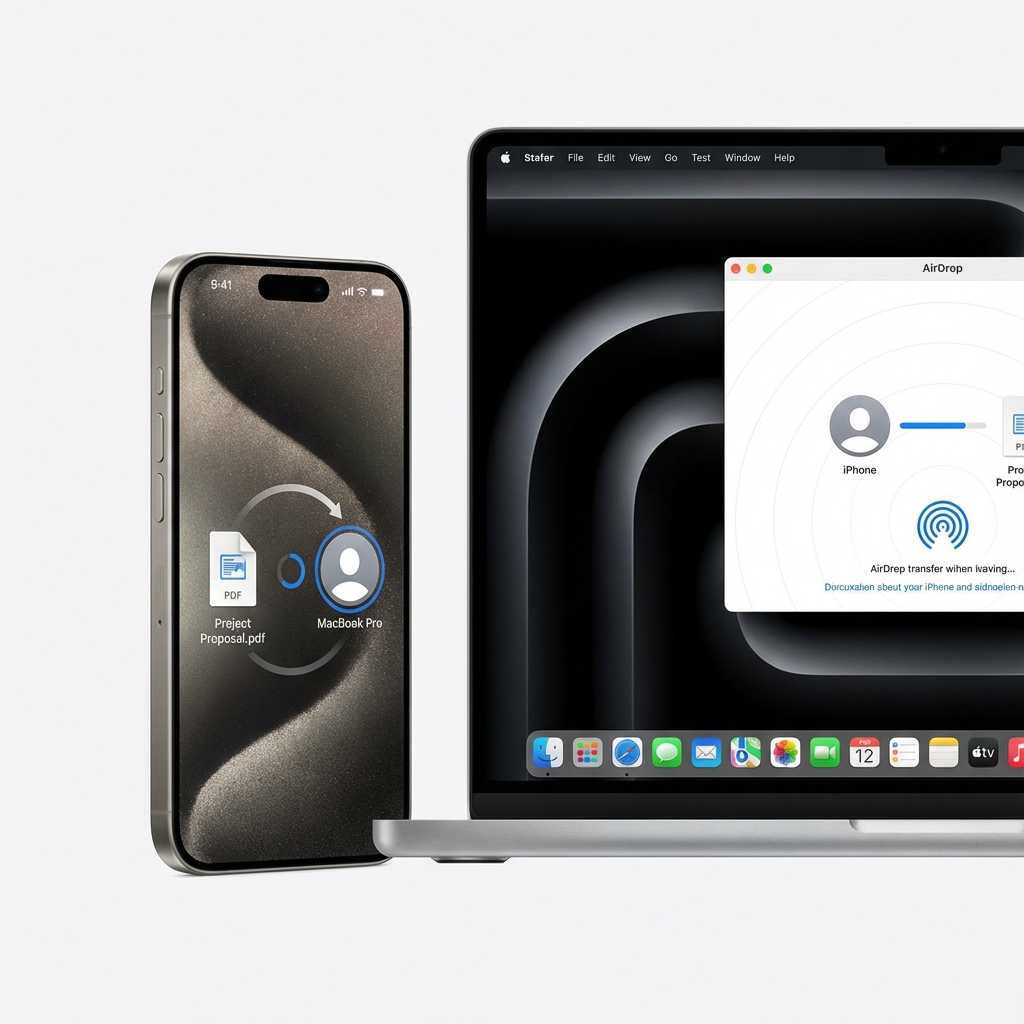
AirDrop: Wirelessly transfer files, photos, links, and other content between nearby Apple devices instantly.
Shared Requirements Across All Continuity Features
Before diving into specific troubleshooting, understand that all Continuity features share these common requirements:
| Requirement | Details |
|---|---|
| Apple ID | All devices must be signed in to the same Apple ID |
| Two-Factor Authentication | Must be enabled for your Apple ID |
| Bluetooth | Must be enabled on all participating devices |
| Wi-Fi | Must be turned on (but not necessarily connected to the same network for all features) |
| Handoff | Must be enabled on all devices |
| Proximity | Devices typically need to be within 30 feet (10 meters) |
| Firewall | Mac firewall must allow incoming connections |
Universal Control: Complete Troubleshooting Guide
What is Universal Control?
Universal Control, introduced in macOS Monterey 12.3 and iPadOS 15.4, allows you to control multiple Mac and iPad devices with a single keyboard and mouse or trackpad. Simply move your cursor to the edge of one screen, and it seamlessly transitions to the adjacent device.
Universal Control System Requirements
Supported Mac Models (macOS Monterey 12.3 or later):
- MacBook Pro (2016 and later)
- MacBook (2016 and later)
- MacBook Air (2018 and later)
- iMac (2017 and later)
- iMac Pro (all models)
- Mac mini (2018 and later)
- Mac Pro (2019 and later)
- Mac Studio (all models)
Supported iPad Models (iPadOS 15.4 or later):
- iPad Pro (all models)
- iPad Air (3rd generation and later)
- iPad (6th generation and later)
- iPad mini (5th generation and later)
Issue 1: iPad Not Appearing in Universal Control
Symptoms:
- Your iPad doesn't show up when you push the cursor to the screen edge
- Display settings don't show your iPad as an available device
- The "Link Keyboard and Mouse" option is greyed out
Step-by-Step Solution:
1. Verify Basic Requirements
On your Mac, open System Settings and check the following:
System Settings → General → AirDrop & HandoffEnsure "Allow Handoff between this Mac and your iCloud devices" is enabled.
On your iPad:
Settings → General → AirPlay & HandoffEnable both "Handoff" and "Cursor and Keyboard (Beta)" toggles.
2. Check Apple ID Configuration
Both devices must use the same Apple ID:
Mac:
System Settings → Apple IDiPad:
Settings → [Your Name] at the topVerify both show the same Apple ID email address.
3. Enable Universal Control Settings
On your Mac:
System Settings → Displays → AdvancedEnable all three options:
- ✅ Allow your pointer and keyboard to move between any nearby Mac or iPad
- ✅ Push through the edge of a display to connect a nearby Mac or iPad
- ✅ Automatically reconnect to any nearby Mac or iPad
4. Toggle Bluetooth Reset
Sometimes Bluetooth needs a refresh:
# Turn off Bluetooth via Terminal
sudo pkill bluetoothd
Or manually toggle Bluetooth off and on in both devices' Control Center.
5. Restart Both Devices
A full restart often resolves detection issues:
- On Mac: Apple menu → Restart
- On iPad: Hold Power + Volume Up until the slider appears, slide to power off, then power on
Issue 2: Universal Control Keeps Disconnecting
Symptoms:
- Connection drops after a few minutes
- Cursor freezes when crossing to the other device
- "Connection lost" notifications appear frequently
Solutions:
1. Check Network Stability
Both devices should be connected to the same stable Wi-Fi network. Avoid public or hotel networks that may isolate devices.
# Test network connectivity on Mac
ping -c 5 $(ipconfig getifaddr en0 | cut -d. -f1-3).1
2. Disable Conflicting Network Features
On iPad, ensure Personal Hotspot is OFF:
Settings → Personal Hotspot → OffOn Mac, disable Internet Sharing:
System Settings → General → Sharing → Internet Sharing → Off3. Check Firewall Settings
Mac's firewall can block Universal Control:
System Settings → Network → Firewall → OptionsEnsure:
- "Block all incoming connections" is OFF
- "Automatically allow built-in software to receive incoming connections" is ON
4. Disable Sidecar Temporarily
Sidecar can sometimes interfere with Universal Control:
Control Center → Display → Disconnect any Sidecar sessionsIssue 3: Drag and Drop Not Working Between Devices
Symptoms:
- Files don't transfer when dragged between Mac and iPad
- Cursor moves but can't pick up items
- Items disappear during transfer
Solutions:
1. Ensure Compatible App is Open on iPad
When dragging files to iPad, the appropriate app must be open:
- Images: Photos app
- Documents: Files app
- Text: Notes app
2. Check File Compatibility
Some file types aren't supported for drag and drop. Convert files if needed:
- .exe files won't work
- Large files (>10GB) may timeout
- DRM-protected content cannot be transferred
3. Try Smaller Files First
Test with a small image file to confirm the feature works, then gradually try larger files.
Sidecar: Complete Troubleshooting Guide
What is Sidecar?
Sidecar transforms your iPad into a secondary display for your Mac. It supports both wired (USB) and wireless connections, and enables Apple Pencil for drawing and annotation directly on Mac apps.
Sidecar System Requirements
Supported Mac Models:
- MacBook Pro (2016 and later)
- MacBook (2016 and later)
- MacBook Air (2018 and later)
- iMac (late 2015 and later)
- iMac Pro (all models)
- Mac mini (2018 and later)
- Mac Pro (2019 and later)
- Mac Studio (all models)
Supported iPad Models (iPadOS 13 or later):
- iPad Pro (all models)
- iPad Air (3rd generation and later)
- iPad (6th generation and later)
- iPad mini (5th generation and later)
Issue 1: iPad Not Showing in Sidecar Device List
Symptoms:
- Click the Screen Mirroring icon but iPad doesn't appear
- Display settings show no available Sidecar devices
- "Looking for Apple TV or other AirPlay devices" perpetually spinning
Step-by-Step Solution:
1. Verify Software Updates
Ensure both devices are running the latest OS:
Mac:
System Settings → General → Software UpdateiPad:
Settings → General → Software Update2. Check Apple ID Match
Both devices must use identical Apple ID with two-factor authentication enabled.
3. Enable Handoff
Mac:
System Settings → General → AirDrop & Handoff → Allow HandoffiPad:
Settings → General → AirPlay & Handoff → Handoff → On4. Connect via USB as Fallback
If wireless detection fails, try a USB cable connection:
- Connect iPad to Mac with USB or USB-C cable
- On iPad, tap "Trust This Computer" if prompted
- On Mac, go to System Settings → Displays
- Click "Add Display" and select your iPad
5. Reset Network Settings on iPad
As a last resort:
Settings → General → Transfer or Reset iPad → Reset → Reset Network SettingsNote: This will erase saved Wi-Fi passwords.
Issue 2: "Device Timed Out" Error
Symptoms:
- Error message: "Could not connect to [iPad name]. The connection timed out."
- Sidecar starts connecting but never completes
- Spinning indicator appears indefinitely
Solutions:
1. Restart Both Devices
This resolves most timeout issues:
- Restart Mac: Apple menu → Restart
- Restart iPad: Hold Power + Volume until slider appears
2. Sign Out and Back Into iCloud
On Mac:
System Settings → Apple ID → Sign OutWait 30 seconds, then sign back in.
On iPad:
Settings → [Your Name] → Sign OutWait 30 seconds, then sign back in.
3. Disable VPN Connections
VPNs often interfere with Sidecar:
System Settings → VPN → DisconnectOr temporarily disable any third-party VPN apps.
4. Check for MDM Profiles
Enterprise device management profiles can block Sidecar:
Settings → General → VPN & Device ManagementIf a profile exists, contact your IT department.
Issue 3: Sidecar Black Screen on iPad
Symptoms:
- Sidecar connects successfully
- iPad shows entirely black screen
- Mac still recognizes iPad as connected display
Solutions:
1. Toggle Mirroring Setting
System Settings → Displays → ArrangementToggle the mirroring checkbox off and on.
2. Reset Display Arrangement
Click the AirPlay icon in menu bar:
- Select "Mirror Built-in Retina Display"
- Then switch back to "Use As Separate Display"
3. Check Display Resolution
Some apps struggle with iPad's resolution:
System Settings → Displays → [Your iPad]Try changing the resolution to "Scaled" and selecting a different option.
Issue 4: Apple Pencil Not Working in Sidecar
Symptoms:
- Apple Pencil doesn't draw or interact with Mac apps
- Pressure sensitivity missing
- Palm rejection not working
Solutions:
1. Enable Double-Tap on Apple Pencil
System Settings → Displays → [Your iPad] → Enable double tap on Apple Pencil2. Check App Compatibility
Not all Mac apps support Apple Pencil input. Tested compatible apps:
- Adobe Photoshop
- Adobe Illustrator
- Pixelmator Pro
- Affinity Photo
- Final Cut Pro (annotations)
3. Re-pair Apple Pencil
On iPad:
Settings → Bluetooth → [Apple Pencil] → Forget This DeviceThen reattach/plug in Apple Pencil to pair again.
AirDrop: Complete Troubleshooting Guide
What is AirDrop?
AirDrop enables instant wireless file transfer between Apple devices. It uses Bluetooth for discovery and Wi-Fi for high-speed transfers, with end-to-end encryption for security.
AirDrop System Requirements
Supported Mac Models:
- MacBook Pro (late 2008 and later, excluding 17-inch late 2008)
- MacBook Air (late 2010 and later)
- MacBook (late 2008 and later)
- iMac (early 2009 and later)
- Mac mini (mid 2010 and later)
- Mac Pro (early 2009 with AirPort Extreme, or mid 2012 and later)
- Mac Studio (all models)
Software Requirements:
- macOS X Yosemite (10.10) or later for Mac-to-iOS transfers
- macOS X Lion (10.7) or later for Mac-to-Mac transfers
Issue 1: Devices Not Visible in AirDrop
Symptoms:
- AirDrop window shows "No People Found"
- Known contacts don't appear
- Devices nearby aren't detected
Step-by-Step Solution:
1. Check AirDrop Visibility Settings
On Mac: Open Finder → Go → AirDrop (or press Cmd+Shift+R) At the bottom of the AirDrop window, set "Allow me to be discovered by:" to:
- Contacts Only: Only people in your Contacts can see you
- Everyone: All nearby Apple devices can see you (10 minutes in newer macOS)
On iPhone/iPad:
Settings → General → AirDrop → Choose "Everyone for 10 Minutes" or "Contacts Only"2. Verify Wi-Fi and Bluetooth are On
Both technologies are required:
# Check Bluetooth status on Mac
system_profiler SPBluetoothDataType | grep "Bluetooth Power"
Toggle both off and on in Control Center if needed.
3. Disable Personal Hotspot
Personal Hotspot uses the same wireless radio and conflicts with AirDrop:
iPhone/iPad:
Settings → Personal Hotspot → Allow Others to Join → Off4. Turn Off Do Not Disturb
Focus modes can block AirDrop notifications:
Mac:
Control Center → Focus → OffiPhone/iPad:
Control Center → Focus → Off5. Check Firewall Settings
Mac:
System Settings → Network → Firewall → OptionsEnsure:
- "Block all incoming connections" is OFF
- "Automatically allow built-in software to receive incoming connections" is ON
Issue 2: AirDrop Transfers Failing
Symptoms:
- Transfer starts but never completes
- "Failed" error message appears
- Progress bar gets stuck
Solutions:
1. Move Devices Closer
AirDrop works best within 30 feet (9 meters). Bring devices within 10 feet for reliability.
2. Reduce File Size
Large files (>5GB) may timeout. Try:
- Compress files before sending
- Split into smaller batches
- Use iCloud Drive for very large files
3. Restart Wi-Fi and Bluetooth
Toggle both off, wait 10 seconds, then turn back on:
# Reset Wi-Fi via Terminal
sudo ifconfig en0 down && sleep 5 && sudo ifconfig en0 up
4. Reset Network Settings (iPhone/iPad)
Settings → General → Transfer or Reset → Reset → Reset Network SettingsIssue 3: AirDrop Slow Transfer Speeds
Symptoms:
- Transfers take much longer than expected
- Progress bar moves very slowly
- Small files take minutes instead of seconds
Solutions:
1. Disable Low Power Mode
Low Power Mode throttles network performance:
Mac:
System Settings → Battery → Low Power Mode → OffiPhone:
Settings → Battery → Low Power Mode → Off2. Check for Wi-Fi Interference
Move away from:
- Microwaves
- Other Wi-Fi networks
- Bluetooth devices
- USB 3.0 devices
3. Reboot Router
Wi-Fi congestion affects AirDrop speeds. Restart your router if transfers are consistently slow.
4. Use Wired AirDrop Alternative
For large transfers, consider Lightning/USB-C cable with Finder file transfer instead.
Advanced Troubleshooting: Shared Issues
Network Configuration Deep Dive
Many Continuity issues stem from network configuration problems.
1. Check mDNS/Bonjour is Working
Continuity features rely on Bonjour (mDNS) for device discovery:
# Test Bonjour on Mac
dns-sd -B _apple-mobdev2._tcp local.
If no devices appear after 30 seconds, Bonjour may be blocked.
2. Flush DNS Cache
sudo dscacheutil -flushcache
sudo killall -HUP mDNSResponder
3. Check for Blocked Ports
Continuity uses several network ports:
- TCP/UDP 5353 (mDNS)
- TCP 62078 (iCloud)
- UDP 49152-65535 (AirDrop/AWDL)
Ensure your router isn't blocking these ports.
Bluetooth Troubleshooting
1. Reset Bluetooth Module
sudo pkill bluetoothdOr hold Shift+Option and click the Bluetooth menu icon → "Reset the Bluetooth module".
2. Delete Bluetooth Preference Files
sudo rm -rf /Library/Preferences/com.apple.Bluetooth.plist
sudo rm -rf ~/Library/Preferences/ByHost/com.apple.Bluetooth.*
Restart your Mac after deleting these files.
3. Check for Bluetooth Interference
Move away from:
- USB 3.0 hubs
- Wireless mice/keyboards from other manufacturers
- Other Bluetooth devices
NVRAM and SMC Reset
For persistent issues, reset system management:
Reset NVRAM (Intel Macs):
- Shut down Mac
- Turn on and immediately hold Option+Command+P+R
- Hold for 20 seconds
- Release and let Mac boot normally
Reset SMC (Intel Macs):
- Shut down Mac
- Hold Shift+Control+Option on left side + Power button for 10 seconds
- Release all keys and power on
Apple Silicon Macs: Simply restart the Mac - SMC is managed automatically.
macOS Tahoe 26 Specific Considerations
Liquid Glass UI and Continuity
macOS Tahoe's new Liquid Glass interface may affect how Continuity settings appear:
- Universal Control settings moved to System Settings → Displays → Advanced
- Sidecar options integrated into Display arrangement panel
- AirDrop settings accessible via Finder sidebar and Control Center
Known macOS Tahoe Continuity Bugs
As of December 2025, some users report:
-
Universal Control lag after sleep: Devices may take 5-10 seconds to reconnect after Mac wakes from sleep
- Workaround: Disable "Automatically reconnect" and manually push cursor to reconnect
-
Sidecar resolution issues on M4 Macs: Some M4 Mac users report incorrect resolution detection
- Workaround: Use scaled resolution setting in Displays preferences
-
AirDrop stuck on "Waiting": Occasional issue where transfers get stuck
- Workaround: Cancel transfer, toggle AirDrop visibility to "No One" then back to "Everyone"
Frequently Asked Questions
Can I use Universal Control with three or more devices?
Yes! Universal Control supports up to three devices simultaneously (including Mac and iPad combinations). Arrange them in System Settings → Displays → Arrangement.
Does Sidecar work over the internet?
No, Sidecar requires local proximity (same Wi-Fi network or USB connection). For remote access, consider third-party solutions like Luna Display or Duet Display.
Why does AirDrop show "Contacts Only" recipients but not strangers?
For privacy, "Contacts Only" AirDrop visibility requires both parties to have each other's phone number or email in their Contacts app with matching Apple IDs.
Can I use Sidecar with an older iPad?
If your iPad isn't supported for Sidecar, consider third-party apps like Duet Display or Luna Display, which work with older hardware.
Does Universal Control work in clamshell mode?
Yes, you can use Universal Control while your MacBook is in clamshell mode (closed with external display). Ensure an external keyboard and mouse are connected.
Conclusion
Apple's Continuity features are powerful tools for productivity, but they require proper configuration across multiple devices and system settings. By following this comprehensive troubleshooting guide, you should be able to resolve most Universal Control, Sidecar, and AirDrop issues on macOS Tahoe 26.
Key Takeaways:
- Always verify both devices share the same Apple ID with two-factor authentication
- Enable Bluetooth, Wi-Fi, and Handoff on all devices
- Check firewall settings aren't blocking incoming connections
- Restart devices when connectivity issues persist
- Keep all devices updated to the latest OS versions
For persistent issues that these solutions don't resolve, contact Apple Support or visit an Apple Store for hands-on diagnosis.
Related Resources
Explore more macOS troubleshooting guides: