Mouse or Trackpad Frozen After macOS Tahoe 26.5.1? Fix It
Is your mouse, trackpad, or cursor frozen after the macOS Tahoe 26.5.1 update? Learn why background items get disabled and how to re-enable them fast.
You install macOS Tahoe 26.5.1, the Mac restarts, the login screen appears, and then nothing. You push the trackpad, you slide the mouse across the desk, and the cursor sits there like a painted arrow that refuses to move. Or maybe it moves for ten seconds, then locks up. Maybe it works at the login screen but dies the instant you reach the desktop, or it works until you open the one app you actually needed. If your mouse is frozen after macOS Tahoe 26.5.1, or your trackpad is not working after the update, you are hitting one of the most disorienting problems a Mac can throw at you, because the very tool you would normally use to fix it is the thing that stopped responding.
Here is the reassuring part: a frozen pointer immediately after an update is almost never a dead trackpad or a broken mouse. It is far more often a software state problem — a permission that got flipped off, a helper process that failed to relaunch, a Bluetooth link that did not re-establish, or a runaway task pinning the CPU so hard that the window server cannot draw a cursor. All of those are recoverable, and most of them are recoverable in a couple of minutes once you know where to look. The catch is that you have to do some of the early steps using only the keyboard, so this guide will walk you through pointer-free navigation as carefully as it walks you through the fixes themselves.
A pattern that surfaced repeatedly in the community after 26.5.1 deserves special attention, and we will spend real time on it: several users reported that the update quietly turned off background items and login-item permissions for third-party apps, and that those disabled helpers were exactly what their input devices — mouse utilities, trackpad gesture tools, keyboard remappers — depended on to work. Re-enabling those toggles brought their pointers back. That is not a universal fix and it does not explain every frozen cursor, but it is common enough, and easy enough to check, that it belongs near the top of your list. Let us work through everything in a sensible order, from the fastest recovery to the deepest repair.
Key Takeaways
- A frozen cursor right after macOS Tahoe 26.5.1 is usually a software state issue — a disabled background item, an unlaunched helper, a dropped Bluetooth link, or a runaway process — not failing hardware. Recovery is almost always possible.
- A widely reported cause after 26.5.1 is that the update disabled background items and login-item permissions for third-party apps, breaking the helper daemons that mice, trackpad utilities, and keyboard remappers rely on. Re-enabling them under System Settings > General > Login Items & Extensions restores the pointer for many users. This is community-reported, so treat it as one likely cause among several.
- Learn to navigate without a pointer first: Tab, arrow keys,
Control + F2to reach the menu bar, andControl + Option + Command + Power(or a forced restart) can get you to a reboot even when the cursor is completely dead. - Work the ladder in order: force restart, re-enable background items, fix Bluetooth (battery, re-pair, reset), test a wired device, reset trackpad/mouse preference plists, hunt a runaway process, then boot into Safe Mode.
- On Apple silicon there is no old-style NVRAM or SMC reset — a normal restart accomplishes the equivalent. Reserve a hardware conclusion for the very end, after software fixes and a second input device have both failed.
First, Figure Out Whether It Is Hardware or Software
Before you start changing settings, spend sixty seconds narrowing the problem, because the fastest fix depends entirely on whether the freeze is coming from the pointing device itself or from the software driving it. This triage costs almost nothing and can save you from chasing the wrong solution for an hour.
Start by asking a simple question: does the cursor move at all? There is a meaningful difference between a cursor that is completely stuck in one spot and a cursor that moves but ignores clicks, or one that stutters and jumps. A cursor frozen dead-still usually points to a lost input signal — Bluetooth dropped, the helper process died, or the window server hung. A cursor that moves but will not click, or that lags badly, more often points to a software conflict or a system under heavy load. Note which of these you are seeing, because it steers the next steps.
Next, test a second input path. If your trackpad is frozen, plug in a wired USB mouse — almost any generic USB mouse will do — and see whether it moves the cursor. If the wired mouse works perfectly while the trackpad stays dead, you have learned two important things at once: the Mac itself is drawing the cursor fine (so the window server is not hung), and the problem is specific to the trackpad's input path. Conversely, if a wired mouse is also frozen, the issue is almost certainly system-wide — a hung process or a broken input subsystem — not a fault in any single device. This one test is the single most informative thing you can do, so do it early if you have any wired mouse within reach.
Watch the Timing and the Trigger
Pay attention to when the freeze happens, because the timing is a fingerprint. A cursor that is frozen at the login screen, before you even sign in, points at something loaded very early — a Bluetooth pairing problem or a hardware-level fault — rather than a user-level app or permission, because your login items have not even run yet. A cursor that works at login and on the desktop but freezes the moment a specific app launches implicates that app or its helper. And a cursor that works for a while and then progressively degrades into a spinning beach ball usually means a process is leaking memory or pegging the CPU. If the freeze started the instant you updated to 26.5.1 and happens consistently after login, the disabled-background-items scenario becomes much more likely, which is why we tackle it right after the emergency restart.
The Beach Ball Is a Different Animal
If your cursor still moves but you are staring at a spinning rainbow wheel whenever you try to do anything, that is not strictly a "frozen input device" problem — it is the system telling you an application or the window server is not responding. The pointer hardware is fine; the software behind it is choking. That distinction matters because the fix is completely different: instead of re-pairing a mouse, you need to find and kill whatever process is hung. We cover that specifically later, and our complete beach ball and lag fix guide goes deeper on the CPU and memory side if that turns out to be your real problem.
The Fastest Recovery: Restart Safely Without a Working Pointer
When the cursor is completely dead, your instinct is to reach for the power button and hold it down. That works, and sometimes it is the right call, but a forced power-off is the bluntest possible tool and it risks interrupting whatever the system is doing. Try the gentler keyboard routes first — they are quick, they are safe, and learning them means you are never truly stuck just because a pointer stopped moving.
The cleanest keyboard-only restart uses a built-in shortcut. Press Control + Option + Command + Power button (or Control + Option + Command + Media Eject on Macs that have an Eject key) to ask macOS to quit all apps and shut down gracefully, saving your work along the way. On many Macs, pressing Control + Power brings up the dialog that offers Restart, Sleep, and Shut Down; once it appears, you can press R to restart or use the arrow keys and Return to choose. These commands route through the normal shutdown path, so open documents are saved and the file system is left clean. Reach for them before anything more forceful.
If the keyboard is also completely unresponsive — no caps-lock light, no reaction to any key — then and only then fall back to a forced restart: press and hold the physical power button for about ten seconds until the screen goes black, wait a few seconds, and press it again to boot. This is safe to do when nothing else responds, but because it can interrupt disk writes, keep it as the fallback rather than the first move. A surprising number of post-update freezes clear completely after one clean restart, because the reboot gives every helper process and every device link a fresh chance to initialize properly the second time around.
Navigating macOS With Only the Keyboard
Once you are back at the desktop, you may still need to change settings before the pointer is reliable, and you can do all of it from the keyboard. The essential moves are worth memorizing. Tab moves forward between controls and Shift + Tab moves back; the arrow keys move within a list, menu, or group of options; Return or Space activates the highlighted control; and Escape backs out. To reach the menu bar without a mouse, press Control + F2 (add the Fn key, making it Fn + Control + F2, if your function row is set to media keys by default), then use the arrow keys to open menus and select items. Command + Space opens Spotlight so you can type the name of an app or settings pane and press Return to jump straight to it, which is often faster than navigating by hand.
There is one setting that supercharges keyboard navigation: Full Keyboard Access. When it is on, Tab reaches every control in every window, not just text fields and lists, which makes it possible to drive System Settings entirely from the keyboard. You will find it under System Settings in the Keyboard section (look for Keyboard Navigation or Full Keyboard Access, depending on your exact build), and you can also toggle it in the Accessibility area. If you get truly stuck, VoiceOver — toggled with Command + F5 — will read controls aloud and let you navigate with the VO keys, which is invaluable when you cannot see focus rings clearly. Apple's accessibility tools were built for exactly this kind of situation, and our complete accessibility guide covers Full Keyboard Access and VoiceOver in far more depth if you want to become fluent with them before you need them in an emergency.
The 26.5.1 Background Items Root Cause: Re-Enable Disabled Helpers
This is the section to read closely if your pointer problem started immediately after the 26.5.1 update, because it addresses a cause that is easy to miss and easy to fix. To be upfront about the evidence: what follows is drawn from community reports on the Apple Support Communities and Mac forums, not from an Apple-published bug acknowledgment. It does not affect every Mac and it is not the explanation for every frozen cursor. But it is common enough, and harmless enough to check, that it belongs near the front of your list.
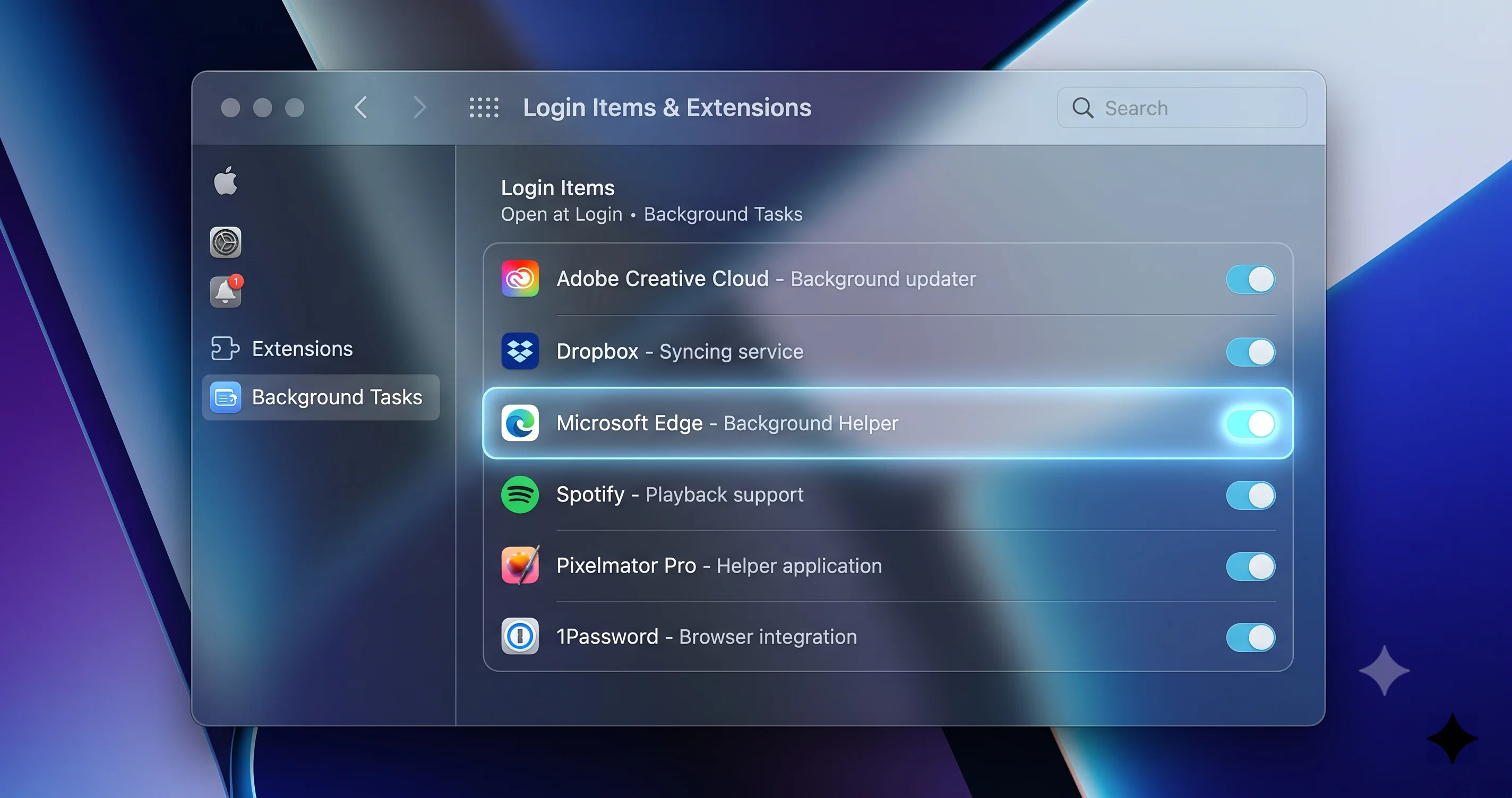
Here is what people described. After updating to 26.5.1, some users found that the update had silently switched off background-item and extension permissions for third-party apps — the toggles that let an app run a helper process quietly in the background even when its main window is closed. For most apps that would be a minor annoyance. But for input utilities, it is catastrophic, because those helper processes are the app. A mouse-customization tool, a trackpad gesture enhancer, a scroll-direction or acceleration utility, a keyboard remapper — each of these relies on a background daemon that intercepts and reshapes input events. Turn that daemon off, and the app can no longer do its job. Depending on how the utility hooks into the input stream, the result can range from your custom gestures simply not working to the pointer freezing outright, because the input event pipeline is left in a half-configured state.
What Background Items Actually Are
A "background item" is macOS's modern, consolidated name for the helpers that used to be scattered across login items, launch agents, launch daemons, and kernel or system extensions. Rather than making you hunt through hidden folders, Apple gathers them into one place so you can see — and control — everything that an app is allowed to run behind the scenes. When you install an app that needs a persistent helper, macOS registers it here and, ideally, asks your permission. The helper is what keeps the app's functionality alive between launches: syncing, monitoring, and, in the case of input tools, continuously processing the stream of mouse and keyboard events. If you want the full picture of how this subsystem works and how to audit everything running on your Mac, our complete guide to Login Items and background apps is the deep reference; the steps below are the focused fix for the frozen-pointer case.
Why an Update Would Disable Them
Major and minor macOS updates both touch the security and permissions machinery, and it is not unusual for an update to reset or re-prompt for permissions as a side effect of tightening security posture or of the update process replacing system components. Sometimes this is deliberate — Apple periodically re-verifies extensions and may hold a newly untrusted helper until you re-approve it. Sometimes it appears to be an unintended consequence, where toggles that were on before the update come back off afterward. Either way, from your perspective the symptom is the same: an app that worked yesterday is now missing its background helper, and something it controlled has stopped functioning. This same class of update-time permission and extension breakage showed up in other 26.5.1 reports too, including the network extension and content-filter shutdown issue on M5 Macs, which is a useful reminder that a single update can quietly disable more than one kind of helper at once.
Step-by-Step: Re-Enable Background Items and Extensions
You can do all of this with the keyboard if your pointer is dead, using the navigation moves from the previous section. Take it slowly and check each toggle.
- Open System Settings. Press Command + Space, type "System Settings," and press Return, or open it from the Apple menu via Control + F2.
- Navigate to General, then to Login Items & Extensions. (On some builds the pane is labeled "Login Items"; the Extensions controls may sit within it or just below it. Labels have shifted slightly across Tahoe releases, so look for the section that lists apps allowed to run in the background.)
- Scroll to the Allow in the Background list. This shows every app permitted to run a background helper, each with its own toggle. Look specifically for your input-related utilities — mouse tools, trackpad gesture apps, keyboard remappers, window managers that use gestures — and check whether their toggles are off.
- Turn on any input-related toggle that got disabled. You may be asked to authenticate with your password or Touch ID to confirm the change.
- Find the Extensions controls (often an "Extensions" button or a nearby section for driver and system extensions). Open it and look for any third-party input driver or system extension that is disabled or awaiting approval, and re-enable or approve it. Some driver-level input tools install a system extension separately from their background item, so check both.
- Quit and relaunch the affected app so its helper registers cleanly, or restart the Mac to be certain every re-enabled daemon starts fresh. A restart is the more reliable choice here, because a half-loaded input helper can leave the event pipeline in a strange state that only a clean boot fully clears.
After re-enabling and restarting, test the pointer. If a disabled background item was your problem, the trackpad or mouse should behave normally again. If the toggle refuses to stay on, or the app still does not work with the toggle on, the app itself may need updating to a build compatible with 26.5.1 — check the developer's site or the App Store for an update, because input utilities frequently need a new release after a macOS bump to keep working against the latest security model. And if none of your input tools appear in the list at all, this simply is not your cause, and you should move on to the Bluetooth and preference-reset fixes below.
Fixing a Bluetooth Mouse or Trackpad
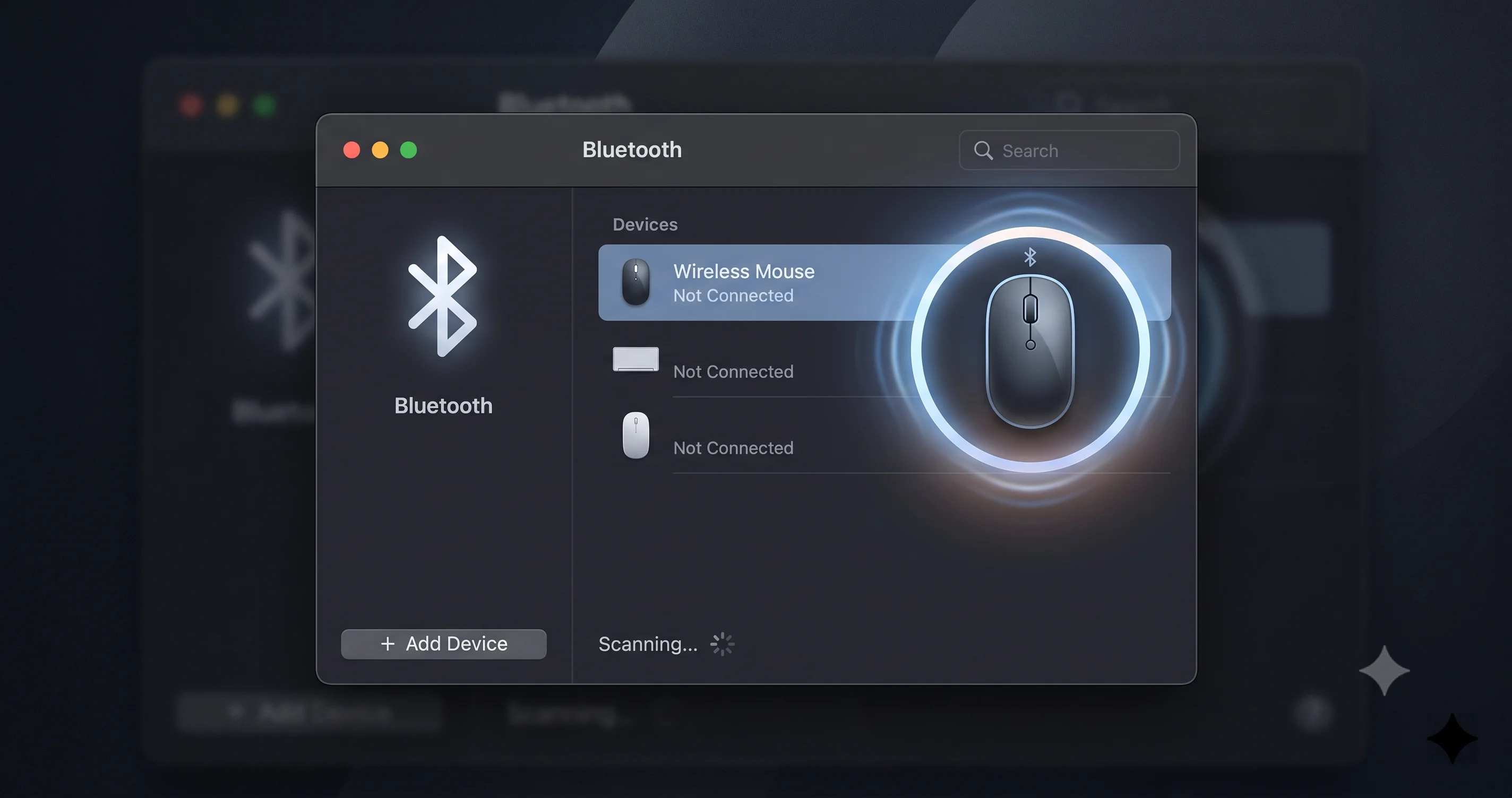
If your frozen device connects over Bluetooth — a Magic Mouse, a Magic Trackpad, or any third-party wireless pointer — the freeze may have nothing to do with the update's permissions and everything to do with the wireless link itself. Bluetooth connections are more fragile than wired ones, and a system update is exactly the kind of event that can leave a paired device in a confused state on reconnect. Work through these in order, because they escalate from trivial to more involved.
Check the Battery and the Basics First
It sounds too simple, but a dying battery is one of the most common causes of a Bluetooth pointer that freezes, stutters, or drops out intermittently, and it loves to coincide with an update purely by chance. If your Magic Mouse or Trackpad is rechargeable, plug it in with a Lightning or USB-C cable for a few minutes — on a Magic Mouse, note that plugging in also switches it to a wired connection, which is a handy way to regain control immediately even while it charges. If your device takes replaceable batteries, swap in fresh ones. While you are at it, make sure the device's power switch is actually on, that nothing is physically blocking the Bluetooth path, and that you are within a reasonable range of the Mac. Rule out the boring explanations before you start unpairing things.
Toggle Bluetooth Off and On
The lightest software fix is to cycle Bluetooth. Open System Settings > Bluetooth (Spotlight to it with Command + Space if the pointer is dead), and turn Bluetooth off, wait about ten seconds, then turn it back on. This forces the Mac to tear down and rebuild every Bluetooth connection, which often re-establishes a link that got stuck during the update's reboot. You can also toggle it from the Control Center menu bar item using keyboard navigation. Give the devices a few seconds to reconnect after you turn it back on; a Magic Trackpad in particular can take a moment to reappear.
Re-Pair the Device
If a simple toggle does not do it, remove the device and pair it again from scratch, which clears out any stale pairing data left over from before the update. In System Settings > Bluetooth, select the frozen device, choose to Forget or remove it, then put the device back into pairing mode and add it again. This is easiest if you have a second pointer — a wired USB mouse — plugged in so you are not trying to un-pair your only input device with that same device. For a Magic Trackpad or Magic Mouse, connecting it by cable temporarily makes the whole un-pair-and-re-pair dance much less stressful because you keep pointer control throughout. If your keyboard and mouse both freeze specifically at the login screen over Bluetooth, that is a distinct and well-known pattern with its own fixes; our guide to Bluetooth keyboard and mouse not working at the login screen addresses that exact scenario, because the login screen loads Bluetooth differently from the logged-in desktop.
Reset the Bluetooth Subsystem
When individual devices keep misbehaving across the board, the Mac's Bluetooth subsystem itself may need a reset. On current macOS, Apple removed the old hidden Shift-Option Bluetooth debug menu, so the supported approach is to toggle Bluetooth off and on, remove and re-add problem devices, and — if problems persist — restart the Mac, which reinitializes the Bluetooth stack cleanly. If Bluetooth is unreliable for everything (mouse, keyboard, headphones all dropping), that points to the subsystem rather than any one device, and a full restart plus re-pairing your key devices is the most dependable reset available now. Persistent, system-wide Bluetooth flakiness after an update can also be a symptom of a deeper problem, so if restarting does not stabilize it, keep the Safe Mode step below in mind.
Wired and USB Input Fixes
A wired mouse takes Bluetooth entirely out of the equation, which is why plugging one in is such a useful diagnostic — but wired devices have their own small set of failure modes worth checking, especially right after an update that may have reset USB or driver behavior.
Start with the physical connection, methodically. Unplug the mouse and plug it back in firmly; a partially seated connector can deliver power without a reliable data link. Then try a different port, because a single flaky or under-powered port can leave a device half-working, and Macs with only a couple of ports sometimes route power differently depending on what else is connected. If you are going through a USB hub or a dock, that is a prime suspect: plug the mouse directly into the Mac instead, since hubs and docks frequently need their own firmware or driver updates to stay compatible after a macOS release, and a dock that worked before 26.5.1 can start dropping devices afterward. Also test the mouse on a different computer if you can, or test a different mouse on your Mac; either result quickly tells you whether the fault is the device or the machine.
For a wired gaming mouse or any device with its own driver software or onboard configuration app, the update may have left the driver stale. Check the manufacturer's site for a version that lists compatibility with the current macOS, and reinstall or update it. As with the background-item utilities above, third-party input drivers frequently need a fresh release after a macOS update, and running an outdated driver against a newly updated system is a classic recipe for a pointer that freezes, jumps, or ignores its custom buttons. If reinstalling the driver requires re-approving a system extension, you will be sent back to the Login Items & Extensions pane to allow it — the same place the background-items fix lives.
Reset Trackpad and Mouse Preference Files
When the trackpad or mouse hardware is clearly fine — a wired mouse works, the device works on another Mac — but your pointer behaves erratically, freezes, or ignores gestures on this Mac, a corrupted preference file is a strong suspect. macOS stores your trackpad and mouse settings in property list (.plist) files, and an interrupted write, a bad migration during the update, or simple corruption can leave those files in a state that makes input misbehave. Deleting them is safe: macOS regenerates fresh defaults on the next login, and all you lose is your customized gesture and tracking settings, which you can quickly set again.
The files that govern pointing devices live in your user preferences folder and in the ByHost folder. The ones most worth removing when chasing a frozen or erratic pointer are:
com.apple.AppleMultitouchTrackpad.plist— settings for a built-in or Magic Trackpadcom.apple.driver.AppleBluetoothMultitouch.trackpad.plist— Bluetooth trackpad driver settingscom.apple.driver.AppleBluetoothMultitouch.mouse.plist— Bluetooth mouse (Magic Mouse) driver settingscom.apple.AppleMultitouchMouse.plist— Magic Mouse multitouch settingscom.apple.driver.AppleHIDMouse.plist— generic HID (wired) mouse settings
Before deleting anything, back up the files so you can restore them if removing them does not help. The cleanest way to do all of this is from Terminal (open it via Spotlight with Command + Space if your pointer is out of action). First, move the preference files to your Desktop as a backup, then log out and back in so macOS rebuilds them:
mkdir ~/Desktop/input-plist-backup
mv ~/Library/Preferences/com.apple.AppleMultitouchTrackpad.plist ~/Desktop/input-plist-backup/ 2>/dev/null
mv ~/Library/Preferences/com.apple.AppleMultitouchMouse.plist ~/Desktop/input-plist-backup/ 2>/dev/null
mv ~/Library/Preferences/ByHost/com.apple.driver.AppleBluetoothMultitouch.trackpad.*.plist ~/Desktop/input-plist-backup/ 2>/dev/null
mv ~/Library/Preferences/ByHost/com.apple.driver.AppleBluetoothMultitouch.mouse.*.plist ~/Desktop/input-plist-backup/ 2>/dev/null
The ByHost files include a long hardware identifier in the middle of the filename, which is why the commands above use a wildcard (*) — the exact name varies from Mac to Mac, so do not expect the filename to match verbatim. After moving the files, restart or log out and back in. macOS finds no preference files, generates clean ones with default settings, and your trackpad and mouse start from a known-good baseline. Then reopen System Settings and set your tracking speed, scroll direction, and gestures the way you like them. If the freeze was caused by a corrupted plist, it will be gone; if it persists, you have cleanly ruled out preference corruption and can restore your backups by moving the files back.
When a Runaway Process Freezes the Pointer
Sometimes the pointer is not really the problem — the whole system is bogged down so heavily that macOS cannot keep the cursor moving smoothly, and what looks like a frozen trackpad is actually a Mac that is out of breath. This is the beach-ball scenario, and it has a completely different fix from everything above: instead of touching your input devices, you need to find and stop whatever is eating the machine's resources.
The tool for this is Activity Monitor, and you can reach it even without a working pointer. Press Command + Space, type "Activity Monitor," and press Return. Once it opens, use the keyboard to sort by CPU: with Full Keyboard Access on, you can Tab to the column headers, or simply watch the list for a process sitting at a wildly high CPU percentage — anything pinned near or above 100% for a sustained period is your suspect. Common offenders right after an update include background indexing and maintenance tasks (Spotlight re-indexing your drive, Photos re-analyzing your library, or system processes finishing post-update housekeeping), which can hammer the CPU for a while but usually finish on their own if you give them time. A third-party app stuck in a loop, by contrast, will not resolve itself and needs to be quit.
Killing a Hung Process or the Dock
If you identify a runaway app, select it in Activity Monitor and use the Stop (X) button to quit it, choosing Force Quit if a normal quit does not take. You can also press Command + Option + Escape to open the Force Quit Applications window, which lets you kill a hung app entirely from the keyboard — Tab and arrow keys to select it, then Return to force quit. If the cursor is visible but the interface seems stuck — the Dock unresponsive, the menu bar frozen — restarting the Dock or the window server can jolt everything back to life. In Activity Monitor, search for Dock, select it, and quit it; macOS relaunches it automatically within a second or two, and that relaunch frequently clears a stuck UI. As a heavier option, quitting WindowServer forces a full graphics-session restart (it logs you out), which can recover a truly wedged display and pointer, though you should save open work first if you possibly can. For the deeper, more systematic version of this hunt — spotting memory pressure, thermal throttling, and the specific processes that most often misbehave — our freezing, lag, and beach ball fix guide is the companion piece, and the broader system freezing fix guide covers whole-system hangs that go beyond the pointer.
Boot Into Safe Mode to Isolate the Cause
If you have re-enabled background items, fixed Bluetooth, reset preferences, and hunted for runaway processes without success, Safe Mode is your next diagnostic. Safe Mode starts macOS with a stripped-down environment: it loads only essential system components, skips your third-party login items and background helpers, clears certain caches, and runs a check on your startup disk. For a frozen-pointer problem, that combination is exactly what you want, because it answers a crucial question — is the freeze caused by the base system, or by something you added on top of it?
The way you enter Safe Mode depends on your Mac's chip. On an Apple silicon Mac (M-series), shut down fully, then press and hold the power button until you see "Loading startup options," select your startup disk, then hold Shift and click "Continue in Safe Mode." On an Intel Mac, restart and immediately hold the Shift key until the login window appears, then release it. You will know you are in Safe Mode because the words "Safe Boot" appear in the login screen's menu bar, and the system will generally feel a bit plainer and slower because many enhancements are disabled.
Now test your pointer in Safe Mode. If the trackpad and mouse work perfectly here but freeze in a normal boot, you have proven that the culprit is a third-party addition — most likely one of those input utilities or its background helper — because Safe Mode does not load them. That result sends you straight back to the Login Items & Extensions pane to identify and update or remove the offending app. If, on the other hand, the pointer freezes even in Safe Mode, the problem is deeper — it lives in the base system or the hardware — and that meaningfully raises the odds that you are dealing with a genuine hardware fault or a system installation that needs repair. Either way, Safe Mode has told you which direction to go. Restart normally to leave Safe Mode when you are done testing.
When It Is Actually Failing Hardware
Everything so far has assumed the freeze is fixable in software, which is true the overwhelming majority of the time after an update. But hardware does fail, and it is worth knowing the signs that point that way so you do not spend days resetting plists on a trackpad that has physically died. The strongest single indicator is the second-device test: if a known-good wired mouse also freezes on your Mac, and it freezes even in Safe Mode, you have removed almost every software explanation, and the fault is more likely in the Mac itself — the logic board, the internal trackpad cable, or the input controller.
There are a few classic physical patterns worth recognizing. A built-in trackpad that clicks unevenly, feels stuck, or registers phantom touches can be suffering from a swollen battery pressing up against it from underneath — a genuine safety issue on aging laptops that warrants immediate professional attention, not a software fix. A trackpad or keyboard that works intermittently and correlates with the machine being hot or physically flexed suggests a marginal internal connector. And a Magic Mouse or Trackpad that misbehaves on every computer you connect it to, not just the updated one, is simply a failing peripheral that needs replacing. None of these are your fault, and none of them will be solved by re-enabling a background item.
One point specific to modern Macs: on Apple silicon, the old troubleshooting rituals of resetting the SMC and NVRAM no longer exist. Apple silicon has no user-resettable SMC, and the NVRAM is managed automatically — a normal restart performs the equivalent housekeeping. So if a guide from a few years ago tells you to hold a four-key combination at boot to "reset" your way out of a frozen trackpad, know that it does not apply to your M-series Mac, and that a clean restart is the real modern equivalent. When software fixes and a second input device have both failed, and especially if the trackpad shows any physical symptom, the right next step is Apple Support or an authorized service provider to run hardware diagnostics — not another round of settings changes.
Preventing This on the Next Update
Once your pointer is working again, a little preparation makes the next macOS update far less likely to leave you staring at a dead cursor. The theme of everything above is that updates can disturb the software state your input devices depend on, so the goal is to make yourself resilient to that disturbance.
The most valuable habit is to keep a cheap wired USB mouse in your desk drawer. It costs almost nothing, it needs no pairing, and it will get you full pointer control the instant a Bluetooth or trackpad problem strikes after an update — which turns a panic into a minor inconvenience. Beyond that, before you install any update, note which input utilities you rely on (your remapper, your gesture tool, your mouse customizer) so that if one of them stops working afterward, you know exactly where to look in Login Items & Extensions rather than discovering the loss by accident. It also pays to update those utilities to their latest versions before or right after a macOS update, because developers routinely ship compatibility fixes around each release, and running the current build dramatically cuts the chance of a broken helper.
Finally, adopt a light routine for the first boot after any update: once you reach the desktop, take thirty seconds to open System Settings > General > Login Items & Extensions and confirm that the background items and extensions you expect are still enabled. Catching a toggle that got flipped off before you hit a problem is far less stressful than diagnosing a frozen pointer after the fact. The same quick check protects you against the broader class of update-time permission resets that affect more than just input devices — the same mechanism that can disable a mouse helper is what disabled input permissions in the microphone-not-working input permissions issue, so a habit of verifying permissions after each update pays off across your whole system.
Troubleshooting Common Issues
Problem: My cursor is completely frozen at the login screen, before I can even sign in.
Solution: A freeze this early points to Bluetooth or hardware, not your login items, because your user helpers have not run yet. Plug in a wired USB mouse to regain control, or force-restart by holding the power button for ten seconds. If a Bluetooth mouse and keyboard both freeze specifically at login, that is a known pattern — the login screen handles Bluetooth differently from the desktop — and re-pairing plus a restart usually resolves it.
Problem: The pointer works fine until I open one particular app, then it freezes.
Solution: That app or its background helper is almost certainly the cause. Check whether it is an input-related utility whose background item got disabled by the 26.5.1 update, and re-enable it under Login Items & Extensions. If the app is up to date and still freezes the pointer, it may be incompatible with 26.5.1 and need a developer update. Booting into Safe Mode, where that app will not load, confirms the diagnosis.
Problem: I re-enabled the background item toggle, but it switches itself back off.
Solution: A toggle that refuses to stay on usually means the app's helper is not passing macOS's current security verification — often because the app needs an update built for 26.5.1. Update the app from the developer's site or the App Store, then re-enable the toggle and restart. If a separate system extension is involved, approve it in the Extensions section too, since driver-level input tools frequently register both a background item and an extension.
Problem: A wired mouse works, but my trackpad and Magic Mouse are both dead.
Solution: Since a wired mouse proves the Mac can draw a cursor, the fault is in the wireless or trackpad input path. Cycle Bluetooth off and on, re-pair the Magic Mouse, and reset the trackpad and mouse preference plists listed earlier. If the built-in trackpad alone stays dead after resetting preferences and a Safe Mode test, suspect a hardware issue such as an internal cable or a swollen battery pressing on the trackpad.
FAQ
Did macOS Tahoe 26.5.1 really break mice and trackpads?
There is no Apple-confirmed universal mouse bug in 26.5.1, so treat this carefully. What users reported on forums is that the update disabled some background-item and login-item permissions, which broke the helper processes that input utilities depend on. That affected some Macs, not all, and re-enabling those toggles under Login Items & Extensions restored the pointer for many people who hit it.
How do I restart my Mac when the cursor will not move at all?
Use the keyboard. Press Control + Option + Command + Power (or Media Eject) for a clean shutdown, or Control + Power to open the restart dialog and press R. If the keyboard is also unresponsive, hold the physical power button for about ten seconds to force a shutdown, wait a moment, and press it again to boot. Try the graceful options before the forced power-off.
Which preference files should I delete to reset trackpad and mouse settings?
Move com.apple.AppleMultitouchTrackpad.plist, com.apple.AppleMultitouchMouse.plist, and the ByHost driver files com.apple.driver.AppleBluetoothMultitouch.trackpad and com.apple.driver.AppleBluetoothMultitouch.mouse out of your Library, then log out and back in. macOS rebuilds them with defaults. Back them up first so you can restore if it does not help, and remember the ByHost filenames include a hardware ID.
Do I need to reset the NVRAM or SMC on my Apple silicon Mac?
No. Apple silicon Macs have no user-resettable SMC, and the NVRAM is managed automatically, so the old multi-key reset shortcuts do not apply to M-series machines. A normal restart performs the equivalent housekeeping. If a older guide tells you to hold a key combination at boot to reset a frozen trackpad, ignore it on Apple silicon and simply restart cleanly instead.
How do I tell if my frozen trackpad is a hardware failure?
Run the second-device test. If a known-good wired mouse also freezes, and the freeze persists even in Safe Mode, most software causes are ruled out and hardware becomes likely. Physical signs like a trackpad that clicks unevenly, feels stuck, or registers phantom touches can indicate a swollen battery pressing on it, which needs professional service rather than any software fix.
Why does Safe Mode fix my pointer but the problem comes back on a normal boot?
Safe Mode does not load third-party login items and background helpers, so if your pointer works there but freezes normally, one of those add-ons is the cause — very likely an input utility whose helper conflicts with 26.5.1. Return to Login Items & Extensions to identify it, update it to a current build, or remove it. Safe Mode has effectively pointed you at the culprit.
Conclusion
A mouse or trackpad that freezes right after installing macOS Tahoe 26.5.1 feels like a hardware emergency, but it almost never is one. Far more often it is a software state that the update disturbed — a background item quietly switched off, a helper daemon that failed to relaunch, a Bluetooth link that did not reconnect, or a runaway process starving the system. Every one of those is recoverable, and most are recoverable in minutes once you know the order to try things in and how to drive macOS from the keyboard while the pointer is out of action.
Work the ladder deliberately. Get to a clean restart first, using the keyboard shortcuts rather than a hard power-off when you can. Then check the 26.5.1 background-items scenario under System Settings > General > Login Items & Extensions, re-enabling any disabled input helpers, because that is the fix that matched so many post-update reports. From there, address Bluetooth with battery, toggle, re-pair, and reset; test a wired mouse to split hardware from software; reset the trackpad and mouse preference plists; hunt a runaway process in Activity Monitor; and boot into Safe Mode to isolate a third-party cause. Reserve the hardware conclusion for the very end, after software fixes and a second input device have both failed.
The best outcome is the one where this never happens again. Keep a wired mouse in the drawer, update your input utilities around each macOS release, and take thirty seconds after every update to confirm your background items and extensions are still enabled. If Bluetooth trouble at the login screen was part of what dragged you here, our Bluetooth keyboard and mouse login-screen fix closes that loop, and if the real problem turned out to be system-wide slowdowns, the freezing and beach ball guide will take you the rest of the way. A little preparation now means the next update will be a routine restart rather than a frozen-cursor scramble.