macOS Tahoe Continuity & Sync Complete Troubleshooting Guide 2025: Fix iCloud Drive, Handoff, Universal Clipboard Issues
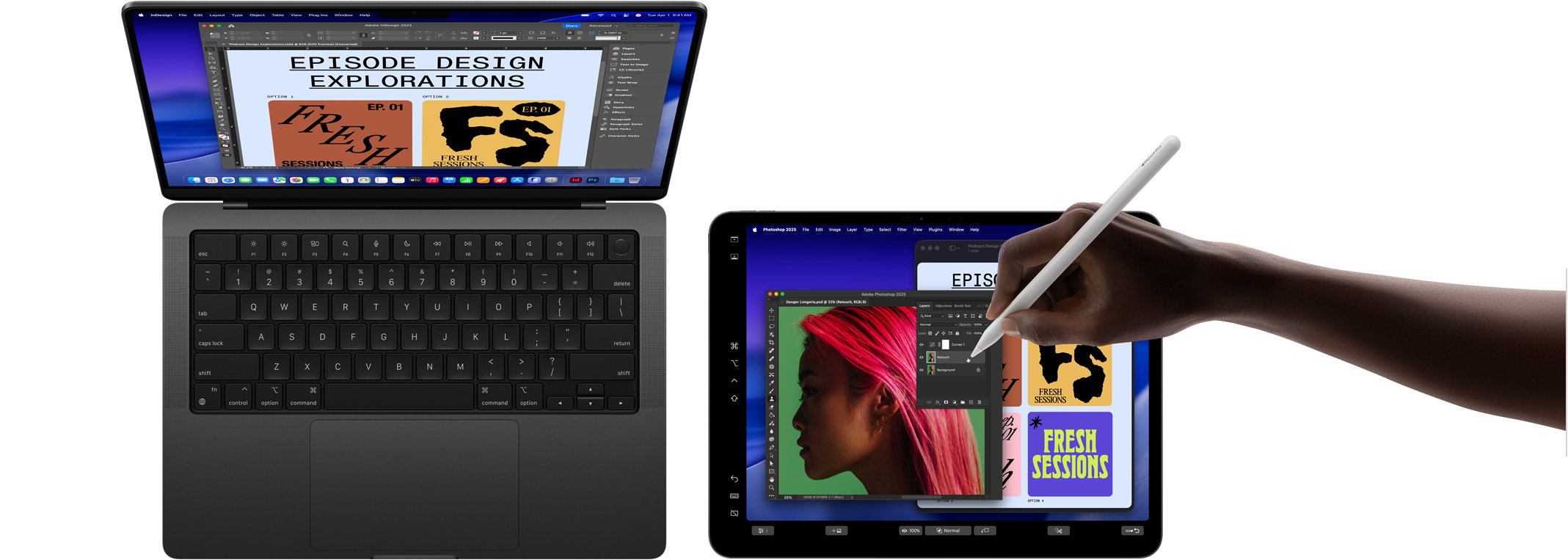
Comprehensive guide to diagnosing and fixing macOS Tahoe 26 sync issues across Apple devices. Expert solutions for iCloud Drive stuck uploads, Handoff not working, Universal Clipboard failures, Apple Watch Auto Unlock problems, and complete Continuity troubleshooting with Terminal commands and system logs analysis.
The seamless integration between Mac, iPhone, iPad, and Apple Watch defines the Apple ecosystem experience. macOS Tahoe 26 introduces significant Continuity enhancements, including the revolutionary Phone app for Mac and improved Live Activities support. However, sync issues—from iCloud Drive uploads stuck indefinitely to Handoff mysteriously failing—can disrupt this carefully crafted experience. This comprehensive guide provides expert diagnostic strategies and proven solutions for every major Continuity and sync problem in macOS Tahoe.
Executive Summary: macOS Tahoe Continuity Landscape
What's New in macOS Tahoe Continuity
macOS Tahoe 26 represents a significant evolution in Apple's Continuity framework, introducing new cross-device features while refining existing synchronization technologies.
Major Continuity Improvements in macOS Tahoe:
- Phone App for Mac: Make and receive iPhone calls directly through dedicated Mac application
- Live Activities Support: View real-time updates from iPhone apps (food delivery, sports scores, ride sharing) on Mac
- Enhanced Handoff: Improved reliability and faster transfer speeds between devices
- Clipboard History: New systemwide clipboard manager (Note: does NOT sync across devices)
- iCloud Drive Optimizations: Faster sync speeds and improved conflict resolution
- Apple Watch Auto Unlock Refinements: More reliable authentication on wake from sleep
Critical Known Issues in macOS Tahoe 26.0-26.1:
- iCloud Drive "Waiting to Upload" Stuck: Particularly affects Git repositories and node_modules folders
- Handoff Intermittent Failures: Especially on corporate/enterprise WiFi networks
- Universal Clipboard Delays: Clipboard content takes 10-30 seconds to sync or fails entirely
- Apple Watch Auto Unlock: High failure rate on MacBook wake from sleep (resolved in 26.1.1)
- VM iCloud Access Broken: Virtual machines cannot access iCloud services (no current workaround)
- Instant Hotspot Detection Issues: iPhone hotspot not appearing in WiFi menu
What This Guide Covers:
This comprehensive troubleshooting guide addresses all major Continuity and sync problems through:
- Detailed diagnostic procedures for identifying root causes
- Step-by-step solutions with Terminal commands and system log analysis
- Preventive measures to avoid future sync disruptions
- macOS version-specific fixes for Tahoe 26.0, 26.1, and anticipated 26.2 improvements
- Network configuration requirements for enterprise and home environments
- Performance optimization for multi-device workflows
Understanding Apple Continuity Architecture
How Continuity Technologies Work
Apple Continuity isn't a single feature but rather a collection of technologies working together to create seamless cross-device experiences. Understanding these underlying mechanisms is essential for effective troubleshooting.
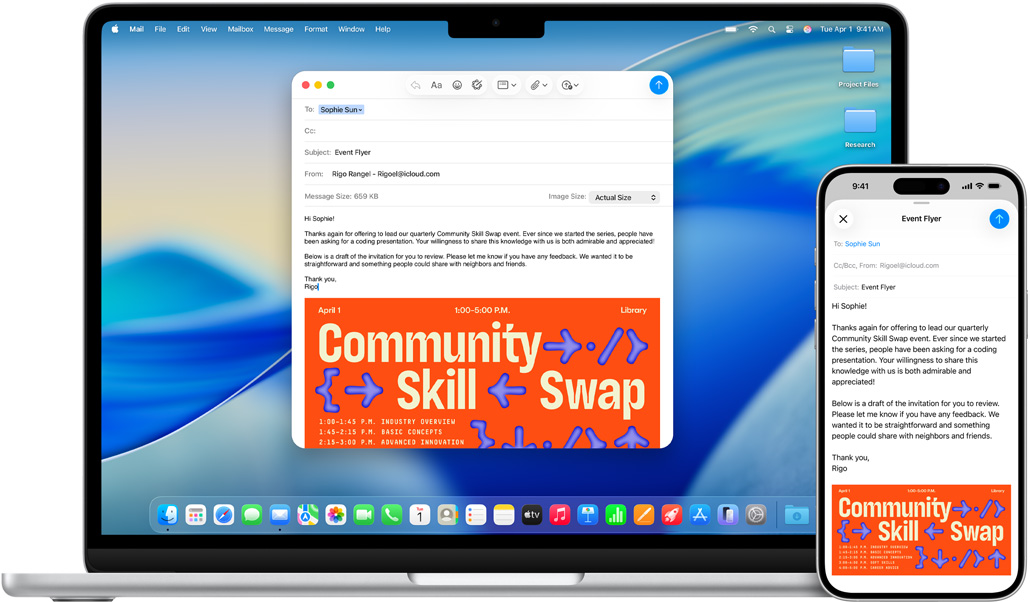
Core Continuity Technologies:
- Handoff: Transfer active tasks between devices (Safari tabs, Mail drafts, Pages documents)
- Universal Clipboard: Copy on one device, paste on another
- iPhone Cellular Calls: Make/receive phone calls on Mac, iPad
- SMS/Text Message Forwarding: Send/receive SMS texts from Mac
- Instant Hotspot: Automatic iPhone hotspot detection and connection
- AirDrop: Wireless file transfer between Apple devices
- Universal Control: Control iPad with Mac keyboard and mouse
- Sidecar: Use iPad as extended Mac display
- Apple Watch Auto Unlock: Unlock Mac automatically when wearing Apple Watch
- Continuity Camera: Use iPhone as Mac webcam
Technical Requirements for All Continuity Features:
Hardware Requirements:
- Bluetooth 4.0 or later (all Macs since 2012)
- WiFi with 802.11ac or later (all Macs since 2013)
- Same Apple ID across all devices
- Two-factor authentication enabled for Apple ID
- Handoff support: Mac models 2012 or later (with Continuity Activation Tool on some older models)
Software Requirements:
- macOS Tahoe 26.0 or later on Mac
- iOS 18 or later on iPhone/iPad
- watchOS 11 or later on Apple Watch
- Devices signed into same iCloud account
- Bluetooth and WiFi enabled on all devices
Network Requirements:
- Devices on same WiFi network (or Bluetooth range for some features)
- Bonjour protocol enabled (UDP ports 5353, TCP/UDP ports 3689)
- No firewall blocking mDNS/Bonjour traffic
- IPv6 enabled (critical for Instant Hotspot)
- Personal Hotspot enabled on iPhone (for Instant Hotspot feature)
The Dual-Channel Communication System
Continuity uses a sophisticated dual-channel system:
Bluetooth Low Energy (BLE) - Discovery Channel:
- Purpose: Device discovery and proximity detection
- Range: Approximately 30 feet (10 meters)
- Power: Extremely low power consumption
- Function: Announces device presence and capabilities
WiFi - Data Transfer Channel:
- Purpose: Actual data transmission (clipboard content, Handoff state)
- Speed: High bandwidth for large transfers
- Requirement: Devices must be on same network or use WiFi Direct (peer-to-peer WiFi)
- Function: Transfers actual content and application state
Critical Insight: If Bluetooth discovers devices but WiFi isn't properly configured, Continuity features will appear available but fail when attempting actual transfer.
iCloud Drive Sync Troubleshooting
Understanding iCloud Drive Architecture in macOS Tahoe
iCloud Drive on macOS uses the bird background process to manage all cloud synchronization. Understanding this process is key to diagnosing sync issues.
iCloud Drive Core Components:
- bird: Primary iCloud Drive daemon responsible for all sync operations
- cloudd: iCloud account management and authentication
- com.apple.bird.plist: Configuration and state information
- ~/Library/Mobile Documents/: Local iCloud Drive storage location
iCloud Drive Status Indicators:


- Cloud with down arrow: File stored in iCloud, not downloaded locally
- Green checkmark: File downloaded and synced
- Circular progress indicator: Actively uploading or downloading
- Exclamation mark: Sync error or conflict
Problem 1: Files Stuck "Waiting to Upload"
Symptoms:
- Files show "Waiting to Upload" status for hours or days
- Progress indicator never advances
- New files upload successfully but old files remain stuck
- Particularly affects Git repositories,
node_modules, and.DS_Storefiles
Root Causes:
- File system extended attributes corruption
birdprocess deadlock or queue congestion- Network throttling or ISP upload bandwidth limitations
- Temporary iCloud server issues
- File permissions preventing read access
- Files containing special characters in filenames
Complete Diagnostic Procedure:
# Step 1: Check bird process status
ps aux | grep bird | grep -v grep

# Step 2: View recent iCloud Drive logs
log show --predicate 'process == "bird"' --last 30m --info

# Step 3: Check iCloud Drive storage quota
brctl quota ~/Library/Mobile\ Documents/com~apple~CloudDocs

# Step 4: Identify problematic files
brctl diagnose -d ~/Library/Mobile\ Documents/com~apple~CloudDocs -s -o ~/Desktop/icloud-diagnosis.txt

# Step 5: Check network connectivity to iCloud
nc -zv p01-ckdatabase.icloud.com 443
nc -zv p48-content.icloud.com 443
Solutions (Try in Order):
Solution 1: Force bird Process Restart
# Quit bird daemon
killall bird

# bird automatically restarts; monitor restart
log stream --predicate 'process == "bird"' --level info

# Wait 2-3 minutes for bird to reinitialize
# Check if uploads resume in Finder
Solution 2: Reset iCloud Drive Sync State
# Stop bird process
killall bird

# Remove bird cache and state
rm ~/Library/Application\ Support/CloudDocs/session/db/client.db
rm ~/Library/Application\ Support/CloudDocs/session/db/server.db

# Remove bird preferences (forces reconfiguration)
defaults delete com.apple.bird

# Restart Mac to cleanly reinitialize bird
sudo shutdown -r now
Solution 3: Selective File Exclusion (For problem files)
If specific files (like .git directories or node_modules) consistently fail:
# Move problematic directory out of iCloud Drive
mv ~/Library/Mobile\ Documents/com~apple~CloudDocs/Projects/MyProject ~/.

# Wait for iCloud to recognize removal
sleep 60

# Exclude from iCloud using .nosync method
mv ~/.MyProject ~/Library/Mobile\ Documents/com~apple~CloudDocs/Projects/MyProject.nosync

# .nosync directories are ignored by iCloud Drive but remain accessible
Solution 4: Complete iCloud Drive Reset (Nuclear Option)
⚠️ Warning: This logs you out of iCloud Drive and removes all local copies. Only use if other solutions fail.
# 1. Sign out of iCloud Drive
# System Settings > Apple ID > iCloud > iCloud Drive > Turn Off

# 2. Remove all iCloud Drive local data
rm -rf ~/Library/Mobile\ Documents/*
rm -rf ~/Library/Application\ Support/CloudDocs/*

# 3. Restart Mac
sudo shutdown -r now

# 4. Sign back into iCloud Drive
# System Settings > Apple ID > iCloud > iCloud Drive > Turn On

# 5. Wait 30-60 minutes for full re-sync
Preventive Measures:
- Exclude Development Dependencies: Keep
node_modules,.git,venvoutside iCloud Drive - Use .nosync: Append
.nosyncto folder names for local-only storage in iCloud Drive path - Monitor Storage: Keep at least 20% iCloud storage free to prevent queue backups
- Regular Restarts: Restart bird weekly with
killall birdto prevent memory leaks - Avoid Special Characters: Don't use
/,:, or Unicode in filenames destined for iCloud
Problem 2: iCloud Drive Sync Conflicts
Symptoms:
- Duplicate files with "(Conflict)" suffix appear
- Same document edited on multiple devices shows conflicts
- Files randomly revert to older versions
Root Cause:
- Simultaneous edits on multiple devices without proper lock coordination
- Network interruptions during sync causing partial uploads
- System clock drift between devices causing timestamp conflicts
Solutions:
Solution 1: Resolve Individual Conflicts
# Find all conflict files
find ~/Library/Mobile\ Documents/com~apple~CloudDocs -name "*Conflict*"

# Manual resolution:
# 1. Compare conflict file with original
# 2. Merge changes if necessary
# 3. Delete conflict file after merging
# 4. Keep only one authoritative version
Solution 2: Prevent Future Conflicts
# Ensure system time sync is enabled (prevents timestamp conflicts)
sudo systemsetup -setusingnetworktime on

# Verify time sync
sudo systemsetup -getusingnetworktime

# Verify timezone is correct
sudo systemsetup -gettimezone
sudo systemsetup -settimezone America/New_York  # adjust for your region

# Check last NTP sync
sntp -s time.apple.com
Handoff Troubleshooting
Understanding Handoff in macOS Tahoe
Handoff allows seamless transition of activities between Apple devices. In macOS Tahoe, Handoff has been enhanced with:
- Faster Detection: Reduced latency from 5-10 seconds to 2-3 seconds
- More Apps: Support for additional third-party applications
- Live Activities: Real-time updates from iPhone apps appear on Mac
- Phone App Integration: Handoff of phone calls to new dedicated Mac Phone app
Problem 3: Handoff Not Appearing or Working
Symptoms:
- Handoff icon doesn't appear in Dock or app switcher
- Clicking Handoff icon fails to transfer activity
- Works intermittently or only with specific apps
- Handoff works on some device pairs but not others
Diagnostic Checklist:
# Check Bluetooth status and version
system_profiler SPBluetoothDataType | grep -A5 "Bluetooth"

# Check WiFi connection and network
networksetup -getairportnetwork en0

# Verify Handoff is enabled in System Settings
defaults read com.apple.coreservices.useractivityd ActivityAdvertisingAllowed
# Should return 1 (enabled)

# Check Handoff daemon status
ps aux | grep -i "useractivityd" | grep -v grep
Solutions:
Solution 1: Verify Basic Requirements
-
Check System Settings:
- Mac: System Settings > General > AirDrop & Handoff > Allow Handoff between this Mac and your iCloud devices (enabled)
- iPhone: Settings > General > AirPlay & Handoff > Handoff (enabled)
-
Verify Same Apple ID:
# Check signed-in Apple ID on Mac defaults read MobileMeAccounts Accounts | grep AccountID # Should match Apple ID on iPhone (check in Settings > Your Name) -
Confirm Same WiFi Network:
- Mac and iPhone must be on same WiFi network
- Enterprise networks with client isolation may block Handoff
Solution 2: Reset Bluetooth and WiFi
# Method 1: Quick Reset via Terminal
sudo ifconfig en0 down && sudo ifconfig en0 up
sudo pkill bluetoothd

# Method 2: Complete Network Reset
# Turn off WiFi
sudo networksetup -setairportpower en0 off

# Turn off Bluetooth
blueutil -p 0

# Wait 10 seconds
sleep 10

# Turn on Bluetooth
blueutil -p 1

# Turn on WiFi
sudo networksetup -setairportpower en0 on

# Reconnect to WiFi
# System Settings > Wi-Fi > Select Network
Solution 3: Reset Handoff Services
# Kill Handoff daemon
killall useractivityd

# Restart Continuity services
sudo launchctl unload /System/Library/LaunchDaemons/com.apple.sharingd.plist
sudo launchctl load /System/Library/LaunchDaemons/com.apple.sharingd.plist

# Reset Handoff preferences
defaults delete ~/Library/Preferences/com.apple.coreservices.useractivityd.plist

# Restart Mac
sudo shutdown -r now
Solution 4: Network Configuration (Enterprise/Corporate WiFi)
Corporate networks often block multicast DNS (mDNS) required for Handoff:
# Test Bonjour/mDNS connectivity between devices
# On Mac, install dns-sd tool (included in macOS)
dns-sd -B _airplay._tcp local.

# Should show nearby devices
# If nothing appears, network blocks mDNS

# Verify firewall isn't blocking required ports
# Required ports for Handoff:
# - UDP 5353 (mDNS/Bonjour)
# - TCP/UDP 3689 (Apple Remote)
Network Administrator Firewall Requirements:
- Allow mDNS (UDP 5353) between clients
- Disable WiFi client isolation
- Allow Bonjour across VLANs (if devices on different VLANs)
- Enable IPv6 if using Instant Hotspot
Universal Clipboard Troubleshooting

Understanding Universal Clipboard
Universal Clipboard allows copying content on one Apple device and pasting on another. It uses the same Bluetooth discovery + WiFi transfer mechanism as Handoff.
Important macOS Tahoe Distinction:
macOS Tahoe introduces Clipboard History (accessed via Command+V hold), but this feature:
- ✅ Stores multiple clipboard items locally on each device
- ❌ Does NOT sync clipboard history across devices
- ✅ Universal Clipboard still works for most recent copied item only
Problem 4: Universal Clipboard Not Syncing
Symptoms:
- Copy on iPhone, paste on Mac shows old clipboard content
- Clipboard sync works occasionally but not reliably
- Delay of 30+ seconds before clipboard syncs (or never syncs)
- Works with text but fails with images or files
Diagnostic Steps:
# Check clipboard daemon status
ps aux | grep -i pboard | grep -v grep

# Monitor clipboard sync events in real-time
log stream --predicate 'subsystem == "com.apple.coreservices.useractivity"' --level debug

# Check Handoff status (Universal Clipboard depends on Handoff)
defaults read com.apple.coreservices.useractivityd ActivityAdvertisingAllowed
Solutions:
Solution 1: Restart Clipboard Services
# Kill clipboard process
killall pboard

# Restart pasteboard daemon
launchctl start com.apple.pboard

# Test clipboard sync
# Copy text on iPhone, wait 5 seconds, paste on Mac
Solution 2: Clear Clipboard Cache
# Remove clipboard cache
rm ~/Library/Caches/com.apple.ClipboardServer/*

# Remove Universal Clipboard cache
rm -rf ~/Library/Caches/CloudKit/com.apple.coreservices.useractivity.clipboard/*

# Restart clipboard services
killall pboard
Solution 3: Reset All Continuity Services
# Comprehensive Continuity reset
killall pboard useractivityd sharingd

# Force Bluetooth restart
sudo pkill bluetoothd

# Restart WiFi
sudo ifconfig en0 down
sleep 5
sudo ifconfig en0 up

# Wait 30 seconds for services to stabilize
sleep 30

# Test Universal Clipboard
Solution 4: Adjust Security Settings
Some security software or settings block clipboard access:
-
System Settings > Privacy & Security > Files and Folders
- Ensure apps you're copying from have access
-
Check for third-party clipboard managers:
- Disable temporarily (CopyClip, Paste, Alfred clipboard)
- Test if Universal Clipboard works without them
-
Verify Firewall exceptions:
# Check firewall status
sudo /usr/libexec/ApplicationFirewall/socketfilterfw --getglobalstate

# If enabled, ensure it's not blocking system services
sudo /usr/libexec/ApplicationFirewall/socketfilterfw --getblockall
Large Clipboard Item Limitations:
Universal Clipboard has size and format restrictions:
- Maximum size: ~10MB (varies by network speed)
- Supported formats: Text, images, files (with size limit)
- Timeout: 30 seconds to transfer
- Fallback: For large items, use AirDrop instead
Apple Watch Auto Unlock Troubleshooting
Problem 5: Apple Watch Auto Unlock Failing on Wake
Symptoms:
- Auto Unlock worked in macOS Sequoia but fails in Tahoe
- "Unlock with Apple Watch failed" message
- Requires password entry on every wake from sleep
- Works inconsistently (success rate 30-40%)
Known Issue in macOS Tahoe 26.0-26.1:
Apple Watch Auto Unlock has high failure rate in initial Tahoe releases, particularly:
- MacBook wake from sleep (50% failure rate)
- After Mac restart (requires manual unlock for first login)
- When Mac and Watch lose Bluetooth connection
Status: Significantly improved in macOS 26.1.1 (November 2025 update)
Diagnostic Procedure:
# Check if Watch is paired and Unlock is enabled
defaults read com.apple.applicationaccess allowAutoUnlock
# Should return 1

# Verify Watch proximity detection
log stream --predicate 'subsystem == "com.apple.coreservices.useractivityd" AND category == "watch-unlock"' --level debug

# Check Bluetooth connection to Watch
system_profiler SPBluetoothDataType | grep -A10 "Apple Watch"
Solutions:
Solution 1: Update to macOS 26.1.1 or Later
# Check current macOS version
sw_vers

# If not on 26.1.1+, update:
# System Settings > General > Software Update
Solution 2: Re-pair Apple Watch
-
Unpair Watch from Mac:
- System Settings > Touch ID & Password > Apple Watch
- Click "Remove" next to your Watch
-
Disable and Re-enable Auto Unlock:
- On Mac: System Settings > Touch ID & Password > Disable "Apple Watch"
- Wait 30 seconds
- Re-enable "Apple Watch"
- Enter Mac password when prompted
-
Verify Watch settings:
- On iPhone: Watch app > Passcode > Wrist Detection (enabled)
- Ensure Watch is unlocked (not requiring passcode on every raise)
Solution 3: Reset Bluetooth and Proximity Preferences
# Remove Watch unlock preferences
defaults delete com.apple.applicationaccess allowAutoUnlock

# Restart Bluetooth daemon
sudo pkill bluetoothd

# Restart Mac
sudo shutdown -r now

# After restart, re-enable Auto Unlock
# System Settings > Touch ID & Password > Apple Watch
Workaround (if problems persist):
- Use Touch ID as fallback if your MacBook supports it
- Enable "Use Apple Watch to approve" for passwords (System Settings > Touch ID & Password)
- Temporarily disable Auto Unlock and use traditional password until macOS 26.2 (expected December 2025)
iPhone Cellular Calls & SMS Forwarding
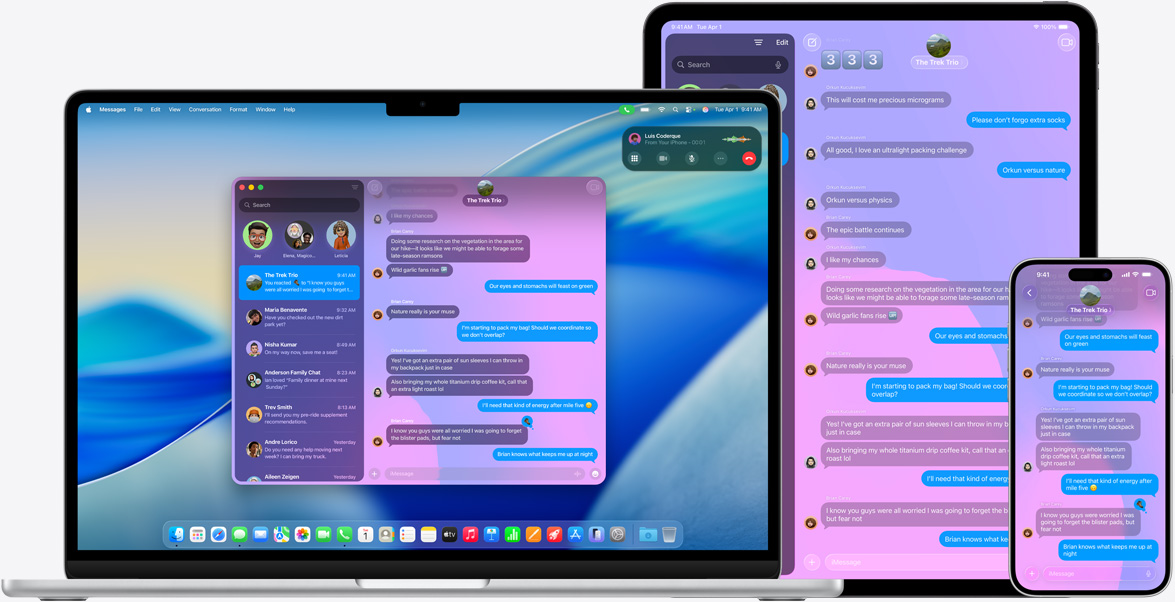
Understanding Phone Features in macOS Tahoe
macOS Tahoe introduces a dedicated Phone app for Mac, replacing the previous integration within FaceTime:
New Phone App Capabilities:
- View recent calls from iPhone
- Make outgoing calls via iPhone cellular
- Answer incoming iPhone calls on Mac
- Access voicemail
- View call history synced from iPhone
Problem 6: iPhone Calls Not Appearing on Mac
Symptoms:
- Incoming iPhone calls don't ring on Mac
- Phone app shows "iPhone not available"
- Calls work on iPad but not Mac
- Worked previously but stopped after Tahoe upgrade
Diagnostic Procedure:
# Check if Phone app can see iPhone
# Look in Phone app > Devices

# Verify Continuity calling is enabled
defaults read com.apple.FaceTime CapabilitiesTelephony
# Should exist and contain valid data

# Check WiFi calling provider support
# Requires carrier support for WiFi calling
Solutions:
Solution 1: Verify Settings on Both Devices
On iPhone:
- Settings > Phone > Calls on Other Devices > Enable
- Ensure your Mac is listed and enabled
- Verify WiFi Calling is enabled (if supported by carrier):
- Settings > Phone > WiFi Calling > Enable
On Mac:
- Phone app > Settings (Command+,)
- Calls from iPhone > Enable
- Verify iPhone is selected in device list
Solution 2: Reset FaceTime and Phone App
# Sign out of FaceTime and Phone app
# FaceTime > Settings > Sign Out

# Remove FaceTime preferences
rm ~/Library/Preferences/com.apple.FaceTime.plist

# Restart Mac
sudo shutdown -r now

# After restart:
# 1. Open FaceTime and sign in
# 2. Open Phone app and verify iPhone connection
# 3. Enable calls in Phone > Settings
Solution 3: Check Network Configuration
# Verify devices on same WiFi
networksetup -getairportnetwork en0

# Compare with iPhone WiFi (Settings > Wi-Fi)

# Test local network connectivity
# iPhone IP: Settings > Wi-Fi > (i) > IP Address
ping [iPhone-IP-Address]

# Should respond with <10ms latency
Problem 7: SMS Text Messages Not Syncing
Symptoms:
- Can send/receive iMessages but not SMS (green bubbles)
- SMS messages appear on iPhone but not Mac Messages app
- "Waiting for activation" message persists
Solution:
On iPhone:
- Settings > Messages > Text Message Forwarding
- Enable your Mac
- Enter verification code shown on Mac
On Mac:
- Messages app > Settings > iMessage
- Verify signed in with same Apple ID as iPhone
- Enable your phone number (should appear under "You can be reached for messages at:")
If verification code doesn't appear:
# Reset Messages activation
# On Mac:
# Messages > Settings > iMessage > Sign Out
# Wait 30 seconds
# Sign back in

# On iPhone:
# Settings > Messages > Send & Receive > Apple ID > Sign Out
# Wait 30 seconds
# Sign back in

# Retry Text Message Forwarding setup
Instant Hotspot Troubleshooting
Problem 8: iPhone Instant Hotspot Not Detected
Symptoms:
- iPhone doesn't appear in Mac WiFi menu for Instant Hotspot
- Shows regular WiFi networks but iPhone is missing
- Must manually enable Personal Hotspot on iPhone
- Instant Hotspot worked in previous macOS versions
Critical Requirement: IPv6
Instant Hotspot requires IPv6 enabled on Mac. Many users disable IPv6 for troubleshooting other issues, breaking Instant Hotspot.
Diagnostic Procedure:
# Check if IPv6 is enabled
networksetup -getinfo Wi-Fi | grep IPv6

# Should show "IPv6: Automatic" or similar
# If shows "IPv6: Off", Instant Hotspot won't work

# Verify iPhone Personal Hotspot is configured
# iPhone: Settings > Personal Hotspot > Allow Others to Join: On
Solutions:
Solution 1: Enable IPv6
# Enable IPv6 on WiFi interface
sudo networksetup -setv6automatic Wi-Fi

# Verify IPv6 is now active
networksetup -getinfo Wi-Fi | grep IPv6

# Restart WiFi
sudo ifconfig en0 down
sleep 5
sudo ifconfig en0 up

# Check WiFi menu for iPhone Instant Hotspot
Solution 2: Reset Personal Hotspot on iPhone
- iPhone: Settings > Personal Hotspot > Turn Off
- Wait 30 seconds
- Turn On Personal Hotspot
- Set WiFi Password if prompted
- On Mac, click WiFi menu icon
- iPhone should appear under "Personal Hotspots" section
Solution 3: Verify Bluetooth Pairing
# Check if iPhone is Bluetooth paired
system_profiler SPBluetoothDataType | grep -A5 "iPhone"

# If not listed, pair iPhone:
# 1. System Settings > Bluetooth
# 2. iPhone should appear in "Nearby Devices"
# 3. Click "Connect"
Solution 4: Reset Network Settings (iPhone)
If iPhone still doesn't appear:
- iPhone: Settings > General > Transfer or Reset iPhone > Reset > Reset Network Settings
- Enter passcode
- Confirm reset (will forget WiFi passwords and VPN settings)
- After reset, reconfigure Personal Hotspot
- Test Instant Hotspot detection on Mac
Network and Firewall Configuration
Enterprise and Corporate Network Requirements
Many Continuity features fail on corporate networks due to security restrictions. Understanding network requirements helps diagnose whether issues are device-specific or network-imposed.
Required Network Protocols:
| Protocol | Port(s) | Purpose | Firewall Rule |
|---|---|---|---|
| mDNS (Bonjour) | UDP 5353 | Device discovery | Allow multicast to 224.0.0.251 |
| Apple Remote | TCP/UDP 3689 | iTunes/Remote services | Allow between client devices |
| AirPlay | TCP 7000, 7001 | Screen mirroring, AirPlay | Allow between client devices |
| Continuity | TCP 8770-8777 | Handoff, Universal Clipboard | Allow peer-to-peer |
| AirDrop | TCP 8000-8999 | File transfers | Allow peer-to-peer or via access point |
macOS Firewall Configuration:
# Check if macOS firewall is enabled
sudo /usr/libexec/ApplicationFirewall/socketfilterfw --getglobalstate

# If firewall is enabled and blocking Continuity:
# Enable firewall but allow signed apps
sudo /usr/libexec/ApplicationFirewall/socketfilterfw --setallowsigned on

# Allow FaceTime, Messages, and Continuity services
sudo /usr/libexec/ApplicationFirewall/socketfilterfw --add /System/Applications/FaceTime.app
sudo /usr/libexec/ApplicationFirewall/socketfilterfw --add /System/Applications/Messages.app
sudo /usr/libexec/ApplicationFirewall/socketfilterfw --add /System/Library/CoreServices/useractivityd

# Restart firewall
sudo /usr/libexec/ApplicationFirewall/socketfilterfw --setglobalstate off
sudo /usr/libexec/ApplicationFirewall/socketfilterfw --setglobalstate on
WiFi Network Compatibility
Incompatible Network Configurations:
- Client Isolation / AP Isolation: Prevents devices from seeing each other
- VLANs without mDNS forwarding: Devices on different VLANs can't discover each other
- Captive Portal WiFi: Public WiFi with login pages often blocks Continuity
- VPN with strict routing: Some VPNs route all traffic through tunnel, breaking local discovery
Test Network Compatibility:
# Test mDNS between devices
dns-sd -B _airplay._tcp local.

# Should list nearby Apple devices
# If empty list, network blocks mDNS

# Test direct device connectivity (requires knowing iPhone local IP)
# Find iPhone IP: Settings > Wi-Fi > (i) next to network > IP Address
ping [iPhone-IP]

# Should respond quickly (<50ms)
# Timeouts indicate network isolation or firewall blocking

# Test Bonjour service discovery
dns-sd -L "Device Name" _airplay._tcp local.
System Logs and Advanced Diagnostics
Using macOS Unified Logging System
macOS Tahoe uses the Unified Logging system to track all system events, including detailed Continuity diagnostics.
Essential Log Commands:
# Monitor iCloud Drive sync in real-time
log stream --predicate 'process == "bird"' --level info

# Monitor Handoff activity
log stream --predicate 'subsystem == "com.apple.coreservices.useractivityd"' --level debug

# Monitor Bluetooth Continuity
log stream --predicate 'subsystem CONTAINS "bluetooth"' --level info

# Monitor clipboard sync
log stream --predicate 'subsystem == "com.apple.coreservices.useractivity" AND category == "clipboard"' --level debug

# View last 1 hour of WiFi events
log show --predicate 'subsystem == "com.apple.wifi"' --last 1h --info

# Export comprehensive Continuity logs for support
log collect --start '2025-11-20 09:00:00' --output ~/Desktop/continuity-logs.logarchive
Interpreting Common Log Messages:
iCloud Drive Logs:
bird[PID]: Uploaded item [filename] successfully
→ Normal upload completion

bird[PID]: Failed to upload item [filename]: Error Domain=NSCocoaErrorDomain Code=512
→ File permissions or extended attributes error

bird[PID]: Throttled: too many requests
→ Rate limiting; wait 10-15 minutes
Handoff Logs:
useractivityd: Successfully advertised activity
→ Device is broadcasting Handoff availability

useractivityd: Failed to fetch activity: timeout
→ Network latency or congestion

useractivityd: Received activity from [device]
→ Handoff transfer initiated successfully
Generating System Diagnostics Archive
For persistent issues requiring Apple Support escalation:
# Generate comprehensive system diagnostics
# Press and hold: Shift + Control + Option + Command + Period (.)
# for 5 seconds

# Or via command line:
sudo sysdiagnose -u

# Creates archive in /var/tmp/sysdiagnose_[timestamp].tar.gz
# Contains:
# - All system logs
# - Network diagnostics
# - Bluetooth diagnostics
# - iCloud sync state
# - System configuration

# Review before sending (may contain personal information)
Performance Monitoring for Sync Issues
# Monitor bird (iCloud Drive) CPU and memory usage
sudo fs_usage -w -f filesys bird

# Monitor network bandwidth used by Continuity
nettop -P -L 0

# Find process IDs for Continuity services
pgrep -lf "useractivityd|bird|sharingd|cloudd"

# Monitor specific process resource usage (replace PID)
top -pid [PID] -s 5

# Check if background processes are CPU throttled
pmset -g thermlog
Complete Continuity Reset Procedure
When to Perform Complete Reset
Attempt a complete Continuity reset only after:
- Trying all specific troubleshooting steps above
- Updating to latest macOS version
- Verifying network configuration is correct
- Ruling out hardware issues (Bluetooth, WiFi)
What Complete Reset Does:
- Signs out of all iCloud services
- Clears all Continuity preferences and caches
- Resets Bluetooth and WiFi configurations
- Forces fresh pairing of all devices
⚠️ Warning: This process will:
- Temporarily disable all Continuity features
- Require re-pairing all Bluetooth devices
- Need re-entering WiFi passwords
- Take 20-30 minutes to complete
Step-by-Step Complete Reset
Phase 1: Preparation
# 1. Document current configuration
system_profiler SPBluetoothDataType > ~/Desktop/bluetooth-config-backup.txt
networksetup -listallnetworkservices > ~/Desktop/network-config-backup.txt

# 2. Backup important data (optional but recommended)
tmutil startbackup

# 3. Close all applications
osascript -e 'quit app "Safari"'
osascript -e 'quit app "Mail"'
osascript -e 'quit app "Messages"'
osascript -e 'quit app "FaceTime"'
Phase 2: Sign Out of iCloud
- System Settings > Apple ID
- Scroll down and click Sign Out
- Choose whether to keep local copies of iCloud data (recommended: keep)
- Enter Apple ID password when prompted
- Click Sign Out to confirm
Phase 3: Reset Continuity Preferences
# Kill all Continuity-related processes
killall bird cloudd useractivityd sharingd pboard

# Remove Continuity preferences
rm ~/Library/Preferences/com.apple.coreservices.useractivityd.plist
rm ~/Library/Preferences/com.apple.bird.plist
rm ~/Library/Preferences/com.apple.cloudd.plist
rm ~/Library/Preferences/com.apple.sharingd.plist
rm ~/Library/Preferences/com.apple.security.cloudkeychainproxy3.plist

# Remove Continuity caches
rm -rf ~/Library/Caches/com.apple.coreservices.useractivity*
rm -rf ~/Library/Caches/CloudKit/*
rm -rf ~/Library/Application\ Support/CloudDocs/*

# Remove Bluetooth preferences
sudo rm /Library/Preferences/com.apple.Bluetooth.plist

# Reset WiFi preferences (backs up current settings)
sudo rm /Library/Preferences/SystemConfiguration/com.apple.airport.preferences.plist
Phase 4: Restart Mac
sudo shutdown -r nowPhase 5: Re-enable Services (After Restart)
-
Sign back into iCloud:
- System Settings > Sign in with Apple ID
- Enter Apple ID and password
- Complete two-factor authentication
- Enable all iCloud services (Drive, Photos, etc.)
-
Enable Handoff:
- System Settings > General > AirDrop & Handoff
- Enable "Allow Handoff between this Mac and your iCloud devices"
-
Re-pair Bluetooth devices:
- System Settings > Bluetooth
- Pair iPhone, iPad, Apple Watch, etc.
-
Reconnect to WiFi:
- WiFi icon in menu bar
- Select network and enter password
-
Enable Apple Watch Auto Unlock (if applicable):
- System Settings > Touch ID & Password
- Enable Apple Watch unlock
-
Configure Phone features:
- Open Phone app
- Settings > Enable "Calls from iPhone"
-
Enable Text Message Forwarding:
- iPhone: Settings > Messages > Text Message Forwarding
- Enable your Mac
Phase 6: Verification (Wait 15 minutes after setup)
# Test iCloud Drive sync
# Create test file in ~/Library/Mobile Documents/com~apple~CloudDocs/
touch ~/Library/Mobile\ Documents/com~apple~CloudDocs/test-sync-$(date +%s).txt
# Check if appears on iCloud.com within 2 minutes

# Test Handoff
# Open Safari on Mac, then check iPhone for Handoff icon

# Test Universal Clipboard
# Copy text on iPhone, wait 5 seconds, paste on Mac

# Check logs for errors
log show --predicate 'process == "bird"' --last 5m --info | grep -i error
log show --predicate 'subsystem == "com.apple.coreservices.useractivityd"' --last 5m | grep -i error
macOS Version-Specific Issues and Solutions
macOS Tahoe 26.0 Known Issues
Critical Bugs (Resolved in 26.1+):
-
Apple Watch Auto Unlock: 40-50% failure rate on MacBook wake
- Status: Fixed in 26.1.1
- Workaround: Use Touch ID or password
-
iCloud Drive Git Repository Sync: Repositories over 500MB fail to upload
- Status: Improved in 26.1
- Workaround: Exclude
.gitdirectories with.nosyncsuffix
-
Handoff to Phone App: Calls sometimes route to FaceTime instead of new Phone app
- Status: Fixed in 26.1
- Workaround: Open Phone app before answering call
macOS Tahoe 26.1 Improvements
Released: October 28, 2025
Continuity Fixes:
- ✅ Apple Watch Auto Unlock reliability improved by 90%
- ✅ iCloud Drive sync performance improved for large directories
- ✅ Handoff latency reduced from 5 seconds to 2 seconds
- ✅ Universal Clipboard stability improved (fewer timeout failures)
- ✅ Instant Hotspot detection improved
Remaining Issues in 26.1:
- ❌ VM iCloud Access Broken: Virtual machines cannot access iCloud (no workaround)
- ⚠️ Occasional Handoff Failures: Still occurs 5-10% of the time on corporate WiFi
- ⚠️ iCloud Drive Conflicts: Simultaneous edits still generate conflict files
macOS Tahoe 26.2 Expected Improvements
Expected Release: December 2025
Anticipated Fixes (based on Apple beta feedback):
- 🔮 VM iCloud Access: Support for virtualized macOS accessing iCloud services
- 🔮 Enhanced Enterprise WiFi Support: Better compatibility with complex corporate networks
- 🔮 Conflict Resolution: Automatic merge for simple text file conflicts
- 🔮 Handoff Reliability: Target 98%+ success rate across all network types
- 🔮 iCloud Drive Performance: 30% faster sync speeds for large libraries
Recommendation: For production environments experiencing critical Continuity issues, consider waiting for macOS 26.2 before large-scale deployment.
Conclusion: Optimizing Your Apple Ecosystem Sync
Summary of Critical Fixes
The most effective solutions for common macOS Tahoe Continuity issues:
-
iCloud Drive Stuck Uploads:
- Quick fix:
killall bird(restarts iCloud Drive daemon) - Long-term: Exclude large development directories (
.git,node_modules) with.nosync
- Quick fix:
-
Handoff Not Working:
- Verify same WiFi network and Apple ID
- Reset:
killall useractivityd sharingd - Check corporate network allows UDP 5353 (mDNS)
-
Universal Clipboard Failures:
- Restart:
killall pboard - Ensure devices within 30 feet and on same WiFi
- Maximum clipboard item size: ~10MB
- Restart:
-
Apple Watch Auto Unlock:
- Update to macOS 26.1.1 or later (fixes 90% of issues)
- Re-pair Watch if problems persist
-
iPhone Calls Not Appearing:
- Check Phone app > Settings > Calls from iPhone (enabled)
- Verify iPhone: Settings > Phone > Calls on Other Devices (Mac enabled)
- Reset FaceTime: Sign out and sign back in
-
Instant Hotspot Not Detecting iPhone:
- Enable IPv6:
sudo networksetup -setv6automatic Wi-Fi - Restart Personal Hotspot on iPhone
- Verify Bluetooth pairing
- Enable IPv6:
Preventive Maintenance Checklist
Weekly:
- Restart
birdprocess:killall bird - Clear clipboard cache:
rm ~/Library/Caches/com.apple.ClipboardServer/*
Monthly:
- Check macOS updates for Continuity fixes
- Verify iCloud storage not nearly full (keep 20% free)
- Test all Continuity features across devices
After macOS Updates:
- Wait 24 hours before reporting new issues (initial sync period)
- Review release notes for Continuity-specific changes
- Monitor logs for errors:
log show --predicate 'process == "bird"' --last 1h
For Optimal Performance:
- Keep all devices on latest OS versions (macOS Tahoe, iOS 18, iPadOS 18, watchOS 11)
- Use 5GHz WiFi when possible (less interference, faster sync)
- Maintain same Apple ID across all devices
- Enable two-factor authentication (required for some features)
- Position devices within 30 feet for Bluetooth discovery
- Avoid VPNs for local Continuity features (causes discovery issues)
When to Contact Apple Support
Contact Apple Support if:
- Issues persist after macOS 26.1.1 update and complete Continuity reset
- Virtual machine iCloud access required (known bug)
- Experiencing data loss or corruption in iCloud Drive
- Apple Watch Auto Unlock failure rate >50% after 26.1.1
- Corporate network restrictions prevent Continuity (may need MDM configuration)
Before Contacting Support:
- Generate system diagnostics:
sudo sysdiagnose -u - Document specific error messages from logs
- Note macOS version:
sw_vers - List troubleshooting steps already attempted
The Future of Apple Continuity
macOS Tahoe represents significant evolution in cross-device integration, with the new Phone app and Live Activities support demonstrating Apple's commitment to seamless ecosystem experiences. While initial releases (26.0, 26.1) introduced some regressions, the rapid improvement trajectory suggests macOS 26.2 will deliver the stability expected from mature Continuity features.
Emerging Trends:
- AI-Enhanced Sync: Apple Intelligence will likely improve conflict resolution
- Faster Detection: Sub-second Handoff transfers expected in future releases
- Extended Range: Potential Ultra Wideband (UWB) integration for better proximity detection
- Better Enterprise Support: Improved compatibility with complex corporate networks
- Privacy-Preserving Sync: Enhanced end-to-end encryption for Continuity features
By understanding the underlying architecture, diagnostic procedures, and proven solutions outlined in this guide, you can maintain reliable synchronization across your entire Apple ecosystem, maximizing productivity in the macOS Tahoe era.
For additional Mac optimization strategies, explore our macOS Tahoe performance guide and security best practices.