macOS Tahoe Login Items & Background Apps: Complete Management Guide for Optimal Performance

Comprehensive guide to managing login items, background processes, and startup apps on macOS Tahoe 26. Fix WindowServer high CPU, optimize system performance, extend battery life, and master Terminal commands for complete control over your Mac's background activity.
Managing login items and background applications on macOS Tahoe 26 is crucial for maintaining optimal system performance, extending battery life, and resolving common issues like WindowServer high CPU usage. This comprehensive guide provides step-by-step instructions, Terminal commands, and expert strategies for taking complete control of your Mac's background activity.
Executive Summary: Why Background App Management Matters in macOS Tahoe 26
macOS Tahoe 26 introduces significant changes to how background processes and login items are handled. The new Liquid Glass UI, Apple Intelligence features, and enhanced system services create additional computational overhead that makes efficient background app management more important than ever.
Key Challenges Users Face:
- WindowServer high CPU/GPU usage: Liquid Glass transparency effects and Electron apps can cause WindowServer to consume 50%+ CPU
- Battery drain: Background processes running unchecked can reduce MacBook battery life by 20-40%
- Slow startup times: Excessive login items can extend boot times from seconds to minutes
- System lag and freezing: Memory-hungry background apps cause the dreaded "spinning wheel"
- Thermal issues: Constant background activity leads to fan noise and overheating
What This Guide Covers:
- Complete walkthrough of macOS Tahoe 26 login item settings
- Identifying and managing hidden background processes
- Terminal commands for advanced control
- Troubleshooting WindowServer and other high-CPU processes
- Optimization strategies for different user types
- Third-party tools for enhanced management
Understanding Login Items in macOS Tahoe 26
Where to Find Login Items Settings
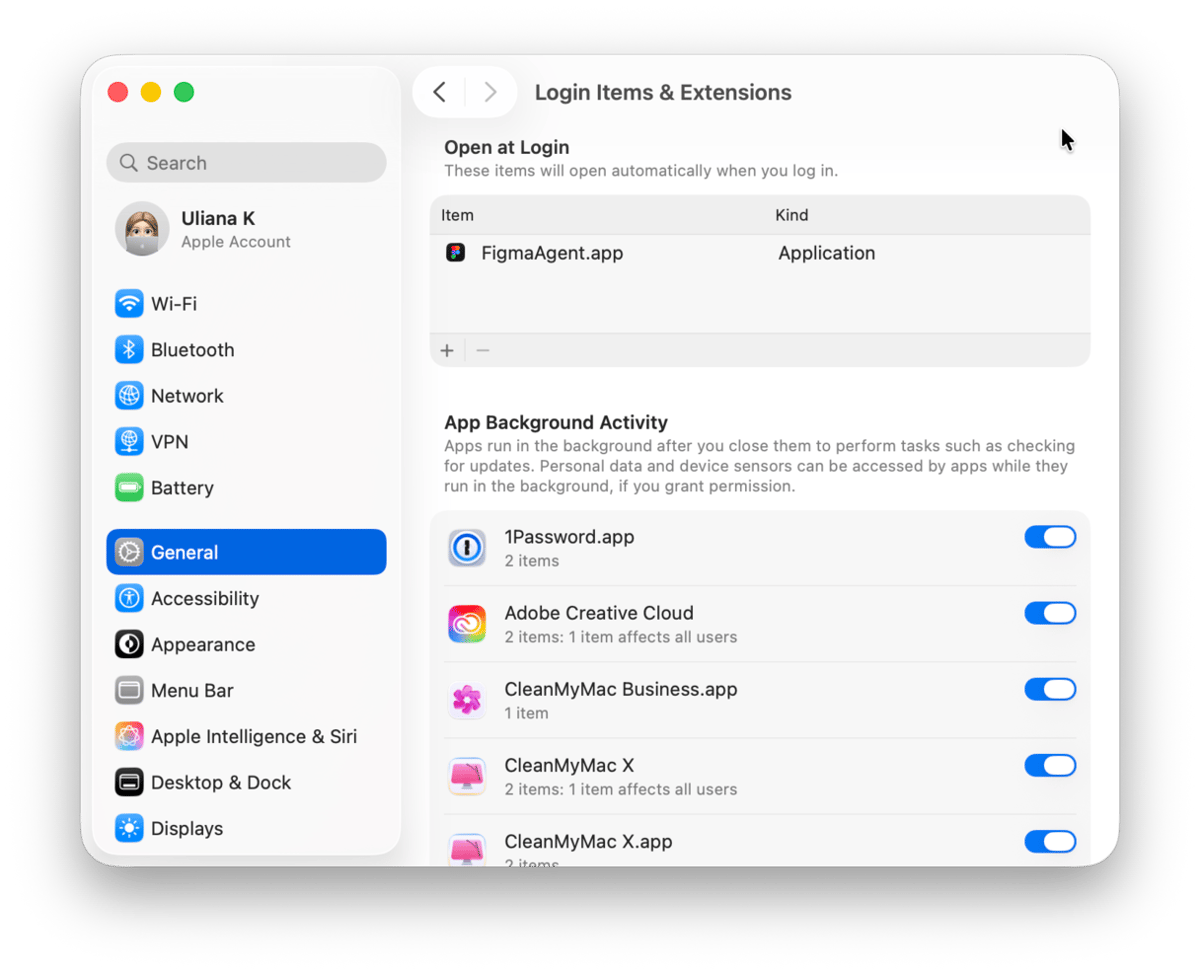
macOS Tahoe 26 reorganized system preferences into a new System Settings app with Liquid Glass styling. Login items management is now located in a dedicated section:
Navigation Path:
- Click the Apple menu () in the top-left corner
- Select System Settings
- Click General in the sidebar
- Select Login Items & Extensions
Alternatively, use Spotlight (⌘ + Space) and search for "Login Items" to navigate directly.
Login Items vs. Background Items: Understanding the Difference
macOS Tahoe 26 distinguishes between two types of startup processes:
Login Items (Open at Login):
- Applications that launch when you log in
- Visible in your Dock after startup
- User-initiated and easily controllable
- Examples: Mail, Slack, Spotify, 1Password
Allow in the Background:
- System extensions and helper processes
- Run silently without user interface
- Often required for app functionality
- Examples: Dropbox sync, antivirus monitoring, backup agents
Types of Background Processes in macOS Tahoe
Understanding the different types of background processes helps you make informed decisions about what to keep or remove:
1. Launch Agents (User-Level)
- Location:
~/Library/LaunchAgents/ - Run only when user is logged in
- Per-user configuration
- Examples: Dropbox, Creative Cloud, Grammarly Desktop
2. Launch Daemons (System-Level)
- Location:
/Library/LaunchDaemons/ - Run regardless of user login status
- Require administrator privileges to modify
- Examples: System services, security software, network tools
3. Login Items (Managed)
- Stored in System Settings
- Easy to enable/disable through GUI
- Includes both apps and helper tools
4. Hidden Launch Agents (Third-Party)
- May not appear in System Settings
- Require Terminal or third-party tools to manage
- Often installed by software without user awareness
Step-by-Step Guide: Managing Login Items
Method 1: Using System Settings (Recommended for Most Users)
Adding a Login Item:
- Open System Settings > General > Login Items & Extensions
- Under "Open at Login", click the + button
- Navigate to the application in the file browser
- Select the app and click Open
- The app will now launch automatically at login
Removing a Login Item:
- Open System Settings > General > Login Items & Extensions
- Find the app under "Open at Login"
- Select the app
- Click the − button to remove it
- Restart your Mac to verify the change
Managing Background Items:
- Scroll down to "Allow in the Background"
- Toggle switches to enable/disable individual items
- Hover over items to see their publisher and function
- Disabled items may cause related apps to lose functionality
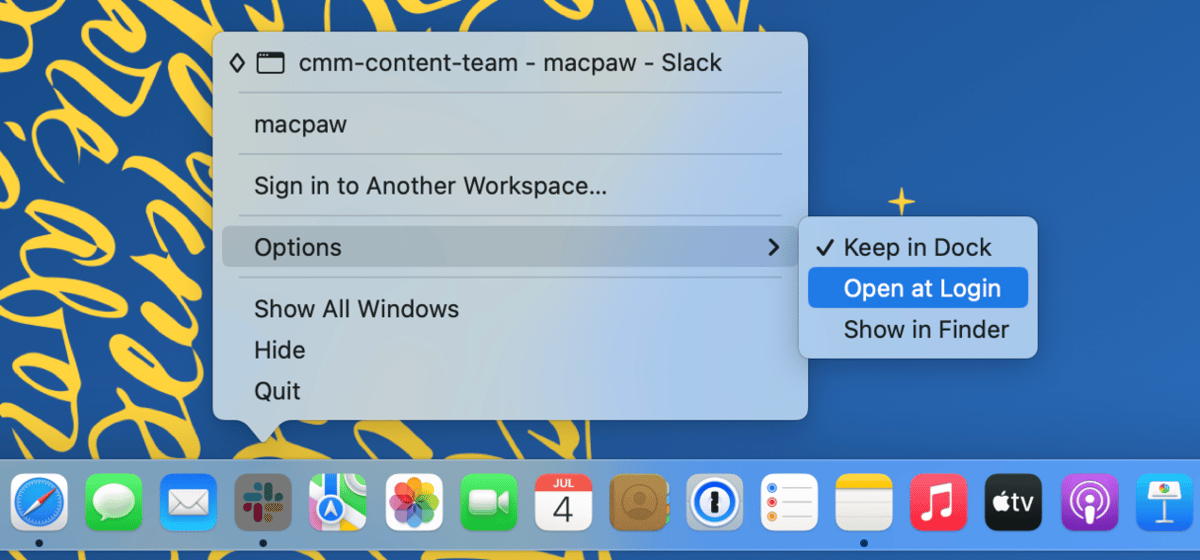
Method 2: Using the Dock (Quick Method)
For apps already running that you want to launch at login:
- Right-click (or Control-click) the app icon in the Dock
- Hover over Options
- Click Open at Login to toggle the setting
- A checkmark indicates the app will open at login
Method 3: Using App Preferences
Many applications include their own startup settings:
- Open the application
- Go to its Preferences or Settings (usually ⌘ + ,)
- Look for options like:
- "Start at login"
- "Launch on startup"
- "Open automatically when you log in"
- Toggle the setting as desired
Common Apps with Built-in Startup Settings:
- Slack: Preferences > Advanced > "Launch app on login"
- Spotify: Settings > Startup and window behavior
- Discord: User Settings > Windows Settings > "Open Discord"
- Zoom: Settings > General > "Start Zoom when I start Windows"
- VS Code: No built-in setting (use system Login Items)
Advanced Terminal Commands for Background Process Management
For power users who need granular control over background processes, Terminal provides comprehensive management capabilities.

Viewing All Launch Agents and Daemons
List User Launch Agents:
ls -la ~/Library/LaunchAgents/List System-Wide Launch Agents:
ls -la /Library/LaunchAgents/List System Launch Daemons:
ls -la /Library/LaunchDaemons/List Apple System Daemons (Read-Only):
ls -la /System/Library/LaunchDaemons/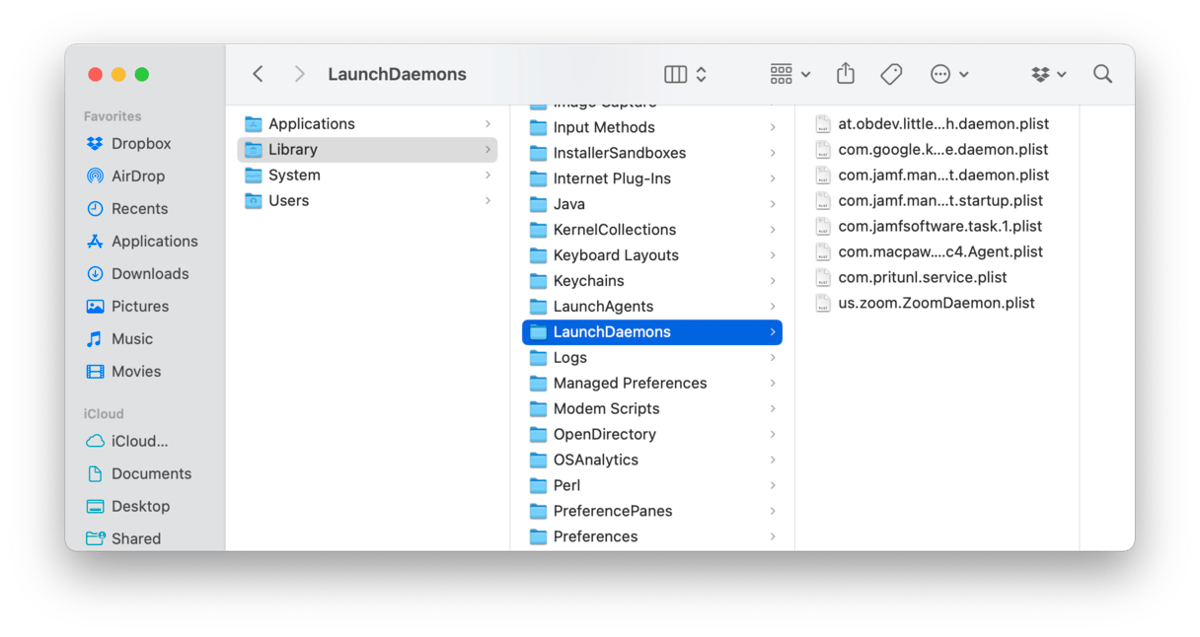
Using launchctl for Process Management
The launchctl command is the primary tool for managing launch agents and daemons.
View All Loaded Services:
launchctl listView Services with Status:
launchctl list | grep -v "^-"Check If a Specific Service Is Running:
launchctl list | grep "com.dropbox"Disabling Launch Agents
Unload a User Launch Agent (Temporary):
launchctl unload ~/Library/LaunchAgents/com.example.agent.plistDisable a User Launch Agent (Persistent):
launchctl disable user/$UID/com.example.agentDisable a System Launch Agent:
sudo launchctl disable system/com.example.daemonRe-enabling Launch Agents
Load a User Launch Agent:
launchctl load ~/Library/LaunchAgents/com.example.agent.plistEnable a Disabled Agent:
launchctl enable user/$UID/com.example.agentRemoving Unwanted Launch Agents Permanently
Caution: Only remove agents you're certain you don't need. Always back up first.
1. Stop the Agent:
launchctl unload ~/Library/LaunchAgents/com.unwanted.agent.plist2. Move to Backup Location:
mkdir -p ~/Library/LaunchAgents.disabled
mv ~/Library/LaunchAgents/com.unwanted.agent.plist ~/Library/LaunchAgents.disabled/
3. Verify Removal:
launchctl list | grep "com.unwanted"Useful Terminal Scripts for Batch Operations
List All Non-Apple Launch Agents:
find ~/Library/LaunchAgents /Library/LaunchAgents -name "*.plist" 2>/dev/null | while read plist; do
    echo "$(basename "$plist")"
done
Show Running Background Processes Sorted by CPU:
ps aux | sort -nrk 3,3 | head -20Monitor Real-Time CPU Usage:
top -o cpu -n 20Troubleshooting WindowServer High CPU Usage
WindowServer is the core macOS process responsible for rendering all visual elements. In macOS Tahoe 26, it can become a significant resource hog due to Liquid Glass effects and Electron app compatibility issues.
Identifying WindowServer Problems
Symptoms:
- Fans running constantly
- High CPU usage (50%+) reported by Activity Monitor
- High GPU usage even when idle
- MacBook running hot
- Battery draining faster than expected
- Sluggish animations and UI responsiveness
Checking WindowServer Usage:
- Open Activity Monitor (⌘ + Space, type "Activity Monitor")
- Click the CPU tab
- Look for "WindowServer" in the process list
- Note the % CPU column
- Normal usage: 1-10% during typical use
- Problematic usage: 30%+ sustained
Root Causes and Solutions
Cause 1: Electron App Rendering Bug
macOS Tahoe 26 introduced a bug where Electron-based apps (VS Code, Slack, Discord, Notion, etc.) cause WindowServer to repeatedly recalculate window shadows.
Solution:
- Update all Electron apps to their latest versions
- If updates aren't available, minimize or close Electron apps when not in use
- As a workaround, set the environment variable:
export CHROME_HEADLESS=1- Wait for macOS 26.2 which includes Apple's foundational fix
Affected Apps (Check for Updates):
- Visual Studio Code
- Slack
- Discord
- Notion
- Obsidian
- 1Password
- Bitwarden
- Signal
- Microsoft Teams
- Figma Desktop
Cause 2: Liquid Glass Transparency Effects
The new Liquid Glass UI requires significant GPU resources for transparency rendering.
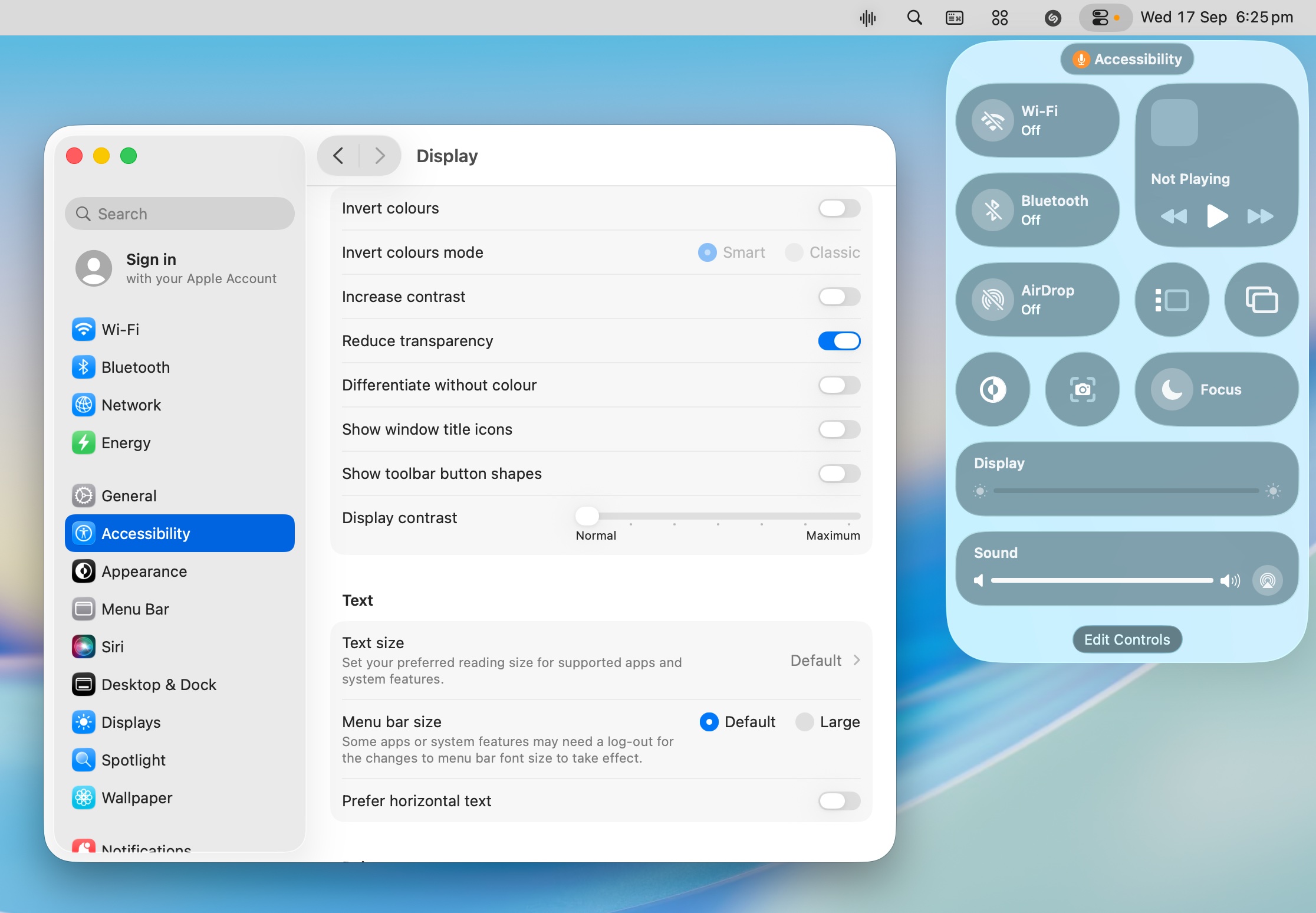
Solution - Reduce Transparency:
- Open System Settings
- Go to Accessibility > Display
- Enable Reduce Transparency
- This significantly reduces WindowServer load
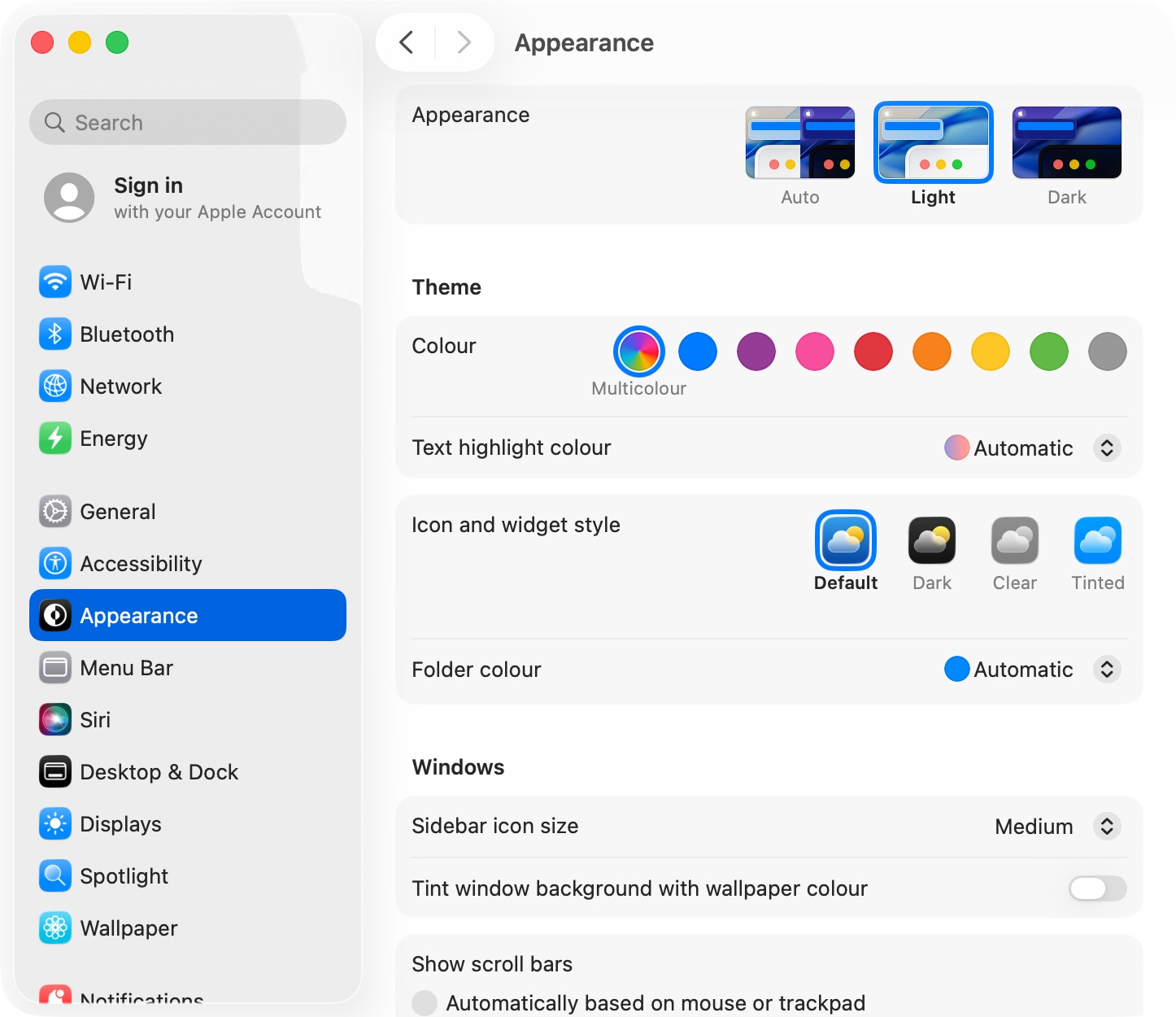
Solution - Adjust Icon Style:
- Open System Settings > Appearance
- Change "Icon & widget style" from "Clear" to a less transparent option
- Select "Tinted" for reduced GPU overhead
Cause 3: External Display Scaling
Running external displays at scaled resolutions forces WindowServer to render at higher buffer sizes.
Solution:
- Open System Settings > Displays
- Select your external monitor
- Hold Option key and click "Scaled"
- Choose "Default for display" or native resolution
- Avoid HiDPI scaling on non-Retina monitors
Cause 4: Desktop Clutter and Widgets
Numerous desktop icons and active widgets increase rendering workload.
Solution:
- Move files from Desktop to folders
- Reduce widget count in Notification Center
- Disable live wallpapers
- Use static wallpaper images
Terminal Commands for WindowServer Diagnostics
Check WindowServer GPU Usage:
sudo powermetrics --samplers gpu_power -n 1Monitor WindowServer Real-Time:
top -pid $(pgrep WindowServer)Reset WindowServer (Logs You Out):
sudo killall WindowServerWarning: This will end your session and log you out.
Optimizing System Performance Through Background Management
Identifying Resource-Heavy Background Processes
Using Activity Monitor:
- Open Activity Monitor
- Click CPU tab, sort by % CPU
- Click Memory tab, sort by Memory
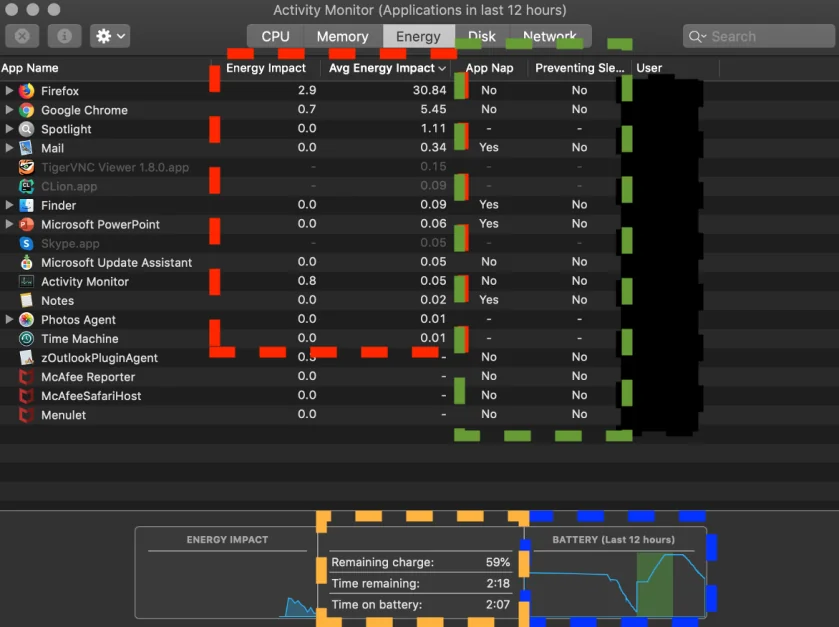
- Click Energy tab, sort by Energy Impact
- Look for unexpected high-usage processes
Common High-Impact Processes and Solutions:
| Process | Purpose | High Usage Fix |
|---|---|---|
| kernel_task | Thermal management | Check charging port, clean vents |
| mds_stores | Spotlight indexing | Wait for completion or rebuild index |
| corespotlightd | Spotlight database | Delete CoreSpotlight cache |
| Photos Agent | Photo library sync | Let sync complete |
| backupd | Time Machine | Check backup disk health |
| cloudd | iCloud sync | Check network, iCloud status |
| nsurlsessiond | Network downloads | Check for stuck downloads |
| WindowServer | Display rendering | See dedicated section above |
| trustd | Certificate validation | Reset certificates |
Recommended Login Items Configuration by User Type
For General Users (Office, Web, Email):
- Keep: 1Password/Bitwarden, Essential work apps
- Remove: Spotify, Discord, Slack (open manually when needed)
- Background: Keep backup agents, remove unnecessary helpers
For Creative Professionals:
- Keep: Creative Cloud (if needed), Font managers, Color calibration
- Remove: Social apps, Notification tools
- Background: Keep sync services for active projects only
For Developers:
- Keep: Docker (if daily use), Version control helpers
- Remove: IDEs (launch manually), Database servers (start on demand)
- Background: Keep necessary daemons, disable unused ones
For Students:
- Keep: Note-taking apps (if essential)
- Remove: Almost everything else
- Background: Keep cloud sync, remove all others
Memory-Saving Background Management
macOS Tahoe 26 requires more baseline memory due to Liquid Glass UI and Apple Intelligence features.
Baseline Memory Usage by Configuration:
- 8GB RAM: ~5.1GB system usage (2.9GB available)
- 16GB RAM: ~8.2GB system usage (7.8GB available)
- 32GB RAM: ~14.8GB system usage (17.2GB available)
Memory Optimization Strategies:
1. Audit Background Items:
# List processes by memory usage
ps aux --sort=-%mem | head -20
2. Identify Memory Leaks: Open Activity Monitor, check Memory tab, look for processes with continuously growing memory usage.
3. Restart Memory-Heavy Apps: Safari, Chrome, and Electron apps often develop memory leaks. Restart them periodically.
4. Use Native Apps: Apple's native apps (Mail, Safari, Calendar) are optimized for macOS and use less memory than alternatives.
Battery Life Optimization Through Background Control

Background processes are one of the primary causes of battery drain on MacBooks running macOS Tahoe 26.
Identifying Battery-Draining Processes
Using Activity Monitor Energy Tab:
- Open Activity Monitor
- Click Energy tab
- Sort by Energy Impact (descending)
- Look for processes with "High" or "Very High" impact
- Check Preventing Sleep column for apps blocking sleep
Using Battery Settings:
- Open System Settings > Battery
- Click Battery Health
- View Usage History for patterns
- Identify apps using significant power
High-Impact Background Processes to Control
Immediate Battery Savers:
- Disable Dropbox sync when on battery
- Close Creative Cloud apps when not in use
- Quit Slack and use web version when traveling
- Disable backup agents during meetings
Terminal Commands for Power Management:
Check Battery Status:
pmset -g battView Power Assertions (What's Preventing Sleep):
pmset -g assertionsList Apps Preventing Sleep:
pmset -g assertions | grep "pid"Check Thermal State:
pmset -g thermstateLow Power Mode Configuration
macOS Tahoe 26 includes enhanced Low Power Mode that affects background processes:
Enabling Low Power Mode:
- Open System Settings > Battery
- Toggle Low Power Mode
- Or click the battery icon in menu bar > Low Power Mode
What Low Power Mode Affects:
- Reduces CPU speed
- Limits background app refresh
- Reduces display brightness
- Pauses iCloud Drive sync
- Delays non-urgent notifications
- Reduces visual effects
Automating Low Power Mode: You can create a Shortcuts automation to enable Low Power Mode when battery reaches a threshold.
Third-Party Tools for Enhanced Background Management
While macOS provides basic tools, third-party applications offer more comprehensive control.
Recommended Tools
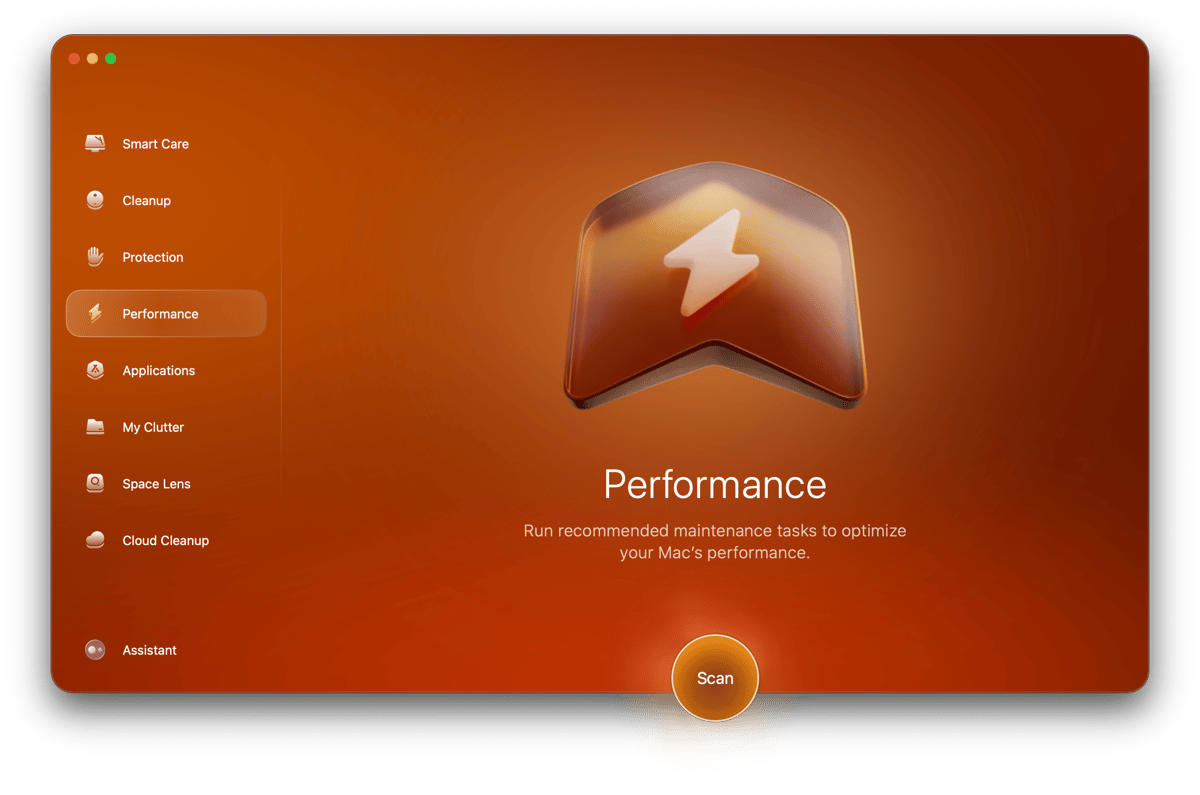
CleanMyMac X ($89.95/year)
- Visual interface for Launch Agents/Daemons
- One-click removal of unnecessary items
- Performance monitoring and optimization
- Malware detection for unwanted background processes
Lingon X ($15.99)
- Complete launch agent/daemon editor
- Create custom startup items
- Schedule-based process management
- Expert-level control with user-friendly interface
LaunchControl ($15)
- GUI for launchd management
- View and edit plist files
- Debug startup issues
- Filter and search agents
App Tamer ($24.95)
- Automatic CPU throttling for background apps
- Per-app resource limits
- Usage statistics and reporting
- "Auto-stop" feature for idle apps
iStat Menus ($11.99)
- Menu bar monitoring
- Real-time CPU, memory, network stats
- Identify resource-hungry processes quickly
- Historical data and trends
Free Alternatives
Activity Monitor (Built-in)
- Comprehensive process viewing
- CPU, memory, energy, disk, network tabs
- Sample and inspect processes
- Force quit problematic apps
Console (Built-in)
- View system logs
- Diagnose startup issues
- Identify background process errors
- Filter by process name
Troubleshooting Common Issues
Issue: Mac Takes Forever to Start Up
Diagnosis:
- Time how long startup takes (normal: 15-30 seconds on Apple Silicon)
- If over 60 seconds, login items are likely the cause
Solution:
- Boot in Safe Mode: Hold Shift during startup (Intel) or hold Power button until "Loading startup options" appears, then select Safe Boot (Apple Silicon)
- Safe Mode disables login items and performs basic maintenance
- Restart normally and remove unnecessary login items
- If startup improves dramatically, systematically re-enable items to identify the culprit
Issue: App Not Starting Despite Being in Login Items
Possible Causes:
- App requires Rosetta 2 (Intel apps on Apple Silicon)
- App doesn't support automatic launch
- Privacy permissions not granted
Solution:
- Manually launch the app first
- Grant all requested permissions
- Check System Settings > Privacy & Security
- For Intel apps, ensure Rosetta 2 is installed:
softwareupdate --install-rosettaIssue: Can't Remove a Login Item
Solution - Force Removal via Terminal:
- Find the item's identifier:
launchctl list | grep "appname"- Unload and disable:
launchctl unload ~/Library/LaunchAgents/com.appname.plist
launchctl disable user/$UID/com.appname- Move the plist file:
mv ~/Library/LaunchAgents/com.appname.plist ~/.Trash/Issue: Background Process Keeps Returning
Some applications reinstall their launch agents when opened.
Solution:
- Uninstall the application completely
- Or use the app's preferences to disable "launch at login"
- Or create a blocking rule:
# Make the plist file immutable
sudo chflags uchg ~/Library/LaunchAgents/com.unwanted.plist
Note: This prevents the file from being modified until you remove the flag.
Best Practices for Ongoing Maintenance
Monthly Maintenance Checklist
-
Review Login Items:
- Remove any apps you no longer use
- Check for new unexpected items
-
Audit Background Items:
- Disable items from uninstalled apps
- Research unfamiliar items before removing
-
Check Activity Monitor:
- Look for consistently high CPU processes
- Identify memory-hungry background apps
- Review energy impact
-
Update Applications:
- Electron apps especially need regular updates
- Check for macOS-optimized versions
Before Installing New Apps
- Research if the app adds login items
- Check reviews for background process issues
- After installation, verify what was added to Login Items
- Remove unnecessary startup components immediately
After macOS Updates
- Review Login Items for changes
- Check if previously disabled items re-enabled
- Test system performance
- Re-apply any Terminal-based customizations
Conclusion: Taking Control of Your Mac's Background Activity
Effective management of login items and background processes is essential for maintaining optimal performance on macOS Tahoe 26. The new Liquid Glass UI and Apple Intelligence features create additional baseline resource requirements, making it more important than ever to minimize unnecessary background activity.
Key Takeaways:
- Regularly audit login items - Review System Settings > General > Login Items monthly
- Use Activity Monitor - Identify high-CPU and high-memory processes
- Master Terminal commands -
launchctlprovides powerful control over background processes - Address WindowServer issues - Update Electron apps and reduce transparency effects
- Optimize for your use case - Different user types need different configurations
- Consider third-party tools - CleanMyMac X, Lingon X, and others provide enhanced management
By implementing the strategies in this guide, you can expect:
- Faster startup times (30-60% improvement)
- Better battery life (15-25% improvement)
- Reduced fan noise and heat
- Smoother system performance
- More available memory for active applications
Next Steps:
- Open System Settings and audit your current login items
- Use Activity Monitor to identify resource-heavy processes
- Apply the Terminal commands relevant to your situation
- Implement monthly maintenance practices
For more macOS Tahoe optimization guides, explore our Performance Analysis and Battery Drain Fix Guide.