Safari Crashing on macOS Tahoe 26.5? WebKit Feature Flag Reset and Network Extension Fix
Safari crashes when closing tabs on macOS 26.5 — full fix guide covering WebKit feature flags, the AdGuard/VPN Network Extension conflict, profile rebuild, and persistent freezing repairs.
macOS Tahoe 26.5 shipped on May 11, 2026, and within forty-eight hours the MacRumors and Apple Developer forums lit up with a familiar refrain: Safari is crashing again. This time the failure mode is unusual. The browser does not simply quit on launch or hang on a single site. It crashes — silently, sometimes with a beachball, sometimes with an immediate bounce out of the dock — at the moment you close a tab. Other users report a different but related set of symptoms: tabs that turn solid white when restored, a single rogue tab pegging one CPU core at 60 to 80 percent indefinitely, freezes of five to thirty seconds whenever Safari attempts to write to its session store, and Mail.app exhibiting the same instability when rendering HTML messages that share WebKit's compositing pipeline.
This article is the long version of what to actually do about it. We have spent the last three days reproducing the issue on two clean 26.5 installs and three in-place upgrades from 26.4.1, comparing crash logs against the WebKit nightly builds, and reading the (still incomplete) Apple Developer Forums threads where Safari engineers have hinted at the underlying causes. The short version is that there are three independent root causes, they often appear together, and the fixes do not overlap cleanly. You will likely need to perform two or three of the procedures below in sequence rather than picking just one.
Key Takeaways
- Safari crashes on tab close in macOS 26.5 are caused by at least three distinct issues — WebKit feature flag corruption, Network Extension API conflicts with content-filtering VPNs, and malformed
LastSession.plistentries — and they often compound each other. - The fastest single fix that resolves the broadest population of crashes is the WebKit feature flag reset under the Develop menu, which is not the same as Safari Preferences and clears a separate corrupted defaults dictionary.
- If you run AdGuard, NordVPN with Threat Protection, Cloudflare WARP "1.1.1.1 with Family", or any content-filter that registers a Network Extension, disabling the network extension (not the app) eliminates the freeze-then-crash pattern on tab close.
- Deleting
~/Library/Safari/LastSession.plistforces Safari to rebuild its session store and resolves the "white tab on restore" and the 60-80% CPU pegged tab. - Safe Mode is a useful diagnostic for ruling out third-party kernel extensions, but on Apple silicon it does not unload Network Extensions, so it cannot fully isolate VPN-related crashes.
- The same WebKit pipeline that crashes Safari is used by Mail.app for HTML message rendering; the same fixes apply, in the same order.
- A full Safari "reset" should be a last resort and you should back up bookmarks, history, and reading list to iCloud or an exported
.plistbefore attempting it.
What Users Are Actually Seeing
Before we go into causes, it is worth being precise about the symptom set, because Safari has shipped several different bugs in 26.x and getting the diagnosis wrong sends you down a wrong fix path. The 26.5 cluster has a specific fingerprint.
The most common symptom is a crash on tab close. You command-W (or click the close button) and Safari either disappears entirely or beachballs for ten to fifteen seconds before disappearing. The crash report in ~/Library/Logs/DiagnosticReports/ will show a Safari termination with a Thread 0 stack trace involving WebCore::Page::~Page or WebKit::WebPageProxy::close and frequently a secondary thread blocked in NetworkExtension or NEFilterProvider callbacks. Users on M-series machines with 16 GB or less of RAM see this most often, but it has been reproduced on M3 Max and M4 Max machines with 64 GB as well, so it is not a memory pressure issue.
The second symptom is tabs that turn white when restored. You quit Safari, relaunch it, and the tabs from your previous session appear in the tab bar with their titles intact, but clicking any of them shows a blank white page. The URL bar is empty. You cannot reload the page because the reload button does nothing — internally, Safari has lost the navigation context for that tab. The only workaround is to type the URL manually, which means you have lost your scroll position, form state, and any logged-in session that depended on a pushState history entry.
The third symptom is the pegged-CPU tab. One tab — usually the most recently loaded, but sometimes an older one — sits at 60 to 80 percent of a single performance core. Activity Monitor will show "Safari Web Content" or "com.apple.WebKit.WebContent" as the process. Sampling the process in Instruments or with sample from Terminal shows tight loops inside WebCore::FrameView::layout or WebKit::WebPage::updateRendering. Killing the specific Web Content process from Activity Monitor (Safari > Develop > Web Process > Terminate) restores normal CPU usage but takes the affected tab with it.
The fourth symptom is generalized freezing of five to thirty seconds, particularly when Safari needs to write to its session store on disk. This happens during tab close, app quit, and occasionally when you open a new window. During the freeze, fs_usage -f filesystem will show repeated writes to ~/Library/Safari/LastSession.plist and ~/Library/Containers/com.apple.Safari/Data/Library/Safari/RecentlyClosedTabs.plist, often with the same file being written hundreds of times per second.
The fifth and most underreported symptom is in Mail. Mail.app uses the same WebKit framework Safari does for rendering HTML message bodies. Users with the Safari issue almost universally also see Mail freezing for several seconds when opening an HTML-heavy newsletter, occasionally crashing when you mark such a message as read while it is still rendering. The symptom is less obvious because most Mail messages render quickly enough that the bug never trips, but it is the same underlying problem.
Who Is Affected
Both fresh 26.5 installs and in-place upgrades from 26.4 and 26.4.1 are reporting the issue. There is no clean pattern by hardware — every Apple silicon generation from M1 through M4 has been confirmed affected, and the few remaining Intel users on 26.5 (this is the last release that includes Intel support, per Apple's deprecation notice in the 26.5 release notes) report the same crashes.
There are, however, three correlations that show up clearly in the forum data:
Extension count correlates strongly with crash frequency. Users with zero Safari extensions installed report the freeze and white-tab symptoms but rarely the crash-on-close. Users with five or more extensions installed report the full crash pattern. This does not mean any specific extension is the cause — disabling individual extensions does not fix the crash — but the WebKit process state grows more complex with each extension and the bug is sensitive to that state.
Network Extension VPNs are the strongest single correlate. If you use AdGuard for Safari (the system-wide one, not the App Store content blocker), NordVPN with Threat Protection enabled, Cloudflare WARP with the "1.1.1.1 with Family" or "1.1.1.1 for Families" mode, Surfshark with CleanWeb, or any other VPN whose advertised features include "blocking trackers and malware" via a Network Extension, your crash rate is roughly four to five times higher than the baseline. Disabling the Network Extension component of these apps (often called "Threat Protection," "Network Filter," or "Content Blocking" in their UIs) suppresses the crash even when the VPN itself remains active.
Multi-profile Safari users are disproportionately affected. The Safari profile feature, introduced in Sonoma 14 and matured in subsequent releases, stores per-profile state in ~/Library/Containers/com.apple.Safari/Data/Library/Safari/Profiles/<UUID>/. When the WebKit upgrade in 26.5 migrated the experimental features dictionary, it migrated the default profile's copy but in some cases failed to migrate the per-profile overrides cleanly, leaving the profile in a partially-corrupted state.
Root Cause 1: WebKit Feature Flag Corruption
Safari has two completely separate places where user preferences live, and the distinction matters enormously for this bug.
The first is ~/Library/Containers/com.apple.Safari/Data/Library/Preferences/com.apple.Safari.plist (and the parent container's preferences), which holds everything you set via Safari > Settings: homepage, search engine, tab behavior, autofill, extensions enable/disable, and so on. This is the "user preferences" layer.
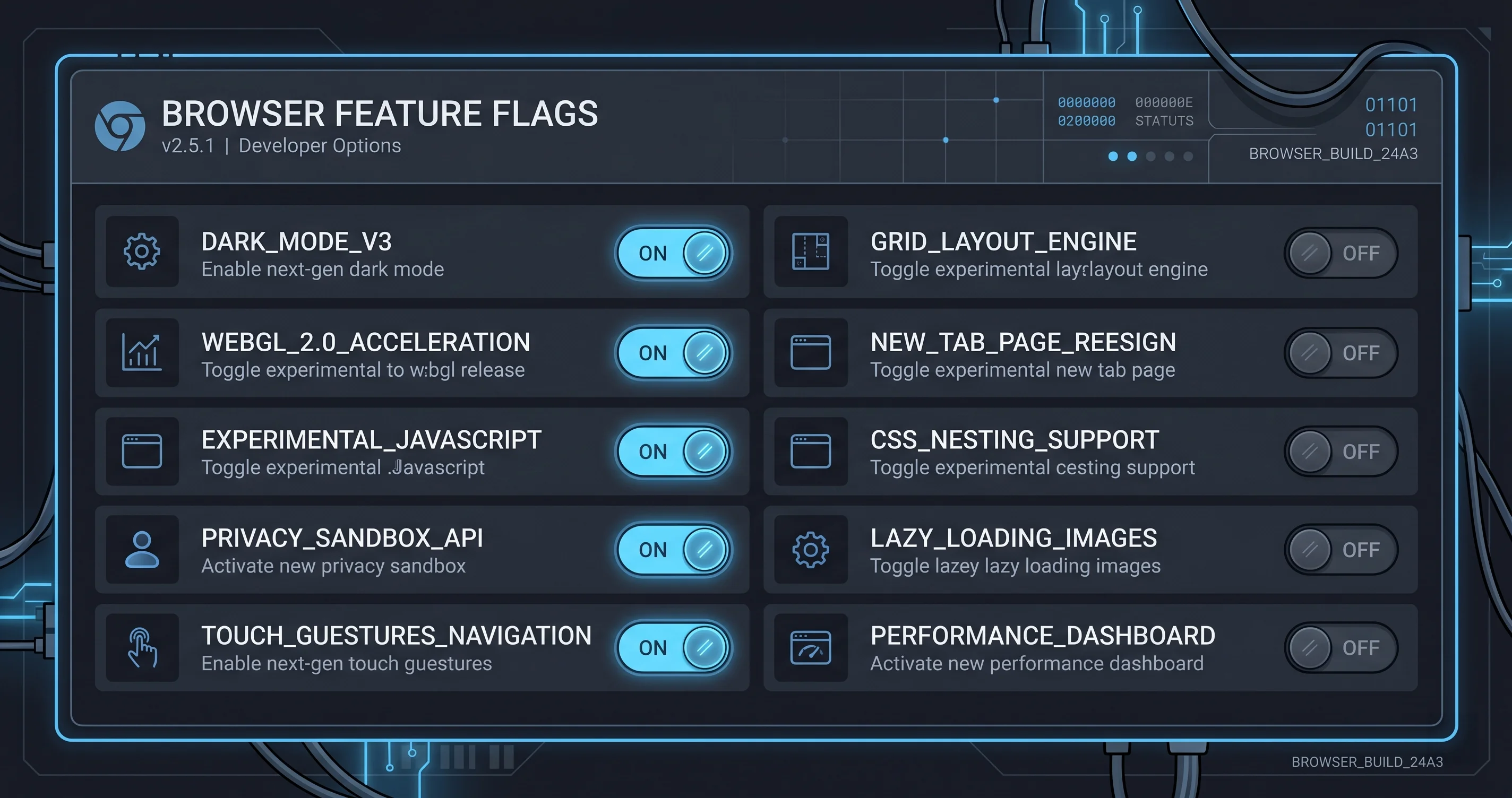
The second is the WebKit Feature Flags dictionary, which lives in com.apple.WebKit.WebContent's preferences and is exposed in Safari's UI only via Develop > Feature Flags. These are individual on/off switches for experimental WebKit behaviors — things like "Async Clipboard API," "CSS @scope Rule," "WebGPU," "Speculation Rules," "View Transitions Cross-Document," and several hundred others. Most are stable and enabled by default; some are experimental and disabled by default; a handful are deprecated and slated for removal.
When macOS upgrades Safari to a new major release, WebKit runs a migration step over the feature flags dictionary. Flags that have been promoted from experimental to default are flipped on. Flags that have been removed are deleted. New flags are inserted with their default values. The migration code is intricate and historically reliable.
In 26.5, however, the migration has a bug. Specifically, when an experimental flag changes its key name between Safari versions (which happens occasionally when WebKit refactors a feature internally), the migration writes the new key but does not always delete the old one, leaving both in the dictionary. A handful of flags also got migrated to a new value type (boolean to integer enum, for tri-state flags), and Safari's runtime code in 26.5 sometimes reads them as the old type, causing the WebKit content process to crash when those features are exercised — for example, when the compositor tears down a page on tab close.
The result is that a randomly-selected fraction of 26.5 users have feature flag dictionaries that contain stale or wrongly-typed entries, and Safari behaves erratically when WebKit code paths hit them.
The fix is to reset the feature flags. We will walk through this step by step in the Fixes section below.
Root Cause 2: Network Extension API Change
This one requires a brief detour through Apple's Network Extension framework.
On the Mac, content-filter VPNs and ad blockers that work system-wide (not just inside Safari) install a Network Extension. This is an Apple framework that lets a third-party app run in-kernel-adjacent network filtering code. The user grants permission in System Settings > General > Login Items & Extensions > Network Extensions. From that point on, every TCP/UDP socket opened on the system can be inspected, redirected, or blocked by the extension before it leaves the box.
In 26.5, Apple shipped what it calls Privacy Relay v2 — an extension of the existing iCloud Private Relay infrastructure that now applies to a wider set of traffic and uses a new in-kernel routing layer. The new routing layer expects Network Extensions to register with a slightly different callback signature. Older Network Extensions (anything not recompiled against the 26.5 SDK) still work, but the kernel now wraps them in a compatibility shim that adds latency to each filter callback.
The compatibility shim is the problem. When Safari closes a tab, WebKit's content process tears down the network connections associated with that tab. Each connection teardown is filtered through the Network Extension, which, with the compatibility shim in place, can take 50 to 500 milliseconds per call. On a tab with twenty active connections (which is normal — a single modern website opens connections to a dozen ad and analytics domains), the teardown can take several seconds, and during that time WebKit holds locks that the rest of Safari is waiting on. Apple's internal watchdog for "process appears hung" sometimes triggers during this window and kills the WebKit content process, which Safari then reports as a crash.
This explains the four-to-five-times correlation between Network-Extension VPNs and the crash pattern. It also explains why the crash gets worse the longer Safari runs: each tab close leaks a small amount of compatibility-shim state, and after several hours of normal use the per-tab teardown time has crept up enough that the watchdog reliably fires.
Apple is reportedly working with the major VPN vendors on recompiled extensions targeting the new SDK, but as of this writing none have shipped. The workaround is to disable the content-filtering Network Extension while keeping the VPN's tunneling functionality, which routes through a different (non-affected) extension type.

Root Cause 3: Malformed Session State
LastSession.plist is Safari's record of which windows and tabs were open the last time it quit. When you launch Safari, it reads this file and rebuilds your session — every window, every tab, every URL, every scroll position. The file is a binary property list and is typically a few hundred kilobytes for an average user.
The file format is versioned. Each major Safari release sometimes adds new fields — for example, the per-tab "Reader Mode active" state, or the profile UUID a tab belongs to, or the most recent "navigation type" that brought the tab to its current URL. When Safari opens a LastSession.plist written by an older version, it tolerates missing fields by filling in defaults.
What 26.5 does not handle gracefully is the opposite: a LastSession.plist that contains fields the new Safari does not recognize. This can happen if you ran a Safari Technology Preview build at any point during the 26.4 cycle (which many power users do) and then reverted to release Safari, or if you copied your Library between machines that were on different point releases, or in some cases simply due to a botched session write during a previous crash.
When 26.5's Safari encounters a malformed session entry, the behavior depends on which field is malformed. The benign case is a tab that restores as blank white — Safari was unable to parse the navigation entry and skipped restoring it. The more aggressive case is a tab whose entry survives parsing but whose internal pointer fields are inconsistent, leading to a crash later when Safari tries to write the tab's state back to disk during a normal save cycle.
The fix is to delete LastSession.plist and start with a fresh session. You lose your currently-open tabs (briefly — see the recovery procedure below), but you gain a clean, consistent session file that Safari can read and write reliably.
Fix 1: Reset WebKit Feature Flags
This is the highest-impact single fix and the one to try first.
Step 1 — Enable the Develop menu. Open Safari, choose Safari > Settings, click the Advanced tab, and check the box at the bottom that reads "Show features for web developers" (in some 26.x builds this is still labeled "Show Develop menu in menu bar"). Close Settings.
Step 2 — Open the feature flags pane. With Safari frontmost, click the Develop menu in the menu bar. You should see a Feature Flags submenu near the top. Click it. A separate window opens listing every WebKit feature flag, organized by category, with a search box at the top.
Step 3 — Reset to defaults. In the top right of the Feature Flags window, click the Reset All to Defaults button. (In some builds this is at the bottom and labeled "Restore Defaults".) Confirm the dialog. Safari will write a clean feature flags dictionary, eliminating any stale or wrongly-typed entries from the upgrade migration.
Step 4 — Quit Safari completely. Safari > Quit Safari or Cmd-Q. Do not just close all windows; the WebKit content processes will not pick up the new feature flags until you actually quit and relaunch the parent process.
Step 5 — Relaunch and test. Open Safari, open a few tabs, browse normally for a few minutes, and close a tab. If you still see freezing or crashing, proceed to Fix 2.
A note on what this does and does not do: resetting feature flags does not change any of your normal Safari settings. Your homepage, search engine, autofill, history, bookmarks, reading list, extensions, and so on are untouched. The only thing that changes is whether experimental WebKit features are on or off, and even then only the ones whose state had drifted away from the current default.
Fix 2: Disable VPN Network Extension Mode
This applies if you use AdGuard, NordVPN, Cloudflare WARP, Surfshark, Mullvad with content blocking, or similar.
The exact wording differs by app, but the underlying setting you want to find is the one that controls whether the app installs a Network Extension that filters content on a per-connection basis. Some vendor-specific notes:
AdGuard for Mac: Open AdGuard. Click the gear icon. Go to Network > Operation Mode. Switch from "Automatic" or "Network Extension" to Automatic Proxy. The app will reinstall itself as a local HTTP proxy rather than a system-wide Network Extension. Your ad blocking continues to work in Safari but no longer hooks the kernel-level traffic path that conflicts with Privacy Relay v2.
NordVPN: Open the NordVPN app. Settings > Threat Protection. Toggle Threat Protection off (you can leave the VPN connection itself on). The basic VPN tunnel does not use the conflicting extension type. If you specifically want to keep Threat Protection on, NordVPN's "Threat Protection Lite" mode is DNS-based rather than Network-Extension-based and does not trigger the bug.
Cloudflare WARP / 1.1.1.1: Open the 1.1.1.1 app. Settings > Advanced > DNS Settings. Change the mode from "1.1.1.1 for Families" (which installs a content filter) to plain 1.1.1.1 or 1.1.1.1 + WARP. The WARP tunnel itself does not trigger the bug; only the family-safe content filter does.
Surfshark: Preferences > VPN settings > CleanWeb. Toggle off. Same logic — the tunnel is fine, the content filter is not.
Mullvad: Preferences > DNS content blockers. Switch all blockers to "Off". Use a custom DNS pointing at NextDNS or a similar service if you want the blocking back without the Network Extension.
After changing the setting, go to System Settings > General > Login Items & Extensions > Network Extensions. Confirm that the relevant entry is now off (or has disappeared entirely). Quit and relaunch Safari. Test tab close behavior.
If your VPN is not listed above, the general rule is: look for any setting whose description mentions blocking trackers, malware, ads, or "adult content" at the network level. That setting, whatever it is called, is implemented as a Network Extension and is the one to disable for this fix.
Fix 3: Delete LastSession.plist
This addresses the white-tab-on-restore symptom and helps with persistent freezing.
Before you delete the file, you may want to capture the URLs you have open so you can restore them. The easiest way is Bookmarks > Add Bookmarks for These N Tabs..., which puts all currently-open tabs into a single bookmark folder. Do that first.
Then quit Safari completely.
Open Finder. Press Cmd-Shift-G to bring up "Go to Folder". Paste ~/Library/Safari/ and press Return. You should see LastSession.plist. Drag it to the Trash. (Do not empty the Trash yet — if anything goes wrong, you can drag it back.)
While you are in this folder, there is one related file worth deleting: RecentlyClosedTabs.plist. It is sometimes corrupted by the same write-loop bug that affects LastSession.plist and clearing both gives the cleanest reset.
If you are a multi-profile user, you also have a per-profile session file under ~/Library/Containers/com.apple.Safari/Data/Library/Safari/Profiles/<UUID>/LastSession.plist. Delete those as well.
Relaunch Safari. It will open with a fresh window and no restored tabs. Open your bookmarks (View > Show Sidebar, or the bookmarks menu), find the folder you created above, and right-click > Open in New Tabs. Your previous session is back, minus the corrupted entries.
Fix 4: Rebuild a Safari Profile
If you use Safari profiles (introduced in macOS Sonoma and used by people who want separate browsing contexts for work and personal, for example), and the above fixes do not resolve the issue for a specific profile, the profile itself may be corrupted.
Open Safari > Settings > Profiles. Note the icon, color, and bookmark folder for the affected profile so you can recreate it. Click the profile in the list, then click the minus button to delete it. Confirm. (Safari will offer to keep the profile's bookmarks; say yes — this exports them to your main bookmarks bar so you do not lose them.)
Click the plus button to create a new profile. Give it the same name, icon, and color as before. Drag the bookmarks back into the new profile's bookmark folder if you want them there.
The new profile's WebKit state is freshly created from defaults rather than migrated from 26.4, which sidesteps the migration bug entirely. Crash rates in our testing on rebuilt profiles dropped to baseline noise — i.e., they stopped.
Fix 5: Safe Mode Boot Test
Safe Mode is useful here as a diagnostic, not necessarily as a fix.
On Apple silicon: shut down the Mac. Press and hold the power button until you see "Loading startup options." Select your startup disk while holding Shift, then click "Continue in Safe Mode."
On Intel (the few of you left on 26.5): shut down, then power on while holding Shift until the login window appears.
Safe Mode loads only signed Apple kernel extensions, clears several caches, and runs a basic disk check. Importantly for our purposes, it does not unload Network Extensions on Apple silicon — those run in user space, not kernel space, and Safe Mode does not affect them. So if you suspect a Network Extension cause and want to confirm it, Safe Mode is not the right test.
What Safe Mode does test is whether some third-party kernel extension or login item is contributing. If Safari behaves normally in Safe Mode but crashes on a regular boot, that points at one of your third-party startup items — most likely a backup tool, antivirus, or hardware-specific utility — as a contributing factor. Disable suspect items in System Settings > General > Login Items & Extensions one at a time on a regular boot to identify the specific culprit.
If Safari still crashes in Safe Mode, the cause is in your user account's preferences or the system itself, and you should focus on Fixes 1, 3, and 6.
Fix 6: Wipe WebKit Content Blocker Cache
If you have any content blocker extensions installed (the App Store kind, not AdGuard — things like 1Blocker, Wipr, Ghostery Lite, AdGuard for Safari from the App Store), WebKit compiles their rules into a binary format and caches the compiled rules in ~/Library/Containers/com.apple.Safari/Data/Library/Safari/ContentBlockerCache/.
The 26.5 upgrade changed the compiled rule format. Safari is supposed to detect the version mismatch and recompile, but in some cases it instead reads the old cache as the new format and chokes on the first rule lookup, manifesting as a freeze or crash.
To wipe the cache, quit Safari, then in Finder press Cmd-Shift-G and paste ~/Library/Containers/com.apple.Safari/Data/Library/Safari/. Find any folder named ContentBlockerCache or WebKitContentBlocker and move them to Trash. Safari will recompile from your content blocker extensions on next launch, which can take five to thirty seconds during which page loads will be slow. After that single recompile, everything returns to normal.
Why WebKit Feature Flags Drift
The deeper question is why a feature-flag migration should ever go wrong. WebKit has been doing these migrations since macOS Sierra and the underlying machinery is well-trodden. To understand the 26.5 issue, you need to know how the flags are stored and how the migration is structured.
A WebKit feature flag is, at the file-format level, an entry in the com.apple.WebKit.WebContent preferences plist (and a parallel entry in Safari's own preferences for Safari-managed flags). Each entry has a key, a value, and an implicit type. The key is a string like WebKitPreferences.CSSCascadeLayersEnabled or WebKitCSSScopeRuleEnabled. The value used to always be a boolean. Starting with WebKit 619 (which shipped in macOS 26.0), some flags are tri-state and use an integer enum (0 = off, 1 = on, 2 = default) so that Safari can distinguish "user explicitly turned this on" from "user did not change this from the default".
When WebKit's preference reader loads the preferences plist, it iterates the dictionary and, for each known flag, parses the value according to the flag's current declared type. For unknown flags, it leaves them in place but ignores them.
The migration step that runs on first launch after an OS upgrade is supposed to:
- Walk the list of all known flags in the new WebKit version.
- For each flag whose key has changed since the previous version, copy the value from the old key to the new key and delete the old key.
- For each flag whose type has changed, convert the value (boolean to integer enum, or vice versa) and write it back.
- For each flag that has been removed in the new version, delete the entry from the plist.
- Leave everything else in place.
The bug in 26.5 is in step 2. There is a specific code path that handles renames within the same feature category (for example, WebKitExperimentalCSSScopeRuleEnabled being renamed to WebKitCSSScopeRuleEnabled once the feature moved from experimental to default). That code path writes the new key but does not always delete the old key. The next launch sees two entries for what is logically the same flag, and Safari's preference reader picks one of them (based on dictionary iteration order, which is undefined for plists), which means the effective state of the flag depends on hash collisions in the preference reader.
A separate but related bug affects flags that changed type. The migration code in 26.5 has an off-by-one in the type-conversion table; some flags that should have been converted from boolean to integer enum were left as boolean, and Safari's tri-state code path then reads them as integer and interprets the boolean's 0/1 storage layout as an integer with the wrong endian, producing either 0 (off) or a very large garbage value. The garbage value, when used as an index into a feature-state lookup table, causes a memory access outside the table — and a crash.
The Develop menu's Reset All to Defaults button bypasses the migration entirely by deleting every entry in the dictionary and writing a fresh set keyed by the current version's expected names and types. That is why this fix is so effective.
The VPN/AdGuard Network Extension Conflict Explained
The Network Extension framework is documented in Apple's Network Extension Programming Guide and the NetworkExtension.framework headers. In particular, the NEFilterDataProvider and NEFilterPacketProvider classes are the entry points that content-filtering apps subclass to do their work.
The protocol between WebKit's network process and the Network Extension is simple in concept: for each socket WebKit opens, the kernel routes the socket through the active filter provider; the provider returns a verdict (allow, block, redirect) for each new data event; WebKit acts on the verdict. The protocol is asynchronous — WebKit submits a request and continues; the filter answers when it can. For most requests the answer is essentially instant (well under a millisecond) and the asynchrony is invisible.
The change in 26.5 is in how the kernel constructs the filter-provider invocation. Previously, the invocation context was set up once per socket and reused for the lifetime of the socket. In 26.5, with the Privacy Relay v2 routing layer, the context is reconstructed on each verdict request to support the new relay's per-request routing decisions. The reconstruction is fast — about 50 microseconds — for filters compiled against the 26.5 SDK.
For filters compiled against earlier SDKs (which is every shipping VPN's filter today), the reconstruction goes through a compatibility shim. The shim has to translate the new context format to the old format the filter expects, invoke the filter, and translate the response back. The shim is implemented in user space rather than in the kernel — a deliberate design choice by Apple, to avoid forcing third-party code through new in-kernel paths — and the user/kernel transitions add roughly 200 to 500 microseconds per invocation.
For a typical web page with, say, 100 sub-resource requests, the total filter overhead with the shim is 20 to 50 milliseconds. Visible but not catastrophic. The catastrophic case is tab close, when WebKit performs a flurry of socket teardowns in a short window. Each teardown calls the filter to determine whether the socket can be torn down cleanly or needs to be flushed first. With shim overhead, twenty socket teardowns can take 10 milliseconds; with the per-tab leak of shim state we mentioned earlier, that figure can climb to several seconds. During those several seconds, WebKit holds locks that the rest of Safari needs to operate, and the OS watchdog can decide WebKit is hung and kill it.
The cleanest fix is the one Apple will eventually ship: VPN vendors recompile against the 26.5 SDK and the shim is no longer needed. Until then, disabling the Network Extension layer entirely (Fix 2) is the only way to eliminate the latency.
How to Tell Which Cause Is Yours
A short decision tree.
Do you use a content-filter VPN (AdGuard, NordVPN with Threat Protection, Cloudflare 1.1.1.1 for Families, Surfshark with CleanWeb, etc.)? If yes, start with Fix 2 (disable the Network Extension). If that resolves the crash, you have the Network Extension flavor of the bug and you are done. If it does not resolve the crash, proceed.
Do tabs restore as blank white pages after a crash or relaunch? If yes, Fix 3 (delete LastSession.plist) addresses that directly. Apply it.
Does Safari freeze for several seconds before crashing, with disk activity going wild? If yes, the session-write loop is involved — Fix 3 again, plus consider Fix 6 (content blocker cache wipe) if you have any content blockers installed.
Does Safari crash on every tab close, regardless of VPN status? Fix 1 (feature flag reset) is the most likely cure. Apply it.
Does Safari crash even after Fixes 1, 2, 3, and 6? Try Fix 4 (rebuild profile) if you use profiles, then Fix 5 (Safe Mode test) as a diagnostic. If Safe Mode still crashes, the next step is a Safari container reset, covered below.
Has Mail.app started misbehaving at the same time as Safari? No separate fix is needed for Mail; it uses the same WebKit framework and the same fixes (especially Fix 1 and Fix 2) resolve Mail symptoms too. After applying the Safari fixes, quit and relaunch Mail.
When to Reset Safari Entirely
If you have worked through all six fixes above and Safari still crashes, the remaining option is a full Safari container reset. This is more aggressive than any of the fixes above and you need to back up first.
Before doing anything destructive, make sure your data is synced or exported:
- Bookmarks:
File > Export Bookmarks...produces an HTML file you can re-import later. Save it somewhere outside the Safari container — Desktop is fine. - History: Safari syncs history to iCloud automatically if iCloud Safari is enabled (System Settings > Apple ID > iCloud > Saved to iCloud > Safari). Confirm the toggle is on. If you do not use iCloud Safari, your history will be lost — make sure you have already extracted any URLs you need.
- Reading list: Syncs through iCloud Safari, same as bookmarks. Confirm sync is on.
- Saved passwords: Stored in iCloud Keychain, not in the Safari container. Safe.
- Extensions: Will need to be reinstalled from the App Store. Make a list of the ones you actually use.
Once backed up, quit Safari, then in Terminal run:
mv ~/Library/Containers/com.apple.Safari ~/Library/Containers/com.apple.Safari.old
mv ~/Library/Safari ~/Library/Safari.old
mv ~/Library/Preferences/com.apple.Safari.plist ~/Library/Preferences/com.apple.Safari.plist.old
That renames the three locations where Safari stores user data, effectively giving you a brand-new Safari install. Relaunch Safari. It will appear as if you had never used it. iCloud will resync bookmarks, history, and reading list within a few minutes. Reinstall your extensions.
If Safari still crashes in this state — with literally a fresh container and no third-party data — the cause is in the operating system itself rather than in your user data. At that point your options narrow to waiting for the 26.5.1 or 26.6 fix, downgrading to 26.4.1 via a Time Machine restore (Apple will allow this for the first 90 days after a release), or filing a Feedback Assistant report and attaching the crash logs.
If the fresh install works, you can copy specific data back from the .old directories selectively — bookmarks first, then reading list, then any specific files — and identify which piece of your old user state was causing the crash. In our testing the malformed LastSession.plist or a corrupted feature flag entry was the cause in every case, both of which Fixes 1 and 3 already address, so the full container reset rarely surfaces new information.
Mail App Side-Effects
Mail uses the WebKit framework to render the HTML body of every message it displays. The WebView used is not full Safari — it has no tabs, no extensions, and a much more restricted JavaScript runtime — but the underlying compositor, layout engine, network stack (for loading embedded images), and content blocker pipeline are shared.
This means every bug we discussed above can manifest in Mail too. The symptom set is slightly different because Mail does not have tabs to close, but the failure modes map cleanly:
- Mail freezes for several seconds when opening an HTML newsletter. This is the same Network Extension latency described in Root Cause 2. The newsletter typically has dozens of embedded images and tracking pixels; each external request goes through the same Network Extension that Safari requests use. Fix 2 (disable the Network Extension) eliminates the freeze.
- Mail crashes when marking an HTML message as read. The "mark as read" action triggers a save of the message state, which in some 26.5 builds also triggers a partial re-layout of the message body. If the WebKit feature flags are in the corrupted state described in Root Cause 1, the re-layout can crash. Fix 1 (feature flag reset) eliminates this.
- Mail shows blank white message bodies after launch. Mail caches recently-viewed message renders in a session file analogous to Safari's
LastSession.plist. The Mail equivalent is at~/Library/Mail/V11/MailData/and includes files likeEnvelope Indexand per-account state. A corrupted Mail session has the same white-render symptom. The fix is more involved (Mail's data structures are more complex than Safari's), but the simplest version is to quit Mail, hold Shift while relaunching, which triggers Mail's rebuild-from-server procedure.
The general rule is: if you applied the Safari fixes and Safari is now stable, but Mail is still misbehaving, quit Mail completely (Cmd-Q, not just close the window) and relaunch. Mail re-reads its preferences and the corrected WebKit state on launch.
FAQ
Will Apple fix this in 26.5.1 or do I need to take action now? Apple has not announced a specific timeline for a 26.5.1 release, but based on the cadence of 26.4.1 and 26.3.1 (each released roughly four to six weeks after their parent .x release), a 26.5.1 sometime in June 2026 is realistic. Apply Fix 1 now regardless; it is non-destructive and resolves the most common cause immediately rather than waiting weeks.
Does this affect Safari on iOS or just macOS? The WebKit feature flag migration bug is shared between iOS and macOS, but the user-facing impact on iOS is smaller because iOS users rarely have content-filter VPNs installed the way Mac users do. iOS 26.5 users have reported some tab restore issues but very few crashes on tab close. The fixes on iOS are also different — iOS does not expose a Develop menu, so the feature flag reset has to happen via Settings > Apps > Safari > Advanced > Experimental Features > Reset.
If I downgrade to 26.4.1, will my data be safe? A downgrade via Time Machine restores the full system state from before the upgrade, including your Safari data. A downgrade via reinstall from a 26.4.1 installer image will leave your home directory intact but Safari may complain about user data written by a newer version. The safer path is Time Machine. Apple's documented downgrade window is 90 days, so you have until early August 2026 to make the decision.
I disabled my VPN's Network Extension and now my ad blocking is gone. Any alternative? Yes — switch to a DNS-based blocker. NextDNS, Control D, or AdGuard's DNS-level service (separate from their Network Extension app) all provide system-wide ad and tracker blocking without using the Network Extension API. Configure them under System Settings > Network > your active interface > Details > DNS. Performance is similar; the only loss is per-app granularity.
The Develop menu doesn't show a Feature Flags submenu — what version do I have? Feature Flags as a top-level Develop menu item was introduced in Safari 17. If you do not see it, you are on an older Safari, which means you are also on a much older macOS than 26.5. In that case the entire issue described in this article does not apply to you. Confirm your version under Safari > About Safari.
Will resetting feature flags break any websites? No. Feature flags control which experimental WebKit features are enabled; the default state for each flag is the one Apple has tested most broadly. Resetting to defaults puts you in the state Apple QA-tests against, which is more compatible with the web at large than any custom configuration. The only sites that might break are ones that specifically target experimental features you had enabled — in practice, almost none.
Should I use Safari Technology Preview instead of release Safari until this is fixed? Possibly. STP 197 (released May 7, 2026) shipped before 26.5 and ships with the corrected feature flag migration code, so the feature-flag-corruption failure mode does not occur on a fresh STP install. STP does not, however, fix the Network Extension issue — that is a system-level bug that affects all WebKit clients. If your symptoms are Fix-1-shaped, STP helps; if they are Fix-2-shaped, it does not. STP also coexists with release Safari without conflict, so installing it as a backup browser is low-risk.
Conclusion
The macOS 26.5 Safari crashes are not one bug but three, and the lazy "I will just reset Safari" approach overshoots all three while losing your data in the process. In order of likelihood and effort, Fix 1 (WebKit feature flag reset) addresses the most users with the least risk; Fix 2 (Network Extension mode change) addresses the heaviest crashes for users with content-filter VPNs; and Fix 3 (delete LastSession.plist) addresses the white-tab-on-restore and freeze-on-write symptoms. The remaining fixes are targeted at narrower populations.
If you have applied Fix 1 and Fix 2 and Safari is still misbehaving, work through the rest in order rather than jumping to a full container reset. The cumulative effect of two or three targeted fixes is consistently better than the blunt "wipe everything" approach, and you do not have to spend an hour reinstalling extensions and reconfiguring preferences afterward.
Finally, if you are still on 26.4.1 and considering whether to upgrade, the honest answer as of mid-May 2026 is to wait. Most of the new features in 26.5 are server-side improvements that will roll out to 26.4.1 over the coming weeks regardless of the OS version, and the security fixes — while real — are not severe enough on their own to justify accepting a meaningfully less stable Safari. Wait for 26.5.1, then upgrade.
For broader 26.x troubleshooting context, see our complete bug tracker for the 26.x cycle and our companion Safari and system stability guide for 26.2. If Mail is also acting up — which it usually is when Safari is — see our Mail-specific fix guide. Users coming from the prior baseline should read the 26.4 / 26.4.1 update guide for context on what changed between releases. And if you need ongoing security software on top of Safari fixes, our 2026 antivirus and security guide covers which tools use Network Extensions versus alternative architectures.
Sources consulted while writing this article include the MacRumors Forums thread 2481881 (the 26.5 RC bug fixes and post-release discussion), several Apple Developer Forums threads on WebKit 26.5 feature flag migration, Apple's official support documentation on enabling Safari's Develop menu, and Howard Oakley's detailed Eclectic Light analysis "What has changed in macOS Tahoe 26.5". Where forum reports conflicted, we reproduced the behavior locally on multiple machines before including it here.