Safari macOS Tahoe Power User Guide 2025: 50+ Productivity Features, Extensions, and Hidden Shortcuts
Master Safari on macOS Tahoe with this comprehensive power user guide. Discover 50+ productivity features, essential extensions, keyboard shortcuts, workflow strategies, privacy tools, and hidden settings to transform your browsing experience in 2025.
Safari 26 on macOS Tahoe represents the most significant evolution of Apple's browser in years. With the introduction of Liquid Glass UI, advanced fingerprinting protection, HDR image support, and WebGPU capabilities, Safari has transformed from a simple browser into a powerful productivity platform. This comprehensive guide reveals 50+ features, workflows, and optimizations that will help you maximize Safari's potential on macOS Tahoe.
Executive Summary: Why Safari on macOS Tahoe Matters
Major Changes in Safari 26
Released September 15, 2025, Safari 26 introduces groundbreaking features that redefine web browsing on Mac:
Visual Revolution:
- Liquid Glass UI: Transparent address bar with adaptive color theming
- Redesigned Tab Bar: Floating tabs with compact design
- Refreshed Sidebar: Enhanced organization for iCloud Tabs and saved articles
- HDR Image Support: First browser to display High Dynamic Range web images
Privacy & Security Enhancements:
- Advanced Fingerprinting Protection: Now enabled by default for ALL browsing (previously Private mode only)
- Enhanced Link Tracking Protection: Automatically strips tracking parameters from URLs
- Privacy Report: Detailed visibility into blocked trackers across 30 days
Performance Improvements:
- 50% Faster: Page loading compared to Chrome on frequently visited sites
- WebGPU Support: GPU-accelerated computing with direct Metal framework mapping
- Better Battery Life: Optimized resource allocation extends MacBook battery performance
New Capabilities:
- Verify with Wallet: Share ID from Apple Wallet for website verification
- Standalone Web Apps: Full-screen web apps with App Switcher visibility
- SVG Favicon Support: Sharper, scalable website icons
Who This Guide Is For
This power user guide is designed for:
✅ Professionals seeking to maximize browsing productivity ✅ Developers needing advanced debugging and testing tools ✅ Students organizing research across multiple projects ✅ Privacy-conscious users wanting granular control over tracking ✅ Apple ecosystem users leveraging Handoff, iCloud sync, and Continuity ✅ Chrome switchers discovering Safari's unique advantages
Whether you're new to Safari or a long-time user, you'll discover features and workflows that transform how you browse the web.
Part 1: Essential Productivity Features
Tab Management: Organize Your Digital Workspace
Tab Groups: Project-Based Organization
What Are Tab Groups? Tab Groups bundle related tabs together, allowing you to switch between different projects, topics, or contexts instantly. Each Tab Group maintains its own collection of websites, syncing across all your Apple devices via iCloud.
How to Create and Use Tab Groups:
- Create a New Tab Group
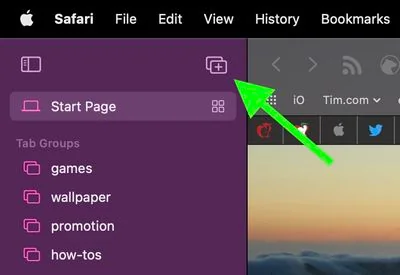
- Click the tab overview button (top-left corner)
- Select "New Empty Tab Group" or "New Tab Group with X Tabs"
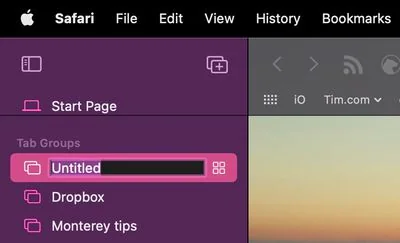
- Name your group (e.g., "Work Project," "Travel Planning," "Research")
-
Switch Between Tab Groups
- Click the sidebar button or press ⌘⇧L
- Select your desired Tab Group from the list
- All tabs in that group appear instantly
-
Organize Tabs Within Groups
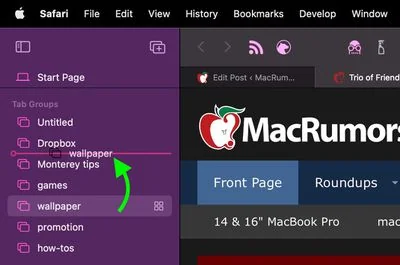
- Drag tabs to reorder within a group
- Move tabs between groups by dragging to sidebar
- Create nested organization with multiple groups
Power User Workflows:
Student Research System:
📚 English Literature → Research papers, library databases
🧪 Chemistry Lab → Lab protocols, safety sheets, supplier sites
📐 Mathematics → Khan Academy, Wolfram Alpha, course materials
👤 Personal → Social media, entertainment, shopping
Professional Project Management:
💼 Client A → Project docs, communication tools, resources
💼 Client B → Separate workspace for different client
📧 Email & Communications → Gmail, Slack, calendar
🎨 Design Resources → Inspiration, stock photos, tools
Developer Workflow:
🔨 Production Sites → Live environments for monitoring
📖 Documentation → API docs, Stack Overflow, GitHub
🧪 Testing → Staging environments, test data
🎓 Learning → Tutorials, courses, coding challenges
Tab Overview: Visual Tab Navigation
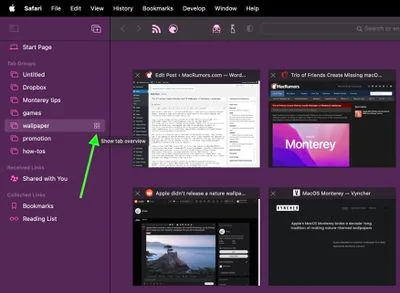
Access Tab Overview:
- Click and hold the tab switcher button
- Press ⌘⇧\ (keyboard shortcut)
- View all open tabs in a grid layout
Why Use Tab Overview:
- Visual identification: See webpage previews instead of just titles
- Quick closing: Click X on multiple tabs rapidly
- Drag and drop: Reorganize tabs visually
- Search tabs: Find specific tabs when you have 20+ open
Pro Tip: When you have multiple Safari windows with dozens of tabs, Tab Overview becomes essential for locating specific content without clicking through each tab individually.
Pinned Tabs: Keep Essentials Accessible
How to Pin Tabs:
- Right-click any tab → "Pin Tab"
- Pinned tabs move to the left side of tab bar
- Display only the favicon (saves space)
- Remain open even when closing and reopening Safari
Ideal Candidates for Pinning:
- Email clients (Gmail, Outlook)
- Communication tools (Slack, Discord, Messages)
- Calendar applications
- Project management tools (Asana, Trello, Notion)
- Music streaming (Spotify, Apple Music web player)
Benefits:
- Always accessible: One click away from critical tools
- Persist across sessions: No need to reopen daily tools
- Visual indicators: See unread counts, notification badges
- Space efficient: Minimal tab bar real estate
Essential Tab Management Shortcuts
| Shortcut | Action |
|---|---|
| ⌘T | Open new tab |
| ⌘W | Close current tab |
| ⌘⇧T | Reopen last closed tab |
| ⌘⇧W | Close entire window (all tabs) |
| ⌃Tab | Switch to next tab |
| ⌃⇧Tab | Switch to previous tab |
| ⌘1-8 | Jump to specific tab (by position) |
| ⌘9 | Jump to rightmost tab |
| ⌘⇧\ | Show all tabs in overview |
| ⌘⌥W | Close all other tabs (keep current) |
Advanced Tab Shortcuts:
- Hold Shift + Click close button: Close all tabs to the right
- Option-click close button: Close all other tabs
- ⌘-click link: Open link in background tab
- ⌘⇧-click link: Open link in foreground tab
Safari Profiles: Separate Browsing Contexts
What Are Safari Profiles? Introduced in Safari 17 and enhanced in Safari 26, Profiles create completely separate browsing environments within Safari. Each Profile maintains independent:
- Browsing history
- Cookies and website data
- Extensions
- Tab Groups
- Favorites and bookmarks
- Reading List
- AutoFill data
When to Use Profiles:
-
Work vs. Personal Separation
- Keep work accounts and personal accounts completely separate
- Different favorites bars for different contexts
- No cookie conflicts between multiple accounts on same site
-
Client-Specific Browsing
- Separate Profile for each major client
- Isolated credentials and browsing history
- Professional organization
-
Multi-Account Management
- Access multiple Gmail accounts without logging out
- Separate social media accounts (personal vs. business)
- Testing scenarios for developers
How to Create and Manage Profiles:
Safari → Settings → Profiles → Add Profile
1. Name your Profile (e.g., "Work," "Personal," "School")
2. Choose a color for visual distinction
3. Customize start page and favorites
4. Install profile-specific extensions
Switching Between Profiles:
- Click the Profile dropdown in Safari toolbar
- Profiles sync across devices via iCloud
- Each Profile maintains separate state on every device
Power User Strategy: Create targeted Profiles with specific extensions. For example, a "Development" Profile with debugging extensions, while "Personal" Profile has ad blockers and shopping tools. This prevents extension bloat and improves performance.
Reader Mode: Distraction-Free Reading

Activating Reader Mode
Manual Activation:
- Press ⌘⇧R when on article page
- Click Reader icon in address bar (appears on compatible pages)
- Article content displays in clean, distraction-free format
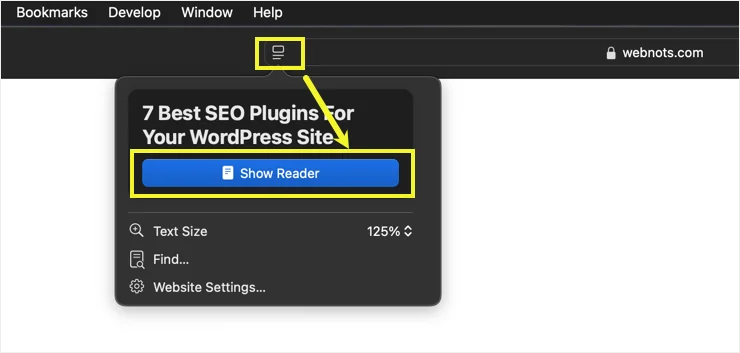
Automatic Activation:
Safari → Settings → Websites → Reader
Select "On" for specific websites
This forces websites to always open in Reader mode, perfect for news sites with cluttered layouts.
Customizing Reader Mode
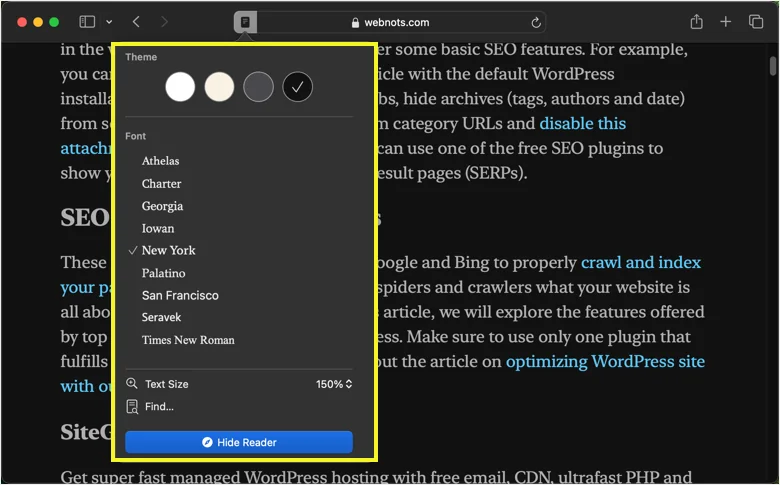
Appearance Options:
- Font: Choose from system fonts (New York, San Francisco, etc.)
- Font Size: Adjust for comfortable reading distance
- Background: White, Sepia, Gray, or Black (dark mode)
- Line Spacing: Increase for better readability
Settings Persist: Your Reader mode preferences apply across all articles, creating a consistent reading experience.
AI-Enhanced Reader (Apple Intelligence)
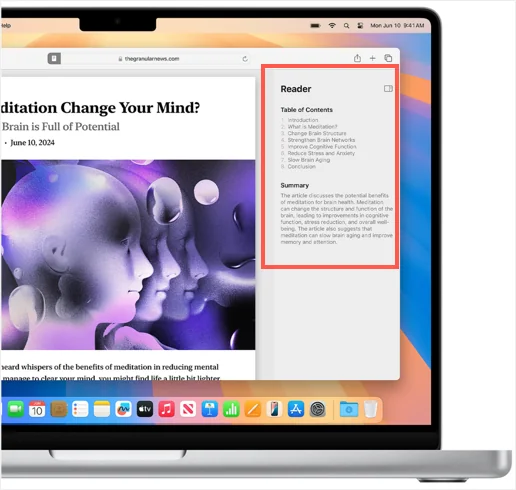
New in Safari 26 (Apple Silicon only):
- Automatic Summaries: AI generates article summaries at the top
- Table of Contents: Longer articles get AI-generated navigation
- Enhanced Accessibility: Better integration with VoiceOver and assistive technologies
Use Cases:
- Quickly scan long-form articles to decide if worth reading
- Navigate academic papers with automatic section detection
- Improve comprehension with visual structure
Reading List: Save Articles for Later
What Is Reading List? A lightweight bookmarking system specifically for articles you want to read later. Unlike regular bookmarks, Reading List is designed for temporary saves with offline reading support.
How to Use Reading List:
- Save to Reading List: Press ⌘⇧D or click Share → Add to Reading List
- Access Reading List: Click sidebar button → Reading List section
- Mark as Read: Reading List tracks which articles you've finished
- Delete from List: Right-click → Remove Item
Reading List vs. Bookmarks:
| Feature | Reading List | Bookmarks |
|---|---|---|
| Purpose | Temporary saves | Permanent references |
| Offline | Downloads for offline reading | Requires internet |
| Organization | Chronological list | Folders and hierarchy |
| Sync | iCloud across devices | iCloud across devices |
| Best For | News, articles, blog posts | Reference sites, tools |
Power User Workflow:
- Save articles during the week to Reading List
- Dedicate time on weekends to catch up on saved articles
- Use Reader mode for distraction-free reading
- Clear Reading List regularly to maintain focus
Smart Search: Unified Search and Navigation
What Makes Safari's Search "Smart":
Safari's address bar (officially called "Smart Search Field") combines URL entry, web search, and intelligent suggestions into one unified interface.
Key Features:
- Top Hit: Safari predicts your most likely destination and highlights it
- Search Suggestions: Real-time suggestions from your default search engine
- Favorites: Quick access to bookmarked sites
- History Search: Find previously visited pages
- Tab Search: Locate open tabs across windows
Quick Website Search:
Safari remembers search fields on websites you visit. This enables powerful shortcuts:
Instead of: Navigate to amazon.com → Click search → Type query
Just type: amazon wireless headphones [Return]
Safari goes directly to Amazon search results
Supported by Default:
- Amazon, eBay, Etsy (shopping)
- YouTube, Spotify (media)
- Wikipedia (reference)
- GitHub, Stack Overflow (development)
- Twitter, Reddit (social)
How It Works: Safari analyzes websites you visit and identifies search fields. When you type the site name followed by a space, Safari routes your query directly to that site's search.
Handoff & Continuity: Seamless Device Switching
What Is Handoff? Start browsing on one Apple device and instantly continue on another device nearby. Handoff works with Safari, Pages, Mail, Messages, and other Continuity-enabled apps.
Requirements:
- Same Apple Account on all devices
- Bluetooth enabled
- Wi-Fi enabled
- Devices within 30 feet (10 meters)
How to Use Handoff:
Mac to iPhone/iPad:
- Browse website on Mac
- On iPhone/iPad, swipe up to App Switcher
- Tap Safari banner at bottom
- Continue at exact same scroll position
iPhone/iPad to Mac:
- Browse website on iPhone/iPad
- On Mac, look at Dock (left end)
- Click Safari Handoff icon
- Safari opens to same webpage
Real-World Use Cases:
📱 Recipe Cooking: Find recipe on Mac → Handoff to iPad in kitchen 🚗 Directions: Look up address on Mac → Handoff to iPhone before leaving 📝 Form Filling: Start form on iPhone → Handoff to Mac for easier typing 📚 Research Continuation: Research on commute (iPhone) → Continue at desk (Mac)
Universal Clipboard: Copy Anywhere, Paste Anywhere
What Is Universal Clipboard? Copy content on one Apple device, paste on another. Works with text, images, photos, and videos.
Safari-Specific Workflows:
Copy Text from iPhone Safari to Mac:
1. Select text in Safari on iPhone
2. Tap "Copy"
3. On Mac, press ⌘V in any app
4. Text appears instantly
Copy URLs Between Devices:
1. Long-press URL in Safari address bar
2. Tap "Copy"
3. Switch to other device
4. Paste in message, email, or document
Copy Images from Websites:
1. Long-press image in Safari
2. Tap "Copy"
3. Switch to Mac/iPad
4. Paste in Pages, Keynote, or emailRequirements: Same as Handoff (same Apple Account, Bluetooth, Wi-Fi, proximity)
Pro Tip: Universal Clipboard works with content up to 100KB. For larger files, use AirDrop instead.
Part 2: Privacy & Security Mastery
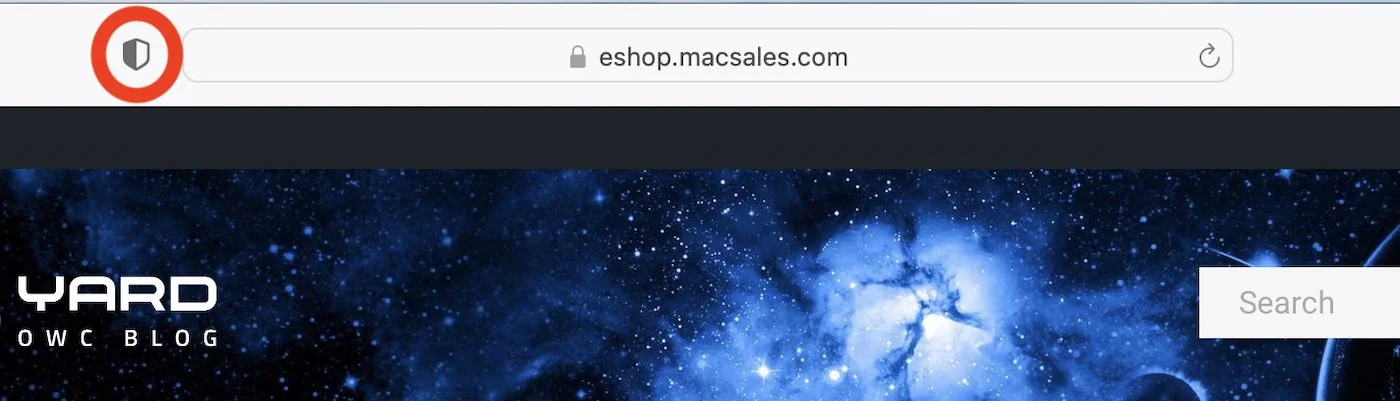
Privacy Report: Understand Your Protection
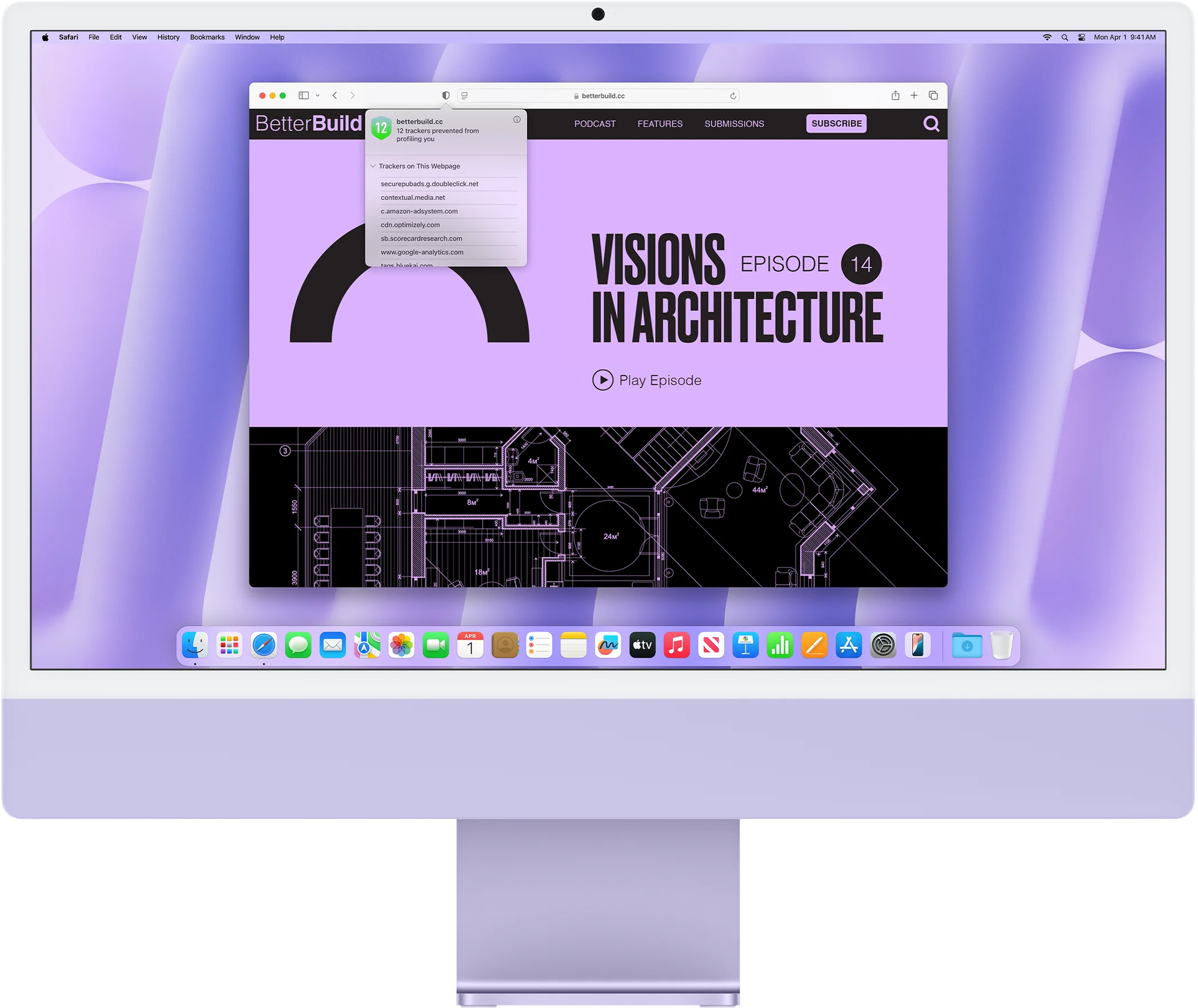
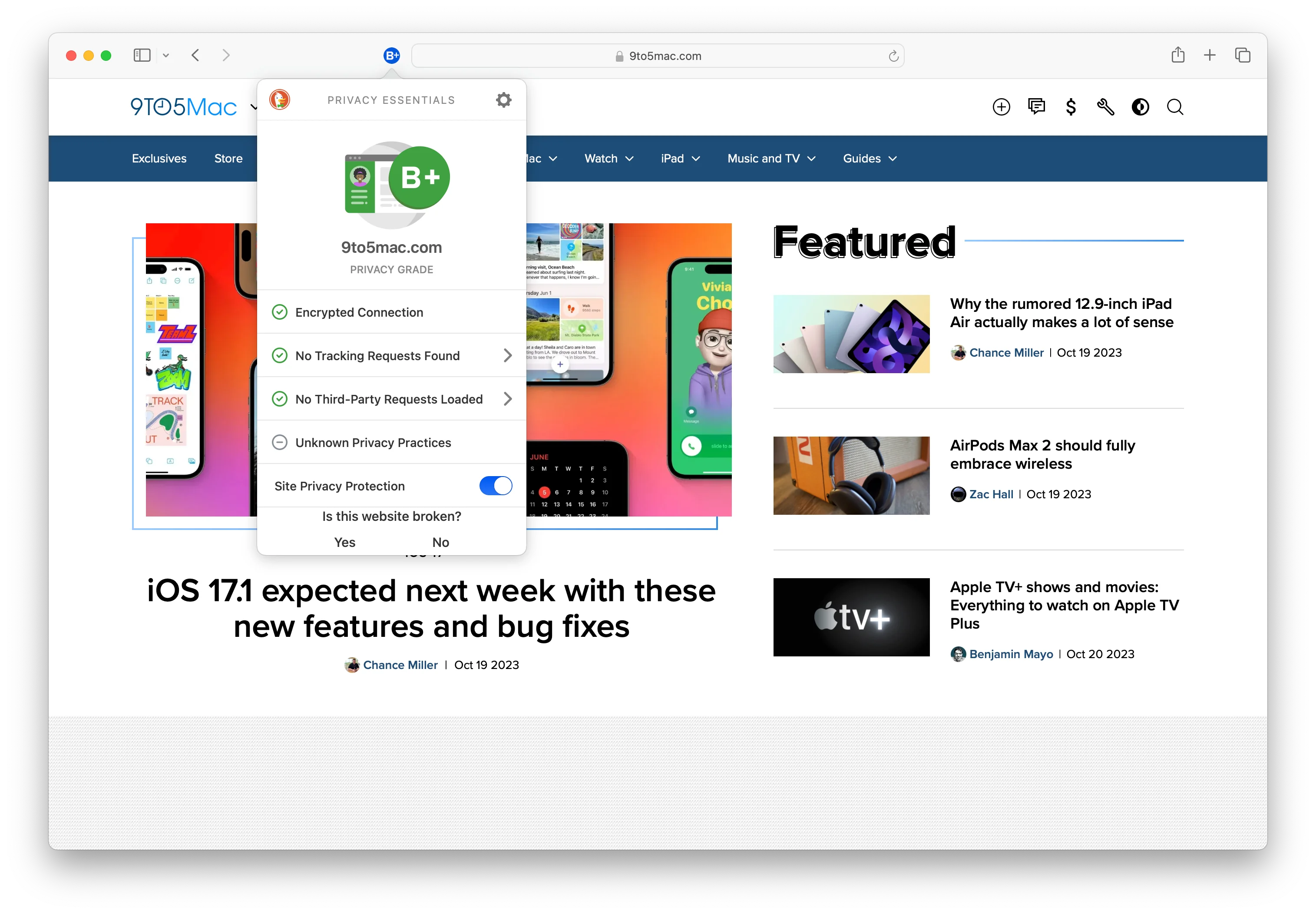
What Is Privacy Report? A comprehensive dashboard showing exactly which trackers Safari has blocked on websites you visit.
How to Access:
- Press ⌘⌥I
- Click the shield icon in Safari toolbar
- View Privacy Report from Safari menu
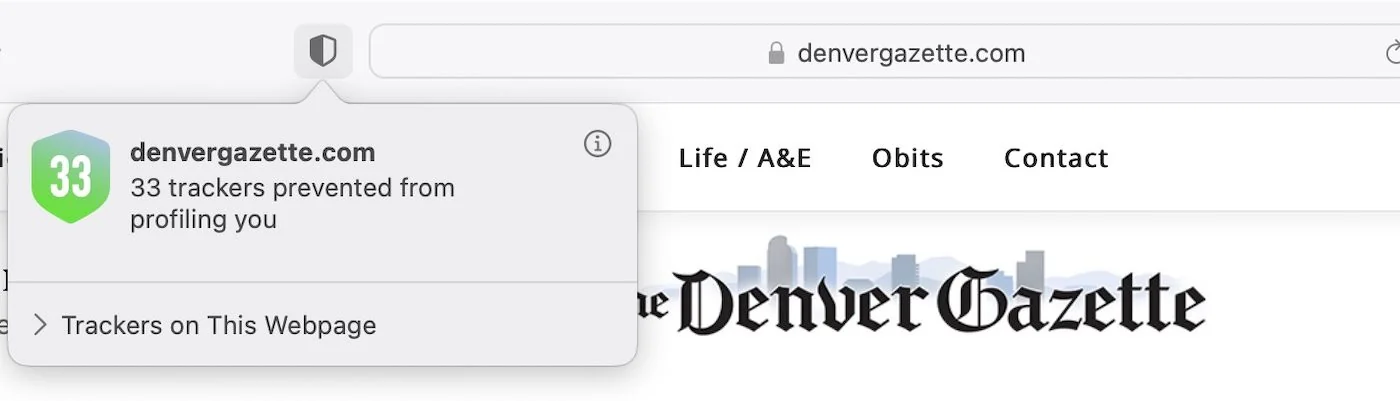
What You'll See:
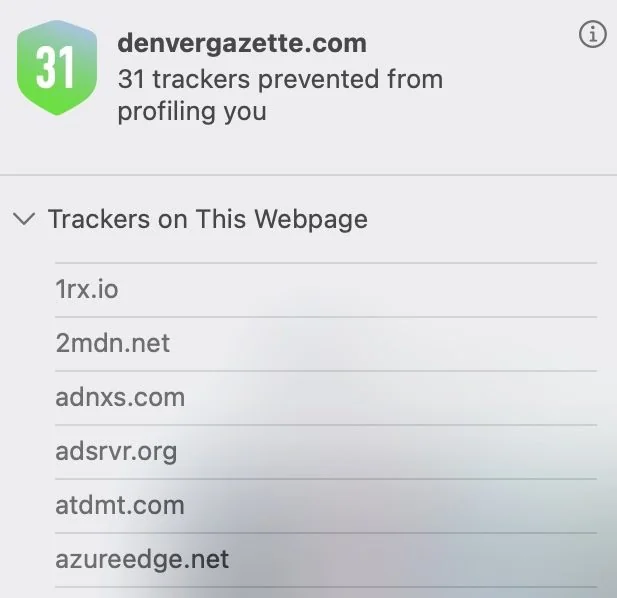
Current Page View:
- Number of trackers on the current website
- Specific companies attempting to track you
- Which trackers were blocked
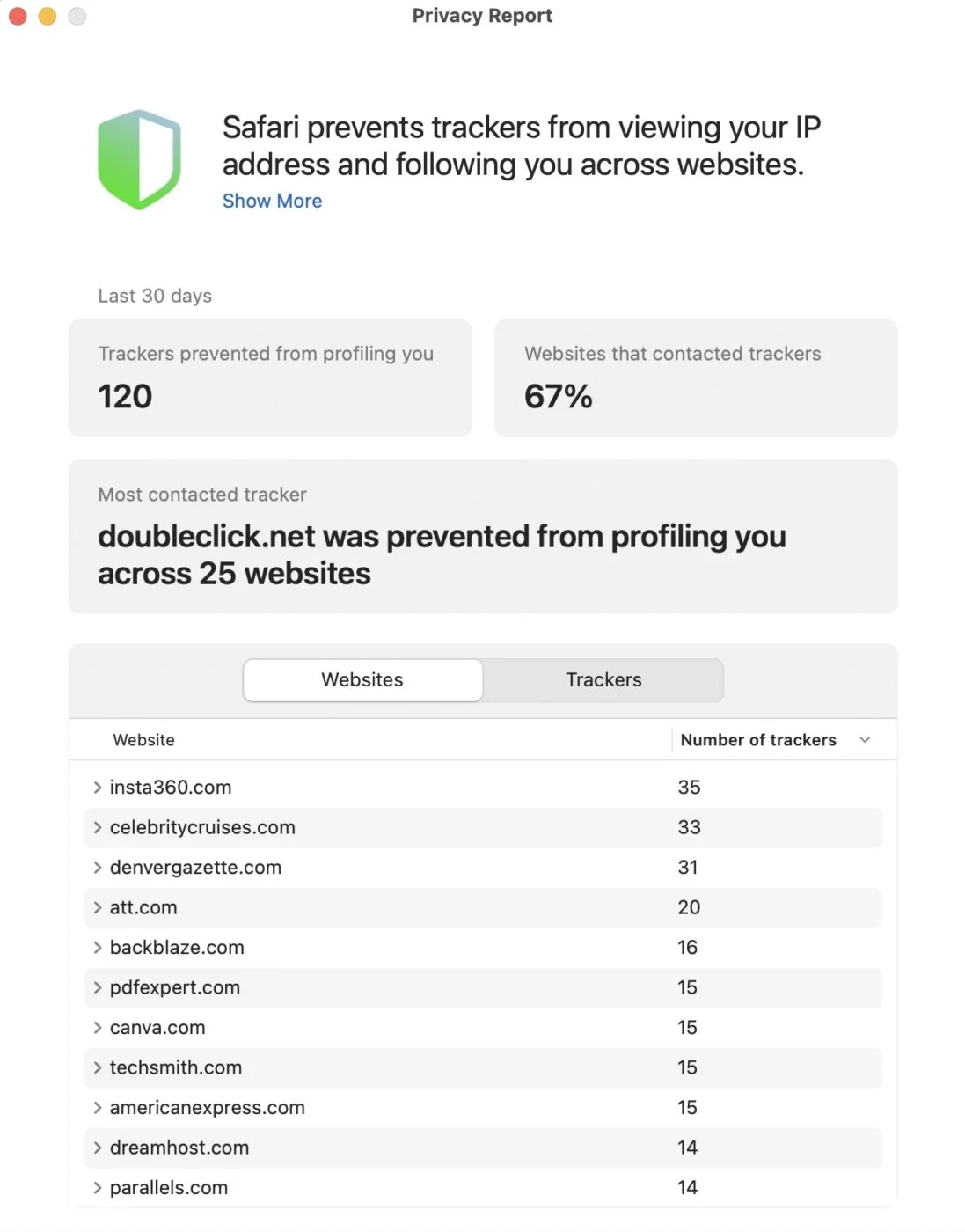
30-Day Summary:
- Total trackers blocked across all browsing
- Most common tracking companies
- Websites with the most trackers
Why This Matters:
Privacy Report reveals the hidden tracking ecosystem. You'll often discover:
- News websites with 50+ trackers
- "Free" services tracking across dozens of sites
- Third-party companies you've never heard of collecting data
- The effectiveness of Safari's protections
Power User Insight: If you visit a website and Privacy Report shows 0 trackers blocked, it likely means:
- The site genuinely doesn't use trackers (rare)
- The site uses first-party tracking Safari doesn't block
- You should be extra cautious about data shared on that site
Advanced Fingerprinting Protection: Default in Safari 26
What Is Browser Fingerprinting? Websites collect unique characteristics of your browser and device (screen resolution, fonts, plugins, GPU info) to create a "fingerprint" that identifies you even without cookies.
Safari 26's Protection (New Default):
Previously available only in Private Browsing, Safari 26 now applies Advanced Fingerprinting Protection to ALL browsing:
- Noise Injection: Safari adds random variation to APIs that expose device characteristics
- Fixed Values: Window and screen metrics return standardized values
- Per-Site Fingerprints: Each website sees a different "device," preventing cross-site tracking
- Per-Session Changes: Your fingerprint changes across different browsing sessions
What This Means for You:
✅ More Private: Harder to track across websites ✅ Automatic: Works without any configuration ✅ Transparent: You won't notice any difference in browsing ⚠️ Potential Issues: Some anti-bot systems may occasionally flag Safari users
Technical Details: Safari injects noise into:
- 2D canvas fingerprinting
- WebGL fingerprinting
- AudioBuffer samples
- Font enumeration
- GPU characteristics
Link Tracking Protection: Clean URLs Automatically
What Is URL Tracking? Websites add parameters to URLs to track how you arrived at the page:
Example tracking URL:
https://example.com/product?utm_source=email&utm_campaign=spring&fbclid=ABC123&gclid=XYZ789
Safari 26's Automatic Removal:
Safari strips known tracking parameters from URLs in:
- Private Browsing mode
- Links in Mail app
- Links in Messages app
Common Parameters Removed:
utm_source,utm_medium,utm_campaign(Google Analytics)fbclid(Facebook Click Identifier)gclid(Google Click Identifier)msclkid(Microsoft Click Identifier)- Many other tracking parameters
Result: Cleaner URLs, less tracking, same functionality.
Important Note: This only works in Private Browsing or when clicking links from Mail/Messages. Regular Safari browsing does NOT strip tracking parameters (as of macOS Tahoe 26.0).
Private Browsing: Maximum Privacy Mode
When to Use Private Browsing:
- Shopping for gifts (prevent targeted ads spoiling surprises)
- Browsing on shared/public computers
- Researching sensitive topics
- Testing websites without cookies/cache
- Accessing multiple accounts on same site
What Private Browsing Does:
✅ No History: Pages don't appear in browsing history ✅ No Cookies Saved: Cookies deleted when closing window ✅ No Form Data: AutoFill suggestions not saved ✅ Enhanced Tracking Protection: Link tracking protection enabled ✅ Advanced Fingerprinting: Maximum anti-fingerprinting measures
What Private Browsing DOESN'T Do:
❌ Not Anonymous: Your ISP, network admin, and websites still see your IP ❌ Not a VPN: Doesn't hide your location ❌ Not Secure: Doesn't protect against malware ❌ Not Invisible: Browser extensions can still see your activity
How to Use:
- Press ⌘⇧N for new Private window
- Private windows have dark address bar
- All tabs in that window are private
- Close window to delete all data
Face ID/Touch ID Protection:
New in macOS Tahoe: Require biometric authentication to access private tabs.
Safari → Settings → Privacy & Security
Enable "Require Face ID/Touch ID to unlock Private Browsing"
When you switch away from Safari or lock your Mac, Private tabs lock automatically. Biometric authentication required to access again.
Intelligent Tracking Prevention (ITP): Machine Learning Privacy
What Is ITP? Safari's machine learning system that identifies and blocks cross-site tracking cookies automatically.
How ITP Works:
- Learning Phase: Safari analyzes browsing patterns across millions of users
- Classification: Machine learning identifies which domains are trackers
- Blocking: Cookies from classified trackers can't track across websites
- Regular Updates: Safari updates tracking definitions frequently
What Gets Blocked:
- Third-party cookies from known trackers
- Cross-site resources from tracking domains
- Referrer information to tracking domains
- Cookie access after 7 days of no user interaction
What Doesn't Get Blocked:
- First-party cookies (cookies from the site you're visiting)
- Cookies from sites you interact with regularly
- Essential functionality cookies
Why ITP Is Powerful:
Traditional ad blockers use blocklists (sites manually add trackers). ITP uses machine learning to identify tracking behavior patterns, catching new trackers automatically without manual updates.
Impact on Web Experience:
✅ No Noticeable Change: Websites work normally ✅ Fewer Targeted Ads: Cross-site tracking reduced ⚠️ Occasional Login Issues: Some sites with complex authentication may require re-login
Control ITP:
Safari → Settings → Privacy & Security
"Prevent cross-site tracking" toggle
Keep this enabled (default) for maximum privacy. Only disable if experiencing persistent login issues on critical websites.
Part 3: Essential Safari Extensions
Ad Blockers: Performance and Privacy
Why Use Ad Blockers in Safari:
- Faster Page Loading: Removing ads speeds up websites 30-50%
- Privacy Protection: Ads are often vectors for tracking
- Battery Life: Fewer resources = longer MacBook battery
- Clean Interface: Remove visual clutter
Top Ad Blocking Extensions
1. Wipr 2 ($4.99 one-time)
- Best For: Simplicity and "set it and forget it" users
- Features: Blocks ads, trackers, cookie notices automatically
- No Configuration: Works perfectly out of the box
- One-Time Purchase: No subscription required
- Recommendation: Best value for most users
2. 1Blocker (Subscription)
- Best For: Power users wanting maximum customization
- Features:
- Custom blocking rules
- Block specific page elements
- Whitelist trusted sites
- Privacy dashboard with statistics
- Safari Exclusive: Built specifically for Safari
- Recommendation: If you need granular control
3. AdGuard ($39.99/year)
- Best For: Comprehensive blocking across all apps
- Features:
- Blocks YouTube ads
- System-wide ad blocking (not just Safari)
- Phishing protection
- Customizable filter lists
- Recommendation: If you want protection beyond Safari
4. AdBlock Plus (Free)
- Best For: Budget-conscious users
- Features:
- Free forever
- Effective ad blocking
- Acceptable Ads program (can be disabled)
- Recommendation: Best free option
Extension Performance Impact
Important Note: Safari extensions are significantly more efficient than Chrome extensions because they use Safari's native Content Blocking API.
Performance Comparison:
- Chrome with AdBlock: ~3GB RAM, noticeable slowdown
- Safari with Wipr 2: ~2.5GB RAM, minimal performance impact
- Battery Impact: Safari extensions extend battery life by blocking resource-intensive ads
Password Managers: Security Made Easy
Why Use Third-Party Password Managers?
While Safari has built-in iCloud Keychain, dedicated password managers offer:
- Cross-Platform Support: Works on Windows, Android, Linux
- Advanced Features: Password health reports, breach monitoring, secure notes
- Family Sharing: Share passwords safely with family members
- Travel Mode: Hide sensitive data when crossing borders
Top Password Managers for Safari
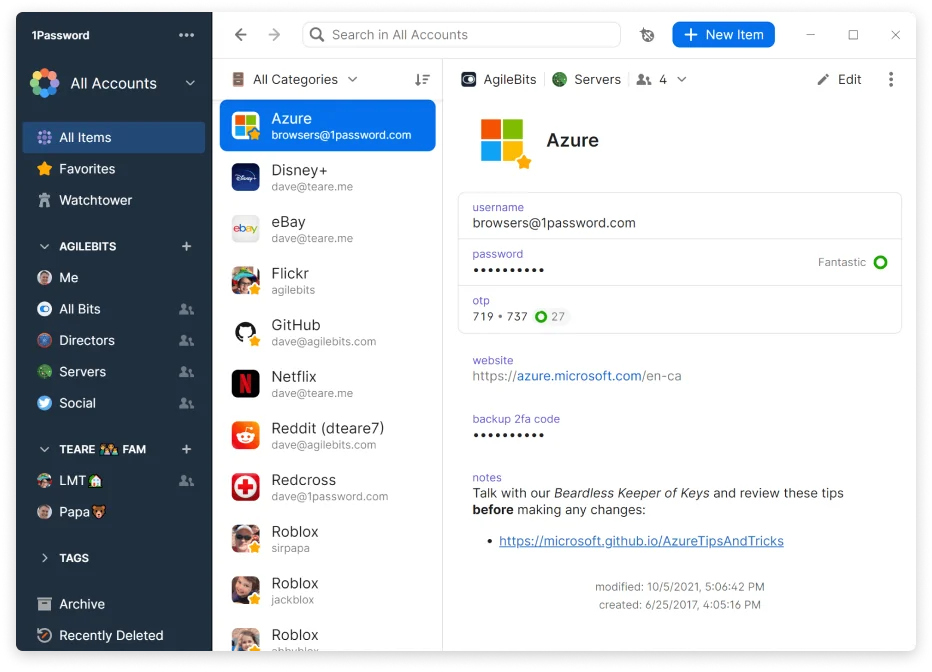
1. 1Password (Recommended)
- Pricing: $2.99/month individual, $4.99/month family
- Best Features:
- Watchtower security alerts
- Travel Mode for border crossings
- Secure document storage
- Excellent Safari integration
- Why Choose: Most polished experience, best family features
2. Bitwarden (Best Value)
- Pricing: FREE (unlimited passwords), $10/year premium
- Best Features:
- Open-source (auditable security)
- Self-hosting option for advanced users
- Cross-platform support
- Command-line interface
- Why Choose: Best free option, ideal for developers
3. iCloud Keychain (Built-in)
- Pricing: FREE with Apple Account
- Best Features:
- Zero setup required
- Perfect Apple ecosystem integration
- Automatic password generation
- Biometric autofill
- Why Choose: If you only use Apple devices, iCloud Keychain is excellent
Power User Recommendation: Use iCloud Keychain if you exclusively use Apple devices. Switch to 1Password if you need cross-platform support or advanced features. Consider Bitwarden if budget is a concern or you want open-source security.
Productivity Extensions
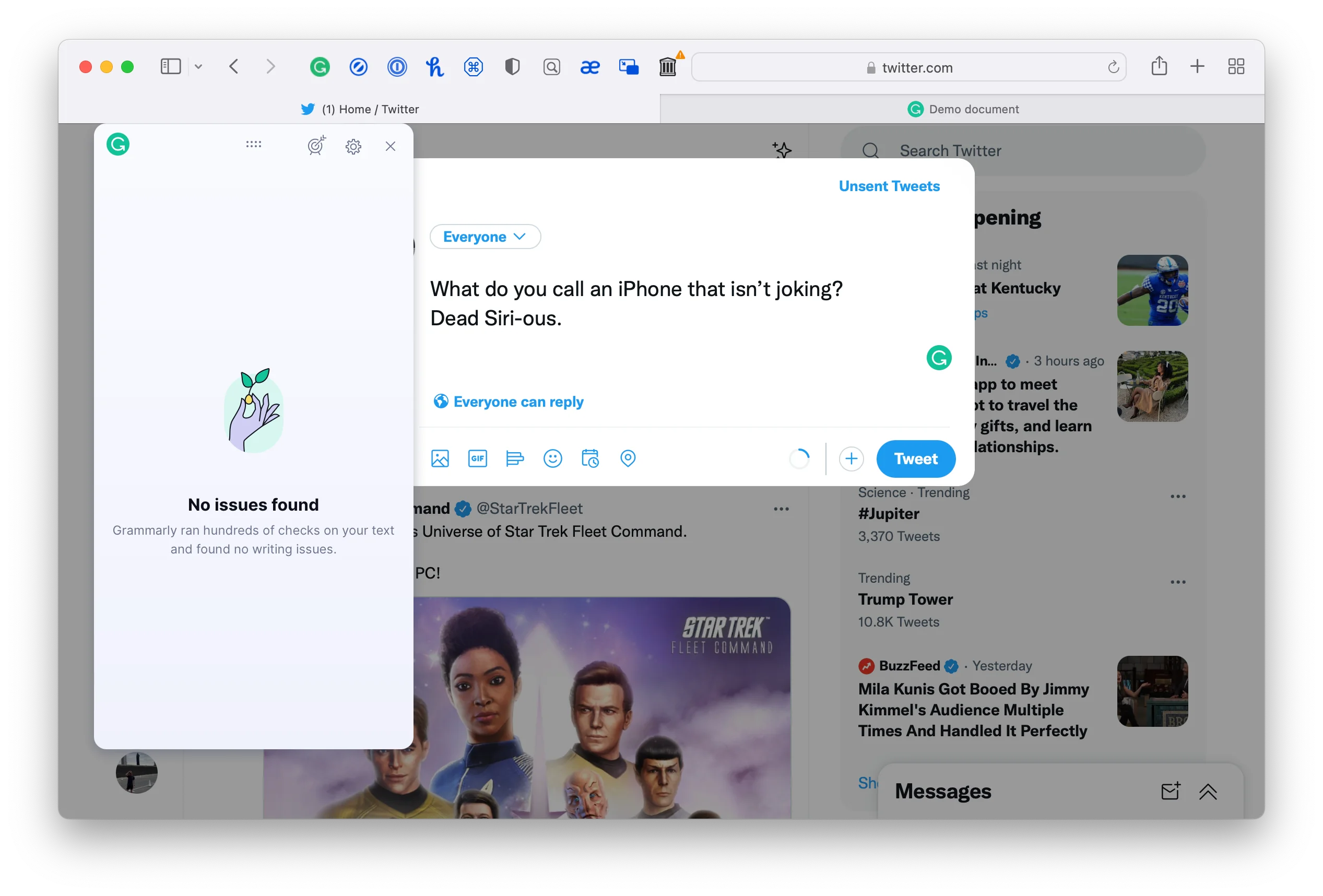
1. Grammarly for Safari (Free/Premium)
- Purpose: Real-time grammar, spelling, and tone checking
- Features:
- Underlines errors as you type
- Clarity and engagement suggestions
- Tone detection (formal, casual, confident)
- Premium: Advanced grammar, plagiarism detection
- Best For: Writers, students, professionals writing emails
2. StopTheMadness (Paid)
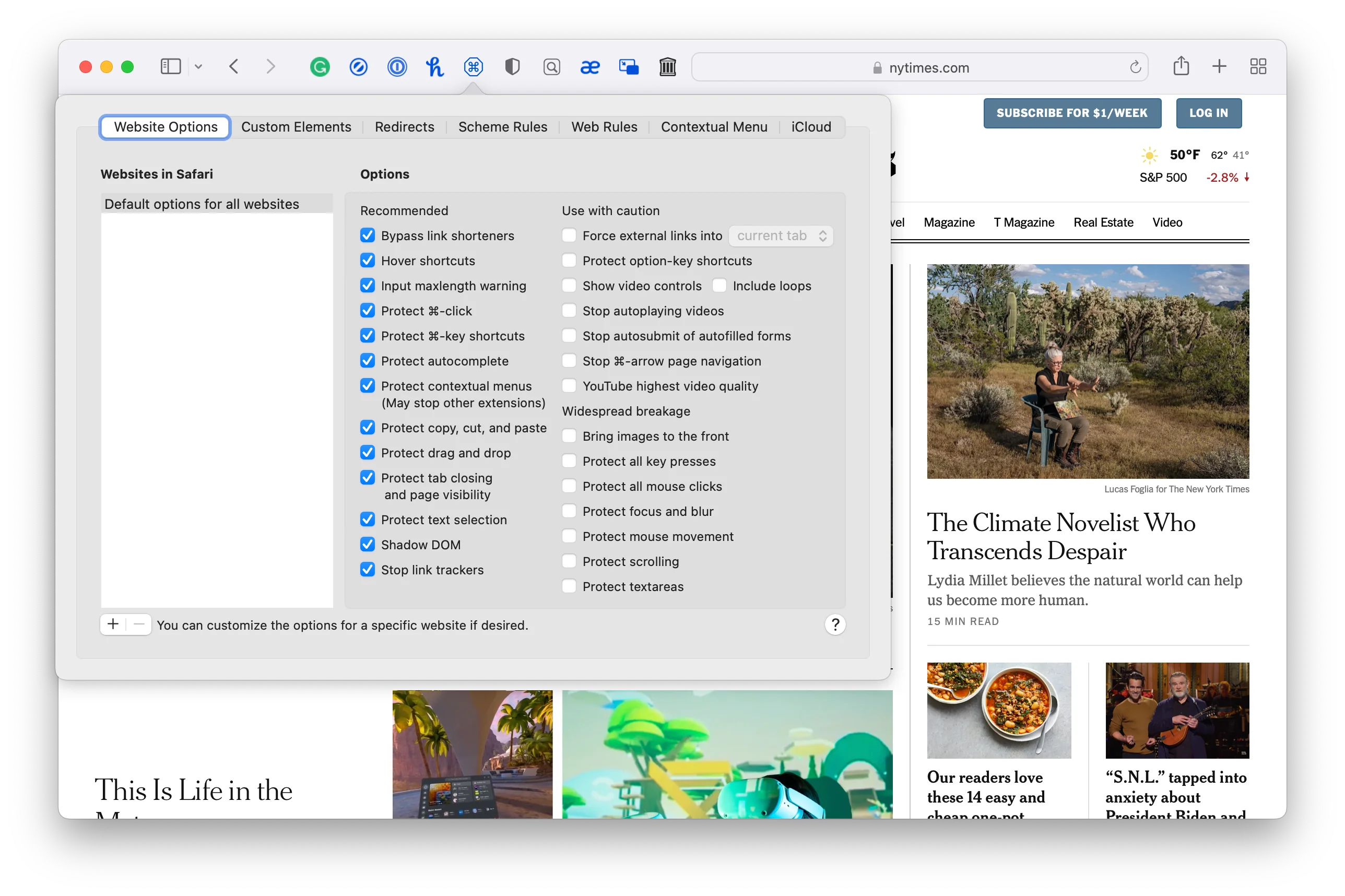
- Purpose: Fix web annoyances and restore browser control
- Features:
- Enable right-click on restricted sites
- Stop auto-playing videos
- Disable paywalls (some sites)
- Remove "Copy with site link" annoyances
- Block "Open in App" popups
- Best For: Power users frustrated with website restrictions
3. Raindrop.io (Free/Premium)
- Purpose: Advanced bookmark manager with highlights and annotations
- Features:
- Save articles, photos, videos, PDFs
- Highlight important passages
- Full-text search across all saved content
- Collections and tags for organization
- Cross-platform sync
- Best For: Researchers, students, content curators
4. Save to Notion (Free)
- Purpose: Clip web content to Notion workspace
- Features:
- One-click save to Notion
- Choose destination database
- Template support
- Extract metadata automatically
- Best For: Notion users building knowledge bases
5. Dark Reader (Free)
- Purpose: Force dark mode on all websites
- Features:
- Automatic dark theme generation
- Customizable contrast and brightness
- Site-specific settings
- Eye strain reduction for night browsing
- Best For: Dark mode enthusiasts, night readers
Part 4: Keyboard Shortcuts Mastery
Essential Navigation Shortcuts
| Shortcut | Action | Use Case |
|---|---|---|
| ⌘L | Highlight address bar | Quickly type new URL or search |
| ⌘R | Reload page | Refresh content |
| ⌘. | Stop loading | Cancel slow-loading pages |
| ⌘[ | Back | Previous page |
| ⌘] | Forward | Next page |
| ⌘↓ | Scroll to bottom | Jump to footer/comments |
| ⌘↑ | Scroll to top | Return to top of page |
| Space | Page down | Scroll one screenful down |
| ⇧Space | Page up | Scroll one screenful up |
| ⌥⌘F | Search in page | Find specific text |
| ⌘G | Next occurrence | Jump to next search result |
| ⌘⇧G | Previous occurrence | Jump to previous result |
Power User Tip: Combine ⌘L with ⌘C to copy the current page URL instantly without selecting it manually.
Advanced Tab Shortcuts
| Shortcut | Action | Pro Technique |
|---|---|---|
| ⌘T | New tab | Hold ⌘T and immediately type to search |
| ⌘W | Close tab | Muscle memory essential for tab management |
| ⌘⇧T | Reopen closed tab | Recover accidentally closed tabs |
| ⌃Tab | Next tab | Faster than clicking tabs |
| ⌃⇧Tab | Previous tab | Navigate backwards |
| ⌘1-9 | Jump to tab | ⌘1 = first tab, ⌘9 = last tab |
| ⌘⇧\ | Tab overview | Visual tab management |
| ⌘⌥W | Close other tabs | Clean up tab bar instantly |
Advanced Techniques:
Close All Tabs to the Right:
Hold Shift → Click close button on tab
All tabs to the right close instantly
Close All Other Tabs:
Hold Option → Click close button
Only current tab remains open
Open Links in Background:
⌘-Click link → Opens in background tab
Continue reading current page
Open Links in Foreground:
⌘⇧-Click link → Opens in foreground tab, switches immediatelyBookmark and Reading Shortcuts
| Shortcut | Action | Workflow Integration |
|---|---|---|
| ⌘D | Add bookmark | Quick save important pages |
| ⌘⇧B | Toggle Favorites bar | Show/hide bookmarks bar |
| ⌘⇧L | Toggle sidebar | Access Tab Groups, Reading List |
| ⌘⇧R | Reader mode | Distraction-free articles |
| ⌘⌥B | Show all bookmarks | Manage bookmark collection |
| ⌘⇧D | Add to Reading List | Save for later reading |
Workflow: Rapid Research Save
1. Find important article
2. Press ⌘⇧D (add to Reading List)
3. Press ⌘W (close tab)
4. Repeat for multiple articles
5. Later: ⌘⇧L → Reading List → Catch up on saved articles
Developer Shortcuts
| Shortcut | Action | Developer Use Case |
|---|---|---|
| ⌘⌥I | Web Inspector | Debug HTML/CSS/JavaScript |
| ⌘⌥C | Console | View JavaScript errors |
| ⌘⌥U | View source | Inspect page HTML |
| ⌘⌥R | Responsive Design Mode | Test mobile layouts |
| ⌘⌥E | Empty cache | Clear cache for testing |
Developer Workflow:
1. ⌘⌥I to open Web Inspector
2. Select Elements tab
3. Inspect HTML structure
4. Modify CSS in real-time
5. Test changes before implementing
Privacy Shortcuts
| Shortcut | Action | Privacy Benefit |
|---|---|---|
| ⌘⇧N | Private window | No history, enhanced tracking protection |
| ⌘⌥I | Privacy Report | See blocked trackers |
| ⌘, | Safari Settings | Adjust privacy controls |
| ⌘⇧Delete | Clear history | Remove browsing data |
Complete Shortcut Reference
Window Management:
- ⌘N: New window
- ⌘`: Cycle through Safari windows
- ⌘M: Minimize window
- ⌘H: Hide Safari
Downloads:
- ⌘⌥L: Show Downloads window
- ⌘S: Save page as
- ⌘P: Print page
Zoom and Display:
- ⌘+: Zoom in
- ⌘-: Zoom out
- ⌘0: Reset zoom to 100%
Power User Challenge: Learn one new shortcut per day for a month. By the end, you'll navigate Safari faster than with a mouse.
Part 5: Advanced Workflows and Hidden Features
Safari Profiles: Multi-Identity Browsing
Use Case 1: Work vs. Personal Separation
🏢 Work Profile:
- Email: Gmail (work account)
- Extensions: Grammarly, Notion Web Clipper
- Favorites: Company intranet, Slack, calendar
- Tab Groups: Projects A, B, C

🏠 Personal Profile:
- Email: Gmail (personal account)
- Extensions: 1Blocker, Honey
- Favorites: Social media, shopping, news
- Tab Groups: Vacation planning, recipes, entertainment
Benefits:
- No cookie conflicts (logged into work Gmail and personal Gmail simultaneously)
- Context-appropriate extensions (ad blockers in Personal, productivity tools in Work)
- Mental separation (closing Work profile ends work mentally)
Use Case 2: Client-Specific Profiles
Freelancers and consultants can create profiles for each major client:
🎨 Client A Profile:
- Bookmarks: Client A resources, project docs
- Credentials: Client A accounts
- Tab Groups: Current projects, assets

📊 Client B Profile:
- Separate credentials and resources
- No cross-contamination with Client A
Website-Specific Settings: Granular Control
Safari allows per-site customization of numerous settings:
Access Website Settings:
Safari → Settings → WebsitesAvailable Per-Site Controls:
1. Camera & Microphone
- Ask, Allow, or Deny for each site
- Control which sites access video/audio hardware
2. Location Services
- Grant location access only to trusted sites
- Deny for privacy-invasive sites
3. Page Zoom
- Set default zoom level per site
- Useful for sites with small text
4. Content Blockers
- Disable ad blockers for specific sites
- Support favorite content creators
5. AutoPlay
- Stop Media with Sound (default)
- Stop All Media
- Allow All Auto-Play
- Per-site overrides
6. Downloads
- Choose download location per site
- Organize files by source automatically
Power User Workflow:
For news sites you trust:
- Set Page Zoom to 110%
- Disable ad blocker (support journalism)
- Allow AutoPlay for video content
For social media:
- Deny location access
- Deny camera/microphone by default
- Stop all media auto-play
Quick Website Search: Direct Site Queries
Safari's most underrated feature: Direct website searching from address bar.
How It Works:
Safari remembers search fields on sites you visit. Type site name + query:
amazon wireless headphones
wikipedia albert einstein
youtube tutorial react hooks
github react router
stackoverflow javascript mapResult: Safari routes your query directly to that site's search, bypassing Google and saving clicks.
Supported Sites (Auto-detected):
- E-commerce: Amazon, eBay, Etsy
- Media: YouTube, Spotify, SoundCloud
- Reference: Wikipedia, Dictionary
- Development: GitHub, Stack Overflow, npm
- Social: Twitter, Reddit
- Productivity: Notion, Google Drive
Power User Tip: If you frequently search a site not auto-detected, visit the site and use the search field a few times. Safari will learn the search pattern and enable direct querying.
Standalone Web Apps: Transform Websites into Apps
What Are Standalone Web Apps?
Safari 26 allows you to "install" any website as a standalone app that:
- Opens in its own window (separate from Safari)
- Appears in App Switcher
- Has its own Dock icon
- Functions like a native app
How to Create Web Apps:
1. Visit website in Safari
2. File → Add to Dock
3. Name the web app
4. Click Add
5. Web app icon appears in Dock
Best Candidates for Web Apps:
Productivity Tools:
- Gmail → Email app
- Google Calendar → Calendar app
- Notion → Notes/wiki app
- Figma → Design app
Communication:
- Slack → Messaging app
- Discord → Voice/chat app
- WhatsApp Web → Messaging app
Media:
- YouTube → Video app
- Spotify → Music app
- Substack → Reading app
Benefits:
- Focused Experience: Separate window = fewer distractions
- App Switcher: ⌘Tab switches to web app like native app
- Notifications: Web notifications work independently
- Keyboard Shortcuts: App-specific shortcuts don't conflict with Safari
Limitations:
- No offline functionality (unless site supports PWA)
- Still requires internet connection
- Shares Safari's cookies and storage
Hidden Settings via Safari Develop Menu
Enable Develop Menu:
Safari → Settings → Advanced
Check "Show features for web developers"
Powerful Hidden Features:
1. User Agent Switching
Develop → User Agent → Chrome/Firefox/EdgeTest how websites behave for other browsers without switching browsers.
2. Experimental Features
Develop → Experimental FeaturesEnable upcoming web technologies before official Safari release:
- New CSS features
- JavaScript APIs
- WebGPU enhancements
3. Responsive Design Mode
Develop → Enter Responsive Design Mode (⌘⌥R)- Test website on different screen sizes
- Simulate iPhone, iPad, various resolutions
- Test touch interactions
4. Feature Flags
Develop → Feature FlagsEnable/disable specific WebKit features for testing compatibility.
Advanced Privacy Settings
1. Hide IP Address (iCloud+ Required)
Safari → Settings → Privacy & Security → Hide IP AddressOptions:
- Hide from trackers (default): Hides IP from known trackers only
- Hide from trackers and websites: Routes all Safari traffic through iCloud Private Relay
When to Use:
- Maximum privacy for sensitive browsing
- Bypass geographic content restrictions
- Prevent ISP tracking
2. Advanced Tracking and Fingerprinting Protection
Already enabled by default in Safari 26, but you can verify:
Safari → Settings → Privacy & Security
Ensure "Prevent cross-site tracking" is ON
3. Privacy Preserving Ad Measurement
Safari allows advertisers to measure campaign effectiveness without tracking individuals.
To Disable (maximum privacy):
Safari → Settings → Privacy & Security
Turn OFF "Privacy Preserving Ad Measurement"
4. Fraudulent Website Warning
Safari → Settings → Privacy & Security
Ensure "Warn when visiting a fraudulent website" is ON
Uses Google Safe Browsing API to protect against phishing and malware sites.
Terminal Commands for Power Users
Enable Debug Menu (Advanced Features):
defaults write com.apple.Safari IncludeInternalDebugMenu 1Restart Safari to access Debug menu with internal testing tools.
Show Full URL in Address Bar:
Safari → Settings → Advanced
Check "Show full website address"
See entire URL instead of just domain (helps spot phishing attempts).
Disable Top Sites Thumbnail Tracking (Privacy):
defaults write com.apple.Safari DebugDisableTopSitesTracking 1Prevents Safari from generating thumbnails for frequently visited sites.
Part 6: Workflow Examples for Different Users
Student Workflow: Research and Organization
Setup:
Tab Groups:
📚 English Literature
🧪 Chemistry
📐 Mathematics
📱 Personal
Extensions:
- Raindrop.io (bookmark manager)
- Obsidian Web Clipper (note-taking)
- Grammarly (essay writing)
Daily Workflow:
Morning: Class Preparation
- Open "Chemistry" Tab Group
- Review tabs from previous research session
- Add new resources from course materials
- Use Obsidian Web Clipper to save important passages
During Class:
- Switch to relevant Tab Group
- Quick searches using address bar
- Save articles to Reading List for later
Study Session:
- Open Reading List sidebar
- Use Reader mode for distraction-free reading
- Highlight and clip important content to Obsidian
- Organize bookmarks in Raindrop.io by topic
Essay Writing:
- Create new Tab Group for essay topic
- Collect sources in one place
- Use Grammarly extension for grammar checking
- Save drafts of citations and quotes
Benefits:
- All resources for each subject organized separately
- No lost tabs (Tab Groups sync across devices)
- Easy to pick up where you left off
- Research and notes connected
Developer Workflow: Testing and Debugging
Setup:
Safari Profiles:
🔨 Development Profile
🧪 Testing Profile
📱 Personal Profile
Tab Groups (Development Profile):
🌐 Production Sites
📖 Documentation
🧪 Testing Environments
🎓 Learning Resources
Extensions:
- None (minimal extensions for accurate testing)
Daily Workflow:
Morning: Check Production
- Open Development Profile
- Switch to "Production Sites" Tab Group
- Verify all sites operational
- Check Web Inspector Console for errors
Development Session:
- Local development site in first tab
- Documentation (MDN, framework docs) in additional tabs
- Enable Web Inspector (⌘⌥I)
- Use Responsive Design Mode to test layouts
- Console tab for JavaScript debugging
Testing:
- Switch to Testing Profile
- Clear all cookies and cache (⌘⌥E)
- Test authentication flows
- Verify website behavior without cookies
- Test different User Agents (Develop menu)
Learning:
- Switch to "Learning Resources" Tab Group
- Tutorials, courses, coding challenges
- Save code snippets to notes
- Practice new concepts in separate tabs
Safari Technology Preview:
- Install Safari Technology Preview for testing upcoming features
- Verify website compatibility with next Safari version
- Report bugs to WebKit team if needed
Benefits:
- Separate testing environment (Testing Profile)
- Easy access to documentation (Tab Groups)
- Powerful debugging tools (Web Inspector)
- Future compatibility testing (Safari TP)
Professional Workflow: Productivity Maximization
Setup:
Safari Profiles:
💼 Work
🏠 Personal
📧 Admin
Tab Groups (Work Profile):
📧 Communication (Email, Slack, Calendar)
📊 Project A
🎨 Project B
📚 Resources
Pinned Tabs:
- Gmail (work email)
- Slack
- Google Calendar
- Notion
Extensions:
- 1Password (password management)
- Grammarly (professional writing)
- Save to Notion (capture web content)
Daily Workflow:
Start of Day:
- Open Work Profile
- Pinned tabs load automatically (Email, Slack, Calendar)
- Check communications
- Review Tab Groups for active projects
Project Work:
- Switch to relevant project Tab Group
- All resources for that project in one place
- Use 1Password for secure logins
- Save important content to Notion
Context Switching:
- Switch between Tab Groups instead of searching through 50 tabs
- Each project maintains its own context
- No lost tabs or mental overhead
End of Day:
- Close Work Profile
- Switch to Personal Profile
- Mental separation between work and personal time
Benefits:
- Clear separation of work and personal (Profiles)
- Project organization without chaos (Tab Groups)
- Always accessible communication (Pinned tabs)
- Secure password management (1Password)
Writer Workflow: Research and Creation
Setup:
Tab Groups:
✍️ Current Article
📚 Research Archive
💡 Inspiration
📱 Social Media
Extensions:
- Grammarly (grammar and style)
- Raindrop.io (research organization)
- Liner (highlight important passages)
Daily Workflow:
Research Phase:
- Create new Tab Group for article topic
- Google search for sources
- Save relevant articles to Reading List
- Use Liner to highlight key passages
- Save sources to Raindrop.io with tags
Outline Phase:
- Open all saved sources in tabs
- Review highlights in Liner
- Create outline in notes app
- Organize quotes and citations
Writing Phase:
- Focus mode: Close all tabs except writing app
- Reference Tab Group when fact-checking
- Grammarly for real-time grammar assistance
- Reader mode for distraction-free source reading
Editing Phase:
- Read full draft in separate tab
- Use Grammarly for advanced suggestions
- Check citations against saved sources
- Final proofread
Benefits:
- Research organized by project (Tab Groups)
- Important passages highlighted (Liner)
- Sources saved for citations (Raindrop.io)
- Professional writing quality (Grammarly)
Part 7: Troubleshooting Common Issues
Safari Running Slow
Symptoms:
- Pages load slowly
- Tabs freeze
- High CPU usage
- Overheating Mac
Solutions (Try in Order):
1. Check Internet Connection
Turn Wi-Fi off and on
Run speed test (fast.com)
Test other browsers to isolate Safari-specific issues
2. Close Unnecessary Tabs
Limit to 10-15 active tabs
Use Tab Groups to organize (not keep all tabs open)
Safari handles dozens of tabs, but memory adds up
3. Clear Cache and Browsing Data
Safari → Settings → Privacy → Manage Website Data → Remove All
Safari → History → Clear History → Select time range
4. Update macOS and Safari
System Settings → General → Software Update
Install all available updates
Safari updates bundled with macOS updates
5. Disable Extensions
Safari → Settings → Extensions
Disable all extensions
Re-enable one at a time to find culprit
Update or remove problematic extensions
6. Test in Private Mode
⌘⇧N for Private window
If faster, issue is with extensions or cached data
7. Reset Safari
Quit Safari completely
Hold Shift while opening Safari
Resets preferences without deleting bookmarks
8. Check Activity Monitor
Applications → Utilities → Activity Monitor
Sort by CPU or Memory
Identify tabs using excessive resources
Close problematic tabs
Extensions Not Working
Problem: Extensions Greyed Out (Cannot Enable)
Solution 1: Update Software
System Settings → General → Software Update
Install all macOS and Safari updates
Solution 2: Safe Mode Method
1. Restart Mac in Safe Mode (hold Shift during startup)
2. Open Safari
3. Enable extensions in Safari → Settings → Extensions
4. Restart normally
5. Extensions remain enabled
Solution 3: Firewall Workaround
1. System Settings → Network → Firewall → Turn On
2. Leave all default settings
3. Turn Firewall off immediately
4. Return to Safari → Settings → Extensions
5. Extensions should now enable
Problem: Extension Installed But Not Functional
Diagnostic Steps:
- Verify extension enabled: Safari → Settings → Extensions
- Check extension permissions: Click extension → Review website access
- Update extension: App Store → Updates
- Remove and reinstall: Delete extension → Reinstall from App Store
- Check developer support page for known issues
Safari Crashing or Freezing
Emergency Recovery:
Force Quit Safari:
Press ⌘⌥Esc
Select Safari
Click "Force Quit"
Reopen Without Previous Tabs:
Hold Shift while opening Safari
Prevents reopening tabs that may have caused crash
Diagnostic Steps:
1. Update Everything
System Settings → Software Update
App Store → Updates (update all apps)
2. Remove Problematic Extensions
Boot in Safe Mode
Safari → Settings → Extensions → Disable all
Restart normally
Test Safari stability
3. Clear All Website Data
Safari → Settings → Privacy
Manage Website Data → Remove All
Corrupted data can cause crashes
4. Reset Safari Completely
Quit Safari
Move to Trash:
  ~/Library/Safari/
  ~/Library/Saved Application State/com.apple.Safari.savedState/
Restart Safari (creates fresh preferences)
5. Check for Malware
Download Malwarebytes for Mac (free)
Run full system scan
Remove any detected threats
6. Test in New User Account
System Settings → Users & Groups → Add User
Log into new account
Test Safari
If works: Issue is in your user account preferences
Part 8: Safari vs. Chrome Decision Guide
When Safari Is Superior
✅ Choose Safari If:
1. You Use Primarily Apple Devices
- Handoff works seamlessly
- iCloud Tab sync is instant
- Universal Clipboard saves time
- Continuity Camera integrates perfectly
2. Battery Life Is Critical
- Safari extends MacBook battery 30-60 minutes compared to Chrome
- Lower power consumption during video streaming
- Better thermal management (less fan noise)
3. Privacy Is Priority
- Intelligent Tracking Prevention (machine learning)
- Advanced Fingerprinting Protection (default)
- Privacy Report visibility
- No Google tracking built into browser
4. You Value Native macOS Integration
- Consistent with system design language
- macOS keyboard shortcuts work intuitively
- Face ID/Touch ID integration
- System-wide password manager
5. Performance on Mac Matters
- 50% faster page loading (frequently visited sites)
- Lower RAM usage with many tabs
- Better GPU efficiency
When Chrome Is Superior
✅ Choose Chrome If:
1. You Use Multiple Operating Systems
- Need sync across Windows, Linux, Android
- Chromebook integration
- Consistent experience everywhere
2. You Need Specific Extensions
- Extension exclusively available for Chrome
- Enterprise extensions
- Development tools
3. You're Heavily Invested in Google
- Gmail, Google Drive, Google Photos integration
- Chrome-specific features
- Google Workspace optimization
4. You Need Maximum Web Compatibility
- Some sites optimize only for Chrome
- Enterprise web apps may require Chrome
- Certain web technologies deploy to Chrome first
Side-by-Side Comparison
| Feature | Safari 26 | Chrome | Winner |
|---|---|---|---|
| Page Load Speed (Mac) | 50% faster | Baseline | Safari |
| RAM Usage (10 tabs) | ~2.5GB | ~3GB | Safari |
| Battery Life | 4 hours video | 3.5 hours video | Safari |
| Extension Library | ~1,000 extensions | ~100,000 extensions | Chrome |
| Privacy (default) | Excellent | Good | Safari |
| Cross-Platform | Apple only | All platforms | Chrome |
| Developer Tools | Excellent | Excellent | Tie |
| Apple Ecosystem | Perfect | None | Safari |
| Google Integration | Basic | Perfect | Chrome |
| Customization | Limited | Extensive | Chrome |
Recommendation:
- Mac-only users: Safari (better performance, privacy, battery)
- Multi-platform users: Chrome (cross-platform sync essential)
- Privacy-focused: Safari (superior tracking prevention)
- Extension power users: Chrome (larger library)
- Best of both: Use Safari as default, Chrome for specific needs
Conclusion: Mastering Safari on macOS Tahoe
Safari 26 on macOS Tahoe represents Apple's most capable browser yet. With Liquid Glass UI, advanced privacy protections, and seamless ecosystem integration, Safari offers a browsing experience that's uniquely powerful on Mac.
Key Takeaways
Essential Features to Start Using Today:
- Tab Groups: Organize projects separately, reduce tab chaos
- Safari Profiles: Separate work and personal browsing completely
- Reader Mode: Distraction-free article reading
- Privacy Report: Understand what's being blocked
- Handoff: Continue browsing across devices seamlessly
Extensions Worth Installing:
- Ad Blocker: Wipr 2 (simplicity) or 1Blocker (customization)
- Password Manager: 1Password (premium) or iCloud Keychain (built-in)
- Productivity: Grammarly (writing) + Raindrop.io (bookmarks)
Keyboard Shortcuts to Memorize:
- ⌘L: Focus address bar (fastest way to search)
- ⌘⇧T: Reopen closed tab (save accidentally closed tabs)
- ⌘⇧R: Reader mode (clean article reading)
- ⌘⌥I: Privacy Report (see tracker blocking)
- ⌃Tab: Next tab (faster than clicking)
Workflows That Save Time:
- Students: Tab Groups per subject + Reading List for articles
- Developers: Safari Technology Preview + Web Inspector + Responsive Design Mode
- Professionals: Profiles (Work/Personal) + Pinned tabs for communication
- Writers: Liner highlights + Raindrop.io research + Grammarly editing
Next Steps
Week 1: Set up Tab Groups for your main projects Week 2: Install essential extensions (ad blocker, password manager) Week 3: Learn and practice keyboard shortcuts daily Week 4: Create Safari Profiles for different contexts
Advanced: Explore Develop menu, customize per-site settings, integrate with macOS Shortcuts
Related Resources
Want to dive deeper into macOS Tahoe? Check out these comprehensive guides:
- Safari Liquid Glass Browsing Experience Review 2025 - Deep dive into Safari's new design
- macOS Tahoe Security & Privacy Complete Guide 2025 - Comprehensive privacy settings
- macOS Tahoe Professional Workflow Revolution - Advanced productivity techniques
- macOS Tahoe Hidden Features & Power User Tips - Discover hidden capabilities
Safari on macOS Tahoe is more than a browser—it's a productivity platform, privacy guardian, and seamless gateway to the web. Master these features, workflows, and shortcuts to unlock its full potential.
Happy browsing! 🚀