macOS Tahoe 26.6 Released: What's New, Security Fixes, Update Guide
macOS Tahoe 26.6 is out with over 140 security fixes and Spotlight groundwork for macOS 27. Here is what changed, what broke, and whether to update now.
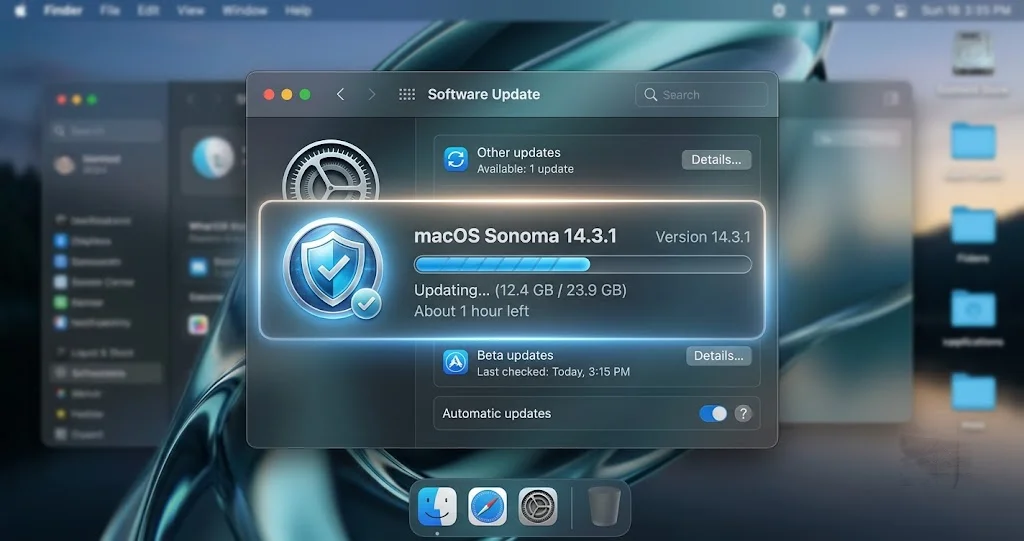
Apple released macOS Tahoe 26.6 on Monday, July 27, 2026, as build 25G72. On the surface it is a maintenance release with a two-sentence release note. Underneath, it is the largest security patch of the entire Tahoe cycle, and it quietly starts rebuilding the Spotlight index on your Mac in preparation for macOS 27.
If you have been putting off updates, this is the one to stop putting off. Over 140 security issues are closed here, spread across the kernel, WebKit, the app sandbox, Wi-Fi, Siri, the Neural Engine, and image processing. None of them are marked as actively exploited, which lowers the panic level but not the priority. A patch batch this wide means a lot of separate attack surfaces got closed at once, and the ones that matter most to ordinary users are the WebKit fixes, because those are reachable from a web page you did not choose to visit.
The other half of the story is what 26.6 is preparing you for. This is almost certainly the last significant Tahoe release before macOS 27 "Golden Gate" ships in the fall, and the Spotlight work in 26.6 is Apple laying track for it. For Intel Mac owners, the release carries a different weight entirely: macOS 27 will not run on your machine, so Tahoe 26.6 is part of the endgame rather than a waypoint. This guide covers what actually changed, how to install it cleanly, whether you should install it today, and what people are reporting after they did.
Key Takeaways
- macOS Tahoe 26.6 (build 25G72) shipped Monday, July 27, 2026, with over 140 security fixes. Published counts vary by source and counting method, with The Eclectic Light Company counting 143 and some outlets reporting more than 150. Either way it is the biggest security batch of any Tahoe point release.
- No actively exploited zero-days are in this batch. Apple did not flag any of these issues as known to have been exploited, so this is a patch-promptly release rather than a drop-everything release. Nine of the WebKit flaws are reachable from a malicious web page, which is the part that argues for "this week" rather than "this month."
- Apple's release note says 26.6 optimizes the Spotlight index in preparation for macOS 27. That is the confirmed wording. Press coverage goes further and describes it as building the on-device index that macOS 27's new Siri will draw on, but that interpretation is analysis, not an Apple statement.
- Four named bugs are fixed: spurious "Intel-only app" deprecation warnings for apps that were flagged incorrectly, garbled HDR screenshots when sent in Messages, a HealthKit averaging bug that inflated values for discrete types like Resting Heart Rate, and a failure when creating a macOS 27 virtual machine.
- Intel Mac owners should read this as the beginning of the end of the line. macOS 27 is Apple silicon only, M1 or later, so Tahoe 26 is the final macOS your Intel Mac will run. Security updates are expected to continue on Tahoe for roughly three more years, which makes staying current on Tahoe point releases more important than it used to be, not less.
What Is Actually in macOS Tahoe 26.6
Apple's own description of this update is short enough to quote in full. The release notes say the update "includes security fixes for the Mac and it optimizes Spotlight for the release of macOS 27." That is it. Apple's running list of Tahoe update notes lives at support.apple.com/en-us/122868, and 26.6's entry is one of the thinnest in the cycle.
Short release notes do not mean a small update. They mean Apple had nothing user-facing to market. The 26.x cycle is effectively finished as a feature vehicle: macOS 27 was announced at WWDC in June 2026 and is in public beta, so every remaining Tahoe release is maintenance, hardening, and groundwork. That is exactly what 26.6 is.
The version timeline, so you know where you stand
Tahoe's release history to date runs like this:
- 26.0 on September 15, 2025
- 26.5 on May 11, 2026
- 26.5.1 on June 1, 2026
- 26.5.2 on June 29, 2026
- 26.6 on July 27, 2026
As of July 31, 2026, there is no 26.6.1 and no 26.7. If you see a page or a forum post claiming otherwise, it is either wrong or describing a beta seed. The current shipping version of macOS is Tahoe 26.6, build 25G72, full stop.
If you are jumping from further back, our complete guide to macOS Tahoe 26.5 covers the release that most of this cycle's feature changes actually landed in, which is useful context if you are updating from 26.4 or earlier and want to know what else is arriving in the same download.
The build number tells a small story
The release candidate that went to developers the week before shipped as build 25G70. The public release is 25G72. That gap means at least one change landed after the RC, which is not unusual but is worth noting if you are the kind of admin who tests an RC and then deploys the public build assuming they are identical. They are not identical here. Apple does not publish a diff between an RC and a final build, so if you validated 25G70 in a test ring, validate 25G72 before you push it broadly.
What shipped alongside it
July 27 was a coordinated release day across Apple's platforms. On macOS, the companions were:
- macOS Sequoia 15.7.8
- macOS Sonoma 14.8.8
And across the rest of the lineup: iOS and iPadOS 26.6, watchOS 26.6, tvOS 26.6, and visionOS 26.6.
The Sequoia and Sonoma updates matter more than they look. If you run a mixed household or a mixed fleet, the older-OS updates are the security floor for machines that cannot or will not move to Tahoe. Coordinated release days like this usually mean shared fixes across the versions, so a Mac left on Sequoia without 15.7.8 is running with known-patched issues open.
The Security Release in Detail
This is the substance of 26.6. Apple's security advisory for the release is published at support.apple.com/en-us/128067, and it is long.
Why the published count varies
You will see different numbers depending on where you read. The Eclectic Light Company's teardown counts 143 individual fixes. Some outlets report "more than 150." Both can be defensible at once, because counting security fixes is not as mechanical as it sounds: some entries cover multiple CVE identifiers, some CVEs appear under more than one component, and some sources count the macOS entries only while others fold in the Safari advisory that shipped the same day.
The honest framing is over 140, with the acknowledgment that exact counts vary by source and method. What is not in dispute is the shape of it: this is the largest security patch of any Tahoe point release, comfortably larger than the 26.5 batch that held the previous high-water mark for this cycle.
The kernel: a use-after-free
The kernel fix in this batch addresses a use-after-free. In plain terms, a use-after-free happens when code keeps using a pointer to memory that has already been released, and something else has moved into that memory in the meantime. An attacker who can control what lands in the freed memory can often turn that confusion into arbitrary code execution, and when it happens in the kernel, that execution has the highest privilege level on the machine.
That is why kernel memory-safety fixes carry weight even when there is no evidence of exploitation. The kernel is the boundary that keeps a compromised app from becoming a compromised machine. A patched kernel bug is the difference between "an attacker got into my browser sandbox" and "an attacker got everything."
WebKit: nine flaws reachable from a web page
Nine of the fixed flaws are in WebKit and are reachable from a malicious web page. This is the category that should govern how quickly you install.
WebKit is not just Safari. It renders HTML in Mail, in Messages link previews, in Help Viewer, and inside any third-party app that embeds a web view, which is a very large number of apps. A WebKit flaw reachable from a web page means the attack does not require you to download anything, run anything, or approve anything. It requires you to load content, and content loads on your Mac constantly without an explicit decision from you.
The practical consequence: an unpatched Mac with nine known page-reachable WebKit issues is exposed through a path you cannot realistically avoid by being careful. Patching is the mitigation. There is no browsing-habits workaround that substitutes for it.
App sandbox escapes
The batch also fixes sandbox escapes. The App Sandbox is the containment layer that limits what an app can touch: its own container, the files you explicitly grant it, and a narrow set of system services. A sandbox escape is what turns a limited foothold into a general one.
Sandbox escapes are the second half of most real-world attack chains. On their own they usually require the attacker to already be running code on your machine, which sounds like a high bar until you remember the WebKit flaws above, which supply exactly that. The reason a batch containing both page-reachable rendering bugs and sandbox escapes deserves prompt attention is that the two categories compose. Individually, each is a partial compromise. Chained, they are a full one.
Neural Engine, Wi-Fi, Siri, and image processing
The rest of the patched components each represent a distinct attack surface:
- Neural Engine. The on-device ML accelerator. It processes inputs from other subsystems, which means bugs here can be reachable from data you did not author.
- Wi-Fi. Wireless stack bugs are reachable by anyone on the same network, and often by anyone within radio range. This is the category that matters on hotel, conference, airport, and cafe networks.
- Siri. Siri touches a great deal of personal state, and it sits at an interesting boundary between local processing and network services.
- Image processing. Image parsers are a perennial source of severe issues because they consume untrusted binary data from every direction: web pages, messages, email attachments, AirDrop, thumbnails generated automatically by the Finder. You do not have to open an image for a parser to touch it.
Image processing deserves the extra attention. The reason parser bugs keep showing up in security advisories is structural: parsing complex formats means handling malformed input, and malformed input is exactly what an attacker supplies. Macs generate previews and thumbnails automatically, so "I did not open that file" is not a defense.
What "no actively exploited zero-days" actually means
Apple did not mark any issue in this batch as known to have been exploited. That is genuinely good news and it changes the urgency calculus in a specific way.
When Apple flags a fix as addressing an issue that "may have been actively exploited," it means attacks were happening before the patch existed. In that case the correct response is to update immediately, at whatever cost to your schedule. This batch is not that. Nothing here was known to be under attack when it shipped.
What it does not mean is that these bugs are theoretical. Once a patch ships, the fix itself is a roadmap. Security researchers and attackers alike diff patched binaries against unpatched ones to locate the vulnerability, and page-reachable WebKit bugs are among the most attractive targets for that work. The window between a patch shipping and exploits appearing for unpatched machines is measured in weeks, sometimes less. "Not exploited yet" is a statement about the past, not a forecast.
The reasonable posture: update within days, not hours, and not months.
The Spotlight Change and What It Means for macOS 27
This is the part of 26.6 that has generated the most speculation, so it is worth being precise about which claims are Apple's and which are not.
What Apple actually said
Apple's confirmed wording is narrow. The macOS release note says 26.6 "optimizes the Spotlight index in preparation for macOS 27." That is the full extent of Apple's statement on the subject. Apple did not say what the optimization consists of, what the new index format is, or which macOS 27 features consume it.
What press coverage adds
Coverage from outlets including 9to5Mac and TechTimes reports that this work begins building the on-device index that macOS 27's new Siri will use. That is a reasonable read given what Apple has shown of macOS 27, and it lines up with the broader direction of Apple's on-device intelligence work.
It is also, explicitly, press analysis rather than an Apple statement. Apple has not confirmed that the Spotlight reindexing in 26.6 is Siri-specific, and you should treat any article that presents it as confirmed fact with appropriate skepticism, including any that cites this connection without labeling it. The distinction matters because if the interpretation is wrong, the conclusions people draw from it about macOS 27's Siri capabilities are wrong too.
What you will actually notice
Regardless of what the index is ultimately for, the observable effect of a reindexing pass is the same and it is not subtle: Spotlight rebuilds its index after you update, and while it does, your Mac works harder.
That means higher CPU usage from indexing processes, fans spinning up on machines that have them, warmer chassis on machines that do not, and worse battery life on laptops. On a Mac with a large drive and a lot of files, this can run for more than a day. It is not a malfunction and it is not something you should try to interrupt, though there are legitimate ways to check on it and to schedule around it.
If your Mac is running hot after this update and you want to confirm that indexing is the cause rather than something else, we have a dedicated walkthrough on why your Mac runs hot after updating to 26.6 that covers how to identify the responsible processes and how long to reasonably wait before treating it as a real problem.
The practical planning advice: if you update, do it when you can leave the Mac plugged in and idle for a while. Updating right before a flight, a presentation, or a battery-dependent workday is how a normal reindex turns into an afternoon of confusion.
The Bug Fixes, Explained
Four named fixes landed in 26.6 beyond the security work. Each is small in scope and genuinely annoying if you were hitting it.
Spurious "Intel-only app" deprecation warnings
Tahoe warns you when you launch an Intel-only app, which is reasonable given that Rosetta 2 support is winding down and macOS 27 drops Intel Macs entirely. The problem was that some apps were being flagged incorrectly. Apps that were not actually Intel-only, or that had a perfectly valid Apple silicon path, were triggering deprecation warnings anyway.
26.6 stops showing the warning for apps that were flagged incorrectly. If you have been dismissing a warning on an app you were confident was a universal binary, that is what was happening, and it should stop after you update.
This is a small fix with an outsized effect on trust. A warning that fires falsely trains people to ignore it, which is exactly the wrong outcome for a warning whose whole purpose is to get you to audit your software before a transition. If you have not done that audit, our Rosetta 2 wind-down and Intel app audit guide covers how to work out which of your apps actually have a problem.
Garbled HDR screenshots in Messages
HDR screenshots were appearing garbled when sent in Messages. This is a color-pipeline problem: an HDR screenshot carries extended dynamic range metadata, and somewhere between capture, attachment, and rendering in the Messages transcript, that metadata was being mishandled badly enough to visibly corrupt the image.
Fixed in 26.6. If you take screenshots on an XDR display and share them, this is a real quality-of-life improvement.
The HealthKit averaging bug
This is the most technically interesting of the four. HealthKit supports temporally-weighted average queries for discrete types, which is how an app computes something like your average Resting Heart Rate over a period. Temporal weighting means each sample counts in proportion to the time it represents, rather than every sample counting equally.
The bug: when samples overlapped in time, those queries returned erroneously high values. Overlapping samples are common when more than one source is writing the same data type, for example a Watch and a third-party device both logging heart rate. The weighting math did not handle the overlap correctly and the result skewed upward.
If you use a health app that reports averages and you have wondered why a number looked implausibly high, this may be your explanation. Note that the fix changes how new queries compute, so historical readings you screenshotted before the update may not match what the app shows now. That is the fix working, not a new bug.
Creating a macOS 27 virtual machine now works
Creating a macOS 27 virtual machine was broken and now works. This is a narrow fix with a specific audience: developers and testers who want to run the macOS 27 beta in a VM on Apple silicon rather than on bare metal.
It matters more than the audience size suggests, because a VM is the safest way to try a beta. It keeps the beta off your working machine, off your working data, and away from an irreversible APFS volume upgrade. If you have been waiting to look at Golden Gate, 26.6 removes the obstacle. Our guide to installing the macOS 27 Golden Gate public beta safely covers both the VM route and the separate-volume route, along with what you cannot undo once you commit.
Under the Hood: Firmware, Safari, APFS
The Eclectic Light Company's teardown of the release, published at eclecticlight.co/2026/07/27/what-has-changed-in-macos-tahoe-26-6, documents the component-level changes. The versions that shipped with 26.6:
- Apple silicon firmware: mBoot 18000.161.9
- Intel T2 BridgeOS: 23.16.16068.0.0
- Safari: 26.6
- APFS: 2811.160.7
A few things follow from that list.
Firmware updates ride along with the OS update, and they are the reason you do not interrupt an install. The mBoot version on Apple silicon and the BridgeOS version on T2 Intel Macs both change here. Firmware writes happen during the restart phase of the update, and a machine that loses power partway through a firmware write is in a much worse position than one that loses power during a file copy. This is the single best argument for plugging in a laptop before you update, and it applies to every macOS update, not just this one.
Safari 26.6 carries the WebKit fixes. The version bump is what delivers the nine page-reachable fixes discussed above to Safari itself. Note that installing Safari updates alone is not equivalent to the OS update: the OS update also patches the system frameworks that other apps use to render web content.
APFS changed. A filesystem version bump in a point release is routine and usually reflects fixes and internal changes rather than a format change, but it is another reason to have a current backup before updating. Filesystem code is the layer everything else sits on.
Download size
Per the same teardown, the delta update from 26.5.2 is roughly 5.28 GB on Apple silicon and 2.98 GB on Intel. Those figures come from that analysis, not from Apple.
One thing that confuses people every cycle: the size macOS reports in Software Update is often larger than what actually downloads. Software Update shows a conservative figure that accounts for the full possible payload, while the actual transfer is frequently a smaller delta based on what your Mac already has. If Software Update quotes a number that seems large, that is normal, and it is not a reason to abandon the update on a metered connection without checking what actually transfers.
For free space, plan on considerably more than the download size. macOS needs room for the download, the expanded installer, and the update process itself. Twenty-five to thirty gigabytes of free space is a comfortable target for a point release of this size, and if you are close to full you should clear space before starting rather than after the installer complains.
How to Install macOS Tahoe 26.6
Nothing about this install is unusual. The steps below are the ones that keep an ordinary install from becoming an unpleasant one.
Before you start
Back up first. This is not boilerplate. Point releases are low risk, but "low risk" is a statement about probability, not about what happens to you specifically if the improbable occurs. A current backup turns a catastrophic outcome into an inconvenient one. If your backup situation is ad hoc or you are not sure when Time Machine last completed successfully, our Mac backup strategy guide walks through what a working setup looks like and where the common gaps are.
Check free space. Aim for at least 25 to 30 GB free. Apple menu, then About This Mac, then More Info, then Storage.
Plug in. Laptops should be on power, not battery, because of the firmware writes described above. If you have a desktop on an unreliable circuit, this is a good moment to think about that.
Quit what matters. Close documents and quit apps that hold open files, particularly anything writing to a database or a large project file. The installer will force-quit them if you do not, and force-quitting an app mid-write is how files get corrupted.
Give yourself time. Between download, install, restart, and the Spotlight reindexing that follows, this is not a five-minute operation. Do not start it fifteen minutes before you need the machine.
The Software Update path
- Open System Settings.
- Click General in the sidebar.
- Click Software Update.
- Wait for the check to complete. It can take a minute, especially the first time after a previous update.
- When macOS Tahoe 26.6 appears, click Update Now.
- Enter your administrator password when prompted.
- Let it download, then let it restart when it is ready.
The restart phase is where the actual install happens. You will see a progress bar, the screen may go black more than once, and on Apple silicon the machine may appear to sit at a static progress indicator for a while. All of that is normal. Do not force-power-off during this phase.
After the restart
Expect the Mac to feel slower for a while. Spotlight is reindexing, and depending on how much data you have, that can run for hours or more than a day. Battery life will be worse than usual during this period on a laptop. Fans may run.
Give it a full day of normal use before you conclude something is wrong. If it is still hot and slow after that, the linked heat and battery drain guide above covers how to distinguish an ongoing reindex from an actual stuck process.
If the update stalls
Updates get stuck occasionally. In rough order of what to try:
Give it more time than feels reasonable. A progress bar that has not moved in fifteen minutes is often still working. Apple silicon installs in particular can sit at what looks like a frozen indicator while doing real work. An hour of apparent inactivity is not conclusive.
Check your network. A stalled download is usually a network problem, not an update problem. Try a different network if you can.
Restart and retry. If the download itself is stuck rather than the install, restarting the Mac and rechecking Software Update will usually restart the download cleanly.
Check free space again. An install that fails partway through is very often a space problem that only became apparent when the installer expanded its payload.
Try safe mode. Restarting into safe mode disables third-party startup items and login extensions, which can interfere with updating. On Apple silicon, shut down, then press and hold the power button until startup options appear, select your startup disk, then hold Shift and click Continue in Safe Mode.
Use the full installer as a fallback. If the delta update keeps failing, downloading the full installer is a heavier but more reliable path. softwareupdate --fetch-full-installer from Terminal will pull it.
Command line and managed installs
For admins, softwareupdate --list and softwareupdate --install still work as expected, and MDM-driven updates follow the usual declarative device management flow. The one thing worth repeating for this release: the public build is 25G72 and the RC was 25G70, so pin your test-ring validation to the build you are actually deploying.
Should You Update?
The right answer depends on which Mac you are and what it does. Here is the framework by user type.
Everyday user on a personal Mac
Update, within the next few days. The security batch is large, the WebKit fixes close paths that require no action on your part to be exposed to, and there is no known regression severe enough to argue for waiting. Pick an evening when you can leave the Mac plugged in overnight so the reindex finishes while you are not using it.
Intel Mac owner
Update. Your calculus is actually stronger than an Apple silicon owner's, not weaker. Tahoe is the last macOS your Mac will run, and Tahoe security updates are the only security updates you are going to get for the remaining life of the machine. Skipping them is not deferring a decision, it is accumulating permanent exposure. The Intel delta is also smaller at roughly 2.98 GB per the teardown cited above.
Enterprise or managed Mac
Test first, then deploy on a normal ring schedule. Two specific things to check before broad deployment. First, the SentinelOne false-positive reports discussed below, if that is your endpoint product. Second, VNC connectivity, if remote access to Macs runs through third-party VNC clients rather than native Screen Sharing. Both are addressed in the known issues section.
Also budget for the reindexing load. A fleet updating simultaneously means a fleet of Macs running hot and slow simultaneously, and if your users are not warned about that, your help desk will hear about it. A short heads-up email saves a lot of tickets.
Beta tester running macOS 27
Not applicable, and that is the point. If you are already on the macOS 27 beta, 26.6 is not offered to you and you are on a different track entirely. Golden Gate reached developer beta 4 (build 26A5388g) on July 20, public beta 1 on July 13, and public beta 2 on July 22.
What 26.6 does change for you is the VM situation: creating a macOS 27 virtual machine works again in 26.6, so if you have a second Mac on Tahoe, you now have a lower-risk way to test Golden Gate than putting it on bare metal.
Anyone who depends on a Studio Display XDR or third-party VNC
Read the known issues section first. Both have community reports of post-update problems. Neither is confirmed by Apple, and neither is universal, but if your daily work depends on either one, a day or two of waiting to see how the reports develop is a defensible choice.
What Intel Mac Owners Should Understand
This deserves its own section because the framing matters more than the mechanics.
macOS 27 is Apple silicon only, M1 or later. Every Intel Mac is dropped. There is no partial support tier, no reduced feature set, no "works but without the new Siri." If your Mac has an Intel processor, macOS 27 will not install on it, and macOS Tahoe 26 is the final version of macOS your machine will run.
This is not a surprise. Apple has been narrowing Intel support for years, and Rosetta 2's wind-down was the clearest signal. But the practical consequences land now, with this release, in a way they did not before.
What this means concretely:
Your Mac keeps working. Nothing switches off in the fall. macOS 27 shipping does not degrade Tahoe on your machine.
Security updates are expected to continue on Tahoe for roughly three more years. That is the customary pattern for a macOS version after it stops being current: security-focused updates continue for approximately two additional major-version cycles. Applying them becomes the entire maintenance story for your Mac.
Third-party app support will thin out before Apple's support does. This is usually the real limiting factor. Developers drop older macOS versions on their own schedule, often faster than Apple does, and as macOS 27 becomes the baseline for new development, apps will start requiring it. Expect the squeeze to come from your software, not your OS.
Your update discipline should tighten, not relax. This is the counterintuitive part. People sometimes treat an end-of-line machine as one where updates matter less. The opposite is true. An Apple silicon Mac that skips 26.6 will get another chance at those fixes when it moves to macOS 27 in the fall. An Intel Mac that skips 26.6 does not get another chance, because there is no macOS 27 in its future. Every Tahoe security update you skip is exposure you keep.
For the full picture of which Macs are affected and what the transition timeline looks like, our end of the Intel Mac era compatibility list has the machine-by-machine breakdown.
Known Issues Reported After Updating
Everything in this section is community-reported. None of it is confirmed by Apple, none of it is universal, and none of the workarounds described are guaranteed to work. They are here so you know what to look for and are not blindsided.
Studio Display XDR losing the 120Hz refresh option
Users report that after updating to 26.6, the 120Hz refresh rate option disappears from display settings on the Studio Display XDR, leaving the display running at a lower refresh rate with no obvious way to restore the option.
The workaround people report as effective is rebooting the display itself, not just the Mac. Disconnect the display from power for a short period, then reconnect it. The reasoning offered in these reports is that the display has its own firmware and its own state, and restarting the Mac alone does not clear that state. That is a plausible explanation and it is consistent with how these panels behave, but it is a community theory, not a vendor statement.
If this affects you and the display power-cycle does not resolve it, it is worth reporting to Apple rather than working around it silently. Reports are how a community-observed issue becomes an acknowledged one.
Third-party VNC clients failing to connect
Users report that third-party VNC clients fail to connect to Macs running 26.6, with errors including "Protocol error: key length too large." Native Mac-to-Mac Screen Sharing reportedly continues to work normally.
That split is the diagnostic signal. If native Screen Sharing works and third-party VNC does not, the issue is in how the third-party client negotiates with the Mac's VNC server, most likely at the authentication handshake given the specific error text. The practical implication is that a fix is more likely to come from the VNC client vendor than from Apple, and if you rely on a particular client, checking its release notes or issue tracker is the fastest route to knowing where things stand.
For anyone who administers Macs remotely through third-party VNC, this is the single strongest argument in this article for testing 26.6 before deploying it. Losing remote access to a fleet you updated remotely is a bad afternoon.
SentinelOne Static AI false positives
Reports indicate that SentinelOne's Static AI engine began throwing false positives on core macOS processes after 26.6. This is an enterprise endpoint concern rather than a consumer one.
The vendor shipped exclusions in response. If you run SentinelOne and you are seeing detections on Apple system binaries after updating, the first step is confirming your agent and its definitions are current, since the exclusions arrive through that channel.
The general lesson generalizes past this one product: security tooling that makes judgments about system binaries has to be updated in step with the OS, because a new macOS build changes those binaries and a stale model will flag the changes. Whatever endpoint product you run, its macOS compatibility status is part of your update readiness check, not an afterthought.
Macs running hot while Spotlight reindexes
The most widely reported post-update behavior, and the most benign. Macs run hot, fans run, and battery life suffers for a day or more while the Spotlight index rebuilds.
This is expected behavior for this particular update given the Spotlight work it contains, not a defect. The thing that makes it worth flagging is duration: people are used to a post-update reindex taking an hour or two, and this one can run substantially longer on machines with a lot of data. Knowing that in advance is the difference between patience and a support ticket.
Troubleshooting Common Issues
Software Update does not show macOS Tahoe 26.6
Problem: You check Software Update and 26.6 is not offered, or it shows an older version.
Solution: Confirm your Mac is on Tahoe already, since a Mac on Sequoia or Sonoma will be offered 15.7.8 or 14.8.8 instead and that is correct behavior for those machines. If you are on Tahoe, close System Settings entirely, reopen it, and check again, since the update check caches results. Managed Macs may have updates deferred by an MDM policy, which is a question for your IT team rather than something to work around. Finally, staged rollouts mean not every Mac is offered an update on day one.
The update downloads but the install fails
Problem: The download completes, the Mac restarts, and the install fails or reverts to the previous version.
Solution: Free space is the most common cause, since the installer needs considerably more room than the download size once it expands. Clear space to 30 GB or more and retry. If it fails again, restart into safe mode and try from there, which rules out third-party startup items and kernel extensions. If it still fails, download the full installer with softwareupdate --fetch-full-installer and run that instead of the delta update.
The Mac is hot and slow days after updating
Problem: More than a day after installing 26.6, the machine is still running hot with poor battery life.
Solution: Open Activity Monitor and sort by CPU. If indexing processes are at the top, the reindex is genuinely still running, which is plausible on a large drive but should not continue indefinitely. If something else entirely is consuming CPU, the reindex is a red herring and you are chasing the wrong problem. The dedicated heat and battery drain walkthrough linked earlier covers which process names to expect and how to force a clean reindex when the current one is stuck.
Spotlight search returns nothing or misses obvious files
Problem: After updating, Spotlight returns no results or misses files you know exist.
Solution: This is the expected midpoint of a reindex. Search cannot return what has not been indexed yet, so incomplete results while the index rebuilds are normal rather than broken. Wait for indexing to finish before concluding anything is wrong. If results are still incomplete well after CPU usage returns to normal, forcing a full reindex is the standard remedy, and the heat and drain guide linked above covers how to do it safely.
A third-party VNC client cannot connect after updating
Problem: Remote access through a third-party VNC client fails, with errors such as "Protocol error: key length too large."
Solution: First confirm the scope by testing native Mac-to-Mac Screen Sharing from another Mac. If that works and only the third-party client fails, the problem is in the client's handshake rather than in the Mac's remote access being broken. Update the client to its newest version and check the vendor's release notes for a 26.6 note. Until there is a compatible build, native Screen Sharing is the reliable fallback for Mac-to-Mac access.
The Studio Display XDR lost its 120Hz option
Problem: After updating, 120Hz is no longer available in display settings for a Studio Display XDR.
Solution: The workaround users report is power-cycling the display itself rather than the Mac, since the display holds its own firmware state that a Mac restart does not clear. Disconnect the display from power, wait, reconnect, and check the refresh rate options again. This is community-reported and not guaranteed to work. If it does not, report it to Apple, since acknowledged issues get fixed and silently tolerated ones often do not.
FAQ
Is macOS Tahoe 26.6 safe to install?
Yes, for most people. It is a maintenance release with no widely reported showstoppers. The known issues are narrow: Studio Display XDR refresh rate, third-party VNC clients, and one endpoint security product. If none of those describe your setup, the main thing to plan around is the Spotlight reindex making your Mac hot and slow for a day.
How urgent is the update if there are no zero-days?
Urgent enough for this week, not this hour. No issue was flagged as actively exploited, so nothing is known to be under attack. But nine WebKit flaws are reachable from a web page, and published patches give attackers a map to the bugs on unpatched machines. Days, not months, is the right timeframe.
Why is my Mac so hot after installing 26.6?
Spotlight is rebuilding its index, which is the change Apple's release note describes. Indexing is CPU-intensive and can run for more than a day on a Mac with a lot of data. Keep the machine plugged in and let it finish. If heat persists well past that, check Activity Monitor to confirm indexing is actually the cause.
Should I install 26.6 on an Intel Mac?
Yes, and arguably with more urgency than on Apple silicon. macOS 27 is Apple silicon only, so Tahoe is the last macOS your Intel Mac will run and Tahoe security updates are the only ones it will receive. Security updates are expected to continue for roughly three more years. Skipped updates are exposure you keep permanently.
Is there a macOS 26.6.1 or 26.7 coming?
Neither exists as of July 31, 2026. Tahoe 26.6, build 25G72, is the current shipping version. Apple has not announced further Tahoe point releases, and with macOS 27 expected in the fall, remaining Tahoe updates are likely to be security-focused maintenance rather than feature releases.
Do I need 26.6 before I can install macOS 27?
Apple has not confirmed a macOS 27 release date, so any specific upgrade prerequisite is unknown. What is clear is that 26.6 does Spotlight groundwork Apple describes as preparation for macOS 27, and that 26.6 fixes a bug that prevented creating macOS 27 virtual machines. Being current on Tahoe is the sensible starting point regardless.
Conclusion
macOS Tahoe 26.6 is a small release by feature count and a large one by consequence. Over 140 security fixes, spanning the kernel, WebKit, the app sandbox, Wi-Fi, Siri, the Neural Engine, and image processing, make this the most substantial security batch of the Tahoe cycle. The absence of actively exploited zero-days means you can plan the install rather than scramble for it, but nine page-reachable WebKit flaws mean planning it for this week rather than next month.
The Spotlight work is the other half of the story, and it is worth being careful about what is actually known. Apple's confirmed statement is that 26.6 optimizes the Spotlight index in preparation for macOS 27. Press coverage extends that to macOS 27's new Siri, which is a reasonable interpretation and not a confirmed one. What you will definitely experience is the reindexing itself: a Mac that runs hot and slow for a day or more afterward, which is expected rather than broken.
For Intel Mac owners, this release carries extra weight. macOS 27 is Apple silicon only, M1 or later, which makes Tahoe 26 the last macOS your machine will run and makes each Tahoe security update the only chance you get at those particular fixes. Roughly three more years of security updates is a reasonable expectation, and getting the full value from that window means installing them.
So: back up first, plug in, give yourself an evening rather than a coffee break, and install it. If you use a Studio Display XDR, a third-party VNC client, or SentinelOne, check the known issues section before you do. And when your Mac runs hot afterward, you will know why.