macOS Tahoe 26.6.1: The Screen Sharing Flaw and What to Do
Apple shipped macOS Tahoe 26.6.1 to patch a Screen Sharing authentication bypass. Here is what CVE-2026-65400 actually allowed, and how to audit your Mac.
Apple released macOS Tahoe 26.6.1 on Thursday, August 6, 2026, ten days after 26.6. There was no developer beta. There was no public beta. There are no new features, no Safari bump, no firmware change. The release notes describe a single security fix, and the security document lists exactly one CVE.
That combination is the story. Apple normally seeds a point release to developers for at least a few days before it ships, and a x.x.1 release usually carries a handful of bug fixes alongside whatever security work is in it. This one skipped the seeding entirely and carries one item: CVE-2026-65400, in the Screen Sharing component. Apple backported the same fix to macOS Sequoia 15.7.9 and macOS Sonoma 14.8.9 on the same day, which is what a vendor does when it wants a fix everywhere at once rather than only on the current release.
The macOS Tahoe 26.6.1 Screen Sharing vulnerability is worth understanding properly, because the honest version of this story includes a large gap where the interesting detail should be. Apple's impact line is one sentence. It does not say whether the affected service had to be turned on. It does not describe the mechanism. Several outlets have filled that gap with specifics that nobody has corroborated. This guide covers what is actually confirmed, what is genuinely unknown, who was realistically at risk, and the practical part that matters regardless of how the bug worked: auditing the remote access surface on your own Mac.
Key Takeaways
- macOS Tahoe 26.6.1 is build 25G76, released August 6, 2026, with one security fix and nothing else. Safari stays at 26.6, system firmware is unchanged at 18000.161.9, and there are no new features. Per Mr. Macintosh's teardown of the update packages, the delta update is about 2.1 GB on Apple silicon and about 898.9 MB on Intel.
- CVE-2026-65400 is an authentication bypass in Screen Sharing. Apple's impact wording is: "An attacker on the network may be able to authenticate to Screen Sharing without valid credentials." The fix, in Apple's words, is that "an authentication issue was addressed with improved state management." Apple credits Alfredo Pesoli (@__rev) working with Bynario Atlas, which the German outlet heise describes as an AI-based vulnerability-detection system.
- The scope is the local network, not the open internet. heise notes that if a Mac sits on a local network and the relevant ports are not forwarded at the router, remote screen sharing from the internet is not possible. The realistic threat model is a shared Wi-Fi network: an office, a dorm, a co-working space, a hotel, a café.
- Apple did not say whether Screen Sharing has to be enabled for the attack to work, and that is the strongest argument for updating. heise states plainly that it is currently unclear whether Screen Sharing or Apple Remote Desktop must be active, or whether an attack is possible even with screen sharing generally disabled. Screen Sharing is off by default on a new Mac, so a lot of people would like to conclude they were never exposed. That conclusion is not supported by anything Apple published.
- The same fix landed on macOS Sequoia 15.7.9 (build 24G830) and macOS Sonoma 14.8.9 (build 23J631). Apple backporting to two older major versions on the same day is a reasonable signal that it treated this as serious. Apple reports no known active exploitation. Staying on an older macOS is fine here, as long as you take the corresponding patch.
What macOS Tahoe 26.6.1 Actually Is
Tahoe 26.6 shipped on July 27, 2026 as build 25G72, and it was the largest security batch of the entire Tahoe cycle, closing well over 140 issues. Our full breakdown of macOS Tahoe 26.6 covers what was in it, including the Spotlight reindexing work that Apple described as preparation for macOS 27.
macOS Tahoe 26.6.1 is the opposite kind of release. It is build 25G76, dated August 6, 2026, and it exists to close one hole.
Here is what is confirmed about the package itself:
- Build: 25G76
- Release date: August 6, 2026, roughly ten days after 26.6
- Beta seeding: none. No developer beta, no public beta
- New features: none
- Safari: stays at version 26.6, not bumped
- System firmware: unchanged at 18000.161.9
- Security content: one CVE, CVE-2026-65400, in Screen Sharing
- Apple's security document: support.apple.com/en-us/148170
The download sizes come from Mr. Macintosh, who routinely publishes the package details for Apple releases. The delta update measures about 2.1 GB on Apple silicon and about 898.9 MB on Intel. If you are pulling a full installer rather than a delta, expect considerably more. The Intel delta being under a gigabyte while the Apple silicon delta is over two is normal for Tahoe, because the Apple silicon path carries a signed system volume payload that gets rebuilt differently.
Why the missing beta matters
Apple's normal cadence for a point release involves at least one developer seed, usually a release candidate, and often a public beta a day or two later. That process exists to catch regressions before millions of machines take the update.
Skipping it is not unheard of, but it is unusual enough to be informative. When Apple ships straight to release with no seeding and no feature payload, the reasonable read is that the fix was small, well understood, and that Apple wanted it out faster than the seeding calendar allowed. That is not the same as saying the bug was being exploited. Apple explicitly reports no known active exploitation. It does mean Apple did not want to wait a week.
The backport is the second signal. Apple maintains security updates for the two macOS versions behind the current one, but it does not always push the same fix to all three on the same day. Doing so here, to Sequoia 15.7.9 and Sonoma 14.8.9, suggests Apple assessed this as something that should not sit unpatched on any supported machine.
The version timeline as of today
If you want to check where you stand, the Tahoe releases that matter recently are:
- 26.5 on May 11, 2026, covered in our macOS Tahoe 26.5 update guide
- 26.5.1 on June 1, 2026
- 26.5.2 on June 29, 2026
- 26.6 on July 27, 2026, build 25G72
- 26.6.1 on August 6, 2026, build 25G76
To confirm what your own Mac is running, open Terminal and run:
sw_versThat prints the product name, the version number, and the build. If the version reads 26.6.1 and the build reads 25G76, you have the patch. You can also check under the Apple menu, then About This Mac, and click the version number to reveal the build.
What CVE-2026-65400 Allowed, in Plain English
Apple's security documents are famously terse. For this one, the entire description amounts to two sentences.
The impact:
An attacker on the network may be able to authenticate to Screen Sharing without valid credentials.
The fix:
An authentication issue was addressed with improved state management.
Both sentences repay a careful reading.
"Authenticate to Screen Sharing"
Screen Sharing on a Mac is a service that hands over live control of the graphical session. Someone connected to it sees what is on the display and can move the pointer, type, open applications, and read anything the logged-in user could read. It is not a file transfer channel or a read-only view. It is the desk.
Normally, reaching that service requires credentials. Depending on how it is configured, that means the account password of a user permitted to connect, or a separate VNC password if the legacy VNC option has been enabled. The service checks those credentials before granting a session.
"Authenticate without valid credentials" means that check could be made to pass without the correct secret. The attacker does not learn your password. They do not need to. They arrive at a state where the service believes authentication succeeded.
What that gets them is the privilege level of whatever the connection was authorized as. On a Mac where the connected account is an administrator, that is a session with administrative rights, which in practice is close to total control of the machine. On a Mac where the sharing account is a standard user, it is that user's access, which is still enough to read documents, browse mail, and see anything on screen.
"Improved state management"
Apple uses a small vocabulary of fix descriptions, and each phrase maps loosely to a class of bug. "Improved state management" generally points at a service that tracked its own progress through a multi-step process incorrectly. Somewhere the code held a notion of whether this connection had authenticated, and that notion could end up wrong.
That is as far as the public record goes. Apple did not publish the mechanism, and no vendor advisory beyond Apple's own has described it.
On the researcher credit
Apple credits Alfredo Pesoli (@__rev) working with Bynario Atlas (bynar.io). heise describes Bynario Atlas as an AI-based vulnerability-detection system, which makes this one of the more visible cases of an automated discovery pipeline producing a credited Apple CVE. Reporting differs slightly on the spelling of the researcher's name across outlets; the credit itself is not in dispute.
The Realistic Threat Model: Local Network Only
The phrase "an attacker on the network" is doing a lot of work in Apple's impact statement, and it is the single most useful piece of context for deciding how worried to be.
heise's coverage makes the boundary explicit: if the Mac is on a local network and the relevant ports are not forwarded in the router, remote screen sharing from the internet is not possible. Screen Sharing listens on TCP port 5900, and Apple Remote Desktop uses 3283 alongside it. Consumer routers do not forward those ports unless somebody configures it, and network address translation means an attacker on the public internet cannot simply dial your Mac's private address.
So the attacker has to already be on the same network segment as your Mac.
What "on the same network" means in practice
This is less exotic than it sounds. Networks where you are sharing a broadcast domain with people you do not control include:
- Office Wi-Fi, including guest networks that are not properly isolated from the main network
- Co-working spaces, where the entire point is that strangers share infrastructure
- University dorms and campus networks, which are frequently flat and enormous
- Hotel Wi-Fi, which is often a single subnet across every room
- Café and airport Wi-Fi
- Conference and event networks
- Apartment buildings with shared internet
Networks where the risk is much lower:
- A home network with a small number of known devices, assuming the Wi-Fi password is not shared widely and no untrusted device is on it
- A machine connected only over cellular tethering to a phone you control
There is one wrinkle worth naming. "Attacker on the network" does not require a person sitting in the building with a laptop. A compromised device already on the network works just as well. That includes an infected Windows machine, a poorly maintained IoT device, or a router with a known flaw. Local-network scope narrows the risk considerably; it does not reduce it to zero.
Why this is a serious bug but not a panic
Three facts together set the temperature here. First, Apple reports no known active exploitation. Second, the attack requires network adjacency, so there is no mass internet-wide scanning scenario. Third, Apple has not published the mechanism, which means a would-be attacker has to find it independently rather than reading a write-up.
Against that, the fix was urgent enough to skip beta seeding and important enough to backport twice. The correct response is to install the update this week and audit your sharing settings while you are at it. It is not to disconnect your Mac from the internet.
Who Was Actually at Meaningful Risk
Not every Mac carried the same exposure here, and it is worth being specific rather than issuing a blanket warning.
Higher risk
Always-on Mac minis and Mac Studios used as servers. These are the machines where Screen Sharing is most likely to be turned on permanently, because there is often no keyboard and monitor attached. They stay powered up, they stay on the network, and nobody watches their screen. A Mac mini in a closet running a media server, a build agent, or a home automation hub fits this profile exactly.
Macs in shared offices and co-working spaces. The combination of an untrusted network and a machine that may have Screen Sharing enabled for IT convenience is the worst case here.
IT-managed fleets. Organizations running Apple Remote Desktop or an MDM that enables remote observation have Screen Sharing infrastructure turned on by policy across many machines at once. If you administer a fleet, this update is a priority deployment, and the audit steps below apply at scale rather than per machine.
Anyone who enabled Screen Sharing once and forgot. This is more common than people admit. You turned it on to help a family member, or to reach your desktop from a laptop, and it has been on ever since.
Macs with port 5900 forwarded at the router. If someone deliberately exposed Screen Sharing to the internet, the local-network limitation does not protect them. This configuration was a bad idea before this CVE existed and is a worse idea now.
Lower risk
A laptop that lives on a home network with default settings. Screen Sharing is off by default on a new Mac. If you never turned it on and your home network is small and known, your exposure was low.
Macs that spend most of their time asleep or powered down. A service that is not running is not reachable.
Machines behind a properly segmented guest network. Client isolation on a guest SSID prevents devices on that network from reaching each other, which removes the adjacency the attack needs.
The reason all of this comes with a caveat is the next section.
What Apple Did Not Tell Us
This is the part most coverage skips, and it is the part that should shape how you think about the update.
The enabled-or-disabled question is unanswered
Apple's advisory does not say whether Screen Sharing has to be turned on for CVE-2026-65400 to be exploitable. heise states the gap directly: it is currently unclear whether Screen Sharing or Apple Remote Desktop must be active for access, or whether an attack can occur even if screen sharing is generally disabled.
That matters enormously for personal risk assessment, because Screen Sharing is off by default. If the service must be running, the affected population is small and self-selected. If some component of the sharing stack listens or responds even when the toggle is off, the affected population is every Mac on the supported versions.
There is a reasonable argument in each direction. Services that are off in System Settings genuinely do not have their listening sockets open on macOS, which supports the narrow reading. On the other hand, macOS uses launchd socket activation for several system services, so a launch daemon can be dormant while the system still holds a socket that starts it on demand, which supports the broader one. Apple's decision to backport twice and skip beta seeding is at least weakly consistent with the broader reading, though it is not evidence.
The honest answer is that nobody outside Apple knows, and I am not going to pretend otherwise.
How to reason under that uncertainty: treat the unknown as the argument for updating, not as an invitation to work out whether you were exposed. The cost of installing 26.6.1 is a restart. The cost of guessing wrong about whether a disabled toggle protected you is a stranger with your screen. That asymmetry settles it without needing the missing detail.
The mechanism is undisclosed, and some published details are not corroborated
More detailed technical claims about this bug are circulating, including specific descriptions of which daemon was at fault, what triggered the faulty state, and how quickly an attacker could reach a privileged shell. Those claims appear in a small number of lower-tier outlets, are single-sourced, and are not corroborated by Apple, by heise, or by 9to5Mac's coverage, which contains none of that detail. Treat them with caution and do not build your response around them.
This is not a hypothetical concern. Overly specific vulnerability write-ups shape behavior. If you read that a bug only works against a machine with a particular setting, you might skip the update. If that detail turns out to be invented, you skipped the update for no reason.
What this means for you concretely
- Install 26.6.1, or 15.7.9, or 14.8.9, depending on which macOS you run
- Do not rely on "Screen Sharing was off, so I was fine" as a reason to delay
- Audit your sharing settings anyway, because the audit is worth doing on its own merits
- Ignore claims about the exploit mechanism until a credible technical write-up appears
How to Audit Your Mac's Remote Access Surface
This is the practical heart of the article, and it is useful whether or not you were ever at risk from this specific CVE. Most people have never actually looked at what their Mac exposes to the network.
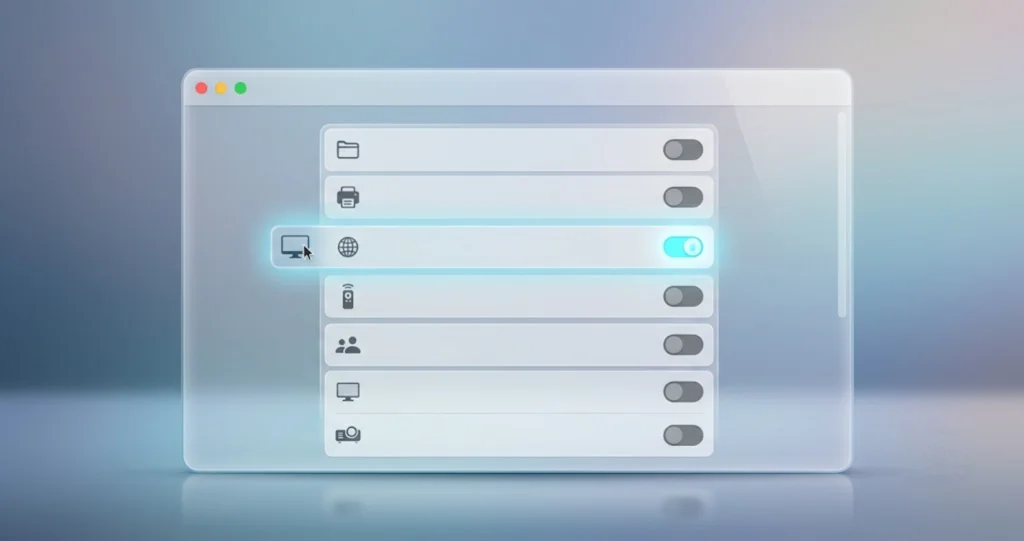
Open System Settings, then General, then Sharing. You will see a list of services with individual toggles. Three of them govern remote access to your machine, and people confuse them constantly.
Screen Sharing
This is the service CVE-2026-65400 affects. When it is on, other machines can connect and take control of your graphical session over VNC, on TCP port 5900.
Check it: in the Sharing panel, look at the Screen Sharing row. If the toggle is off, the service is not enabled. If it is on, click the small info button next to it to see the access list.
What the access list means: by default the options are "All users" or a specific list. "All users" here means every user account on the Mac, including any account you created and forgot about. Restricting to a named list is strictly better. Click the info button, choose the option to allow access for only these users, and add the specific accounts that need it.
Computer Settings inside that panel holds two more options. One allows anyone to request permission to control the screen, which prompts the logged-in user. The other enables a VNC password, which lets non-Apple clients connect using a shared password rather than an account credential. The VNC password option is the weaker of the two authentication paths and is capped at eight characters by the protocol. If you do not specifically need it for a third-party client, leave it off.
Turn it off if you do not need it. That is the single highest-value change most people can make in this panel.
Remote Login (SSH)
This is a completely separate service on TCP port 22. It gives command-line access, not graphical access. It is unaffected by CVE-2026-65400, and turning off Screen Sharing does nothing to it.
People conflate the two because both are "remote access," and because turning one off feels like it should have closed the door. It does not.
Check it from Terminal:
sudo systemsetup -getremoteloginThat reports whether Remote Login is on or off. To turn it off:
sudo systemsetup -setremotelogin offYou can do the same thing in the Sharing panel by switching Remote Login off. As with Screen Sharing, the info button lets you restrict access to specific users rather than all users, and you should.
If you use SSH regularly, the meaningful hardening step is disabling password authentication entirely and using keys, which removes the entire class of guessing attacks against it.
Remote Management (Apple Remote Desktop)
This is the third switch, and it is the one that produces the most confusion.
Remote Management is the Apple Remote Desktop agent. It provides screen observation and control, plus software distribution, reporting, and remote command execution. It is what IT departments use to manage fleets. It uses port 3283 in addition to 5900.
The critical detail: Screen Sharing and Remote Management are mutually exclusive in the macOS interface. You cannot have both toggled on. Turning on Remote Management automatically turns off Screen Sharing, and macOS will tell you so. The consequence is the part people miss: if you go into Sharing, see that Screen Sharing is off, and conclude that nothing can view your screen, you may be wrong. Remote Management may be on instead, providing the same capability through a different service.
So check both rows, every time. Screen Sharing off plus Remote Management on is not a hardened configuration. It is the same door with a different handle.
Remote Management also has a granular permission list behind its info button, covering whether a remote user may observe, control, copy files, delete items, restart the machine, and more. If Remote Management is on because your employer manages the Mac, do not simply switch it off. Talk to whoever administers the fleet first, because turning it off may break their management and may violate your organization's policy.
Check whether your Mac is enrolled in MDM
If you are not sure whether an organization manages your Mac, this is the command that tells you:
sudo profiles status -type enrollmentIt reports whether the Mac is enrolled through Apple's automated device enrollment and whether it currently has an active MDM enrollment. A personally owned Mac that you bought at retail and set up yourself will report that it is not enrolled. A machine issued by an employer or a school will typically report an active enrollment.
This matters for two reasons. First, if the Mac is managed, remote access settings may be enforced by profile and may reset themselves after you change them. Second, if it is managed, the update itself may be controlled by your organization's software update policy rather than by you, which changes how you get 26.6.1.
You can also list installed configuration profiles:
sudo profiles listThat shows what is installed. If you see profiles you do not recognize on a machine you believe is personal, that is worth investigating.
Check the firewall
macOS ships with an application firewall that is not enabled by default on every configuration. It is worth turning on regardless of this CVE.
In the interface: System Settings, then Network, then Firewall. Switch it on. Behind the Options button you can control which services and applications are allowed to accept incoming connections, and you can enable stealth mode, which makes the Mac decline to respond to probes like pings and port scans from unauthorized sources.
From Terminal:
/usr/libexec/ApplicationFirewall/socketfilterfw --getglobalstateThat reports whether the firewall is on.
One important limitation: the macOS application firewall does not block services you have explicitly enabled in Sharing. If Screen Sharing is on, macOS treats incoming connections to it as intended and lets them through. The firewall is a useful layer, but it is not a substitute for turning off services you do not use. If you need to block a service that Sharing has enabled, that belongs at the router or in a packet filter rule, not in the application firewall.
See what is actually listening
If you want to confirm rather than trust the toggles, this shows what process is bound to the screen sharing port:
sudo lsof -i :5900No output means nothing is listening on that port. You can substitute 22 for SSH and 3283 for the Apple Remote Desktop port.
This kind of audit is a good habit independent of any single CVE. Our Mac security and privacy guide covers the broader set of settings worth reviewing periodically, including FileVault, Gatekeeper, privacy permissions, and what the various Sharing services actually expose.
Hardening If You Genuinely Need Remote Access
Plenty of people have a real reason to reach a Mac remotely. A home server, a machine at the office, a family member's computer you support. Turning the feature off is not an option for them. Here is how to keep it while shrinking the exposure.
Reach the Mac over a private network, not a public one
The strongest single change is to stop exposing the service to any network you do not control and instead put the Mac and your client on the same private overlay.
A VPN into your home or office network works. So does an overlay network like Tailscale, WireGuard, or ZeroTier, which creates an encrypted mesh between your devices and gives each one a stable private address that is not reachable from the general internet. With that in place, Screen Sharing only ever listens on an interface that only your own devices can reach. An attacker on the café Wi-Fi is no longer adjacent to the service in any meaningful sense, because the service is not exposed on the local interface they share with you.
This is the approach that would have neutralized the local-network scope of CVE-2026-65400 for most practical purposes, and it neutralizes the next one too. If you run into connectivity problems setting this up, our VPN troubleshooting guide for macOS covers the usual failure modes with configuration profiles, DNS, and split tunneling.
Never port-forward 5900
Forwarding port 5900 from your router to a Mac puts the screen sharing service directly on the public internet, where automated scanners find it within hours. VNC on port 5900 is one of the most heavily scanned ports on the internet. Do not do this. If you have done it, undo it now.
The same applies to 3283 for Apple Remote Desktop and to 22 for SSH. If you must expose SSH, move it off the default port, disable password authentication, and use keys, but the better answer is still a VPN.
Use a dedicated account with an explicit allow list
Do not use your daily administrator account as the remote access account. Create a separate account for it, give it only the privileges it needs, and add only that account to the Screen Sharing allowed-users list. If the remote path is compromised, the blast radius is that account rather than an administrator session.
Set a genuinely strong password on it. Password reuse is the reason a lot of remote access incidents turn into serious ones.
Keep the allowed-user list explicit and reviewed
"All users" is convenient and wrong. Every account on the Mac ends up implicitly authorized, including old accounts, guest-style accounts, and service accounts you created for something else years ago. Set the list explicitly and revisit it when people leave or when you retire an account.
Turn services off when you are not using them
If you only need Screen Sharing occasionally, turn it on for the session and off afterwards. A service that runs for twenty minutes a month has a very different exposure profile from one that runs continuously for three years.

How to Install macOS Tahoe 26.6.1
The update is delivered through Software Update like any other point release.
- Back up first. Time Machine or a clone, either is fine, but have something. This is a small update and the risk is low, but the rule does not change.
- Open System Settings, then General, then Software Update.
- Wait for the check to finish. macOS Tahoe 26.6.1 should appear as an available update.
- Click Update Now and enter your password.
- Let the Mac restart. On Apple silicon this typically takes ten to twenty minutes end to end depending on the machine and the disk.
- When it comes back, confirm with
sw_versin Terminal or by checking About This Mac. You want version 26.6.1 and build 25G76.
From Terminal, you can list and install without the interface:
softwareupdate --listThat shows what is available. To install everything that applies:
sudo softwareupdate -i -aAdd --restart if you want the machine to reboot automatically when it finishes.
If the update does not appear yet
Apple staggers delivery of point releases. On August 6, users reported that 26.6.1 had not yet shown up on some M4 and M5 Macs while it was already available on other machines, and those cases resolved on their own without intervention.
If Software Update shows nothing:
- Wait a few hours and check again. Staged rollouts commonly take a day to reach everyone.
- Quit System Settings entirely and reopen it, then recheck. The Software Update pane caches its state and sometimes needs a nudge.
- Run
softwareupdate --listfrom Terminal, which queries Apple's servers directly and sometimes surfaces an update the interface has not shown yet. - If your Mac is managed by an organization, the update may be deferred by policy.
sudo profiles status -type enrollmentwill tell you whether that is a possibility, and your IT team controls the timing if so. - As a last resort, Apple publishes standalone installer packages, and Mr. Macintosh routinely catalogs the direct links for each release. Downloading the full installer bypasses the staged rollout, at the cost of a much larger download.
If installation fails
Point releases mostly install without drama, but the usual failure modes still apply: not enough free space, an interrupted download, or an update that hangs partway through preparation. Our guide to macOS updates that get stuck or fail to install walks through freeing space properly, clearing a partial download, and recovering from a stalled installation.
The short version: you want meaningfully more free space than the download size, because macOS needs room to expand and stage the update. For a 2.1 GB delta, having 20 GB free is a comfortable margin, not an excessive one.
If You Are on Sonoma or Sequoia
Apple shipped the same fix to both older supported macOS versions on August 6, 2026:
| macOS version | Patched release | Build |
|---|---|---|
| macOS Tahoe 26 | 26.6.1 | 25G76 |
| macOS Sequoia 15 | 15.7.9 | 24G830 |
| macOS Sonoma 14 | 14.8.9 | 23J631 |
The path is identical: System Settings, General, Software Update, install, restart.
Two things worth saying about staying on an older macOS. First, on this particular issue, staying on Sequoia or Sonoma is fine as long as you take the corresponding patch. You are not getting a lesser fix. Apple addressed the same CVE across all three.
Second, that only holds while Apple continues to ship security updates for your version, which it does for roughly the current release plus the two before it. Sonoma 14 is at the far edge of that window. If you are on Sonoma for a reason, that reason is worth revisiting on a schedule, because at some point a CVE will land that only gets fixed on newer versions.
Older versions also sometimes receive a narrower subset of fixes than the current release does, even when the headline CVE is shared. That is not the case here, since 26.6.1 contains exactly one fix, but it is why "I am on an older macOS and I take every update" is a weaker position than it sounds over the long run.
The Intel Angle
Intel Macs get 26.6.1 alongside everything else, with the smaller 898.9 MB delta. The reason to call it out separately is what it represents.
macOS 27 is Apple silicon only. Intel Macs cannot run it, which makes macOS Tahoe 26 the final major release those machines will ever receive. Apple's pattern is to provide security updates for a version for roughly three years after it stops being the current release, so Intel Mac owners can expect to keep receiving updates that look exactly like this one: a build number bump, one or a handful of CVEs, no features.
That makes 26.6.1 a useful preview of the next few years for Intel hardware. The updates will be less interesting and more important. There will be no new capabilities to evaluate, so the only question each time is whether to install, and the answer will be yes. Our breakdown of the end of the Intel Mac era covers the full compatibility list and what the support timeline realistically looks like.
If you run an Intel Mac as an always-on machine, the audit section above deserves particular attention. Older Mac minis are exactly the machines most likely to be sitting in a closet with Screen Sharing enabled and forgotten.
The Third-Party VNC Observation
This section is speculative and labeled as such. It is included because it may be useful to a specific group of readers, not because it is established.
After macOS Tahoe 26.6 shipped in late July, some users reported that third-party VNC clients could no longer connect to their Macs. The reports involved RealVNC and other clients running on Windows, iOS, and Linux, with RealVNC surfacing a message along the lines of a protocol error about key length being too large. In the same reports, Mac-to-Mac Screen Sharing continued to work normally, which is the detail that makes the pattern interesting rather than just a generic breakage.
We were not able to read the primary forum thread directly, so this is characterized from secondhand accounts and should be treated accordingly. We are not aware of an Apple statement acknowledging the behavior.
The hypothesis, stated as a hypothesis: 26.6 may have changed something in the screen sharing authentication path in a way that broke compatibility with third-party VNC clients, and CVE-2026-65400 may live in that same code. A change that tightened authentication handling, followed ten days later by a fix to an authentication state bug in the same component, is a suggestive sequence. Apple has published nothing that connects them, heise says the mechanism remains unclear, and a suggestive sequence is not evidence.
What this means practically:
- If your third-party VNC client broke after 26.6, that is a known pattern that other people have reported. You are not alone and you are probably not misconfigured.
- If it broke, do not assume 26.6.1 fixes it. The update addresses a security issue. Nothing indicates it restores third-party client compatibility, and it may not.
- If you depend on a third-party VNC client to reach a Mac, check with your client's vendor about macOS 26.6 and 26.6.1 compatibility before updating a machine you cannot easily reach physically.
- None of this is a reason to skip the update. If the choice is between a working third-party VNC client and a patched authentication bypass, take the patch and find another way to connect.
Troubleshooting Common Issues
macOS Tahoe 26.6.1 does not appear in Software Update
Problem: Software Update reports that your Mac is up to date on 26.6, and 26.6.1 is nowhere to be found, even though it was released on August 6. Several users reported this on M4 and M5 Macs on release day.
Solution: This is almost always the staged rollout rather than a fault. Apple releases point updates to subsets of machines over a period of hours to days. Quit System Settings completely and reopen it, since the Software Update pane caches results. Then run softwareupdate --list in Terminal, which queries Apple's servers directly and sometimes returns an update the interface has not surfaced. If your Mac is managed, run sudo profiles status -type enrollment to confirm whether an MDM is deferring updates by policy, in which case your IT team controls the schedule. The reported cases from August 6 resolved on their own within a day. If you need it immediately and cannot wait, a full standalone installer bypasses the rollout at the cost of a much bigger download.
The update downloads but never finishes installing
Problem: The download completes, or appears to, and then the Mac sits at Preparing or a stalled progress bar for a long stretch with no visible progress.
Solution: Give it more time than feels reasonable first, because the preparation phase genuinely can take fifteen minutes or more on a busy machine with a nearly full disk. If it is truly stuck, check free space, since macOS needs considerably more headroom than the download size to expand and stage the installer. Restart the Mac and try again, which clears a partial or corrupt download. If it fails a second time, remove the cached update and let it download fresh. Our guide to stuck and failed macOS updates covers the full sequence, including clearing the update cache safely and what to do if the Mac reboots into a failed install loop.
Screen Sharing stopped working after updating
Problem: You installed 26.6.1 and can no longer connect to or from a Mac using screen sharing.
Solution: Start by confirming what is actually enabled. Open System Settings, General, Sharing, and check both the Screen Sharing row and the Remote Management row, because they are mutually exclusive and an update or a policy change can leave the state different from what you remember. Confirm the connecting account is on the allowed-user list rather than relying on All users, which may have been changed. If you are connecting from another Mac using Screen Sharing or Finder, test on the local network first to isolate whether the problem is the service or the route to it. If you are connecting from a third-party VNC client, see the section above, since some users reported third-party client failures beginning with 26.6, and that behavior is unconfirmed but reported. Finally, run sudo lsof -i :5900 on the target Mac to confirm something is actually listening.
Remote Management will not turn off
Problem: You switch Remote Management off in the Sharing panel and it turns itself back on, or the toggle is greyed out and cannot be changed.
Solution: This is the signature of a managed Mac. A configuration profile pushed by an MDM can enforce Remote Management and will reapply it after you change it locally. Run sudo profiles status -type enrollment to confirm whether the Mac has an active MDM enrollment, and sudo profiles list to see which profiles are installed. If the Mac belongs to your employer or school, do not try to work around this. Contact whoever administers the fleet, because removing management may violate policy and will likely be undone within minutes anyway. If the Mac is genuinely personal and you find an enrollment you did not authorize, that is a serious finding worth escalating, and the safest resolution on a personal machine is a clean install after backing up your data.
You are not sure whether your Mac was compromised
Problem: You ran an always-on Mac with Screen Sharing enabled on a shared network, and you want to know whether anyone actually used this bug against you.
Solution: Being honest with you: there is no reliable consumer-level way to answer this. Apple has not published indicators of compromise for CVE-2026-65400, the mechanism is undisclosed, and an attacker who authenticated to Screen Sharing would produce log activity that looks broadly like a legitimate session. Absence of evidence here is genuinely not evidence of absence.
What you can still check, understanding the limits: open Console and look at system logs around any period you are concerned about, filtering for screen sharing activity, though note that macOS log retention is limited and older entries may simply be gone. Review System Settings, Users and Groups, for accounts you do not recognize. Check the Sharing panel's allowed-user lists for entries you did not add. Look in Login Items and Background Items for anything unfamiliar. Run sudo profiles list to check for configuration profiles you did not install. Review your router's connected-device list and, if it keeps them, its logs.
If you have concrete reason to believe a specific machine was accessed by someone, and it holds anything sensitive, the only genuinely reliable remediation is a clean install of macOS followed by restoring data rather than a full system backup, plus changing the passwords for accounts that were signed in on that machine. That is a heavy response and it is not warranted for most people. Apple reports no known exploitation of this issue.
FAQ
Do I need to install macOS Tahoe 26.6.1 if Screen Sharing was turned off?
Yes. Apple never stated whether Screen Sharing must be enabled for CVE-2026-65400 to be exploitable, and heise reports that this remains unclear. Since the requirement is unknown and the update costs you a restart, install it. Do not treat a disabled toggle as confirmation you were safe.
What is CVE-2026-65400 in simple terms?
It is an authentication bypass in the macOS Screen Sharing service. Apple's wording is that an attacker on the network may be able to authenticate to Screen Sharing without valid credentials. In practice that means someone on the same network could potentially get a screen sharing session without knowing a password. Apple fixed it with improved state management.
Was this vulnerability actually exploited?
Apple reports no known active exploitation. That is Apple's standard phrasing when it has no evidence of attacks in the wild, and Apple flags actively exploited issues explicitly when it knows of them. The absence of that flag here is meaningful, though it is not a guarantee that nobody ever used it.
Can someone attack my Mac over the internet with this?
Not under normal conditions. heise notes that if the Mac is on a local network and the relevant ports are not forwarded at the router, remote screen sharing from the internet is not possible. The realistic scenario is an attacker already on your network segment: shared office Wi-Fi, a dorm, a hotel, a café, or a compromised device on your own network.
Does 26.6.1 add any new features or change Safari?
No. There are no new features. Safari remains at version 26.6 and is not bumped by this update. System firmware also stays unchanged at 18000.161.9. macOS Tahoe 26.6.1 is build 25G76 and contains a single security fix, which is why it shipped with no beta seeding and a one-line release note.
What if I am running macOS Sonoma or Sequoia instead?
Apple backported the same fix. Take macOS Sequoia 15.7.9, build 24G830, or macOS Sonoma 14.8.9, build 23J631. You are getting the same protection, not a lesser version of it. Staying on an older macOS is fine on this issue specifically, as long as you install the matching patch promptly.
Conclusion
macOS Tahoe 26.6.1 is a small update carrying one fix, and the way Apple shipped it says more than the release notes do. No beta seeding, no features, and a same-day backport to Sequoia 15.7.9 and Sonoma 14.8.9 all point to a vendor that wanted this closed everywhere quickly. CVE-2026-65400 let an attacker on the local network authenticate to Screen Sharing without valid credentials, and Apple fixed it with improved state management. That is the confirmed extent of the public record.
The gap in that record is the enabled-or-disabled question, and it is worth sitting with rather than resolving by assumption. Apple did not say whether the service had to be running. heise says it is unclear. Screen Sharing is off by default, which makes it tempting to conclude you were never exposed, and that conclusion is not supported by anything published. More detailed mechanism claims are circulating without corroboration and should not be used to decide whether to update.
Install 26.6.1 this week, or 15.7.9, or 14.8.9. Then spend ten minutes in System Settings, General, Sharing, and look at all three remote access switches rather than one. Confirm Screen Sharing and Remote Management are both off unless you need them, check Remote Login separately, replace any All users setting with an explicit list, and turn on the firewall. If you genuinely need remote access to a Mac, reach it over a VPN or an overlay network instead of exposing it on whatever network the machine happens to be sitting on, and never forward port 5900. That configuration would have made this CVE largely academic for you, and it will do the same for the next one.
Related reading: macOS Tahoe 26.6 Released: What's New, Security Fixes, Update Guide