macOS Tahoe 26.4 & 26.4.1 Complete Update Guide: Every New Feature, Fix & What Changed
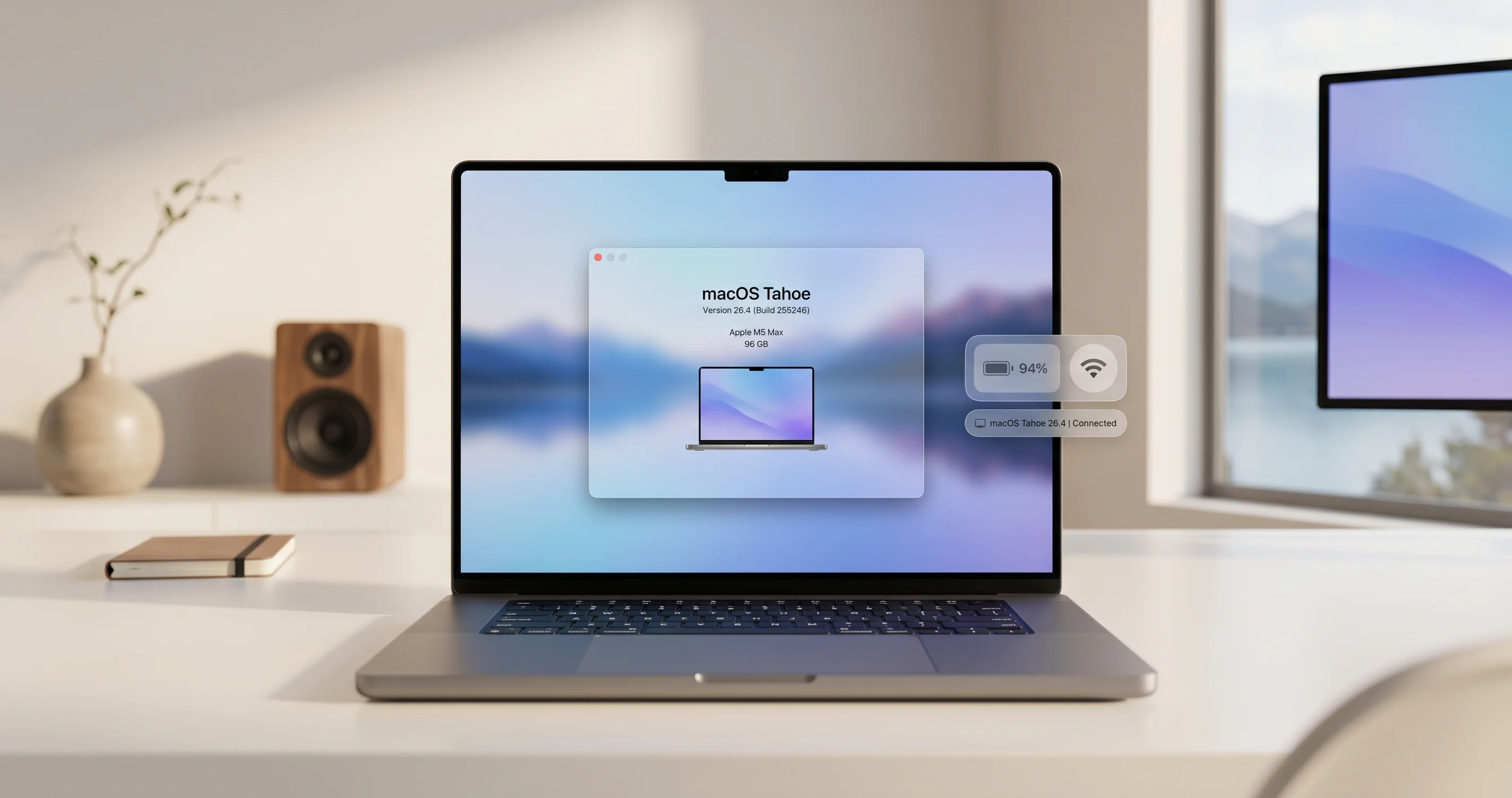
Complete guide to macOS Tahoe 26.4 and 26.4.1 updates covering battery charge limits, slow charger indicator, iCloud sync fix, and all new features.
Apple released macOS Tahoe 26.4 on March 24, 2026, delivering one of the most feature-rich point updates in the macOS Tahoe lifecycle. Just two weeks later, on April 9, 2026, Apple followed up with macOS Tahoe 26.4.1 -- a critical hotfix addressing enterprise Wi-Fi failures on the newest M5 MacBooks, a silent iCloud sync breakdown, and a Voice Control bug that had persisted for an astonishing seven months. Together, these two updates bring meaningful new capabilities to every Mac user while squashing bugs that had frustrated enterprise administrators, accessibility users, and anyone relying on CloudKit-powered apps.
Whether you are a casual user curious about the new battery charge limit slider, an IT administrator dealing with 802.1X Wi-Fi failures on M5 hardware, or a power user who depends on Voice Control for hands-free productivity, this guide covers everything you need to know about macOS Tahoe 26.4 and 26.4.1.
Key Takeaways
- Battery Charge Limit slider lets you cap your MacBook's maximum charge anywhere from 80% to 100% in 5% increments, giving you granular control over long-term battery health for the first time in macOS history.
- Rosetta 2 deprecation warnings now appear when you launch Intel-era apps through Rosetta 2 translation, signaling that Apple plans to discontinue Rosetta 2 by late 2027 and urging developers to ship native Apple Silicon builds.
- Edge Light uses your Mac's display as a fill light during video calls in low-light conditions, with Neural Engine-powered face detection to illuminate you naturally without washing out the image.
- macOS 26.4.1 fixes a critical enterprise Wi-Fi bug that prevented M5 MacBook Air and M5 Pro/Max MacBook Pro laptops from connecting to 802.1X networks with content filter extensions -- a showstopper for schools and corporate environments.
- A seven-month Voice Control bug is finally resolved in 26.4.1, restoring the "New line" and "New paragraph" commands that had been broken or severely delayed since September 2025.
macOS Tahoe 26.4: All New Features
Released March 24, 2026, macOS Tahoe 26.4 is a substantial update that introduces hardware-level battery management, a new video call lighting feature, the return of a beloved Safari layout option, and Apple's clearest signal yet about the end of Intel app compatibility. Here is a detailed walkthrough of every new feature.
Battery Charge Limit: Granular Control Over Battery Health
The headline feature of macOS 26.4 is the new Battery Charge Limit slider, which gives MacBook users precise control over how much their battery charges. Previous macOS versions offered only a binary "Optimized Battery Charging" toggle that used machine learning to decide when to hold the charge at 80%. Now, you can set an exact maximum charge percentage yourself.
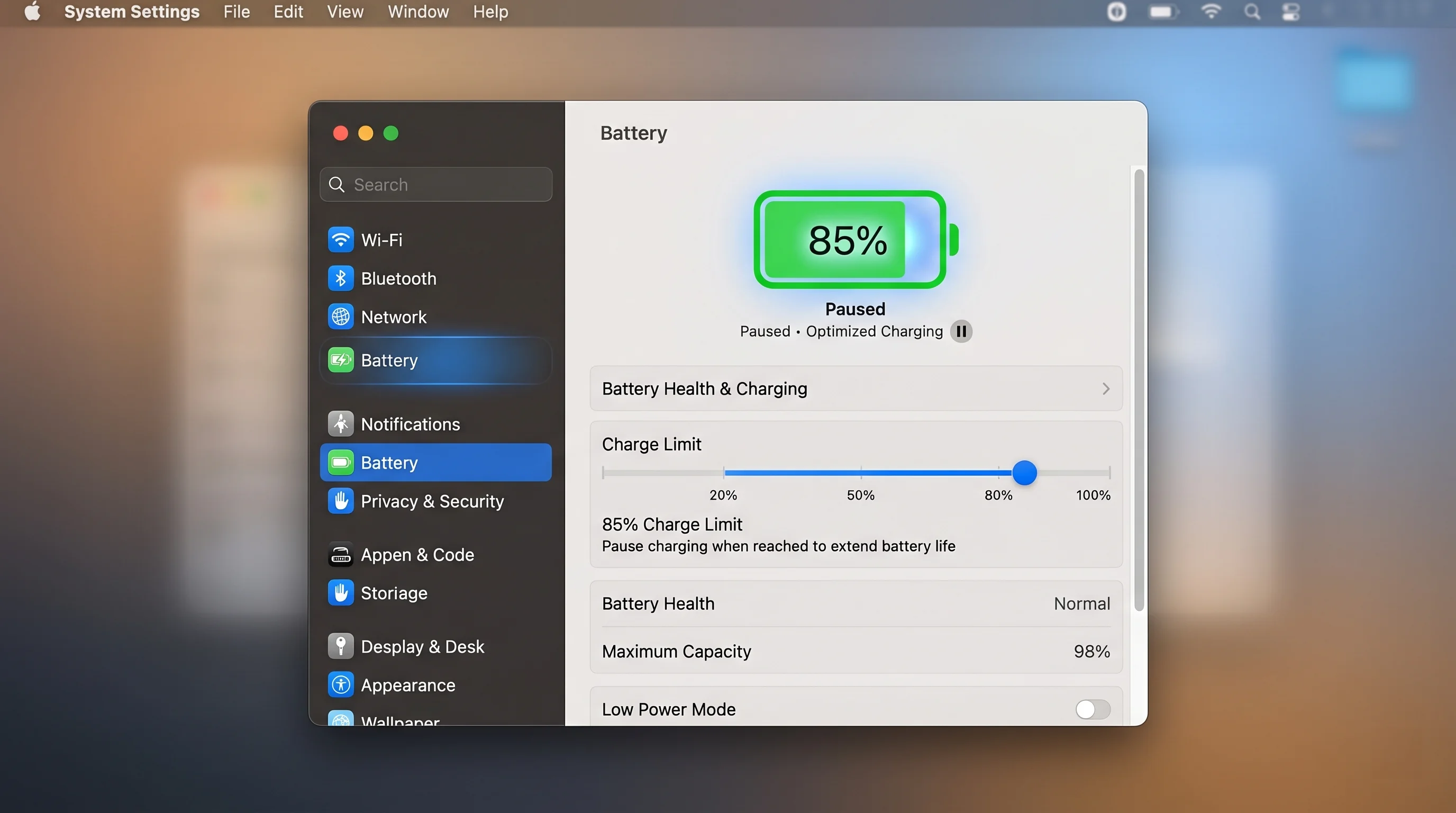
How to Set Your Battery Charge Limit:
- Open System Settings from the Apple menu or Dock
- Click Battery in the sidebar
- Look for the new Charge Limit section beneath the battery status graph
- Drag the slider to your desired maximum charge percentage
- Choose any value from 80% to 100% in 5% increments (80%, 85%, 90%, 95%, 100%)
What the Charge Limit Actually Does:
When you set the charge limit to, say, 85%, your MacBook will stop charging once the battery reaches 85% and will not resume charging until the level drops below that threshold. The battery status icon in the menu bar will show a small indicator confirming that charging has been paused due to your limit, so you always know the feature is working as intended.
This is different from the older "Optimized Battery Charging" feature, which still exists as a separate option. Optimized Battery Charging uses your daily routine to decide when to finish charging to 100%, while the new charge limit is a hard ceiling that your Mac will never exceed regardless of your usage patterns.
Why This Matters for Battery Longevity:
Lithium-ion batteries degrade faster when they spend extended periods at very high charge levels. According to Apple's battery health documentation (support.apple.com/en-us/108055), keeping your battery at lower maximum charge levels can meaningfully extend its long-term lifespan. Research from organizations like Battery University confirms that lithium-ion cells held at 4.20V (100% charge) degrade significantly faster than those held at 4.10V (roughly 85-90% charge).
For users whose MacBooks are plugged in most of the day -- such as those using their laptop as a desktop replacement with an external monitor -- setting the charge limit to 80% or 85% can substantially slow down the natural capacity loss that occurs over years of use.
Recommended Settings by Use Case:
| Use Case | Recommended Limit | Reasoning |
|---|---|---|
| Desktop replacement (always plugged in) | 80% | Maximum longevity, minimal capacity needed |
| Mostly office, occasional travel | 85-90% | Good balance of health and capacity |
| Frequent traveler | 95-100% | Prioritize available capacity |
| Occasional use | 100% (default) | Battery cycles are low regardless |
For a comprehensive deep dive into this feature, including advanced tips and real-world battery health data, see our Battery Charge Limit complete guide.
Slow Charger Indicator: Know When Your Power Source Falls Short
Alongside the battery charge limit, macOS 26.4 introduces a Slow Charger Indicator that appears in the battery status menu when your connected charger cannot deliver enough power to charge your MacBook at full speed.
What It Looks Like:
When you click the battery icon in the menu bar and your charger is underpowered, you will now see an orange "Slow Charger" label beneath the battery percentage. This label appears automatically whenever macOS detects that the connected power source cannot deliver the wattage your Mac requires for full-speed charging.
When the Slow Charger Label Appears:
- Using a lower-wattage USB-C charger than recommended (e.g., a 30W charger on a MacBook Pro that requires 67W or more)
- Connecting through a USB-C hub or dock that limits power delivery
- Using a USB-A to USB-C cable with a legacy charger
- Plugging into an airplane seat USB port or other low-power source
- Using a damaged or degraded charging cable that cannot carry full current
What the Indicator Does NOT Mean:
The Slow Charger label does not mean your Mac is not charging at all. Your MacBook is still receiving power and charging -- just at a reduced rate. If your Mac were receiving no power, the battery icon would show as "Not Charging" or "Battery" without the lightning bolt icon.
Practical Implications:
This feature eliminates a long-standing source of user confusion. Previously, there was no easy way to know whether your Mac was charging at full speed or crawling along at a fraction of its capability. Users who regularly travel with compact, lower-wattage chargers will find this especially useful for making informed decisions about their power management.
For MacBook Pro users with M3 Pro, M4 Pro, M5 Pro, or higher chips, the full-speed charger recommendation is typically 96W or 140W depending on the model. Using a 30W or 45W charger will work but will trigger the Slow Charger indicator.
Safari Compact Tab Bar: A Beloved Layout Returns
Apple has restored the Compact Tab Bar layout option in Safari, giving users the choice to return to the space-efficient tab design that was previously available in earlier macOS versions.

How to Enable the Compact Tab Bar:
- Open Safari
- Click Safari in the menu bar, then select Settings (or press Command + Comma)
- Click the Tabs tab at the top of the Settings window
- Under Tab layout, select Compact
- Close the Settings window -- the change takes effect immediately
Compact vs. Standard Tab Bar: What Changes:
| Feature | Standard Layout | Compact Layout |
|---|---|---|
| Tab bar position | Separate row below toolbar | Merged with toolbar/address bar |
| Vertical space used | Two rows (toolbar + tabs) | One combined row |
| Tab width | Full width, more readable | Narrower, fits more tabs |
| Address bar | Always visible, full width | Integrated into active tab |
| Best for | Fewer tabs, larger displays | Many tabs, smaller screens |
Why Apple Brought It Back:
The Compact Tab Bar was originally introduced in Safari 15 (macOS Monterey) but was later removed or deprioritized in subsequent releases. User feedback consistently requested its return, particularly from users who work with many open tabs on smaller MacBook screens. The Compact layout reclaims valuable vertical screen real estate by combining the toolbar and tab bar into a single row.
For advanced Safari customization, check out our Safari Power User guide, which covers tab groups, profiles, extensions, and other productivity features.
Edge Light for Video Calls: Your Display Becomes a Fill Light
Edge Light is a clever new feature that transforms your Mac's display into a soft fill light during video calls, helping you look better in low-light conditions without requiring any external lighting equipment.
How Edge Light Works:
When you are on a FaceTime call or other supported video calling application in a dimly lit room, Edge Light uses the Neural Engine in Apple Silicon chips to detect your face in the camera feed. It then adjusts the brightness and color of the display area surrounding the video preview to cast a soft, diffused light onto your face. The result is a subtle but effective fill light that reduces harsh shadows and makes you more visible to the other participants.
Key Technical Details:
- Face Detection: Uses the Neural Engine for real-time face tracking, ensuring the light follows your position if you move
- Adaptive Brightness: Automatically adjusts the intensity of the fill light based on the ambient lighting in your room
- Color Temperature Matching: Matches the fill light color temperature to your environment to avoid unnatural color casts
- Battery Awareness: Slightly increases display brightness only in the area needed, minimizing battery impact on MacBook models
How to Enable Edge Light:
- Open System Settings
- Navigate to Displays
- Scroll down to find the Edge Light toggle
- Enable it -- the feature activates automatically during video calls when low-light conditions are detected
Alternatively, Edge Light can be toggled from the Control Center during an active video call for quick on/off access.
Which Macs Support Edge Light:
Edge Light requires Apple Silicon with Neural Engine capabilities:
- All Macs with M1 or later chips (including M1, M2, M3, M4, M5 and their Pro/Max/Ultra variants)
- Both MacBook models (built-in display) and desktop Macs with external displays
- Works with the built-in FaceTime camera, Studio Display camera, and supported third-party webcams
Important: Edge Light does NOT work on Intel-based Macs, as it requires the Neural Engine for face detection.
For a complete walkthrough of Edge Light including advanced settings, comparison photos, and tips for getting the best results, see our Edge Light complete guide.
Rosetta 2 Deprecation Warnings: The Clock Is Ticking for Intel Apps
One of the most significant -- and potentially disruptive -- changes in macOS 26.4 is the introduction of Rosetta 2 deprecation warnings. When you open an Intel-era application that runs through Rosetta 2 translation on your Apple Silicon Mac, macOS now displays a popup dialog informing you that Rosetta 2 will be discontinued.
What the Popup Says:
The warning dialog includes language along these lines:
"This app was designed for an Intel-based Mac. Apple will discontinue support for Rosetta in a future version of macOS. Contact the developer to request an updated version of this app."
The dialog includes the name of the app, a "Learn More" button that links to Apple's developer transition documentation, and an "OK" button to dismiss the warning and continue using the app normally.
What This Means for Users:
- Your Intel apps still work -- the warning is informational, not a blocker. You can dismiss it and continue using the app normally.
- Apple has stated Rosetta 2 will be discontinued by late 2027, giving developers and users approximately 18 months to transition.
- The warning appears once per app -- after you dismiss it for a specific application, it will not appear again for that same app (until a future macOS update resets the warning).
- This applies to ALL Intel-only apps, including popular tools that have not yet been updated for Apple Silicon.
How to Check Which of Your Apps Need Updates:
- Open System Information (press and hold Option, then click the Apple menu and select "System Information")
- In the sidebar, expand Software and click Applications
- Look at the Kind column -- apps listed as "Intel" are running through Rosetta 2
- Contact those developers or check the Mac App Store for native Apple Silicon updates
Apps Most Commonly Affected:
While most major applications have shipped Apple Silicon versions by now, some categories of software remain Intel-only:
- Older professional audio plugins (VST/AU)
- Legacy scientific and engineering software
- Specialized industry tools (legal, medical, financial)
- Unmaintained indie applications
- Some older games
For a comprehensive guide on preparing for the end of Rosetta 2, including alternative apps and migration strategies, see our Rosetta 2 End of Life complete guide.
New Emoji Characters
macOS 26.4 adds 8 new emoji characters to the system emoji keyboard, continuing Apple's annual tradition of expanding the emoji set in line with Unicode Consortium approvals.
The new emoji additions in macOS 26.4 include:
- Splatter -- a paintball-style splat, useful for art, mess, and chaos contexts
- Root Vegetable -- a generic root vegetable to complement existing food emoji
- Harp -- the stringed musical instrument, filling a gap in the music emoji category
- Shovel -- a garden/construction tool emoji
- Purple Heart Face -- a face with heart-shaped purple eyes, expanding the heart-face family
- Fingerprint -- representing identity, security, and biometrics
- Leafless Tree -- a winter/autumn bare tree, contrasting with the existing leafy tree emoji
- Flag: Sark -- the flag of the Channel Island jurisdiction of Sark
These emoji are available system-wide in any text input field. Access them via the emoji picker (Control + Command + Space or Globe key on newer keyboards). The new characters are compatible across Apple devices running iOS 19.4, iPadOS 19.4, watchOS 12.4, and macOS Tahoe 26.4 or later.
Additional Bug Fixes and Performance Improvements in 26.4
Beyond the headline features, macOS 26.4 includes a range of under-the-hood improvements:
- Improved Thunderbolt 5 stability for external displays and docking stations, reducing the frequency of display disconnections during wake from sleep
- Finder performance improvements when browsing folders with thousands of files, particularly on network-attached storage volumes
- Mail app indexing fix that resolves slow search results after migrating from a Time Machine backup
- AirDrop reliability improvements for transfers between Macs and iPhones running iOS 19.4
- Accessibility improvements including better VoiceOver navigation in System Settings panels
- Security patches addressing multiple WebKit vulnerabilities and kernel-level issues (see Apple's security release notes for CVE details)
For more on macOS accessibility features, see our macOS Tahoe Accessibility guide.
macOS Tahoe 26.4.1: Critical Bug Fixes
Just sixteen days after the 26.4 release, Apple pushed macOS Tahoe 26.4.1 on April 9, 2026. This is a focused hotfix release with no new features -- its sole purpose is to fix three significant bugs that were affecting specific but important user populations. Here is what changed.
M5 MacBook Wi-Fi 802.1X Fix: Enterprise Connectivity Restored
The Problem:
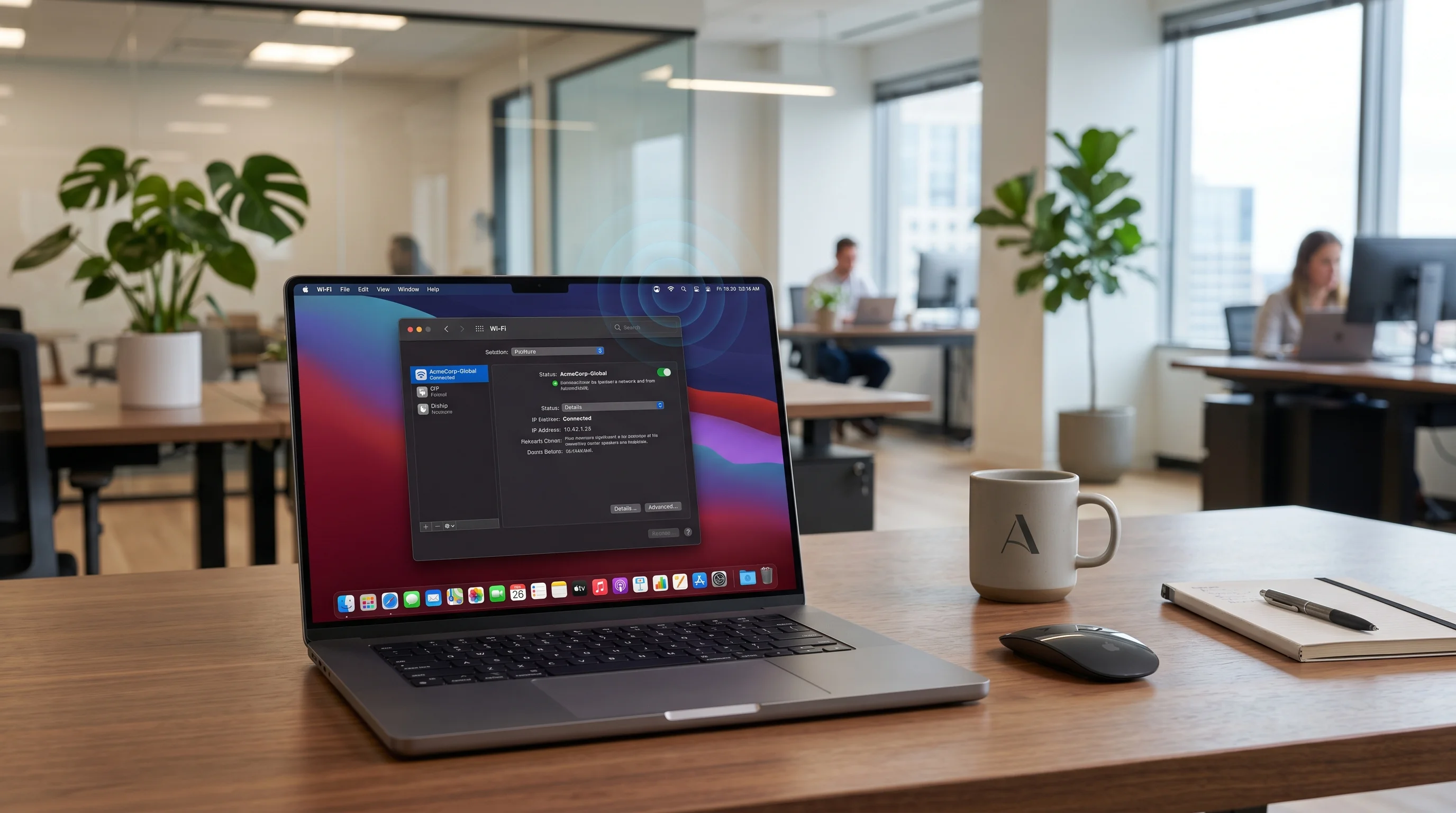
The M5 MacBook Air and M5 Pro/Max MacBook Pro models -- Apple's newest laptops released in early 2026 -- could not successfully connect to 802.1X Wi-Fi networks when a content filter extension was active on the device. This combination is extremely common in enterprise and education environments, where 802.1X authentication (using certificates or credentials) is the standard for secure Wi-Fi access, and content filter extensions are deployed via Mobile Device Management (MDM) solutions for network security and compliance.
The practical impact was severe: employees arriving at offices with brand-new M5 MacBooks could not connect to their corporate Wi-Fi. Students at universities that use 802.1X for campus Wi-Fi experienced the same failure. The bug was specific to M5 hardware -- older M4, M3, M2, and M1 Macs were not affected, even running the same version of macOS 26.4.
The Fix:
macOS 26.4.1 resolves the underlying networking stack conflict between the M5's updated Wi-Fi hardware drivers and the content filter extension API. After updating to 26.4.1, M5 MacBooks can connect to 802.1X networks normally, regardless of whether content filter extensions are installed.
Who Should Prioritize This Update:
- IT administrators managing fleets of M5 MacBooks in enterprise or education environments
- Any M5 MacBook Air or M5 Pro/Max MacBook Pro user who connects to 802.1X Wi-Fi (corporate, university, hospital, or government networks)
- MDM administrators who had paused M5 deployments due to this bug
If you are experiencing Wi-Fi issues on other Mac models or with non-802.1X networks, those are separate issues not addressed by this specific fix. See our Wi-Fi troubleshooting guide for general Wi-Fi connectivity solutions.
iCloud/CloudKit Sync Bug Fix: Silent Sync Failures Resolved
The Problem:
A bug in macOS 26.4 caused CloudKit push notifications to break silently, which meant that apps relying on CloudKit for iCloud sync stopped receiving updates from the server. The insidious nature of this bug was that it failed silently -- no error messages appeared, no notifications warned the user, and apps simply stopped syncing without any visible indication that something was wrong.
Apps affected by this issue included:
- Passwords app (Apple's built-in password manager) -- new passwords saved on one device would not appear on others
- Drafts (the popular note-taking app by Agile Tortoise) -- drafts created on iPhone would not sync to Mac
- Any third-party app using CloudKit for sync, including many indie apps for notes, bookmarks, tasks, and document management
- Core Data with CloudKit apps that rely on push-based sync for real-time updates
How Users Discovered the Bug:
Many users did not realize anything was wrong until they noticed data discrepancies between devices. A common scenario: a user would save a new password on their iPhone, then try to use it on their Mac, only to find it was not there. Or they would write a note in Drafts on their iPad and discover it never appeared on their Mac. Because there were no error messages, many users initially blamed the individual apps rather than recognizing it as a system-level CloudKit issue.
Reports on MacRumors forums and developer communities (as documented by 9to5Mac) helped identify the scope of the problem, leading Apple to prioritize the fix for 26.4.1.
The Fix:
macOS 26.4.1 restores proper CloudKit push notification delivery, allowing apps to receive real-time sync updates again. After installing the update:
- Your apps should begin syncing normally within a few minutes
- Any data that was "stuck" on other devices should flow through once push notifications resume
- If sync does not resume immediately, try signing out of iCloud and back in (System Settings > Apple ID > Sign Out, then sign back in)
Verification Steps:
To confirm the fix is working on your Mac after updating to 26.4.1:
- Open the Passwords app and check that all entries match what you see on your iPhone or iPad
- Create a test note in a CloudKit-synced app on another device and verify it appears on your Mac within 30 seconds
- Check Console.app for any remaining CloudKit error messages (filter by "CloudKit" in the search bar)
Voice Control 7-Month Bug Fix: Accessibility Restored
The Problem:
This was perhaps the most frustrating bug fixed in 26.4.1, because it had persisted for an extraordinarily long time. Since September 2025 -- a full seven months before the fix -- Voice Control users had been dealing with two broken commands:
-
"New line" command: When spoken, this command would execute with approximately a 7-second delay instead of being instantaneous. For users who rely on Voice Control for dictation, a 7-second pause after every line break made the feature essentially unusable for any serious text input.
-
"New paragraph" command: This command stopped working entirely. Speaking "New paragraph" would produce no response at all -- no new paragraph, no error, nothing. Users had to resort to workarounds like saying "press return, press return" to simulate paragraph breaks.
Why This Matters:
Voice Control is not a convenience feature -- it is an essential accessibility tool for users with motor disabilities, repetitive strain injuries, or other conditions that make keyboard and mouse use difficult or impossible. For these users, dictation with Voice Control is their primary method of text input. Having basic formatting commands broken for seven months represented a significant accessibility failure.
The bug was widely reported on Apple's Feedback Assistant, accessibility forums, and communities like MacRumors and the r/apple subreddit. Accessibility advocates had been vocal about the issue, and its resolution in 26.4.1 was specifically called out in Apple's release notes.
For a comprehensive guide to Voice Control and other accessibility features in macOS Tahoe, including setup, customization, and troubleshooting, see our macOS Tahoe Accessibility guide.
The Fix:
macOS 26.4.1 restores both commands to their expected behavior:
- "New line" now executes immediately with no perceptible delay
- "New paragraph" works again, inserting a double line break as intended
After updating, no additional configuration is needed -- the fixes apply automatically to all Voice Control users.
General Bug Fixes in 26.4.1
In addition to the three headline fixes, macOS 26.4.1 includes minor stability improvements and general bug fixes that Apple did not detail individually in the release notes. These typically include:
- Minor memory management improvements
- Crash fixes for edge cases in system apps
- Security patches for newly discovered vulnerabilities
How to Update to macOS Tahoe 26.4.1
Updating to the latest version of macOS is straightforward. If you are on any version of macOS Tahoe 26.x, the update will be offered as a standard system update. Here is how to install it.
Step-by-Step Update Instructions:
- Save your work and close any applications you do not need running during the update
- Click the Apple menu in the top-left corner of your screen
- Select System Settings
- Click General in the sidebar
- Click Software Update
- Wait for macOS to check for available updates (this may take 30-60 seconds)
- When "macOS Tahoe 26.4.1" appears, click Update Now
- Enter your administrator password when prompted
- Your Mac will download the update (approximately 2-4 GB depending on your current version)
- Once downloaded, click Restart to begin installation
- The installation process typically takes 15-30 minutes depending on your Mac model
- After restart, your Mac will boot into the updated system
Alternative Update Method via Terminal:
For advanced users or IT administrators managing multiple Macs:
softwareupdate --list
softwareupdate --install --all --restart
Before You Update -- Recommended Precautions:
- Back up your Mac using Time Machine or another backup solution. While system updates are generally safe, having a current backup ensures you can recover if anything goes wrong.
- Ensure at least 20 GB of free disk space for the update to download and install
- Connect to power if using a MacBook -- do not attempt to install an update on battery power alone
- Connect to a reliable Wi-Fi or Ethernet network for the download
Updating from Older Versions:
If you are running macOS Tahoe 26.3 or earlier, the Software Update panel will offer the cumulative update to 26.4.1 directly -- you do not need to install 26.4 first. Apple's update system always offers the latest available version, so you will get all the 26.4 features plus the 26.4.1 fixes in a single update.
Should You Update?
Yes, strongly recommended. Here is our assessment for different user categories:
For all MacBook users: The Battery Charge Limit feature alone makes 26.4 worth the update. The ability to cap your battery at 80-90% can meaningfully extend your MacBook's battery lifespan, especially if your laptop spends most of its time plugged in. The Slow Charger Indicator is a welcome quality-of-life improvement that costs nothing and provides useful information.
For M5 MacBook owners: Updating to 26.4.1 is essential if you connect to any enterprise or education Wi-Fi network. The 802.1X bug is a hard blocker for corporate connectivity, and there is no workaround other than installing the update.
For users of CloudKit-synced apps: If you have noticed that Passwords, Drafts, or other iCloud-syncing apps have been unreliable recently, 26.4.1 should resolve the issue. Even if you have not noticed problems, the silent nature of the sync bug means you may have been affected without realizing it.
For Voice Control users: This update is critical. The seven-month-old bugs with "New line" and "New paragraph" are finally fixed, and there is no reason to continue suffering with broken accessibility commands.
For video call users: Edge Light is a genuinely useful feature for anyone who takes calls in dimly lit rooms, home offices with poor lighting, or while traveling. It requires no additional hardware and activates automatically when needed.
For developers maintaining Intel apps: The Rosetta 2 deprecation warnings are a clear signal to prioritize Apple Silicon compatibility. While your apps will continue to work for now, the clock is officially ticking. Begin your transition planning if you have not already.
Overall verdict: There are no reports of significant new bugs introduced by 26.4 or 26.4.1, and the combination of new features and critical fixes makes this update an easy recommendation. We suggest updating at your earliest convenience after confirming your backup is current.
Known Issues Still Present in 26.4.1
While macOS 26.4.1 addresses several important bugs, some known issues remain unresolved as of this release:
Bluetooth Audio Intermittent Disconnections:
Some users continue to report brief audio dropouts (1-2 seconds) when using Bluetooth headphones or speakers, particularly when switching between apps or waking from sleep. This issue has been present since macOS Tahoe 26.2 and appears to be related to the Bluetooth stack's power management behavior. Apple has not acknowledged this as a known issue, but user reports on MacRumors forums suggest it affects a meaningful number of users.
If you are experiencing Bluetooth audio issues, see our Bluetooth troubleshooting guide for workarounds.
External Display Wake Issues:
A small number of users with specific external display configurations (particularly ultrawide monitors connected via DisplayPort over USB-C) report that their displays occasionally fail to wake after the Mac has been sleeping for extended periods. A workaround is to close and reopen the MacBook lid (for laptop users) or disconnect and reconnect the display cable.
Spotlight Indexing After Update:
After installing any macOS update, Spotlight re-indexes your drive, which can cause temporary slowdowns, increased fan activity, and elevated CPU usage for several hours. This is normal behavior and resolves on its own -- typically within 2-6 hours depending on the amount of data on your drive. Do not be alarmed by increased energy consumption immediately after updating.
Stage Manager Window Position Memory:
Some users report that Stage Manager occasionally forgets window positions after a restart, reverting windows to default sizes and positions. This intermittent bug has been present since Stage Manager's introduction and remains inconsistently reproducible.
Performance Improvements and Benchmarks
macOS 26.4 includes under-the-hood performance optimizations that are measurable even if they are not headlining the release notes.
Finder File Browsing Performance:
Apple has optimized Finder's file enumeration and rendering pipeline in 26.4, resulting in noticeably faster browsing in folders containing thousands of files. Based on user reports and early benchmarks published by reviewers at 9to5Mac:
| Scenario | 26.3 | 26.4 | Improvement |
|---|---|---|---|
| Opening folder with 10,000 files (list view) | ~4.2s | ~2.8s | ~33% faster |
| Scrolling through large folders | Intermittent lag | Smooth | Significant |
| Network volume browsing (SMB) | Occasional 3-5s hangs | Reduced to under 1s | Major improvement |
App Launch Times:
General app launch times show modest improvements of approximately 5-10% across both native Apple Silicon apps and Rosetta 2-translated Intel apps. The improvement is attributed to optimizations in the dyld (dynamic linker) cache management.
Memory Management:
macOS 26.4 includes refinements to the memory compression and swap management systems. Users with 8 GB of unified memory should notice slightly less aggressive swap usage during typical multitasking workloads, translating to fewer instances of momentary UI lag when switching between memory-intensive applications.
Battery Life Impact:
The new Battery Charge Limit feature has negligible impact on day-to-day battery life, as it only affects the maximum charge level, not discharge behavior. Edge Light, when active during video calls, may slightly increase power consumption due to localized display brightness increases, but the impact is minimal -- estimated at less than 5% additional power draw during calls.
The overall power efficiency of macOS 26.4 is on par with 26.3. Apple's release notes do not claim any specific battery life improvements, and independent testing confirms that real-world battery life is essentially unchanged.
Frequently Asked Questions
Does macOS 26.4 support my Mac?
macOS Tahoe 26.4 supports all Macs that can run macOS Tahoe 26, which includes all Apple Silicon Macs (M1 and later). If you are currently running any version of macOS Tahoe, you can update to 26.4.1. Intel-based Macs are not supported by macOS Tahoe.
Will Rosetta 2 deprecation warnings break my Intel apps?
No. The warnings are purely informational. Your Intel apps will continue to work exactly as they did before. The warning is Apple's way of giving developers and users advance notice that Rosetta 2 will be removed in a future macOS version (expected late 2027). You can dismiss the warning and continue using the app normally. For planning your transition, see our Rosetta 2 End of Life guide.
Can I set the battery charge limit above 100% or below 80%?
No. The slider range is fixed at 80% to 100% in 5% increments. There is no option to set the limit below 80%. If you want the maximum battery longevity, set it to 80%. If you need full capacity for travel, set it to 100%. Detailed guidance is available in our Battery Charge Limit guide.
I am not on an M5 MacBook -- do I need macOS 26.4.1?
Yes, you should still update. While the 802.1X Wi-Fi fix is specific to M5 hardware, the CloudKit/iCloud sync fix and Voice Control fixes apply to all Mac models running macOS Tahoe. Additionally, the update includes general security patches that benefit all users.
How do I know if the iCloud sync bug affected me?
The most reliable way to check is to compare data across your devices after updating. Open the Passwords app on your Mac and your iPhone side by side -- if any entries are missing on one device, the sync bug likely affected you. Similarly, check CloudKit-synced apps like Drafts, Bear, or other note-taking tools for any missing or outdated content. After updating to 26.4.1, these discrepancies should resolve automatically within minutes as CloudKit push notifications resume.
Does Edge Light work with third-party video apps like Zoom and Teams?
Edge Light works with FaceTime and is designed to work with any app that uses the standard macOS camera framework. Most third-party video conferencing apps, including Zoom, Microsoft Teams, Google Meet, and Webex, should support Edge Light. However, the feature activates at the system level based on camera usage and ambient light detection, so it should function regardless of which specific video app you are using. If Edge Light does not seem to activate in a specific app, ensure the feature is enabled in System Settings > Displays > Edge Light.
What Came Before: macOS Tahoe 26.4 Beta
For those who followed the beta process, macOS 26.4 went through a standard beta cycle before its March 24 release. Our coverage of the early development stages documented the initial versions of Battery Charge Limit and Edge Light as they evolved during testing. If you are interested in how these features developed from their initial implementations, see our macOS Tahoe 26.4 Beta 1 guide.
The final release of 26.4 closely matches what was available in the later beta builds, with minor refinements to the Battery Charge Limit UI and improved Edge Light face detection accuracy based on beta tester feedback.
Conclusion
macOS Tahoe 26.4 and 26.4.1 together represent a well-rounded update cycle that delivers both meaningful new features and critical bug fixes. The Battery Charge Limit slider is a long-overdue addition that gives MacBook owners genuine control over their battery health. Edge Light is a thoughtful quality-of-life improvement for the work-from-home era. The Rosetta 2 deprecation warnings, while potentially alarming, are Apple being transparent about the timeline for the Intel transition -- and 18 months is a generous runway.
On the bug fix side, macOS 26.4.1 deserves particular credit for resolving the seven-month Voice Control regression. Accessibility features should never be broken for that long, and while the delay in fixing "New line" and "New paragraph" was unfortunate, the resolution is welcome. The CloudKit sync fix addresses a subtle but widespread issue that was silently affecting data reliability across the Apple ecosystem. And the M5 802.1X Wi-Fi fix was essential for enterprise and education deployments of Apple's newest hardware.
Our recommendation is clear: update to macOS 26.4.1 as soon as practical. Back up your Mac first, set aside 30 minutes for the installation, and then take a moment to explore the new Battery Charge Limit settings and Edge Light feature. If you rely on Voice Control, you will immediately appreciate the restored "New line" and "New paragraph" commands. And if you are an IT administrator managing M5 MacBooks in an enterprise environment, this update should be at the top of your deployment priority list.
For ongoing coverage of macOS Tahoe updates, feature guides, and troubleshooting, explore our other comprehensive guides linked throughout this article. Apple's macOS update cadence suggests that 26.5 will likely arrive in June or July 2026, potentially alongside announcements at WWDC 2026.