Mac Won't Connect to iPhone Personal Hotspot? Instant Hotspot Fix
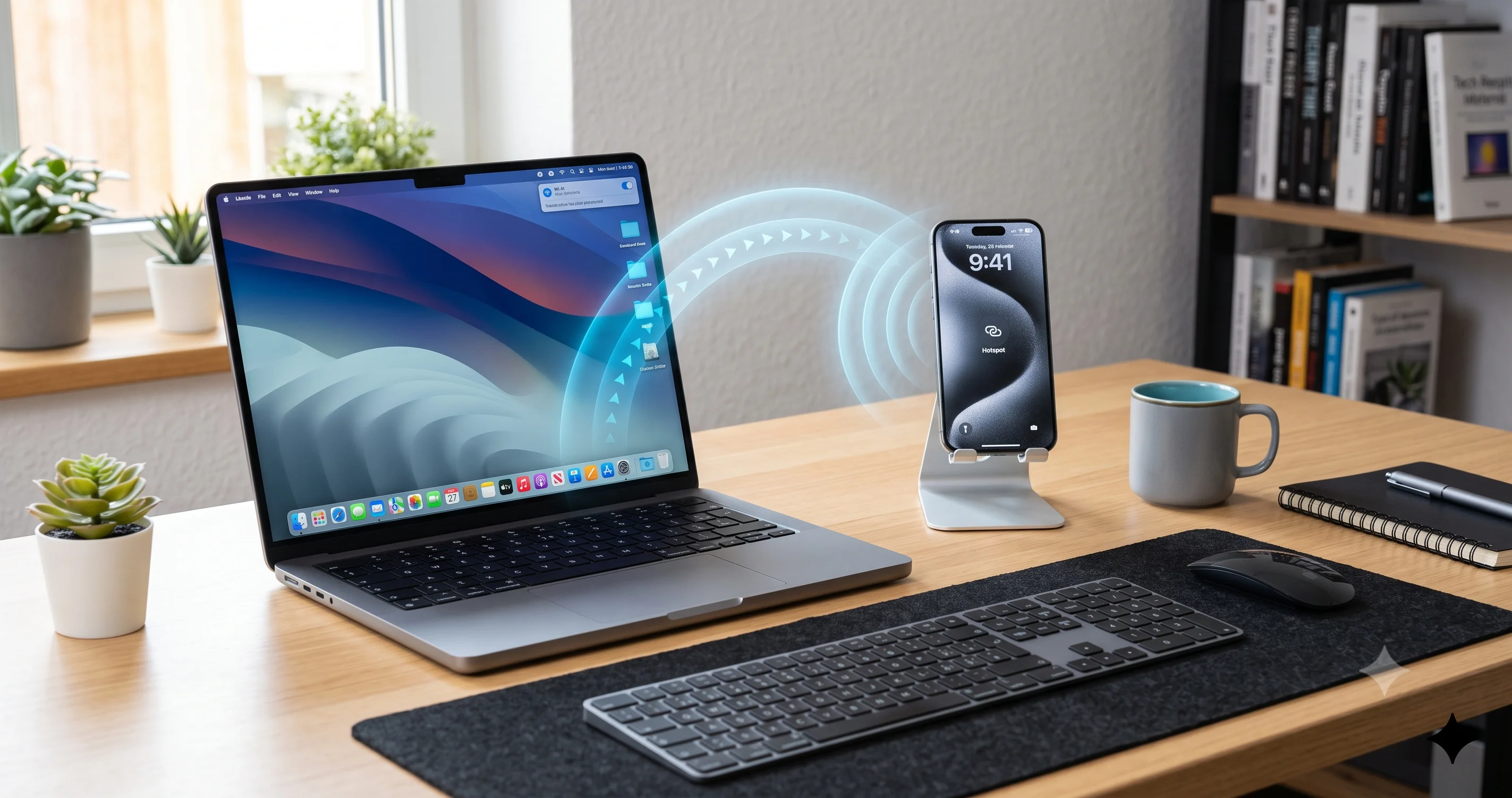
Fix a Mac that won't connect to your iPhone Personal Hotspot on macOS Tahoe. Instant Hotspot not showing, keeps disconnecting, no internet — solved.
You are sitting in a coffee shop, an airport lounge, or a client's office with no trusted Wi-Fi in sight, so you reach for the one thing that always saves you: your iPhone's Personal Hotspot. You open the Wi-Fi menu on your Mac, expecting your phone's name to be sitting right there under a little chain-link icon — and it is not. Or worse, it appears, you click it, and the spinner just keeps turning until the connection quietly gives up. If your Mac won't connect to iPhone Personal Hotspot on macOS Tahoe, you are staring at one of the most maddening failures in the entire Apple ecosystem, because this is supposed to be the feature that just works.
The frustrating part is that Personal Hotspot connection failures come in many flavors, and each one has a different root cause. Sometimes Instant Hotspot — the magic that lists your iPhone in the Mac's Wi-Fi menu without you touching your phone — simply never shows the hotspot at all. Sometimes it shows up but refuses to join. Sometimes it connects for two minutes and then drops, over and over. And sometimes the worst case happens: your Mac says it is connected, the Wi-Fi icon looks healthy, but nothing loads because the connection never got a real IP address. Each of these is a distinct problem, and treating them all the same is why so many people bounce between forum threads without ever fixing it.
This guide untangles every one of those failure modes. We will start with why iPhone Personal Hotspot connections break in the first place — because understanding the mechanism turns a random pile of tips into a logical checklist — and then walk through fixes in order, from the thirty-second toggle that solves most cases to the deeper network resets and carrier checks that solve the stubborn ones. We will also cover the two rock-solid fallbacks, USB and Bluetooth tethering, for when Wi-Fi refuses to cooperate and you need internet right now. By the end you will know exactly which fix matches your specific symptom.
Key Takeaways
- Instant Hotspot needs both devices on the same Apple Account, with Bluetooth and Wi-Fi on and Handoff enabled. If the hotspot never appears in your Mac's Wi-Fi menu, the problem is almost always one of these prerequisites, not the hotspot itself.
- The fastest reliable fix is a toggle cycle: turn Wi-Fi and Bluetooth off and back on on both devices, then toggle Personal Hotspot off and on. This clears the stale discovery state behind most "won't connect" cases.
- If your Mac sees the hotspot but cannot join it, turn on Maximize Compatibility on the iPhone. This switches the hotspot to the 2.4GHz band that older or picky Wi-Fi radios join far more reliably.
- A "connected but no internet" state with a self-assigned 169.254 address is a DHCP problem, not a hotspot problem — renew the DHCP lease or forget and rejoin the network to fix it.
- When Wi-Fi keeps failing, USB and Bluetooth tethering are dependable fallbacks, and a carrier-side hotspot restriction can block everything, so always confirm your plan actually allows tethering.
How Instant Hotspot Actually Works
To fix Personal Hotspot reliably, it helps to know that there are really two different things happening, and people constantly confuse them.
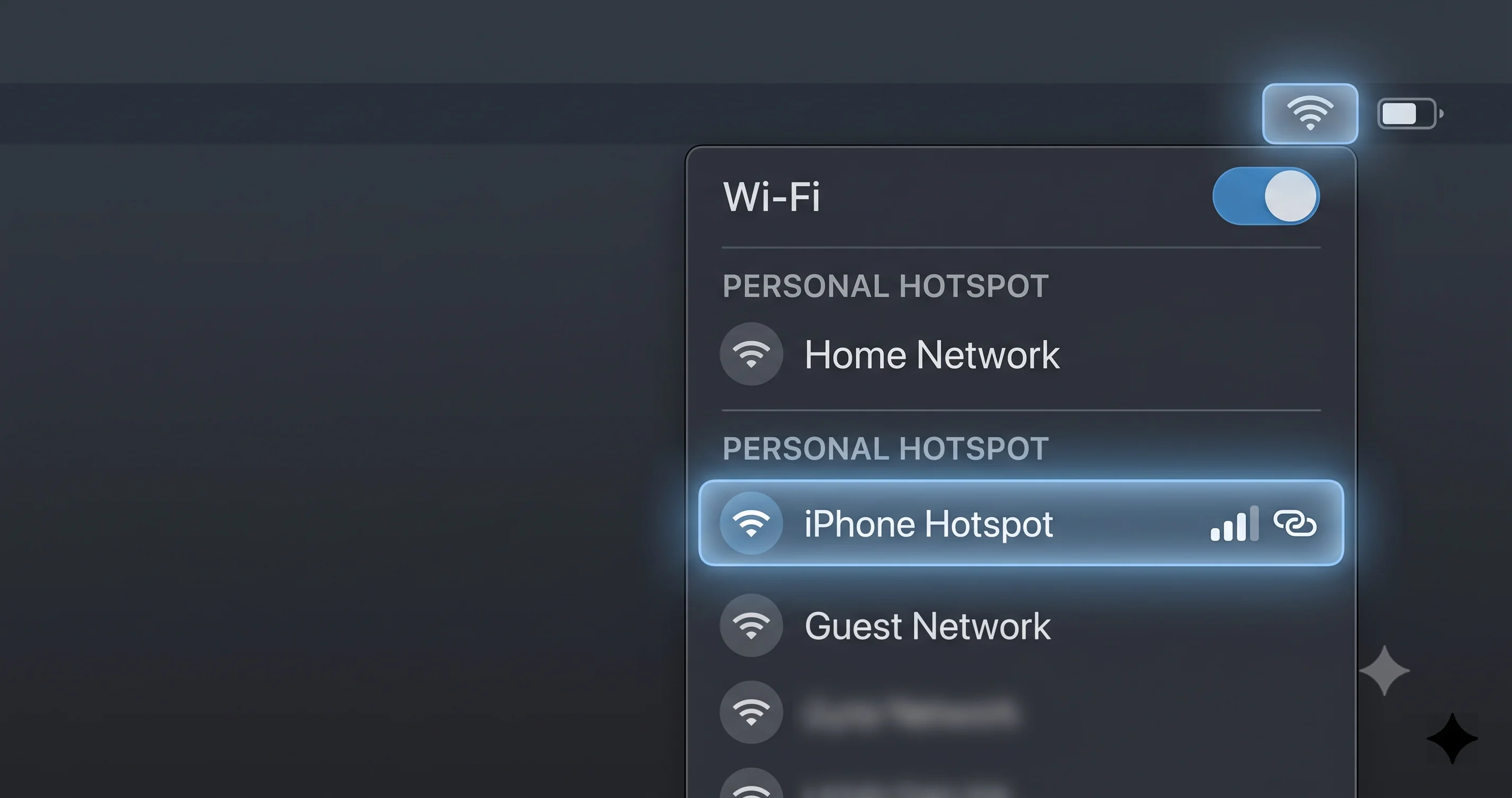
The first is Instant Hotspot, the convenience layer. This is what makes your iPhone appear in your Mac's Wi-Fi menu under a "Personal Hotspots" heading, complete with signal strength and battery level, so you can join with a single click and never type a password. Instant Hotspot is a Continuity feature, and it rides entirely on your Apple Account. Here is the chain of events: your Mac and iPhone are both signed into the same Apple Account with two-factor authentication enabled. Over Bluetooth Low Energy, the two devices constantly and quietly advertise their presence to each other. When your Mac notices that a nearby iPhone signed into your account has an available hotspot, it lists it in the Wi-Fi menu. When you click it, the Mac sends a wake-and-enable request to the iPhone over Bluetooth, the iPhone spins up its hotspot even if the screen is locked, and then the two devices hand the actual data connection over to Wi-Fi. Bluetooth does the discovery and signaling; Wi-Fi carries the traffic.
The second thing is the Personal Hotspot itself, the plain Wi-Fi access point your iPhone broadcasts. This has nothing to do with Apple Accounts. It is just a network with a name (your iPhone's name) and the password shown in Settings, Personal Hotspot. Any device — a Windows laptop, an Android tablet, a friend's Mac signed into a different account — can join it the old-fashioned way by picking the network and typing the password.
Understanding this split is the single most useful thing in this article, because it tells you where to look. If your iPhone does not appear in the Wi-Fi menu automatically but you can still join it by picking its name manually, the Personal Hotspot is healthy and the fault is in the Instant Hotspot discovery layer — meaning Apple Account, Bluetooth, or Handoff. If your iPhone will not accept a connection even when you pick it manually and type the password, the fault is in the hotspot or Wi-Fi layer — meaning bands, DHCP, carrier restrictions, or the radios themselves. Every fix below is really targeting one of those two layers, and knowing which symptom you have lets you skip straight to the fixes that matter.
There is a third quiet dependency worth naming: the iPhone must actually have something to share. If cellular data is off, if the phone has no signal, or if the carrier plan does not include tethering, the hotspot can look perfectly fine and still deliver zero internet. We will come back to this, because "connected but nothing loads" often has nothing to do with your Mac at all.
Before You Start: Quick Compatibility Checklist
Before you touch a single toggle, run through this list. On more than half of "Mac won't connect" cases, one of these is quietly wrong, and fixing it makes the rest of the guide unnecessary. This checklist is specifically for getting Instant Hotspot and Personal Hotspot working — it is not a general Continuity setup walkthrough.
- Same Apple Account on both devices. On the Mac, open System Settings and check the account name at the top. On the iPhone, open Settings and check the name at the very top. They must be the exact same account. A second personal account, a work account, or a family member's account will break Instant Hotspot instantly.
- Two-factor authentication is on for that Apple Account. Instant Hotspot requires it. If you never enabled two-factor, the automatic listing simply will not work, though manual joining still can.
- Bluetooth is on on both the Mac and the iPhone. Discovery happens over Bluetooth, so if it is off on either device, the hotspot will not appear automatically.
- Wi-Fi is on on both devices. Obvious, but people disable Wi-Fi on the iPhone to save battery and forget.
- Handoff is enabled. On the Mac this lives in System Settings, General, AirDrop and Handoff. On the iPhone it lives in Settings, General, AirPlay and Handoff. Instant Hotspot is gated behind the same Handoff switch.
- "Allow Others to Join" is on in the iPhone's Settings, Personal Hotspot. If this is off, the hotspot is effectively closed to new connections.
- The iPhone has cellular data and signal, and your plan permits hotspot use. No data, no signal, or a carrier block means no internet to share.
- Both devices are reasonably close — within Bluetooth range, ideally a few feet apart during setup — and neither is in a metal drawer or bag that kills the signal.
If every item above checks out and you still cannot connect, work through the numbered fixes in order. They are arranged simplest and safest first, so stop as soon as your connection comes back.
Fix 1: The Thirty-Second Toggle Cycle
This is the fix that solves the majority of cases, and it is worth doing carefully before anything more drastic. Stale discovery state — where the Mac and iPhone lose track of each other over Bluetooth — is the single most common cause of a hotspot that "should" appear but does not, or connects and then stalls.
On the Mac
- Click the Wi-Fi icon in the menu bar and turn Wi-Fi off. Wait about ten seconds.
- Click the Bluetooth icon (or open System Settings, Bluetooth) and turn Bluetooth off. Wait ten seconds.
- Turn Bluetooth back on, then turn Wi-Fi back on.
On the iPhone
- Open Control Center and tap the Wi-Fi icon off, then tap Bluetooth off. Give it about ten seconds. Note that Control Center only temporarily disconnects — for a fuller reset, use the Settings app toggles instead.
- For a deeper reset, go to Settings, Wi-Fi and switch it off, then Settings, Bluetooth and switch it off. Wait, then switch both back on.
Now open the Wi-Fi menu on your Mac again. In most cases the iPhone reappears under Personal Hotspots within a few seconds. Toggling both radios on both devices forces a fresh Bluetooth discovery handshake, which is exactly the piece that goes stale. If the hotspot now appears but still will not join, move on — but a large share of readers can stop right here.
Fix 2: Toggle Personal Hotspot and Re-check "Allow Others to Join"
If cycling the radios did not do it, the next suspect is the hotspot state on the iPhone itself. The Personal Hotspot service can get stuck in a half-on condition where it looks enabled but is not actually accepting connections.
- On the iPhone, open Settings, Personal Hotspot.
- Turn Allow Others to Join off. Wait about fifteen seconds — this matters, because turning it straight back on too fast can leave the radio in the same stuck state.
- Turn Allow Others to Join back on.
- While you are here, note the Wi-Fi Password shown on this screen. You will need it later if you switch to manual joining, and it is easy to mistype, so read it carefully.
- Leave this Personal Hotspot settings screen open on the iPhone for the next thirty seconds. On some setups the hotspot broadcasts more aggressively while this screen is visible, which gives your Mac a better chance to catch it.
Return to your Mac, open the Wi-Fi menu, and look again. If the hotspot appears and connects, you are done. If it appears but the connection fails or spins, the problem is likely the Wi-Fi band, which we handle in Fix 4.
Fix 3: Confirm the Same Apple Account and Two-Factor Authentication
This fix is specifically for the case where Instant Hotspot never lists your iPhone at all, even though you can still join manually. That symptom points squarely at the Apple Account discovery layer.
- On the Mac, open System Settings and click your name at the top. Note the Apple Account email address exactly.
- On the iPhone, open Settings and tap your name at the top. Compare the email address. They must match character for character. If they differ — even by being a work versus personal account — Instant Hotspot cannot work, and that is your answer.
- Confirm two-factor authentication is enabled for the account. On the iPhone, go to Settings, your name, Sign-In and Security, and check that two-factor authentication shows as On. Instant Hotspot depends on it.
- Double-check Handoff on both devices as listed in the checklist above. Instant Hotspot shares the Handoff switch, so if Handoff is off, the hotspot will never auto-appear.
If the accounts genuinely match, two-factor is on, and Handoff is enabled, but the hotspot still refuses to auto-list, the discovery cache may be corrupt — signing out and back into your Apple Account (Fix 9) is the heavier hammer for that. For now, remember you can always fall back to manual joining while you troubleshoot.
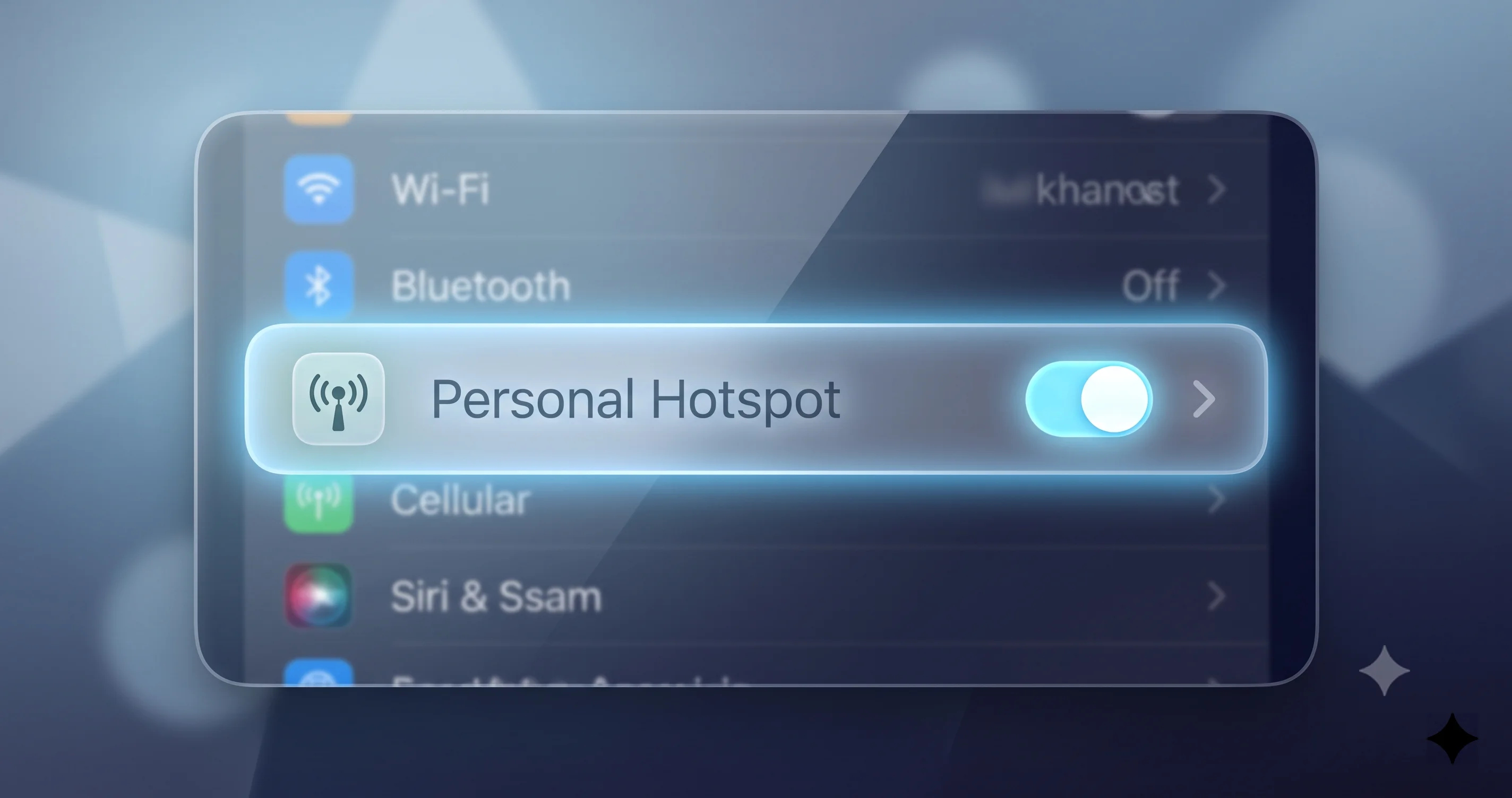
Fix 4: Turn On Maximize Compatibility (The 5GHz Join Failure Fix)
This is the single most important fix for the specific symptom "my Mac sees the hotspot but cannot join it," or "it joins for a second then fails." Modern iPhones broadcast Personal Hotspot on the faster 5GHz band by default, and while that is great for speed, some Mac Wi-Fi radios — particularly in busy RF environments, in offices with lots of interference, or on certain hardware — struggle to establish or hold a stable 5GHz link with a phone. The result is a hotspot you can see but not reliably use.
- On the iPhone, open Settings, Personal Hotspot.
- Turn on Maximize Compatibility.
- Confirm the dialog. This switches the hotspot to the 2.4GHz band, which is slower but dramatically more compatible and far better at penetrating interference.
- On the Mac, try connecting again — either from the Wi-Fi menu under Personal Hotspots, or by picking the iPhone's network name manually.
For a large number of people whose Mac could see the hotspot but never quite join it, this one toggle is the fix. The trade-off is real — 2.4GHz is slower and more crowded, so if you are doing something bandwidth-heavy you may notice — but a slower connection that actually works beats a fast one that never connects. If Maximize Compatibility gets you online reliably, you can leave it on permanently or toggle it back off when you know you are in a clean RF environment.
If your Mac still will not join even on 2.4GHz, the problem has moved out of the radio-band layer and into the network configuration layer, which the next fixes address.
Fix 5: Forget the Hotspot Network on the Mac and Rejoin
If your Mac has connected to this hotspot before, it stored the network's settings — and a corrupt stored profile is a classic cause of a connection that fails, drops, or connects without internet. Wiping that profile and rejoining fresh clears it.
- On the Mac, open System Settings, Network, then select Wi-Fi and open Details (or the advanced options).
- Find your iPhone's hotspot name in the list of known networks.
- Choose Forget This Network (the minus button or the remove option) and confirm.
- Also toggle Wi-Fi off and on once after forgetting, to make sure the old profile is fully cleared.
- Now reconnect. If Instant Hotspot lists the phone, click it. If not, pick the iPhone's network name from the standard Wi-Fi list and enter the Personal Hotspot password you noted earlier from the iPhone.
Rejoining from scratch forces the Mac to negotiate a completely new connection, including a fresh IP address, which sidesteps a whole category of "it worked yesterday but not today" problems. This is also the right fix if you recently changed the Personal Hotspot password on the iPhone, since the Mac will still be trying the old one.
Fix 6: Renew the DHCP Lease and Fix a Self-Assigned IP
This fix targets the sneakiest failure mode of all: your Mac says it is connected to the hotspot, the Wi-Fi icon looks normal, but nothing loads. The tell-tale sign is a self-assigned IP address that starts with 169.254 — that range means your Mac never received a real address from the iPhone's built-in DHCP server, so it made one up, and an address the phone does not recognize routes exactly nowhere.
- On the Mac, open System Settings, Network, select Wi-Fi, and open Details.
- Go to the TCP/IP tab.
- Look at the IPv4 address. If it starts with 169.254, that is your problem confirmed.
- Click Renew DHCP Lease. This asks the iPhone's hotspot for a proper address again. Give it a few seconds.
- If the address is still self-assigned after renewing, forget the network (Fix 5), rejoin, and renew again.
You can also verify from the Terminal what address you ended up with, which is handy for confirming the fix worked:
ipconfig getifaddr en0If that command returns nothing or a 169.254 address, DHCP is still failing. If it returns something like a 172.20.10 address (the typical range an iPhone hotspot hands out), you are properly connected. Renewing the lease resolves the majority of self-assigned-IP cases; when it does not, the deeper network-service reset in Fix 7 usually does.
Fix 7: Remove and Re-add the Wi-Fi Network Service
When individual toggles and rejoining have not worked, rebuilding the Mac's Wi-Fi network service gives the whole Wi-Fi stack a clean slate. This is more thorough than forgetting a single network because it recreates the service configuration itself, which is where deep corruption can hide.
- On the Mac, open System Settings, Network.
- Select Wi-Fi in the list of services.
- Use the options menu (the small "…" or the minus control at the bottom of the service list) to remove the Wi-Fi service. Your Mac will drop off Wi-Fi entirely — this is expected.
- Now add the service back: use the add control, choose the Wi-Fi interface, give it a name (or accept the default), and create it.
- Turn Wi-Fi on, then try connecting to your iPhone's hotspot again, entering the password manually if needed.
Because this rebuilds the Wi-Fi service from nothing, it clears out stale configuration that survives ordinary toggling. It is completely safe and reversible — you are only re-adding a standard service — but you will need to reconnect to your usual Wi-Fi networks afterward, so it is best done when you are not mid-task. If you want a broader look at Wi-Fi stability beyond hotspots, our macOS Tahoe Wi-Fi dropping fix guide covers the same network stack in more depth.
Fix 8: Toggle Airplane Mode, Then Restart Both Devices
Two blunt but genuinely effective steps, in escalating order. Try the Airplane Mode trick first because it is quick.
Toggle Airplane Mode on the iPhone
- Open Control Center on the iPhone and tap the Airplane Mode icon on. Wait about fifteen seconds.
- Tap it off again and let cellular reconnect (watch for the signal bars and carrier name to return).
This forces the iPhone's cellular and radio stack to re-initialize from scratch, which frequently clears a hotspot that had silently wedged itself — especially useful for the "keeps disconnecting every few minutes" symptom, which often traces back to a flaky cellular handoff.
Restart both devices
If Airplane Mode alone does not help, restart both. Power the Mac fully off and back on (not just close the lid), and restart the iPhone. A true restart clears the in-memory state of every daemon involved in hotspot discovery and Wi-Fi association on both ends. It is old advice precisely because it works so often — a startling number of stubborn hotspot failures evaporate after both devices come back up fresh. Restart the iPhone first, let it fully boot and reconnect to cellular, then start the Mac.
Fix 9: Sign Out and Back Into Your Apple Account
Reserve this for the specific case where Instant Hotspot is broken — the automatic listing never appears — and you have already confirmed the accounts match, two-factor is on, and Handoff is enabled. Because Instant Hotspot runs on the Apple Account and Continuity stack, a corrupt account state on either device can break discovery even when every visible setting looks correct.
- Start with the Mac. Open System Settings, click your name, scroll down, and choose Sign Out. Follow the prompts (you can keep a copy of your data when asked).
- Restart the Mac, then sign back into the same Apple Account.
- If the problem persists, do the same on the iPhone: Settings, your name, Sign Out, restart, sign back in.
- After both are signed back in, give the devices a couple of minutes to re-establish Continuity, then check the Wi-Fi menu on the Mac for the Personal Hotspots listing.
Signing out and back in rebuilds the account's device trust and Continuity registration, which is exactly the layer Instant Hotspot depends on. This is heavier than the earlier fixes and will temporarily sign you out of account-linked services, so do it deliberately — but for a genuinely broken Instant Hotspot that survives every lighter fix, it is often the thing that finally restores the automatic listing. This same account layer underpins other Continuity features, so if you are seeing wider handoff and sync problems, the macOS Tahoe Continuity troubleshooting guide walks through the broader picture.
Fix 10: Verify Your Carrier Plan Allows Hotspot
Here is the fix people skip and then waste hours regretting: sometimes the problem is not your Mac or your iPhone at all — it is your carrier. Many mobile plans treat hotspot and tethering as a separate, sometimes paid, add-on, and a carrier-side restriction can cause a total failure where the hotspot either will not turn on, turns itself off immediately, or connects but delivers no internet no matter what you do.
- Check whether your plan includes hotspot. Look in your carrier's app or account page for a tethering or hotspot allowance. Some plans include it, some cap it, and some charge extra or block it entirely.
- Watch for a used-up hotspot cap. Certain plans allow a monthly amount of high-speed tethering and then throttle it to near-unusable speeds, which looks exactly like "connected but nothing loads."
- Confirm the hotspot works for another device. If your iPad or a Windows laptop can join the Personal Hotspot and reach the internet but your Mac cannot, the plan is fine and the problem is Mac-side — go back to the Wi-Fi and DHCP fixes. If no device can get internet through the hotspot, suspect the carrier or the phone's cellular data.
- Reinstall or refresh the carrier settings if your carrier offers a carrier-settings update; an outdated carrier profile can quietly disable tethering.
This one check separates "my Mac has a bug" from "my plan does not permit this," and getting that distinction right saves you from chasing software fixes for a billing problem.
Fix 11: Update Both Devices to the Latest OS
Keep both the Mac and the iPhone on the latest available software. Personal Hotspot straddles Wi-Fi drivers, Bluetooth, the cellular stack, and the Continuity layer, and each point release can adjust any of those. Users have reported that certain macOS Tahoe and iOS combinations introduced hotspot connection quirks that a later update resolved — and equally, that being a version behind on one device while the other is current can create mismatches. Note that these are community reports of behavior, not Apple-confirmed defects, so treat them as "worth updating to rule out" rather than a guaranteed cause.
- On the Mac, open System Settings, General, Software Update, and install anything available.
- On the iPhone, open Settings, General, Software Update, and do the same.
- Restart both after updating and test the hotspot again.
Matching both devices to their latest versions removes the entire "known bug that was already patched" category from your list of suspects, which is why it is worth doing even though it is listed last — it is slower than a toggle, but it closes off a whole class of problems at once.
USB and Bluetooth Tethering: The Reliable Fallbacks
When Wi-Fi hotspot simply will not cooperate and you need internet now, stop fighting the radio and switch transport. Both USB and Bluetooth tethering share the same cellular connection your Wi-Fi hotspot would, but over a different, often more stable, link. These are also excellent diagnostic tools: if USB tethering works but Wi-Fi does not, you have proven the cellular data and carrier side are fine and narrowed the fault to the Wi-Fi layer.
USB tethering (the most reliable option)
USB tethering is the sturdiest connection of the three because it does not depend on Wi-Fi association or Bluetooth discovery at all — it is a direct wired link.
- Connect the iPhone to the Mac with a Lightning-to-USB or USB-C cable, depending on your iPhone model.
- If prompted on the iPhone, tap Trust This Computer and enter your passcode.
- Make sure Personal Hotspot is on and Allow Others to Join is enabled on the iPhone.
- On the Mac, open System Settings, Network. A new service representing the iPhone's USB connection should appear. Make sure it is active.
- Traffic should now route over the cable. This bypasses every Wi-Fi and Bluetooth problem in this article.
USB tethering also has the bonus of charging your iPhone while you work, so it is genuinely the best option for long sessions. If the iPhone does not appear as a network service over USB, try a different cable (charge-only cables will not carry data) and confirm the Mac and iPhone trust each other.
Bluetooth tethering
Bluetooth tethering is slower than both Wi-Fi and USB, but it is a valid fallback when a cable is not handy and Wi-Fi hotspot is misbehaving.
- Pair the iPhone and Mac over Bluetooth if they are not already paired: open Bluetooth settings on both, and confirm the pairing request on each device.
- With Personal Hotspot on and Allow Others to Join enabled on the iPhone, use the Bluetooth menu or Network settings on the Mac to connect to the iPhone as a network device.
- Give it a moment to establish; Bluetooth links take a little longer to come up than Wi-Fi.
Because Bluetooth is low-bandwidth, save it for light work — email, messaging, a quick web lookup — rather than video calls or large downloads. But when it is the only thing that connects, it is far better than nothing. If Bluetooth pairing itself is unreliable, our guide on Bluetooth devices failing on macOS Tahoe covers the underlying Bluetooth stack fixes that apply here too.
Troubleshooting Common Issues
Some symptoms are common enough — and specific enough — to deserve their own targeted answer. Match your exact situation below.
Problem: The hotspot connects fine but drops every few minutes, forcing you to reconnect over and over.
Solution: This is usually one of two things. First, the iPhone may be putting its hotspot to sleep to save power when it thinks no device is actively using it — keeping the Personal Hotspot settings screen open, or switching on Maximize Compatibility (Fix 4), often stabilizes it. Second, a flaky 5GHz link in a crowded RF environment drops far more than a 2.4GHz one, so Maximize Compatibility helps here too. If drops persist, the Airplane Mode toggle in Fix 8 re-initializes the cellular stack that a dropping hotspot frequently depends on.
Problem: The hotspot works perfectly for your iPad and a Windows laptop, but this one Mac refuses to connect or stay connected.
Solution: Because other devices work, the iPhone, the plan, and the cellular side are all proven healthy — the fault is Mac-side. Focus on the Mac-only fixes: forget and rejoin the network (Fix 5), renew the DHCP lease (Fix 6), and if needed rebuild the Wi-Fi service (Fix 7). A single device failing while others succeed almost always means a corrupt stored network profile or a stuck DHCP state on that one machine.
Problem: Instant Hotspot never lists the iPhone, but you can join it manually every time.
Solution: This cleanly isolates the fault to the Instant Hotspot discovery layer, not the hotspot itself. Work the account-and-discovery fixes: confirm same Apple Account, two-factor, and Handoff (Fix 3), cycle Bluetooth on both devices (Fix 1), and if it still will not auto-list, sign out and back into your Apple Account (Fix 9). Manual joining working is actually good news — it means only the convenience layer is broken, and that layer lives entirely in Continuity and the Apple Account.
Problem: The Mac connects and shows a Wi-Fi icon, but web pages and apps time out with no internet.
Solution: Check the IP address as described in Fix 6. A 169.254 self-assigned address means DHCP failed — renew the lease or forget and rejoin. If the IP looks valid (a 172.20.10 range address) but there is still no internet, the problem is upstream on the phone: confirm cellular data is on, the iPhone actually has signal, and your carrier plan permits tethering (Fix 10).
FAQ
Why doesn't my iPhone hotspot show up on my Mac?
Instant Hotspot only lists your iPhone automatically when both devices are signed into the same Apple Account with two-factor authentication, have Bluetooth and Wi-Fi on, and have Handoff enabled. If any of those is off, the hotspot will not appear. Check those first, then cycle Bluetooth on both devices to refresh discovery. You can still join manually meanwhile.
Does Instant Hotspot work without the same Apple ID?
No. The automatic, password-free listing in your Mac's Wi-Fi menu requires both devices on the same Apple Account. Without it, Instant Hotspot cannot discover the phone. However, you can always connect the old-fashioned way: pick the iPhone's network name in the Wi-Fi menu and type the Personal Hotspot password shown in Settings, Personal Hotspot on the iPhone.
Why does my Mac keep disconnecting from the hotspot?
Frequent drops usually come from an unstable 5GHz link in a crowded wireless environment or from the iPhone power-saving its hotspot when it thinks nothing is connected. Turning on Maximize Compatibility to switch to the more resilient 2.4GHz band fixes most cases, and toggling Airplane Mode on the iPhone re-initializes the cellular stack that a dropping connection often relies on.
Does Maximize Compatibility make the hotspot slower?
Somewhat, yes. Maximize Compatibility moves the hotspot to the 2.4GHz band, which is slower and more congested than 5GHz. The trade-off is far better range, interference resistance, and connection reliability. For most work — email, browsing, calls — the difference is barely noticeable, and a stable slower link always beats a fast one that keeps dropping or will not connect at all.
Can I use Personal Hotspot over USB on a Mac?
Yes, and it is the most reliable option. Connect the iPhone with a data-capable Lightning or USB-C cable, tap Trust This Computer if prompted, and make sure Personal Hotspot is on. The iPhone appears as a network service in System Settings, Network, and traffic routes over the cable — bypassing every Wi-Fi and Bluetooth problem while charging your phone at the same time.
Why does the hotspot work on my iPad but not my Mac?
If another device connects fine, the iPhone, cellular data, and carrier plan are all healthy, so the problem is specific to your Mac. It is almost always a corrupt stored network profile or a stuck DHCP state on that machine. Forget the hotspot network and rejoin, renew the DHCP lease, and if needed rebuild the Mac's Wi-Fi network service.
Conclusion
A Mac that will not connect to your iPhone Personal Hotspot feels like a betrayal precisely because the feature is supposed to be effortless — but nearly every failure traces back to one of a handful of specific, fixable causes. The key is to match the fix to the symptom rather than trying everything at random. If the hotspot never appears automatically, you have an Instant Hotspot discovery problem, so check the Apple Account, Bluetooth, and Handoff. If it appears but will not join, switch on Maximize Compatibility to escape a fussy 5GHz link. If it connects but nothing loads, chase the DHCP lease and that self-assigned 169.254 address. And if Wi-Fi refuses entirely, fall back to rock-solid USB tethering while you sort out the rest.
Work the fixes in order, from the thirty-second toggle cycle through the deeper network resets, and stop the moment your connection returns. Most readers never make it past the first few fixes. And remember the carrier check — a surprising number of "broken" hotspots are simply plans that do not include tethering, which no amount of Mac tinkering will solve.
If your Personal Hotspot is now working but you are still fighting other cross-device gremlins, take a look at our related guides on Continuity sync troubleshooting, Continuity Camera detection failures, and sleep and wake issues on macOS Tahoe — they tackle the same Continuity and networking foundations from different angles. Bookmark this page for the next time you are stranded without Wi-Fi, and you will be back online in minutes instead of hours.