macOS Tahoe Freezing, Lag & Beach Ball: Complete Fix Guide 2026 - 15 Proven Solutions
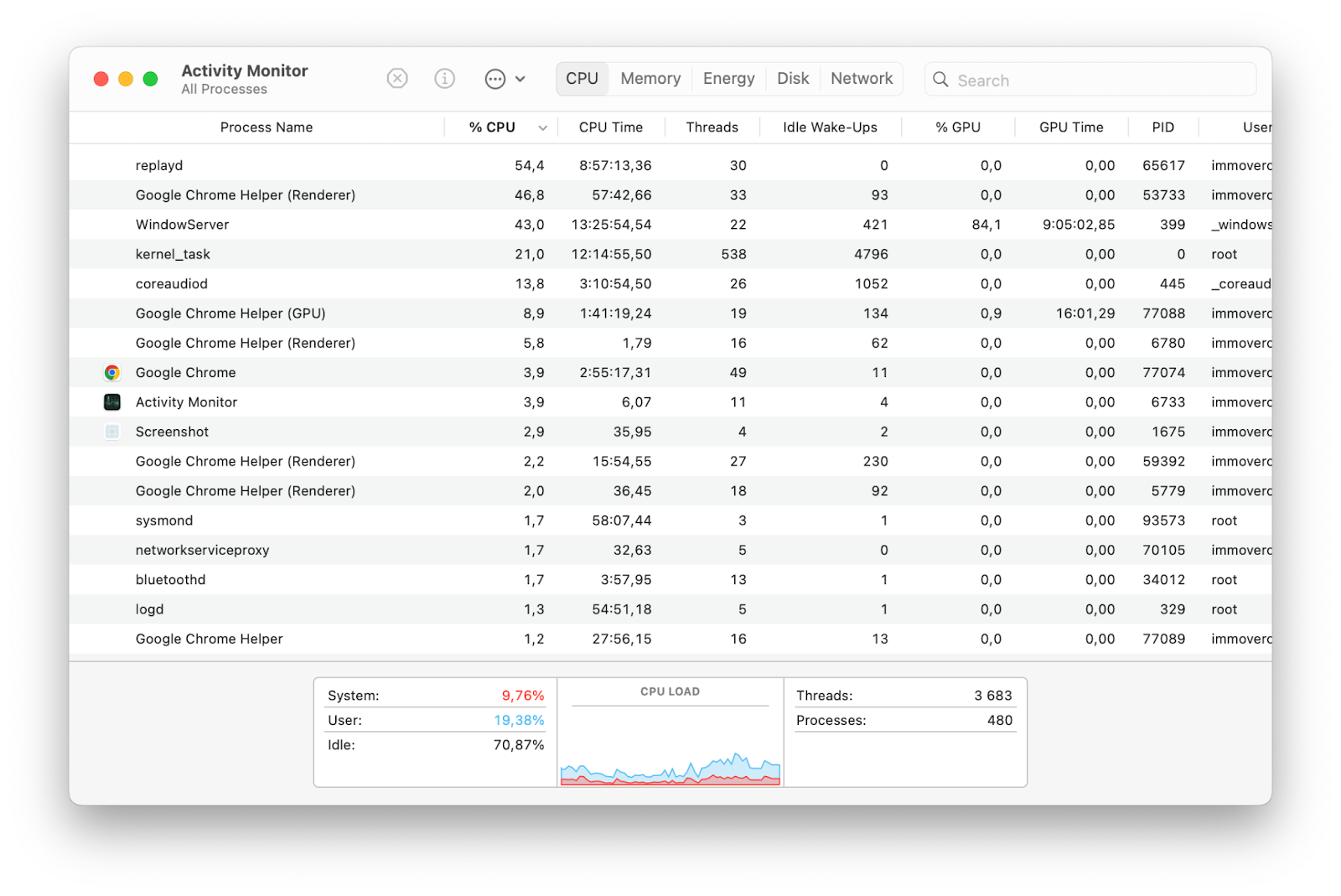
Fix macOS Tahoe system freezing, lag, and spinning beach ball issues with this comprehensive troubleshooting guide. Step-by-step solutions for Spotlight indexing problems, memory issues, WindowServer GPU overload, and performance optimization for M1-M4 Macs.
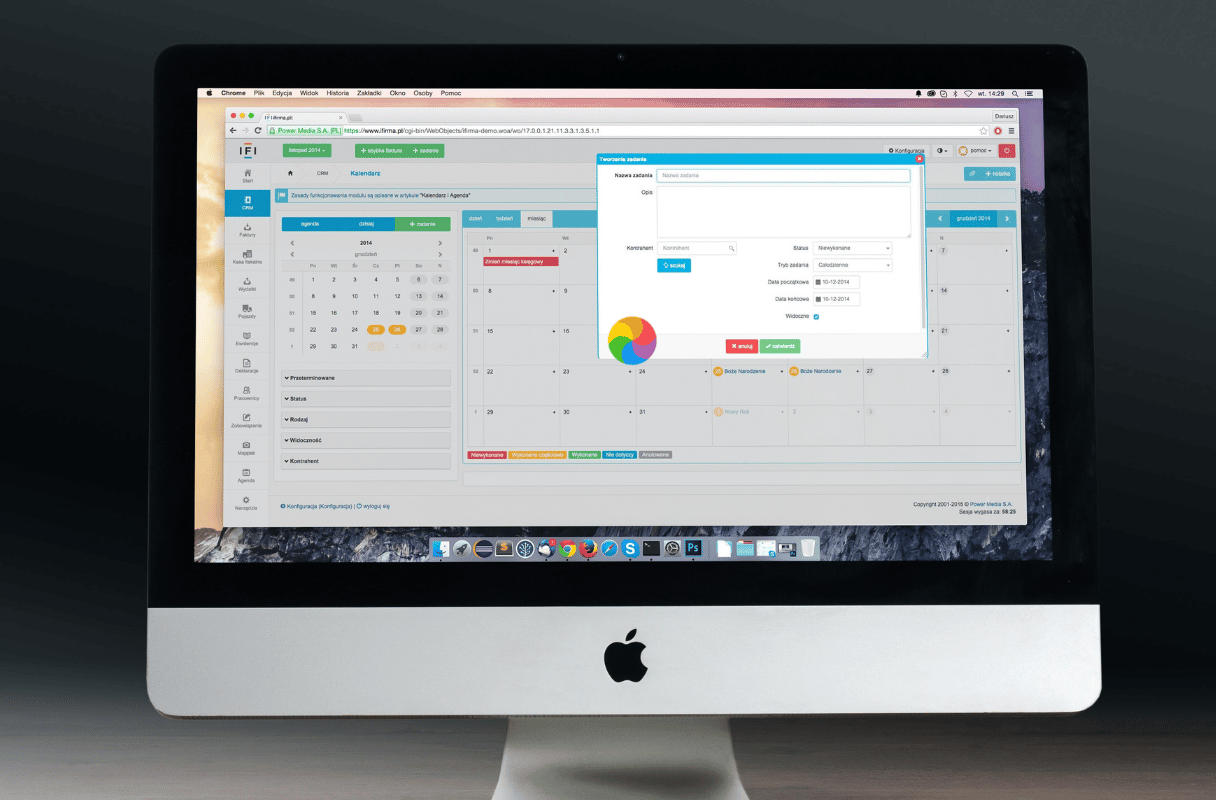
If your Mac has become frustratingly slow, constantly freezing, or showing the dreaded spinning beach ball since upgrading to macOS Tahoe, you're not alone. This is one of the most reported issues with macOS 26, affecting everything from M1 MacBook Airs to M4 Pro Mac Studios. This comprehensive guide provides 15 proven solutions to restore your Mac's performance.
Understanding the Problem
Common Symptoms
System-Wide Freezing:
- Mac becomes completely unresponsive for several seconds
- Mouse cursor moves but clicks don't register
- Applications fail to respond to input
- Spinning beach ball appears frequently
Performance Degradation:
- Longer application launch times
- Slow file operations in Finder
- Delayed keyboard response while typing
- Overall sluggish system behavior
Specific Scenarios:
- Freezing when opening new browser tabs
- Lag when switching between applications
- Beach ball when accessing files
- System hangs during video playback
Root Causes in macOS Tahoe
Our research across Apple Support Communities, Reddit, and MacRumors forums reveals several primary causes:
| Cause | Frequency | Severity |
|---|---|---|
| Spotlight Indexing (corespotlightd) | Very High | Critical |
| Memory Management Issues | High | High |
| Liquid Glass GPU Overhead | High | Moderate |
| WindowServer GPU Overload | Moderate | High |
| Background Process Conflicts | Moderate | Moderate |
| Corrupted System Caches | Moderate | Moderate |
Solution 1: Force Spotlight Reindex
Spotlight indexing is the number one cause of macOS Tahoe freezing. The corespotlightd process can consume 100-200% CPU, causing system-wide slowdowns.
Check If Spotlight Is the Problem
Using Activity Monitor:
- Open Activity Monitor (Applications > Utilities)
- Click the CPU tab
- Look for
mds,mds_stores, orcorespotlightd - If any process shows >50% CPU consistently, Spotlight is likely the issue
Force Spotlight Reindex
Method 1: System Settings (Recommended)
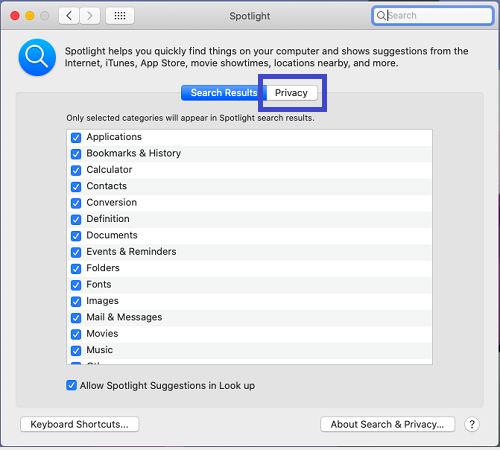
- Open System Settings > Siri & Spotlight
- Scroll down and click Spotlight Privacy
- Click the + button
- Add your Macintosh HD (entire startup disk)
- Restart your Mac
- Return to Spotlight Privacy and remove Macintosh HD
- Wait for re-indexing to complete (may take several hours)
Method 2: Terminal Commands
# Disable Spotlight indexing
sudo mdutil -a -i off

# Delete the Spotlight index
sudo mdutil -E /

# Re-enable Spotlight indexing
sudo mdutil -a -i on
Optimize Spotlight Settings
To prevent future issues, limit Spotlight's scope:
-
Open System Settings > Siri & Spotlight
-
Under Search Results, uncheck categories you don't need:
- Fonts
- Images
- Movies
- Music
- Other
-
Add folders you don't need indexed to Privacy exclusions:
- Virtual machine folders
- Large media libraries
- Development build folders
- Downloads folder (optional)
Solution 2: Address Memory Pressure
macOS Tahoe has higher memory requirements than previous versions. The "Your system has run out of application memory" error is common, especially on 8GB Macs.
Check Memory Status
- Open Activity Monitor
- Click the Memory tab
- Look at the Memory Pressure graph at the bottom:
- Green: Healthy
- Yellow: Moderate pressure
- Red: Critical - immediate action needed
Terminal Memory Check
# Check memory pressure status
memory_pressure

# View memory statistics
vm_stat

# Check swap usage
sysctl vm.swapusage
Reduce Memory Usage
Close Memory-Hungry Apps:
Common culprits in macOS Tahoe:
- Safari (especially with many tabs)
- Chrome (known memory hog)
- Slack, Discord, VS Code (Electron apps)
- Messages (can accumulate memory over time)
Activity Monitor Method:
- Open Activity Monitor > Memory tab
- Sort by Memory column (click header)
- Identify apps using excessive memory
- Select and click X to quit, or right-click > Quit
Reduce Login Items:
- Open System Settings > General > Login Items
- Review and remove unnecessary startup apps
- Check "Allow in the Background" section
- Disable unnecessary background processes
For 8GB Mac Users
If you have a Mac with 8GB RAM, additional optimization is essential:
System Settings > Accessibility > Display:
  - Enable "Reduce Transparency"
  - Enable "Reduce Motion"

These settings can free 500MB-1GB of memory previously used for visual effects.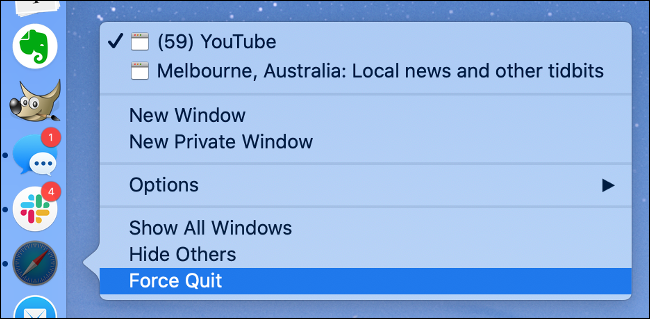
Solution 3: Reduce Liquid Glass GPU Load
The new Liquid Glass design in macOS Tahoe puts significant pressure on the GPU, particularly on older Macs and base configurations.
Disable Transparency Effects
- Open System Settings
- Go to Accessibility > Display
- Enable Reduce Transparency
- Enable Reduce Motion (optional but helpful)
Impact of These Settings
| Setting | GPU Reduction | Visual Impact |
|---|---|---|
| Reduce Transparency | 30-40% | Moderate (solid backgrounds) |
| Reduce Motion | 10-15% | Minor (reduced animations) |
| Both Combined | 40-50% | Noticeable but functional |
Monitor GPU Usage
Using Activity Monitor:
- Open Activity Monitor
- Select Window > GPU History from the menu
- Watch for sustained high GPU usage
Terminal Method:
# Monitor GPU power usage
sudo powermetrics --samplers gpu_power -n 5
If GPU usage remains high even at idle (above 15-20%), proceed to Solution 4.
Solution 4: Reset WindowServer
WindowServer manages all visual rendering in macOS. A stuck or overloaded WindowServer can cause system-wide freezing.
Safe Reset via Logout
- Save all your work
- Apple menu () > Log Out
- Log back in
This restarts WindowServer without a full system restart.
Force Reset (If System Is Responsive)
If you can access Terminal but the system is sluggish:
# This will log you out immediately - save work first!
sudo killall WindowServer
Warning: This command immediately logs you out. Ensure all work is saved before executing.
Reduce WindowServer Load
Reduce Desktop Clutter:
- Fewer items on desktop = less WindowServer work
- Move files to folders instead of desktop
- Use Stacks to organize desktop items
Limit Visual Effects:
System Settings > Desktop & Dock:
  - Minimize windows using: Scale effect
  - Animate opening applications: Off (optional)
Solution 5: Boot into Safe Mode
Safe Mode starts your Mac with minimal extensions and drivers, helping identify if third-party software is causing issues.
Enter Safe Mode
Apple Silicon Macs (M1/M2/M3/M4):
- Shut down your Mac completely
- Press and hold the power button until "Loading startup options" appears
- Select your startup disk
- Press and hold Shift, then click Continue in Safe Mode
Intel Macs:
- Shut down your Mac
- Turn on and immediately press and hold Shift
- Release Shift when you see the login window
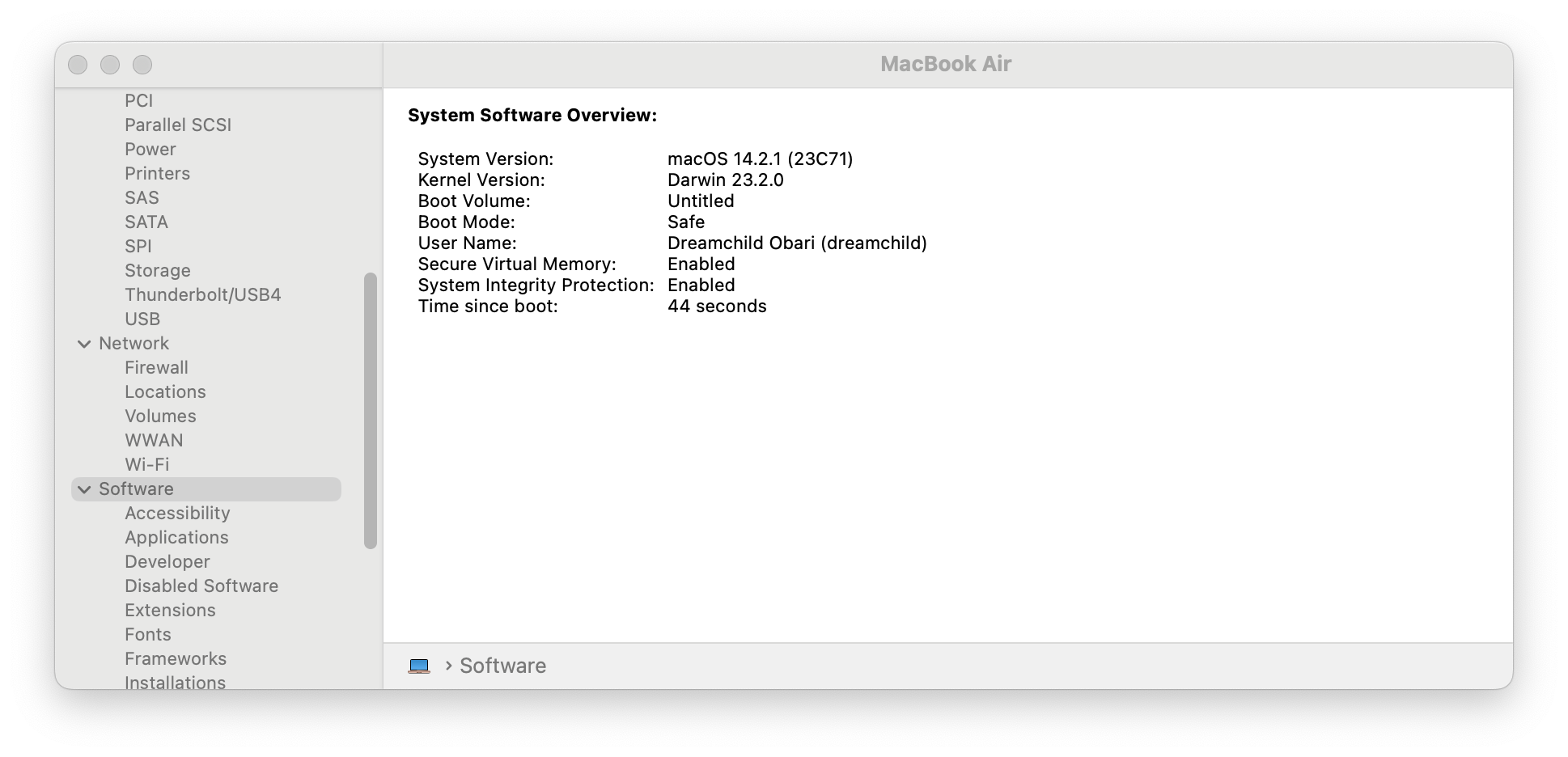
Verify Safe Mode
- Click Apple menu () > About This Mac
- Click System Report
- Select Software in the sidebar
- "Boot Mode" should say Safe
What Safe Mode Tests
- Verifies startup disk
- Clears system caches
- Loads only essential kernel extensions
- Disables third-party fonts
- Prevents startup items from loading
If Mac runs smoothly in Safe Mode: The problem is likely a third-party application or extension. Restart normally and systematically disable login items and extensions to identify the culprit.
Solution 6: Clear System Caches
Corrupted caches can cause significant performance issues. Clearing them forces macOS to rebuild fresh cache files.
Clear User Caches
Safe Method:
- Open Finder
- Press Cmd + Shift + G (Go to Folder)
- Type:
~/Library/Caches - Select all folders and move to Trash
- Empty Trash
- Restart your Mac
Clear System Caches (Advanced)
# Clear DNS cache
sudo dscacheutil -flushcache; sudo killall -HUP mDNSResponder

# Clear font caches
sudo atsutil databases -remove

# Restart to rebuild caches
sudo shutdown -r now
Third-Party Cache Cleaners
While generally not recommended, reputable tools like:
- CleanMyMac X (Paid)
- OnyX (Free, Tahoe-compatible version required)
- AppCleaner (Free)
Can help identify and clear problematic caches safely.
Caution: Never use cache cleaners to delete system files or "optimize" your Mac beyond cache clearing.
Solution 7: Update macOS and Applications
Many freezing issues have been addressed in macOS Tahoe updates. Ensure you're running the latest version.
Update macOS
- Open System Settings > General > Software Update
- If an update is available, click Update Now
- Allow the update to complete (don't interrupt)
Current Versions (January 2026):
- Stable: macOS Tahoe 26.2
- Beta: macOS Tahoe 26.3 Beta 2
Update Applications
App Store Apps:
- Open App Store
- Click Updates in the sidebar
- Click Update All
Non-App Store Apps:
- Check each application's update mechanism
- Prioritize updating: Safari, Chrome, Electron apps
Electron App Updates (Critical)
Electron apps (VS Code, Slack, Discord, Microsoft Teams) have known GPU-related issues on macOS Tahoe. Ensure they're updated to the latest versions with Tahoe-specific fixes.
Disable GPU Acceleration in Electron Apps:
VS Code:
// In settings.json
"disable-hardware-acceleration": true
Slack:
- Click Slack menu > Settings
- Advanced > Disable hardware acceleration
Discord:
- User Settings > Advanced
- Hardware Acceleration > Off
Solution 8: Reset SMC and NVRAM/PRAM
These resets can resolve low-level system issues affecting performance.
Reset NVRAM (All Macs)
Apple Silicon: NVRAM resets automatically on restart. Simply restart your Mac.
Intel Macs:
- Shut down your Mac
- Turn on and immediately press and hold: Option + Command + P + R
- Hold for about 20 seconds
- Release and let Mac start normally
Reset SMC (Intel Macs Only)
MacBooks with T2 Chip:
- Shut down
- Press and hold: Control + Option + Shift (left side) for 7 seconds
- While holding, press and hold the power button too
- Hold all keys for another 7 seconds
- Release all keys, wait a few seconds
- Press power button to turn on
Desktop Macs:
- Shut down
- Unplug power cord
- Wait 15 seconds
- Plug back in
- Wait 5 seconds
- Turn on
Note: Apple Silicon Macs don't have an SMC to reset. Restart is sufficient.
Solution 9: Check for Malware and Unwanted Software
While rare on macOS, malware can cause significant performance degradation.
Built-in Protection Check
- Open System Settings > Privacy & Security
- Scroll to Security
- Verify "App Store and identified developers" is selected
- Ensure no unknown profiles are installed
Check for Suspicious Processes
# List all running processes
ps aux | head -50

# Check for unusual launch agents
ls -la ~/Library/LaunchAgents
ls -la /Library/LaunchAgents
ls -la /Library/LaunchDaemons
Look for anything unfamiliar or suspicious.
Malware Scanning Tools
Free, reputable options:
- Malwarebytes for Mac (Free version)
- ClamXAV (Free, open-source)
Never pay for "Mac cleaning" or "speedup" software. These are often scams that cause more problems than they solve.
Solution 10: Manage iCloud Syncing
Aggressive iCloud syncing can cause significant CPU and disk usage, especially after a fresh install or upgrade.
Check iCloud Status
- Open System Settings > Apple ID > iCloud
- Click iCloud Drive > Options
- Review what's being synced
Optimize iCloud Drive
- Open System Settings > Apple ID > iCloud
- Click Optimize Mac Storage to remove local copies of files you don't need
- Or disable iCloud Drive for specific folders temporarily
Pause iCloud Syncing
If syncing is causing issues:
- Open Finder
- Click iCloud Drive in the sidebar
- Look for uploading/downloading indicators
- Wait for sync to complete, or disable iCloud Drive temporarily in System Settings
Terminal Check
# Check brctl status (iCloud sync daemon)
brctl status

# Monitor iCloud processes
ps aux | grep -i cloud
Solution 11: Optimize Storage
Low storage can significantly impact macOS performance, especially on Macs with SSDs.
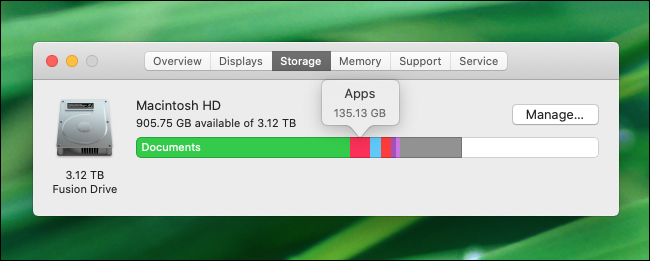
Check Available Storage
- Apple menu () > About This Mac
- Click More Info > Storage Settings
- Ensure at least 15% of total storage is free
Quick Storage Cleanup
Built-in Recommendations:
- Open System Settings > General > Storage
- Review recommendations:
- Store in iCloud
- Optimize Storage
- Empty Trash Automatically
- Reduce Clutter
Manual Cleanup:
# Find large files
find ~ -type f -size +500M 2>/dev/null

# Find old downloads
find ~/Downloads -mtime +30 -type f 2>/dev/null
Clear System Data
System Data can grow large over time:
- Time Machine Snapshots:
tmutil thinlocalsnapshots / 1000000000 1 - Developer Caches:
rm -rf ~/Library/Developer/Xcode/DerivedData/* - iOS Backups: iTunes/Finder > Manage Backups > Delete old backups
Solution 12: Disable Problematic Extensions
Browser and system extensions can cause freezing and lag.
Safari Extensions
- Open Safari > Settings > Extensions
- Disable all extensions
- Test if freezing stops
- Re-enable extensions one by one to identify the culprit
System Extensions
- Open System Settings > General > Login Items
- Review Allow in the Background
- Disable suspicious or unnecessary extensions
Kernel Extensions (Legacy)
For Intel Macs with kernel extensions:
# List loaded kernel extensions
kextstat | grep -v com.apple
If you see unfamiliar extensions, research them and remove if problematic.
Solution 13: Perform First Aid on Disk
Disk errors can cause system instability and freezing.
Using Disk Utility
- Open Disk Utility (Applications > Utilities)
- Select your startup disk (usually "Macintosh HD")
- Click First Aid
- Click Run
- Repeat for other volumes
From Recovery Mode (More Thorough)
Apple Silicon:
- Shut down
- Press and hold power button until "Loading startup options"
- Click Options > Continue
- Select Disk Utility
- Run First Aid on all volumes
Intel:
- Restart while holding Cmd + R
- Select Disk Utility
- Run First Aid on all volumes
Solution 14: Consider Clean Installation
If all else fails, a clean installation can resolve persistent issues caused by upgrade artifacts.
Backup First
- Connect external drive
- Open Time Machine settings
- Create fresh backup
- Verify backup is complete
Clean Install Process
Option A: Erase and Install (Cleanest)
- Boot to Recovery Mode
- Use Disk Utility to erase Macintosh HD
- Reinstall macOS Tahoe from Recovery
- Set up as new Mac
- Manually reinstall apps and restore data
Option B: Reset All Settings
- Open System Settings > General > Transfer or Reset
- Click Erase All Content and Settings
- Follow prompts
- Reinstall macOS
Note: Apple Technicians have reported that a clean install via Time Machine rebuild often resolves persistent Tahoe issues.
Solution 15: Hardware Diagnostics
If software solutions don't help, hardware issues may be the cause.
Apple Diagnostics
Apple Silicon:
- Shut down your Mac
- Press and hold power button until "Loading startup options"
- Press Cmd + D
- Follow on-screen instructions
Intel:
- Shut down
- Turn on and immediately press and hold D
- Release when diagnostics appear
What to Look For
- Memory errors (may indicate faulty RAM)
- Storage errors (may indicate failing SSD)
- Thermal issues (may indicate cooling problems)
If diagnostics find issues, contact Apple Support or an authorized service provider.
Prevention: Maintaining macOS Tahoe Performance
Regular Maintenance Schedule
Weekly:
- Restart your Mac (clears memory, resets processes)
- Check for macOS and app updates
- Review Activity Monitor for unusual processes
Monthly:
- Run Disk Utility First Aid
- Clear browser caches
- Review and remove unused applications
Quarterly:
- Full Time Machine backup verification
- Clean user caches
- Review startup items and extensions
Best Practices
- Keep 15%+ storage free at all times
- Restart regularly (don't just sleep for weeks)
- Update promptly when Apple releases fixes
- Limit browser tabs (especially Safari and Chrome)
- Close unused apps rather than minimizing them
- Use Activity Monitor to identify resource hogs early
When to Contact Apple Support
Consider professional help if:
- Freezing persists after trying all solutions
- Apple Diagnostics finds hardware errors
- Mac is still under warranty or AppleCare+
- You're uncomfortable performing advanced troubleshooting
- The issue started after a specific incident (drop, liquid exposure)
Contact Options
- Apple Support: support.apple.com
- Apple Store Genius Bar: Schedule appointment
- Authorized Service Provider: For out-of-warranty repairs
- Apple Communities: Community support forums
Conclusion
macOS Tahoe's freezing and lag issues are frustrating but usually fixable. Start with the most common solutions (Spotlight reindex, memory optimization, Liquid Glass settings) before moving to more advanced troubleshooting.
Quick Fix Summary:
- First: Force Spotlight reindex and enable Reduce Transparency
- Second: Check Activity Monitor for resource hogs
- Third: Clear caches and update all software
- Fourth: Boot Safe Mode to identify third-party conflicts
- Last Resort: Clean installation if nothing else works
Most users find that addressing Spotlight indexing and reducing Liquid Glass effects resolves 80% of performance issues. The remaining cases typically involve problematic third-party software or, rarely, hardware issues.
For more macOS Tahoe troubleshooting, explore our System Freezing Fix Guide and Battery Drain Complete Fix Guide.