macOS Tahoe 26.3 Broke SSH: Case Sensitivity Changes, DSA Key Deprecation & Complete Fix Guide
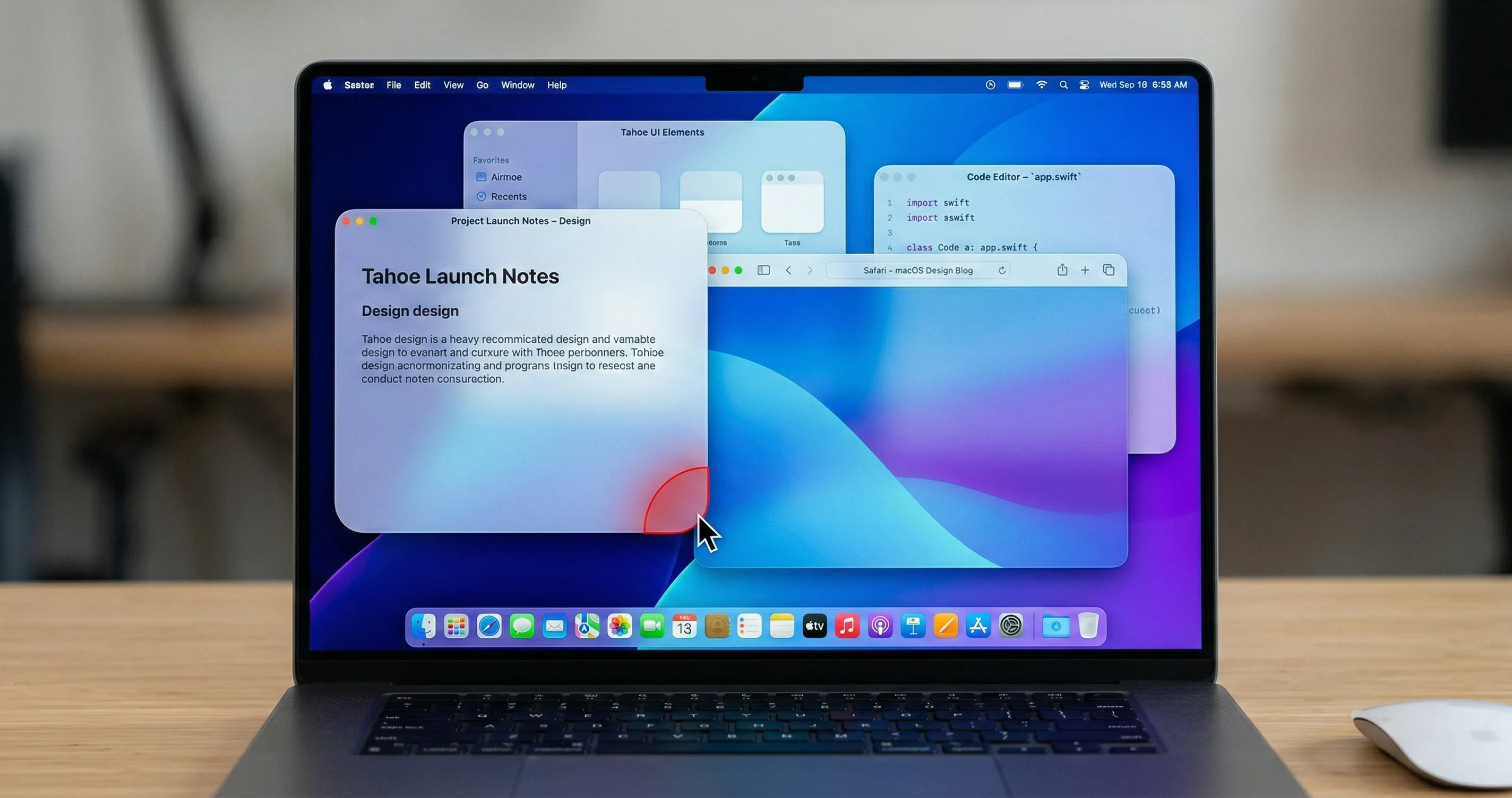
macOS Tahoe 26.3 silently changed SSH username handling to case-sensitive and disabled ssh-dss keys. Complete guide to fixing SSH connections, updating configs, and migrating to Ed25519 keys.
Apple released macOS Tahoe 26.3 on February 11, 2026, and for thousands of developers and system administrators, SSH connections immediately broke. No warning dialog. No migration assistant. No release note calling it out. One day you could ssh administrator@yourserver and the next day you got Connection closed by 10.10.83.28 port 22. If you relied on DSA keys to authenticate against legacy infrastructure, those stopped working entirely. This guide explains exactly what changed, why it happened, and how to fix every affected workflow -- from interactive sessions to automated CI/CD pipelines.
Key Takeaways
- macOS Tahoe 26.3 enforces case-sensitive SSH usernames. Typing
administratorinstead ofAdministratornow results in an immediate connection closure with no password prompt. - ssh-dss (DSA) keys are permanently removed. OpenSSH 10.0, bundled with Tahoe 26.3, compiled out DSA support entirely. There is no configuration flag to re-enable it.
- Post-quantum key exchange warnings now appear when connecting to servers that do not support
mlkem768x25519-sha256orsntrup761x25519-sha512. - Ed25519 is the recommended key type for all new SSH keys. It is faster, more secure, and produces smaller signatures than RSA.
- Every
~/.ssh/configfile should be audited for case mismatches inUserdirectives and any references tossh-dssinHostKeyAlgorithmsorPubkeyAcceptedAlgorithms.
Table of Contents
- What Exactly Changed in macOS Tahoe 26.3 SSH
- Diagnosing SSH Connection Failures After the Update
- Understanding the Case Sensitivity Change
- Understanding the DSA Key Removal
- Post-Quantum Key Exchange Warnings
- Step-by-Step Fix: Case Sensitivity Issues
- Step-by-Step Fix: Migrating from DSA to Ed25519
- Complete SSH Config Audit Guide
- SSH Agent Changes and Keychain Integration
- Impact on CI/CD Pipelines and Automation
- Impact on Remote Development Workflows
- Workarounds for Legacy Infrastructure
- SSH Security Best Practices for 2026
- Frequently Asked Questions
- Conclusion
What Exactly Changed in macOS Tahoe 26.3 SSH
macOS Tahoe 26.3 ships with OpenSSH 10.0, which introduces three breaking changes that affect daily SSH workflows. Apple did not highlight any of these in the user-facing release notes, leaving developers to discover them through failed connections.
Change 1: Case-Sensitive Username Matching
Prior to Tahoe 26.3, the SSH client on macOS was lenient about username case. You could connect with ssh administrator@server, ssh Administrator@server, or even ssh ADMINISTRATOR@server, and the remote server would resolve the username correctly as long as the underlying operating system matched the account. After the update, the SSH client enforces strict case matching before the connection is even fully established. If the case does not match what the remote server expects, the connection is closed immediately -- before password authentication or key exchange completes.
Change 2: Complete DSA (ssh-dss) Removal
OpenSSH has been deprecating DSA since version 7.0 in 2015. The deprecation followed a clear timeline:
| Date | OpenSSH Version | DSA Status |
|---|---|---|
| 2015 | 7.0 | Disabled by default, re-enable via config |
| 2024 | 9.x | Compile-time optional, enabled by default |
| Mid-2024 | 9.x | Compile-time optional, disabled by default |
| April 2025 | 10.0 | Removed from codebase entirely |
| February 2026 | 10.0 (macOS Tahoe 26.3) | Ships to all macOS users |
With macOS Tahoe 26.3, there is no PubkeyAcceptedAlgorithms +ssh-dss workaround. The algorithm is not present in the binary. Any SSH configuration that references ssh-dss will produce a Bad key types error.
Change 3: Post-Quantum Key Exchange Warnings
OpenSSH 10.0 introduced a warning that triggers when connecting to servers that do not support post-quantum key exchange algorithms. The warning reads:
WARNING: connection is not using a post-quantum key exchange algorithm.
This session may be vulnerable to 'store now, decrypt later' attacks.
While this is a warning rather than a hard failure, it creates noise in terminal output and can break automated scripts that parse SSH output.
What Did Not Change
It is worth noting what remains the same:
- RSA keys continue to work (with
rsa-sha2-256andrsa-sha2-512signature algorithms) - ECDSA keys continue to work (though Ed25519 is preferred)
- SSH port forwarding, tunneling, and ProxyJump all function identically
- The
~/.ssh/known_hostsfile format has not changed
If you are new to SSH on macOS or setting up a development environment from scratch, our macOS Tahoe developer setup guide covers the full initial configuration.
Diagnosing SSH Connection Failures After the Update
Before making any changes, you need to determine which of the three issues is affecting your connections. SSH verbose output is your primary diagnostic tool.
Step 1: Enable Verbose SSH Output
Run your failing SSH command with triple-verbose flags to see the full handshake negotiation:
ssh -vvv user@hostnameThis produces detailed output showing every stage of the connection. Look for these specific patterns:
Case sensitivity failure pattern:
debug1: Connecting to 10.10.83.28 [10.10.83.28] port 22.
debug1: Connection established.
debug1: identity file /Users/you/.ssh/id_ed25519 type 3
debug3: receive packet: type 7
Connection closed by 10.10.83.28 port 22
The key indicator is that the connection closes after establishment but before any authentication attempt. There is no "Permission denied" message -- the connection simply drops.
DSA key failure pattern:
/Users/you/.ssh/config line 15: Bad key types '+ssh-dss'.or:
Bad key types '+ssh-rsa,ssh-dss'This error appears immediately when the SSH client parses your config file, before any connection attempt.
Post-quantum warning pattern:
WARNING: connection is not using a post-quantum key exchange algorithm.
This session may be vulnerable to 'store now, decrypt later' attacks.
This appears during key exchange but does not prevent the connection from completing.
Step 2: Check Your SSH Client Version
Verify which OpenSSH version is running:
ssh -VExpected output on macOS Tahoe 26.3:
OpenSSH_10.0p1, LibreSSL 3.3.6If you see an older version, you may have a Homebrew-installed OpenSSH taking priority. Check which binary is being used:
which sshThe system SSH is at /usr/bin/ssh. If you see /opt/homebrew/bin/ssh or /usr/local/bin/ssh, you are using a Homebrew version that may behave differently.
Step 3: Test with Explicit Parameters
Isolate the issue by testing with explicit username case and key type:
# Test case sensitivity - try both cases
ssh -vvv Administrator@hostname
ssh -vvv administrator@hostname

# Test without any config file interference
ssh -F /dev/null -vvv user@hostname

# Test with a specific key
ssh -vvv -i ~/.ssh/id_ed25519 user@hostname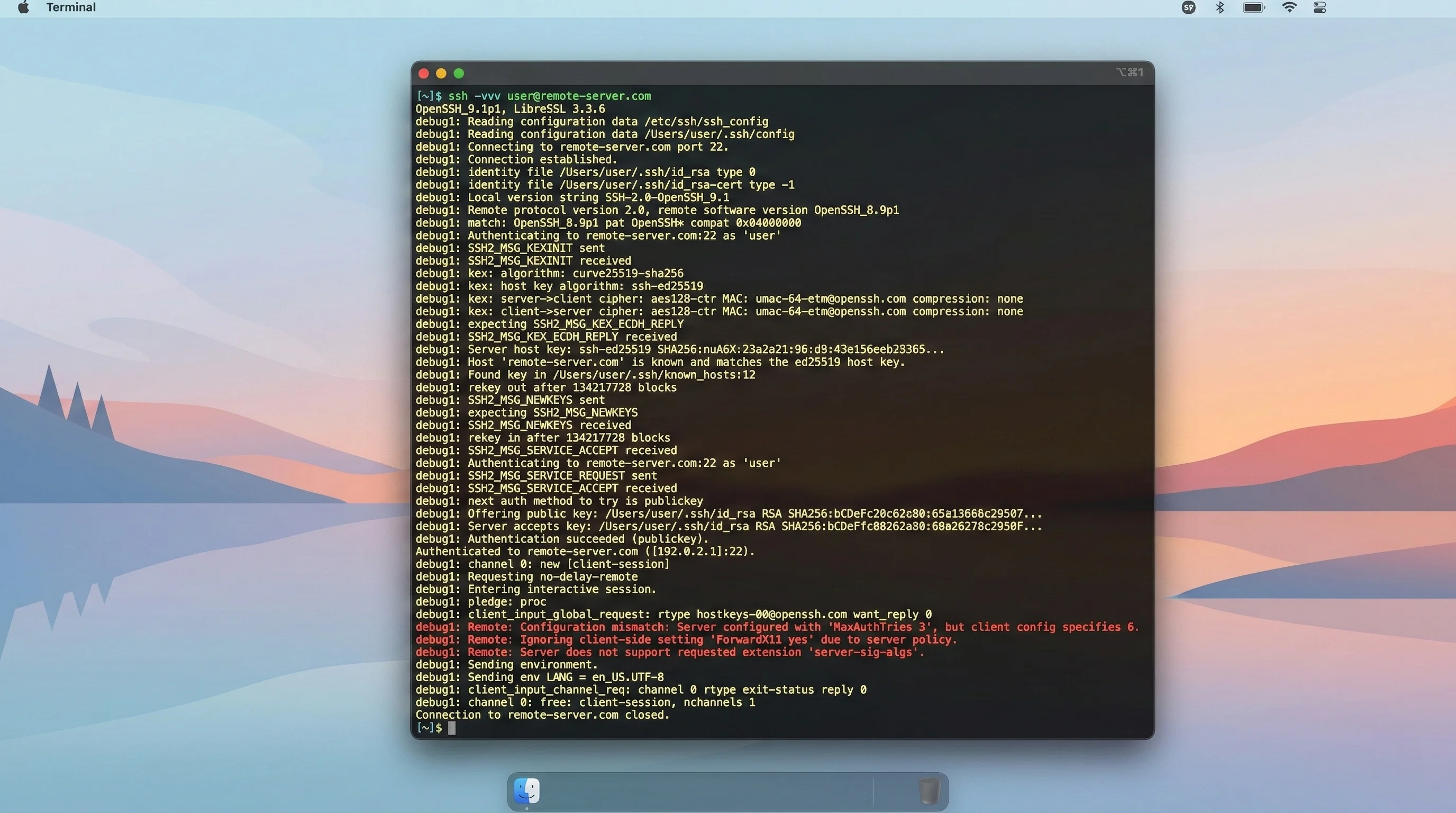
Step 4: Review SSH Config for Errors
Parse your config file to identify any lines referencing deprecated algorithms:
# Check for any ssh-dss references
grep -n "ssh-dss" ~/.ssh/config

# Check for any ssh-dss references in system config
grep -n "ssh-dss" /etc/ssh/ssh_config

# Check all User directives for case review
grep -n "User " ~/.ssh/config
For a deeper understanding of Terminal usage on macOS Tahoe, refer to our macOS Tahoe Terminal guide.
Understanding the Case Sensitivity Change
Why This Change Breaks Connections
On most Unix-like systems, usernames are case-sensitive at the operating system level. A user named Administrator is technically a different account than administrator. However, the SSH protocol itself (RFC 4252) states that usernames are "case-sensitive" but acknowledges that server implementations may choose to handle this differently.
Before macOS Tahoe 26.3, the macOS SSH client was lenient. When you typed ssh administrator@server, the client would send the username as-is, and many SSH servers (particularly those running on Windows, macOS, or network appliances) would normalize the case during authentication. The connection would succeed because the server did the heavy lifting of matching administrator to the Administrator account.
With OpenSSH 10.0, the SSH client on macOS now performs a stricter pre-authentication check. If the server returns an early protocol message indicating a case mismatch, the connection is terminated before authentication proceeds. This means:
- Connections to Windows servers (which historically normalized case) may break
- Connections to network appliances (routers, switches, NAS devices) that use case-insensitive usernames may break
- Connections to macOS servers where the admin account is
Administrator(capital A) but scripts useadministrator(lowercase a) will break - Connections to Linux servers are less likely to be affected since Linux usernames are already case-sensitive
Common Scenarios That Break
Scenario 1: macOS to macOS Remote Management
Many system administrators connect to remote Macs using:
ssh [email protected]But the default macOS admin account is created as Administrator with a capital A. This worked before Tahoe 26.3 and breaks after.
Scenario 2: Network Appliance Management
Connecting to routers, switches, firewalls, and NAS devices often uses generic usernames:
ssh [email protected]
ssh [email protected]
If the device stores the username as Admin or ROOT, these connections will now fail silently.
Scenario 3: SSH Config Aliases
Many developers have SSH config entries with incorrect case that previously worked:
# ~/.ssh/config - this may now break
Host production
    HostName prod.example.com
    User deploy      # Server expects "Deploy"
    IdentityFile ~/.ssh/prod_key
Understanding the DSA Key Removal
The Security Case Against DSA
DSA (Digital Signature Algorithm) as implemented in SSH uses a fixed 1024-bit key length and SHA-1 for hashing. This combination provides approximately 80 bits of symmetric security -- far below the 128-bit minimum recommended by modern security standards.
The specific weaknesses of DSA keys:
| Property | DSA (ssh-dss) | Ed25519 | RSA-4096 |
|---|---|---|---|
| Key size | 1024 bits | 256 bits | 4096 bits |
| Hash algorithm | SHA-1 | SHA-512 | SHA-256/512 |
| Security level | ~80 bits | ~128 bits | ~128 bits |
| Signature size | 40 bytes | 64 bytes | 512 bytes |
| Sign speed | Slow | Fast | Moderate |
| Verify speed | Slow | Fast | Moderate |
| Vulnerability to bias | High | None | None |
DSA is particularly vulnerable to implementation flaws. If the random number generator used during signing has any bias, the private key can be recovered from a small number of signatures. This has been exploited in real-world attacks.
What "Removed" Actually Means
In previous macOS versions, DSA was disabled by default but could be re-enabled with configuration options:
# This used to work on macOS Sequoia and earlier
Host legacy-server
    HostKeyAlgorithms +ssh-dss
    PubkeyAcceptedAlgorithms +ssh-dss
In macOS Tahoe 26.3, these configuration lines themselves cause errors because the SSH binary no longer recognizes ssh-dss as a valid algorithm identifier. The error is:
/Users/you/.ssh/config line 8: Bad key types '+ssh-dss'.This means:
- You cannot use DSA keys for authentication (public key login)
- You cannot accept DSA host keys from servers
- You cannot even reference
ssh-dssin your configuration files without causing errors - The
ssh-keygentool can no longer generate DSA keys
Checking If You Have DSA Keys
Before proceeding with migration, check your existing keys:
# List all SSH keys with their types
for key in ~/.ssh/*.pub; do
    echo "=== $key ==="
    ssh-keygen -l -f "$key"
done
Example output:
=== /Users/you/.ssh/id_dsa.pub ===
1024 SHA256:abc123... you@mac (DSA)          # This key must be replaced
=== /Users/you/.ssh/id_ed25519.pub ===
256 SHA256:xyz789... you@mac (ED25519)       # This key is fine
=== /Users/you/.ssh/id_rsa.pub ===
3072 SHA256:def456... you@mac (RSA)          # This key is fine
Any key identified as (DSA) must be replaced. If you find one, do not delete it yet -- you need it to identify which servers have it authorized.
Post-Quantum Key Exchange Warnings
What the Warning Means
OpenSSH 10.0 introduced post-quantum key exchange using the ML-KEM (previously CRYSTALS-Kyber) algorithm hybridized with X25519. The default key exchange algorithm is now mlkem768x25519-sha256, with sntrup761x25519-sha512 as a fallback.
When connecting to a server that supports neither of these algorithms, OpenSSH displays:
WARNING: connection is not using a post-quantum key exchange algorithm.
This session may be vulnerable to 'store now, decrypt later' attacks.
A "store now, decrypt later" attack means an adversary could record your encrypted SSH traffic today and decrypt it in the future when quantum computers become capable of breaking classical key exchange algorithms.
When You Will See This Warning
- Connecting to servers running OpenSSH 8.x or earlier
- Connecting to network appliances with embedded SSH implementations
- Connecting to cloud instances with older SSH daemon versions
- Connecting to GitHub, GitLab, or Bitbucket (may or may not support PQ algorithms yet)
Silencing the Warning
If you understand the risk and want to suppress the warning, add this to your ~/.ssh/config:
# Suppress post-quantum warnings globally
Host *
    WarnWeakCrypto no
Or for specific hosts only:
Host legacy-server
    HostName 192.168.1.100
    WarnWeakCrypto no
The ideal solution is to update your servers to OpenSSH 9.0 or later, which supports sntrup761x25519-sha512, or OpenSSH 9.9+, which supports the newer mlkem768x25519-sha256.
Step-by-Step Fix: Case Sensitivity Issues
Fix 1: Determine the Correct Username Case
First, verify the exact username on the remote system. The method depends on the remote OS:
For remote Linux/macOS servers:
# If you can still log in via console, physical access, or another SSH client
grep "your_username" /etc/passwd

# Or use id command
id

# Output example: uid=501(Administrator) gid=20(staff) groups=...
For remote Windows servers (OpenSSH):
# In PowerShell on the remote machine
whoami
# Output: DOMAIN\Administrator
For network appliances:
Check the device's web management interface or documentation for the exact username format. Common patterns:
- Cisco IOS: typically lowercase (
admin) - Juniper: typically lowercase (
root) - Synology NAS: case-sensitive as created
- QNAP NAS: case-sensitive as created
Fix 2: Update Your SSH Config File
Open your SSH config and correct all User directives:
# Open the config file
nano ~/.ssh/config
Before (broken):
Host production
    HostName prod.example.com
    User administrator
    IdentityFile ~/.ssh/prod_key

Host nas
    HostName nas.local
    User admin
    Port 22
After (fixed):
Host production
    HostName prod.example.com
    User Administrator
    IdentityFile ~/.ssh/prod_key

Host nas
    HostName nas.local
    User Admin
    Port 22
Fix 3: Update Shell Aliases and Scripts
Search for SSH commands in your shell configuration:
# Check bash aliases
grep -n "ssh " ~/.bashrc ~/.bash_profile 2>/dev/null

# Check zsh aliases
grep -n "ssh " ~/.zshrc ~/.zprofile 2>/dev/null

# Check for SSH commands in custom scripts
grep -rn "ssh " ~/scripts/ ~/bin/ 2>/dev/null
Update any hardcoded usernames to use the correct case.
Fix 4: Update Environment Variables
Some tools use environment variables for SSH usernames:
# Check for SSH-related environment variables
env | grep -i ssh
env | grep -i user

# Common variables to check
echo $DEPLOY_USER
echo $SSH_USER
echo $REMOTE_USER
Fix 5: Verify the Fix
After making changes, verify each connection:
# Test with verbose output
ssh -v production

# Expected: successful authentication
# debug1: Authentication succeeded (publickey).
Step-by-Step Fix: Migrating from DSA to Ed25519
This section walks through the complete process of replacing DSA keys with Ed25519 keys. If you need background on Terminal commands, our Mac Terminal mastery guide covers all the fundamentals.
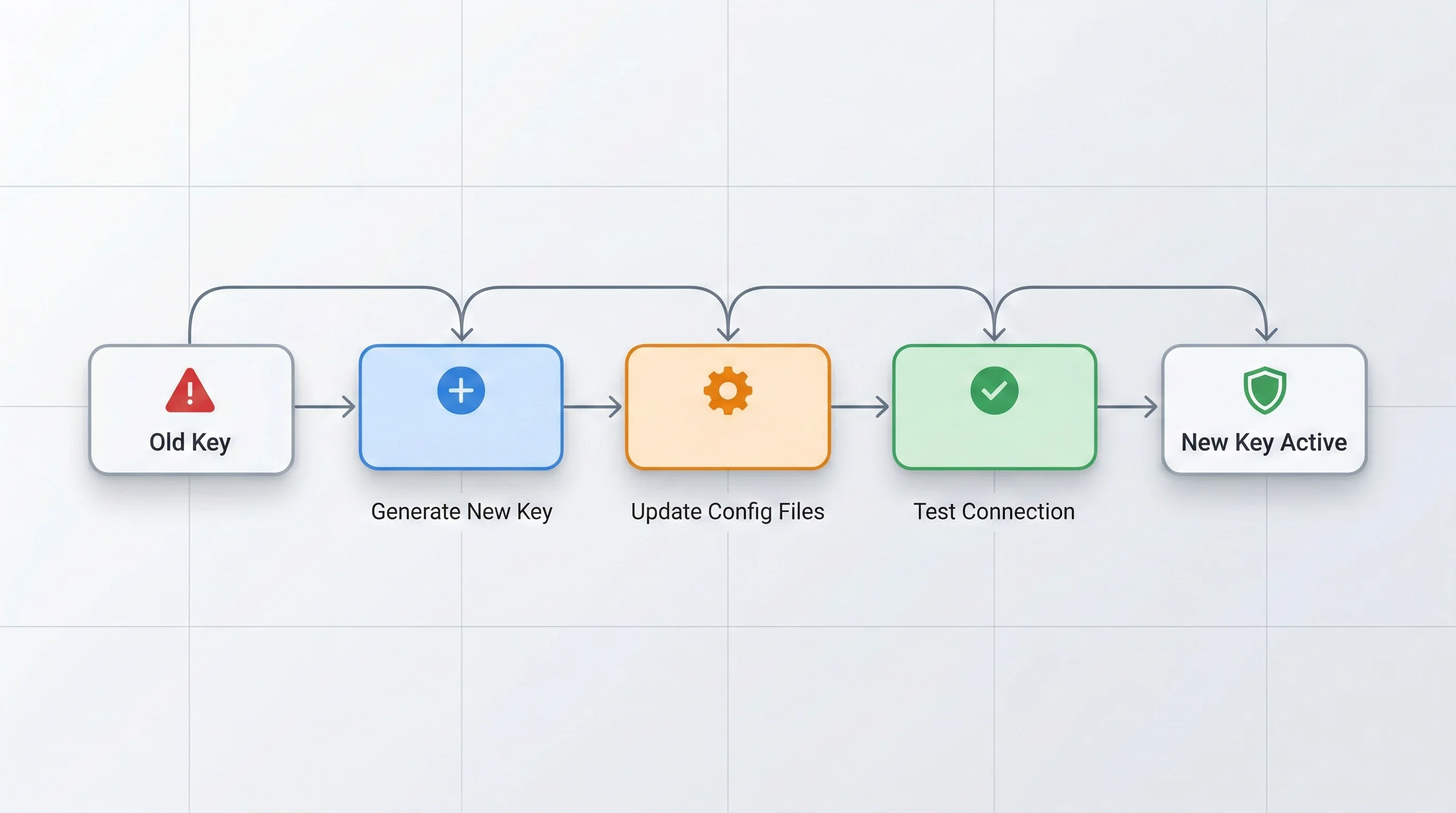
Phase 1: Inventory Your DSA Keys
Before generating new keys, document where your DSA keys are used:
# Step 1: Find all DSA keys on your system
find ~/.ssh -name "*.pub" -exec grep -l "ssh-dss" {} \;

# Step 2: For each DSA key, check which servers authorize it
# Note the public key fingerprint
ssh-keygen -l -f ~/.ssh/id_dsa.pub

# Step 3: Check known_hosts for DSA host keys
grep "ssh-dss" ~/.ssh/known_hosts | awk '{print $1}'
Create a migration checklist:
# Create a migration tracking file
cat > ~/ssh_migration_checklist.txt << 'EOF'
SSH DSA Key Migration Checklist
===============================
Date: $(date)

DSA Keys Found:
- [ ] ~/.ssh/id_dsa -> Used for: _______________
- [ ] ~/.ssh/id_dsa.pub -> Authorized on: _______________

Servers with DSA Host Keys:
- [ ] server1.example.com
- [ ] 192.168.1.100

Automation/Scripts Using DSA:
- [ ] deploy.sh
- [ ] backup-cron.sh
- [ ] CI/CD pipeline: _______________
EOF
Phase 2: Generate New Ed25519 Keys
Generate a new Ed25519 key pair with a meaningful comment:
# Generate Ed25519 key with descriptive comment
ssh-keygen -t ed25519 -C "yourname@macbook-2026-02" -f ~/.ssh/id_ed25519

# You'll be prompted for a passphrase - USE ONE
# A passphrase protects your private key if your machine is compromised
If you need separate keys for different purposes (recommended for security isolation):
# Key for work servers
ssh-keygen -t ed25519 -C "work-servers-2026" -f ~/.ssh/id_ed25519_work

# Key for personal projects
ssh-keygen -t ed25519 -C "personal-2026" -f ~/.ssh/id_ed25519_personal

# Key for CI/CD automation
ssh-keygen -t ed25519 -C "cicd-automation-2026" -f ~/.ssh/id_ed25519_cicd
Verify the generated keys:
# Check the new key
ssh-keygen -l -f ~/.ssh/id_ed25519.pub

# Expected output:
# 256 SHA256:abcdef123456... yourname@macbook-2026-02 (ED25519)
Phase 3: Deploy New Keys to Servers
For each server that previously used your DSA key, deploy the new Ed25519 public key:
Method 1: Using ssh-copy-id (if you can still authenticate)
If you have another working authentication method (password, different key):
# Deploy the new key using password authentication
ssh-copy-id -i ~/.ssh/id_ed25519.pub user@server

# Or specify a working key for authentication during deployment
ssh-copy-id -i ~/.ssh/id_ed25519.pub -o "IdentityFile=~/.ssh/id_rsa" user@server
Method 2: Manual deployment (if ssh-copy-id is not available)
# Copy the public key content
cat ~/.ssh/id_ed25519.pub | pbcopy

# SSH into the server using whatever method works (password, console, etc.)
ssh user@server

# On the remote server, add the key
mkdir -p ~/.ssh
chmod 700 ~/.ssh
echo "PASTE_YOUR_PUBLIC_KEY_HERE" >> ~/.ssh/authorized_keys
chmod 600 ~/.ssh/authorized_keys
Method 3: For servers you cannot SSH into
If the DSA key was your only authentication method and it no longer works:
- Use the server's web management console (if available)
- Access via physical console or IPMI/iLO/iDRAC
- Use a jump host that still has access
- Contact the server administrator
Phase 4: Update SSH Config
Replace DSA key references in your SSH config:
# Before
Host old-server
    HostName legacy.example.com
    User admin
    IdentityFile ~/.ssh/id_dsa
    HostKeyAlgorithms +ssh-dss
    PubkeyAcceptedAlgorithms +ssh-dss

# After
Host old-server
    HostName legacy.example.com
    User Admin
    IdentityFile ~/.ssh/id_ed25519_work
Phase 5: Clean Up Known Hosts
Remove stale DSA host key entries:
# Find servers with DSA host keys in known_hosts
grep "ssh-dss" ~/.ssh/known_hosts

# Remove specific host entries (the host key will be re-accepted on next connection)
ssh-keygen -R hostname_or_ip

# Or remove all DSA entries at once
# First backup the file
cp ~/.ssh/known_hosts ~/.ssh/known_hosts.backup.$(date +%Y%m%d)

# Then remove DSA entries
grep -v "ssh-dss" ~/.ssh/known_hosts > ~/.ssh/known_hosts.tmp
mv ~/.ssh/known_hosts.tmp ~/.ssh/known_hosts
Phase 6: Verify Everything Works
Test each server connection:
# Test connections with verbose output
ssh -v old-server

# Verify the correct key is being offered
# Look for: debug1: Offering public key: /Users/you/.ssh/id_ed25519_work ED25519

# Run a full connectivity test for all configured hosts
for host in $(grep "^Host " ~/.ssh/config | awk '{print $2}' | grep -v '\*'); do
    echo "Testing: $host"
    ssh -o ConnectTimeout=5 -o BatchMode=yes "$host" echo "OK" 2>&1
    echo "---"
done
Phase 7: Retire the DSA Key
Once all servers are migrated and verified:
# Archive the old DSA keys (don't delete immediately)
mkdir -p ~/.ssh/deprecated
mv ~/.ssh/id_dsa ~/.ssh/deprecated/id_dsa.retired.$(date +%Y%m%d)
mv ~/.ssh/id_dsa.pub ~/.ssh/deprecated/id_dsa.pub.retired.$(date +%Y%m%d)
chmod 400 ~/.ssh/deprecated/id_dsa.retired.*
Keep the archived keys for at least 90 days in case you discover a server you missed.
Complete SSH Config Audit Guide
After addressing individual issues, perform a complete audit of your SSH configuration. This is especially important if you have been using SSH on macOS for years and have accumulated configuration entries across multiple macOS upgrades.
Audit Step 1: Check for Deprecated Algorithms
# Check for ANY deprecated algorithm references
echo "=== Checking ~/.ssh/config ==="
grep -n -E "(ssh-dss|ssh-dsa|diffie-hellman-group1-sha1|diffie-hellman-group14-sha1|hmac-sha1-96|hmac-md5)" ~/.ssh/config 2>/dev/null

echo ""
echo "=== Checking /etc/ssh/ssh_config ==="
grep -n -E "(ssh-dss|ssh-dsa|diffie-hellman-group1-sha1)" /etc/ssh/ssh_config 2>/dev/null

echo ""
echo "=== Checking /etc/ssh/ssh_config.d/ ==="
grep -rn -E "(ssh-dss|ssh-dsa)" /etc/ssh/ssh_config.d/ 2>/dev/null
Audit Step 2: Validate Config Syntax
# Test SSH config syntax without connecting
ssh -G test-host 2>&1 | head -5

# If there are errors, they will appear as:
# /Users/you/.ssh/config line X: Bad key types '...'
Audit Step 3: Review All User Directives
# Extract all User directives and the hosts they apply to
awk '/^Host /{host=$2} /User /{print host, $0}' ~/.ssh/config
Review the output and verify the case of each username.
Audit Step 4: Check File Permissions
SSH is strict about file permissions. Incorrect permissions can cause silent failures:
# Check and fix SSH directory permissions
echo "=== Directory permissions ==="
ls -la ~/.ssh/

echo ""
echo "=== Expected permissions ==="
echo "~/.ssh/           -> drwx------ (700)"
echo "~/.ssh/config     -> -rw------- (600)"
echo "~/.ssh/id_*       -> -rw------- (600) for private keys"
echo "~/.ssh/*.pub      -> -rw-r--r-- (644) for public keys"
echo "~/.ssh/authorized_keys -> -rw------- (600)"
echo "~/.ssh/known_hosts     -> -rw-r--r-- (644)"

# Fix permissions if needed
chmod 700 ~/.ssh
chmod 600 ~/.ssh/config 2>/dev/null
chmod 600 ~/.ssh/id_* 2>/dev/null
chmod 644 ~/.ssh/*.pub 2>/dev/null
chmod 600 ~/.ssh/authorized_keys 2>/dev/null
Audit Step 5: Recommended Modern SSH Config Template
Here is a complete, modern SSH config template that works with macOS Tahoe 26.3:
# ~/.ssh/config
# Updated for macOS Tahoe 26.3 / OpenSSH 10.0
# Last audited: 2026-02-28

# ============================================
# Global defaults
# ============================================
Host *
    # Use Ed25519 keys by default
    IdentityFile ~/.ssh/id_ed25519

    # Only offer keys explicitly configured for each host
    IdentitiesOnly yes

    # macOS Keychain integration
    UseKeychain yes
    AddKeysToAgent yes

    # Modern key exchange preferences
    KexAlgorithms mlkem768x25519-sha256,[email protected],curve25519-sha256,[email protected]

    # Connection stability
    ServerAliveInterval 60
    ServerAliveCountMax 3

    # Security hardening
    HashKnownHosts yes
    StrictHostKeyChecking ask

# ============================================
# Work servers
# ============================================
Host prod-web
    HostName prod-web.example.com
    User Deploy
    IdentityFile ~/.ssh/id_ed25519_work
    Port 22

Host staging
    HostName staging.example.com
    User Deploy
    IdentityFile ~/.ssh/id_ed25519_work
    Port 22

# ============================================
# Personal servers
# ============================================
Host homelab
    HostName 192.168.1.100
    User admin
    IdentityFile ~/.ssh/id_ed25519_personal

# ============================================
# Jump host configuration
# ============================================
Host internal-*
    ProxyJump bastion.example.com
    User admin
    IdentityFile ~/.ssh/id_ed25519_work

Host bastion.example.com
    User jump-user
    IdentityFile ~/.ssh/id_ed25519_work
    ForwardAgent no
SSH Agent Changes and Keychain Integration
macOS Tahoe 26.3 also brings subtle changes to how the SSH agent interacts with the macOS Keychain.
Keychain Integration
The macOS-specific UseKeychain directive continues to work in Tahoe 26.3, but its behavior has been refined:
# Add your new Ed25519 key to the macOS Keychain
ssh-add --apple-use-keychain ~/.ssh/id_ed25519

# Verify the key was added
ssh-add -l
If the key was added successfully, you will see:
256 SHA256:abcdef123456... yourname@macbook-2026-02 (ED25519)Persistent Key Loading
Ensure your SSH config includes these directives to maintain key persistence across reboots:
Host *
    UseKeychain yes
    AddKeysToAgent yes
    IdentityFile ~/.ssh/id_ed25519
Without UseKeychain yes, you will need to run ssh-add after every reboot.
Checking the SSH Agent
# Check if the agent is running
echo $SSH_AUTH_SOCK

# List loaded keys
ssh-add -l

# If no keys are loaded, add them
ssh-add --apple-use-keychain ~/.ssh/id_ed25519
For more details on macOS security configurations, see our macOS Tahoe security privacy guide.
Impact on CI/CD Pipelines and Automation
The SSH changes in macOS Tahoe 26.3 have significant implications for automated workflows. If your CI/CD pipeline runs on macOS runners (GitHub Actions, GitLab CI, Jenkins on Mac), these changes will affect you after the runner OS is upgraded.
GitHub Actions
If you use macos-latest or macos-15 runners, the SSH binary will eventually be updated. Audit your workflows now:
# .github/workflows/deploy.yml
# BEFORE (potentially broken)
- name: Deploy
  run: |
    ssh administrator@${{ secrets.DEPLOY_HOST }} "cd /app && git pull"

# AFTER (fixed)
- name: Deploy
  run: |
    ssh Administrator@${{ secrets.DEPLOY_HOST }} "cd /app && git pull"
Check your deployment secrets:
DEPLOY_USER-- verify the case matches the remote accountSSH_PRIVATE_KEY-- verify it is not a DSA keyKNOWN_HOSTS-- verify no DSA host key entries
GitLab CI
# .gitlab-ci.yml
deploy:
  before_script:
    # Check key type before deploying
    - ssh-keygen -l -f ~/.ssh/id_deploy
    # Ensure it is NOT DSA
    - |
      if ssh-keygen -l -f ~/.ssh/id_deploy | grep -q "DSA"; then
        echo "ERROR: DSA key detected. Migration required."
        exit 1
      fi
  script:
    # Use correct case for username
    - ssh -o StrictHostKeyChecking=no Deploy@$DEPLOY_HOST "deploy.sh"
Jenkins
For Jenkins pipelines running on macOS agents:
pipeline {
    agent { label 'macos' }
    stages {
        stage('Pre-flight SSH Check') {
            steps {
                sh '''
                    # Verify SSH version
                    ssh -V

                    # Check for DSA keys in credentials
                    for key in ~/.ssh/*.pub; do
                        if ssh-keygen -l -f "$key" | grep -q "DSA"; then
                            echo "WARNING: DSA key found: $key"
                            exit 1
                        fi
                    done

                    echo "SSH pre-flight check passed"
                '''
            }
        }
    }
}
Ansible Playbooks
If you run Ansible from a macOS control node:
# ansible.cfg
[defaults]
# Ensure correct SSH binary
ssh_executable = /usr/bin/ssh

# Force specific SSH arguments
[ssh_connection]
ssh_args = -o IdentitiesOnly=yes -o IdentityFile=~/.ssh/id_ed25519_ansible
Check your Ansible inventory for username case:
# inventory.ini
# BEFORE
[webservers]
web1.example.com ansible_user=administrator

# AFTER
[webservers]
web1.example.com ansible_user=Administrator
Automated Backup Scripts
Review any cron jobs or launchd tasks that use SSH:
# Find all cron jobs with SSH references
crontab -l 2>/dev/null | grep -i ssh

# Find launchd plists with SSH references
grep -rl "ssh" ~/Library/LaunchAgents/ /Library/LaunchAgents/ /Library/LaunchDaemons/ 2>/dev/null

# Check rsync backup scripts (rsync uses SSH by default)
grep -rn "rsync.*@" ~/scripts/ ~/bin/ 2>/dev/null
Impact on Remote Development Workflows
VS Code Remote SSH
Visual Studio Code's Remote SSH extension stores connection configurations that may be affected:
# VS Code SSH config location
cat ~/Library/Application\ Support/Code/User/settings.json | grep -A5 "remote.SSH"

# Check VS Code's SSH config references
grep -n "ssh" ~/Library/Application\ Support/Code/User/settings.json 2>/dev/null
Update your VS Code SSH targets to use correct username case and non-DSA keys.
JetBrains Gateway / Remote Development
JetBrains IDEs store SSH configurations separately:
# Check JetBrains SSH configs
find ~/Library/Application\ Support/JetBrains -name "*.xml" -exec grep -l "ssh" {} \; 2>/dev/null
tmux and Persistent Sessions
If you use tmux or screen over SSH, your reconnection scripts need updating:
# Common tmux reconnect alias - check username case
alias tm='ssh -t Administrator@server "tmux attach || tmux new"'
For a comprehensive developer environment setup, refer to our macOS Tahoe developer ultimate guide.
Workarounds for Legacy Infrastructure
Some environments cannot be immediately updated. Network appliances, embedded systems, and legacy servers may require DSA for years to come. Here are practical workarounds, ordered from most to least recommended.
Workaround 1: Use a Jump Host (Recommended)
Set up a Linux bastion host that still supports DSA and use it as a proxy:
# ~/.ssh/config
Host legacy-device
    HostName 192.168.1.1
    User admin
    ProxyJump bastion

Host bastion
    HostName bastion.example.com
    User jump
    IdentityFile ~/.ssh/id_ed25519
The bastion host runs an older OpenSSH (or one compiled with DSA support) and handles the DSA negotiation with the legacy device. Your Mac only needs to authenticate to the bastion using Ed25519.
Workaround 2: Use a Docker Container
Run an older OpenSSH client inside a Docker container:
# Create a Dockerfile for legacy SSH
cat > ~/legacy-ssh/Dockerfile << 'EOF'
FROM alpine:3.18
RUN apk add --no-cache openssh-client
ENTRYPOINT ["ssh"]
EOF

# Build it
docker build -t legacy-ssh ~/legacy-ssh/

# Use it to connect to legacy devices
docker run --rm -it \
    -v ~/.ssh:/root/.ssh:ro \
    legacy-ssh \
    -o HostKeyAlgorithms=+ssh-dss \
    -o PubkeyAcceptedKeyTypes=+ssh-dss \
    admin@legacy-device
Create a shell alias for convenience:
# Add to ~/.zshrc
alias legacy-ssh='docker run --rm -it -v ~/.ssh:/root/.ssh:ro legacy-ssh'

# Usage
legacy-ssh -o HostKeyAlgorithms=+ssh-dss admin@legacy-device
Workaround 3: Install an Older OpenSSH via Homebrew
You can compile OpenSSH 9.7p1 (the last version with DSA support) from source:
# Install dependencies
brew install openssl@3

# Download OpenSSH 9.7p1 source
curl -O https://cdn.openbsd.org/pub/OpenBSD/OpenSSH/portable/openssh-9.7p1.tar.gz
tar xzf openssh-9.7p1.tar.gz
cd openssh-9.7p1

# Configure with DSA support and custom prefix
./configure \
    --prefix=$HOME/openssh97 \
    --with-ssl-dir=$(brew --prefix openssl@3)

# Build and install
make -j$(sysctl -n hw.ncpu)
make install

# Use the older SSH binary
~/openssh97/bin/ssh -o HostKeyAlgorithms=+ssh-dss admin@legacy-device
Create an alias for legacy connections:
# Add to ~/.zshrc
alias ssh-legacy='~/openssh97/bin/ssh -o HostKeyAlgorithms=+ssh-dss -o PubkeyAcceptedKeyTypes=+ssh-dss'

# Usage
ssh-legacy admin@old-router
Workaround 4: Use a Linux Virtual Machine
If you use UTM, Parallels, or VMware Fusion:
- Set up a lightweight Linux VM (Alpine or Ubuntu Server)
- SSH from your Mac to the VM (using Ed25519)
- From the VM, SSH to the legacy device (using DSA)
This provides complete isolation and does not require modifying your macOS SSH installation.
Long-Term: Plan Device Replacement
If you are relying on DSA because your network appliances do not support modern algorithms, that is a clear signal those devices have reached end of life from a security perspective. Plan a replacement timeline:
- Routers/Switches: Most enterprise vendors have supported Ed25519 since 2018
- NAS devices: Synology, QNAP, and TrueNAS all support Ed25519
- Legacy servers: If running OpenSSH older than 6.5, the entire system needs updating
SSH Security Best Practices for 2026
With the macOS Tahoe 26.3 changes as a catalyst, now is a good time to implement comprehensive SSH security improvements.
Key Management Best Practices
1. Use separate keys for separate roles:
# Work infrastructure
ssh-keygen -t ed25519 -f ~/.ssh/id_ed25519_work -C "work-2026"

# Personal projects
ssh-keygen -t ed25519 -f ~/.ssh/id_ed25519_personal -C "personal-2026"

# CI/CD and automation
ssh-keygen -t ed25519 -f ~/.ssh/id_ed25519_automation -C "automation-2026"

# Git hosting (GitHub, GitLab)
ssh-keygen -t ed25519 -f ~/.ssh/id_ed25519_git -C "git-2026"
2. Always use a passphrase:
A passphrase encrypts your private key at rest. If your machine is compromised, the attacker cannot use your SSH keys without the passphrase. Combined with macOS Keychain integration, you only need to type the passphrase once.
# When prompted during key generation:
Enter passphrase (empty for no passphrase): [enter a strong passphrase]
Enter same passphrase again: [confirm]
3. Rotate keys annually:
Include the year in your key comments so you know when they were generated:
ssh-keygen -t ed25519 -C "you@company-2026-Q1" -f ~/.ssh/id_ed25519_work_2026When the year rolls over, generate new keys, deploy them, and retire the old ones.
4. Set correct file permissions:
# Private keys: owner read only
chmod 400 ~/.ssh/id_ed25519*
chmod 600 ~/.ssh/id_ed25519*.pub

# Actually, public keys can be world-readable
chmod 644 ~/.ssh/id_ed25519*.pub

# SSH directory itself
chmod 700 ~/.ssh

# Config file
chmod 600 ~/.ssh/config
Server-Side Hardening
If you manage SSH servers, take this opportunity to harden them:
# /etc/ssh/sshd_config recommended settings

# Disable password authentication (use keys only)
PasswordAuthentication no

# Disable root login
PermitRootLogin no

# Only allow specific users
AllowUsers deploy admin

# Use modern key exchange
KexAlgorithms mlkem768x25519-sha256,[email protected],curve25519-sha256

# Use modern host key algorithms
HostKeyAlgorithms ssh-ed25519,rsa-sha2-512,rsa-sha2-256

# Use modern ciphers
Ciphers [email protected],[email protected],[email protected]

# Use modern MACs
MACs [email protected],[email protected]

# Rate limiting
MaxAuthTries 3
MaxSessions 5
LoginGraceTime 30
After changing sshd_config, always test before disconnecting:
# Validate the config
sudo sshd -t

# If no errors, restart sshd
sudo systemctl restart sshd

# IMPORTANT: Keep your current session open and test with a NEW connection
# before closing the existing one
Monitoring and Alerting
Set up monitoring for SSH authentication events:
# Monitor auth.log for failed attempts (Linux servers)
tail -f /var/log/auth.log | grep "sshd"

# Monitor macOS system log for SSH events
log stream --predicate 'process == "sshd"' --level info
Troubleshooting Common Errors
Error: "Connection closed by X.X.X.X port 22"
Cause: Username case mismatch.
Fix:
# Determine the correct username
ssh -vvv user@host 2>&1 | grep "debug1: Sending"

# Try the opposite case
ssh Administrator@host  # if 'administrator' failed
ssh administrator@host  # if 'Administrator' failed
Error: "Bad key types '+ssh-dss'"
Cause: SSH config references the removed DSA algorithm.
Fix:
# Find and edit the offending line
grep -n "ssh-dss" ~/.ssh/config

# Remove or replace the algorithm reference
# Before: HostKeyAlgorithms +ssh-dss
# After:  (remove the entire line, or replace with modern algorithms)
Error: "Bad key types '+ssh-rsa,ssh-dss'"
Cause: SSH config has a compound algorithm list including DSA.
Fix:
# Before
HostKeyAlgorithms +ssh-rsa,ssh-dss
PubkeyAcceptedAlgorithms +ssh-rsa,ssh-dss

# After (remove ssh-dss, keep ssh-rsa if needed for legacy RSA)
HostKeyAlgorithms +ssh-rsa
PubkeyAcceptedAlgorithms +ssh-rsa
Note: ssh-rsa (with SHA-1 signatures) is also deprecated. Use rsa-sha2-256 or rsa-sha2-512 if you must use RSA:
HostKeyAlgorithms rsa-sha2-512,rsa-sha2-256
PubkeyAcceptedAlgorithms rsa-sha2-512,rsa-sha2-256
Error: "No matching host key type found"
Cause: The remote server only offers DSA host keys.
Fix: This requires action on the server side. Generate new host keys on the server:
# On the remote server (if you have console access)
sudo ssh-keygen -t ed25519 -f /etc/ssh/ssh_host_ed25519_key -N ""
sudo ssh-keygen -t rsa -b 4096 -f /etc/ssh/ssh_host_rsa_key -N ""
sudo systemctl restart sshd
If you cannot update the server, use the jump host or Docker workarounds described above.
Error: "WARNING: connection is not using a post-quantum key exchange algorithm"
Cause: Remote server does not support post-quantum key exchange.
Fix:
# Suppress for a specific host
# Add to ~/.ssh/config:
Host old-server
    WarnWeakCrypto no

# Or suppress globally (not recommended)
Host *
    WarnWeakCrypto no
Error: "Permission denied (publickey)"
Cause: After key migration, the new key is not authorized on the server.
Fix:
# Check which key is being offered
ssh -v user@host 2>&1 | grep "Offering public key"

# Deploy the correct key
ssh-copy-id -i ~/.ssh/id_ed25519.pub user@host
Error: "WARNING: REMOTE HOST IDENTIFICATION HAS CHANGED"
Cause: After removing DSA host key entries from known_hosts, the server is offering a different host key type.
Fix:
# Remove the old host key entry
ssh-keygen -R hostname

# Reconnect and accept the new host key
ssh user@hostname
# You'll be prompted to verify the new host key fingerprint
Understanding the Broader Context
The SSH changes in macOS Tahoe 26.3 are part of a larger trend across the industry. Understanding this context helps you prepare for future changes rather than reacting to each one.
OpenSSH Release Timeline
| Version | Date | Key Changes |
|---|---|---|
| 7.0 | 2015 | DSA disabled by default |
| 8.2 | 2020 | SHA-1 signatures deprecated for RSA |
| 8.8 | 2022 | SHA-1 RSA signatures disabled by default |
| 9.0 | 2022 | Post-quantum KEx (sntrup761) enabled by default |
| 9.9 | 2024 | ML-KEM post-quantum support added |
| 10.0 | 2025 | DSA removed entirely, ML-KEM default |
macOS has historically lagged behind these releases by 6-12 months, which is why the DSA removal is hitting macOS users in early 2026 despite being in OpenSSH 10.0 since April 2025.
What to Expect Next
Based on the OpenSSH development roadmap:
- SHA-1 RSA signatures (
ssh-rsa) will likely be fully removed in OpenSSH 11.x - ECDSA with NIST curves may be deprecated in favor of Ed25519
- Post-quantum signatures (not just key exchange) will be added
- Certificate-based authentication will be increasingly promoted over raw public keys
Prepare now by:
- Ensuring all your keys are Ed25519
- Moving to
rsa-sha2-256/512if you must use RSA - Testing post-quantum key exchange with your servers
- Evaluating SSH certificate infrastructure for your organization
For more details on what changed in the broader macOS Tahoe 26.3 update, see our macOS Tahoe 26.3 release guide.
Quick Reference: Commands You Need
Here is a consolidated reference of every command mentioned in this guide, organized by task:
Diagnosis
# Check SSH version
ssh -V

# Verbose connection test
ssh -vvv user@host

# Check which SSH binary is running
which ssh

# Test without config file
ssh -F /dev/null user@host

# Check current key types
for key in ~/.ssh/*.pub; do
    echo "=== $key ==="
    ssh-keygen -l -f "$key"
done
Key Generation
# Generate Ed25519 key (recommended)
ssh-keygen -t ed25519 -C "description-YYYY" -f ~/.ssh/id_ed25519

# Generate RSA key (if Ed25519 is not supported by target)
ssh-keygen -t rsa -b 4096 -C "description-YYYY" -f ~/.ssh/id_rsa
Key Deployment
# Deploy key to remote server
ssh-copy-id -i ~/.ssh/id_ed25519.pub user@host

# Add key to macOS Keychain
ssh-add --apple-use-keychain ~/.ssh/id_ed25519
Config Auditing
# Find DSA references in config
grep -n "ssh-dss" ~/.ssh/config /etc/ssh/ssh_config

# Find all User directives
grep -n "User " ~/.ssh/config

# Validate config syntax
ssh -G test-host

# Fix permissions
chmod 700 ~/.ssh
chmod 600 ~/.ssh/config
chmod 400 ~/.ssh/id_*
chmod 644 ~/.ssh/*.pub
Cleanup
# Remove old host key
ssh-keygen -R hostname

# Remove all DSA entries from known_hosts
cp ~/.ssh/known_hosts ~/.ssh/known_hosts.bak
grep -v "ssh-dss" ~/.ssh/known_hosts > ~/.ssh/known_hosts.tmp
mv ~/.ssh/known_hosts.tmp ~/.ssh/known_hosts
Frequently Asked Questions
Can I downgrade OpenSSH on macOS Tahoe 26.3 to restore DSA support?
You cannot replace the system OpenSSH binary on macOS due to System Integrity Protection (SIP). However, you can install an older version via Homebrew or compile from source to a custom location. The system ssh at /usr/bin/ssh will always be the OpenSSH 10.0 version that shipped with Tahoe 26.3. See the "Workarounds for Legacy Infrastructure" section for detailed instructions on building OpenSSH 9.7p1 from source.
Is the username case sensitivity change permanent or a bug?
Based on the OpenSSH 10.0 release notes and the direction of the project, this appears to be intentional behavior aligning with the SSH protocol specification (RFC 4252), which defines usernames as case-sensitive. Apple has not commented on whether this is a bug, and there is no indication it will be reverted. You should treat this as the permanent behavior and update your configurations accordingly.
Will my RSA keys stop working too?
RSA keys with SHA-2 signatures (rsa-sha2-256 and rsa-sha2-512) continue to work and will be supported for the foreseeable future. However, RSA keys with SHA-1 signatures (ssh-rsa) have been disabled by default since OpenSSH 8.8 and will likely be fully removed in a future version. If you use RSA keys, verify they are at least 3072 bits and that your servers accept SHA-2 signatures. For new keys, Ed25519 is the preferred choice.
How do I fix SSH connections from macOS to Windows Server?
Windows Server's OpenSSH implementation has historically been case-insensitive for usernames. After the macOS Tahoe 26.3 update, you need to use the exact case that Windows recognizes. For domain accounts, use DOMAIN\Username or [email protected]. For local accounts, check the account name in Computer Management. Update your ~/.ssh/config accordingly:
Host windows-server
    HostName win.example.com
    User DOMAIN\\AdminUser
    IdentityFile ~/.ssh/id_ed25519
Does this affect SFTP and SCP too?
Yes. Both sftp and scp use the same SSH client library and are subject to identical case sensitivity enforcement and DSA removal. Any SFTP clients (like Cyberduck, Transmit, or FileZilla) that use the system SSH binary will also be affected. GUI SFTP clients that bundle their own SSH library (such as Cyberduck with its own libssh2 build) may not be affected, but this depends on the specific application.
Conclusion
macOS Tahoe 26.3 shipped SSH changes that broke established workflows without adequate warning. The case-sensitive username enforcement, complete DSA removal, and post-quantum key exchange warnings each require attention, but they are all straightforward to resolve once you understand what changed.
The immediate action items are:
- Audit your
~/.ssh/configfor case mismatches inUserdirectives and remove anyssh-dssreferences - Generate Ed25519 keys to replace any remaining DSA keys
- Deploy the new keys to all servers in your inventory
- Update automation scripts and CI/CD pipelines with correct username case and key paths
- Silence or resolve post-quantum warnings based on your security posture
These changes, while disruptive, push the macOS SSH ecosystem toward stronger security defaults. Ed25519 is faster, more secure, and produces smaller keys than DSA. Case-sensitive usernames align with the SSH protocol specification. Post-quantum key exchange protects against future threats. The pain of migration is real, but the security improvements are substantive.
If you are setting up a new development environment on macOS Tahoe, start with our macOS Tahoe developer setup guide to get everything configured correctly from the beginning. For broader security configuration, our macOS Tahoe security privacy guide covers the full security stack beyond SSH.