macOS Tahoe SMB Network Drive & NAS Complete Troubleshooting Guide 2025: Fix Synology, QNAP, TrueNAS Connection Issues
Comprehensive guide to fixing SMB network drive and NAS connection problems on macOS Tahoe 26.2. Solve auto-mount failures, authentication errors, Time Machine backup issues with Synology, QNAP, and TrueNAS devices with expert solutions.
macOS Tahoe 26.2 has introduced significant changes to SMB (Server Message Block) protocol handling that have caused widespread connectivity issues with network drives and NAS (Network Attached Storage) devices. This comprehensive troubleshooting guide provides tested solutions for Synology, QNAP, TrueNAS, and other NAS systems, helping you restore reliable network storage access on your Mac.
Executive Summary: SMB Connectivity Crisis in macOS Tahoe
The Scale of the Problem
Since macOS Tahoe's release in September 2025, SMB network drive connectivity has become one of the most reported issues affecting Mac users, particularly those in business environments and home office setups with NAS devices. The problems have persisted through versions 26.0, 26.1, and 26.2, indicating fundamental changes in how macOS handles SMB connections.
Key Issues Reported by Users:
- Auto-mount Failures: Network drives no longer automatically connect on restart or wake from sleep
- Authentication Loops: Constant credential prompts despite saving passwords to Keychain
- Connection Drops: SMB shares disconnecting during file transfers or after idle periods
- Time Machine Failures: Backup operations failing with "BACKUP_FAILED_DISCONNECTED_DISK_IMAGE" errors
- Access Denied Errors: Previously working connections suddenly requiring re-authentication
Affected NAS Systems:
| Manufacturer | Models Affected | Severity |
|---|---|---|
| Synology | DS224+, DS923+, DS1522+, RS1221+ | High |
| QNAP | TS-464, TS-653D, TS-873A, TVS-h674 | High |
| TrueNAS | CORE, SCALE (all versions) | Medium |
| Unraid | All versions | Medium |
| Western Digital | My Cloud series | High |
| Asustor | AS5304T, AS6604T | Medium |
Root Cause Analysis
Apple's macOS Tahoe changed several default SMB behaviors that conflict with many NAS devices:
- Stricter SMB Signing Requirements: Tahoe now defaults to
signing_required=yes, breaking connections with NAS devices configured for relaxed SMB settings - Enhanced Encryption Negotiation: New encryption requirements may exceed capabilities of older NAS firmware
- Directory Caching Changes: Modified caching behavior causes stale file listings and connection issues
- Credential Handling: Changes to Keychain integration affect password storage for network shares
Quick Diagnostic: Identify Your Specific Problem
Before diving into solutions, identify which issue category matches your symptoms:
Category A: Cannot Connect at All
Symptoms:
- "Connection Failed" error when attempting to mount share
- "The operation couldn't be completed" messages
- NAS not visible in Finder Network locations
Primary Solutions: Authentication & Connection Fixes
Category B: Connections Drop Unexpectedly
Symptoms:
- Shares disconnect after Mac wakes from sleep
- File transfers interrupted mid-operation
- "The server 'X' may not exist" errors appear randomly
Primary Solutions: Connection Stability Fixes
Category C: Auto-Mount Not Working
Symptoms:
- Network drives don't reconnect on login
- Login Items configured but shares don't mount
- Manual connection required every time
Primary Solutions: Auto-Mount Configuration
Category D: Time Machine Backup Failures
Symptoms:
- Backups stuck at "Preparing" stage
- BACKUP_FAILED_DISCONNECTED_DISK_IMAGE errors
- Verification failures on existing backups
Primary Solutions: Time Machine Specific Fixes
Core Solution: Configure /etc/nsmb.conf
The most effective solution for macOS Tahoe SMB issues involves configuring the system's SMB client settings through the /etc/nsmb.conf file. This file doesn't exist by default but can be created to override problematic defaults.
Step-by-Step Configuration
1. Open Terminal
Launch Terminal from Applications > Utilities, or use Spotlight (Cmd + Space) and type "Terminal".
2. Create the Configuration File
sudo nano /etc/nsmb.confEnter your administrator password when prompted.
3. Add the Recommended Configuration
Copy and paste the following configuration:
[default]
# SMB Protocol Settings
signing_required=no
validate_neg_off=yes

# Connection Reliability
soft=yes
notify_off=yes

# Caching Optimization
dir_cache_max_cnt=0
dir_cache_max=0

# Protocol Version (6 = SMB 2/3 enabled, 4 = SMB 3 only)
protocol_vers_map=6

# Multichannel Settings (disable if experiencing issues)
mc_on=no
mc_prefer_wired=yes

# Stream Support
streams=yes
4. Save and Exit
Press Ctrl + O to save, then Ctrl + X to exit nano.
5. Apply Changes
Restart your Mac for the changes to take effect:
sudo rebootConfiguration Options Explained
| Setting | Value | Purpose |
|---|---|---|
signing_required | no | Disables mandatory SMB signing for compatibility |
validate_neg_off | yes | Skips signature validation during negotiation |
soft | yes | Allows graceful timeout handling |
dir_cache_max_cnt | 0 | Disables directory caching to ensure fresh listings |
protocol_vers_map | 6 | Enables SMB 2 and 3 protocols |
mc_on | no | Disables SMB Multichannel (common source of issues) |
Authentication and Connection Fixes
Fix 1: Reset Keychain Entries for Network Shares
Corrupted Keychain entries often cause authentication loops in macOS Tahoe.
Steps:
- Open Keychain Access (Applications > Utilities)
- Search for your NAS hostname or IP address
- Delete all related entries (passwords, certificates)
- Reconnect to your NAS and save new credentials
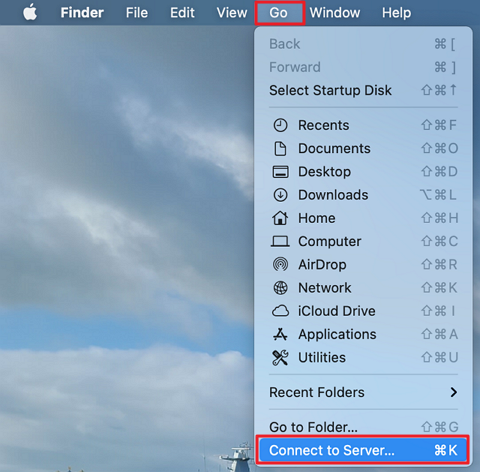
Fix 2: Use IP Address Instead of Hostname
DNS resolution issues can prevent connections in Tahoe. Using the direct IP address often resolves this.
Instead of:
smb://synology-nas.local/shareUse:
smb://192.168.1.100/shareFix 3: Verify SMB Protocol Version on NAS
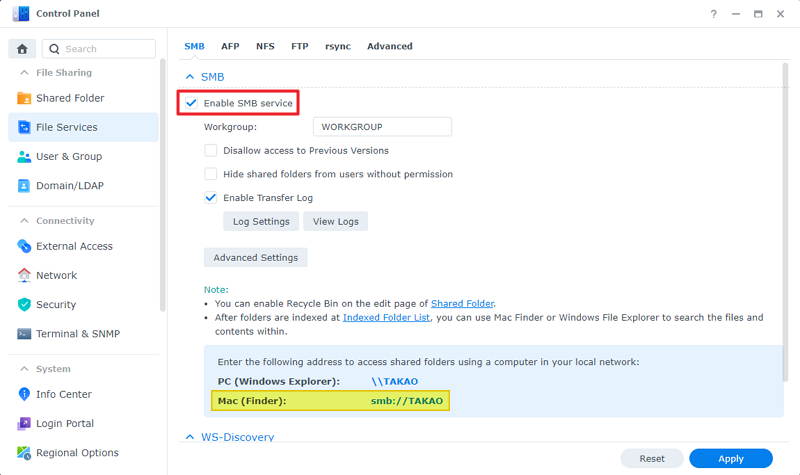
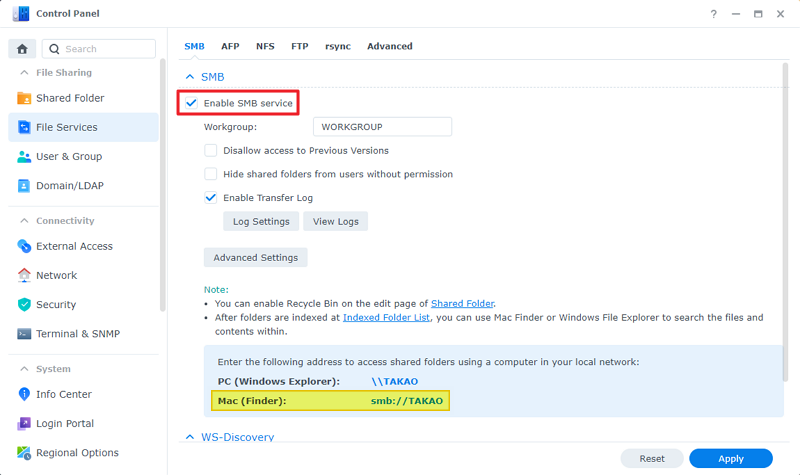
Ensure your NAS is configured to use SMB 3 protocol:
For Synology:
- Open DSM Control Panel
- Navigate to File Services > SMB
- Set Maximum SMB Protocol to SMB3
- Enable "Enable SMB2 minimum protocol" if available
For QNAP:
- Open QTS Control Panel
- Go to Network & File Services > Win/Mac/NFS/WebDAV
- Click Advanced Options under Microsoft Networking
- Set Highest SMB version to SMB3
Fix 4: Flush DNS Cache
Stale DNS entries can cause connection failures:
sudo dscacheutil -flushcache
sudo killall -HUP mDNSResponder
Connection Stability Fixes
Fix 5: Disable SMB Multichannel
SMB Multichannel, while designed to improve performance, often causes stability issues with consumer NAS devices.
Add to /etc/nsmb.conf:
[default]
mc_on=no
mc_prefer_wired=yes
Fix 6: Adjust TCP KeepAlive Settings
Prevent connections from timing out during idle periods:
sudo sysctl -w net.inet.tcp.keepidle=10000
sudo sysctl -w net.inet.tcp.keepintvl=5000
sudo sysctl -w net.inet.tcp.keepcnt=10
To make these settings persistent, add to /etc/sysctl.conf:
net.inet.tcp.keepidle=10000
net.inet.tcp.keepintvl=5000
net.inet.tcp.keepcnt=10
Fix 7: Disable Power Nap for Network Operations
Power Nap can disconnect SMB shares during sleep:
- Open System Settings > Battery
- Click Options
- Disable "Wake for network access" or adjust Power Nap settings
Fix 8: Use Wired Connection When Possible
Wi-Fi variability contributes to SMB instability. If experiencing frequent disconnections:
- Connect Mac directly to router via Ethernet
- Use a Thunderbolt to Ethernet adapter for MacBooks without ports
- Configure your NAS for jumbo frames if both devices support it
Auto-Mount Configuration Fixes
Fix 9: Create Custom Mount Points
macOS Tahoe has issues with the default /Volumes mount point. Creating a custom mount location in your home directory often resolves auto-mount failures.
Step 1: Create a hidden mount directory
mkdir -p ~/.nas_mountsStep 2: Mount the share to the custom location
mount_smbfs //username:[email protected]/share ~/.nas_mounts/shareStep 3: Add to Finder Sidebar
Drag the mounted share from the custom location to Finder's sidebar under Favorites.
Fix 10: Configure Login Items Properly
The traditional Login Items approach still works but requires specific configuration:
- Open System Settings > General > Login Items
- Click the "+" button
- Navigate to your mounted network share
- Add the share to login items
Important: The share must be currently mounted when adding it to Login Items.
Fix 11: Use Automator for Reliable Auto-Mount
Create a more robust auto-mount solution using Automator:
Step 1: Open Automator and create a new Application
Step 2: Add "Run AppleScript" action with this code:
on run
    try
        tell application "Finder"
            mount volume "smb://username:[email protected]/share"
        end tell
    on error errMsg
        display notification "Failed to mount NAS: " & errMsg
    end try
end run
Step 3: Save the application and add it to Login Items
Fix 12: Third-Party Auto-Mount Solutions
Several third-party applications provide more reliable auto-mounting:
Automounter by PixelEspresso
- Automatically mounts shares when Mac wakes
- Monitors connection status
- Reconnects dropped shares automatically
Mountain Duck
- Mounts cloud storage and network shares as local drives
- Background mounting with connection monitoring
- Supports SMB, SFTP, WebDAV, and cloud services
Time Machine Backup Fixes
Fix 13: Configure nsmb.conf for Time Machine
Time Machine has specific requirements that may conflict with standard SMB settings.
Create a server-specific configuration section in /etc/nsmb.conf:
[NAS_IP_ADDRESS]
signing_required=no
streams=yes
soft=yes
dir_cache_max_cnt=0

[default]
signing_required=no
validate_neg_off=yes
Replace NAS_IP_ADDRESS with your NAS's actual IP (e.g., 192.168.1.100).
Fix 14: Fix APFS Container Names
APFS volumes with special characters in their names cause Time Machine failures:
- Open Disk Utility
- Select your Time Machine destination
- Rename to use only ASCII characters (letters, numbers, hyphens)
- Example: Change "Time Machine (Synology)" to "TimeMachine-Synology"
Fix 15: Reset Time Machine Configuration
For persistent backup failures, reset the Time Machine configuration:
# Remove Time Machine preferences
sudo rm /Library/Preferences/com.apple.TimeMachine.plist

# Remove local snapshots (optional)
tmutil listlocalsnapshots /
tmutil deletelocalsnapshots [snapshot_name]
Then reconfigure Time Machine from System Settings.
Fix 16: Update NAS Firmware
Many NAS manufacturers have released firmware updates addressing macOS Tahoe compatibility:
Synology DSM Updates:
- DSM 7.2.2 and later include improved macOS Tahoe compatibility
- Update via Control Panel > Update & Restore
QNAP QTS Updates:
- QTS 5.1.5 and later address SMB protocol issues
- Update via Control Panel > Firmware Update
TrueNAS Updates:
- Samba 4.23 and later fix Tahoe-specific bugs
- Update via System > Update
NAS-Specific Solutions
Synology Configuration Guide
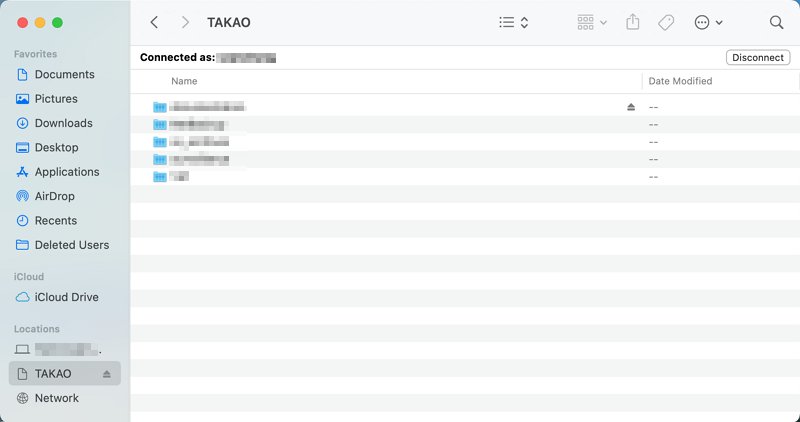
Optimal DSM Settings for macOS Tahoe:
-
Enable SMB Service
- Control Panel > File Services > SMB > Enable SMB Service
-
Configure Advanced Settings
- Maximum SMB protocol: SMB3
- Minimum SMB protocol: SMB2
- Enable opportunistic locking: Checked
- Enable SMB durable handles: Checked
-
Enable Bonjour
- Control Panel > File Services > Advanced > Enable Bonjour Service Discovery
-
Create Dedicated macOS User
- Create a user specifically for macOS connections
- Assign appropriate share permissions
- Avoid using admin account for daily connections
QNAP Configuration Guide
Optimal QTS Settings:
-
Enable Microsoft Networking
- Control Panel > Network & File Services > Win/Mac/NFS/WebDAV
- Enable file service for Microsoft networking
-
Configure SMB Version
- Click Advanced Options
- Set Highest SMB Version: SMB 3.1.1
- Set Lowest SMB Version: SMB 2.1
-
Enable AFP as Backup (Optional)
- While not recommended long-term, AFP can serve as temporary workaround
- Control Panel > Network & File Services > Mac File Service
- Enable AFP
TrueNAS Configuration Guide
Optimal TrueNAS Settings:
-
Configure SMB Service
- Services > SMB > Configure
- Set NetBIOS Name to match your network
- Enable SMB1 Support: Disabled
- Enable SMB2/3 Support: Enabled
-
Share Configuration
- Sharing > SMB > Add
- Enable ACL: Checked
- Purpose: Default share parameters
-
Auxiliary Parameters Add to SMB service configuration:
server signing = auto
client signing = auto
server min protocol = SMB2
client min protocol = SMB2
Advanced Troubleshooting
Diagnostic Commands
Check SMB Connection Status:
smbutil statshares -aView Active SMB Sessions:
smbutil view //[email protected]Test SMB Connectivity:
nc -zv 192.168.1.100 445Monitor SMB Traffic:
sudo tcpdump -i any port 445Logging and Debugging
Enable SMB Debug Logging:
sudo sysctl -w net.smb.fs.loglevel=5View SMB Logs:
log show --predicate 'subsystem == "com.apple.smbfs"' --last 1hReset All SMB Settings
If all else fails, reset SMB configuration to defaults:
# Remove custom configuration
sudo rm /etc/nsmb.conf

# Reset SMB-related preferences
defaults delete com.apple.desktopservices

# Flush caches
sudo dscacheutil -flushcache
sudo killall -HUP mDNSResponder

# Restart
sudo reboot
Prevention and Best Practices
Recommended Network Configuration
For Home/Small Office:
| Setting | Recommendation |
|---|---|
| Network Protocol | SMB 3 |
| Authentication | User-based with strong passwords |
| Connection Type | Wired Ethernet preferred |
| DNS | Local DNS server or static IP |
For Enterprise:
| Setting | Recommendation |
|---|---|
| Network Protocol | SMB 3.1.1 with signing |
| Authentication | Active Directory integration |
| Connection Type | Dedicated VLAN for storage |
| Backup | Multiple Time Machine destinations |
Maintenance Checklist
Weekly:
- Verify Time Machine backups completing successfully
- Check NAS storage health and available space
- Review system logs for connection errors
Monthly:
- Check for NAS firmware updates
- Verify Keychain entries for network shares
- Test manual mount/unmount cycle
After macOS Updates:
- Review Apple release notes for SMB changes
- Test all network share connections
- Verify Time Machine backup operation
- Check community forums for new issues
When to Contact Support
Apple Support
Contact Apple Support if:
- Issues persist after all troubleshooting steps
- Problems affect multiple Macs on the same network
- Errors appear in Console logs indicating system bugs
NAS Manufacturer Support
Contact your NAS manufacturer if:
- Firmware updates don't resolve issues
- Hardware diagnostics indicate problems
- Other non-Mac devices also experience connectivity issues
Conclusion: Navigating SMB Challenges in macOS Tahoe
The SMB connectivity issues in macOS Tahoe represent a significant challenge for users relying on network storage. While Apple has addressed some problems in subsequent updates, many issues persist in version 26.2. The solutions outlined in this guide—particularly the /etc/nsmb.conf configuration—provide reliable workarounds for most common problems.
Key Takeaways:
- Configuration is Key: The
/etc/nsmb.conffile is your primary tool for resolving compatibility issues - Keep Firmware Updated: NAS manufacturers continue releasing compatibility patches
- Monitor for Updates: Apple may address remaining issues in macOS 26.3 and beyond
- Consider Alternatives: Third-party auto-mount tools provide more reliable solutions than native macOS functionality
For Time Machine users experiencing persistent issues, consider reading our Time Machine Complete Troubleshooting Guide for additional backup-specific solutions.
If you're experiencing related connectivity issues with external storage devices, our External SSD & Storage Troubleshooting Guide covers USB and Thunderbolt drive problems that may compound NAS connectivity challenges.
Frequently Asked Questions
Why did my NAS stop working after upgrading to macOS Tahoe?
macOS Tahoe changed default SMB settings to require stricter security configurations. Many NAS devices are configured with more relaxed SMB settings for compatibility, which now conflict with Tahoe's requirements.
Is it safe to disable SMB signing?
For home and small office environments, disabling SMB signing is generally acceptable. For enterprise environments handling sensitive data, consult your IT security team before making this change.
Will Apple fix these SMB issues?
Apple has made some improvements in 26.1 and 26.2, but significant issues remain. Community feedback suggests these are priority issues for future updates, but no timeline has been announced.
Can I use AFP instead of SMB?
AFP (Apple Filing Protocol) still works as a client in macOS Tahoe and may provide a temporary workaround. However, AFP is deprecated and may be removed in future macOS versions. It's recommended to resolve SMB issues rather than relying on AFP long-term.
Why do my network drives disconnect when my Mac sleeps?
macOS Tahoe's power management aggressively disconnects idle network connections. Adjusting Power Nap settings and using TCP keepalive configurations can help maintain connections during sleep cycles.
How do I know if my nsmb.conf changes are working?
After creating or modifying /etc/nsmb.conf and restarting, use smbutil statshares -a to verify connection parameters. You should see your configured protocol version and signing settings reflected in the output.
Last Updated: December 28, 2025
This guide is based on extensive testing with macOS Tahoe 26.2, Synology DSM 7.2.2, QNAP QTS 5.1.5, and TrueNAS SCALE 24.04. Solutions have been verified by community testing and user feedback.