Spotlight Reindexing After macOS 27: Battery Drain & Stuck Fix

Spotlight reindexes everything after a macOS 27 upgrade, draining battery and returning no search results. Tell normal from stuck, monitor it, and fix it.
You upgraded to macOS 27 "Golden Gate," restarted, and now your Mac feels possessed. The fans are spinning under what should be idle load. The battery that used to last all day is gone by lunch. Everything beachballs for a beat longer than it used to. And the part that really makes you wonder if the install went wrong: you hit Command-Space, type the name of a file you opened yesterday, and Spotlight returns nothing. Not the wrong result — nothing at all. Mail search is empty. Photos can't find that picture. It feels like the upgrade quietly broke the most basic thing your Mac does.
Here's the reassuring part, and the frustrating part, in one sentence: this is almost certainly Spotlight rebuilding its entire search index from scratch, and that is expected behavior after a macOS 27 upgrade — but Apple gives you almost no visibility into it, so it's nearly impossible to tell a normal multi-hour reindex apart from a genuinely stuck one without getting your hands dirty in the Terminal.
That's exactly what this guide is for. We'll explain why macOS 27 forces a full reindex (it's tied to a real architectural change, not a bug), walk through the daemons doing the work so you understand what you're seeing in Activity Monitor, give you the precise commands to check status and monitor real progress, lay out a diagnostic checklist to decide whether your index is actually stuck, and then — only if it truly is — walk you through a clean, deliberate rebuild with all the cautions you need before running a destructive command. By the end you'll know whether to just plug in and wait, or to intervene.
A quick note on sourcing before we dive in: the timing numbers below (how many hours or days the reindex takes) come from beta-1 community reports — a 41-reply V2EX thread and several MacRumors beta threads — collected on developer-beta machines. Treat them as a realistic range, not a guarantee. The final fall release should be faster and smoother. The commands and daemon behavior, on the other hand, are core macOS knowledge that has been stable for years and applies regardless of which build you're on.
Key Takeaways
- A full Spotlight reindex after a macOS 27 upgrade is normal. Golden Gate rebuilt the search foundation under Spotlight, Mail, and Photos, and that rebuild triggers a from-scratch reindex of every volume on first boot.
- The symptoms are real but temporary: high fan/heat under light use, noticeable battery drain, general lag, and Spotlight/Mail/Photos returning incomplete or empty results until indexing finishes.
- The processes doing the work are
mds,mds_stores,mdworker/mdworker_shared, andcorespotlightd. Seeing them eat CPU is a sign indexing is working, not broken. - Check status with
mdutil -s /and watch the daemons in Activity Monitor. There is no clean percentage bar; the Settings indicator is unreliable. - Normal vs. stuck: a normal index shows activity tapering over time; a stuck index shows
mds_storespinned for many hours with the index size not growing, ormdutilreporting errors. - On beta-1, large libraries took anywhere from a few hours to 7+ days. Keep the Mac plugged in, awake, and leave it alone — interrupting a reindex makes it start over.
- The fix for a genuinely stuck index is
sudo mdutil -E /, which erases and rebuilds the index. It's safe for your files but restarts the clock, so run it before bed and on power. - The payoff: the same rebuild powers the new Spotlight "Search or Ask" Siri integration, so the one-time pain buys you meaningfully better search afterward.
Why macOS 27 Reindexes Everything
Spotlight isn't a single app — it's a search index, a database of metadata about every file, email, message, contact, calendar event, and photo on your Mac. When you search, you're not scanning your disk in real time; you're querying that pre-built index, which is why results normally appear instantly as you type. The index lives in hidden folders on each volume, and macOS keeps it current in the background as files change.
Golden Gate's headline under-the-hood change, announced at WWDC on 8 June 2026, is a rebuilt search foundation — the same engine now powers Spotlight, Mail search, and Photos search, and Apple's stated goals were speed and stability. That's good news long-term. But there's an unavoidable side effect: when the format and structure of the index change, the old index is no longer compatible. macOS can't migrate it in place. The only safe option is to throw it away and build a fresh one that matches the new engine.
So on your first boot after the upgrade, macOS quietly kicks off a full reindex of every indexed volume — your internal drive, and often any external drives that were connected. On a small, mostly-empty SSD this might finish before you even notice. On a Mac with hundreds of thousands of files, a large Photos library, years of Mail, and a couple of big external drives, it's a major job that runs for hours and competes for CPU, disk I/O, and battery the entire time.
This is the same kind of event you've seen before on a smaller scale — migrating to a new Mac, restoring from a backup, or a major OS upgrade all trigger reindexing. What makes macOS 27 notable is that the architectural change guarantees a complete rebuild for everyone, not just an incremental top-up. If you came from Tahoe and everything was fast and snappy the day before, that's exactly why the contrast feels so jarring now.
What's Normal and What's Alarming
Let's draw a clear line, because the difference between "leave it alone" and "intervene" depends entirely on reading the symptoms correctly.
Normal during a fresh reindex:
- Fans ramping up even when you're "just" browsing or typing. Indexing is CPU- and disk-heavy.
- Battery draining noticeably faster than usual — many beta-1 testers reported needing to charge mid-day or leaving the Mac plugged in overnight to let it churn.
- General sluggishness: apps launch a touch slower, the cursor occasionally beachballs, Mission Control stutters.
- Spotlight returning partial or empty results. Early in the reindex the database is mostly empty, so searches genuinely have little to find. This improves as indexing progresses.
- Mail showing "no results" for searches that used to work, and Photos failing to surface images by content or location.
- All of the above gradually easing over hours as the job completes.
Alarming — worth investigating:
mds_stores(ormdworker) pinned at high CPU for many hours with no sign of slowing, day after day.- Zero search results that never improve, even after a full day and night plugged in.
- The index size on disk not growing at all over an extended period (we'll show you how to check).
mdutilreporting an error state rather than "Indexing enabled."- The Mac never returning to a cool, quiet idle even when you leave it untouched on power overnight.
The single most useful mental model: normal indexing tapers; stuck indexing plateaus. A healthy reindex is a sprint that gradually winds down. A stuck one is a treadmill running at full speed forever. Everything below is about measuring which one you've got.
The Daemons Doing the Work: mds, mds_stores, mdworker, corespotlightd
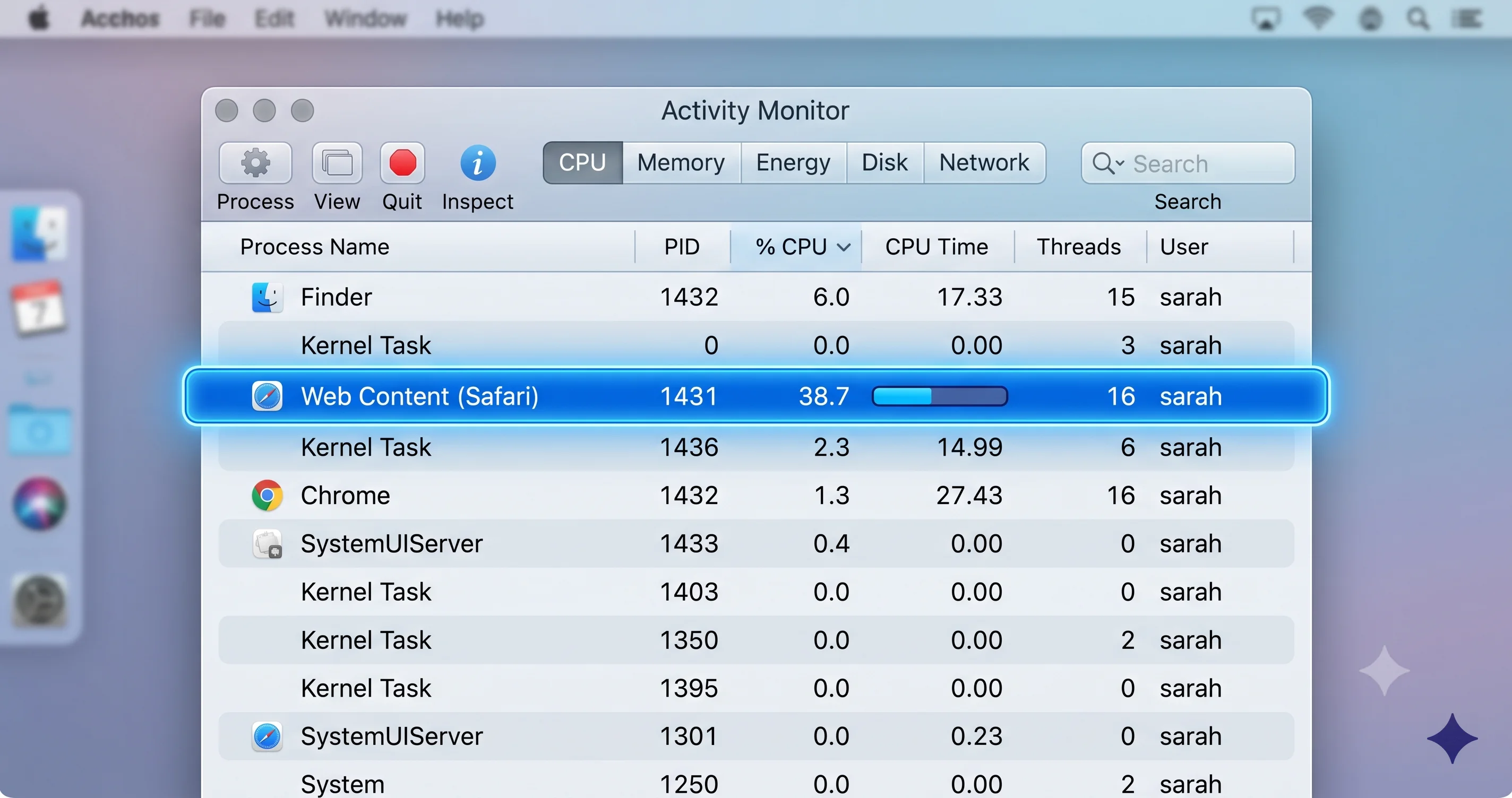
Open Activity Monitor (it's in Applications → Utilities, or just search for it once indexing is partway done) and sort by % CPU, and during a reindex you'll see a cast of background processes you may never have noticed before. Knowing what each one does turns "what is eating my Mac?" into "ah, that's the indexer." These are collectively the metadata server, the subsystem behind Spotlight.
-
mds— the metadata server itself. This is the coordinator daemon. It manages the indexing process, tracks file-system change notifications, and routes work to the other processes. It usually doesn't burn much CPU on its own; it's the manager, not the laborer. -
mds_stores— the heavy lifter. This process reads file content and metadata and writes it into the actual index store. High CPU frommds_storesduring a reindex is completely normal and is the single best sign that indexing is actively happening. When people say "my Mac is hot after the upgrade,"mds_storesis usually the process they'd find at the top of Activity Monitor. -
mdworker/mdworker_shared— the importer workers. These run the per-file-type Spotlight importers that crack open a document, photo, or PDF and extract searchable text and metadata. You'll often see severalmdworker_sharedinstances at once, because macOS parallelizes the work. They spike and disappear as batches of files are processed. -
corespotlightd— handles CoreSpotlight data, which is the searchable content that apps donate to Spotlight (Messages conversations, Notes, third-party app content, Mail in newer architectures, and so on). This is distinct from raw file indexing. If app content is missing from search,corespotlightdis the relevant process.
Seeing these processes busy is the system working as designed. The mistake to avoid is force-quitting them out of frustration. Killing mds or mds_stores doesn't stop the work — macOS relaunches them immediately, and you may have just thrown away progress and forced a restart of part of the job. Leave them running. The goal is to understand the activity, not to suppress it.
How to Check Indexing Status (mdutil and Activity Monitor)
You have two complementary tools: Activity Monitor for a live, visual read on intensity, and mdutil in the Terminal for an authoritative read on state.
Activity Monitor (visual check):
- Open Activity Monitor and click the CPU tab.
- Type
mdinto the search box in the top-right to filter to the metadata-server processes. - Watch
mds_storesandmdworker_shared. If they're consuming meaningful CPU, indexing is active. - Switch to the Energy tab to confirm these processes are what's driving battery use, and to the Disk tab to see they're reading/writing — a reindex is disk-heavy.
mdutil (authoritative status):
mdutil is the command-line utility for managing the Spotlight index per volume. Open Terminal (Applications → Utilities → Terminal) and run:
mdutil -s /The -s flag means "status," and / is your boot volume. A healthy response looks like:
/:
	Indexing enabled.
"Indexing enabled" is what you want to see — it means Spotlight is allowed to index that volume and is doing so. For more detail, run it with sudo (you'll be prompted for your password):
sudo mdutil -s /To check every mounted volume at once, including externals:
sudo mdutil -asThe -a flag means "all volumes." This is the fastest way to see whether an external drive is set to index, is disabled, or is in some error state. Possible status messages include "Indexing enabled," "Indexing disabled," "Indexing and searching disabled," or an error referencing the index. If you see "disabled" on a volume you want searchable, that's a clue (we'll fix it later). If you see an explicit error, that points toward a stuck or corrupt index.
One thing mdutil -s deliberately does not give you is a percentage or an ETA. There is no supported "47% complete" output. That's the core frustration of diagnosing this, and it's why the next section exists.
How to Monitor Real Progress
Apple does not ship a clean progress bar for Spotlight indexing. The little spinner and "Indexing…" text that sometimes appears in the Spotlight results window is informational at best, and on beta-1 the Settings-level indicator was widely reported as unreliable — showing "indexing" long after it was done, or nothing while clearly still churning. So power users fall back on indirect signals. Here are three, from safest to most advanced.
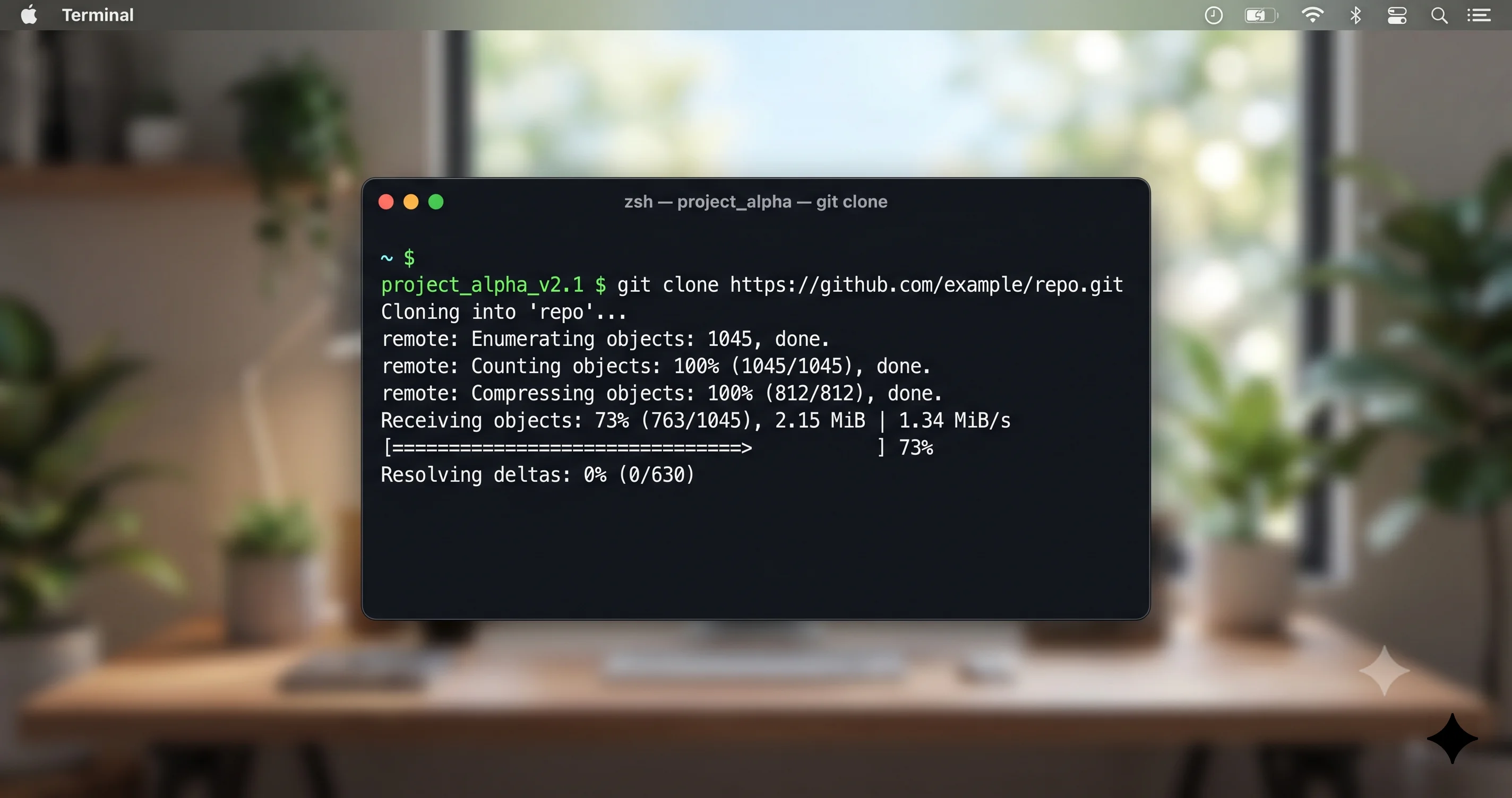
1. Watch the live log stream (read-only, safe). macOS's unified logging lets you tail what mds_stores is doing in real time:
log stream --predicate 'process == "mds_stores"'You'll see a flow of log lines as the process works through your files. The content of the lines is mostly internal, but the principle is simple: a steady stream of activity means indexing is progressing; a sudden, sustained silence (with the process still pinned at high CPU in Activity Monitor) is a red flag. Press Control-C to stop watching. You can broaden it to all metadata processes with --predicate 'process == "mds" OR process == "mds_stores"'.
2. Watch the index folder grow (advanced — read carefully). The Spotlight index for your data volume lives at a hidden path:
sudo du -sh /System/Volumes/Data/.Spotlight-V100On some configurations the relevant path is simply /.Spotlight-V100. Run this command, note the size, wait 15–30 minutes, and run it again. A growing number means the index is actively being written — that's healthy. A number that doesn't move at all over a long window, while CPU stays pinned, suggests the process is spinning without making progress. Treat this as a trend indicator, not an absolute: the size can plateau briefly between phases even during a healthy run, so look at the trend over an hour, not a single comparison. Do not open, move, or delete anything inside .Spotlight-V100 — it's a system-managed database, and tampering with it is a great way to corrupt your index.
3. Just test search quality over time. The lowest-tech and most honest signal: every few hours, search for a handful of files you know exist — a recent download, an email from this week, a photo from last month. Early on you'll get nothing. As the index fills, more of them appear. When all of them resolve instantly, you're effectively done, regardless of what any indicator says. This is the metric that actually matters to you.
Combine these: Activity Monitor tells you intensity, the log stream tells you liveness, the folder size tells you throughput, and search quality tells you outcome. Together they let you confidently distinguish a long-but-healthy reindex from a truly stuck one.
How Long It Should Take, Plus Battery and Heat
Now the question everyone actually wants answered: how long? The honest answer is it depends, and the variables that matter most are total file count, the size of your Photos and Mail libraries, the number and size of connected external drives, and your Mac's storage and CPU.
Based on beta-1 community reports — and again, these are developer-beta machines, often with large, heavily-used libraries — the first-time reindex ranged from roughly a few hours on modest setups to 7+ days on very large libraries. Several V2EX and MacRumors testers described leaving the Mac plugged in overnight, sometimes for multiple nights, before search felt fully restored. That upper end sounds alarming, and it is inconvenient, but for those users it eventually completed on its own without intervention.
Two caveats keep this in perspective. First, the final fall release should be faster — beta builds carry extra logging and debugging overhead, and Apple typically optimizes indexing performance before general release. Second, most ordinary Macs with typical libraries land at the low end of that range, finishing overnight or within a day.
While it runs, treat your Mac like it's doing heavy work, because it is:
- Keep it plugged in. This is the single best thing you can do. Indexing on battery just drains it; on power, you don't care how long it takes.
- Don't let it sleep-cycle repeatedly. Indexing pauses when the Mac sleeps and resumes on wake, but constantly sleeping and waking is inefficient. If you can, set it to stay awake while plugged in (System Settings → Lock Screen / Battery → power adapter settings) until it's done.
- Don't interrupt it. Restarting, or worse, force-quitting the daemons, can throw away progress and restart parts of the job. Resist the urge.
- Stop fiddling with drives. Every time you plug in or eject an external drive, you give the indexer more work or interrupt what it's doing. Let the set of connected volumes stay stable until the dust settles.
- Expect heat and accept it. A hot, fan-spinning Mac during this window is normal. It's not damaging the machine. Just give it airflow and don't run it on a soft surface that blocks the vents.
The practical playbook for most people: plug in before bed, leave it awake, walk away, and check search quality in the morning. Nine times out of ten, that solves it with zero Terminal commands.
Is It Actually Stuck? A Diagnostic Checklist
Before you run anything destructive, work through this checklist. You want multiple signals pointing to "stuck," not just one bad feeling after a long day.
-
How long has it really been? Count from the first boot after upgrade, not from when you noticed. If it's been under 24 hours on a large library and you're on power, you're very likely still in the normal window. Be patient first.
-
Is
mds_storespinned but the index isn't growing? Run thedu -shcheck on.Spotlight-V100twice, an hour apart. High CPU + flat size over an hour or more is the classic stuck signature. -
Is the log stream silent? Run
log stream --predicate 'process == "mds_stores"'. If the process shows high CPU in Activity Monitor but the log is dead quiet for many minutes, that mismatch points to a hang. -
Does
mdutil -s /report an error? "Indexing enabled" is healthy. Any error message, or "Indexing disabled" on a volume you expect to be searchable, is a problem to fix. -
Has search quality improved at all? If you searched for known files at hour 2 and got nothing, and you search again at hour 20 (plugged in, awake the whole time) and still get nothing, that's a strong stuck signal. Any improvement means it's working, just slowly.
-
Did something interrupt it repeatedly? Frequent restarts, crashes, sleep cycling, or drive plug/unplugging can leave the index in a confused, half-built state. If you've been doing any of that, a clean rebuild is more justified.
Decision rule: if you have one or two worrying signals and it's been less than a day, wait longer on power. If you have three or more — pinned CPU, flat index size, silent log, no search improvement after a full day and night, or an explicit mdutil error — then it's reasonable to force a clean rebuild. That's the next section.
How to Force a Clean Rebuild (mdutil -E Walkthrough)
Read this before you run anything.
sudo mdutil -E /erases the existing Spotlight index and rebuilds it from scratch. It does not delete your files, emails, or photos — only the search index of them. It's safe for your data. But it restarts the entire reindex, which means you're back to hours of high CPU, heat, and empty search results. Only do this if you've worked through the diagnostic checklist and have real evidence the index is stuck. Run it before bed and on power, never in the middle of a workday when you need search.
The cleanest single command to erase and rebuild the index for your boot volume:
sudo mdutil -E /The -E flag means "erase and rebuild." You'll be prompted for your administrator password. macOS deletes the index for that volume and immediately begins building a fresh one. For a specific volume rather than the boot drive, pass its mount path, e.g.:
sudo mdutil -E "/Volumes/My External Drive"To erase and rebuild all volumes at once:
sudo mdutil -Eai onIf the simple erase doesn't fix things, the more forceful toggle is to turn indexing off, then back on, which clears state more aggressively:
sudo mdutil -i off /
sudo mdutil -i on /
The -i flag controls whether indexing is enabled (on) or disabled (off) for a volume. Turning it off and on again is a clean reset of the indexing state. Some users follow the off step with the -E erase before turning it back on, for a belt-and-suspenders rebuild:
sudo mdutil -i off /
sudo mdutil -E /
sudo mdutil -i on /
After running any of these, verify the volume reports the right state:
sudo mdutil -s /You want to see "Indexing enabled" again. Then do the hard part: leave it alone. You've deliberately started the long reindex over, so plug in, keep the Mac awake, and let it run overnight. Don't run -E again the next morning just because search is still incomplete — give the fresh index the same patience you'd give the original. Repeatedly erasing the index is the most common way people turn a slow-but-recoverable situation into days of self-inflicted churn.
The Privacy-Exclusion Reindex Trick
There's a gentler, GUI-only way to force a re-index of a specific location without touching the Terminal, and it's a classic Mac troubleshooting move worth knowing. It works by exploiting how Spotlight handles its privacy exclusions: when you tell Spotlight to stop indexing a location and then tell it to resume, macOS rebuilds the index for that location from scratch.
Here's the sequence:
- Open System Settings → Spotlight.
- Scroll to Search Privacy (the list of locations excluded from search) and click it.
- Click the + button and add the volume or folder you want to force-reindex — for example, your boot drive (Macintosh HD) or a stubborn external drive. Alternatively, drag the volume from a Finder window into the list.
- Confirm; the location is now excluded, and its index entries are discarded.
- Wait a moment, then select that same location in the list and click the – button to remove the exclusion.
- As soon as the exclusion is removed, Spotlight begins re-indexing that location fresh.
This is handy when the problem is localized — say, one external drive that won't show up in search while the rest of the system is fine — because it lets you rebuild just that location instead of nuking the whole index with mdutil -E. It's also entirely reversible and uses only documented UI, so it's a lower-stakes first attempt before you reach for the Terminal. The trade-off is the same as always: re-indexing that location takes time and resources, so do it on power and be patient.
Related Spotlight Toggles That Reduce Freezing
While the macOS 27 reindex is the headline issue right now, there's a closely related set of Spotlight settings that has caused beachballing and freezes for many users on the previous release (Tahoe), and they're worth knowing because they can compound the perceived slowness during a reindex.
In System Settings → Spotlight, look for two options:
- "Show Related Content" (sometimes surfaced as suggestions/related results in Spotlight)
- "Help Apple Improve Search" (which sends limited search data to Apple)
A meaningful number of Tahoe users reported that turning off one or both of these resolved persistent Spotlight beachballs, frozen search windows, and UI hangs. The mechanism is that these features add network round-trips and extra processing to each search; on a system already straining under a reindex, that overhead can be the difference between "slow but usable" and "frozen." If your Mac is freezing specifically when you invoke Spotlight (as opposed to general background slowness from indexing), toggling these off is a quick, non-destructive thing to try.
Keep the framing straight, though: these toggles address search-time hangs, not the underlying reindex. They won't make the reindex finish faster, and they won't fix a genuinely stuck index. They're a complementary mitigation that makes the system more pleasant to use while the reindex runs, and a useful permanent setting if you don't care about related suggestions. If beachballs persist across the whole system rather than just in Spotlight, the cause is more likely the indexing load itself — or a separate issue like WindowServer high CPU on multi-display setups.
The Payoff: Search or Ask
It's worth ending the "why am I suffering through this" question on the upside, because the painful initial reindex isn't busywork — it's the foundation for the most-promoted search feature of macOS 27.
The same rebuilt search engine that forces this one-time reindex is what powers Spotlight's new "Search or Ask" capability — the deeper Siri integration that lets Spotlight not just find things but answer questions about your content and take actions. That kind of natural-language, content-aware search only works if the index underneath it is fast, structured the new way, and complete. In other words, the reindex isn't a tax with no benefit; it's the price of admission to materially better search.
For users who lean on Spotlight, Mail search, and Photos search every day, beta-1 testers who pushed through the reindex generally reported that once it settled, search was faster and more reliable than it had been on Tahoe — which tracks with Apple's stated goals of speed and stability for the rebuild. So if you're staring at a hot, slow Mac on day one wondering whether the upgrade was a mistake, the realistic expectation is: this is a transient cost, and what's on the other side is an improvement, not just a return to baseline. If you're still weighing whether to be on the beta at all, our macOS 27 beta decision guide covers the broader trade-offs.
Troubleshooting Common Issues
The index never finishes (it's been days). First, confirm it's genuinely stuck and not just a very large library on a slow drive — run the diagnostic checklist, especially the .Spotlight-V100 size-growth check over an hour. If the index size truly isn't moving and mds_stores is pinned, do a clean rebuild: sudo mdutil -i off / then sudo mdutil -E / then sudo mdutil -i on /, all before bed and on power. If even a fresh rebuild stalls in the same spot repeatedly, a corrupt file may be choking an importer — check Console for repeated mdworker crash reports, and consider whether a recently added large or unusual file (a damaged archive, a malformed PDF) coincides with the stall. Also make sure you have free disk space; a nearly-full volume can prevent the index from building.
mds_stores pinned at 100% (or more) for hours. A short burst of pinned CPU is normal early in a reindex. Pinned for many hours with no tapering and no index growth is the stuck signature. Don't force-quit it — that just relaunches it. Instead, verify with the log stream (log stream --predicate 'process == "mds_stores"'): active log flow means it's working through a backlog and you should wait; dead-silent log plus pinned CPU means a hang, and a clean rebuild via mdutil -E / is warranted. If it pins again immediately on the same volume after a rebuild, suspect a specific problem file or directory and try excluding a large subfolder via Search Privacy to isolate it.
Search still empty after a rebuild. Give it time — a rebuild restarts the long indexing job, so emptiness right after -E is expected, not a failure. Confirm mdutil -s / says "Indexing enabled." If after a full day on power search is still completely empty and the index folder isn't growing, the issue may be deeper than the index: check that Spotlight isn't disabled in System Settings → Spotlight (the category checkboxes control what appears in results — if everything's unchecked, search shows nothing even with a perfect index). For app content specifically (Messages, Notes), the relevant daemon is corespotlightd, not file indexing. And if Mail search in particular stays broken while general Spotlight works, that's a distinct problem with Mail's own index — see our dedicated guide on fixing Mail search and rebuilding the envelope index.
An external drive won't index. Run sudo mdutil -as and find the drive in the list. If it says "Indexing disabled," enable it with sudo mdutil -i on "/Volumes/Drive Name". If it's enabled but still not searchable, use the Privacy-exclusion trick: add the drive to Search Privacy, remove it, and let it reindex. Note that some external drives are intentionally not indexed — network volumes (SMB/AFP shares) and some non-APFS/non-HFS+ formats (like exFAT) have limited or no Spotlight support, so a drive you share with a Windows machine may simply never index. Also, every time you eject and reconnect an external drive mid-reindex you interrupt its job, so leave it mounted until indexing completes. If the drive's index is corrupt, sudo mdutil -E "/Volumes/Drive Name" forces a clean rebuild for just that volume.
Frequently Asked Questions
Will reindexing delete any of my files, emails, or photos?
No. Reindexing — including the destructive-sounding mdutil -E command — only erases and rebuilds the search index, which is a database about your content. Your actual files, mailboxes, and photo library are never touched. The only thing you lose is search functionality temporarily, until the new index is built.
Can I stop the reindex to get my battery back? Not really, and you shouldn't try. You can pause it by putting the Mac to sleep, and it resumes on wake, but interrupting or force-quitting the indexer can throw away progress and make the overall job take longer. The right move is the opposite: plug in and let it finish as fast as possible. The battery drain is temporary; fighting the indexer just prolongs it.
Is it safe to use my Mac while it's indexing? Yes. You can work normally throughout — the indexer runs at lower priority and yields to your active apps, which is why it's slow but not blocking. Expect some sluggishness and incomplete search results, but there's no risk to your data or the index from using the machine. The two things to avoid are force-quitting the metadata daemons and repeatedly connecting/ejecting external drives.
How is this different from the "should I install the beta" issues? The beta decision guide covers install-time and app-compatibility problems — network loss after install, apps that won't launch, install blockers. This article is specifically about the Spotlight reindex that happens after a successful upgrade: heat, battery drain, and empty search caused by the index rebuilding. They're separate issues; you can have a flawless install and still go through the reindex.
Will the final macOS 27 release reindex this badly? Probably not as intensely. The timing numbers here come from developer-beta machines, which carry extra debugging overhead, and Apple typically optimizes indexing performance before the public release in July and the final version in fall 2026. The reindex itself will still happen on upgrade — that's inherent to the new search engine — but it should be faster and less disruptive on the shipping build.
Conclusion
A hot, slow Mac that suddenly can't find anything is an alarming way to start your time on macOS 27 — but in almost every case it's not a broken upgrade, it's Spotlight quietly rebuilding its entire index to match Golden Gate's new search engine. The symptoms are real, the duration can be genuinely long on big libraries, and Apple's lack of a progress indicator makes it hard to trust that anything is happening. But now you have the tools: mdutil -s / to confirm status, Activity Monitor and the mds_stores log stream to read activity, the .Spotlight-V100 size check to measure throughput, and a clear checklist to tell a healthy reindex from a stuck one.
The default action for most people is the easy one: plug in, keep the Mac awake, walk away, and check search in the morning. Reach for sudo mdutil -E / only when you have real evidence the index is stuck — and when you do, run it on power, before bed, and then leave it alone to finish. On the other side is exactly what Apple promised the rebuild would deliver: faster, more reliable search, and the new "Search or Ask" experience built on top of it.
For more on this release and related troubleshooting, see our macOS 27 Golden Gate announcement and compatibility overview, the macOS 27 beta decision guide, and if the upgrade isn't working out, how to downgrade from the macOS 27 beta back to Tahoe without losing data. If your slowdowns turn out to be something other than indexing, our guides on WindowServer high CPU and random kernel panics and restarts cover the most common culprits, and the macOS Tahoe 26.5 update and security roundup is worth a look if you're still deciding whether to leave stable Tahoe at all.