WindowServer High CPU on macOS Tahoe? Liquid Glass Fix Guide
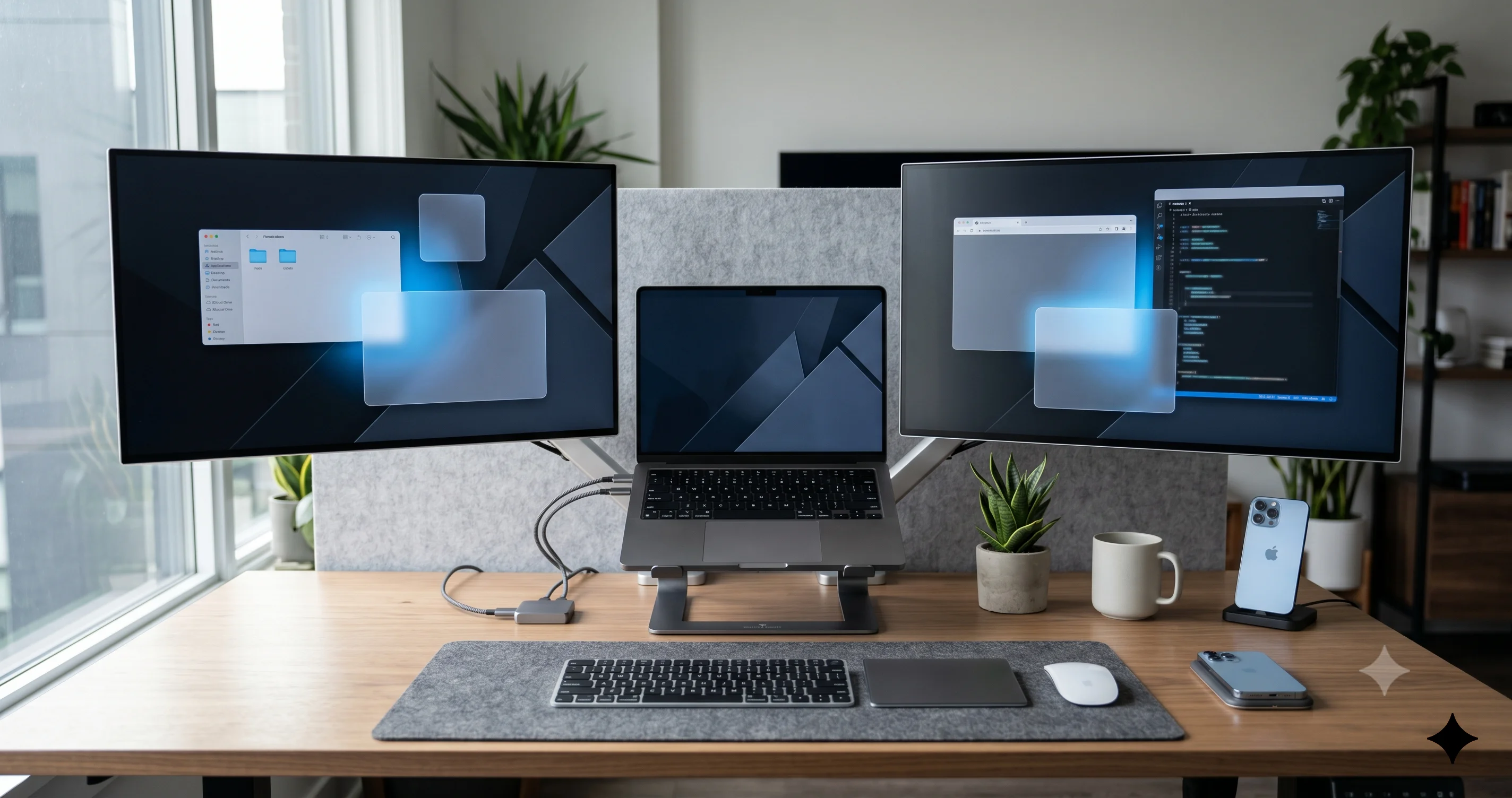
WindowServer hogging CPU on macOS Tahoe 26.5? Stop runaway compositor load from Liquid Glass effects and multi-display setups with this complete fix guide.
You open Activity Monitor because the fans on your M-series Mac just spun up for the third time today, the cursor is dragging a half-second behind your trackpad, and a single window resize feels like wading through syrup. You sort by %CPU and there it is, sitting at the top of the list, eating 120%, 180%, sometimes north of 300% of a CPU core: WindowServer. Welcome to the macOS Tahoe 26.5 WindowServer high CPU problem — the one that has thousands of people on the Apple Developer Forums, MacRumors, and r/MacOS asking the same question this spring: "Why is WindowServer pegging my CPU since I updated to Tahoe?"
The short answer is that WindowServer is the macOS compositor — the system process that takes every pixel from every app window, layers them together, applies effects, and pushes the result to your displays. In Tahoe, Apple rebuilt the compositor's effect pipeline to support Liquid Glass, the new translucent, real-time-blurred material that now sits behind menus, sidebars, the Dock, Control Center, the menu bar, widgets, and dozens of other UI surfaces. Liquid Glass looks gorgeous. It also forces WindowServer to do significantly more GPU work per frame than it did on Sequoia or Sonoma — and on a multi-display setup running scaled HiDPI resolutions, that extra work compounds fast. This guide walks you through exactly how to confirm WindowServer is the problem, why Tahoe makes it worse, and the full layered fix sequence that actually brings your fans back down.
Key Takeaways
- WindowServer is the macOS window compositor, owned by user
_windowserver. On Tahoe 26.5 it runs hotter because Liquid Glass adds real-time blur, transparency, and dynamic specular effects to nearly every UI surface. - Multi-display setups multiply the load. Each external 4K/5K monitor, each scaled HiDPI resolution, and each additional Space adds compositor work — so a three-display rig can easily push WindowServer past 200% CPU.
- The single highest-impact fix is Reduce Transparency (System Settings > Accessibility > Display). It disables most Liquid Glass blur passes and typically cuts WindowServer CPU by 40-70%.
- Switching scaled resolutions to "Default for display" — i.e., the native pixel-doubled HiDPI mode — removes an expensive intermediate render pass and stops fans cold on many setups.
killall WindowServeris the nuclear reset but it logs you out of every app instantly. Use it only after saving all work; PRAM/NVRAM resets do not help because WindowServer state is per-user-session, not firmware.
What WindowServer Actually Is (and Why It's Always Near the Top)
If you're going to fix WindowServer, you need to understand what it does. Unlike Safari or Final Cut, WindowServer isn't an app you launched — it's a core system daemon that macOS starts the moment you log in, and it keeps running until you log out. You can spot it in Activity Monitor by its process name (literally WindowServer) and the user column will show _windowserver, a sandboxed system user account that exists solely to run this one process.
The compositor's job, in plain English
Every app on macOS draws its windows into private memory buffers called surfaces. Safari draws its tabs and content into a surface. Mail draws its message list into a surface. Even the menu bar and Dock are surfaces owned by separate system processes. None of those apps draw directly to your screen. Instead, they hand their surfaces to WindowServer, which is the only process on the system with permission to talk to the GPU's display output. WindowServer takes all of those surfaces, figures out the Z-order (which window is on top of which), applies any visual effects (shadows, transparency, blur, corner rounding, Mission Control transitions), composites them into a final image, and pushes that image to each connected display at the display's refresh rate.
On a 60Hz monitor, that compositing pipeline runs sixty times per second. On a ProMotion 120Hz built-in display, it runs up to 120 times per second. On a Studio Display at 60Hz plus a Pro Display XDR at 60Hz plus a MacBook Pro 120Hz panel, WindowServer is producing 240 finished frames per second in aggregate. Every frame requires it to ask each app for the latest version of its surface, run the effect chain, and ship the result.
Why it's normal to see WindowServer using CPU
Even on a healthy Mac, WindowServer is almost always in the top ten processes by CPU. A few percent is normal at idle. 15-30% is normal when you're actively dragging windows, scrolling animated content, or running Mission Control. The behavior we're calling "high CPU" in this article is sustained usage above roughly 60-80% when you're not actively interacting with the system — fans spinning while you read a static webpage, the laptop getting warm in your lap during a Zoom call, or Activity Monitor showing WindowServer at 150-300% for minutes at a time.
How to read its CPU number
Activity Monitor reports CPU as a percentage of a single core. On an M2 Pro with 10 cores plus 6 performance cores, "100%" means one full core, and the theoretical maximum for a single process is around 1000-1600%. Seeing WindowServer at 100-200% sounds alarming if you assume 100% is the ceiling — but it really means one to two cores' worth of work. That's still a lot for a background process. On battery, two pegged cores will cut your runtime by an hour or more.
How to Confirm WindowServer Is Actually the Culprit
Before you start changing settings, prove it's WindowServer. Many "Mac feels slow" complaints turn out to be a runaway browser tab, a misbehaving cloud sync agent, or a memory pressure spike rather than the compositor. If you haven't used Activity Monitor in a while, our complete guide to Mac Activity Monitor walks through every tab in detail.
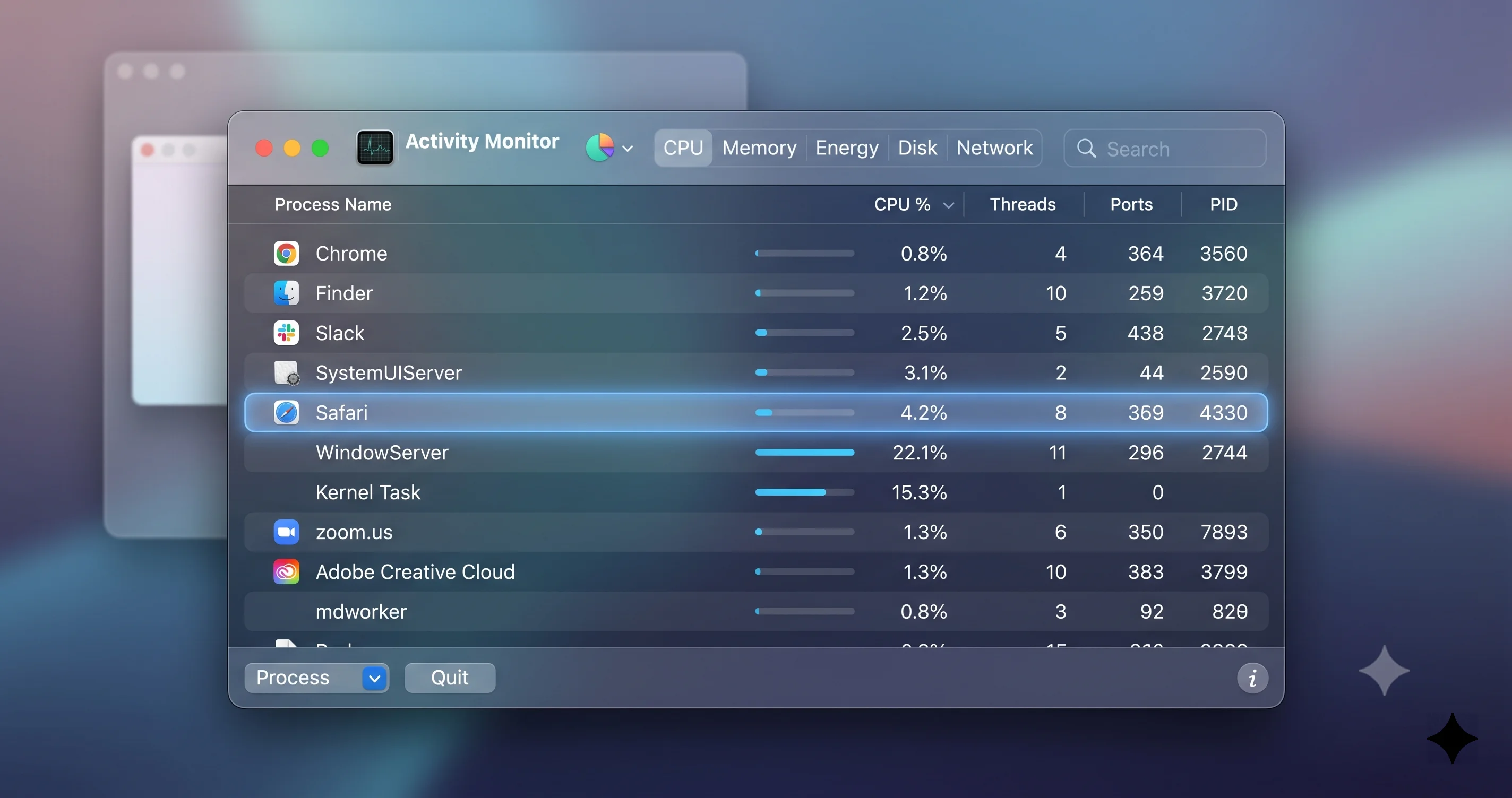
Step 1: Open Activity Monitor and sort by %CPU
Spotlight (Cmd+Space), type "activity," hit Enter. Click the CPU tab. Click the %CPU column header so the arrow points down — that sorts highest first. Watch the list for sixty seconds. If WindowServer is consistently in the top three and sitting above 60%, you have a confirmed case. Make a note of the average number; you'll compare against it after each fix.
Step 2: Check the Energy tab
Click the Energy tab. Sort by Energy Impact descending. WindowServer on a healthy Tahoe Mac usually shows an energy impact between 1 and 10 at idle. If it's reading 40+, 80+, or triple digits, that confirms it's burning real power, not just briefly spiking. On a laptop, also check the Battery Usage Last 12 Hours column — if WindowServer is in the top three battery consumers, that's the smoking gun.
Step 3: Check the GPU tab
This is the most overlooked tab and the most important one for Tahoe specifically. Click GPU. Sort by % GPU. On Apple Silicon, the GPU and CPU share a single power budget and a single thermal envelope, so high WindowServer GPU usage will show up as elevated CPU on the CPU tab, as elevated power on the Energy tab, and as fan noise from the chassis. If you see WindowServer using 30-70% GPU continuously at idle, the Liquid Glass compositor load is your problem and the fixes below will work.
Step 4: Compare to Tahoe baseline expectations
For reference, here's what's normal on Tahoe 26.5 across different setups:
- MacBook Air M2/M3, internal display only, idle desktop: WindowServer 2-8% CPU, 0-5% GPU
- MacBook Pro M3/M4, internal + one 4K display, light use: WindowServer 8-25% CPU, 5-20% GPU
- Mac Studio M2/M3 Ultra, two Studio Displays + Pro Display XDR, light use: WindowServer 15-40% CPU, 10-30% GPU
- Any Mac, dragging a window across displays: WindowServer briefly spikes to 150-400% CPU; this is expected
If your numbers are 2-4x these baselines at idle, you have the issue.
What Changed in Tahoe to Make WindowServer Work Harder
Tahoe is Apple's first macOS release built around Liquid Glass as a system-wide design language. The visual change is the headline, but underneath there are several specific compositor changes that drive the higher load — and once you understand them, the fix list below stops looking like a random collection of toggles and starts looking like a coherent set of countermeasures.
Liquid Glass is real-time backdrop blur, everywhere
Pre-Tahoe versions of macOS used transparency in limited places: the menu bar, the sidebars of Finder and Mail, Control Center, Notification Center. Most of those used a relatively cheap blur sampled at a lower resolution. Tahoe expanded transparency dramatically. The Dock, menu bar, Control Center, the new always-on widget surfaces, dialog sheets, Stage Manager strip, sidebar materials, popovers, and many third-party apps adopting the new APIs all now use Liquid Glass — a multi-pass blur that samples the underlying content at higher fidelity and adds a subtle specular highlight that updates as you move the cursor.
Every one of those blur passes requires WindowServer to read the surface behind the translucent element, run a Gaussian blur kernel, apply the specular pass, and composite the result. The cost scales with the size of the blurred region and the resolution of the display. On a 5K Studio Display, the menu bar alone is ~5120 pixels wide; blurring it every frame is meaningfully more expensive than on a 1440p panel.
Backdrop effects now sample more layers
Pre-Tahoe blur typically sampled only the desktop wallpaper or the top window directly beneath the translucent element. Liquid Glass on Tahoe samples a deeper stack, which means dragging a window with translucent UI through a busy desktop causes a cascade of re-renders. You can see this directly: open Mission Control, then move your cursor — the menu bar's specular highlight tracks your motion, which means a continuous re-composite at your input device's polling rate.
ProMotion ramping is more aggressive
On MacBook Pros with ProMotion displays, Tahoe extended the situations in which the panel ramps to 120Hz. Hover effects, gentle scroll inertia, and even cursor movement now trigger a refresh-rate boost. Every Hz above 60 is more work for WindowServer, because it has to produce twice as many composited frames per second. Most users won't notice the difference visually, but the compositor absolutely notices.
Expanded GPU role for widgets and live content
Tahoe's always-on desktop widgets and the redesigned Notification Center "live" content (weather, stocks, calendar countdowns) all redraw continuously even when you're not looking at them. Each redraw goes through WindowServer's compositor. A desktop with eight widgets is doing eight extra surface updates per second, all of which need to be blurred and composited under the Liquid Glass material above them.
The Multi-Display Amplifier
If you have a single internal display and you're seeing WindowServer at 80-120%, the fixes below will probably take you back to comfortable territory. If you're running a multi-display rig, expect the impact to be much larger — and expect the fixes to matter much more.
Each display is a separate render target
WindowServer treats every connected display as an independent output. It has to compose a unique frame for each one at each one's refresh rate. Two 4K displays at 60Hz is 120 composited frames per second. Add a built-in MacBook Pro display at 120Hz and you're at 240. Add a third external display and you're at 300. The compositor isn't doing 300 trivial frames — each frame includes all the Liquid Glass blur passes, every translucent menu, every widget update, and every cursor specular update.
Scaled HiDPI resolutions add a render pass
Apple ships displays with "default" resolutions that are exact pixel-doublings of a logical resolution — for example, a 5K Studio Display runs natively at 5120x2880 with UI elements drawn at 2x scale, producing crisp text and a 2560x1440 effective working area. Choosing any other scaled resolution ("More Space" or "Larger Text" or any of the in-between options on the slider) forces WindowServer to render the entire screen to an off-screen buffer at one resolution, then scale that buffer down or up to the panel's native resolution. This intermediate render pass is expensive. On Tahoe with Liquid Glass effects in play, it can easily double the compositor cost per display.
If you have three displays and all three are running scaled resolutions, you've effectively asked WindowServer to do twice the work on each of them. For a fuller treatment of how Tahoe handles displays, including refresh-rate quirks and arrangement gotchas, see our macOS Tahoe external display complete guide.
Mixed refresh rates are worst-case
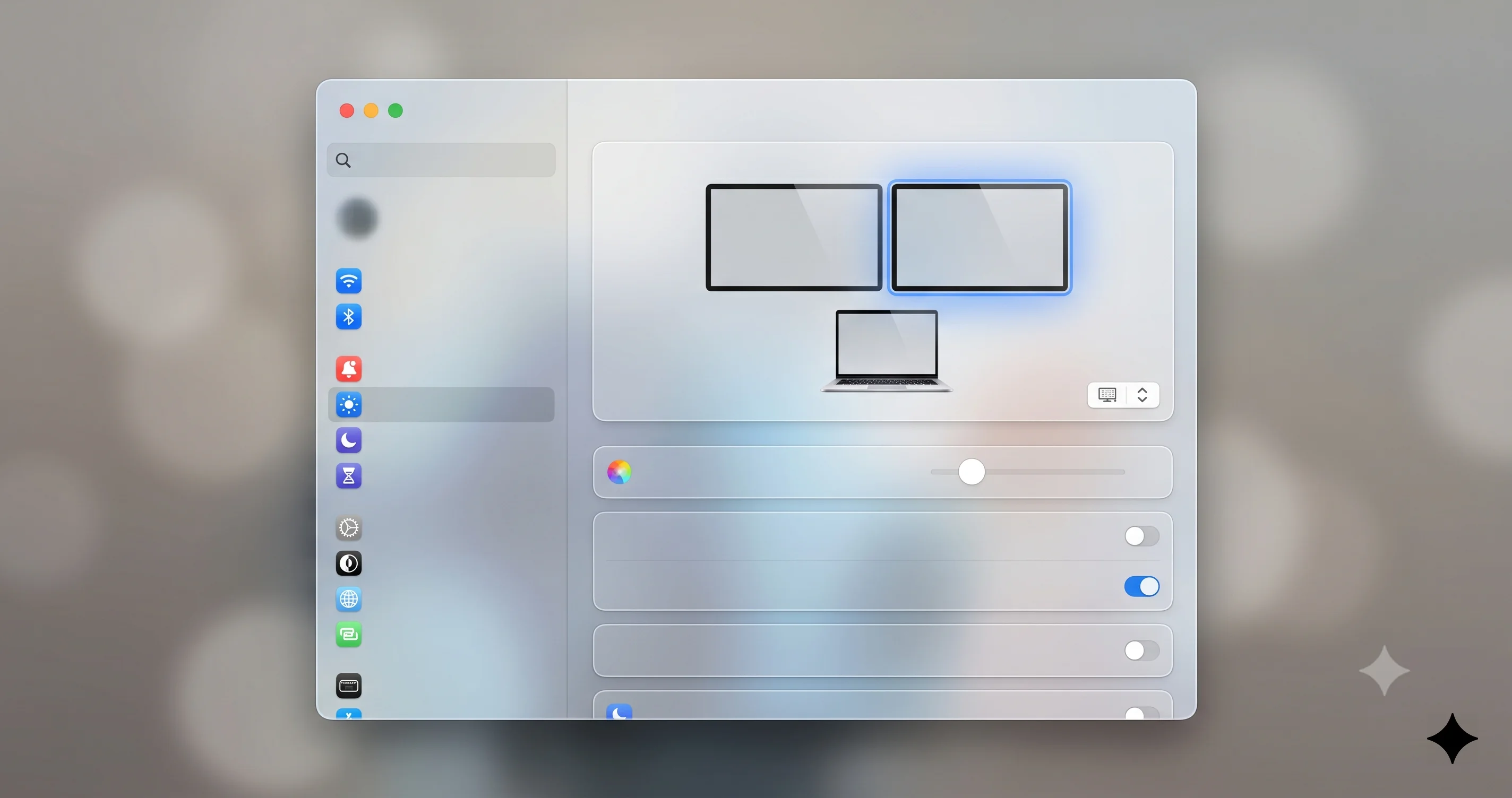
If one display is at 60Hz and another is at 120Hz, WindowServer has to manage two separate render cadences and synchronize cross-display content (a window straddling both displays, the cursor crossing the boundary). Mixed-refresh setups consistently produce higher idle WindowServer load than matched-refresh ones. If you can set all your displays to the same refresh rate, do it — even if that means dropping a ProMotion panel to 60Hz while you troubleshoot.
Display arrangement matters less than you'd think
Some forum threads claim that the arrangement of displays in Settings > Displays > Arrange affects WindowServer load. In our testing on Tahoe 26.5 and 26.5.1, arrangement only matters when windows actually straddle display boundaries. Three displays in a row with all windows on individual displays performs identically to three displays in a triangle. Focus on resolution and refresh rate before you rearrange.
The Spaces and Stage Manager Amplifier
Spaces are virtual desktops. Stage Manager is the windowing mode that groups windows into stacks on the left edge of your screen. Both interact with WindowServer in ways that can push compositor load higher.
Each Space holds live window state
When you create a Space, WindowServer keeps the window contents of that Space alive in memory even when you're not viewing it. Some windows continue to redraw — a YouTube tab in Safari keeps decoding video, a Slack window keeps animating typing indicators, a Terminal with a running process keeps updating. Even though you don't see those Spaces, WindowServer is still allocating memory for their surfaces and, depending on the app, still processing some surface updates.
If you've drifted up to 12 or 15 Spaces across multiple displays (easy to do over months), consolidating down to 3-5 Spaces is a meaningful win. To remove a Space, enter Mission Control (swipe up with three fingers, or F3), hover over the Space thumbnail, click the X. You won't lose any open windows — they migrate to the previous Space.
Stage Manager keeps thumbnails live
Stage Manager's strip on the left shows thumbnail previews of each window group. Those thumbnails update in real time, which means WindowServer is producing a scaled-down composited frame for each off-stage group at low frequency. On Tahoe with Liquid Glass framing around each thumbnail, this is noticeably more expensive than on Sequoia. If you don't actively use Stage Manager, turn it off: Control Center > Stage Manager toggle.
The GPU/CPU Split on Apple Silicon
This is the most misunderstood part of the WindowServer issue and the reason a lot of people throw their hands up after trying generic "speed up Mac" tips.
Shared power and thermal budget
Intel Macs had a separate CPU and a separate (usually discrete) GPU, each with its own power draw and thermal envelope. Apple Silicon Macs have a single SoC where CPU cores, GPU cores, the Neural Engine, and the unified memory controller all share one die, one power budget, and (in laptops) one cooling solution. When WindowServer pushes the GPU hard, the entire SoC heats up. The cooling system responds by spinning fans. The power management system responds by potentially throttling the performance cores to stay within thermal limits. The result is that GPU-driven WindowServer load can manifest as: high CPU% in Activity Monitor (because GPU work is reported partly under the owning process's CPU), audible fan noise, battery drain, and even apparent slowdowns in unrelated apps.
Why Activity Monitor's CPU number lies a little
When you see WindowServer at 180% on the CPU tab, some of that is genuine CPU work (driver-level coordination, surface management, input event processing) and some is bookkeeping around heavy GPU dispatch. The actual breakdown isn't visible without powermetrics, but you can confirm the GPU side by checking the GPU tab as described earlier. If GPU% is elevated alongside CPU%, you're dealing with a graphics-pipeline issue, not a logic-pipeline issue — which is why "reset SMC" and "clear caches" advice doesn't help.
What this means for the fix list
Because the problem is graphics-side, the fixes that work are graphics-side: reduce what the GPU has to do per frame. That means reducing transparency, reducing the effective rendered pixel count, reducing the number of independent render targets, and reducing the refresh rate. CPU-side advice (close apps, restart, reset SMC) only helps if the actual problem is somewhere else.
The Step-by-Step Fix Sequence
Apply these in order. After each one, check Activity Monitor's CPU and GPU tabs again. If a fix takes you back to acceptable numbers, you can stop — you don't need to do all of them.
Fix 1: Reduce Transparency
This is the single highest-impact fix. It disables the bulk of Liquid Glass blur, replacing translucent surfaces with solid colors derived from the wallpaper.
- Open System Settings (Apple menu > System Settings, or Spotlight).
- Click Accessibility in the sidebar.
- Click Display in the right pane.
- Toggle Reduce transparency on.
The visual change is immediate. The menu bar, Dock, Control Center, sidebars, popovers, and dialog sheets all become opaque. Most people get used to it within a day. The performance change is also immediate — WindowServer typically drops 40-70% on multi-display setups. If you want a more nuanced approach that keeps some Liquid Glass effects while eliminating the worst offenders, our Liquid Glass customization accessibility guide walks through the options.
Fix 2: Switch displays to "Default for display"
For every connected display, set it to the native pixel-doubled HiDPI resolution.
- System Settings > Displays.
- Click each display thumbnail in turn.
- For each one, find the Resolution section. If it shows a slider or a list of named options, choose Default for display. If you previously chose "More Space" or "Larger Text" or any intermediate scaled option, you'll lose some pixel real estate — that's the price of removing the scaling render pass.
This single change has eliminated the WindowServer problem entirely for many users on Mac Studios and Mac minis driving multiple 4K/5K displays. The aesthetic compromise is that you can't fine-tune scaling — but the performance gain is large.
Fix 3: Lower the refresh rate
If you have a ProMotion display or an external 120Hz/144Hz monitor and the previous fixes haven't fully solved it, drop refresh rates to 60Hz.
- System Settings > Displays.
- Click the affected display.
- Find the Refresh Rate dropdown and select 60 Hz.
You'll notice less smooth scrolling and slightly less responsive cursor motion. WindowServer's per-second composite count halves on that display.
Fix 4: Consolidate Spaces
Open Mission Control (swipe up with three fingers or press F3). Look at the row of Space thumbnails at the top. If you have more than 4-5 Spaces, hover over each extra one and click the X to close it. Windows from closed Spaces will migrate, not disappear.
Fix 5: Disable always-on widgets
Tahoe's always-on desktop widgets and Notification Center widgets redraw continuously and add up.
- Right-click an empty area of the desktop.
- Choose Edit Widgets.
- Remove widgets you don't actively use.
Live widgets (Weather, Stocks, Calendar, Sports) cost more than static ones (Reminders, Notes). Removing four to six live widgets noticeably reduces background WindowServer activity.
Fix 6: Turn off Stage Manager if you don't use it
Open Control Center (menu bar > the icon that looks like two stacked toggles). Click the Stage Manager tile to toggle it off. If it's not in your Control Center, add it via System Settings > Control Center > Stage Manager.
Fix 7: Identify and address problem apps
Some apps drive disproportionate WindowServer load by constantly invalidating their surfaces. Common Tahoe-era offenders include older versions of Chrome and Electron-based apps (Slack, Discord, Spotify, VS Code) before they updated for the new compositor, certain animated wallpaper utilities, screen recorders that hook the compositor, and any app with a heavily animated dock icon. To isolate, quit apps one by one while watching WindowServer. When it drops noticeably, you've found a contributor. Update that app, or check its preferences for a "reduce animations" or "low power mode" option.
Fix 8: Disable Reduce Motion's opposite — make sure it isn't on either
This is counterintuitive, but: a few users report that Reduce motion (Accessibility > Display) actually increases WindowServer load on Tahoe in some configurations, because the static "crossfade" replacements for some animations are implemented with longer-lived intermediate composites. If you have it on, try toggling it off briefly to test.
The killall WindowServer Nuclear Option
If the fixes above don't help and you suspect WindowServer is in a stuck or degraded state (sometimes it gets that way after a botched display sleep or a graphics driver hiccup), you can force-restart it. Read the warning before doing this.
What it does
sudo killall WindowServer immediately terminates the WindowServer process. macOS detects the loss of the compositor and automatically restarts it. To do this safely, the system also logs out your user session, which means:
- Every app you have open will quit instantly.
- Unsaved work in those apps will be lost.
- You'll be returned to the login screen.
This is not a recoverable operation. If you have a Pages document with unsaved changes, those changes are gone. If you have a browser session with twenty tabs and forty form fields filled in, all of that is gone unless the browser auto-restores it.
How to do it safely
- Save all open work in every app. Then save it again.
- Quit any app that handles long-running operations carefully (video exports, downloads, file syncs).
- Open Terminal.
- Run:
sudo killall WindowServer - Enter your admin password.
- The screen will go black. After a few seconds you'll see the login screen.
- Log back in. Check Activity Monitor — WindowServer should restart fresh.
When it actually helps
killall WindowServer helps if the compositor has accumulated some kind of bad state — a stuck animation timer, an orphaned surface reference, a leaked GPU resource. It does not help with the systemic Liquid Glass / multi-display load issue described in this article, because as soon as you log back in, Tahoe will re-establish all the same Liquid Glass surfaces and the load will return. Use it as a one-off reset, not a daily ritual.
NVRAM/PRAM resets don't help
A common piece of folk-advice is "reset NVRAM" for graphics issues. NVRAM stores firmware-level settings like startup display preference, sound volume, and time zone. WindowServer's state is per-user-session and lives in RAM, not in NVRAM. Resetting NVRAM does nothing for WindowServer CPU usage. Save the keystrokes.
How This Compares to Other Tahoe Performance Issues
This isn't the only performance complaint about Tahoe, and it's worth separating WindowServer high CPU from neighboring problems so you don't apply the wrong fix.
vs. memory leaks
The widely-reported Tahoe memory issue manifests as physical memory pressure, swap usage growing past 10GB, beach balls when switching apps, and the system getting slower over hours of uptime even when idle. WindowServer is not usually the leaking process — kernel_task, mediaanalysisd, and certain apps are. If your symptoms are "Mac gets slower the longer I leave it on, and a restart fixes it for a few hours," that's the memory leak story; see our macOS Tahoe memory leak fix complete guide and the companion RAM management and memory optimization guide.
vs. generic freezing and lag
If your Mac freezes solid for 5-10 seconds at a time, shows constant beach balls, or stutters during basic Finder operations, the WindowServer fix sequence may help but usually isn't the root cause. Disk pressure, Spotlight indexing, iCloud sync storms, and Time Machine snapshot work are more common culprits. Walk through our Tahoe freezing and beach ball fix guide if your symptoms are episodic freezes rather than sustained heat and fan noise.
vs. external display detection failures
If your external displays don't appear at all, flicker, or drop and reconnect, that's a different issue — likely cable, hub, or DDC negotiation rather than compositor load. The external display not detected diagnostic guide covers that flow.
vs. the early-Tahoe Chromium / game GPU regression
Early Tahoe (26.0 through 26.2) had a separate regression that hit Chromium-based browsers and certain games — they would peg the GPU even when minimized, and that load also showed up as high WindowServer CPU because the compositor was processing constant invalidations from those apps. Apple fixed the underlying GPU scheduler bug in 26.3, and Google/Chromium teams shipped corresponding browser updates in late 2025. If you're on 26.5/26.5.1 and seeing this in Chrome or Roblox specifically, update both macOS and the affected app first. The Liquid Glass compositor load issue is a separate, ongoing problem that survives those updates.
vs. the 26.5.1 shutdown loop on M5
If your symptoms include unexpected shutdowns or kernel panics rather than sustained high CPU, you may be hitting the network-extension-related shutdown issue specific to M5 Macs on 26.5.1. That's covered in our M5 Mac shutdown and network extension fix guide.
Troubleshooting Common Issues
Problem: WindowServer is only high right after waking from sleep
Solution: This is a known pattern on Tahoe — the compositor sometimes fails to fully release GPU resources used by the sleep "frozen frame" capture, leaving stale surfaces resident. Workaround: after waking, briefly open Mission Control (F3 or three-finger swipe up) and close it again, which forces a full surface refresh. If that doesn't help, lock the screen (Cmd+Ctrl+Q) and unlock — this resets the user-session compositor state without a full logout. Persistent post-wake issues often correlate with external displays connected over USB-C hubs; try plugging displays directly into the Mac during testing.
Problem: Only happens when external display is connected
Solution: Disconnect every external display and watch WindowServer. If it drops to single digits, you've confirmed the multi-display amplifier is your bottleneck. Reconnect displays one at a time, applying Fix 2 (Default for display) and Fix 3 (60Hz) to each before adding the next. The display that pushes WindowServer over the edge is usually a 5K display set to a scaled "More Space" resolution or any display running at 120Hz alongside others at 60Hz. Also verify your USB-C or Thunderbolt cable is rated for the bandwidth you're asking it to carry — undersized cables force compression that can compound compositor work.
Problem: Only happens in Stage Manager
Solution: Stage Manager's left-edge thumbnail strip is the cause. Each off-stage window group keeps a live composited thumbnail, and Tahoe's Liquid Glass framing around each thumbnail adds blur cost per thumbnail per frame. Either reduce the number of stage groups (close windows you don't need) or turn off "Show recent applications in Stage Manager" in System Settings > Desktop & Dock > Stage Manager (this halves the thumbnail count). If you can live without it, toggle Stage Manager off entirely via Control Center.
Problem: Tied to a specific app being focused
Solution: Some apps invalidate their entire window every frame even when nothing visible has changed — usually due to a bug in their custom-drawn UI or an Electron/web-view layer running an idle animation. Switch to that app, watch WindowServer, switch away, watch again. If it tracks the app's focus state, check the app's preferences for "reduce animations," "low power mode," or "disable GPU acceleration." For Electron apps (Slack, Discord, VS Code, Notion), make sure you're on the latest version — most shipped Tahoe-compatibility updates in winter 2025-26. As a last resort, run the app in low-power mode by enabling it in Activity Monitor: right-click the app process > "Set Process to Low Energy."
FAQ
Is WindowServer high CPU on Tahoe a bug or by design?
It's a side effect of design choices, not a strict bug. Apple's Liquid Glass material is intentionally more expensive to render than pre-Tahoe transparency, and the compositor has to do that work every frame on every display. On most single-display Macs the cost is manageable. On multi-display Macs with scaled resolutions, the cost stacks up enough to be uncomfortable. The Reduce Transparency toggle exists specifically to give users an out.
Will Apple fix this in a future Tahoe update?
Apple has shipped incremental compositor optimizations in 26.2, 26.4, and 26.5 — early Tahoe was significantly worse than 26.5 is now. More optimization is likely in 26.6 and 26.7. But Liquid Glass is here to stay, so even an optimized compositor will be heavier than Sequoia's. Don't wait for a magic fix; apply Reduce Transparency now and you'll get the benefit immediately.
Does adding RAM help?
No. WindowServer high CPU is a graphics-pipeline issue, not a memory pressure issue. RAM helps with memory-bound problems like the separate Tahoe memory leak. If your Activity Monitor Memory tab shows green pressure and minimal swap, RAM is fine — your problem is the GPU, not the RAM.
Should I downgrade to Sequoia?
You can, but only if you backed up before upgrading or are willing to do a full clean install of Sequoia and restore data selectively. Most users find that applying Reduce Transparency and the Default-for-display fix brings WindowServer back to acceptable levels without needing to downgrade. Try the fixes first; downgrading is destructive and time-consuming.
Why does my MacBook Air handle this fine but my Mac Studio doesn't?
Counterintuitively, a single-display MacBook Air has less compositor work than a three-display Mac Studio, even though the Studio has a much more powerful GPU. The Studio is doing five to ten times more pixel work per frame because of the extra displays and higher pixel counts. The Studio's GPU is fast enough to keep up, but it has to run harder, which means more power draw, more heat, and more fan noise — even though throughput-wise it's fine.
Does using a dark wallpaper or solid color help?
Marginally. Liquid Glass blur sampling is cheaper when the source content is uniform (a solid color desktop) than when it's a busy photographic wallpaper, because the blur kernel produces less variation per pixel. The savings are real but small — usually 3-8% — and not enough to fix a serious case on their own. Worth doing if you've applied the other fixes and want one more nudge.
Is the new ProMotion ramp on Tahoe responsible?
Partly. ProMotion now ramps to 120Hz in more situations than on Sequoia, including cursor movement and hover effects. Each Hz above 60 is more compositor work. Setting your ProMotion display to 60Hz manually (Fix 3 above) takes that variable off the table. Most users don't notice the visual difference once they're used to it.
Will closing apps I'm not using help?
Some. Each app's window surface is a render target WindowServer has to manage, and apps with animated UI (live tickers, blinking cursors, marquee text, video previews) contribute to per-frame work even when not focused. Quitting genuinely unused apps frees up surface memory and removes idle update sources. But this is a small contributor compared to the display and transparency fixes; don't expect it to solve the problem on its own.
Conclusion
WindowServer high CPU on macOS Tahoe 26.5 isn't a mysterious system failure — it's the predictable result of Liquid Glass adding real-time blur and specular effects across nearly every UI surface, multiplied by however many displays you're driving, multiplied by whether those displays are running scaled HiDPI resolutions. Confirm the diagnosis in Activity Monitor's CPU, Energy, and GPU tabs. Apply Reduce Transparency first; it'll fix the majority of cases on its own. Move displays to Default-for-display next. Drop refresh rates if you have ProMotion or 120Hz externals. Consolidate Spaces, prune widgets, and identify any app that's driving disproportionate invalidations. Reserve killall WindowServer for stuck-state recovery, not as a regular workaround, and skip NVRAM resets entirely — they don't apply to user-session compositor state.
Most users get back to comfortable fan-silent operation within an hour of applying these fixes, without giving up the Liquid Glass aesthetic entirely (Reduce Transparency leaves accent effects intact while disabling the expensive blur passes).
Related reading: