Your Mac's Disk Is Full of Snapshots, Not Files. Here Is How to Prove It

Before upgrading to macOS 27, find the space macOS is hiding: APFS snapshots, purgeable content, Preboot and swap. With the commands and what never to delete.
You clear 40 GB of video, empty the Trash, and the free-space figure barely moves. Or the reverse: the Finder cheerfully reports 300 GB free, and the macOS 27 installer refuses to start for lack of room. Both are the same phenomenon. On APFS, "free space" is a negotiated figure, and the parts of the disk you cannot see through the Finder — snapshots, purgeable content, and sibling volumes sharing the same container — account for the difference. With a major upgrade landing on 14 September, it is worth knowing how to read the real numbers.
Key Takeaways
dfand the Finder lie by design. The number that matters to an installer is the APFS container's free space, which you read withdiskutil info /.- Your system volume has a snapshot that must never be deleted — the sealed signed system volume you booted from. It shows up in
diskutiland not intmutil, and that difference is the whole diagnosis. - Time Machine local snapshots are the usual culprit when space vanishes. They are deleted after 24 hours or when space runs low, but "low" is lower than you would like.
- Purgeable space is real space that macOS will free under pressure — but a major upgrade may not create the right kind of pressure at the right moment.
- Other volumes in the container count too. On this Mac, Preboot holds 9 GB and the VM volume 18 GB of swap, and neither appears anywhere in the Finder.
Four Numbers, One Disk
Start by seeing the discrepancy rather than arguing with it. On this Mac, running macOS 26.5.2 on a 1 TB SSD:
$ df -h / /System/Volumes/Data
Filesystem        Size    Used   Avail Capacity  Mounted on
/dev/disk3s1s1   926Gi    12Gi   395Gi     3%    /
/dev/disk3s5     926Gi   493Gi   395Gi    56%    /System/Volumes/Data
Two volumes, each claiming to be 926 GiB, each reporting the same 395 GiB available. Neither is wrong and neither is the truth: APFS volumes share a container and grow into it, so "size" is the container's size and "available" is the container's free space, repeated once per volume.
Now ask the container directly:
$ diskutil apfs list disk3 | grep -E "Capacity|Volume Disk|Consumed"
    Size (Capacity Ceiling):      994662584320 B (994.7 GB)
    Capacity In Use By Volumes:   570712170496 B (570.7 GB) (57.4% used)
    Capacity Not Allocated:       423950413824 B (424.0 GB) (42.6% free)
    |   APFS Volume Disk (Role):   disk3s1 (System)
    |   Capacity Consumed:         12568809472 B (12.6 GB)
    |   APFS Volume Disk (Role):   disk3s2 (Preboot)
    |   Capacity Consumed:         8995532800 B (9.0 GB)
    |   APFS Volume Disk (Role):   disk3s3 (Recovery)
    |   Capacity Consumed:         1304084480 B (1.3 GB)
    |   APFS Volume Disk (Role):   disk3s5 (Data)
    |   Capacity Consumed:         529380937728 B (529.4 GB)
        APFS Volume Disk (Role):   disk3s6 (VM)
        Capacity Consumed:         18253713408 B (18.3 GB)
That is the honest accounting. Five volumes, and only one of them — Data, at 529 GB — is anything you can browse in the Finder. Preboot is 9 GB. The VM volume is 18 GB. Together they hold more space than most people's Documents folder, and no storage-management interface on the Mac will show them to you.
The single number an installer cares about:
$ diskutil info / | grep "Container Free Space"
   Container Free Space:      423.9 GB (423947014144 Bytes)
Use that one. If it disagrees with the Finder by tens of gigabytes, everything below explains where the difference went.
The Snapshot You Must Never Delete
Run the obvious command and the result looks alarming:
$ diskutil apfs listSnapshots /
Snapshot for disk3s1s1 (1 found)
|
+-- B8B12570-09B5-402F-99BB-F383487AD69D
    Name:        com.apple.os.update-5B92CE4BA1034457A0921532291F4A4AD939CBE...
    XID:         17495484
    Purgeable:   No
    NOTE:        This snapshot limits the minimum size of APFS Container disk3
A snapshot, marked not purgeable, explicitly described as limiting the minimum size of the container. It is tempting to conclude that this is the thing eating your disk.
It is not. It is the operating system you are running.
Since macOS 11, the system volume is sealed and cryptographically verified, and the Mac does not boot the volume — it boots a snapshot of it. diskutil apfs list says so directly:
|   APFS Volume Disk (Role):   disk3s1 (System)
|   Snapshot:                  B8B12570-09B5-402F-99BB-F383487AD69D
|   Snapshot Disk:             disk3s1s1
|   Snapshot Mount Point:      /
|   Snapshot Sealed:           Yes
Snapshot Sealed: Yes, mounted at /. The com.apple.os.update- prefix is the naming convention for the snapshot created when an OS update is applied. Deleting it is not a cleanup operation; it is deleting the running system. macOS will generally refuse, but "generally" is not a word you want between you and an unbootable Mac.
The tell that distinguishes it from a snapshot you can remove:
$ tmutil listlocalsnapshots /
Snapshots for disk /:

$ tmutil listlocalsnapshots /System/Volumes/Data
Snapshots for disk /System/Volumes/Data:
Both empty. tmutil only reports Time Machine snapshots — the kind created for backups, the kind that is safe to thin. diskutil reports every APFS snapshot including the sealed system one. If diskutil shows a snapshot and tmutil does not, it is not yours to delete.
Rule of thumb: act on what tmutil shows you. Read diskutil to understand, not to decide.
The Snapshots That Actually Eat Your Disk
Time Machine creates local snapshots on the Mac itself, not only on the backup drive, and they are the usual answer to "where did 80 GB go?"
The mechanism is simple and the consequence is not. A snapshot preserves the state of the volume at a moment. Edit a file afterwards and the original blocks must be kept alongside the new ones. Delete a 20 GB video that existed when the snapshot was taken, and the space does not come back — the snapshot still references it. Files created and deleted between two snapshots are the exception; those are genuinely gone and unrecoverable.
Apple's housekeeping is age-based and pressure-based: snapshots older than 24 hours are removed, and older ones are purged when free space runs critically low. Between those two rules, a Mac with an active Time Machine schedule and a busy day of file churn can be holding tens of gigabytes it will not release until either the clock or the pressure threshold says so.
This Mac has no Time Machine destination configured:
$ tmutil destinationinfo
tmutil: No destinations configured.
— which is why its snapshot list is empty, and also why its Data volume shows No snapshots for disk3s5. If yours is configured (and it should be — see the current backup strategy guide), expect to find several.
Seeing them in Disk Utility
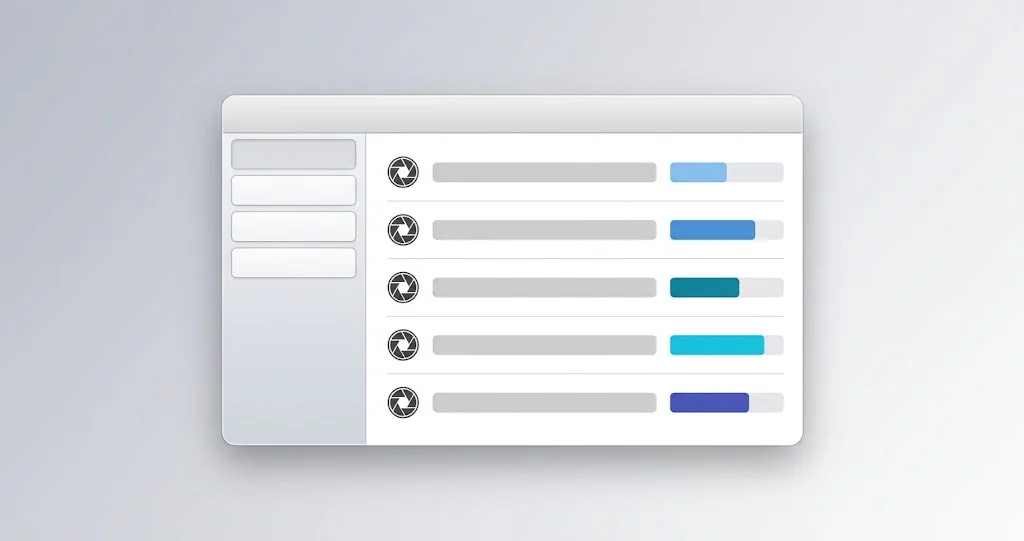
If you would rather not use the Terminal: open Disk Utility, then View → Show All Devices, select the Data volume, and enable View → Show APFS Snapshots. You get a list with sizes and a contextual menu to delete individual snapshots. Howard Oakley's advice is worth repeating — keep the most recent one, because deleting all of them can push Time Machine into a full backup cycle next time it runs.
Thinning them deliberately
The supported way to reclaim snapshot space is thinlocalsnapshots, which takes a mount point, a number of bytes to try to free, and an urgency from 1 to 4:
# Ask macOS to free roughly 20 GB from Data volume snapshots, highest urgency
sudo tmutil thinlocalsnapshots /System/Volumes/Data 20000000000 4
Urgency 4 is the most aggressive and will remove all but the most recent snapshot if it needs to. This is what macOS does to itself under space pressure; running it by hand is just doing it early.
To remove a specific snapshot rather than thinning by volume:
# List them first
tmutil listlocalsnapshots /System/Volumes/Data

# Delete one by its date stamp
sudo tmutil deletelocalsnapshots 2026-09-10-140233
And the lower-level equivalent, which works on any APFS snapshot by UUID, XID or name:
diskutil apfs deleteSnapshot disk3s5 -uuid <snapshot-UUID>Use tmutil where you can. diskutil apfs deleteSnapshot will happily point at the wrong volume, and the wrong volume here is the one you booted from.
What "Purgeable" Actually Means
macOS reports some space as purgeable: content it is prepared to delete automatically when the disk fills. It includes snapshots past their retention window, cached iCloud files that exist in the cloud, Photos originals already uploaded, downloaded media, and various caches.
Purgeable space is genuinely yours to get back — but the recovery is reactive. macOS frees it when something demands space, and the demand has to arrive in a form macOS recognises. A large cp will trigger it; an installer that pre-flights free space and refuses before writing anything may not.
That is precisely the upgrade-day failure mode: hundreds of gigabytes purgeable, an installer that will not start, and no obvious way to convince the system to act. The blunt, safe way to force the issue is to create real pressure:
# Write a large file to force macOS to reclaim purgeable space, then delete it
mkfile -n 30g ~/Desktop/ballast
rm ~/Desktop/ballast
mkfile -n creates a sparse file, so the write itself is fast; the allocation is what triggers reclamation. Delete it as soon as the free-space figure moves.
The Volumes Nobody Mentions
Two of the five volumes in the container deserve a closer look, because they grow and nobody thinks about them.
Preboot — 9.0 GB on this Mac. It holds the boot-time assets for every OS installation the container has ever had, including recovery environments and per-volume cryptographic material. It grows with each major upgrade and is not automatically pruned. It is also not something to clean by hand: deleting the wrong thing there produces a Mac that will not start. Consider it a fixed cost of the upgrades you have done.
VM — 18.3 GB on this Mac. This is swap. You can see exactly what is in it:
$ ls -lh /System/Volumes/VM/
-rw-------  1 root  wheel   1.0G ... swapfile0
-rw-------  1 root  wheel   1.0G ... swapfile1
-rw-------  1 root  wheel   1.0G ... swapfile10
...

$ sysctl vm.swapusage
vm.swapusage: total = 17408.00M  used = 16258.81M  free = 1149.19M  (encrypted)
Seventeen one-gigabyte swap files, 16 GB of them in use. macOS grows swap on demand and does not shrink it eagerly; a restart is the reliable way to reclaim it. If you are tight on space before an upgrade, restarting the Mac is not superstition — it genuinely returns several gigabytes on a machine that has been up for weeks.
How Much Room Does macOS 27 Need?
Apple's stated minimums for major upgrades have historically been in the 25–45 GB range depending on the starting version, and the full installer alone is around 17 GB — Tahoe's is 17,953,734 KiB per the installer catalogue, and Golden Gate will be in the same class.
The practical number is higher than the stated one. Plan for 60 GB of container free space before starting a major upgrade, for three reasons: the installer download, the working space the installation needs, and the snapshot macOS takes of your system before upgrading, which cannot be thinned during the process.
Check it, do not estimate it:
diskutil info / | grep "Container Free Space"The Other Optimistic Number: iCloud and Photos
Two features deliberately report space in a way that flatters the disk.
iCloud Drive's "Optimise Mac Storage" evicts the contents of files you have not used recently, leaving a stub that downloads on demand. The Finder shows the file at its full size; the disk holds almost nothing. That is excellent behaviour until an installer asks how much room there is, because the evicted content is counted as purgeable rather than free.
Photos' "Optimise Mac Storage" does the same for originals, keeping smaller renditions locally. A 200 GB library can occupy 30 GB on disk, and can silently re-download in bulk if you open the wrong view at the wrong moment.
Neither is a problem to fix. They are, however, the reason a Mac can go from "plenty of room" to "disk full" without you doing anything, and the reason a free-space figure taken last week is worthless today. Measure immediately before you upgrade, not the night before.
A Pre-Upgrade Space Audit in Five Commands
Run these in order and you will know exactly where you stand in under a minute:
# 1. The number that matters
diskutil info / | grep "Container Free Space"

# 2. Every volume in the container, with what it is consuming
diskutil apfs list $(diskutil info / | awk '/Part of Whole/ {print $4}') | grep -E "Capacity|Volume Disk"

# 3. Snapshots that are actually yours to remove
tmutil listlocalsnapshots /System/Volumes/Data

# 4. Swap, which a restart returns
sysctl vm.swapusage

# 5. The largest directories in your home folder
du -sh ~/* 2>/dev/null | sort -rh | head -10
If step 1 is above 60 GB, stop — you are ready. If it is not, steps 2 to 5 tell you which of the four sources to attack, in roughly the order that returns space for the least risk.
Reclaiming Space, in Order of Safety
- Restart. Frees swap, clears caches, removes some snapshots. Costs two minutes and often returns 10–20 GB.
- Thin Time Machine snapshots.
sudo tmutil thinlocalsnapshots /System/Volumes/Data 20000000000 4. Safe, supported, reversible in the sense that the next backup recreates what matters. - Empty the Trash, including in Photos and Mail, where deleted items sit in app-level trash for 30 days.
- Force purgeable reclamation with the ballast-file trick above if the figures still disagree.
- Developer caches, if applicable. On this Mac,
/System/Library/AssetsV2totals 25 GB — 16 GB of which is iOS Simulator runtimes. Xcode's derived data, device support and archives routinely add 50 GB+ on a working developer machine. Xcode's own Settings → Components pane removes simulator runtimes cleanly. - Large files you actually own. Storage analyser tools find these faster than browsing. And if the disk is full with nothing to show for it, hidden root-level logs is the other place to look.
- Offload to external storage. The slow, correct answer when the disk is simply too small.
What Not to Do
- Do not delete the
com.apple.os.update-snapshot on the system volume. It is the running OS. - Do not
rm -rfanything under/System/Volumes/. Preboot, VM and Recovery are load-bearing. - Do not disable Time Machine local snapshots to "save space". You lose the ability to roll back a bad update — precisely the safety net you want during upgrade week.
- Do not install a cleaner app to do this. Every operation above is a built-in command. A third-party tool with Full Disk Access that promises to free space by deleting system files is a worse risk than the full disk.
- Do not delete swap files by hand. macOS recreates them, and removing one that is in use is a crash.
Troubleshooting Common Issues
tmutil thinlocalsnapshots reports success but nothing is freed
The snapshots it removed were referencing blocks that other snapshots also reference. Removing one of several overlapping snapshots frees nothing; removing the last one frees everything at once. Re-run with urgency 4, or delete the remaining ones individually.
Disk Utility shows no snapshots but space is still missing
Then it is not snapshots. Check the container volume breakdown — Preboot and VM are the usual surprises — and check purgeable space. A Mac with a large iCloud Photos library also holds optimised originals that report oddly.
The installer says there is not enough space but diskutil says there is plenty
Check that you are reading the container and not a volume, and that you are looking at the internal disk rather than an external one. If both agree there is room, the failure is usually something else wearing a space error — a third-party kext failing authorisation is the common one. The day-one upgrade guide covers the kext check.
Space keeps disappearing overnight
Time Machine ran. That is the system working. If the volume of churn is genuinely unreasonable, look at what is writing — a sync client rewriting large files, a VM disk image, or a database — rather than at Time Machine itself.
The Mac is unbootable after deleting a snapshot
Boot into Recovery and use Time Machine System Restore to roll back to an earlier snapshot if one remains; otherwise reinstall macOS over the top, which preserves the Data volume. This is the scenario the "never delete the sealed snapshot" rule exists to prevent.
FAQ
Are APFS snapshots a backup?
No. A snapshot lives on the same disk as the data it references. If the SSD fails, the snapshots fail with it. They protect against mistakes and bad updates, not against hardware failure. A real backup lives somewhere else — see the backup strategy guide.
Should I delete snapshots before upgrading to macOS 27?
Thin them rather than delete them all, and keep the most recent. The upgrade itself will create a fresh snapshot of your pre-upgrade system, which is the one you would want if something went wrong.
Why does the Finder show a different free-space number?
The Finder reports the volume's available space including purgeable content, which is an optimistic figure. diskutil info / reports the container's actual free space. Trust the second one when an installer is involved.
Can I stop macOS from taking local snapshots?
You can disable Time Machine entirely, which stops them, and it is a bad trade. The 24-hour retention plus automatic pressure-based thinning means snapshots are self-limiting on a healthy Mac.
Is 9 GB normal for Preboot?
It is on the high side but not alarming for a Mac that has been through several major upgrades. It grows with each OS installation the container has hosted. There is no supported way to prune it, and no reason to try.
Does restarting really free space?
Yes, measurably. Swap is the main contributor — 18 GB on this Mac — along with caches and expired snapshots. It is the first thing to try and the only one that costs nothing.
Conclusion
The Finder's free-space figure is a summary written for reassurance; the container's figure is the one that decides whether Monday's upgrade starts. The gap between them is snapshots you can thin, purgeable content macOS will release under pressure, and two invisible volumes that are simply the cost of running a modern Mac.
Learn one command out of all of this and make it diskutil info / | grep "Container Free Space". Everything else in this article is about explaining why that number differs from the one you expected — but it is the number that will be right.
Related reading: macOS 27 Golden Gate day-one update guide · Why macOS 27 is not showing in Software Update · Hidden root-level logs filling your disk · Time Machine troubleshooting