macOS Tahoe Virtualization Complete Guide 2025: VMware Fusion vs Parallels Desktop vs UTM - Setup, Performance, and Troubleshooting
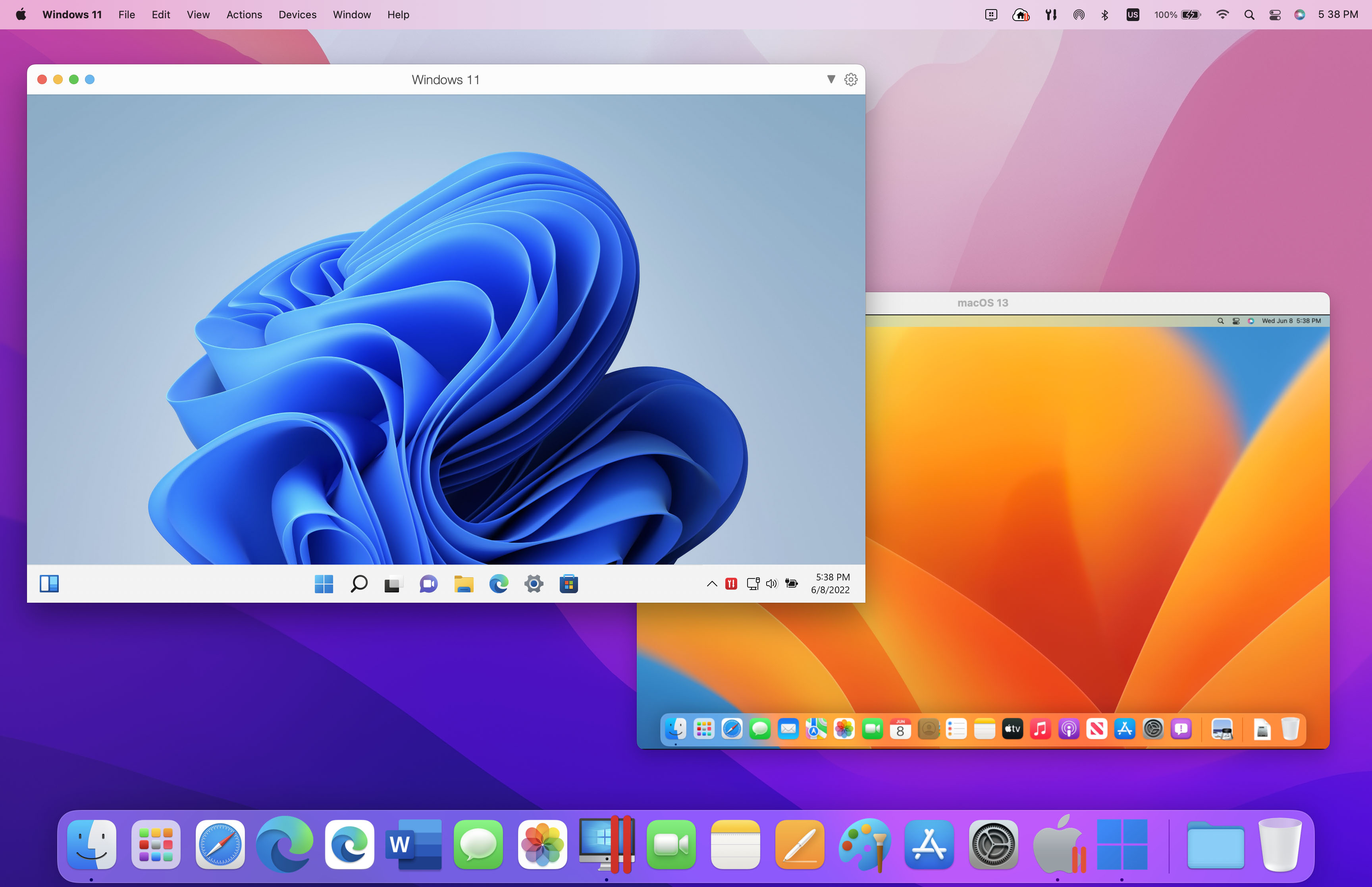
Comprehensive guide to running virtual machines on macOS Tahoe 26. Compare VMware Fusion (free), Parallels Desktop 26, and UTM. Includes M4 chip benchmarks, Windows 11 ARM setup, Apple Container CLI, troubleshooting solutions, and performance optimization tips.
Running virtual machines on macOS Tahoe 26 has never been more powerful or more accessible. With VMware Fusion now completely free, Parallels Desktop 26 offering premium features, UTM providing open-source flexibility, and Apple's native Container CLI revolutionizing containerization, Mac users have unprecedented options for virtualization. This comprehensive guide covers everything you need to know about running VMs on macOS Tahoe in 2025.
Executive Summary: Virtualization on macOS Tahoe 26
The State of Mac Virtualization in 2025
macOS Tahoe 26 represents a significant evolution for virtualization on Apple Silicon Macs. The combination of M4 chip performance improvements, mature virtualization software, and Apple's native containerization framework creates a powerful environment for running Windows, Linux, and other operating systems alongside macOS.
Key Developments in 2025:
- VMware Fusion Pro: Now completely free for personal and commercial use
- Parallels Desktop 26: Aligned versioning with macOS, Intel VM emulation preview
- UTM 5.0: Liquid Glass design, improved automation support
- Apple Container CLI: Native containerization with hardware-level isolation
Quick Recommendation Guide:
| Use Case | Recommended Solution | Why |
|---|---|---|
| Windows Gaming | Parallels Desktop 26 | Best graphics performance, DirectX support |
| Development (Free) | VMware Fusion | Full features, no cost |
| Budget/Light Use | UTM | Free, open-source, low resource usage |
| Containers | Apple Container CLI | Native integration, fastest startup |
| Enterprise | Parallels Desktop Business | Management features, support |
Virtualization Software Comparison: In-Depth Analysis
Parallels Desktop 26: Premium Performance
Parallels Desktop 26 represents the gold standard for Mac virtualization, offering the best performance and seamless integration with macOS Tahoe's new features.
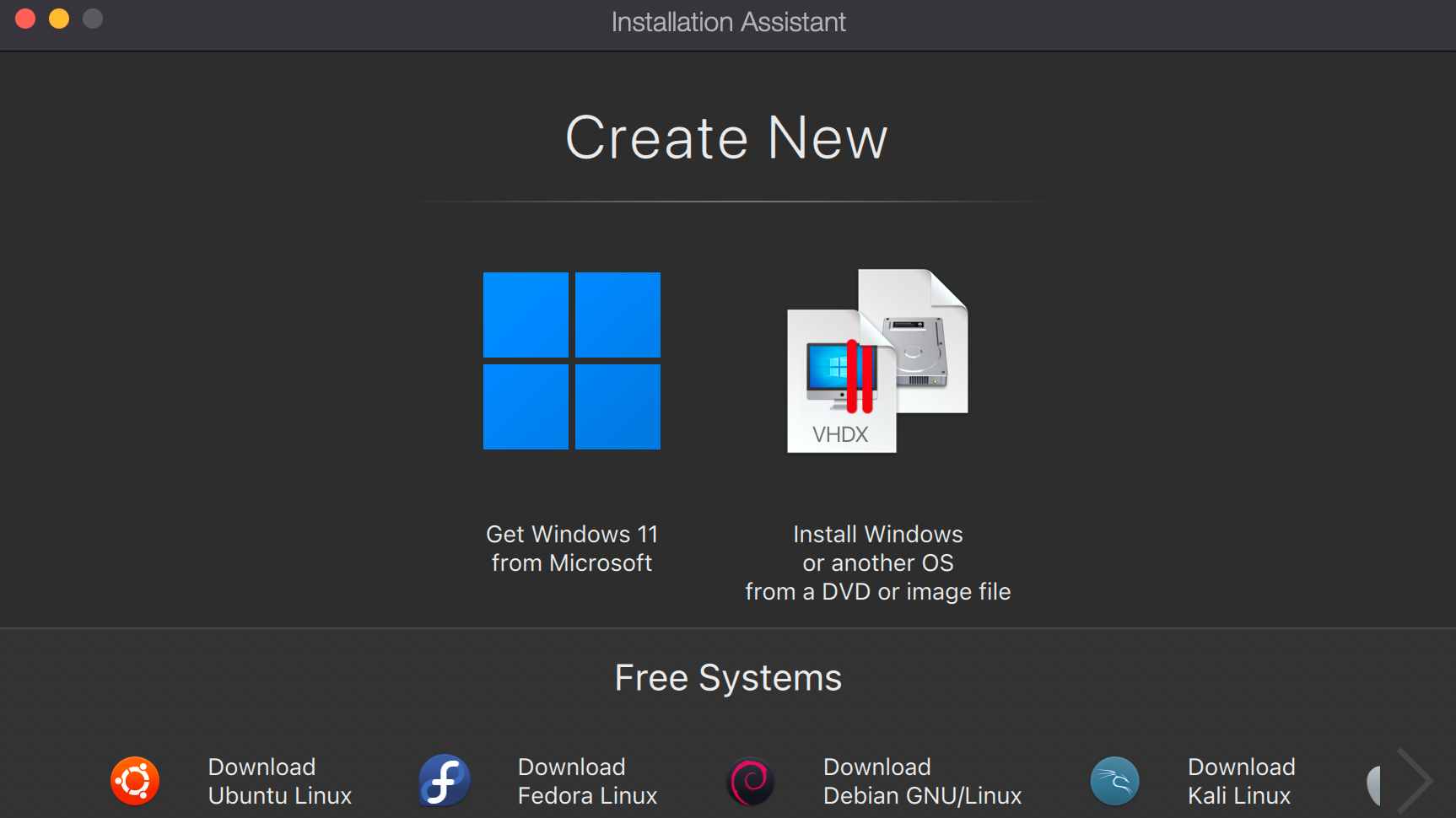
Version Information:
- Current Version: 26.1.0 (build 57287)
- Release Date: August 26, 2025
- Version Naming: Now aligned with macOS versions (26 for Tahoe)
Key Features in Version 26:
1. Day-One macOS Tahoe Support Parallels Desktop 26 was released alongside macOS Tahoe, ensuring immediate compatibility with all new features including:
- Liquid Glass UI visual updates
- Background process restrictions compliance
- New system-level integrations
2. Intel VM Emulation (Preview) For the first time, Apple Silicon users can run Intel-based operating systems:
- Legacy Windows versions (Windows 7, 8, 10 x86)
- Older Linux distributions requiring x86
- Specialized software requiring Intel architecture
3. USB Passthrough for macOS VMs A long-requested feature finally arrives:
- Connect USB devices directly to macOS virtual machines
- Development and testing scenarios enabled
- Hardware debugging capabilities
4. Enhanced Disk Space Management
- Windows VMs can now see actual available disk space on Mac
- Prevents system slowdowns from over-allocation
- Better storage optimization across host and guest
Parallels Desktop 26 Pricing (2025):
| Edition | Annual Subscription | Perpetual License |
|---|---|---|
| Standard | $99.99/year | $219.99 (one-time) |
| Pro | $119.99/year | Not available |
| Business | $149.99/year | Not available |
Upgrade pricing: $69.99 from any previous version
Perpetual vs Subscription:
- Subscriptions include free upgrades and 24/7 chat support
- Perpetual licenses are version-locked with limited support
- 14-day free trial available for evaluation
Performance Characteristics:
- VM startup/suspend: 3-5 seconds
- Best-in-class graphics acceleration
- Lowest latency for interactive applications
- Optimized specifically for M4 chips
Known Issues and Solutions:
| Issue | Description | Solution |
|---|---|---|
| License Verification | "Unable to verify license signature" error | Contact Parallels support for temporary key |
| Game Controllers | Sony DS4 left joystick inverted, Bluetooth not working | Use USB connection; awaiting patch |
| M4 Incompatibility | Versions 19 and below don't work on M4 | Must upgrade to version 20+ |
VMware Fusion: Free Powerhouse
Since November 2024, VMware Fusion Pro has been completely free for all users, making it an extremely attractive option for macOS Tahoe virtualization.
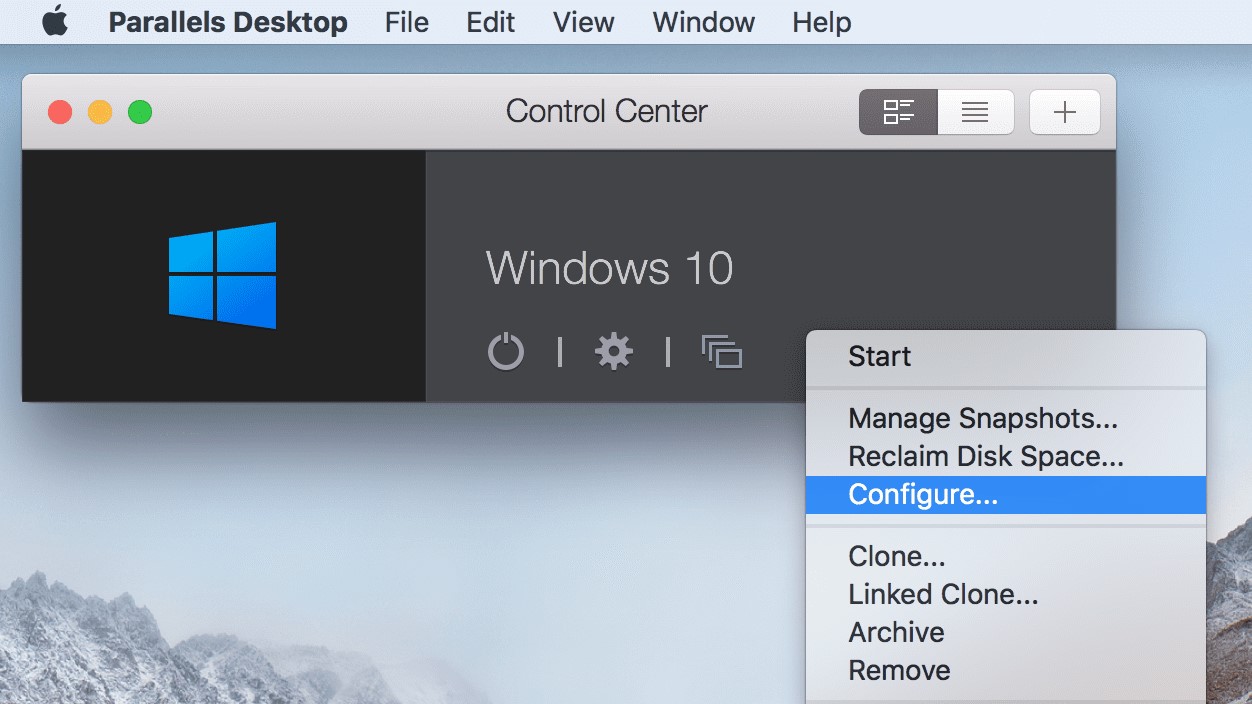
Current Status:
- Version: Fusion Pro 25H2 (new naming scheme)
- Price: Free for personal, educational, AND commercial use
- macOS Tahoe Support: Released October 2025
Key Features:
- Native ARM Support: Full support for M1, M2, M3, and M4 chips
- Windows 11 ARM: Automatic download and installation
- x86 Emulation: Run Intel-based OS on Apple Silicon
- No License Key: Simply download and use
VMware Fusion Advantages:
- Zero Cost: Completely free for all use cases
- Enterprise Backing: Broadcom support and development
- Cross-Platform: Consistent experience with VMware Workstation
- Professional Features: All Pro features now free
Limitations to Consider:
| Limitation | Details |
|---|---|
| Unity Mode | NOT supported on Apple Silicon |
| Shared Folders | Intel Macs only |
| VM Operations | Slower startup/suspend (30-60 seconds) |
| Graphics Performance | Inferior to Parallels for gaming |
Critical macOS Tahoe Bug: VMware Fusion has a known issue where VMs won't power on - the "Start" button immediately reverts to "Suspend":
- Status: Acknowledged by VMware
- Workaround: None available currently
- Resolution: Requires Apple fix according to VMware
Getting Started with VMware Fusion:
- Create a free Broadcom Support Portal account
- Download VMware Fusion Pro from VMware website
- Install and launch - no license key required
- Create new VM with automatic Windows download
UTM: Free and Open Source Excellence
UTM provides a completely free, open-source virtualization solution built specifically for macOS and optimized for Apple Silicon.
Technical Foundation:
- Backend: QEMU v10.0.2
- Price: Completely free
- License: Open source
- Optimization: Native macOS and Apple Silicon support
2025 Updates:
- Liquid Glass Design: Adopts macOS Tahoe aesthetic
- App Intents: Automation with macOS Shortcuts
- Custom Keyboard Shortcuts: Define combinations like Ctrl+Alt+Del
- Pre-configured Templates: RISC-V64 Ubuntu, Mac OS 8.x/9.x, Windows 95/98
Two Operating Modes:
Virtualization Mode (Apple Virtualization Framework):
- Near-native ARM64 performance
- Rosetta support for x86-64 apps
- Limited USB passthrough
- Best for: Windows 11 ARM, ARM Linux distributions
Emulation Mode (QEMU):
- Full USB device passthrough
- Support for 30+ processor architectures
- Lower performance
- Best for: Legacy systems, specialized hardware
Supported Guest Operating Systems:
| OS Type | Examples | Performance |
|---|---|---|
| macOS | macOS 12+ on Apple Silicon | Near-native |
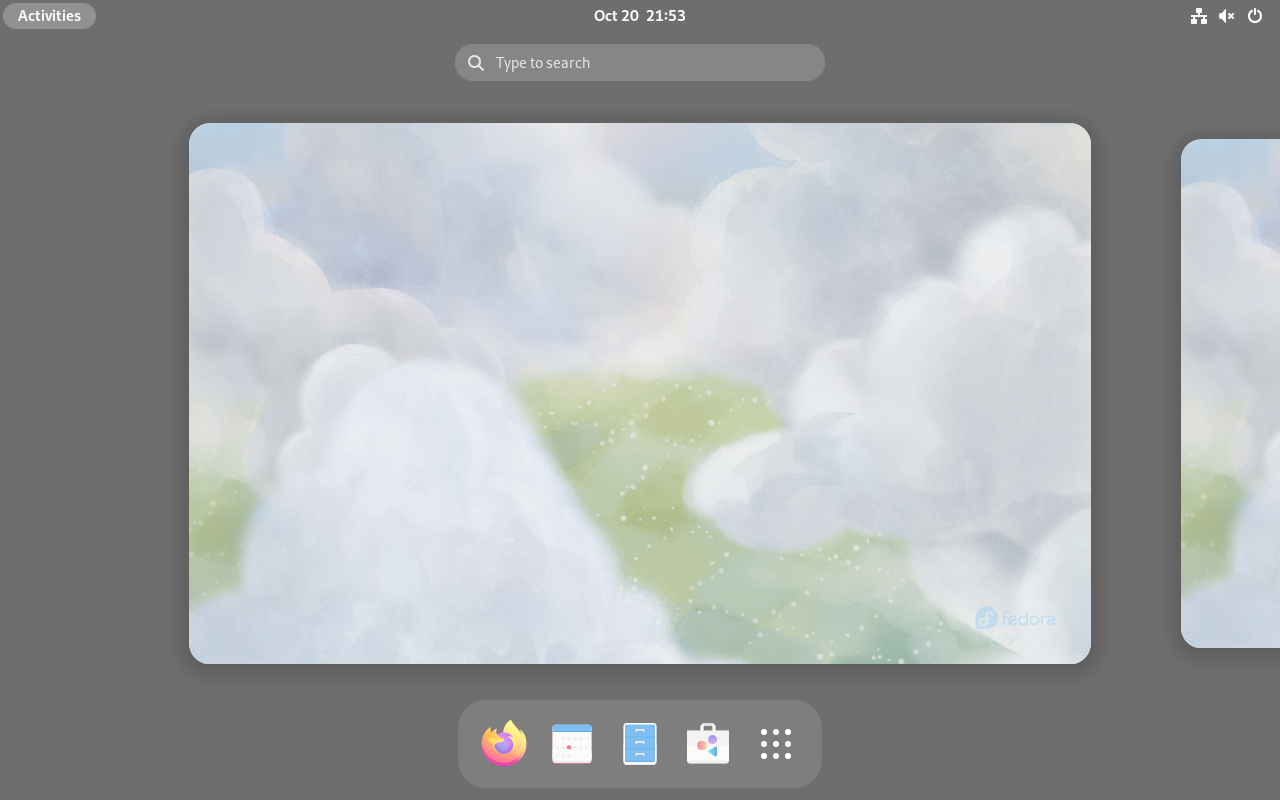
| Linux ARM64 | Debian, Ubuntu, Fedora | Excellent |
| Windows 11 ARM | Windows 11 on ARM | Good |
| Legacy Windows | Windows 95/98 | Good (emulated) |
| Classic Mac OS | OS 8.x, 9.x | Good (emulated) |
Performance Profile:
- Idle RAM: 1-2GB
- Idle CPU: Less than 5%
- Startup Time: Near-instant for containers
- M4 MacBook Air: Competitive Geekbench scores with lowest power consumption
UTM Advantages:
- Free and open source
- Lowest resource usage among major options
- Multiple VM support without performance degradation
- Excellent for Macs with 8GB RAM
UTM Limitations:
- No GPU/3D acceleration
- Not suitable for gaming
- USB passthrough only in QEMU mode
- App Store restrictions for macOS VMs
Apple Container CLI: Native Containerization
macOS Tahoe 26 introduces Apple's native containerization framework, offering a fundamentally different approach to running isolated environments.
Architecture Overview: Apple's containerization uses a one-VM-per-container model, providing hardware-level isolation:
- Each container runs in its own lightweight VM
- Eliminates shared attack surface of traditional containers
- Similar approach to Windows WSL2
Getting Started:
# Download from Apple's GitHub
# https://github.com/apple/container/releases

# Check version
container --version

# Start the container daemon
container system start

# Pull and run a container
container image pull alpine
container run --rm -it alpine sh
Docker CLI Compatibility: Apple Container supports most Docker commands, making migration straightforward:
# Pull images
container image pull kalilinux/kali-rolling

# Run interactive containers
container run --rm -it ubuntu:latest bash

# List containers
container ps -a
Performance Characteristics:
- Startup Time: Sub-second container launches
- Overhead: Minimal compared to traditional VMs
- Integration: Native macOS process management
New ASIF Disk Format: macOS Tahoe introduces Apple Sparse Image Format (ASIF) for VM storage:
| Metric | ASIF | Traditional |
|---|---|---|
| Write Speed | Up to 8.3 GB/s | ~0.1 GB/s (encrypted UDSP) |
| Initial Size | Less than 1GB | Fixed allocation |
| Efficiency | Expands as needed | Pre-allocated |
Creating ASIF Images:
# Via Disk Utility GUI or command line
diskutil image create --format ASIF -size 100GB vm-storage.asif
Performance Benchmarks: M4 Virtualization Testing
Apple Silicon Performance Comparison
The M4 chip delivers exceptional virtualization performance, with significant improvements over previous generations.
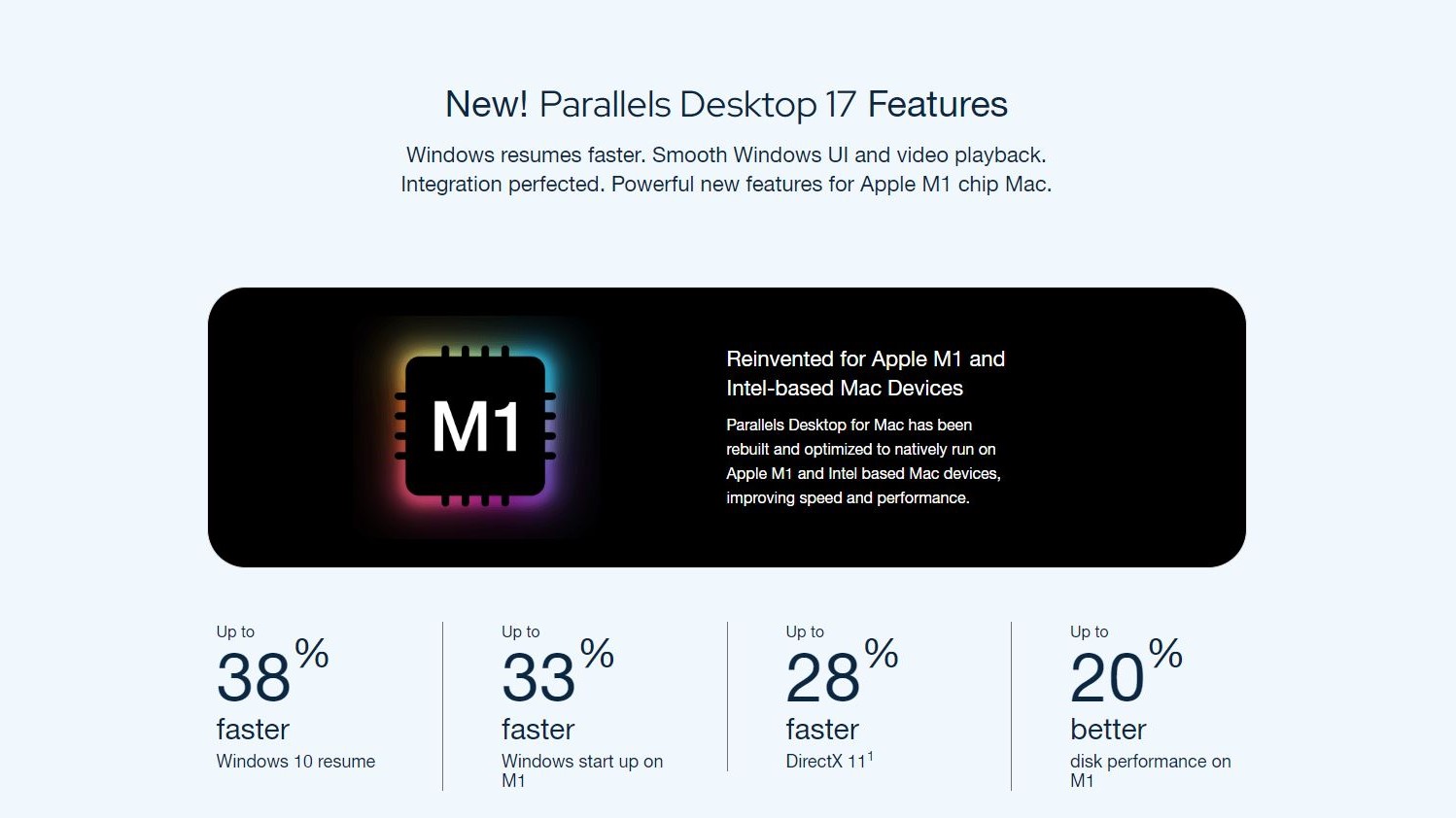
M4 Chip Benchmarks (Geekbench 6):
| Metric | M4 Base | M4 Pro | M4 Max |
|---|---|---|---|
| Single-Core | 3,781 | 3,890 | 4,060 |
| Multi-Core | 14,858 | 22,340 | 26,675 |
| GPU (Metal) | 58,082 | 89,450 | 134,230 |
| NPU (TOPS) | 38 | 38 | 38 |
VM Performance by Solution:
| Operation | Parallels 26 | VMware Fusion | UTM |
|---|---|---|---|
| VM Startup | 3-5 seconds | 30-60 seconds | 5-10 seconds |
| Suspend/Resume | 3-5 seconds | 30-60 seconds | 5-10 seconds |
| Graphics Performance | Excellent | Good | Basic |
| Resource Efficiency | Good | Good | Excellent |
Chip Generation Comparison:
| Upgrade Path | Performance Improvement |
|---|---|
| M4 vs M3 | 22% single-core, 25% multi-core |
| M4 vs M2 | 30-50% overall improvement |
| M4 vs M1 | 60-80% improvement |
AI/ML Workloads:
- 32.6% improvement in full precision AI inference
- 46.2% acceleration in quantized models
- M4 NPU: 38 TOPS (35-46% improvement over M3)
Real-World Performance Testing
Windows 11 ARM Performance:
| Task | M4 Max (Parallels) | M4 Max (VMware) | M4 (UTM) |
|---|---|---|---|
| Office Applications | Excellent | Good | Good |
| Web Browsing | Excellent | Good | Good |
| Software Development | Excellent | Good | Good |
| Gaming | Good | Fair | Poor |
Linux Development Workflow:
| Task | Parallels | VMware | UTM |
|---|---|---|---|
| Docker Builds | Excellent | Good | Good |
| Compilation | Excellent | Good | Good |
| Database Operations | Excellent | Good | Good |
Complete Setup Guides
Windows 11 on macOS Tahoe
Requirements:
- Apple Silicon Mac (M1 or later)
- macOS Tahoe 26 or later
- Windows 11 Pro or Enterprise ARM license (Home not supported)
- Minimum 8GB RAM, 16GB recommended
- 40GB+ storage for VM
Parallels Desktop Setup:
-
Download and Install Parallels Desktop 26
- Visit parallels.com/products/desktop
- Download and install
- Start 14-day trial or enter license
-
Create Windows 11 VM
- Click "Install Windows"
- Parallels automatically downloads Windows 11 ARM
- Follow installation wizard
- Install Parallels Tools for best performance
-
Optimize Performance
Recommended Settings:
- CPU: 4-6 cores (never exceed 50% of total)
- RAM: 8-16GB (never exceed 50% of total)
- Graphics: Let Parallels auto-manage
- Storage: 100GB virtual disk
VMware Fusion Setup:
-
Download VMware Fusion Pro
- Create Broadcom account
- Download from vmware.com
- Install (no license key needed)
-
Create Windows VM
- File → New
- Select "Install Windows"
- VMware downloads Windows automatically
- Complete installation
-
Install VMware Tools
- VM → Install VMware Tools
- Run installer in Windows
- Restart VM
UTM Setup:
-
Install UTM
- Download from mac.getutm.app or App Store
- Launch application
-
Create Windows VM
- Click "Create New VM"
- Select "Virtualize" for best performance
- Choose "Windows"
- Download Windows 11 ARM ISO from Microsoft
- Allocate resources and complete setup
-
Enable Rosetta (for x86 app compatibility)
- VM Settings → System → Enable Rosetta
Linux Development Environment
Recommended Distributions for Apple Silicon:
| Distribution | Best For | Performance |
|---|---|---|
| Debian ARM64 | Servers, Stability | Excellent |
| Ubuntu ARM64 | General Development | Excellent |
| Fedora ARM64 | Cutting-edge Features | Excellent |
| Kali Linux ARM64 | Security Testing | Good |
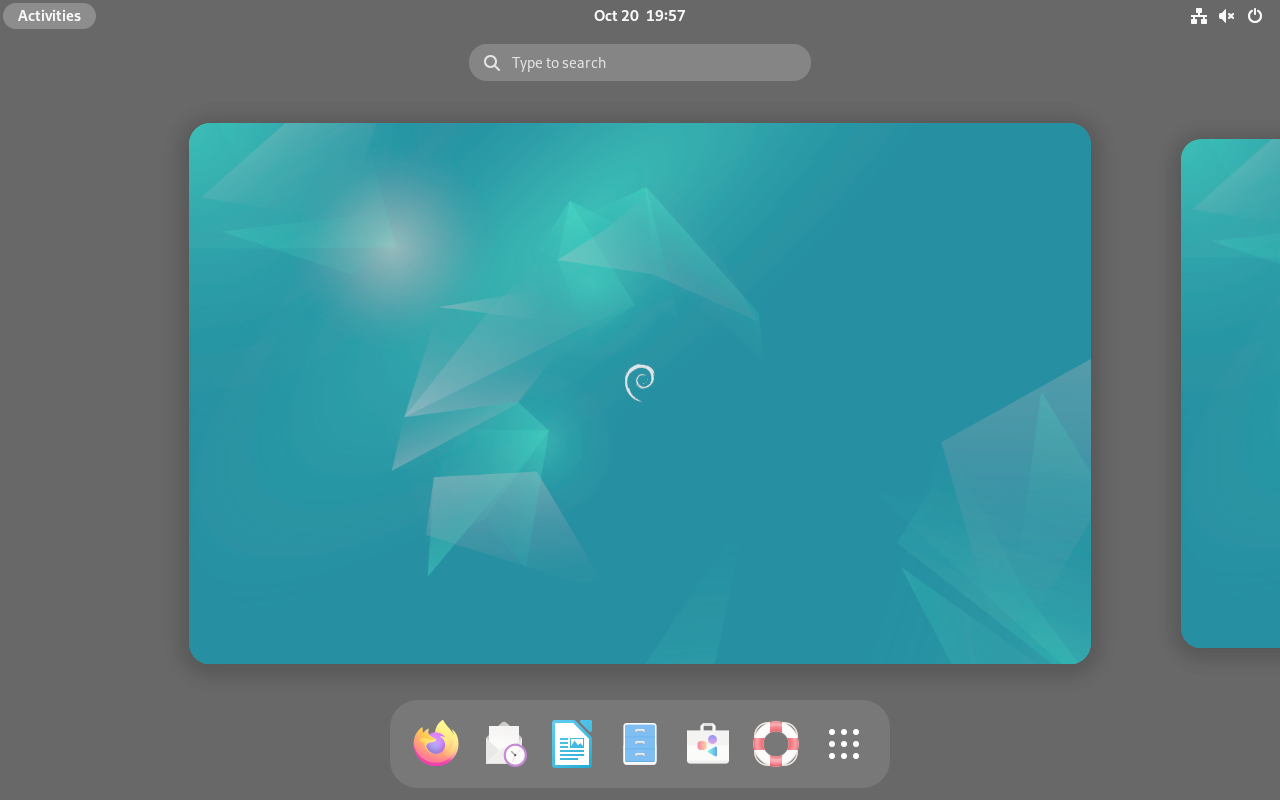
Quick Linux Setup with UTM:
# 1. Download ARM64 ISO for your preferred distribution

# 2. Create VM in UTM
# - Select "Virtualize"
# - Choose "Linux"
# - Select ISO file
# - Allocate 4+ CPU cores, 8GB+ RAM

# 3. After installation, enable shared directories
# - VM Settings → Sharing → Enable VirtioFS
Docker Development Setup:
For Docker workflows, Apple Container CLI provides the fastest experience:
# Start container daemon
container system start

# Run development containers
container run -d -p 3000:3000 node:latest

# Build local images
container build -t myapp .
Troubleshooting Common Issues
USB Passthrough Problems
The Challenge: Apple's Virtualization Framework lacks general USB passthrough support, affecting all virtualization solutions.
Affected Scenarios:
- USB security keys
- Hardware debugging devices
- External storage devices
- Audio interfaces
Solutions by Platform:
| Platform | Solution |
|---|---|
| Parallels | USB passthrough works for macOS VMs (new in v26) |
| VMware | Limited USB support |
| UTM | Use QEMU mode (sacrifices Rosetta support) |
macOS Settings Check:
Settings → Privacy & Security →
"Allow accessories to connect" → "Always when unlocked"
Graphics Acceleration Issues
Current State: No GPU virtualization support exists in Apple's Hypervisor.framework. This affects all VM solutions.
Symptoms:
- Poor gaming performance
- Slow 3D applications
- No DirectX/OpenGL acceleration
Optimization Steps:
-
Enable 3D Acceleration (where available)
- VMware: Display → Enable 3D Acceleration
- VirtualBox: Display → Enable 3D Acceleration
-
Reduce Visual Effects (macOS VMs)
Settings → Accessibility → Display: - Enable "Reduce transparency" - Enable "Reduce motion" Settings → Desktop & Dock: - Disable "Animate opening applications" Use black/solid wallpaper -
Install Guest Tools
- VMware Tools for VMware
- Parallels Tools for Parallels
- SPICE Guest Tools for UTM
Network Configuration Issues
NAT vs Bridged Mode:
| Mode | Advantages | Disadvantages |
|---|---|---|
| NAT | Easy setup, better compatibility | Limited VM-to-VM networking |
| Bridged | Own IP address, full network access | Wi-Fi issues, router compatibility |
Common NAT Issues:
-
Corporate VPN Conflicts
- Solution: Use "slirp" networking mode
- Or configure split tunneling on VPN
-
VM-to-VM Communication
- NAT isolates VMs by default
- Use bridged mode or host-only network
Bridged Mode Troubleshooting:
Issues with Wi-Fi bridging:
- Wi-Fi spec doesn't fully support bridging
- Solution: Use Ethernet connection
- Or use NAT mode for better compatibility
Memory and Performance Optimization
Memory Allocation Rules:
| Host RAM | Max VM RAM | Recommended VM RAM |
|---|---|---|
| 8GB | 4GB | 3-4GB |
| 16GB | 8GB | 6-8GB |
| 32GB | 16GB | 12-16GB |
| 64GB+ | 32GB | As needed |
CPU Core Allocation:
Golden Rules:
- Never exceed 50% of total CPU cores for VMs
- Minimum 3 cores for acceptable performance
- 4-6 cores recommended for substantial applications
- Apple Silicon: P-cores allocated first, then E-cores
macOS Tahoe Specific Issue: Tahoe uses ~20% more memory than previous versions. If experiencing slowdowns:
# Delete Spotlight cache (common fix)
rm -rf ~/Library/Metadata/CoreSpotlight/
sudo reboot
Storage Performance Best Practices
-
Use Internal SSD
- External storage significantly degrades VM performance
- NAS/network storage not recommended for VM files
-
ASIF Format (macOS Tahoe)
- 83x faster than encrypted UDSP
- Auto-expands as needed
-
Disable Time Machine During VM Use
- Backups severely impact performance
- Exclude VM folder from backups entirely
-
Storage Requirements:
VM Type Minimum Recommended Windows 11 40GB 100GB Linux (Development) 20GB 50GB macOS 40GB 80GB
Choosing the Right Solution
Decision Matrix
| Factor | Parallels | VMware | UTM |
|---|---|---|---|
| Price | $$$ | Free | Free |
| Performance | Excellent | Good | Good |
| Graphics | Best | Good | Basic |
| Ease of Use | Best | Good | Good |
| Linux Support | Excellent | Excellent | Excellent |
| Windows Gaming | Best | Fair | Poor |
| Resource Usage | Moderate | Moderate | Low |
| Open Source | No | No | Yes |
Recommendations by User Type
Software Developers:
- Primary Choice: VMware Fusion (free, full features)
- Alternative: UTM for lightweight containers
- Power Users: Parallels for best Windows integration
System Administrators:
- Enterprise: Parallels Desktop Business
- Personal/SMB: VMware Fusion
- Containers: Apple Container CLI
Students:
- Budget-Conscious: UTM or VMware Fusion (both free)
- Windows Required: VMware Fusion
- macOS Development: UTM
Gamers:
- Best Performance: Parallels Desktop
- Budget Option: VMware Fusion (limited gaming)
- Not Recommended: UTM (no 3D acceleration)
Creative Professionals:
- Adobe Workflows: Parallels Desktop
- Cross-Platform Testing: VMware Fusion
- Resource-Constrained: UTM
Future of Mac Virtualization
Expected Developments
Apple's Direction:
- Enhanced Virtualization.framework capabilities
- Potential GPU passthrough support
- Deeper Container CLI integration
- Improved developer tools
Third-Party Evolution:
- Continued M-series optimization
- Better Windows ARM compatibility
- Enhanced Linux support
- Improved gaming capabilities
Industry Trends:
- Convergence of containers and VMs
- AI-assisted virtualization management
- Cross-platform development focus
- Edge computing integration
Conclusion: Maximizing Virtualization on macOS Tahoe
macOS Tahoe 26 offers the most capable virtualization environment in Mac history. Whether you choose the premium polish of Parallels Desktop, the free power of VMware Fusion, the open-source flexibility of UTM, or the native integration of Apple Container CLI, you have excellent options for running virtual machines.
Key Takeaways:
- M4 chips deliver exceptional VM performance - Up to 80% improvement over M1
- VMware Fusion is now free - Full professional features at no cost
- Parallels Desktop 26 remains the performance leader for Windows and gaming
- UTM provides the best value for budget-conscious users
- Apple Container CLI revolutionizes container workflows with sub-second startup
Optimization Priorities:
- Memory: Never allocate more than 50% to VMs
- Storage: Use internal SSD with ASIF format
- CPU: 4-6 cores for most workloads
- Graphics: Accept current limitations, optimize settings
Final Recommendations:
- Best Overall: VMware Fusion (free, powerful, professional)
- Best Performance: Parallels Desktop 26 (premium, fastest)
- Best Value: UTM (free, open-source, efficient)
- Best for Containers: Apple Container CLI (native, fastest)
Choose based on your specific needs, budget, and performance requirements. All solutions work excellently with macOS Tahoe 26 and Apple Silicon Macs.
Need help with other macOS Tahoe features? Check our complete troubleshooting guide or explore performance optimization strategies.