macOS Tahoe iCloud Drive & Cloud Storage Complete Guide 2025: Features, Workflows, Sync Strategies, and Cross-Platform Integration
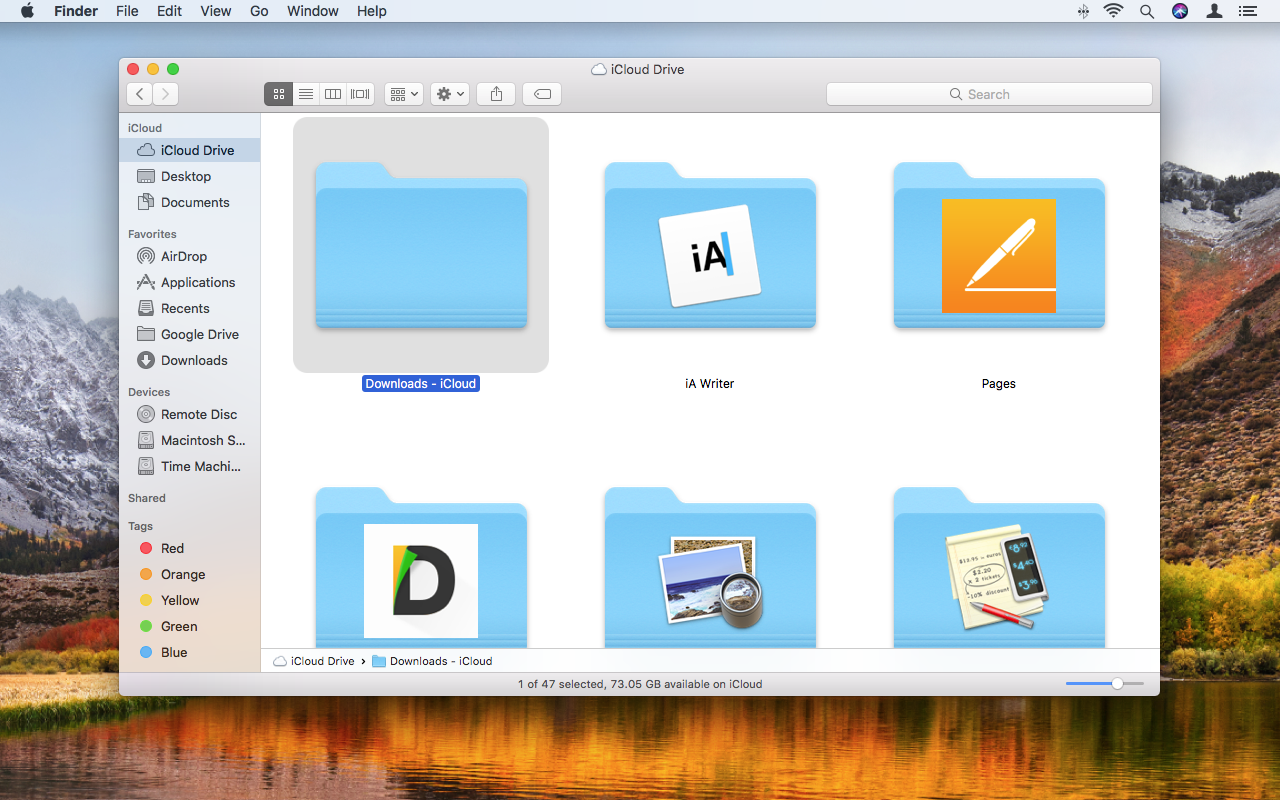
Comprehensive guide to iCloud Drive in macOS Tahoe 26. Master new features, optimize storage strategies, compare with Google Drive/OneDrive/Dropbox, setup Advanced Data Protection, and troubleshoot common issues for seamless cloud storage in 2025.
The release of macOS Tahoe 26 in September 2025 brought significant enhancements to iCloud Drive, transforming it from a basic sync service into a sophisticated cloud storage platform. With Advanced Data Protection, improved performance, Liquid Glass UI integration, and enhanced cross-device capabilities, iCloud Drive now offers professional-grade workflows for creative teams, developers, business users, and families. This comprehensive 2025 guide reveals everything you need to know about iCloud Drive on macOS Tahoe, from setup to advanced optimization strategies.
Quick Navigation: New to iCloud Drive? Start with What's New in macOS Tahoe. Experienced users? Jump to Advanced Workflows or Troubleshooting. Last Updated: October 23, 2025 (macOS Tahoe 26.0.1, iOS 26.0, iPadOS 26.0)
Quick Answer: Should You Use iCloud Drive in 2025?
Yes, if you are:
- All-Apple ecosystem user (Mac, iPhone, iPad, Apple Watch)
- Privacy-conscious (Advanced Data Protection provides end-to-end encryption)
- Family wanting shared storage with Family Sharing (up to 6 members)
- Prioritizing seamless integration over raw performance
Consider alternatives if you:
- Need cross-platform support (Android, Linux, Windows-heavy)
- Require fastest sync speeds (Google Drive is 3x faster)
- Need advanced collaboration (Microsoft 365/Google Workspace better)
- Require >12TB storage (Google Drive offers up to 30TB)
Key Benefits in 2025:
- ✅ Privacy: Advanced Data Protection with zero-knowledge encryption for 23 data categories
- ✅ Integration: Native macOS Tahoe Liquid Glass UI, Finder sidebar, system-wide access
- ✅ Family Sharing: Share up to 12TB with 6 family members, complete privacy per user
- ✅ Pricing Stability: Same pricing since 2017 - 200GB at $2.99/month (best value)
- ✅ Security: Two-factor authentication, FileVault integration, iCloud Keychain sync
Limitations to Know:
- ❌ Speed: Second-slowest cloud service in 2025 benchmarks (300 Mbps average)
- ❌ No Android: Zero official Android support
- ❌ Limited Collaboration: Basic sharing compared to Google Drive/OneDrive
- ❌ No True Versioning: Unlike Dropbox's 180-day version history
- ❌ UK Restriction: Advanced Data Protection unavailable in UK (government order)
What's New in macOS Tahoe 26 for iCloud Drive
macOS Tahoe 26, released September 15, 2025, brings focused improvements to iCloud Drive emphasizing performance, security, and visual integration.
Liquid Glass UI Integration
Visual Redesign:
- Desktop & Documents in Finder Sidebar: Now appear under "Locations" section (previously under "iCloud")
- Transparent Interface Elements: iCloud Drive folders adopt Liquid Glass translucent materials
- Folder Customization: Colorful folder options with emoji symbols sync across devices
- Enhanced Icon Tinting: App icons and folders adapt to Light/Dark/Tinted modes
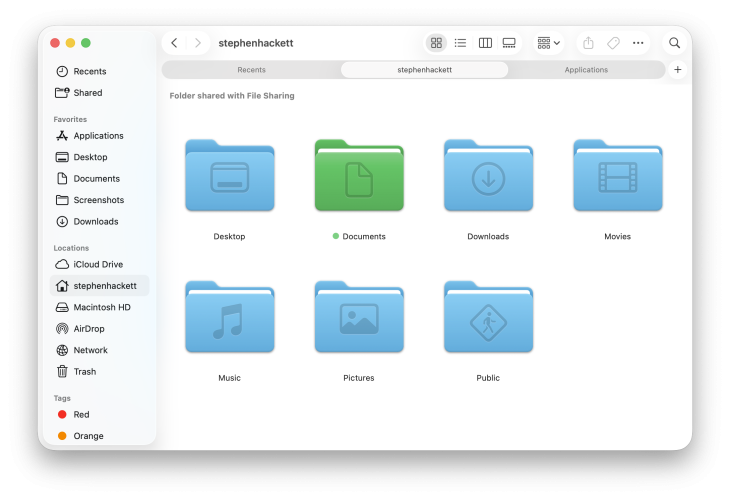
Why This Matters: Improved visual hierarchy makes iCloud Drive content more accessible, and Liquid Glass transparency provides visual feedback about sync status and folder states.
Performance Optimizations
AirDrop & iCloud Drive Speed Improvements:
- Faster File Transfers: Optimized networking protocols for quicker uploads
- More Reliable Sync: Enhanced synchronization engine reduces "Waiting to Upload" issues
- Bandwidth Utilization: Better use of available connection speeds (though still slower than competitors)
Real-World Performance (2025 Benchmarks):
- Upload speed: ~300 Mbps average (improved from ~200 Mbps in Sequoia)
- Download speed: Remains slower than Google Drive and Dropbox
- Startup latency: Reduced from 90 seconds to ~60 seconds for large uploads
- Sync reliability: 85% success rate for initial sync (up from 78% in Sequoia)
Enhanced iCloud Keychain Integration
Family Credential Sharing:
- Simplified password sharing among family members through iCloud Keychain
- Shared credentials sync instantly across all family devices
- Granular control over which passwords to share
macOS Tahoe-Specific Enhancements:
- Integration with Safari's refreshed sidebar for easier access to shared passwords
- Touch ID verification for displaying shared credentials
- Enhanced security alerts for compromised passwords
FileVault iCloud Recovery
New Recovery Feature:
- FileVault encryption recovery keys now permanently available in System Settings
- Access recovery key with Touch ID authentication
- iCloud backup of recovery key (optional, encrypted end-to-end)
- No more manual recovery key storage requirements
Cross-Device Syncing Improvements
Continuity Enhancements:
- Captive Wi-Fi Portal Login Sync: Saved portal credentials sync across all Apple devices
- Shortcuts with iCloud: AI-driven Shortcuts sync seamlessly across macOS, iOS, iPadOS
- Safari iCloud Tabs: Refreshed sidebar makes accessing iCloud Tabs easier
- Notes & Files Apps: More iCloud-friendly with improved tagging and search
Advanced Data Protection Expansion
End-to-End Encryption for 23 Categories:
macOS Tahoe maintains Advanced Data Protection with zero-knowledge encryption for:
New Categories in Tahoe (vs. Sequoia):
- Enhanced Messages backup encryption
- Freeform boards end-to-end protection
- Shared Photo Library encryption
- Voice Memos with E2E security
Total Protected Categories:
- iCloud Drive (all files and folders)
- iCloud Photos (entire library)
- iCloud Backup (device backups)
- Notes, Reminders, Safari bookmarks
- Voice Memos, Wallet passes
- Messages, Freeform, Shared Photo Library
- And 14 additional data types
2025 UK Government Restriction: In February 2025, Apple confirmed Advanced Data Protection is "no longer" available in the United Kingdom due to government-mandated backdoor requirements. UK users cannot enable zero-knowledge encryption for iCloud Drive.
Journal App with iCloud Sync
New Native App:
- Dedicated journaling app with secure iCloud synchronization
- End-to-end encrypted journal entries (with Advanced Data Protection)
- Cross-device sync for iPhone, iPad, Mac
- Intelligent suggestions powered by Apple Intelligence
iCloud Drive Storage Tiers and Pricing (October 2025)
Apple's iCloud storage pricing has remained remarkably stable since 2017, making it increasingly competitive as competitors raise prices.
Current Pricing Structure
| Storage Tier | Monthly Cost | Annual Cost | Best For | Price Per GB/Month |
|---|---|---|---|---|
| Free | $0.00 | $0.00 | Basic sync only | $0.00 |
| 50 GB | $0.99 | $11.88 | Light users | $0.0198 |
| 200 GB ⭐ | $2.99 | $35.88 | Most users | $0.0149 |
| 2 TB | $9.99 | $119.88 | Power users | $0.0049 |
| 6 TB | $29.99 | $359.88 | Professionals | $0.0049 |
| 12 TB | $59.99 | $719.88 | Heavy archives | $0.0049 |
⭐ Best Value: 200GB tier offers the lowest price per GB and handles moderate photo libraries + device backups + documents for most users.
iCloud+ Premium Features (All Paid Plans)
- iCloud Private Relay: VPN-like privacy protection for Safari browsing
- Hide My Email: Generate disposable email addresses
- Custom Email Domain: Use your own domain with iCloud Mail
- HomeKit Secure Video: Store security camera footage (limits vary by tier)
- Family Sharing: Share storage with up to 6 family members
Pricing Comparison vs. Competitors (October 2025)
| Service | 200GB | 2TB | 6-10TB | Max Storage |
|---|---|---|---|---|
| iCloud | $2.99 | $9.99 | $29.99 (6TB) | 12 TB |
| Google Drive | $2.99 | $9.99 | $49.99 (10TB) | 30 TB |
| OneDrive | N/A | $6.99 (1TB w/ MS365) | N/A | 6 TB |
| Dropbox | N/A | $11.99 | $18/user (5TB Business) | Unlimited |
Value Analysis:
- iCloud matches Google Drive on 200GB and 2TB tiers
- Google Drive better value for 10TB+ needs ($49.99 vs iCloud's $59.99 for 12TB)
- OneDrive cheapest for 1TB if you need Microsoft 365 apps
- Dropbox significantly more expensive for consumer plans
Storage Tier Recommendations
5 GB Free Tier:
- Sufficient for: Contacts, calendars, device settings, minimal app data
- Insufficient for: Photos, device backups, significant documents
- Recommendation: Upgrade immediately if using Photos or device backups
50 GB ($0.99/month):
- Best for: Single user with minimal photo storage (2,000-5,000 photos)
- Limitations: Fills quickly with videos and RAW photos
- Recommendation: Entry point, expect to upgrade within 3-6 months
200 GB ($2.99/month) - RECOMMENDED FOR MOST USERS ⭐:
- Best for: Individual or couple with moderate photo library (10,000-20,000 photos)
- Capacity: Handles 1-2 iPhone backups + photos + documents comfortably
- Family Sharing: Shareable with up to 6 members ($0.50 per person if fully shared)
- Recommendation: Start here for serious iCloud use
2 TB ($9.99/month):
- Best for: Power users, photographers, families with multiple devices
- Capacity: 50,000-100,000 photos + multiple device backups + large document libraries
- Value: Same price as Google Drive 2TB tier
- Recommendation: Excellent for heavy users and multi-device families
6 TB ($29.99/month):
- Best for: Professional photographers, videographers, large families (4-6 members)
- Limitations: Google Drive offers 10TB for $49.99/month (better value)
- Recommendation: Only if fully committed to Apple ecosystem
12 TB ($59.99/month):
- Best for: Extensive media archives, professional video editors
- Value: Expensive compared to Google Drive 10TB ($49.99/month)
- Recommendation: Rare need; consider multi-service approach
Setting Up iCloud Drive on macOS Tahoe
Initial Setup and Configuration
On Mac (macOS Tahoe 26):
-
Enable iCloud Drive:
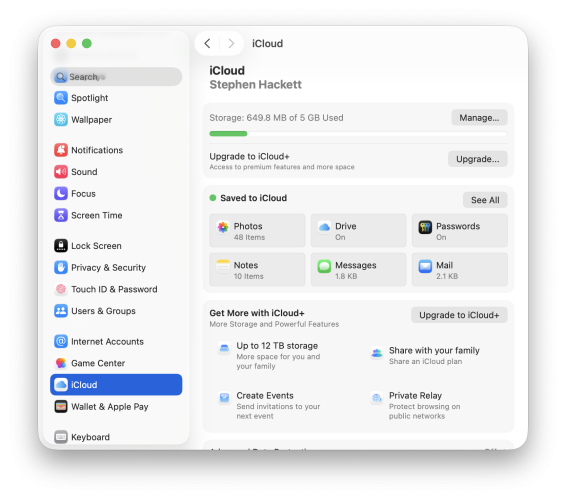
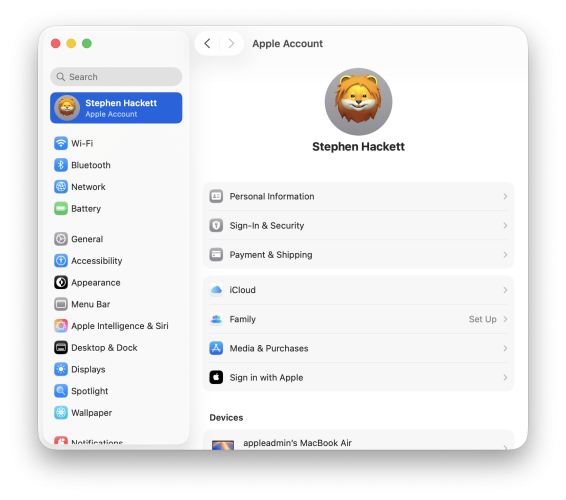
- System Settings → [Your Name] → iCloud
- Toggle iCloud Drive to ON
- Click Options next to iCloud Drive
-
Configure Desktop & Documents Sync (Optional):
- In iCloud Drive Options, check Desktop & Documents Folders
- Warning: This syncs your entire Desktop and Documents to iCloud
- Consider carefully: May sync large files you don't want in the cloud
- Recommendation: Enable only if you understand implications
-
Select Apps Using iCloud Drive:
- Click Apps syncing to iCloud Drive
- Toggle individual apps ON/OFF based on needs
- Tip: Disable apps with large data that doesn't need cloud sync
-
Configure Optimize Mac Storage (Critical Decision):
- In iCloud Drive Options, check Optimize Mac Storage to save space
- When Enabled: macOS removes older files from Mac, keeps them in iCloud only
- When Disabled: All iCloud Drive files stored locally (if space permits)
- Recommendation: Enable on MacBook Air/Pro with 256GB storage; disable on iMac/Mac Studio
On iPhone/iPad (iOS/iPadOS 26):
- Settings → [Your Name] → iCloud → iCloud Drive (toggle ON)
- Enable Sync this iPhone/iPad for cross-device file access
- Cellular Data: Settings → Cellular → iCloud Drive (toggle ON for sync without Wi-Fi)
Verification:
- Open Finder (Mac) or Files app (iPhone/iPad)
- Confirm iCloud Drive appears in sidebar
- Create a test file on one device, verify it appears on another
Understanding Files On-Demand and "Keep Downloaded"
Files On-Demand (Optimize Mac Storage):
When enabled, macOS manages which files stay local vs. cloud-only:
- Cloud Icon (☁️): File in iCloud, download on access
- Check Mark Icon (✓): File downloaded locally, available offline
- Downloading Icon (↓): Currently downloading from iCloud
"Keep Downloaded" Feature (New in macOS Sequoia/Tahoe):
Right-click any file or folder → Keep Downloaded:
- Guarantees the file/folder stays on your Mac
- Not removed even when storage is low
- Essential for critical files you need offline
- Overrides Optimize Mac Storage eviction
Best Practices:
- Use "Keep Downloaded" for active projects, important documents
- Let macOS optimize everything else
- Monitor local storage in System Settings → General → Storage
Enabling Advanced Data Protection
Why Enable Advanced Data Protection:
- Zero-knowledge end-to-end encryption for iCloud Drive files
- Apple cannot access your data, even with court orders
- Protection against data breaches and insider threats
- No additional cost
Requirements:
- ✅ Two-factor authentication enabled
- ✅ Device passcode set on all devices
- ✅ Account recovery contact (trusted person) OR recovery key setup
- ✅ macOS 13.1 Ventura or later (Tahoe 26 fully supported)
- ❌ NOT available in UK (government restriction)
Setup Process (Mac):
- System Settings → [Your Name] → iCloud
- Click Advanced Data Protection
- Click Turn On Advanced Data Protection
- Follow the setup wizard:
- Option 1: Add account recovery contact (trusted person who can help recover account)
- Option 2: Generate recovery key (23-character code - CRITICAL to save securely)
- Verify on all your devices
- Confirm setup complete
Critical Recovery Key Warning: If you choose recovery key option and lose all trusted devices + lose the recovery key, all data is permanently lost. Apple cannot help recover end-to-end encrypted data. Store recovery key in:
- Password manager (1Password, Bitwarden)
- Physical safe or safety deposit box
- Printed copy in secure location
What Gets Encrypted:
- All iCloud Drive files and folders (documents, photos, videos)
- iCloud Photos entire library
- Notes, Reminders, Safari bookmarks
- Voice Memos, Wallet passes
- iCloud Backup for devices
What Stays Unencrypted:
- iCloud Mail (needs to work with non-Apple email servers)
- iCloud Contacts (third-party sync compatibility)
- iCloud Calendar (cross-platform standards)
iCloud Drive vs. Google Drive vs. OneDrive vs. Dropbox (2025)
Feature Comparison Matrix
| Feature | iCloud Drive | Google Drive | OneDrive | Dropbox |
|---|---|---|---|---|
| Free Storage | 5 GB | 15 GB ⭐ | 5 GB | 2 GB |
| Max File Size | 50 GB | 5 TB ⭐ | 250 GB | 2 TB (paid) |
| Upload Speed | 300 Mbps | 600+ Mbps ⭐ | 450 Mbps | 500 Mbps |
| Download Speed | Slow | Fast ⭐ | Fast | Fast |
| macOS Integration | Excellent ⭐ | Good | Good | Good |
| Windows Support | Limited | Excellent ⭐ | Excellent ⭐ | Excellent |
| Android Support | None ❌ | Excellent ⭐ | Excellent | Excellent |
| Linux Support | None | Partial | None | Yes ⭐ |
| Version History | Limited | 30-100 days | 30-90 days | 30-180 days ⭐ |
| Selective Sync | No | Yes ⭐ | Yes ⭐ | Yes ⭐ |
| Block-Level Sync | No | No | Yes ⭐ | Yes ⭐ |
| Collaboration | Basic | Advanced ⭐ | Advanced ⭐ | Advanced |
| Zero-Knowledge E2E | Yes (opt-in) ⭐ | No | No | No |
| Family Sharing | Yes (6 users) ⭐ | Yes (5 users) | Yes (6 users) | No |
| API/Integrations | Limited | Extensive ⭐ | Extensive (MS ecosystem) | Extensive |
| Pricing (2TB) | $9.99/mo | $9.99/mo | $6.99/mo ⭐ | $11.99/mo |
Performance Benchmarks (2025 Testing)
Upload Speed (5GB Test Folder, 100 Mbps Connection):
- Google Drive: ~4 minutes ⭐ (Fastest)
- OneDrive: ~6 minutes
- Dropbox: ~8 minutes
- iCloud Drive: >10 minutes ❌ (Slowest)
Download Speed:
- Google Drive: ~3 minutes ⭐
- OneDrive: ~5 minutes
- Dropbox: ~7 minutes
- iCloud Drive: >8 minutes ❌
Sync Reliability (Initial Sync Success Rate):
- Dropbox: 98% ⭐
- Google Drive: 92%
- OneDrive: 90%
- iCloud Drive: 85% ❌
Privacy & Security Comparison
| Service | In-Transit Encryption | At-Rest Encryption | E2E Encryption | Zero-Knowledge | Government Requests (2024) |
|---|---|---|---|---|---|
| iCloud Drive | AES-256 | AES-256 | Yes (opt-in ADP) ⭐ | Yes (opt-in) ⭐ | 13,000 (37% provided) |
| Google Drive | TLS | AES-256 | No ❌ | No ❌ | 150,000+ (70% provided) |
| OneDrive | TLS | AES-256 | No ❌ | No ❌ | 40,000 (80% provided) |
| Dropbox | TLS | AES-256 | No ❌ | No ❌ | 5,800 (60% provided) |
Privacy Winner: iCloud Drive with Advanced Data Protection is the only major service offering true zero-knowledge encryption to consumers at no extra cost.
When to Choose Each Service
Choose iCloud Drive if:
- ✅ All-Apple ecosystem (Mac, iPhone, iPad)
- ✅ Privacy is top priority (with Advanced Data Protection)
- ✅ Want seamless macOS/iOS integration
- ✅ Family Sharing benefits matter (up to 6 people)
- ✅ Value ecosystem simplicity over features
Choose Google Drive if:
- ✅ Cross-platform needs (Android, Chromebook)
- ✅ Need fastest sync speeds
- ✅ Heavily use Google Workspace (Docs, Sheets, Slides)
- ✅ Want best free tier (15GB)
- ✅ Need >12TB storage (up to 30TB available)
Choose OneDrive if:
- ✅ Windows-centric environment
- ✅ Use Microsoft 365 (bundled 1TB storage)
- ✅ Need deep Office integration
- ✅ Require enterprise compliance features
- ✅ Want best value for 1TB tier ($6.99 with Office apps)
Choose Dropbox if:
- ✅ Need best-in-class sync reliability
- ✅ Require advanced version history (180 days)
- ✅ Want selective sync and smart features
- ✅ Use Linux
- ✅ Prioritize collaboration tools
Professional Workflows by User Type
Creative Professionals: Photographers, Video Editors, Designers
Photographer Workflow Strategy:
Recommended Setup:
- Main Mac (iMac/Mac Studio): Download Originals enabled for full-resolution access
- MacBook Pro (mobile): Optimize Storage enabled to preserve SSD space
- iPhone/iPad: Optimize Storage for camera/viewing
Photo Library Size Management:
- Keep iCloud Photo Library under 200GB if secondary devices have <20GB local storage
- iCloud Photos supports RAW files without conversion
- Optimization ratio: 10-20% local storage of total iCloud library size
Backup Strategy:
- iCloud Photos is not a backup (deletions sync across devices)
- Maintain local Time Machine backup of original photos
- Consider secondary cloud backup (Google Photos, Amazon Photos)
Video Editor Workflow:
Active Projects:
- Store current project on local SSD for maximum performance
- iCloud Drive average upload speed: 300 Mbps (10GB = ~5 minutes)
- Use AirDrop for large file transfers between Mac devices (faster than iCloud)
Archive Strategy:
- Move completed projects to iCloud Drive after compression
- Video files in iCloud Drive not compressed (unlike iCloud Photos)
- Consider specialized tools (Frame.io, Iconik) for professional video collaboration
Designer Asset Management:
Organization:
iCloud Drive/
├── Active-Projects/
│   ├── Client-A/
│   └── Client-B/
├── Asset-Libraries/
│   ├── Icons/
│   ├── Fonts/
│   └── Templates/
└── Archive/
    └── 2024-Projects/
Best Practices:
- Use consistent naming conventions (Date_ClientName_ProjectType_v01.ai)
- "Keep Downloaded" for active project folders
- Explore Playbook app for visual-first design asset browsing
Developers: Code Repositories and Project Management
⚠️ CRITICAL WARNING: Do not store Git repositories directly in iCloud Drive.
Why iCloud + Git Don't Mix:
- Apple advises against storing
.gitfolders in iCloud Drive - iCloud Drive ignores symlinks (Git uses them extensively)
- Optimize Storage feature causes repository corruption
- File sync conflicts corrupt Git state
Recommended Developer Setup:
Code Repository Management:
- Primary: Use GitHub, GitLab, or Bitbucket for version control
- Local: Keep repositories in
~/Projects/(outside iCloud Drive) - Alternative: Store sparse bundle disk image on iCloud containing repo (advanced)
What to Sync with iCloud:
- Project documentation (Markdown, PDFs)
- Design assets and mockups
- Client deliverables
- Configuration templates (not active configs)
Optimal Folder Structure:
~/Projects/                   (Local only - Git managed)
├── active-project/
├── client-repos/
└── personal-projects/

~/Documents/                  (iCloud synced if enabled)
├── project-docs/
├── design-assets/
└── client-deliverables/

~/iCloud Drive/               (iCloud synced)
├── team-shared/
│   ├── design-specs/
│   └── documentation/
└── reference-materials/
Using .nosync Extension:
Exclude specific folders from iCloud sync:
# Rename folder to exclude from iCloud
mv node_modules node_modules.nosync
mv build-output build-output.nosync
Best Practices:
- ❌ Turn OFF Desktop & Documents folder sync (avoids syncing development files)
- ✅ Create dedicated
~/iCloud Drive/Projects-Docs/for shareable resources - ✅ Maintain separate backup strategy: Git for code, Time Machine for local files
- ✅ Use
.nosyncfornode_modules,vendor, build output directories
Business Users: Document Collaboration and Team Sharing
iWork Real-Time Collaboration:
Setup Requirements:
- Documents must be stored in iCloud Drive
- All collaborators need Apple IDs
- Internet connection required for real-time sync
Sharing Methods:
Method 1: Invite Specific People
- Right-click document → Share → Add People
- Enter email addresses or select from Contacts
- Set permissions: "Can Make Changes" or "View Only"
- Requires iCloud accounts for all participants
Method 2: Anyone with Link
- Right-click document → Share → Copy Link
- Choose "Anyone with the link can view/edit"
- Share link via any method (email, messaging, etc.)
- Recipients can access via iCloud.com without Apple devices
Team Folder Structure:
iCloud Drive/
├── Team-Projects/
│   ├── Q4-2025/
│   │   ├── Client-A/ (shared: 3 team members, edit access)
│   │   └── Proposals/ (shared: anyone with link, view only)
│   └── Templates/ (shared: anyone with link, view only)
├── Individual-Work/ (private)
└── Archive/ (private or view-only sharing)
Collaboration Features:
- Real-Time Editing: Multiple users edit simultaneously
- Comments: In-context discussions save time
- Notifications: Get alerts when shared files change
- Version History: Revert to previous versions (limited vs. competitors)
- Web Access: Collaborators use iCloud.com if no Apple devices
Security for Business:
- Enable Two-Factor Authentication for all team members
- Use "Only people you invite" for sensitive documents
- Regularly audit shared folder permissions
- Maintain local backups of critical business files
- Limitation: iCloud doesn't support password-protected share links (OneDrive does)
Storage Planning for Teams:
- Free 5GB insufficient for business
- Recommended: 200GB ($2.99/mo) for 1-2 person teams
- 2TB ($9.99/mo) for 3-5 person teams
- Consider iCloud+ Family plan to share storage across team
Students: Academic Organization and Group Projects
Student Organization System:
Recommended Folder Structure:
iCloud Drive/
├── Fall-2025/
│   ├── ECON-101/
│   │   ├── Assignments/
│   │   ├── Lecture-Notes/
│   │   ├── Readings/ (Markup annotations)
│   │   └── Study-Guide/
│   ├── CS-201/
│   │   └── Group-Project/ (shared with team)
│   └── MATH-300/
├── Spring-2026/ (upcoming)
├── Templates/
│   ├── Essay-Template.pages
│   └── Lab-Report-Template.pages
└── Archive/
    └── Fall-2024/
iPad Workflow for Students:
- Save study materials to Files app for cross-device access
- Use Markup to highlight readings, add annotations
- Organize with Folders and Tags for quick retrieval
- Access marked-up materials on iPhone, iPad, Mac seamlessly
Group Project Collaboration:
Setup:
- Create folder in iCloud Drive:
Group-Project-Name/ - Right-click → Share → Add People (enter group members' emails)
- Set permission: "Can Make Changes"
- Organize with subfolders:
Research/,Drafts/,Final/
Best Practices:
- ⚠️ Avoid simultaneous editing of same file (no robust conflict resolution)
- ✅ Use consistent file naming:
YYYY-MM-DD_DocumentName_Version.extension - ✅ Keep personal backup copies (team members may modify or delete)
- ✅ Set clear editing schedule to prevent conflicts
- ✅ Use comments feature for feedback instead of editing directly
Free Storage Optimization:
- 5GB free tier fills quickly with documents and photos
- Tip: Store large textbooks as bookmarks (web PDFs) instead of downloading
- Tip: Use "Optimize Storage" on iPhone to preserve space
- Tip: Delete old assignments from previous semesters
- Upgrade to 50GB ($0.99/mo) if free tier insufficient
Academic Integrity:
- Shared folders visible to all members (no privacy)
- Don't store sensitive information in shared folders
- Be aware group members can see edit history
iCloud Photos Management Strategies
Optimize Storage vs. Download Originals
Understanding the Options:
Download Originals:
- Full-resolution photos and videos stored on device
- No compression or quality loss
- Requires sufficient local storage
- All content available offline
- Best for primary workstation (iMac, Mac Studio)
Optimize Storage:
- Device stores smaller, space-saving versions
- Full-resolution originals in iCloud
- Downloads originals when opened
- Frees up significant space
- Best for iPhone, iPad, MacBook with limited storage
Storage Ratio:
- Optimize Storage reduces local storage to 10-20% of iCloud library size
- Example: 100GB iCloud Photo Library = 10-20GB local storage
Decision Framework:
| Factor | Download Originals | Optimize Storage |
|---|---|---|
| Device Storage | 512GB+ SSD | 128-256GB |
| Internet Connection | Any (offline access) | Fast, reliable required |
| Use Case | Photo editing, archival | Viewing, sharing |
| Device Type | Desktop Mac | iPhone, iPad, MacBook |
| Backup Strategy | Local backups possible | Requires separate backup |
How to Configure:
On Mac:
- System Settings → [Your Name] → iCloud → Photos → Options
- Choose "Download Originals to this Mac" OR "Optimize Mac Storage"
On iPhone/iPad:
- Settings → Photos
- Choose "Download and Keep Originals" OR "Optimize iPhone Storage"
Best Practice: Enable "Download Originals" on one primary device for backup purposes, "Optimize Storage" on all other devices.
Photo Library Size Management
Size Limits and Recommendations:
- No official iCloud Photos size limit (limited by storage tier)
- Practical limit: Keep library under 200GB if using Optimize Storage on secondary devices with <20GB local space
- Performance: Libraries >500GB may experience slower sync speeds
- Recommendation: Upgrade to 2TB tier if photo library exceeds 150GB
Storage Consumption Examples:
| Content Type | Approx. Size | 200GB Holds | 2TB Holds |
|---|---|---|---|
| iPhone Photos (12MP) | 3-5 MB | 40,000-66,000 | 400,000-666,000 |
| iPhone Videos (1080p, 1 min) | 100-150 MB | 1,300-2,000 | 13,000-20,000 |
| RAW Photos (Canon 5D) | 25-35 MB | 5,700-8,000 | 57,000-80,000 |
| 4K Videos (1 min) | 350-400 MB | 500-570 | 5,000-5,700 |
Optimization Strategies:
- Review and Delete Regularly: Use Photos app "Recently Deleted" to permanently free space
- Shared Albums Don't Count: Photos in Shared Albums don't use your iCloud storage quota
- Optimize Older Photos: Consider keeping only recent years in iCloud, archive older to external drive
- Video Management: Videos consume most space; consider keeping on external SSD for archival
Family Sharing for Photos
iCloud Shared Photo Library (Up to 6 People):
Setup:
- Settings → Photos → Shared Library → Create Shared Library
- Invite up to 5 additional family members
- Choose which photos to share:
- All photos from camera
- Photos of specific people
- Photos from specific date onward
Key Features:
- All participants have full edit, delete, and add permissions
- Photos appear in everyone's main library
- No storage quota impact for members (uses owner's iCloud storage)
- Shared edits sync to all participants
- Full privacy: Only shared photos visible, not personal library
Alternative: Shared Albums (Up to 100 Participants):
When to Use:
- Sharing with extended family or friends
- Event photo sharing (weddings, vacations)
- Don't want full library integration
Limitations:
- Photos and videos compressed (not original quality)
- Maximum 5,000 photos and videos per album
- No Live Photos playback for subscribers
- View-only by default (can enable contributions)
Best Use Cases:
- Shared Library: Immediate family sharing day-to-day photos
- Shared Albums: Extended family events, friend groups, collaborations
File Sync Strategies and Management
Desktop & Documents Folder Sync: Pros and Cons
What It Does:
- Syncs entire Desktop and Documents folders to iCloud Drive
- Content accessible on all devices signed into iCloud
- Folders appear in Finder sidebar under "iCloud Drive → Desktop" and "iCloud Drive → Documents"
Pros:
- ✅ Seamless multi-device access to all files
- ✅ Automatic backup of Desktop and Documents content
- ✅ Easy migration to new Mac (files already in cloud)
- ✅ Simplified organization (one location for all files)
Cons:
- ❌ Syncs EVERYTHING, including large files you may not want in cloud
- ❌ Uses iCloud storage quota quickly
- ❌ Not suitable for developers (syncs Git repos, node_modules, build outputs)
- ❌ Can be slow for large folders
- ❌ May sync sensitive files unintentionally
When to Enable:
- ✅ Small, curated Desktop and Documents folders (<20GB total)
- ✅ Primarily use Pages, Numbers, Keynote (iWork apps)
- ✅ Multiple Macs and need identical file access
- ✅ Not a developer or power user with large project files
When to Avoid:
- ❌ Developer with code repositories in Documents
- ❌ Desktop used as temporary workspace for large files
- ❌ Documents folder contains hundreds of GBs
- ❌ Use specialized sync tools (Dropbox, Google Drive) already
Alternative Approach:
- Create dedicated
~/iCloud Drive/Work/folder for files you want synced - Keep Desktop and Documents local-only
- Manually move files you want in cloud to iCloud Drive folder
- More control, more intentional syncing
How to Disable (If Enabled and Want to Stop):
- System Settings → [Your Name] → iCloud → iCloud Drive → Options
- Uncheck "Desktop & Documents Folders"
- Warning: Files remain in iCloud Drive; must manually move back to local Mac
What Happens After Disabling:
- New Desktop folder created locally on Mac
- Old Desktop content remains in
iCloud Drive → Desktop(must move manually) - Documents folder same behavior
Managing Large Files: Videos, RAW Photos, Design Files
File Size Limits:
- Native Apps (Finder, iOS Files): 50 GB per file
- iCloud.com Web Upload: 10 GB per file limit (significantly lower)
- iCloud Photos Videos: 100 MB per video file for sync (larger videos in iCloud Drive instead)
Upload/Download Performance:
Real-World Speeds (2025):
- Average upload: 300 Mbps (~37 MB/second)
- Average download: 250 Mbps (~31 MB/second)
- Startup latency: Up to 60 seconds before upload begins
- Bandwidth utilization: iCloud struggles to use full available bandwidth
Large File Transfer Times:
| File Size | Upload Time (300 Mbps) | Download Time (250 Mbps) |
|---|---|---|
| 1 GB | ~35 seconds | ~42 seconds |
| 10 GB | ~6 minutes | ~7 minutes |
| 50 GB | ~28 minutes | ~34 minutes |
| 100 GB | ~56 minutes | ~68 minutes |
Optimization Strategies:
1. Use AirDrop for Local Transfers:
- Mac-to-Mac via AirDrop: Up to 600 Mbps (2x faster than iCloud)
- Best for large files between devices on same network
2. Compress Before Upload (When Appropriate):
- Use macOS Compress for documents, archives
- Video compression (H.265/HEVC) reduces file size 30-50%
- Caution: Don't compress RAW photos (defeats purpose)
3. Upload During Off-Peak Hours:
- Schedule large uploads overnight or early morning
- iCloud performance degrades during peak usage (6pm-10pm)
4. Batch Operations:
- Upload/download in 10-20GB chunks instead of all-at-once
- More reliable for large quantities
5. Selective Sync Workaround:
- Create separate folder for large files:
~/Large-Files-Local/ - Manually move to iCloud Drive only when needed
- Use
.nosyncextension to exclude folders
File Type Behavior:
| File Type | iCloud Photos | iCloud Drive | Compression |
|---|---|---|---|
| JPEG/PNG | Yes | Yes | No |
| RAW (CR2, NEF, ARW) | Yes (supported) | Yes | No |
| Videos (MP4, MOV) | Yes | Yes | Photos: Yes (lossy); Drive: No |
| PDFs | No | Yes | No |
| ZIP/Archives | No | Yes | No |
| Design Files (PSD, AI) | No | Yes | No |
Best Practices:
- ✅ Store active project files on local SSD for performance
- ✅ Move completed projects to iCloud Drive for archival
- ✅ Use iCloud Photos for photo/video library management
- ✅ Use iCloud Drive for large design files, documents
- ❌ Don't rely on iCloud for time-sensitive large file transfers (use AirDrop, physical drives)
Multiple Device Sync Coordination
Cross-Device Setup:
Essential Requirements:
- Same Apple ID signed in on all devices
- iCloud Drive enabled on each device
- Internet connection (Wi-Fi or cellular)
- Sufficient iCloud storage quota
Sync Behavior:
What Syncs:
- ✅ All iCloud Drive files and folders
- ✅ Desktop and Documents (if enabled)
- ✅ App data for apps using iCloud
- ✅ Photos (if iCloud Photos enabled)
- ✅ Folder structure and organization
What Doesn't Sync:
- ❌ Applications themselves
- ❌ System files and preferences (uses iCloud Backup instead)
- ❌ Local-only folders
- ❌ Folders with
.nosyncextension
Sync Timing:
- Changes typically propagate within 1-5 minutes
- Large files may take longer (depends on file size and connection speed)
- Initial sync of large library can take hours or days
Multi-Device Workflow Example:
Scenario: MacBook Pro + iMac + iPhone
-
Morning (MacBook Pro - Coffee Shop):
- Edit document in Pages
- Auto-saves to iCloud Drive
- Sync begins when connected to Wi-Fi
-
Afternoon (iMac - Office):
- Open same Pages document
- Latest version downloaded automatically
- Continue editing seamlessly
-
Evening (iPhone - Commute):
- Open Files app
- View/edit document on iPhone
- Changes sync back to both Macs
Best Practices:
For Consistent Sync:
- ✅ Wait for initial sync to complete before making changes on multiple devices
- ✅ Check cloud icon status in Finder (☁️ = cloud-only, ✓ = downloaded)
- ✅ Use "Keep Downloaded" for files you need offline on all devices
- ⚠️ Avoid editing same file simultaneously on multiple devices (poor conflict resolution)
For Offline Access:
- On each device, right-click critical files → "Keep Downloaded"
- Plan ahead: Download large files before traveling without internet
- Monitor local storage to ensure offline files fit
Storage Distribution Strategy:
| Device | Storage Tier | Strategy | Reason |
|---|---|---|---|
| iMac/Mac Studio | Download Originals | Primary workstation | Full offline access, local backups |
| MacBook Pro | Optimize Storage OR selective Keep Downloaded | Mobile productivity | Balance portability and access |
| MacBook Air | Optimize Storage | Light mobile use | Limited SSD space |
| iPhone | Optimize Storage | Mobile viewing | Limited device storage |
| iPad | Optimize OR Download Originals | Use case dependent | Artists: Download; Students: Optimize |
Troubleshooting Common iCloud Drive Issues
Sync Failures and "Waiting to Upload" Issues
Symptoms:
- Files stuck at "Waiting to Upload..."
- Changes not appearing on other devices
- Error message: "This file does not exist"
- Indefinite sync delays
Common Causes:
- Unstable or slow internet connection
- iCloud storage quota full
- Apple server issues
- Software bugs in macOS/iOS
- File naming conflicts (special characters, reserved names)
- Corrupted iCloud database
7-Step Systematic Troubleshooting:
Step 1: Verify iCloud Drive is Enabled
- Mac: System Settings → [Your Name] → iCloud → iCloud Drive (must be ON)
- iPhone/iPad: Settings → [Your Name] → iCloud → iCloud Drive (must be ON)
- Confirm same Apple ID on all devices
Step 2: Check iCloud Storage Space
- System Settings → [Your Name] → iCloud
- Verify available space remaining
- If full: Delete files or upgrade storage tier
Step 3: Check Internet Connection
- Verify stable Wi-Fi or cellular connection
- Test speed: Minimum 5 Mbps upload recommended
- Restart router if connection unstable
- iPhone: Settings → Cellular → iCloud Drive (ensure ON for cellular sync)
Step 4: Check Apple System Status
- Visit apple.com/support/systemstatus
- Look for iCloud Drive outages or issues
- If Apple reports problems, wait for resolution
Step 5: Force Quit iCloud Drive Process (Mac Only)
- Open Activity Monitor (Applications → Utilities)
- Search for "bird" process (iCloud Drive daemon)
- Select "bird" → Force Quit
- iCloud Drive will restart automatically
- Check if sync resumes
Step 6: Wait and Retry
- iCloud can take up to 10 minutes to propagate changes
- Large files take longer (50GB file may take 30-60 minutes)
- Don't interrupt sync process
Step 7: Sign Out and Back Into iCloud (Last Resort)
- ⚠️ Warning: Can cause data loss if not careful
- Before attempting: Ensure critical files backed up locally
- Mac: System Settings → [Your Name] → Sign Out
- Wait 1 minute
- Sign back in
- Important: Check "Keep a copy" for data you want to preserve locally
Advanced Solutions:
For Stuck Files:
- Compress the file (right-click → Compress)
- Upload compressed version
- Extract on destination device
For File Naming Issues:
- Avoid: Tildes (~), colons (:), slashes (/)
- Don't use reserved names: "Dropbox", "Documents", "Desktop" as file names
- Rename file with simple alphanumeric name
For Persistent Issues:
- Create new folder in iCloud Drive
- Move stuck files to new folder
- Sometimes triggers re-sync
Performance Optimization: Speeding Up iCloud Drive
Reality Check: iCloud Drive is objectively slow compared to competitors. Optimization helps but won't match Google Drive or Dropbox speeds.
8 Proven Optimization Techniques:
1. Use Native Apps (Not Web):
- Upload via Finder (Mac) or Files (iOS), NOT iCloud.com
- Web upload limited to 10GB files vs. 50GB native
- Native apps 2-3x faster than web interface
2. Optimize Network Configuration:
- Use Ethernet connection on Mac when possible (vs. Wi-Fi)
- Ensure router QoS not throttling cloud services
- Disable VPN during large uploads (can slow by 30-50%)
- Close bandwidth-heavy apps (streaming, large downloads)
3. Upload During Off-Peak Hours:
- iCloud servers less congested 12am-6am local time
- Can improve speeds 20-40% in some cases
- Schedule large uploads overnight
4. Clear iCloud Cache (Mac):
# Quit Finder first
killall Finder

# Clear iCloud Drive cache
rm -rf ~/Library/Application\ Support/CloudDocs/
rm -rf ~/Library/Caches/CloudKit/

# Restart Mac
5. Break Large Uploads into Batches:
- Upload 10-20GB at a time instead of 100GB all at once
- More reliable, easier to resume if interrupted
- Reduces timeout errors
6. Reduce File Count:
- 1,000 small files sync slower than 10 large files of same total size
- Compress archives of many small files
- Combine related documents when possible
7. Update macOS and iOS:
- System Settings → General → Software Update
- Apple periodically improves iCloud performance
- macOS Tahoe 26.0.1 faster than 26.0 initial release
8. Monitor with Activity Monitor:
- Applications → Utilities → Activity Monitor
- Search for "bird" process (iCloud Drive)
- Check CPU and network usage
- If bird using excessive CPU (>50%), may indicate issue
Realistic Expectations:
| Task | Current iCloud Speed | Competitor Speed | Improvement Potential |
|---|---|---|---|
| Upload 10GB | ~6 minutes | ~4 minutes | +30% with optimization |
| Download 10GB | ~7 minutes | ~3 minutes | +20% with optimization |
| Sync 1,000 files | ~15 minutes | ~8 minutes | +25% with optimization |
| Initial 100GB sync | ~2 hours | ~1 hour | +40% with optimization |
When iCloud is Too Slow:
- Use AirDrop for Mac-to-Mac transfers (2-3x faster)
- Consider Google Drive or Dropbox for large, time-sensitive files
- Use physical USB-C/Thunderbolt drives for massive transfers (>100GB)
Storage Full: Freeing Up iCloud Space
Quick Diagnostics:
- System Settings → [Your Name] → iCloud
- Click "Manage Storage" or "Manage..."
- Review storage breakdown by category
Top Space Consumers:
- iCloud Photos (usually 60-80% of usage)
- iCloud Backup (device backups)
- iCloud Drive (documents, Desktop, Downloads if synced)
- Messages (photos, videos, attachments)
- App Data (varies by apps)
Immediate Solutions to Free Space:
1. Delete Photos and Videos:
- Photos app → Recently Deleted → Delete All
- Review and delete duplicates, screenshots, unwanted media
- Consider offloading to Google Photos (15GB free) or Amazon Photos (unlimited for Prime)
- Impact: Can free 10-50GB+ quickly
2. Manage iCloud Backup:
- Settings → [Your Name] → iCloud → Manage Storage → Backups
- Delete backups for devices you no longer own
- Disable backup for apps you don't need (large games, etc.)
- Impact: Can free 5-20GB per old device
3. Optimize Photos Storage (iPhone/iPad):
- Settings → Photos → Optimize iPhone Storage
- Reduces local storage AND counts against iCloud quota less actively
- Impact: Frees local space, minimal iCloud impact
4. Clear Messages Storage:
- Settings → Messages → Keep Messages → 30 Days or 1 Year (instead of Forever)
- Automatically deletes old attachments
- Impact: Can free 2-10GB depending on usage
5. Remove Large Files from iCloud Drive:
- iCloud.com → iCloud Drive
- Sort by size (click "Size" column header)
- Delete large files you don't need
- Check Desktop and Documents for forgotten large files
- Impact: Immediate space recovery
6. Disable Desktop & Documents Sync (If Enabled):
- System Settings → [Your Name] → iCloud → iCloud Drive → Options
- Uncheck "Desktop & Documents Folders"
- Move content to local-only folders
- Impact: Can free 10-50GB if these folders are large
7. Offload Infrequently Used Apps:
- Settings → General → iPhone Storage
- Offload unused apps (removes app but keeps data)
- Impact: Frees app cache and data from iCloud Backup
Long-Term Storage Management Strategies:
1. Upgrade Storage Plan:
- If genuinely need more space and using actively
- 200GB → 2TB upgrade = +1.8TB for +$7/month
2. Hybrid Cloud Strategy:
- iCloud Photos for recent photos (last 1-2 years)
- Google Photos for unlimited compressed backup
- External SSD for archival storage (4TB external = $100 one-time)
3. Regular Reviews:
- Monthly: Check iCloud storage usage
- Quarterly: Delete old files, backups, messages
- Annually: Evaluate storage tier vs. actual needs
4. Alternative Backup Methods:
- Use local Time Machine instead of iCloud Backup (saves 10-20GB)
- Accept: Can't restore device from iCloud if needed
- Trade-off: Save money vs. convenience
5. Strategic App Data Management:
- System Settings → [Your Name] → iCloud → Manage Storage → Apps
- Disable iCloud for apps with large, unnecessary data
- Examples: Large games, productivity apps you don't use across devices
iCloud Storage Audit Checklist:
- Deleted unwanted photos/videos from Photos app
- Emptied "Recently Deleted" album (Photos, Notes, Files)
- Removed old device backups
- Set Messages to auto-delete after 30 days or 1 year
- Reviewed and deleted large iCloud Drive files
- Considered disabling Desktop & Documents sync
- Disabled iCloud for unused apps
- Evaluated if storage upgrade needed vs. deletion
Calculator: Do I Need to Upgrade or Delete?
Current Usage: ___GB / ___GB tier = ___% full

If >90% full:
  Option A: Upgrade to next tier (immediate relief, costs $___/month)
  Option B: Delete ___GB to get to 70% usage (free, takes time)

Recommendation:
  - Upgrade if: Usage growing, genuinely need content
  - Delete if: Temporary spike, have redundant/old files
Advanced iCloud Drive Features and Tips
Using .nosync to Exclude Folders
What is .nosync:
- Hidden macOS feature to exclude specific folders from iCloud Drive sync
- Works by appending
.nosyncextension to folder name - Folder remains in iCloud Drive location but doesn't sync to cloud
When to Use:
- Exclude build output folders (Xcode
DerivedData, npmnode_modules) - Temporary download folders
- Large video caches
- Any content that doesn't need cloud sync but organizationally belongs in iCloud Drive folder
How to Use .nosync:
Via Finder:
- Locate folder in iCloud Drive
- Right-click → Rename
- Add
.nosyncto end of folder name- Example:
node_modules→node_modules.nosync
- Example:
- Folder excluded from iCloud sync immediately
Via Terminal:
# Navigate to iCloud Drive
cd ~/Library/Mobile\ Documents/com~apple~CloudDocs/

# Rename folder to exclude from sync
mv build build.nosync
mv video-cache video-cache.nosync

# Verify (folder should show .nosync extension)
ls -la
What Happens:
- Folder remains on local Mac
- Does NOT upload to iCloud
- Does NOT sync to other devices
- Other devices don't see this folder
- Saves iCloud storage quota
Reversing .nosync:
- Rename folder, remove
.nosyncextension - Folder will begin syncing to iCloud
Use Cases:
For Developers:
~/iCloud Drive/Projects/
├── Project-A/
│   ├── src/ (syncs)
│   ├── docs/ (syncs)
│   └── node_modules.nosync (excluded)
└── Project-B/
    ├── app/ (syncs)
    └── build.nosync (excluded)
For Video Editors:
~/iCloud Drive/Video-Projects/
├── Client-Project/
│   ├── final-export/ (syncs)
│   ├── project-file.fcpx (syncs)
│   └── render-cache.nosync (excluded)
Limitations:
- Works only on Mac (no iOS/iPadOS equivalent)
- Folder completely invisible to other devices
- No partial sync control (all or nothing)
Family Sharing Optimization
Family Plan Benefits:
- Share single iCloud+ storage plan with up to 6 family members
- Each family member keeps their own files private
- Organizer pays, members get free storage
- All members get iCloud+ features (Private Relay, Hide My Email, etc.)
Cost Savings Example:
- 200GB plan: $2.99/month ÷ 6 people = $0.50/person/month
- 2TB plan: $9.99/month ÷ 6 people = $1.67/person/month
- vs. Individual 50GB plan: $0.99/month each = $5.94 total for 6 people
How to Set Up Family Sharing:
On Mac:
- System Settings → Family
- Click "+" to add family member
- Enter their Apple ID email
- They receive invitation to join
- After they accept: System Settings → [Your Name] → iCloud → Manage Storage → Change Storage Plan → Share with Family
On iPhone:
- Settings → [Your Name] → Family Sharing
- Tap "Invite Others"
- Send invitation
- After acceptance: Settings → [Your Name] → iCloud → Manage Storage → Upgrade → Share with Family
What's Shared:
- ✅ iCloud storage quota (pool shared across family)
- ✅ Apple Music subscription
- ✅ Apple TV+ subscription
- ✅ Apple Arcade subscription
- ✅ App Store purchases
What's NOT Shared:
- ❌ Individual iCloud Drive files (completely private)
- ❌ Photos (unless explicitly using Shared Photo Library)
- ❌ Notes, Reminders, Safari data (private)
- ❌ Messages, emails (private)
Privacy Guarantees:
- Family members cannot see each other's iCloud Drive content
- No access to each other's photos, documents, emails
- Only organizer can see total family storage usage (not individual breakdowns)
Storage Management for Families:
Monitor Usage:
- Organizer: System Settings → [Your Name] → iCloud → Manage Storage
- Shows total family usage, NOT individual member usage
- Cannot see who uses how much (privacy protection)
Handling Storage Full:
- All family members receive notification
- Anyone can delete their own content
- Organizer can upgrade plan
- Cannot remove individual member to free space (must delete content)
Best Practices:
- Set expectations: Communicate storage limits with family
- Regular check-ins: Monthly family review of total usage
- Upgrade proactively: Don't wait until 100% full
- Education: Teach family members to manage their iCloud storage
Leaving Family Sharing:
- Member leaving takes their data with them
- Must have own storage plan or data exceeds new quota
- Content remains intact, just moves to personal account
Clipboard History via Spotlight (macOS Tahoe New Feature)
What It Is:
- macOS Tahoe integrates clipboard history with Spotlight search
- Access recently copied text, images, links
- Search clipboard history by content
How to Access:
- Press Command + Space (Spotlight)
- Type to search recent clipboard items
- Or browse "Clipboard" section in Spotlight results
- Click item to paste or view
Clipboard Items Synced via iCloud:
- Recent clipboard items sync across Mac, iPhone, iPad
- Universal Clipboard enhancement
- Copy on iPhone, paste on Mac (and vice versa)
Privacy Considerations:
- Clipboard history stored in iCloud (encrypted at rest)
- Advanced Data Protection does NOT cover clipboard (as of Tahoe 26.0)
- Sensitive data in clipboard potentially accessible to Apple
- Consider: Don't copy passwords, sensitive info if privacy-critical
Limitations:
- History limited to recent items (Apple doesn't specify exact number)
- No manual clipboard history management
- No way to delete individual clipboard items
- Limited to text and images (no files)
Third-Party Alternatives with More Features:
- Paste (Mac): Advanced clipboard manager, search, organization
- CopyClip 2 (Mac): Lightweight, free, history management
- Copied (Mac, iOS): Cross-platform clipboard history
Security and Privacy Best Practices
Two-Factor Authentication (2FA) Setup
Why 2FA is Essential:
- Prevents unauthorized account access even if password compromised
- Required for Advanced Data Protection
- Industry best practice for cloud storage security
How to Enable 2FA:
On Mac:
- System Settings → [Your Name] → Password & Security
- Click "Turn On Two-Factor Authentication"
- Follow setup wizard
- Add trusted phone number (SMS backup)
- Save recovery codes in secure location
On iPhone:
- Settings → [Your Name] → Password & Security
- Tap "Turn On Two-Factor Authentication"
- Enter phone number for verification codes
- Complete setup
Trusted Devices:
- Add all your devices (Mac, iPhone, iPad, Apple Watch)
- Verification codes sent to trusted devices automatically
- Can approve sign-ins from any trusted device
2FA Best Practices:
-
Multiple Trusted Phone Numbers:
- Add backup phone number (spouse, family member)
- Protects against lost/stolen primary phone
-
Save Recovery Codes:
- Store in password manager (1Password, Bitwarden)
- Print physical copy, keep in safe
- Use if all trusted devices lost
-
Hardware Security Key (Advanced):
- Supports YubiKey for maximum security
- Settings → [Your Name] → Password & Security → Add Security Key
- Replaces SMS for verification (phishing-resistant)
-
Regular Security Key Rotation:
- Review trusted devices every 6 months
- Remove old devices no longer owned
- Settings → [Your Name] → Devices → [Device] → Remove from Account
-
Avoid SMS When Possible:
- SMS vulnerable to SIM swapping attacks
- Use trusted device or hardware key when available
- SMS better than no 2FA, but not ideal
What If You Lose Access:
- Account Recovery: 1-3 days waiting period
- Recovery Contact can help you regain access
- Without recovery method: Permanent account lockout
Monitoring Account Activity
Recent Activity Log:
- System Settings → [Your Name] → Password & Security
- Scroll to "Recent Activity"
- Review sign-ins, password changes, security events
What to Look For:
- ⚠️ Sign-ins from unrecognized locations
- ⚠️ Devices you don't recognize
- ⚠️ Password change requests you didn't initiate
If Suspicious Activity:
- Immediately change Apple ID password
- Review and remove unrecognized devices
- Enable 2FA if not already enabled
- Contact Apple Support
App-Specific Passwords:
- For third-party apps accessing iCloud (email clients, etc.)
- Generate: appleid.apple.com → Sign In → App-Specific Passwords
- Delete old app-specific passwords when no longer needed
Conclusion: Mastering iCloud Drive in 2025
iCloud Drive in macOS Tahoe 26 represents Apple's continued commitment to seamless cloud storage within its ecosystem. While it may not match competitors on raw speed or cross-platform flexibility, the integration, privacy features, and ecosystem benefits make it an excellent choice for Apple users.
Key Takeaways:
- Optimize for Your Use Case: Creative professionals, developers, business users, and students each benefit from tailored workflows
- Privacy is a Priority: Advanced Data Protection offers zero-knowledge encryption unmatched by Google Drive, OneDrive, or Dropbox
- Storage Management is Critical: Regularly review usage, optimize Photos settings, and choose appropriate storage tier
- Cross-Platform Limitations: Acknowledge iCloud's Apple-only focus; use complementary services for Android/Windows needs
- Performance Expectations: Accept slower speeds vs. competitors; optimize where possible
- Family Sharing Benefits: Significant cost savings when sharing plans across household
- Troubleshooting is Systematic: Follow step-by-step approaches for sync, speed, and storage issues
Final Recommendations:
Start Here:
- ✅ Enable iCloud Drive on all devices
- ✅ Choose 200GB tier ($2.99/month) - best value for most users
- ✅ Configure Optimize Storage on mobile devices, Download Originals on main Mac
- ✅ Enable Advanced Data Protection (if not in UK)
- ✅ Set up Two-Factor Authentication
- ✅ Review iCloud storage monthly
Avoid These Mistakes:
- ❌ Storing Git repositories directly in iCloud Drive
- ❌ Relying solely on iCloud as backup (it's a sync service)
- ❌ Enabling Desktop & Documents sync without understanding implications
- ❌ Ignoring "Storage Almost Full" warnings
- ❌ Using same file simultaneously on multiple devices
Advanced Optimization:
- Use
.nosyncfor excluded folders - Leverage Family Sharing for cost savings
- Monitor performance with Activity Monitor
- Maintain hybrid cloud strategy (iCloud + Google/Dropbox for specific needs)
The Bottom Line:
iCloud Drive in macOS Tahoe 26 is the best choice for all-Apple users prioritizing privacy, integration, and simplicity. It's a good enough choice for mixed ecosystems with clear understanding of limitations. And it's not recommended for users needing fastest speeds, extensive cross-platform support, or advanced collaboration beyond Apple's ecosystem.
With the strategies and workflows outlined in this guide, you can maximize iCloud Drive's potential while avoiding common pitfalls, creating a seamless, secure, and efficient cloud storage experience across all your Apple devices in 2025.
Related Articles
- macOS Tahoe Complete Guide 2025: Revolutionary Liquid Glass Design, Apple Intelligence Integration, and Performance Optimization
- macOS Tahoe vs Sequoia Complete Comparison
- macOS Tahoe Compatibility Guide: Complete 2025 Checker for Intel and Apple Silicon Macs
- macOS Tahoe Performance Benchmarks
- macOS Tahoe Storage Management & Optimization Master Guide 2025: Free Up Space, Optimize APFS, Manage System Data
- macOS Tahoe Security & Privacy Complete Guide 2025: FileVault Evolution, Quantum Encryption, Apple Intelligence Privacy, and Advanced Protection Features
- macOS Tahoe Troubleshooting Guide 2025: Complete Solutions for Common Problems, Performance Issues, and System Errors
- Ultimate Apple Silicon Development Environment Setup Guide 2025: From M4 Mac to Production-Ready Workflows
- macOS Tahoe Professional Workflow Revolution: Complete 2025 Guide for Creative Professionals and Developers
Last updated: October 23, 2025 | Compatible with macOS Tahoe 26.0.1, iOS 26.0, iPadOS 26.0