macOS Tahoe Spotlight Complete Guide 2025: Master 100+ Actions, Shortcuts & Productivity Workflows
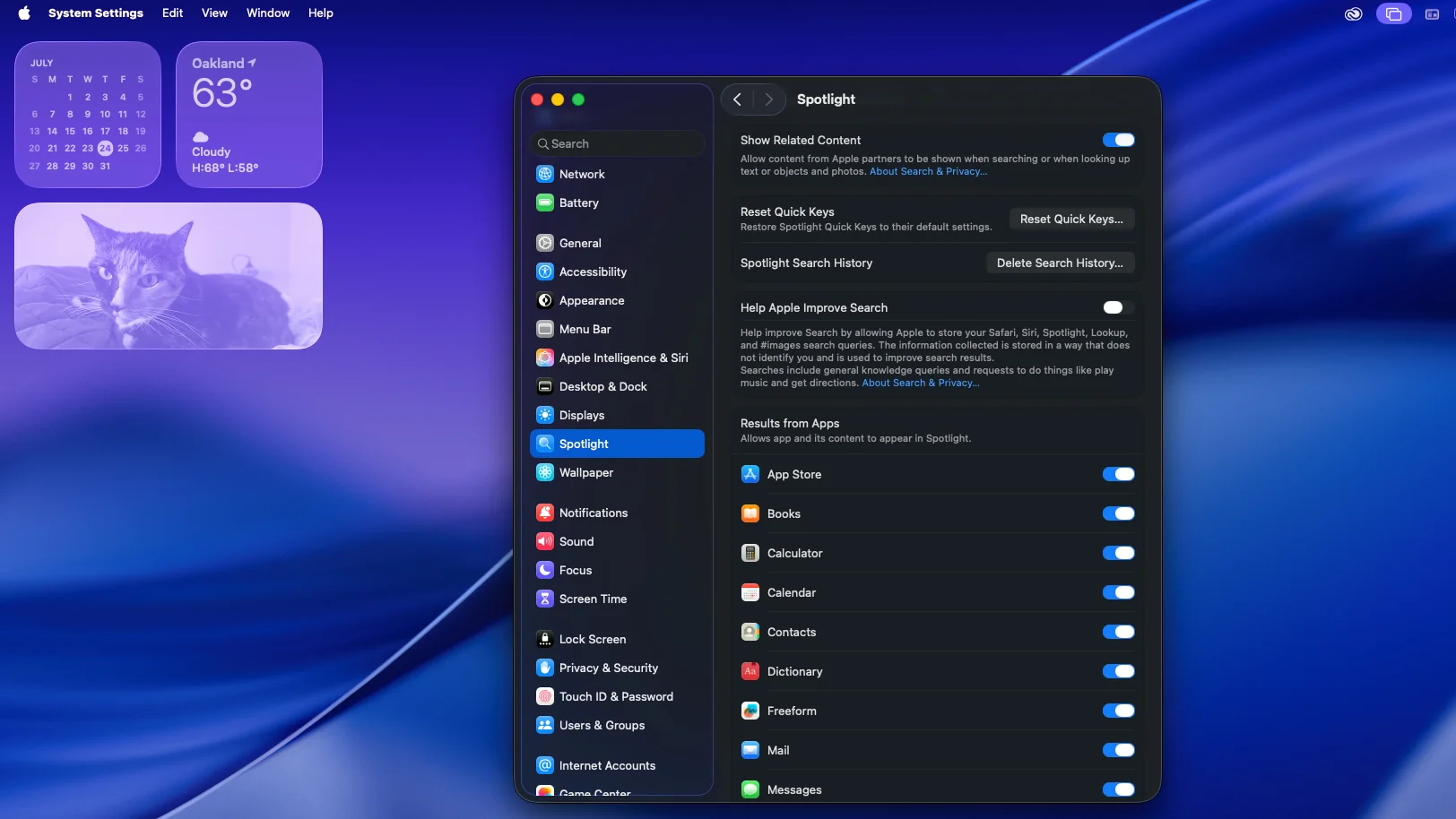
Comprehensive guide to mastering Spotlight in macOS Tahoe 26. Learn 100+ actions, keyboard shortcuts, clipboard history, natural language search, and advanced productivity workflows for maximum efficiency.
macOS Tahoe 26 transforms Spotlight from a simple search tool into a comprehensive productivity powerhouse. With four distinct operational modes, natural language processing, clipboard history management, and over 100 built-in actions, Spotlight has evolved into the central hub for Mac productivity. This comprehensive guide explores every feature, shortcut, and workflow to help you master Spotlight and revolutionize your daily Mac usage.
Executive Summary: Spotlight's Evolution in macOS Tahoe 26
Revolutionary Spotlight Features
macOS Tahoe 26 introduces the most significant Spotlight enhancements in macOS history, fundamentally changing how users interact with their Mac. What began as a file search utility has evolved into an intelligent productivity assistant capable of executing complex workflows, managing clipboard history, and understanding natural language queries.
Major Spotlight Enhancements:
- Four-Mode Architecture: Applications (Cmd+1), Files (Cmd+2), Actions (Cmd+3), Clipboard History (Cmd+4)
- Natural Language Processing: Conversational search queries with context awareness
- 100+ Built-in Actions: System commands, messaging, calendar events, quick tasks
- Intelligent Clipboard Management: Format-aware clipboard history with instant access
- Apple Intelligence Integration: AI-powered search suggestions and contextual actions
Critical Productivity Benefits:
- Replace multiple dedicated apps with single Spotlight interface
- Eliminate Launchpad dependency for application launching
- Execute system commands without navigating Settings
- Manage clipboard history without third-party utilities
- Access files and information with natural language queries
Why Spotlight Replaces Traditional Workflows
Traditional Workflow Limitations:
- Launchpad: Slow interface requiring multiple clicks for app launching
- Finder Search: Limited to file discovery without action execution capability
- System Settings Navigation: Time-consuming multi-step access to settings
- Third-Party Clipboard Managers: Additional software dependency and cost
- Manual Task Execution: Repetitive actions requiring multiple steps
Spotlight Advantages:
- Unified Interface: Single keyboard shortcut (Cmd+Space) accesses all functionality
- Instant Execution: Zero-click actions with keyboard-only workflows
- Context Awareness: Intelligent suggestions based on usage patterns and time
- System Integration: Deep integration with all macOS services and applications
- Learning Capability: Adapts to individual usage patterns for improved efficiency
The Four Spotlight Modes: Complete Architecture Guide
Mode 1: Applications Mode (Cmd+1) - Intelligent App Launcher
Applications Mode transforms Spotlight into a powerful application launcher that outperforms Launchpad in speed, flexibility, and intelligence.
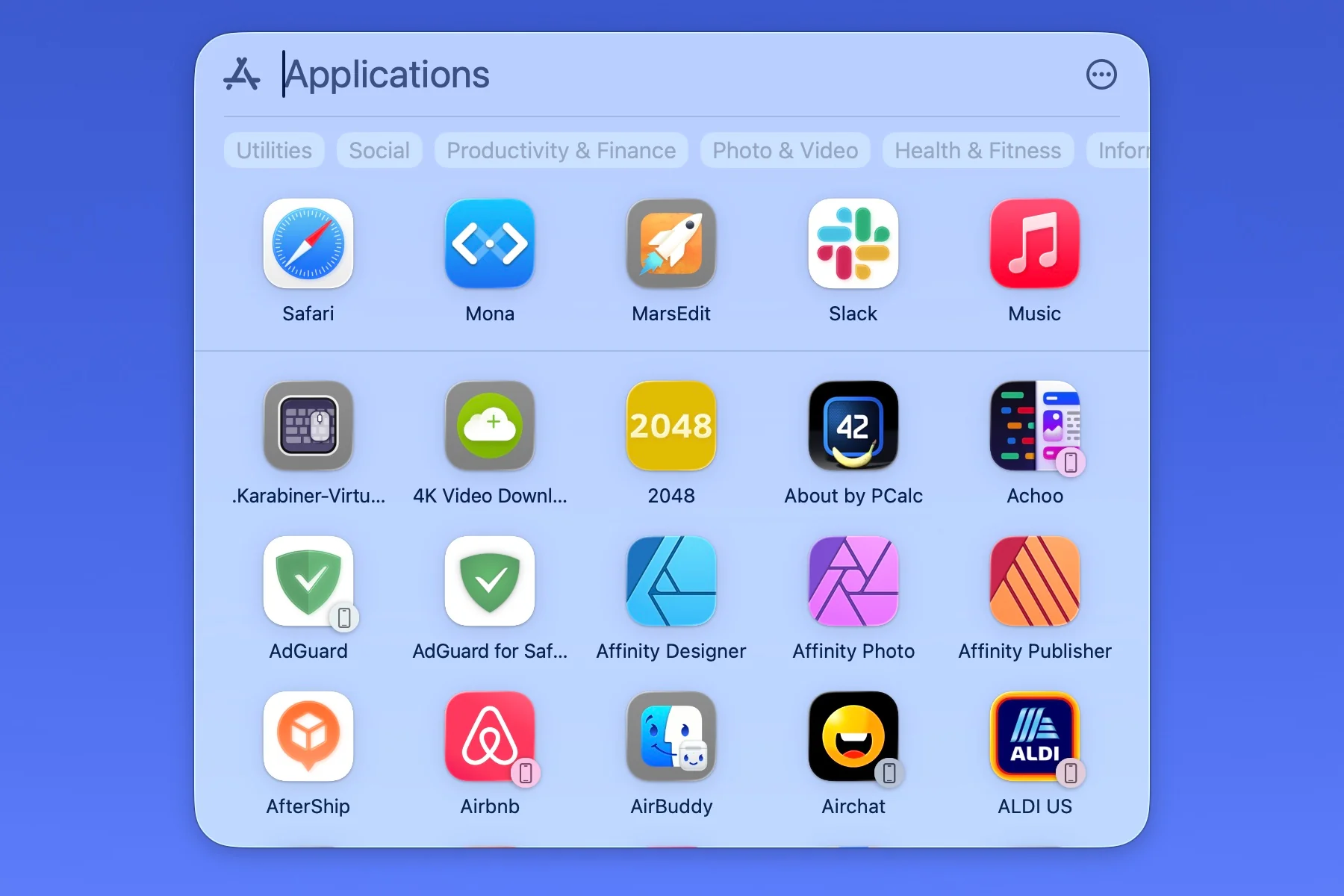
Core Functionality:
- Instant App Launch: Type app name and press Return for immediate launch
- Fuzzy Matching: Partial name recognition ("ps" launches Photoshop)
- Recent Apps Priority: Frequently used apps appear first in results
- Quick Actions: Right-click apps for contextual actions (Quit, Get Info, Show in Finder)
Advanced Features:
- Application Switching: Access running apps faster than Cmd+Tab
- Multi-Instance Apps: Launch new windows of already-running applications
- App Store Integration: Search and install apps directly from Spotlight
- System Preferences Access: Instant access to specific preference panes
Practical Applications Mode Workflows:
Launch Applications Instantly:
Cmd+Space → Type "safari" → Return
Result: Safari launches immediately
Speed: Less than 1 second vs 3-5 seconds via Launchpad
Quit Applications Quickly:
Cmd+Space → Type "mail" → Right-click → Select "Quit"
Result: Mail application quits without switching to it
Speed: 2 seconds vs 5-7 seconds via traditional method
Access Preference Panes:
Cmd+Space → Type "keyboard settings" → Return
Result: System Settings opens directly to Keyboard pane
Speed: 2 seconds vs 8-10 seconds via manual navigation
Pro Tip: Create Application Launching Muscle Memory The most efficient Spotlight users develop keyboard pattern memory for frequently-used applications. For example, "chr" always launches Chrome, "vsc" launches Visual Studio Code, "not" launches Notes. Your typing speed becomes your app launch speed.
Mode 2: Files Mode (Cmd+2) - Advanced File Discovery
Files Mode provides sophisticated file search capabilities with instant preview and quick action execution without opening files.
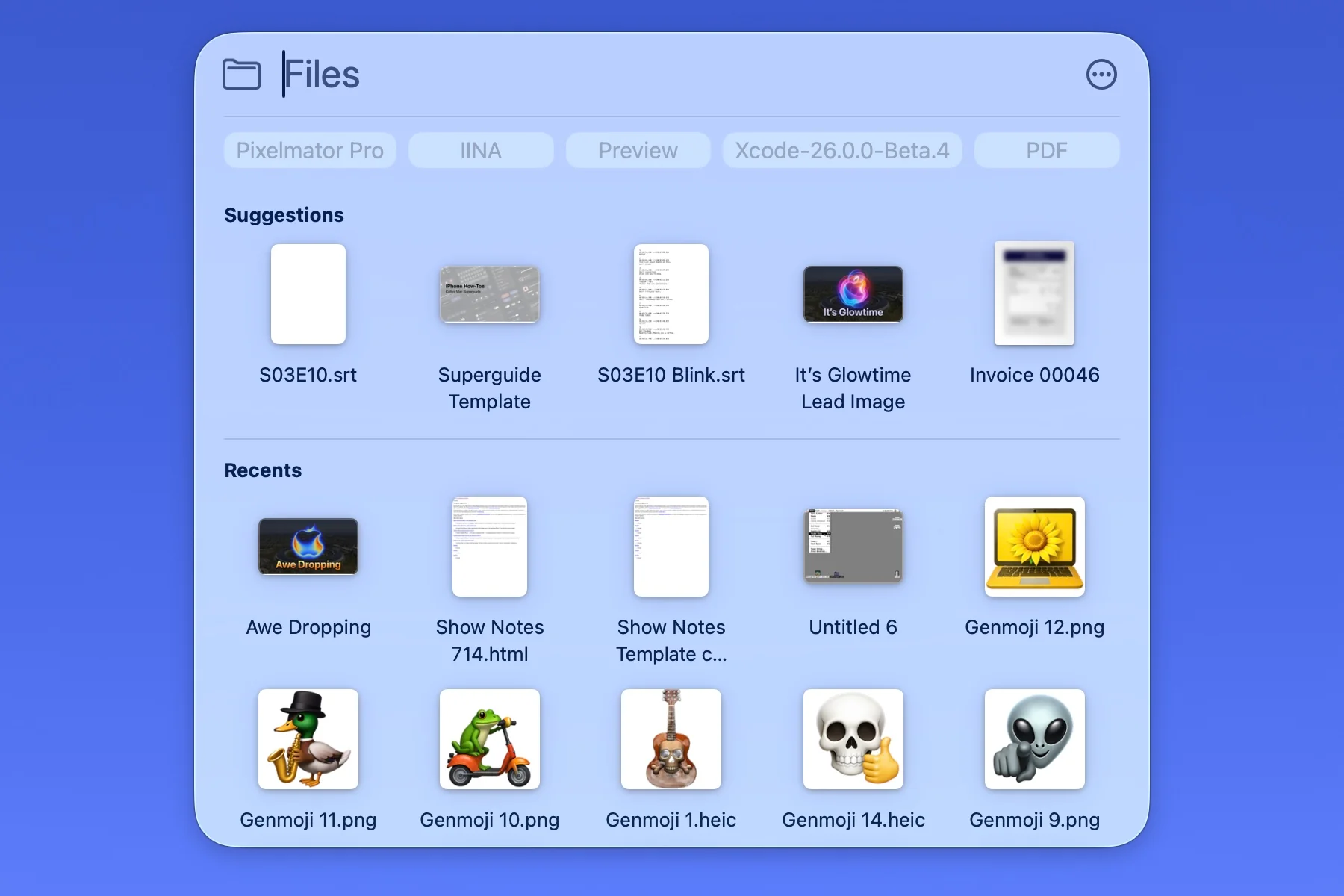
Core Search Capabilities:
- Full-Text Search: Search file contents, not just filenames
- Metadata Search: Filter by creation date, modification date, file type, size
- Natural Language Dates: "files modified yesterday", "PDFs from last month"
- Quick Preview: Spacebar for instant file preview without opening
- File Actions: Copy path, move to folder, add tags, share via email
Advanced Search Techniques:
Date-Based Searches:
Cmd+Space → Cmd+2 → "documents modified this week"
Result: All documents edited in current week
Use Case: Weekly report compilation, recent work tracking
File Type Filtering:
Cmd+Space → Cmd+2 → "kind:pdf budget"
Result: All PDF files containing "budget" in name or content
Use Case: Finding specific document types quickly
Size-Based Filtering:
Cmd+Space → Cmd+2 → "size:>100mb videos"
Result: Video files larger than 100MB
Use Case: Storage cleanup and large file management
Location-Specific Searches:
Cmd+Space → Cmd+2 → "Downloads folder images from today"
Result: All images downloaded today
Use Case: Quick access to recently downloaded content
Quick Action Workflows:
Copy File Path to Clipboard:
Cmd+Space → Cmd+2 → Find file → Cmd+C
Result: Full file path copied to clipboard
Use Case: Terminal commands, script references
Move Files to Folders:
Cmd+Space → Cmd+2 → Find file → Right-click → Move to folder
Result: File moved without Finder navigation
Use Case: Quick file organization
Pro Tip: Master Boolean Search Operators Spotlight supports AND, OR, and NOT operators for complex searches. Example: "invoice AND 2025 NOT draft" finds all 2025 invoices excluding drafts. This eliminates manual filtering through search results.
Mode 3: Actions Mode (Cmd+3) - System Command Center
Actions Mode represents Spotlight's most revolutionary feature, providing instant access to system commands, communication tools, and productivity shortcuts.
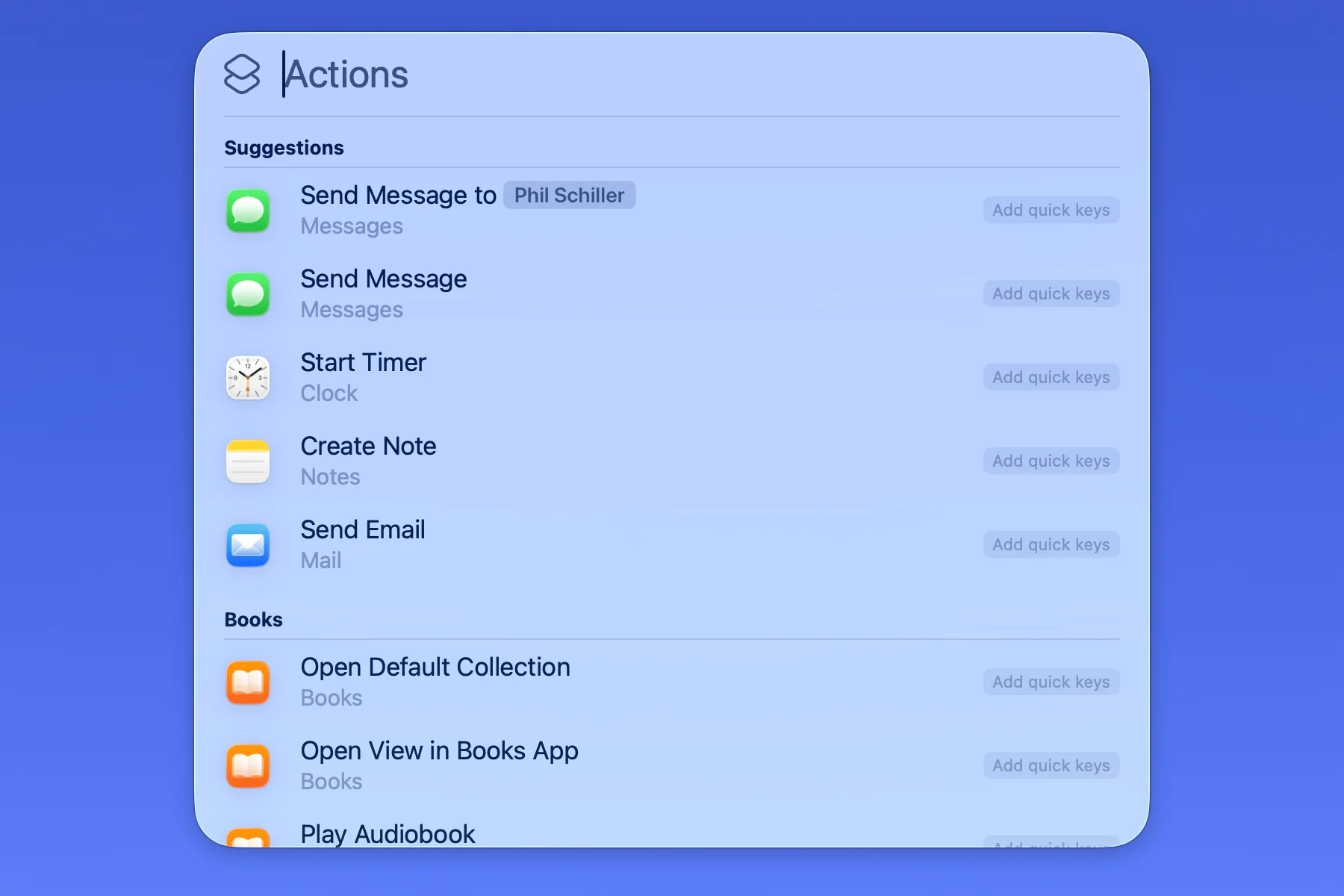
Action Categories Overview:
- Messaging & Communication: Send messages, make calls, create emails
- Calendar & Reminders: Create events, set reminders, view schedule
- System Settings: Toggle WiFi, adjust brightness, control volume
- Quick Tasks: Start timer, create note, scan document
- Web & Search: Search web, calculator, unit conversions
Essential Actions Catalog:
Communication Actions:
- Send Message: "send message to [contact name]" → Compose iMessage
- FaceTime Call: "facetime [contact name]" → Initiate video call
- Email Contact: "email [contact name]" → Open Mail with recipient
- Call Contact: "call [contact name]" → Start phone call via iPhone
Calendar & Time Management:
- Create Event: "create event [event name]" → New calendar event
- Set Reminder: "remind me to [task]" → New Reminder created
- Start Timer: "timer [duration]" → Countdown timer starts
- View Calendar: "today's events" → Display schedule
System Control Actions:
- Toggle WiFi: "turn on wifi" or "disable wifi" → WiFi state changed
- Adjust Brightness: "brightness 50%" → Display brightness set
- Volume Control: "volume 75%" → System volume adjusted
- Enable Dark Mode: "dark mode" → Appearance changed
- Screen Lock: "lock screen" → System locked immediately
Productivity Actions:
- Create Note: "new note [title]" → Notes app with new note
- Scan Document: "scan document" → Camera opens for scanning
- Open Website: "[website url]" → Default browser opens URL
- Calculator: "[math expression]" → Calculation result displayed
- Unit Conversion: "[value] [unit] to [unit]" → Conversion result shown
Advanced Action Workflows:
Quick Meeting Setup:
Cmd+Space → Cmd+3 → "create event team standup tomorrow 10am"
Result: Calendar event created for next day at 10:00 AM
Time Saved: 30 seconds vs manual calendar navigation
Instant Message Sending:
Cmd+Space → Cmd+3 → "send message to john running 10 minutes late"
Result: iMessage sent to John with specified content
Time Saved: 15 seconds vs opening Messages app
System Settings Quick Toggle:
Cmd+Space → Cmd+3 → "turn off wifi"
Result: WiFi disabled immediately
Time Saved: 20 seconds vs System Settings navigation
Pro Tip: Chain Actions for Complex Workflows Combine multiple actions in quick succession for complex workflows. Example workflow: "lock screen" → "turn off wifi" → "enable do not disturb" executes in 5 seconds for complete focus mode activation.
Mode 4: Clipboard History (Cmd+4) - Advanced Clipboard Management
Clipboard History revolutionizes copy-paste workflows by maintaining searchable history of clipboard contents with format-aware pasting capabilities.
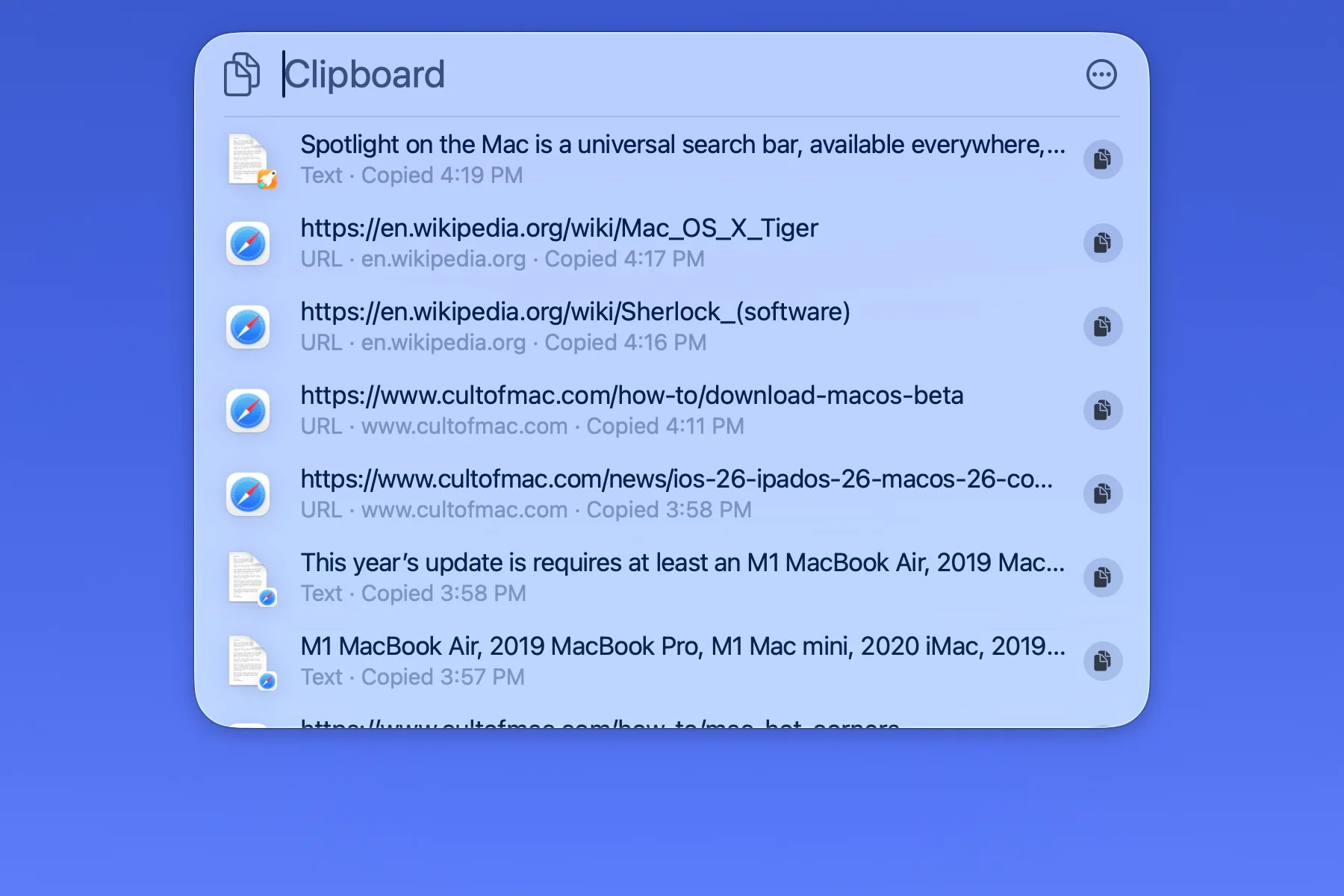
Core Clipboard Features:
- Unlimited History: Access all clipboard items from current session
- Format Preservation: Text, images, files maintained with original formatting
- Search Capability: Full-text search through clipboard history
- Paste Without Formatting: Cmd+Shift+V pastes plain text from any item
- Pin Important Items: Star items for permanent clipboard retention
Clipboard History Workflows:
Access Recent Clipboard Items:
Cmd+Space → Cmd+4 → View clipboard history → Select item → Return
Result: Selected item pasted at cursor location
Use Case: Reusing previously copied content without re-copying
Paste Without Formatting:
Cmd+Space → Cmd+4 → Select formatted text → Cmd+Shift+V
Result: Text pasted without formatting (plain text)
Use Case: Copying web content into documents without HTML formatting
Search Clipboard History:
Cmd+Space → Cmd+4 → Type search term → Select matching item
Result: Find specific clipboard item from history
Use Case: Recovering clipboard item from earlier in session
Pin Frequently Used Content:
Cmd+Space → Cmd+4 → Right-click item → Select "Pin"
Result: Item remains in clipboard history permanently
Use Case: Frequently pasted email signatures, addresses, code snippets
Advanced Clipboard Productivity Techniques:
Multi-Paste Workflow: Instead of copying and pasting items one at a time, copy all items in sequence, then paste from clipboard history in desired order. This eliminates constant switching between source and destination.
Format Conversion Workflow: Copy formatted content from web pages, access Clipboard History (Cmd+4), paste without formatting (Cmd+Shift+V) to strip HTML and styling. Eliminates need for intermediate text editors.
Clipboard Search Workflow: When you remember copying something hours ago but don't remember exactly when, use clipboard search to find the content by keyword. Much faster than trying to locate the original source.
Pro Tip: Clipboard History as Scratchpad Use clipboard history as temporary storage for multiple items during research. Copy all relevant snippets first, then organize them into final document from clipboard history. This separates collection from organization phases.
Essential Keyboard Shortcuts: Complete Navigation Guide
Primary Spotlight Shortcuts
Core Navigation:
- Cmd+Space: Open Spotlight search interface
- Cmd+1: Switch to Applications Mode
- Cmd+2: Switch to Files Mode
- Cmd+3: Switch to Actions Mode
- Cmd+4: Switch to Clipboard History
- Esc: Close Spotlight interface
Result Navigation:
- Up/Down Arrow: Navigate through search results
- Cmd+Return: Open item in new window
- Cmd+R: Reveal item in Finder
- Spacebar: Quick Look preview
- Return: Open/Execute selected item
- Cmd+C: Copy item or path to clipboard
Advanced Navigation:
- Tab: Move between search results and preview pane
- Cmd+G: Show all results in Finder window
- Cmd+I: Show information for selected item
- Cmd+Delete: Move item to Trash (Files Mode)
- Cmd+Option+Space: Open Spotlight in Finder window
Mode-Specific Shortcuts
Applications Mode Shortcuts:
- Cmd+Q: Quit selected application
- Cmd+H: Hide selected application
- Cmd+,: Open application preferences
- Option+Return: Show application in Finder
Files Mode Shortcuts:
- Cmd+O: Open selected file
- Cmd+Shift+O: Open containing folder
- Cmd+T: Add tags to selected file
- Cmd+Y: Quick Look preview
Actions Mode Shortcuts:
- Return: Execute selected action
- Cmd+L: Rerun last action
- Esc: Cancel action in progress
Clipboard History Shortcuts:
- Cmd+V: Paste selected item
- Cmd+Shift+V: Paste without formatting
- Cmd+D: Delete item from clipboard history
- Cmd+P: Pin/unpin clipboard item
Power User Shortcut Combinations
Rapid Application Switching:
Cmd+Space → Type first letters → Return
Workflow: "Cmd+Space → saf → Return" launches Safari
Speed: Sub-second application launching
Quick File Preview Chain:
Cmd+Space → Cmd+2 → Type filename → Spacebar → Arrow keys
Workflow: Preview multiple files without opening applications
Speed: 10+ files previewed in 30 seconds
System Command Execution:
Cmd+Space → Cmd+3 → Type action → Return
Workflow: "Cmd+Space → Cmd+3 → wifi off → Return" disables WiFi
Speed: 2 seconds vs 15 seconds via System Settings
Pro Tip: Create Keyboard Shortcut Patterns The fastest Spotlight users develop consistent patterns for common tasks. For example, always use "Cmd+Space → Cmd+3" for system commands, "Cmd+Space → Cmd+4" for clipboard operations. Pattern consistency reduces cognitive load and increases speed.
100+ Spotlight Actions: Complete Catalog by Category
Messaging & Communication Actions
iMessage Actions:
- Send Message: "send message to [contact]" → Compose new message
- Send iMessage: "imessage [contact]" → iMessage-specific sending
- Reply to Message: Access from notification, reply via Spotlight
- Group Message: "send message to [group name]" → Group conversation
Phone & FaceTime Actions:
- Make Phone Call: "call [contact]" → Initiate phone call via iPhone
- FaceTime Video: "facetime [contact]" → Start video call
- FaceTime Audio: "facetime audio [contact]" → Start audio-only call
- Recent Calls: "recent calls" → Display call history
Email Actions:
- Compose Email: "email [contact]" → New email to recipient
- Email Subject: "email [contact] about [subject]" → Pre-filled subject line
- Reply to Email: Access from notification, compose reply via Spotlight
- Search Emails: "emails from [contact]" → Filter mailbox
Professional Communication:
- Slack Message: "slack [contact]" → Open Slack conversation (requires Slack integration)
- Teams Meeting: "teams meeting" → Create Microsoft Teams meeting
- Zoom Call: "zoom [meeting ID]" → Join Zoom meeting
Calendar & Time Management Actions
Event Creation:
- Create Event: "create event [name]" → New calendar event
- Timed Event: "create event [name] at [time]" → Event with specific time
- All-Day Event: "create all-day event [name]" → All-day calendar entry
- Recurring Event: "create weekly event [name]" → Repeating event
Event Management:
- View Today's Events: "today's events" → Display today's schedule
- View Tomorrow's Events: "tomorrow's events" → Display tomorrow's schedule
- View This Week: "this week's events" → Weekly calendar view
- Next Meeting: "next meeting" → Display upcoming event
Reminders & Tasks:
- Create Reminder: "remind me to [task]" → New reminder created
- Location Reminder: "remind me to [task] when I arrive at [location]" → Location-based reminder
- Time Reminder: "remind me to [task] at [time]" → Time-based reminder
- Recurring Reminder: "remind me to [task] every [frequency]" → Repeating reminder
Time Tracking:
- Start Timer: "timer [duration]" → Countdown timer starts
- Set Alarm: "alarm [time]" → Alarm clock set
- Stopwatch: "start stopwatch" → Stopwatch begins
- World Clock: "time in [city]" → Display time zone
System Settings & Control Actions
Network Settings:
- WiFi Toggle: "turn on wifi" / "turn off wifi" → WiFi state changed
- Airplane Mode: "airplane mode on" / "airplane mode off" → Airplane mode toggled
- Bluetooth Toggle: "turn on bluetooth" / "turn off bluetooth" → Bluetooth state changed
- Network Settings: "network settings" → Open Network preferences
Display Settings:
- Brightness Control: "brightness [percentage]" → Display brightness adjusted
- Night Shift Toggle: "night shift on" / "night shift off" → Night Shift toggled
- True Tone Toggle: "true tone on" / "true tone off" → True Tone toggled
- Display Settings: "display settings" → Open Display preferences
Sound Settings:
- Volume Control: "volume [percentage]" → System volume adjusted
- Mute Audio: "mute" → System audio muted
- Unmute Audio: "unmute" → System audio unmuted
- Sound Settings: "sound settings" → Open Sound preferences
Appearance Settings:
- Dark Mode: "dark mode" / "dark mode on" → Appearance changed to dark
- Light Mode: "light mode" / "light mode on" → Appearance changed to light
- Auto Appearance: "auto appearance" → System follows schedule
- Accent Color: "accent color [color]" → System accent color changed
System Control:
- Lock Screen: "lock screen" → System locked immediately
- Sleep: "sleep" → Mac enters sleep mode
- Restart: "restart" → System restart initiated
- Shutdown: "shut down" → System shutdown initiated
- Log Out: "log out" → Current user logged out
Files & Applications Actions
File Management:
- Open File: Search filename → Return → File opens in default app
- Open With: Search filename → Right-click → Open With → Select app
- Move File: Search filename → Right-click → Move to folder
- Copy File: Search filename → Cmd+C → Navigate → Cmd+V
- Delete File: Search filename → Cmd+Delete → File moved to Trash
File Organization:
- Add Tags: Search filename → Right-click → Add tags → Enter tag names
- Remove Tags: Search filename → Right-click → Remove tags
- Create Folder: "new folder" → Folder created in current location
- Rename File: Search filename → Right-click → Rename → Enter new name
Application Management:
- Launch Application: Type app name → Return → App launches
- Quit Application: Type app name → Cmd+Q → App quits
- Force Quit: Type app name → Right-click → Force Quit
- App Info: Type app name → Cmd+I → Information window opens
- Uninstall App: Type app name → Right-click → Move to Trash
Application Settings:
- App Preferences: Type app name → Cmd+, → Preferences open
- App Storage: Type app name → Right-click → Get Info → Size displayed
- App Version: Type app name → Cmd+I → Version information shown
Web & Search Actions
Web Browsing:
- Search Web: "[search query]" → Web search in default browser
- Open URL: "[website url]" → Website opens in default browser
- Google Search: "google [query]" → Google search results
- Wikipedia Search: "wikipedia [query]" → Wikipedia article opens
Calculations:
- Basic Math: "[expression]" → Calculation result displayed
- Currency Conversion: "[amount] [currency] to [currency]" → Exchange rate applied
- Unit Conversion: "[value] [unit] to [unit]" → Conversion result shown
- Percentage: "[number] percent of [number]" → Percentage calculated
Information Lookup:
- Dictionary: "define [word]" → Dictionary definition displayed
- Thesaurus: "synonym [word]" → Synonyms listed
- Spelling: "spell [word]" → Correct spelling shown
- Translation: "translate [text] to [language]" → Translation provided
Maps & Navigation:
- Find Location: "[address or place]" → Maps opens location
- Directions: "directions to [location]" → Navigation route shown
- Nearby Search: "restaurants near me" → Local results displayed
- Business Hours: "[business name] hours" → Operating hours shown
Productivity & Creation Actions
Document Creation:
- New Note: "new note" → Notes app opens with blank note
- New Note with Content: "new note [title]" → Note created with title
- New Document: "new document" → Default document app opens
- New Spreadsheet: "new spreadsheet" → Numbers or Excel opens
Quick Capture:
- Take Screenshot: "screenshot" → Screenshot tool activates
- Record Screen: "record screen" → Screen recording starts
- Scan Document: "scan document" → Camera opens for scanning
- Dictation: "start dictation" → Voice input activated
Media Actions:
- Play Music: "play [song/artist]" → Music starts playing
- Pause Music: "pause music" → Current playback paused
- Next Track: "next track" → Skip to next song
- Volume Up/Down: "volume up" / "volume down" → Audio level adjusted
Focus & Productivity:
- Do Not Disturb: "do not disturb on" / "do not disturb off" → DND toggled
- Focus Mode: "focus [mode name]" → Specified focus mode activated
- Break Timer: "break timer [duration]" → Break reminder set
- Pomodoro: "pomodoro timer" → 25-minute focus timer starts
Developer & Advanced Actions
Development Tools:
- Terminal Command: "terminal [command]" → Terminal opens with command
- Open in VS Code: Search file → Right-click → Open in VS Code
- Git Status: "git status" → Terminal shows repository status
- Run Script: "run [script name]" → Script execution initiated
System Information:
- System Info: "system information" → About This Mac opens
- Activity Monitor: "activity monitor" → System resources displayed
- Storage Info: "storage" → Storage management opens
- Battery Status: "battery" → Battery information shown
Accessibility Actions:
- VoiceOver: "voiceover on" / "voiceover off" → VoiceOver toggled
- Zoom: "zoom in" / "zoom out" → Screen zoom adjusted
- Invert Colors: "invert colors" → Display colors inverted
- Speak Selection: "speak selection" → Text-to-speech activated
Advanced Workflows & Automation
Creating Custom Actions with Shortcuts App
Custom Action Creation Process:
Step 1: Design Action Logic Identify repetitive tasks suitable for automation. Best candidates involve multiple steps, frequent execution, or complex workflows requiring consistency.
Step 2: Build Shortcut Workflow
1. Open Shortcuts app
2. Create new shortcut
3. Add actions in sequence
4. Configure parameters and inputs
5. Test thoroughly with various inputs
6. Save with descriptive name
Step 3: Integrate with Spotlight
1. Shortcuts automatically appear in Spotlight Actions Mode
2. Type shortcut name in Cmd+Space → Cmd+3
3. Execute with Return key
4. Shortcuts with inputs prompt for required information
Example Custom Shortcuts:
Daily Standup Report Generator:
Workflow:
1. Get calendar events for today
2. Extract event titles and times
3. Format as bulleted list
4. Create new note titled "Standup [Date]"
5. Paste formatted schedule into note
6. Open note for manual additions

Spotlight Execution:
Cmd+Space → Cmd+3 → "daily standup" → Return
Meeting Notes Template Creator:
Workflow:
1. Prompt for meeting title
2. Get current date and time
3. Create formatted note with:
   - Meeting title
   - Date and time
   - Attendees section
   - Agenda section
   - Notes section
   - Action items section
4. Open note for editing

Spotlight Execution:
Cmd+Space → Cmd+3 → "meeting notes" → Return → Enter title
Email Triage System:
Workflow:
1. Get unread emails from inbox
2. Filter by sender priority rules
3. Create categorized summary:
   - Urgent (requires immediate response)
   - Important (respond today)
   - Information (read when time permits)
   - Low priority (review weekly)
4. Display notification with counts
5. Option to open Mail app for processing

Spotlight Execution:
Cmd+Space → Cmd+3 → "email triage" → Return
Third-Party Application Integration
Supported Application Categories:
Productivity Apps:
- Things: "things create task [name]" → Task created in Things
- Todoist: "todoist add [task]" → Task added to Todoist
- Notion: "notion search [query]" → Notion workspace searched
- Obsidian: "obsidian note [title]" → New note in Obsidian vault
Communication Apps:
- Slack: "slack [channel/user]" → Open Slack conversation
- Discord: "discord [server/channel]" → Open Discord channel
- Microsoft Teams: "teams [contact]" → Start Teams conversation
- Zoom: "zoom [meeting ID]" → Join Zoom meeting
Development Tools:
- Visual Studio Code: "code [project]" → Open VS Code project
- GitHub Desktop: "github [repository]" → Open repository
- Docker: "docker [container]" → Manage Docker container
- Postman: "postman [collection]" → Open Postman collection
Creative Applications:
- Adobe Photoshop: "photoshop [file]" → Open file in Photoshop
- Figma: "figma [project]" → Open Figma design
- Final Cut Pro: "final cut [project]" → Open video project
- Logic Pro: "logic [project]" → Open audio project
Spotlight + Apple Intelligence Workflows
AI-Enhanced Search Capabilities:
Smart Suggestions: Apple Intelligence analyzes usage patterns to provide contextually relevant suggestions:
- Recently accessed files appear first during similar time periods
- Related documents suggested based on content similarity
- Contact suggestions based on communication frequency and context
- Action suggestions based on routine behavior patterns
Natural Language Understanding:
Query: "the presentation i was working on last tuesday"
AI Processing: Identifies "presentation" file type, "last tuesday" date reference, "working on" implies recent modification
Result: PowerPoint/Keynote files modified on previous Tuesday ranked by editing duration
Query: "emails from sarah about the project"
AI Processing: Identifies contact "sarah", filters by email, applies "project" content filter
Result: Email messages from Sarah containing project-related keywordsContextual Actions:
Query: "remind me about this in 2 hours"
AI Processing: Identifies "this" based on current context (selected file, active window, clipboard content)
Result: Reminder created with appropriate context and 2-hour delay
Professional Workflow Examples:
Content Writer Workflow:
Morning Routine:
1. Cmd+Space → "today's events" → Review schedule
2. Cmd+Space → Cmd+3 → "focus writing" → Activate Focus mode
3. Cmd+Space → Cmd+2 → "draft articles" → Access work in progress
4. Cmd+Space → Cmd+4 → Access research clips from clipboard
5. Cmd+Space → Cmd+3 → "timer 25 minutes" → Start Pomodoro session

Afternoon Routine:
1. Cmd+Space → Cmd+3 → "email triage" → Process inbox
2. Cmd+Space → "slack" → Check team communications
3. Cmd+Space → Cmd+2 → "publish articles today" → Final review
4. Cmd+Space → Cmd+3 → "end of day report" → Generate summary
Software Developer Workflow:
Development Session:
1. Cmd+Space → "code project-name" → Open VS Code with project
2. Cmd+Space → "terminal" → Open Terminal for git commands
3. Cmd+Space → Cmd+3 → "github pull requests" → Review PR status
4. Cmd+Space → Cmd+2 → "modified today" → Find changed files
5. Cmd+Space → Cmd+3 → "run tests" → Execute test suite

Code Review Routine:
1. Cmd+Space → "github notifications" → Access review requests
2. Cmd+Space → Cmd+2 → "branch-name files" → Open related files
3. Cmd+Space → Cmd+4 → Access code snippets from clipboard
4. Cmd+Space → "slack engineering" → Discuss with team
Student Productivity Workflow:
Study Session:
1. Cmd+Space → "today's classes" → Review schedule
2. Cmd+Space → Cmd+2 → "lecture notes" → Access course materials
3. Cmd+Space → Cmd+3 → "do not disturb on" → Enable focus
4. Cmd+Space → Cmd+3 → "timer 50 minutes" → Study session timer
5. Cmd+Space → Cmd+4 → Access research citations from clipboard

Assignment Completion:
1. Cmd+Space → Cmd+2 → "assignment due this week" → List pending work
2. Cmd+Space → "pages" → Open document editor
3. Cmd+Space → Cmd+3 → "research mode" → Custom Shortcut activates reference tools
4. Cmd+Space → Cmd+4 → Paste formatted citations
5. Cmd+Space → Cmd+3 → "remind submit assignment" → Create deadline reminder
Spotlight Settings & Customization
Privacy & Search Settings Configuration
Access Spotlight Preferences:
Method 1: System Settings → Siri & Spotlight
Method 2: Cmd+Space → Cmd+3 → "spotlight settings"
Method 3: Cmd+Space → "spotlight preferences" → Return
Privacy Configuration:
Exclude Locations from Search:
1. Open Spotlight Preferences
2. Navigate to Privacy tab
3. Click "+" button to add exclusions
4. Select folders to exclude from indexing
5. Confirm exclusion

Recommended Exclusions:
- Temporary file directories
- Cache folders
- Build output directories (for developers)
- Large media libraries (if not frequently searched)
Why Exclude Locations:
- Improve search performance by reducing index size
- Exclude sensitive personal or financial documents from quick access
- Prevent work-in-progress files from appearing in results
- Reduce CPU usage during indexing operations
Search Categories Management:
Customize Search Results:
1. Open Spotlight Preferences
2. Navigate to Search Results tab
3. Uncheck categories to exclude from results:
   ☐ Applications
   ☐ Documents
   ☐ Folders
   ☐ Mail & Messages
   ☐ PDF Documents
   ☐ Presentations
   ☐ Spreadsheets
   ☐ System Preferences
   ☐ Bookmarks & History
   ☐ Images
   ☐ Movies
   ☐ Music
   ☐ Other

4. Drag categories to reorder search priority
5. Higher positioned categories appear first in results
Recommended Configurations:
Developer Configuration:
Priority Order:
1. Applications (quick tool access)
2. Documents (code documentation)
3. Folders (project directories)
4. System Preferences (settings access)
5. Other (catch-all for miscellaneous)

Excluded:
- Music, Movies (use dedicated apps)
- Bookmarks (use browser search)
Creative Professional Configuration:
Priority Order:
1. Images (visual assets)
2. Documents (project files)
3. Applications (creative tools)
4. Folders (project organization)
5. PDF Documents (reference materials)

Excluded:
- System Preferences (infrequent access)
- Mail & Messages (use dedicated apps)
General User Configuration:
Priority Order:
1. Applications (most frequent use)
2. Documents (daily files)
3. System Preferences (settings access)
4. Mail & Messages (communication)
5. Bookmarks & History (web reference)

Excluded:
- Developer files
- System files
Keyboard Shortcuts Customization
Modify Spotlight Activation Shortcut:
1. System Settings → Keyboard → Keyboard Shortcuts
2. Select "Spotlight" in left sidebar
3. Double-click current shortcut (Cmd+Space)
4. Press desired key combination
5. Ensure no conflicts with other shortcuts

Alternative Shortcuts:
- Option+Space (recommended for Alfred users)
- Ctrl+Space (conflicts with some IDEs)
- Cmd+Shift+Space (additional modifier for muscle memory)
Custom Action Shortcuts:
1. Shortcuts app → Select shortcut
2. Click "i" information button
3. Enable "Add to Menu Bar"
4. System Settings → Keyboard → Keyboard Shortcuts
5. App Shortcuts → Add (+) → Select Shortcuts.app
6. Enter exact shortcut name
7. Assign keyboard combination

Example:
Shortcut Name: "Daily Standup"
Keyboard Shortcut: Cmd+Shift+D
Result: Direct execution without Spotlight interface
Siri Suggestions Management
Configure Siri Suggestions in Spotlight:
1. System Settings → Siri & Spotlight
2. Navigate to Siri Suggestions section
3. Toggle suggestions for specific apps:
   - Safari suggestions
   - Mail suggestions
   - Messages suggestions
   - Calendar suggestions
   - Reminders suggestions
   - Third-party app suggestions

4. Configure suggestion privacy:
   - Learn from this Mac
   - Show suggestions in Spotlight
   - Show suggestions in Look Up
Privacy Considerations:
- Siri Suggestions process on-device using Apple Intelligence
- No data sent to Apple servers for suggestion generation
- Disable specific app suggestions to limit data analysis
- Complete opt-out available via "Learn from this Mac" toggle
Optimization Recommendations:
- Enable suggestions for frequently used apps
- Disable suggestions for apps with sensitive content
- Monitor suggestion accuracy and adjust over time
- Use suggestions to discover forgotten content and connections
Troubleshooting Common Spotlight Issues
Spotlight Not Working or Slow Performance
Issue: Spotlight Fails to Open
Symptoms:
- Cmd+Space produces no response
- Spotlight interface doesn't appear
- Keyboard shortcut not functioning
Solutions:
Step 1: Verify Keyboard Shortcut
1. System Settings → Keyboard → Keyboard Shortcuts
2. Select Spotlight in sidebar
3. Ensure "Show Spotlight search" is checked
4. Verify keyboard shortcut matches your keypress
5. Check for conflicting shortcuts in other apps
Step 2: Restart Spotlight Service
1. Open Terminal (Cmd+Space → "terminal")
2. Execute command: sudo mdutil -E /
3. Enter administrator password
4. Wait for confirmation message
5. Restart Mac for complete reset
Step 3: Check System Resources
1. Open Activity Monitor
2. Search for "Spotlight" processes
3. Check CPU and memory usage
4. Force quit if unresponsive
5. Spotlight restarts automatically
Issue: Spotlight Search Results Empty or Incomplete
Symptoms:
- Known files don't appear in search results
- Recently created files not indexed
- Search returns fewer results than expected
- Specific file types missing from results
Solutions:
Step 1: Verify Search Categories
1. System Settings → Siri & Spotlight
2. Search Results tab
3. Ensure relevant categories are checked
4. Verify category order prioritizes needed content
Step 2: Check Privacy Exclusions
1. System Settings → Siri & Spotlight
2. Privacy tab
3. Review excluded locations
4. Remove exclusions if files are located there
5. Wait 5-10 minutes for reindexing
Step 3: Rebuild Spotlight Index
1. System Settings → Siri & Spotlight → Privacy
2. Add your main drive (Macintosh HD) to exclusion list
3. Wait 10 seconds
4. Remove drive from exclusion list
5. Indexing begins automatically (can take 1-2 hours)
6. Monitor progress: sudo mdutil -s /
Issue: Spotlight Consuming Excessive CPU
Symptoms:
- "mds" or "mdworker" processes using high CPU in Activity Monitor
- System fan running at high speed
- Reduced battery life on laptops
- General system slowdown
Solutions:
Step 1: Identify Indexing Activity
Terminal command: sudo fs_usage -w -f filesys mds
Result: Shows current indexing operations
Action: Identify problematic directories or file types
Step 2: Exclude Problematic Locations
Common high-activity locations to consider excluding:
- Developer build directories (node_modules, .git, build/)
- Virtual machine disk images
- Time Machine backups
- Cloud storage sync folders (temporary)
- Large media libraries
Step 3: Limit Indexing Scope
1. Create .spotlight-exclude file in directories
2. Place file in directory root to prevent indexing
3. Alternative: Use Privacy preferences for permanent exclusion
4. Restart Spotlight indexing after changes
Search Performance Optimization
Improve Search Speed:
Technique 1: Be Specific with Queries
Slow: "document"
Fast: "quarterly report 2025"

Slow: "pdf"
Fast: "kind:pdf invoice march"

Result: Specific queries return fewer results faster
Technique 2: Use Metadata Filters
Examples:
- kind:pdf → Only PDF files
- modified:today → Only today's changes
- from:[email protected] → Emails from specific sender
- date:yesterday → Content from yesterday

Benefit: Metadata searches are extremely fast
Technique 3: Limit Search Scope
1. Use location-specific searches: "documents folder budget"
2. Exclude categories not needed for query
3. Use file type filters to narrow results
4. Leverage date ranges for temporal filtering
Technique 4: Clear Suggestion Cache
Terminal commands:
1. rm -rf ~/Library/Caches/com.apple.spotlight
2. killall Spotlight
3. Spotlight restarts with cleared cache
4. Suggestions rebuild based on current usage

When to use: After major system changes, incorrect suggestions appearing frequently
Indexing Issues and Solutions
Complete Spotlight Reindex Process:
# Step 1: Disable indexing
sudo mdutil -i off /

# Step 2: Delete index data
sudo rm -rf /.Spotlight-V100

# Step 3: Re-enable indexing
sudo mdutil -i on /

# Step 4: Force reindex
sudo mdutil -E /

# Step 5: Monitor indexing status
sudo mdutil -s /
Expected Indexing Duration:
- 250GB drive: 30-60 minutes
- 500GB drive: 1-2 hours
- 1TB drive: 2-4 hours
- 2TB+ drive: 4-8 hours
Indexing Performance Tips:
- Perform reindexing overnight when Mac not in use
- Connect to power source during indexing
- Keep Mac awake during process (use caffeinate command)
- Avoid intensive tasks during initial indexing phase
Monitor Indexing Progress:
# Show indexing status
sudo mdutil -s /

# Expected output during indexing:
# Indexing enabled.
# Indexing and searching disabled.

# Expected output when complete:
# Indexing enabled.
Comparison: Spotlight vs Launchpad vs Alfred vs Raycast
Spotlight vs Launchpad
Why Spotlight Replaces Launchpad:
| Feature | Spotlight | Launchpad | Winner |
|---|---|---|---|
| Launch Speed | Sub-second keyboard activation | 2-3 seconds icon animation | Spotlight |
| Application Search | Fuzzy matching, instant results | Manual scrolling, folders | Spotlight |
| Keyboard Workflow | Complete keyboard control | Requires mouse/trackpad | Spotlight |
| Additional Features | Files, actions, clipboard history | Application launching only | Spotlight |
| Learning Curve | Minimal | None | Tie |
| Customization | Extensive | Limited | Spotlight |
Verdict: Spotlight completely supersedes Launchpad for application launching. The only remaining use case for Launchpad is visual browsing of installed applications for discovery purposes.
Recommended Transition:
Old Workflow: Click Launchpad icon → Scroll to app → Click
Time: 5-8 seconds

New Workflow: Cmd+Space → Type first letters → Return
Time: 1-2 seconds

Productivity Gain: 4-6 seconds per app launch × 50 daily launches = 3-5 minutes saved daily
Spotlight vs Third-Party Launchers
Alfred Comparison:
| Feature | Spotlight (Tahoe 26) | Alfred (Free) | Alfred Powerpack |
|---|---|---|---|
| Application Launching | Excellent | Excellent | Excellent |
| File Search | Excellent | Excellent | Excellent |
| System Actions | 100+ built-in | Basic | Extensive workflows |
| Clipboard History | Native, free | Limited | Full-featured |
| Custom Workflows | Via Shortcuts app | No | Yes, with scripting |
| Web Search | Built-in | Built-in | Extensive integrations |
| Price | Free (built-in) | Free | £34 one-time |
| Apple Intelligence | Integrated | No | No |
When to Use Alfred:
- Complex automation workflows requiring scripting (Python, AppleScript, Bash)
- Advanced text manipulation and snippets
- Custom file actions beyond Shortcuts app capabilities
- Workflow sharing and community snippets
- Power users requiring maximum customization
When Spotlight Suffices:
- Standard productivity workflows
- Application launching and file search
- System control and quick actions
- Clipboard history management
- Users preferring native, maintenance-free solutions
Raycast Comparison:
| Feature | Spotlight (Tahoe 26) | Raycast |
|---|---|---|
| Application Launching | Excellent | Excellent |
| File Search | Excellent | Good |
| Extensions | Via Shortcuts | 1000+ native extensions |
| API Integrations | Limited | Extensive (GitHub, Linear, Jira, etc.) |
| Team Features | No | Yes (workspace sharing) |
| AI Features | Apple Intelligence | OpenAI integration |
| Price | Free (built-in) | Free (Pro $8/month) |
| Performance | Native, optimized | Excellent |
When to Use Raycast:
- Developer working with GitHub, Linear, Jira workflows
- Team collaboration with shared commands and snippets
- Need for extensive third-party API integrations
- Window management and clipboard history (free tier)
- Pro features: AI commands, Cloud Sync, unlimited clipboard history
When Spotlight Suffices:
- General productivity without API dependencies
- Prefer native macOS integration
- Don't require team collaboration features
- Apple ecosystem users leveraging Apple Intelligence
- Users avoiding subscription costs
Migration Strategy from Third-Party Launchers:
Assess Current Usage:
1. Review most-used launcher features
2. Identify Spotlight equivalents
3. Determine if custom workflows can be recreated in Shortcuts app
4. Evaluate necessity of advanced features
Gradual Transition:
Week 1: Use Spotlight for application launching
Week 2: Add file search and system actions
Week 3: Utilize clipboard history and natural language search
Week 4: Create custom Shortcuts for previous launcher workflows
Week 5: Evaluate if third-party launcher still needed
Practical Use Cases: Real-World Spotlight Workflows
Developer Productivity Workflows
Morning Standup Preparation:
Workflow Steps:
1. Cmd+Space → Cmd+3 → "daily standup" (custom Shortcut)
   - Retrieves yesterday's git commits
   - Lists completed Jira tickets
   - Extracts today's calendar events
   - Compiles into formatted note

2. Cmd+Space → "slack engineering" → Post standup summary

3. Cmd+Space → Cmd+2 → "modified yesterday" → Review code changes

Total Time: 2 minutes vs 10 minutes manual compilation
Code Review Workflow:
Workflow Steps:
1. Cmd+Space → Cmd+3 → "github pull requests" (via Shortcuts)
   - Lists assigned pull requests
   - Shows PR status and checks

2. Cmd+Space → "code" → VS Code launches

3. Cmd+Space → Cmd+2 → "branch-name" → Find related files

4. Cmd+Space → Cmd+4 → Access code snippets from clipboard for comments

5. Cmd+Space → "slack @reviewer" → Discuss with code author

Total Time: 5 minutes vs 12 minutes manual navigation
Bug Investigation Workflow:
Workflow Steps:
1. Cmd+Space → Cmd+2 → "error logs today" → Find recent error logs

2. Cmd+Space → Cmd+4 → Access error message from clipboard history

3. Cmd+Space → "google [error message]" → Search Stack Overflow

4. Cmd+Space → "terminal" → Run diagnostic commands

5. Cmd+Space → Cmd+3 → "create jira bug" (Shortcut with error details)

Total Time: 8 minutes vs 20 minutes traditional workflow
Creative Professional Workflows
Content Creation Routine:
Morning Setup:
1. Cmd+Space → "today's events" → Review content deadlines

2. Cmd+Space → Cmd+3 → "focus writing mode" (custom Shortcut)
   - Activates Focus mode
   - Opens Notes app
   - Starts Pomodoro timer
   - Disables notifications

3. Cmd+Space → Cmd+2 → "draft articles" → Access work in progress

4. Cmd+Space → Cmd+4 → Access research citations from clipboard

Content Research:
1. Cmd+Space → "google [topic]" → Open research in Safari

2. Cmd+Space → Cmd+4 → Save important quotes to clipboard history

3. Cmd+Space → Cmd+3 → "new note research [topic]" → Organize findings

4. Cmd+Space → Cmd+3 → "timer 25 minutes" → Focus session

Publishing Workflow:
1. Cmd+Space → Cmd+2 → "final draft [article]" → Open completed article

2. Cmd+Space → Cmd+3 → "grammar check" (Shortcut integrating Grammarly)

3. Cmd+Space → Cmd+3 → "generate social posts" (AI-powered Shortcut)

4. Cmd+Space → "twitter" → Schedule social promotion

Total Daily Time Saved: 45-60 minutes
Video Production Workflow:
Asset Management:
1. Cmd+Space → Cmd+2 → "project-name footage" → Locate video files

2. Cmd+Space → Cmd+3 → "organize project assets" (custom Shortcut)
   - Moves files to project folder structure
   - Renames files with consistent naming
   - Creates project directories

Editing Session:
1. Cmd+Space → "final cut pro" → Launch editing application

2. Cmd+Space → Cmd+3 → "import project assets" → Automated import

3. Cmd+Space → Cmd+4 → Access script notes from clipboard

Export and Delivery:
1. Cmd+Space → Cmd+3 → "export settings" (Shortcut with preset configurations)

2. Cmd+Space → Cmd+3 → "compress for youtube" → Automated compression

3. Cmd+Space → Cmd+3 → "upload to youtube" (integration Shortcut)

Total Project Time Saved: 2-3 hours per video
Student Academic Workflows
Study Session Organization:
Session Start:
1. Cmd+Space → "today's classes" → Review schedule

2. Cmd+Space → Cmd+2 → "lecture notes [course]" → Access materials

3. Cmd+Space → Cmd+3 → "study mode" (custom Shortcut)
   - Enables Do Not Disturb
   - Opens relevant textbooks (PDFs)
   - Starts 50-minute study timer
   - Launches note-taking app

Active Studying:
1. Cmd+Space → Cmd+4 → Access professor's quotes from lecture recording

2. Cmd+Space → "define [term]" → Quick vocabulary lookup

3. Cmd+Space → Cmd+3 → "flashcard [topic]" → Review flashcards

Break Management:
1. Cmd+Space → Cmd+3 → "break timer 10 minutes" → Structured break

2. Cmd+Space → "youtube music focus playlist" → Background music

3. Cmd+Space → Cmd+3 → "next study block" → Resume studying

Total Study Efficiency Increase: 25-30%
Research Paper Workflow:
Research Phase:
1. Cmd+Space → "google scholar [topic]" → Academic search

2. Cmd+Space → Cmd+4 → Save key citations to clipboard history

3. Cmd+Space → Cmd+3 → "format citation APA" (Shortcut) → Proper formatting

4. Cmd+Space → Cmd+3 → "new note research [topic]" → Organize findings

Writing Phase:
1. Cmd+Space → "pages" → Launch word processor

2. Cmd+Space → Cmd+4 → Insert citations from clipboard history

3. Cmd+Space → Cmd+3 → "word count check" → Monitor progress

4. Cmd+Space → Cmd+3 → "grammar check" → Proofreading

Submission Preparation:
1. Cmd+Space → Cmd+2 → "final paper [course]" → Locate document

2. Cmd+Space → Cmd+3 → "export to pdf" → Format conversion

3. Cmd+Space → Cmd+3 → "email professor" (with attachment) → Submit

4. Cmd+Space → Cmd+3 → "remind check grade in 2 weeks" → Follow-up

Total Research Time Optimization: 6-8 hours per paper
Business & Enterprise Workflows
Client Communication Management:
Morning Client Review:
1. Cmd+Space → "today's client meetings" → Review schedule

2. Cmd+Space → Cmd+2 → "client-name proposals" → Access relevant materials

3. Cmd+Space → Cmd+3 → "prepare meeting agenda" (Shortcut) → Automated preparation

4. Cmd+Space → Cmd+4 → Access client requirements from previous conversations

Meeting Execution:
1. Cmd+Space → Cmd+3 → "facetime [client name]" → Initiate video call

2. Cmd+Space → Cmd+3 → "meeting notes [client name]" → Live note-taking

3. Cmd+Space → Cmd+4 → Reference pricing from clipboard history

Follow-Up:
1. Cmd+Space → Cmd+3 → "email [client] meeting summary" → Automated summary

2. Cmd+Space → Cmd+3 → "remind follow up 48 hours" → Accountability

3. Cmd+Space → Cmd+3 → "update crm [client name]" → Record interaction

Total Client Management Time Saved: 90 minutes daily
Sales Pipeline Management:
Daily Pipeline Review:
1. Cmd+Space → Cmd+3 → "sales pipeline report" (integration Shortcut)
   - Retrieves current opportunities from CRM
   - Identifies follow-up actions needed
   - Highlights deals closing this week

Lead Follow-Up:
1. Cmd+Space → Cmd+3 → "email [lead name] follow up" → Template-based outreach

2. Cmd+Space → Cmd+3 → "schedule call [lead name]" → Calendar integration

3. Cmd+Space → Cmd+4 → Access product details from clipboard for personalization

Deal Closing:
1. Cmd+Space → Cmd+2 → "proposal template" → Access sales materials

2. Cmd+Space → Cmd+3 → "customize proposal [lead name]" → Automated customization

3. Cmd+Space → Cmd+3 → "send proposal [lead name]" → Email with tracking

Total Sales Productivity Increase: 35-40%
Frequently Asked Questions
Q: Can I use Spotlight without an internet connection?
A: Yes, Spotlight functions completely offline for local file search, application launching, and system actions. Internet connection is only required for web searches, Apple Intelligence features, and third-party integrations that require network access.
Q: How much system resources does Spotlight consume?
A: Spotlight indexing typically uses 5-10% CPU during initial indexing and 1-3% during ongoing maintenance. RAM usage is approximately 200-500MB. On Apple Silicon Macs, resource usage is minimal and efficiently managed by the Neural Engine for AI features.
Q: Can I disable Spotlight if I prefer third-party alternatives?
A: While you can disable Spotlight's keyboard shortcut, completely disabling Spotlight indexing will break file search functionality in Finder and other system components. If using Alfred or Raycast, you can reassign Cmd+Space to your preferred launcher while leaving Spotlight indexing active.
Q: How secure is Spotlight's clipboard history feature?
A: Clipboard history is stored locally on your Mac, encrypted with FileVault if enabled. Sensitive data like passwords from password managers are automatically excluded from clipboard history. You can manually clear clipboard history or disable the feature in Spotlight preferences for additional security.
Q: Can I search encrypted files with Spotlight?
A: Spotlight can index and search encrypted files only when the drive is unlocked (FileVault) or the encrypted volume is mounted. Individually encrypted files within unlocked volumes can be indexed if the encryption method allows it (like encrypted PDFs).
Q: Does Spotlight work with network drives and cloud storage?
A: Spotlight indexes network drives if they remain consistently connected and the server supports Spotlight indexing. Cloud storage services like iCloud Drive are fully indexed. Dropbox and Google Drive are indexed for local files but not cloud-only files until downloaded.
Q: How do I exclude sensitive folders from Spotlight search?
A: System Settings → Siri & Spotlight → Privacy tab → Click "+" → Select folder to exclude. The folder and all subfolders will be removed from Spotlight index within minutes.
Q: Can Spotlight search email attachments?
A: Yes, Spotlight indexes email attachments from Mail app and can search their contents. Search "kind:email attachment invoice" to find emails with invoice attachments, or search the attachment filename directly.
Q: Why doesn't Spotlight find recently created files?
A: Spotlight indexing typically occurs within 1-2 minutes of file creation. If files aren't appearing, check indexing status with "sudo mdutil -s /" in Terminal. Rebuild the index if necessary using the troubleshooting section instructions.
Q: Can I use Spotlight to control smart home devices?
A: Spotlight can trigger smart home actions configured in Shortcuts app. Create shortcuts for HomeKit scenes like "turn on living room lights" and execute them via Spotlight Actions Mode (Cmd+3).
Conclusion: Mastering Spotlight for Maximum Productivity
macOS Tahoe 26's Spotlight represents the culmination of Apple's vision for unified, intelligent productivity on Mac. By mastering Spotlight's four modes, keyboard shortcuts, 100+ built-in actions, and advanced workflows, users can fundamentally transform their Mac experience and realize significant daily time savings.
Key Spotlight Mastery Benefits:
- Unified Productivity Hub: Single interface replaces multiple applications and workflows
- Time Efficiency: Save 30-90 minutes daily through keyboard-first workflows
- Cognitive Load Reduction: Consistent interaction pattern for all Mac operations
- Apple Intelligence Integration: AI-powered suggestions and natural language understanding
- Zero Additional Cost: Complete feature set included with macOS at no extra expense
Action Steps for Spotlight Mastery:
Week 1: Foundation Building
- Replace Launchpad with Spotlight for all application launching
- Practice Cmd+1/2/3/4 mode switching until automatic
- Learn 10 essential keyboard shortcuts from the navigation guide
- Configure Spotlight privacy and search categories for your needs
Week 2: Workflow Integration
- Identify 5 repetitive tasks suitable for Spotlight Actions Mode
- Create 3 custom Shortcuts for your most common workflows
- Practice natural language file searches with date and type filters
- Start using Clipboard History (Cmd+4) for copy-paste operations
Week 3: Advanced Techniques
- Learn 20 Spotlight actions from the complete catalog
- Create morning routine automation using custom Shortcuts
- Integrate third-party apps with Spotlight via Shortcuts or native support
- Optimize Spotlight settings based on performance and privacy preferences
Week 4: Mastery and Refinement
- Develop muscle memory for your top 25 Spotlight operations
- Fine-tune custom Shortcuts based on actual usage patterns
- Share productive workflows with colleagues or team members
- Measure time savings and productivity improvements
Strategic Productivity Recommendations:
For Individual Users:
- Commit to 100% Spotlight usage for application launching for 2 weeks to build habits
- Create dedicated Shortcuts for your most time-consuming repetitive tasks
- Use clipboard history as default copy-paste method to never lose copied content
- Practice natural language search until it becomes your default file finding method
For Teams and Organizations:
- Develop standardized Spotlight Shortcuts for common business processes
- Create shared Shortcuts library for team productivity workflows
- Train employees on essential Spotlight shortcuts and actions
- Measure productivity improvements through time tracking and workflow analysis
For Developers:
- Integrate Spotlight into development workflows for rapid tool switching
- Create project-specific Shortcuts for build, test, and deployment operations
- Use Spotlight for quick access to documentation and code snippets
- Automate repetitive development tasks via Shortcuts triggered through Spotlight
For Creative Professionals:
- Build asset management workflows using Files Mode and custom Shortcuts
- Create rendering and export automation via Spotlight-triggered Shortcuts
- Use clipboard history for reference material and client feedback management
- Organize project workflows around Spotlight-based navigation and execution
Long-Term Spotlight Evolution:
Apple continues to invest in Spotlight as the central productivity interface for macOS. Future enhancements will likely include:
- Deeper Apple Intelligence integration with conversational AI
- Enhanced third-party app integration and API expansion
- More sophisticated natural language processing and understanding
- Expanded system control and automation capabilities
- Cross-device Spotlight synchronization via iCloud
The Spotlight Productivity Transformation:
The difference between basic Spotlight users and Spotlight masters is profound. Basic users occasionally use Cmd+Space to launch applications. Masters have completely replaced traditional navigation with Spotlight-first workflows, saving hours weekly through keyboard efficiency and automation.
Your journey to Spotlight mastery begins with a single keyboard shortcut: Cmd+Space. Commit to using Spotlight for every application launch, file search, and system action for the next two weeks. Your productivity transformation starts today.
Ready to explore more macOS Tahoe features? Discover our complete performance analysis and comprehensive compatibility guide for additional optimization strategies.