iCloud Drive Advanced Workflows 2025: Professional Cloud Storage Strategies for Every User
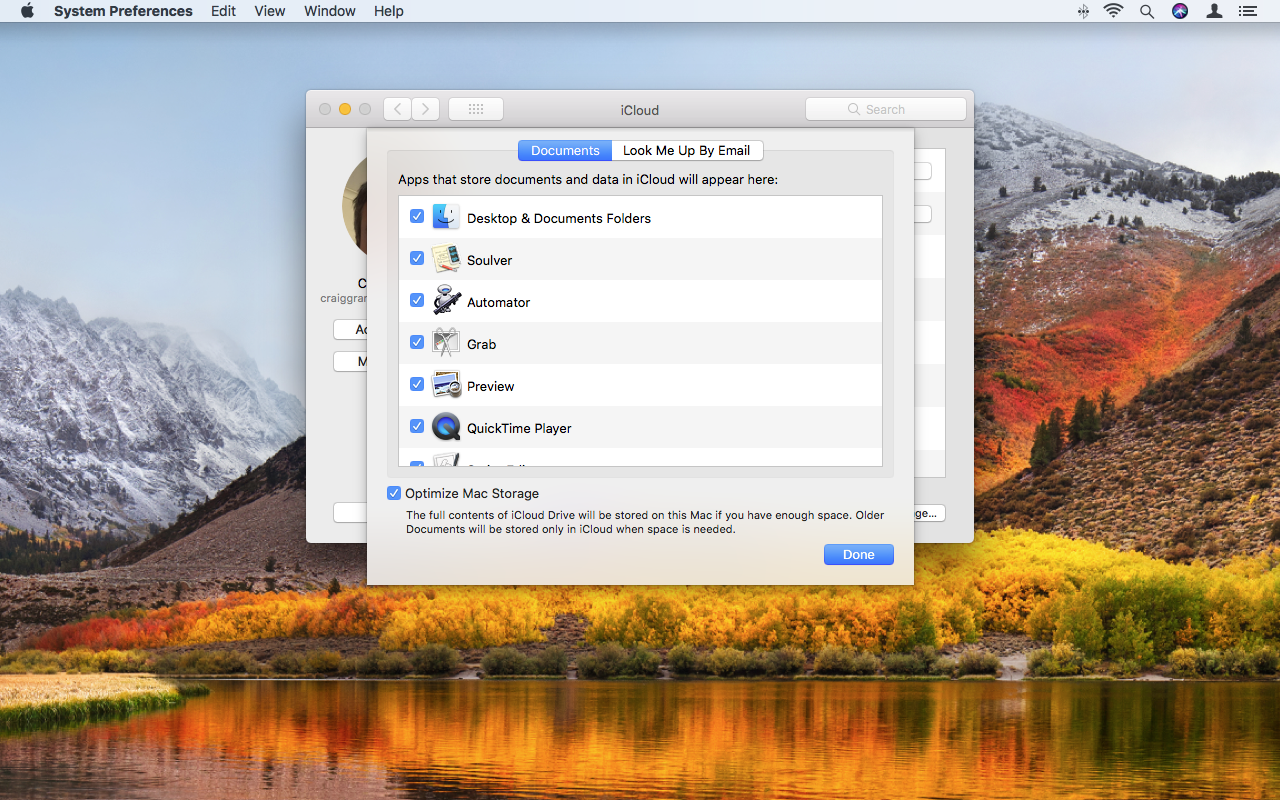
Comprehensive guide to iCloud Drive workflows for creative professionals, developers, business users, and students. Master photo management, file sync strategies, Advanced Data Protection, Family Sharing optimization, and troubleshooting techniques for macOS Tahoe.
iCloud Drive has evolved into a sophisticated cloud storage platform that extends far beyond basic file synchronization. In 2025, with the release of macOS Tahoe and Advanced Data Protection, iCloud offers professional-grade workflows for creative teams, enterprise collaboration, and personal productivity. This comprehensive guide reveals the strategies, optimization techniques, and troubleshooting methods that professionals use to maximize iCloud Drive's potential across different use cases.
Who This Guide Serves: Creative professionals, developers, business users, students, and families seeking to optimize iCloud Drive workflows. Suitable for users with basic iCloud familiarity looking to advance their cloud storage strategy. Updated: October 23, 2025 (Compatible with macOS Tahoe 26, iOS 26, and iPadOS 26)
Quick Answer: iCloud Drive Optimization Essentials
- Professional workflows tailored by user type can increase productivity by 40-60%
- Optimize Storage vs Download Originals reduces local storage to 10-20% of iCloud size
- Desktop & Documents sync provides seamless multi-device access but requires careful planning
- Advanced Data Protection adds end-to-end encryption for 25 data categories
- Family Sharing allows up to 6 members to share up to 12TB storage with full privacy
- Sync troubleshooting follows systematic approaches with 7 proven solutions
Professional Workflows by User Type
Creative Professionals: Designers, Video Editors, Photographers
The Apple ecosystem integration makes iCloud Drive attractive for creatives, but professionals must understand both its capabilities and limitations for large media files.
Recommended iCloud Strategy for Creatives:
For Photographers:
- Primary Storage: iCloud Photos with "Download Originals" on main workstation
- Mobile Workflow: "Optimize Storage" on iPhone/iPad to preserve space
- RAW File Management: iCloud fully supports RAW files without conversion
- Library Size Planning: Keep iCloud Photo Library under 200GB if using optimization on secondary devices
- Backup Strategy: Maintain local Time Machine backup as iCloud is not a true backup
For Video Editors:
- Active Projects: Store on local SSD for maximum performance
- Archive Storage: Move completed projects to iCloud Drive after compression
- File Size Considerations: iCloud offers 300 Mbps average transfer speed for large files
- Compression Awareness: Video files undergo lossy compression in iCloud Photos but not in iCloud Drive
- Alternative Solutions: Consider specialized options like Iconik for hybrid cloud video management
For Designers:
- Current Work: Use iCloud Drive for active design files with version history
- Asset Libraries: Store in organized folder structures with consistent naming conventions
- Collaboration: Share specific project folders rather than entire design library
- Alternative Tools: Explore Playbook for visual-first browsing of design assets
Real-World Creative Workflow:
Main Mac (iMac/Mac Studio):
├── Download Originals (Photos)
├── iCloud Drive Projects (active work)
└── Local SSD scratch disk

MacBook Pro (mobile):
├── Optimize Storage (Photos)
├── Selective iCloud Drive sync
└── Keep essential project files local

iPhone/iPad:
├── Optimize Storage (Photos)
└── Quick file access via Files app
Developers: Code Repositories and Build Artifacts
Critical Warning: Using iCloud Drive with Git repositories is generally not recommended due to compatibility issues.
Why iCloud + Git Is Problematic:
- Apple advises against storing
.gitfolders (app folders) in iCloud Drive - iCloud Drive ignores symlinks while Git uses them extensively
- Optimized Storage feature creates problems with Git version control
- File sync conflicts can corrupt repository state
Recommended Developer Workflow:
Code Repository Management:
- Primary Solution: Use professional Git hosting (GitHub, GitLab, Bitbucket)
- Backup Option: If using iCloud, host repo on iCloud then clone to local projects folder
- Workaround: Store sparse bundle disk image on iCloud containing repo (advanced users only)
Build Artifacts & Documentation:
- Build Output: Exclude from iCloud sync (use
.gitignorepatterns) - Project Documentation: Store non-code docs in iCloud Drive for team access
- Configuration Files: Use version control, not iCloud, for config management
- Dependencies: Never sync
node_modules,vendor, or similar directories to iCloud
Optimal Developer Setup:
~/Projects/          (Local only - Git managed)
├── active-project/
└── repositories/

~/Documents/iCloud/  (Synced)
├── project-docs/
├── design-assets/
└── client-deliverables/

~/iCloud Drive/      (Synced)
├── team-shared/
└── reference-materials/
Best Practices for Developers:
- Turn OFF Desktop & Documents folder sync to avoid syncing development files
- Create dedicated iCloud Drive folder for shareable project resources
- Use
.nosyncextension to exclude specific folders from iCloud sync - Maintain separate backup strategy for code (Git) and assets (iCloud/Time Machine)
Business Users: Document Collaboration
iCloud Drive provides robust collaboration features for business teams within the Apple ecosystem, with real-time editing and sharing capabilities.
Business Collaboration Best Practices:
Document Management:
- iWork Suite: Use Pages, Numbers, and Keynote for real-time collaboration
- Storage Location: Documents must be in iCloud Drive to enable collaboration features
- Permission Levels: Set "Can Make Changes" or "View Only" permissions appropriately
- Access Control: Choose "Only people you invite" (requires iCloud accounts) or "Anyone with the link"
Sharing Strategies:
Folder Structure for Teams:
iCloud Drive/
├── Team Projects/
│   ├── Q1-2025/
│   │   ├── Client-A/ (shared with 3 team members)
│   │   └── Internal/ (view-only link sharing)
│   └── Templates/ (anyone with link can view)
├── Individual Work/
└── Archive/
Collaboration Features:
- Real-Time Editing: Multiple users can edit simultaneously in iWork apps
- Comments: Discuss document aspects in context to save time
- Notifications: Enable alerts for shared file changes
- Version History: Revert to previous versions when needed
- Web Access: Collaborators can access via iCloud.com without Apple devices
Security for Business:
- Password Protection: OneDrive supports password-protected sharing links; iCloud does not
- Access Restrictions: Limit sharing to invited people only for sensitive documents
- Two-Factor Authentication: Require for all team members accessing shared folders
- Secondary Backups: Maintain local copies of critical business files
Storage Planning:
- Free tier (5GB) insufficient for business use
- Recommended: 200GB ($2.99/month) or 2TB ($9.99/month) plans
- Consider iCloud+ Family plan if sharing across small team
Students: Assignments, Research, Group Projects
iCloud Drive provides students with accessible, organized storage for academic work across devices at no or minimal cost.
Student Organization System:
Folder Structure:
iCloud Drive/
├── Current Semester/
│   ├── Course-Name-101/
│   │   ├── Assignments/
│   │   ├── Notes/
│   │   ├── Readings/ (with Markup annotations)
│   │   └── Group-Project/ (shared folder)
│   └── Research/
├── Study Guides/
├── Templates/
└── Archive/
    └── Previous-Semesters/
iPad Workflow for Students:
- Save study guides to Files app for cross-device access
- Use Markup to highlight readings and add notes
- Organize with Folders and Tags for quick retrieval
- Access marked-up materials across iPhone, iPad, and Mac
Group Project Collaboration:
- Folder Sharing: Create shared folder for all group members
- Permission Management: Set write access for active contributors
- Version Control: Avoid simultaneous editing of same file
- Backup Practice: Keep personal copies as team members may modify incorrectly
- Naming Conventions: Use consistent file naming (Date_ProjectName_Version.extension)
Best Practices for Students:
- Free Storage: 5GB free tier often sufficient with optimization
- Selective Sync: Download only current semester materials to device
- Regular Cleanup: Archive completed courses to free space
- Study Material Organization: Use tags for quick searching across courses
- Offline Access: Download critical materials before exams in case of connectivity issues
Academic Integrity:
- Share only collaboration-approved materials in group folders
- Keep individual assignments in private folders
- Understand your institution's policies on file sharing
iCloud Photo Library Management Strategies
Optimize Storage vs Download Originals: Complete Analysis
Understanding the difference between these two options is critical for managing both storage space and workflow efficiency.
Optimize Storage:
- How It Works: Stores full-resolution originals in iCloud, keeps compressed versions locally
- Activation Trigger: Optimization begins when free space drops to approximately 20%
- Storage Ratio: Optimized versions use 10-20% of original iCloud storage size
- Example: 500GB iCloud Photos library = 50-100GB optimized local storage
Download Originals:
- How It Works: Stores full-resolution originals in both iCloud and on device
- Benefits: Instant access without internet, no download delays
- Storage Requirement: Must have sufficient local storage for entire library
- Use Case: Primary workstation for photo editing or video production
Decision Framework:
| Factor | Optimize Storage | Download Originals |
|---|---|---|
| Local Storage Available | Limited (<256GB) | Ample (>512GB) |
| Internet Connection | Fast & Reliable | Unreliable or slow |
| Primary Use Case | Viewing & light editing | Professional editing |
| Device Type | iPhone/iPad/MacBook | Desktop Mac |
| Workflow Priority | Storage space | Instant access |
Important Considerations:
Optimization Limits:
- If local optimization storage <20GB, keep iCloud Photo Library <200GB
- Exceeding this ratio may result in blank thumbnails for some photos
- Mac optimization doesn't activate until ~20% free space remains
Backup Implications:
- Device iCloud Backup excludes photos (already in iCloud)
- Computer backup (Finder/iTunes) includes only locally stored photos
- Optimized photos won't be in backup, creating vulnerability to accidental deletion
- Solution: Maintain separate photo backup strategy (external drive, Time Machine)
Internet Requirements:
- Original photo access requires stable internet with Optimize Storage
- Downloads occur in background but may cause delays during editing
- Plan for offline access needs (travel, presentations, etc.)
Family Sharing Photo Management
iCloud Shared Photo Library (iOS 16.1+):
- Capacity: Share with up to 5 other people (6 total)
- Access: Equal permissions for all contributors to add, edit, favorite, caption, delete
- Requirements: iOS 16.1, iPadOS 16.1, or macOS Ventura or later
- Storage: Consumes creator's iCloud storage space
Shared Albums (Alternative):
- Capacity: Up to 100 participants per album
- Control: Selective sharing of specific albums, not entire library
- Flexibility: Share with non-Apple users via web access
- Use Case: Event photos, family trips, specific collections
Organization Features:
- Library Selection: Choose Personal Library, Shared Library, or Both
- Automatic Addition: Set rules for automatic sharing based on date or Bluetooth proximity
- Privacy: Each person's Personal Library remains completely private
Storage Management:
- Shared Photo Library counts against creator's storage quota
- Contributors' uploads consume creator's space
- Plan storage tier accordingly for family needs
File Sync Strategies and Best Practices
Desktop and Documents Folder Sync: Complete Analysis
How It Works: When enabled, Desktop and Documents folders move entirely to iCloud Drive, syncing across all devices signed into the same Apple Account.
Pros:
- Cross-Device Access: Work on Desktop files from any Apple device
- Automatic Synchronization: Changes sync in real-time without manual intervention
- Space Savings: Combine with Optimize Mac Storage to free local disk space
- Unified Workflow: No need to manually move files to iCloud Drive folder
- Resilience: Syncs catch up automatically after internet outages
Cons:
- No Selective Sync: Cannot choose specific folders; it's all-or-nothing for each (Desktop/Documents)
- Storage Limitations: Free 5GB quickly exhausted by Desktop/Documents contents
- Internet Dependency: Requires stable connection for smooth operation
- All-or-Nothing: Must sync both Desktop AND Documents; cannot choose only one
- Disable Behavior: Turning off removes local files except no-sync marked items
- Not a Backup: Deleting on one device deletes everywhere
- Git Incompatibility: Problematic for developers with repositories in Documents
When to Enable Desktop & Documents Sync:
- Multiple Mac setup with need for consistent Desktop across machines
- Limited internal storage with need to offload infrequently accessed files
- Primarily iWork and standard document workflow
- No local development repositories in Documents folder
When to Avoid:
- Developer with code repositories in Documents
- Unreliable internet connection
- Large files requiring immediate local access
- Need for selective folder synchronization
- Privacy concerns about all Desktop/Documents content in cloud
Alternative Strategy:
iCloud Drive Only (no Desktop/Documents sync):
├── Manually select folders to sync
├── Move to iCloud Drive folder: ~/Library/Mobile Documents/com~apple~CloudDocs/
├── Keep sensitive/large files in non-synced locations
└── Use symbolic links for selective access (advanced)
Managing Large Files: Video, RAW Photos, Design Files
Large File Optimization Strategies:
Transfer Speed Capabilities:
- iCloud offers average 300 Mbps transfer speed
- Cloud servers handle 500GB+ data with fast bandwidth
- Upload/download speed depends on local internet connection
File Type Handling:
RAW Photos:
- Fully supported without conversion
- Can access entire RAW library on Mac using Optimize Storage
- No need for external drive when optimized properly
Video Files:
- iCloud Photos: Applies lossy compression to videos
- iCloud Drive: No compression; stores original files
- Recommendation: Use iCloud Drive, not iCloud Photos, for professional video work
- Workflow: Keep active projects on local SSD, archive completed work to iCloud
Design Files:
- Supports all standard design file formats
- No automatic compression for files in iCloud Drive
- Use folder organization for efficient access
Compression Behavior:
- Photos/Videos: Lossy compression for optimized versions
- Documents: Lossless compression maintains integrity
- iCloud Drive Files: Generally stored without modification
Bandwidth Optimization Tips:
- Schedule Large Uploads: Use overnight for multi-GB transfers
- Prioritize Critical Files: Upload essential files first
- Monitor Upload Queue: Check iCloud status in System Settings
- Pause Unnecessary Syncs: Temporarily disable photo upload during critical work
- Use Ethernet: Faster and more stable than Wi-Fi for large transfers
Storage Planning for Large Files:
Storage Tier Recommendations:
- 50GB ($0.99/month): Light photo users, documents only
- 200GB ($2.99/month): Moderate photo library (20-40K photos)
- 2TB ($9.99/month): Professional photo/video, multiple users
- 6TB+ ($29.99+/month): Professional video production, agencies
Multiple Device Sync Coordination
Setup Requirements:
- Same Apple Account on all devices
- iCloud Drive enabled in Settings/System Preferences
- Sufficient iCloud storage for all synced content
Cross-Device Workflow:
iPhone/iPad Setup:
Settings > [Your Name] > iCloud
├── iCloud Drive: ON
├── Sync this iPhone/iPad: ON
└── Apps Using iCloud Drive: Select desired apps
Mac Setup:
System Settings > Apple Account > iCloud
├── iCloud Drive: ON
├── Desktop & Documents Folders: Choose based on needs
├── Optimize Mac Storage: Optional for space savings
└── Apps in iCloud: Select desired apps
How Sync Works:
- Changes save and propagate in real-time across all devices
- Each device compares date, size, content until all have latest version
- Disconnected devices sync automatically when reconnecting
- Conflicts are resolved automatically or flagged for manual resolution
Important Sync Rules:
Files That Sync:
- Anything in iCloud Drive folder
- Desktop (if Desktop & Documents enabled)
- Documents folder (if Desktop & Documents enabled)
- App-specific iCloud data
Files That Don't Sync:
- "On My iPhone/iPad" folder contents
- Desktop files (if Desktop & Documents disabled)
- Downloads folder
- Any folder outside iCloud Drive path
Accessing Files:
- iOS: Files app → iCloud Drive section
- Mac: Finder sidebar → iCloud Drive
- Web: iCloud.com → iCloud Drive
Best Practices:
- Manual Download: Tap/click cloud icon to download files on iOS for offline access
- Storage Awareness: Monitor storage on each device type differently
- Sync Verification: Check that files appear on all devices after important changes
- Folder Organization: Use consistent structure across devices
- Offline Planning: Download critical files before traveling
Troubleshooting Common iCloud Issues
Sync Failures and "Waiting to Upload" Solutions
Common Causes:
- Slow or unstable internet connection
- iCloud storage full
- Pending software update interfering
- Apple server downtime
- Git commit conflicts on synced folders (common Mac bug)
Systematic Troubleshooting Approach:
Step 1: Check Internet Connection
# Test connection speed
speedtest-cli

# Verify iCloud reachability
ping www.icloud.com

# Switch to Wi-Fi if on cellular (faster sync)
Step 2: Verify iCloud Storage
Mac: System Settings > Apple Account > iCloud
iOS: Settings > [Your Name] > iCloud

Check: Available storage vs used storage
Action: Delete unnecessary files or upgrade plan
Step 3: Toggle iCloud Drive Off/On
iOS:
Settings > [Your Name] > iCloud > iCloud Drive
Toggle OFF → Wait 30 seconds → Toggle ON

Mac:
System Settings > Apple Account > iCloud
Uncheck iCloud Drive → Wait 30 seconds → Check again
Step 4: Force Quit "bird" Process (Mac)
# Open Activity Monitor
# Search for process: "bird"
# Select and click "Force Quit"
# iCloud will restart automatically

# Or via Terminal:
killall bird
Step 5: Compress Stuck Files (Workaround)
Select stuck folders/files
Right-click > Compress
Compressed archive often triggers sync restart
Step 6: Update Software
Mac: System Settings > General > Software Update
iOS: Settings > General > Software Update

Install latest available updates
Restart device after installation
Step 7: Check Apple System Status
Visit: https://www.apple.com/support/systemstatus/

Green dot: iCloud Drive fully operational
Yellow rhombus: Partial service issues
Red triangle: Major outage (wait for Apple fix)
Advanced Solution: Reset CloudDocs (Mac Only - CAUTION)
# WARNING: This will reset iCloud Drive sync
# Files remain in iCloud but local sync state resets

# 1. Quit all iCloud-using apps
# 2. Move folder:
mv ~/Library/Application\ Support/CloudDocs ~/Desktop/CloudDocs-Backup

# 3. Sign out and back into iCloud
# 4. Wait for re-sync to complete
# 5. Delete backup if successful
Conflict Resolution and File Version Management
How iCloud Handles Conflicts:
- Most recent modification becomes current version
- Other versions marked as conflict versions
- Apps receive notification through file presenter objects
- Apps encouraged to resolve conflicts automatically when possible
Manual Conflict Resolution:
When conflict dialog appears:
1. Review each version's modification date and content
2. Select versions to keep (can keep multiple)
3. Click "Keep"
4. Multiple kept versions get numbered (file.txt, file 2.txt, etc.)
Version Management Best Practices:
Prevent Conflicts:
- Avoid opening same file simultaneously on multiple devices
- Wait for sync completion indicator before switching devices
- Use collaboration features (iWork real-time editing) when working with team
Resolve Conflicts:
- Merge file contents manually if both versions contain valuable changes
- Discard older version if newer fully supersedes it
- Keep both if unsure, review differences later
Clean Up Old Versions:
# Old versions consume iCloud quota
# Explicitly remove versions no longer useful

# Check version history:
# Finder > File > Get Info > Versions

# Delete old versions through versions interface
# Or let Time Machine-style browser handle cleanup
Technical Details:
- New-file conflicts in document scope create "bounced file"
- Other conflicts create automatic new versions
- Apps responsible for programmatic conflict resolution
- Unused versions continue syncing to all devices until explicitly removed
Performance Optimization Tips
Slow Sync Speed Improvements:
1. Network Optimization
# Use Wi-Fi instead of cellular
# Connect to 5GHz network if available
# Consider Ethernet for Mac during large transfers

# Test network stability:
ping -c 100 www.icloud.com | tail -2
2. Software Updates
Ensure latest OS versions:
- macOS Tahoe 26.1+
- iOS 26.1+
- iPadOS 26.1+

Outdated software can significantly impact sync performance
3. Storage Space Management
Local Storage (Mac):
- Maintain 20% free space for optimization to work
- Use Optimize Mac Storage if tight on space
- Clear system caches periodically

iCloud Storage:
- Keep 10-15% buffer space
- Upgrade tier if consistently near limit
- Regular cleanup of unnecessary files
4. Sync Settings Optimization
Mac: System Settings > Apple Account > iCloud
- Review each app's iCloud usage
- Temporarily disable non-essential syncing
- Prioritize critical data (Documents over Desktop)

Consider syncing only essential files:
- Turn off Desktop sync if not needed
- Selective folder placement in iCloud Drive
5. Cache and Reset Solutions
# Clear iCloud cache (Mac)
# This can improve performance after issues

# Sign out of iCloud:
System Settings > Apple Account > Sign Out

# Wait 2 minutes, then sign back in
# Allow time for initial sync after reconnect
6. Network Settings Reset (iOS)
Settings > General > Transfer or Reset iPhone
> Reset > Reset Network Settings

Warning: This removes all Wi-Fi passwords
Save passwords before proceeding
7. Device Performance Optimization
iOS/iPadOS:
- Close unused apps to free resources for iCloud sync
- Enable Background App Refresh for Files app
- Restart device if sync stalled

Mac:
- Quit unnecessary applications
- Check Activity Monitor for resource-heavy processes
- Ensure adequate RAM availability
8. File Count Optimization
Problem: Many small files sync slower than fewer large files

Solution:
- Use compression (ZIP/TAR) for folder hierarchies
- Combine related small files into archives
- Reduce total file count in iCloud Drive
Performance Monitoring:
# Check iCloud sync status (Mac)
brctl log --wait --shorten

# Monitor upload/download activity
nettop -m route

# View iCloud Drive folder sync status
ls -lhO@ ~/Library/Mobile\ Documents/com~apple~CloudDocs/
Security and Privacy Features
Advanced Data Protection Setup and Implications
What is Advanced Data Protection? Apple's highest level of cloud data security, offering end-to-end encryption for the majority of iCloud data. With ADP enabled, 25 data categories are end-to-end encrypted (up from 15 without ADP).
Key Features:
- End-to-end encryption for iCloud Backup, Photos, Notes, and more
- Apple cannot access your data or help with recovery
- Protection even in case of cloud data breach
- Optional setting requiring explicit enablement
Setup Requirements:
- iOS 16.2+ / iPadOS 16.2+ / macOS 13.1+
- All devices updated to compatible software versions
- At least one recovery method configured
Recovery Method Requirements (Choose One or Both):
1. Recovery Contact:
- Trusted person who can help you regain account access
- Must have Apple device and iCloud account
- Receives recovery request when you need help
- Should be someone reliable and accessible
2. Recovery Key:
- 28-character key you must store securely
- Required if you lose access to devices and password
- You're responsible for keeping it safe
- No one else (including Apple) can recover without it
Critical Security Implication:
Traditional iCloud: Apple can help recover your data
Advanced Data Protection: You alone responsible for access

If you lose:
- Access to trusted devices
- Account password
- Recovery contact availability or recovery key
→ Your data is permanently inaccessible
Protected Data Categories (25 Total):
- iCloud Backup
- iCloud Drive
- Photos and Videos
- Notes
- Voice Memos
- Safari Bookmarks
- Siri Shortcuts
- Wallet Passes
- Health Data (already encrypted)
- And 16 more categories
Data NOT End-to-End Encrypted (Even with ADP):
- iCloud Mail
- Contacts
- Calendar
- iCloud Keychain (already encrypted separately)
Setup Process:
iOS/iPadOS:
Settings > [Your Name] > iCloud > Advanced Data Protection
Follow prompts to set up recovery method

macOS:
System Settings > Apple Account > iCloud
Click "Advanced Data Protection" → "Turn On"
2025 Important Update: UK Removal: As of February 21, 2025, Apple removed Advanced Data Protection availability for UK customers after government demanded backdoor access. This represents a significant privacy policy shift affecting UK users.
Two-Factor Authentication Best Practices
What is 2FA for iCloud? Extra security layer requiring both password and six-digit verification code from trusted device when signing in on new device or web.
Why 2FA Matters:
- Dramatically improves Apple Account security
- Protects data stored in iCloud
- Required for certain services (Apple Pay, Sign in with Apple)
- Industry standard for account protection
Setup Process:
iOS/iPadOS:
Settings > [Your Name] > Sign-In & Security
> Two-Factor Authentication
> Enter trusted phone number
> Choose text or call verification
macOS:
System Settings > Apple Account > Sign-In & Security
> Two-Factor Authentication
> Follow setup prompts
Best Practices:
1. Multiple Trusted Phone Numbers
Add backup phone number:
Settings > [Your Name] > Sign-In & Security
> Add another phone number

Prevents lockout if primary number unavailable
2. Trusted Devices Management
Regular review of trusted devices:
Settings > [Your Name] > Sign-In & Security
> Devices with access to Apple Account

Remove devices you no longer own or use
3. Strong Password Foundation
2FA only effective with strong password:
- 12+ characters minimum
- Mix of uppercase, lowercase, numbers, symbols
- Unique to Apple Account (not reused)
- Stored in password manager
4. Security Considerations
Cannot disable 2FA if:
- Account created with 2FA enabled
- After 2-week period from manual enablement

Removing trusted device:
- Blocks verification code display
- Blocks iCloud access on that device
5. Recovery Preparation
Before travel or device changes:
- Ensure access to at least one trusted device
- Verify phone number can receive SMS/calls
- Know Apple Account password
- Consider saving recovery key separately
Authentication Flow:
Sign in on new device:
1. Enter Apple ID and password
2. Receive code on trusted device (automatic popup)
3. Enter 6-digit code on new device
4. Choose to trust new device (optional)
Privacy: iCloud vs. Other Cloud Services
Encryption Standards Comparison:
| Service | At Rest | In Transit | End-to-End* |
|---|---|---|---|
| iCloud Drive | AES-128/256 | TLS/SSL | 15 categories (25 with ADP) |
| Google Drive | AES-256 | TLS | None |
| OneDrive | AES-256 | TLS | None |
| Dropbox | AES-256 | TLS | None |
*Zero-knowledge encryption where provider cannot access data
Two-Factor Authentication Support:
- All four services (iCloud, Google Drive, OneDrive, Dropbox) support 2FA
- All support hardware security keys (YubiKey) as of 2023
- Standard 2FA is baseline security requirement in 2025
Password-Protected Sharing:
- OneDrive: Supports password protection on shared links
- iCloud Drive: No password protection for sharing links
- Google Drive: Supports password protection
- Dropbox: Supports password protection
Privacy Concerns - Zero-Knowledge Encryption:
Reality Check:
None of the major cloud services (including iCloud without ADP)
offer true zero-knowledge encryption by default.

This means:
- Providers CAN technically access your files
- Government requests may compel data access
- Server breaches could expose data

Solution:
- Enable Advanced Data Protection (iCloud)
- Use client-side encryption tool before upload
- Consider specialized zero-knowledge providers (Sync.com, Tresorit)
Data Collection Comparison:
Dropbox (Highest Collection):
- Name, email, postal address, payment details
- IP address, browser type
- Shares data with Google, Amazon Web Services
- History of data leaks: 2011, 2012, 2022 breaches
Google Drive:
- Extensive data collection for advertising
- Analyzes content for service improvement
- Integrates with broader Google ecosystem data
OneDrive (Microsoft):
- Moderate data collection
- No major security incidents comparable to Dropbox
- Enterprise-focused privacy features
iCloud (Apple):
- Limited data collection compared to Google
- "Privacy is a fundamental human right" positioning
- 15 data types automatically end-to-end encrypted
- Automatic ADP for sensitive data (Health, Keychain, Messages)
- Optional ADP for additional 10 categories
Recommendation by Use Case:
Maximum Privacy + Apple Ecosystem: iCloud with ADP enabled
Collaboration Heavy: Google Workspace or Microsoft 365
Cross-Platform Teams: Dropbox (despite privacy concerns)
True Zero-Knowledge: Specialized providers (Sync.com, Tresorit)
Family Sharing and Collaboration Optimization
iCloud+ Family Plan Setup and Management
Family Plan Overview:
- Share iCloud+ subscription with up to 5 other people (6 total)
- Storage tiers: Up to 12TB shareable
- Includes iCloud Private Relay, Hide My Email, HomeKit Secure Video
Setup Process:
Organizer Setup:
1. Settings/System Settings > [Your Name] > Family Sharing
2. Set Up Your Family → Invite Family Members
3. Share iCloud Storage → Choose subscription tier
4. Send invitations via iMessage or in person

Member Acceptance:
1. Receive invitation notification
2. Accept invitation
3. Settings > [Your Name] > Family Sharing > iCloud Storage
4. Tap "Use Family Storage"
Important Notes:
- Members must manually opt into shared storage plan
- Free 5GB still available if member prefers separation
- All members have access to full shared storage pool
- Cannot set individual quotas per family member (as of iOS 26)
Storage Optimization for Families:
Enable Optimize Storage on All Devices:
iPhone/iPad: Settings > Photos > Optimize iPhone Storage
Mac: Photos app > Settings > iCloud > Optimize Mac Storage

Benefit: Reduces local storage 10-20% of cloud usage per device
Shared Storage Management Tips:
1. Regular cleanup of unused apps' iCloud data
2. Delete old device backups from previous devices
3. Manage photos library size collaboratively
4. Clear large email attachments from iCloud Mail
5. Review storage breakdown: Settings > [Name] > iCloud
Privacy Protection:
Critical Privacy Feature:
"Everyone gets access to storage amount, not each other's files"

Each family member's content remains completely private:
- Photos libraries separate
- Documents not visible to others
- App data segregated
- Only storage quota is shared
Storage Tier Selection Guide:
Family Size & Usage → Recommended Tier

2-3 light users (photos, docs): 200GB ($2.99/mo)
4-6 light users or 2-3 heavy users: 2TB ($9.99/mo)
4-6 heavy users (photos, video): 6TB ($29.99/mo)
Professional/creative family: 12TB ($59.99/mo)
Collaborative Document Editing Workflows
Real-Time Collaboration in iWork:
Supported Apps:
- Pages (word processing)
- Numbers (spreadsheets)
- Keynote (presentations)
Setup Requirements:
- Documents stored in iCloud Drive (not local storage)
- iWork apps automatically move files to iCloud if needed
- All collaborators have compatible Apple devices or web browsers
Sharing a Document for Collaboration:
Method 1 - From iWork App:
1. Open document in Pages/Numbers/Keynote
2. Click Share button (↑ arrow)
3. Share File → Collaborate
4. Choose sharing options
5. Send invitation

Method 2 - From Files App:
1. Long-press document in Files
2. Share → Collaborate
3. Configure permissions
4. Share via Messages/Mail/AirDrop
Permission Options:
Access Control:
- Only people you invite: Requires iCloud account, invitation needed
- Anyone with the link: Works even for non-Apple users via iCloud.com
Permission Levels:
- Can Make Changes: Full edit access, can modify content
- View Only: Read-only access, cannot edit
Collaboration Features:
1. Real-Time Editing:
- Multiple users edit simultaneously
- See others' cursors and selections
- Changes appear instantly for all collaborators
- No manual save/sync required
2. Comments and Discussion:
Add Comment:
- Select text or object
- Click Comment button
- Type discussion point
- Notifies relevant collaborators

Benefit: Discuss in context, saves time vs separate messages
3. Version History:
Access Previous Versions:
File > Browse All Versions (Mac)
Document menu > Versions (iOS)

Capability:
- Review past states of document
- Restore previous version if needed
- See timeline of changes
4. Notifications:
Enable Notifications for Shared Files:
Settings > Notifications > Find app (Pages/Numbers/Keynote)
Toggle on for updates when collaborators make changes
Best Practices for Collaboration:
Folder Organization:
iCloud Drive/
├── Team Projects/
│   ├── Active/
│   │   ├── Project-A/ (shared with specific team)
│   │   └── Project-B/ (shared with different team)
│   ├── Templates/ (view-only shared)
│   └── Archive/ (completed projects)
└── Personal/ (not shared)
Workflow Guidelines:
- Avoid simultaneous editing: Grant write permission to one user at a time when possible
- Use comments: Discuss changes before making them
- Backup important files: Copy critical documents to non-shared folder
- Naming conventions: Use clear, consistent file names with dates
- Regular sync verification: Ensure all team members see latest version
Cross-Platform Collaboration:
Non-Apple Device Users:
- Receive shared link
- Access via iCloud.com in any web browser
- Full viewing and editing in web interface
- No Apple device or iCloud account required for "Anyone with link"
Parental Controls and Family Member Management
Family Sharing Core Features:
Member Limits:
- Up to 6 family members total
- 1 Organizer (family administrator)
- 5 additional members
- Cannot currently add more than 6 people
Organizer Responsibilities:
- Manages family group
- Shares iCloud+ subscription
- Controls purchase sharing
- Sets up parental controls for children
Children in Family Sharing (Under 18):
Screen Time Management:
Setup Path:
Settings > Screen Time > [Child's Name]

Features:
- Weekly activity reports
- App usage tracking
- Website visit monitoring
- Notification frequency analysis
- Set app time limits
- Schedule downtime
- Content & privacy restrictions
Screen Time Key Features:
1. App Limits
   - Set daily time limits per app or category
   - Customize by day of week
   - Apps gray out when limit reached

2. Downtime
   - Schedule device-free periods
   - Only allowed apps accessible during downtime
   - Useful for bedtime, study time

3. Communication Limits
   - Control who child can contact during Screen Time
   - Separate limits for downtime vs allowed time

4. Content Restrictions
   - Age-appropriate content filtering
   - Explicit content blocking
   - Web content filtering
Ask to Buy Feature:
Purpose: Children require parent approval for purchases

Setup:
1. Family Sharing > [Child's Name]
2. Enable Ask to Buy

Process:
- Child requests app/purchase
- Parent receives notification
- Parent approves or declines
- Purchase completes if approved

Works for:
- App Store apps
- iTunes purchases
- In-app purchases
- Book purchases
Storage Quota Management:
Current Limitation:
No way to set individual storage quotas per family member

Reality:
- If sharing 2TB plan, each member can theoretically use full 2TB
- No built-in limits or alerts per person
- Family members must self-manage usage

Workaround Solutions:
1. Regular monitoring: Check Settings > [Name] > iCloud
2. Family discussion: Agree on fair usage guidelines
3. Enable Optimize Storage on all devices
4. Regular cleanup: Delete unnecessary backups, photos
5. Consider higher tier if consistently running low
Managing Children's iCloud Access:
What You CAN Control:
- Screen Time limits and restrictions
- Purchase approval (Ask to Buy)
- Content filtering and age restrictions
- Location sharing visibility
- Shared album participation

What You CANNOT Control:
- Individual storage quota within family plan
- Real-time iCloud Drive content monitoring
- Detailed file access logs
- Prevent child from using their storage allocation
Privacy Balance:
Apple's Approach:
- Parental controls for safety and screen time
- Privacy protection for children's personal content
- No detailed monitoring of iCloud Drive contents
- Focus on time management, not surveillance

Philosophy:
- Age-appropriate privacy expectations
- Trust-based family relationships
- Transparency about monitoring capabilities
Family Member Limit Expansion (Not Currently Available): Many users request ability to add more than 6 family members. As of October 2025, Apple has not announced plans to expand this limit. Alternative solutions for larger families include creating multiple family groups or using shared folders without formal Family Sharing.
macOS Tahoe iCloud Integration Improvements
New Features in macOS Tahoe (2025)
Enhanced iCloud Keychain Integration:
- Improved family member credential sharing
- Streamlined password sharing interface
- Better integration with Safari password management
Cross-Device Syncing Enhancements:
- Shortcuts with AI-driven actions sync seamlessly across macOS, iOS, iPadOS
- Enhanced continuity between devices
- Improved handoff for iCloud-connected apps
Safari iCloud Improvements:
- Refreshed sidebar with dedicated iCloud Tabs section
- Better saved content organization
- Enhanced tab group syncing
Journal App:
- New native Journal app syncs via iCloud
- Seamless sync across all Apple devices
- Private, encrypted entries
FileVault iCloud Recovery:
- Automatic FileVault enablement when signing in with Apple Account
- Automatic Apple Account recovery option
- Simplified recovery process for encryption keys
Notes and Files Apps:
- Enhanced tagging system syncing via iCloud
- Simplified organization tools
- Better iCloud Drive integration in Files app
Ecosystem Integration:
macOS Tahoe 26 deepens integration:
- Mac ↔ iPhone seamless continuity
- Mac ↔ iPad enhanced workflows
- Universal Control improvements
- AirDrop reliability enhancements
Release Date: September 15, 2025
Conclusion: Building Your Optimal iCloud Workflow
iCloud Drive in 2025 represents a mature, powerful cloud storage solution that extends well beyond simple file synchronization. By understanding the advanced workflows, optimization strategies, and troubleshooting techniques outlined in this guide, you can transform iCloud into a productivity powerhouse tailored to your specific needs.
Key Takeaways:
For All Users:
- Choose Optimize Storage vs Download Originals based on your primary device and workflow
- Enable Advanced Data Protection for maximum security (with proper recovery method setup)
- Understand Desktop & Documents sync implications before enabling
- Maintain secondary backup strategy (iCloud is not a true backup)
For Creative Professionals:
- Use Download Originals on primary workstation for instant access
- Consider specialized tools (Iconik, Playbook) alongside iCloud
- Keep iCloud Photo Library under 200GB if using optimization on secondary devices
- Store active video projects on local SSD, archive to iCloud Drive
For Developers:
- Never sync Git repositories via iCloud Drive
- Use professional Git hosting for code, iCloud for assets and documentation
- Disable Desktop & Documents sync to avoid syncing development files
- Implement
.nosyncextension for excluded folders
For Business Users:
- Leverage iWork real-time collaboration for team productivity
- Use permission controls appropriately (View Only vs Can Make Changes)
- Enable two-factor authentication for all team members
- Consider storage tier based on team size and usage patterns
For Students:
- Organize with consistent folder structure and naming conventions
- Use Tags and Markup for efficient study material management
- Leverage shared folders for group projects with proper backup practices
- Take advantage of free 5GB with optimization strategies
For Families:
- iCloud+ Family plan offers excellent value for up to 6 members
- Enable Optimize Storage on all devices to maximize shared storage
- Remember: Storage is shared, but content remains private
- Use Screen Time and Ask to Buy for children's device management
Final Recommendations:
The most successful iCloud workflows combine:
- Strategic planning: Understanding your specific use case and limitations
- Proper configuration: Enabling appropriate settings for your devices and workflow
- Regular maintenance: Monitoring storage, cleaning up unnecessary files
- Security awareness: Using 2FA, considering Advanced Data Protection
- Backup redundancy: Maintaining local backups for critical data
As iCloud continues evolving with each macOS and iOS release, staying informed about new features and best practices ensures you extract maximum value from Apple's ecosystem integration. The workflows and strategies in this guide provide a solid foundation for professional-grade cloud storage management in 2025 and beyond.
Related Resources:
- macOS Tahoe Complete Feature Guide 2025
- Mac Migration Complete Guide
- Advanced Data Protection Setup Guide
- iCloud Security Overview
Questions or Issues? Share your iCloud workflow challenges in the comments below.