macOS Tahoe 26.4 Beta 2: Safari Compact Tabs Return, Rosetta 2 Warnings & Complete Guide to What's New
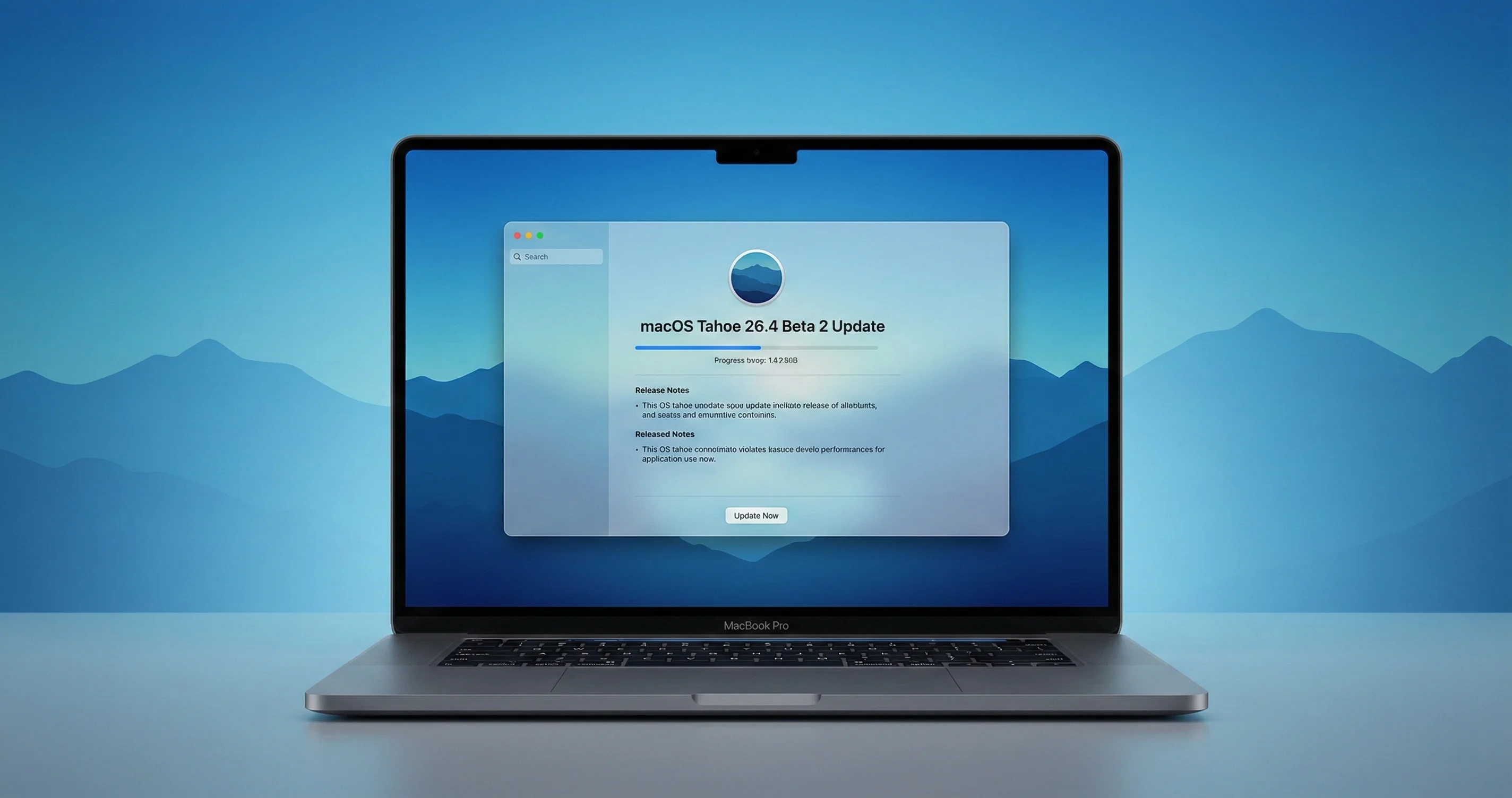
Complete guide to macOS Tahoe 26.4 Beta 2 released February 23, 2026. Safari Compact Tab Bar returns, Rosetta 2 end-of-life warnings, charge limit tweaks, and all bug fixes.
Apple released macOS Tahoe 26.4 Beta 2 (Build 25E5218f) to developers on February 23, 2026, followed by the corresponding public beta on February 24. Arriving exactly one week after Beta 1, this second beta is primarily a stability-focused release, but it carries several important changes that signal where Apple is headed with macOS in 2026 and beyond. The return of the Safari Compact Tab Bar, escalating Rosetta 2 deprecation warnings, a refined battery charge limit slider, and fixes for the notorious external drive ghost-mounting bug from macOS 26.3 all make this a beta worth paying close attention to.
Whether you are a developer testing app compatibility, a power user eager for the latest improvements, or simply someone planning your upgrade path, this guide covers everything you need to know about macOS Tahoe 26.4 Beta 2 in thorough detail.
Key Takeaways
- Build 25E5218f released to developers February 23, 2026; public beta followed on February 24.
- Safari Compact Tab Bar is back after being removed in the original macOS Tahoe Liquid Glass redesign, responding directly to user backlash.
- Rosetta 2 warnings now appear every time you launch an Intel-based app, giving users clear notice of the upcoming deprecation timeline.
- Charge Limit slider lets MacBook owners cap battery charging between 80% and 100% in 5% increments.
- External drive ghost-mounting bug from macOS 26.3 appears to be fixed in this beta.
- Known issues include intermittent browser failures, broken icon replacement via copy-paste, and Wi-Fi instability on certain models.
- Expected public release: Spring 2026, with some speculation pointing to early March.
Table of Contents
- Release Details and Build Information
- Safari Compact Tab Bar Returns
- Rosetta 2 End-of-Life Warnings
- Battery Charge Limit Feature
- External Drive Ghost-Mounting Fix
- Additional Changes and Improvements
- Known Issues in Beta 2
- How to Install macOS Tahoe 26.4 Beta 2
- Should You Install the Beta?
- What to Expect from the Final Release
- Troubleshooting macOS 26.4 Beta 2 Issues
- Frequently Asked Questions
Release Details and Build Information
macOS Tahoe 26.4 Beta 2 carries build number 25E5218f. Here is a complete breakdown of the release timeline so far:
| Milestone | Date | Build | Availability |
|---|---|---|---|
| Beta 1 (Developer) | February 16, 2026 | 25E5207h | Registered Apple developers |
| Public Beta 1 | February 17, 2026 | 25E5207h | Apple Beta Software Program members |
| Beta 2 (Developer) | February 23, 2026 | 25E5218f | Registered Apple developers |
| Public Beta 2 | February 24, 2026 | 25E5218f | Apple Beta Software Program members |
| Final Release | Spring 2026 (expected) | TBD | All users |
If you followed our macOS Tahoe 26.4 Beta 1 guide, you already know the headline features introduced in this update cycle. Beta 2 does not introduce major new features. Instead, it refines the features introduced in Beta 1 and squashes bugs that the developer and public testing communities reported during the first week.
Apple has not published formal, detailed release notes for Beta 2 specifically. This is consistent with how Apple typically handles second betas in a development cycle: the focus shifts from feature introduction to stability, performance, and bug resolution. However, the changes in this build are meaningful enough to warrant thorough coverage.
For the broader context of what macOS 26.4 brings to the table, see our macOS Tahoe 26.4 preview with features and release timeline.
Safari Compact Tab Bar Returns
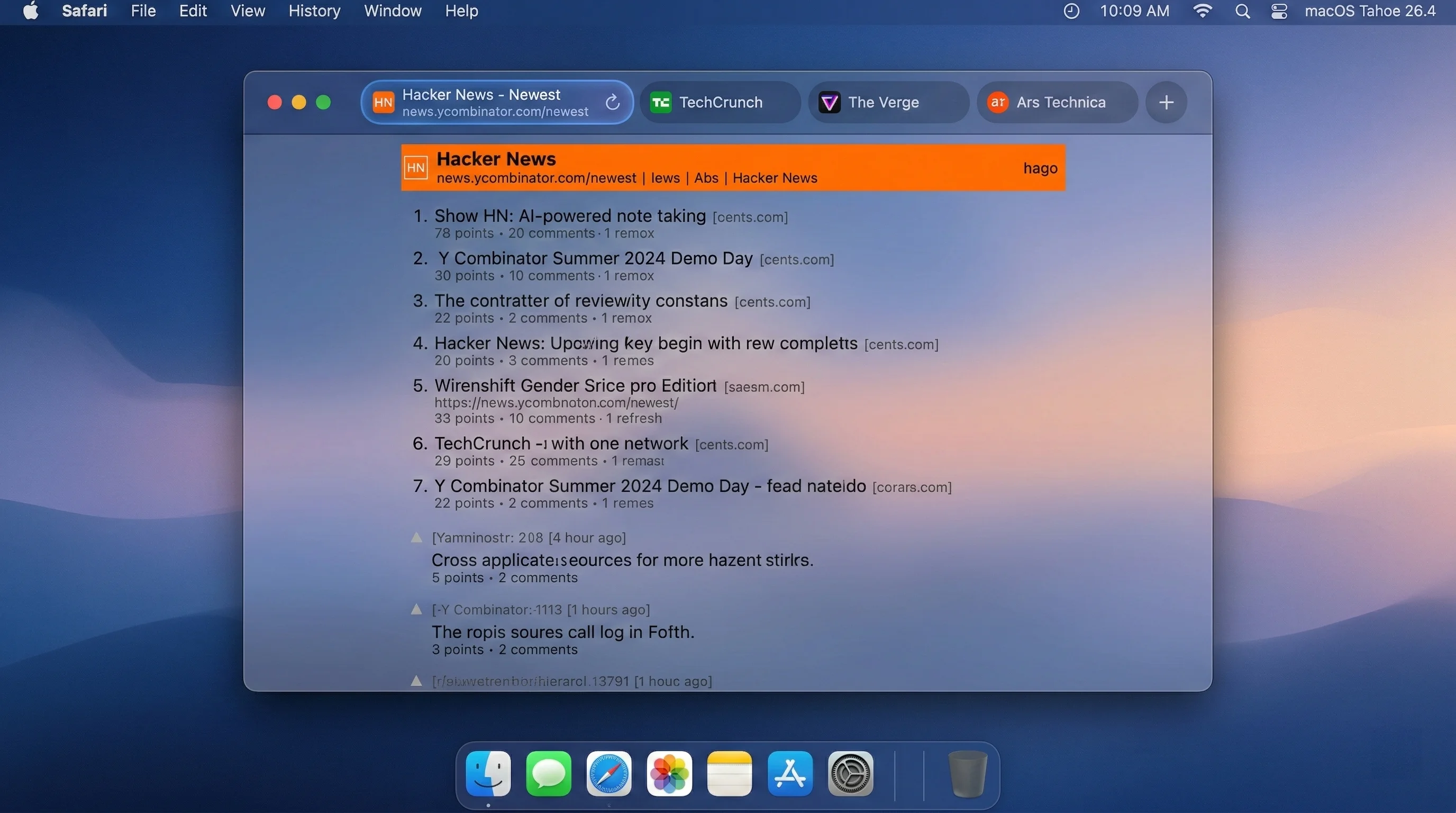
The most user-visible change in the macOS 26.4 beta cycle is the return of the Safari Compact Tab Bar, a layout option that Apple removed when macOS Tahoe launched with its Liquid Glass interface redesign. This feature was first spotted in Beta 1 and remains present and refined in Beta 2.
Why Apple Removed It (and Why It Is Back)
When Apple unveiled the Liquid Glass design language at WWDC 2025, the company made sweeping changes to the visual identity of macOS. Safari received a dramatic overhaul: the chrome was simplified, translucent glass effects replaced solid backgrounds, and the tab bar was redesigned to embrace a more spacious, separated layout. As part of this overhaul, the Compact Tab Bar option -- which merged the address bar and tab bar into a single row -- was removed entirely.
The response from the Mac community was swift and vocal. Power users who relied on the Compact Tab Bar for its space efficiency protested its removal across Apple's developer forums, Reddit, and social media. The Compact Tab Bar had been especially popular among users with smaller screens, such as 13-inch MacBook Air owners, who valued every pixel of vertical screen real estate.
Apple clearly listened. In macOS 26.4 Beta 1, the Compact Tab Bar reappeared as an option, and in Beta 2 it remains stable and functional.
How to Enable the Safari Compact Tab Bar
Enabling the Compact Tab Bar in macOS 26.4 Beta 2 is straightforward:
- Open System Settings on your Mac.
- Navigate to Safari (or open Safari and go to Safari > Settings from the menu bar).
- Look for the Tab Bar section.
- Choose Compact instead of the default Separate tab bar option.
When Compact is selected, Safari condenses the address bar, active tabs, and tab navigation into a single row at the top of the browser window. This recovers a significant amount of vertical space that the Separate layout consumes.
What Has Changed Since the Original Compact Tab Bar
The new Compact Tab Bar is not a carbon copy of the one that existed before macOS Tahoe. Apple has adapted it to work within the Liquid Glass design system:
- Glass material: The compact bar uses the same translucent Liquid Glass material as the rest of the macOS Tahoe interface, so it blends naturally with the overall aesthetic.
- Tab pill indicators: Active tabs are highlighted with the updated pill-shaped indicators that match the Tahoe design language, rather than the older rectangular tab outlines.
- Smooth transitions: Switching between Compact and Separate modes now includes an animated transition rather than an abrupt layout change.
- Tab group support: The Compact Tab Bar fully supports Tab Groups, including the profile-based tab groups introduced in earlier macOS versions.
For users who have been holding off on upgrading to macOS Tahoe specifically because of the Compact Tab Bar removal, this is significant. It removes one of the most common objections to the Liquid Glass redesign.
Compact Tab Bar on iPadOS 26.4
It is worth noting that the Compact Tab Bar is also returning in iPadOS 26.4, which is being beta-tested on the same timeline. iPad users, especially those with the 11-inch iPad Pro and iPad Air, benefit similarly from the space savings. The setting is found in Settings > Safari > Tab Bar on iPad.
Rosetta 2 End-of-Life Warnings
The second major change in the macOS 26.4 beta cycle is the introduction of system-level warnings every time you launch an Intel-based application that requires Rosetta 2. This feature first appeared in Beta 1 and continues in Beta 2, with no indication that Apple plans to make it optional.
What the Warning Looks Like
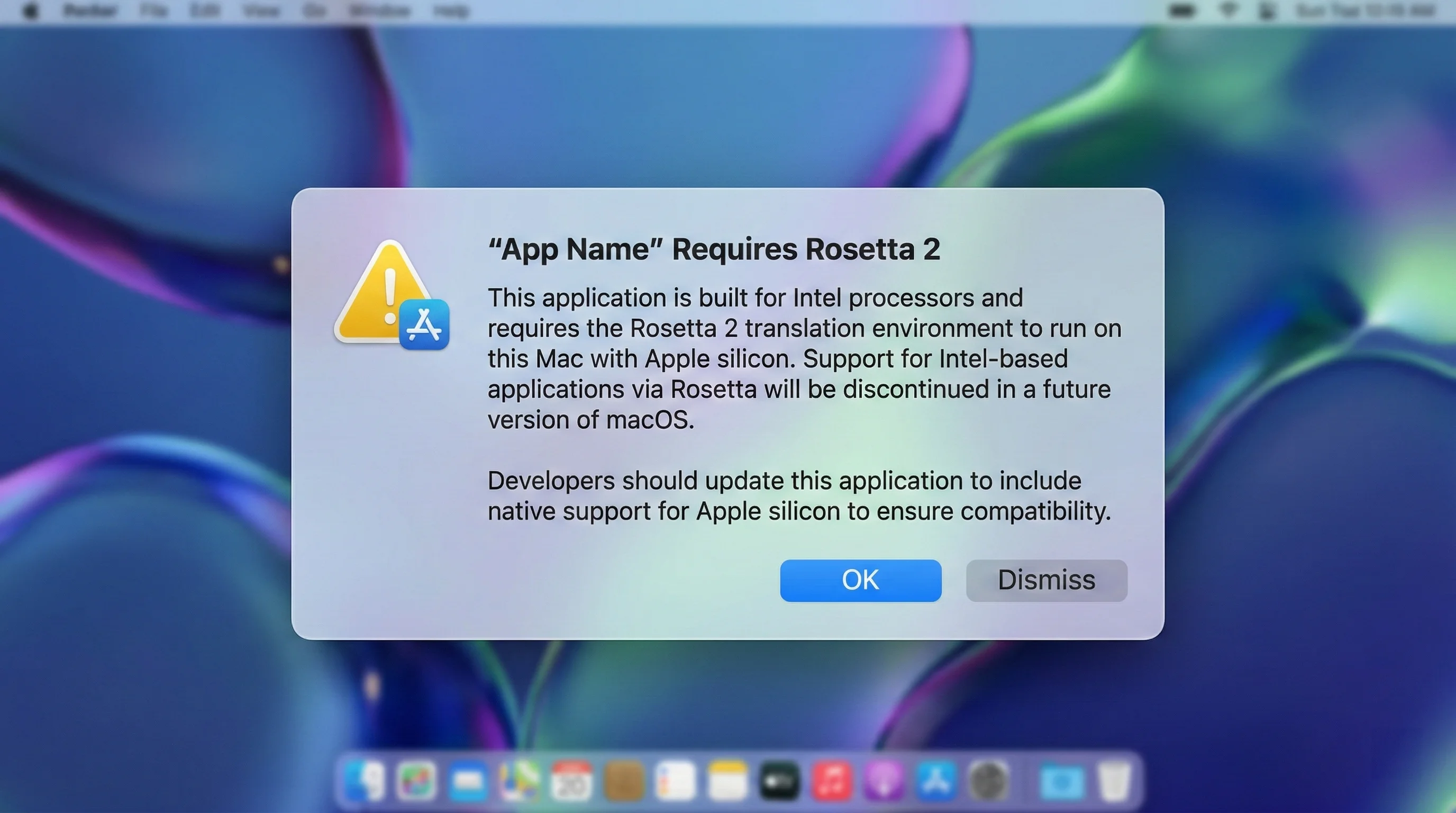
When you open an application that runs through Rosetta 2 translation, macOS 26.4 displays a system notification informing you that the app relies on Intel code translation and that support for Rosetta 2 will be ending. The notification includes:
- The name of the application
- A statement that the app requires Rosetta 2 to run
- A warning that Rosetta 2 support will be discontinued in a future version of macOS
- A recommendation to check with the developer for an Apple Silicon-native version
The warning appears every time you launch the app. It is not a one-time notice, and there is no visible option to suppress it permanently in Beta 2. This is clearly an intentional design choice by Apple to create a persistent sense of urgency around the transition.
The Rosetta 2 Deprecation Timeline
Apple announced the Rosetta 2 deprecation roadmap at WWDC 2025. Here is the timeline as it stands:
| macOS Version | Year | Rosetta 2 Status |
|---|---|---|
| macOS Tahoe 26 (including 26.4) | 2025-2026 | Fully supported with deprecation warnings starting in 26.4 |
| macOS 27 | Fall 2026 | Fully supported (final version with full Rosetta 2) |
| macOS 28 | Fall 2027 | Largely discontinued except for a limited subset for gaming |
Starting with macOS 28 in Fall 2027, Rosetta 2 will be discontinued for the vast majority of applications. Apple has indicated that a "subset of Rosetta functionality aimed at supporting older unmaintained gaming titles" will persist, but the translation layer will no longer be available for general application use.
This means that developers who have not yet ported their applications to Apple Silicon will have approximately 18 months from now to complete the transition. For end users, it means that any Intel-only application you currently rely on will stop working entirely on macOS 28 unless the developer ships a native update.
For a comprehensive breakdown of what this means for your workflow, read our Rosetta 2 end-of-life complete guide.
How to Check Which Apps Use Rosetta 2
If you want to audit your installed applications to see which ones still depend on Rosetta 2, follow these steps:
- Click the Apple menu in the top-left corner of your screen.
- Select About This Mac.
- Click More Info to open the full System Information panel.
- In the System Information window, scroll down to Software in the sidebar.
- Click Applications.
- Look at the Kind column. Applications listed as Intel run through Rosetta 2. Applications listed as Apple Silicon or Universal are native.
You can also use Terminal for a quick check:
# List all installed Intel-only applications
system_profiler SPApplicationsDataType | grep -B 5 "Kind: Intel"
What Developers Should Do Now
If you are a developer still shipping Intel-only Mac apps, the urgency is real. Apple has given five years since the Apple Silicon transition began in November 2020. The 26.4 warnings are Apple's way of putting both users and developers on notice that the grace period is ending.
Key steps for developers:
- Recompile for Universal Binary: If your codebase is already cross-platform, this may be as simple as updating your Xcode build settings to produce a Universal Binary (arm64 + x86_64).
- Test on Apple Silicon hardware: Ensure your app functions correctly natively, not just through Rosetta.
- Update third-party dependencies: Check that all libraries, frameworks, and tools you depend on have Apple Silicon support.
- Communicate with users: If your app requires time to transition, publish a timeline so users can plan accordingly.
- Consider dropping Intel support: For new projects, there is no reason to support Intel at this point.
Impact on Professional Workflows
Several categories of professional software are still partially or fully reliant on Rosetta 2:
- Audio production: Some legacy Audio Units and VST plugins still lack native Apple Silicon versions.
- Scientific software: Certain computational chemistry, bioinformatics, and engineering tools remain Intel-only.
- Legacy enterprise applications: Internal tools built on older frameworks may require significant refactoring.
- Older creative tools: Some specialized image processing and print production tools have not been updated.
If you rely on any software in these categories, now is the time to evaluate alternatives or contact the developers directly about their transition plans.
Battery Charge Limit Feature
macOS 26.4 introduces an iPhone-style Charge Limit slider that gives MacBook owners granular control over their maximum battery charge level. This feature was introduced in Beta 1 and has been refined in Beta 2 with improved stability and more consistent behavior.
How the Charge Limit Works
The new Charge Limit setting allows you to cap your MacBook's battery at any level between 80% and 100%, adjustable in 5% increments:
- 80% -- Maximum battery longevity, ideal for desktops-replacement MacBooks that stay plugged in most of the time
- 85% -- Good balance for users who occasionally need to go mobile
- 90% -- Moderate protection with reasonable untethered runtime
- 95% -- Minimal impact on day-to-day use with some longevity benefit
- 100% -- Default behavior, charges to full capacity
How to Access the Charge Limit Setting
- Open System Settings.
- Navigate to Battery.
- Click the info button (i) next to the Charging option.
- You will see a new Charge Limit slider.
- Drag the slider to your preferred maximum charge percentage.
- Close the panel. The setting takes effect immediately.
Why This Matters for Battery Health
Lithium-ion batteries degrade faster when they spend extended periods at or near 100% charge. This is not a new discovery -- battery scientists have known this for years, and it is the reason Apple introduced "Optimized Battery Charging" in earlier macOS versions. However, Optimized Battery Charging relies on machine learning to predict your usage patterns and only delays charging to 100% when it anticipates you will not need a full charge soon.
The new Charge Limit feature is different. It is a hard cap that prevents the battery from ever exceeding your chosen threshold, regardless of usage patterns. This gives users who keep their MacBooks plugged in at a desk for extended periods -- which is many professional users -- a reliable way to protect their battery chemistry.
Charge Limit vs. Optimized Battery Charging
It is important to understand that the Charge Limit feature works alongside Optimized Battery Charging, not as a replacement:
| Feature | Optimized Battery Charging | Charge Limit |
|---|---|---|
| How it works | Uses ML to delay charging to 100% | Hard cap at user-selected percentage |
| User control | On/Off toggle only | Slider from 80% to 100% |
| Predictability | Varies based on learned patterns | Always enforced |
| Best for | Users with regular daily routines | Users who stay plugged in for long periods |
For maximum battery longevity, you can enable both features simultaneously. Optimized Battery Charging will manage the charging curve below your chosen limit, and the Charge Limit will ensure the battery never exceeds it.
For a deeper exploration of this feature and its impact on MacBook battery health, read our Mac battery charge limit guide.
Changes in Beta 2
In Beta 1, some users reported that the Charge Limit setting would occasionally reset after a reboot or would not persist when the MacBook was used in clamshell mode with an external display. Beta 2 appears to have addressed these reliability issues. The setting now persists correctly across reboots, sleep/wake cycles, and clamshell mode transitions in our testing.
External Drive Ghost-Mounting Fix
One of the most frustrating bugs in macOS Tahoe 26.3, released on February 11, 2026, was the ghost drive mounting issue that affected thousands of users with external storage devices. This bug caused external drives to behave erratically: they would fail to mount, mount briefly and then eject without warning, or reappear in Finder after being properly ejected.
The Problem in macOS 26.3
The ghost drive bug in macOS Tahoe 26.3 manifested in several ways:
- Failed mounting: Previously reliable USB-A, USB-C, and Thunderbolt drives would not appear in Finder at all, though they might show up in Disk Utility as unmountable.
- Spontaneous ejection: Drives would mount briefly, become inaccessible, and then eject with the dreaded "Disk Not Ejected Properly" warning -- even though the user had done nothing.
- Ghost reappearance: APFS encrypted drives were particularly affected. After being properly ejected, they would reappear in Finder as mounted volumes, creating confusion about the actual state of the drive.
- HFS+ incompatibility: Some HFS+ formatted external media would fail to mount automatically, requiring manual intervention through Terminal using
diskutil.
The issue affected a wide range of external storage devices across multiple connection types and file system formats. Apple did not publicly acknowledge the bug, but AppleInsider actively investigated it with community help.
What Beta 2 Fixes
Based on community reports from developers and public beta testers running macOS 26.4 Beta 2, the ghost drive mounting issue appears to be largely resolved:
- APFS encrypted drives no longer reappear in Finder after proper ejection.
- HFS+ external drives are mounting normally again. Users on M1 Mac mini specifically confirmed that HFS+ drives work as expected in Beta 2.
- Spontaneous ejection incidents have dropped significantly in community reports.
However, Apple's developer documentation still carries a known issue note stating that "HFS external media might fail to mount automatically" in some cases, with a recommendation to use diskutil in Terminal as a workaround. This suggests that while the most egregious manifestations of the bug have been fixed, edge cases may still exist.
Workaround for Persistent Issues
If you encounter external drive mounting issues in Beta 2, try the following:
# List all disks to identify your external drive
diskutil list

# Mount a specific disk partition manually
diskutil mount /dev/disk4s1

# Force mount a specific volume by UUID
diskutil mount -mountPoint /Volumes/MyDrive [UUID]

# If the drive appears in Disk Utility but won't mount, try
diskutil mountDisk /dev/disk4
Replace /dev/disk4s1 with the actual identifier of your external drive, which you can find using diskutil list.
Additional Changes and Improvements
Beyond the headline features, macOS 26.4 Beta 2 includes several smaller changes and refinements that are worth noting.
System Stability Improvements
Beta 2 is fundamentally a stability release. Apple's second betas in a development cycle typically focus on resolving crashes, fixing memory leaks, and improving overall system responsiveness. While Apple does not publish a granular changelog for beta builds, users have reported:
- Fewer kernel panics compared to Beta 1, particularly on M1 and M3 MacBook Air models.
- Improved wake-from-sleep behavior, with fewer instances of the system hanging during the wake process.
- Better memory management in extended use sessions, with reduced memory pressure warnings during normal multitasking.
Finder Refinements
Several users have noted minor Finder improvements in Beta 2:
- Column view performance: Navigating deep folder hierarchies in column view is noticeably smoother.
- Quick Look stability: Quick Look previews for large files (PDFs, high-resolution images) are less likely to hang.
- Tag management: Applying and removing tags in the Finder sidebar works more reliably.
Accessibility Updates
Apple continues to refine accessibility features with each beta:
- VoiceOver: Improved navigation consistency in Safari with the Compact Tab Bar enabled.
- Display accommodations: The Liquid Glass transparency settings interact more predictably with the Reduce Transparency accessibility option.
Security Updates
While Apple typically does not detail security patches in beta releases, the build number increment from 25E5207h to 25E5218f suggests internal security improvements. Full security content will be published with the final release on the Apple Security Releases page.
Known Issues in Beta 2
Every beta has its share of problems, and macOS 26.4 Beta 2 is no exception. Here are the most significant known issues that testers should be aware of.
Intermittent Browser Failures
The most disruptive known issue in Beta 2 is an intermittent networking bug that causes web browsers to stop working while other network-connected applications continue to function normally. Specifically:
- Affected applications: Safari, Chrome, Firefox, Arc, and other web browsers intermittently lose their ability to load web pages.
- Unaffected applications: Mail, Microsoft Teams, Slack, and other non-browser apps continue to work normally during the outage.
- Workaround: The issue appears to be related to network content filters. Users running Little Snitch, 1Blocker, or other apps that install network filter extensions are most likely to encounter this bug. Disabling the content filter in System Settings > Network > Filters immediately resolves the issue.
If you experience this problem, try disabling any third-party network extensions before filing a Feedback Assistant report. This will help Apple narrow down whether the issue is in the system networking stack or in the interaction with third-party network filter extensions.
Icon Replacement via Copy-Paste Broken
A cosmetic but frustrating bug in Beta 2 prevents users from customizing application and folder icons using the traditional copy-paste method:
- The bug: Normally, you can copy an image (Cmd+C), open Get Info on a folder or app (Cmd+I), click the icon at the top of the Get Info window, and paste (Cmd+V) to replace the icon. In Beta 2, this workflow does not function. The paste operation either does nothing or reverts to the default icon.
- Impact: Users who rely on custom folder icons for organization, or who customize app icons for aesthetic purposes, are unable to do so.
- Additional report: Some users have also reported that custom icons they previously applied have reverted to default system icons after updating to Beta 2.
This is clearly a regression that Apple will need to fix in a future beta or the final release.
Wi-Fi Instability on Certain Models
Users running Beta 2 on specific hardware configurations have reported Wi-Fi issues:
- Mac models affected: MacBook Air M1 and MacBook Air M3 appear to be most frequently cited.
- Symptoms: Unexpected Wi-Fi disconnections, slow reconnection after sleep, and in some cases, unexpected system reboots related to network stack errors.
- Severity: Some users report that Beta 2 is worse than Beta 1 in this regard, suggesting a possible regression.
Network Drive Auto-Mounting
Network-attached storage (NAS) devices and other network drives may fail to auto-mount at boot:
- Symptoms: Mapped network drives do not reconnect automatically after a restart.
- Workaround: Manually reconnect to the network share via Finder > Go > Connect to Server (Cmd+K).
How to Install macOS Tahoe 26.4 Beta 2
If you want to test macOS 26.4 Beta 2, there are two paths depending on whether you have a developer account or want to use the public beta program.
Developer Beta Installation
- Ensure your Mac is signed in with the Apple Account you use for the Apple Developer Program.
- Open System Settings > General > Software Update.
- Click the info button (i) next to Beta Updates.
- Select macOS Tahoe 26 Developer Beta.
- Click Done.
- Wait a few seconds for the update to appear.
- Click Update Now to download and install.
Public Beta Installation
- Sign up for the Apple Beta Software Program if you have not already.
- Open System Settings > General > Software Update.
- Click the info button (i) next to Beta Updates.
- Select macOS Tahoe 26 Public Beta.
- Click Done.
- Wait for the update to appear, then click Update Now.
Pre-Installation Checklist
Before installing any beta software, take these precautions:
- Back up your Mac using Time Machine or a third-party backup solution. This is non-negotiable for beta software.
- Check compatibility: Make sure your Mac supports macOS Tahoe. See our macOS Tahoe compatibility guide for the full list of supported models.
- Note the build number: After installation, verify you are running build 25E5218f by going to Apple menu > About This Mac.
- Reserve disk space: Ensure you have at least 20 GB of free space for the update.
- Update critical applications: Make sure your essential apps are updated to their latest versions before installing the beta.
Updating from Beta 1
If you are already running macOS 26.4 Beta 1, the update to Beta 2 is a standard incremental update. Go to System Settings > General > Software Update, and the Beta 2 update should appear automatically. The update is approximately 2-4 GB depending on your hardware configuration.
Should You Install the Beta?
This is the question every Mac user faces when a new beta drops. Here is a decision framework:
Install the Beta If You:
- Are a developer who needs to test app compatibility with macOS 26.4 changes, especially the Rosetta 2 warnings and Safari Compact Tab Bar.
- Have a secondary Mac that you can dedicate to beta testing without risking your primary workflow.
- Are a technology enthusiast who enjoys exploring new features early and is comfortable troubleshooting issues.
- Rely heavily on external drives and want to verify that the ghost-mounting fix resolves your specific issue.
Do Not Install the Beta If You:
- Use your Mac for critical work and cannot afford downtime from beta instability.
- Depend on third-party network extensions like Little Snitch, given the known browser connectivity issue.
- Customize app/folder icons extensively, as the icon replacement bug will disrupt your workflow.
- Use a Mac with limited storage, as beta builds can consume additional space for system logs and diagnostic data.
- Are on a MacBook Air M1 or M3 and depend on stable Wi-Fi, given the reported connectivity issues on these models.
The Middle Ground
If you want the new features but are not comfortable with beta instability, the most prudent approach is to wait for the final public release, which is expected in spring 2026. The features in macOS 26.4 -- Safari Compact Tab Bar, Charge Limit, Rosetta 2 warnings -- will all be available in the stable release. Waiting a few more weeks costs you nothing and gains you stability.
What to Expect from the Final Release
Based on the current beta trajectory, here is what we expect for the final macOS 26.4 release:
Release Timeline
Apple typically runs 3-5 beta cycles before a public release. With Beta 2 shipping on February 23, we can reasonably expect:
- Beta 3: Early March 2026
- Beta 4 (if needed): Mid-March 2026
- Final Release: Late March to early April 2026
Some industry observers have speculated that Apple may target a March 4 release to align with potential new hardware announcements, but this is unconfirmed.
Feature Finality
All of the headline features in macOS 26.4 -- Safari Compact Tab Bar, Rosetta 2 warnings, Charge Limit slider -- are clearly intended for the final release. They are not the kind of experimental features that Apple tends to pull during the beta process. You can plan around these features being available.
Bug Resolution
The known issues in Beta 2 -- browser connectivity problems with network filters, icon replacement failures, Wi-Fi instability on certain models -- are the kinds of bugs that Apple typically resolves before a final release. If these issues persist in Beta 3, it would be unusual. Keep an eye on our beta coverage for updates.
Security Patches
The final macOS 26.4 release will include security patches that Apple does not detail during the beta period. Expect the usual range of WebKit, kernel, and framework-level security fixes.
Troubleshooting macOS 26.4 Beta 2 Issues
If you have installed Beta 2 and are experiencing problems, here are targeted troubleshooting steps for the most common issues.
Browsers Not Loading Pages
Symptom: Safari, Chrome, or other browsers cannot load any web pages, while Mail, Teams, and other apps work fine.
Steps:
- Open System Settings > Network > Filters.
- Disable any content filters listed (Little Snitch, 1Blocker, etc.).
- Test your browser immediately -- pages should load.
- If the issue resolves, the problem is the interaction between Beta 2's networking stack and the content filter extension.
- Check for updates to your content filter app. The developer may have released a compatibility update.
- If no update is available, keep the filter disabled until the next beta or file a Feedback Assistant report with both Apple and the filter app developer.
If disabling filters does not help:
- Open Terminal.
- Run
sudo dscacheutil -flushcache && sudo killall -HUP mDNSResponderto flush the DNS cache. - Restart your Mac.
- If the problem persists, try creating a new network location: System Settings > Network > three-dot menu > Locations > Add Location.
External Drives Not Mounting
Symptom: USB or Thunderbolt external drives do not appear in Finder.
Steps:
- Open Disk Utility (Applications > Utilities > Disk Utility).
- Check if the drive appears in the sidebar. If it does, select it and click Mount.
- If it appears but Mount fails, open Terminal and try:
diskutil list
# Identify your drive (e.g., /dev/disk4)
diskutil mountDisk /dev/disk4- If the drive does not appear at all, try a different port or cable.
- For APFS encrypted drives, make sure you are entering the correct password when prompted.
- If the drive was formatted on a different Mac, ensure the format is compatible (APFS or HFS+ for macOS; ExFAT or FAT32 for cross-platform).
Wi-Fi Dropping on MacBook Air
Symptom: Wi-Fi disconnects randomly, especially after waking from sleep.
Steps:
- Open System Settings > Wi-Fi.
- Click the Details button next to your connected network.
- Toggle off Low Data Mode if it is enabled.
- Forget the network and reconnect by clicking Forget This Network, then reconnecting with your password.
- Reset the network configuration:
- Open Terminal.
- Run:
sudo ifconfig en0 down && sudo ifconfig en0 up
- If the issue persists, try deleting the Wi-Fi preference files:
sudo rm -f /Library/Preferences/SystemConfiguration/com.apple.wifi.message-tracer.plist
sudo rm -f /Library/Preferences/SystemConfiguration/com.apple.airport.preferences.plist
# Restart your Mac after deleting these files
Charge Limit Not Persisting
Symptom: The battery charge limit resets to 100% after a reboot.
Steps:
- Verify you are on Beta 2 (build 25E5218f), not Beta 1. This issue was specifically addressed in Beta 2.
- Go to System Settings > Battery > Charging (i button) and re-set your preferred charge limit.
- Restart your Mac and verify the setting persists.
- If the setting resets during clamshell mode, disconnect and reconnect the external display.
- Reset the SMC (on Apple Silicon Macs, this is done by shutting down completely, waiting 30 seconds, then starting up).
Custom Icons Missing or Cannot Be Applied
Symptom: Custom folder or app icons have reverted to defaults, and the copy-paste icon replacement workflow does not work.
Steps:
- This is a known bug in Beta 2 with no user-side fix. Apple must address it in a future beta.
- As a temporary workaround, you can use Terminal to set custom icons:
# Using fileicon utility (install via Homebrew: brew install fileicon)
fileicon set /path/to/folder /path/to/icon.icns- Note that even Terminal-applied icons may not persist after reboots in this beta.
- If your custom icons are critical to your workflow, consider waiting for the next beta before making changes.
Rosetta 2 Warnings Appearing Too Frequently
Symptom: Every Intel app launch triggers a Rosetta 2 deprecation warning, and you want to manage this.
Steps:
- There is currently no way to disable the warnings in Beta 2. This appears to be intentional.
- To reduce the frequency, identify which of your apps are Intel-only and seek native alternatives.
- Check the App Store for updates to your Intel apps -- many developers have released Universal Binary versions.
- Use the system_profiler command shown earlier in this article to generate a full list of Intel apps on your system.
- Prioritize replacing the apps you use most frequently to minimize daily warning interruptions.
Frequently Asked Questions
Is macOS 26.4 Beta 2 stable enough for daily use?
Beta 2 is more stable than Beta 1, which is expected for a second beta. However, it still carries known issues that can disrupt daily workflows, particularly the browser connectivity problem with network filter extensions and the Wi-Fi instability on certain MacBook Air models. If your Mac is your primary work machine, the safest approach is to wait for the final release. If you have a secondary Mac or are comfortable with occasional instability, Beta 2 is reasonably usable for day-to-day tasks with the caveat that you should have a current backup.
Will Rosetta 2 stop working in macOS 26.4?
No. Rosetta 2 is fully functional in macOS 26.4. The warnings you see are advance notices about a future discontinuation, not an indication that Rosetta 2 is being removed in this release. Rosetta 2 will continue to be fully supported through macOS 27 (expected Fall 2026). The actual deprecation begins with macOS 28 (expected Fall 2027), where it will be "largely discontinued" with limited gaming exceptions. You have approximately 18 months from now to transition away from Intel-only applications.
How do I go back to macOS 26.3 if the beta causes problems?
Downgrading from a beta requires erasing your Mac and restoring from a Time Machine backup made before you installed the beta. This is why backing up before installing beta software is so critical. The process involves:
- Restart your Mac and hold the power button (Apple Silicon) or Cmd+R (Intel) to enter Recovery Mode.
- Select Reinstall macOS and choose macOS Tahoe 26.3.
- After installation, restore your data from your pre-beta Time Machine backup.
Alternatively, if you installed the beta on a separate APFS volume, you can simply boot back into your stable macOS installation.
When will macOS 26.4 be released to everyone?
Apple has not announced an official release date, but based on the typical beta cycle timeline, the final release is expected in spring 2026, most likely in late March or early April. Some reports have speculated about a March 4 release date to coincide with potential hardware announcements, but this is unconfirmed. Apple typically runs 3-5 beta cycles, so at least one or two more betas are expected before the final release.
Can I set the charge limit below 80%?
No. The Charge Limit slider in macOS 26.4 only allows values between 80% and 100% in 5% increments. Apple chose 80% as the floor because it represents the widely accepted threshold for optimal lithium-ion battery longevity without significantly compromising usable battery life. Setting the limit below 80% would reduce the practical runtime of the MacBook to a point where many users would find it impractical for mobile use. If you primarily use your MacBook as a desktop replacement and rarely run on battery, the 80% setting provides the best possible battery health protection within Apple's supported range.
Final Thoughts
macOS Tahoe 26.4 Beta 2 is a measured, purposeful update that demonstrates Apple is listening to its user base. The return of the Safari Compact Tab Bar is a direct response to community feedback. The Rosetta 2 warnings, while potentially annoying, serve a genuinely useful purpose by giving everyone ample notice to prepare for the transition. The Charge Limit slider addresses a long-standing request from MacBook power users. And the fix for the external drive ghost-mounting bug from 26.3 resolves one of the most frustrating recent issues in macOS history.
At the same time, the known issues in Beta 2 -- intermittent browser failures with network filters, broken icon customization, Wi-Fi instability on certain models -- serve as a reminder that this is still pre-release software. Apple has work to do before the final release, and at least one or two more beta cycles are expected.
If you are running the beta, file Feedback Assistant reports for any issues you encounter. Your reports directly influence the quality of the final release. If you are waiting for the stable version, you can look forward to a polished update that brings meaningful quality-of-life improvements to your Mac experience this spring.
For ongoing coverage of the macOS 26.4 beta cycle, bookmark our blog and check back for updates as new betas are released and as we get closer to the final public release.
This article covers macOS Tahoe 26.4 Beta 2 (Build 25E5218f) as released on February 23, 2026. Information is based on hands-on testing and verified community reports. Features and behaviors may change in future beta builds or the final release.