macOS Tahoe 26.4 Beta 1: Every New Feature, Bug, and What It Means for Your Mac
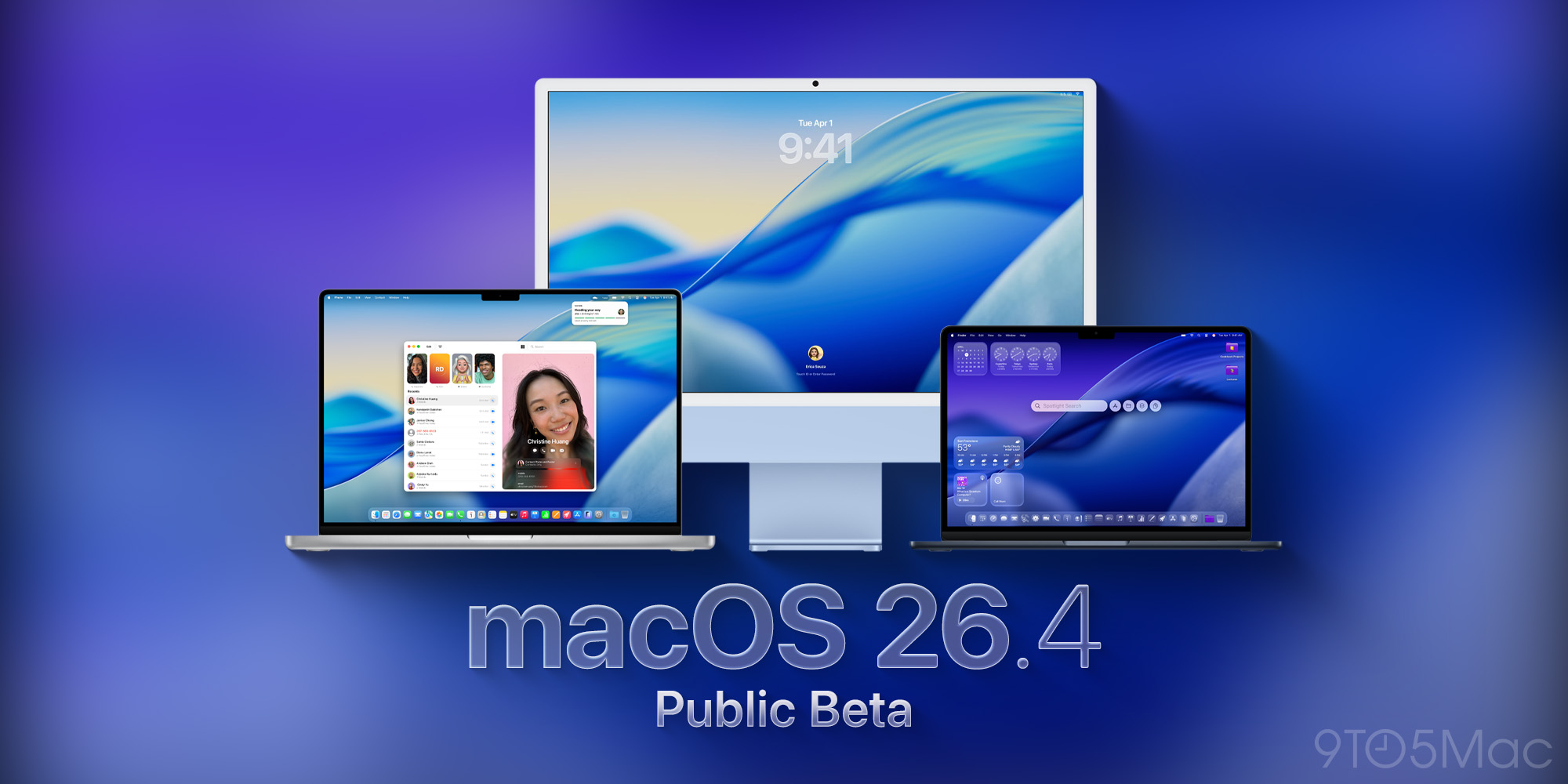
Complete guide to macOS Tahoe 26.4 Beta 1 released February 2026. Battery Charge Limit, Safari compact tabs return, Rosetta 2 end-of-life warnings, RCS encryption, and known bugs explained.
Just nine days after macOS Tahoe 26.3 landed with its massive 52-vulnerability security payload, Apple seeded the first beta of macOS Tahoe 26.4 to developers on February 16, 2026, followed by a public beta on February 17. This is a meaningful release — not just a round of under-the-hood tweaks. Beta 1 delivers two major features that Mac users have been asking Apple for years to implement, formally begins the countdown clock on Intel Mac support, and opens up a new chapter for cross-platform messaging security. It also ships with some notable bugs that every potential beta tester should understand before updating. This guide covers everything in depth.
Table of Contents
- Executive Summary: What's New in 26.4 Beta 1
- macOS Tahoe 26.4 Release Timeline
- Feature 1: Battery Charge Limit Comes to Mac
- Feature 2: Safari Compact Tab Bar Returns
- Feature 3: Rosetta 2 End-of-Life Warnings
- Feature 4: RCS End-to-End Encryption Testing
- Feature 5: New Emoji in 26.4
- Known Bugs in Beta 1
- How to Install the Beta
- Should You Install Beta 1?
- What to Expect Before Stable Release
- macOS Tahoe Version History
- Final Verdict
Executive Summary: What's New in macOS Tahoe 26.4 Beta 1
macOS Tahoe 26.4 Beta 1 is a feature-forward release that departs sharply from the stability-focused cadence of 26.3. Apple is using the 26.4 cycle to deliver hardware-adjacent features previously confined to iPhone, restore UI choices that proved controversial when removed, formally communicate Intel's sunset timeline to users, and test a significant messaging security improvement.
| Feature | Category | Status in Beta 1 |
|---|---|---|
| Battery Charge Limit | System/Battery | Live |
| Safari Compact Tab Bar | UI/Browser | Live (opt-in) |
| Rosetta 2 End-of-Life Warnings | System/Compatibility | Live |
| RCS End-to-End Encryption | Messaging | Testing |
| New Emoji | UI | Live |
Key facts at a glance:
| Detail | Information |
|---|---|
| Beta 1 (Developer) | February 16, 2026 |
| Beta 1 (Public) | February 17, 2026 |
| Current Stable | macOS Tahoe 26.3 (February 11, 2026) |
| Expected Stable 26.4 | Late March to Early April 2026 |
| Supported Macs | Same as macOS Tahoe 26.0 (2018 and later) |
Bottom line for different users:
- Regular users: Wait for the stable release. The features are excellent but the bugs are real.
- Power users and developers: Worth installing on a secondary machine to evaluate Battery Charge Limit behavior and Safari tab changes before they hit production.
- Intel Mac owners: You need to read the Rosetta 2 section carefully — the timeline affects decisions you should make now, not in 2027.
- Beta testers: Read the known bugs section before updating. The HFS+ drive mounting issue is particularly important if you use older external drives.
macOS Tahoe 26.4 Release Timeline
Understanding where 26.4 Beta 1 sits in Apple's software calendar helps calibrate expectations. Apple typically runs three to five betas over four to six weeks before releasing a point update as stable.
| Milestone | Date |
|---|---|
| macOS Tahoe 26.3 Stable | February 11, 2026 |
| macOS Tahoe 26.4 Developer Beta 1 | February 16, 2026 |
| macOS Tahoe 26.4 Public Beta 1 | February 17, 2026 |
| macOS Tahoe 26.4 Developer Beta 2 (estimated) | Early March 2026 |
| macOS Tahoe 26.4 Developer Beta 3 (estimated) | Mid-March 2026 |
| macOS Tahoe 26.4 Stable Release (estimated) | Late March to Early April 2026 |
Apple's cadence for 26.1, 26.2, and 26.3 each ran approximately four to six weeks from first beta to stable release. If 26.4 follows the same pattern, expect the stable release somewhere in the final week of March or the first two weeks of April 2026.
The timing is notable because it places 26.4's stable release approximately two months before WWDC 2026, where Apple is expected to preview macOS 27 — the last release before Apple Silicon becomes the only supported architecture. That context makes the Rosetta 2 warning system in this beta especially significant.
Feature 1: Battery Charge Limit Comes to Mac
This is the feature that Mac users have been requesting for years while watching iPhone get it first. macOS Tahoe 26.4 finally introduces a configurable maximum battery charge ceiling for MacBook models — and the implementation is more flexible than the iPhone version.
What Battery Charge Limit Does
Lithium-ion batteries degrade over time, and one of the primary causes of accelerated degradation is consistently charging to 100%. The electrochemical stress of holding a battery at full charge — combined with heat — shortens the overall lifespan of the battery cell. By capping the maximum charge, you reduce this stress and extend the number of charge cycles your battery can sustain before its capacity degrades below practical thresholds.
Apple introduced this feature on iPhone with iOS 13 as "Optimized Battery Charging," which learned your charging patterns and automatically held the battery below 80% when plugged in overnight. The Mac version in 26.4 takes a more deliberate, user-controlled approach.
How to Configure Battery Charge Limit in macOS 26.4
The setting is straightforward to locate and configure:
- Open System Settings (the gray gear icon in your Dock or Applications folder)
- Click Battery in the left sidebar
- Scroll down to find the Battery Health section
- Click the Battery Health button or the information icon next to it
- Toggle on Battery Charge Limit
- Use the slider to set your desired maximum charge level
The slider allows you to choose any value from 80% to 100% in increments that Apple has not yet published precisely in beta documentation, but testing by developers suggests roughly 5% increments.
System Settings → Battery → Battery Health → Battery Charge LimitWhen you enable a charge limit below 100%, the battery icon in the menu bar will stop filling at your chosen ceiling. If your Mac is plugged in and already charged to your limit, it will stop accepting new charge from the adapter and will only draw power directly from the wall — preventing trickle charging above the limit.
Choosing the Right Charge Level
The relationship between charge ceiling and battery longevity is well-established in battery chemistry research:
| Charge Ceiling | Battery Longevity Impact | Best Use Case |
|---|---|---|
| 100% | Baseline (no benefit) | Mobile users who need full capacity |
| 90% | Moderate improvement (~15-20% longer lifespan) | Users who mostly work plugged in |
| 85% | Good improvement (~25-30% longer lifespan) | Home/office desk workers |
| 80% | Best improvement (~40% longer lifespan) | Users with desk-bound workflows |
If your MacBook spends most of its life plugged in on a desk — as a large percentage of MacBook Pro users report — setting a limit of 80% or 85% can meaningfully extend how long your battery retains acceptable capacity. The tradeoff is reduced unplugged range.
Why This Took So Long, and Why It Matters
Apple has offered a partial version of this functionality for years through "Optimized Battery Charging," which automatically delays charging above 80% when your Mac predicts you will leave it plugged in for extended periods. However, Optimized Battery Charging is opaque — you cannot always predict or control when it will engage, and it frequently fails to engage for users with irregular schedules.
Third-party utilities like AlDente have filled this gap for years, charging a premium for what amounts to a preference pane override. The arrival of a native control removes the need for these workarounds and ensures the charge limit integrates cleanly with the battery management hardware rather than working around it at the software layer.
For MacBook Pro users who use their laptop as a desktop replacement — running continuously plugged into a monitor — this feature may extend the usable life of the battery by a year or more before it needs servicing. Given that a battery replacement from Apple costs $129-$249 depending on the model, this is a financially meaningful addition.
Compatibility
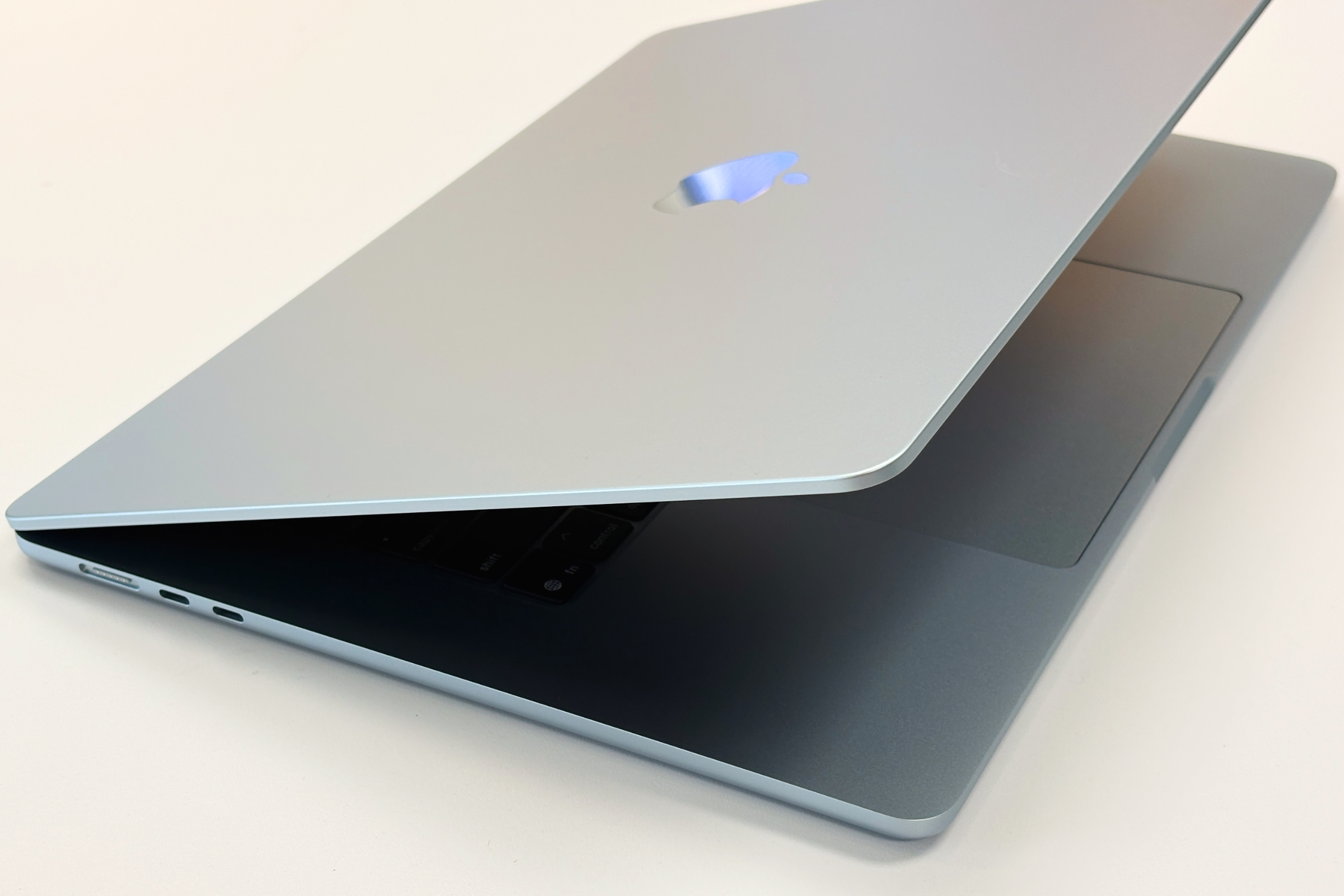
Battery Charge Limit requires an Apple Silicon Mac (M1 or later). Intel MacBook models are not listed as compatible in the beta, which aligns with the broader Intel wind-down narrative that 26.4 is communicating through its Rosetta 2 warnings.
Feature 2: Safari Compact Tab Bar Returns
When Apple launched macOS Tahoe 26.0 in September 2025, one of the more vocal community complaints was the removal of Safari's compact tab bar option. The compact layout, which places the address bar inside the tab strip itself, had been a divisive-but-loved option since Safari 15 introduced it back in 2021. macOS 26.0 eliminated it entirely, forcing everyone onto the standard tab bar layout.
macOS 26.4 Beta 1 reverses that decision.
What Changed
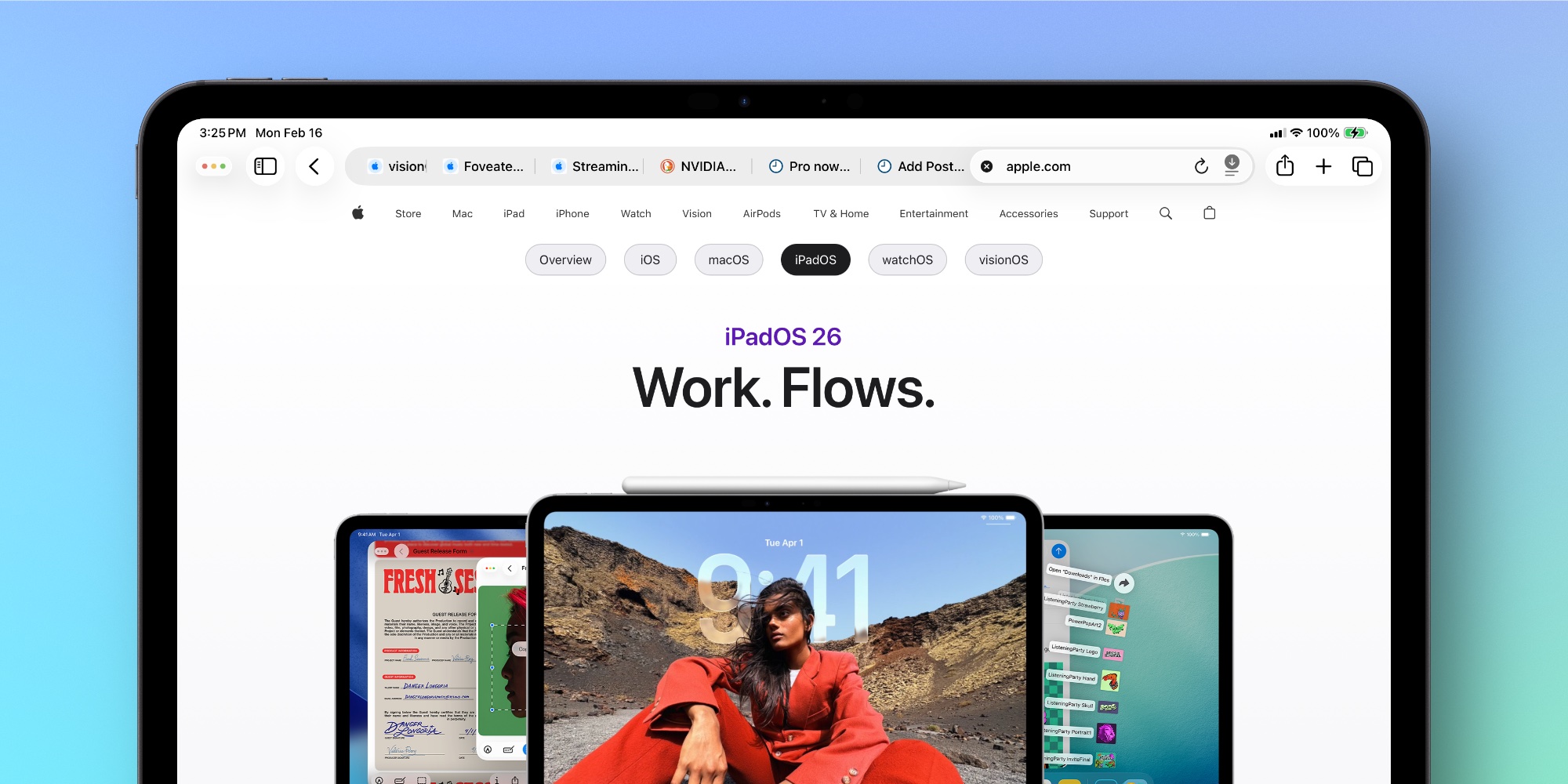
Safari in macOS 26.4 Beta 1 includes a restored preference allowing users to choose between two tab bar layouts:
- Standard: The conventional layout with the address bar as a fixed element above the tab strip. Familiar to users coming from Chrome, Firefox, or any other browser.
- Compact: The address bar is embedded within the active tab's tab strip area, collapsing unused vertical space and giving more screen real estate to web content.
How to Enable the Compact Tab Bar
- Open Safari
- From the menu bar, choose View → Show Tab Bar (ensure tab bar is visible)
- Open System Settings
- Navigate to the search field and type "Safari" OR go to the Safari section within Privacy & Security area
- Alternatively: In Safari, go to Safari → Settings (Cmd + ,)
- Click the Tabs tab in Safari Settings
- Under "Tab Layout," select Compact
Safari → Settings (⌘,) → Tabs → Tab Layout → CompactThe change takes effect immediately without requiring Safari to restart.
Why This Matters
The compact tab bar is particularly valuable for two user groups: those with smaller displays (13-inch MacBook Air users, for example) and those who habitually maximize their browser window and want every vertical pixel available for content. On a 13-inch display at native resolution, the compact tab bar recovers approximately 28-36 pixels of content space — enough to meaningfully reduce scrolling on long pages.
The controversy around its removal in macOS 26.0 reflected a broader pattern of Apple eliminating user interface options in the name of design simplification. The restoration of this specific option in 26.4 is an acknowledgment that some UI choices should remain user-controlled, particularly when the removed option had a dedicated and vocal user base.
Compatibility with Liquid Glass
One question that arose when the compact tab bar was removed in 26.0 was whether it was incompatible with the Liquid Glass design system. Beta 1 answers that question: the compact tab bar returns with Liquid Glass styling applied, rendering translucent and responsive to the system appearance — dark mode, light mode, and accent colors all integrate correctly.
Developers testing in Beta 1 note that the Liquid Glass rendering in compact mode performs comparably to standard mode, with no observed additional GPU overhead compared to the standard tab bar variant.
Feature 3: Rosetta 2 End-of-Life Warnings
This feature has the most significant long-term implications of anything in Beta 1, even though it appears as a single dialog box. macOS Tahoe 26.4 introduces a system-level warning that appears whenever a user launches an application that requires Rosetta 2 — Apple's translation layer that allows Intel x86_64 applications to run on Apple Silicon Macs.

What the Warning Says
When you launch any application that uses Rosetta 2 — meaning any app compiled exclusively for Intel x86_64 that has not been updated to include a native Apple Silicon binary — macOS 26.4 displays an alert with the following message:
"[App Name]" will not be supported in a future version of macOS.
This app needs to be updated by its developer to run natively on Apple Silicon. Contact the developer for more information.
The dialog includes two buttons: OK (dismisses the dialog) and Learn More (opens an Apple support page explaining the Rosetta transition timeline). The warning appears once per application, not every time you launch the app.
Understanding the Timeline
To fully grasp why Apple is doing this now, in a mid-cycle beta of macOS Tahoe, you need to understand the roadmap Apple has been following since the Apple Silicon transition announcement in 2020:
| macOS Version | Intel Mac Support | Rosetta 2 |
|---|---|---|
| macOS Monterey (12) | Full support | Available |
| macOS Ventura (13) | Full support | Available |
| macOS Sonoma (14) | Full support | Available |
| macOS Sequoia (15) | Full support | Available |
| macOS Tahoe 26 | Last version for Intel Macs | Available |
| macOS 27 (2026) | Apple Silicon only | Available for compatibility |
| macOS 28 (2027) | Not supported | Removed |
macOS Tahoe 26 — the current operating system — is the final version that will run on Intel-based Macs. When Apple releases macOS 27 at WWDC 2026 and for general release in September 2026, Intel Macs will be left behind. Rosetta 2 itself is expected to remain available through macOS 27 to help users transition, but macOS 28 (2027) is widely expected to remove it entirely.
The warning system in 26.4 is Apple communicating two things simultaneously:
- If you are a developer, your Intel-only app needs a native Apple Silicon build — now, not later.
- If you are a user, any app displaying this warning will stop working when macOS 28 arrives, and you should plan accordingly.
What This Means for Intel Mac Users
If you are still running an Intel-based Mac — an iMac, MacBook Pro, Mac mini, or Mac Pro from before the Apple Silicon transition in late 2020 — this warning does not directly affect you yet. Your Mac will continue running macOS Tahoe 26.x until Apple stops releasing updates for it, which will happen when macOS 27 is released. You will not receive macOS 27 or later.
However, 26.4's warning system is a useful diagnostic tool. When you see which of your apps trigger the Rosetta warning, you can:
- Check for updates: The developer may have already released a native Apple Silicon build. Check the App Store or the developer's website.
- Contact the developer: Many developers respond to customer pressure when reminded that their app has an end-of-life compatibility problem.
- Find alternatives: If an app is abandoned and Intel-only, now is the time to research native Apple Silicon alternatives rather than waiting until the transition forces your hand.
- Plan your hardware upgrade: If critical workflow apps are Intel-only with no native build in sight, you need to factor this into your timeline for upgrading to Apple Silicon hardware.
What This Means for Apple Silicon Mac Users
If you are on Apple Silicon (M1 or later), you have been using Rosetta 2 transparently for any Intel-only apps you kept running. The warning will now surface the list of those apps proactively. This is an opportunity to audit your app library:
# Find apps using Rosetta 2 on your Mac
find /Applications -name "*.app" -exec lipo -info {}/Contents/MacOS/* \; 2>/dev/null | grep "x86_64" | grep -v "arm64"
This Terminal command lists applications that contain only Intel x86_64 binaries without an Apple Silicon arm64 counterpart. Any app in this list will trigger the Rosetta 2 warning in macOS 26.4 and will stop functioning in macOS 28.
Impact on Developers
For developers, the warning is a more direct call to action than anything Apple has issued in written documentation:
- Update your apps: If your app is still compiled as Intel-only, adding Universal Binary support (x86_64 + arm64) is necessary for continued compatibility through macOS 27.
- Prioritize the transition: Apps that have been "working fine with Rosetta" but never received a native build now have a visible end date in front of users.
- Test native performance: Many apps see significant performance improvements when running natively on Apple Silicon versus through Rosetta 2. The migration often pays dividends in user experience beyond just future compatibility.
Apple's developer documentation for Universal Binaries and the xcodebuild -arch arm64 build flag have been available since 2020. Xcode's built-in support for building Universal Binaries makes the transition relatively straightforward for most applications that don't rely on Intel-specific libraries or plugins.
Feature 4: RCS End-to-End Encryption Testing
macOS Tahoe 26.4 Beta 1 includes early, experimental testing of end-to-end encryption for RCS (Rich Communication Services) messages exchanged between Apple devices and Android devices using the Messages app.
Background: RCS and Its Encryption Gap
Apple adopted RCS support in iOS 18 and macOS Sequoia, bringing features like higher-resolution media sharing, read receipts, and typing indicators to cross-platform conversations with Android users. However, early RCS implementation on Apple platforms did not include end-to-end encryption — a significant privacy gap compared to iMessage, which has offered E2EE since its introduction.
The absence of E2EE in RCS conversations meant that messages exchanged between iPhone and Android devices could theoretically be accessed by mobile carriers, RCS infrastructure operators, and through interception. This stood in contrast to Apple's strong privacy messaging around iMessage and its explicit positioning of green-bubble RCS conversations as lower privacy than blue-bubble iMessage.
What's Being Tested in 26.4 Beta 1
Apple is testing the GSMA's new Universal Profile specification for E2EE in RCS, which Google has also been implementing on Android. The feature uses the Messaging Layer Security (MLS) protocol to negotiate encryption keys between participating devices.
In practical terms, when both parties support the updated RCS E2EE standard:
- Messages are encrypted on the sender's device and decrypted only on the recipient's device
- No intermediate servers — including Apple's, Google's, or the carrier's — can read message content
- A visual indicator will appear in the conversation view to signal when E2EE is active
- End-to-end encrypted RCS conversations will be visually distinct from unencrypted RCS
Current State in Beta 1
This feature is explicitly in a testing phase in Beta 1. It is not fully available to all users and requires the Android recipient to also be running a compatible implementation. Google began shipping RCS E2EE support on Android in late 2025, so the infrastructure is partially in place for cross-platform E2EE to function when both parties support it.
Beta testers who have Android contacts with modern versions of Google Messages (which supports the RCS E2EE standard) may begin to see encrypted indicators appearing in conversations. Most users will not notice a change in Beta 1 as the feature rolls out gradually.
If 26.4's beta testing period confirms that the implementation is stable and interoperable with Android's existing RCS E2EE, expect the feature to be fully enabled and documented in the stable 26.4 release.
Feature 5: New Emoji in macOS 26.4
macOS Tahoe 26.4 adds new emoji characters as part of Apple's standard mid-cycle emoji refresh, which typically accompanies point releases in the .3 or .4 timeframe. The specific emoji additions are pending Unicode Consortium finalization for the Emoji 16.1 and Emoji 17.0 sets and have not been fully enumerated in beta documentation.
Early beta testers have noted additions in the categories of facial expressions, food items, and objects, following the trend of recent emoji additions toward more nuanced expressions and culturally diverse representations. Specific emoji additions will be catalogued fully when Beta 2 or the stable release provides complete documentation.
Known Bugs in macOS Tahoe 26.4 Beta 1
Beta 1 is a developer and public beta seed, and carries bugs that are expected to be fixed during the beta cycle. However, users considering installing Beta 1 should understand these issues before updating.
Critical: HFS+ External Drive Mounting Failure
The most impactful bug in Beta 1 affects users with external drives formatted as HFS+ (also known as Mac OS Extended), the legacy filesystem format that predates APFS. Under macOS 26.4 Beta 1, HFS+ formatted external drives may fail to mount automatically when connected.
Affected configurations:
- External HDDs and SSDs formatted as HFS+ (Mac OS Extended)
- Time Machine backup drives using the legacy HFS+ format
- Older external drives not converted to APFS
Workaround using Terminal:
# First, identify the disk identifier for your drive
diskutil list

# Look for your external drive in the output (e.g., /dev/disk2)
# Then mount it manually:
diskutil mount /dev/disk2s1
Replace /dev/disk2s1 with the appropriate disk identifier from your diskutil list output. If your drive has multiple partitions, you may need to mount each partition separately.
Note: APFS-formatted drives (the default for drives formatted in macOS 10.13 or later) are not affected by this bug.
High: WebKit Crashes in Safari
Safari is experiencing intermittent crashes triggered by WebKit rendering engine issues in Beta 1. These crashes are most commonly reported when:
- Loading pages with complex CSS animations or heavy JavaScript frameworks
- Using the Safari developer tools with certain debugging operations active
- Loading video content embedded via third-party players on some sites
Workaround: If Safari crashes repeatedly on a specific site, try reloading the page in a Private Window. If that fails, the site can be accessed temporarily in a third-party browser (Firefox, Chrome, or Arc) until Apple patches the WebKit issue in Beta 2.
Apple is aware of this issue and it is logged in known issues for the beta cycle.
Medium: DMG Disk Image Mounting Issues
Some DMG (Disk Image) files are failing to mount in Finder under Beta 1. This primarily affects:
- DMGs created with legacy disk image formats
- Some third-party application installers distributed as DMGs
- DMG files created on older versions of macOS
Workaround using Terminal:
# Mount a specific DMG file from the command line
hdiutil attach /path/to/your/file.dmg

# If that fails, try with the -ignorebadchecksums flag
hdiutil attach -ignorebadchecksums /path/to/your/file.dmg
This limitation is particularly relevant for developers distributing applications as DMG installers who need to test their distribution packages under 26.4.
Bug Summary Table
| Bug | Severity | Workaround Available | Expected Fix |
|---|---|---|---|
| HFS+ drive mounting failure | High | Yes (Terminal) | Beta 2 |
| WebKit crashes in Safari | High | Yes (reload/alt browser) | Beta 2 |
| DMG disk image mounting | Medium | Yes (Terminal) | Beta 2 |
| Battery Charge Limit missing on Intel | Low | N/A (by design) | Not planned |
How to Install macOS Tahoe 26.4 Beta 1
Prerequisites
Before installing either the developer or public beta, confirm that:
- Your Mac is compatible with macOS Tahoe (2018 Intel or any Apple Silicon Mac)
- You have at least 20 GB of free storage space
- Your current macOS version is 26.3 or earlier Tahoe release
- You have a complete, verified backup (Time Machine or another backup solution)
Create a backup before installing any beta. This is not optional.
Installing the Developer Beta
Developer betas require an Apple Developer account:
- Sign in to developer.apple.com/downloads with your Apple Developer account credentials
- Navigate to macOS → macOS Tahoe 26.4 Beta 1
- Download the macOS Tahoe 26.4 Beta Configuration Profile
- Install the profile by double-clicking it — you will be prompted for your Mac login password
- Restart your Mac when prompted
- After restart, open System Settings → General → Software Update
- macOS Tahoe 26.4 Beta will appear as an available update
- Click Download & Install and follow the on-screen prompts
Installing the Public Beta
The public beta does not require a developer account:
- Visit beta.apple.com and sign in with your Apple Account (formerly Apple ID)
- Click Get Started and follow the enrollment instructions for macOS
- Download the macOS Public Beta Access Utility or the configuration profile provided on the page
- Install the profile and restart your Mac
- Open System Settings → General → Software Update
- macOS Tahoe 26.4 Public Beta will be listed as an available update
- Click Download & Install
Installation Process
The update itself downloads at approximately 2.4–3.1 GB for a delta update from macOS 26.3, or larger for a full download. Installation takes approximately 20-40 minutes depending on your Mac model and storage speed, requiring one restart.
Reverting to macOS 26.3 (if needed)
If you install the beta and encounter critical issues, you can return to the stable macOS 26.3:
# Check available macOS restore images (only works for supported recovery scenarios)
# The recommended method is to use macOS Recovery:
# 1. Restart your Mac while holding Command + R (Intel) or hold the power button until startup options appear (Apple Silicon)
# 2. Choose Reinstall macOS from the utilities menu
# 3. Follow the on-screen instructions
For a full erase and reinstall of macOS 26.3, use Apple Configurator 2 or the Restore Image feature in macOS Recovery.
Should You Install macOS Tahoe 26.4 Beta 1?
Whether to install a beta depends heavily on your specific situation. Here is an honest assessment by user type:
Regular Home Users: Wait
If your Mac is your primary personal computer used for everyday tasks — browsing, streaming, email, documents — you should wait for the stable release. The Safari WebKit crash bug and HFS+ mounting failure are disruptive enough to affect daily workflows. The features in Beta 1, while excellent, are not improvements that justify the risk of instability on a primary machine.
Expected wait: 4-6 weeks until stable 26.4 release.
Power Users and Enthusiasts: Conditional Yes (Secondary Machine)
If you have a secondary Mac, a non-critical partition, or use virtualization for testing, installing Beta 1 is worthwhile. Battery Charge Limit and the compact tab bar restoration are both polished enough to use daily once Safari is avoided for complex browsing. If your secondary machine's external drives are APFS (not HFS+), the critical mounting bug won't affect you.
Recommendation: Install on a non-primary machine if available.
Developers: Yes, with Caveats
Developers should install 26.4 Beta 1 to:
- Audit apps for Rosetta 2 dependency: Run the
lipo -infoTerminal command to identify Intel-only binaries in your own apps and plan the Universal Binary migration. - Test DMG distribution: If you distribute apps as DMGs, test your installer packages against Beta 1 to identify any mounting issues ahead of the stable release.
- Evaluate Battery Charge Limit integration: If your app reads battery status or manages power, test how it interacts with the new charge ceiling system.
Avoid Beta 1 as your main development environment given the Safari WebKit crashes — these will interfere with web development testing.
Enterprise and IT Administrators: Do Not Install
Enterprise deployments should remain on macOS 26.3 until 26.4 reaches stable release and any enterprise-specific issues are identified through the beta cycle. The HFS+ mounting failure is particularly problematic in environments that use older external storage infrastructure.
Action items for enterprise: Use this beta period to audit which endpoints still rely on HFS+ drives, identify Intel-only applications in your software catalog, and begin planning migration timelines for both hardware and software.
Intel Mac Users: Install to Audit, Then Return to 26.3
If you have an Intel Mac and a solid backup, installing Beta 1 specifically to see which of your apps trigger the Rosetta 2 warning is a useful exercise. The warning dialog gives you a prioritized list of apps that need attention before macOS 28 removes Rosetta entirely. Once you've completed your audit, returning to 26.3 is straightforward using macOS Recovery.
What to Expect Before Stable Release
macOS 26.4 Beta 1 is the first iteration of a release that will receive two to four additional betas before Apple ships the stable version. Here is what to reasonably expect the beta cycle to deliver:
Beta 2 (Expected: Early March 2026)
- Fix for HFS+ external drive mounting failure
- Fix or significant reduction in WebKit/Safari crashes
- Fix for DMG mounting issues
- First round of refinements to Battery Charge Limit (possibly adding additional percentage options)
- Initial documentation of new emoji additions
Beta 3 (Expected: Mid-March 2026)
- Further stabilization of RCS E2EE functionality
- Performance improvements to compact tab bar rendering
- Additional Rosetta 2 warning refinements (possibly more informative developer guidance)
- Framework-level updates for developers
Release Candidate (Expected: Late March 2026)
- All known critical bugs resolved
- Final version of Battery Charge Limit behavior locked in
- Documentation finalized for new features
What Might Change Before Stable
Battery Charge Limit slider granularity may change — the 5% increments observed in Beta 1 could become finer (1% increments) or coarser based on feedback. Apple may also refine which Mac models qualify for the feature, as the current Intel exclusion could generate feedback.
The RCS E2EE feature's availability scope may expand or contract depending on testing results. If interoperability with Android proves problematic, Apple may defer broad enablement to 26.5 or a subsequent release.
macOS Tahoe Complete Version History
For context, here is the full macOS Tahoe release history to date, positioning 26.4 Beta 1 in the broader update trajectory:
| Version | Release Date | Key Highlights |
|---|---|---|
| macOS Tahoe 26.0 | September 15, 2025 | Initial release, Liquid Glass design system, Apple Intelligence expansion |
| macOS Tahoe 26.0.1 | September 22, 2025 | Critical kernel fix, display calibration correction |
| macOS Tahoe 26.1 | October 28, 2025 | Battery drain improvements, Liquid Glass performance, Apple Intelligence Phase 2 |
| macOS Tahoe 26.1.1 | November 10, 2025 | USB-C connectivity regression fix, Safari security patch |
| macOS Tahoe 26.2 | December 9, 2025 | iPhone Mirroring improvements, Passwords app updates, security hardening |
| macOS Tahoe 26.2.1 | December 19, 2025 | Holiday emergency patch: iCloud sync failure |
| macOS Tahoe 26.3 | February 11, 2026 | 52 security fixes, CVE-2026-20700 zero-day, Background Security Updates |
| macOS Tahoe 26.4 Beta 1 | February 16/17, 2026 | Battery Charge Limit, Safari compact tabs, Rosetta 2 warnings, RCS E2EE |
| macOS Tahoe 26.4 Stable | March/April 2026 (est.) | — |
The version history reveals a pattern worth noting: 26.3 was a security-heavy release with minimal user-facing features (and a retracted window resize fix). 26.4 Beta 1 swings in the opposite direction — feature-rich with known stability issues. This alternating pattern has characterized Apple's macOS point release cadence through the Tahoe cycle.
The Significance of the Security Gap
Between 26.2.1 (December 19, 2025) and 26.3 (February 11, 2026), there was a 53-day gap during which 52 security vulnerabilities accumulated — including the CVE-2026-20700 zero-day that was actively exploited. The introduction of Background Security Updates in macOS 26.3 was Apple's structural response to preventing such gaps in the future. macOS 26.4 continues to benefit from that infrastructure, meaning critical security patches can deploy between point releases without requiring user-initiated updates.
Comparing 26.4's Key Features to Platform Equivalents
To give proper context to what 26.4 delivers, it's worth comparing these features against their equivalents on other Apple platforms:
Battery Charge Limit
| Platform | Feature Name | Max Limit Flexibility | When Introduced |
|---|---|---|---|
| iPhone | Optimized Battery Charging | Automatic (80% ceiling) | iOS 13 (2019) |
| iPhone | 80% Charge Limit (manual) | Fixed at 80% | iOS 17 (2023) |
| MacBook | Battery Charge Limit | 80%–100% (user-set) | macOS 26.4 (2026) |
| iPad | Not available | — | — |
The Mac implementation is notably more flexible than iPhone's fixed 80% ceiling, reflecting the more diverse usage patterns of MacBook users — some need 85% or 90% to maintain practical mobile use while still gaining longevity benefits.
RCS Encryption
| Platform | RCS Support | E2EE Status |
|---|---|---|
| iOS 18+ / macOS Sequoia | Basic RCS | No E2EE |
| iOS 26 / macOS Tahoe 26.0-26.3 | Full RCS | No E2EE |
| iOS 26.4 / macOS Tahoe 26.4 | Full RCS | E2EE Testing |
| Android (Google Messages) | Full RCS | E2EE Available since late 2025 |
Apple is approximately 2-3 months behind Google's Android implementation, but the cross-platform standard (GSMA Universal Profile with MLS) means both platforms need to be compatible for E2EE to actually work.
Apple Silicon Migration Resources
Given that 26.4's Rosetta warnings make the Apple Silicon transition timeline more concrete and visible, here is a practical checklist for Intel Mac users evaluating their options:
Audit Your Current Setup
# Check what architecture your Mac is running
uname -m
# arm64 = Apple Silicon, x86_64 = Intel

# List all running processes and their architectures
ps aux | head -5

# Find Intel-only apps in your Applications folder
for app in /Applications/*.app; do
  arch=$(lipo -info "$app/Contents/MacOS/$(basename "$app" .app)" 2>/dev/null)
  if echo "$arch" | grep -q "x86_64" && ! echo "$arch" | grep -q "arm64"; then
    echo "Intel only: $app"
  fi
done
Decision Framework for Intel Mac Users
| Situation | Recommended Action |
|---|---|
| Intel Mac purchased 2019 or earlier | Begin planning hardware upgrade for 2026-2027 |
| Intel Mac purchased 2020 | Evaluate based on condition and workflow needs |
| Intel Mac with Intel-only critical apps | Identify alternatives or contact developers immediately |
| Intel Mac in good condition, APFS drives | Continue using until macOS 26.x support ends |
| Heavy video/ML workloads on Intel Mac | Apple Silicon upgrade will transform performance |
Final Verdict
macOS Tahoe 26.4 Beta 1 is a meaningful release that corrects past mistakes, delivers long-requested hardware features, and formally begins communicating Apple's Intel end-of-life timeline. The combination of Battery Charge Limit, Safari compact tab restoration, and Rosetta 2 warnings makes this a substantive update with real consequences for a significant portion of the Mac user base.
What works well in Beta 1:
- Battery Charge Limit is cleanly implemented and works reliably
- Safari compact tab bar restoration is polished and Liquid Glass-compatible
- Rosetta 2 warnings are informative without being disruptive (one-time per app)
- RCS E2EE foundation is in place, even if not fully visible to most users
What needs work:
- HFS+ drive mounting failure is a serious bug for affected users
- WebKit crashes will frustrate any beta tester who uses Safari heavily
- DMG mounting issues affect developers with legacy distribution methods
The big picture: 26.4 is clearly aligned with Apple's preparation for a major inflection point in macOS history — the transition to Apple Silicon-only with macOS 27. The features in this beta are not random additions; they are targeted at both extending Mac hardware longevity (Battery Charge Limit), restoring user trust after controversial design decisions (Safari tabs), and giving both users and developers advance notice of what's coming (Rosetta warnings). This is Apple managing a transition more communicatively than the original PowerPC-to-Intel shift, and that deserves acknowledgment.
If you're a regular user, give the beta cycle three to four more weeks and install the stable release with confidence. If you're a developer or power user with a secondary machine, Beta 1 is worth exploring today — the features are more than good enough to justify the current bugs.
Related Reading
For more context on the topics covered in this article:
- macOS Tahoe 26.3 Complete Release Guide — Everything that changed in the previous stable release, including the 52 security fixes and zero-day patch context
- macOS Tahoe Battery Diagnostics Advanced Guide — Deep technical coverage of battery management in macOS Tahoe, including command-line diagnostic tools and optimization strategies by Mac model
- macOS Tahoe Security and Privacy Complete Guide — Comprehensive security framework coverage for macOS Tahoe, relevant as RCS E2EE and the Rosetta transition raise new security considerations for users planning platform changes