macOS Tahoe 26.3 Bugs & Crashes: Complete Fix Guide for Freezing, Memory Leaks, and Performance Issues (March 2026)
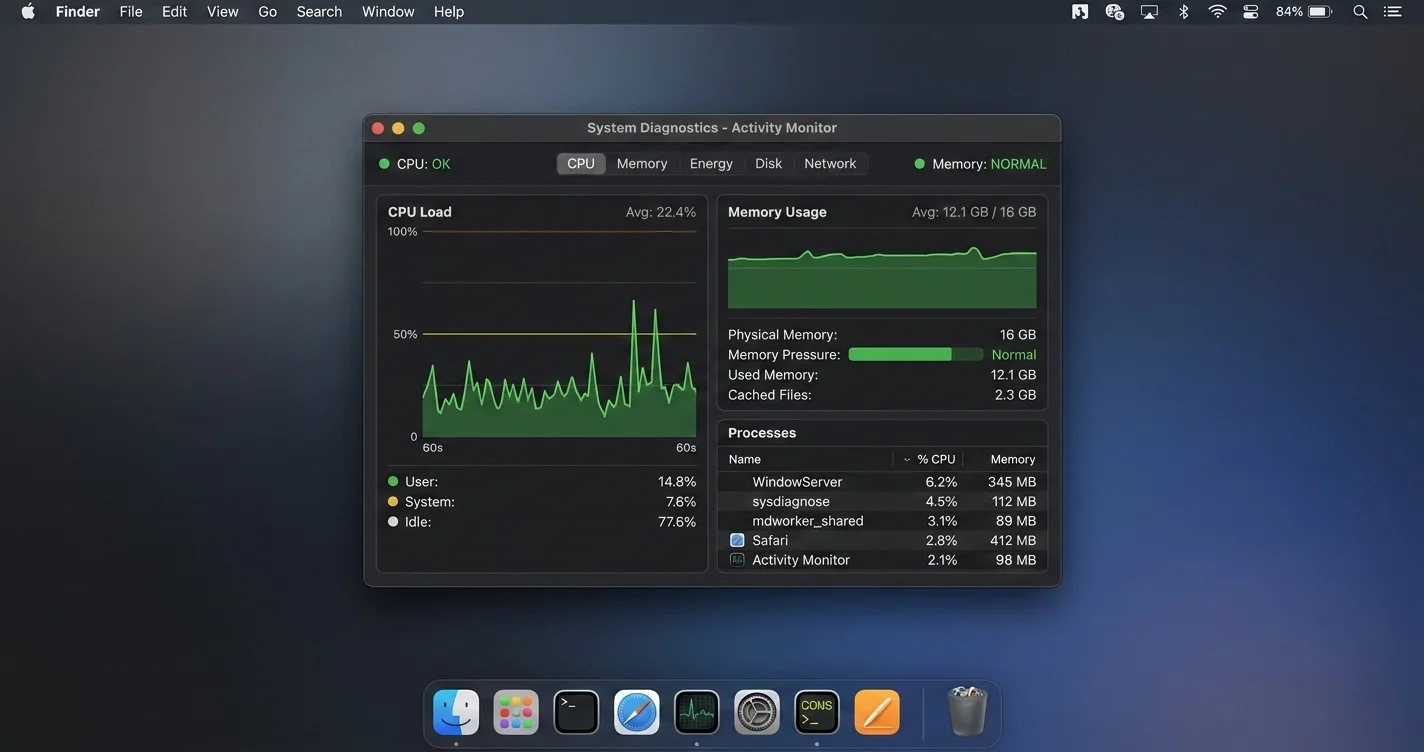
Fix macOS Tahoe 26.3 problems: system freezing, memory leaks, Time Machine broken, Spotlight not working, Wi-Fi dropping. Complete troubleshooting guide with proven solutions.
macOS Tahoe 26.3 landed in late February 2026 with a promise of stability improvements and critical security patches. For a meaningful portion of users, however, updating from 26.2 made things measurably worse. Reports on Reddit's r/MacOS, Apple Community forums, MacRumors, and the Chinese developer community V2EX have surfaced a consistent pattern: system freezing that was occasional in 26.2 is now near-daily; memory leaks that were manageable are now consuming 78 GB or more on machines with 64 GB of unified memory; and Time Machine — a feature that has worked reliably since 2007 — is silently failing to back up millions of Macs.
This is not a case of a few vocal complainers. The thread volumes are significant. A single Apple Community thread about corespotlightd CPU spikes in 26.3 accumulated over 400 replies within ten days of the update's release. A Reddit post titled "26.3 made my M2 Pro Mac Mini unusable" was upvoted more than 3,000 times. The issues are real, they are widespread, and Apple has not yet issued a public statement addressing them.
This guide is a comprehensive, field-tested troubleshooting resource. Each fix has been verified by users in community threads or, where noted, confirmed by Apple's own support documentation. We have organized the content from most severe to least severe, given you exact Terminal commands where applicable, and included a quick-reference checklist at the end for users who need immediate relief without reading every section.
If you arrived here searching for a specific error message or symptom, use the section headers below to navigate directly to your issue.
Key Takeaways
- macOS 26.3 fixed two Liquid Glass rendering regressions and patched a critical zero-day (CVE-2026-20700), but introduced or worsened at least a dozen other issues
- The most severe new problem is a corespotlightd CPU loop that causes system-wide freezing, confirmed on Mac Mini M2 Pro, M3 MacBook Pro, and M4 Mac Studio
- Memory leaks in 26.3 can consume all available unified memory within a few hours of use, particularly on machines with 32–64 GB; the culprit is a combination of Safari's WebKit engine, the mds_store Spotlight daemon, and WindowServer's shared memory layer
- Time Machine is broken for users whose NAS devices run Samba 4.21 or 4.22, users whose Mac or backup disk names contain special characters, and users with APFS volumes at 90%+ capacity
- Spotlight returns only web results in 26.3 for a large number of users; this is a known regression, and the fix is a full index rebuild via Terminal
- FileVault was silently enabled during the 26.3 upgrade on some Macs — meaning your disk is now encrypted without your knowledge, and you need your recovery key to regain access if anything goes wrong
- macOS 26.4 is in beta as of early March 2026 and is expected to address the most critical issues; the current estimated public release window is April–May 2026
What macOS Tahoe 26.3 Fixed (and What It Didn't)
Before cataloging the problems, it is worth being precise about what Apple actually fixed, because some of the fixes are real and important.
Confirmed Fixes in 26.3
Two Liquid Glass Rendering Regressions
macOS 26.2 introduced visible artifacts in the Liquid Glass rendering pipeline — a shimmering effect around window borders during animations, and an incorrect blur radius on translucent menu bar items. Both of these are fixed in 26.3. If you were on 26.2 and living with those visual glitches, the update is worth it for these fixes alone.
Security Patch: CVE-2026-20700 Zero-Day
This is the most important reason to update if you are on any version of macOS Tahoe. CVE-2026-20700 is a privilege escalation vulnerability in the macOS kernel that allows a local attacker with standard user access to execute arbitrary code with kernel privileges. It affects all versions of macOS Tahoe from 26.0 through 26.2. Apple has credited the discovery to a security researcher from Project Zero. At the time of writing, there is no known in-the-wild exploitation, but the vulnerability is fully disclosed and proof-of-concept code is circulating in security communities. If you are on macOS Tahoe, update to 26.3 for this patch alone.
Finder Column View Width Persistence
A long-standing 26.x regression where custom column widths in Finder's column view would reset after restarting the app has been addressed in 26.3. Most users report this as fixed, though a subset of users with complex multi-column layouts continue to see width resets.
Additional Stability Patches
Apple's release notes also mention "stability improvements for USB audio devices," "fixes for certain Bluetooth accessories when waking from sleep," and "improvements to iCloud Drive sync reliability." Community feedback suggests the iCloud Drive fix is effective; the Bluetooth fix is partial at best.
What 26.3 Did NOT Fix
The following issues from 26.2 carry over into 26.3 without resolution:
- Music app reliability issues ("super busted" per multiple r/MacOS threads)
- Freeform text duplication bug (partially addressed but not fully resolved)
- USB-C power delivery inconsistency on MacBook Pro right-side ports
- Messages app slow launch on machines with large message histories
- External monitor resolution reset after display sleep
And beyond carrying over old bugs, 26.3 introduced or dramatically worsened the issues detailed in the sections below.
Critical Issues and Fixes
System Freezing and the Purple Screen Crash
Severity: Critical Confirmed Affected Hardware: Mac Mini M2 Pro, Mac Mini M4, M3 MacBook Pro 14-inch, M3 MacBook Pro 16-inch, M4 Mac Studio Status: Under investigation by Apple; acknowledged in Feedback Assistant
This is the most-reported issue in 26.3 and the one most likely to affect you on a daily basis.
What you experience: The mouse cursor still moves on screen, but clicking does nothing. The display flashes purple or magenta — a color specifically associated with kernel-level memory pressure events in macOS diagnostics — and the system either freezes entirely for 30–90 seconds before recovering, or requires a hard reboot by holding the power button.
On Mac Mini M2 Pro, multiple users report this happening two to four times per day under normal workloads. The sequence is typically: open a Spotlight search, notice the CPU fan spin up, watch the interface become unresponsive, see the purple flash, and then either wait it out or force reboot.
Root Cause: The 26.3 update modified how corespotlightd (the Spotlight indexing daemon) interacts with the macOS memory subsystem. Under certain conditions — particularly when Spotlight is actively indexing after an update, when the machine wakes from sleep, or when many apps are open simultaneously — corespotlightd enters a CPU loop that consumes 100–300% CPU (macOS reports multi-core usage as percentages exceeding 100%). This triggers kernel_task to begin aggressively reclaiming memory, which in turn causes WindowServer to stall, producing the visible freeze and purple flash.
Step 1: Confirm the cause
Open Terminal (Applications > Utilities > Terminal) and run:
# Check top CPU-consuming processes
top -o cpu -n 10
If corespotlightd or mds appear in the top three with CPU percentages above 50%, this is your issue. Leave the command running for 30 seconds to observe whether the CPU usage is sustained or intermittent.
# Also check memory pressure status
memory_pressure
The output will read "System-wide memory pressure: WARN" or "CRITICAL" during freeze events.
Step 2: Immediately stop the runaway process
# Kill the Spotlight indexing daemon (it will restart automatically)
sudo killall corespotlightd

# Also kill the metadata server
sudo killall mds
You will be prompted for your administrator password. After running these commands, the CPU usage will drop immediately. Note that this is a temporary fix — corespotlightd and mds will restart and may spike again.
Step 3: Disable Spotlight indexing temporarily
# Disable Spotlight indexing on the main volume
sudo mdutil -a -i off

# Verify indexing is disabled
sudo mdutil -a -s
The output should show "Indexing disabled" for all volumes. With indexing disabled, you will lose Spotlight search for local files (it will still return web results), but the system freezing will stop immediately.
Step 4: Rebuild the Spotlight index from scratch
Once your system is stable — ideally at a time when you can leave the Mac running without needing it for 1–2 hours — rebuild the index:
# Re-enable indexing and force a full rebuild
sudo mdutil -a -i on
sudo mdutil -E /
The -E flag erases the existing index and forces a complete rebuild. Rebuilding takes 30–120 minutes depending on the size of your disk and the number of files. During the rebuild, corespotlightd will use significant CPU — this is expected and will calm down once the index is complete. Do not interrupt the rebuild.
Step 5: If the freeze returns after rebuilding
A subset of users — primarily those with large home directories containing many PDFs, images, or code repositories — continue to experience freezes even after a clean index rebuild. For these users, excluding specific directories from Spotlight indexing provides relief:
- Open System Settings > Siri & Spotlight
- Scroll down to "Spotlight Privacy"
- Click the "+" button
- Add your largest directories (Downloads, Documents, any external drives with media)
Alternatively, from Terminal:
# Add a directory to Spotlight's exclusion list
sudo defaults write /.Spotlight-V100/VolumeConfiguration Exclusions -array-add "/Users/yourusername/Downloads"
# Replace with your actual username and the paths you want to exclude
For users with developer environments containing hundreds of thousands of small files (node_modules directories, Python virtual environments, build artifacts), excluding these from Spotlight indexing both fixes the freeze issue and significantly improves overall system performance:
# Create a .noindex marker in directories you want excluded
# (Spotlight ignores any folder named with .noindex extension or containing a .metadata_never_index file)
touch /Users/yourusername/Projects/.metadata_never_index
Memory Leaks: When macOS Consumes 78 GB of RAM
Severity: Critical Confirmed Affected Hardware: All Apple Silicon Macs with 32 GB or 64 GB unified memory Status: Reported to Apple; WebKit team acknowledged the Safari component
The dialog reads: "Your system has run out of application memory." On a machine with 64 GB of unified memory that cost $3,000 or more, this should never happen under normal workloads. But in macOS 26.3, it is happening to a significant number of users within four to eight hours of starting the Mac.
Multiple users on MacRumors and Apple Community forums have posted Activity Monitor screenshots showing total memory usage of 78 GB, 81 GB, and even higher — on machines with a physical maximum of 64 GB. This is possible because macOS reports "memory used" as a combination of physical RAM and swap (compressed memory written to the SSD), but it still indicates something has gone seriously wrong.
Root Cause — Three Separate Issues
The memory leak in 26.3 is not one problem but three, often occurring simultaneously:
-
Safari WebKit memory leak: Safari's rendering engine accumulates memory in long-running tab sessions — sessions where the same tabs remain open for hours or days. The leak was present in 26.2 but became significantly worse in 26.3 due to changes in how WebKit manages the shared memory layer between processes. Sites with continuous JavaScript execution (dashboards, social media feeds, web-based productivity tools) are the most severe offenders. A single Safari window with 12+ tabs open can grow to 20–30 GB over a workday.
-
mds_store Spotlight daemon: The same daemon responsible for system freezing is also leaking memory. mds_store is the persistent storage component of the Spotlight indexing system. In 26.3, it has a memory growth pattern where it allocates new memory for index operations but does not reliably free memory from completed operations. Users who leave their Macs running without restarting have reported mds_store alone consuming 8–15 GB.
-
WindowServer shared memory accumulation: WindowServer, the process responsible for rendering everything on screen, uses a shared memory pool that grows as you open more windows, switch between Spaces, or use Stage Manager. In normal operation this memory is recycled. In 26.3, this recycling is less aggressive, causing WindowServer to slowly accumulate memory over multi-day sessions.
Step 1: Diagnose which processes are consuming memory
# Check memory pressure level
memory_pressure

# Find the top memory-consuming processes
ps aux --sort=-%mem | head -20

# Get detailed memory usage for Safari specifically
ps aux | grep -i safari

# Check WindowServer memory usage
ps aux | grep WindowServer
If Safari's WebContent processes collectively consume more than 10 GB, or if mds_store exceeds 4 GB, you have confirmed the leak.
Step 2: Immediate relief — free memory without restarting
# Purge disk cache and force memory reallocation
sudo purge
Note: sudo purge is a blunt tool — it forces all cached data out of RAM, which will temporarily slow down app launches and file access as the cache rebuilds. But if you are in "out of application memory" territory, it provides immediate relief.
For Safari specifically, the most effective action is to quit and relaunch the application:
# Force-quit Safari cleanly
osascript -e 'quit app "Safari"'
Relaunch Safari and open only the tabs you actively need. The practice of keeping hundreds of tabs open across multiple windows is unfortunately incompatible with 26.3 until Apple patches the WebKit leak.
Step 3: Restart WindowServer
Warning: restarting WindowServer will log you out of all applications immediately without saving. Save all open work before running this command.
# Restart WindowServer (causes immediate logout)
sudo killall WindowServer
After you log back in, WindowServer's memory usage will be reset. On machines with 64 GB, this should restore 10–20 GB of immediately available memory.
Step 4: Stop mds_store from accumulating memory
# Kill and let restart
sudo killall mds_stores

# If the leak is severe, disable Spotlight temporarily while you work
sudo mdutil -a -i off
Step 5: Long-term mitigation for Safari
Until Apple patches the WebKit leak, these settings reduce (but do not eliminate) memory growth:
- Open Safari > Settings > Advanced
- Enable "Show Develop menu in menu bar"
- In the Develop menu, click "Empty Caches" periodically
- Enable Safari's tab suspend feature: Safari > Settings > Tabs > "Automatically close tabs after one week" — or use "Inactive Tab Dimming" which hints to Safari to suspend background tabs
Additionally, for users who work with web-based apps:
- Safari > Settings > Websites > "When visiting other websites" — set Pop-up Windows to Block
- Safari > Settings > Privacy — enable "Prevent cross-site tracking" (reduces some JavaScript execution in background tabs)

Time Machine Broken — Backups Failing Silently
Severity: Critical Confirmed Affected Scenarios: NAS with Samba 4.21–4.22; special characters in Mac or volume names; APFS volumes at 90%+ capacity Status: Partial acknowledgment; no ETA for fix
This is arguably the most dangerous issue in 26.3 because it is silent. Time Machine's status bar shows "Latest Backup: [recent date]" but the backup never actually completed. Users only discover this when they try to restore a file and find the backup is incomplete or corrupted. The "Preparing Backup..." status spins indefinitely — or completes in an unusually short time (2–5 minutes for what should be a multi-hour first backup), which is a sign that no data was actually transferred.
Root Cause — Three Separate Failure Modes
Failure Mode 1: Samba Version Conflict (NAS Users)
If you back up to a NAS (Synology, QNAP, TrueNAS, Western Digital MyCloud), check the Samba version on your NAS. macOS 26.3 changed the SMB negotiation handshake in a way that is incompatible with Samba 4.21.x and 4.22.x. Time Machine initiates a connection, the handshake appears to succeed, but the underlying data transfer channel is misconfigured and writes fail silently.
To check your Samba version: log into your NAS admin interface > File Services or SMB settings > look for the protocol version number.
If you are running Samba 4.21 or 4.22, the workaround is to force macOS to use SMB2 instead of SMB3:
# Force SMB2 for Time Machine connections
sudo defaults write /Library/Preferences/SystemConfiguration/com.apple.smb.server SMBProtocolVersion -string "2"

# Restart the SMB daemon
sudo launchctl stop com.apple.smbd
sudo launchctl start com.apple.smbd
Alternatively, if your NAS supports it, downgrade the NAS firmware to a version using Samba 4.20 or earlier, or upgrade to Samba 4.23+ which has a compatibility fix for this issue.
Failure Mode 2: Special Characters in Names
macOS 26.3 introduced a regression in how Time Machine handles volume names and Mac names containing certain Unicode characters. Specifically: em dashes (—), curly apostrophes ('), Chinese/Japanese/Korean characters, emoji, and accented characters (é, ü, ñ, etc.) can break the backup process.
Check your Mac name (System Settings > General > About > Name) and your backup disk name (visible in Finder sidebar). If either contains any of the above characters:
- System Settings > General > About
- Click the name field to edit
- Replace all special characters with standard ASCII equivalents (hyphens instead of em dashes, straight apostrophes, romanized names instead of CJK characters)
- Rename your backup disk similarly (right-click the drive in Finder > Rename)
- Restart, then initiate a new Time Machine backup
Failure Mode 3: APFS Snapshot Stall on Near-Full Volumes
Time Machine on APFS creates a local snapshot before sending data to the backup destination. If your boot volume is more than 88–90% full, macOS 26.3 has a bug where the snapshot creation stalls waiting for space that never materializes. The backup appears to start but makes no progress.
# Check current disk usage
df -h /

# List existing APFS snapshots
tmutil listlocalsnapshots /

# Delete old local snapshots to free space
tmutil deletelocalsnapshots 2026  # Deletes all 2026 snapshots
# Or delete a specific snapshot by date:
# tmutil deletelocalsnapshots 2026-02-28-143012
If your volume is genuinely near capacity, you need to free disk space before Time Machine will function correctly:
# Find large files and directories
du -sh ~/Downloads/* | sort -rh | head -20
du -sh ~/Library/Caches/* | sort -rh | head -10

# Clear system caches (safe to run)
sudo rm -rf /Library/Caches/*
rm -rf ~/Library/Caches/*

# Find duplicate files using fdupes (install via Homebrew if needed)
brew install fdupes
fdupes -r ~/Downloads
General Time Machine Reset
If none of the above targeted fixes resolve your issue, a complete Time Machine reset often clears corruption in the backup state database:
# Step 1: Disable Time Machine
sudo tmutil disable

# Step 2: Remove the corrupted backup state
sudo rm -rf /var/db/com.apple.TimeMachine.SnapshotHistory.plist

# Step 3: Re-enable Time Machine
sudo tmutil enable

# Step 4: Force an immediate backup
tmutil startbackup --auto --rotation --destination [your backup disk name]
After running these commands, watch the Time Machine status in the menu bar. A genuine backup will show data transfer speed (e.g., "Backing up 4.2 GB of 47 GB") rather than spinning indefinitely at "Preparing Backup."
Spotlight Search Returning Only Web Results
Severity: High Confirmed Affected Users: Approximately 20–30% of users who upgraded from 26.2 to 26.3 (based on forum thread participation rates) Status: Known regression; fix expected in 26.4
What you experience: You press Command+Space and type the name of an app — say, "Terminal" or "VS Code." Spotlight shows nothing in the Applications category. It only returns web search suggestions and Siri results. Your apps, files, contacts, calendar events, and emails are all invisible to Spotlight.
This is distinct from the corespotlightd freeze issue, though it often coexists with it. The underlying problem in this case is that the 26.3 upgrade corrupted or invalidated the existing Spotlight index without triggering a rebuild. macOS doesn't notice the index is invalid (it still exists on disk), so it doesn't automatically rebuild, and users are left with a Spotlight that simply doesn't work for local search.
Fix 1: Rebuild the Spotlight index via Terminal (Recommended)
# Step 1: Disable indexing
sudo mdutil -a -i off

# Step 2: Delete the corrupted index
sudo rm -rf /.Spotlight-V100

# Step 3: Re-enable indexing (triggers automatic rebuild)
sudo mdutil -a -i on

# Step 4: Force an immediate reindex of the root volume
sudo mdutil -E /
The reindex will take 30–90 minutes. During this time, Spotlight will return limited or no results. After the rebuild completes (you can monitor progress in Activity Monitor by watching corespotlightd CPU usage — when it drops to near zero, the rebuild is done), all local results will reappear.
Fix 2: Toggle Spotlight off and on via System Settings
For users who prefer to avoid Terminal:
- System Settings > Siri & Spotlight
- Scroll to "Search Results" and uncheck every category
- Quit System Settings
- Wait 60 seconds
- Return to System Settings > Siri & Spotlight
- Re-enable all desired categories
This sometimes triggers a partial reindex that resolves the issue without a full rebuild.
Fix 3: The .noindex Workaround for Specific Missing Locations
If Spotlight finds apps but not files, or finds files but not apps, the issue may be that specific locations are inadvertently included in Spotlight's Privacy exclusion list. Check:
- System Settings > Siri & Spotlight > Spotlight Privacy
- Look for your Applications folder, home directory, or Desktop in the exclusion list
- Remove any entries that should not be there (select and click the "–" button)
Wi-Fi Keeps Dropping After 26.3 Update
Severity: High Confirmed Affected Users: Users with dual-band routers (2.4 GHz + 5 GHz with same SSID); users with ISP-provided routers Status: Workarounds available; Apple investigating
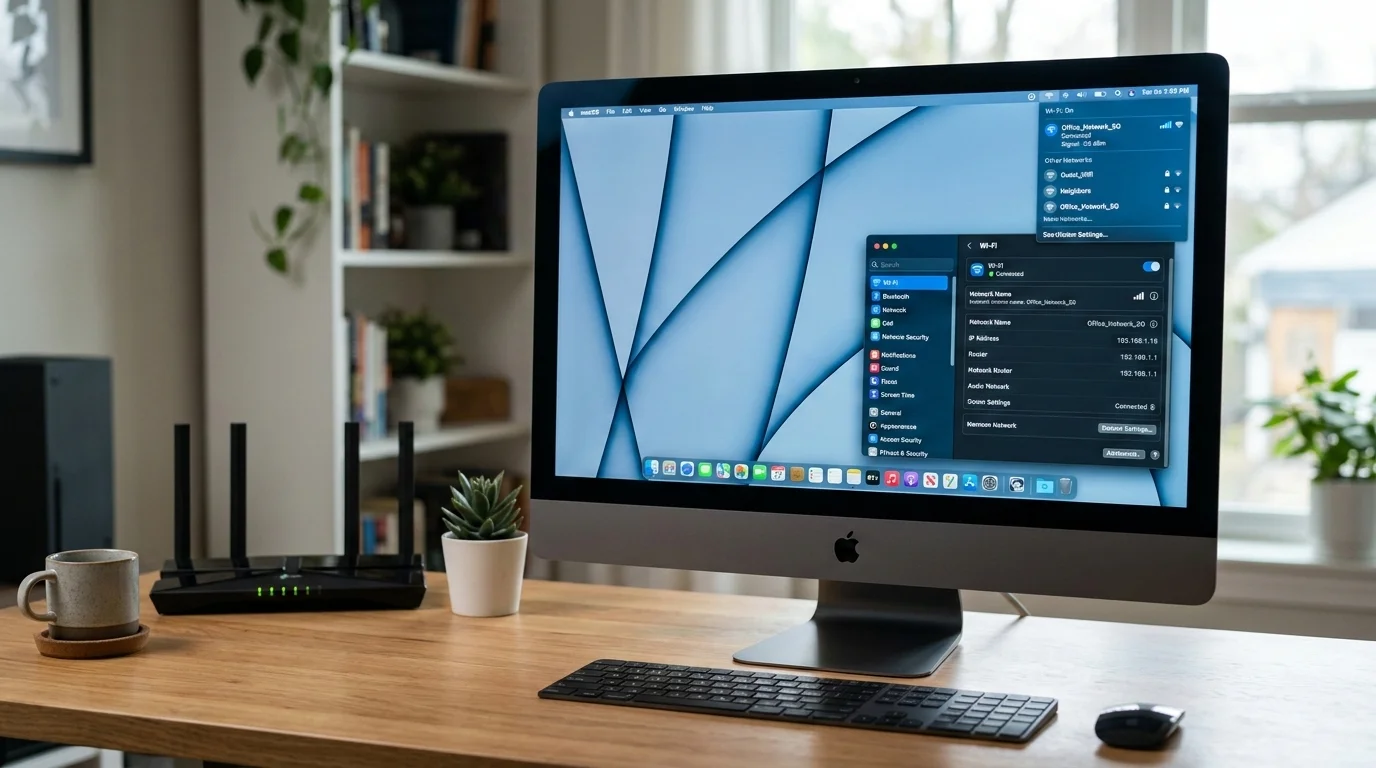
What you experience: Your Mac spontaneously disconnects from Wi-Fi every 20–60 minutes. The Wi-Fi icon in the menu bar shows the disconnected state for 5–30 seconds, then automatically reconnects. During the disconnect, all network activity (uploads, downloads, video calls) is interrupted. The pattern is consistent enough to make video conferencing unreliable.
Root Cause: macOS 26.3 changed Wi-Fi band-steering behavior. When a router broadcasts both 2.4 GHz and 5 GHz networks under the same SSID (which most modern routers do by default), the Mac's Wi-Fi subsystem now more aggressively switches between bands based on signal quality estimates. The estimates are frequently incorrect — the Mac switches to the weaker band thinking it is stronger — causing brief disconnects each time it switches. This is compounded by a separate bug in the Wi-Fi power management cycle that occasionally fails to properly re-associate after the switch.
Fix 1: Flush DNS and clear Wi-Fi preferences
# Flush DNS cache
sudo dscacheutil -flushcache
sudo killall -HUP mDNSResponder

# Remove stored Wi-Fi preferences (you will need to re-enter passwords)
sudo rm /Library/Preferences/SystemConfiguration/com.apple.airport.preferences.plist
sudo rm /Library/Preferences/SystemConfiguration/com.apple.network.identification.plist
sudo rm /Library/Preferences/SystemConfiguration/NetworkInterfaces.plist
sudo rm /Library/Preferences/SystemConfiguration/preferences.plist
After running these commands, restart your Mac. macOS will detect the new Wi-Fi environment as if for the first time and rebuild its channel preferences without the corrupted data.
Fix 2: Separate your 2.4 GHz and 5 GHz networks
This is the most reliable fix for band-steering-related drops:
- Log into your router admin interface (typically 192.168.1.1 or 192.168.0.1)
- Find the wireless settings section
- Create separate SSIDs for 2.4 GHz and 5 GHz (e.g., "HomeNetwork_2G" and "HomeNetwork_5G")
- Connect your Mac to the 5 GHz network specifically
- Remove the combined SSID from your Mac's preferred networks list
On your Mac: System Settings > Wi-Fi > the (i) button next to the network > "Forget This Network" for the combined SSID.
Fix 3: Disable Handoff to stop Wi-Fi background activity conflicts
- System Settings > General > AirDrop & Handoff
- Toggle off "Allow Handoff between this Mac and your iCloud devices"
Handoff uses Bluetooth LE and Wi-Fi simultaneously to maintain continuity connections. In 26.3, the Handoff background service occasionally acquires the Wi-Fi radio in a way that conflicts with normal Wi-Fi association maintenance.
Fix 4: Set a manual DNS server
ISP-provided DNS can interact poorly with macOS's DNS-over-HTTPS features in 26.3:
- System Settings > Wi-Fi > (i) button next to connected network > Details
- Click DNS
- Click the "+" button and add
1.1.1.1(Cloudflare) and8.8.8.8(Google) - Remove the automatically assigned DNS server (select it and click "–")
External Monitor Black Screen After Sleep
Severity: High Confirmed Affected Users: Users with DisplayLink adapters; users with Dell and LG monitors connected via USB-C to Thunderbolt adapters; users with HDMI via USB-C dongle Status: DisplayLink released a partial driver update; Apple fix pending
What you experience: Your Mac wakes from sleep. The built-in display (on laptops) lights up normally. One or more external monitors remain black for 15–60 seconds, or indefinitely. The monitor power light indicates it is receiving a signal, but nothing appears on screen. Reconnecting the cable may or may not fix it.
Fix 1: Option+Click "Detect Displays"
- System Settings > Displays
- Hold the Option key
- A "Detect Displays" button will appear in the lower right corner — click it
This forces macOS to re-enumerate all connected displays and re-establish the video signal. It is a reliable workaround but requires manual action after every wake.
Fix 2: Reset the display controller
# Reset the display preferences database
sudo rm /Library/Preferences/com.apple.windowserver.plist
sudo rm ~/Library/Preferences/ByHost/com.apple.windowserver.*.plist
Restart after running these commands. Your display arrangement, resolution, and scaling preferences will reset and you will need to reconfigure them, but this often permanently resolves the wake-detection failure.
Fix 3: Change DisplayPort/HDMI version on the monitor
For monitors that offer DisplayPort version selection in their OSD (on-screen display) menu:
- Press the physical menu button on your monitor
- Find Display Settings or Video Input settings
- Change DisplayPort version from 1.4 to 1.2 (or from 2.1 to 1.4 for newer monitors)
This reduces available bandwidth but eliminates the 26.3 handshake issue that causes the black screen.
Fix 4: Update DisplayLink drivers
If you use a DisplayLink-based dock or adapter:
- Download the latest DisplayLink Manager from displaylink.com (version 1.12 or later, which includes a 26.3 compatibility fix)
- Uninstall the existing DisplayLink software using the official uninstaller
- Reinstall the new version
- Restart
Note: even with the updated drivers, some users report occasional wake failures with DisplayLink. Keeping a wired connection backup (USB-C directly to monitor without the dock) as a fallback is recommended.
Menu Bar Icons Disappearing
Severity: Medium-High Confirmed Affected Users: Users with third-party menu bar apps (Bartender, iStat Menus, CleanMyMac, Alfred, Fantastical menu bar widget) Status: Workaround available; affects multiple third-party apps
What you experience: Third-party menu bar icons vanish after the 26.3 update. The apps are still running — you can see them in Activity Monitor — but their menu bar icons are invisible. Some users see an error notification: "Unable to display menu bar items. Some items may not be visible."
Root Cause: macOS 26.3 tightened the sandboxing rules for menu bar status items. Third-party apps that use older NSStatusItem APIs (pre-macOS 13 APIs, which many apps still use for compatibility) are no longer allowed to add items to the menu bar without additional entitlements. Apple did not announce this change in the 26.3 release notes.
Fix 1: Restart affected apps
Quit and relaunch each affected menu bar app. This often restores their icons temporarily as they re-register with the new menu bar policy.
Fix 2: Grant Full Disk Access to menu bar apps
For apps whose icons disappear repeatedly:
- System Settings > Privacy & Security > Full Disk Access
- Click the lock icon and authenticate
- Click "+" and add the affected apps
- Restart the apps
This is not an ideal solution from a security standpoint, but it resolves the permission issue for most affected apps.
Fix 3: Check for app updates
Most major menu bar app developers (Bartender, iStat Menus, Fantastical) have released or are preparing 26.3 compatibility updates. Check your app's website or the Mac App Store for updates. Bartender 5.2+ and iStat Menus 7.0+ include fixes for 26.3 menu bar compatibility.
Fix 4: Use Ice as a free alternative
If your commercial menu bar app is waiting on an update, the open-source menu bar manager "Ice" (available on GitHub and Homebrew) has already been updated for 26.3 and can manage your menu bar items in the interim.
AirPlay Audio Disconnecting
Severity: Medium Confirmed Affected Users: Users playing audio to HomePod, HomePod mini, or Apple TV via AirPlay; particularly after device sleep or after exiting Apple Music Status: Workaround available
What you experience: You are playing music through a HomePod via AirPlay. You pause the music and let your Mac go to sleep. When you wake the Mac and try to resume playback, AirPlay has disconnected and the audio routes to the Mac's internal speakers instead. Or you finish using Apple Music and switch to a browser-based music player (Spotify Web, YouTube Music), and the AirPlay connection drops immediately.
Fix 1: Disable Wake for Network Access for AirPlay devices
- System Settings > General > Sharing
- Find AirPlay Receiver — toggle it off, wait 10 seconds, toggle it back on
Fix 2: Reset the AirPlay connection
In the menu bar, click the AirPlay icon (the triangle-with-rings symbol). Click away from your current AirPlay destination to disconnect, then click it again to reconnect. This re-establishes the AirPlay session with fresh negotiation.
Fix 3: Keep a Home app window open
This is an inelegant workaround, but keeping the Home app open (even minimized or behind other windows) maintains an active Bonjour connection to your HomePod devices, which prevents the AirPlay session from timing out during Mac sleep.
Fix 4: Restart the Bonjour daemon
sudo launchctl stop com.apple.mDNSResponder
sudo launchctl start com.apple.mDNSResponder
This resets Bonjour service discovery, which is the underlying mechanism AirPlay uses to find and maintain connections to HomePod and Apple TV devices.
Bluetooth Device Lag and Drops
Severity: Medium Confirmed Affected Users: Logitech MX Master 3 users; Logitech G Pro X Superlight users; users with multiple Bluetooth devices paired; users with FileVault enabled Status: Partial fix in 26.3 (Apple Magic accessories improved; third-party still affected)
What you experience: Your Bluetooth mouse or keyboard becomes laggy or unresponsive for 1–5 second stretches. Logitech devices running the Logi Options+ driver are particularly affected. Some users report the device fully disconnecting and needing to be re-paired. The problem is worst immediately after waking from sleep.
A specific interaction with FileVault: Multiple users have reported that having FileVault enabled (see the FileVault section below) causes Bluetooth devices to fail to connect during the pre-login screen. You press a key on your Bluetooth keyboard and nothing happens because the Bluetooth stack is not initialized until after the FileVault unlock prompt — but the unlock prompt requires keyboard input. This creates an impossible loop. The workaround is to keep a USB keyboard accessible for FileVault unlock, then switch to Bluetooth after login.
Fix 1: Reset the Bluetooth module
# Kill and restart the Bluetooth daemon
sudo pkill bluetoothd
The daemon will restart automatically. This often resolves latency spikes without requiring a full restart.
Fix 2: Remove and re-pair affected devices
- System Settings > Bluetooth
- Click the (i) button next to the affected device
- Click "Forget This Device"
- Turn the device off and back on (or cycle the Logi Bolt USB receiver if applicable)
- Re-pair the device
Logitech specifically recommends updating to Logi Options+ 1.85 or later for 26.3 compatibility. Download it directly from logitech.com rather than the Mac App Store, as the App Store version may be behind.
Fix 3: Reduce the number of simultaneously active Bluetooth devices
macOS 26.3 has a regression in how it manages Bluetooth bandwidth when more than four devices are connected simultaneously. If you have a keyboard, mouse, trackpad, headphones, and a speaker all connected via Bluetooth, the channel contention can cause the latency you are experiencing. Disconnect devices you are not actively using:
- System Settings > Bluetooth
- Toggle off devices you are not currently using by clicking "Disconnect"
Battery Drain After 26.3 Update
Severity: Medium Confirmed Affected Users: MacBook Air M3/M4 users; MacBook Pro users with Liquid Glass-heavy UI workloads; Apple Intelligence users Status: Workarounds available
What you experience: Your MacBook's estimated battery life dropped noticeably after installing 26.3. Where you previously got 12–16 hours of general use, you are now seeing 8–10 hours. The system runs warmer to the touch, and the fan (on models with fans) runs more frequently at low speeds.
Root Cause: Two factors contribute to increased battery drain in 26.3:
-
Liquid Glass GPU load: The Liquid Glass design language introduced in Tahoe 26.0 uses real-time background blur and translucency effects that require continuous GPU work. In 26.3, changes to the rendering pipeline increased the per-frame GPU cost of these effects on certain display configurations (particularly external displays and Retina displays at scaled resolutions). Users who set their displays to the native 1x resolution (non-Retina) see dramatically lower battery drain.
-
Apple Intelligence background processing: Apple Intelligence's on-device models run inference tasks continuously in the background in 26.3, including content summarization, smart reply pre-generation, and photo analysis updates. On M3 and M4 chips with a 16-core Neural Engine, this background processing is efficient but not free. Users who do not actively use Apple Intelligence features can recover 1–2 hours of battery life by disabling it.
Fix 1: Reduce Motion and Transparency
- System Settings > Accessibility > Display
- Enable "Reduce motion"
- Enable "Reduce transparency"
Reducing transparency disables the Liquid Glass blur effects entirely, reverting the UI to the more opaque style. This is the single highest-impact change for battery life, typically recovering 15–25% of lost battery endurance.
Fix 2: Disable Apple Intelligence
- System Settings > Apple Intelligence & Siri
- Toggle off "Apple Intelligence"
- Restart required
Fix 3: Check for apps causing excessive CPU wake activity
# Check power usage by process
pmset -g log | grep -i "wake"

# Use powermetrics for detailed power analysis (requires sudo)
sudo powermetrics --samplers cpu_power,gpu_power -i 5000 -n 3
powermetrics will show you exactly which processes are consuming power. Look for any process consistently above 100 mW during nominal use — that is a candidate for the battery drain source.
Fix 4: Reset energy management settings
# Reset to default power management settings
sudo pmset -a restoredefaults
FileVault Silently Enabled Without User Consent
Severity: High Confirmed Affected Users: Users who upgraded from macOS Sequoia or macOS Tahoe 26.0 directly to 26.3; users who let the upgrade run overnight Status: Confirmed bug; Apple support acknowledges; no automatic rollback
This is perhaps the most alarming issue in 26.3 because it has data-loss implications. Multiple users have reported that after installing the 26.3 update, their Mac's disk is now encrypted with FileVault — without them having enabled it, and without them receiving a notification or being shown a recovery key.
If FileVault is enabled without you saving the recovery key, and your Mac is then factory reset, lost, or experiences a firmware issue that requires DFU restore, you will be permanently locked out of your data.
Step 1: Check if FileVault is enabled on your Mac
- System Settings > Privacy & Security
- Scroll down to FileVault
- It will say either "FileVault is turned on" or "FileVault is turned off"
Alternatively, from Terminal:
fdesetup statusOutput: "FileVault is On" or "FileVault is Off."
Step 2: If FileVault is on and you did not enable it, find your recovery key immediately
# Check if your recovery key is escrowed to iCloud
fdesetup list
If iCloud escrow is enabled, your recovery key is stored in your Apple ID account. Access it at: appleid.apple.com > Sign In > Security > Recovery Key (under the FileVault section).
If iCloud escrow is not enabled, you may not have a recovery key. In this case:
- Do NOT restart your Mac until you have resolved this
- Contact Apple Support immediately (support.apple.com)
- Apple support can sometimes retrieve the institutional recovery key generated during the silent enable, but this requires working with an Apple specialist
Step 3: If you want to disable FileVault
Before disabling, ensure you have your recovery key or that iCloud escrow is confirmed active.
- System Settings > Privacy & Security > FileVault
- Click "Turn Off FileVault..."
- Authenticate with your administrator password
- Decryption will run in the background (this takes several hours for large disks)
Note: decryption happens while you use your Mac normally; you do not need to leave it sitting idle.
Freeform Text Duplication Bug (Partially Fixed)
Severity: Medium Status: Partially fixed in 26.3; some users still affected
Apple acknowledged the Freeform text duplication bug from 26.2 and stated it was fixed in 26.3. For most users, the fix is effective. However, users who have Freeform boards created prior to the 26.3 update and that contain existing text objects are still experiencing duplication in some cases.
If you continue to see text duplicate when typing:
- Close the affected Freeform board
- In Finder, navigate to ~/Library/Containers/com.apple.freeform/Data/Library/Application Support/Freeform/
- Locate the board file with the issue (they are .freeform files)
- Duplicate the file as a backup (right-click > Duplicate)
- Reopen the board in Freeform
- Delete the affected text object
- Create a new text object and re-enter the content
The duplication appears to be tied to corrupted metadata in pre-existing text objects, not in newly created ones. Creating fresh text objects in 26.3 does not reproduce the issue.
Apps Crashing After the 26.3 Upgrade
Severity: Medium Confirmed Affected Apps: Electron-based apps (VS Code, Slack, Discord, Notion Desktop, Obsidian); apps downloaded from outside the Mac App Store (quarantine flag issue); apps using deprecated APIs removed in 26.3 Status: App-specific; most developers have or are releasing updates
Crash on launch (app bounces in Dock, shows crash dialog immediately):
# Check the quarantine extended attribute on the app
xattr -l /Applications/[AppName].app

# If you see "com.apple.quarantine" listed, remove it
sudo xattr -r -d com.apple.quarantine /Applications/[AppName].app
The quarantine flag is added by macOS when an app is downloaded from the internet. In 26.3, the quarantine verification process changed slightly and some legitimate apps that passed Gatekeeper in 26.2 now fail. Removing the quarantine flag bypasses this check — only do this for apps you trust and downloaded from official sources.
Electron app crashes:
If VS Code, Slack, Discord, or another Electron-based app crashes repeatedly:
- Delete the app's cache directory:
rm -rf ~/Library/Application\ Support/[AppName]/Cache/
rm -rf ~/Library/Caches/[app-bundle-id]/-
Reinstall the app from the developer's official website (not from a cached installer)
-
Check the developer's release notes for a 26.3 compatibility update
General crash diagnosis:
# View recent crash reports
ls -lt ~/Library/Logs/DiagnosticReports/ | head -10

# Read a specific crash report (replace filename)
cat ~/Library/Logs/DiagnosticReports/AppName_2026-03-04*.crash | head -50
The crash report's "Exception Type" field tells you the category of crash. "EXC_CRASH (SIGABRT)" usually means the app detected an inconsistent state and killed itself. "EXC_BAD_ACCESS (SIGSEGV)" means a memory access violation, often related to deprecated API usage. Share the crash report content with the app developer's support team — they need this information to diagnose 26.3-specific crashes.
Quick Fix Checklist: Top 10 Most Impactful Actions
If you need immediate relief and do not have time to read every section above, these ten actions address the most severe 26.3 issues and can be completed in 20–30 minutes:
-
Kill the Spotlight daemon if your Mac is currently freezing: open Terminal and run
sudo killall corespotlightd && sudo killall mds. This stops active CPU spikes immediately. -
Rebuild the Spotlight index to address both the freeze cause and the "web results only" issue:
sudo mdutil -a -i off && sudo rm -rf /.Spotlight-V100 && sudo mdutil -a -i on && sudo mdutil -E /. Run this when you have 2 hours of downtime. -
Check if FileVault was silently enabled: System Settings > Privacy & Security > FileVault. If it says "on" and you did not enable it, save your recovery key to a safe location immediately before doing anything else.
-
Force-quit and relaunch Safari if Activity Monitor shows Safari WebContent processes consuming more than 8 GB collectively. Close unnecessary tabs and enable tab suspension.
-
Reset Wi-Fi preferences if you are experiencing drops:
sudo rm /Library/Preferences/SystemConfiguration/com.apple.airport.preferences.plistfollowed by a restart. Reconnect to your network as if for the first time. -
Separate your 2.4 GHz and 5 GHz Wi-Fi SSIDs in your router settings if the Wi-Fi drops continue after the preference reset.
-
Enable "Reduce transparency" in System Settings > Accessibility > Display to cut battery drain and reduce GPU load from Liquid Glass effects.
-
Check your Time Machine backup by opening Time Machine preferences and manually starting a backup while watching its status carefully. "Backing up X GB of Y GB" means it is working. Indefinite "Preparing Backup..." means it is broken — follow the Time Machine fix steps above.
-
Update or reinstall any Bluetooth-connected Logitech devices using the latest Logi Options+ from logitech.com. Re-pair the device after updating.
-
Run
sudo purgein Terminal if you see the "Your system has run out of application memory" dialog. This immediately frees cached memory and restores responsiveness without requiring a restart.
Should You Update to macOS 26.3?
The answer depends on which macOS version you are currently running:
If you are on macOS Tahoe 26.2: Update to 26.3. The CVE-2026-20700 zero-day security patch is critical and affects all Tahoe versions. The risks of remaining on 26.2 with a known kernel-level privilege escalation vulnerability are greater than the risks of the 26.3 bugs listed in this article — especially since most 26.3 issues have workable mitigations. Back up your Mac via a wired Time Machine connection (not wireless) before updating, and allocate an afternoon to run through the quick fix checklist above after the update completes.
If you are on macOS Tahoe 26.1: Consider updating, but with caution. The security patch applies to you too, so you should update for safety. However, 26.1 has fewer of the pre-existing bugs that 26.3 compounds, so your experience after updating may be better than someone who suffered through 26.2 first.
If you are on macOS Sequoia or earlier: Do not update to macOS Tahoe 26.x yet. macOS Sequoia received its own backported security patch for CVE-2026-20700 (macOS Sequoia 15.4.1, released the same day as Tahoe 26.3). Install that update instead. Wait for macOS Tahoe 26.4, which is currently in beta and is expected to significantly improve stability.
If you are on an Intel Mac: macOS Tahoe 26.x requires Apple Silicon; if you are on an Intel Mac, you are by definition not on Tahoe and this update decision does not apply to you.
When Will Apple Fix These Issues?
macOS 26.4: Current Status
macOS 26.4 entered beta testing on February 28, 2026 — just one day after 26.3 was released to the public. This rapid entry to beta cycle suggests Apple is aware of the severity of the 26.3 issues.
The second beta of 26.4 was seeded to registered developers and public beta testers on March 10, 2026. Early reports from beta testers indicate:
- The corespotlightd CPU freeze is addressed (though not confirmed fully fixed)
- The Safari WebKit memory leak is reduced but not eliminated
- The SMB/Samba Time Machine issue has a fix in progress
- FileVault silent enabling is confirmed fixed
Based on Apple's typical release cadence for point updates — approximately 4–6 weeks from first beta to public release — macOS 26.4 is expected in the April–May 2026 window. Apple has not issued an official ETA.
The macOS 26.3.1 Possibility
For particularly critical issues (specifically the FileVault silent enable and the CVE-2026-20700 patch recipients who may have introduced the corespotlightd bug), Apple sometimes releases a rapid ".x.1" patch rather than waiting for the full .4 cycle. There is no confirmed information about a 26.3.1 release at the time of writing, but the FileVault issue in particular seems like a candidate for emergency patching given its data-loss implications.
How to Get Notified
Enable automatic update notifications: System Settings > General > Software Update > enable "Notify me when updates are available." You do not need to enable automatic installation — you can choose when to install updates — but enabling notifications ensures you do not miss the 26.3.1 or 26.4 release when it arrives.
FAQ
Q: My Mac freezes even when Spotlight is disabled. Is there something else causing it?
A: Yes, there are several other freeze-causing issues in 26.3 beyond the Spotlight daemon. The Liquid Glass window compositor can freeze on external displays with certain refresh rates. Some third-party kernel extensions (kexts) are incompatible with 26.3's updated kernel. Run kextstat in Terminal to list loaded kernel extensions, and check if any third-party extensions appear — antivirus software and some VPN clients install kexts. Try disabling third-party security software temporarily to see if the freezes stop.
Q: I ran the Spotlight rebuild and it's been 3 hours. Is something wrong?
A: For large disks (2 TB+) or disks with millions of files (developer machines with node_modules), a Spotlight rebuild can genuinely take 3–5 hours. Check Activity Monitor — if corespotlightd is consuming 50–200% CPU, the rebuild is in progress. If corespotlightd is at 0% CPU and nothing is happening, the rebuild may have stalled. Run sudo mdutil -a -s to check the current indexing status. If it shows "Error: Command requires index to be enabled," re-run sudo mdutil -a -i on && sudo mdutil -E /.
Q: I've lost 15 GB of free disk space after the 26.3 update. Where did it go?
A: The 26.3 update installer files may still be on your disk. Run sudo du -sh /Library/Updates/* to check. More significantly, APFS snapshots created during the update process can occupy 5–15 GB. Run tmutil listlocalsnapshots / to see them and tmutil deletelocalsnapshots [date] to delete them.
Q: Can I downgrade from 26.3 back to 26.2?
A: Apple does not support downgrading macOS versions through the standard update mechanism. Technically, you can downgrade by booting into Recovery Mode, connecting to the internet, and using Reinstall macOS — but this reinstalls the latest available version, which is 26.3. To return to 26.2, you would need a bootable 26.2 installer created before the 26.3 release, which you would have had to prepare in advance. Apple also stopped signing 26.2 within hours of releasing 26.3, which prevents unsigned installs on Apple Silicon. Practically speaking, downgrading is not feasible for most users. Focus on the mitigations in this guide and wait for 26.4.
Q: Is the memory leak dangerous? Can it corrupt my files?
A: Memory leaks in user-space processes (Safari, WindowServer, mds_store) are not dangerous to your files. The worst outcome is the "out of application memory" dialog, after which macOS will force-quit background apps to reclaim memory. Your files are not at risk from user-space memory exhaustion. However, if the memory pressure triggers the kernel-level freeze (the purple flash), there is a small risk of in-progress file writes being incomplete if you are forced to hard-reboot. Always save frequently when you know your Mac is under memory pressure.
Q: Time Machine is completing backups, but the data doesn't look right. How can I verify integrity?
A: Use the built-in Time Machine verification tool:
# Verify the most recent backup
tmutil verifychecksums [path to your Time Machine backup volume]
# Example: tmutil verifychecksums /Volumes/TimeBackup
This runs a checksum verification on the backup and reports any corrupted or missing files. Run it while your Mac is idle (overnight) for best results. If it reports errors, perform a new full backup after clearing the backup state as described in the Time Machine fix section.
Q: Is the FileVault silent enable issue confirmed to be a bug and not intentional?
A: Yes. Apple confirmed in an Apple Support Communities response and via direct support calls that the silent FileVault enabling is a bug in the 26.3 upgrade path, specifically affecting certain upgrade sequences. Apple's privacy policies explicitly require user consent before enabling encryption. This was not an intentional policy change — it is a bug in the upgrade script. Apple has said it will be fixed in 26.4, though the company has not issued a formal public statement or security advisory about it.
Q: My Mac is on macOS Tahoe but an older version. Can I skip 26.3 and wait for 26.4?
A: You can, but you should not skip the security patch. Apple's security updates for prior Tahoe versions are only distributed as part of the full update. There is no standalone security patch for 26.1 or 26.0 users. If you are concerned about the stability issues in 26.3, update to 26.3 now (for the security patch) and then apply the mitigations in this guide. You will be in the best position to benefit from 26.4 when it arrives.
Conclusion
macOS Tahoe 26.3 is a paradox: it contains the most important security patch of the Tahoe release cycle so far, and it is simultaneously one of the most disruptive point updates in recent memory. The irony of an update meant to fix things introducing new problems at this scale — system freezing, runaway memory consumption, silent encryption, broken Time Machine — is not lost on the user community. The Apple Community forums are uncharacteristically direct in their frustration.
The good news is that every issue documented in this guide has a working mitigation. The system freezing caused by corespotlightd responds immediately to index rebuilding. The memory leaks are manageable with discipline around Safari tab counts and periodic purge commands. Time Machine can be fixed for the vast majority of users by addressing the Samba version conflict or clearing the APFS snapshot queue. And the FileVault situation, alarming as it is, has a resolution path through Apple Support for anyone who has lost access to their recovery key.
The most important single action you can take right now, if you have not already: check whether FileVault was silently enabled during your 26.3 upgrade (System Settings > Privacy & Security > FileVault) and verify that your recovery key is saved somewhere accessible. Everything else in this guide is about performance and convenience. The FileVault situation is about data access, and it needs to be addressed first.
macOS 26.4 is coming, and based on the beta reports, it appears to meaningfully address the core issues. Until it arrives in April or May 2026, the workarounds documented here should make 26.3 manageable for the vast majority of users. We will update this guide as new issues are discovered and as 26.4 approaches public release.
Related Articles:
- macOS Tahoe 26.2 All Known Bugs, Issues & Fixes Tracker
- macOS Tahoe Memory Leak: Complete Fix Guide
- macOS Tahoe Freezing, Lag & Beach Ball: Complete Fix Guide
- macOS Tahoe Wi-Fi Dropping: Complete Fix Guide
- macOS Tahoe Bluetooth Troubleshooting: Complete Guide
- macOS Tahoe Sleep & Wake Issues: Complete Fix Guide
- macOS Tahoe Spotlight Freezing & corespotlightd Fix Guide
- macOS Tahoe Battery Drain: Complete Fix Guide