macOS Tahoe Memory Leak Fix: Safari, WindowServer & System Performance Complete Guide 2025

Fix memory leaks and performance issues in macOS Tahoe. Comprehensive troubleshooting guide for Safari memory consumption, WindowServer high CPU, Finder freezing, swap usage, and system slowdowns with proven solutions.
Many macOS Tahoe users have reported memory leaks, particularly with Safari, causing their Macs to slow down dramatically after extended use. This comprehensive guide addresses the memory management issues plaguing macOS Tahoe, including Safari's infamous tab memory leak, WindowServer CPU spikes, and general system performance degradation. Follow our proven solutions to restore your Mac's performance.
Quick Summary
Common memory issues and quick fixes:
| Problem | Quick Fix |
|---|---|
| Safari tabs consuming excessive memory | Close long-open tabs, restart Safari regularly |
| WindowServer high CPU | Reduce Transparency in Accessibility settings |
| "Out of application memory" alerts | Clear caches, increase swap headroom |
| Finder freezing | Reset Finder, disable icon previews |
| General slowdown after days of use | Restart Mac, wait for indexing to complete |
Understanding Memory Issues in macOS Tahoe
Why Memory Leaks Happen in Tahoe
macOS Tahoe introduced significant changes that contribute to memory issues:
- Liquid Glass UI: The new translucent design system requires more GPU memory and processing
- Apple Intelligence: Background AI processes consume memory even when not actively used
- Enhanced Spotlight: New AI-powered indexing uses more RAM
- Safari updates: WebKit changes affect tab memory management
Symptoms of Memory Leaks
You may be experiencing memory leaks if you notice:
- Mac becomes progressively slower over hours or days
- "Your system has run out of application memory" alerts
- Apps take longer to launch than usual
- Spinning beach ball cursor appears frequently
- Fan runs constantly even during light tasks
- High swap usage in Activity Monitor
Diagnosing Memory Problems
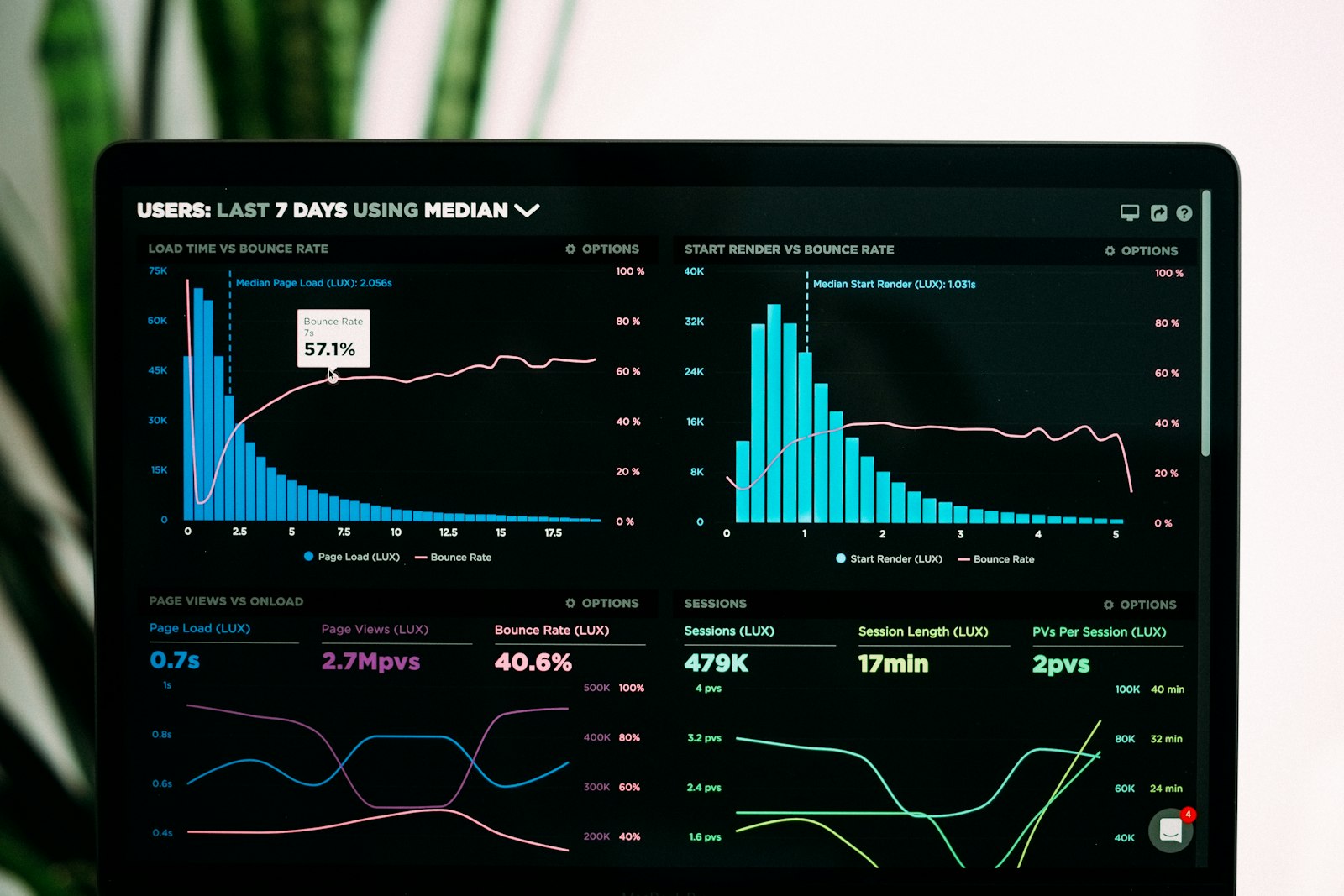
Using Activity Monitor
# Open Activity Monitor via Terminal
open -a "Activity Monitor"
Or navigate to: Applications > Utilities > Activity Monitor
Key metrics to check in the Memory tab:
| Metric | Healthy Range | Problem Indicator |
|---|---|---|
| Memory Pressure | Green | Yellow/Red |
| Memory Used | Under 80% | Over 90% |
| Swap Used | Under 1 GB | Over 4 GB |
| Compressed | Under 2 GB | Over 4 GB |
Identifying Memory-Hungry Processes
Sort by memory in Activity Monitor:
- Click the Memory tab
- Click the Memory column header to sort by RAM usage
- Look for processes consuming over 1 GB
Common culprits in macOS Tahoe:
- Safari/Safari Web Content (multiple processes)
- WindowServer
- kernel_task
- com.apple.AppleIntelligence*
- mds_stores (Spotlight)
Terminal Commands for Diagnosis

# Check memory pressure
memory_pressure

# View top memory consumers
top -o MEM -l 1 | head -20

# Check swap usage
sysctl vm.swapusage

# View Safari processes
ps aux | grep Safari

# Check WindowServer memory
ps aux | grep WindowServer | awk '{print $4, $11}'
Fix 1: Safari Memory Leak Solution

Safari in macOS Tahoe has a known issue where long-open tabs balloon in memory consumption, particularly with sites using heavy JavaScript.
Immediate Fix: Clear Safari Memory
Step 1: Close resource-heavy tabs
# Check which Safari processes use most memory
top -o MEM | grep "Safari Web Content"
Step 2: Restart Safari
- Save any work in open tabs
- Quit Safari completely (Command + Q)
- Wait 10 seconds
- Reopen Safari
Step 3: Clear Safari caches
# Clear Safari caches
rm -rf ~/Library/Caches/com.apple.Safari
rm -rf ~/Library/Safari/LocalStorage

# Clear website data (optional - will log you out of sites)
rm -rf ~/Library/Safari/Databases
Preventive Measures
1. Enable tab limiting:
- Safari > Settings > Tabs
- Consider using tab groups to organize
- Close tabs you're not actively using
2. Use Safari's built-in memory management:
Safari > Settings > Advanced > Web Features
Enable: "Prioritize web performance over compatibility"
3. Disable power-hungry extensions:
Safari > Settings > Extensions
Disable ad blockers, VPNs, and heavy extensions temporarily
4. Alternative browsers for memory-intensive sites: Consider using Chrome or Firefox for sites that cause Safari memory issues, as they handle memory differently.
Safari Memory Management Script
Create an automated cleanup script:
#!/bin/bash
# safari-memory-cleanup.sh

echo "Closing Safari..."
osascript -e 'tell application "Safari" to quit'

echo "Waiting for processes to terminate..."
sleep 5

echo "Clearing Safari caches..."
rm -rf ~/Library/Caches/com.apple.Safari/*
rm -rf ~/Library/Caches/com.apple.WebKit.WebContent/*

echo "Cleanup complete. You can now reopen Safari."
Save this script and run when Safari becomes unresponsive:
chmod +x safari-memory-cleanup.sh
./safari-memory-cleanup.sh
Fix 2: WindowServer High CPU and Memory

WindowServer is responsible for rendering everything on your screen. In macOS Tahoe, the Liquid Glass design increases its workload.
Quick Fixes
1. Reduce Transparency (Most Effective):
System Settings > Accessibility > Display > Reduce Transparency (On)2. Reduce Motion:
System Settings > Accessibility > Display > Reduce Motion (On)3. Reset WindowServer:
# Warning: This will close all windows temporarily
sudo killall WindowServer
Long-Term Solutions
1. Optimize display settings:
System Settings > Displays
- Use "Default" resolution instead of scaled
- Disable True Tone if not needed
- Reduce refresh rate to 60Hz (if using ProMotion display)
2. Minimize desktop widgets:
- Remove or reduce desktop widgets
- Use simple, static wallpapers instead of dynamic ones
3. Close unnecessary windows:
- Use fewer virtual desktops (Spaces)
- Close apps you're not using
- Minimize windows instead of leaving them visible
Monitor WindowServer Health
# Check WindowServer CPU usage
top -l 1 | grep WindowServer

# View WindowServer connections
sudo fs_usage WindowServer | head -100
Fix 3: System-Wide Memory Optimization
Clear System Caches
# Clear user caches (safe)
rm -rf ~/Library/Caches/*

# Clear system caches (requires restart)
sudo rm -rf /Library/Caches/*

# Purge memory (frees inactive memory)
sudo purge
Manage Swap Usage
Heavy swap usage indicates memory pressure. To optimize:
1. Close memory-heavy applications:
# Find top memory consumers
ps aux --sort=-%mem | head -10
2. Restart your Mac: A restart clears swap and resets memory allocation.
3. Check for runaway processes:
# Find processes using excessive memory
ps aux | awk '{print $4 " " $11}' | sort -rn | head -20
Disable Memory-Intensive Features
Apple Intelligence background processes:
System Settings > Apple Intelligence & Siri
Disable features you don't use:
- Writing Tools suggestions
- Genmoji
- Image Playground
Spotlight indexing optimization:
# Check Spotlight status
mdutil -s /

# Temporarily disable indexing (use cautiously)
sudo mdutil -i off /

# Re-enable when ready
sudo mdutil -i on /
Fix 4: Finder Freezing Issues

Many users report Finder freezing when WindowServer grabs CPU resources.
Restart Finder
# Method 1: Force quit and relaunch
killall Finder

# Method 2: From Dock
# Option+Right-click on Finder icon > Relaunch
Optimize Finder Performance
1. Disable icon previews:
Finder > Settings > Advanced
Uncheck: "Show icon preview"
2. Reduce Finder window complexity:
Finder > View > Hide Preview
Finder > View > as List (instead of Icons or Gallery)
3. Clear Finder caches:
rm -rf ~/Library/Caches/com.apple.finder
rm -rf ~/Library/Preferences/com.apple.finder.plist
killall Finder
4. Reset Finder preferences:
# Backup first
cp ~/Library/Preferences/com.apple.finder.plist ~/Desktop/finder-backup.plist

# Reset
defaults delete com.apple.finder
killall Finder
Fix 5: Electron App Memory Issues
Electron apps (VSCode, Slack, Discord) have known memory issues with Tahoe's Liquid Glass rendering.
Quick Fixes
1. Update all Electron apps: Check for updates that include macOS Tahoe optimizations.
2. Disable GPU acceleration in problematic apps:
For VSCode:
// settings.json
{
    "disable-hardware-acceleration": true
}
For Slack:
# Add to Slack's command line
--disable-gpu
3. Quit Electron apps when not in use: These apps often run in the background consuming memory.
Monitor Electron App Memory
# Find Electron apps by memory usage
ps aux | grep -E "Electron|Code|Slack|Discord" | awk '{sum+=$4} END {print "Total Memory: " sum "%"}'
Fix 6: FileVault Performance Impact
Some users report that FileVault (disk encryption) causes performance issues in Tahoe.
Check FileVault Status
fdesetup statusIf FileVault Causes Issues
Note: Disabling FileVault is a security trade-off. Only consider if:
- You're experiencing severe performance issues
- Your Mac doesn't leave your secure location
- You don't store sensitive data
# Disable FileVault (takes time, requires restart)
sudo fdesetup disable

# Re-enable later
sudo fdesetup enableAlternative: Wait for Apple to fix FileVault performance issues in future updates rather than disabling encryption.
Fix 7: Post-Update Maintenance
After updating to any new macOS version, indexing causes temporary performance issues.
Wait for Background Tasks
After updating, wait 24-48 hours for these processes to complete:
- Spotlight re-indexing
- Photos analysis (if iCloud Photos enabled)
- Siri and Dictation model updates
- Apple Intelligence model downloads
Monitor Background Processes
# Check if Spotlight is still indexing
mdutil -s /

# Check for heavy background processes
ps aux | grep -E "mds|photos|Siri" | grep -v grep
Force Complete Indexing
If indexing seems stuck:
# Rebuild Spotlight index
sudo mdutil -E /

# Wait for completion (may take hours)
# Check progress in System Settings > Siri & Spotlight
Preventive Maintenance Schedule
Daily
- Close unused apps and browser tabs
- Monitor Activity Monitor briefly
Weekly
# Clear user caches
rm -rf ~/Library/Caches/*

# Restart to clear memory
# (Schedule restarts if you don't do this naturally)
Monthly
# Full cache cleanup
sudo rm -rf /Library/Caches/*
rm -rf ~/Library/Caches/*

# Verify disk health
diskutil verifyVolume /

# Check for app updates
softwareupdate -l
When to Contact Apple Support
Seek professional help if:
- Memory issues persist after all troubleshooting steps
- Kernel panics occur frequently
- Hardware diagnostics show memory errors
- Performance is significantly worse than before Tahoe
Run Apple Diagnostics
- Shut down your Mac
- Apple Silicon: Press and hold power button until startup options appear
- Press and hold Command + D
- Follow the on-screen instructions
Report any error codes to Apple Support.
FAQ
Why does macOS Tahoe use more memory than Sequoia?
Liquid Glass UI requires more GPU memory for transparency effects, Apple Intelligence runs background processes for AI features, and the new Spotlight uses AI-powered indexing which consumes additional RAM.
How much RAM should I have for macOS Tahoe?
8 GB works but may feel constrained. 16 GB is recommended for comfortable daily use. 32 GB or more is ideal for professional workflows and extended usage.
Will Apple fix these memory leaks?
Apple typically addresses performance issues in point updates. macOS 26.1 improved some issues, 26.2 fixed Electron app problems, and 26.3 beta includes further stability improvements.
Is it safe to use sudo purge regularly?
Yes, sudo purge is safe and simply clears inactive memory. However, it provides only temporary relief—the memory will fill up again with normal use.
Should I disable Apple Intelligence to save memory?
If you don't use AI features, disabling them can help. However, completely disabling Apple Intelligence removes useful features. Try disabling specific features first before turning it off entirely.
Does restarting fix memory leaks permanently?
No, restarting provides temporary relief by clearing RAM and swap. The memory leaks will return with continued use until Apple patches the underlying issues.
Conclusion
Memory leaks in macOS Tahoe are a known issue that Apple is actively working to address. While waiting for permanent fixes, the solutions in this guide can significantly improve your Mac's performance:
- Manage Safari tabs aggressively and restart the browser regularly
- Reduce Transparency to lower WindowServer load
- Clear caches weekly and restart your Mac periodically
- Monitor Activity Monitor to catch runaway processes early
- Update to the latest macOS version for ongoing fixes
For most users, the combination of reducing transparency, managing browser tabs, and regular restarts provides acceptable performance until Apple delivers a comprehensive fix.
Related Resources
- macOS Tahoe System Freezing Fix Guide
- Mac Activity Monitor Complete Guide
- macOS Tahoe Electron Apps Performance Guide
- Fix Mac Running Slow Complete Guide
Last updated: December 29, 2025