macOS Tahoe 26.2 Bugs & Fixes: Complete Troubleshooting Guide 2025 - Solve Battery Drain, WiFi Issues, Electron App Lag & More
Comprehensive troubleshooting guide for macOS Tahoe 26.2 issues. Fix battery drain, WiFi disconnections, Bluetooth problems, Electron app performance bugs, Spotlight indexing, sleep/wake issues, and more with step-by-step solutions tested by the community.
macOS Tahoe 26.2 has addressed many issues from the initial release, but some bugs persist while new problems have emerged. This comprehensive troubleshooting guide covers every major issue reported by the community with tested, working solutions.
Quick Reference: Issues Fixed vs. Still Present
Before diving into solutions, here's a quick overview of what's been fixed and what remains problematic:
| Issue | Status in 26.2 | Solution Available |
|---|---|---|
| Electron app GPU lag | ✅ Fixed | Update apps |
| Battery drain | ⚠️ Mostly fixed | Settings tweaks |
| WiFi disconnections | ⚠️ Partially fixed | Multiple workarounds |
| Bluetooth at login | ❌ Not fixed | Workaround only |
| External display wake | ❌ Not fixed | Workaround only |
| Spotlight SSD writes | ⚠️ Rare | Reset indexing |
| Safari progressive lag | ⚠️ Improved | Restart workaround |
| Alarms when display asleep | ❌ Not fixed (since 13.0) | Disable sleep |
Critical Issue #1: Electron App Performance Crisis
Severity: Critical (now mostly resolved) Affected Apps: VSCode, Slack, Discord, Cursor, Notion, Figma, 1Password, Obsidian
The Problem
When macOS Tahoe first launched, Electron-based apps caused severe system-wide lag due to a conflict between the Electron framework's use of Apple's private _cornerMask API and Tahoe's new Liquid Glass rendering pipeline.
Symptoms:
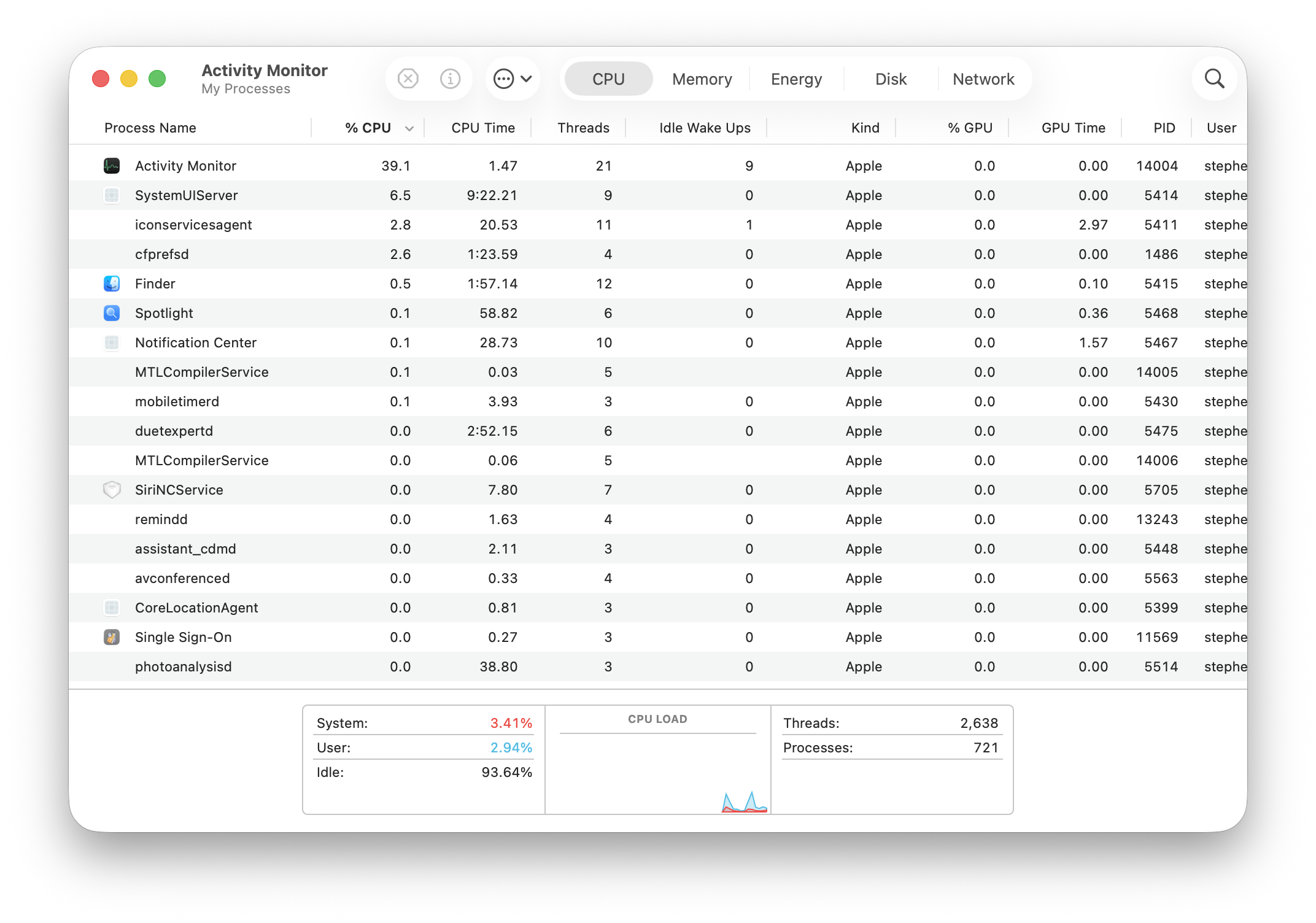
- WindowServer process consuming excessive GPU resources
- Fans running at maximum speed during light usage
- System-wide stuttering and lag
- "Your system has run out of application memory" alerts
- Battery draining rapidly even during idle
The Solution
Step 1: Identify Affected Apps
# Check if you're running Electron apps
ps aux | grep -i electron
ps aux | grep -i "Slack\|Discord\|VSCode\|Cursor\|Notion"
Step 2: Update Apps to Fixed Versions
The fix was released in Electron v38.2.0, v37.6.0, and v36.9.2. Apps that have updated:
- ✅ Claude
- ✅ Discord
- ✅ Figma
- ✅ GitHub Desktop
- ✅ MongoDB Compass
- ✅ Notion
- ✅ Obsidian
- ✅ Slack
- ✅ VSCode
Apps still potentially affected (as of December 2025):
- ⚠️ 1Password (check for update)
- ⚠️ Bitwarden
- ⚠️ Cursor
- ⚠️ Dropbox
- ⚠️ Windsurf
Step 3: Immediate Workaround (If Apps Not Updated)
System Settings → Accessibility → Display:
✓ Enable "Reduce transparency"
✓ Enable "Reduce motion"
Step 4: Verify Fix Applied
# Monitor WindowServer GPU usage
sudo powermetrics --samplers gpu_power -n 1

# Check for improved memory usage
top -o mem
Critical Issue #2: Battery Drain
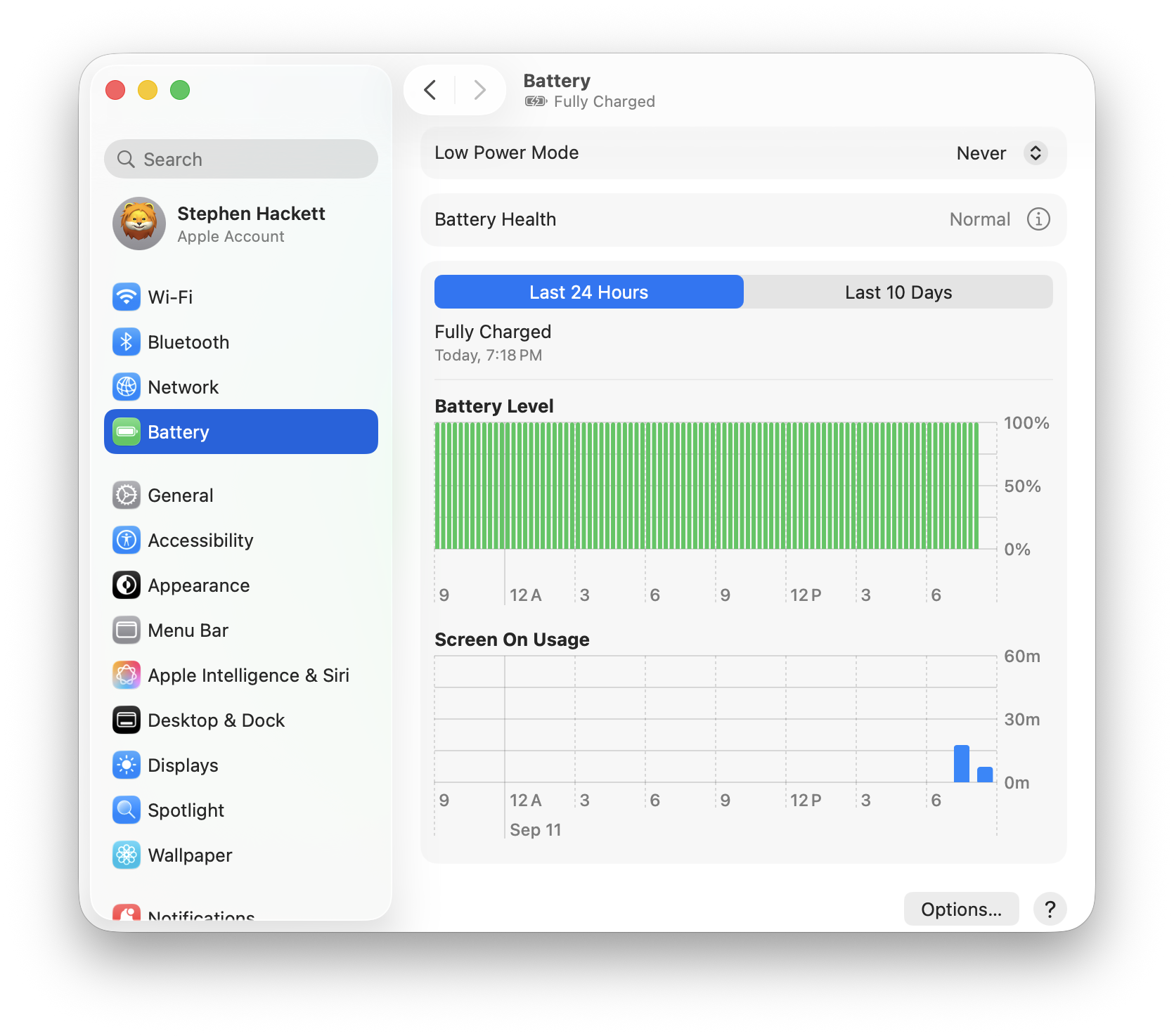
Severity: High (improved in 26.1/26.2 but still affects some users) Affected Models: MacBook Air M1-M4, MacBook Pro M1-M4
The Problem
Users reported 20-80% reduction in battery life after upgrading to Tahoe, with some experiencing drops from 12 hours to just 2 hours.
Diagnosis
# Check battery status
pmset -g batt

# View power-consuming processes
sudo powermetrics --samplers cpu_power -n 1

# Check what's preventing sleep
pmset -g assertions
Common Culprits:
corespotlightd- Spotlight indexingphotoanalysisd- Photos ML processingmds_stores- Metadata serverWindowServer- Graphics renderingmediaanalysisd- Media analysis
The Solutions
Solution 1: Wait for Indexing (First 48 Hours)
After upgrading, Spotlight and Photos need to reindex. This is normal and temporary:
- Spotlight: 24-48 hours
- Photos: Depends on library size (can take days for large libraries)
Solution 2: Disable Stage Manager
System Settings → Desktop & Dock:
✗ Disable "Stage Manager"
Users report significant battery improvement after disabling.
Solution 3: Disable Apple Intelligence Background Processing
System Settings → Apple Intelligence & Siri:
- Disable features you don't use
- Set "Processing Schedule" to "Only When Plugged In"
Solution 4: Reduce Visual Effects
System Settings → Accessibility → Display:
✓ Reduce transparency
✓ Reduce motion
Solution 5: Check for Runaway Processes
# Find CPU-intensive processes
top -o cpu

# Kill stuck process (careful!)
sudo killall [process_name]
Solution 6: Reset SMC (Apple Silicon)
# Apple Silicon Macs reset SMC automatically on restart
sudo shutdown -h now
# Wait 30 seconds
# Press power button
Critical Issue #3: WiFi Disconnections
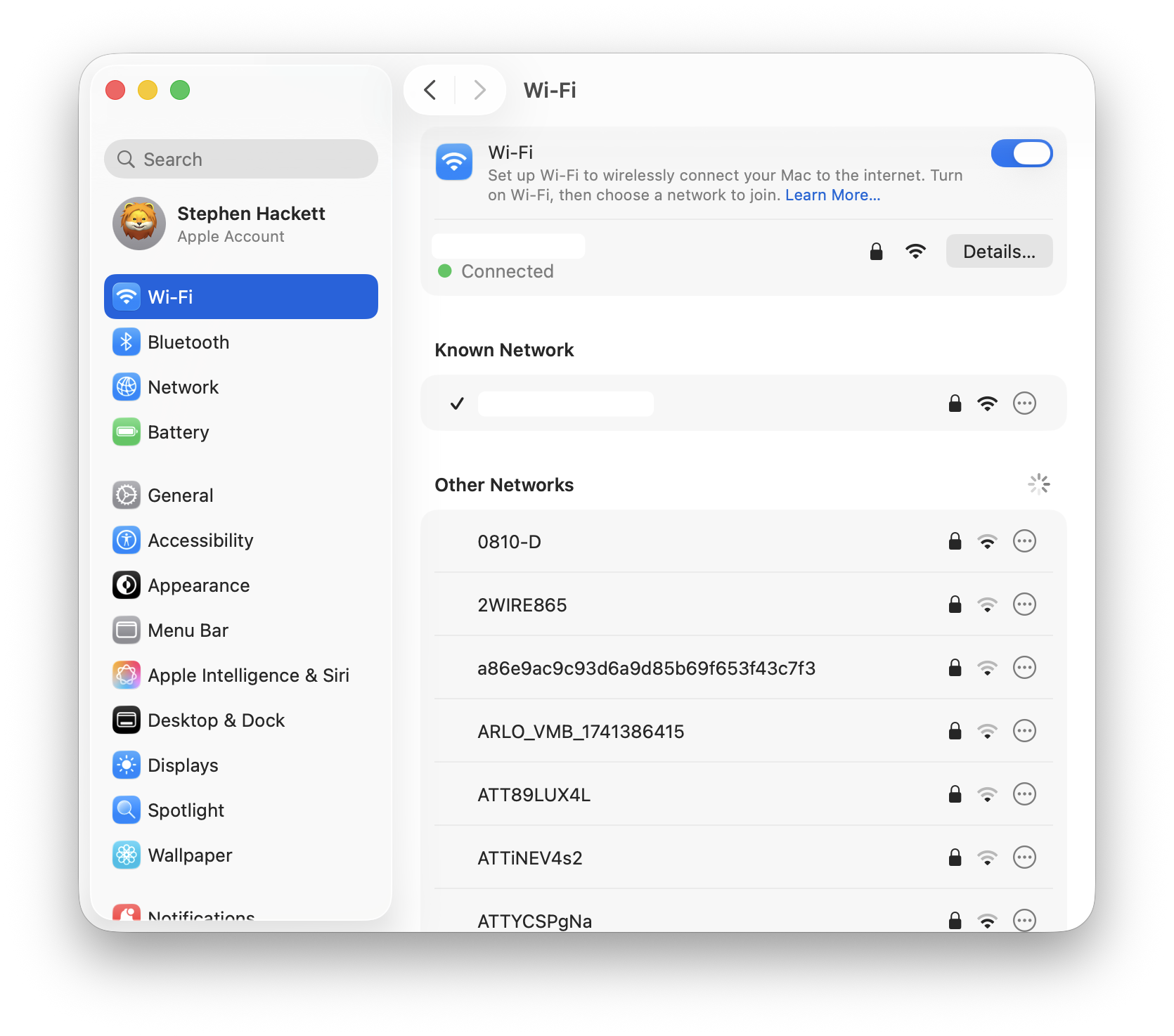
Severity: High Frequency: Very common across all Mac models
The Problem
WiFi randomly disconnects, ranging from every few minutes to days between drops. Connection shows as established but no internet access.
Diagnosis
# Check WiFi status
/System/Library/PrivateFrameworks/Apple80211.framework/Versions/Current/Resources/airport -I

# View network configuration
networksetup -getinfo Wi-Fi

# Check for interference
/System/Library/PrivateFrameworks/Apple80211.framework/Versions/Current/Resources/airport -s
The Solutions
Solution 1: Forget and Rejoin Network
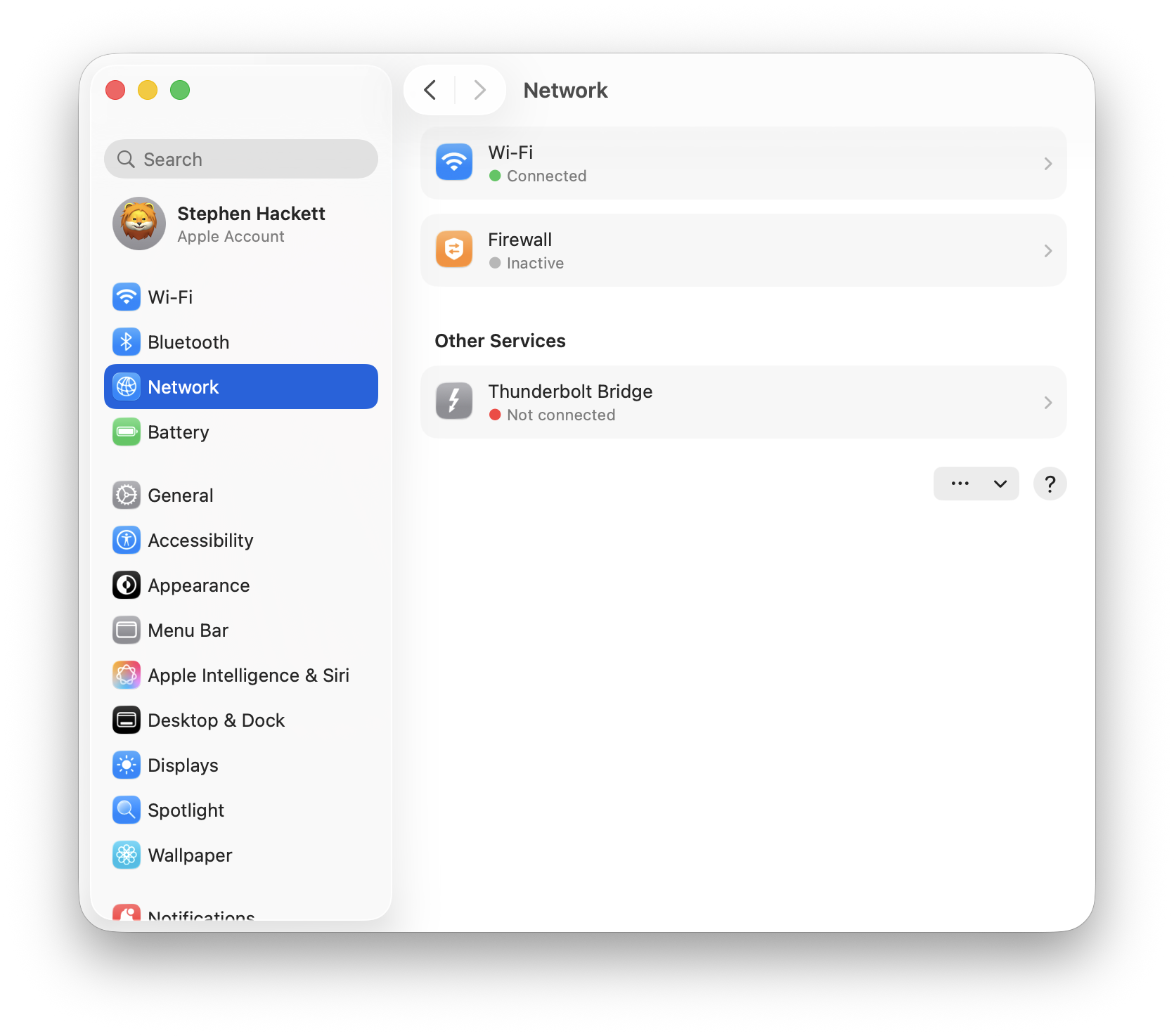
System Settings → Network → Wi-Fi:
1. Click three-dots next to your network
2. Select "Forget This Network"
3. Reconnect with password
Solution 2: Use DHCP with Manual Address
System Settings → Network → Wi-Fi → Details:
1. Select "TCP/IP" tab
2. Configure IPv4: "DHCP with manual address"
3. Enter a valid IP address for your network
Solution 3: Delete WiFi Preference Files
# Disable WiFi first!
cd /Library/Preferences/SystemConfiguration/
sudo rm com.apple.airport.preferences.plist
sudo rm NetworkInterfaces.plist
sudo rm preferences.plist
sudo shutdown -r now
Solution 4: Configure Router DHCP Reservation
- Access router admin panel
- Find DHCP settings
- Add reservation for Mac's MAC address
- Assign permanent IP address
Solution 5: Reset Network Configuration
# Completely reset network
sudo /System/Library/PrivateFrameworks/Apple80211.framework/Versions/Current/Resources/airport -z
Critical Issue #4: Bluetooth Problems
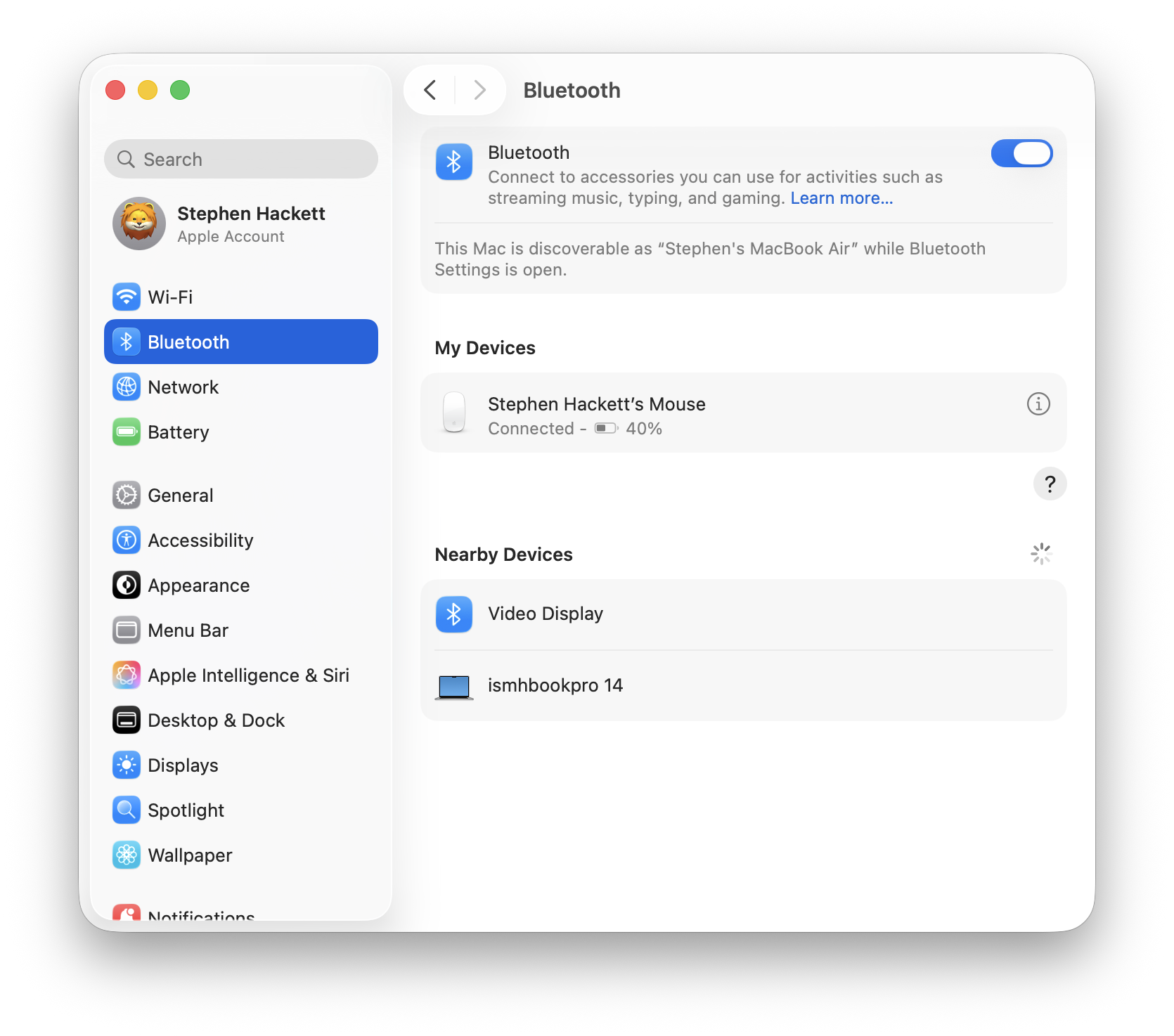
Severity: High Affected: Third-party keyboards, mice, AirPods, audio devices
The Problem
Bluetooth devices won't connect at login screen, disconnect after wake from sleep, or experience audio lag and distortion.
Diagnosis
# Check Bluetooth status
system_profiler SPBluetoothDataType

# View connected devices
defaults read /Library/Preferences/com.apple.Bluetooth
The Solutions
Solution 1: Reset Bluetooth Module
# Kill and restart Bluetooth daemon
sudo pkill bluetoothd
# Wait 10 seconds, then reconnect devices
Solution 2: Forget and Re-pair Device
System Settings → Bluetooth:
1. Click info icon next to device
2. Select "Forget This Device"
3. Put device in pairing mode
4. Reconnect
Solution 3: Delete Bluetooth Preference Files
# Remove Bluetooth preferences
sudo rm /Library/Preferences/com.apple.Bluetooth.plist

# Restart
sudo shutdown -r now
Solution 4: FileVault Workaround (Login Screen Issue)
The login screen Bluetooth issue is related to FileVault security:
System Settings → Privacy & Security → FileVault:
- Consider disabling if login Bluetooth is critical
- Or use wired keyboard for login, then switch to Bluetooth
Solution 5: Force Bluetooth Controller Reset
# This requires reboot
sudo defaults delete /Library/Preferences/com.apple.Bluetooth
sudo rm -rf /Library/Preferences/com.apple.Bluetooth.plist
sudo shutdown -r now
Critical Issue #5: External Display Wake Problems
Severity: High Affected: Mac mini M4, Mac Studio, MacBooks with external monitors
The Problem
External monitors don't wake after sleep. Only the main display reconnects, extended displays show "no input." Unplugging and replugging cables is required.
Diagnosis
# Check display configuration
system_profiler SPDisplaysDataType

# View power management settings
pmset -g
The Solutions
Solution 1: Disable Display Sleep
System Settings → Displays → Advanced:
✗ Uncheck "Prevent automatic sleeping on power adapter when display is off"

System Settings → Battery → Options:
✓ Enable "Wake for network access"
Solution 2: Reset NVRAM
# Clear NVRAM
sudo nvram -c
sudo shutdown -r now
Solution 3: Modify Power Management
# Disable sleep
sudo pmset -a disablesleep 1
# Re-enable sleep
sudo pmset -a disablesleep 0
# Restart
sudo shutdown -r now
Solution 4: Use Hot Corners Instead of Sleep
System Settings → Desktop & Dock → Hot Corners:
- Set a corner to "Put Display to Sleep"
- Use this instead of lid close or sleep command
Solution 5: Cable Quality Check
- Ensure using Apple-certified Thunderbolt/USB-C cables
- Try different ports on your Mac
- Test with different cable (even premium cables fail)
Issue #6: Spotlight Indexing Problems
Severity: Medium-High (can cause hardware damage if extreme) Symptoms: High CPU, SSD write activity, system overheating
The Problem
Spotlight's corespotlightd process writes excessive data to SSD, potentially causing hardware degradation on non-replaceable storage.
Diagnosis
# Check Spotlight status
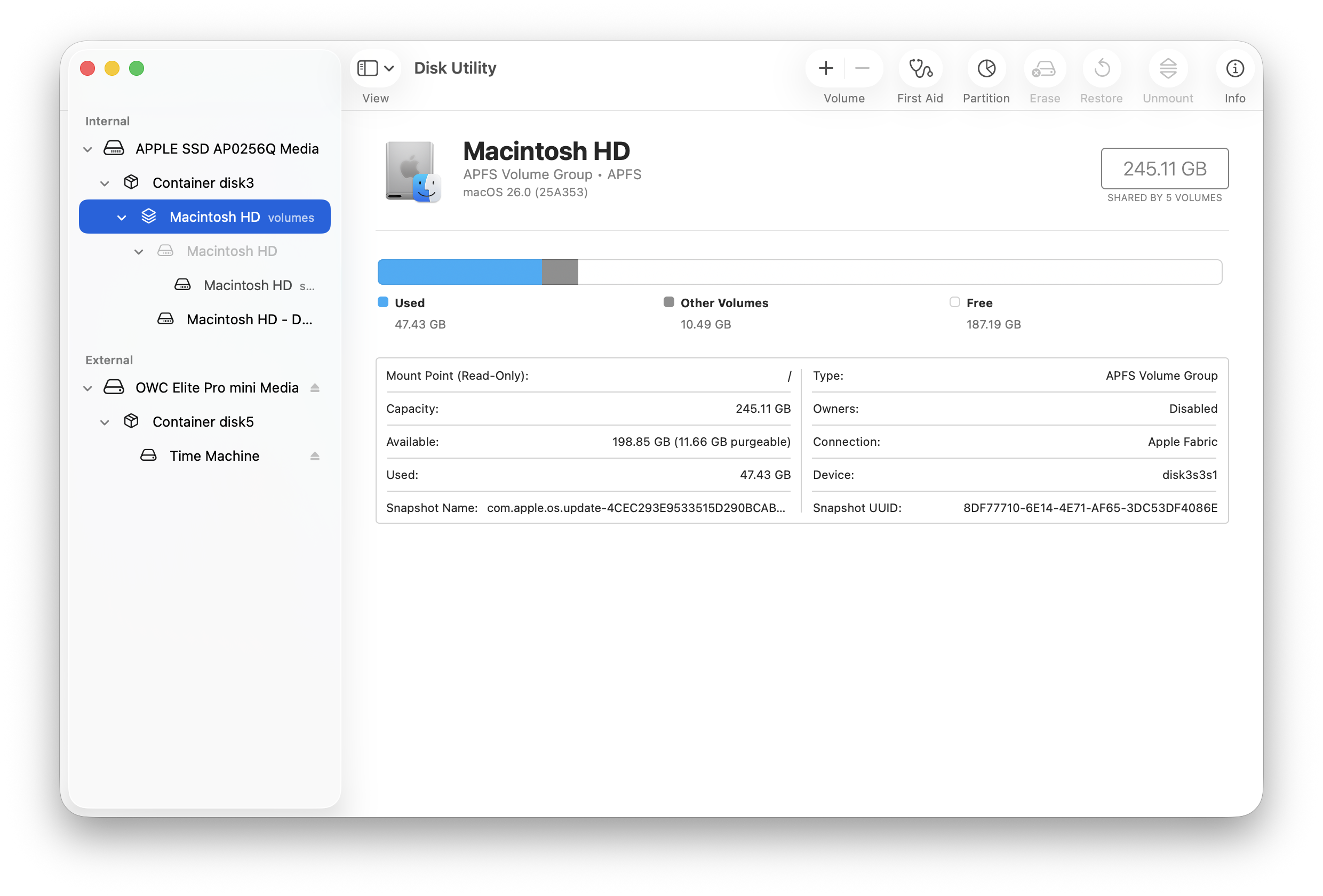
sudo mdutil -s /

# View indexing activity
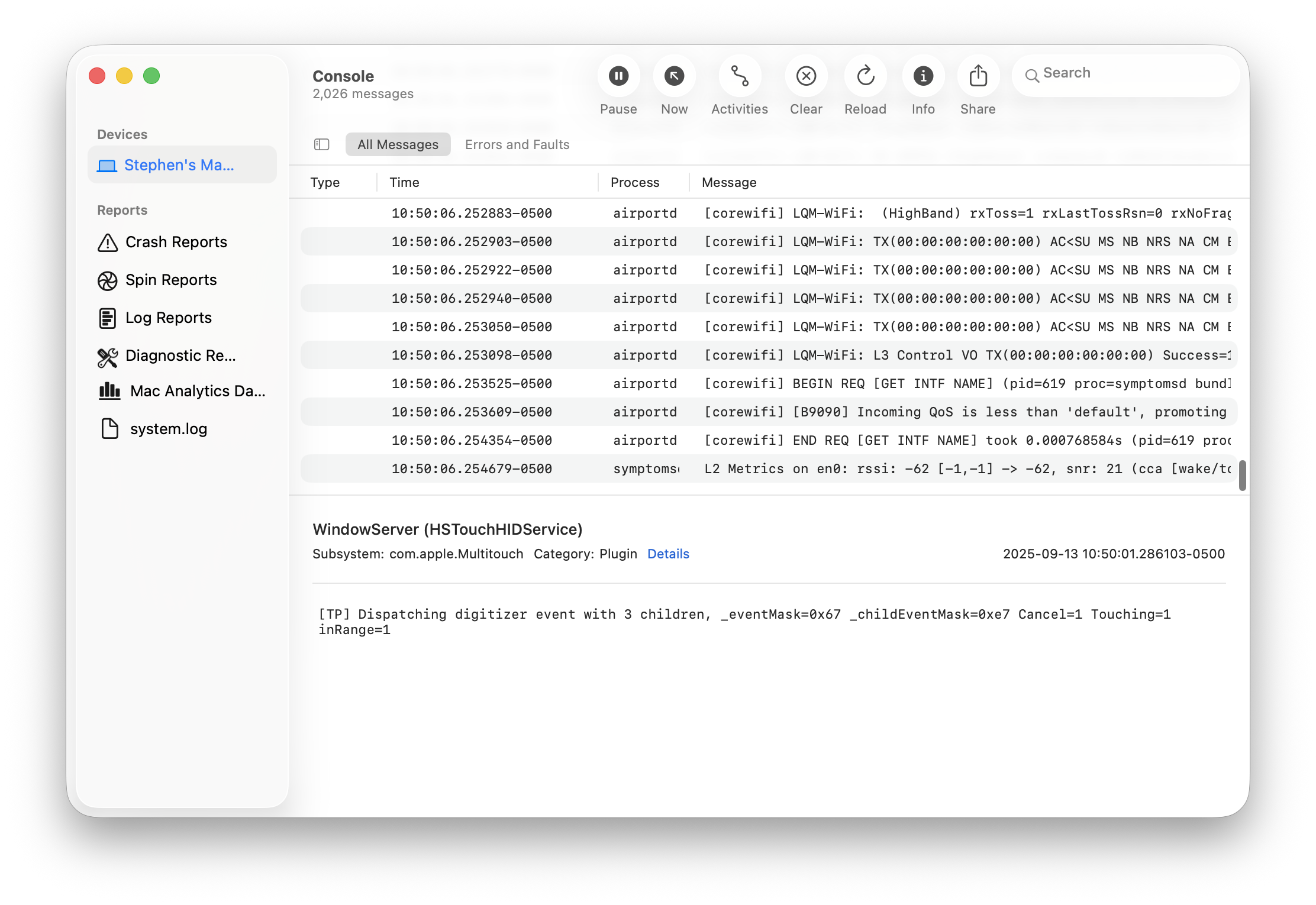
sudo fs_usage -w -f filesys mdworker mds corespotlightd

# Check SSD writes
iostat -w 1
The Solutions
Solution 1: Force Reindex Spotlight
# Turn off Spotlight
sudo mdutil -a -i off

# Delete index
sudo rm -rf /.Spotlight-V100

# Delete CoreSpotlight metadata
rm -rf ~/Library/Metadata/CoreSpotlight

# Turn back on
sudo mdutil -a -i on
Solution 2: Add Folders to Privacy Exclusions
System Settings → Spotlight → Search Privacy:
1. Click "+"
2. Add large folders you don't need searched
   - ~/Library/Caches
   - ~/Downloads (if large)
   - External drives (if not needed in search)
Solution 3: GUI Reset Method
System Settings → Spotlight → Search Privacy:
1. Add your entire hard drive
2. Restart Mac
3. Remove the hard drive from privacy list
4. Let Spotlight rebuild (may take 24+ hours)
Solution 4: Identify Third-Party Conflicts
# Check for known problematic apps
ls ~/Library/Application\ Support/ | grep -i "logi\|adobe\|dropbox"
Known conflicts: Logi Options+, Adobe Creative Cloud
Issue #7: Safari Performance Degradation
Severity: Medium Symptoms: Progressive lag, white page flashes, high memory usage
The Problem
Safari becomes increasingly laggy over time, requiring restarts to resolve.
Diagnosis
# Check Safari memory usage
ps aux | grep Safari

# View WebKit processes
ps aux | grep -i webkit
The Solutions
Solution 1: Clear Safari Cache
Safari → Settings → Privacy:
- Click "Manage Website Data"
- Click "Remove All"

Safari → Settings → Advanced:
- Enable "Show features for web developers"
Safari → Develop → Empty Caches
Solution 2: Disable Extensions Temporarily
Safari → Settings → Extensions:
- Uncheck all extensions
- Re-enable one by one to find culprit
Solution 3: Reset Safari Completely
# Close Safari first
killall Safari

# Remove preferences
rm ~/Library/Preferences/com.apple.Safari.plist
rm ~/Library/Safari/*

# Remove caches
rm -rf ~/Library/Caches/com.apple.Safari
rm -rf ~/Library/Caches/com.apple.WebKit*
Solution 4: Kill LoginWindow (Drastic)
# This will log you out - save work first!
sudo killall loginwindow
Issue #8: Mail App Problems
Severity: Medium Symptoms: App not responding, accounts won't load, can't send emails
The Problem
Mail app freezes, shows spinning beachball, or fails to sync accounts.
The Solutions
Solution 1: Fix Spell Check Bug (Most Effective!)
Mail → Settings → Composing:
- Change "Check spelling" to "Never"
User confirmation:
"I have been at my wits end for two weeks trying to sort this out. The spell check setting to NEVER sorted it."
Solution 2: Rebuild Mail Database
# Close Mail first
killall Mail

# Remove envelope index
rm ~/Library/Mail/V*/MailData/Envelope\ Index*

# Open Mail and let it rebuild
Solution 3: Reset Mail Preferences
rm ~/Library/Containers/com.apple.mail/Data/Library/Preferences/com.apple.mail.plistSolution 4: Re-add Accounts
System Settings → Internet Accounts:
1. Remove problematic email account
2. Re-add account
Issue #9: Memory Leaks
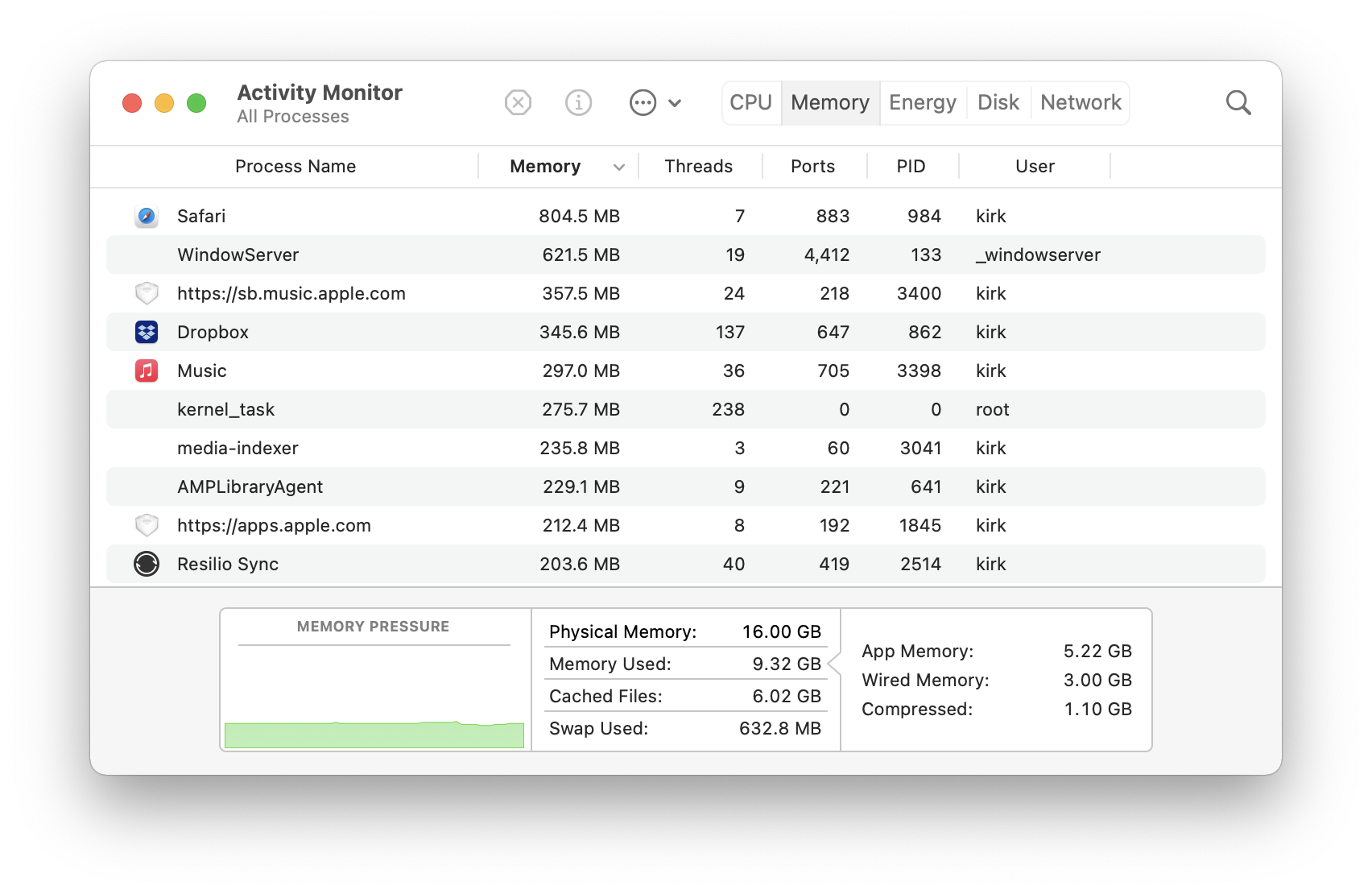
Severity: Medium-High Affected Processes: WindowServer, mediaanalysisd, Safari, contextstore, mds_stores
The Problem
Processes consume excessive RAM (13GB-40GB+), causing system freezes and crashes.
Diagnosis
# Find memory-intensive processes
ps aux --sort=-%mem | head -10

# Check memory pressure
memory_pressure

# View swap usage
sysctl vm.swapusage
The Solutions
Solution 1: Force Quit Paused Apps
Force Quit menu (Cmd+Option+Esc):
- Select apps marked "(Not Responding)"
- Click "Force Quit"
Solution 2: Clear Icon Cache (IconServicesAgent leaks)
sudo rm -rf /Library/Caches/com.apple.iconservices.store
killall Dock
Solution 3: Regular Maintenance Routine
# Create cleanup script
#!/bin/bash
# tahoe-cleanup.sh

# Clear system caches
sudo rm -rf /Library/Caches/*
rm -rf ~/Library/Caches/*

# Reset CoreSpotlight
rm -rf ~/Library/Metadata/CoreSpotlight/*

# Clear GPU shader cache
rm -rf ~/Library/Caches/com.apple.metal/*

# Reset Dock
killall Dock

echo "Cleanup complete. Consider restarting."
Solution 4: Increase Virtual Memory macOS manages virtual memory automatically, but you can ensure sufficient swap space:
- Keep at least 15% of SSD free
- Consider larger SSD if frequently running low
Issue #10: First-Party App Bugs
Freeform: Text Duplication Bug
Problem: Typing period or slash duplicates entire paragraphs.
Workaround:
- Use Notes app instead
- Wait for Apple fix
- Report via Feedback Assistant
Journal: Cursor Position Bug
Problem: Text cursor jumps, paragraphs disappear.
Workaround:
- Keep entries short
- Save frequently
- Use alternative journaling app
FaceTime: Call History Issues
Problem: Call history not transferred after upgrade.
Solution:
- Sign out of iCloud
- Wait 5 minutes
- Sign back in
- Allow sync to complete
System Recovery Procedures
Safe Mode Boot
Apple Silicon:
- Shut down completely
- Press and hold power button until "Loading startup options" appears
- Select your disk, hold Shift
- Click "Continue in Safe Mode"
What Safe Mode Does:
- Clears system caches
- Runs disk repair
- Loads only essential extensions
- Disables login items
Recovery Mode
Apple Silicon:
- Shut down completely
- Press and hold power button for 10+ seconds
- Continue holding until "Options" appears
- Select Options → Continue
Available Tools:
- Disk Utility (First Aid)
- Reinstall macOS
- Terminal
- Startup Security Utility
Complete Performance Reset Script
#!/bin/bash
# tahoe-performance-reset.sh
# Run with: sudo ./tahoe-performance-reset.sh

echo "=== macOS Tahoe Performance Reset ==="
echo "This will clear caches and reset services."
echo "Press Enter to continue or Ctrl+C to cancel..."
read

# Clear CoreSpotlight
echo "Clearing Spotlight cache..."
rm -rf ~/Library/Metadata/CoreSpotlight/*

# Clear system caches
echo "Clearing system caches..."
sudo rm -rf /Library/Caches/*
rm -rf ~/Library/Caches/*

# Reset Bluetooth
echo "Resetting Bluetooth..."
sudo pkill bluetoothd 2>/dev/null

# Reset Audio
echo "Resetting Core Audio..."
sudo killall coreaudiod 2>/dev/null

# Reset Dock
echo "Resetting Dock..."
killall Dock

# Reset WindowServer (will flash screen)
echo "Resetting WindowServer..."
sudo killall -HUP WindowServer 2>/dev/null

# Rebuild font cache
echo "Rebuilding font cache..."
sudo atsutil databases -remove 2>/dev/null

# Clear GPU cache
echo "Clearing GPU shader cache..."
rm -rf ~/Library/Caches/com.apple.metal/*

# Repair permissions
echo "Repairing permissions..."
diskutil resetUserPermissions / $(id -u)

echo ""
echo "=== Reset Complete ==="
echo "Please restart your Mac for changes to take effect."
echo "Restart now? (y/n)"
read restart

if [ "$restart" = "y" ]; then
    sudo shutdown -r now
fi
When to Consider Downgrading
If issues persist despite all troubleshooting, you may need to downgrade to macOS Sequoia.
Consider Downgrading If:
- Critical work applications don't function
- Multiple hardware issues (display, Bluetooth, WiFi)
- Severe performance degradation affecting productivity
- Stability is more important than new features
Downgrade Guide: See our complete guide to downgrading from Tahoe to Sequoia.
Bug Severity Quick Reference
Critical (Update/Fix Immediately)
| Bug | Solution | Time to Fix |
|---|---|---|
| Electron GPU lag | Update apps | 5-30 min |
| Security vulnerabilities | Update to 26.2 | 30-60 min |
High (Affects Daily Use)
| Bug | Solution | Time to Fix |
|---|---|---|
| Battery drain | Settings + wait | 1-48 hours |
| WiFi dropping | Reset preferences | 15-30 min |
| Bluetooth issues | Reset + re-pair | 15-30 min |
Medium (Workarounds Available)
| Bug | Solution | Time to Fix |
|---|---|---|
| Mail freeze | Disable spell check | 2 min |
| Safari lag | Clear cache/restart | 5-10 min |
| Spotlight CPU | Reindex | 24-48 hours |
Low (Cosmetic/Minor)
| Bug | Solution | Time to Fix |
|---|---|---|
| UI glitches | killall Dock | 5 seconds |
| Wallpaper quality | Use Apple wallpapers | 2 min |
Conclusion: macOS Tahoe 26.2 Stability Assessment
Overall Stability: 6/10 (improved from 3/10 at launch)
macOS Tahoe 26.2 has resolved the most critical bugs, particularly the Electron app performance crisis and severe battery drain issues. However, external display wake problems, Bluetooth login issues, and some first-party app bugs remain unresolved.
For Most Users: Tahoe 26.2 is now stable enough for daily use with proper optimization.
For Power Users: Some workflows may still be affected. Consider waiting for 26.3 (expected January 2026).
For Intel Mac Users: This is the final supported macOS version. Weigh upgrade benefits against potential issues.
Need more help? Check our complete macOS Tahoe feature guide or explore Mac keyboard shortcuts to boost your productivity.