macOS Tahoe Sleep Wake Issues: Complete Fix Guide for Black Screen, Mac Not Waking, and Display Problems in 2026

Fix macOS Tahoe sleep and wake issues with this comprehensive guide. Solutions for Mac not waking from sleep, black screen problems, external display failures, and power management fixes using pmset commands and system settings.
Sleep and wake issues are among the most frustrating problems affecting macOS Tahoe users. From Macs that won't wake from sleep to black screens and external display failures, these issues can significantly disrupt your workflow. This comprehensive guide provides proven solutions for all types of sleep/wake problems on macOS Tahoe.
Executive Summary: Sleep/Wake Issues on macOS Tahoe
Common Problems:
- Mac won't wake from sleep (black screen)
- External displays not detecting after wake
- System logged out after sleep
- Wake taking 30+ seconds
- Peripherals not reconnecting after wake
Primary Causes:
- Power management conflicts with macOS Tahoe
- Bluetooth device wake conflicts
- Third-party app interference
- External display driver issues
Most Effective Fix: Reset power management settings with pmset commands
Understanding Sleep/Wake Problems on macOS Tahoe
Symptoms of Sleep/Wake Issues
Display Problems:
- Screen remains black after wake attempt
- Caps Lock LED works but no display
- External monitors don't reconnect
- Display flickering after wake
- Wrong resolution after wake
System Problems:
- Mac returns to login screen (logged out)
- Wake takes 30+ seconds
- System completely unresponsive
- Requires hard restart (power button)
- Battery draining during sleep
Peripheral Problems:
- Bluetooth devices won't reconnect
- USB devices not recognized
- Audio output switched to internal
- Keyboard/mouse lag after wake
Why macOS Tahoe Has More Sleep Issues
macOS Tahoe introduced changes that affect sleep behavior:
- Liquid Glass Rendering: GPU must reinitialize visual effects
- Apple Intelligence: Background processes may prevent proper sleep
- Enhanced Power Management: New sleep states can conflict with peripherals
- Thunderbolt 5 Support: New protocol handling affects wake
Proven Solutions for Sleep/Wake Issues
Solution 1: Reset Power Management with pmset

The most effective solution is resetting power management:
Complete Power Management Reset:
# Reset all power management settings to defaults
sudo pmset -a restoredefaults

# Restart Mac
sudo reboot
Targeted Power Management Fixes:
# Disable features that can interfere with wake
sudo pmset -a disablesleep 0
sudo pmset -a powernap 0
sudo pmset -a proximitywake 0
sudo pmset -a tcpkeepalive 0

# For external displays, disable GPU switching
sudo pmset -a gpuswitch 0

# Apply and restart
sudo pmset -g  # View current settings
sudo reboot
Explanation of Key Settings:
| Setting | Function | Recommended |
|---|---|---|
| powernap | Background updates during sleep | 0 (off) |
| proximitywake | Wake when iPhone/Apple Watch nearby | 0 (off) |
| tcpkeepalive | Network connections during sleep | 0 (off) |
| gpuswitch | Automatic graphics switching | 0 (off) for external displays |
| standby | Deep sleep mode | 1 (on) |
Solution 2: Disable Power Nap and Related Features

Via System Settings:
- Open System Settings > Battery (MacBooks) or Energy Saver (desktops)
- Click Options at the bottom
- Disable these settings:
- Enable Power Nap
- Wake for network access
- Optimize video streaming while on battery
For MacBooks specifically:
- Open System Settings > Battery
- Click Battery in sidebar
- Disable Optimize video streaming while on battery
- Click Power Adapter
- Disable Wake for network access
Solution 3: Fix Bluetooth Wake Issues
Bluetooth devices can prevent proper wake:
Disable Bluetooth Wake:
- Open System Settings > Bluetooth
- Click Advanced (bottom right)
- Disable Allow Bluetooth devices to wake this computer
Reset Bluetooth Module:
- Hold Shift + Option and click Bluetooth icon in menu bar
- Select Reset the Bluetooth module
- Restart your Mac
Delete Bluetooth Preferences (Nuclear Option):
# Remove Bluetooth preferences
sudo rm /Library/Preferences/com.apple.Bluetooth.plist
sudo rm ~/Library/Preferences/com.apple.Bluetooth.plist

# Restart Bluetooth service
sudo killall bluetoothd

# Restart Mac
sudo reboot
Note: You'll need to re-pair all Bluetooth devices after this.
Solution 4: Troubleshoot Third-Party Apps
Some apps prevent proper sleep/wake:
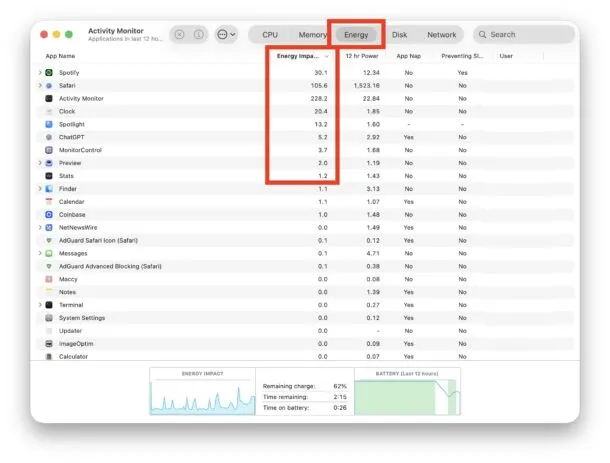
Identify Problematic Apps:
- Open Activity Monitor
- Click Energy tab
- Sort by Preventing Sleep
- Note any apps listed as "Yes"
Common Problematic Apps:
- WhatsApp Desktop
- Spotify
- Discord
- Microsoft Teams
- Backup software
- Cloud sync services
Solution - Quit Before Sleep:
For identified problem apps, quit them before putting Mac to sleep:
# Create a script to run before sleep
# Save as ~/sleep_prep.sh

#!/bin/bash
killall WhatsApp
killall Spotify
killall Discord
Make it executable:
chmod +x ~/sleep_prep.shSolution 5: Fix External Display Wake Issues
External displays often fail to wake properly:
Immediate Fixes:
- Press a key multiple times after opening lid
- Hold Option and click Detect Displays in System Settings > Displays
- Disconnect and reconnect display cable
- Close and reopen MacBook lid
Permanent Fixes:
Disable automatic GPU switching:
sudo pmset -a gpuswitch 0Prevent display sleep:
- Open System Settings > Displays
- Set Turn display off after to Never (when plugged in)
For Thunderbolt Displays:
- Use Thunderbolt port closest to power port
- Use Apple or certified Thunderbolt cables
- Avoid adapters if possible
Solution 6: Reset NVRAM/PRAM

NVRAM stores sleep-related settings:
For Apple Silicon Macs (M1-M4):
- Shut down Mac completely
- Disconnect power (MacBooks) or wait 30 seconds (desktops)
- Reconnect power and boot
For Intel Macs:
- Shut down Mac
- Turn on and immediately hold Option + Command + P + R
- Hold for 20 seconds
- Release and let Mac boot normally
Solution 7: Boot in Safe Mode
Safe Mode can resolve sleep issues:
Apple Silicon (M1-M4):
- Shut down Mac
- Press and hold power button until "Loading startup options" appears
- Select your volume
- Hold Shift and click "Continue in Safe Mode"
Intel Macs:
- Shut down Mac
- Turn on and immediately hold Shift
- Release when you see login screen
In Safe Mode:
- Let Mac sit for 5 minutes
- Put Mac to sleep and wake it
- If it works, restart normally
- The boot process clears caches that may cause issues
Solution 8: Check for Scheduled Wake Events
Hidden wake events can cause problems:
List all wake events:
pmset -g schedRemove scheduled events:
# Cancel all scheduled events
sudo pmset schedule cancelall
Check wake reasons:
# See what woke your Mac last
log show --last 24h | grep "Wake reason"
Common Wake Reasons:
EC.LidOpen- Lid openedOHC- USB deviceEHC- USB deviceBT- BluetoothGLAN- Network wakeRTC- Scheduled event
Solution 9: Reinstall macOS (Last Resort)
If all else fails:
Keep Data:
- Restart and hold Command + R (Intel) or power button (Apple Silicon)
- Select Reinstall macOS
- Follow prompts (keeps data)
Clean Install:
- Back up all data first
- Erase drive in Disk Utility
- Reinstall macOS fresh
- Restore data from backup
Specific Mac Model Fixes
M4 MacBook Pro Wake Issues
Specific to M4:
- Update to macOS Tahoe 26.2 or later
- Disable ProMotion during troubleshooting (reduces GPU complexity)
- Use native resolution instead of scaled
iMac 24-inch Wake Issues
Specific to iMac:
- Check Bluetooth keyboard batteries
- Use wired keyboard for troubleshooting
- Disable Wake for Bluetooth devices
Mac mini Wake Issues
Specific to Mac mini:
- Connected peripherals may prevent sleep
- Disable USB wake in pmset
- Use monitor's power button to wake display
Monitoring Sleep Health
Check Sleep Logs
View sleep assertions:
pmset -g assertionsCheck sleep log:
pmset -g log | grep -i "sleep\|wake" | tail -50Expected vs Problematic Sleep Behavior
| Behavior | Normal | Problematic |
|---|---|---|
| Time to sleep | <30 seconds | >2 minutes |
| Time to wake | <3 seconds | >30 seconds |
| Display wake | Immediate | >5 seconds or black |
| Peripherals | Reconnect within 5s | Don't reconnect |
| Battery during sleep | <1%/hour | >5%/hour |
Prevention Tips
Maintain Healthy Sleep
1. Regular Maintenance:
- Restart Mac weekly
- Keep macOS updated
- Monitor for problematic apps
2. Before Sleep:
- Quit known problematic apps
- Eject external drives properly
- Let active downloads complete
3. Hardware Care:
- Use quality cables
- Avoid cheap USB hubs
- Keep Thunderbolt ports clean
4. Settings Optimization:
- Disable Power Nap if issues occur
- Disable Bluetooth wake
- Use consistent external display setup
When to Contact Apple Support
Contact Apple Support if:
- Issues persist after all troubleshooting
- Hardware symptoms appear (clicking, overheating)
- System never wakes without hard restart
- Battery health significantly degraded
- Under warranty (AppleCare+ covers this)
Before Contacting:
- Document all troubleshooting attempted
- Note specific wake failure patterns
- Check pmset logs for errors
- Know your macOS version and Mac model
Community Success Reports
What's Working for Users:
"pmset restoredefaults fixed my M4 MacBook Pro instantly. Was a one-command fix." - Reddit r/MacOS
"Disabling Power Nap solved my external display wake issues after weeks of frustration." - MacRumors Forums
"It was WhatsApp Desktop causing all my sleep issues. Quitting it before sleep = problem solved." - Apple Community
Success Rate by Solution:
| Solution | Success Rate | Complexity |
|---|---|---|
| pmset reset | 70% | Easy |
| Disable Power Nap | 60% | Easy |
| Bluetooth reset | 50% | Easy |
| Quit problem apps | 80% (if applicable) | Easy |
| NVRAM reset | 40% | Easy |
| Safe Mode boot | 45% | Easy |
| macOS reinstall | 90% | Complex |
Conclusion
Sleep/wake issues on macOS Tahoe are frustrating but usually fixable through systematic troubleshooting. The most effective approach is:
- Start simple: Reset power management with pmset
- Eliminate variables: Disable Power Nap and Bluetooth wake
- Identify culprits: Check Activity Monitor for problem apps
- Hardware check: Verify cables and connections
- Last resort: Safe Mode or macOS reinstall
Quick Reference:
# Primary fix command
sudo pmset -a restoredefaults && sudo reboot

# Disable common problem features
sudo pmset -a powernap 0
sudo pmset -a proximitywake 0
Key Takeaways:
- Power management reset fixes most issues
- Power Nap is a common culprit
- Third-party apps can prevent sleep/wake
- External displays need specific fixes
- Regular restarts prevent accumulation of issues
For related macOS Tahoe issues, see our battery optimization guide and comprehensive troubleshooting guide.